introduction . . . .xv
Getting Started with Android Programming
chApter 1 . . . . 1 Activities and Intents
chApter 2 . . . . 27 Getting to Know the Android User Interface
chApter 3 . . . . 81 Designing Your User Interface Using Views
chApter 4 . . . . 125 Displaying Pictures and Menus with Views
chApter 5 . . . . 169 Data Persistence
chApter 6 . . . . 203 Content Providers
chApter 7 . . . . 237 Messaging and Networking
chApter 8 . . . . 263 Location-Based Services
chApter 9 . . . . 301 Developing Android Services
chApter 10 . . . . 331 Publishing Android Applications
chApter 11 . . . . 359 Using Eclipse for Android Development
Appendix A . . . . 381 Using the Android Emulator
Appendix B . . . . 393 Answers to Exercises
Appendix c . . . .411
Android™ Application development
10475 Crosspoint Boulevard Indianapolis, IN 46256 www.wiley.com
Copyright © 2011 by Wiley Publishing, Inc., Indianapolis, Indiana
Published simultaneously in Canada
ISBN: 978-1-118-01711-1 ISBN: 978-1-118-08729-9 (ebk) ISBN: 978-1-118-08749-7 (ebk) ISBN: 978-1-118-08780-0 (ebk)
Manufactured in the United States of America
10 9 8 7 6 5 4 3 2 1
No part of this publication may be reproduced, stored in a retrieval system or transmitted in any form or by any means, electronic, mechanical, photocopying, recording, scanning or otherwise, except as permitted under Sections 107 or 108 of the 1976 United States Copyright Act, without either the prior written permission of the Publisher, or authorization through payment of the appropriate per-copy fee to the Copyright Clearance Center, 222 Rosewood Drive, Danvers, MA 01923, (978) 750-8400, fax (978) 646-8600. Requests to the Publisher for permission should be addressed to the Permissions Department, John Wiley & Sons, Inc., 111 River Street, Hoboken, NJ 07030, (201) 748-6011, fax (201) 748-6008, or online at http://www.wiley.com/go/permissions.
Limit of Liability/Disclaimer of Warranty: The publisher and the author make no representations or warranties with respect to the accuracy or completeness of the contents of this work and specifically disclaim all warranties, including without limitation warranties of fitness for a particular purpose. No warranty may be created or extended by sales or promotional materials. The advice and strategies contained herein may not be suitable for every situation. This work is sold with the understanding that the publisher is not engaged in rendering legal, accounting, or other professional services. If professional assistance is required, the services of a competent professional person should be sought. Neither the publisher nor the author shall be liable for dam-ages arising herefrom. The fact that an organization or Web site is referred to in this work as a citation and/or a potential source of further information does not mean that the author or the publisher endorses the information the organization or Web site may provide or recommendations it may make. Further, readers should be aware that Internet Web sites listed in this work may have changed or disappeared between when this work was written and when it is read.
For general information on our other products and services please contact our Customer Care Department within the United States at (877) 762-2974, outside the United States at (317) 572-3993 or fax (317) 572-4002.
Wiley also publishes its books in a variety of electronic formats. Some content that appears in print may not be available in electronic books.
Library of Congress Control Number: 2011921777
worked on getting this book ready! I love you all!
executive editor Robert Elliott
Senior project editor Ami Frank Sullivan
technicAl editor Kunal Mittal
production editor Kathleen Wisor
copy editor Luann Rouff
editoriAl director Robyn B . Siesky
editoriAl mAnAger Mary Beth Wakefield
FreelAncer editoriAl mAnAger Rosemarie Graham
ASSociAte director oF mArketing David Mayhew
production mAnAger Tim Tate
vice preSident And
executive group puBliSher Richard Swadley
vice preSident And executive puBliSher Barry Pruett
ASSociAte puBliSher Jim Minatel
project coordinAtor, cover Katie Crocker
compoSitor James D . Kramer,
Happenstance Type-O-Rama
prooFreAder Nancy Carrasco
indexer Robert Swanson
cover deSigner Michael E . Trent
cover imAge
Wei-meng lee is a technologist and founder of Developer Learning Solutions (www.learn2develop.net), a technology company specializing in hands-on training on the latest mobile technologies. Wei-Meng has many years of training experience, and his training courses place special emphasis on the learning-by-doing approach. This hands-on approach to learning programming makes understanding the subject much easier than reading books, tutorials, and documentation.
Wei-Meng is also the author of Beginning iOS 4 Application Development (Wrox), along with sev-eral other Wrox titles. You can contact Wei-Meng at [email protected].
ABout the technicAl editor
kunAl mittAl serves as an Executive Director of Technology at Sony Pictures Entertainment where he is responsible for the SOA, Identity Management, and Content Management programs. Kunal is an entrepreneur who helps startups define their technology strategy, product roadmap, and develop-ment plans. He generally works in an Advisor or Consulting CTO capacity, and serves actively in the Project Management and Technical Architect functions.
every time i FiniSh A Book project, I always tell myself that this will be the last book that I ever write. That’s because writing books is such a time-consuming and laborious effort. However, when you receive e-mail messages from readers who want to thank you for helping them learn a new tech-nology, all the frustrations disappear.
Sure enough, when I finished my previous book on iOS programming, I immediately signed on to do another book — this time about Android. Although you only see the author’s name on the book cover, a lot of people actually worked behind the scenes to make it possible. And now that the book is finally done, it is time to thank a number of those people.
First, a huge thanks to Ami Sullivan, my editor, who is always a pleasure to work with. I cannot believe that we have already worked on three books together in such a short duration (only one year) and this is our fourth book! When I hear that Ami is going to be my editor, I know the project is in good hands. Thanks for the guidance, Ami; and thank you for your patience during those times when it seemed like the book was never going to be finished on schedule!
I should not forget the heroes behind the scene: copy editor Luann Rouff and technical editor Kunal Mittal. They have been eagle-eye editing the book, making sure that every sentence makes sense — both grammatically as well as technically. Thanks, Luann and Kunal!
IntroductIon xv
getting StArted With Android progrAmming
chApter 1: 1
What is Android?
2
Android Versions 2
Features of Android 3
Architecture of Android 3
Android Devices in the Market 4
The Android Market 6
Obtaining the Required Tools
6
Eclipse 7
Android SDK 7
Android Development Tools (ADT) 7
Creating Android Virtual Devices (AVDs) 11
Creating Your First Android Application 14
Anatomy of an Android Application 22
Summary
25
ActivitieS And intentS 2
chApter 2: 7
Understanding Activities
27
Applying Styles and Themes to Activity 32
Hiding the Activity Title 33
Displaying a Dialog Window 34
Displaying a Progress Dialog 39
Linking Activities Using intents
43
Resolving Intent Filter Collision 48
Returning Results from an Intent 50
Passing Data Using an Intent Object 54
Calling Built-in Applications Using intents
56
Understanding the Intent Object 64
Using Intent Filters 65
Adding Categories 71
Displaying notifications
73
x
getting to knoW the Android uSer interFAce
chApter 3: 81
Understanding the Components of a Screen
81
Views and ViewGroups 82
LinearLayout 83
AbsoluteLayout 87
TableLayout 89
RelativeLayout 91
FrameLayout 93
ScrollView 95
Adapting to Display Orientation
97
Anchoring Views 98
Resizing and Repositioning 101
Managing Changes to Screen Orientation
104
Persisting State Information during Changes in Configuration 108
Detecting Orientation Changes 109
Controlling the Orientation of the Activity 110
Creating the User interface Programmatically
111
Listening for Ui notifications
114
Overriding Methods Defined in an Activity 114
Registering Events for Views 119
Summary
122
deSigning your uSer interFAce uSing vieWS
chApter 4: 125
Basic Views
126
TextView View 126
Button, ImageButton, EditText, CheckBox, ToggleButton, RadioButton,
and RadioGroup Views 127
ProgressBar View 135
AutoCompleteTextView View 141
Picker Views
144
TimePicker View 144
Displaying the TimePicker in a Dialog Window 147
DatePicker View 149
Displaying the DatePicker View in a Dialog Window 153
List Views
156
ListView View 156
Customizing the ListView 159
Using the Spinner View 162
xi
diSplAying pictureS And menuS With vieWS
chApter 5: 169
Using image Views to Display Pictures
169
Gallery and ImageView Views 170
ImageSwitcher 177
GridView 181
Using Menus with Views
185
Creating the Helper Methods 186
Options Menu 188
Context Menu 190
Some Additional Views
193
AnalogClock and DigitalClock Views 194
WebView 194
Summary
200
dAtA perSiStence 20
chApter 6: 3
Saving and Loading User Preferences
203
Using getSharedPreferences() 204
Using getPreferences() 208
Persisting Data to Files
209
Saving to Internal Storage 209
Saving to External Storage (SD Card) 214
Choosing the Best Storage Option 216
Using Static Resources 217
Creating and Using Databases
218
Creating the DBAdapter Helper Class 218
Using the Database Programmatically 224
Adding Contacts 224
Retrieving All the Contacts 225
Retrieving a Single Contact 226
Updating a Contact 227
Deleting a Contact 228
Upgrading the Database 230
Pre-Creating the Database 230
Bundling the Database with an Application 231
Summary
234
content providerS 23
chApter 7: 7
Sharing Data in Android
237
Using a Content Provider
238
xii
Projections 246
Filtering 246
Sorting 247
Creating Your Own Content Providers
247
Using the Content Provider 256
Summary
260
meSSAging And netWorking 26
chApter 8: 3
SMS Messaging
263
Sending SMS Messages Programmatically 264
Getting Feedback After Sending the Message 267
Sending SMS Messages Using Intent 269
Receiving SMS Messages 270
Updating an Activity from a BroadcastReceiver 273 Invoking an Activity from a BroadcastReceiver 277
Caveats and Warnings 280
Sending e-Mail
281
networking
284
Downloading Binary Data 286
Downloading Text Files 288
Accessing Web Services 291
Performing Asynchronous Calls 296
Summary
297
locAtion-BASed ServiceS 3
chApter 9: 01
Displaying Maps
302
Creating the Project 302
Obtaining the Maps API Key 303
Displaying the Map 305
Displaying the Zoom Control 308
Changing Views 310
Navigating to a Specific Location 312
Adding Markers 315
Getting the Location That Was Touched 318
Geocoding and Reverse Geocoding 320
getting Location Data
322
Monitoring a Location 327
xiii
developing Android ServiceS 3
chApter 10: 31
Creating Your Own Services
331
Performing Long-Running Tasks in a Service 336
Performing Repeated Tasks in a Service 341
Executing Asynchronous Tasks on
Separate Threads Using IntentService 343
Communicating between a Service and an Activity
346
Binding Activities to Services
350
Summary
356
puBliShing Android ApplicAtionS 35
chApter 11: 9
Preparing for Publishing
359
Versioning 360
Digitally Signing Your Android Applications 362
Deploying APK Files
367
Using the adb .exe Tool 367
Using a Web Server 369
Publishing on the Android Market 372
Creating a Developer Profile 372
Submitting Your Apps 373
Summary
378
uSing eclipSe For Android development 3
Appendix A: 81
getting Around in eclipse
381
Workspaces 381
Package Explorer 382
Using Projects from Other Workspaces 383
Editors 385
Perspectives 387
Auto Import of Namespaces 387
Code Completion 388
Refactoring 388
Debugging
389
Setting Breakpoints 389
Exceptions 390
uSing the Android emulAtor 39
Appendix B: 3
Uses of the Android emulator
393
xiv
emulating Real Devices
398
SD Card emulation
399
emulating Devices with Different Screen Sizes
401
emulating Physical Capabilities
402
Sending SMS Messages to the emulator
403
Making Phone Calls
406
Transferring Files into and out of the emulator
407
Resetting the emulator
409
AnSWerS to exerciSeS
Appendix c: 411
Chapter 1 Answers
411
Chapter 2 Answers
411
Chapter 3 Answers
412
Chapter 4 Answers
412
Chapter 5 Answers
412
Chapter 6 Answers
413
Chapter 7 Answers
413
Chapter 8 Answers
413
Chapter 9 Answers
413
Chapter 10 Answers
414
Chapter 11 Answers
414
i FirSt StArted plAying With the Android Sdk before it was offi cially released as version 1.0. Back then, the tools were unpolished, the APIs in the SDK were unstable, and the documentation was sparse. Fast forward two and a half years, Android is now a formidable mobile operating system, with a fol-lowing no less impressive than the iPhone. Having gone through all the growing pains of Android, I think now is the best time to start learning about Android programming — the APIs have stabilized, and the tools have improved. But one challenge remains: getting started is still an elusive goal for many. It was with this challenge in mind that I was motivated to write this book, one that could benefi t begin-ning Android programmers and enable them to write progressively more sophisticated applications. As a book written to help jump-start beginning Android developers, it covers the necessary topics in a linear manner so that you can build on your knowledge without being overwhelmed by the details. I adopt the philosophy that the best way to learn is by doing — hence the numerous Try It Out sec-tions in each chapter, which fi rst show you how to build something and then explain how everything works.
Although Android programming is a huge topic, my aim for this book is threefold: to get you started with the fundamentals, to help you understand the underlying architecture of the SDK, and to appre-ciate why things are done in certain ways. It is beyond the scope of any book to cover everything under the sun related to Android programming, but I am confi dent that after reading this book (and doing the exercises), you will be well equipped to tackle your next Android programming challenge.
Who thiS Book iS For
This book is targeted for the beginning Android developer who wants to start developing applications using Google’s Android SDK. To truly benefi t from this book, you should have some background in programming and at least be familiar with object-oriented programming concepts. If you are totally new to Java — the language used for Android development — you might want to take a programming course in Java programming fi rst, or grab one of many good books on Java programming. In my expe-rience, if you already know C# or VB.NET, learning Java is not too much of an effort; you should be comfortable just following along with the Try It Outs.
For those totally new to programming, I know the lure of developing mobile apps and making some money is tempting. However, before attempting to try out the examples in this book, I think a better starting point would be to learn the basics of programming fi rst.
xvi
WhAt thiS Book coverS
This book covers the fundamentals of Android programming using the Android SDK. It is divided into 11 chapters and three appendices.
Chapter 1: Getting Started with Android Programming covers the basics of the Android OS and its current state. You will learn about the features of Android devices, as well as some of the popular devices in the market. You will then learn how to download and install all the required tools to develop Android applications and then test them on the Android Emulator.
Chapter 2: Activities and Intents gets you acquainted with the two fundamental concepts in Android programming: activities and intents. Activities are the building blocks of an Android application. You will learn how to link activities together to form a complete Android application using intents, the glue to links activities and one of the unique characteristics of the Android OS.
Chapter 3: Getting to Know the Android User Interface covers the various components that make up the UI of an Android application. You will learn about the various layouts you can use to build the UI of your application, and the numerous events that are associated with the UI when users interact with the application.
Chapter 4: Designing Your User Interface Using Views walks you through the various basic views you can use to build your Android UI. You will learn three main groups of views: basic views, picker views, and list views.
Chapter 5: Displaying Pictures and Menus with Views continues the exploration of views. Here, you will learn how to display images using the various image views, as well as display options and con-text menus in your application. This chapter ends with some additional cool views that you can use to spice up your application.
Chapter 6: Data Persistence shows you how to save, or store, data in your Android application. In addition to learning the various techniques to store user data, you will also learn file manipulation and how to save files onto internal and external storage (SD card). In addition, you will learn how to create and use a SQLite database in your Android application.
Chapter 7: Content Providers discusses how data can be shared among different applications on an Android device. You will learn how to use a content provider and then build one yourself.
Chapter 8: Messaging and Networking explores two of the most interesting topics in mobile pro-gramming — sending SMS messages and network propro-gramming. You will learn how to programmat-ically send and receive SMS and e-mail messages; and how to connect to web servers to download data. Finally, you will see how Web services can be consumed in an Android application.
Chapter 9: Location-Based Services demonstrates how to build a location-based service application using Google Maps. You will also learn how to obtain geographical location data and then display the location on the map.
xvii Chapter 11: Publishing Android Applications discusses the various ways you can publish your Android applications when you are ready. You will also learn about the steps to publishing and selling your appli-cations on the Android Market.
Appendix A: Using Eclipse for Android Development provides a brief overview of the many features in Eclipse.
Appendix B: Using the Android Emulator provides some tips and tricks on using the Android Emulator for testing your applications.
Appendix C: Answers to Exercises contains the solutions to the end-of-chapter exercises found in every chapter.
hoW thiS Book iS Structured
This book breaks down the task of learning Android programming into several smaller chunks, enabling you to digest each topic before delving into a more advanced one.
If you are a total beginner to Android programming, start with Chapter 1 first. Once you have familiar-ized yourself with the basics, head over to the appendixes to read more about Eclipse and the Android Emulator. When you are ready, continue with Chapter 2 and gradually move into more advanced topics. A feature of this book is that all the code samples in each chapter are independent of those discussed in previous chapters. That way, you have the flexibility to dive into the topics that interest you and start working on the Try It Out projects.
WhAt you need to uSe thiS Book
All the examples in this book run on the Android Emulator (which is included as part of the Android SDK). However, to get the most out of this book, having a real Android device would be useful (though not absolutely necessary).
conventionS
To help you get the most from the text and keep track of what’s happening, a number of conventions are used throughout the book.
These Are exercises or examples for You to Follow
try it out
The Try It Out sections appear once or more per chapter. These are exercises to work through as you follow the related discussion in the text.
1 .
They consist of a set of numbered steps.xviii
How It Works
After each Try It Out, the code you’ve typed is explained in detail. As for other conventions in the text:
New terms and important words are ➤
➤ highlighted in italics when fi rst introduced.
Keyboard combinations are treated like this: Ctrl+R. ➤
➤
Filenames, URLs, and code within the text are treated like so: ➤
➤ persistence.properties.
Code is presented in two different ways: ➤
➤
Weuseamonofonttypewithnohighlightingformostcodeexamples.
We use bolding to emphasize code that is of particular importance in the present context.
NOTE Notes, tips, hints, tricks, and asides to the current discussion look like this.
Source code
As you work through the examples in this book, you may choose either to type in all the code manu-ally or to use the source code fi les that accompany the book. All the source code used in this book is available for download at www.wrox.com. When at the site, simply locate the book’s title (use the Search box or one of the title lists) and click the Download Code link on the book’s detail page to obtain all the source code for the book.
You’ll fi nd the fi lename of the project you need in a CodeNote such as this at the beginning of the Try it Out features:
code snippet fi lename
After you download the code, just decompress it with your favorite compression tool. Alternatively, go to the main Wrox code download page at www.wrox.com/dynamic/books/download.aspx to see the code available for this book and all other Wrox books.
xix
errAtA
We make every effort to ensure that there are no errors in the text or in the code. However, no one is perfect, and mistakes do occur. If you fi nd an error in one of our books, such as a spelling mistake or faulty piece of code, we would be very grateful for your feedback. By sending in errata, you may save another reader hours of frustration and at the same time help us provide even higher-quality information.
To fi nd the errata page for this book, go to www.wrox.com and locate the title using the Search box or one of the title lists. Then, on the book details page, click the Book Errata link. On this page, you can view all errata that has been submitted for this book and posted by Wrox editors. A complete book list, including links to each book’s errata, is also available at www.wrox.com/misc-pages/booklist.shtml. If you don’t spot “your” error on the Book Errata page, go to www.wrox.com/contact/techsupport .shtml and complete the form there to send us the error you have found. We’ll check the informa-tion and, if appropriate, post a message to the book’s errata page and fi x the problem in subsequent editions of the book.
p2p .Wrox .com
For author and peer discussion, join the P2P forums at p2p.wrox.com. The forums are a web-based sys-tem for you to post messages relating to Wrox books and related technologies and to interact with other readers and technology users. The forums offer a subscription feature to e-mail you topics of interest of your choosing when new posts are made to the forums. Wrox authors, editors, other industry experts, and your fellow readers are present on these forums.
At p2p.wrox.com, you will fi nd a number of different forums that will help you not only as you read this book but also as you develop your own applications. To join the forums, just follow these steps:
1 .
Go to p2p.wrox.com and click the Register link.2 .
Read the terms of use and click Agree.3 .
Complete the required information to join as well as any optional information you want to provide and click Submit.4 .
You will receive an e-mail with information describing how to verify your account and com-plete the joining process.xx
getting Started with
Android Programming
WhAt you Will leArn in thiS chApter
What is Android?
➤ ➤
Android versions and its feature set
➤ ➤
The Android architecture
➤ ➤
The various Android devices on the market
➤ ➤
The Android Market application store
➤ ➤
How to obtain the tools and SDK for developing Android applications
➤ ➤
How to develop your fi rst Android application
➤ ➤
Welcome! The fact that you are holding this book in your hands (or are reading it on your lat-est mobile device) signifi es that you are interlat-ested in learning how to write applications for the Android platform — and there’s no better time to do this than now! The mobile application market is exploding, and recent market research shows that Android has overtaken iPhone to occupy the second position in the U.S. smartphone market. The fi rst place honor currently goes to Research In Motion (RIM), with Apple’s iPhone taking third place. By the time you read this, chances are good that Android may have become the number one smartphone plat-form in the U.S., and that you may even be reading this on one of the latest Android devices. What propelled this relatively unknown operating system, which Google bought in 2005, to its popular status today? And what features does it offer? In this chapter you will learn what Android is, and what makes it so compelling to both developers and device manufacturers alike. You will also get started with developing your fi rst Android application, and learn how to obtain all the necessary tools and set them up. By the end of this chapter, you will be equipped with the basic knowledge you need to explore more sophisticated techniques and tricks for developing your next killer Android application.
WhAt iS Android?
Android is a mobile operating system that is based on a modified version of Linux. It was originally developed by a startup of the same name, Android, Inc. In 2005, as part of its strategy to enter the mobile space, Google purchased Android and took over its development work (as well as its develop-ment team).
Google wanted Android to be open and free; hence, most of the Android code was released under the open-source Apache License, which means that anyone who wants to use Android can do so by downloading the full Android source code. Moreover, vendors (typically hardware manufacturers) can add their own proprietary extensions to Android and customize Android to differentiate their products from others. This simple development model makes Android very attractive and has thus piqued the interest of many vendors. This has been especially true for companies affected by the phe-nomenon of Apple’s iPhone, a hugely successful product that revolutionized the smartphone industry. Such companies include Motorola and Sony Ericsson, which for many years have been developing their own mobile operating systems. When the iPhone was launched, many of these manufacturers had to scramble to find new ways of revitalizing their products. These manufacturers see Android as a solution — they will continue to design their own hardware and use Android as the operating sys-tem that powers it.
The main advantage of adopting Android is that it offers a unified approach to application development. Developers need only develop for Android, and their applications should be able to run on numerous different devices, as long as the devices are powered using Android. In the world of smartphones, appli-cations are the most important part of the success chain. Device manufacturers therefore see Android as their best hope to challenge the onslaught of the iPhone, which already commands a large base of applications.
Android versions
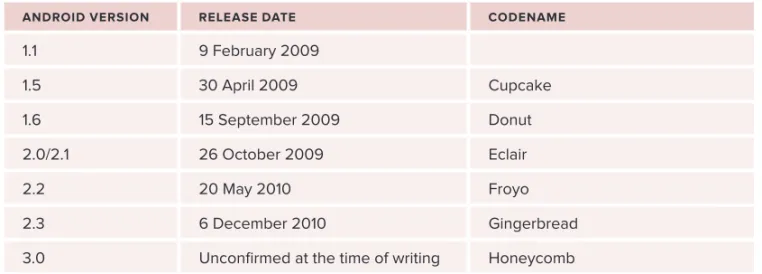
Android has gone through quite a number of updates since its first release. Table 1-1 shows the vari-ous versions of Android and their codenames.
tABle 1-1: A Brief History of Android Versions
Android verSion releASe dAte codenAme
1 .1 9 February 2009
1 .5 30 April 2009 Cupcake
1 .6 15 September 2009 Donut
2 .0/2 .1 26 October 2009 Eclair
2 .2 20 May 2010 Froyo
2 .3 6 December 2010 Gingerbread
Features of Android
As Android is open source and freely available to manufacturers for customization, there are no fixed hardware and software configurations. However, Android itself supports the following features:
Storage ➤
➤ — Uses SQLite, a lightweight relational database, for data storage. Chapter 6 discusses data storage in more detail.
Connectivity ➤
➤ — Supports GSM/EDGE, IDEN, CDMA, EV-DO, UMTS, Bluetooth (includes A2DP and AVRCP), WiFi, LTE, and WiMAX. Chapter 8 discusses networking in more detail.
Messaging ➤
➤ — Supports both SMS and MMS. Chapter 8 discusses messaging in more detail.
Web ➤
➤ browser — Based on the open-source WebKit, together with Chrome’s V8 JavaScript engine
Media ➤
➤ support — Includes support for the following media: H.263, H.264 (in 3GP or MP4 container), MPEG-4 SP, AMR, AMR-WB (in 3GP container), AAC, HE-AAC (in MP4 or 3GP container), MP3, MIDI, Ogg Vorbis, WAV, JPEG, PNG, GIF, and BMP
Hardware ➤
➤ support — Accelerometer Sensor, Camera, Digital Compass, Proximity Sensor, and GPS
Multi ➤
➤ -touch — Supports multi-touch screens
Multi ➤
➤ -tasking — Supports multi-tasking applications
Flash ➤
➤ support — Android 2.3 supports Flash 10.1.
Tethering ➤
➤ — Supports sharing of Internet connections as a wired/wireless hotspot
Architecture of Android
In order to understand how Android works, take a look at Figure 1-1, which shows the various layers that make up the Android operating system (OS).
Home Contacts Browser ...
APPLICATIONS
APPLICATION FRAMEWORK
LIBRARIES ANDROID RUNTIME
Phone
Package Manager Telephony Manager Resource Manager Location Manager Notification Manager
Surface Manager Media Framework SQLite
OpenGL / ES FreeType WebKit
SGL SSL Iibc
Activity Manager Window Manager View System
Dalvik Virtual Machine Core Libraries Content Providers
LINUX KERNEL
Keypad Driver WiFi Driver Audio Drivers Power Management Display Driver Camera Driver Flash Memory Driver Binder (IPC) Driver
The Android OS is roughly divided into five sections in four main layers:
Linux kernel ➤
➤ — This is the kernel on which Android is based. This layer contains all the low-level device drivers for the various hardware components of an Android device.
Libraries ➤
➤ — These contain all the code that provides the main features of an Android OS. For example, the SQLite library provides database support so that an application can use it for data storage. The WebKit library provides functionalities for web browsing.
Android ➤
➤ runtime — At the same layer as the libraries, the Android runtime provides a set of core libraries that enable developers to write Android apps using the Java programming language. The Android runtime also includes the Dalvik virtual machine, which enables every Android appli-cation to run in its own process, with its own instance of the Dalvik virtual machine (Android applications are compiled into the Dalvik executables). Dalvik is a specialized virtual machine designed specifically for Android and optimized for battery-powered mobile devices with limited memory and CPU.
Application ➤
➤ framework — Exposes the various capabilities of the Android OS to application developers so that they can make use of them in their applications.
Applications ➤
➤ — At this top layer, you will find applications that ship with the Android device (such as Phone, Contacts, Browser, etc.), as well as applications that you download and install from the Android Market. Any applications that you write are located at this layer.
Android devices in the market
Android devices come in all shapes and sizes. As of late November 2010, the Android OS can be seen powering the following types of devices:
Smartphones ➤ ➤ Tablets ➤ ➤ E-reader devices ➤ ➤ Netbooks ➤ ➤ MP4 players ➤ ➤ Internet TVs ➤ ➤
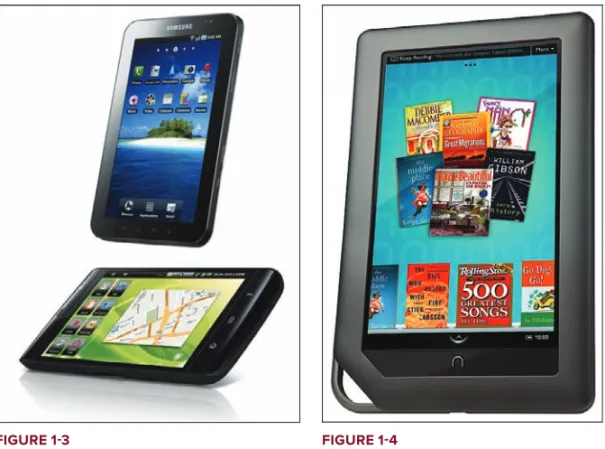
Chances are good that you own at least one of the preceding devices. Figure 1-2 shows (clockwise) the Samsung Galaxy S, the HTC Desire HD, and the LG Optimus One smartphones. Another popular category of devices that manufacturers are rushing out is the tablet. Tablet sizes typically start at seven inches, measured diagonally. Figure 1-3 shows the Samsung Galaxy Tab and the Dell Streak, which is a five-inch phone tablet.
Besides smartphones and tablets, Android is also beginning to appear in dedicated devices, such as e-book readers. Figure 1-4 shows the Barnes and Noble’s NOOKcolor, which is a color e-Book reader running the Android OS.
In addition to these popular mobile devices, Android is also slowly finding its way into your living room. People of Lava, a Swedish company, has developed an Android-based TV, call the Scandinavia Android TV (see Figure 1-5).
Google has also ventured into a proprietary smart TV platform based on Android and co-developed with companies such as Intel, Sony, and Logitech. Figure 1-6 shows Sony’s Google TV.
Figure 1-3 Figure 1-4
the Android market
As mentioned earlier, one of the main factors determining the success of a smartphone platform is the applications that support it. It is clear from the success of the iPhone that applications play a very vital role in determining whether a new platform swims or sinks. In addition, making these applica-tions accessible to the general user is extremely important.
As such, in August 2008, Google announced the Android Market, an online application store for Android devices, and made it available to users in October 2008. Using the Market application that is preinstalled on their Android device, users can simply download third-party applications directly onto their devices. Both paid and free applications are supported on the Android Market, though paid applications are available only to users in certain countries due to legal issues.
Similarly, in some countries, users can buy paid applications from the Android Market, but develop-ers cannot sell in that country. As an example, at the time of writing, usdevelop-ers in India can buy apps from the Android Market, but developers in India cannot sell apps on the Android Market. The reverse may also be true; for example, users in South Korea cannot buy apps, but developers in South Korea can sell apps on the Android Market.
Chapter 11 discusses more about the Android Market and how you can sell your own applications in it.
oBtAining the reQuired toolS
Now that you know what Android is and its feature set, you are probably anxious to get your hands dirty and start writing some applications! Before you write your fi rst app, however, you need to download the required tools and SDKs.
For Android development, you can use a Mac, a Windows PC, or a Linux machine. All the tools needed are free and can be downloaded from the Web. Most of the examples provided in this book should work fi ne with the Android emulator, with the exception of a few examples that require access to the hard-ware. For this book, I will be using a Windows 7 computer to demonstrate all the code samples. If you are using a Mac or Linux computer, the screenshots should look similar; some minor differences may be present, but you should be able to follow along without problems.
So, let the fun begin!
jAvA jdk
eclipse
The first step towards developing any applications is obtaining the integrated development environment (IDE). In the case of Android, the recommended IDE is Eclipse, a multi-language software development environment featuring an extensible plug-in system. It can be used to develop various types of applica-tions, using languages such as Java, Ada, C, C++, COBOL, Python, etc.
For Android development, you should download the Eclipse IDE for Java EE Developers (www.eclipse .org/downloads/packages/eclipse-ide-java-ee-developers/heliossr1). Six editions are available: Windows (32 and 64-bit), Mac OS X (Cocoa 32 and 64), and Linux (32 and 64-bit). Simply select the rel-evant one for your operating system. All the examples in this book were tested using the 32-bit version of Eclipse for Windows.
Once the Eclipse IDE is downloaded, unzip its content (the eclipse folder) into a folder, say C:\Android\. Figure 1-7 shows the content of the eclipse folder.
Android Sdk
The next important piece of software you need to download is, of course, the Android SDK. The Android SDK contains a debugger, libraries, an emulator, documentation, sample code, and tutorials.
You can download the Android SDK from http://developer.android.com/sdk/ index.html.
Once the SDK is downloaded, unzip its content (the android-sdk-windows folder) into the C:\Android\ folder, or whatever name you have given to the folder you just created.
Android development tools (Adt)
The Android Development Tools (ADT) plug-in for Eclipse is an extension to the Eclipse IDE that supports the creation and debugging of Android applications. Using the ADT, you will be able to do the following in Eclipse:
Create new Android application projects. ➤
➤
Access the tools for accessing your Android emulators and devices. ➤
➤
Compile and debug Android applications. ➤
➤
Export Android applications into Android Packages (APK). ➤
➤
Create digital certificates for code-signing your APK. ➤
➤
To install the ADT, first launch Eclipse by double-clicking on the eclipse.exe file located in the eclipse folder.
When Eclipse is first started, you will be prompted for a folder to use as your workspace. In Eclipse, a workspace is a folder where you store all your projects. Take the default suggested and click OK. Once Eclipse is up and running, select the Help ➪ Install New Software… menu item (see
Figure 1-8).
In the Install window that appears, type http://dl-ssl.google.com/android/eclipse in the text box (see Figure 1-9) and click Add….
After a while, you will see the Developer Tools item appear in the middle of the window (see Figure 1-10). Expand it, and it will reveal its content: Android DDMS, Android Development Tools, and Android Hierarchy Viewer. Check all of them and click Next.
Figure 1-8
Figure 1-10
When you see the installation details, as shown in Figure 1-11, click Next.
You will be asked to review the licenses for the tools. Check the option to accept the license agree-ments (see Figure 1-12). Click Finish to continue.
Figure 1-12
Eclipse will now proceed to download the tools from the Internet and install them (see Figure 1-13). This will take some time, so be patient.
Figure 1-13
NOTE If you have any problems downloading the ADT, check out Google’s help at http://developer.android.com/sdk/eclipse-adt.html#installing.
Figure 1-14
In the Preferences window that appears, select Android. You will see an error message saying that the SDK has not been set up (see Figure 1-15). Click OK to dismiss it.
Figure 1-15
Enter the location of the Android SDK folder. In this example, it would be C:\Android\ android-sdk-windows. Click OK.
creating Android virtual devices (Avds)
Each AVD consists of a hardware profi le, a mapping to a system image, as well as emulated storage, such as a secure digital (SD) card.
You can create as many AVDs as you want in order to test your applications with several different confi gurations. This testing is important to confi rm the behavior of your application when it is run on different devices with varying capabilities.
NOTE Appendix B will discuss some of the capabilities of the Android Emulator.
To create an AVD, go to Windows ➪ Android SDK and AVD Manager.
Select the Available packages option in the left pane and expand the package name shown in the right pane. Figure 1-16 shows the various packages available for you to create AVDs to emulate the differ-ent versions of an Android device.
Figure 1-16
Check the relevant tools, documentation, and platforms you need for your project.
NOTE For a start, you should at least select the latest SDK platform. At the time of writing, the latest SDK platform is SDK Platform Android 2.3, API 9, revision 1.
Each version of the Android OS is identifi ed by an API level number. For example, Android 2.3 is level 9 (API 9), while Android 2.2 is level 8 (API 8), and so on. For each level, two platforms are available. For example, level 9 offers the following:
SDK Platform Android 2.3 ➤
➤
Google APIs by Google Inc. ➤
➤
The key difference between the two is that the Google APIs platform contains the Google Maps library. Therefore, if the application you are writing requires Google Maps, you need to create an AVD using the Google APIs platform (more on this in Chapter 9, “Location Based Services.”
Click the Virtual Devices item in the left pane of the window. Then click the New… button located in the right pane of the window.
In the Create new Android Virtual Device (AVD) window, enter the items as shown in Figure 1-17. Click the Create AVD button when you are done.
In this case, you have created an AVD (put simply, an Android emulator) that emulates an Android device running version 2.3 of the OS. In addition to what you have created, you also have the option to emulate the device with an SD card and different screen densities and resolutions.
NOTE Appendix B explains how to emulate the diff erent types of Android devices.
It is preferable to create a few AVDs with different API levels so that your application can be tested on different devices. The example shown in Figure 1-18 shows the many AVDs created to test your applications on a wide variety of different Android platforms.
Figure 1-18
creating your First Android Application
With all the tools and the SDK downloaded and installed, it is now time to start your engine! As in all programming books, the fi rst example uses the ubiquitous Hello World application. This will enable you to have a detailed look at the various components that make up an Android project. So, without any further ado, let’s dive straight in!
Creating Your First Android Application
try it out
codefi le HelloWorld.zip available for download at Wrox.com
Figure 1-19
NOTE After you have created your fi rst Android application, subsequent Android projects can be created by selecting File ➪ New ➪ Android Project.
2 .
Expand the Android folder and select Android Project (see Figure 1-20).3 .
Name the Android project as shown in Figure 1-21 and then click Finish.Figure 1-21
NOTE You need to have at least a period (.) in the package name. The rec-ommended convention for the package name is to use your domain name in reverse order, followed by the project name. For example, my company’s domain name is learn2develop.net, hence my package name would be net.learn2develop.HelloWorld.
4 .
The Eclipse IDE should now look like Figure 1-22.Figure 1-22
Figure 1-23
Figure 1-24
7 .
Add the following code in bold to the main.xml fi le:<?xmlversion=”1.0”encoding=”utf-8”?>
<LinearLayoutxmlns:android=”http://schemas.android.com/apk/res/android”
android:orientation=”vertical”
android:layout_width=”fill_parent”
android:layout_height=”fill_parent”> <TextView
android:layout_width=”fill_parent” android:layout_height=”wrap_content” android:text=”@string/hello”/>
<TextView
android:layout_width=”fill_parent”
android:layout_height=”wrap_content”
android:text=”This is my first Android Application!” />
<Button
android:layout_width=”fill_parent”
android:layout_height=”wrap_content”
android:text=”And this is a clickable button!” />
</LinearLayout>
8 .
To save the changes made to your project, press Ctrl+s.9 .
You are now ready to test your application on the Android Emulator. Select the project name in Eclipse and press F11. You will be asked to select a way to debug the application. Select Android Application as shown in Figure 1-25 and click OK.Figure 1-25
10 .
The Android Emulator will now be started (if the emulator is locked, you need to slide the unlock button to unlock it first). Figure 1-26 shows the application running on the Android Emulator.Figure 1-26
Figure 1-27
12 .
Click the application Launcher icon to display the list of applications installed on the device. Note that the HelloWorld application is now installed in the application launcher (see Figure 1-28).Which Avd Will Be uSed to teSt your ApplicAtion?
Recall that earlier you created a few AVDs using the AVD Manager. So which one will be launched by Eclipse when you run an Android application? Eclipse will check the target that you specifi ed (when you created a new project), comparing it against the list of AVDs that you have created. The fi rst one that matches will be launched to run your application.
If you have more than one suitable AVD running prior to debugging the application, Eclipse will display the Android Device Chooser window, which enables you to select the desired emulator/device to debug the application (see Figure 1-29).
Figure 1-29
How It Works
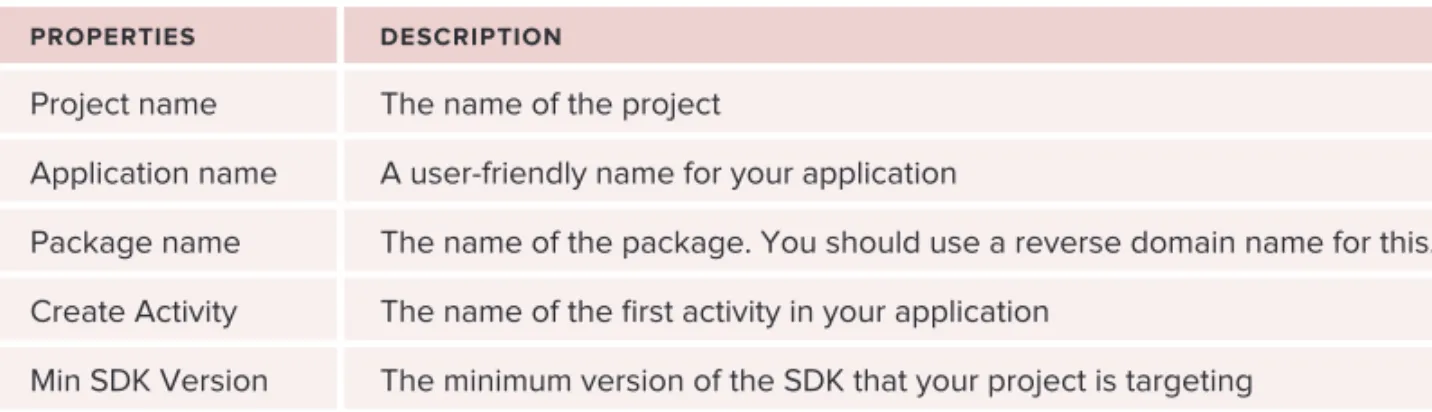
To create an Android project using Eclipse, you need to supply the information shown in Table 1-2.
tABle 1-2: Project Files Created by Default
propertieS deScription
Project name The name of the project
Application name A user-friendly name for your application
Package name The name of the package . You should use a reverse domain name for this .
Create Activity The name of the fi rst activity in your application
In Android, an Activity is a window that contains the user interface of your applications. An application can have zero or more activities; in this example, the application contains one activity: MainActivity. This MainActivity is the entry point of the application, which is displayed when the application is started. Chapter 2 discusses activities in more detail.
In this simple example, you modified the main.xml file to display the string “This is my first Android Application!” and a button. The main.xml file contains the user interface of the activity, which is dis-played when MainActivity is loaded.
When you debug the application on the Android Emulator, the application is automatically installed on the emulator. And that’s it — you have developed your first Android application!
The next section unravels how all the various files in your Android project work together to make your application come alive.
Anatomy of an Android Application
Now that you have created your first Hello World Android application, it is time to dissect the innards of the Android project and examine all the parts that make everything work.
First, note the various files that make up an Android project in the Package Explorer in Eclipse (see Figure 1-30).
The various folders and their files are as follows:
src ➤
➤ — Contains the .java source files for your project. In this example, there is one file, MainActivity.java. The MainActivity.java file is the source file for your activity. You will write the code for your application in this file.
Android2.3 ➤
➤ library — This item contains one file, android.jar, which contains all the class libraries needed for an Android application.
gen ➤
➤ — Contains the R.java file, a compiler-generated file that references all the resources found in your project. You should not modify this file.
assets ➤
➤ — This folder contains all the assets used by your application, such as HTML, text files, databases, etc.
res ➤
➤ — This folder contains all the resources used in your application. It also contains a few other subfolders: drawable-<resolution>, layout, and values. Chapter 3 talks more about how you can support devices with different screen resolutions and densities.
AndroidManifest.xml ➤
➤ — This is the manifest file for your Android application. Here you spec-ify the permissions needed by your application, as well as other features (such as intent-filters, receivers, etc.). Chapter 2 discusses the use of the AndroidManifest.xml file in more details.
The main.xml file defines the user interface for your activity. Observe the following in bold:
<TextView
android:layout_width=”fill_parent”
android:layout_height=”wrap_content”
android:text=”@string/hello”/>
The @string in this case refers to the strings.xml file located in the res/values folder. Hence, @string/hello refers to the hello string defined in the strings.xml file, which is “Hello World, MainActivity!”:
<?xmlversion=”1.0”encoding=”utf-8”?> <resources>
<string name=”hello”>Hello World, MainActivity!</string> <stringname=”app_name”>HelloWorld</string>
</resources>
It is recommended that you store all the string constants in your application in this strings.xml file and reference these strings using the @string identifier. That way, if you ever need to localize your application to another language, all you need to do is replace the strings stored in the strings.xml file with the targeted language and recompile your application.
Observe the content of the AndroidManifest.xml file:
<?xmlversion=”1.0”encoding=”utf-8”?>
<manifestxmlns:android=”http://schemas.android.com/apk/res/android”
package=”net.learn2develop.HelloWorld”
android:versionCode=”1”
android:versionName=”1.0”>
<applicationandroid:icon=”@drawable/icon”android:label=”@string/app_name”>
<activityandroid:name=”.MainActivity”
android:label=”@string/app_name”>
<intent-filter>
<actionandroid:name=”android.intent.action.MAIN”/>
<categoryandroid:name=”android.intent.category.LAUNCHER”/>
</intent-filter>
</activity>
</application>
<uses-sdkandroid:minSdkVersion=”9”/> </manifest>
The AndroidManifest.xml file contains detailed information about the application: It defines the package name of the application as
➤
➤ net.learn2develop.HelloWorld.
The version code of the application is 1. This value is used to identify the version number of ➤
➤
your application. It can be used to programmatically determine whether an application needs to be upgraded.
The version name of the application is 1.0. This string value is mainly used for display to the ➤
➤
user. You should use the format: <major>.<minor>.<point> for this value. The application uses the image named
➤
The name of this application is the string named ➤
➤ app_name defi ned in the strings.xml fi le.
There is one activity in the application represented by the ➤
➤ MainActivity.java fi le. The label
displayed for this activity is the same as the application name. Within the defi nition for this activity, there is an element named ➤
➤ <intent-filter>:
The action for the intent fi lter is named ➤
➤ android.intent.action.MAIN to indicate that
this activity serves as the entry point for the application. The category for the intent-fi lter is named
➤
➤ android.intent.category.LAUNCHER
to indicate that the application can be launched from the device’s Launcher icon. Chapter 2 discusses intents in more details.
Finally, the ➤
➤ android:minSdkVersion attribute of the <uses-sdk> element specifi es the minimum version of the OS on which the application will run.
As you add more fi les and folders to your project, Eclipse will automatically generate the content of R.java, which at the moment contains the following:
packagenet.learn2develop.HelloWorld;
publicfinalclassR{
publicstaticfinalclassattr{ }
publicstaticfinalclassdrawable{
publicstaticfinalinticon=0x7f020000; }
publicstaticfinalclasslayout{
publicstaticfinalintmain=0x7f030000; }
publicstaticfinalclassstring{
publicstaticfinalintapp_name=0x7f040001; publicstaticfinalinthello=0x7f040000; }
}
You are not supposed to modify the content of the R.javafi le; Eclipse automatically generates the content for you when you modify your project.
Finally, the code that connects the activity to the UI (main.xml) is the setContentView() method, which is in the MainActivity.java file:
packagenet.learn2develop.HelloWorld;
importandroid.app.Activity;
importandroid.os.Bundle;
publicclassMainActivityextendsActivity{
/**Calledwhentheactivityisfirstcreated.*/
@Override
publicvoidonCreate(BundlesavedInstanceState){ super.onCreate(savedInstanceState);
setContentView(R.layout.main); }
}
Here, R.layout.main refers to the main.xml file located in the res/layout folder. As you add additional XML files to the res/layout folder, the filenames will automatically be generated in the R.java file. The onCreate() method is one of many methods that are fired when an activity is loaded. Chapter 2 discusses the life cycle of an activity in more detail.
SummAry
This chapter has provided a brief overview of Android, and highlighted some of its capabilities. If you have followed the sections on downloading the tools and SDK, you should now have a work-ing system — one that is capable of developwork-ing more interestwork-ing Android applications other than the Hello World application. In the next chapter, you will learn about the concepts of activities and intents, and the very important roles they play in Android.
exerciSeS
1 .
What is an AVD?2 .
What is the difference between the android:versionCode and android:versionName attributes in the AndroidManifest.xml file?3 .
What is the use of the strings .xml file?WhAt you leArned in thiS chApter
⊲
topic key conceptS
Android oS Android is an open-source mobile operating system based on the Linux operating system . It is available to anyone who wants to adapt it to run on their own devices .
languages used for Android application development
You use the Java programming language to develop Android appli-cations . Written appliappli-cations are compiled into Dalvik executables, which are then run on top of the Dalvik Virtual Machine .
Android market The Android Market hosts all the various Android applications written by third-party developers .
tools for Android Application development
Eclipse IDE, Android SDK, and the ADT
Activity An activity is represented by a screen in your Android application . Each application can have zero or more activities .
Activities and intents
WhAt you Will leArn in thiS chApter
What activities are
➤ ➤
How to apply styles and themes to activities
➤ ➤
How to display activities as dialog windows
➤ ➤
Understanding the concept of intents
➤ ➤
How to use the
➤
➤ Intent object to link activities
How intent fi lters help you to selectively connect to other activities
➤ ➤
How to display alerts to the user using notifi cations
➤ ➤
In Chapter 1, you learned that an activity is a window that contains the user interface of your applications. An application can have zero or more activities. Typically, applications have one or more activities, and the main aim of an activity is to interact with the user. From the moment an activity appears on the screen to the moment it is hidden, it goes through a number of stages, known as an activity’s life cycle. Understanding the life cycle of an activity is vital to ensuring that your application works correctly. In this chapter, you will learn more about how activities work and the things that you need to take note of when designing your Android application. Apart from activities, another unique concept in Android is that of an intent. An intent is basically the “glue” that enables different activities from different applications to work together seamlessly, ensuring that tasks can be performed as though they all belong to one single application. In the second part of this chapter, you will learn more about this very important concept and how you can use it to call built-in applications such as the Browser, Phone, Maps, and more.
underStAnding ActivitieS
This chapter begins by looking at how to create an activity. To create an activity, you create a Java class that extends the Activity base class:
importandroid.app.Activity;
importandroid.os.Bundle;
public class MainActivity extends Activity {
/**Calledwhentheactivityisfirstcreated.*/ @Override
publicvoidonCreate(BundlesavedInstanceState){ super.onCreate(savedInstanceState);
setContentView(R.layout.main); }
}
Your activity class would then load its UI component using the XML file defined in your res/layout folder. In this example, you would load the UI from the main.xml file:
setContentView(R.layout.main);
Every activity you have in your application must be declared in your AndroidManifest.xml file, like this:
<?xmlversion=”1.0”encoding=”utf-8”?>
<manifestxmlns:android=”http://schemas.android.com/apk/res/android”
package=”net.learn2develop.Activities”
android:versionCode=”1”
android:versionName=”1.0”>
<applicationandroid:icon=”@drawable/icon” android:label=”@string/app_name”>
<activity android:name=”.MainActivity”
android:label=”@string/app_name”> <intent-filter>
<action android:name=”android.intent.action.MAIN” /> <category
android:name=”android.intent.category.LAUNCHER” /> </intent-filter>
</activity> </application>
<uses-sdkandroid:minSdkVersion=”9”/> </manifest>
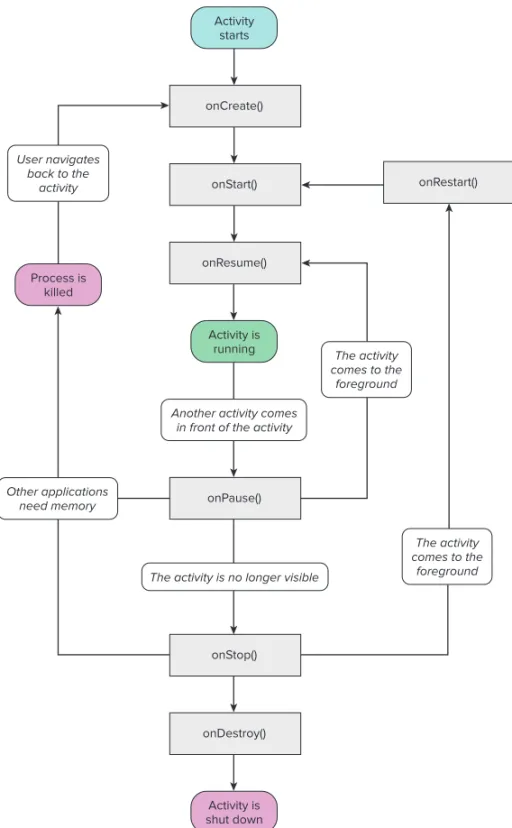
The Activity base class defines a series of events that governs the life cycle of an activity. The Activity class defines the following events:
onCreate() ➤
➤ — Called when the activity is first created
onStart() ➤
➤ — Called when the activity becomes visible to the user
onResume() ➤
➤ — Called when the activity starts interacting with the user
onPause() ➤
➤ — Called when the current activity is being paused and the previous activity is being resumed
onStop() ➤
➤ — Called when the activity is no longer visible to the user
onDestroy() ➤
➤ — Called before the activity is destroyed by the system (either manually or by the system to conserve memory)
onRestart() ➤
By default, the activity created for you contains the onCreate() event. Within this event handler is the code that helps to display the UI elements of your screen.
Figure 2-1 shows the life cycle of an activity and the various stages it goes through — from when the activity is started until it ends.
Activity starts
Activity is running Process is
killed
The activity comes to the
foreground
Activity is shut down onCreate()
onStart()
onResume()
onDestroy()
Another activity comes in front of the activity
Other applications need memory
The activity is no longer visible User navigates
back to the activity
onStop() onPause()
The activity comes to the
foreground
onRestart()
The best way to understand the various stages experienced by an activity is to create a new project, implement the various events, and then subject the activity to various user interactions.
Understanding the Life Cycle of an Activity
try it out
codefile Activities.zip available for download at Wrox.com
1 .
Using Eclipse, create a new Android project and name it as shown in Figure 2-2.Figure 2-2
2 .
In the MainActivity.java file, add the following statements in bold:packagenet.learn2develop.Activities;
importandroid.app.Activity;
importandroid.os.Bundle; import android.util.Log;
publicclassMainActivityextendsActivity{ String tag = “Events”;
/**Calledwhentheactivityisfirstcreated.*/ @Override
publicvoidonCreate(BundlesavedInstanceState){ super.onCreate(savedInstanceState);
setContentView(R.layout.main);
}
public void onStart() {
super.onStart();
Log.d(tag, “In the onStart() event”); }
public void onRestart() {
super.onRestart();
Log.d(tag, “In the onRestart() event”); }
public void onResume() {
super.onResume();
Log.d(tag, “In the onResume() event”); }
public void onPause() {
super.onPause();
Log.d(tag, “In the onPause() event”); }
public void onStop() {
super.onStop();
Log.d(tag, “In the onStop() event”); }
public void onDestroy() {
super.onDestroy();
Log.d(tag, “In the onDestroy() event”); }
}
3 .
Press F11 to debug the application on the Android Emulator.4 .
When the activity is first loaded, you should see the following in the LogCat window (click on the Debug perspective; see also Figure 2-3):12-2813:45:28.115:DEBUG/Events(334):IntheonCreate()event 12-2813:45:28.115:DEBUG/Events(334):IntheonStart()event 12-2813:45:28.115:DEBUG/Events(334):IntheonResume()event