s o l u t i o n s @ s y n g r e s s . c o m
Over the last few years, Syngress has published many best-selling and critically acclaimed books, including Tom Shinder’s Configuring ISA Server 2000, Brian Caswell and Jay Beale’s Snort 2.0 Intrusion Detection, and Angela Orebaugh and Gilbert Ramirez’s Ethereal
Packet Sniffing. One of the reasons for the success of these books has been our unique [email protected] program. Through this site, we’ve been able to provide readers a real time extension to the printed book.
As a registered owner of this book, you will qualify for free access to our members-only [email protected] program. Once you have registered, you will enjoy several benefits, including:
■ Four downloadable e-booklets on topics related to the book. Each booklet is approximately 20-30 pages in Adobe PDF format. They have been selected by our editors from other best-selling Syngress books as providing topic coverage that is directly related to the coverage in this book.
■ A comprehensive FAQ page that consolidates all of the key points of this book into an easy to search web page, pro-viding you with the concise, easy to access data you need to perform your job.
■ A “From the Author” Forum that allows the authors of this book to post timely updates links to related sites, or addi-tional topic coverage that may have been requested by readers.
Just visit us at www.syngress.com/solutions and follow the simple registration process. You will need to have this book with you when you register.
Thank you for giving us the opportunity to serve your needs. And be sure to let us know if there is anything else we can do to make your job easier.
Johnny Long
FOREWORD BY ED SKOUDIS
Hacking
Syngress Publishing, Inc., the author(s), and any person or firm involved in the writing, editing, or production (collectively “Makers”) of this book (“the Work”) do not guarantee or warrant the results to be obtained from the Work.
There is no guarantee of any kind, expressed or implied, regarding the Work or its contents. The Work is sold AS IS and WITHOUT WARRANTY.You may have other legal rights, which vary from state to state.
In no event will Makers be liable to you for damages, including any loss of profits, lost savings, or other incidental or consequential damages arising out from the Work or its contents. Because some states do not allow the exclusion or limitation of liability for consequential or incidental damages, the above limitation may not apply to you.
You should always use reasonable care, including backup and other appropriate precautions, when working with computers, networks, data, and files.
Syngress Media®, Syngress®, “Career Advancement Through Skill Enhancement®,” “Ask the Author UPDATE®,” and “Hack Proofing®,” are registered trademarks of Syngress Publishing, Inc. “Syngress:The Definition of a Serious Security Library”™, “Mission Critical™,” and “The Only Way to Stop a Hacker is to Think Like One™” are trademarks of Syngress Publishing, Inc. Brands and product names mentioned in this book are trademarks or service marks of their respective companies.
KEY SERIAL NUMBER
001 HJIRTCV764 002 PO9873D5FG 003 829KM8NJH2 004 FGDD458876 005 CVPLQ6WQ23 006 VBP965T5T5 007 HJJJ863WD3E 008 2987GVTWMK 009 629MP5SDJT 010 IMWQ295T6T PUBLISHED BY Syngress Publishing, Inc. 800 Hingham Street Rockland, MA 02370
Google Hacking for Penetration Testers
Copyright © 2005 by Syngress Publishing, Inc. All rights reserved. Printed in the United States of America. Except as permitted under the Copyright Act of 1976, no part of this publication may be reproduced or distributed in any form or by any means, or stored in a database or retrieval system, without the prior written permission of the publisher, with the exception that the program listings may be entered, stored, and executed in a computer system, but they may not be reproduced for publication.
Printed in the United States of America 1 2 3 4 5 6 7 8 9 0
ISBN: 1-931836-36-1
Publisher: Andrew Williams Page Layout and Art: Patricia Lupien Acquisitions Editor: Jaime Quigley Copy Editor: Darlene Bordwell Technical Editor: Alrik “Murf ” van Eijkelenborg Indexer: J. Edmund Rush Cover Designer: Michael Kavish
Distributed by O’Reilly Media, Inc. in the United States and Canada.
Acknowledgments
v
Syngress would like to acknowledge the following people for their kindness and sup-port in making this book possible.
Syngress books are now distributed in the United States and Canada by O’Reilly Media, Inc.The enthusiasm and work ethic at O’Reilly is incredible and we would like to thank everyone there for their time and efforts to bring Syngress books to market:Tim O’Reilly, Laura Baldwin, Mark Brokering, Mike Leonard, Donna Selenko, Bonnie Sheehan, Cindy Davis, Grant Kikkert, Opol Matsutaro, Steve Hazelwood, Mark Wilson, Rick Brown, Leslie Becker, Jill Lothrop,Tim Hinton, Kyle Hart, Sara Winge, C. J. Rayhill, Peter Pardo, Leslie Crandell, Valerie Dow, Regina Aggio, Pascal Honscher, Preston Paull, Susan Thompson, Bruce Stewart, Laura Schmier, Sue Willing, Mark Jacobsen, Betsy Waliszewski, Dawn Mann, Kathryn Barrett, John Chodacki, and Rob Bullington. And a hearty welcome to Aileen Berg—glad to be working with you.
The incredibly hard working team at Elsevier Science, including Jonathan Bunkell, Ian Seager, Duncan Enright, David Burton, Rosanna Ramacciotti, Robert Fairbrother, Miguel Sanchez, Klaus Beran, Emma Wyatt, Rosie Moss, Chris Hossack, Mark Hunt, and Krista Leppiko, for making certain that our vision remains worldwide in scope.
David Buckland, Marie Chieng, Lucy Chong, Leslie Lim, Audrey Gan, Pang Ai Hua, and Joseph Chan of STP Distributors for the enthusiasm with which they receive our books.
Kwon Sung June at Acorn Publishing for his support.
David Scott, Tricia Wilden, Marilla Burgess, Annette Scott, Andrew Swaffer, Stephen O’Donoghue, Bec Lowe, and Mark Langley of Woodslane for distributing our books throughout Australia, New Zealand, Papua New Guinea, Fiji Tonga, Solomon Islands, and the Cook Islands.
Winston Lim of Global Publishing for his help and support with distribution of Syngress books in the Philippines.
vii
Author
Johnny Long has spoken on network security and Google hacking at several computer security conferences around the world including SANS, Defcon, and the Black Hat Briefings. During his recent career with Computer Sciences Corporation (CSC), a leading global IT services company, he has performed active network and physical security assessments for hundreds of government and commercial clients. His website, currently the Internet’s largest repository of Google hacking techniques, can be found at http://johnny.ihack-stuff.com.
Alrik “Murf ” van Eijkelenborgis a systems engineer for MBH Automatisering. MBH provides web applications, hardware, hosting, network, firewall, and VPN solutions. His specialties include tech-nical support and consulting on Linux, Novell and Windows net-works. His background includes positions as a network
administrator for Multihouse, NTNT, K+V Van Alphen,
Oranjewoud and Intersafe Holding. Alrik holds a bachelor’s degree from the Business School of Economics (HES) in Rotterdam,The Netherlands. He is one of the main moderators for the Google Hacking Forums and a key contributor to the Google Hacking Database (GHDB).
viii
Steven “The Psyko” Whitacre [MCSE] is a senior network engi-neer with OPT, Inc, a leading provider of networking solutions in the San Francisco Bay Area, providing senior level network adminis-tration and security consulting to companies throughout the greater Bay Area. His specialties include: network design, implementation, administration, data recovery, network reconstruction, system foren-sics, and penetration testing. Stevens consulting background includes work for large universities, financial institutions, local law enforce-ment, and US and foreign government agencies. Steven is a former member of COTSE/Packetderm, and currently volunteers his time as a moderator for one of the largest security related forums on the Internet. Steven resides in San Francisco, CA with his wife and two daughters, and credits his success to their unwavering support.
James C. Foster, Fellow, is the Deputy Director of Global Security Solution Development for Computer Sciences Corporation where he is responsible for the vision and development of physical, per-sonnel, and data security solutions. Prior to CSC, Foster was the Director of Research and Development for Foundstone Inc.
(acquired by McAfee) and was responsible for all aspects of product, consulting, and corporate R&D initiatives. Prior to joining
Foundstone, Foster was an Executive Advisor and Research Scientist with Guardent Inc. (acquired by Verisign) and an adjunct author at Information Security Magazine (acquired by TechTarget), subse-quent to working as Security Research Specialist for the
Department of Defense. With his core competencies residing in high-tech remote management, international expansion, application security, protocol analysis, and search algorithm technology, Foster has conducted numerous code reviews for commercial OS compo-nents, Win32 application assessments, and reviews on commercial-grade cryptography implementations.
ix Foster is a seasoned speaker and has presented throughout North America at conferences, technology forums, security summits, and research symposiums with highlights at the Microsoft Security Summit, Black Hat USA, Black Hat Windows, MIT Wireless Research Forum, SANS, MilCon,TechGov, InfoSec World 2001, and the Thomson Security Conference. He also is commonly asked to comment on pertinent security issues and has been sited in
USAToday, Information Security Magazine, Baseline, Computer World, Secure Computing, and the MIT Technologist. Foster holds an A.S., B.S., MBA and numerous technology and management certifications and has attended or conducted research at the Yale School of
Business, Harvard University, the University of Maryland, and is cur-rently a Fellow at University of Pennsylvania’s Wharton School of Business. Foster is also a well published author with multiple com-mercial and educational papers; and has authored, contributed, or edited for major publications including Snort 2.1 Intrusion Detection
(Syngress Publishing, ISBN: 1-931836-04-3);Hacking Exposed, Fourth Edition, Anti-Hacker Toolkit, Second Edition; Advanced Intrusion Detection; Hacking the Code: ASP.NET Web Application Security
(Syngress, ISBN: 1-932266-65-8); Anti-Spam Toolkit;and Google Hacking for Penetration Testers (Syngress, ISBN: 1-931836-36-1).
Matt Fisher is a Senior Security Engineer for SPI Dynamics, which specializes in automated web application security assessments products for the entire software development lifecycle. As an engi-neer at SPI Dynamics, he has performed hundreds of web applica-tion assessments and consulted to the Fortune 500, Federal
Government, and Department of Defense. He has educated thou-sands on web application security through presentations at
x
Matt lives in Columbia, MD, and was only able to write his contri-bution for this book only through the grace and enduring patience of his family Lisa, Jacob, and Olivia. He’d like to take this last line to give a shout to his coworkers and friends at SPI Dynamics and SPI Labs whom that make it the best place in the world to work, Nummish for the constant help with his futile coding efforts, and of course his Mum who is eternally proud of him. “Hi Mom!”
xi
I'm Johnny. I hack stuff.
Have you ever had a hobby that changed your life? I have a tendency to get hyper-focused on my hobbies, but this “Google Hacking thing”, although it’s labeled me “That Google Guy” has been a real blessing for me. I’ve been pub-lished in the papers, written about, and linked more times than I can count. I’m now invited to speak at the conferences I once attended in awe. I’ve been to Japan and back, and now, much to my disbelief, written a large portion of the book you hold now. I’ve met many, many amazing people and I’ve made some close friends despite the fact that I’ve never actually “met” most of them. I’ve been given amazing opportunities, and there’s no apparent end in sight. I owe many people a huge debt of thanks, but it’s “printing day” for this book, and I’m left with a few short minutes to express my gratitude. It’s simply not enough, and to all those I’ve forgotten, I’m sorry.You know you helped, so thanks. = /
First and foremost, thanks to God for the many blessings in my life. Christ for the Living example, and the Spirit of God that encourages me to live each day with real purpose.Thanks to my wife and three wonderful children. Words can’t express how much you mean to me.Thanks for putting up with the “real” j0hnny.
Thanks to Mom and Dad for letting me stay up all hours as I fed my digital addiction.
Thanks to the book team, Alrik “Murf ” van Eijkelenborg, James Foster, Steve, Matt, Pete and Roelof. Mr. Cooper, Mrs. Elliott, Athy C, Vince Ritts, Jim Chapple,Topher H, Mike Schiffman, Dominique Brezinski and
rain.forest.puppy all stopped what they were doing to help shape my future. I couldn’t make it without the help of close friends to help me through life: Nathan B, Sujay S, Stephen S.Thanks to Mark Norman for keeping it real.
xii
MILKMAN, cybercide, stonersavant, Deadlink, crash_monkey, zoro25,
Renegade334, wasabi, urban, mlynch, digital.revolution, Peefy, brasileiro, john, Z!nCh, ComSec, yeseins, sfd, sylex, wolveso, xlockex, injection33, Murk. A spe-cial thanks to Murf for keeping the site afloat while I wrote this book, and also to mod team:ThePsyko, l0om, wasabi, and jimmyneutron.
The StrikeForce was always hard to describe, but it encompassed a large part of my life, and I’m very thankful that I was able to play even a small part: Jason A, Brian A, Jim C, Roger C, Carter, Carey, Czup, Ross D, Fritz, Jeff G, Kevin H, Micha H,Troy H, Patrick J, Kristy,Dave Klug, Logan L,Laura,Don M, Chris Mclelland, Murray, Deb N, Paige, Roberta, Ron S, Matty T, Chuck T, Katie W, Tim W, Mike W.
Thanks to CSC and the many awesome bosses I’ve had.You rule: “FunkSoul”, Chris S, Matt B, Jason E, and Al E.Thanks to the ‘TIP crew for making life fun and interesting five days out of seven.You’re too many to list, but some I remember I’ve worked with more than others: Anthony, Brian, Chris, Christy, Don, Heidi, Joe, Kevan,The ‘Mikes’, “O”, Preston, Richard, Rob, Ron H, Ron D, Steve,Torpedo,Thane.
It took a lot of music to drown out the noise so I could churn out this book. Thanks to P.O.D. (thanks Sonny for the words), Pillar, Project 86, Avalon O2 remix, D.J. Lex,Yoshinori Sunahara, Hashim and SubSeven (great name!).
Shouts to securitytribe, Joe Grand, Russ Rogers, Roelof Temmingh, Seth Fogie, Chris Hurley, Bruce Potter, Jeff, Ping, Eli, Grifter at Blackhat, and the whole Syngress family of authors. I’m honored to be a part of the group, although you all keep me humble! Thanks to Andrew and Jaime.You guys rule!
Thanks to Apple Computer, Inc for making an awesome laptop (and OS). Despite being bounced down my driveway due to a heartbreaking bag failure a month after I bought it, my 12” G4 PowerBook wasn’t affected in the slightest. That same laptop was used to layout, author and proof more than 10 chapters of this book, maintain and create my website, and present to the masses at all the conferences. No ordinary laptop could have done all that. I only wish it wasn’t so ugly and dented. (http://johnny.ihackstuff.com/images/dent.jpg)
xiii
Contents
Foreword . . . .xxiii
Chapter 1 Google Searching Basics . . . .1
Introduction . . . .2
Exploring Google’s Web-Based Interface . . . .2
Google’s Web Search Page . . . .2
Google Web Results Page . . . .5
Google Groups . . . .6
Google Image Search . . . .8
Google Preferences . . . .9
Language Tools . . . .12
Building Google Queries . . . .14
The Golden Rules of Google Searching . . . .14
Basic Searching . . . .17
Using Boolean Operators and Special Characters . . . . .18
Search Reduction . . . .21
Working With Google URLs . . . .24
URL Syntax . . . .25
Special Characters . . . .26
Putting the Pieces Together . . . .27
Summary . . . .37
Solutions Fast Track . . . .37
Links to Sites . . . .38
Frequently Asked Questions . . . .39
Chapter 2 Advanced Operators . . . .41
Introduction . . . .42
Operator Syntax . . . .43
Introducing Google’s Advanced Operators . . . .46
Intitle and Allintitle: Search Within the Title of a Page . .46 Allintext: Locate a String Within the Text of a Page . . .49
Inurl and Allinurl: Finding Text in a URL . . . .50
Site: Narrow Search to Specific Sites . . . .52
Filetype: Search for Files of a Specific Type . . . .54
Link: Search for Links to a Page . . . .59
Inanchor: Locate Text Within Link Text . . . .62
Cache: Show the Cached Version of a Page . . . .62
Numrange: Search for a Number . . . .63
Daterange: Search for Pages Published Within a Certain Date Range . . . .64
Info: Show Google’s Summary Information . . . .65
Related: Show Related Sites . . . .66
Author: Search Groups for an Author of a Newsgroup Post . . . .66
Group: Search Group Titles . . . .69
Insubject: Search Google Groups Subject Lines . . . .69
Msgid: Locate a Group Post by Message ID . . . .70
Stocks: Search for Stock Information . . . .71
Define: Show the Definition of a term . . . .72
Phonebook: Search Phone Listings . . . .72
Colliding Operators and Bad Search-Fu . . . .75
Summary . . . .80
Solutions Fast Track . . . .80
Links to Sites . . . .85
Frequently Asked Questions . . . .85
Chapter 3 Google Hacking Basics . . . .87
Introduction . . . .88
Anonymity with Caches . . . .88
Using Google as a Proxy Server . . . .95
Directory Listings . . . .99
Locating Directory Listings . . . .100
Finding Specific Directories . . . .101
Finding Specific Files . . . .102
Going Out on a Limb:Traversal Techniques . . . .108
Directory Traversal . . . .109
Incremental Substitution . . . .110
Extension Walking . . . .111
Summary . . . .115
Solutions Fast Track . . . .115
Links to Sites . . . .118
Frequently Asked Questions . . . .118
Chapter 4 Preassessment . . . .121
Introduction . . . .122
The Birds and the Bees . . . .122
Intranets and Human Resources . . . .123
Help Desks . . . .124
Self-Help and “How-To” Guides . . . .124
Job Listings . . . .126
Long Walks on the Beach . . . .126
Names, Names, Names . . . .127
Automated E-Mail Trolling . . . .128
Addresses, Addresses, and More Addresses! . . . .134
Nonobvious E-Mail Relationships . . . .139
Personal Web Pages and Blogs . . . .140
Instant Messaging . . . .140
Web-Based Mailing Lists . . . .141
Résumés and Other Personal Information . . . .142
Romantic Candlelit Dinners . . . .143
Badges? We Don’t Need No Steenkin’ Badges! . . . .143
What’s Nearby? . . . .143
Coffee Shops . . . .144
Diners and Delis . . . .144
Gas Stations . . . .145
Bars and Nightclubs . . . .145
Preassessment Checklist . . . .146
Summary . . . .147
Solutions Fast Track . . . .147
Links to Sites . . . .148
Chapter 5 Network Mapping . . . .151
Introduction . . . .152
Mapping Methodology . . . .152
Mapping Techniques . . . .154
Domain Determination . . . .154
Site Crawling . . . .155
Page Scraping Domain Names . . . .156
API Approach . . . .158
Link Mapping . . . .159
Group Tracing . . . .164
Non-Google Web Utilities . . . .166
Targeting Web-Enabled Network Devices . . . .171
Locating Various Network Reports . . . .173
Summary . . . .176
Solutions Fast Track . . . .176
Links to Sites . . . .177
Frequently Asked Questions . . . .178
Chapter 6 Locating Exploits and Finding Targets . . .181
Introduction . . . .182
Locating Exploit Code . . . .182
Locating Public Exploit Sites . . . .182
Locating Exploits Via Common Code Strings . . . .184
Locating Vulnerable Targets . . . .186
Locating Targets Via Demonstration Pages . . . .187
Locating Targets Via Source Code . . . .189
Locating Targets Via CGI Scanning . . . .197
Summary . . . .200
Solutions Fast Track . . . .200
Links to Sites . . . .201
Frequently Asked Questions . . . .201
Chapter 7 Ten Simple Security Searches That Work . .203 Introduction . . . .204
site . . . .204
intitle:index.of . . . .206
login | logon . . . .208
username | userid | employee.ID | “your username is” 209 password | passcode | “your password is” . . . .210
admin | administrator . . . .210
–ext:html –ext:htm –ext:shtml –ext:asp –ext:php . . . .212
inurl:temp | inurl:tmp | inurl:backup | inurl:bak . . . .216
intranet | help.desk . . . .216
Summary . . . .218
Solutions Fast Track . . . .218
Frequently Asked Questions . . . .220
Chapter 8 Tracking Down Web Servers, Login Portals, and Network Hardware . . . .221
Introduction . . . .222
Locating and Profiling Web Servers . . . .223
Directory Listings . . . .223
Web Server Software Error Messages . . . .225
Microsoft Internet Information Server (IIS) . . . .225
Apache Web Server . . . .229
Application Software Error Messages . . . .238
Default Pages . . . .241
Default Documentation . . . .246
Sample Programs . . . .248
Locating Login Portals . . . .250
Locating Network Hardware . . . .255
Summary . . . .259
Solutions Fast Track . . . .259
Frequently Asked Questions . . . .261
Chapter 9 Usernames, Passwords, and Secret Stuff, Oh My! . . . .263
Introduction . . . .264
Searching for Usernames . . . .264
Searching for Passwords . . . .270
Searching for Credit Card Numbers, Social Security Numbers, and More . . . .276
Social Security Numbers . . . .279
Searching for Other Juicy Info . . . .280
Summary . . . .285
Solutions Fast Track . . . .285
Frequently Asked Questions . . . .287
Chapter 10 Document Grinding and Database Digging . . . .289
Introduction . . . .290
Configuration Files . . . .291
Log Files . . . .297
Office Documents . . . .299
Database Digging . . . .301
Login Portals . . . .302
Support Files . . . .304
Error Messages . . . .306
Database Dumps . . . .309
Actual Database Files . . . .310
Automated Grinding . . . .312
Google Desktop Search . . . .316
Summary . . . .317
Solutions Fast Track . . . .317
Links to Sites . . . .318
Frequently Asked Questions . . . .319
Chapter 11 Protecting Yourself from Google Hackers 321 Introduction . . . .322
A Good, Solid Security Policy . . . .322
Web Server Safeguards . . . .323
Directory Listings and Missing Index Files . . . .324
Blocking Crawlers with Robots.txt . . . .325
NOARCHIVE:The Cache “Killer” . . . .327
NOSNIPPET: Getting Rid of Snippets . . . .327
Password-Protection Mechanisms . . . .328
Software Default Settings and Programs . . . .330
Hacking Your Own Site . . . .331
Site Yourself . . . .332
Gooscan . . . .332
Gooscan’s Options . . . .334
Gooscan’s Data Files . . . .335
Using Gooscan . . . .338
Windows Tools and the .NET Framework . . . .342
Athena . . . .343
Using Athena’s Config Files . . . .345
Constructing Athena Config Files . . . .346
The Google API and License Keys . . . .348
SiteDigger . . . .348
Wikto . . . .351
Getting Help from Google . . . .354
Summary . . . .358
Solutions Fast Track . . . .358
Links to Sites . . . .359
Frequently Asked Questions . . . .360
Chapter 12 Automating Google Searches . . . .363
Introduction . . . .364
Understanding Google Search Criteria . . . .365
Analyzing the Business Requirements for Black Hat Auto-Googling . . . .368
Google Terms and Conditions . . . .368
Understanding the Google API . . . .369
Understanding a Google Search Request . . . .371
Auto-Googling the Google Way . . . .375
Google API Search Requests . . . .375
Reading Google API Results Responses . . . .376
Sample API Code . . . .377
Source Documentation . . . .381
Understanding Google Attack Libraries . . . .384
Pseudocoding . . . .385
Perl Implementation . . . .386
Source Documentation . . . .389
Python Implementation . . . .390
Source . . . .391
Output . . . .392
C# Implementation (.NET) . . . .393
Source Documentation . . . .396
C Implementation . . . .397
Source Documentation . . . .405
Scanning the Web with Google Attack Libraries . . . .406
CGI Vulnerability Scanning . . . .406
Output . . . .411
Summary . . . .412
Solutions Fast Track . . . .412
Links to Sites . . . .413
Frequently Asked Questions . . . .414
Appendix A Professional Security Testing . . . .417
Introduction . . . .418
Professional Security Testing . . . .419
The Open Methodology . . . .420
The Standardized Methodology . . . .423
Connecting the Dots . . . .429
Summary . . . .434
Links to Sites . . . .434
Mailing Lists . . . .434
Frequently Asked Questions . . . .435
Appendix B An Introduction to Web Application Security . . . .437
Introduction . . . .438
Defining Web Application Security . . . .438
The Uniqueness of Web Application Security . . . .439
Web Application Vulnerabilities . . . .440
Constraints of Search-Engine Hacking . . . .443
Information and Vulnerabilities in Content . . . .445
The Fast Road to Directory Enumerations . . . .445
Robots.txt . . . .445
FTP Log Files . . . .446
Web Traffic Reports . . . .447
HTML Comments . . . .447
Error Messages . . . .448
Bad Extensions . . . .449 System Documentation . . . .452
Hidden Form Fields, JavaScript, and Other
Client-Side Issues . . . .453 Playing with Packets . . . .453 Viewing and Manipulating Packets . . . .456 Code Vulnerabilities in Web Applications . . . .459 Client-Side Attacks . . . .459 Escaping from Literal Expressions . . . .463 Session Hijacking . . . .468 Command Execution: SQL Injection . . . .471 Enumerating Databases . . . .475 Summary . . . .478 References . . . .478 Solutions Fast Track . . . .479 Frequently Asked Questions . . . .482
Appendix C Google Hacking Database
A number of extended tables and additional penetration testing tools are accessible from the Syngress Solutions Site
(www.syngress.com/solutions).
Have you ever seen the movie,The Matrix? If you haven’t, I strongly recom-mend that you rent this timeless sci-fi classic.Those who have seen The Matrix
will recall that Keanu Reeves’s character, a hacker named Neo, awakes to find himself in a vicious battle between humans and computer programs with only a rag-tag crew of misfits to help him win the fight.
Neo learns the skills he needs for battle from Morpheus, a Zen-like master played by Laurence Fishburne. As the movie unfolds, Neo is wracked with questions about his identity and destiny. In a crucial scene, Morpheus takes Neo to someone who can answer all of his questions: the Oracle, a kindly but mys-terious grandmother who leads Neo down the right path by telling him just what he needs to know. And to top off her advice, the Oracle even gives Neo a cookie to help him feel better.
So what does The Matrixhave to do with this book? Well, my friends, in our matrix (that is, the universe that you and I inhabit), the Oracle is none other than Google itself.Think about it.Whenever you have a question, whether big or small, you go to the Oracle (Google) and ask away. “What’s a good recipe for delicious pesto?” “Are my dog’s dentures a legitimate tax write-off?” “Where can I read a summary of the post-modern philosophical work
Simulacra and Simulation?”The Oracle answers them all. And if you configure some search preferences, the Oracle—i.e., Google—will even give your Web browser a cookie.
But, of course, you’ll get far more information from the Oracle if you ask the proper questions. And here’s the best part: in this book, Johnny Long plays Morpheus, and you get to be Neo. Just as Fishburne’s character tutored and inspired Neo, so too will Johnny show you how to maximize the value of your interactions with Google.With the skills Johnny covers in this book, your Google kung fu will improve dramatically, making you a far better penetration tester and security practitioner.
xxiii
In fact, even outside the realm of information security, I personally believe that solid Google skills are some of the most important professional capabilities you can have over the next five to 10 years. Are you a professional penetration tester? Puzzled parent? Political partisan? Pious proselyte? Whatever your walk is in life, if you go to Google and ask the right questions using the techniques from this book, you will be more thoroughly armed with the information that you need to live successfully.
What’s more, Johnny has written this book so that you can learn to ask Google for the really juicy stuff–secrets about the security vulnerabilities of Web sites. Using the time-tested advice on these pages, you’ll be able to find and fix potentially massive problems before the bad guys show up and give you a very bad day. I’ve been doing penetration testing for a decade, and have con-sistently been astounded by the usefulness of Web site searches in our craft. When Johnny originally started his Web site, inventorying several ultra-pow-erful search strategies a few years back, I became hooked on his stuff. In this book, he’s now gathered his best tricks, added a plethora of new ideas, and wrapped this information in a comprehensive methodology for penetration testing and ethical hacking.
If you think, “Oh, that Google search stuff isn’t very useful in a real-world penetration test… that’s just playing around,” then you have no idea what you are talking about.Whenever we conduct a detailed penetration test, we try to schedule at least one or two days for a very thorough investigation to get a feel for our target before firing a single packet from a scanner. If we can get even more time from the client, we perform a much deeper investigation, starting with a thorough interrogation of our favorite recon tool, Google.With a good investigation, using the techniques Johnny so masterfully shares in this book, our penetration-testing regimen really gets off on the right foot.
I especially like Johnny’s clear-cut, no-bones-about-it style in explaining exactly what each search means and how you can maximize the value of your results.The summary and FAQs at the end of each chapter help novices and experts examine a treasure trove of information.With such intrinsic value, I’ll be keeping this book on the shelf near my desk during my next penetration test, right next to my well-used MatrixDVD.
—Ed Skoudis
Searching Basics
Solutions in this Chapter:
■ Exploring Google’s Web-Based Interface
■ Building Google Queries
■ Working With Google URLs
Chapter 1
1
Summary
Solutions Fast Track
Introduction
Google’s Web interface is unmistakable. Its “look and feel” is copyright-protected, and for good reason. It is clean and simple. What most people fail to realize is that the interface is also extremely powerful.Throughout this book, we will see how you can use Google to uncover truly amazing things. However, as in most things in life, before you can run, you must learn to walk.
This chapter takes a look at the basics of Google searching. We begin by exploring the powerful Web-based interface that has made Google a household word. Even the most advanced Google users still rely on the Web-based interface for the majority of their day-to-day queries. Once we understand how to navi-gate and interpret the results from the various interfaces, we will explore basic search techniques.
Understanding basic search techniques will help us build a firm foundation on which to base more advanced queries.You will learn how to properly use the Boolean operators (AND,NOT, and OR) as well as exploring the power and flexibility of grouping searches. We will also learn Google’s unique implementa-tion of several different wildcard characters.
Finally, you will learn the syntax of Google’s URL structure. Learning the ins and outs of the Google URL will give you access to greater speed and flexibility when submitting a series of related Google searches. We will see that the Google URL structure provides an excellent “shorthand” for exchanging interesting searches with friends and colleagues.
Exploring Google’s Web-Based Interface
Soon we will begin using advanced queries aimed at pages containing very spe-cific content. Locating these pages requires skill in search reduction.The fol-lowing sections cover this in detail.
Google’s Web Search Page
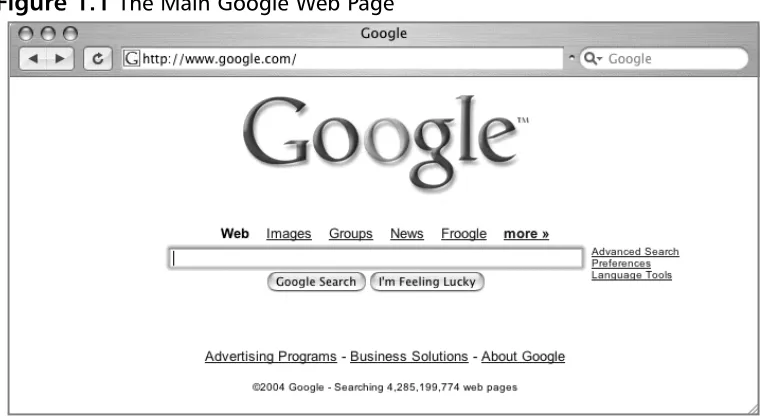
The main Google Web page, shown in Figure 1.1, can be found at
As shown in Figure 1.1, there is only one place on the page in which the user can type.This is the search field. In order to ask Google a question or query, you simply type what you’re looking for and either press Enter (if your browser supports it) or click the Google Search button to be taken to the results page for your query.
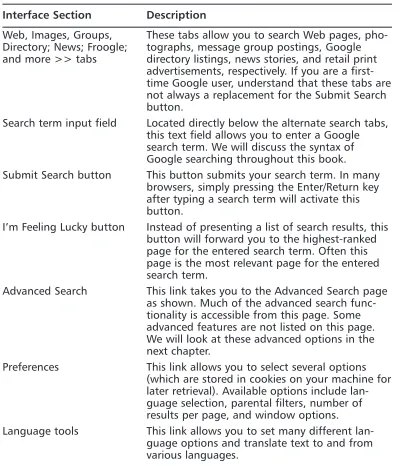
The links above the search field (Web, Images, Groups,and so on) open the other search areas shown in Table 1.1.The basic search functionality of each sec-tion is the same. Each search area of the Google Web interface has different capa-bilities and accepts different search operators, as we will see in the next chapter. For example, the inauthor operator was designed to be used in the groupssearch area.Table 1.1 outlines the functionality of each distinct area of the main Google Web page.
Table 1.1 The Links and Functions of Google’s Main Page
Interface Section Description
The Google toolbar The browser I am using has a Google “toolbar” installed and presented next to the address bar.
[image:28.503.68.450.65.275.2]www.syngress.com
Figure 1.1 The Main Google Web Page
Table 1.1 The Links and Functions of Google’s Main Page
Interface Section Description
Web, Images, Groups, These tabs allow you to search Web pages, pho-Directory; News; Froogle; tographs, message group postings, Google and more >> tabs directory listings, news stories, and retail print
advertisements, respectively. If you are a first-time Google user, understand that these tabs are not always a replacement for the Submit Search button.
Search term input field Located directly below the alternate search tabs, this text field allows you to enter a Google search term. We will discuss the syntax of Google searching throughout this book. Submit Search button This button submits your search term. In many
browsers, simply pressing the Enter/Return key after typing a search term will activate this button.
I’m Feeling Lucky button Instead of presenting a list of search results, this button will forward you to the highest-ranked page for the entered search term. Often this page is the most relevant page for the entered search term.
Advanced Search This link takes you to the Advanced Search page as shown. Much of the advanced search func-tionality is accessible from this page. Some advanced features are not listed on this page. We will look at these advanced options in the next chapter.
Preferences This link allows you to select several options (which are stored in cookies on your machine for later retrieval). Available options include lan-guage selection, parental filters, number of results per page, and window options.
Google Web Results Page
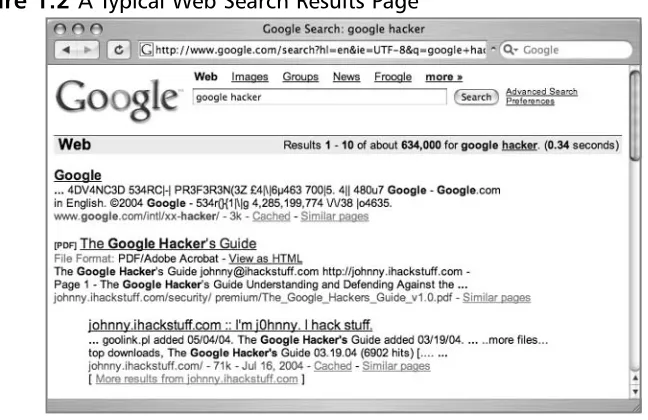
After processing a search query, Google displays a results page.The results page, shown in Figure 1.2, lists the results of your search and provides links to the Web pages that contain your search text.
The top part of the search result page mimics the main Web search page. Notice the Images, Groups, News, and Froogle links at the top of the page. By clicking these links, you automatically resubmit your search as an Image, Group, News, or Froogle search, without having to retype your query.
The results line shows which results are displayed (1–10, in this case), the approximate total number of matches (here, about 634,000), the search query itself (including links to dictionary lookups of individual words), and the amount of time the query took to execute.The speed of the query is often overlooked, but it is quite impressive. Even large queries resulting in millions of hits are returned within a fraction of a second!
For each entry on the results page, Google lists the name of the site, a sum-mary of the site (usually the first few lines of content), the URL of the page that matched, the size and date the page was last crawled, a cached link that shows the page as it appeared when Google last crawled it, and a link to pages with similar content. If the result page is written in a language other than your native lan-guage and Google supports the translation from that lanlan-guage into yours (set in
[image:30.503.88.412.150.360.2]www.syngress.com
the preferences screen), a link titled Translate this page will appear, allowing you to read an approximation of that page in your own language (see Figure 1.3).
Underground Googling
Translation Proxies
It’s possible to use Google as a transparent proxy server via the transla-tion service. When you click a Translate this page link, you are taken to a translated copy of that page hosted on Google’s servers. This serves as a sort of proxy server, fetching the page on your behalf. If the page you want to view requires no translation, you can still use the translation ser-vice as a proxy server by modifying the hlvariable in the URL to match the native language of the page. Bear in mind that images are not proxied in this manner. We will cover Translation Proxies further in Chapter 3.
Google Groups
Due to the surge in popularity of Web-based discussion forums, blogs, mailing lists, and instant-messaging technologies, USENET newsgroups, the oldest of public discussion forums, have become an overlooked form of online public dis-cussion.Thousands of users still post to USENET on a daily basis. A thorough discussion about what USENET encompasses can be found at www.faqs.org/ faqs/usenet/what-is/part1/. DejaNews (deja.com) was once considered the
authoritative collection point for all past and present newsgroup messages until Google acquired deja.com in February 2001 (see www.google.com/press/ pressrel/pressrelease48.html).This acquisition gave users the ability to search the entire archive of USENET messages posted since 1995 via the simple, straight-forward Google search interface. Google refers to USENET groups as Google Groups.Today, Internet users around the globe turn to Google Groups for general discussion and problem solving. It is very common for IT practitioners to turn to Google’s Groups section for answers to all sorts of technology-related issues.The old USENET community still thrives and flourishes behind the sleek interface of the Google Groups search engine.
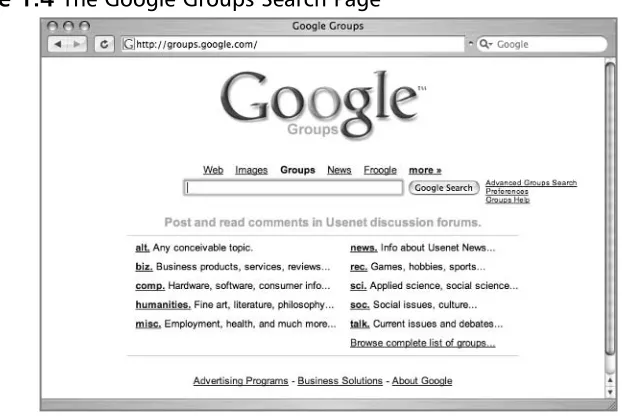
The Google Groups search can be accessed by clicking the Groupstab of the main Google Web page or by surfing to http://groups.google.com.The search interface (shown in Figure 1.4) looks a bit different from other Google search pages, yet the search capabilities operate in much the same way.The major difference between the Web search page and the Groups search page lies in the newsgroup browsing links.
Entering a search term into the entry field and clicking the Search button whisks you away to the Groups search results page (summarized in Table 1.2), which varies quite a bit from the other Google results pages.
[image:32.503.96.407.316.524.2]www.syngress.com
Table 1.2 Google Groups Search Links
Interface Section Description
Advanced Groups Search This link takes you to the Advanced Groups Search page, which allows for more precise searches. Not all advanced features are listed on this page. We will look at these advanced options in the next chapter.
Groups Help This link takes you to the Google Groups Frequently Asked Question page.
alt., biz., comp., etc. links These links reflect the topical hierarchy of USENET itself. By clicking on the links, you can browse through Google groups to read mes-sages in a ‘threaded’ format.
Google Image Search
The Google Image search feature allows you to search (at the time of this writing) over 880 million graphic files that match your search criteria. Google will attempt to locate your search terms in the image filename, in the image cap-tion, in the text surrounding the image, and in other undisclosed locations, to return a “de-duplicated” list of images that match your search criteria.The Google Image search operates identically to the Web search, with the exception of a few of the advanced search terms, which we will discuss in the next chapter. The search results page is also slightly different, as you can see in Figure 1.5.
The page header is nearly identical to the Web search results page, as is the results line.The Show:line is unique to image results.This line allows you to select images of various sizes to show in the results.The default is to display images of all sizes. Each matching image is shown in a thumbnail view with the original resolution and size followed by the URL of the image.
Google Preferences
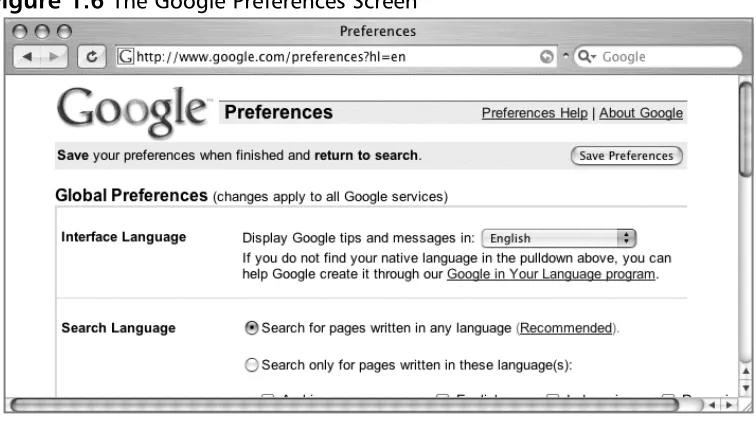
You can access the Preferences page by clicking the Preferenceslink from any Google search page or by browsing to www.google.com/preferences.These options primarily pertain to language and locality settings, as shown in Figure 1.6.
The Interface Language option describes the language that Google will use when printing tips and informational messages. In addition, this setting controls the language of text printed on Google’s navigation items, such as buttons and links. Google assumes that the language you select here is your native language and will “speak” to you in this language whenever possible. Setting this option is not the same as using the translation features of Google (discussed in the fol-lowing section). Web pages written in French will still appear in French, regard-less of what you select here.
To get an idea of how Google’s Web pages would be altered by a change in the interface language, take a look at Figure 1.7 to see Google’s main page rendered in
[image:34.503.71.449.230.443.2]www.syngress.com
“hacker speak.” In addition to changing this setting on the preferences screen, you can access all the language-specific Google interfaces directly from the Language Tools screen at www.google.com/language_tools.
[image:35.503.55.434.114.332.2]Even though the main Google Web page is now rendered in “hacker speak,” Google is still searching for Web pages written in any language. If you are inter-ested in locating Web pages that are written in a particular language, modify the Search Language setting on the Google preferences page. By default, Google will always try to locate Web pages written in any language.
Underground Googling
Proxy Server Language Hijinks
Proxy servers can be used to help hide your location and identity while you’re surfing the Web. Depending on the geographical location of a proxy server, the language settings of the main Google page may change to match the language of the country where the proxy server is located. If your language settings change inexplicably, be sure to check your proxy server settings. It’s easy to lose track of when you are running under a proxy and when you’re not. As we will see later, language settings can be reverted directly via the URL.
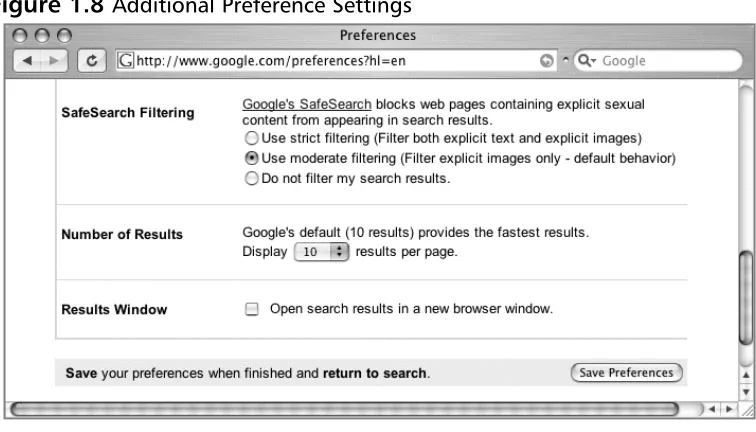
The preferences screen also allows you to modify other search parameters, as shown in Figure 1.8.
SafeSearch Filtering blocks explicit sexual content from appearing in Web searches. Although this is a welcome option for day-to-day Web searching, this option should be disabled when you’re performing searches as part of a vulnera-bility assessment. If sexually explicit content exists on a Web site whose primary
[image:36.503.71.449.315.531.2]www.syngress.com
content is not sexual in nature, the existence of this material may be of interest to the site owner.
The Number of Results setting describes how many results are displayed on each search result page.This option is highly subjective, based on your tastes and Internet connection speed. However, you may quickly discover that the default setting of 10 hits per page is simply not enough. If you’re on a relatively fast con-nection, you should consider setting this to 100, the maximum number of results per page.
When checked, the Results Window setting opens search results in a new browser window.This setting is subjective based on your personal tastes. Checking or unchecking this option should have no ill effects unless your browser (or other software) detects the new window as a pop-up advertisement and blocks it. If you notice that your Google results pages are not displaying after you click the Search button, you might want to uncheck this setting in your Google preferences.
Language Tools
The Language Tools screen, accessed from the main Google page, offers several different utilities for locating and translating Web pages written in different lan-guages.The first portion of the Language Tools screen (shown in Figure 1.9) allows you to perform a quick search for documents written in other languages as well as documents located in other countries.
The Language Tools screen also includes a utility that performs basic transla-tion services.The translatransla-tion form (shown in Figure 1.10) allows you to paste a block of text from the clipboard or supply a Web address to a page that Google can translate into a variety of languages.
In addition to the translation options available from this screen, Google inte-grates translation options into the search results page.The translation options avail-able from the search results page are based on the language options that are set from the Preferences screen shown in Figure 1.11. In other words, if your inter-face language is set to English and a Web page listed in a search result is French, Google will give you the option to translate that page into your native language, English.The list of available language translations is shown in Figure 1.11.
www.syngress.com
Figure 1.10 The Google Translation Tool
Underground Googling
Google Toolbars
Don’t get distracted by the allure of Google “helper” programs such as browser toolbars. You’ll find that you have full access to all the important features right from the main Google search screen. Each toolbar offers minor conveniences such as one-click directory traversals or select-and-search capability, but there are so many different toolbars available, you’ll have to decide for yourself which one is right for you and your operating environment. Check the FAQ at the end of this section for a list of some popular alternatives.
Building Google Queries
Google query building is a process.There’s really no such thing as an incorrect search. It’s entirely possible to create an ineffective search, but with the explosive growth of the Internet and the size of Google’s cache, a query that’s inefficient today may just provide good results tomorrow—or next month or next year.The idea behind effective Google searching is to get a firm grasp on the basic syntax and then to get a good grasp of effective narrowing techniques. Learning the Google query syntax is the easy part. Learning to effectively narrow searches can take quite a bit of time and requires a bit of practice. Eventually, you’ll get a feel for it, and it will become second nature to find the needle in the haystack.
The Golden Rules of Google Searching
Before we discuss Google searching, we should understand some of the basic ground rules:
■ Google queries are not case sensitive. Google doesn’t care if you type your query in lowercase letters (hackers), uppercase (HACKERS), camel case (hAcKeR), or psycho-case (haCKeR)—the word is always regarded the same way.This is especially important when you’re
exception is the word or. When used as the Boolean operator,ormust be written in uppercase, as OR.
■ Google wildcards. Google’s concept of wildcards is not the same as a programmer’s concept of wildcards. Most consider wildcardsto be either a symbolic representation of any single letter (UNIX fans may think of the question mark) or any series of letters represented by an asterisk. This type of technique is called stemming. Google’s wildcard, the asterisk (*), represents nothing more than a single wordin a search phrase. Using an asterisk at the beginning or end of a word will not provide you any more hits than using the word by itself.
■ Google stems automatically. Google will stem, or expand, words automatically when it’s appropriate. For example, consider a search for
pet lemur dietary needs, as shown in Figure 1.12. Google will return a hit that includes the word lemuralong with petand, surprisingly, the word
diet, which is short for dietary. Keep in mind that this automatic stem-ming feature can provide you with unpredictable results.
■ Google reserves the right to ignore you. Google ignores certain common words, characters, and single digits in a search.These are some-times called stop words. When Google ignores any of your search terms, you will be notified on the results page, just below the query box, as shown in Figure 1.13. Some common stop words include who, where, what, the, a,or an. Curiously enough, the logic for word exclusion can vary from search to search.
www.syngress.com
Consider the search what the cat dragged in.In this example, Google will ignore the terms what,the, and in. However, if any of these terms are searched for individually, Google will accept them as valid terms.
Examples include searching just for the term what; this term produces over 300,000,000 hits. Another way to force Google into using common words is to include them in quotes. Doing so submits the search as a phrase, and results will include all the words in the term, regardless of how common they may be. A third way to include ignored words in a search is to precede the term with a + sign, as in the query +and. Submitted without the quotes, taking care not to put a space between the + and the word and, this search returns nearly 4 billion results!
Underground Googling
Super-Size That Search!
One very interesting search is the search for +the * *. This search
pro-duces somewhere in the neighborhood of 5.8 billion search results, making it one of the most prolific searches known! Can you top this search?
■ Ten-word limit. Google limits searches to 10 terms.This includes search terms as well as advanced operators, which we’ll discuss in a moment.There is a fairly effective way to get more than 10 search terms crammed into a query: Replace Google’s ignored terms with the wild-card character (*). Google does not count the wildcard character as a
search term, allowing you to extend your searches quite a bit! Consider a query for the wording of the beginning of the U.S. Constitution:
we the people of the united states in order to form a more perfect
union establish justice
This search term is 17 words long. Google ignores many of the terms in the query, specifically the, of, the, in, to,anda. Despite these ignored words, Google further complains that the search is too long and that the word justice was ignored because the search limit is 10 words. If we replace some of the words with the asterisk (the wildcard character) and submit it as:
"we * people * * united states * order * form * more perfect *
establish *"
When we include the asterisks, Google no longer complains about the number of words in our search, because we’ve only submitted nine words (and eight uncounted wildcard characters). We could extend our search even farther, by two more real words and just about any number of wildcards.
Basic Searching
Google searching is a process, the goal of which is to find information about a topic.The process begins with a basic search, which is modified in a variety of ways until only the pages of relevant information are returned. Google’s ranking technology helps this process along by placing the highest-ranking pages on the first results page.The details of this ranking system are complex and somewhat speculative, but suffice it to say that for our purposes Google rarely gives us
exactly what we need following a single search.
The simplest Google query consists of a single word or a combination of individual words typed into the search interface. Some basic word searches could include:
■ hacker
■ FBI hacker Mitnick
■ mad hacker dpak
Slightly more complex than a word search is a phrase search. A phrase is a group of words enclosed in double-quote marks. When Google encounters a phrase, it searches for all words in the phrase, in the exact order you provide them. Google does not exclude common words found in a phrase. Phrase searches can include
■ “Google hacker”
■ “adult humor”
■ “Carolina gets pwnt”
Phrase and word searches can be combined and used with advanced opera-tors, as we will see in the next chapter.
Using Boolean
Operators and Special Characters
More advanced than basic word searches, phrase searches are still a basic form of a Google query.To perform advanced queries, it is necessary to understand the Boolean operators AND,OR, and NOT.To properly segment the various parts of an advanced Google query, we must also explore visual grouping techniques that use the parenthesis characters. Finally, we will combine these techniques with certain special characters that may serve as shorthand for certain operators, wildcard characters, or placeholders.
If you have used any other Web search engines, you have probably been exposed to Boolean operators. Boolean operators help specify the results that are returned from a query. If you are already familiar with Boolean operators, take a moment to skim this section to help you understand Google’s particular imple-mentation of these operators, since many search engines handle them in different ways. Improper use of these operators could drastically alter the results that are returned.
include in your query. In fact, Google will warn you when you have included terms that are obviously redundant, as shown in Figure 1.14.
N
OTEWhen first learning the ways of Google-fu, keep an eye on the area below the query box on the Web interface. You’ll pick up great pointers to help you improve your query syntax.
The plus symbol (+) forces the inclusion of the word that follows it.There should be no space following the plus symbol. For example, if you were to search for and,justice,for, and allas separate, distinct words, Google would warn that sev-eral of the words are too common and are excluded from the search.To force Google to search for those common words, preface them with the plus sign. It’s okay to go overboard with the plus sign. It has no ill effects if it is used exces-sively.To perform this search with the inclusion of all words, consider a query such as +and justice for +all. In addition, the words could be enclosed in double quotes.This generally will force Google to include all the common words in the phrase.This query presented as a phrase would be“and justice for all.”
Another common Boolean operator is NOT. Functionally the opposite of the ANDoperator, the NOToperator excludes a word from a search. One way to use this operator is to preface a search word with the minus sign (–). Be sure to leave no space between the minus sign and the search term. Consider a simple query such as hacker.This query is very generic and will return hits for all sorts of occupations, like golfers, woodchoppers, serial killers, and those with chronic bronchitis. With this type of query, you are most likely not interested in each and every form of the word hacker but rather a more specific rendition of the term. To narrow the search, you could include more terms, which Google would auto-matically AND together, or you could start narrowing the search by using NOT
www.syngress.com
to remove certain terms from your search.To remove some of the more unsavory characters from your search, consider using queries such as hacker –golfor hacker –phlegm.This would allow you to get closer to the hackers you’re really looking for: wood choppers!
A less common and sometimes more confusing Boolean operator is OR.The
ORoperator, represented by the pipe symbol ( | )or simply the word OR in uppercase letters, instructs Google to locate either one term oranother in a query. Although this seems fairly straightforward when considering a simple query such as hacker or “evil cybercriminal,” things can get terribly confusing when you string together a bunch of ANDsand ORs and NOTs.To help alleviate this confusion, don’t think of the query as anything more than a sentence read from left to right. Forget all that order of operations stuff you learned in high school algebra. For our purposes, an ANDis weighed equally with an OR, which is weighed as equally as an advanced operator.These factors may affect the rank or order in which the search results appear on the page, but the have no bearing on how Google handles the search query.
Let’s take a look at a very complex example, the exact mechanics of which we will discuss in the next chapter:
intext:password | passcode intext:username | userid | user filetype:csv
This example uses advanced operators combined with the OR Boolean to create a query that reads like a sentence written as a polite request.The request asked of Google would read, “Locate all pages that have either password or pass-codein the text of the document. From those pages, show me only the pages that contain either the words username,userid, or user in the text of the document. From those pages, only show me documents that are CSV files.” Google doesn’t get confused by the fact that technically those ORsymbols break up the query into all sorts of possible interpretations. Google isn’t bothered by the fact that from an algebraic standpoint, your query is syntactically wrong. For the purposes of learning how to create queries, all we need to remember is that Google read our query from left to right.
Google’s cut and dry approach to combining Boolean operators is still very confusing to the reader. Fortunately, Google is not offended (or affected by) parenthesis.The previous query can also be submitted as
intext:(password | passcode) intext:(username | userid | user) filetype:csv
Search Reduction
To achieve the most relevant results, you’ll often need to narrow your search by modifying the search query. Although Google tends to provide very relevant results for most basic searches, soon we will begin using advanced queries aimed at pages containing very specific content. Locating these pages requires skill in search reduction.The vast majority of this book focuses on search reduction techniques and suggestions, but it’s important that you at least understand the basics of search reduction. As a simple example, we’ll take a look at GNU Zebra, free software that manages TCP/IP-based routing protocols. GNU Zebra uses a file called zebra.conf to store configuration settings, including interface informa-tion and passwords. After downloading the latest version of Zebra from the Web, we learn that the included zebra.conf.sample file looks like this:
! zebra
-*-!
! zebra sample configuration file
!
! $Id: zebra.conf.sample,v 1.14 1999/02/19 17:26:38 developer Exp $
!
hostname Router
password zebra
enable password zebra
!
! Interface's description.
!
!interface lo
! description test of desc.
!
!interface sit0
! multicast
!
! Static default route sample.
!
!ip route 0.0.0.0/0 203.181.89.241
!
!log file zebra.log
To attempt to locate these files with Google, we might try a simple search such as:
"! Interface's description. "
This is considered the base search. Base searches should be as unique as possible in order to get as close to our desired results as possible. Starting with a poor base search completely negates all the hard work you’ll put into reduction. Our base search is unique not only because we have focused on the words Interface’sand
description,but we have also included the exclamation mark, the spaces, and the period following the phrase as part of our search.This is the exact syntax that the configuration file itself uses, so this seems like a very good place to start.
However, Google takes some liberties with this search query, making the results less than adequate, as shown in Figure 1.15.
[image:47.503.92.392.314.599.2]First, notice that none of the result summaries look anything like our zebra.conf file. Google effectively ignored our punctuation marks and spacing, despite the fact that we enclosed them in double quotes. Google has instead keyed on the words Interface’sand description.In addition, Google’s auto stemming feature located the word interface in our fourth returned result. Sometimes auto stemming just plain gets in the way.
Underground Googling
Bad Form on Purpose
In some cases, there’s nothing wrong with using poor Google syntax in a search. If Google safely ignores part of a human-friendly query, leave it alone. The human readers will thank you!
I recommend leaving the syntax as is for clarity, but adding another reduction element to our search,zebra.conf,making our next query:
"! Interface's description. " zebra.conf
This narrows our search and returns results that look much more like the conf file we’re looking for, as shown in Figure 1.16.
www.syngress.com
It’s tempting in this situation to simply add:
–"zebra.conf.sample"
to our query to get rid of any search that shows sample zebra.conf files. However, it helps to step into the shoes of the software’s users for just a moment. Software installations like this one often ship with a sample configuration file to help guide the process of setting up a custom configuration. Most users will simply edit this file, changing only the settings that need to be changed for their environments, saving the file not as a .sample file but as a .conf file. In this situation, the user could have a live configuration file with the term zebra.conf.sample still in place. Reduction based on this term may remove live configuration files created in this manner.
There’s another reduction angle. Notice that our zebra.conf.sample file con-tained the term hostname Router.This is most likely one of the settings that a user will change, although we’re making an assumption that his machine is not named Router.This is less a gamble than reducing based on zebra.conf.sample, however. Adding the reduction term –“hostname Router”to our query brings our results number down and reduces our hits on potential sample files, all without sacri-ficing potential live hits.
Although it’s certainly possible to keep reducing, often it’s enough to make just a few minor reductions that can be validated by eye than to spend too much time coming up with the perfect search reduction. Our final (that’s four qualifiers for just one word!) query becomes:
"! Interface's description. " zebra.conf -"hostname Router"
This is notthe best query for locating these files, however. Advanced opera-tors, discussed in the next chapter, will get us even closer to that perfect query!
Working With Google URLs
Once you enter this query, you are whisked away to the following URL, or something similar:
www.google.com/search?q=ihackstuff
If you bookmark this URL and return to it later or simply enter the URL into your browser’s address bar, Google will reprocess your search for ihackstuffand display the results.This URL then becomes not only an active connection to a list of results, it also serves as a nice, compact sort of shorthand for a Google query. Any experienced Google searcher can take a look at this URL and realize the search subject.This URL can also be modified fairly easily. By changing the word
ihackstuffto iwritestuff, the Google query is changed to find the term iwritestuff.This simple example illustrates the usefulness of the Google URL for advanced
searching. A quick modification of the URL can make changes happen fast!
Underground Googling
Uncomplicating URL Construction
The only URL parameter that is required in most cases is a query (the q
parameter), making the simplest Google URL www.google.com/ search?q=google.
URL Syntax
To fully understand the power of the URL, we need to understand the syntax. The first part of the URL, www.google.com/search, is the location of Google’s search script. I refer to this URL, as well as the question mark that follows it, as the base, or starting URL. Browsing to this URL presents you with a nice, blank search page.The question mark after the word search indicates that parameters are about to be passed into the search script. Parameters are options that instruct the search script to actually dosomething. Parameters are separated by the ampersand (&) and consist of a variable followed by the equal sign (=) followed by the value
that the variable should be set to.The basic syntax will look something like this:
www.google.com/search?variable1=value&variable2=value
Let’s break apart a simple Google URL to look at the various components:
www.google.com/search?hl=en&q=ihackstuff
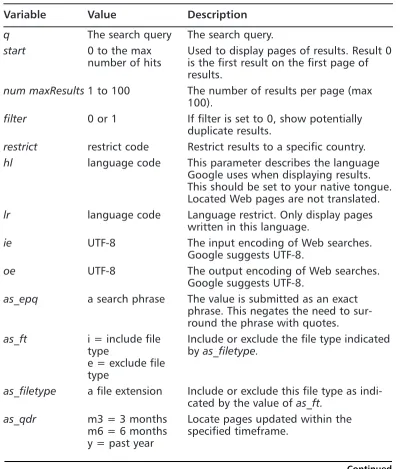
The base URL is followed by several parameters, each separated by the ampersand (&) character. Each parameter is made of several variables and values, as shown in Table 1.3.
Table 1.3 Google URL Components
Variable Value Description
hl en The language in which the results page will be printed.
q ihackstuff The query to be submitted.
Special Characters
A URL represents special characters and spaces with hex-encoded equivalents of the characters. Some browsers will adjust a typed URL, replacing special charac-ters and spaces with hex-encoded equivalents. If your browser supports this behavior, your job of URL construction is that much easier.Try this simple test. Type the following URL in your browser’s address bar, making sure to use spaces between i,hack, and stuff:
www.google.com/search?q="i hack stuff"
If your browser supports this auto-correcting feature, after you press Enter in the address bar, the URL should be corrected to www.google.com/
Underground Googling
Quick Hex Conversions
To quickly determine hex codes for a character, you can run man ASCII from a UNIX or Linux machine, or Google for the term “ascii table”.
Putting the Pieces Together
Google search URL construction is like putting together Legos.You start with a URL and you modify it as needed to achieve varying search results. Many times your starting URL will come from a search you submitted via the Google Web interface. If you need some added parameters, you can add them directly to your URL in any order. If you need to modify parameters in your search, you can change the value of the parameter and resubmit your search. If you need to remove a parameter, you can delete that entire parameter from the URL and resubmit your search.This process is especially easy if you are modifying the URL directly in your browser’s address bar.You simply make changes to the URL and press Enter.The browser will automatically fetch the address and take you to an updated search page.You could achieve similar results by poking around Google’s advanced search page (www.google.com/advanced_search, shown in Figure 1.17) and by setting var-ious preferences, as discussed earlier, but ultimately you’ll find it faster and easier to make quick search adjustments directly through URL modification.
Figure 1.17 Search Reduction in Action