Rochester Institute of Technology
RIT Scholar Works
Theses
Thesis/Dissertation Collections
11-5-2013
A Forensic Comparison: Windows 7 and Windows
8
Peter J. Wilson
Follow this and additional works at:
http://scholarworks.rit.edu/theses
Part of the
Computer Security Commons
This Thesis is brought to you for free and open access by the Thesis/Dissertation Collections at RIT Scholar Works. It has been accepted for inclusion in Theses by an authorized administrator of RIT Scholar Works. For more information, please [email protected].
Recommended Citation
A Forensic Comparison: Windows 7 and Windows 8
by
Peter J. Wilson
Committee Members
Doctor Yin Pan
Doctor Sumita Mishra
Professor Harris Weisman
Thesis submitted in partial fulfillment of the requirements for the degree of
Master of Science in
Computer Security and Information Assurance
Rochester Institute of Technology
B. Thomas Golisano College
of
Computing and Information Sciences
Wilson i
Rochester Institute of Technology
B. Thomas Golisano College
of
Computing and Information Sciences
Master of Science in
Computer Security and Information Assurance
Thesis Approval Form
Student Name:
Peter J. Wilson
Thesis Title:
A Forensic Comparison: Windows 7 and Windows 8
Thesis Committee
Doctor Yin Pan
Chair
Doctor Sumita Mishra
Committee Member
Wilson ii
Abstract
Wilson iii
Acknowledgements
This thesis has evolved significantly over the past year. During the slow and often
interrupted evolution of this thesis I have come to greatly appreciate those who supported me. I
would like to specially thank my mother, Mimi Wilson, and father, Philip Wilson, for their
consistent reminders and interest in my research. I would also like to thank my sisters, Jennifer
and Kate Wilson, for their gentle nagging and assistance in the review process. Even though it
took me far longer than I originally intended to complete my thesis, my family provided the
encouragement I needed and helped me find the motivation to finish. I would like to express my
sincerest thanks to them.
In addition, I would also like to thank my thesis committee, Doctor Yin Pan, Doctor
Sumita Mishra, and Professor Harris Weisman, for their excellent guidance and thoughtful
suggestions. Their classes throughout my undergraduate and graduate careers are what sparked
my interest in computer forensics.
My close friends Nathan Welshans, Andrew Guirguis, and Thomas Kopchak deserve a
measure of thanks. Working side by side with them, in more classes than I can remember, was
thoroughly enjoyable. Their knowledge of networking and systems administration helped me to
complete courses I never would have been able to on my own.
Finally, I would like to thank the Network Security and Systems Administration
Wilson iv
Table of Contents
Introduction ...1
Literature Review...2
Methodology ...5
Network Topology ... 5
Virtual Machine Settings ... 8
Windows 7 ... 9
Windows 8 ... 9
Installed Software ... 10
User Data ... 10
Accounts ... 11
Data Generation ... 11
Forensic Analysis ...14
Data Collection ... 14
Data Preservation ... 17
Data Analysis ... 18
Reporting ... 19
Results and Comparison ...19
File Creation and Deletion Artifacts ... 20
Similarities: ... 20
Differences: ... 20
Web Browsing Artifacts ... 20
Similarities: ... 20
Differences: ... 21
Social Media Artifacts ... 21
Wilson v
Differences: ... 22
Email Artifacts ... 22
Similarities: ... 22
Differences: ... 22
Registry Artifacts ... 23
Similarities: ... 23
Differences: ... 24
Related Works Findings ...24
Future Work ...27
Conclusion ...28
Appendices ...29
Appendix A: User Data Log... 29
Appendix B: Windows 7 Forensic Report ... 42
Appendix C: Windows 8 Forensic Report ... 71
Bibliography ...101
List of Tables
Table 1 Virtual Machine Software ... 10
Table 2 Accounts Created for Virtual Machines ... 11
Table 3 Windows 7 Data Generation Activities ... 12
Table 4 Windows 8 Data Generation Activities ... 13
Table 5 Initial Hash Calculations ... 15
Table 6 Hash Calculations after Transfer ... 17
Table 7 Hash Calculations after Forensic Analysis ... 18
Table 8 Thomson's Local Folder Differences ... 25
Table 9 Thomson's Windows 8 Registry Differences ... 25
Wilson vi
Table 11 OpenSavePIDIMRU Applications ... 65
Table 12 LastVisitedPidMRU Applications ... 66
Table 13 RecentDocs Applications ... 67
Table 14 OpenSavePIDIMRU Applications ... 95
Table 15 LastVisitedPidMRU Applications ... 97
Table 16 RecentDocs Applications ... 97
List of Figures
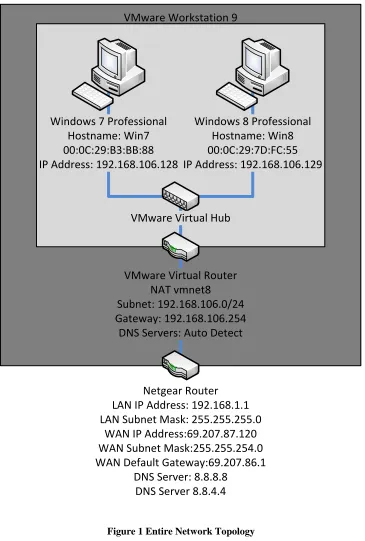
Figure 1 Entire Network Topology ... 7
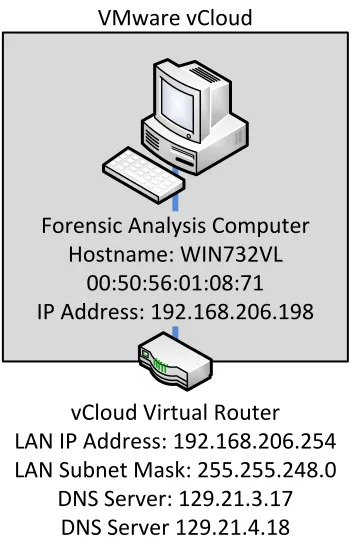
Figure 2 Forensic Network Topology ... 8
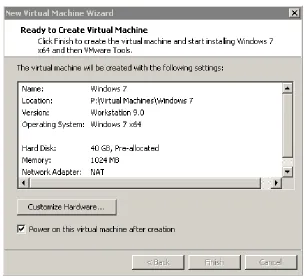
Figure 3 Windows 7 Virtual Machine Settings... 9
Figure 4 Windows 8 Virtual Machine Settings... 9
Figure 5 Uncompressed Virtual Machines Folder ... 16
Figure 6 Compressed Virtual Machines Folder ... 16
Figure 7 Johnson's Refresh and Recovery Differences ... 27
Figure 8 Windows 7 Created Documents ... 42
Figure 9 Windows 7 Created File ... 42
Figure 10 Windows 7 Created File ... 42
Figure 11 Windows 7 Recovered Deleted Files ... 43
Figure 12 Recovered File $RERBVFG.txt ... 43
Figure 13 Recovered File $IERBVFG.txt ... 43
Figure 14 Internet Explorer History ... 44
Figure 15 Internet Explorer Bookmarks ... 44
Figure 16 Internet Explorer Cache ... 45
Figure 17 Internet Explorer Cached Images ... 45
Figure 18 Firefox History ... 46
Figure 19 Firefox Favorites ... 47
Figure 20 Firefox Cache ... 47
Figure 21 Firefox Cached Images ... 48
Figure 22 Firefox Stored Login Data ... 49
Wilson vii
Figure 24 Chrome Top Sites ... 50
Figure 25 Chrome Cache ... 51
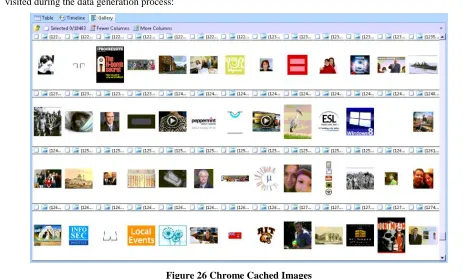
Figure 26 Chrome Cached Images ... 51
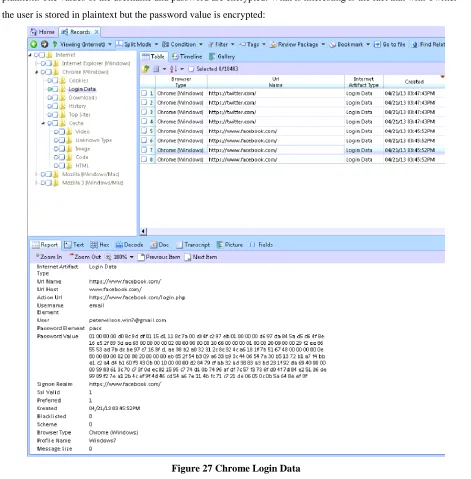
Figure 27 Chrome Login Data ... 52
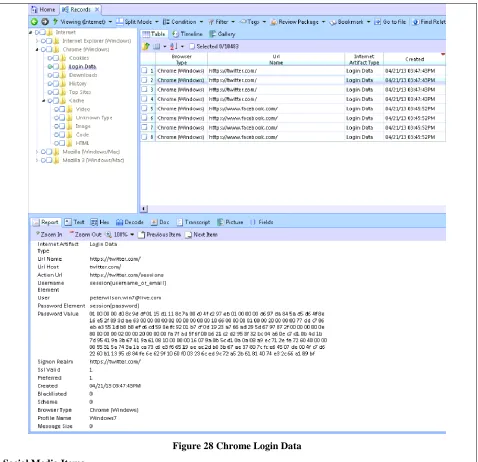
Figure 28 Chrome Login Data ... 53
Figure 29 Social Media Items ... 54
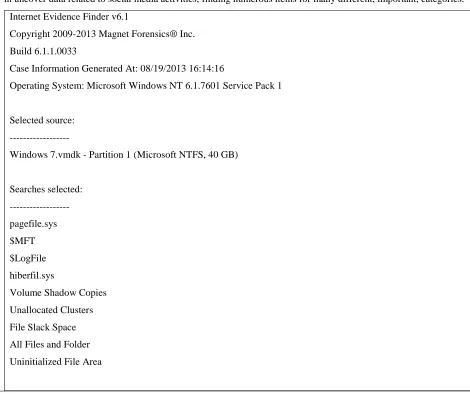
Figure 30 Windows 7 IEF Case Summary ... 57
Figure 31 Windows 7 Facebook Activity ... 58
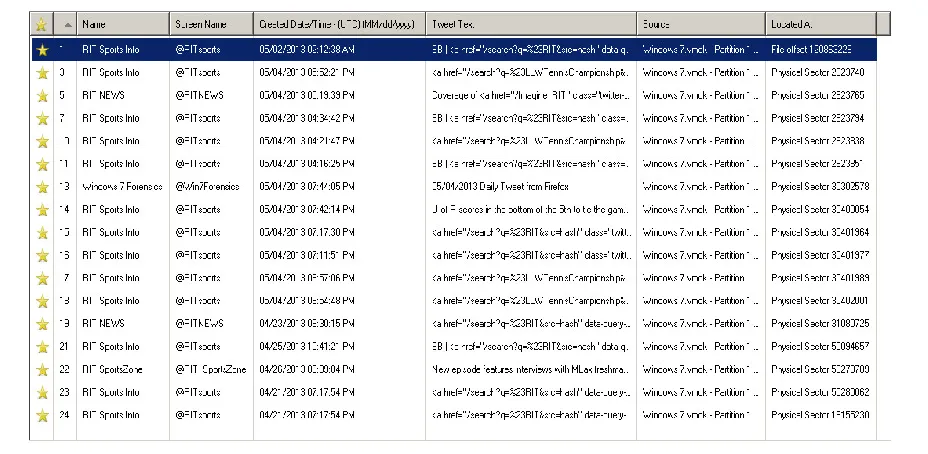
Figure 32 Windows 7 Twitter Activity ... 58
Figure 33 Windows 7 Facebook URLs ... 59
Figure 34 IEF Timeline for Social Media Items ... 60
Figure 35 IEF Timeline for Social Media Items with Details ... 60
Figure 36 Email sent to [email protected] ... 61
Figure 37 Email sent to [email protected] ... 62
Figure 38 Email sent from [email protected] ... 62
Figure 39 Email sent from [email protected] ... 63
Figure 40 Forwarded Emails ... 63
Figure 41 Replied Emails... 64
Figure 42 Recovered Email with Attachments ... 65
Figure 43 OpenSavePIDlMRU Registry Key ... 65
Figure 44 HEX and ASCII Data REG_BINARY 0 OpenSavePIDIMRU ... 65
Figure 45 LastVisitedPidMRU Registry Key ... 66
Figure 46 HEX and ASCII Data REG_BINARY 0 LastVisitedMRU ... 66
Figure 47 RecentDocs Registry Key... 67
Figure 48 HEX and ASCII Data REG_BINARY 0 RecentDocs Registry Key ... 67
Figure 49 TimeZoneInformation Registry Key ... 68
Figure 50 Unmanaged Network 2 Registry Key... 68
Figure 51 Unmanaged Network Registry Key... 69
Figure 52 Users Registry Key ... 69
Figure 53 Windows 8 Created Documents ... 71
Wilson viii
Figure 55 Windows 8 Created File ... 71
Figure 56 Windows 8 Recovered Deleted Files ... 72
Figure 56 Recovered File $RFGBREV.txt ... 72
Figure 57 Recovered File $IFGBREV.txt ... 72
Figure 58 Internet Explorer and Internet Explorer App History ... 73
Figure 59 Internet Explorer and Internet Explorer App Bookmarks ... 73
Figure 60 Firefox History ... 74
Figure 61 Firefox Favorites ... 74
Figure 62 Firefox Cache ... 75
Figure 63 Firefox Cached Images ... 76
Figure 64 Firefox Stored Login Data ... 77
Figure 65 Chrome History ... 78
Figure 66 Chrome Top Sites ... 78
Figure 67 Chrome Cache ... 79
Figure 68 Chrome Cached Images ... 80
Figure 69 Chrome Login Data ... 81
Figure 70 Chrome Login Data ... 82
Figure 71 Social Media Items ... 82
Figure 72 Windows 8 IEF Case Summary ... 86
Figure 73 Windows 8 Facebook Activity ... 87
Figure 74 Windows 8 Twitter Activity ... 87
Figure 75 Windows 8 Facebook URLs ... 88
Figure 76 IEF Timeline for Social Media ... 89
Figure 77 IEF Timeline for Social Media Items with Details ... 89
Figure 78 Email sent to [email protected] ... 90
Figure 79 Email sent to [email protected] ... 91
Figure 80 Email sent from [email protected] ... 91
Figure 81 Email sent from [email protected] ... 92
Figure 82 Forwarded Emails ... 92
Figure 83 Replied Emails... 92
Wilson ix
Figure 85 Recovered Email with Attachments ... 93
Figure 86 OpenSavePIDlMRU Registry Key ... 94
Figure 87 HEX and ASCII Data REG_BINARY 0 OpenSavePIDIMRU ... 95
Figure 88 LastVisitedPidMRU Registry Key ... 96
Figure 89 HEX and ASCII Data REG_BINARY 0 LastVisitedMRU ... 96
Figure 90 RecentDocs Registry Key... 97
Figure 91 HEXl and ASCII Data REG_BINARY 0 RecentDocs Registry Key ... 97
Figure 92 TimeZoneInformation Registry Key ... 98
Figure 93 Unmanaged Network 2 Registry Key... 99
Figure 94 Unmanaged Network Registry Key... 99
Wilson 1
Introduction
As of October 26th, 2012 Microsoft’s newest client operating system is Windows 8.
While developers, IT professionals, MSDN and TechNet subscribers, and others have had access
to the new operating system since August, the general public can now get their hands on
Microsoft’s latest client operating system. [1] The release of new operating systems brings
significant challenges, especially for the forensic community. Since its first Windows operating
system in 1985, Microsoft has released several different operating systems. While each iteration
of operating system has built upon the success of previous versions, there are also noteworthy
differences with each new iteration. These differences provide challenges that forensic examiners
must overcome in order to perform their analysis of computer systems.
As with other Microsoft operating systems, Windows 8 follows the pattern of having
considerable differences from its predecessor. [2] The most significant difference between
Windows 8 and Windows 7 pertains to the user experience. In Windows 8, the start menu,
present in all Microsoft operating systems since Windows 95, is entirely replaced with the start
screen. [3] However, the addition of the start screen is only a small portion of the changes to the
user interface. In addition to the start screen, the user experience has changed significantly by
combining the tile based “Modern” style applications and previously used desktop style
applications. [4] Some “Modern” applications that are worthy of note are the People App [5]and
Internet Explorer 10 [6]. There are many differences between the user experience of Windows 8
and Windows 7; this research explores how those differences impact forensic analysis.
Another major difference between Windows 8 and previous versions of Windows is the
ability to use a single user account across multiple PCs through Windows Live. [7] Using a
Windows Live account allows synchronization of SkyDrive, Email, Calendar, Contacts,
Messaging, and Photos/Videos between PCs that are associated with a Windows Live account.
[8] Prior to my research, the impact that this synchronization has on forensic capabilities was
unknown, this research determines that impact.
Wilson 2
What bearing this new feature will have concerning forensics was unknown; this research helped
to uncover that.
Needless to say, there are many differences between Windows 8 and previous Microsoft
operating systems. My research explores those differences and any influence they have on the
forensic process or forensic investigations. My research is primarily focused around the non-live
forensic similarities and differences that exist between Microsoft’s latest client operating system,
Windows 8, and its previous client operating system, Windows 7. This research and its
documentation are extremely important because of the limited information regarding Windows 8
forensics.
Literature Review
In order to better understand computer forensics as it pertains to Windows 8, it is
worthwhile to explore the research conducted, and papers and articles written relating to the
topic. Unfortunately, there are a limited number of resources that cover Windows 8 forensics
specifically. Those resources that do cover this topic are by no means comprehensive and very
few are purely academic; many of the resources relating to this topic are highly technical
industry papers or blog postings. Most of the articles, presentations, or blog postings that I have
been able to find only scratch the surface of exploring Windows 8 from a forensic point of view.
Despite this, I was able to find a few excellent resources for the basis of my research into
Windows 8 forensics.
Wilson 3
builds upon. This paper is important to my research because it details some of the similarities
and differences regarding artifacts for Windows 8 forensics. My research expands upon the
research of Thomson; exploring additional artifacts uncovered though my experimentation
process. My research uncovers new artifacts that are not covered in the “Windows 8 Forensic
Guide” and details my research findings.
In Ethan Fleisher’s blog posts and YouTube videos, “Windows 8 Forensics”, key forensic
differences between Windows 7 and Windows 8 are explored. The blog posts and videos include
the following topics of research: recycle bin properties, USB drive activity, Internet history,
event logs, and the file history feature. In some cases, Fleisher determined that there is little to no
forensic difference between Windows 7 and Windows 8. One significant finding to note is the
differences involved with Internet Explorer 10. The author uncovered that Internet cookies and
history files are stored in different locations from the previous version of Windows. Fleisher’s
LCDI blog posts and YouTube videos provide some basic details pertaining to forensic analysis
of a Windows 8 system. [11] While limited, these blog posts helped to provide me with a starting
point for setting up my experiments and beginning the analysis process. In addition, I was also
able to explore some of the topics that the author planned on studying but never got around to.
An important tool that was extremely useful while performing the forensic analysis of
Windows 7 and Windows 8 was the “SANS Windows Artifact Analysis” poster. This poster is
something of a quick guide for uncovering evidence of file download, program execution, file
opening/creation, file deletion, location, USB/drive usage, account usage, and browser usage.
[12] While the poster only contains information for Windows XP and Windows 7, I was able to
use the information on the poster to serve as a guide for my analysis. In addition, I was also able
to compare my forensic analysis findings of the Windows 8 virtual machine with that of the
poster. This poster accelerated my research and helped me to uncover differences between
Windows 7 and Windows 8 forensically.
In J. Philip Craiger’s article, “Computer Forensic Procedures and Methods”, the
fundamentals of computer forensics are covered. The article begins by reviewing forensic tools,
listing best practices, and outlining first steps for a forensic analysis. The article continues to
detail the analysis of a forensic image providing steps and guidance along the way. [13]
Wilson 4
is written with a focus on Windows XP. This means that this article is primarily useful for
providing suggestions for forensic artifacts that may be of interest.
In Josh Brunty’s presentation, “Windows 8 A Forensic First Look”, the presenter
demonstrates some of the forensic findings that researchers at Marshall University have been
able to uncover with Microsoft’s latest operating system. Brunty begins with a general overview
of the operating system along with the new “Modern” graphical interfaces and some of the
differences between previous versions of Windows. As he continues his presentation, the file
structure of Windows 8 is explored and the many forensic artifacts that are left behind for
forensic examiners to locate. There are a few very interesting items that Brunty points out in his
presentation. Primarily, that each immersive application has its own registry file and own
Internet artifacts (Cache, Cookies, History). This is especially important for the People
application which contains information pulled from Twitter, Facebook, Google+, other social
media sites, contacts, email, etc. making it easier for forensic investigators to obtain information.
[14] Brunty’s presentation is significant in relation to my research as it served as a jumping point
from which I was able to further extend some of the topics that were not covered or minimally
covered by the presentation.
Wilson 5
In Rob Lee’s SANS blog post, “Windows 7 Computer Forensics”, several pertinent
topics are discussed. Each of the areas in which Lee provides links to other articles are areas in
which I can focus my research for Windows 8. His posting documents the areas of user profiles,
Internet Explorer, USB Key Analysis, Defrag Analysis, Timeline Analysis, and Shadow Copy
Forensics. All of the research he has uncovered pertains to Windows 7. [16] This is useful to me
because rather than replicating other people’s research, I can focus on exploring how Windows 8
is forensically similar or different from Windows 7. I can use Lee’s documentation and research
to compare against my findings in similar areas for Windows 8.
Methodology
Since my thesis focuses on the forensic similarities and differences between Windows 7
and Windows 8, I performed a variety of actions in order to discover those similarities and
differences. I designed a network topology, installed software/applications, generated user data,
and finally, performed a forensic analysis, on Windows 7 and Windows 8. Through the activities
detailed, I was able to determine how the significant similarities and differences between
Windows 8 and previous versions of Windows affect forensic analysis in the Results and
Comparison section below.
Network Topology
For the network topology, I setup a basic, commercial off the shelf, Netgear Router and a
server running Microsoft’s Windows Server 2008 R2. The router enabled me to connect the
server, and subsequent Virtual Machines, to The Internet and install updates and necessary
software. The router was configured to have a Local Area Network (LAN) IP address of
192.168.1.1 with a 24 bit subnet mask and serve as the default gateway for the server. The router
was also configured by the Internet Service Provider (ISP) to have a WAN IP address of
69.207.87.120, a 23 bit subnet mask, and a default gateway of 69.207.86.1. Finally, I configured
the router to use Google’s Domain Name Service (DNS) servers (8.8.8.8 and 8.8.4.4) for
Wilson 6
Vmnet8 was setup to use the 192.168.106.0 subnet with a 24 bit subnet mask. The virtual
Wilson 7
Windows Server 2008 R2
Windows 7 Professional
Hostname: Win7
00:0C:29:B3:BB:88
IP Address: 192.168.106.128
Windows 8 Professional
Hostname: Win8
00:0C:29:7D:FC:55
IP Address: 192.168.106.129
VMware Virtual Hub
Netgear Router
LAN IP Address: 192.168.1.1
LAN Subnet Mask: 255.255.255.0
WAN IP Address:69.207.87.120
WAN Subnet Mask:255.255.254.0
WAN Default Gateway:69.207.86.1
DNS Server: 8.8.8.8
DNS Server 8.8.4.4
VMware Virtual Router
NAT vmnet8
Subnet: 192.168.106.0/24
Gateway: 192.168.106.254
[image:18.612.125.490.86.627.2]DNS Servers: Auto Detect
VMware Workstation 9
Figure 1 Entire Network Topology
Wilson 8
the virtual machine files from both Windows 7 and Windows 8. The topology for the forensic
analysis virtual machine can be seen in Figure 2.
VMware vCloud
Forensic Analysis Computer
Hostname: WIN732VL
00:50:56:01:08:71
IP Address: 192.168.206.198
vCloud Virtual Router
LAN IP Address: 192.168.206.254
LAN Subnet Mask: 255.255.248.0
[image:19.612.218.394.127.399.2]DNS Server: 129.21.3.17
DNS Server 129.21.4.18
Figure 2 Forensic Network Topology
Virtual Machine Settings
In addition to the network topology, the virtual machines were also configured with
specific settings. Each virtual machine was given a name of the format Windows <7/8>
depending on which operating system was installed. Each virtual machine was stored on an
NTFS partition (P:\Virtual Machines), within its own folder on the server, and was configured to
use VMware Workstation version 9.0. The virtual machines were installed with the 64 bit
Wilson 9
Windows 7
Figure 3 Windows 7 Virtual Machine Settings
[image:20.612.153.458.87.366.2]Windows 8
Wilson 10
Installed Software
In regards to the software and/or applications installed on the virtual machines, I
attempted to limit the programs installed to those that are commonly used. In fact, very little
software was actually needed to create user data. In most cases, the software that came
preinstalled with the operating systems was adequate. Table 1 details the software that I installed
on the virtual machines along with preinstalled software that I used frequently throughout the
data generation process.
Table 1 Virtual Machine Software
As you can see, on Windows 7 I needed to install three applications while on Windows 8
I only needed to install two. This is because Windows 7 does not come with a preinstalled email
application whereas Windows 8 does. In addition, any software or applications that were
installed or used were setup or configured with the default configurations. This means that
wherever possible, I accepted defaults during installation and/or did not make any changes to the
settings.
User Data
Having valid user data was very important for the research that I conducted. As such,
each virtual machine was used for ten days over a period of fourteen days to perform common
basic tasks. I wanted to have user data that was the result of common computer usage; things like
web browsing, email sending, file creation, etc. that a common user would perform frequently on
their computer. In order to create this user data I created accounts and then used those accounts
in my data generation process.
Software Type Windows 7 Windows 8
Firefox Firefox
Chrome Chrome
Email Application Windows Live Mail 2012
Internet Explorer Desktop Internet Explorer App
Text Editor Notepad Notepad
Email Application Windows 8 Email App
Frequently Used Installed Software
Web Browser
Frequently Used Preinstalled Software
Wilson 11
Accounts
For the purpose of creating user data, I created a total of eight accounts. I created two
email accounts for each operating system, one Facebook account for each operating system, and
one Twitter account for each operating system. Table 2 shows more detailed information
regarding the accounts I created.
Table 2 Accounts Created for Virtual Machines
Data Generation
The activities that I performed from 04/21/2013 to 05/04/2013 included file
creation/deletion/download, Internet browsing, sending/replying/forwarding email with and
without attachments, and performing a variety of social media actions such as
posting/sharing/commenting/liking on Facebook and tweeting/retweeting/replying on Twitter. In
addition, I occasionally attempted to use some of the new features and applications available in
Windows 8. Table 3 and Table 4 serve as a complete listing of the activities that I performed
over the data generation period including the days that I performed them on. While I was
performing these tasks, I also kept a detailed log of actions performed for later comparison with
my forensic analysis findings (see Appendix A).
Windows 7 Windows8
Email: Email:
[email protected] [email protected]
[email protected] [email protected]
Facebook:
facebook.com/windowsseven.forensics
Facebook:
facebook.com/windowseight.forensics
Twitter: Twitter:
twitter.com/win7forensics twitter.com/win8forensics
Wilson 12
Table 3 Windows 7 Data Generation Activities
Wilson 13
Table 4 Windows 8 Data Generation Activities
Wilson 14
Forensic Analysis
After fourteen days of generating user data, I began the process of forensic examination. I
drew upon the knowledge I obtained from my coursework, specifically undergraduate class,
Computer System Forensics, and graduate class, Advanced Computer Forensics to examine the
virtual hard disks of both virtual machines. To complete my examination, I followed a standard
forensic investigation procedure of Data Collection, Data Preservation, Data Analysis, and
Reporting.
Data Collection
In order to collect the data stored on the Windows 7 and Windows 8 virtual machines, I
first needed to acquire forensic images of the hard disks. Fortunately, AccessData’s Forensic
Toolkit, Guidance Software’s EnCase Forensic, and Magnet Forensic’s Internet Evidence Finder
have the ability to examine VMware Virtual Machine Disks with the .vmdk file format. This was
extremely fortunate because I did not have to worry about data acquisition and converting the
images into special formats.
Wilson 15
Table 5 Initial Hash Calculations
Since I was going to be using a forensic virtual machine configured with EnCase, FTK,
and a variety of other forensic tools located on RIT’s Remote Laboratory Emulation System
(RLES), I needed to transfer the virtual machines files from the Windows Server 2008 R2 server
to the forensic virtual machine. In order to do so, I used 7-Zip [18], an open source file archiver
to compress the virtual machines files from approximately 80GB to approximately 17GB:
Filename MD5 SHA1 SHA-256 Full Path Modified Time
Created
Time File Size
Windows 7-flat.vmdk 8800bcad1a 173fd07a1b 74f11c8545 b9 81290ce98 9246c28d1 40092a46f 60e1e91d 1d89f 71d09c22 80225235 d18b30f55 99ae37fef 4d2f38a98 499c615f0 5fc6632e2 f11 F:\Virtual Machines\ Windows 7\Windows 7-flat.vmdk 5/4/2013 3:59:42 PM 5/7/2013
9:12:47 AM 42949672960
Windows 8-flat.vmdk 752594eab 4acf342891 d7fe4421e4 777 9ca91f650 de285d2af 8f863b1c2 efeee7310 ea34 3643019d 5ed03d6e e4a24518 3e3897eb 665a0d39 2dbf5504a 4b51f346b dfefaa F:\Virtual Machines\ Windows 8\Windows 8-flat.vmdk 5/4/2013 3:59:25 PM 5/7/2013
Wilson 16
Wilson 17
Compressing the files enabled me to speed up the transfer process from the server on which the
virtual machines were previously running to the virtual machine that I would use to perform the
forensic analysis. Despite the compression, the transfer process took several hours.
Data Preservation
Once the archive was transferred to the forensic virtual machines, I proceeded to
decompress the virtual machines folder archive using 7-Zip. After decompression, I re-ran
HashMyFiles to ensure that no changes were made to the virtual machine files during transport,
and found that the files were unchanged and unmodified as all of the hashes were identical to the
hashes calculated prior to transfer to the forensic virtual machine:
Table 6 Hash Calculations after Transfer
Once I completed my forensic analysis, I also re-ran HashMyFiles to ensure that no
changes were made to the virtual machine files during my analysis, and found that the files were
unchanged and unmodified as all of the hashes were identical to the hashes calculated prior to
and after transfer to the forensic virtual machine:
Filename MD5 SHA1 SHA-256 Full Path Modified Time
Created
Time File Size
Windows 7-flat.vmdk 8800bcad1a 173fd07a1b 74f11c8545 b9 81290ce98 9246c28d1 40092a46f 60e1e91d 1d89f 71d09c22 80225235 d18b30f55 99ae37fef 4d2f38a98 499c615f0 5fc6632e2 f11 F:\Virtual Machines\ Windows 7\Windows 7-flat.vmdk 5/4/2013 3:59:42 PM 5/7/2013
9:12:47 AM 42949672960
Windows 8-flat.vmdk 752594eab 4acf342891 d7fe4421e4 777 9ca91f650 de285d2af 8f863b1c2 efeee7310 ea34 3643019d 5ed03d6e e4a24518 3e3897eb 665a0d39 2dbf5504a 4b51f346b dfefaa F:\Virtual Machines\ Windows 8\Windows 8-flat.vmdk 5/4/2013 3:59:25 PM 5/7/2013
Wilson 18
Table 7 Hash Calculations after Forensic Analysis
By calculating multiple hashes of the Windows 7 and Windows 8 virtual machine disk
files and comparing them throughout the forensic process, I was able to insure that the data was
preserved. This was extremely important; without data preservation, all of my findings would not
be forensically sound as the original files would have changed.
Data Analysis
After I transferred the significant virtual machine files and calculated their hashes, I then
proceeded to perform my data analysis. I used the commonly used forensic tools of AccessData
Forensic Toolkit, AccessData Registry Viewer, and Guidance Software EnCase Forensic along
with Magnet Forensic Internet Evidence Finder to uncover the previously generated user data
just as a forensic investigator would.
Using each of the tools mentioned above, I proceeded to explore the file structure of the
virtual machines looking for forensic artifacts. Because the artifacts I was searching for were
known to me through the data generation process, locating artifacts was relatively easy. I
searched for artifacts related to file activities, web browsing, social media, email, and the registry
that would be useful to a forensic investigator were they to investigate both virtual machines for
common user activities. The findings of my data analysis can be found in the Reporting section.
Filename MD5 SHA1 SHA-256 Full Path Modified Time
Created
Time File Size
Windows 7-flat.vmdk 8800bcad1a 173fd07a1b 74f11c8545 b9 81290ce98 9246c28d1 40092a46f 60e1e91d 1d89f 71d09c22 80225235 d18b30f55 99ae37fef 4d2f38a98 499c615f0 5fc6632e2 f11 F:\Virtual Machines\ Windows 7\Windows 7-flat.vmdk 5/4/2013 3:59:42 PM 5/7/2013
9:12:47 AM 42949672960
Windows 8-flat.vmdk 752594eab 4acf342891 d7fe4421e4 777 9ca91f650 de285d2af 8f863b1c2 efeee7310 ea34 3643019d 5ed03d6e e4a24518 3e3897eb 665a0d39 2dbf5504a 4b51f346b dfefaa F:\Virtual Machines\ Windows 8\Windows 8-flat.vmdk 5/4/2013 3:59:25 PM 5/7/2013
Wilson 19
Reporting
For each virtual machine, I created a forensic report that follows a basic template of
information that a forensic investigator might be interested in. The categories that I included are
as follows:
File Creation/Deletion Artifacts
Web Browsing Artifacts
o
Internet Explorer/Internet Explorer App
o
Firefox
o
Chrome
Social Media Artifacts
o
Facebook Activity
o
Twitter Activity
o
Facebook URLs
o
IEF Timeline
Email Artifacts
Registry Artifacts
o
Windows User Hive
o
Windows System Hive
o
Windows Software Hive
o
Security Account Manager (SAM)
While this is not an exhaustive list of everything a forensic investigator might be interested in, it
is a good list for the activities that I performed during the data generation process. The complete
forensic reports for Windows 7 and Windows 8 can be found in Appendix B and Appendix C
respectively.
Results and Comparison
In this section, I detail the forensic similarities and differences for Windows 7 and
Windows 8; uncovered through my forensic examination and reporting. For each of the
Wilson 20
File Creation and Deletion Artifacts
Similarities:
Using FTK, I was easily able to locate the files that I had created within the Windows7 or
Windows8 user directories within C:\Users\. For both Windows 7 and Windows 8 I found the
text files that I had created each day I generated data, as well as the text files I created for use as
attachments with emails.
Additionally, I found that I was able to recover deleted files from Windows 7 and from
Windows 8 even after the recycle bin was emptied. Using the recover folders task within the
evidence processor for EnCase, I was able to uncover files for both operating systems quite
easily, though I did need to manually search through the recovered folders and files. The recover
folders task searches through the unallocated clusters of the file system as well as the Master File
Table to locate previously deleted files and folders. Once the evidence processor completed
processing the separate evidence files for Windows 7 and Windows 8, I was able to search the
recovered files folders for the files that I had deleted during the data generation process. I simply
had to open the Recovered Folders virtual folder within the root of the partition of the forensic
image.
Differences:
There were really no significant differences in regards to file creation/deletion artifacts
between Windows 7 and Windows 8. It took me longer to find the previously created and then
deleted files for Windows 8 than it did for Windows 7, but I was still able to find them through
the same process, so this really shouldn’t be considered a difference. Ultimately, I was
eventually able to use EnCase and FTK to recover files that I had created as well as files that I
had deleted for both Windows 7 and Windows 8.
Web Browsing Artifacts
Similarities:
Wilson 21
For Firefox, the EnCase Records Processor was able to recover the same types of
information within Windows 7 as it was able to recover in Windows 8. For both operating
systems, EnCase found web history, favorites, cached files and pictures, and even login data
from Facebook and Twitter.
As was the case with Firefox, the EnCase Records Processor was able to recover the
same types of information for the Chrome web browser within Windows 7 as it was able to
recover in Windows 8. For both operating systems, EnCase found web history, top sites, cached
files and pictures, as well as login data from Facebook and Twitter.
Differences:
For Windows 7, I was able to recover some of Internet Explorer’s cached data using
EnCase’s Records Processor including pictures that appeared on websites visited during the data
generation process and temporary internet files. That was not the case with Windows 8 and
Internet Explorer as well as the Internet Explorer App. EnCase was unable to recover any cached
files, images, or temporary internet files.
There were virtually no differences between Firefox and Chrome on Windows 7 and
Firefox and Chrome on Windows 8. I suspect this to be the case because both Firefox and
Chrome are supported for Windows 7 and Windows 8 and likely have nearly identical code for
the executable files. The argument could be made that there should be an identical number of
web browsing artifacts for both Windows 7 and Windows 8; that is not the case. But really,
having exactly the same number of artifacts is unlikely to occur anyway.
Social Media Artifacts
Similarities:
Using FTK, I was able to find evidence of social media use through the Live Search
Feature. Both virtual machines found the keywords “facebook” and “twitter” within allocated
and unallocated space.
Wilson 22
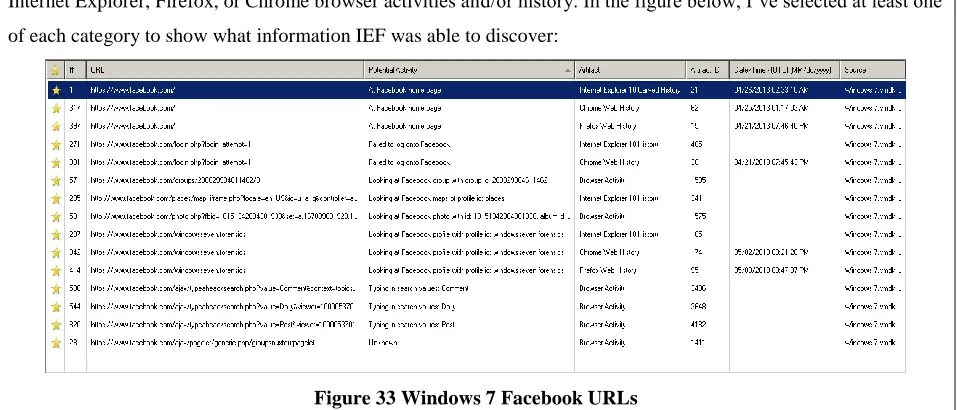
retweets. One of the interesting things IEF found for both Windows 7 and Windows 8 was a
number of Facebook URLs from carved history or recorded browser activity. There were a
number of potential activities that were found but they were the same for both operating systems.
Finally, IEF was able to build a timeline of social media activity for the two virtual machines.
The timelines are nearly identical with a few minor exceptions.
Differences:
There was very little difference in regards to recovering social media artifacts from
Windows 7 and Windows 8. Technically you could argue that there should be an identical
number of social media artifacts for both Windows 7 and Windows 8; that is not the case. Still,
things were essentially identical. I believe this to be the case because most social media activities
were performed through web browsers.
Email Artifacts
Similarities:
Using FTK, I was able to recover emails for the Gmail and Live email accounts for both
Windows 7 and Windows 8. Using FTK, and its ability to locate email items, I was able to
recover the emails that I sent and received. I was also able to recover the emails that had
attachments included with them for both Windows 7 and Windows 8, but was unable to view the
attachments themselves through the content viewer. I was able to see the information pertaining
to the attachment but not view them, even though I was able to locate each of the files through a
keyword search using both EnCase and FTK for Windows 7 and Windows 8.
Differences:
Wilson 23
The same thing occurred when I examined the Forwarded Emails and Email Replies for
Windows 7 and Windows 8. The number of emails that FTK uncovered for the Windows7 Live
and Gmail accounts on the Windows 7 virtual machine was more than those uncovered for the
Windows8 Live and Gmail accounts on the Windows 8 virtual machine; despite the fact that they
should have been identical as I forwarded/replied to the same number of emails during the data
generation process for Windows 7 as I did for Windows 8.
Another significant difference between Windows 7 and Windows 8 email forensics is
related to email attachments. The FTK email tool was unable to locate any email attachments for
the Windows7 virtual machine while same tool was able to locate 36 total attachments for the
Windows 8 virtual machine. This is a forensic difference between Windows 7 and Windows 8. It
is unclear as to why FTK was unable to locate any email attachments for the Windows 7 virtual
machine.
Registry Artifacts
Similarities:
Within the User Hive (NTUSER.dat), I explored the NTUSER.DAT\Software\
Microsoft\Windows\CurrentVersion\Explorer\ComDlg32\ OpenSavePIDIMRU registry key.
This key existed for both Windows 7 and Windows 8 and provided the listing of files that had
been opened or saved recently. I also explored the
NTUSER.DAT\Software\Microsoft\Windows\Current Version\Explorer\ComDlg32\
LastVisitedMRUregistry key. This key existed for both Windows 7 and Windows 8 and provided
the listing of applications that were recently used to open or save the files listed in the
OpenSavePIDIMRU registry key. In addition, the NTUSER.DAT\Software\
Microsoft\Windows\Current Version\Explorer\RecentDocs existed for both Windows 7 and
Windows 8 and it showed a listing of files and folders that were recently opened.
Within the System Hive (SYSTEM.dat), I explored the SYSTEM.DAT\ControlSet002\
Control\TimeZoneInformation registry key. This key existed for both Windows 7 and Windows
8 and provided identical information related to the time zone of the corresponding virtual
machine.
Wilson 24
for both Windows 7 and Windows 8 and provided information related to the network history of
the corresponding virtual machine.
For the SAM Hive (SAM.dat), I took a look at the registry key SAM.dat\Domains\
Accounts\Users. This key existed for both Windows 7 and Windows 8 and provided information
relating to the user information of the corresponding virtual machine.
Differences:
Within the User Hive, the NTUSER.DAT\Software\Microsoft\Windows\ CurrentVersion\
Explorer\ComDlg32\OpenSavePIDIMRU registry key differed in the number of items that it
stored. For Windows 7, the key held a total of 8 items. For Windows 8, the key held a total of 20
items.
Related Works Findings
As previously mentioned in the literature review section, there are very few papers and
articles that touch on the subject of Windows 8 Forensics. Still, there has been some research
conducted in this area. Using this information in conjunction with my findings, we can more
completely understand how Windows 8 differs forensically from Windows 7.
Wilson 25
Table 8 Thomson's Local Folder Differences
It should be noted that some of the information found by Thomson may no longer be
accurate given that these findings are based upon Windows 8 Consumer Preview. In fact, a major
change between the Consumer Preview and the General Availability release include the
renaming of the Communication App to the People App. Much of the “Windows 8 Forensic
Guide” lists that the location of forensic artifacts exists in the same location they did in Windows
7 including the Roaming Folder (%Root%\Users\%User%\AppData\Roaming\), and much of the
Windows Registry with the exception of a few registry keys:
Table 9 Thomson's Windows 8 Registry Differences
Application Location Purpose
Metro Apps Microsoft\Windows\Application Shortcuts Apps that are displayed on the Metro interface Microsoft\InternetExplorer\Recovery\
Immersive\Active
Microsoft\InternetExplorer\Recovery\ Immersive\Last Active
Journal Notes Microsoft\Journal\Cache\msnb.dat Contains a history of journal notes created by user and their location.
User Added IE 10 Favorites Microsoft\Windows\RoamingTiles Websites the user has pinned to their favorites.
Desktop Microsoft\Windows\WinX Contains link files for applications such as Device
Manager, Command Prompt, and Run. Metro App Web Cache Packages\%MetroAppName%\AC\INetCache Contains web cache specific to Metro App.
Metro App Cookies Packages\%MetroAppName%\AC\INetCookies Contains cookie files specific to Metro App. Data is contained in a text file.
Metro App Web History Packages\%MetroAppName%\AC\INetHistory
Contains Internet history files specific to Metro App and the format of the data is consistent with previous versions.
Metro Settings Packages\%MetroAppName%\AC\LocalState Contains settings specific to Metro App and can be viewed in plain text.
IE 10 Websites Visited Websites user visited while browsing with IE10.
Registry Hive Data Stored Registry Key Location
NTUSER.DAT Typed URL Time Software\Microsoft\Internet Explorer\TypedURLsTime
SAM.DAT
Internet User Name (Windows Live Account)
Domains\Account\Users\InternetUserName
SAM.DAT User’s Tile: Domains\Account\Users\UserTile
SYSTEM.DAT Sensors &
Location DevicesCurrentControlSet\Enum\SWD\SensorsAndLocation- Enum\HardwareID
SOFTWARE.DAT
Metro Apps Installed on System
Microsoft\Windows\CurrentVersion\Appx\AppxAllUserStore\ Applications
SOFTWARE.DAT
User Account Installed Metro Apps
Wilson 26
In most cases, Thomson found that the Windows 8 registry behaved in the same way and
was nearly identical structurally to the Windows 7 registry. Thomson’s findings with the registry
regarding the differences between Windows 7 and Windows 8 are consistent with my research.
In his blog posts and YouTube videos, “Windows 8 Forensics”, Ethan Fleisher
determined that there is little to no forensic difference between Windows 7 and Windows 8. [11]
The author did uncovered that Internet cookies and history files are stored in different locations
from the previous version of Windows.
Table 10 Fleisher's Internet Cookies and History File Location Differences
While these are certainly differences between Windows7 and Windows 8, they are hardly
groundbreaking. Fleisher’s findings support what I found through the use of EnCase and FTK
that Cookies and Temporary Internet Files still exist within Windows 8 and aren’t especially
difficult to locate.
In his presentation, “Windows 8 A Forensic First Look”, Josh Brunty points out a major
difference between Windows 7 and Windows 8; each immersive application has its own registry
file and own Internet artifacts (Cache, Cookies, History). This is consistent with Thomson’s
findings previously mentioned as well as my own research.
In his blog Random Thoughts of Forensics, Ken Johnson confirms some of the findings
previously mentioned but also points out that once Windows 8 File History Service is enabled,
numerous artifacts are created that would be of use to a forensic investigator. [15] Johnson’s blog
posts also explore the refresh and recovery options of Windows 8. He found that even if a
computer is reset or recovered, some data is still left behind in $SysReset and Windows.old
directories on the hard drive:
Cookies <root>\users\<username>\appdata\roaming\ microsoft\windows\cookies\
<root>\users\<username>\appdata\roaming\ microsoft\windows\cookies\low
Temporary Internet Files
<root>\users\<username>\appdata\local\ microsoft\microsoft\windows\history contained in index.dat
Wilson 27
Figure 7 Johnson's Refresh and Recovery Differences
I was unable to explore the refresh and recovery options, primarily due to the fact that I
did not want to compromise my forensic images, but this is a difference with Windows 8, even if
those options were unavailable in the same capacity for Windows 7.
Future Work
While the research that I did conduct took a great deal of time to develop, implement,
document, and finally report on, there are still opportunities for additional research to be
Wilson 28
which Windows 8 deleted files and compare that with Windows 7. Finally, additional work could
be conducted with the latest update to the operating system: Windows 8.1. I would suspect that
things would be very similar to Windows 8, but without research to confirm that is the case it is
unknown if they are forensically similar.
Conclusion
Wilson 29
Appendices
Appendix A: User Data Log
04/21/2013
Windows 7 around 3:20PM
Activated Windows 7
Installed Windows Essentials 2012: Mail and SkyDrive
Installed Google Chrome
Install Mozilla Firefox
In each browser, set favorites for Facebook, Twitter, Email Accounts, Wikipedia Featured Article,
RIT News
Setup Windows Live Mail 2012 with Email Accounts: [email protected] and
Using IE, Firefox, and Chrome Browsed to the Featured Wikipedia Article:
http://en.wikipedia.org/wiki/Reginald_Heber
Using IE, Firefox, and Chrome Browsed to RIT's Top News Stories for the day:
http://www.rit.edu/news/story.php?id=49953&source=enewsletter and
http://www.rit.edu/news/story.php?id=49951&source=enewsletter
Using IE, Firefox, and Chrome Browsed to Facebook, Logged In, told browsers to remember
password
Using IE, Firefox, and Chrome Browsed to Twitter, Logged In, told browsers to remember
username and password
Using Windows Live Mail 2012, added contacts for all email accounts
Using Windows Live Mail 2012, sent email to other 3 accounts from the Live Account
Using IE Shared IST at RIT Post on Facebook
Using Firefox Tweeted Daily Tweet
Using Chrome Posted Daily Post on Facebook
Windows 8 around 4:05PM
Connected Window 8 to Live Account [email protected]
Installed Google Chrome
Install Mozilla Firefox
In each browser, set favorites for Facebook, Twitter, Email Accounts, Wikipedia Featured Article,
RIT News
Setup Mail App with Email Accounts: [email protected] and
Using People Application, added contacts for all email accounts
Wilson 30
Using People Application, connected to Twitter
Using Mail App, sent email to other 3 accounts from the Live Account
Using IE App, IE Desktop, Firefox, and Chrome Browsed to the Featured Wikipedia Article:
http://en.wikipedia.org/wiki/Reginald_Heber
Using IE App, IE Desktop, Firefox, and Chrome Browsed to RIT's Top News Stories for the day:
http://www.rit.edu/news/story.php?id=49953&source=enewsletter and
http://www.rit.edu/news/story.php?id=49951&source=enewsletter
Using IE App, IE Desktop, Firefox, and Chrome Browsed to Twitter, Logged In, told browsers to
remember username and password
Using IE Desktop Shared IST at RIT Post on Facebook
Using Firefox Tweeted Daily Tweet
Using Chrome Posted Daily Post on Facebook
Broswed through What's new in the People app
Viewed unread notification in the People app
Using the Weather app, allowed location services, added home/favorite location Rochester, NY
04/23/2013
Windows 7 around 9:30PM
Using IE, Firefox, and Chrome Browsed to the Featured Wikipedia Article:
http://en.wikipedia.org/wiki/Alcohol_laws_of_New_Jersey
Using IE, Firefox, and Chrome Browsed to RIT's Top News Stories for the day:
http://www.rit.edu/news/story.php?id=49963&source=enewsletter and
http://www.rit.edu/news/story.php?id=49964&source=enewsletter and
http://www.rit.edu/news/story.php?id=49962&source=enewsletter
Using IE, Firefox, and Chrome Browsed to Facebook, Auto Logged In
Using IE, Firefox, and Chrome Browsed to Twitter, Auto Logged In
Using Windows Live Mail 2012, sent email to other 3 accounts from the Gmail Account
Using Chrome Shared Rochester Institute of Technology's Photo on Facebook
Using IE Tweeted Daily Tweet
Using IE Retweeted @RITNEWS Tweet
Using Firefox Posted Daily Post on Facebook
Downloaded File mirrors.rit.edu/centos/6.4/isos/i386/CentOS-6.4-i386-netinstall.iso to
C:\Users\Windows7\Downloads folder using IE
Created File C:\Users\Windows8\Documents\04232013daily.txt
Windows 8 around 10:30pm
Using IE App, IE, Firefox, and Chrome Browsed to the Featured Wikipedia Article:
Wilson 31
Using IE App, IE, Firefox, and Chrome Browsed to RIT's Top News Stories for the day:
http://www.rit.edu/news/story.php?id=49953&source=enewsletter and
http://www.rit.edu/news/story.php?id=49951&source=enewsletter
Using IE App, IE, Firefox, and Chrome Browsed to Facebook, Auto Logged In
Using IE App, IE, Firefox, and Chrome Browsed to Twitter, Auto Logged In
Using Mail App, sent email to other 3 accounts from the Gmail Account
Using People App Tweeted Daily Tweet
Using People App Posted Daily Post on Facebook
Using People App Retweeted @RITNEWS Tweet
Downloaded File mirrors.rit.edu/centos/6.4/isos/i386/CentOS-6.4-i386-netinstall.iso to Downloads
folder using IE App
Created File C:\Users\Windows8\Documents\04232013daily.txt
04/24/2013
Windows 7 around 9:10PM
Created File C:\Users\Windows7\Documents\04242013deleted.txt
Created File C:\Users\Windows7\Documents\04242013attachment.txt
Using Windows Live Mail 2012, sent email to other 3 accounts from the Live Account with
Attached File 04232013attachment.txt
Using IE, Firefox, and Chrome Browsed to the Featured Wikipedia Article:
http://en.wikipedia.org/wiki/Military_history_of_Australia_during_World_War_II
Using IE, Firefox, and Chrome Browsed to RIT's Top News Stories for the day:
http://www.rit.edu/news/story.php?id=49965&source=enewsletter and
http://www.rit.edu/news/story.php?id=49958&source=enewsletter
Using IE, Firefox, and Chrome Browsed to Facebook, Auto Logged In
Using IE, Firefox, and Chrome Browsed to Twitter, Auto Logged In
Downloaded File http://mirrors.rit.edu/centos/6.4/isos/i386/README.txt to
C:\Users\Windows7\Downloads folder using Firefox
Using Firefox Shared IST at RIT's Post on Facebook about being a TA
Using Chrome Tweeted Daily Tweet
Using Chrome Retweeted @RITsports Tweet
Using IE Posted Daily Post on Facebook
Deleted Chrome and Firefox Shortcuts from Desktop
Delete File C:\Users\Windows7\Documents\04242013deleted.txt at 9:26PM
Checked for Updates, No important updates to install
Windows 8 around 9:30PM
Wilson 32
Created File C:\Users\Windows7\Documents\04242013attachment.txt
Using Mail App, sent email to other 3 accounts from the Live Account with Attached File
04232013attachment.txt
Using IE App, IE, Firefox, and Chrome Browsed to the Featured Wikipedia Article:
http://en.wikipedia.org/wiki/Military_history_of_Australia_during_World_War_II
Using IE App, IE, Firefox, and Chrome Browsed to RIT's Top News Stories for the day:
http://www.rit.edu/news/story.php?id=49965&source=enewsletter and
http://www.rit.edu/news/story.php?id=49958&source=enewsletter
Using IE App, IE, Firefox, and Chrome Browsed to Facebook, Auto Logged In
Using IE App, IE, Firefox, and Chrome Browsed to Twitter, Auto Logged In
Downloaded File http://mirrors.rit.edu/centos/6.4/isos/i386/README.txt to
C:\Users\Windows8\Downloads folder using Firefox
Using Firefox Shared IST at RIT's Post on Facebook about being a TA
Using Chrome Tweeted Daily Tweet
Using Chrome Retweeted @RITsports Tweet
Using IE App Posted Daily Post on Facebook
Deleted Chrome and Firefox Shortcuts from Desktop
Delete File C:\Users\Windows8\Documents\04242013deleted.txt at 9:42PM
Checked for Updates, Installed 1 Important Update
Using Weather App looked at weather for Rochester, NY and Seattle, WA
Using Map App, Set home as Rochester Institute of Technology 117 Lomb Memorial Drive,
Rochester, NY
Using Map App, got Directions from Home (RIT) to Seattle, WA by Driving, looked at 3
different routes
04/25/2013
Windows 7 around 9:50PM
Created File C:\Users\Windows7\Documents\04252013daily.txt
Using Windows Live Mail 2012, sent email to other 3 accounts from the Gmail Account
Using IE, Firefox, and Chrome Browsed to the Featured Wikipedia Article:
http://en.wikipedia.org/wiki/Franco-Mongol_alliance
Using IE, Firefox, and Chrome Browsed to RIT's Top News Stories for the day:
http://www.rit.edu/news/story.php?id=49671&source=enewsletter and
http://www.rit.edu/news/story.php?id=49968&source=enewsletter
Using IE, Firefox, and Chrome Browsed to Facebook, Auto Logged In
Using IE, Firefox, and Chrome Browsed to Twitter, Auto Logged In
Wilson 33
Performing Arts
Using IE Reply to Daily Tweet
Using Firefox Tweeted Daily Tweet
Using Firefox Retweeted @ForensicFocus Tweet
Using Chrome Posted Daily Post on Facebook
Using Chrome Commented on Daily Facebook Post
Downloaded File
http://mirrors.rit.edu/openoffice/packages/14/OOo_3.3.0_Win_x86_install_om.exe to
C:\Users\Windows7\Downloads folder using Chrome
Deleted File C:\Users\Windows7\Downloads\CentOS-6.4-i386-netinstall.iso at 10:04PM
Using Windows Live Mail 2012 Reply to the Daily Email using Live Account to
Using Windows Live Mail 2012 Forward the Daily Email using Live Account to
Checked for Updates, No important updates to install
Viewed About Information for Facebook, Set all Email Addresses to be viewable by Friends
Windows 8 around 10:12PM
Created File C:\Users\Windows8\Documents\04252013daily.txt
Using Mail App, sent email to other 3 accounts from the Gmail Account
Using IE, Firefox, and Chrome Browsed to the Featured Wikipedia Article:
http://en.wikipedia.org/wiki/Franco-Mongol_alliance
Using IE, Firefox, and Chrome Browsed to RIT's Top News Stories for the day:
http://www.rit.edu/news/story.php?id=49671&source=enewsletter and
http://www.rit.edu/news/story.php?id=49968&source=enewsletter
Using IE App, IE, Firefox, and Chrome Browsed to Facebook, Auto Logged In
Using IE App, IE, Firefox, and Chrome Browsed to Twitter, Auto Logged In
Using IE App Shared Rochester Institute of Technology's Photo on Facebook about RIT/NTID
Performing Arts
Using People App Reply to Daily Tweet
Using Firefox Tweeted Daily Tweet
Using Firefox Retweeted @ForensicFocus Tweet
Using Chrome Posted Daily Post on Facebook
Using Chrome Commented on Daily Facebook Post
Downloaded File
http://mirrors.rit.edu/openoffice/packages/14/OOo_3.3.0_Win_x86_install_om.exe to
C:\Users\Windows8\Downloads folder using Chrome
Wilson 34
Using Mail App Reply to the Daily Email using Live Account to [email protected]
Using Mail App Forward the Daily Email using Live Account to [email protected]
Viewed About Information for Facebook, Set all Email Addresses to be viewable by Friends
Checked for Updates, installed 1 Important Update
Turned on Windows SmartScreen
04/26/2013
Windows 7 around 11:30AM
Created File C:\Users\Windows7\Documents\04262013daily.txt
Using Windows Live Mail 2012, sent email to other 3 accounts from the Live Account
Using IE, Firefox, and Chrome Browsed to the Featured Wikipedia Article:
http://en.wikipedia.org/wiki/Franco-Mongol_alliance
Using IE, Firefox, and Chrome Browsed to RIT's Top News Stories for the day:
http://www.rit.edu/news/story.php?id=49968&source=enewsletter and
http://www.rit.edu/news/story.php?id=49972&source=enewsletter
Using IE, Firefox, and Chrome Browsed to Facebook, Auto Logged In
Using IE, Firefox, and Chrome Browsed to Twitter, Auto Logged In
Using Chrome Shared http://www.rit.edu/news/story.php?id=49968&source=enewsletter through
link on page on Facebook
Using Chrome Reply to Daily Tweet
Using IE Tweeted Daily Tweet
Using IE Retweeted @RIT_SportsZone Tweet
Using Firefox Posted Daily Post on Facebook
Using Firefox Like and Commented on Daily Facebook Post
Downloaded File http://mirrors.rit.edu/ubuntu-releases/13.04/ubuntu-13.04-server-i386.iso to
C:\Users\Windows7\Downloads folder using IE
Using Windows Live Mail 2012 Reply to the Daily Email using Gmail Account to
Using Windows Live Mail 2012 Forward the Daily Email using Gmail Account to
Emptied the Recycle Bin at 12:00PM
Windows 8 around 11:50AM
Created File C:\Users\Windows8\Documents\04262013daily.txt
Using Mail App, sent email to other 3 accounts from the Live Account
Using IE App, IE , Firefox, and Chrome Browsed to the Featured Wikipedia Article:
http://en.wikipedia.org/wiki/Franco-Mongol_alliance
Wilson 35
http://www.rit.edu/news/story.php?id=49968&source=enewsletter and
http://www.rit.edu/news/story.php?id=49972&source=enewsletter
Using IE App, IE, Firefox, and Chrome Browsed to Facebook, Auto Logged In
Using IE App, IE, Firefox, and Chrome Browsed to Twitter, Auto Logged In
Using Chrome Shared http://www.rit.edu/news/story.php?id=49968&source=enewsletter on
Facebook through link on page
Using Chrome Reply to Daily Tweet
Using IE App Tweeted Daily Tweet
Using IE App Retweeted @RIT_SportsZone Tweet
Using Firefox Posted Daily Post on Facebook
Using Firefox Like and Commented on Daily Facebook Post
Downloaded File http://mirrors.rit.edu/ubuntu-releases/13.04/ubuntu-13.04-server-i386.iso to
C:\Users\Windows8\Downloads folder using IE (Downloaded very slowly)
Using Mail App Reply to the Daily Email using Gmail Account to [email protected]
Using Mail App Forward the Daily Email using Gmail Account to [email protected]
Opened the People App and viewed unread notifications clicked on What's New Twitter and
Opened the Finance App Scrolled Through
Opened the Sports App Scrolled Through
Emptied the Recycle Bin at 12:30PM
04/28/2013
Windows 7 around 3:40PM
Created File C:\Users\Windows7\Documents\04282013daily.txt
Create C:\Users\Windows7\Documents\04282013deleted.txt
Using IE downloaded RIT logo pictures to C:\Users\Windows7\Downloads
Using Windows Live Mail 2012, sent email to other 3 accounts from the Gmail Account with two
Pictures Attached
Using IE, Firefox, and Chrome Browsed to the Featured Wikipedia Article:
http://en.wikipedia.org/wiki/1923_FA_Cup_Final
Using IE, Firefox, and Chrome Browsed to RIT's Top News Stories for the day:
http://www.rit.edu/news/story.php?id=49972&source=enewsletter and
http://www.rit.edu/news/story.php?id=49974&source=enewsletter
Using IE, Firefox, and Chrome Browsed to Facebook, Auto Logged In
Using IE, Firefox, and Chrome Browsed to Twitter, Auto Logged In
Using Firefox Shared IST at RIT's Post on Facebook
Wilson 36
Using Chrome Tweeted Daily Tweet
Using Chrome Retweeted @RITsports Tweet
Using IE Posted Daily Post on Facebook
Using IE Like and Commented on Daily Facebook Post
Deleted C:\Users\Windows7\Documents\04282013deleted.txt at 4:04PM
Windows 8 around 4:08
Created File C:\Users\Windows8\Documents\04282013daily.txt
Create C:\Users\Windows8\Documents\04282013deleted.txt
Using IE downloaded RIT logo pictures to C:\Users\Windows8\Downloads
Using Windows Live Mail 2012, sent email to other 3 accounts from the Gmail Account with two
Pictures Attached
Using IE App, IE, Firefox, and Chrome Browsed to the Featured Wikipedia Article:
http://en.wikipedia.org/wiki/1923_FA_Cup_Final
Using IE App, IE, Firefox, and Chrome Browsed to RIT's Top News Stories for the day:
http://www.rit.edu/news/story.php?id=49972&source=enewsletter and
http://www.rit.edu/news/story.php?id=49974&source=enewsletter
Using IE App, IE, Firefox, and Chrome Browsed to Facebook, Auto Logged In
Using IE App, IE, Firefox, and Chrome Browsed to Twitter, Auto Logged In
Using IE App Shared IST at RIT's Post on Facebook
Using People App Reply to Daily Tweet
Using People App Tweeted Daily Tweet
Using People App Retweeted @RITsports Tweet
Using People App Posted Daily Post on Facebook
Using People App Like and Commented on Daily Facebook Post
Looked at Weather using the Weather App
Deleted C:\Users\Windows7\Documents\04282013deleted.txt at 4:22PM
05/01/2013
Windows 7 around 11:15AM
Created File C:\Users\Windows7\Documents\05012013daily.txt
Create C:\Users\Windows7\Documents\05012013deleted.txt
Created File C:\Users\Windows7\Documents\05012013attachment.txt
Using Windows Live Mail 2012, sent email to other 3 accounts from the Live Account with two
Pictures and 05012013attatchment.txt attached
Using IE, Firefox, and Chrome Browsed to the Featured Wikipedia Article:
http://en.wikipedia.org/wiki/If_Day
Wilson 37
http://www.rit.edu/news/story.php?id=49956&source=enewsletter and
http://www.rit.edu/news/story.php?id=49976&source=enewsletter
Using IE, Firefox, and Chrome Browsed to Facebook, Auto Logged In
Using IE, Firefox, and Chrome Browsed to Twitter, Auto Logged In
Using IE Shared rochester Institute of Technology's Photo on Facebook
Using IE Reply to Daily Tweet
Using Firefox Tweeted Daily Tweet
Using Firefox Retweeted @RITsports Tweet
Using Chrome Posted Daily Post on Facebook
Using Chrome Like and Commented on Daily Facebook Post
Downloaded File
http://mirrors.rit.edu/fedora/linux/releases/18/Live/i386/Fedora-18-i686-Live-Desktop.iso to Downloads folder using IE (Downloaded very Slowly)
Using Windows Live Mail 2012, Reply to the Daily Email using Live Account to
Using Windows Live Mail 2012, Forward the Daily Email using Live Account to
Checked for Updates, no important updates
Windows 8 around 11:40PM
Created File C:\Users\Windows8\Documents\05012013daily.txt
Create C:\Users\Windows8\Documents\05012013deleted.txt
Created File C:\Users\Windows8\Documents\05012013attachment.txt
Using Mail App, sent email to other 3 accounts from the Live Account with two Pictures and
05012013attatchment.txt attached
Using IE App, IE, Firefox, and Chrome Browsed to the Featured Wikipedia Article:
http://en.wikipedia.org/wiki/If_Day
Using IE App, IE, Firefox, and Chrome Browsed to RIT's Top News Stories for the day:
http://www.rit.edu/news/story.php?id=49956&source=enewsletter and
http://www.rit.edu/news/story.php?id=49976&source=enewsletter
Using IE App, IE, Firefox, and Chrome Browsed to Facebook, Auto Logged In
Using IE App, IE, Firefox, and Chrome Browsed to Twitter, Auto Logged In
Using IE App Shared Rochester Institute of Technology's Photo on Facebook
Using IE Reply to Daily Tweet
Using Firefox Tweeted Daily Tweet
Using IE APP Retweeted @RITsports Tweet
Using Chrome Posted Daily Post on Facebook
Using IE App Like and Commented on Daily Facebook Post
http://mirrors.rit.edu/fedora/linux/releases/18/Live/i386/Fedora-18-i686-Live-Wilson 38
Desktop.iso to Downloads folder using IE App (Downloaded very Slowly around 3 hours)
Opened the People App and viewed unread notifications clicked on What's New Twitter and
Opened the Finance App Scrolled Through, Looked Up MSFT ticker added it to watchlist
Opened the Sports App Scrolled Through
Using Map App, got Driving Directions from Home (RIT) to Los Angeles, CA by Driving,
looked at different routes
Using Mail App Reply to the Daily Email using Live Account to [email protected]
Using Mail App Forward the Daily Email using Live Account to [email protected]
Checked for Updates
05/02/2013
Windows 7 around 10:45AM
Deleted C:\Users\Windows7\Documents\05012013deleted.txt at 10:46AM
Created File C:\Users\Windows7\Documents\0502013daily.txt
Using Windows Live Mail 2012, sent email to other 3 accounts from the Gmail Account
Using IE, Firefox, and Chrome Browsed to the Featured Wikipedia Article:
http://en.wikipedia.org/wiki/United_States_v._The_Progressive
Using IE, Firefox, and Chrome Browsed to RIT's Top News Stories for the day:
http://www.rit.edu/news/story.php?id=49981&source=enewsletter an