16. Images in Java Applets and
Applications
Images are a primary part of building a professional looking user interface. In this chapter we’ll looking at loading and displaying images in applets and in applications as well as at using some of the tools for constructing them.
All versions of Java can display images in GIF (.gif) format and JPEG (.jpg) format. Some versions may allow you to display other formats, but these will not be portable to all platforms. Both applets and applications can display images, but they use different methods in different classes.
The image classes and methods in Java can appear very confusing at first. There is an Image class as part of the awt package, and there is an
awt.image package which contains ancillary classes which operate with and on images. The Image class consists of the following methods:
// Constructors
public Image(); // Methods
public abstract void flush();
public abstract Graphics getGraphics();
public abstract int getHeight(ImageObserver observer); public abstract Object
getProperty(String name, ImageObserver observer); public abstract ImageProducer getSource();
public abstract int getWidth(ImageObserver observer); and the awt.image package consists of the following classes: class ColorModel
class CropImageFilter class DirectColorModel class FilteredImageSource class ImageFilter
Displaying an Image in an Applet
Let’s first consider how to display an image in an applet. The applet’s
getImage method returns an object of type Image which you can display in the paint method using the Graphics method drawImage. The arguments to the getImage method are the URL where the image file is to be found and the image filename. You can find the server address that you loaded the applet from using the applet method getCodeBase and the URL that the document (.html) was loaded from using the getDocumentBase method. In summary, to load an image in an applet, the statement is
Image image1;
image1 = getImage(getCodeBase(), filename);
Then, you draw the image on the screen yourself in the paint method: public void paint(Graphics g) {
g.drawImage(image1, x, y, w, h, this); }
The final this argument is a reference to the current applet as an instance of the ImageObserver interface. This provides a way for the thread that handles loading and drawing of images to notify the applet that the image is
available. The complete applet for loading and drawing an image is: import java.awt.*;
import java.applet.*;
public class Imgapplet extends Applet { private Image image;
//--- public void init() {
setLayout(null);
image = getImage(getCodeBase(), "books05.gif"); setVisible(true);
}
//--- public void paint(Graphics g) {
g.drawImage(image, 10, 10, image.getWidth(this), image.getHeight(this), this);
g.drawImage(image, 100, 10, 64, 64, this); }
}
interpreter bundled with Netscape to display many Java applets, but when an applet requests an image, it is making an http: request that cannot be
satisfied on your local machine. For these programs, you can best test them using the sppletviewer program provided with Java. We used the
appletviewer in Figure 14-1.
Figure 14-1: The imgapplet program displaying the same image
at two sizes.
Note that we draw the image twice, once at 32 x 32 pixels and again as 64 x 63 pixels. The Java image drawing methods will stretch or compress the image as needed to fit the scale you specify.
Displaying an Image in an Application
The logic of loading and displaying an image in an application is similar, but you clearly do not need to reference a parent URL. However, the Frame inheritance tree does not have a direct getImage method that you can call. Instead, we have to delve a little way under the covers of Java to the Toolkit class, which contains the base methods which all implementations of Java must implement in order to produce a graphical user interface. You can obtain the current instance of the toolkit for your platform using the
Component’s getToolkit() method. Thus, to load an image in an application, you call:
A complete version of the same program as an application is given on your example disk as imgapp.java and is shown below:
import java.awt.*;
public class Imgapp extends XFrame { private Image image;
//--- public Imgapp() {
super("Image application"); setLayout(null);
image = getToolkit().getImage("books05.gif"); setBounds(10,10,200,150);
setVisible(true); }
//--- public void paint(Graphics g) {
g.drawImage(image, 10, 30, 32, 32, this); g.drawImage(image, 100, 30, 64, 64, this); }
//--- static public void main(String argv[]) { new Imgapp();
} }
Figure 14-2. The image display in an application.
Using the MediaTracker Class
When you execute a getImage method, the image is loaded in another thread. If you are writing a relatively passive applet, having one image drawn slowly and later than the rest of the controls is not much of a
integral part of the program this can be quite disconcerting. Further, in applets, each image is loaded and decompressed separately over the
network, and while they may each be loaded in separate threads, the elapsed time for loading ten icon images is still substantial.
If you want to make sure that images are fully loaded before beginning execution of an applet or application, you can add each of the images to a list contained in an instance of the MediaTracker class and then ask the class whether each is loaded before proceeding. This class has the following methods:
public void addImage(Image image, int id); public void addImage(Image img, int id, int w, int h); public boolean checkAll();
public boolean checkAll(boolean load); public boolean checkID(int id);
public boolean checkID(int id, boolean load); public Object[] getErrorsAny();
public Object[] getErrorsID(int id); public boolean isErrorAny();
public boolean isErrorID(int id);
public int statusAll(boolean load);
public int statusID(int id, boolean load); public void waitForAll();
public boolean waitForAll(long ms); public void waitForID(int id);
public boolean waitForID(int id, long ms);
The addImage method of the MediaTracker object adds images to an internal array or collection along with an integer identifier.
track = new MediaTracker(this);
image = getImage(getCodeBase(), "books05.gif"); track.addImage(image, 0);
While these identifiers are most commonly simply sequential integers, they can be any values you choose. Then, when you have begun loading of all the images and you want to discover if they have completed, you can use any of the wait methods to check on any or all of the images. The example below follows from one given by Flanagan. It is on your example disk as
Figure 14-2: The TrackImage.java program, showing the two
images loaded and the final message displayed along the
bottom.
import java.awt.*; import java.applet.*;
public class TrackImage extends Applet { private Image images[];
private MediaTracker track;
//--- public void init() {
setLayout(null);
setFont(new Font("Helvetica", Font.PLAIN, 12)); images = new Image[2];
track = new MediaTracker(this); //begin loading images
images[0] = getImage(getCodeBase(), "books05.gif"); images[1] = getImage(getCodeBase(), "beany.gif"); //add images into tracker
for (int i = 0; i < 2; i++) track.addImage(images[i], 0); //check to see if they are done loading for (int i = 0; i < 2; i++) {
showStatus("loading image: " + i); try {
track.waitForID(i); }
catch (InterruptedException e) { };
if (track.isErrorID(i))
} }
//--- public void paint(Graphics g) { int x, w, h;
for (int i=0; i <2; i++) { x = 100*i + 10;
w = images[i].getWidth(this); h = images[i].getHeight(this);
g.drawImage(images[i], x, 10, w, h, this); }
} }
Now, it isn’t always necessary to make sure that all of the images are loaded in the constructor or init routine. You just need to make sure they are loaded before you begin using them. This could be somewhat later, depending on the nature of your application or applet.
Converting Between Image Types
Java allows you to display images in both JPEG and GIF formats. Both of these are compressed image formats compare to bitmaps where there is at least one byte for each pixel. In general JPEG compression is a little better the GIF and is usually better for pictures. GIF format is usually better for drawings.
If your images are to be downloaded over the internet, it is sometime useful to have them drawn in rough form and filled out later. You can do this by making an interlaced GIF file, where alternating lines from the entire image are stored in the first part of the file, and the remaining interlaced lines are stored in the last half of the file. As the image is received and drawn by your browser, it appears to draw the entire image in “rough draft” form and then go back and fill in the remaining lines. This gives the user faster feedback as to the nature of the image you are presenting.
Making Blinking Alternating Images
Once of the simplest forms of animation is the blinking of an image between two or more related images. You can easily do this in Java by reading in the images and then displaying them alternately after a specified delay. We do this in the following program:
import java.awt.*; import java.applet.*;
//blinks back and forth between 2 images
public class BlinkImage extends Applet implements Runnable { Image open, closed; //two images
MediaTracker track; //and tracker
Thread timer; //timer for blinking boolean openvis; //flag for which to draw public void init() {
setLayout(null);
//read in the two images
open = getImage(getDocumentBase(), "mail02a.gif"); closed = getImage(getDocumentBase(), "mail02b.gif"); //make sure they are read in
track = new MediaTracker(this); track.addImage(open, 0);
track.addImage(closed, 1); //check to see if they are done loading for (int i = 0; i < 2; i++) {
showStatus("loading image: " + i); try {
track.waitForID(i); }
catch (InterruptedException e) { };
if (track.isErrorID(i))
showStatus("Error loading image: " + i); }
//create a thread
timer = new Thread(this);
openvis = false; //first display closed timer.start(); //start thread
}
//--- public void run() {
//this method is called in new thread while (true) {
openvis = ! openvis; //switch between images repaint(50,50,32,32); //and redraw try {
catch (InterruptedException e) { };
} }
//--- public void update() {
}
//--- public void paint(Graphics g) {
if (openvis)
g.drawImage(open, 50,50, Color.lightGray, this); else
g.drawImage(closed, 50,50, Color.lightGray, this); }
}
Note that to avoid flickering, we repaint only the area of the image itself. In this case, the two images are mail02a.gif and mail02b.gif converted from the Visual Basic Icon files of the same name, and made transparent using PaintShop Pro.
The ImageIcon Class
import java.awt.*; import javax.swing.*;
public class ImgIcon extends XFrame { private ImageIcon image;
//--- public ImgIcon() {
super("Image application");
image = new ImageIcon("books05.gif"); setBounds(100,100,100,1 00);
setVisible(true); }
//--- public void paint(Graphics g) {
image.paintIcon (this, g, 20, 20); }
//--- static public void main(String argv[]) { new ImgIcon();
} }
The only disadvantage to using the ImageIcon class in Applets is that your browser must support Java 2, and not all browsers do.
Summary
In this chapter, we’ve looked at how you can load and display images in both applets and applications and discussed how to use the MediaTracker class. We’ve also looked at how to capture and store images and make them part of classes rather then separate loadable files. Finally we looked at image animation using both Java and GIF animation methods.
17. Menus and Dialogs
So far we’ve looked at the main visual controls you use in building applets and applications. Since visual applications are usually derived from the Frame class, they also allow you to add drop-down menus to these Frame windows. You can, of course, create frame windows from applets as well, but this is done less frequently because of the somewhat inelegant
“Unsigned Java Applet” banner that appears along the bottom of such windows.
In the following chapter, we’ll discuss the Swing classes which have somewhat more elaborate menu features, and these can be added to applets.
How Menus are Used
A menu is a bar that runs across the top of frame windows containing the title of a category of operations. By convention, most menus have “File” as the leftmost entry, followed by Edit. The next to the rightmost menu item will often be “Window” and the rightmost entry is usually “Help.” You can insert as many other menu categories between these as are necessary for your application.
Clicking on a menu always causes a list of menu options to drop down under the menu bar. You can then click on any of these options to cause the program to carry out some desired operation. Menus need not be only one level deep, of course; you can create menu items that expand to several more items to the right of the drop-down menu bar.
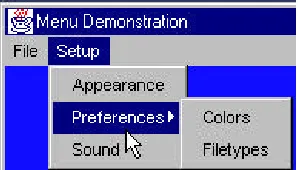
In the example illustrated in Figure 15-1, the menu bar consists of the two items File and Setup. Clicking on “File” causes a menu to drop down consisting of “Open,” a horizontal separator line, and “Exit.” Clicking on “Setup” causes a two-item menu to drop down, consisting of the
“Appearance” choice and the “Preferences” choice, where a right-arrow appears to the right of “Preferences.” When you click on Preferences, the additional menu items “Colors” and “Filetypes” expand to the right of the arrow.
Open…
Appearance…
---
Preferences --> Colors…
Exit
Filetypes
Figure 15-1: A schematic representation of a simple two item
menu with expansion of the “Preferences” choice to two more
items.
Menu Conventions
It is conventional to group items in a menu together using a horizontal separator bar between different logical types of operations. For example, the “File” menu has the usual “Open” menu choice and the “Exit” menu choice. Since exiting from the program is logically rather unlike opening or
manipulating files, we separate the Exit choice from the Open choice using a horizontal bar. In more complex menus it is not unusual to see 3 or 4
separator bars on a menu. If you require more than that, you might well reconsider your design, as it becomes confusing to the eye.
Menu items that bring up a new window where the user can select additional choices or enter data into fields always should have an elipsis (…) following them to indicate in advance to your user that they should expect a new window or dialog box to come up when they select this item.
Creating Menus
To add menus to a frame window, you create an instance of the MenuBar class and add it to the frame using the setMenuBar method: MenuBar mbar = new MenuBar(); //create menu bar setMenuBar(mbar); //and add to Frame
Each menu item that runs across the menu bar is an object of type Menu, and each item under it is an object of type MenuItem.
//Create two top level menu items File = new Menu("&File",true); Setup = new Menu("&Setup",false); //and add them to Menubar
mbar.add(File); mbar.add(Setup);
To add items under the menu, we add them to the newly created menu objects:
//File menu is File->Open, separator, Exit Open = new MenuItem("&Open...");
Exit = new MenuItem("E&xit"); File.add(Open);
File.add(new MenuItem("-")); //separator File.add(Exit);
To draw a menu separator, we simply add a new menu item whose caption is a single hyphen. You can also add a separator using the addSeparator()
method. This gives us the left-hand menu, with the F, O and x underlined, as shown in Fig 15-2. The methods you can use on a Menu object include: public MenuItem add(MenuItem mi);
public void add(String label); public void addSeparator();
public int countItems();
public MenuItem getItem(int index); public boolean isTearOff();
public void remove(int index);
public void remove(MenuComponent item);
Figure 15-2: The File menu.
MenuItem Methods
Once you have created menu items under the menu bar, you can use the following methods on them.
public void setEnabled(boolean); public String getLabel();
public boolean isEnabled();
public void setLabel(String label);
A menu item which is disabled is grayed, but remains visible. You cannot select it. You can also change the name of menu items using the setLabel()
method.
Creating Submenus
To add menu items that expand to the right into more menu items, we just add instances of the Menu class rather than of the MenuItem class, and add the MenuItems to them. There is no logical limit to the depth you can extend menus, but practically extending them more than one level becomes hard to use and hard to understand.
So to complete the example we bean above, we write the following menu code:
//Setup menu is Setup -> Appearance,
// Preferences->Colors
// Filetypes
Appearance = new MenuItem("Appearance"); Setup.add(Appearance);
Preferences = new Menu("Preferences"); //extends Setup.add(Preferences); //add menu here for sub menus
Colors = new MenuItem("Colors"); Preferences.add(Colors);
Filetypes = new MenuItem("Filetypes"); Preferences.add(Filetypes);
Sound = new MenuItem("Sound"); Setup.add("Sound");
[image:15.540.72.221.238.323.2]The resulting extended menu is show in Figure 15-3.
Figure 15-3: The Setup menu, showing second level menus.
Other Menu Features
When you create a Menu, you can use the alternate constructor: mnu = new Menu(String title, boolean tearoff);
The tearoff argument is supposed to determine whether the menu is a “tearoff menu.” Such a menu is supposed to stay down after you raise your finger from the mouse button. This, of course, is the normal behavior under Windows-95. As far as we can determine this behavior has only been implemented on the Solaris platform. The boolean argument is otherwise ignored at present.
Checkbox Menus
method. You can also find out whether it is checked using the getState()
method. This object behaves as an ordinary menu item in all
implementations of Java 1.0, and does not work in Windows applications even in Java 2.
Receiving Menu Commands
Clicking on a menu item generates an actionPerformed event. As with other events, you must add an ActionListener to each MenuItem, and process the events in an actionPerformed method.
public void actionPerformed(ActionEvent evt) { Object obj = evt.getSource ();
if (obj == Exit) { clickedExit();
} }
Swing Menus and Actions
The JMenuBar and JMenu classes in Swing work just about identically to those in the AWT. However, the JMenuItem class adds constructors that allow you to include an image alongside the menu text. To create a menu, you create a menu bar, add top-level menus and then add menu items to each of the top-level menus.
JMenuBar mbar = new JMenuBar(); //menu bar setJMenuBar(mbar); //add to JFrame JMenu mFile = new JMenu("File"); //top-level menu mbar.add(mFile); //add to menu bar JMenuItem Open = new JMenuItem("Open"); //menu items JMenuItem Exit = new JMenuItem("Exit");
mFile.add(Open); //add to menu mFile.addSeparator(); //put in separator mFile.add(Exit);
The JmenuItem objects also generates an ActionEvent, and thus menu clicks causes these events to be generated. As with buttons, you simply add action listeners to each of them.
Action Objects
Menus and toolbars are really two ways of representing the same thing: a single click interface to initiate some program function. Swing also provides an Action interface that encompasses both.
public void putValue(String key, Object value); public Object getValue(String key);
public void actionPerformed(ActionEvent e);
You can add this interface to an existing class or create a JComponent with these methods and use it as an object which you can add to either a JMenu or JToolBar. The most effective way is simply to extend the AbstractAction
class. The JMenu and JToolbar will then display it as a menu item or a button respectively. Further, since an Action object has a single action listener built in, you can be sure that selecting either one will have exactly the same effect. In addition, disabling the Action object has the advantage of disabling both representations on the screen.
Let’s see how this works. We can start with a basic abstract ActionButton class, and use a Hashtable to store and retrieve the properties.
public abstract class ActionButton extends AbstractAction { Hashtable properties;
public ActionButton(String caption, Icon img) { properties = new Hashtable();
properties.put(DEFAULT, caption); properties.put(NAME, caption);
properties.put(SHORT_DESCRIPTION, caption); properties.put(SMALL_ICON, img);
}
public void putValue(String key, Object value) { properties.put(key, value);
}
public Object getValue(String key) { return properties.get(key); }
public abstract void actionPerformed(ActionEvent e); }
The properties that Action objects recognize by key name are DEFAULT
SHORT_DESCRIPTION SMALL_ICON
The NAME property determines the label for the menu item and the button, and in theory the LONG_DESCRIPTION should be used. The icon feature does work correctly.
Now we can easily derive an ExitButton from the ActionButton like this: public class ExitButton extends ActionButton {
JFrame fr;
public ExitButton(String caption, Icon img) { super(caption, img);
}
public void actionPerformed(ActionEvent e) { System.exit(0);
} }
and similarly for the FileButton. We add these to the toolbar and menu as follows:
//Add File menu
JMenu mFile = new JMenu("File"); mbar.add(mFile);
//create two Action Objects
Action Open = new FileButton("Open",
new ImageIcon("open.gif"), this); mFile.add(Open);
Action Exit = new ExitButton("Exit", new ImageIcon("exit.gif")); mFile.addSeparator();
mFile.add(Exit);
//now create toolbar that fixes up the buttons as you add them
toolbar = new JToolBar();
getContentPane().add(jp = new JPanel()); jp.setLayout(new BorderLayout());
jp.add("North", toolbar); //add the two action objects toolbar.add(Open);
toolbar.addSeparator(); toolbar.add(Exit);
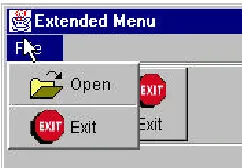
Figure 30.1 – A menu with pictures using the same Action object as the toolbuttons.
The problem with his approach is that we don’t usually want the images in the menu or the text on the toolbar. However, the add methods of the toolbar and menu have a unique feature when used to add an action object. They return an object of type JButton or JMenuItem respectively. Then you can use these to set the features the way you want them. For the menu, we want to remove the icon
Action Open = new FileButton("Open",
new ImageIcon("open.gif"), this); menuitem = mFile.add(Open);
menuitem.setIcon(null);
and for the button, we want to remove the text and add a tooltip: JButton button = toolbar.add(act);
button.setText("");
button.setToolTipText(tip);
button.setMargin(new Insets(0,0,0,0));
This gives us the screen look we want: in Figure 30.2.
Dialogs
A dialog is a temporary window that comes up to obtain information from the user or to warn the user of some impending condition, usually an error. We have already seen the FileDialog in chapter 12. Let’s see how we would implement it in this simple menu program.
The File Dialog
The file dialog is a class which brings up that operating system’s file -open or file -save dialog. You can set which mode it comes up in as part of the constructor:
FileDialog fdlg =
new FileDialog(this, “Open file”, FileDialog.OPEN); or
FileDialog fdlg =
new FileDialog(this, “Open file”, FileDialog.SAVE); Once you have created an instance of the file dialog, you can use the
setDirectory() and setFile() methods to specify where it should start and what the default filename should be. The dialog doesn’t actually appear until its show() method is called. The FileDialog object is always a modal dialog, meaning that
1. input to other windows is blocked while it is displayed, and
2. no code in the calling thread after the show method is called until the FileDialog object is dismissed by selecting OK or Cancel.
To call a dialog from our Open menu item, we simply insert the following in the action routine:
if (obj == Open) {
FileDialog fdlg = new FileDialog(this,
"Open",FileDialog.LOAD); fdlg.show (); //start dialog display //display selected file name
}
The file dialog will remain in control until it is closed with either OK or Cancel, as shown in Fig 15-4, and then control will return to the statement following the show method call, and you can obtain the selected filename using the getFile() method. In the example above, we display that filename in a label in the main window. The complete program for launching the file dialog from the File/Open menu is MenuFrame.java in the \chapter15 directory of your example disk.
Figure 15-4: The File Dialog shown from the MenuDialog
program.
The Dialog Class
A dialog is a window that is meant to be displayed temporarily to obtain or impart information. In Java, the Dialog class is a window that can be created normally or more usually as a modal window. The default layout for a dialog window is the BorderLayout.
Dialog qdialog = new Dialog(this, “Quit Yet?”, true); However, it is more common to extend the Dialog class and put all of the control and layout information inside the derived class.
import java.awt.*; import java.awt.event.*;
public class QuitDialog extends Dialog implements ActionListener{
boolean exitflag; Button OK, Cancel;
//--- public QuitDialog(Frame fr) {
super(fr, "Ready to Quit?", true); Panel p1 = new Panel();
OK = new Button("OK"); Cancel = new Button("No"); add("Center", p1); p1.add(OK); p1.add(Cancel); OK.addActionListener (this); Cancel.addActionListener (this); setSize(200,100);
exitflag = false; }
//---
public void actionPerformed(ActionEvent evt) { Object obj = evt.getSource ();
if (obj == OK) { exitflag=true; System.out.println(exitflag); setVisible(false); } else
if (obj == Cancel) { exitflag = false; setVisible(false); }
}
//--- public boolean getExitflag() {
return exitflag; }
}
private void clickedExit() {
QuitDialog qdlg = new QuitDialog(this); qdlg.show();
Like the FileDialog, members of the Dialog class are invisible when created and appear as modal windows when their show method is called.
Calling Dialogs from Applets
Since dialogs require a Frame as a parent, you might think that you can’t pop up a dialog box from an applet. However, there is nothing to stop you from creating an invisible frame and using it as the parent of a dialog window.
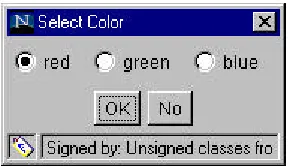
Consider the following code from the example program AppletDialog on your example disk. This applet displays a single pushbutton labeled “Colors” and a label which is initially set to “no color.” When we press this button, a dialog comes up as shown in Figure 15-5. Here we can select one of 3 colors and click on OK to pass that color choice back to the main applet. This requires an interface
interface SelMethod {
public void setColorName(String s); }
Figure 15-5: The color dialog produced by the AppletDialog
program.
We need to create a frame and pass the dialog an instance of the SelectMethod class:
Frame fr = new Frame(); //create invisible frame SelectDialog sdlg = new SelectDialog(fr, this); sdlg.show();
Note that here the frame argument is distinct from the parent argument. The frame is the invisib le one just created, and the this reference refers to the applet.
We then create a dialog with the OK and Cancel buttons in the southern border and put a panel in the middle to hold the three option buttons: import java.awt.*;
import java.awt.event.*;
public class SelectDialog extends Dialog implements ActionListener {
Button OK, Cancel; CheckboxGroup cbg;
Checkbox red, green, blue; SelMethod selm;
//--- public SelectDialog(Frame fr, SelMethod sm) { super(fr, "Select Color", true);
setFont(new Font("Helvetica", Font.PLAIN, 12)); selm = sm;
Panel p1 = new Panel(); OK = new Button("OK"); Cancel = new Button("No"); add("South", p1);
p1.add(OK); p1.add(Cancel);
Cancel.addActionListener (this); cbg = new CheckboxGroup();
red = new Checkbox("red", cbg, true); green = new Checkbox("green", cbg, false); blue = new Checkbox("blue", cbg, false); Panel p2 = new Panel();
add("Center", p2); p2.add(red); p2.add(green); p2.add(blue); setSize(200,100); }
//---
public void actio nPerformed(ActionEvent evt) { Object obj = evt.getSource ();
if (obj == OK) { clickedOK(); dispose(); }
else
if (obj == Cancel) { dispose();
} }
}
Then when the OK button is clicked, we send the color name back to the calling applet:
//--- private void clickedOK() {
String colorname="none";
if (red.getState()) colorname="red"; if (green.getState()) colorname="green"; if (blue.getState()) colorname="blue"; selm.setColorName(colorname);
}
Summary
In this chapter, we’ve learned how to build menus and respond to menu item clicks. We’ve also learned how to display dialogs in both applications and applets, and how to write interfaces to allow calling programs to be accessed by the results of the dialog.
18. Using the Mouse in Java
The mouse is an integral part of the graphical environment, and in this chapter we show you all of its capabilities in detail so you can appreciate how it can be used.
Mouse events have been divided into two categories with two different listeners. The methods of the MouseListener are
public void mouseEntered(MouseEvent evt); public void mouseClicked(MouseEvent evt); public void mouseExited(MouseEvent evt); public void mousePressed(MouseEvent evt); public void mouseReleased(MouseEvent evt); and those of the MouseMotionListener are
public void mouseDragged(MouseEvent evt); public void mouseMoved(MouseEvent evt); You can add either listener to any Container class.
You can also change the mouse cursor to any of 14 different shapes named as constants in the Cursor class.
public final static int CROSSHAIR_CURSOR; public final static int DEFAULT_CURSOR; public final static int E_RESIZE_CURSOR; public final static int HAND_CURSOR; public final static int MOVE_CURSOR; public final static int N_RESIZE_CURSOR; public final static int NE_RESIZE_CURSOR; public final static int NW_RESIZE_CURSOR; public final static int S_RESIZE_CURSOR; public final static int SE_RESIZE_CURSOR; public final static int SW_RESIZE_CU RSOR; public final static int TEXT_CURSOR; public final static int W_RESIZE_CURSOR; public final static int WAIT_CURSOR; using the method
In Windows-95, several of these are identical, such as N_RESIZE and S_RESIZE.
Changing the Mouse Cursor Type
Changing the cursor as you move the mouse over a form can be a valuable clue to the user that different activities will take place. To illustrate how this is done, the Curses.java program on your example disk creates an array of 14 panels in a 2 x 7 GridLayout and assigns a different cursor index to each of them. Since the numerical values which correspond to each of the cursor types vary between 0 and 13, we use these as index values.
import java.awt.*;
//--- public class Curses extends XFrame { //illustrates the 14 different cursor types public Curses() {
super ("Cursor Demo"); //lay out a 7 x 2 grid
setLayout(new GridLayout(7,2));
//Create 14 panels, each with a different index for (int i =0; i<14; i++) {
Cpanel p = new Cpanel(i); add(p);
}
setBounds(100,100, 300,150); setVisible(true);
}
//---
static public void main(String argv[]) { new Curses();
}
//--- }
This program works by creating 14 instances of the Cpanel class, derived from Panel. We also pass in the index of the particular cursor we want to display. Then when the mouseEnter method for that panel is executed by a passing mouse pointer, we change the shape of the pointer using
//set the cursor to this panels type setCursor(new Cursor(index)); }
to call the setCursor method. The resulting program display is shown in Figure 18-1.
Figure 18-1: The display of the Curses.java program, listing the
14 possible cursor types.
The MouseAdapter Class
It is sometimes a bother to have to define all five of the mouse events when you only need to use one or two of them. And yet, in order to implement the MouseListene interface, you must define all of them. The MouseAdapter convenience class is provided as an alternative. It is a complete class which defines all five event methods as empty functions. You can then subclass this class and implement only the methods you need. In the CurseAdapter program, we derive a simple CurseListener class that does just that. //listens for mouse Entered event
//ignores all others
public class CurseListener extends MouseAdapter { int index;
Panel pnl;
public CurseListener(Panel p, int cursor_index) { index = cursor_index;
pnl = p; }
//sets cursor when mouse enters panel public void mouseEntered(MouseEvent evt) { pnl.setCursor(new Cursor(index)); }
The only disadvantage to using this approach is that you may have to create a class where implementing an interface might have been less confusing. Note that in this simple class we have to pass in both the Panel and the cursor index so that when the mouseEntered event occurs, the method can set the cursor for that panel.
Changing the Cursor in Separated Controls
The only reason that the Curses program cursor always produces the right cursor is that the CPanel containers are laid out next to each other with no separation. If there is a background frame where cursor is to take on another shape, you must specifically program this case. Figure 18-2 shows the display of the MousePanels.java program where there are three colored panels separated on the Frame background.
Figure 18-2: The Mouse1.java program display.
We create the panels in the usual way:
public class MousePanels extends XFrame { Cpanel Red, Green, Blue;
public MousePanels() {
super("Mouse Cursor Background"); setLayout(new GridLayout(1,3,10,10)); Red = new Cpanel(Color.red);
Green = new Cpanel(Color.green); Blue = new Cpanel(Color.blue); add(Red);
add(Blue);
setBounds(100,100,300,150); setVisible(true);
}
//---
static public void main(String argv[]) { new MousePanels();
} }
Our Cpanel class simply fills the background in different colors and establishes a mouse listener.
public class Cpanel extends Panel {
int index; //cursor index Frame frm;
CurseListener clisten; Color color;
//--- public Cpanel(Color c) { super();
color = c; //save the color clisten = new CurseListener(this,
Cursor.HAND_CURSOR); addMouseListener(clisten);
}
//--- public void paint(Graphics g) { Dimension sz = getSize(); g.setColor(color);
//fill with specified color
g.fillRect(0,0, sz.width-1, sz.height-1); g.setColor(Color.black);
//draw back border
g.drawRect(0,0, sz.width-1, sz.height-1); }
}
The mouseAdapter class listens for both the mouseEntered and mouseExited events and saves the old cursor on entry and restores it on exit.
public class CurseListener extends MouseAdapter { int index;
Panel pnl; Cursor oldCursor;
public CurseListener(Panel p, int cursor_index) { index = cursor_index;
//restores cursor on exit
public void mouseExited(MouseEvent evt) { pnl.setCursor(oldCursor);
}
//sets cursor when mouse enters panel public void mouseEntered(MouseEvent evt) { oldCursor = pnl.getCursor ();
pnl.setCursor(new Cursor(index)); }
}
Capturing Mouse Clicks
The mouseDown and mouseUp methods can be received by any child of Component, which is to say by any visual control. If you want to take some action when the user clicks on a control, you can simply subclass the mouseDown event for that control.
It is advisable, however, to give the user some feedback to indicate that he has clicked on the control. In the MouseClick.java program, whose display is shown in Fig 18-3, the program draws an outline square around the control when the mouse is down, and draws the square without the outline when the mouse is up.
Figure 18-3: The display of the MouseClick.java program,
showing how we outline a square when we click the mouse on
it.
To produce this outline, we set a flag when the mouseDown event is received and clear it when the mouseUp event occurs.
repaint(); }
public void mouseReleased(MouseEvent evt) { drawFrame = false;
repaint(); }
Then we force the panel to redraw itself by calling the repaint method, which in turn calls the paint method. In this paint method, we draw the outline square only if the isFrame flag is true:
public void paint(Graphics g) { Dimension sz = getSize(); g.setColor(color);
//fill with specified color
g.fillRect(0,0, sz.width-1, sz.height-1); g.setColor(Color.black);
//draw back border if flag set if (drawFrame) {
g.drawRect(0,0, sz.width -1, sz.height-1); }
}
Since we are using 4 of the 5 events of the MouseListener, we implement them directly in the Cpanel class rather than in a separate MouseAdapter class. This also simplifies the interaction with drawing the outline since we can set thr drawFrame flag in the same class.
Double Clicking
There is no specific event for a double click of a mouse button. However, the MouseEvent has a getClickCount method that returns the number of consecutive mouseDown events, and you can use it to detect a double click: public void mouseClicked(MouseEvent evt) {
if (evt.getClickCount () > 1 ) drawFrame = true;
else
drawFrame = false; repaint() }
Double Clicking in List Boxes
In the case of list boxes, the itemStateChanged event occurs if a mouse is clicked on a line of the list box. The actionPerformed event occurs if you double -click on a line. The same action event also occurs if you press the Enter key after selecting a line in a listbox.
Dragging with the Mouse
One powerful, but less used feature is the ability to drag controls around using the mouse. You might do this to rearrange controls for your own purposes at run time, or you might do it to establish communication between two controls.
The mouseDrag method is executed whenever the mouse button is depressed inside a control and then moved with the mouse down. It does not occur if the button is already down when the mouse enters the control boundary: instead this is treated as an attempt to drag the background. Mouse enter and exit methods are not called during a drag: all mouse movements are received by the control where the mouse was first depressed even if it moves outside the control.
The mouse movements a control receives during mouseDrag contain the mouse’s current x-y coordinates relative to that control. Thus if you want a control to actually move when you are dragging the mouse over it, you must compute the mouse’s position in the containing frame and move the mouse in that coordinate space.
For example, in the MouseDrag.java program we put up the same three colored panels, but allow them to be moved about by dragging them with the mouse. Our revised Cpanel class saves the position of the mousePressed event in two private variables:
public void mousePressed(MouseEvent evt) { drawFrame=true;
oldX = evt.getX(); oldY = evt.getY (); repaint();
}
Then whenever the mouse is dragged, we compute where to move the control by
1. getting the current mouse position
2. computing the delta from where the mouse was originially clicked, 3. getting the current control position in the parent frame
4. moving the control by adding the delta to the parent position. We do this as follows:
//Mouse Motion events
public void mouseMoved(MouseEvent evt) {} public void mouseDragged(MouseEvent evt) { Point locn = getLocation();
thisX = locn.x ; thisY = locn.y;
int dx = evt.getX () - oldX; int dy = evt.getY() - oldY; setLocation(thisX+dx, thisY+dy);
oldX += dx; oldY += dy; repaint(); }
Limitations on Dragging
In Java, while the dragged component in a frame can be moved anywhere you like, it cannot be moved “on top” of a component that was added to the frame later. We added the three instances to the frame in the order
add(Red); //add them to
add(Green); //the layout
add(Blue);
Figure 18-5: The MouseDrag.java program, showing that you cannot drag components on top of each other in a different order than you initially added them to the frame or container.
Another major limitation in dragging is that if you have placed controls inside a panel for purposes of layout, you cannot drag them outside that panel at all. Dragging only occurs within a single container, whether a frame, a panel or a window.
Right and Center Button Mouse Clicks
There is no specific method in Java for receiving mouse clicks from more than one mouse button, because not all platforms Java runs on support more than one platform. Instead, you can AND the BUTTON2_MASK or BUTTON3_MASK with the getModifiers() value. Two button mice use Java buttons 1 and 3, not 1 and 2. In our MouseRight.java example program, we are going to pop up a TipWindow which displays some text. In our simple example, we’ll simply display the name of the color of the window.
A Window is a kind of container like a Frame is, but without a title bar. It does have an independent existence however, and is not dependent on the positions of controls inside other panels or frames.
To pop up our Tip window, we modify the mouseClicked method as follows:
public void mousePressed(MouseEvent evt) { if((evt.getModifiers () &
}
To create a Window, you need to make it the child of a Frame. This is clearly simple in the case of applications, but if you want a tip window in an applet, you must first create an invisible parent frame. Out TipWindow class is as follows:
public class TipWindow extends Window { private String cname = "";
private Color color;
public TipWindow(Frame frm, Color c) { super(frm);
color = c;
if(color == Color.red ) cname="Red"; if(color == Color.blue) cname = "Blue"; if (color == Color.green) cname = "Green";
add(new Label(cname));
setBounds(frm.getBounds ().x+10, frm.getBounds ().y+10, 100, 40);
setVisible(true); }
}
Finally, we want to make sure our “tip” disappears when you raise the right mouse button. We don’t have to check which button was raised: if the reference to the TipWindow is not null, we’ll dispose of the window: public void mouseReleased(MouseEvent evt) {
if(tip != null)
tip.setVisible(false); repaint();
}
Figure 18-5: The TipWindow in the MouseRight.java example
program.
Summary
19. Advanced Swing Concepts
The JList Class
We briefly touched on the JList Swing class in our beginning chapter. There we simply noted that you can create a JList and give it an array or Vector holding the data you’d like to display. However, if you want to interact with the data in the list, you need to understand that the JList, as well as the JTable and JTree keep the data in a data model class which is then observed by the displaying list class. We’ll look at the more advanced parts of these controls in this chapter.
List Selections and Events
Regardless of how you manage the data that makes up a Jlis, you can set it to allow users to select a single line, multiple contiguous lines or separated multiple lines with the setSelectionMode method, where the arguments can be
SINGLE_SELECTION
SINGLE_INTERVALSELECTION MULTIPLE_INTERVAL_SELECTION
You can then receive these events by using the addListSelectionListener
method. Your program must implement the following method from the ListSelectionListener interface
public void valueChanged(ListSelectionEvent e)
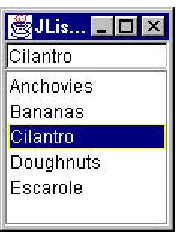
In our JListLDemo.java example we display the selected list item in a text field:
public void valueChanged(ListSelectionEvent e) { text.setText((String)list.getSelectedValue()); }
Figure 31.2 – A JList with the selected item displayed in the JTextField.
Changing a List Display Dynamically
If you want a list to change dynamically during your program, the problem is somewhat more involved because the JList displays the data it is initially loaded with and does not update the display unless you tell it to. One simple way to accomplish this is to use the setListData method of JList to keep passing it a new version of the updated Vector after you change it. In the JListDemo.ja va program, we add the contents of the top text field to the list each time the Add button is clicked. All of this takes place in the action routine for that button:
public void actionPerformed(ActionEvent e) {
dlist.addElement(text.getText()); //add text from field list.setListData(dlist); //send new Vector to list list.repaint(); //and tell it to redraw }
One drawback to this simple solution is that you are passing the entire Vector to the list each time and it must update its entire contents each time rather than only the portion that has changed. This brings us to the
underlying ListModel that contains the data the JList displays.
When you create a JList using an array or Vector, the JList automatically creates a simple ListModel object which contains that data. Each ListModel object is a concrete subclass of the AbstractListModel class that defines the following simple methods:
void fireContentsChanged(Object source, int index0, int index1)
int index1)
The AbstractListModel class is declared as abstract so you must subclass it and create your own class, but there are no abstract methods you must implement. All of them have default implementations. You need only call those fire methods your program will be using. For example, as shown below we really only need to call the fireIntervalAdded method. Our ListModel is an object that contains the data (in a Vector or other suitable structure) and notifies the JList whenever it changes. Here, the list model is just the following:
class JListData extends AbstractListModel { private Vector dlist; //the color name list
public JListData() { dlist = new Vector(); makeData();
}
public int getSize() { return dlist.size(); }
private Vector makeData() {
dlist = new Vector(); //create vector
dlist.addElement("Anchovies"); //and add data //..add rest of names as before..
return dlist; }
public Object getElementAt(int index) { return dlist.elementAt(index);
}
//add string to list and tell the list about it public void addElement(String s) {
dlist.addElement(s);
fireIntervalAdded(this, dlist.size()-1, dlist.size()); }
}
Building an Adapter to Emulate the Awt List Class
Suppose you would like to write a simple list program that uses the JList class. Most of the methods you use for creating and manipulating the user interface remain the same. However, the JFC JList class is markedly different than the AWT List class. In fact, because the JList class was designed to represent far more complex kinds of lists, there are virtually no methods in common between the classes:
awt List class JFC JList class
add(String); ---
remove(String) ---
String[] getSelectedItems() Object[] getSelectedValues()
Both classes have quite a number of other methods and almost none of them are closely correlated. However, it is perfectly possible to write an adapter to make the JList class look like the List class and provide a rapid solution to our problem.
The JList class is a window container which has an array, vector or other ListModel class associated with it. It is this ListModel that actually contains and manipulates the data. Further, the JList class does not contain a scroll bar, but instead relies on being inserted in the viewport of the JScrollPane class. Data in the JList class and its associa ted ListModel are not limited to strings, but may be almost any kind of objects, as long as you provide the cell drawing routine for them. This makes it possible to have list boxes with pictures illustrating each choice in the list.
In our case, we are only going to create a class that emulates the List class, and that in this simple case, needs only the three methods we showed in the table above.
We can define the needed methods as an interface and then make sure that the class we create implements those methods:
public interface awtList {
public void add(String s); public void remove(String s); public String[] getSelectedItems() }
JList and List at the same time. However, you can create a class which inherits from one class hierarchy and implements the methods of another. In most cases this is quite a powerful solution. Thus, by using the implements
keyword, the class can take on methods and the appearance of being a class of either type.
The Adapter
In this adapter approach, we create a class that contains a JList class but which implements the methods of the awtList interface above. Since the outer container for a JList is not the list element at all, but the JScrollPane that encloses it, we are really adding methods to a subclass of JScrollPane which emulate the methods of the List class. These methods are in the interface awtList.
So, our basic JawtList class looks like this:
public class JawtList extends JScrollPane implements ListSelectionListener, awtList { private JList listWindow;
private JListData listContents; public JawtList(int rows) {
listContents = new JLis tData();
listWindow = new JList(listContents);
listWindow.setPrototypeCellValue("Abcdefg Hijkmnop"); getViewport().add(listWindow);
}
//--- public void add(String s) {
listContents.addElement(s); }
//--- public void remove(String s) {
listContents.removeElement(s); }
//--- public String[] getSelectedItems() {
Object[] obj = listWindow.getSelectedValues(); String[] s = new String[obj.length];
for (int i =0; i < obj.length; i++) s[i] = obj[i].toString(); return s;
Note, however, that the actual data handling takes place in the JListData class. This class is derived from the AbstractListModel, which defines the following methods:
addListDataListener(l) Add a listener for changes in the data.
removeListDataListener(l) Remove a listener
fireContentsChanged(obj, min,max) Call this after any change occurs between the two indexes min and max
fireIntervalAdded(obj,min,max) Call this after any data has been added between min and max. fireIntervalRemoved(obj, min, max) Call this after any data has been
removed between min and max.
The three fire methods are the communication path between the data stored in the ListModel and the actual displayed list data. Firing them causes the displayed list to be updated.
In this case, the addElement, removeElement methods are all that are
needed, although you could imagine a number of other useful methods. Each time we add data to the data vector, we call the fireIntervalAdded method to tell the list display to refresh that area of the displayed list.
public class JListData extends AbstractListModel { private Vector data;
public JListData() { data = new Vector(); }
//--- public int getSize() {
return data.size(); }
//--- public Object getElementAt(int index) { return data.elementAt(index); }
fireIntervalAdded(this, data.size()-1, data.size()); }
//--- public void removeElement(String s) { data.removeElement(s);
fireIntervalRemoved(this, 0, data.size()); }
}
A Sorted JList with a ListModel
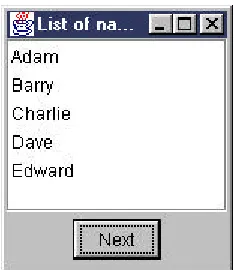
If you would like to display a list that is always sorted, one simple way is to use the DefaultListModel to contain the data. This class implements the same methods as the Vector class, and notifies the JList whenever the data changes. So a complete program for a non-sorted list display can be as // Creates a JList based on an unsorted DefaultListModel public class ShowList extends JxFrame implements
ActionListener {
String names[]= {"Dave", "Charlie", "Adam", "Edward", "Barry"};
JButton Next; DefaultListModel ldata;
int index;
public ShowLi st() {
super("List of names"); JPanel jp = new JPanel(); getContentPane().add(jp);
jp.setLayout(new BorderLayout());
//create the ListModel
ldata = new DefaultListModel(); //Create the list
JList nList = new JList(ldata); //add it to the scroll pane
JScrollPane sc = new JScrollPane(); sc.getViewport().setView(nList); jp.add ("Center", sc);
JButton Next = new JButton("Next");
//add an element when button clicked JPanel bot = new JPanel();
jp.add("South", bot); bot.add(Next);
setSize(new Dimension(150, 150)); setVisible(true);
index = 0;
}
public void actionPerformed(ActionEvent evt) { if(index < names.length)
ldata.addElement (names[index++]); }
In this program we add a “Next” button along the bottom which adds a new name each time it is clicked. The data are not sorted here, but it is pretty obvious that if we just subclass the DefaultListModel, we can have our sorted list and have the elements alwayes sorted, even after new names are added.
So, if we create a class based on DefaultListModel which extends the addElement method and re-sorts the data each time, we’ll have our sorted list:
// This simple list model re-sorts the data every time public class SortedModel extends DefaultListModel { private String[] dataList;
public void addElement(Object obj) { //add to internal vector
super.addElement(obj); //copy into array
dataList = new String[size()]; for(int i = 0; i < size(); i++) { dataList[i] = (String)elementAt(i); }
//sort the data and copy it back Arrays.sort (dataList); //sort data clear(); //clear out vector
//reload sorted data
for(int i = 0; i < dataList.length; i++) super.addElement(dataList[i]); //tell JList to repaint
fireContentsChanged(this, 0, size()); }
}
Figure 31.3: Sorted data using SortedListModel
Sorting More Complicated Objects
Suppose, now that we want to display both first and last names, and want to sort by the last names. In order to do that we have to create an object which holds first and last names, but which can be sorted by last name. And how do we do this sort? Well, we could do it by brute force, but in Java any class which implements the Comparable interface can be sorted by the Arrays.sort method. And the Comparable interface is just one method:
public int compareTo(Object obj)
where the class returns a negative value, zero or a positive value depending on whether the existing object is less than, equal to or greater than the argument object. Thus, we can create a Person class with this interface just as simply as
public class Person implements Comparable {
private String frname, lname; public Person(String name) { //split name apart
int i = name.indexOf (" ");
frname = name.substring (0, i).trim(); lname = name.substring (i).trim(); }
public int compareTo(Object obj) { Person to = (Person)obj;
return lname.compareTo (to.getLname ()); }
}
public String getFrname() { return frname;
}
public String getName() {
return getFrname()+" "+getLname(); }
}
Note that the compareTo method simply invokes the compareTo method of the last name String objects.
The other change we have to make is that our data model has to return both names, so we extend the getElementAt method:
// Data model which uses and sorts Person objects public class SortedModel extends DefaultListModel { private Person[] dataList;
public void addElement(Object obj) { Person per = new Person((String) obj); super.addElement(per);
dataList = new Person[size()];
//copy the Persons into an array for(int i = 0; i < size(); i++) { dataList[i] = (Person)elementAt(i); }
//sort them
Arrays.sort (dataList);
//and put them back clear();
for(int i = 0; i < dataList.length; i++) super.addElement(dataList[i]); fireContentsChanged(this, 0, size()); }
public Object getElementAt(int index) { //returns both names as a string Person p = dataList[index]; return p.getName();
}
public Object get(int index) { return getElementAt(index); }
}
Figure 31.4 – Sorted list using Comparable interface to sort on last names.
Getting Database Keys
[image:49.540.165.315.69.202.2]Figure 31.5 – A pop up list showing details appears when you double click on a name.
In order to pop up a window when you double click on a JList, you must add a mouse listener to the JList object. In our codse, we created a class called mouseListener which carrie sout the listening and produces the popup. First we add the mouseListener by
nList.addMouseListener(new mouseListener(nList, ldata, db, this));
where db represents out database and ldata the list data model. The complete mouseListener class is shown below:
public class mouseListener extends MouseAdapter { private JList nList;
private DataBase db; private SortedModel lData;
private JFrame jxf;
public mouseListener(JList list, SortedModel ldata, DataBase dbase, JFrame jf) { nList = list;
db = dbase; jxf = jf; lData = ldata; }
//
public void mouseClicked(MouseEvent e) { if (e.getClickCount () == 2) { //mouse double clicked-
//get database key for this person
int index = nList.locationToIndex (e.getPoint()); int key = lData.getKey (index);
//display pop up dialog box
Details details = new Details(jxf,
db.getName (key), db.getPhone (key)); details.setVisible(true);
} } }
Pictures in our List Boxes
The JList is flexible in yet another way. You can write your own cell rendering code to display anything you want in a line of a list box. So you can include images, graphs or dancing babies, if you want. All you have to do is create a cell rendering class that implements the ListCellRenderer interface. This interface has but one method called
getListCellRendererComponent and is quite simple to write. By simply extending the JLabel class, which itself allows for images as well as text, we can display names and images alongside each name with very little effort. We assume that each Person object now contains the image to display: public class cellRenderer extends JLabel implements ListCellRenderer {
public Component getListCellRendererComponent(JList list, Object value, int index, boolean isSelected, boolean hasFocus) {
Person p = (Person)value; //get the person setText(p.getName ()); //display name setIcon(p.getIcon ()); //and image if(isSelected)
setBackground(Color.lightGray ); else
setBackground(Color.white ); return this;
} }
Of course we also connect this cell renderer class to the JList with this simple method call:
Figure 31.6—A sorted list with pictures added using a custom cell renderer.
The JTable Class
The JTable class is much like the JList class, in that you can program it very easily to do simple things. Similarly, in order to do sophisticated things, you can create a class derived from the AbtractTableModel class to hold your data.
A Simple JTable Program
In the simplest program, you just create a rectangular array of objects and use it in the constructor for the JTable. You can also include an array of strings to be used a column labels for the table.
public class SimpleTable extends JxFrame { public SimpleTable() {
super("Simple table"); JPanel jp = new JPanel(); getContentPane().add(jp); Object[] [] musicData = {
{"Tschaikovsky", "1812 Overture", new Boolean(true)},
{"Stravinsky", "Le Sacre", new Boolean(true)}, {"Lennon","Eleanor Rigby", new Boolean(false)}, {"Wagner", "Gotterdammerung", new Boolean(true)} };
String[] columnNames = {"Composer", "Title", "Orchestral"};
JScrollPane sp = new JScrollPane(table); table.setPreferredScrollableViewportSize(
new Dimension(250,170)); jp.add(sp);
setSize(300,200); setVisible(true); }
This produces the simple table display in Figure 32.1.:
Figure 32.1 – A simple table display
This table has all cells editable and displays all the cells using the toString
method of each object. Of course, like the JList interface, this simple interface to JTable creates a data model object under the covers. In order to produce a more flexible display you need to create that data model yourself. You can create a table model by extending the AbstractTableModel class. All of the methods have default values and operations except the following 3 which you must provide:
public int getRowCount(); public int getColumnCount();
public Object getValueAt(int row, int column);
However, you can gain a good deal more control by overriding a couple of other methods. You can use the method
to protect some cells from being edited. If you want to allow editing of some cells, you must override the implementation for the method
public void setValueAt(Object obj, int row, int col)
Further, by adding a method which returns the data class of each object to be displayed, you can make use of some default cell formatting behavior. The JTable’s default cell renderer displays
• Numbers as right-aligned labels • ImageIcons as centered labels • Booleans as checkboxes
• Objects using their toString method
To change this, you simply need to return the class of the objects in each column:
public Class getColumnClass( int col) { return getValueAt(0, col).getClass(); }
Our complete table model class creates exactly the same array and table column captions as before and implements the methods we just mentioned: public class MusicModel extends AbstractTableModel {
String[] columnNames = {"Composer", "Title", "Orchestral"};
Object[] [] musicData = {
{"Tschaikovsky", "1812 Overture", new Boolean(true)}, {"Stravinsky", "Le Sacre", n ew Boolean(true)},
{"Lennon","Eleanor Rigby", new Boolean(false)}, {"Wagner", "Gotterdammerung", new Boolean(true)} };
private int rowCount, columnCount; //---
public MusicModel(int rowCnt, int colCnt) { rowCount = rowCnt;
columnCount = colCnt; }
//--- public String getColumnName(int col) { return columnNames[col];