
english pdf
66
0
0
Full text
(2) Crea tive En d- Us er So ftw are Li c en se Ag reem e nt Vers i on 2. 4 , Ju ne 20 00 PLEASE READ THIS DOCUMENT CAREFULLY BEFORE INSTALLING THE SOFTWARE. BY INSTALLING AND USING THE SOFTWARE, YOU AGREE TO BE BOUND BY THE TERMS OF THIS AGREEMENT. IF YOU DO NOT AGREE TO THE TERMS OF THIS AGREEMENT, DO NOT INSTALL OR USE THE SOFTWARE. PROMPTLY RETURN, WITHIN 15 DAYS, THE SOFTWARE, ALL RELATED DOCUMENTATION AND ACCOMPANYING ITEMS TO THE PLACE OF ACQUISITION FOR A FULL REFUND. This is a legal agreement between you and Creative Technology Ltd. and its subsidiaries (“Creative”). This Agreement states the terms and conditions upon which Creative offers to license the software sealed in the disk package together with all related documentation and accompanying items including, but not limited to, the executable programs, drivers, libraries and data files associated with such programs (collectively, the “Software”). LICENSE 1. Grant of License The Software is licensed, not sold, to you for use only under the terms of this Agreement. You own the disk or other media on which the Software is originally or subsequently recorded or fixed; but, as between you and Creative (and, to the extent applicable, its licensors), Creative retains all title to and ownership of the Software and reserves all rights not expressly granted to you. 2. For Use on a Single Computer The Software may be used only on a single computer by a single user at any time. You may transfer the machine-readable portion of the Software from one computer to another computer, provided that (a) the Software (including any portion or copy thereof) is erased from the first computer and (b) there is no possibility that the Software will be used on more than one computer at a time. 3. Stand-Alone Basis You may use the Software only on a stand-alone basis, such that the Software and the functions it. provides are accessible only to persons who are physically present at the location of the computer on which the Software is loaded. You may not allow the Software or its functions to be accessed remotely, or transmit all or any portion of the Software through any network or communication line. 4. Copyright The Software is owned by Creative and/or its licensees and is protected by United States copyright laws and international treaty provisions. You may not remove the copyright notice from any copy of the Software or any copy of the written materials, if any, accompanying the Software. 5. One Archival Copy You may make one (1) archival copy of the machine-readable portion of the Software for backup purposes only in support of your use of the Software on a single computer, provided that you reproduce on the copy all copyright and other proprietary rights notices included on the originals of the Software. 6. No Merger or Integration You may not merge any portion of the Software into, or integrate any portion of the Software with, any other program, except to the extent expressly permitted by the laws of the jurisdiction where you are located. Any portion of the Software merged into or integrated with another program, if any, will continue to be subject to the terms and conditions of this Agreement, and you must reproduce on the merged or integrated portion all. copyright and other proprietary rights notices included in the originals of the Software. 7. Network Version If you have purchased a “network” version of the Software, this Agreement applies to the installation of the Software on a single “file server”. It may not be copied onto multiple systems. Each “node” connected to the “file server” must also have its own license of a “node copy” of the Software, which becomes a license only for that specific “node”. 8. Transfer of License You may transfer your license of the Software, provided that (a) you transfer all portions of the Software or copies thereof, (b) you do not retain any portion of the Software or any copy thereof, and (c) the transferee reads and agrees to be bound by the terms and conditions of this Agreement. 9. Limitations on Using, Copying, and Modifying the Software Except to the extent expressly permitted by this Agreement or by the laws of the jurisdiction where you acquired the Software, you may not use, copy or modify the Software. Nor may you sub-license any of your rights under this Agreement. You may use the software for your personal use only, and not for public performance or for the creation of publicly displayed videotapes. 10.Decompiling, Disassembling, or Reverse Engineering You acknowledge that the Software contains trade.
(3) secrets and other proprietary information of Creative and its licensors. Except to the extent expressly permitted by this Agreement or by the laws of the jurisdiction where you are located, you may not decompile, disassemble or otherwise reverse engineer the Software, or engage in any other activities to obtain underlying information that is not visible to the user in connection with normal use of the Software. In particular, you agree not for any purpose to transmit the Software or display the Software's object code on any computer screen or to make any hardcopy memory dumps of the Software's object code. If you believe you require information related to the interoperability of the Software with other programs, you shall not decompile or disassemble the Software to obtain such information, and you agree to request such information from Creative at the address listed below. Upon receiving such a request, Creative shall determine whether you require such information for a legitimate purpose and, if so, Creative will provide such information to you within a reasonable time and on reasonable conditions. In any event, you will notify Creative of any information derived from reverse engineering or such other activities, and the results thereof will constitute the confidential information of Creative that may be used only in connection with the Software. 11.For Software With CDDB Features. This package includes applications which may contain software from CDDB, Inc.of Berkeley California ("CDDB"). The software from CDDB (the "CDDB Client") enables the application to do online disc identification and obtain music-related information, including name, artist, track and title information ("CDDB Data") from online servers. ("CDDB Servers") and to perform other functions. You agree that you will use CDDB Data, the CDDB Client and CDDB Servers for your own personal non-commercial use only. You agree not to assign, copy, transfer or transmit the CDDB Client or any CDDB Data to any third party. YOU AGREE NOT TO USE OR EXPLOIT CDDB DATA, THE CDDB CLIENT,OR CDDB SERVERS,EXCEPT AS EXPRESSLY PERMITTED HEREIN. You agree that your non-exclusive license to use the CDDB Data, the CDDB Client and CDDB Servers will terminate if you violate these restrictions. If your license terminates, you agree to cease any and all use of the CDDB Data, the CDDB Client and CDDB Servers. CDDB reserves all rights in CDDB Data, the CDDB Client and the CDDB Servers, including all ownership rights. You agree that CDDB, Inc. may enforce its rights under this Agreement against you directly in its own name. The CDDB Client and each item of CDDB Data are licensed to you "AS IS." CDDB makes no representations or warranties, express or implied, regarding the accuracy of any CDDB Data from in the CDDB Servers. CDDB reserves the right to delete data from the CDDB Servers or to change data categories for any cause that CDDB deems sufficient. No warranty is made that the CDDB Client or CDDB Servers are error-free or that functioning of CDDB Client or CDDB Servers will be uninterrupted. CDDB is not obligated to provide you with any new enhanced or additional data types or categories that CDDB may chose to provide in the future. CDDB DISCLAIMS ALL WARRANTIES EXPRESS OR IMPLIED, INCLUDING, BUT NOT LIMITED TO, IMPLIED WARRANTIES. OF MERCHANTABILITY, FITNESS FOR A PARTICULAR PURPOSE, TITLE AND NONINFRINGEMENT. CDDB does not warrant the results that will be obtained by your use of the CDDB Client or any CDDB Server. IN NO CASE WILL CDDB BE LIABLE FOR ANY CONSEQUENTIAL OR INCIDENTIAL DAMAGES OR FOR ANY LOST PROFITS, OR LOST REVENUES. TERMINATION The license granted to you is effective until terminated. You may terminate it at any time by returning the Software (including any portions or copies thereof) to Creative. The license will also terminate automatically without any notice from Creative if you fail to comply with any term or condition of this Agreement. You agree upon such termination to return the Software (including any portions or copies thereof) to Creative. Upon termination, Creative may also enforce any rights provided by law. The provisions of this Agreement that protect the proprietary rights of Creative will continue in force after termination. LIMITED WARRANTY Creative warrants, as the sole warranty, that the disks on which the Software is furnished will be free of defects, as set forth in the Warranty Card or printed manual included with the Software. No distributor, dealer or any other entity or person is authorised to expand or alter this warranty or any other provisions of this Agreement. Any representation, other than the warranties set forth in this Agreement, will not bind Creative. Creative does not warrant that the functions contained in the Software will meet your requirements or that the operation of the Software will be uninterrupted, error-free or free from malicious code. For purposes of this paragraph, “malicious code” means any program code designed.
(4) to contaminate other computer programs or computer data, consume computer resources, modify, destroy, record, or transmit data, or in some other fashion usurp the normal operation of the computer, computer system, or computer network, including viruses, Trojan horses, droppers, worms, logic bombs, and the like. EXCEPT AS STATED ABOVE IN THIS AGREEMENT, THE SOFTWARE IS PROVIDED AS-IS WITHOUT WARRANTY OF ANY KIND, EITHER EXPRESS OR IMPLIED, INCLUDING, BUT NOT LIMITED TO, ANY IMPLIED WARRANTIES OF MERCHANTABILITY AND FITNESS FOR A PARTICULAR PURPOSE. CREATIVE IS NOT OBLIGATED TO PROVIDE ANY UPDATES, UPGRADES OR TECHNICAL SUPPORT FOR THE SOFTWARE. Further, Creative shall not be liable for the accuracy of any information provided by Creative or third party technical support personnel, or any damages caused, either directly or indirectly, by acts taken or omissions made by you as a result of such technical support. You assume full responsibility for the selection of the Software to achieve your intended results, and for the installation, use and results obtained from the Software. You also assume the entire risk as it applies to the quality and performance of the Software. Should the Software prove defective, you (and not Creative, or its distributors or dealers) assume the entire cost of all necessary servicing, repair or correction. This warranty gives you specific legal rights, and you may also have other rights which vary from country/state to country/state. Some countries/states do not allow the exclusion of implied warranties, so the above exclusion may not apply to you. Creative disclaims all warranties of any kind if the Software. was customised, repackaged or altered in any way by any third party other than Creative. LIMITATION OF REMEDIES AND DAMAGES THE ONLY REMEDY FOR BREACH OF WARRANTY WILL BE THAT SET FORTH IN THE WARRANTY CARD OR PRINTED MANUAL INCLUDED WITH THE SOFTWARE. IN NO EVENT WILL CREATIVE OR ITS LICENSORS BE LIABLE FOR ANY INDIRECT, INCIDENTAL, SPECIAL OR CONSEQUENTIAL DAMAGES OR FOR ANY LOST PROFITS, LOST SAVINGS, LOST REVENUES OR LOST DATA ARISING FROM OR RELATING TO THE SOFTWARE OR THIS AGREEMENT, EVEN IF CREATIVE OR ITS LICENSORS HAVE BEEN ADVISED OF THE POSSIBILITY OF SUCH DAMAGES. IN NO EVENT WILL CREATIVE’S LIABILITY OR DAMAGES TO YOU OR ANY OTHER PERSON EVER EXCEED THE AMOUNT PAID BY YOU TO USE THE SOFTWARE, REGARDLESS OF THE FORM OF THE CLAIM. Some countries/states do not allow the limitation or exclusion of liability for incidental or consequential damages, so the above limitation or exclusion may not apply to you. PRODUCT RETURNS If you must ship the software to Creative or an authorised Creative distributor or dealer, you must prepay shipping and either insure the software or assume all risk of loss or damage in transit. U.S. GOVERNMENT RESTRICTED RIGHTS All Software and related documentation are provided with restricted rights. Use, duplication or disclosure by the U.S. Government is subject to. restrictions as set forth in subdivision (b)(3)(ii) of the Rights in Technical Data and Computer Software Clause at 252.227-7013. If you are sublicensing or using the Software outside of the United States, you will comply with the applicable local laws of your country, U.S. export control law, and the English version of this Agreement. CONTRACTOR/MANUFACTURER The Contractor/Manufacturer for the Software is: Creative Technology Ltd 31, International Business Park Creative Resource Singapore 609921 GENERAL This Agreement is binding on you as well as your employees, employers, contractors and agents, and on any successors and assignees. Neither the Software nor any information derived therefrom may be exported except in accordance with the laws of the U.S. or other applicable provisions. This Agreement is governed by the laws of the State of California (except to the extent federal law governs copyrights and federally registered trademarks). This Agreement is the entire agreement between us and supersedes any other understandings or agreements, including, but not limited to, advertising, with respect to the Software. If any provision of this Agreement is deemed invalid or unenforceable by any country or government agency having jurisdiction, that particular provision will be deemed modified to the extent necessary to make the provision valid and enforceable, and the remaining provisions will remain in full force and effect. For questions concerning this Agreement, please contact Creative at the address stated above. For questions on product or technical matters, contact the Creative technical support centre nearest you..
(5) ADDENDUM TO THE MICROSOFT SOFTWARE LICENSE AGREEMENT (WINDOWS 95) IMPORTANT: By using the Microsoft software files (the “Microsoft Software”) provided with this Addendum, you are agreeing to be bound by the following terms. If you do not agree to be bound by these terms, you may not use the Microsoft Software. The Microsoft Software is provided for the sole purpose of replacing the corresponding files provided with a previously licensed copy of the Microsoft software product identified above (“ORIGINAL PRODUCT”). Upon installation, the Microsoft Software files become part of the ORIGINAL PRODUCT and are subject to the same warranty and license terms and conditions as the ORIGINAL PRODUCT. If you do not have a valid license to use the ORIGINAL PRODUCT, you may not use the Microsoft Software. Any other use of the Microsoft Software is prohibited. SPECIAL PROVISIONS APPLICABLE TO THE EUROPEAN UNION IF YOU ACQUIRED THE SOFTWARE IN THE EUROPEAN UNION (EU), THE FOLLOWING PROVISIONS ALSO APPLY TO YOU. IF THERE IS ANY INCONSISTENCY BETWEEN THE TERMS OF THE SOFTWARE LICENSE AGREEMENT SET OUT EARLIER AND IN THE FOLLOWING PROVISIONS, THE FOLLOWING PROVISIONS SHALL TAKE PRECEDENCE. DECOMPILATION You agree not for any purpose to transmit the Software or display the Software’s object code on any computer screen or to make any hard copy memory dumps of the Software’s object code. If you believe you require information related to the interoperability of the Software with other. programs, you shall not decompile or disassemble the Software to obtain such information, and you agree to request such information from Creative at the address listed earlier. Upon receiving such a request, Creative shall determine whether you require such information for a legitimate purpose and, if so, Creative will provide such information to you within a reasonable time and on reasonable conditions. LIMITED WARRANTY EXCEPT AS STATED EARLIER IN THIS AGREEMENT, AND AS PROVIDED UNDER THE HEADING “STATUTORY RIGHTS”, THE SOFTWARE IS PROVIDED AS-IS WITHOUT WARRANTY OF ANY KIND, EITHER EXPRESS OR IMPLIED, INCLUDING, BUT NOT LIMITED TO, ANY IMPLIED WARRANTIES OR CONDITIONS OF MERCHANTABILITY, QUALITY AND FITNESS FOR A PARTICULAR PURPOSE.. Accordingly nothing in this Agreement shall prejudice any rights that you may enjoy by virtue of Sections 12, 13, 14 or 15 of the Irish Sale of Goods Act 1893 (as amended). GENERAL This Agreement is governed by the laws of the Republic of Ireland. The local language version of this agreement shall apply to Software acquired in the EU. This Agreement is the entire agreement between us, and you agree that Creative will not have any liability for any untrue statement or representation made by it, its agents or anyone else (whether innocently or negligently) upon which you relied upon entering this Agreement, unless such untrue statement or representation was made fraudulently.. Safety Information The following sections contain notices for various countries:. LIMITATION OF REMEDY AND DAMAGES THE LIMITATIONS OF REMEDIES AND DAMAGES IN THE SOFTWARE LICENSE AGREEMENT SHALL NOT APPLY TO PERSONAL INJURY (INCLUDING DEATH) TO ANY PERSON CAUSED BY CREATIVE’S NEGLIGENCE AND ARE SUBJECT TO THE PROVISION SET OUT UNDER THE HEADING “STATUTORY RIGHTS”.. CAUTION: This device is intended to be installed by the user in a CSA/TUV/UL certified/listed IBM AT or compatible personal computers in the manufacturer’s defined operator access area. Check the equipment operating/installation manual and/or with the equipment manufacturer to verify/confirm if your equipment is suitable for user-installed application cards.. STATUTORY RIGHTS Irish law provides that certain conditions and warranties may be implied in contracts for the sale of goods and in contracts for the supply of services. Such conditions and warranties are hereby excluded, to the extent such exclusion, in the context of this transaction, is lawful under Irish law. Conversely, such conditions and warranties, insofar as they may not be lawfully excluded, shall apply.. Modifications Any changes or modifications not expressly approved by the grantee of this device could void the user’s authority to operate the device.. Compliance This product conforms to the following Council Directive: ❑. Directive 89/336/EEC, 92/31/EEC (EMC).
(6) Contents Introduction The All-Round Audio Solution for Internet and Digital Home Entertainment........xi System Requirements.................................................................................................xii Live!Ware Benefits.....................................................................................................xii Getting More Information........................................................................................ xiii Where To Go From Here ......................................................................................... xiii Other Recommendations.......................................................................................... xiii Document Conventions ............................................................................................ xiii. 1. Installing Sound Blaster Live! Player 5.1 Your Audio Card ................................................................................................................... 1-2 Installing the Card................................................................................................................. 1-3 Connecting Related Peripherals ........................................................................................... 1-4 Enhancing Your Sound Blaster Live! Experience.............................................................. 1-5 Playing Games and Music, and Watching Movies ................................................. 1-5 Watching DVD Movies or Playing DVD Games ................................................... 1-5 Recording and Content Authoring........................................................................... 1-9 Positioning Your Speakers.................................................................................................... 1-9. 2. Installing Software Installing Audio Drivers and Applications .......................................................................... 2-1 Using Sound Blaster Live! ................................................................................................... 2-2 Uninstalling the Applications............................................................................................... 2-3 Reinstalling the Audio Drivers............................................................................................. 2-4 Playing Legacy Games ......................................................................................................... 2-4.
(7) 3. Using Sound Blaster Live! Creative Sound Blaster Live! Tour...................................................................................... 3-2 Creative Diagnostics ............................................................................................................. 3-2 Creative Launcher ................................................................................................................. 3-2 Surround Mixer ..................................................................................................................... 3-3 Switching between analog and digital output modes.............................................. 3-4 Enabling Bass Redirection ....................................................................................... 3-5 Enabling Dolby Digital (AC-3) Decoding............................................................... 3-5 AudioHQ ............................................................................................................................... 3-6 SoundFont Control.................................................................................................... 3-7 Device Controls......................................................................................................... 3-9 Creative Keyboard .................................................................................................. 3-10 EAX Control ........................................................................................................... 3-11 AutoEAX ................................................................................................................ 3-12 Wave Studio......................................................................................................................... 3-12 Creative PlayCenter 2 ......................................................................................................... 3-13 Creative Recorder................................................................................................................ 3-13 Creative LAVA! ................................................................................................................... 3-14 Creative MediaRing Talk.................................................................................................... 3-14 Creative Keytar.................................................................................................................... 3-15 Creative Rhythmania........................................................................................................... 3-15. 4. To Do This ... Use These Applications Multimedia Playback ............................................................................................................ 4-1 Digital Entertainment............................................................................................................ 4-2 Internet Entertainment........................................................................................................... 4-3 Gaming Reference................................................................................................................. 4-5. A. General Specifications Features................................................................................................................................. A-1.
(8) Connectivity ......................................................................................................................... A-3 Sound Blaster Live! card......................................................................................... A-3. B. SB Emulation in MS-DOS/ Windows 95/98/ME Background ...........................................................................................................................B-1 Understanding the Installation Program ..............................................................................B-2 The AUTOEXEC.BAT File Settings.......................................................................B-2 The CONFIG.SYS File Settings..............................................................................B-3 System Resource Settings.....................................................................................................B-3 Input/Output (I/O) Addresses...................................................................................B-3 Interrupt Request (IRQ) Line...................................................................................B-4 Direct Memory Access (DMA) Channel ................................................................B-4 Environment Variables..........................................................................................................B-5 CTSYN Environment Variable ................................................................................B-5 BLASTER Environment Variable ...........................................................................B-5 Determining Resources.........................................................................................................B-6 Selecting the Best Audio Options in a Game ......................................................................B-7 Music Options...........................................................................................................B-7 Digital Audio Options ..............................................................................................B-7 MS-DOS Mode Utilities.......................................................................................................B-8 SBECFG.EXE ..........................................................................................................B-8 SBEMIXER.EXE.....................................................................................................B-8 SBESET.EXE ...........................................................................................................B-9 SBEGO.EXE ......................................................................................................... B-10. C. Troubleshooting Problems Installing Software ...............................................................................................C-1 Problems With Sound ...........................................................................................................C-2 Problem with Surround Mixer..............................................................................................C-4 Insufficient SoundFont Cache ..............................................................................................C-5.
(9) Problems With Joystick ....................................................................................................... C-5 Resolving I/O Conflicts ....................................................................................................... C-7 Problems in Windows NT 4.0 ............................................................................................. C-7 Problems with Encore DVD Player .................................................................................... C-8.
(10) Introduction The All-Round Audio Solution for Internet and Digital Home Entertainment. Sound Blaster Live! Player 5.1 is the top audio solution for your games, movies, CDs, MP3 songs and other Internet entertainment. With its support for today’s leading audio standard—EAX— Sound Blaster Live! Player 5.1 creates real-life, multi-dimensional sound and multi-textured acoustical environments for the most realistic 3D audio experience. Its powerful EMU10K1 audio processor delivers audio at optimum CPU performance with the highest fidelity and absolute clarity. Combine it with a four- or five-speaker setup and you’ll experience realistic 3D audio, EAX in supported games, and enjoy your movies with true surround sound. The Live!Ware upgrade program will keep your Sound Blaster Live! card up to date with continual upgrades supporting future technologies, functionality, and features. If you wish to create your own music or audio content in the future, your Sound Blaster Live! card also offers you many upgrade options which will allow you to connect multiple digital and analog devices simultaneously, including keyboards and other music gear, as well as optical connection to MiniDisc and DAT recorders.. xi.
(11) System Requirements. For Creative software, your card requires at least: ❑ Genuine Intel® Pentium® class processor: 166 MHz for Windows 95/98 or Windows Millennium Edition, 200 MHz for Windows NT 4.0 or Windows 2000 ❑ Intel or 100% compatible motherboard chipset ❑ Windows 95, 98 or Millennium Edition, Windows NT 4.0 or Windows 2000 ❑ 16 MB RAM for Windows 95/98 or Millennium Edition (32 MB RAM recommended), 32 MB RAM for Windows NT 4.0, 64 MB RAM for Windows 2000 ❑ 160 MB of free hard disk space ❑ Open half-length PCI 2.1 compliant slot ❑ Headphones or amplified speakers (available separately) ❑ CD-ROM drive required for software installation Sound Blaster Live! Player 5.1 gives you an estimate of the hard disk space required when you select it on the installation screen. Included applications may need higher system requirements or microphone for basic functionalities. Refer to the documentation for individual applications for details.. Live!Ware Benefits. xii. Your Investment Is Protected as you have less of a likelihood of finding your audio card obsolete shortly after purchasing it. Through Live!Ware, new features and applications are always made available for you to experience the latest technology and to extend the life of your card. The Value and Experience Increases Over Time as Live!Ware continues to deliver new capabilities and enhancements. Each upgrade will “rejuvenate” your audio card, allowing you to experience new functionality. It is as if your audio card is “reborn”. Your Hardware Is Up To Date because the latest Live!Ware upgrades are only a download away. When new standards and capabilities emerge, your hardware is ready for it—just download the functions and your hardware becomes up-to-date!.
(12) Getting More Information. See the online User’s Guide for MIDI specifications and connector pin assignments, as well as instructions on using the various applications in your audio package.. Where To Go From Here .... ❑ For hardware and software installation instructions, refer to Chapters 1 and 2. ❑ To learn about the bundled applications, refer to Chapters 3 and 4.. Other Recommendations. ❑ View the contents of the Demo CD for additional demonstrations, libraries and other software. ❑ Visit the www.soundblaster.com site for more information, content and Live!Ware updates.. Document Conventions. The following typographical conventions are used throughout this document: Text that must be entered exactly as it appears. Title of a book or a placeholder, which represents the information you must provide. UPPERCASE Directory name, file name, or acronym. The notepad icon indicates information that is of particular importance and should be considered before continuing. bold italic. The alarm clock designates a caution or warning that can help you avoid situations involving risk.. xiii.
(13) Installing Sound Blaster Live! Player 5.1. 1. This chapter is organised as follows: ❑ Your Audio Card ❑ Installing the Card ❑ Connecting Related Peripherals ❑ Enhancing Your Sound Blaster Live! Experience ❑ Positioning Your Speakers. Installing Sound Blaster Live! Player 5.1 1-1.
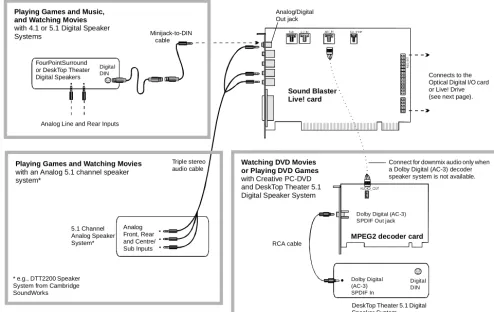
(14) Your Audio Card. Your audio card has these jacks and connectors which allow you to attach other devices:. A jack is a one-hole connecting interface whereas a connector consists of many pins. Some connectors here may not be available on your card. Refer to the online User’s Guide, “Hardware Information”, for details on connector pin assignments.. CD Audio connector. AUX connector. Connects to the Analog Audio output on a CD-ROM or DVD-ROM drive using a CD audio cable.. Connects to internal audio sources such as TV Tuner, MPEG, or other similar cards.. CD SPDIF connector. Telephone Answering Device connector Provides a mono connection from a standard voice modem, and transmits microphone signals to the modem.. Connects to the SPDIF (Digital Audio) output (where available) on a CD-ROM or DVD-ROM drive.. Analog/Digital Out jack 6-channel or compressed AC-3 SPDIF output for connection to external digital devices or digital speaker systems. Also supports Centre and Subwoofer analog channels for connection to 5.1 analog speaker systems.. Line In jack. Line Out and Rear Out jacks can be used simultaneously to power 4.1 channel speaker systems. In addition, the Analog/Digital Out jack can be used to power the Centre and Subwoofer (LFE) for 5.1 channel speaker systems.. Audio Extension (Digital I/O) connector. Connects to an external device (such as a cassette, DAT, or MiniD isc player ).. Connects to the Digital I/O card or Live! Drive.. Microphone In jack Connects to an external microphone for voice input.. Warning: This is not an IDE interface. Do not connect to your IDE devices.. Line Out jack Connects to powered speakers or an external amplifier for audio output. Also supports headphones.. Rear Out jack. Joystick/MIDI connector. Connects to powered speakers or an external amplifier for audio output.. Connects to a joystick or a MIDI device. You can buy an optional MIDI kit that allows you to plug in the joystick and MIDI device simultaneously.. Figure 1-1: Jacks and connectors on the Sound Blaster Live! card.. 1-2 Installing Sound Blaster Live! Player 5.1.
(15) Installing the Card. Do not force the audio card into the slot. If it does not fit properly, gently remove it and try again.. 1. Switch off your system and all peripheral devices. 2. Touch a metal plate on your system to ground yourself and to discharge any static electricity, and then unplug the power cord from the wall outlet. 3. Remove the cover from your system. 4. Remove the metal plate from one unused PCI expansion slot in your system and put the screw aside, to be used later. 5. Align the Sound Blaster Live! card with the vacant PCI expansion slot. Press the card gently ii. Fasten the card and evenly into the slot as shown in Figure 1-2. to the slot with a Unused brackets screw. Ensure that the card is seated firmly inside the i. Gently press the PCI expansion slot. audio card into the slot. 6. Secure the card to the expansion slot with a screw. 7. Replace the cover onto your system. 8. Plug the power cord back into the wall outlet, and PCI slot switch on the system. ISA slot. Figure 1-2: Securing the audio card to the PCI expansion slot.. Installing Sound Blaster Live! Player 5.1 1-3.
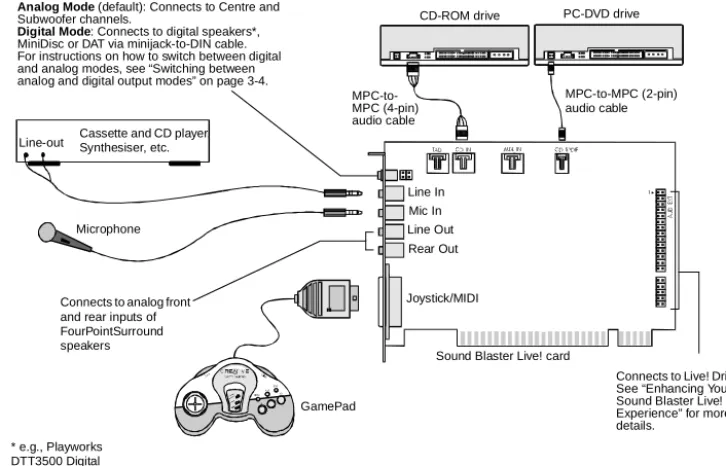
(16) Connecting Related Peripherals. ❑ If you are playing games in Windows 95/98 MS-DOS mode (pure DOS mode), you must: • Make sure the CD In connector and the Analog Audio connector of the CD-ROM or PC-DVD drive are connected. • In addition, if you get distorted audio, do not connect the CD SPDIF connector to the Digital Audio connector of the CD-ROM or PC-DVD drive. ❑ If you connect to the Digital Audio and Analog Audio connectors of the same CDROM or PC-DVD drive, do not unmute CD Audio and CD Digital at the same time in Surround Mixer.. 1-4 Installing Sound Blaster Live! Player 5.1. Analog Mode (default): Connects to Centre and Subwoofer channels. Digital Mode: Connects to digital speakers*, MiniDisc or DAT via minijack-to-DIN cable. For instructions on how to switch between digital and analog modes, see “Switching between analog and digital output modes” on page 3-4.. CD-ROM drive. MPC-to-MPC (2-pin) audio cable. MPC-toMPC (4-pin) audio cable Line-out. PC-DVD drive. Cassette and CD player, Synthesiser, etc.. Line In Mic In Microphone. Line Out Rear Out. Joystick/MIDI. Connects to analog front and rear inputs of FourPointSurround speakers. Sound Blaster Live! card. GamePad * e.g., Playworks DTT3500 Digital speakers. Figure 1-3: Connecting other devices.. Connects to Live! Drive IR. See “Enhancing Your Sound Blaster Live! Experience” for more details..
(17) Enhancing Your Sound Blaster Live! Experience. The Sound Blaster Live! card alone will most undoubtedly give you endless hours of listening pleasure. To further enhance your SB Live! experience, there are several upgrade options (available separately). The following information and diagrams on the next few pages show how you can connect these options to your SB Live! card.. Playing Games and Music, and Watching Movies. ❑ With FourPointSurround Digital speakers from Cambridge SoundWorks, you can experience crystal clear gaming sequences or music from the Digital DIN connection. If you want an even more immersive surround experience while watching movies, get the Playworks DTT3500 5.1 Digital speakers. A minijack-to-DIN cable is bundled with the speaker set for this connection. ❑ Alternatively, you can also connect an analog 5.1 channel speaker system (such as the DeskTop Theater 5.1 DTT2200 speakers from Cambridge SoundWorks) or even your 6channel home theatre speaker system. Besides the Front and Rear outputs, the SB Live! card has an Analog/Digital Out jack which allows you to connect to your Centre & Subwoofer channels. For instructions on how to switch between the analog and digital modes of the Digital/Analog jack, see “Switching between analog and digital output modes” on page 3-4. Watching DVD Movies or Playing DVD Games. ❑ To watch DVD movies on your PC, why not get Creative’s PC-DVD kit which comes with a PC-DVD drive and Encore MPEG2 decoder card? You can connect your Encore Dxr2, Dxr3 or MPEG2 decoder card to an external Dolby Digital (AC-3) decoder such as the DeskTop Theater speaker systems. In this case, disconnect the audio card’s Aux In connector from the decoder card’s Audio Out connector. However, if an external Dolby Digital (AC-3) decoder speaker system is not available, this connection is necessary.. * Information continues on page 1-9.. Installing Sound Blaster Live! Player 5.1 1-5.
(18) Playing Games and Music, and Watching Movies with 4.1 or 5.1 Digital Speaker Systems. FourPointSurround or DeskTop Theater Digital Speakers. Analog/Digital Out jack Minijack-to-DIN cable. Digital DIN. Connects to the Optical Digital I/O card or Live! Drive (see next page).. Sound Blaster Live! card. Analog Line and Rear Inputs. Triple stereo audio cable. Playing Games and Watching Movies with an Analog 5.1 channel speaker system*. Watching DVD Movies or Playing DVD Games with Creative PC-DVD and DeskTop Theater 5.1 Digital Speaker System. Connect for downmix audio only when a Dolby Digital (AC-3) decoder speaker system is not available.. Dolby Digital (AC-3) SPDIF Out jack. 5.1 Channel Analog Speaker System*. Analog Front, Rear and Centre/ Sub Inputs. * e.g., DTT2200 Speaker System from Cambridge SoundWorks. MPEG2 decoder card RCA cable. Dolby Digital (AC-3) SPDIF In. Digital DIN. DeskTop Theater 5.1 Digital Speaker System. Figure 1-4: Connecting peripherals to the Sound Blaster Live! card. 1-6 Installing Sound Blaster Live! Player 5.1.
(19) Connecting to External Consumer Elecronic Devices: Dolby Digital Decoder/Amplifier. Analog/Digital Out jack 3.5mm(mono)to-RCA cable. Dolby Digital (AC-3) SPDIF In. Sound Blaster Live! Player 5.1 card. Dolby Digital Decoder/Amplifier. Connecting to External Consumer Electronic Devices: Discrete 6-channel Amplifier. Discrete 6-channel Amplifier. Connects to the Optical Digital I/O card or Live! Drive (see page 1-8).. 3 sets of 3.5mm (stereo)-to-RCA cable. Analog Front, Rear and Centre/ Sub Inputs. Installing Sound Blaster Live! Player 5.1 1-7.
(20) Recording and Content Authoring with Optical Digital I/O card and Digital I/O Module. SPDIF (RCA) In Out. Digital device ( e.g., DAT). SPDIF In (RCA) Optical Input. MiniDisc Recorder. Recording and Content Authoring with Live! Drive IR. Recording to or from an external digital device supporting RCA SPDIF input/output. SPDIF (RCA) In Out. Digital device ( e.g., DAT). MiniDisc. Digital I/O Module. AUX input from an analog source (e.g., CD player, tape deck). To Digital Speaker System**. Digital DIN. Metal bracket Optical Output. Optical Input. Connects to SB Live! card. 2nd analog Line In for an additional recording device. Live! Drive IR via MiniDIN-tostandard DIN adapter (provided). Line In 2. To Digital Speaker System**. Digital In/Out Digital DIN. Connects to SB Live! card. MIDI In MIDI Out. MIDI devices (e.g., MIDI keyboard). **e.g., FourPointSurround or DeskTop Theater 5.1 Digital Speaker Systems*. 1-8 Installing Sound Blaster Live! Player 5.1. Optical Digital I/O card. Headphones. Microphone / Line In MIDI devices (e.g., MIDI keyboard). Note: FourPointSurround and Desktop Theater 5.1 speaker systems, Digital I/O Module, Digital I/O card, Live! Drive IR and cables are available separately..
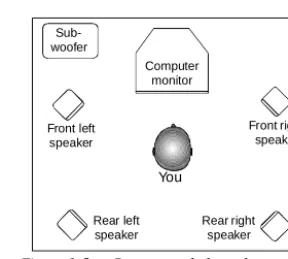
(21) Recording and Content Authoring. ❑ If you are a musician with semi-professional requirements, you may want to upgrade your Sound Blaster Live! card with either the Optical Digital I/O card (plus Digital I/O Module), or the Live! Drive IR. ❑ For either options, you will be given: • A set of SPDIF (RCA) and Optical input/output jacks for recording to and from external digital devices; • MIDI input/output connectors for connection to MIDI devices; • A Digital DIN connector for connection to digital speakers such as the FourPointSurround or DeskTop Theater 5.1 Digital Speaker Systems; • A second analog Line In allows you to connect to an additional input device (e.g. a CD player) for recording. ❑ The Live! Drive IR fits into the standard 5¼” drive bay of your computer and thus allows you easy access to these connectors from its front panel. The Headphones and Microphone inputs utilise ¼” jacks for high-quality connectivity.. Positioning Your Speakers. If you are using four speakers, place them so that they form the corners of a square with you exactly in the centre (as in Figure 1-5) and that they are angled toward you. Make sure the computer monitor is not blocking the path of your front speakers. If you have a centre speaker, place it on top of your monitor, also angled toward you. You may want to adjust the relative positions of the speakers until you get the audio experience you like best. If you have a subwoofer, place the unit in a corner of the room for the best bass experience.. Subwoofer Computer monitor. Front right speaker. Front left speaker. You Rear left speaker. Figure 1-5:. Rear right speaker. Recommended speaker positions for the 4-speaker configuration.. Installing Sound Blaster Live! Player 5.1 1-9.
(22) Installing Software. 2. This chapter shows you how to install the audio software in the various Windows operating systems. It consists of the following sections: ❑ Installing Audio Drivers and Applications ❑ Using Sound Blaster Live! Player 5.1 ❑ Uninstalling the Applications ❑ Reinstalling the Audio Drivers ❑ Playing Legacy Games. Installing Audio Drivers and Applications. You need device drivers to control the components on your audio card. To install these drivers as well as the bundled applications, use the following instructions. The instructions are applicable to all Windows operating systems. After you have installed the card and switched on your system, Windows automatically detects the card. 1. If you are prompted for the drivers, click the Cancel button. Otherwise proceed to step 2. 2. Insert the installation disc into your CD-ROM drive. The disc supports Windows AutoPlay mode and starts running automatically. If not, see “Problems Installing Software” on page C-1. 3. Follow the instructions on the screen to complete the installation. Installing Software 2-1.
(23) Setting Up Joystick Drivers in Windows NT 4.0. In Windows 2000, the joystick drivers are automatically set up.. 1. 2. 3. 4. 5. 6.. 7. 8. 9.. Using Sound Blaster Live! Player 5.1. 2-2 Installing Software. Log on to your computer as Administrator. Click Start -> Settings -> Control Panel. Double-click the Multimedia icon, click the Devices tab, and then click the Add button. In the List of Drivers box of the Add dialog box, select Unlisted Or Updated Driver, and then click the OK button. Insert the Windows NT 4.0 CD-ROM into the CD-ROM drive. In the Install Driver dialog box, type E:\DRVLIB\MULTIMED\JOYSTICK\X86 if E:\ is the CD-ROM drive letter, and then click the OK button. In the Add Unlisted Or Updated Driver dialog box, click Analog Joystick Driver, and then click the OK button. In the Microsoft Joystick Configuration dialog box, click the OK button. Restart your computer when prompted.. Congratulations! You have successfully installed Sound Blaster Live! Player 5.1. For more information on how you can get the most out of your audio card, refer to the other chapters in this manual..
(24) Uninstalling the Applications. Use the following steps to cleanly remove applications before you reinstall them to correct problems, change configurations, or make version upgrades. These instructions are applicable to all Windows operating systems. 1. Close the audio card’s applications if they are open. This includes Creative Launcher and the SB Live! icon on the taskbar. Applications that are still running during the uninstallation will not be removed. 2. Click Start -> Settings -> Control Panel. 3. Double-click the Add/Remove Programs icon. 4. In the Add/Remove Programs Properties dialog box, select Sound Blaster Live! Player 5.1, and then click the Add/Remove button. 5. In the Creative Uninstaller dialog box, select the check boxes of the items you want to delete and then click the Next button. The selected applications will be uninstalled. 6. Click the OK button to close the Add/Remove Programs Properties dialog box. 7. Restart the computer if prompted.. Installing Software 2-3.
(25) Reinstalling the Audio Drivers. You may want to reinstall only the audio drivers if you think they have been corrupted. 1. Insert the installation disc into your CD-ROM drive. The disc supports Windows AutoPlay mode and starts running automatically. If not, see “Problems Installing Software” on page C-1. 2. Follow the instructions on the screen until the Setup Options dialog box appears. 3. Click the Drivers only button. 4. Follow the instructions on the screen to complete the installation of the audio drivers.. Playing Legacy Games. For more information, see Appendix B, “SB Emulation in MS-DOS/ Windows 95/98/ME”.. 2-4 Installing Software.
(26) Using Sound Blaster Live! Player 5.1. 3. Sound Blaster Live! Player 5.1 is supported by a full range of applications to help you get the absolute most from the audio card. The software most important to the operation of your audio card is the Sound Blaster Live! group: ❑ Creative Sound Blaster Live! Tour ❑ Creative Diagnostics ❑ Creative Launcher ❑ Surround Mixer ❑ AudioHQ ❑ Wave Studio ❑ Creative PlayCenter 2 ❑ Creative Recorder ❑ Creative LAVA! ❑ Creative MediaRing Talk ❑ Creative Keytar ❑ Creative Rhythmania To locate and run these programs, click Start -> Programs -> Creative -> Sound Blaster Live! For more information and usage details for these applications, refer to their respective online help. Using Sound Blaster Live! Player 5.1 3-1.
(27) Creative Sound Blaster Live! Tour. This is a good place to start to learn more about the features of Sound Blaster Live! and to experience its awesome capabilities. The tour uses PixAround’s technology to immerse you in a panaromic “walk-through” experience which encompasses a number of closely-related interactive and informative demos, each featuring a different aspect of Sound Blaster Live!.. Creative Diagnostics. Use Creative Diagnostics to quickly test your audio card’s Wave, MIDI or CD Audio playback, recording function and speaker output.. Creative Launcher. Creative Launcher allows you to organise your desktop and open Creative applications quickly.. Creative Launcher resides at the top of your screen. The software installation creates a number of group tabs in Launcher that may contain shortcuts to Creative applications such as PlayCenter 2 and Surround Mixer. It may also contain shortcuts to other applications for your hardware settings, volume control, help files, or demonstration programs by Creative. The Live!Task tab in the Launcher offers a "one-touch" setting which you can use to perform a task easily. An application can also be launched automatically with its associated audio preset.. 3-2 Using Sound Blaster Live! Player 5.1.
(28) Surround Mixer. Creative Surround Mixer is the nerve centre for setting and controlling the various aspects of your audio card. It consists of two "detachable" decks: the Main deck and the Mixer deck. Set audio presets here. To restore Surround Mixer to its original settings, click Start -> Program-> Creative -> Sound Blaster Live! -> Creative Restore Defaults.. Speaker view Main deck. Spectrum view Mixer deck. Main deck. The top area of the Main deck allows you to: • Select tasks or save, delete, import and export audio presets. You can save endless combinations of these settings as audio presets for the selected speaker output. An audio preset, when selected, is your passport to a one-step automatic configuration of speakers, mixer and effects for whatever you want to do: play a particular game, record to a particular medium, record or play in a particular style—each style having its unique set of positions of audio input sources. These presets can then be configured for use in Creative Launcher's Live!Task.. Using Sound Blaster Live! Player 5.1 3-3.
(29) The three buttons at the left side of the Main deck allows you to switch between three different views: • In the EAX view, you can select and create your audio presets and position audio sources within the speaker configuration space. • In the Speaker view, you can select your speaker setup and perform a speaker output test. • In the Spectrum view, you can select and display the spectrum analyzer during playback or recording.. Mixer deck. The Mixer deck allows you to: • Mix sounds from various audio input sources when playing or recording; • Adjust the volume level for the audio input sources; • Adjust the treble and bass level, front/rear or left/right balance. Tip ❑ If you are not sure what the icons on the Surround Mixer represent, place the pointer over any icon or area to display the tooltip.. Switching between analog and digital output modes. By default, the Analog/Digital Out jack of the audio card outputs analog centre and subwoofer channels. To allow it to give digital 6-channel or compressed AC-3 SPDIF output (digital output mode), do the following: 1. In the Main deck of the Surround Mixer, click the Speaker button. 2. In the Speaker view, click the Digital Output only check box to select it. (This is available for all speaker modes except for the Headphones mode). Alternatively, you can do the following: 1. In the Mixer deck of Surround Mixer, click the red plus sign above the VOL control. 2. In the dialog box that appears, click the Digital Output only check box to select it. To switch back to analog output mode, clear this check box. Changes made will be reflected in the Speaker view.. 3-4 Using Sound Blaster Live! Player 5.1.
(30) Enabling Bass Redirection. Some subwoofers may not be able to reproduce excessive bass. We recommend that you set the subwoofer volume slider to a low level before you enable bass redirection. Thereafter, increase the volume level to a comfortable level.. Enabling Dolby Digital (AC-3) Decoding. Dolby Digital delivers five full range channels and one bass-only effects channel. However most multimedia speaker systems have satellite speakers that usually do not reproduce low frequency content. Enabling bass redirection allows low frequency source content from the front, rear and centre channels to be redirected and added to the low frequency source effects (LFE) channel to produce deeper subwoofer output. This feature is useful for producing bass in games or applications that have only front and rear channel content. To enable bass redirection: 1. In the Main deck of the Surround Mixer, click the Speaker button. 2. In the Speaker view, click the Speaker Selection button to select the 5.1 speaker mode if it is not selected. 3. Click the Advanced button. 4. In the dialog box that appears, click the Bass Redirection button. When enabled, the button is orange. By enabling Dolby Digital decoding, the SB Live! card will decode Dolby Digital stream to six discrete analog channels. The Cambridge SoundWorks DeskTop Theater DTT2200 speaker system is an ideal match for this usage. Thus, an external Dolby Digital decoder is not required for you to enjoy multi-speaker surround sound. To enable Dolby Digital (AC-3) decoding: 1. In the Speaker view, clear the Digital Output only check box. 2. Follow the steps 1 to 3 described in the previous section and then click the AC-3 Decode button if it is not yet enabled. However, if you wish to use an external Dolby Digital decoder, do not enable this feature. This setting will pass through compressed Dolby Digital (AC-3) PCM SPDIF output from the Analog/Digital Out jack. Remember to set the SB Live! card to the Digital Output mode. In addition, you will need a separate 3.5mm-to-RCA jack cable to connect to your decoder.. Using Sound Blaster Live! Player 5.1 3-5.
(31) AudioHQ. AudioHQ contains several control utilities that allow you to view, audition, or set up the audio properties of one or more audio devices on your computer.. AudioHQ can be accessed using any of the following methods: • Click Start -> Programs -> Creative -> Sound Blaster Live! -> AudioHQ; • Click or double-click the AudioHQ icon located at the bottom right corner of your Windows desktop.. 3-6 Using Sound Blaster Live! Player 5.1.
(32) SoundFont Control. Creative SoundFont Control allows you to configure MIDI banks with SoundFont files and instruments, as well as set the caching algorithm and space.. Configure a MIDI Bank. To configure a MIDI bank: 1. In SoundFont dialog box, click the Configure Bank tab. 2. In the Select Bank list, select the MIDI bank to configure. 3. Click the Load button and load the SoundFont file you want to the MIDI bank. The latest file loaded always appears at the top of the Bank Stack box. The top of the stack is indicated by an arrow. 4. To replace a SoundFont file, click the file and then click the Replace button. 5. To clear a bank from the stack, select the bank and then click the Clear button. A variation bank can only be cleared by clearing its main bank. 6. Repeat Steps 3, 4 or 5 as required. By stacking a SoundFont file instead of replacing one with the other, you may return to the original sounds or use the new selection. You can “spot” hide particular instruments by loading one or more SoundFont files on top of the original. When you clear a SoundFont file, you remove the latest configuration of the main bank and any variation banks, including the latest configuration of instruments on the Configure Instrument tabbed page. Using Sound Blaster Live! Player 5.1 3-7.
(33) Configure an Instrument. Setting the maximum amount of cache memory for SoundFont files does not mean setting aside or reserving the space. The space can still be used by your computer or other files, if needed.. 3-8 Using Sound Blaster Live! Player 5.1. To configure an instrument: 1. In the SoundFont dialog box, click the Configure Instrument tab. 2. In the Select Bank list, select the bank whose instruments you want to configure. You can select any bank. 3. In the Select Instrument list, select the instrument to configure. In the Instrument Stack, you may see an instrument entry although you did not load an instrument on this page. The instrument can be found in a bank loaded on the Configure Bank tabbed page. 4. Click the Load button and load a SoundFont or single-instrument (for example, .WAV) file. The last file loaded always appears at the top of the Instrument Stack with an arrow pointing to it. 5. To clear an instrument from the stack, select the instrument and then click the Clear button. 6. For faster processing of SoundFont files, the files are loaded into memory. You need to set the maximum amount of cache memory your SoundFont files can occupy, so that your system performance does not suffer from insufficient memory. You can also set the caching algorithm for a balanced system performance..
(34) SoundFont Options. You change the following options on the Options tabbed page of the SoundFont Control dialog box: To specify the caching algorithm: • Select an algorithm from the SoundFont Cache list. To set the amount of cache for SoundFont files: • Drag the SoundFont Cache slider to set the amount of cache. To change the SoundFont device • Select the new device from the SoundFont Device list.. Device Controls. Device Controls allows you to configure for audio playback the audio devices that allow multiple simultaneous Wave playback sessions. For example, you can play five Wave tracks at the same time and enjoy the sounds from them all. This feature is currently not supported under Windows 2000.. Playback Sessions. To set maximum simultaneous Wave playback sessions: • On the Wave tabbed page, drag the Maximum Simultaneous Wave Playback slider to the right to set a higher number of Wave playback sessions, or to the left to set a lower number of simultaneous playback sessions.. Sound Device. To select the sound device to configure: • On the Options tabbed page, click the device you want to configure from the Sound Device list. The device is immediately selected. Using Sound Blaster Live! Player 5.1 3-9.
(35) Creative Keyboard. Creative Keyboard is a virtual keyboard which allows you to audition or play musical notes produced through MIDI devices. To edit the sound, use Vienna SoundFont Studio or another sound editor.. MIDI Input. To select a MIDI input device: 1. In the Select MIDI In box in the Options dialog box, click the correct MIDI port. 2. Click the OK button. You can use external MIDI input devices to audition your MIDI banks and instruments. First, connect a MIDI input device to your audio card and then select that device in Creative Keyboard.. Test an Instrument. To test an instrument: 1. In Creative Keyboard, click the bank and the instrument you want. 2. Click the keys on the keyboard to test the sound. If you have an external MIDI input device, you will probably find it easier to use it instead.. 3-10 Using Sound Blaster Live! Player 5.1.
(36) Tips ❑ To select multiple notes to play simultaneously, use your right mouse button to click the keys, which will be marked by black dots. ❑ To release the keys, right-click them one by one, or click the All Notes Off button for simultaneous release. ❑ To slide across the keyboard, drag the mouse. ❑ If the playback’s sustain is too long, click the All Notes Off button.. EAX Control. EAX Control allows you to configure the EMU10K1 effects engine. It allows you to specify the components that make up the audio elements that in turn make up an audio effect. An audio effect is the modeling of a real-world experience. We have provided some entertainment, gaming and various audio effects to get you started with. EAX Control can be also be accessed from Creative Surround Mixer. Learn from the online help how to: ❑ Configure master effects • Add or remove effects • Specify the effect type • Specify the degree or amount of the effect • Edit an effect all the way down to its parameters or building blocks ❑ Configure source effects, that is, set the amount of the effects to apply on an audio source. ❑ Configure MIDI playback effects ❑ Export an audio effect to a file ❑ Import an audio effect Using Sound Blaster Live! Player 5.1 3-11.
(37) AutoEAX. AutoEAX allows you to specify for any audio application which audio preset to automatically associate with the currently active speaker output. For the automatic audio presets to work, AutoEAX must be active or at least minimised.. Associating an Audio Preset. For each audio application on your computer, you can specify the audio preset that will be automatically associated with it, for each speaker output configuration. For example, when playing an audio CD using Creative PlayCenter 2, you may want to associate different audio presets for the speaker outputs "Live!Surround" and "4 Speakers". 1. In the Application list, select the audio application with which to associate an audio preset for a particular speaker output. If the application is not in the list, click the Browse button to browse for and open the application. 2. In the Speaker Output box, click the speaker output to configure. 3. In the Linked Audio Preset box, click the audio preset you want to associate with this application/speaker-output combination. This combination trio are automatically set. 4. If you want AutoEAX to monitor this application's activity, clear the Do not monitor this application check box. If you check it, AutoEAX will not configure the audio preset for that application even when the application is started. For other functions, refer to its online help.. Wave Studio. Wave Studio allows you to perform the following sound editing functions easily: ❑ Play, edit, and record 8-bit (tape quality) and 16-bit (CD quality) Wave data. Enhance your Wave data or create unique sounds with various special effects and editing operations such as rap, reverse, echo, mute, pan, cut, copy, and paste. ❑ Open and edit several Wave files at the same time. ❑ Import and export raw (.RAW) data files.. 3-12 Using Sound Blaster Live! Player 5.1.
(38) Creative PlayCenter 2. Creative PlayCenter 2 is a revolutionary audio CD and digital audio (such as MP3 or WMA) player. Besides managing your favourite digital audio files on your computer, it is also an integrated MP3/WMA encoder for ripping audio CD tracks into compressed digital audio files. It can encode tracks at speeds of up to 8x faster than normal play speed and up to 320 kbps.. Creative Recorder. Recorder allows you to record sounds or music from various input sources like the microphone or Audio CD, and save them as Wave (.wav) files.. Using Sound Blaster Live! Player 5.1 3-13.
(39) Creative LAVA!. Creative LAVA! (Live! Audio-Visual Animation) gives your music visual expression that enhances the emotional depth of your music experience. Through LAVA!, 3D graphical objects interact with the music and intelligently dance to the sound cues from sources such as CD and MIDI. Explore the various animation scenarios provided by LAVA! or create your own environments and scenarios for your animation.. Creative MediaRing Talk. Creative MediaRing Talk is an award-winning Internet voice communication software. It allows you to make long distance and international calls over the Internet, from your PC to another PC with Internet access and MediaRing Talk installed. It also allows you to make calls to a regular telephone if you subscribe to MediaRing’s ValueFone service. All you need to do is start MediaRing Talk; dial the number; and let MediaRing Talk establish a connection for you. Furthermore, with Sound Blaster Live! Player 5.1’s EAX, your voice can be modified as you take on different “personas” (for example, a male or female person, chipmunk etc.) when you talk to the other party. Disguise you voice and your friend on the other end may think he’s talking to another person! To make use of these voice effects, just click the Voice Effects button (also known as the EAX button) and select the desired persona from the list.. 3-14 Using Sound Blaster Live! Player 5.1.
(40) Creative Keytar. With Creative Keytar, an easy-to-use and highly interactive edutainment software for beginners, you can turn your multimedia computer into a virtual rhythm guitar system immediately. Click a picture at the top of the screen to choose your favorite guitar. Press a function key (F1, ..., F12) to activate a chord, and you can start strumming or plucking your favorite tunes. Just hold the chord with one hand until it is time to change the chord and use the other hand to strum or pluck the strings according to a tune's rhythmic variation. You don’t need to worry about notes, all you need is a sense of rhythm and to remember your chord keys.. Creative Rhythmania. Creative Rhythmania lets you create a MIDI file, choosing from a professional set of backup rhythms and instruments. Creative Rhythmania allows you to: ❑ Perform with auto-accompaniment in Rhythm mode: • Four-part Rhythm section • Preset backing styles • Interactive backing arrangement • Chord Palette system • SoundFont support ❑ Choose between two Keyboard types: PC (QWERTY) keyboard or MIDI keyboard connected to your PC. Rhythmania is essentially a pattern-based software: ❑ You play a Pattern to provide auto-accompaniment for your melody playing. ❑ You create or modify a Pattern by building or changing it Section by Section in Rhythm mode. ❑ Then, you combine a Pattern and a melody to create a Sequence in Sequencer mode.. Using Sound Blaster Live! Player 5.1 3-15.
(41) 4. To Do This ... Use These Applications. Sound Blaster Live! Player 5.1 offers you digital and internet entertainment, multimedia playback, and gaming. The following reference tables point you to the bundled applications that will help you achieve your goals.. Multimedia Playback Multimedia Playback. Applications. DVD Movies. To play back DVD movies on your Sound Blaster Live! Player 5.1, you must first have a DVD-compatible drive. Next, you must have a software DVD solution that is available from Creative. For the full DVD experience, you may want to purchase Cambridge SoundWorks’ DeskTop Theater 5.1 or a Dolby Digital (AC-3) decoder.. MP3/WMA. Creative PlayCenter 2 supports/plays MP3 and WMA files.. Wave/CD Audio. Use Creative PlayCenter 2 to play back files in both Wave and CD Audio formats. WAV is the format for digital audio files on the Windows operating platform. CD Audio is played back from an audio compact disc on your CD-ROM drive.. To Do This ... Use These Applications 4-1.
(42) Multimedia Playback. Digital Entertainment. Applications. MIDI. MIDI (*.MID) is a music format used by musicians that is played back from the internal synthesiser on the Sound Blaster Live! Player 5.1 card. Use Creative PlayCenter 2 to play back MIDI files or use the MIDI sequencer bundled with your card. To achieve the best quality, load the 8MB GM bank in the SoundFont applet found in the AudioHQ group.. SoundFont MIDI. Many musicians have created music files that use exotic or non-regular instrument (non General MIDI compliant). These instruments are stored in SoundFont banks. Such MIDI files can be played back from Creative PlayCenter 2. The bundled CD contains many examples of MIDI demos that use high quality SoundFont banks.. Dolby Digital (AC-3) audio. Sound Blaster Live! Player 5.1 offers Dolby Digital (AC-3) decoding so there’s no need for an external Dolby Digital decoder. Just configure your speaker setup to 5.1 Speaker systems in Surround Mixer.. Digital Entertainment Watch Surround Movies. 4-2 To Do This ... Use These Applications. Applications If you want to enjoy high quality movie entertainment, ensure you have good speakers. If you have 4 or 5 speakers connected to your Sound Blaster Live! Player 5.1 card, configure your respective speaker setup in Surround Mixer. For DVD movies, it is recommended that you purchase Creative PC-DVD Encore’s solution as well as the Cambridge SoundWorks’ DeskTop Theater 5.1 Speaker systems..
(43) Digital Entertainment. Internet Entertainment. Applications. Play Customised Albums. You can compile your own albums containing your favorite music using the bundled Creative PlayCenter 2; whether they are in CD Audio, WAV or MIDI format.. Play Guitar. Sound Blaster Live! Player 5.1 lets you play the guitar on your PC. With Creative Keytar, you can literally transform your computer keyboard into a guitar. And strum, using your mouse!. Play Keyboard Music with Auto-Accompaniment/OneMan Band. You need not invest in a musical keyboard to be a oneman-band. Creative Rhythmania lets you play music on your computer keyboard.. Internet Entertainment. Applications. Experience Music with Visual Animation. With LAVA!, your MP3 songs can now be associated and distributed over the Internet with a customised “music video” (called MV3) containing high quality 3D animation that gives dynamic visual expression to your songs. Watch the animation dance to the beat of your music! To enjoy the LAVA! experience, you will also need any 3D accelerated graphics card.. Encode CD Songs to MP3 / Download and Play MP3 Songs. With PlayCenter 2, you can encode and record all your favorite CD songs into your PC hard drive, creating a database for playing customised song lists. You can also add songs to your database by downloading them from various sites in the Internet. To Do This ... Use These Applications 4-3.
(44) Internet Entertainment. 4-4 To Do This ... Use These Applications. Applications. Play MP3 Songs with EAX. Use Creative PlayCenter 2 to create your own MP3 renditions with multi-dimensional and multi-textured realism by adding environments such as concert hall or bathroom! You can share these enhanced MP3 songs even with someone who does not own an SB Live! card.. Chat over the Internet using another Voice. Take on another personality or life-form while talking over the Internet! You can do this with Creative MediaRing Talk and its Voice Personas feature, which uses Sound Blaster Live! Player 5.1’s EAX to modify your voice in real-time as you chat.. Create 360° Interactive PixAround Web Pages with Audio Hotspots. Use PixMaker to create immersive and interactive 360° web pages or postcards easily. You can even add audio hotspots in your panaromic pictures that will play audio files when clicked..
(45) Gaming Reference Games. Applications. EAX Support. Enjoy the many EAX titles by top game developers that immerse you in realistic environments. Go to www.sblive.com for a full list of compatible titles.. DirectSound3D Support. DirectSound3D (DS3D) games are supported on your Sound Blaster Live! Player 5.1 card. You can hear sounds positioned in 3D space that enhance your game experience.. A3D 1.0 Support. Your card translates A3D calls into DirectSound3D, meaning that you can enjoy A3D games.. Sound Blaster Compatibility. Your card provides you with exceptional Sound Blaster compatibility so that you can continue to play the thousands of popular DOS games already in the market.. Audio Presets For Legacy/ Existing Games. You can still enjoy audio effects even if your game does not have EAX support. You card bundles over 50 presets for use with existing games. These can be accessed from Creative Launcher. You can also associate effects individually with your favorite games. Launch the AutoEAX applet.. Customised environments for non-3D audio games. You can create customised environments for your non EAX games using the EAX Control panel, which can be accessed from Creative Surround Mixer.. To Do This ... Use These Applications 4-5.
(46) A. General Specifications This section lists the specifications of your card.. Features PCI Bus Mastering. ❑ PCI Specification Version 2.1 compliant ❑ Bus mastering reduces latency and speeds up system performance. EMU10K1. ❑ ❑ ❑ ❑ ❑ ❑. Advanced hardware accelerated digital effects processing 32-bit digital processing while maintaining a 192 dB dynamic range Patented 8-point interpolation that achieves the highest quality of audio reproduction 64-voice hardware wavetable synthesizer Professional-quality digital mixing and equalization Up to 32 MB of sound RAM mapped to host memory. Stereo Digitized Voice Channel. ❑ ❑ ❑ ❑ ❑. True 16-bit Full Duplex operation 16-bit and 8-bit digitizing in stereo and mono modes Playback of 64 audio channels, each at an arbitrary sample rate ADC recording sampling rates: 8, 11.025, 16, 22.05, 24, 32, 44.1 and 48 kHz Dithering for 8-bit and 16-bit recording General Specifications A-1.
(47) AC 97 Codec Mixer. ❑ Mixes EMU10K1 audio sources and analog sources such as CD Audio, Line In, Microphone, Auxiliary and TAD ❑ Selectable input source or mixing of various audio sources for recording ❑ 16-bit Analog-to-Digital conversion of analog inputs at 48 kHz sample rate. Volume Control. ❑ Software record and playback control of Master, Digitized Voice, and inputs from MIDI device, CD Audio, Line, Microphone, Auxiliary, TAD, SPDIF, Wave/DirectSound device, CD Digital (CD SPDIF) ❑ Separate bass and treble control ❑ Front and Rear Balance control ❑ Muting and balance control for individual playback sources. Dolby Digital (AC-3) Decoding. ❑ Decodes Dolby Digital (AC-3) to 5.1 channels or pass-through compressed Dolby Digital (AC-3) PCM SPDIF stream to external decoder ❑ Bass Redirection: Enhances bass output to subwoofer for small satellite speaker systems. Creative Multi Speaker SurroundTM (CMSSTM). ❑ Multi-speaker technology ❑ Professional-quality panning and mixing algorithm ❑ Upmixes mono or stereo sources to 5.1 channels. A-2 General Specifications.
Figure


+4

Related documents
Hanretta, Sean, Islam and Social Change in French West Africa: History of an Emancipatory. Community (Cambridge:
This study and investigate focused on the number of rules in SIFLC, lookup table, slope of a linear equation, and also model reference to give optimum performances of depth
We have constructed a large, representative sample of FRI and FRII radio galaxies with well-determined environmental gas distributions ( I15 ), and in this paper we compare the
All channels on the line side can be combined by an external multiplexer for transmission in a single fiber using CWDM or DWDM technology.. Tunable SFP+ or “color” SFP/SFP+ with
Inhalation and potential exposure to eyes, hands, or other body parts if contact is made with broken tile, and/or during procedures involving the cutting of products, and/or
When ready to start the print job, you click “3D Print.” This sends the digital layer files to the ZPrinter, and the model begins printing immediately. The ZPrinter
licensed for use in Europe. Thirty-six face-to-face, semi-structured qualitative interviews were conducted with people who were: i) using heroin daily and not receiving
Oracle Process Manufacturing Inventory Management Processing Inventory Transactions •••• 153 inventory summary provides quantities for each warehouse for: nettable, committed
