501 Web Site
Secrets
®
Unleash the Power of
, Amazon
®, eBay
®, and More
501 Web Site
501 Web Site
Secrets
®
Unleash the Power of
, Amazon
®, eBay
®, and More
501 Web Site Secrets®: Unleash the Power of Google®, Amazon®, eBay®, and More
Published by Wiley Publishing, Inc. 10475 Crosspoint Boulevard Indianapolis, IN 46256
www.wiley.com
Copyright 2004 by Wiley Publishing, Inc., Indianapolis, Indiana Published by Wiley Publishing, Inc., Indianapolis, Indiana
Published simultaneously in Canada
Library of Congress Control Number is available from the publisher.
ISBN: 0-7645-5901-X
Manufactured in the United States of America
10 9 8 7 6 5 4 3 2 1
1B/TQ/QR/QU/IN
No part of this publication may be reproduced, stored in a retrieval system or transmitted in any form or by any means, electronic, mechanical, photocopying, recording, scanning or otherwise, except as permit ted under Sections 107 or 108 of the 1976 United States Copyright Act, without either the prior written permission of the Publisher, or authorization through payment of the appropriate per-copy fee to the Copyright Clearance Center, 222 Rosewood Drive, Danvers, MA 01923, (978) 750-8400, fax (978) 646-8600. Requests to the Publisher for permission should be addressed to the Legal Department, Wiley Publishing, Inc., 10475 Crosspoint Blvd., Indianapolis, IN 46256, (317) 572-3447, fax (317) 572-4447, E-Mail: [email protected].
Limit of Liability/Disclaimer of Warranty: While the publisher and author have used their best efforts in preparing this book, they make no representations or warranties with respect to the accuracy or com pleteness of the contents of this book and specifically disclaim any implied warranties of merchantability or fitness for a particular purpose. No warranty may be created or extended by sales representatives or written sales materials. The advice and strategies contained herein may not be suitable for your situation. You should consult with a professional where appropriate. Neither the publisher nor author shall be liable for any loss of profit or any other commercial damages, including but not limited to special, incidental, consequential, or other damages.
For general information on our other products and services or to obtain technical support, please contact our Customer Care Department within the U.S. at (800) 762-2974, outside the U.S. at (317) 572-3993 or fax (317) 572-4002.
Wiley also publishes its books in a variety of electronic formats. Some content that appears in print may not be available in electronic books.
About the Author
Michael Miller has written more than fifty how-to and reference books over the last fifteen years, including Wiley’s Building Really Annoying Web Sites (2001). Mr. Miller has established a reputation for practical, real-world advice and an unerring empathy for the needs of his readers. He is known for his casual, easy-to-read writing style and his ability to explain a wide variety of complex topics to an everyday audience.
Credits
Acquisitions Editors
Katie Feltman Katie Mohr
Development Editor
James H. Russell
Production Editor
Vincent Kunkemueller
Copy Editor
Nancy V. Daniels
Vice President & Executive Group Publisher
Richard Swadley
Vice President and Executive Publisher
Robert Ipsen
Vice President and Publisher
Joseph B. Wikert
Executive Editorial Director
Mary Bednarek
Editorial Manager
Mary Beth Wakefield
Project Coordinator
April Farling
Graphics and Production Specialists
Jennifer Heleine Michael Kruzil Kristin McMullan Lynsey Osborn Melanee Wolven
Permissions Editor
Carmen Krikorian
Proofreading and Indexing
Acknowledgments
Contents at a Glance
Acknowledgments ...ix
Introduction ...xix
Part I: Secrets of the Internet Portals ...1
Chapter 1: Yahoo! Secrets ...3
Chapter 2: MSN Secrets ...55
Chapter 3: AOL.com Secrets ...75
Chapter 4: Excite Secrets ...89
Chapter 5: Lycos Secrets ...99
Part II: Secrets of the Internet Search Engines ...117
Chapter 6: Google Secrets ...119
Chapter 7: AllTheWeb Secrets ...161
Chapter 8: Ask Jeeves Secrets ...171
Chapter 9: AltaVista Secrets ...181
Chapter 10: HotBot Secrets ...195
Part III: Secrets of the Online News and
Information Sites ...209
Chapter 11: CNN.com Secrets ...211
Chapter 12: ESPN.com Secrets ...231
Chapter 13: CBS MarketWatch Secrets ...247
Chapter 14: Weather.com Secrets ...265
Chapter 15: Microsoft.com Secrets ...281
Part IV: Secrets of Online Shopping and Services ...293
Chapter 16: eBay Secrets ...295
Chapter 17: Amazon.com Secrets ...319
Chapter 18: Napster 2.0 Secrets ...345
Chapter 19: Expedia Secrets ...361
Chapter 20: MapQuest Secrets ...371
Contents
Acknowledgments ...ix
Introduction ...xix
Part I: Secrets of the Internet Portals ...1
Chapter 1: Yahoo! Secrets ...3
Yahoo! At a Glance ...4
Use the Direct Address ...6
Use the Search Box Shortcut ...8
Yahoo’s Mature Content Filter ...18
Yahoo! Family Accounts ...19
Yahooligans! ...19
Local Yahoo! ...21
World Yahoo! ...21
Yahoo! People Search ...23
Yahoo! Member Directory ...23
Yahoo! Personals...23
Yahoo! Yellow Pages ...24
Searching for Businesses from the Search Box ...25
Yahoo! Chat ...27
Yahoo! Messenger ...28
Yahoo! Message Boards ...29
Yahoo! Groups ...30
Yahoo! Calendar ...31
Yahoo! Address Book ...32
Yahoo! Briefcase ...33
Yahoo! Photos ...33
Yahoo! News ...34
Yahoo! Weather ...34
Yahoo! Sports ...34
Yahoo! Entertainment ...34
Yahoo! Movies ...36
Yahoo! TV ...36
Yahoo! Lottery Results ...36
Yahoo! Astrology ...37
Yahoo! Finance ...37
Yahoo! Banking Center ...38
Yahoo! Bill Pay ...38
Yahoo! Insurance Center ...38
Yahoo! Loan Center ...39
Yahoo! PayDirect ...39
Yahoo! Tax Center ...39
Yahoo! Shopping ...39
Yahoo! Wallet ...41
Yahoo! Autos ...42
Yahoo! Real Estate ...43
Yahoo! Travel ...43
Yahoo! Maps ...44
Yahoo! GeoCities ...51
Yahoo! Picture Gallery ...51
Yahoo! Domains ...52
Yahoo! Web Hosting ...52
Summary ...53
Chapter 2: MSN Secrets ...55
The MSN Home Page ...56
Popular Topics...62
Featured Sites ...62
Web Directory Sites ...62
Web Pages...62
AND ...63
OR ...63
NOT ...63
Stringing Together Multiple Operators ...63
Exact Phrase Search ...64
News: MSNBC ...66
Sports: ESPN ...67
Travel: Expedia ...67
City Guides: Citysearch ...67
Yellow Pages: SuperPages.com ...67
White Pages: InfoSpace ...67
Careers: Monster ...67
Dating & Personals: Match.com ...67
Games: Zone.com ...68
Health: WebMD ...68
Summary ...74
Chapter 3: AOL.com Secrets ...75
Summary ...88
Chapter 4: Excite Secrets ...89
Excite at a Glance ...90
Summary ...98
Chapter 5: Lycos Secrets ...99
Lycos at a Glance ...100
HotBot ...103
AltaVista ...103
Overture ...103
Lycos Directory (Open Directory) ...103
Part II: Secrets of the Internet Search Engines ...117
Chapter 6: Google Secrets ...119
Google at a Glance ...121
Display Related News Stories ...131
Display Cached Pages ...132
Display Similar Pages ...132
Jump to the Google Directory Listing ...132
Search within Your Search Results ...132
Display Google in a Different Language ...135
Search in a Different Language ...135
Search Safely ...136
Display More Results Per Page ...136
Open a New Results Window ...136
Google Browser Buttons ...138
Google Toolbar ...138
Google Deskbar ...140
Using Google Image Search ...140
Advanced Image Search ...141
Searching the Newsgroups ...143
Advanced Groups Search ...143
Search University Sites ...144
Search Government Sites ...144
Search Technology Sites ...144
View the Latest Headlines and Stories ...147
Searching with Froogle ...149
Advanced Froogle Search ...149
Searching Online Catalogs ...151
Basic Calculations ...153
Advanced Calculations and Constants ...153
Summary ...160
Chapter 7: AllTheWeb Secrets ...161
Summary ...170
Chapter 8: Ask Jeeves Secrets ...171
Ask Jeeves at a Glance ...172
Summary ...180
Chapter 9: AltaVista Secrets ...181
AND ...184
OR ...184
AND NOT ...184
NEAR ...184
Summary ...193
Chapter 10: HotBot Secrets ...195
HotBot at a Glance ...196
Part III: Secrets of the Online News
and Information Sites ...209
Chapter 11: CNN.com Secrets ...211
CNN.com at a Glance ...212
General News Sites ...227
Newspaper Sites ...227
Magazine Sites ...228
Summary ...229
Chapter 12: ESPN.com Secrets ...231
ESPN.com at a Glance ...232
Sports Portals ...244
Professional Sports Sites ...244
College Sports Sites ...245
Participatory Sports Sites ...245
Summary ...245
Chapter 13: CBS MarketWatch Secrets ...247
CBS MarketWatch at a Glance ...248
General Market Performance ...250
Specific Industry Performance ...250
Individual Security Performance ...251
Summary ...263
Chapter 14: Weather.com Secrets ...265
Weather.com at a Glance ...266
Desktop Weather ...278
Desktop Weather Platinum ...278
Summary ...280
Chapter 15: Microsoft.com Secrets ...281
Microsoft.com at a Glance ...282
Summary ...292
Part IV: Secrets of Online Shopping and Services ...293
Chapter 16: eBay Secrets ...295
eBay at a Glance ...296
Using Advanced Search Operators ...300
Using eBay’s Search Page ...300
Chapter 17: Amazon.com Secrets ...319
Amazon.com at a Glance ...320
Distributors and Manufacturers ...322
Partner Retailers ...323
Amazon Merchants ...323
Listmania Lists ...335
So You’d Like To. . . Guides ...335
Coming Soon Lists ...338
E-Mail Alerts ...338
Amazon Marketplace ...340
Pro-Merchants ...341
zShops ...341
Amazon Auctions ...341
Chat ...341
Discussion Boards ...342
Summary ...343
Chapter 18: Napster 2.0 Secrets ...345
Napster at a Glance ...346
Browsing for Music ...349
Searching for Tracks ...350
Building a Playlist ...350
Listening to and Creating Mix Tapes ...351
Using Napster’s Music Player to Stream Real-Time Music ...352
Listening to Napster Radio ...353
Share Songs via E-Mail ...357
Communicate via Napster’s Message Boards ...358
iTunes ...358
BuyMusic ...359
Musicmatch Downloads ...359
eMusic ...359
Rhapsody ...359
Summary ...360
Chapter 19: Expedia Secrets ...361
Expedia at a Glance ...362
Summary ...369
Chapter 20: MapQuest Secrets ...371
MapQuest at a Glance ...372
Zoom In ...375
Re-Center ...375
Summary ...381
Introduction
Here’s something cool I bet you didn’t know . . .
That, in a nutshell, is what drove the creation of this book—cool stuff you prob ably didn’t know about your favorite Web sites. Secrets, for want of a better word. Five hundred and one of them.
About This Book
What kind of secrets are included in 501 Web Site Secrets? Well, there’s parts of a site you didn’t know existed. Or ways to use the site that you weren’t aware of. Or special commands that help you get even more out of the site than you could before. Cool stuff like that—and more.
That’s the nature of a secret—something that most users don’t know about, but would get a kick out of if they did. These are the kinds of things that will make you say to yourself, “That’s cool—I didn’t know you could do that!” And then you’ll want to go directly to the site to try the secret out for yourself. (Go ahead; it’s allowed.)
Of course, not all 501 secrets in this book will be new to you. If you’re Internet-savvy at all, you’ll probably know some of what I reveal in these pages. That’s okay; it only means that you’re on your toes. I’m sure, however, that you’ll find more than a few secrets you didn’t know, and that they’ll make this book a worthwhile read for you.
To be fair, many of these secrets are hidden in plain sight. There are few secrets in this book that are deliberately concealed from the general public. Most so-called secrets are things that are there if you look for them—and if you know where to look. You can discover lots of secrets on your own just by clicking all the links on all the pages of your favorite sites and poring over every single page of the site’s help system. The sad fact is, most users never get beyond a site’s home page—and there aren’t too many secrets there!
How to Use This Book
Using this book is as simple as turning to the chapter on a particular site, read ing through the secrets, then trying them on your own. You don’t need any par ticular technical expertise to take advantage of these secrets, although some familiarity with the sites in question is helpful. There’s no fancy programming, no high-level coding, just a lot of common-sense information that you probably didn’t know before.
How This Book Is Organized
Part I: Secrets of the Internet Portals
This part covers the top Web portals, those sites that offer a little bit of every thing and want to be the starting point for all your Web surfing. The biggest portals are covered here: Yahoo!, MSN, AOL.com, Excite, and Lycos.
Part II: Secrets of the Internet Search Engines
The most common online activity is searching, so this part covers the top search sites—including a few search engines you might not know about, but should. Look here for the search secrets of Google, AllTheWeb, Ask Jeeves, AltaVista, and HotBot.Part III: Secrets of the Online News and
Information Sites
More and more people are getting all their news and information from the Internet. This part tells you all about the top sites for news, sports, weather, and other information: CNN.com, ESPN.com, CBS MarketWatch, Weather.com, and Microsoft.com. (Yes, Microsoft.com—a great source for technical information!)
Part IV: Secrets of Online Shopping and Services
The final part covers those sites where you spend a lot of money—the Internet’s top shopping and auction sites. Turn here for the inside information on eBay, Amazon.com, Napster, Expedia, and MapQuest.Conventions Used in This Book
If I did my job right, you don’t need an instruction book to read this text and take advantage of the 501 secrets. Just remember that anything you need to enter is in bold, like this: enter this text. And when there’s site navigating to do, I’ll lead you from page to page (and from link to link) by listing each of the pages in order with an arrow between them, like this: pageone ➪ pagetwo. URLs are presented in monofont to make them stand out. It should be fairly easy to follow.
Icons Used in This Book
Throughout the book I’ve included even more advice and secrets beyond what you see in the main text. This subsidiary information is presented in icons set off from the regular text. I use three different types of icons for three different types of information:
insider insight
Notes present interesting, but not essential, information. Read these to get
caution
more background about the topic at hand.
Caution icons alert you to potential problems or issues you need to know before you explore the relevant secret.
Where to Go from Here
501 Web Site Secrets covers 20 top Internet sites. There’s one other site I’d like
to mention—my own personal Web site, www.molehillgroup.com. I don’t pre tend that it ranks with the other sites presented in this book (it doesn’t), but it’s still a site you might want to check out—particularly if you’re interested in what books I’m writing next. You can also find any corrections or clarifications to this book listed there.
I also welcome e-mails from readers; you can send your questions or comments to me at [email protected]. I can’t guarantee a personal response to every e-mail, but I definitely would like to hear what you think!
Part I
Secrets of the Internet Portals
Chapter 1: Yahoo! Secrets
Chapter 2: MSN Secrets
Chapter 3: AOL.com Secrets
Yahoo! Secrets
Chapter
1
Secrets in This Chapter
#1: Go Directly to Almost Any Yahoo! Page—No Clicking Necessary . . . 6 #2: The Yahoo! Directory Has Higher-Quality Results
#26: Use Yahoo! to Print Your Favorite Photos . . . 33 #27: Use Yahoo! to Get the Latest News, Weather, and Sports . . . 34 #28: Use Yahoo! to Run a Fantasy Sports League. . . 37 #29: Use Yahoo! to Manage Your Finances and Pay Your Bills . . . 37 #30: Use Yahoo! to Shop Online. . . 39 #31: Use Yahoo! (and Travelocity) to Plan Your Next Vacation
or Business Trip . . . 43 #32: Use Yahoo! to Listen to Your Favorite Music. . . 45 #33: Use Yahoo! to Listen to Internet Radio . . . 46 #34: Use Yahoo! to Play Games . . . 46 #35: Use Yahoo! to Send Online Greeting Cards . . . 47 #36: Use Yahoo! to Advance Your Education . . . 48 #37: Use Yahoo! to Advance Your Career . . . 48 #38: Use Yahoo! to Stay Healthy—or Find a Doctor if You Need One . . . 49 #39: Yahoo! Isn’t Just for Humans—It’s Also for Pets . . . 49 #40: Use Yahoo! to Track Your Packages . . . 50 #41: Use Yahoo! to Create Your Own Web Page . . . 50 #42: Add a Yahoo! Search Button to Your Own Web Page. . . 52 #43: Find Out What’s Hot—and What’s Not . . . 52 #44: Access Bookmarked Pages from Anywhere . . . 52 #45: Get Alerted to the Latest News and Developments . . . 53
D
o you Yahoo!?If you connect to the Internet, chances are that you do.
Yahoo! is the most popular site on the Internet. More people visit Yahoo! every day than visit America Online or Google or Amazon.com or eBay or any other Internet destination. With more than 237 million users in 25 different countries (and 13 different languages), Yahoo! is visited by more than two-thirds of all Internet users at least once a month.
It’s fair to assume that you’re one of those 237 million users, and that you use Yahoo! to find other sites on the Web. But do you know everything you can do at Yahoo!? Do you know all about Yahoo! services, including free e-mail and online shopping and personal ads and stock quotes and TV schedules and travel reser vations and interactive games and downloadable music radio and real-time chat and instant messaging and... well, do you?
Yahoo! At a Glance
keeping track of their favorite sites on the Web, collecting and classifying hun dreds and then thousands of different Web pages. As their little hobby grew more time-consuming, Filo and Yang created a custom database to house their Web links, and they made the database available for free on the Web. They named the database Yahoo! (an acronym for Yet Another Hierarchical Officious Oracle) and, after about a year, moved their site from the overloaded Stanford servers to the larger-capacity servers of Netscape Communications Corporation.
In the spring of 1995, Yang and Filo began to realize the commercial appeal of their increasingly popular site; they accepted some venture capital and turned Yahoo! into a full-time business. Of course, the Yahoo! of today is a far cry from the database that resided on Filo and Yang’s personal workstations at Stanford. Yahoo! has expanded well beyond a simple Web directory (even though most Yahoo! visitors still use the site primarily for searching). Today, Yahoo! is a full-fledged Web portal, a site that not only guides you to content across the Internet, but also contains its own proprietary content and services—everything from stock quotes to online auctions to interactive chat to free e-mail.
Just about everything you want to do with Yahoo! can be accessed from the Yahoo! home page (www.yahoo.com). You can use the home page to click through to other Yahoo! sites and services, as well as search or browse through the Yahoo! directory.
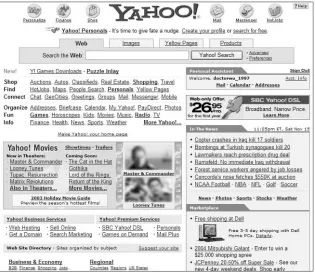
As you can see in Figure 1-1, even though the Yahoo! home page is crammed full of links, it’s divided into just a few major sections.
[image:30.441.61.376.313.588.2]At the top of the page, on either side of the Yahoo! logo, are icons that link to Yahoo!’s most popular services: My Yahoo!, Yahoo! Finance, Yahoo! Shop, Yahoo! Mail, Yahoo! Messenger, and Yahoo! HotJobs. Click these icons to go directly to those services.
Just below the Yahoo! logo is a set of tabs. These tabs change the type of search enabled from the search box—Web (default), Images, Yellow Pages, and Products. The tabs sit on top of the search box, along with the Search button and links to the advanced search and preferences pages.
Below the search box, on the left side of the page (the main column), are links to almost every other Yahoo! service. Below this section is normally an ad for one of the many Yahoo! services, then links to Yahoo!’s business and premium services. The entire right-hand side of the page is devoted to news headlines and advertising links.
The next section in the main column contains the main categories of the Yahoo! Web Site Directory; click any link to start browsing. Then, at the bottom of the page, you find links to local and international versions of Yahoo!, as well as links to additional Yahoo! services.
There are two ways to use the Yahoo! site to find information on the Web. The first is to browse through the categories in the Yahoo! directory; you do this directly from the category links on the Yahoo! home page. The second method is to search the Web for information (what Yahoo! calls Web Search), which you do from the search box at the top of the Yahoo! home page. The results you get from each search are quite different, as you’ll learn later in this chapter.
Secret #1: Go Directly to Almost Any Yahoo!
◆
◆
◆
Page—No Clicking Necessary
Read back to that list of services offered by Yahoo! in the chapter’s introduction. How do you access all these services, anyway?
Well, you can access most of these services from links located somewhere on Yahoo!’s home page—if you can find the right link. If you can’t find a link to a particular service on the home page, scroll down to the bottom of the page and click the Even More Yahoo! link. This takes you to a page that lists every site and service that Yahoo! offers.
Use the Direct Address
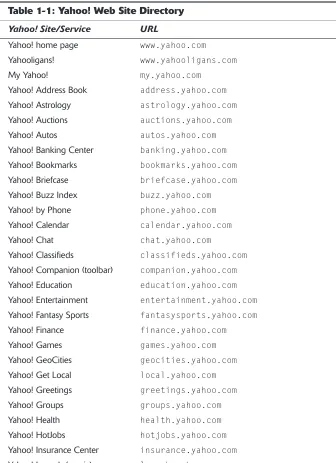
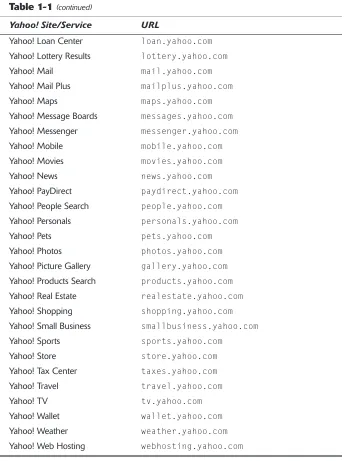
Even better, almost every Yahoo! service has its own unique URL that you can enter directly into your browser’s address box, or bookmark as necessary. You might think that remembering dozens of unique URLs would be difficult. And, of course, you’d be right—if you actually had to memorize the URLs. Fortunately, Yahoo! uses an address scheme that’s easy on the old memory, thanks to its common-sense nature.
The only major exception to this rule is the children’s site Yahooligans!, which has the address www.yahooligans.com.
insider insight
[image:32.441.52.388.144.607.2]Still too much to remember? Then consult the address list in Table 1-1, where I did the hard work for you:
Table 1-1: Yahoo! Web Site Directory
Yahoo! Site/Service URL
Yahoo! home page www.yahoo.com
Yahooligans! www.yahooligans.com
My Yahoo! my.yahoo.com
Yahoo! Address Book address.yahoo.com
Yahoo! Astrology astrology.yahoo.com
Yahoo! Auctions auctions.yahoo.com
Yahoo! Autos autos.yahoo.com
Yahoo! Banking Center banking.yahoo.com
Yahoo! Bookmarks bookmarks.yahoo.com
Yahoo! Briefcase briefcase.yahoo.com
Yahoo! Buzz Index buzz.yahoo.com
Yahoo! by Phone phone.yahoo.com
Yahoo! Calendar calendar.yahoo.com
Yahoo! Chat chat.yahoo.com
Yahoo! Classifieds classifieds.yahoo.com
Yahoo! Companion (toolbar) companion.yahoo.com
Yahoo! Education education.yahoo.com
Yahoo! Entertainment entertainment.yahoo.com
Yahoo! Fantasy Sports fantasysports.yahoo.com
Yahoo! Finance finance.yahoo.com
Yahoo! Games games.yahoo.com
Yahoo! GeoCities geocities.yahoo.com
Yahoo! Get Local local.yahoo.com
Yahoo! Greetings greetings.yahoo.com
Yahoo! Groups groups.yahoo.com
Yahoo! Health health.yahoo.com
Yahoo! HotJobs hotjobs.yahoo.com
Yahoo! Insurance Center insurance.yahoo.com
Yahoo! Launch (music) launch.yahoo.com
Table 1-1 (continued)
Yahoo! Site/Service URL
Yahoo! Loan Center loan.yahoo.com
Yahoo! Lottery Results lottery.yahoo.com
Yahoo! Mail mail.yahoo.com
Yahoo! Mail Plus mailplus.yahoo.com
Yahoo! Maps maps.yahoo.com
Yahoo! Message Boards messages.yahoo.com
Yahoo! Messenger messenger.yahoo.com
Yahoo! Mobile mobile.yahoo.com
Yahoo! Movies movies.yahoo.com
Yahoo! News news.yahoo.com
Yahoo! PayDirect paydirect.yahoo.com
Yahoo! People Search people.yahoo.com
Yahoo! Personals personals.yahoo.com
Yahoo! Pets pets.yahoo.com
Yahoo! Photos photos.yahoo.com
Yahoo! Picture Gallery gallery.yahoo.com
Yahoo! Products Search products.yahoo.com
Yahoo! Real Estate realestate.yahoo.com
Yahoo! Shopping shopping.yahoo.com
Yahoo! Small Business smallbusiness.yahoo.com
Yahoo! Sports sports.yahoo.com
Yahoo! Store store.yahoo.com
Yahoo! Tax Center taxes.yahoo.com
Yahoo! Travel travel.yahoo.com
Yahoo! TV tv.yahoo.com
Yahoo! Wallet wallet.yahoo.com
Yahoo! Weather weather.yahoo.com
Yahoo! Web Hosting webhosting.yahoo.com
Use the Search Box Shortcut
[image:33.441.51.398.63.524.2]So if you want to go to Yahoo! Travel, enter travel! into the search box and then click the Search button. If you want to go to Yahoo! Mail, enter mail!. You get the picture.
Secret #2: The Yahoo! Directory Has Higher
◆
◆
◆
Quality Results than Yahoo! Web
Search—but Fewer of Them
Yahoo! was created as a hand-picked directory of Web sites. Over the past decade, however, the Yahoo! directory has become a less and less important part of the Yahoo! pantheon of services—to the point where many users don’t even know the directory exists. After all, if you use the search box on the Yahoo! home page—which Yahoo! obviously wants you to do—you pass over the directory entirely.
That’s too bad, because the Yahoo! directory is actually a pretty good assem blage of what’s out there on the Web. It’s also arguably the easiest search site for Web surfers to use.
It all boils down to the basic difference between a directory and a search index. You see, there are two approaches to organizing all the information on the World Wide Web. One approach is to use a special type of software program (called a spider or crawler) to roam the Web automatically, feeding what it finds back to a massive bank of computers. These computers hold indices of the Web—in some cases, entire Web pages are indexed; in other cases, only the titles and important words on a page are indexed. This approach is the one taken by the big search engines, such as Google, AltaVista, and HotBot—and by Yahoo!’s Web Search feature (which is actually supplied by Google, as you’ll learn in Secret #3).
The other approach—the one taken by the Yahoo! directory—is to have actual human beings physically look at each Web page and stick each one into a hand-picked category. After you get enough Web pages collected, you have something called a directory.
Unlike a search engine, a directory doesn’t search the entire Web—in fact, a directory catalogs only a very small part of the Web. But a directory is very organized, and very easy to use, and lots and lots of people use Web directories (such as Yahoo!) every day.
Of course, that’s not to say that the Yahoo! directory is perfect. Far from it. For starters, it’s small—only 2 million pages, versus 3 billion or so in Yahoo!’s Google supplied Web Search index. (That means that Yahoo!’s directory content repre sents less than 1⁄
10 of 1 percent of the total number of pages currently published on
the Web—not very comprehensive at all.)
Secret #3: When You Search Yahoo!, You’re
◆
◆
◆
Searching Google
Okay, Yahoo! is known for its high-quality and well-organized Web directory. But when you use Yahoo!’s Web Search feature, you bypass the directory entirely and instead retrieve results supplied by a third-party search engine.
That’s right. When you use the search box on Yahoo!’s home page, you’re not searching Yahoo!—you’re searching Google.
For some time now, Yahoo! has supplemented its directory listings with results from a partner search engine. Early on, Yahoo! offered results from the Inktomi search engine. Today, Yahoo! uses results provided by Google.
The contract that Yahoo! has with Google is not open-ended, which means that when the current contract expires, it’s possible that Yahoo! might go with a different search index provider—such as Inktomi, which Yahoo! pur chased in March of 2003, or AllTheWeb or AltaVista, which Yahoo! acquired later the same year. So it wouldn’t take a great stretch of the imagination to envision Yahoo! delivering some blend of Inktomi/AllTheWeb/AltaVista results sometime in the future, either in place of or in addition to the current Google results.
insider insight
Do your own comparison. Enter a query into the Yahoo! search box, then go to Google (www.google.com) and enter the same query. The results should look familiar.
Since searching with Yahoo! is the same as searching with Google, you can use Google’s advanced search operators when you conduct a Yahoo! Web Search. These operators help you fine-tune your search by including or excluding spe cific words, searching for exact phrases, and narrowing your search to certain sites or domains. There’s no point in repeating those operators twice in the same book, so turn to Chapter 6 to learn more—then utilize those advanced search operators the next time you construct a query on Yahoo!.
In addition to using Google’s advanced search operators, Yahoo! also has a few special keywords of its own you can use in the home page search box. Read Secrets #8 through #12 to learn more.
Secret #4: Yahoo!’s Advanced Search Page
◆
◆
◆
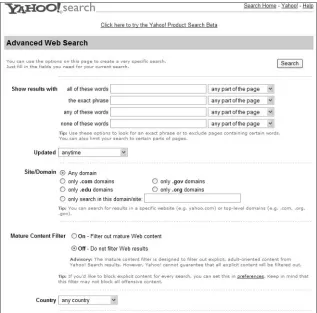
As you just learned, Yahoo!’s Web Search is powered by Google, which means you can use all of Google’s advanced search operators to construct your search queries. If that sounds too complicated, you can perform most of the same oper ations using Yahoo!’s Advanced Search page. The nice thing about using Advanced Search is that you don’t have to remember those fancy operators. Just select the options you want from those listed and click the Search button; Yahoo! does the rest.
You access the Advanced Search page by clicking the Advanced link next to a particular page’s Search button. Each type of Yahoo! search has its own specific Advanced Search page; for example, the Advanced Web Search page (shown in Figure 1-2) includes options specific to Web searching, while the Advanced Directory Search page includes options for finding categories in the Yahoo! directory.
[image:36.441.60.377.266.579.2]Secret #5: Search for Images (Using
◆
◆
◆
Google Image Search)
Okay, here’s another function Yahoo! shares with Google—image search. When you access Yahoo!’s Search for Images page (img.search.yahoo.com) you’re actually accessing Google Image Search. That’s not a bad thing; Google Image Search is one of the best search indexes on the Web for photographs, pictures, and other graphics. If you want to find a picture of something, this is the search to use.
I won’t go into how to use Yahoo!’s image search function, as it’s virtually iden tical to that of Google Image Search. Read the section on Google Image Search in Chapter 6 to learn more.
Secret #6: Access All of Yahoo!’s Searches
◆
◆
◆
from a Single Page
As you’re discovering, Yahoo! offers a variety of search options. There’s Yahoo! Web Search (via Google) and the Yahoo! directory, as well as separate news, image, map, product, and Yellow Pages searches.
While you can go to each of these search pages separately, they’re all easily accessed from the Yahoo! Search page (search.yahoo.com), shown in Figure 1-3. Just click the icon for the type of search you want to conduct, and then start searching!
Secret #7: Expand Your Search Results
◆
◆
◆
Just because you conduct one type of Yahoo! search doesn’t mean you can’t expand your query into other types of searches. It’s as easy as clicking a new tab on your search results page.
As you can see in Figure 1-4, there are a series of tabs at the top of each search results page. These tabs are:
Web—The default Web search using Google’s search index
Images—Finds related photographs and images
Directory—Finds related sites listed in the Yahoo! directory
Yellow Pages—Finds related businesses
News—Searches Yahoo! News for related stories
Products—Searches Yahoo! Shopping for matching products
Figure 1-4: Click a tab to expand your search into other areas of Yahoo!
Click one of these tabs to display a new page of search results.
Secret #8: Search for the Weather Forecast
◆
◆
◆
In addition to the advanced search operators discussed in Secret #2, Yahoo! includes a number of keywords you can use to conduct specific types of searches directly from the search box on the Yahoo! home page. The first one we’ll look at is the keyword weather, which you use to search for local weather forecasts.
To use this keyword, enter the keyword followed by the city and state that you’re interested in, like this: weather city state. For example, if you want to display the weather forecast for Chicago, enter weather chicago il into the search box, then click the Search button. (You can also enter weather zipcode to display the forecast for a larger area.) Yahoo! will dipslay a Yahoo! Weather box, like the one shown in Figure 1-5, with the current conditions and forecast, along with a link to a five-day forecast.
[image:38.441.64.255.563.610.2]The weather keyword search is separate from the Yahoo! Weather page— which you can learn more about in Secret #27.
Secret #9: Search for News
◆
◆
◆
Yahoo! also offers a dedicated keyword you can use to search for the latest news headlines on a specific topic. When you use the news keyword, Yahoo! displays the top three current headlines, as shown in Figure 1-6. Click any headline link to display the full story.
Figure 1-6: Use the news keyword to search for news headlines.
To use this keyword, enter the following into the Yahoo! search box: news topic. For example, to display the latest headlines about Iraq, enter news iraq.
The news keyword search is separate from the Yahoo! News page—which you can learn more about in Secret #27.
Secret #10: Search for Maps
◆
◆
◆
Figure 1-7: Use the map keyword to search for maps.
To map a specific address, enter map streetaddress city state, like this: map 123
n main st minneapolis mn. To display a city map, enter map city state, like this:
map minneapolis mn. To display a map of a larger area, it’s a little different; enter zipcode map, like this: 93932 map. You can also display country or regional maps by entering map country like this: map australia.
The map keyword search is separate from the Yahoo! Maps page—which you can learn more about in Secret #31.
Secret #11: Search for Definitions
◆
◆
◆
We’re not through with keywords yet. There’s one more keyword you can use in the Yahoo! search box, this one to display a dictionary definition for just about any English-language word. Just enter the keyword define followed by the word, like this: define word. For example, entering define speed displays the definition shown in Figure 1-8.
Figure 1-8: Use the define keyword to search for dictionary definitions.
Secret #12: Go There Now!
◆
◆
◆
When you use one of Yahoo!’s search keywords (weather, news, map, or
define), Yahoo! displays the particular information you want in a small box at the top of an otherwise normal search results page. If you’d rather be taken to a full page of specific information—a full-page map from Yahoo! Maps, for exam-ple—you can bypass the search results page by adding what Yahoo! calls the “go there now” operator to the end of your query. This operator is a simple exclamation point (!).
So if you want to display a full-page map of Los Angeles, enter map los angeles
ca!. If you want to view the full-page Yahoo! Weather forecast for Detroit, enter
weather detroit mi!. If you want to view a full page of reference information about the word “fortify,” enter define fortify!.
As you might recall from Secret #1, you also use the “go there now” operator after Yahoo!’s site shortcuts—such as news! and mail!.
insider insight
Secret #13: Add a Yahoo! Toolbar to
◆
◆
◆
Internet Explorer
If you’re using Internet Explorer 4.0 for Windows (or a later version), you can add a special Yahoo! toolbar—called the Yahoo! Companion—to your Web browser. This toolbar, shown in Figure 1-9, makes using Yahoo! easier by adding special Yahoo!-specific buttons to your Internet Explorer browser.
Figure 1-9: The Yahoo! Companion toolbar.
Here’s some of what you’ll find on the Yahoo! Companion toolbar:
Y!—Go directly to the Yahoo! home page
Search—Initiates a Web Search (by default); pull down the Search list to conduct directory, news, Yellow Pages, images, or maps searches
Mail—Accesses your Yahoo! Mail inbox; an alert button will also appear when you have unread e-mail
My Yahoo!—Go directly to My Yahoo!
Secret #14: Create Your Own Personal My
◆
◆
◆
Yahoo!
With everything Yahoo! has to offer, it’s not surprising that many users use Yahoo! as their start page for all their Web travels. While the normal Yahoo! home page is an okay start page, it’s rather generic. Wouldn’t it be better to cre ate your own personal version of Yahoo!, comprised of those services that you use most every day?
Well, Yahoo! makes it easy to create your own personal Yahoo!. It’s called My Yahoo!, where you can pick and choose what you see—and what you don’t see—every time you log on.
My Yahoo! is located at my.yahoo.com. Easy to remember, eh? The first time you visit My Yahoo!, you must register for the service and customize your page. After that, each time you go to My Yahoo!, you’ll see your Yahoo! page exactly as you configured it.
After you’ve signed on, you see the generic My Yahoo! page shown in Figure 1-10. This is an okay page—it gives you an idea of what you can do with My Yahoo!—but the whole point of using My Yahoo! is to create a customized page, which you can do quite easily.
module. It’s up to you to choose which content modules you want to display. To
select which modules are displayed on your My Yahoo! page, click the Choose Content button. When the Personalize Page Content page appears, put a check mark next to each module you want to display and uncheck those topics you don’t want to display.
Most modules let you customize the content that is displayed within; for example, you can create your own list of stocks to display in the Portfolios module and choose what types of news are displayed in the My Front Page Headlines module.
Although the specific customization is different for each module, the general steps you take are the same. Click the Edit button on the module you want to customize; when the next page appears, read the instructions carefully and then make the appropriate choices. This may include selecting or deselecting topics, choosing how many headlines are displayed, entering stock tickers for your portfolio, and so on.
After you’ve decided on all your content, you need to arrange that content on your page. By default, My Yahoo! uses a two-column layout, with the left col umn narrower than the right. You can also choose a three-column layout, with a big center column; just click the Choose Layout button to make your selection. You can then assign different content modules to different areas of the page.
If you don’t like the default colors of the My Yahoo! page, you can choose from a variety of other color schemes. Just click the Change Colors button, then choose from one of the predefined color themes—or click the Customize Theme link to choose your own colors for each page element.
Your My Yahoo! is now complete—and ready to be changed again whenever you feel like it!
Some modules—such as the Portfolio and Headlines modules—include a Detach button that’s not found on other modules. When you click the Detach button, the contents of that module are displayed in a separate win dow on your desktop. This is a great way to display constantly updated
insider insight
information (such as stock prices) while freeing up your Web browser for other surfing.
Secret #15: Make Yahoo! Safe for Kids
◆
◆
◆
As you’re well aware, not every page on the Web is suitable for underage view ing. Fortunately, Yahoo! offers several options that help you protect your chil dren from inappropriate content online.
Yahoo’s Mature Content Filter
To activate Yahoo!’s Mature Content filter, click the Preferences link next to the Search button on Yahoo!’s home page. Scroll down the Search Preferences page to the Mature Content Filter section; you can choose from Strict (filters text and images) or Moderate (filters images only) filtering, or turn the filter off.
Yahoo! Family Accounts
Another available option is to create a Yahoo! Family Account. This enables you to create separate Yahoo! IDs for each of your children. You can then control what information your children give to Yahoo!—and determine which Yahoo! features your children can and can’t access.
The key to managing your Family Account is to create separate Yahoo! IDs for each of your children. There are two classes of children’s IDs available with Yahoo! Family Accounts: Under 13 and 13 to 18. Each age class has its own unique restrictions as part of a Family Account. Under 13 IDs are prohibited from entering any personal information online, participating in auctions or per sonals, or accessing any adult areas. The 13 to 18 IDs are only prohibited from participating in auctions and accessing adult areas—but they can leave per sonal information online.
In addition, the primary ID on a Family Account (meaning you!) can log into Yahoo! under any of the other IDs. This enables you to monitor and make changes to your child’s account using all of Yahoo!’s various tools—such as blocklists, buddy lists, and so on.
Creating a Family Account is similar to creating a regular Yahoo! account. The big difference is that—to establish the age of the primary account member— you have to enter a credit card number. (The assumption is that no one under 18 has a credit card.) Yahoo! will not make charges to your card; it only uses the card for age ID purposes.
To create your Family Account, go to family.yahoo.com. You should see the Welcome to Yahoo! Family Accounts page; click the Sign Me Up link and com plete the steps as instructed. (If you already have a Yahoo! account, just enter your Yahoo! ID and Password.)
Once you’ve created an account, you can add a new child ID for each of your children. From the Yahoo! Family Accounts page, click the Add Child Account button and follow the onscreen instructions.
Yahooligans!
Even better than filtering your children’s Internet usage, why not give them their own kids-safe start page to use when they’re surfing? Yahoo! provides just such a page—called Yahooligans!
Yahooligans! (www.yahooligans.com) is a kids-oriented directory that is part of the Yahoo! network of sites. Each site listed in the Yahooligans! directory has been carefully checked by an experienced educator to ensure that the site’s content is appropriate for children aged 7 to 12.
Figure 1-11: Yahoo! for kids—Yahooligans!
In addition to all the cool kids-friendly content, Yahooligans! offers a few other neat features to help protect your children online. For example, when you con duct a search on Yahooligans!, it searches only the Yahooligans! directory—it doesn’t back out to the Web for a larger (unsupervised) index search. And the Yahooligans! directory doesn’t include sites with any content inappropriate for younger Web surfers, so it’s completely kids-safe.
In other words, Yahooligans! is the perfect start page for your kids.
Yahooligans! is more than just a directory of family-friendly Web sites. Yahooligans! also includes a variety of fun and informational services, from downloadable pictures to interactive online games.
insider insight
Secret #16: Find a Local Yahoo!—or a
◆
◆
◆
Global One
Local Yahoo!
Yahoo! isn’t just a big national site, it’s also a network of thousands of local sites, customized to the events and listings of local communities across the United States. You can access any local site from the Yahoo! Get Local page (local .yahoo.com).
Each local site includes a variety of region-specific features, including links to local lottery results, maps and driving directions, local news headlines and sports scores, weather forecasts, and a local Web directory.
World Yahoo!
If you’re a U.S. resident, the main Yahoo! site is a great site. But if you live out side the U.S., you could get frustrated at the American-centric site listings—and if you don’t speak English, you might not be able to use the site at all!
For that reason, Yahoo! has been busy creating a network of World Yahoo!s, complete with country-specific site listings and pages created in the native lan guage. Figure 1-12 shows one of these sites, Yahoo! Mexico.
Figure 1-12: One of the many world Yahoo! sites—Yahoo! Mexico.
Table 1-2: World Yahoo!s
World Yahoo! Web Address
Argentina ar.yahoo.com
Asia asia.yahoo.com
Australia and New Zealand au.yahoo.com
Brazil br.yahoo.com
Canada ca.yahoo.com
Catalan ct.yahoo.com
China cn.yahoo.com
Chinese (U.S. site in Chinese) chinese.yahoo.com
Denmark dk.yahoo.com
France fr.yahoo.com
Germany de.yahoo.com
Hong Kong hk.yahoo.com
India in.yahoo.com
Italy it.yahoo.com
Japan www.yahoo.co.jp
Korea kr.yahoo.com
Mexico mx.yahoo.com
Norway no.yahoo.com
Singapore sg.yahoo.com
Spain es.yahoo.com
Spanish (U.S. site in Spanish) espanol.yahoo.com
Sweden se.yahoo.com
Taiwan tw.yahoo.com
U.K. and Ireland uk.yahoo.com
Secret #17: Search for People
◆
◆
◆
Yahoo! People Search
When you want to search for someone’s street address or phone number, use the Yahoo! People Search directory (people.yahoo.com). From this page, shown in Figure 1-13, you can search for people anywhere in the United States.
Figure 1-13: Searching for individuals with Yahoo! People Search.
When you conduct a Yahoo! People Search search, Yahoo! displays a list of names matching your query; each listing includes the full name, street address, city, state, zip code, and phone number. To display more information about any person listed, click the person’s name. This displays the Detailed Information page, which includes a list of nearby businesses, a map of this person’s neigh borhood, and a wealth of other related links.
Yahoo! Member Directory
If the person you’re looking for is a Yahoo! user, chances are that person has created a public profile. You can search these public profiles from the Yahoo! Member Directory page (members.yahoo.com). Yahoo! lets you search by Yahoo! ID, person’s name, or interests. (The Yahoo! Member Directory page is a good starting point for all your people searching—it also includes search func tionality for Yahoo! People Search and Yahoo! Personals.)
To create or edit your own Yahoo! public profile, go to the Yahoo! Profiles page (profiles.yahoo.com). Your public profile can contain your Yahoo! ID, real name, e-mail address, location, age, marital status, sex, occupation, photo, home page, and favorite cool links.
insider insight
Yahoo! Personals
Of course, there’s another reason you might want to search for someone online—you’re interested in romance. When it comes to hooking up with that special someone, nothing beats browsing the online personal ads.
Yahoo! Personals, like all personals sites, charges a monthly fee to use—which makes this feature one of the few parts of the Yahoo! site that isn’t free.
Secret #18: Search for Businesses
◆
◆
◆
Then there’s the related business of searching for businesses. Searching for a par ticular business on Yahoo! is a lot like searching for an individual. The difference is you use Yahoo!’s Yellow Pages directory instead of the White Pages directory.
Yahoo! Yellow Pages
With Yahoo! Yellow Pages (yp.yahoo.com), shown in Figure 1-14, you can browse through different categories of businesses, or search for specific busi nesses or types of businesses. When you first access the Yellow Pages, you input your zip code, so Yahoo! can direct you to businesses in your area; you can also change your location at any time to search for businesses anywhere in the United States.
Each listing includes the name, address, city, state, and phone number for the business listed. If a business has a Web site, a Web site link appears next to the listing; click this link to jump to that site.
If you want to see businesses in order of their proximity to a specific address, click the Find Near You link. This lists businesses in order of distance to your address, closest first. Each listing includes the approximate distance (in miles) from your address.
insider insight
Searching for Businesses from the Search Box
Here’s a bonus secret—you don’t have to go to Yahoo! Yellow Pages to search for a business address. Yahoo! lets you search for businesses directly from the search box on the Yahoo! home page. All you have to do is enter the zip code for the business, followed by the business category or name, like this: zipcodename/category. For example, if you want to display all electricians in the 93032
zip code, you’d enter 93032 electrician. If you’re searching for Bob’s Pizza in zip code 46224, enter 46224 bob’s pizza.
Secret #19: Look Up Reference Information—
◆
◆
◆
for Free
Yahoo! provides a variety of reference tools for your use, collected under the Yahoo! Reference banner. Go to education.yahoo.com/reference/ and you’ll find links to the American Heritage Dictionary, the American Heritage Spanish
Dictionary, Rogets II: The New Thesaurus, Columbia Encyclopedia, Bartlett’s Familiar Quotations, Gray’s Anatomy of the Human Body, and more—all free for
the reading. It’s kind of like having your own personal library on your own PC.
Secret #20: Get Free E-Mail
◆
◆
◆
Chances are you already have one or more e-mail accounts through your Internet service provider or place of employment. Why in the world would you want yet another e-mail account?
Well, it’s always good to have another e-mail account—especially if it’s free. You can always use a new account to hide from spammers, or to use for specific purposes. In addition, having a Web-based e-mail account is great when you’re traveling; you can access your e-mail from any Web browser on any computer anywhere there’s an Internet connection.
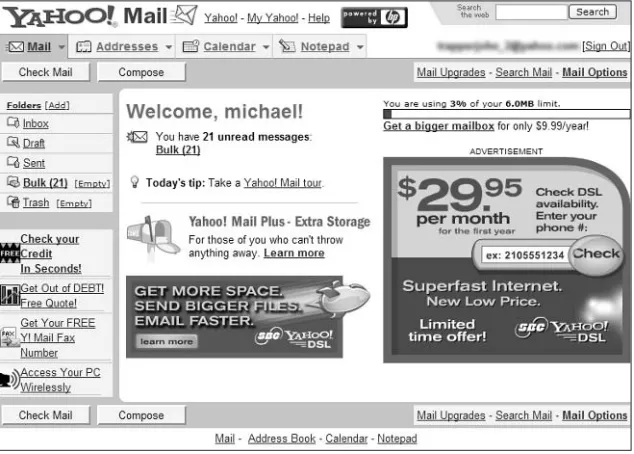
You access Yahoo! Mail, at mail.yahoo.com. As you can see in Figure 1-15, the Yahoo! Mail home page provides access to your inbox and stored messages folders. This is also where you create new e-mail messages.
Figure 1-15: Get free Web-based e-mail with Yahoo! Mail.
Yahoo! also offers a paid e-mail service, called Yahoo! Mail Plus ( mailplus .yahoo.com). For $29.99 (and up) a year; you get more storage capacity, as well as advanced spam filtering and message management.
insider insight
Secret #21: Listen to Your E-Mail by Phone
◆
◆
◆
Here’s something different. When you can’t get to your computer, you can use Yahoo! by Phone to listen to your e-mail messages over any telephone. You access your account by voice recognition; just dial 1-800-MY-YAHOO to retrieve all waiting messages.
Secret #22: Chat with Other Yahoo! Users
◆
◆
◆
People like to talk to one another. Communication is the foundation of our society, and the Internet has helped foster communication among hundreds of millions of computer users around the world. Blah, blah, blah.
You probably don’t care about why people want to chat online—you only care about how to get chatting yourself. Well, that’s the topic of our next secret. That’s right, Yahoo! is one of the largest forums for online chat and messaging. Yahoo! members really like to talk to each other—either one-on-one, or in groups.
Yahoo! Chat
Let’s start with group communications, which you do with Yahoo! Chat (chat .yahoo.com). Once you load the Yahoo! Chat software, you enter a topic-specific chat room where you join other users in a group conversation. You send mes sages to the room using your keyboard and read everyone else’s messages on your computer screen. You can even send private messages to other users in a chat room, so you can keep your personal conversations out of the public eye.
The Yahoo! Chat page is your home page for all of Yahoo!’s chat activities. From here you can access featured chat rooms and chat events, or browse through the available chat rooms, organized by category.
When you enter a chat room, you see the screen shown in Figure 1-16. All mes sages are displayed in the Chat pane; everyone chatting in the room is listed in the Chatters pane. You enter your messages in the Send box and then click the Send button (or press Enter) to send the message to the room. After you send a message, it appears in the Chat pane, listed in-line with all the other messages.
If you want your messages to stand out amidst the visual cacophony of a busy chat room, consider changing the color or style of your text. To change the color of your messages, select a different color from the Color list. To change the style of your message text, click the B (bold), I (italic), or U
(underline) buttons.
insider insight
Everybody else in your chat room is listed in the Chatters list. If you want to change chat rooms, click the Change Room button. When you click this button, Yahoo! displays the chat room list; click a room name to change to that room.
If you have a microphone and speakers connected to your PC system, you can participate in Yahoo! Voice Chat, an audio version of normal Yahoo! Chat. To use Yahoo! Voice Chat, all you have to do is click the Voice Chat
link on the Yahoo! Chat page, and then log into one of the Voice Chat rooms. From the Voice Chat screen, click and hold the Talk button, then speak into your microphone. The name of whichever user is currently talk ing is displayed in the box next to the Talk button.
insider insight
Yahoo! Messenger
Yahoo! Messenger is both software and a service designed to let you communi cate instantly—and privately—with other Yahoo! members. When the Yahoo! Messenger software is running, you can send instant messages to any other Yahoo! user currently online, as well as receive up-to-the-minute stock prices, news headlines, sports scores, weather forecasts, and notification of any waiting Yahoo! Mail.
You might not know it, but Yahoo! Messenger is one of the big players in instant messaging—right up there with AOL Instant Messenger, Windows Messenger (a.k.a. MSN Messenger), and ICQ. Like the other players, Yahoo! Messenger is a free service; all you have to do is download and install the Yahoo! Messenger software—which you do from the main Yahoo! Messenger page (messenger .yahoo.com).
After Yahoo! Messenger is running, you see the Yahoo! Messenger window shown in Figure 1-17. When you click the Friends tab, all the members of your Friends List are displayed in the main Messenger window; friends online are displayed in bold.
To send an instant message, double-click any name in your Friends List. When the Send Instant Message window appears, enter your message and click the Send button, or press the Enter key. (You can spice up your text with bold, italic, underline, or color, if you want.)
When connected to the Internet, Yahoo! Messenger can also display news headlines, sports scores, weather forecasts and conditions, and stock prices. Click the Stocks tab to display prices for your portfolio, the News tab to dis play news headlines, the Scoreboard tab to display sports scores, or the Weather tab to display weather forecasts.
Figure 1-17: Using Yahoo! Messenger to chat with other users.
Secret #23: Share Your Interests with Yahoo!
◆
◆
◆
Message Boards and Groups
The Internet is a great way for people with special interests to gather and exchange ideas. Whether you’re into model trains, European soccer, or soap operas, you can find a legion of similar fans online.
Yahoo! makes it easy for you to hang out with people who share your special interests via Yahoo! Message Boards and Yahoo! Groups. When you gather via Yahoo!, it doesn’t matter where you live—you can meet with friends around the globe in the Yahoo! community.
Yahoo! Message Boards
Yahoo! Message Boards (messages.yahoo.com) are the electronic equivalent of old-fashioned bulletin boards. Each message board is devoted to a specific topic; users can read the messages posted on the board and then reply or post their own new messages. All messages are visible to the entire public.
Yahoo! offers thousands of different message boards, each dedicated to a spe cific topic. At any given time, each board contains dozens or hundreds of mes sages; messages that reply to other messages (or other replies) are said to comprise a message thread.
Figure 1-18: Gossip with other users on Yahoo! Message Boards.
Each message in the thread appears in its own page. Click the Next link to read the next message in the thread; click the Previous link to back up and read the previous message. To reply publicly to a message, click the Reply link; to send a private e-mail to the author of the message, click the author’s name.
insider insight
Some of the liveliest and most information Yahoo! Message Boards are those created for specific stocks and securities. If you want inside information about a specific stock, go to that stock’s message board and read to your heart’s con tent. (To find a stock’s message board, search for the specific stock symbol on the Yahoo! Message Boards home page.)
Yahoo! Groups
You can search for groups of interest from the Yahoo! Groups home page (groups.yahoo.com). Once you find a group you like, you have to apply for membership; some groups have open membership, others need to manually approve new members, still others have invitation-only policies. You can find out more on the home page for each individual group.
Once you join a group, you can read messages in the group’s message archive or elect to receive new messages via e-mail. Posting a new message is as simple as clicking a button; messages are threaded by topic line, so related messages are relatively easy to follow.
Secret #24: Use Yahoo! to Manage Your
◆
◆
◆
Schedule and Contacts
Most computer users have an electronic calendar of some sort, as well as an electronic address book. You use your calendar to keep your private schedule, and your address book to hold the names addresses of friends, family, and busi ness contacts.
The only problem is, you have your calendar on your work PC, so you can’t access it from home. Or you have your address book on your home PC, and you can’t access it from work, or when you’re on the road.
Yahoo! solves this problem with a Web-based calendar and address book—that you can access from any PC, anytime, anywhere in the world!
Yahoo! Calendar
Yahoo! Calendar (calendar.yahoo.com) is a scheduling and calendar utility that houses your information on Yahoo!’s Web servers. Because the information is stored on Yahoo!’s computers, not yours, you can access your schedule from any PC with an Internet connection and a Web browser. All you have to do is enter your Yahoo! ID and password and you have universal access to your appointments and events.
The default Yahoo! Calendar page, shown in Figure 1-19, displays your sched ule for today. To display more details, click any event or appointment. You can also display your Yahoo! Calendar in weekly, monthly, or yearly views; just click the Week, Month, or Year links.
To add a new appointment or event to your Yahoo! Calendar, click the Add Event button and follow the onscreen instructions.
Yahoo! Calendar lets you do more than just track simple appointments and events. You can also use Yahoo! Calender to manage a to-do list, track public events and holidays, share your calendar publicly (with family, co-workers, and so on), and synchronize with another calendar program or PDA.
Figure 1-19: Manage your appointments with Yahoo! Calendar.
Yahoo! Address Book
If you want universal access to your contacts, no matter where you are (or what PC you’re using), use Yahoo! Address Book (address.yahoo.com). Yahoo! Address Book stores your contact information on Yahoo!’s Web servers so that you can access the information from any PC with an Internet connection and a Web browser.
All your contacts are listed—sorted by last name—on the Yahoo! Address Book page. If you have a number of contacts, you can search for a specific name, dis play names by the first letter of the last name, re-sort the contacts by first name, company, or e-mail address, or pull down the View Category list to display only those contacts assigned to a specific category. Yahoo! displays icons next to each name indicating whether that person is online or offline at the moment.
To add a contact to your address book, click the Add Contact button. When the Add Contact page appears, enter as much information as possible for your new contact. You can add even more details by clicking the Add More Details but ton; click the Save button to add this new contact to your Yahoo! Address Book.
If you already have an address book in another application—such as Microsoft Outlook—you can have Yahoo! Address Book import that data so that you don’t have to re-enter it manually. Just click the Import/Export link on the Yahoo! Address Book page and follow the onscreen instructions. To synchro nize the data in your Yahoo! Address Book with a contact management pro gram or Palm Pilot organizer, click the Sync link and follow those instructions.