s
Convenience mobile
unit 1000C
for Hicom 300 / 300E
Hicom cordless E
Safety notes 6
Notes on mobile unit use ... 6
Notes on battery use ... 6
Meaning of symbols: ... 6
General 7 Operating elements, unit parts ... 7
Explanation of display, display keys ... 8
Hicom cordless E ... 9
Features ... 9
Environmental conditions ... 10
General notes on operation ... 10
Radio range ... 11
Leaving the radio network ... 11
Fitting the attachment clip ... 11
Cleaning your mobile unit ... 12
Lending/disposing ... 12
User guidance, selecting functions ... 12
Function selection – via menus (local functions) ... 13
Function selection – telephone switching functions ... 14
Putting into service 15 Inserting batteries in the mobile unit ... 15
Charging the batteries ... 16
Logging mobile units onto a telephone system ... 17
Activating/deactivating mobile units ... 19
Activating/deactivating keypad protection ... 19
Telephone functions 21 Internal dialling ... 21
Contents
Answering calls ... 23
Call Pickup ... 24
Second Call Waiting ... 25
Timed Reminder ... 26
Number redial - last 3 numbers ... 27
System Abbreviated Dialling ... 28
Night service ... 29
Switching functions 30 Automatic callback ... 30
Transfer ... 30
Consultation during a call ... 31
Toggle - switching between 2 users ... 31
Conference ... 32
Call forwarding ... 34
Service menu ... 36
Telephone book 37 Saving numbers ... 37
Entering letters/characters and digits ... 38
Dialling a number from the telephone book ... 39
Storing numbers from redial ... 39
Modifying/deleting an entry ... 40
Deleting the telephone book ... 41
PIN Features 42 Electronic Telephone Lock ... 42
Mobile Class of Service ... 43
Saving/modifying the mobile unit PIN ... 44
Settings - handset, tone ringing... ... 46
Setting the station ... 48
Tones - keys, battery, range... ... 49
Overview - Tones ... 50
Appendix 51 Fault clearance ... 51
Acoustic signals ... 52
Safety notes
Notes on mobile unit use
l
Do not use mobile units in damp environments (bathroom/shower). The units are not splash proof.l
Do not use the mobile unit in environments where there is danger of explosion.l
Make sure that the telephone is at least one meter away from any medical equipment.l
The mobile unit is not suitable for people with hearing aids since the radio signals interfere with hearing aids, producing a very unpleasant humming sound if the volume is turned up high enough.Recommendation: Gigaset 1000H headset, see page 53.
Notes on battery use
l
Only use approved nickel-cadmium batteries (NiCad batteries), see page 15.l
Never use other batteries or normal (non-rechargeable) batteries.These batteries can cause short-circuit and may be subject to damage(dangerous). Read the labels in the mobile unit and charging shell battery compartments.
Meaning of symbols:
l
Warning! Please read safety note in the instructions.l
Use rechargeable batteries only and observe polarity.l
Avoid contact with water and fire.l
Do not use non-Siemens charging devices. This could damage the batteries.Operating elements, unit parts
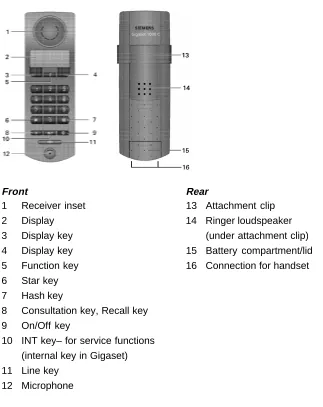
Front Rear
1 Receiver inset 13 Attachment clip
2 Display 14 Ringer loudspeaker
3 Display key (under attachment clip)
4 Display key 15 Battery compartment/lid
5 Function key 16 Connection for handset
6 Star key 7 Hash key
8 Consultation key, Recall key 9 On/Off key
10 INT key– for service functions (internal key in Gigaset) 11 Line key
12 Microphone
General
Explanation of display, display keys
The mobile unit features a 4-line display with 16 characters per line. Depend-ing on the situation, the display shows:
l
digits, e.g. dialled numbers,l
text, e.g. the current station (system),l
symbols, e.g. ringing or battery symboll
and in the last line the current functions of the two display keys.Note:
The display texts are displayed in German (default setting), English, French, Italian, Spanish or Dutch.
Setting the language, see page 46.
Display when mobile unit is on (example)
Display of current station
Current function of right display key: Redial Current function of left display key:
Telephone book entries Right display key Function key ß Left display key
Display when call is in progress (example) Internal call number of user Name of user
Use the right* display key to indicate the “consult” function
Station 1
TEL.BOOK REDIAL
F
36078 Miller
Hicom cordless E
The Hicom® cordless E DECT* telephone system comprises
l
the radio switching module for the Hicom 300/300E system,l
base stations (transmitter/receiver),l
1000C or 1000S mobile units (cordless telephones),l
and the Gigaset 1000L charging shell (optional).Features
Each mobile unit can log on to and be used by up to 4 DECT systems, e.g. Hicom cordless E and Gigaset** 1000. This allows you to employ all the features of the system in question. The features offered by Hicom cordless E 1000C include:
l
mobile unit with 4-line, illuminated display, e.g. for displaying – the dialled call number,– the current applicable functions, – the operating status and settings.
l
Status-dependent functionsl
Number redial for the last three numbers dialledl
Telephone book in the mobile unit for 100 entriesl
Internal and external calls in the entire Hicom cordless E radio networkl
Roaming (the user can roam throughout the entire radio network andstill receive all internal and external calls under one call number)
l
Automatic call transfer from base station to base station (handover)l
Enhanced user guidance with displays in German, English, French,Italian, Spanish or Dutch (can be set)
l
Automatic callback for internal callsl
Call transfer to internal usersl
Consultation during a calll
Use of all important Hicom functions that do not require a system-specific telephoneGeneral
Environmental conditions
l
Please read the safety notes on page 6.l
Make sure that the mobile unit is at least one meter away from medical equipment, fire alarm equipment and other radio equipment (e.g. radio telephones or radio pagers), otherwise its performance may be im-paired, e.g. by interference.l
The mobile unit and charging shell should not be placed near other electronic devices, such as Hi-fi, office or microwave devices, as this may adversely affect operation of your telephone and/or the electronic equipment.l
Do not expose the mobile unit or charging shell to direct sunlight or other sources of heat.l
Use the mobile unit at temperatures between 0°C and +45°C.l
Do not expose the mobile unit to damp environments.l
Avoid using the mobile unit and charging shell in rooms where there is a lot of dust.General notes on operation
l
When operating the mobile unit a basic distinction is made between – telephone/switching functions, e.g. when a call is in progress and– local functions, display when mobile unit is on.
l
An incoming call cancels the local functions.l
Local functions can be cancelled before saving with the function keyß or the line key.
l
Local functions can also be performed in the charging shell.l
Display texts from the system are shown without muted vowels andspecial characters.
l
The display of call charges at the mobile unit depends on the Hicom setting.l
The device offers a high level of privacy. No protection can be guaran-teed against illegal bugging using other radio receivers.Radio range
l
Depending on the environment, the range in the open is up to 300 m.l
In buildings the range extends to up to 50 m (depending on the roomand building layout and construction).
l
If you leave the system’s base station radio range during a call, you will hear the range tone. The quality of the voice connection drops, espe-cially if you move. For a better voice connection, move back into the base station range.l
The radio connection is lost if you exceed the range. This is identified by the display Search station .l
Please consult your system administrator in the case of on-going range problems.Leaving the radio network
l
Integrated power saving function: if you leave the base station radio range when the mobile unit is switched on, the interval between synchronisation attempts gradually increases – this increases the battery life in stand-by mode.l
To ensure that the mobile unit can be used as soon as you return to the radio network, you should immediately log it on again:l
Press the On/Off key until the display is blank, press the On/Off key again when the mobile unit is on.l
If you intend to leave the radio network and take your mobile unit with you, we recommend that you turn the mobile unit off in order to save the batteries.Fitting the attachment clip
An attachment clip is supplied with your mobile unit to facilitate portability. To use this clip, simply attach it to the rear of the mobile unit.
General
Cleaning your mobile unit
To clean the mobile unit and the charging shell, simply wipe them with a damp or antistatic cloth. Never use a dry cloth (since this can generate electrostatic charges and discharges) or abrasive cleaning agents.
Lending/disposing
l
If you lend your mobile unit to someone else, please make sure you include the operating instructions with it.l
Please dispose of defective batteries, mobile units and charging shells in accordance with legal requirements.User guidance, selecting functions
The user-friendly display system guides the user quickly and effectively through the entire range of features available with this telephone system.
For information on setting the language to German, English, French, Italian, Spanish or Dutch, see page 46.
Function selection via menus (local functions)
When the telephone is on (for display see page 8), the function overview (main menu) is displayed once you press the function key ß. The function in the 1st line is always selected (marked) and is displayed against a dimmed background.
Use the NE XT display key to scroll to the next function – the display moves up one line. A dotted line indicates the end of the function overview. If you scroll further, the first function in the overview is selected once more.
Once you have selected "Line" press the O K display key to jump back to the higher-level function overview (menu) or to the "on" status display.
You can cancel every operation and return to the current or higher-level function overview (menu) or to the "on" status by pressing the function key
On Status s
ß
d
Main menu d
Phone book ß
Number redial Telephone lock
NE XT Tones O K
Settings Settings
Search Station Handset volume
d Service Tone ringing
- - - NE XT Display contrast
Registrate Language
Autom.backlight Aut.call accept.
d Multicell config
-General
Function selection telephone switching functions
Inserting batteries in the mobile unit
l
Read the safety notes on page 6 first!l
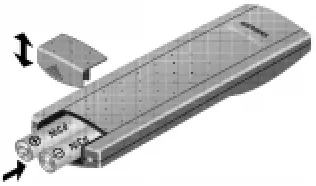
Hold the mobile unit with the dialling keypad facing downwards. A battery compartment for 2 batteries is located in the lower part of the mobile unit.l
To open the battery compartment, slide the lid upwards in the direction of the arrow (see Figure 2).l
Insert the two batteries supplied in the battery compartment as shown in Figure 2.Ensure that the batteries are inserted correctly (polarity illustrated on the label in the battery compartment).
The battery compartment cannot be closed if batteries are inserted incorrectly.
l
Slide the lid of the battery compartment downwards into the grooves on the mobile unit (see Figure 2) until the compartment is closed.Putting into service
Charging the batteries
Batteries supplied are not charged.
Note:
l
New batteries should be initially charged for a minimum period of 16 hours without interruption – irrespective of any messages on the display.l
In order to maintain max. battery storage capacity for as long as possible, the mobile unit should only ever be inserted in the charging shell when the batteries are empty.l
The batteries warm up during charging.l
You can also use the charging shells or base stations of a Gigaset 900/ 1000 for charging the mobile unit.l
Only the following spare batteries are permitted:Panasonic P-60 AA, Philips R6 NC-P, Saft RC6, UCAR RC6, DAIMON ACCU 1000, Varta 751RS, Sanyo N-3UN and N-3UC.
l
Insert the mobile unit in the Gigaset 1000L charging shell to charge the batteries. The mobile unit can be inserted with the display facing upwards or downwards.The left LED
B
on the charging shell lights up while the batteries are charging.Charging times:
– Batteries in the mobile unit: 4 - 5 hours
– Replacement batteries in the reserve compartment of the charging shell: 20 - 24 hours
Battery life:
These times are only achieved after several charging and discharging cycles.
Logging mobile units onto a telephone system
Before you can telephone with the mobile unit, you must first open a "logon window" at Hicom 300 and log on the mobile unit. This is only necessary the first time the unit is put into service!
l
Ask your Hicom 300 system administrator for the following information: – code no. (PIN E1) of the Hicom 300 system,e.g. "∗∗∗∗∗ 82", and check if code no. applies network-wide – code no. (PIN E1) of the mobile unit (e.g. 6-digit) – mobile unit call number
– system code of the mobile unit (8-digit)
l
Open the Hicom 300 logon window – at a mobile unit that is already logged on or at a Hicom telephone with display (at the same network node):Code no. Enter the code no. (PIN E1) at Hicom telephone, e.g. "∗∗∗∗∗ 82".
e.g.
∗∗∗∗∗
82
Enter the number of the Hicom telephone also if the code no. applies network-wide.Enter code no.
e.g.
123
Enter the code no. (PIN E1) of the mobile unit, e.g. "123456" – "*" are displayed instead of digits.e.g. Id 34567
e.g.
345
...
Enter the mobile unit call number displayed for confirmation purposes, e.g. "34567" – the ring tone is briefly audible. When the ring tone ceases, the Hicom logon window is "open" for 10 minutes.Note:
Putting into service
l
Logging the mobile unit onto Hicom 300:u Activate the mobile unit with the On/Off key
-Registrate! is displayed the first time the unit is
logged on or Search Station 1* the second time it is logged on.
ßx2 Press the function key twice (first logon only) – the main menu is displayed.
NE XT Use the left display key NE XT to scroll until Settings S ettings is marked (in upper display line) and press the right
O K display key O K to confirm.
NE XT Scroll to Registrate with the display key and confirm.
Regis tra te
O K
S tation 1 e.g. confirm Station 1* for logon as system1 – Enter
O K system code is displayed.
If necessary, select other stations/systems by pressing
NE XT.
e.g.
123... Enter the system code (8-digit) and confirm with O K
If necessary, press ú to correct entry.
O K
O K Confirm Registrate at Station 1* with the display key – if logon is successful, Station 1* is displayed and the ring symbol also flashes.
l
Off status: display clear – calls are not received!Note:
l
In the case of Hicom cordless E, the mobile units are not logged on to stations (base stations), but rather to the Hicom 300 telephone system. In this case, Station always means system.l
An error tone is audible if the logon operation was not successful.Activating/deactivating mobile units
Activating the mobile unit:
u Press the On/Off key - you hear the acknowledgement tone.
Display when telephone is "on" status, see page 8.
Deactivating the mobile unit:
u Press the On/Off key until the display is clear – you hear the acknowledgement tone.
Activating/deactivating keypad protection
This allows you to protect your mobile unit against inadvertent key activation, e.g. when carrying it in your bag. Call are signalled even if keypad protection is on and can be answered as in the same way as when the telephone is switched on.
Prerequisite: mobile unit is activated.
Activating keypad protection:
u Press the On/Off key for less than 1 second.
Keyboard Display when keypad protection is on. protected
Deactivating keypad protection:
Putting into service
Note:
The mobile unit switches off completely if you press the On/Off key for too long.
The telephone must be "on" and "Station1" displayed in order to activate any of the features. Station2, 3 or 4 can also be displayed, depending on the current station (system).
Note:
All functions confirmed with the line key can also be executed by replacing the mobile unit in the charging shell.
Station 1
Internal dialling
o Dial an internal number
Also see Note:
g Press the line key.
Call Conduct the call – the number and the name of the user are displayed.
You can now scroll through the functions offered with the > display key and if necessary, execute a function.
Ending a call:
g Press the line key or place the mobile unit in the charging shell.
Note:
l
You can cancel the dialling operation by pressing DIA L A G A IN.l
The dialled number is automatically stored for number redial, see page 27.l
If the called party is busy or does not answer, you can store an auto-matic callback request by pressing CA LLB A CK, also see page 30.Dialling the Switchboard
e.g. 9 Enter the "Switchboard code", e.g. "9"
g Press the line key.
Ending a call:
Telephone functions
External dialling
External code
e.g. 0 Enter the "External code", e.g. "0"
o Dial the external number – the digits entered are zoomed at the beginning.
Also see Note:
g Press the line key.
Call Conduct the call.
You can now scroll through the functions offered with the > display key and if necessary, execute a function.
Ending a call:
g Press the line key or place the mobile unit in the charging shell – the call charges are displayed depending on the system settings.
Note:
l
You can cancel the dialling operation by pressing DIA L A G A IN.l
Digit size is reduced in the case of longer numbers.l
Internal calls only can be conducted if No access rights is displayed.l
The dialled number automatically stored for number redial.Answering calls
The mobile unit’s ringing tone is audible. Depending on the user (internal/ external), the number and the name of the caller is displayed.
l
The mobile unit is in the charging shell:Simply remove the mobile unit from the charging shell. or
l
The mobile unit is not in the charging shell:g Press the line key.
Call Conduct the call.
You can now scroll through the functions offered with the display key and if necessary, execute a function. Ending a call:
Telephone functions
Call Pickup
The Call Pickup feature allows you to answer any ringing extension in your pickup group from your telephone.
Activate Call Pickup
An extension within your pickup group is ringing
a ping ring will alert you to an incoming call
Display shows Source of call and Destination of call
o Dial ∗∗∗∗∗ 33
g Press the line key.
Second Call Waiting
This feature allows a second call to camp on your extension when you are busy on a call.
The caller will receive ringing tone instead of busy tone.
Activate Second Call Waiting
ü press the INT Key
> Scroll to S W ITCHE S.
S W ITCHE S Press the display key.
S E CO ND CA LL Press the display key.
Display shows Camp-on is off
A CTIV A TE Press the display key.
Display shows Second call activated
Deactivate Second Call Waiting
ü press the INT Key
> Scroll to S W ITCHE S.
S W ITCHE S Press the display key.
S E CO ND CA LL Press the display key.
Display shows Camp-on is on
DE A CTIV A TE Press the display key.
Telephone functions
Timed Reminder
Timed reminders or alarms can be programmed to remind you of meetings or appointments.
Set Timed Reminder (e.g. 3:30 PM)
ü press the INT Key
> Scroll to RE M INDE R RE M INDE R Press the display key.
Display shows Nothing Stored
RE M INDE R Press the display key.
o enter 1530
S A V E Press the display key to save the time – Reminder
Stored is displayed briefly.
Display Timed Reminder
ü press the INT Key
> Scroll to RE M INDE R
RE M INDE R Press the display key. Display shows 15:30
NE XT Press to scroll for other timed reminders.
Cancel Timed Reminder
ü press the INT Key
> Scroll to RE M INDE R RE M INDE R Press the display key.
> Scroll to DE LE TE
DE LE TE Press the display key.
Number redial - last 3 numbers
You have dialled a number, but the other party is busy or does not answer: press the line key. The last 3 numbers dialled (up to 22 digits) are always automatically stored.
Number redial:
l
With block diallingRE DIA L Press the display key – the 3 stored numbers are displayed.
If necessary, press NE XT to scroll to the required number.
g Press the line key – the marked number is dialled.
l
Via function overviewß Press the function key – the function overview is displayed.
NE XT Press the display key.
Num ber redial
O K Press the display key – the 3 stored numbers are
displayed.
If necessary, press NE XT to scroll to the required number.
g Press the display key – the marked number is dialled.
Note:
Telephone functions
System Abbreviated Dialling
The system allows for the storage of 16000 external telephone numbers divided into 16 groups, each containing 1000 numbers. You can have access to only two groups i.e. 2000 numbers.
By utilising the System Abbreviated Dialling, you will be permitted to dial specific numbers that would be outside your normal trunk barring limits.
Use the System Abbreviated Dialling
Select the relevant access code from the Abbreviated Dialling Directory.
o Dial the relevant code xxxxx
Display shows number to be dialled.
g Press the line key – the marked number is dialled.
Wait whilst the system dials the number
Night service
o Dial ∗∗∗∗∗ 88
g Press the line key.
You are now connected to the caller
Switching functions
Automatic callback
If a dialled internal user is busy or if your call is not answered, you can program an automatic callback request:
CA LLB A CK Press the display key – Will call back appears briefly.
Note:
l
The system calls you back - when the user becomes free or - when the user makes another call or- executes the callback request stored in the mailbox.
l
The callback is deleted if you do not answer the callback within 4 rings.l
The number of callback requests that can be stored depends on thesystem setting, e.g. 5 callbacks.
l
The callback requests stored cannot be deleted. Simply let the system perform the callbacks.Transfer
You answered an external call and would like to transfer it to another user:
CO NS ULT Press the display key –
Please dial is displayed.
o Dial the number of the user.
g Press the line key.
Note:
Consultation can be cancelled while dialling or if the user is busy.
Consultation during a call
You are conducting an internal or external call and would like to obtain some information from an internal or external user:
CO NS ULT Press the display key.
o Dial the number of the user you wish to consult and conduct consultation call.
Ending consultation:
RE TURN Press the display key.
Note:
Consultation can be cancelled while dialling or if the user is busy by scrolling to and pressing TO W A IT. CA LL.
Toggle - switching between 2 users
You can toggle between two users during a consultation call:
> Use the display key to scroll to
TO G G LE TO G G LEand press.
TO G G LE Press the display key to switch between the two users.
Ending toggle:
Switching functions
Conference
This function allows you to set up a conference with up to 8 users.
You are conducting a call and wish to set up a telephone conference with another user:
Setting up a 3 Way conference
CO NS ULT Press the display key.
o Dial the desired number.
> Scroll to CO NF E RE NCE
CO NF E RE NCE Press the display key.
After you announce your intention Conf. 1-2-3 is displayed; all 3 users are linked.
You can now
l
end the conference: press the line key.Expand a 3 Way to an 8 Way conference
CO NS ULT Press the display key.
o Dial the desired number.
> Scroll to E XP A ND CO NF .
E XP A ND CO NF . Press the display key.
Note:
Consultation during conference
Consult with an extension or external party when you are busy with a conference.
CO NS ULT Press the display key.
o Dial extension or “0” and external number . Consult with called party.
G O TO CO NF . Press the display key to return to the conference.
Release conference partner
o Dial 2/3/4/5/6/7/8 to select the conference partner you wish to disconnect.
RE LE A S E P A RTNE R Press the display key.
Transfer conference
You have set up a conference and wish to transfer the conference to another user:
CO NS ULT Press the display key.
o Dial number xxxx.
CO NF . TRA NS F E R Press the display key.
You have transferred the conference and can
now:-l
disconnect: press line keySwitching functions
Call forwarding
You can forward all calls that arrive during your absence to another Hicom 300 telephone.
Hicom cordless E offers
l
fixed call forwarding – destination is stored permanently, e.g. to your mailbox (voice mail)l
variable call forwarding – variable destination.Storing/modifying destination for fixed call forwarding:
ü Press the INT key and wait for Service: to appear in the display.
DE S TINA TIO NS Press the display key.
> Scroll to F IXE D F O RW A RD .
F IXE D F O RW A RD Press the display key.
NE W E NTRY Press the display key.
o Enter the number for fixed forwarding.
S A V E Save the number – fixed forwarding is activated.
Activating/deactivating fixed call forwarding:
ü Press the INT key and wait for Service: to appear in the display.
> Scroll to S W ITCHE S S W ITCHE S Press the display key.
> Scroll to F O RW A RD.
F O R W A RD Press the display key.
DE A CTIV A TE
or
Call forwarding to a variable destination:
ü Press the INT key and wait for Service: to appear in the display.
DE S TINA TIO NS Press the display key.
V A RY F O RW A RD Press the display key –
Please dial is displayed.
o Enter the number for variable forwarding.
S A V E Save number – variable forwarding is activated.
Deactivating variable call forwarding:
ü Press the INT key and wait for Service: to appear in the display.
> Scroll to S W ITCHE S
S W ITCHE S Press the display key. > Scroll to F O R W A RD.
F O RW A RD Press the display key.
DE A CTIV A TE Press the display key.
Note:
l
Once variable call forwarding is deactivated (cancelled), your fixed call forwarding destination will be restored.Switching functions
A connection to Hicom is set up when the ü key is pressed. You can now invoke or execute the functions via the Hicom service menu by scrolling with
> and pressing the required display key.
Service menu
ü
DE S TINA TIO NS V A RY F O RW A RD F IXE D F O RW A RD
S P E E D DIA L NO F O R W A RD N UM B E R S W ITCH S E CO ND CA LL
DO -NO T-DIS TURB CA LL P RO TE CT F O R W A RD
F O R W A RD N UM B E R S P E E D DIA L NO P LE A S E DIA L
V O ICE INF O O W N M A ILB O X P IN/CO S P IN 1
P IN 4
CHA NG E CO S RE M INDE R NE W RE M IN DE R
O THE R F UNCT. NO DIS P LA Y P HO NE TE S T DIS P LA Y
B A S E S TA TIO N ID A S S E T ID
S W V E RS IO N
CA NCE L
Once the required function has been selected follow the user guidance. Jump back to the higher-level menu with RE TURN.
Your mobile unit features a telephone book for storing up to 100 entries. The stored numbers can be simply dialled and modified or deleted at any time. Access to the telephone book is locked if the mobile unit is locked.
Note:
Numbers from the number redial memory can also be transferred to the telephone book, see page 39.
Saving numbers
ß Press the function key – function overview is displayed.
P hone book Confirm the "Telephone book" function.
O K
NE XT Scroll to New entry New entry and confirm.
O K
Phone no. Enter the call number (max. 22 digits) and confirm.
O K
l
Enter the "external code", e.g. "0" before the external numbers.l
If necessary, enter a dial pause with the P A U S Edisplay key, e.g. in the case of certain foreign connections.
l
If necessary enter corrections with the ú display key.Name Enter associated names.
l
Enter letters/characters, see page 38.l
Correct with ú.S A V E Save the entry with the display key – Entry saved is
briefly displayed.
Telephone book
Entering letters/characters and digits
Entering letters/characters
Three or four letters/characters are assigned to each digit key. Blanks, full stops and hyphens are assigned to the "0" key. The muted vowels Ä, Ö and Ü can be entered with the key "1" (language setting: German).
Input procedure:
To enter a letter, press the appropriate key a number of times in quick succession. The number of times depends on the position of the letter on the key (1st, 2nd, 3rd or 4th position).
Example
C press 2 3 times S press 7 4 times Ü press 1 3 times Blank press 0 once
Entering digits
You can also enter digits when entering the name.
Input procedure:
Press the appropriate digit keys 4 times or 5 times in quick succession depending on the number of letters on the digit key.
Example
For "1", press "1" key 4 times For "9", press "9" key 5 times
Note:
l
Telephone book entries are automatically sorted alphabetically. "Names" that begin with "∗∗∗∗∗" or "#" are placed ahead of entries starting with "A".Dialling a number from the telephone book
TE L. B O O K Press the display key – the first names (alphabetic order) of the telephone book are displayed, the name in the first line is selected (dimmed).
NE XT Scroll to the required name or
e.g. 6 or
enter the initial letters, see page 38.
DIA L Press the display key– the relevant number is displayed
and dialled.
Note:
You can also call up the "Telephone book" function and dial a number with the entry "Dial entry" (optional).
Storing numbers from redial
You can store the 3 numbers saved in the redial memory in the mobile unit’s telephone book under a given name.
RE DIA L Press the display key.
If necessary, press NE XT to scroll to the next number.
CHA NG E Press the display key.
If necessary, supplement or correct the number.
E NTRY Press the display key. Enter name.
S A V E Press the display key.
Note:
Telephone book
Modifying/deleting an entry
You can modify or completely delete the saved entries (numbers and/or names).
ß Press the function key.
P hone book Confirm the "Telephone book" function.
O K
NE XT Scroll to the required function and confirm. Change entry
or
Delete entry
NE XT Scroll to the required name or enter the initial letters. For entering letters see page839.
Deleting an entry:
DE LE TE Press the display key – Entry deleted is displayed. or
Modifying an entry: e.g.
M ILLE R Confirm names – the saved number flashes. O K
ú e.g. delete the number with the display key and enter
it again.
O K Confirm the modified or "old" number – the name flashes.
Deleting the telephone book
You can also delete the entire telephone book in one go, e.g. if you are lending the mobile unit to another user. This function is also protected by the mobile unit PIN.
ß Press the function key.
P hone book Confirm the "Telephone book" function.
O K
NE XT Scroll to Delet.phone book and confirm. Delete.phone book
O K
PIN Enter the mobile unit PIN and confirm.
O K
Delete all Confirm the display – the entire telephone book is
entries in deleted.
phone book?
PIN Features
Electronic Telephone Lock
This feature allows you to lock your extension by dialling your PIN, which prevents unauthorised use of your extension. The PIN assigned to your extension will be provided by your System Administrator.
Lock your Extension
o Dial ∗∗∗∗∗ 21 and your PIN
g Press the line key.
Wait until the display shows Carried out
g Press the line key.
Your extension will now be restricted to local or internal calls only. Special dial tone will be heard to remind you that the feature is activated.
Unlock your Extension
o Dial # 21 and your PIN
g Press the line key.
Wait until the display shows Carried out
g Press the line key.
Note:
Mobile Class of Service
This feature allows you to activate your own Class of Service (barring level) on any extension.
Activate Mobile Class of Service
o Dial ∗∗∗∗∗ 25 and your PIN
g Press the line key.
Wait until the display shows Enter ID
g Press the line key.
Call will now register against your name on the Telephone Management System
Cancel Mobile Class of Service
o Dial # 25
g Press the line key.
Display shows Id deleted
g Press the line key.
Note:
PIN Features
Saving/modifying the mobile unit PIN
The mobile unit PIN protects your mobile unit against misuse. The mobile unit PIN is required for the following functions: – saving/modifying the mobile unit PIN
– deleting the telephone book
Important:
l
If you forget your mobile unit PIN, you will need a service technician to access the device. Forgetting a PIN is just as serious as losing a key. In this case, please consult your system administrator.l
Entry error is displayed if an incorrect mobile unit PIN is entered.l
Using the function key, these functions can be cancelled/terminated before confirming save/delete.l
The functions "Lock/unlock mobile unit" and "Save/modify direct number" do not apply to Hicom cordless E. The mobile unit can be locked against unauthorised dialling by means of the "Change COS" code function.The default PIN is "0000".
This function allows you to save and modify your personal mobile unit PIN at any time:
ß Press the function key.
NE XT Scroll to Telephone lock and confirm.
O K
PIN, e.g. Enter the "old" PIN and confirm. 0000 The default PIN is "0000".
O K
NE XT Scroll to Change PIN and confirm.
Change P IN
O K
New PIN, e.g. Enter the "New" PIN (4-digit number) and confirm. 4321
Overview - settings g n i t t e
S Explanation/Notes Levels Default
e m u l o v t e s d n a
H Callvolume 3 1
g n i g n i r e n o T e m u l o V – h c t i P – y d o l e M – f o y d o l e m d n a h c t i p , e m u l o V ) ll e b , l a n g i s ll a c ( e n o t g n i r e h t e n o t – f f o r o h g i h o t w o L f f o r e g n i r y c n e u q e r f e n o t t e S l e v e l e n o t t e S 6 f f O 0 1 0 1 6 1 1 t s a r t n o c y a l p s i
D Contrastofdisplay 6 3
e t a r t s i g e
R seepage18 -
-e g a u g n a
L Localmobileunitdisplaytexts , h c n e r F , h s il g n E , n a m r e G n i h c t u D r o , h s i n a p S , n a il a t I s e g a u g n a l
6 German
c i t a m o t u A t h g il k c a b y ll a c i t a m o t u a s i t h g il k c a b e h T e h t e v a s o t f f o d e h c t i w s t o n s i e n o h p e l e t e h t f i s e i r e t t a b . s d n o c e s 5 1 r o f d e s u f f O / n
O On
ll a c c i t a m o t u A e c n a t p e c c a e h t r e h t e h w e n i f e d n a c u o Y n e h w d e s s e r p e b t s u m y e k e n il d e v o m e r s i t i n u e l i b o m e h t o t ll e h s g n i g r a h c e h t m o r f . ll a c a t p e c c a f f O / n
O On
ll e c i t l u M n o i t a r u g i f n o c m o c i H o t e l b a c il p p a t o N E s s e l d r o c - -n o i t a s il a i t i n
-Settings
Setting the language
ß Press the function key.
e.g. Scroll to Einstellungen/Settings/Rglages/
W E ITE R Impostazioni/Ajustes/Instellingen/
E ins tellungen Programaco with the left display key and confirm with
O K the right display key.
W E ITE R Scroll to Sprache/Language/Langue/Lingua/Idioma/
S prac he Taal/Idioma with the left display key and confirm with
O K the right display key.
W E ITE R Scroll to the required language with the left display key e.g. and confirm with the right display key.
neu: E nglis c h O K
Settings - handset, tone ringing...
ß Press the function key.
NE XT Scroll to Settings and confirm.
S ettings O K
For an explanation of the individual setting, see Overview – settings page 45.
Handset volume Handset volume Tone ringing Display contrast Registrate Language
Example: setting the tone ringing volume
NE XT Scroll to Tone ringing and confirm.
Tone ringing
O K
Tonering. volum e Confirm tone ringing volume – you hear tone at the
O K current setting (default: level 6), see display.
Symbol for tone ringing
Dark bars indicate the current setting – level 3 in this case
Save current setting (save) Change the setting
NE XT Use the display key to set the required volume.
S A V E Save the setting.
Note:
l
You can cancel each new setting before saving it by pressing ß. You will then jump back to the higher-level display.l
The language setting only refers to the display texts stored in the mobile unit. The system text language, e.g. when a call is in progress, corresponds to the Hicom 300 system setting.Tonering, volume
Settings
Setting the station
If your mobile unit is logged onto more than one station (systems ), you can set it to a particular station or a "best station" (automatic station changeover).
Setting the station:
ß Press the function key ß
NE XT Scroll to Search Station and confirm – the current
S earc h s tation setting is displayed in the top line, e.g. Station 1
O K (dimmed).
NE XT If necessary, scroll to the required station and confirm. e.g.
B es t s tation
O K
Activating/deactivating automatic searches:
If you have set the mobile unit permanently to a station, you can also activate/ deactivate Automatic Search.
If Automatic Search is activated (identified by a *, e.g. Station 1*), the
mobile unit searches for the default station for 30 seconds after switching it on or leaving the radio range. If this station is not found, the mobile unit automatically searches for another station.
Prerequisite:
You have selected a specific station as described above and confirmed with
O K. – The display shows:
Press O K to activate
Key click
Batt.warningtone Range tone Ackowldgm. tone Error tone Synchr. tone
-Range tone
ON OFF
Tones - keys, battery, range...
ß Press the function key.
NE XT Scroll to Tones and confirm.
Explanation of the individual tones, see Overview – tones on page 50.
Example: activating/deactivating range tone
NE XT Scroll to Range tone and confirm.
Range tones O K
Type of tone
Symbol for "Tone deactivated"
Confirm current settings
Display shows O N or O F F, depending on the current setting
O N Press the appropriate display key. or
O F F
Settings
Overview - Tones
e p y t e n o
T Explanation,note Default
k c i l c y e
K Audibleeachtimeakeyispressed On
e n o t g n i n r a w y r e t t a
B Audibleapprox.5minutesbeforethe
t u o s n u r y r e t t a b n O e n o t e g n a
R Audiblewhenyouleavetheradio
e g n a r f f O t n e m e g d e l w o n k c A e n o t s a w g n i t t e s / n o i t c n u f l a c o l a f i e l b i d u A . d e m r o f r e p y ll u f s s e c c u s n O e n o t r o r r E t o n s a w g n i t t e s / n o i t c n u f a f i e l b i d u A e h t n i o s l A . d e m r o f r e p y ll u f s s e c c u s . s e i r t n e d e s i r o h t u a n u / d e r o r r e f o e s a c n O e n o t n o i t a s i n o r h c n y S f i e l b i d u a s i e n o t n o i t a s i n o r h c n y s e h T a o t d e t c e n n o c e r s i t i n u e l i b o m e h t h t i w ” d e s i n o r h c n y s ” -e r ( n o i t a t s e s a b . ) e s a b f f O
Fault clearance
You should try to clear the fault yourself before resorting to your service administrator
t l u a
F Possiblecause Solution
y a l p s i d o
N Mobileunitnotactivated t a l f y r e t t a B . n o t t u b f f O / n O e h t s s e r P r o / d n a y r e t t a b e c a l p e R y r e t t a b e h t e g r a h c s w o h s y a l p s i d e h T p u t e s n o i t c e n n o C e n il e h t s s e r p u o y n e h w . y e k g n il l a c ; e n o t l a i d o N p u u t e s e b t o n n a c e r a s e n il E s s e l d r o c ll A . y s u b a p u t e s o t y r T . r e t a l n i a g a n o i t c e n n o c e h t o t n o i t c e n n o c o i d a R e b t o n n a c n o i t a t s e s a b . p u t e s n o i t a t S h c r a e
S is
g n i h s a l f e h t e d i s t u o t i n u e l i b o M o i d a r n o i t a t s e s a b e h t o o t s l a n g i s o i d a r ; e g n a r . k a e w d e g g o l t o n t i n u e l i b o M . n o o i d a r e h t o t r e s o l c e v o M . n o i t a c o l e g n a h c , e g n a r n o i t a t
Appendix
Acoustic signals
Internal dial tone
3 x 0.2s tone and 0.3s pause, sequence repeated after 0.5s pause.
External dial tone
Steady tone
Ringing tone
Tone Pause Tone Pause Tone
0.8s 2s
Busy tone
0.5s 0.5s
Acknowledgement tone Tone
0.8s
Add-ons
l
Gigaset 1000H headsetComprising an adapter and headset (connected via Mini-Western plug).
l
Gigaset 1000L charging shellFor charging the mobile unit batteries and 2 spare batteries.
Further information available on request.