RCNR Document Repository and Document Sharing – Instructions
This document provides detailed instructions for using the Rotary Club of North Renfrew (RCNR) document repository and for sharing the documents that are held in the repository....
Background Information 2
...
Instructions for Accessing the RCNR Document Repository 2
...
Information That is Stored in the Document Repository 4
...
Navigating Through Sub-folders 7
...
Instructions for Adding Files to the Document Repository 9
...
Attachment 1: Alternate Access to the RCNR Document Repository 12
Quick Links Click on the links below to directly access the indicated topics.
How do I access the document repository using a standard web browser, such as Firefox or Safari? How do I bookmark the web address for the document repository.
How do I navigate through folders and sub-folders when using a standard web browser? How do I download a file when using a standard web browser?
How do files get added to the repository?
NOTE: The document repository described in the following pages does not include archive copies of the RCNR bulletin. Bulletins are maintained in a separate folder named Bulletins on the disk drive that is described on the next page. Access requires individual members to assign an unique password and it is restricted to RCNR members due to privacy concerns by some members. For more information, contact [email protected].
Background Information
One of the objectives of the Publicity, Communications and Membership (PCM) Committee is to “support quality RCNR signature events”. Supporting these events means that the PCM Committee develops and maintains the tools that event committees will use to plan, promote and run their events.
Planning, managing and reporting on events requires the creation of a variety of documents, such as posters, volunteer schedules and financial reports. Almost all such documents are created electronically and the need for archival and access arises to both support the events themselves and to address succession planning (i.e., how will someone take over an annual event?)
Typically authors store electronic documents on their own personal computers. Distribution of information then involves using tools such as memory sticks and e-mails. Information becomes scattered around. Ensuring that members have the same versions of documents becomes problematic. Distributed information may or may not be backed up.
To address these issues, a document repository was set up to store and to allow easy access to RCNR documents, which includes backing them up. The repository was set up on a disk drive that can be accessed by all RCNR members 24 hours a day, 7 days a week via standard web browsers, such as Internet Explorer, Firefox, Opera and Safari. Please see Attachment 1 starting on Page 12 regarding alternate access (web browser access is
recommended for initial access before trying the alternate access method).
Instructions for Accessing the RCNR Document Repository
(instructions for adding information to the document repository start on Page 9)
The document repository is in a folder (directory) called “Rotary” on the disk drive mentioned above. This folder can be accessed using the link that follows:
http://ppl.ug/0BX3Cja6wQI/
The link allows anyone, not just RCNR members, to access the Rotary folder. Only information that is suitable for viewing by anyone is kept in the Rotary folder. No personal information or RCNR only information is to be stored in the folder. Therefore, there are no privacy issues associated with the files in the Rotary folder. Access to the Rotary folder is “read only” to everyone except the RCNR archivist. Only the archivist or his/her designate(s) can add, modify or delete files in the Rotary folder. Please see Page 9 for instructions for requesting information to be added to the document repository.
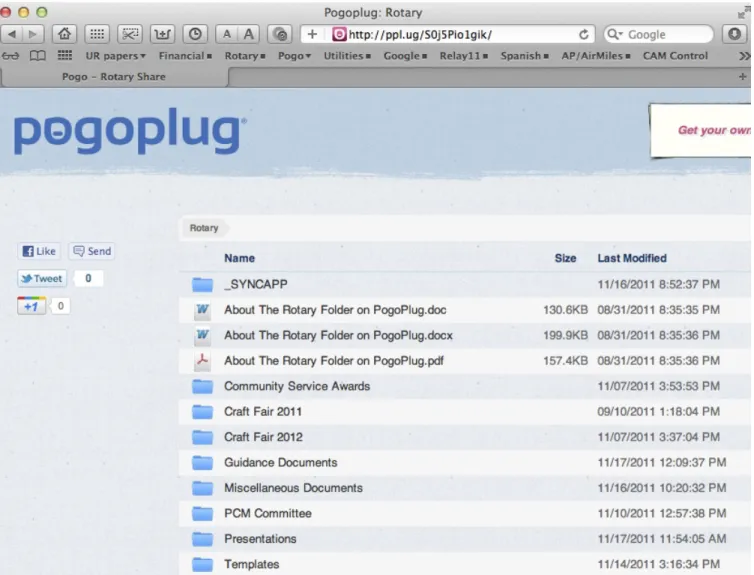
Figure 1 (see Page 3) shows what someone would see if he/she accessed the Rotary folder via a web browser using the link cited above (at the time these instructions were written – over time the folder’s contents will change). As noted above, see Attachment 1 starting on Page 12 regarding alternate access.
The following files, shown in Figure 1, provide information about the disk drive that holds the Rotary folder: About The Rotary Folder on PogoPlug.doc (this file is in Microsoft Word 1997-2004 format)
About The Rotary Folder on PogoPlug.docx (this file is in Microsoft Word 2007 format) About The Rotary Folder on PogoPlug.pdf (this file is in Adobe PDF format)
You can set a bookmark the link above in your web browser. Since there are a variety of browsers and a myriad of versions of browsers, it is complicated to provide detailed guidance in this document. If you are not familiar with bookmarking, start your browser and access its help file. Next search for help on bookmarks or bookmarking. Alternatively, after using the link to access the repository, you can ask your browser to mail you a link to the webpage you just opened.
Figure 1: The Rotary Folder on the RCNR Shared Disk Drive (on Nov 17, 2011)
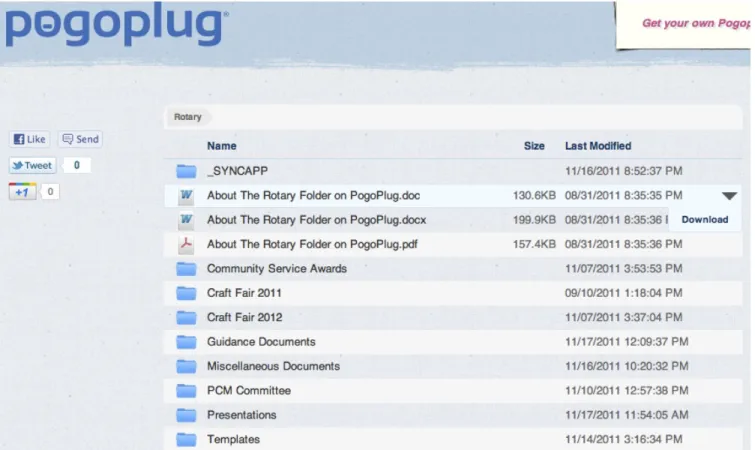
Figure 2 (see Page 4) shows how to download the files that are stored in the Rotary folder (see Page 7 for instructions on “navigating” through sub-folders).
If a mouse pointer (or equivalent) is placed over one of the files in a list, a down arrow will appear. Clicking the down arrow will show “Download”. If you click Download, the selected file will be transferred to your computer in the default download folder specified on your computer.
Figure 2: Downloading Files in the Rotary Folder
Information That is Stored in the Document Repository
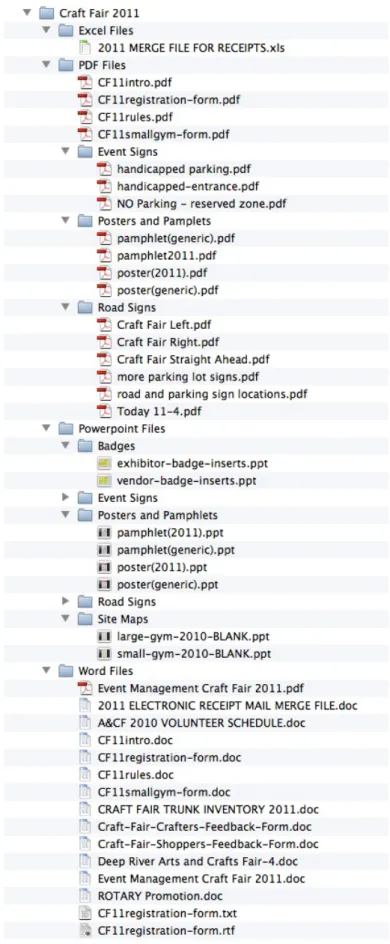
Event Related FilesEvents such as Canada Day and the annual Craft Fair are associated with a variety of planning documents such as site maps, event rules and volunteer/task lists. Each event’s files are stored in separate folders. At the time these instructions were written, the event folders that were in use were “Community Service Awards”, “Craft Fair 2011” and “Craft Fair 2012” – see Figure 1.
The content of an event folder, including the sub-folder structure, is the responsibility of the event Chair or designate. Part of the planning process for an event is to include a plan for storing event related information within the event’s folder. The event Chair will work with the club archivist to create the event folder, along with the desired sub-folder structure, and to archive event related documents in the folder. As an FYI, Figure 3 (see Page 5) shows the contents of folder = “Craft Fair 2011” at the time these
instructions were written (not all sub-folder contents are shown because there so many files). The Craft Fair is likely the most complex event the RCNR will run, therefore, event folders are expected to be far simpler than the example shown in Figure 3.
Guidance Documents
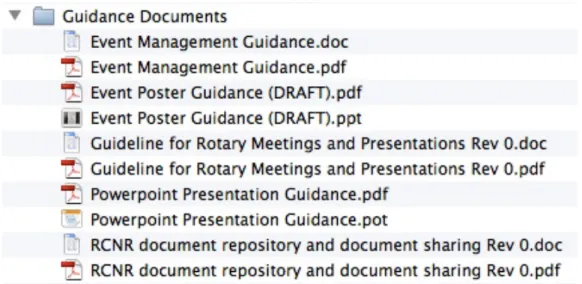
To ensure that the RCNR is effectively run, that is, we learn from the past and we avoid needless duplication of effort, a variety of guidance documents have been developed and will continue to be developed. This includes guidance on (1) managing events, (2) preparing posters for events, (3) making presentations to RCNR members and guests and (4) running RCNR meetings. See Figure 4 on Page 6.
Figure 4: RCNR Guidance Documents at the Time These Instructions Were Written (Note: Some guidance documents were still in preparation at time of writing)
Information That is Stored in the Document Repository (continued) Committee Documents
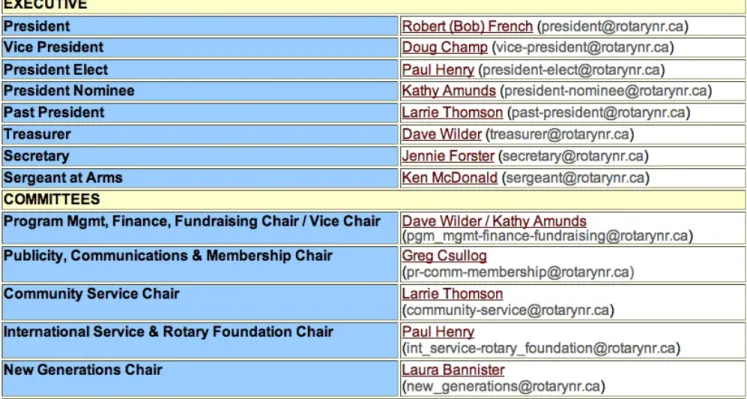
Figure 5 (see Page 7) shows the RCNR Committees in place at the time these instructions were written. Committee Chairs are responsible for ensuring that Committee related documents are stored in the RCNR repository in a Committee folder. The content of a Committee folder, including the sub-folder structure, is the responsibility of the Committee Chair or designate. DO NOT INCLUDE
INFORMATION THAT IS UNSUITABLE FOR VIEWING BY NON-ROTARIANS
Part of the Committee’s planning process is to include a plan for storing related information within the Committee’s folder (e.g., what information is to be stored?). The Committee Chairs will work with the club archivist to create Committee folders, along with the desired sub-folder structure, and to archive Committee related documents in the folder. See Figure 6 on Page 7 for the PCM Committee folder’s contents at the time these instructions were written.
Templates
Templates refer to “document templates” that serve to standardize and facilitate the writing of RCNR documents (including presentations). The problem with templates is that they are best used in an
environment where not only are RCNR members using the same software, such as Microsoft Office, but also the same version of software. Unfortunately, not all RCNR members use the same software, let alone the same version.
Currently, the Templates folder only has file = “RCNR letter template.doc” (RCNR letter head) and file = Police letter for check.doc”. To avoid problems, the files are actually in Microsoft Word’s document format (file extension = .doc), they are not in Microsoft Word’s template format (file extension = .dot), since the latter comes with Microsoft’s inherent template problems. To use the letter head file, simply download file = “RCNR letter template.doc” (see Page 3 and Figure 2 regarding downloading), edit the file and then save it with a different, appropriate file name.
Figure 5: Executive and Committee List (from http://rotarynr.ca/members.htm)
Figure 6: Publicity, Communications and Membership (PCM) Committee Folder
Navigating Through Sub-folders
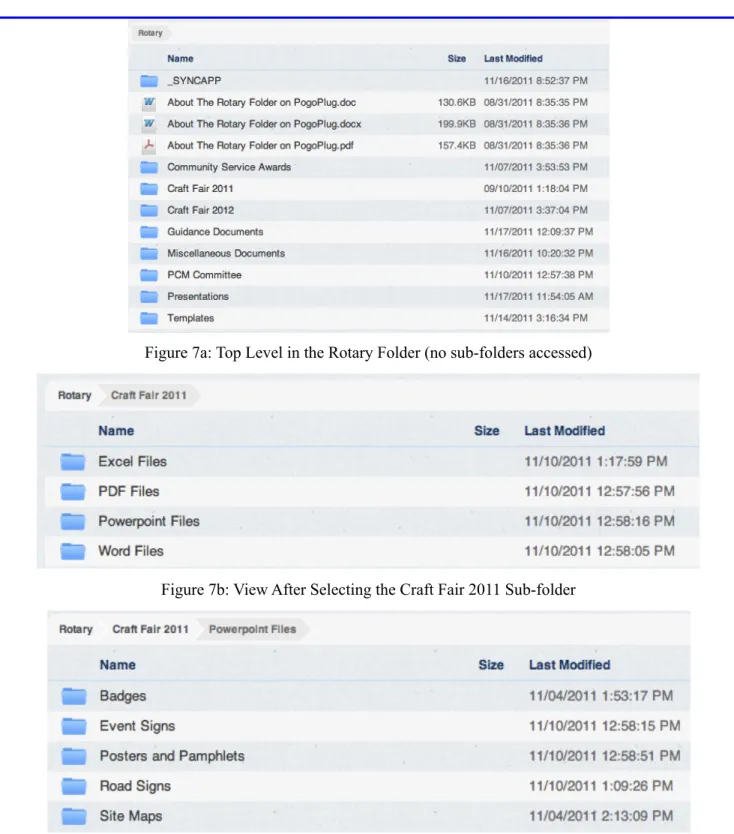
Figure 7 on Page 8 provides a pictorial example of navigating through sub-folders in the Rotary folder.
Figure 7a shows the top level in the Rotary folder – no sub-folders had been accessed. Figure 7b shows the view after sub-folder “Craft Fair 2011” in the list was clicked. Figure 7c shows the view after sub-folder “Powerpoint Files” was clicked.
Please take note of the “directory path” indicated by the red underlining in Figures 7a – 7c. To back out of the Powerpoint Files sub-sub-folder and display the Craft Fair 2011 sub-folder, the Craft Fair 2011 label is clicked. To back out of the Powerpoint Files sub-sub-folder and display the Rotary folder directly, the Rotary label is clicked. This method of navigation is commonly referred to as “breadcrumb”. See the link that follows:
Figure 7a: Top Level in the Rotary Folder (no sub-folders accessed)
Figure 7b: View After Selecting the Craft Fair 2011 Sub-folder
Figure 7c: View After Selecting the Powerpoint Files Sub-folder Within the Craft Fair 2011 Sub-Folder Figure 7: Navigating Through Sub-Folders
Instructions for Adding Files to the Document Repository
Up to now, these instructions have focused on accessing information that is already in the Rotary folder. As noted on Page 2 “Access to the Rotary folder is “read only” to everyone except the RCNR archivist. Only the archivist or his/her designate(s) can add, modify or delete files in the Rotary folder.”. The following describes how Event Chairs, Committee Chairs and other RCNR members can have information added to the Rotary folder.
Method 1: Using the Upload Folder (see Attachment 1 starting on Page 12 regarding alternate access)
In addition to the Rotary folder, a folder named Upload has been created on the shared RCNR disk drive. This folder is NOT publicly accessible. To access the folder, the RCNR archivist or his/her designate must grant individual permissions to access the folder.
To request access, RCNR members should send an e-mail to [email protected] with the subject line
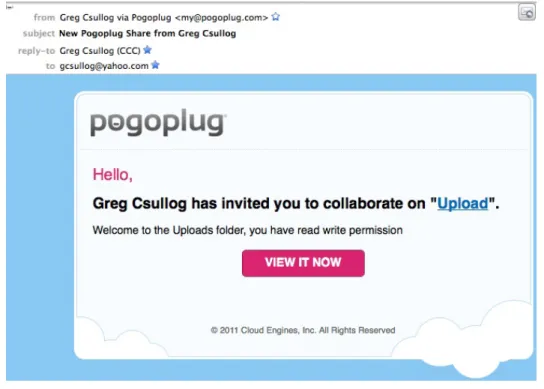
containing “please share the RCNR Upload folder with me”. Once the folder is shared, you will receive a request to view the folder – see Figure 8.
Figure 8: Pogoplug Share (“Collaborate”) Notification
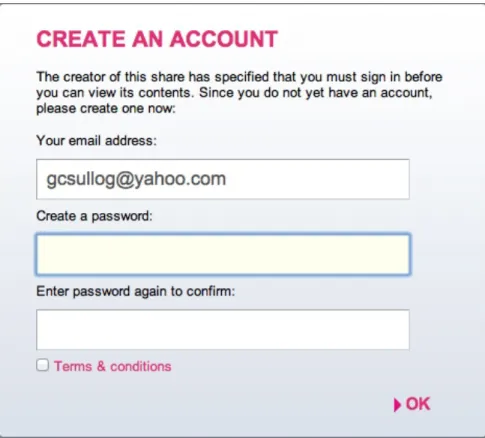
When you click the “View it Now” button, you will be switched to your browser and you will see a request to create an account – this is needed to securely access the Upload folder. See Figure 9.
If you already have a Pogoplug account, you will be asked to sign in using your user name (the e-mail address of your account) and your password.
Note, invitations to share a folder, that is to “collaborate”, can be read only or read/write. Sharing the Upload folder is read/write, therefore, you will be able to add, modify or delete files in the Upload folder. Sharing the Bulletins folder, discussed elsewhere in this document, is read only. When the Bulletins folder is shared with you, you will only be able to view or download files from the folder, you will not be able to add, modify or delete files.
Figure 9: Creating a User Account to Access the Upload Folder
Select an easy to remember, secure password (to help protect RCNR files). Please note, the RCNR archivist cannot view or change your password. If you do not remember your password, select the link “Forgot your password” on my.pogoplug.com and follow the indicated steps to reset your password.
Once you login, you will see the information shown in Figure 10, which lists all folders shared with you (“Collaborate Folders”). In Figure 10, “User” access means read only permission, “Editor” access means read/ write permission.
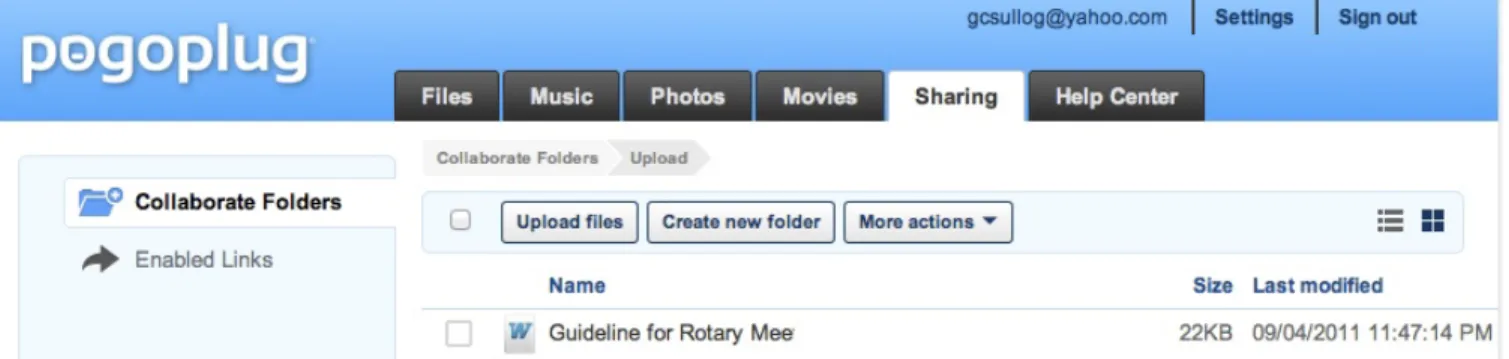
When you click on the Upload folder, you will see the information shown in Figure 11.
Figure 11: Accessing the Upload Folder (the document shown was uploaded to test the process)
To upload a file to the Upload folder, click the “Upload files” button shown in Figure 11 and follow the instructions. Once the file/files has/have been uploaded, e-mail [email protected] and indicate which sub-folder you want the RCNR archivist to use to store the uploaded file(s), such as a specific event sub-sub-folder or a Committee sub-folder.
You can create, rename or delete sub-folders in the Upload folder. This is useful for keeping track of your own files. For example, if a Committee chair wants to keep track of the files that he/she has uploaded, he/she can create a sub-folder, switch to that sub-folder, and upload files into it. Since more than one RCNR member will be granted access to the Upload folder, using your own sub-folders will help keep track of what you have done. Method 2: Adding Files via e-mail
Send an e-mail to [email protected] and attach the files that you want uploaded. Indicate which sub-folders you want the files placed into, such as “Craft Fair 2011\Powerpoint Files\Posters and Pamphlets”. You can specify any sub-folder within the Rotary main folder, which is accessed via the link on Page 1. The Bulletins folder can be specified for Club and Board minutes.
The archivist will forward the e-mail to [email protected] and Pogoplug services will automatically place the folders in to a sub-folder called TEMP (this is not inside the Rotary folder). The archivist will then move the files to the specified sub-folder(s).
Note, Pogoplug only provides this service for e-mails that are sent from the e-mail addresses that are associated with the Pogoplug account.
Attachment 1: Alternate Access to the RCNR Document Repository
As note on Page 1, the RCNR document repository was set up on a disk drive that can be accessed by all RCNR members 24 hours a day, 7 days a week via standard web browsers, such as Internet Explorer, Firefox, Opera and Safari.
The upside of the above is that no additional software has to be installed on anyone’s computer to access the repository. The downside is that the Pogoplug browser-based user interface has to be learned. Much of the text and graphics in this instructional document is devoted to describing the Pogoplug interface.
For those willing to install additional software on their computers and hand-held devices, Pogoplug software can be installed on Windows-based PCs, Apple devices (Macs, iPads, iPods, iPhones) and Android-based devices. Once installed, the Pogoplug software uses interfaces that are familiar to PC users, Mac users, etc. For example, with Windows Explorer (Win XP) or Finder (Mac OSX), familiar actions like “new folder”, “delete file”, etc. are used – no learning of a new interface is required.
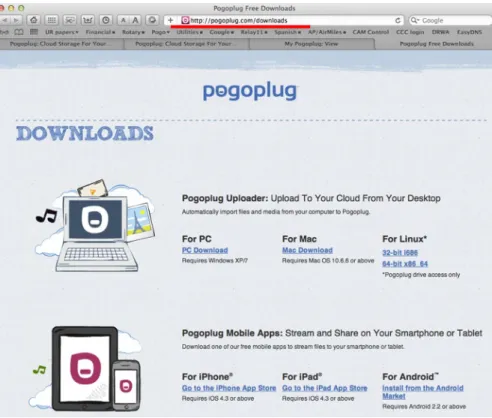
The following image shows how to obtain Pogoplug software.
http://www.pogoplug.com/downloads.html
IMPORTANT NOTE: When you install Pogoplug software, you will be asked if you want to share folders that are on your personal computer. This allows you to securely access these folders over the Internet when your computer is on. Pogoplug will index and optimize the files in folders for remote access. If there are many files in a folder to be shared, this can take hours, even days to complete. For folders with many files (such as photo
folders), it is suggested that you do not select them for sharing. Contact [email protected] for advice.
The following series of images illustrate Pogoplug software in action.
Figure A-1: What a Mac OXS Lion user sees with Pogoplug software installed Figure A-2: What a Windows XP user sees with Pogoplug software installed Figure A-3: What an iPod Touch user sees with Pogoplug software installed
Figure A-2: What a Windows XP user sees with Pogoplug software installed
Note, all later versions of Windows, including Windows 7, are supported. When this document was written, the RCNR archivist had Windows XP.