3D Restoration (Kine3D
®
-3)
SKUA
®
2009.4 and GOCAD
®
2009.4
Rock & Fluid Canvas™ 2009 | Epos
®4.0 Rollup 3
Printed December 12, 2011
© 2007–2011 Paradigm Ltd. or its affiliates and subsidiaries. All rights reserved.
The information in this document is subject to change without notice and should not be construed as a commitment by Paradigm Ltd. or its affiliates and subsidiaries (collectively, "Paradigm"). Paradigm assumes no responsibility for any errors that may appear in this document.
The Copyright Act of the United States, Title 17 of the United States Code, Section 501 prohibits the reproduction or transmission of Paradigm’s copyrighted material in any form or by any means, electronic or mechanical, including photocopying and recording, or by any information storage and retrieval system without permission in writing from Paradigm. Violators of this statute will be subject to civil and possible criminal liability. The infringing activity will be enjoined and the infringing articles will be impounded. Violators will be personally liable for Paradigm’s actual damages and any additional profits of the infringer, or statutory damages in the amount of up to $150,000 per infringement. Paradigm will also seek all costs and attorney fees. In addition, any person who infringes this copyright willfully and for the purpose of commercial advantage or private financial gain, or by the reproduction or distribution of one or more copies of a copyrighted work with a total retail value of over $1,000 shall be punished under the criminal laws of the United States of America, including fines and possible imprisonment.
The following are trademarks or registered trademarks of Paradigm Ltd. or its affiliates and subsidiaries
(collectively,"Paradigm") in the United States or in other countries: Paradigm, Paradigm logo, and/or other Paradigm products referenced herein. For a complete list of Paradigm trademarks, visit our Web site at www.pdgm.com. All other company or product names are the trademarks or registered trademarks of their respective holders.
Alea and Jacta software under license from TOTAL. All rights reserved.
Some components or processes may be licensed under one or more of U.S. Patent Numbers 5,570,106; 5,615,171; 6,765,570; and 6,690,820.
Some components or processes are patented by Paradigm and/or one or more of its affiliates under U.S. Patent Numbers 5,629,904; 6,430,508; 6,819,628; 6,820,043; 6,859,734; 6,873,913; 7,095,677; 7,123,258; 7,295,929; 7,295,930; 7,328,139; 7,561,922; and 7,584,056. In addition, there may be patent protection in other foreign jurisdictions for these and other Paradigm products.
All rights not expressly granted are reserved.
Installing and Configuring Code_Aster for 3D Restoration (Kine3D-3) 1 Rock & Fluid Canvas™ 2009 | Epos®4.0
Installing and Configuring Code_Aster for 3D Restoration
(Kine3D-3)
If you have a license for the 3D Restoration (Kine3D®-3) module, you can run a
restoration simulation by using the 3D Unfolding Workflow in Paradigm™ SKUA® or
Paradigm™ GOCAD®. However, you need to first download and install an external
application, Code_Asterversion 10.1. Code_Aster is a software package for finite element analysis and numeric simulation in structural mechanics. It is free software that is available under the terms of the GNU General Public Licence. Code_Aster must be installed and running on a local or networked computer, with a Windows 32-bit, Windows 64-bit, or Linux 64-bit operating system, so that you can carry out the finite-element processing required for the restoration.
You also need to configure the Code Aster Proxy provided with Kine3D-3, so that the workflow can communicate with Code_Aster. The SKUA and GOCAD installation packages include Kine3D-3 and the Code Aster Proxy.
The following topics explain how to download and install Code_Aster and configure the Code Aster Proxy to work with the 3D Unfolding Workflow.
For more information, see:
•
"Downloading and Installing Code_Aster," page 1•
"Configuring the Code Aster Proxy," page 2•
"Testing the Connection with Code Aster Proxy," page 4Downloading and Installing Code_Aster
To install Code_Aster, you need to first download the installation file, and then
decompress the file. The installation process is slightly different for the Linux 64-bit and the Windows 32-bit or 64-bit installation.
Note The Code_Aster installation package includes a required version of Python, TCL, and a Fortran compiler. These applications will be installed inside the Code_Aster installation folder.
Downloading
Code_Aster For your convenience, we provide installation packages for Code_Aster
1. You can
download the appropriate installation file for your operating system from the following site: http://gocad-download.pdgm.com/code_aster/.
To install Code_Aster
(Linux 64 bit) 1 Create a directory, such as /opt/CodeAster, on the computer where you want to install the program and copy the installation file to this directory.
Note Code Aster does not support path names that include blanks or special characters.
2 From the installation directory, type a command, such as the following example, to extract the files:
tar xvzf aster-x86_64_v1.1.tgz -C /opt/CodeAster/
3 Navigate to InstallationPath/aster-x86_64/postinstall, and run the script: postinstall.py.
Afterward, you need to configure the Code Aster Proxy.
Paradigm™
3D Restoration (Kine3D®-3) Configuration Guide
2 SKUA®2009.4 and GOCAD®2009.4
To install Code_Aster (Windows 32 bit or 64 bit)
1 Create a folder where you want to install the program (for example, C:\CodeAster) and copy the installation file to this folder.
Note Code Aster does not support path names that include blanks or special characters.
2 Decompress the installation file in the folder that you created by either:
•
Opening the file with Compressed (Zipped) Folders (the integrated utility in Windows Explorer) and copying the contents into the installation folder.•
Using a utility, such as WinZip, to unzip the file.3 Navigate to InstallationPath\aster-win32\config or InstallationPath \aster-win64\config, and then double-click the executable file: config.exe. 4 At the first prompt, do one of the following:
•
If you want to create a folder for troubleshooting purposes to store the output files, press T, ENTER, and then type a path name (for example:C:\CodeAster\RESULTS) and press ENTER.
•
If you want to store Code_Aster output files in a predefined, temporary folder (C:\Temp), continue to step 5.5 Confirm the path to the folder where you want to store the output files by pressing V, ENTER.
Afterward, you need to configure the Code Aster Proxy.
Configuring the Code Aster Proxy
After you download and install Code_Aster, edit the proxy links by using the proxy configuration tool provided in the SKUA or GOCAD installation.
To configure the Code
Aster Proxy 1 In the SKUA or GOCAD installation, navigate to the following path, and start the executable file, as appropriate for your operating environment:
•
Linux 64-bit. InstallationPath/GOCAD-SKUA-2009.4/Kine3D3/linux-amd64-re5-gcc/CodeAsterProxy
•
Windows 32-bit. InstallationPath \GOCAD-SKUA-2009.4\Kine3D3\bin\win32-i86-vs2005.shared\CodeAsterProxy.exe•
Windows 64-bit. InstallationPath \GOCAD-SKUA-2009.4\Kine3D3\bin\win64-x64-vs2005.shared\CodeAsterProxy.exeConfiguring the Code Aster Proxy 3 Rock & Fluid Canvas™ 2009 | Epos®4.0
2 Click Settings to open the proxy settings.
3 In the Code_aster home path box, type the path to the Code_Aster installation (for example, C:/Code_Aster). If you installed Code_Aster on a remote computer, provide the IP address of the remote computer.
4 In the Work directory path box, type the path to the folder where you want to create temporary Code_Aster files. For example, C:/Code_Aster/RESULTS.
The temporary Code_Aster files are stored in this folder and can be deleted at the end of the session. Alternatively, you can specify temporary system folder (for example, C:/Temp) so that these files are automatically deleted.
5 In the Code_aster version box, type the version of Code_Aster. For example, 10.1. 6 If the Code_Aster installation is on a remote computer, select the Confirmation
dialog before simulation check box.
This ensures the remote computer is available before the restoration process starts. 7 When you finish specifying the configuration settings, click OK.
Paradigm™
3D Restoration (Kine3D®-3) Configuration Guide
4 SKUA®2009.4 and GOCAD®2009.4
Testing the Connection with Code Aster Proxy
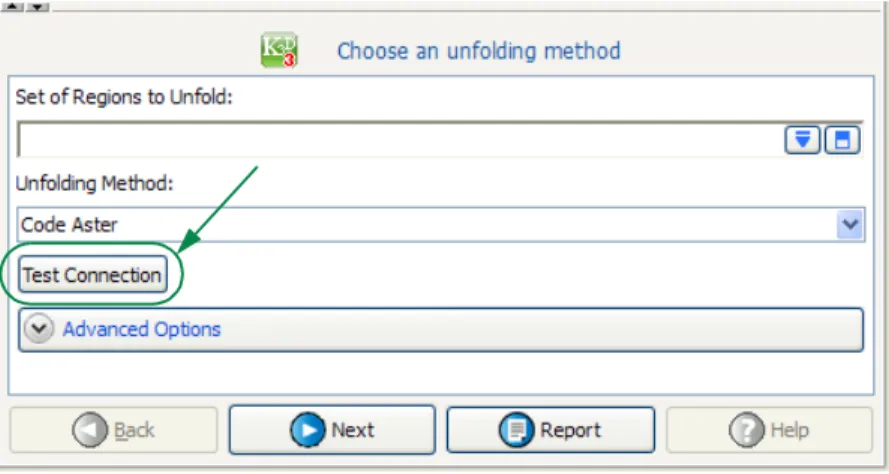
To ensure Code Aster Proxy is available and running, you can test to see if there is a link between the 3D Unfolding Workflow and the proxy. You can test the link at any time while you are working in the 3D Unfolding Workflow (Figure 1). For more information about testing the link in the 3D Unfolding Workflow, see the User Guide, Part VII: Geologic Interpretation.
Figure 1 Test Code Aster link
A ll m ar ks , t rade m ar ks , a nd r egi st er ed t rade m ar ks ac knowl edge d.