Score Management
Software User Guide
Addendum
Score Management Software User Guide Addendum
July 2007
Writing: Daniel Lieberson and Bryan Woerner Editing and proofreading: Jeannie Rennie Review: Cindy Shermeyer
Layout and design: Neva Hurley Production coordination: Hanta Ralay
Recommended citation: Center for Applied Linguistics. (2007). BEST Plus Score Management Software User Guide Addendum.Washington, DC: Author.
Center For Applied Linguistics © 2007 All rights reserved.
No part of this publication maybe reproduced in any form or by any means, electronic or mechanical, without permission in writing from the Center for Applied Linguistics.
All permission inquiries should be addressed to [email protected], or Permissions: Center for Applied Linguistics, 4646 40th Street NW, Washington, DC 20016-1859.
Contents
Introduction………..……... A-1
Running and Installing theSoftware Enhancement………... A-1
Manage Students Tab... A-2 Import names………... A-3 Filter………... A-4 Print report(s)………... A-4 Export scores………... A-4 Edit student information………... A-5
Manage Classes Tab………... A-6
Manage Sites Tab………... A-6
Manage Administrators Tab………... A-6
Score PB Version Tab………... A-7
Backup Tab………... A-7
Activate More Administrations Tab………... A-8
Other Technical Updates………... A-8 Windows taskbar………... A-8 Nonstandard alphanumeric characters………... A-8 Average scores………... A-9
User Support………. A-9
This page
intentionally
Introduction
In July 2007, CAL made enhancements to the BEST Plus Score Management Software (SMS) based on
suggestions and feedback from BEST Plus users. If you have the July 2005 or earlier version of the
Score Management Software (included on the maroon Best PlusTest CD) installed on your computer or
network server, you can download the new enhanced version from the BEST Plus Web site at
www.best-plus.net/sms.
This addendum to the Score Management Software User Guide describes the software enhancements
in detail, referring to existing sections of the Score Management Software User Guide (July 2005) for
additional instruction when necessary. This addendum also includes instructions for downloading and installing the software enhancement.
Please note that use of this enhanced software is optional; it is not necessary to switch to the new
software in order to administer BEST Plus. The enhanced features are designed to make your data
management easier and faster.
One of the most important enhancements to the BEST Plus Score Management Software is that it
installs directly on the computer (Plus\BEST_Plus_SMS.exe) and does not run off the Test CD. The
Test CD does not need to be in the computer’s CD-ROM drive in order to run the updated software,
although you will need to have run BEST Plus at least once on your computer before using the
updated software.
Note: If you run the Score Management Software from either the maroon Best PlusTest CD or the black
BEST Plus Administrator Practice CD, you will not be able to use the enhanced functions.
To install the Score Management Software enhancement on your computer, you will need to download
the updated file from the BEST Plus Web site at www.best-plus.net/sms. From that Web page, select
one of the following options:
1. To install the SMS Enhancement on the computer you are currently using, select “Run” and the
software will automatically install itself onto your computer (file name C:\BEST_Plus\
BEST_Plus_SMS.exe). Keep in mind that the full version of the BEST Plus software must already
be installed on your computer in order to install this update.
2. To install the enhancement on a different computer, select “Save” and choose a location to save the file (e.g., your desktop, a network folder, a flash drive). You can then copy the enhancement to multiple computers. (Remember that the full version of the software must already be installed on any computer where you plan to install the enhancement.) After the enhancement has been copied onto the computer where you plan to use it, double-click on the file, select “Run,” and the
software will automatically install itself onto the computer (file name C:\BEST_Plus\ BEST_Plus_SMS.exe).
S C O R E M A N A G E M E N T S O F T WA R E U S E R G U I D E A D D E N D U M Section A-1
© July 2007
Center for Applied Linguistics
Once the enhancement is installed, go to My Computer, select the C drive, and open the BEST_Plus folder. To run the updated software, double click on the BEST_Plus_SMS.exe file. To make a shortcut on your desktop, right click on the file and select “Send to, Desktop (create shortcut)” from the menu.
A series of modifications were made to the individual tab functions. These are discussed in detail below.
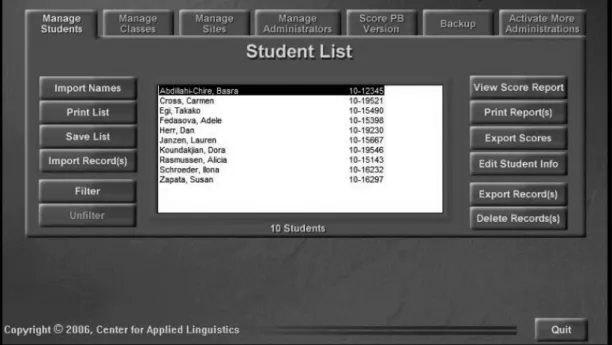
The majority of the BEST Plus Score Management Software functions are performed through the
“Manage Students” tab.
Figure 1. Manage students tab
The changes that have been made apply to specific buttons under this tab. Each button that was changed is discussed on the following page.
Manage Students Tab
S C O R E M A N A G E M E N T S O F T WA R E U S E R G U I D E A D D E N D U M Section A-2
© February 2005 Center for Applied Linguistics
Import names
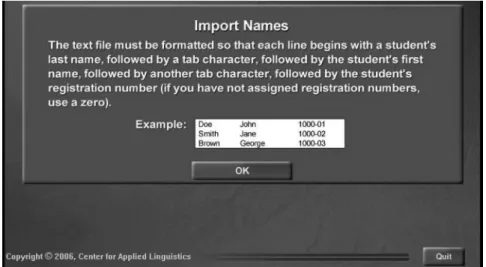
This button was previously labeled “Import New List” and was used to import names into the BEST
Plus Scores Database to avoid having to type each student name individually. Because the formatting for the list varies depending on the type of file used (tab-delimited text file vs. MS Access database), a “Help” button has been added to assist you in creating your lists.
For tab-delimited text files, the formatting is as follows:
Figure 2. Import names for tab-delimited text files
For MS Access files, the formatting is as follows:
Figure 3. Import names for MS Access files
S C O R E M A N A G E M E N T S O F T WA R E U S E R G U I D E A D D E N D U M Section A-3
© July 2007
CAL recommends that users not familiar with MS Access create their student lists using the tab-delimited text file format. For information on how to create a tab-tab-delimited text file, see Section IV,
page 5, of the Score Management Software User Guide.
Filter
The “Filter” function allows you to limit the number of names that appear in the student list. The
Score Management Software enhancementfeatures the ability to use the asterisk (*) as a wildcard if you want to filter for all students whose last or first name begins with a specific letter. For example, you can create a filter for A* in the last name field to see only those students whose last name begins with A.
In addition, if you leave the filter on, you can go to the “Score PB Tab” and see only those filtered names in the drop-down list. This will make it easier to enter raw test scores for previously tested students by shortening the list of names you have to search through to find a particular student.
For more information on how to use the “Filter” button, see Section III, page 3, of the Score
Management Software User Guide.
Print report(s)
This is a new button in the “Manage Students” tab. You can now select one or more students and print their score reports without having to view each individual student record.
Keep in mind, though, that this will print every score report saved for each of the students selected. For students who have two score reports under their name, both will be printed. To print just one score report for a student, you will have to select the “View Score Report” button, select the individual score report you wish to print, and choose the “Print” option. You can refer to Section III,
page 4, of the Score Management Software User Guide for more information on printing individual
score reports.
Export scores
Previously the Score Management Software prevented users from exporting more than 50 students at
a time. You can now export scores for your entire student list at one time. For more information on
how to export scores, refer to Section III, page 5, of the Score Management Software User Guide.
Another change was the addition of the standard error for BEST Plus scaled scores when exporting
score information. Standard error is the mathematical precision of the test score. The smaller the standard error, the more accurately a student’s ability has been measured. This information is provided only for statistical analyses and research purposes and is not necessary for most programmatic or reporting needs.
Note: To calculate the reported standard error (e.g., 0.198) on the same scale as the BEST Plus scale scores, the reported standard error must be multiplied by 100 (e.g., 19.8 would be the standard error
in terms of the BEST Plus score scale.) Remember, this information is only for research purposes and
is not necessary for general testing and reporting purposes.
S C O R E M A N A G E M E N T S O F T WA R E U S E R G U I D E A D D E N D U M Section A-4
For more information about standard error and other technical issues related to BEST Plus, refer to the BEST Plus Technical Report or visit our Web site: www.best-plus.net.
Edit student information
Previously, the only information that could be edited was the spelling of names and the registration
number. (See Section II, page 6, of the Score Management Software User Guide.) With the BEST Plus Score
Management Software Enhancement, users have the ability to edit additional types of information.
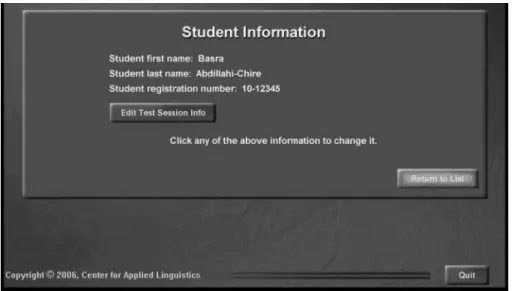
Figure 4. Edit student information
From the “Manage Students” tab, choose the “Edit Student Info” button. You will see the option to edit first and last name, registration number, and test session information.
By choosing the “Edit Test Session Info” button, you now have the ability to do the following:
•
Change the name of the student appearing on the score report (e.g., if you accidentallyselected the wrong student to test)
•
Change the test administrator•
Add or change the class or site information on the score report•
Change the date and time on the score reportThis feature will allow you to fix any errors that may have been made when student information was entered during testing. This will help you keep more accurate site and class score rosters that can be given out to teachers. For information on viewing and printing score rosters, refer to Section III,
pages 7-11, of the Score Management Software Users Guide.
Note: Any changes made to the score report will not affect the final test score. Test scores cannot be edited.
S C O R E M A N A G E M E N T S O F T WA R E U S E R G U I D E A D D E N D U M Section A-5
© July 2007
Figure 5. Manage classes tab
The basic functions of this tab have stayed the same. The only addition is the “Delete Class” button, which allows you to remove a class you no longer offer.
Note: If you delete a class, that information will no longer appear in a student’s score report when viewed from the “Manage Students” tab.
Figure 6. Manage sites tab
The basic functions of this tab have stayed the same. The only addition is the “Delete Site” button, which allows you to remove a site you no longer use.
Note: If you delete a site, that information will no longer appear in a student’s score report when viewed from the “Manage Students” tab.
Figure 7. Manage administrators tab
The basic functions of this tab have stayed the same. The only addition is the “Delete Name” button,
which allows you to remove a test administrator who no longer administers BEST Plus for your
program.
Note: If you delete a test administrator, that information will no longer appear in a student’s score report when viewed from the “Manage Students” tab.
Manage Classes Tab
Manage Sites Tab
Manage Administrators Tab
S C O R E M A N A G E M E N T S O F T WA R E U S E R G U I D E A D D E N D U M Section A-6
© February 2005 Center for Applied Linguistics
Figure 8. Score PB version tab
There are two important updates to this tab. First, if you are using a filter (see page A-4 of this addendum), only the names of the students in that filter will appear in the drop-down list, making it easier and faster for you to enter your raw test scores.
The second change involves scores of zero. When you enter a score of zero for any scoring
category (Listening Comprehension, Language Complexity, or Communication), the software will automatically enter a zero for the other two categories. If you try to input a mixed zero and non-zero score (for example 1, 0, 1) you will get the following message:
“You have already input a non-zero score for this question. If you enter a zero here, all scores will be set to zero for this question. Are you sure you want to zero this entire question?”
The reason for this message is that a score of zero in any scoring category of the rubric is
automatically a score of zero for all categories. Please refer to the BEST Plus Scoring Rubric and
Section III of the BEST Plus Test Administrator Guide for more information on scoring.
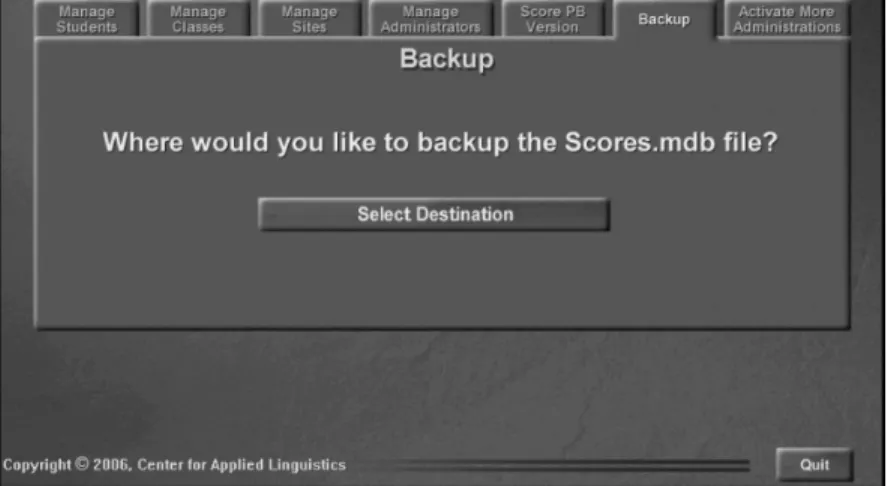
The only change to this tab is the removal of the button that was used to back up your BEST Plus
Scores Database directly to a computer disk. This option was seldom used because most scores databases are too large to fit on a removable computer disk.
Figure 9. Backup tab
Score PB Version Tab
S C O R E M A N A G E M E N T S O F T WA R E U S E R G U I D E A D D E N D U M Section A-7
© July 2007
Center for Applied Linguistics
You still have the option to back up your data to a computer disk by selecting the corresponding destination (typically drive letter A) from the available options in the “Backup” window.
Figure 10. Activate more administrations tab
This tab was previously called “Buy More Administrations,” which caused confusion among users about paying for test administrations. The update reflects what you are actually doing, which
is activating the BEST Plus administrations that you have already purchased. The information
regarding price has been removed from this tab and the “Purchase” button has been changed to “Activate.”
You will still need a Purchase Code in order to activate your tests. For information on obtaining
a Purchase Code, refer to the CD Quick Reference Guide in the front pocket of your BEST Plus Test
Administrator Guide or go to www.best-plus.net, where you can click on the links to “guides” or
“activate BEST Plus administrations.”
Windows taskbar
To help you switch between the BEST Plus Score Management Software and other programs, you can
now have the Windows taskbar appear at the top of your screen above the Score Management Software.
To change your taskbar settings, right click on the taskbar and select “Properties.” Under the “Taskbar” tab, check the box that says, “Keep the taskbar on top of other windows.”
If your screen resolution is set to 800 x 600, the taskbar will cover up most of the “Quit” button in the lower right corner.
Your local technical support staff can assist you in setting up your computer and changing the display settings on your computer.
Nonstandard alphanumeric characters
Nonstandard alphanumeric characters are those characters that are not part of the 26-letter English alphabet or the numerals 0 through 9. They include letters with accent marks, punctuation marks, and mathematical characters available on your computer keyboard.
Activate More Administrations Tab
Other Technical Updates
S C O R E M A N A G E M E N T S O F T WA R E U S E R G U I D E A D D E N D U M Section A-8
© February 2005 Center for Applied Linguistics
Windows does not recognize most of these characters when saving file names. Thus, the BEST Plus
Score Management Software does not recognize them in any data field (name, registration number, class, etc.). If you use any of these characters when saving test data, you will receive a warning message.
Note: This message is not available in versions of the Score Management Software found on Test CDs dated February 2005 or earlier.
The only nonalphanumeric characters that can be used with any version of the BEST Plus Score
Management Software are the period ( . ), the apostrophe ( ’ ), the hyphen ( - ), and the underscore ( _ ).
Average scores
The score reports generated by the Score Management Software include a “Student Average” score for
each scoring category of the BEST Plus Scoring Rubric. The Score Management Software on Test CDs dated
February 2005 and earlier had a programming error that displayed these scores slightly incorrectly; they were off by 0.01 points compared to the scores that were printed. This has been corrected, and the “Student Average” scores are now displayed correctly on the screen.
Note: The student average score and the change never affected the scale scores. ______________________________________________________________________
For more information or for user support for this and other BEST Plus products, please visit our
Web site at www.best-plus.net or contact our User Support staff by e-mail at [email protected] or by phone at 866-845-BEST, Monday through Friday from 9:00 a.m. to 7:00 p.m. Eastern Time.
User Support
Section A-9
© July 2007