vSphere Security
ESXi 6.0
vCenter Server 6.0
This document supports the version of each product listed and
supports all subsequent versions until the document is
replaced by a new edition. To check for more recent editions
of this document, see
http://www.vmware.com/support/pubs
.
You can find the most up-to-date technical documentation on the VMware Web site at: http://www.vmware.com/support/
The VMware Web site also provides the latest product updates.
If you have comments about this documentation, submit your feedback to: [email protected]
Copyright © 2009–2015 VMware, Inc. All rights reserved. Copyright and trademark information.
VMware, Inc.
Contents
About vSphere Security 7
Updated Information 9
1
Security in the vSphere Environment 11
Securing the ESXi Hypervisor 11
Securing vCenter Server Systems and Associated Services 13 Securing Virtual Machines 14
Securing the Virtual Networking Layer 15 Passwords in Your vSphere Environment 16 Security Best Practices and Resources 17
2
vSphere Authentication with vCenter Single Sign-On 19
Understanding vCenter Single Sign-On 20
Configuring vCenter Single Sign-On Identity Sources 29 Managing the Security Token Service (STS) 35
Managing vCenter Single Sign-On Policies 38
Managing vCenter Single Sign-On Users and Groups 40 vCenter Single Sign-On Security Best Practices 46 Troubleshooting vCenter Single Sign-On 46
3
vSphere Security Certificates 51
Certificate Management Overview 52 Certificate Replacement Overview 53 Managing Certificates in vSphere 6 56
Using the vSphere Certificate Manager Utility 63
Generate Certificate Signing Requests with vSphere Certificate Manager 69 Manual Certificate Replacement 69
Managing Certificates and Services with CLI Commands 96 View vCenter Certificates with the vSphere Web Client 111 Set the Threshold for vCenter Certificate Expiration Warnings 111
4
vSphere Permissions and User Management Tasks 113
Understanding Authorization in vSphere 114
Understanding the vCenter Server Permission Model 114 Hierarchical Inheritance of Permissions 116
Multiple Permission Settings 117
Managing Permissions for vCenter Components 119 Global Permissions 122
Add a Global Permission 123 Using Roles to Assign Privileges 123
Best Practices for Roles and Permissions 127 Required Privileges for Common Tasks 127
5
Securing ESXi Hosts 131
Use Scripts to Manage Host Configuration Settings 132 Configure ESXi Hosts with Host Profiles 133
General ESXi Security Recommendations 133 Certificate Management for ESXi Hosts 137 Customizing Hosts with the Security Profile 150 Assigning Permissions for ESXi 164
Using Active Directory to Manage ESXi Users 166 Using vSphere Authentication Proxy 169
Configuring Smart Card Authentication for ESXi 173 ESXi SSH Keys 175
Using the ESXi Shell 177
Modifying ESXi Web Proxy Settings 181
vSphere Auto Deploy Security Considerations 182 Managing ESXi Log Files 182
ESXi Security Best Practices 185
6
Securing vCenter Server Systems 187
vCenter Server Security Best Practices 187 Verify Thumbprints for Legacy ESXi Hosts 191
Verify that SSL Certificate Validation Over Network File Copy Is Enabled 192 vCenter Server TCP and UDP Ports 192
Control CIM-Based Hardware Monitoring Tool Access 193
7
Securing Virtual Machines 195
Limit Informational Messages from Virtual Machines to VMX Files 195 Prevent Virtual Disk Shrinking 196
Virtual Machine Security Best Practices 196
8
Securing vSphere Networking 205
Introduction to vSphere Network Security 205 Securing the Network with Firewalls 206 Secure the Physical Switch 210
Securing Standard Switch Ports With Security Policies 210 Securing vSphere Standard Switches 211
Secure vSphere Distributed Switches and Distributed Port Groups 212 Securing Virtual Machines with VLANs 213
Creating a Network DMZ on a Single ESXi Host 215 Creating Multiple Networks Within a Single ESXi Host 216 Internet Protocol Security 218
Ensure Proper SNMP Configuration 221
9
Best Practices Involving Multiple vSphere Components 225
Synchronizing Clocks on the vSphere Network 225 Storage Security Best Practices 228
Verify That Sending Host Performance Data to Guests is Disabled 230 Setting Timeouts for the ESXi Shell and vSphere Web Client 230
10
Defined Privileges 233
Alarms Privileges 234
Auto Deploy and Image Profile Privileges 235 Certificates Privileges 235
Content Library Privileges 236 Datastore Privileges 237 Datastore Cluster Privileges 238 Distributed Switch Privileges 238 ESX Agent Manager Privileges 239 Extension Privileges 239
Folder Privileges 239 Global Privileges 240 Host CIM Privileges 240
Host Configuration Privileges 241 Host Inventory 242
Host Local Operations Privileges 242 Host vSphere Replication Privileges 243 Host Profile Privileges 243
Inventory Service Provider Privileges 244 Inventory Service Tagging Privileges 244 Network Privileges 245
Performance Privileges 245 Permissions Privileges 245
Profile-driven Storage Privileges 246 Resource Privileges 246
Scheduled Task Privileges 247 Sessions Privileges 247 Storage Views Privileges 248 Tasks Privileges 248
Transfer Service Privileges 248 VRM Policy Privileges 248
Virtual Machine Configuration Privileges 248 Virtual Machine Guest Operations Privileges 250 Virtual Machine Interaction Privileges 251 Virtual Machine Inventory Privileges 253 Virtual Machine Provisioning Privileges 253
Virtual Machine Service Configuration Privileges 255 Virtual Machine Snapshot Management Privileges 255 Virtual Machine vSphere Replication Privileges 256 dvPort Group Privileges 256
vApp Privileges 257 vServices Privileges 258
About vSphere Security
vSphere Security provides information about securing your vSphere® environment for VMware® vCenter® Server and VMware ESXi.
To help you protect your vSphere environment, this documentation describes available security features and the measures that you can take to safeguard your environment from attack.
In addition to this document, VMware publishes a Hardening Guide for each release of vSphere, accessible at
http://www.vmware.com/security/hardening-guides.html. The Hardening Guide is a spreadsheet with entries for different potential security issues. It includes items for three different risk profiles. This vSphere Security document does not include information for Risk Profile 1 (highest security environment such as top-secret government).
Intended Audience
This information is for experienced Windows or Linux system administrators who are familiar with virtual machine technology and data center operations.
Updated Information
This vSphere Security documentation is updated with each release of the product or when necessary. This table provides the update history of the vSphere Security documentation.
Revision Description
EN-001466-04 Added pointer to KB article that explains use of script in deployments with external solutions to
“Certificate Replacement in Large Deployments,” on page 61.
EN-001466-03 n Added some ports to “vCenter Server TCP and UDP Ports,” on page 192.
n Details and corrections for “Configuring Time Synchronization Settings in the vCenter Server
Appliance,” on page 226.
n Added “PCI and PCIe Devices and ESXi,” on page 185.
n Added note that you should not delete groups in the vsphere.local domain to “Groups in the
vsphere.local Domain,” on page 27.
n Clarified that the Certificate Manager utility requires keys in PEM format in the topics in the section
“Using the vSphere Certificate Manager Utility,” on page 63.
n Updated “Use Custom Certificates with Auto Deploy,” on page 148 to use custom instead of Custom.
EN-001466-02 n Added additional recommendation to “General Networking Security Recommendations,” on page 222
n Added VLAN ID recommendations to “Secure vSphere Distributed Switches and Distributed Port
Groups,” on page 212.
n Added information about verifying trunk links to “Document and Check the vSphere VLAN
Environment,” on page 223.
n Updated “Add Members to a vCenter Single Sign-On Group,” on page 44. Groups are not displayed in the Groups tab.
n Added information on stopping and starting service on Windows to “Replace the VMware Directory
Service Certificate,” on page 88.
n Updated “Storage Views Privileges,” on page 248. Storage Views are deprecated in vSphere 6.0. These privileges now control only access to the Storage Monitoring Services APIs.
Revision Description
EN-001466-01 n Updated the following topics to include instructions to select option 2 for certificate replacement. n “Replace Machine SSL Certificate with Custom Certificate,” on page 64
n “Replace VMCA Root Certificate with Custom Signing Certificate and Replace All Certificates,” on page 65
n “Replace Solution User Certificates with Custom Certificates,” on page 67
n Added new topic “Generate Certificate Signing Requests with vSphere Certificate Manager,” on page 69
n Fixed a technical inaccuracy in “Ensure Proper SNMP Configuration,” on page 221.
n Some clarifications in “ESXi Passwords, ESXi Pass Phrases, and Account Lockout,” on page 135. n In “Replace the Root Certificate (Intermediate CA),” on page 80, changed service-control
--start vmca to service-control --start vmcad.
n Changed first step in “Change Certificate Default Settings,” on page 142. This task is performed on the vCenter Server system, not on individual hosts.
n Updated “vCenter Server TCP and UDP Ports,” on page 192. Ports 11711 and 11712 are used only if vCenter Single Sign-On was upgraded from vSphere 5.5. In vSphere 6.0, vCenter Single Sign-On uses port 389 (LDAP) and 636 (LDAPS).
n Updated “Use VMCA as an Intermediate Certificate Authority,” on page 80. Replacing the VMCA before installing or upgrading other components in an environment with an external Platform Services Controller is no longer recommended.
Security in the vSphere Environment
1
The components of a vSphere environment are secured out of the box by a number of features such as certificates, authorization, a firewall on each ESXi, limited access, and so on. You can modify the default setup in many ways - for example, you can set permissions on vCenter objects, open firewall ports, or change the default certificates. This results in maximum flexibility in securing vCenter Server systems, ESXi hosts, and virtual machines.
A high level overview of different areas of vSphere that require attention helps you plan your security strategy. You also benefit from additional vSphere Security resources on the VMware website. This chapter includes the following topics:
n “Securing the ESXi Hypervisor,” on page 11
n “Securing vCenter Server Systems and Associated Services,” on page 13 n “Securing Virtual Machines,” on page 14
n “Securing the Virtual Networking Layer,” on page 15 n “Passwords in Your vSphere Environment,” on page 16 n “Security Best Practices and Resources,” on page 17
Securing the ESXi Hypervisor
The ESXi hypervisor is secured out of the box. You can further protect ESXi hosts by using lockdown mode, and other built-in features. If you set up a reference host and make changes to all hosts based on that host's host profiles, or if you perform scripted management, you further protect your environment by assuring changes apply to all hosts.
Use the following features, discussed in detail in this guide, to enhance protection of ESXi hosts that are managed by vCenter Server. See also the Security of the VMware vSphere Hypervisor white paper.
Limit ESXi Access By default, the ESXi Shell and SSH services are not running and only the root user can log in to the Direct Console User Interface (DCUI). If you decide to enable ESXi or SSH access, you can set timeouts to limit the risk of
Users who can access the ESXi host must have permissions to manage the host. You set permissions on the host object from vCenter Server that manages the host.
Use Named Users and Least Privilege
Many tasks can be performed by the root user by default. Instead of allowing administrators to log in to the ESXi host using the root user account, you can apply different host configuration privileges to different named users from the vCenter Server permissions management interface. You can create a custom roles, assign privileges to the role, and associate the role with a named user and an ESXi host object from the vSphere Web Client. In a single host scenario, you manage users directly. See the vSphere Single
Host Management documentation. Minimize the Number of
Open ESXi Firewall Ports
By default, firewall ports on your ESXi host are opened only when you start a corresponding service. You can use the vSphere Web Client or ESXCLI or PowerCLI commands to check and manage firewall port status.
See “ESXi Firewall Configuration,” on page 150.
Automate ESXi Host Management
Because it is often important that different hosts in the same data center are in sync, use scripted installation or vSphere Auto Deploy to provision hosts. You can manage the hosts using scripts. An alternative to scripted
management are host profiles. You set up a reference host, export the host profile, and apply the host profile to your host. You can apply the host profile directly or as part of provisioning with Auto Deploy.
See “Use Scripts to Manage Host Configuration Settings,” on page 132 and see the vSphere Installation and Setup for information about vSphere Auto Deploy.
Take Advantage of Lockdown Mode
In lockdown mode, ESXi hosts can be accessed only through vCenter Server by default. Starting with vSphere 6.0, you can select strict lockdown mode or normal lockdown mode, and you can define Exception Users to allow direct access to service accounts such as backup agents.
See “Lockdown Mode,” on page 157.
Check VIB Package Integrity
Each VIB package has an associated acceptance level. You can add a VIB to an ESXi host only if the acceptance level is the same or better than the acceptance level of the host. You cannot add a CommunitySupported or PartnerSupported VIB to a host unless you explicitly change the host's acceptance level.
See “Check the Acceptance Levels of Hosts and VIBs,” on page 163.
Manage ESXi Certificates
In vSphere 6.0 and later, the VMware Certificate Authority (VMCA)
provisions each ESXi host with a signed certificate that has VMCA as the root certificate authority by default. If company policy requires it, you can replace the existing certificates with certificates that are signed by a third-party CA. See “Certificate Management for ESXi Hosts,” on page 137
Smart Card Authentication
Starting with vSphere 6.0, ESXi supports smart card authentication as an option instead of user name and password authentication.
See “Configuring Smart Card Authentication for ESXi,” on page 173.
ESXi Account Lockout Starting with vSphere 6.0, account locking is supported for access through
SSH and through the vSphere Web Services SDK. The Direct Console Interface (DCUI) and the ESXi Shell do not support account lockout. By default, a maximum of ten failed attempts is allowed before the account is locked. The account is unlocked after two minutes by default.
See “ESXi Passwords, ESXi Pass Phrases, and Account Lockout,” on page 135.
Security considerations for standalone hosts are similar, though the management tasks might differ. See the
vSphere Single Host Management documentation.
Securing vCenter Server Systems and Associated Services
Your vCenter Server system and associated services are protected by authentication through vCenter Single Sign-On and by authorization through the vCenter Server permissions model. You can modify the default behavior, and you can take additional steps to protect access to your environment.
As you protect your vSphere environment, consider that all services that are associated with the vCenter Server instances must be protected. In some environments, you might protect several vCenter Server instances and one or more Platform Services Controller instances.
Harden All vCenter Host Machines
The first step in protecting your vCenter environment is hardening each machine on which vCenter Server or an associated service runs. Similar considerations apply to a physical machine or a virtual machine. Always install the latest security patches for your operating system and follow industry standard best practices to protect the host machine.
Learn about the vCenter Certificate Model
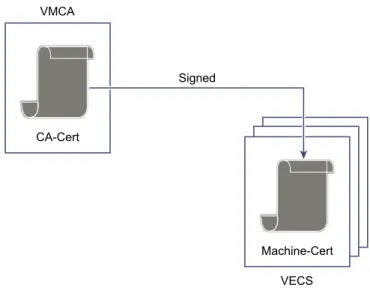
By default, the VMware Certificate Authority provisions each ESXi host, each machine in the environment, and each solution user with a certificate signed by VMCA. The environment works out of the box, but if company policy requires it, you can change the default behavior. See Chapter 3, “vSphere Security Certificates,” on page 51.
For additional protection, be sure to explicitly remove expired or revoked certificates and failed installations.
Configure vCenter Single Sign-On
vCenter Server and associated services are protected by the vCenter Single Sign-On authentication framework. When you first install the software, you specify a password for the [email protected] user, and only that domain is available as an identity source. You can add other identity sources, either Active Directory or LDAP, and set a default identity source. Going forward, users who can authenticate to an identity source can view objects and perform tasks if they are authorized to do so. See Chapter 2, “vSphere Authentication with vCenter Single Sign-On,” on page 19.
Assign Roles to Users or Groups
For better logging, associate each permission you give on an object with a named user or group and a predefined role or custom role. The vSphere 6.0 permissions model allows great flexibility through multiple ways of
authorizing users or groups. See “Understanding Authorization in vSphere,”
on page 114 and “Required Privileges for Common Tasks,” on page 127.
Be sure to restrict administrator privileges and the use of the administrator role. If possible, do not use the anonymous Administrator user.
Set up NTP Set up NTP for each node in your environment. The certificate infrastructure
requires an accurate time stamp and does not work correctly if the nodes are out of sync.
See “Synchronizing Clocks on the vSphere Network,” on page 225.
Securing Virtual Machines
To secure your virtual machines, keep the guest operating systems patched and protect your environment just as you would protect a physical machine. Consider disabling unnecessary functionality, minimize the use of the virtual machine console, and follow other best practices.
Protect the Guest Operating System
To protect your guest operating system, make sure that it uses the most recent patches and, if appropriate, anti-spyware and anti-malware programs. See the documentation from your guest operating system vendor and, potentially, other information available in books or on the Internet.
Disable Unnecessary Functionality
Check that unnecessary functionality is disabled to minimize potential points of attack. Many of the features that are used infrequently are disabled by default. Remove unnecessary hardware and disable certain features such as HFSG or copy and paste between the virtual machine and a remote console. See “Disable Unnecessary Functions Inside Virtual Machines,” on page 199.
Use Templates and Scripted Management
Virtual machine templates allow you to set up the operating system so it meets your requirements, and to then create additional virtual machines with the same settings.
If you want to change settings after initial deployment, consider using scripts, for example, PowerCLI. This documentation explains many tasks by using the vSphere Web Client to better illustrate the process, but scripts help you keep your environment consistent. In large environments, you can group virtual machines into folders to optimize scripting.
See “Use Templates to Deploy Virtual Machines,” on page 197. See vSphere
Virtual Machine Administration for details. Minimize Use of the
Virtual Machine Console The virtual machine console provides the same function for a virtualmachine that a monitor on a physical server provides. Users with access to
the virtual machine console have access to virtual machine power
management and removable device connectivity controls, which might allow a malicious attack on a virtual machine.
Securing the Virtual Networking Layer
The virtual networking layer includes virtual network adapters, virtual switches, distributed virtual switches, and ports and port groups. ESXi relies on the virtual networking layer to support communications between virtual machines and their users. In addition, ESXi uses the virtual networking layer to
communicate with iSCSI SANs, NAS storage, and so forth.
vSphere includes the full array of features necessary for a secure networking infrastructure. You can secure each element of the infrastructure, such as virtual switches, distributed virtual switches, virtual network adapters, and so on separately. In addition, consider the following guidelines, discussed in more detail in
Chapter 8, “Securing vSphere Networking,” on page 205.
Isolate Network Traffic Isolation of network traffic is essential to a secure ESXi environment.
Different networks require different access and level of isolation. A
management network isolates client traffic, command-line interface (CLI) or API traffic, and third-party software traffic from normal traffic. This network should be accessible only by system, network, and security administrators. See “ESXi Networking Security Recommendations,” on page 136.
Use Firewalls to Secure Virtual Network
Elements
You can open and close firewall ports and secure each element in the virtual network separately. Firewall rules associate services with corresponding firewalls and can open and close the ESXi firewall according to the status of the service.
See “ESXi Firewall Configuration,” on page 150.
Consider Network Security Policies
Networking security policy provides protection of traffic against MAC address impersonation and unwanted port scanning. The security policy of a standard or distributed switch is implemented in Layer 2 (Data Link Layer) of the network protocol stack. The three elements of the security policy are promiscuous mode, MAC address changes, and forged transmits.
See the vSphere Networking documentation for instructions.
Secure Virtual Machine Networking
The methods you use to secure a virtual machine network depend on which guest operating system is installed, whether the virtual machines operate in a trusted environment, and a variety of other factors. Virtual switches and distributed virtual switches provide a substantial degree of protection when used with other common security practices, such as installing firewalls. See Chapter 8, “Securing vSphere Networking,” on page 205.
Consider VLANs to Protect Your Environment
ESXi supports IEEE 802.1q VLANs, which you can use to further protect the virtual machine network or storage configuration. VLANs let you segment a physical network so that two machines on the same physical network cannot send packets to or receive packets from each other unless they are on the same VLAN.
See “Securing Virtual Machines with VLANs,” on page 213.
Secure Connections to Virtualized Storage
A virtual machine stores operating system files, program files, and other data on a virtual disk. Each virtual disk appears to the virtual machine as a SCSI drive that is connected to a SCSI controller. A virtual machine is isolated from storage details and cannot access the information about the LUN where its virtual disk resides.
The Virtual Machine File System (VMFS) is a distributed file system and volume manager that presents virtual volumes to the ESXi host. You are responsible for securing the connection to storage. For example, if you are using iSCSI storage, you can set up your environment to use CHAP and, if required by company policy, mutual CHAP by using the vSphere Web Client or CLIs.
See “Storage Security Best Practices,” on page 228.
Evaluate the Use of IPSec
ESXi supports IPSec over IPv6. You cannot use IPSec over IPv4. See “Internet Protocol Security,” on page 218.
In addition, evaluate whether VMware NSX for vSphere is a good solution for securing the networking layer in your environment.
Passwords in Your vSphere Environment
Password restrictions, lockout, and expiration in your vSphere environment depend on the system that the user targets, who the user is, and how policies are set.
ESXi Passwords
ESXi password restrictions are determined by the Linux PAM module pam_passwdqc. See “ESXi Passwords, ESXi Pass Phrases, and Account Lockout,” on page 135.
Passwords for vCenter Server and Other vCenter Services
vCenter Single Sign-On manages authentication for all users who log in to vCenter Server and other vCenter services. The password restrictions, lockout, and expiration depend on the user's domain and on who the user is.
administrator@vsphere. local
The password for [email protected] user, or the
administrator@mydomain user if you selected a different domain during installation, does not expire and is not subject to the lockout policy. In all other regards, the password must follows the restrictions set in the vCenter Single Sign-On password policy. See “Edit the vCenter Single Sign-On Password Policy,” on page 38.
If you forget the password for this users, search the VMware Knowledge Base system for information on resetting this password.
Other vsphere.local users
The passwords for other vsphere.local users, or users of the local domain you specified during installation, must follow the restrictions set by the vCenter Single Sign-On password policy and lockout policy. See “Edit the vCenter Single Sign-On Password Policy,” on page 38 and “Edit the vCenter Single Sign-On Lockout Policy,” on page 39. These passwords expire after 90 days by default, though administrators can change the expiration as part of the password policy.
If a user forgets their vsphere.local password, an administrator user can reset the password using the dir-cli command.
Other Users Password restrictions, lockout, and expiration for all other users are
determined by the domain (identity source) to which the user can authenticate.
vCenter Single Sign-On supports one default identity source, and users can log in to the vSphere Client with just their user names. The domain determines the password parameters. If users want to log in as a user in a non-default domain, they can include the domain name, that is, specify
user@domain or domain\user. The domains password parameters apply in this
case as well.
Passwords for vCenter Server Appliance Direct Console User Interface Users
The vCenter Server Appliance is a preconfigured Linux-based virtual machine, which is optimized for running vCenter Server and the associated services on Linux.
When you deploy the vCenter Server Appliance, you specify a password for the root user of the appliance Linux operating system and a password for the [email protected] user. You can change the root user password and perform other vCenter Server Appliance local user management tasks from the Direct Console User Interface. See vCenter Server Appliance Configuration.
Security Best Practices and Resources
If you follow best practices, your ESXi and vCenter Server can be as secure as or even more secure than an environment that does not include virtualization.
This manual includes best practices for the different components of your vSphere infrastructure.
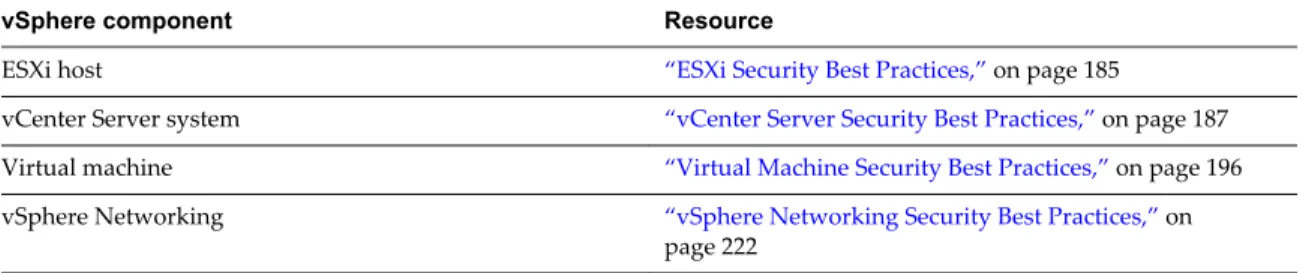
Table 1‑1. Security Best Practices
vSphere component Resource
ESXi host “ESXi Security Best Practices,” on page 185
vCenter Server system “vCenter Server Security Best Practices,” on page 187 Virtual machine “Virtual Machine Security Best Practices,” on page 196 vSphere Networking “vSphere Networking Security Best Practices,” on
page 222
This manual is only one of the sources you need to ensure a secure environment.
VMware security resources, including security alerts and downloads, are available on the Web.
Table 1‑2. VMware Security Resources on the Web
Topic Resource
VMware security policy, up-to-date security alerts, security downloads, and focus discussions of security topics.
http://www.vmware.com/go/security
Corporate security response policy http://www.vmware.com/support/policies/security_response.html
VMware is committed to helping you maintain a secure environment. Security issues are corrected in a timely manner. The VMware Security Response Policy states our commitment to resolve possible
vulnerabilities in our products.
Table 1‑2. VMware Security Resources on the Web (Continued)
Topic Resource
Third-party software support policy http://www.vmware.com/support/policies/
VMware supports a variety of storage systems, software agents such as backup agents, system management agents, and so forth. You can find lists of agents, tools, and other software that supports ESXi by searching http://www.vmware.com/vmtn/resources/ for ESXi compatibility guides.
The industry offers more products and configurations than VMware can test. If VMware does not list a product or configuration in a compatibility guide, Technical Support will attempt to help you with any problems, but cannot guarantee that the product or configuration can be used. Always evaluate security risks for unsupported products or configurations carefully.
Compliance and security standards, as well as partner solutions and in-depth content about virtualization and compliance
http://www.vmware.com/go/compliance
Information on security certifications and validations such as CCEVS and FIPS for different versions of the components of vSphere.
https://www.vmware.com/support/support-resources/certifications.html
Hardening guides for different versions of
vSphere and other VMware products. https://www.vmware.com/support/support-resources/hardening-guides.html
Security of the VMware vSphere Hypervisor white
vSphere Authentication with vCenter
Single Sign-On
2
vCenter Single Sign-On is an authentication broker and security token exchange infrastructure. When a user or a solution user can authenticate to vCenter Single Sign-On, that user receives SAML token. Going
forward, the user can use the SAML token to authenticate to vCenter services. The user can then perform the actions that user has privileges for.
Because traffic is encrypted for all communications, and because only authenticated users can perform the actions that they have privileges for, your environment is secure.
Starting with vSphere 6.0, vCenter Single Sign-On is part of the Platform Services Controller. The Platform Services Controller contains the shared services that support vCenter Server and vCenter Server components. These services include vCenter Single Sign-On, VMware Certificate Authority, License Service, and Lookup Service. See vSphere Installation and Setup for details on the Platform Services Controller. For the initial handshake, users authenticate with a user name and password, and solution users authenticate with a certificate. For information on replacing solution user certificates, see Chapter 3, “vSphere Security Certificates,” on page 51.
After a user can authenticate with vCenter Single Sign-On, you can authorize the user to perform certain tasks. In most cases, you assign vCenter Server privileges, but vSphere includes other permission models. See “Understanding Authorization in vSphere,” on page 114.
This chapter includes the following topics:
n “Understanding vCenter Single Sign-On,” on page 20
n “Configuring vCenter Single Sign-On Identity Sources,” on page 29 n “Managing the Security Token Service (STS),” on page 35
n “Managing vCenter Single Sign-On Policies,” on page 38
n “Managing vCenter Single Sign-On Users and Groups,” on page 40 n “vCenter Single Sign-On Security Best Practices,” on page 46 n “Troubleshooting vCenter Single Sign-On,” on page 46
Understanding vCenter Single Sign-On
To effectively manage vCenter Single Sign-On, you need to understand the underlying architecture and how it affects installation and upgrades.
How vCenter Single Sign-On Protects Your Environment
vCenter Single Sign-On allows vSphere components to communicate with each other through a secure token mechanism instead of requiring users to authenticate separately with each component.
vCenter Single Sign-On uses a combination of STS (Security Token Service), SSL for secure traffic, and authentication of human users through Active Directory or OpenLDAP and of solution users through certificates.
vCenter Single Sign-On Handshake for Human Users
The following illustration shows the handshake for human users.
Figure 2‑1. vCenter Single Sign-On Handshake for Human Users
Kerberos
vSphere Web Client
1 2
3 4
5
6
VMware Directory Service
CA
vCenter Server vCenter Single
Sign-On
1 A user logs in to the vSphere Web Client with a user name and password to access the vCenter Server system or another vCenter service.
The user can also log in without a password and check the Use Windows session authentication checkbox.
2 The vSphere Web Client passes the login information to the vCenter Single Sign-On service, which checks the SAML token of the vSphere Web Client. If the vSphere Web Client has a valid token, vCenter Single Sign-On then checks whether the user is in the configured identity source (for example Active Directory).
n If only the user name is used, vCenter Single Sign-On checks in the default domain.
n If a domain name is included with the user name (DOMAIN\user1 or user1@DOMAIN), vCenter
Single Sign-On checks that domain.
3 If the user can authenticate to the identity source, vCenter Single Sign-On returns a token that represents the user to the vSphere Web Client.
6 ThevCenter Single Sign-On server returns the token to the vCenter Server system, leveraging thevCenter Server Authorization Framework to allow user access.
The user can now authenticate, and can view and modify any objects that the user's role has privileges for.
NOTE Initially, each user is assigned the No Access role. A vCenter Server administrator must assign the
user at least to the Read Only role before the user can log in. See “Add a Permission to an Inventory Object,”
on page 120.
vCenter Single Sign-On Handshake for Solution Users
Solution users are sets of services that are used in the vCenter Server infrastructure, for example, the vCenter Server or vCenter Server extensions. VMware extensions and potentially third-party extensions might also authenticate to vCenter Single Sign-On.
Figure 2‑2. vCenter Single Sign-On Handshake for Solution Users
Kerberos
Solution User
1
2 3
4
VMware Directory Service
CA
vCenter Server vCenter Single
Sign-On
For solution users, the interaction proceeds as follows:
1 The solution user attempts to connect to a vCenter service,
2 The solution user is redirected to vCenter Single Sign-On. If the solution user is new to vCenter Single Sign-On, it has to present a valid certificate.
3 If the certificate is valid, vCenter Single Sign-On assigns a SAML token (bearer token) to the solution user. The token is signed by vCenter Single Sign-On.
4 The solution user is then redirected to vCenter Single Sign-On and can perform tasks based on its permissions.
5 The next time the solution user has to authenticate, it can use the SAML token to log in to vCenter Server.
By default, this handshake is automatic because VMCA provisions solution users with certificates during startup. If company policy requires third-party CA-signed certificates, you can replace the solution user certificates with third-party CA-signed certificates. If those certificates are valid, vCenter Single Sign-On assigns a SAML token to the solution user. See “Use Third-Party Certificates With vSphere,” on page 90.
vCenter Single Sign-On Components
vCenter Single Sign-On includes the Security Token Service (STS), an administration server, and vCenter Lookup Service, as well as the VMware Directory Service (vmdir). The VMware Directory Service is also used for certificate management.
During installation, the components are deployed as part an embedded deployment, or as part of the Platform Services Controller.
STS (Security Token Service)
The STS service issues Security Assertion Markup Language (SAML) tokens. These security tokens represent the identity of a user in one of the identity source types supported byvCenter Single Sign-On. The SAML tokens allow both human users and solution users who authenticate successfully to vCenter Single On to use any vCenter service that vCenter Single Sign-On supports without authenticating again to each service.
The vCenter Single Sign-On service signs all tokens with a signing certificate, and stores the token signing certificate on disk. The certificate for the service itself is also stored on disk.
Administration server The administration server allows users with administrator privileges to
vCenter Single Sign-On to configure the vCenter Single Sign-On server and manage users and groups from the vSphere Web Client. Initially, only the user administrator@your_domain_name has these privileges. In vSphere 5.5 this user was [email protected]. With vSphere 6.0, you can change the vSphere domain when you install vCenter Server or deploy the
vCenter Server Appliance with a new Platform Services Controller. Do not name the domain name with your Microsoft Active Directory or OpenLDAP domain name.
VMware Directory
Service (vmdir) The VMware Directory service (vmdir) is associated with the domain youspecify during installation and is included in each embedded deployment
and on each Platform Services Controller. This service is a multi-tenanted, multi-mastered directory service that makes an LDAP directory available on port 389. The service still uses port 11711 for backward compatibility with vSphere 5.5 and earlier systems.
If your environment includes more than one instance of the
Platform Services Controller, an update of vmdir content in one vmdir instance is propagated to all other instances of vmdir.
Starting with vSphere 6.0, the VMware Directory Service stores not only vCenter Single Sign-On information but also certificate information.
Identity Management Service
Handles identity sources and STS authentication requests.
How vCenter Single Sign-On Affects Installation
Starting with version 5.1, vSphere includes a vCenter Single Sign-On service as part of the vCenter Server management infrastructure. This change affects vCenter Server installation.
Authentication with vCenter Single Sign-On makes vSphere more secure because the vSphere software components communicate with each other by using a secure token exchange mechanism, and all other users
Starting with vSphere 6.0, vCenter Single Sign-On is either included in an embedded deployment, or part of the Platform Services Controller. The Platform Services Controller contains all of the services that are necessary for the communication between vSphere components including vCenter Single Sign-On, VMware Certificate Authority, VMware Lookup Service, and the licensing service.
The order of installation is important.
First installation If your installation is distributed, you must install the
Platform Services Controller before you install vCenter Server or deploy the vCenter Server Appliance. For an embedded deployment the correct installation order happens automatically.
Subsequent installations
For approximately up to eight vCenter Server instances, one
Platform Services Controller can serve your entire vSphere environment. You can connect the new vCenter Server instances to the same
Platform Services Controller. For more than approximately eight vCenter Server instances, you can install an additional
Platform Services Controller for better performance. The vCenter Single Sign-On service on each Platform Services Controller synchronizes
authentication data with all other instances. The precise number depends on how heavily the vCenter Server instances are being used and on other factors.
For detailed information about the deployment models, the advantages and disadvantages of each deployment type, see vSphere Installation and Setup.
How vCenter Single Sign-On Affects Upgrades
If you upgrade a Simple Install environment to a vCenter Server 6 embedded deployment, upgrade is seamless. If you upgrade a custom installation, the vCenter Single Sign-On service is part of the
Platform Services Controller after the upgrade. Which users can log in to vCenter Server after an upgrade depends on the version that you are upgrading from and the deployment configuration.
As part of the upgrade, you can define a different vCenter Single Sign-On domain name to be used instead of vsphere.local.
Upgrade Paths
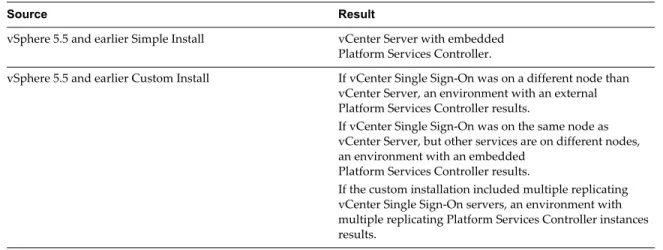
The result of the upgrade depends on what installation options you had selected, and what deployment model you are upgrading to.
Table 2‑1. Upgrade Paths
Source Result
vSphere 5.5 and earlier Simple Install vCenter Server with embedded Platform Services Controller.
vSphere 5.5 and earlier Custom Install If vCenter Single Sign-On was on a different node than vCenter Server, an environment with an external Platform Services Controller results.
If vCenter Single Sign-On was on the same node as vCenter Server, but other services are on different nodes, an environment with an embedded
Platform Services Controller results.
If the custom installation included multiple replicating vCenter Single Sign-On servers, an environment with multiple replicating Platform Services Controller instances results.
Who Can Log In After Upgrade of a Simple Install
If you upgrade an environment that you provisioned using the Simple Install option, the result is always an installation with an embedded Platform Services Controller. Which users are authorized to log in depends on whether the source environment includes vCenter Single Sign-On.
Table 2‑2. Login Privileges After Upgrade of Simple Install Environment
Source version Login access for Notes
vSphere 5.0 Local operating system users [email protected]
You might be prompted for the administrator of the root folder in the vSphere inventory hierarchy during installation because of changes in user stores. If your previous installation supported Active Directory users, you can add the Active Directory domain as an identity source.
vSphere 5.1 Local operating system users [email protected] Admin@SystemDomain
Starting with vSphere 5.5, vCenter Single Sign-On supports only one default identity source. You can set the default identity source.
See “Set the Default Domain for vCenter Single Sign-On,” on page 30.
Users in a non-default domain can specify the domain when they log in (DOMAIN\user or user@DOMAIN).
vSphere 5.5 [email protected] or the administrator of the domain that you specified during upgrade. All users from all identity sources can log in as before.
If you upgrade from vSphere 5.0, which does not include vCenter Single Sign-On, to a version that includes vCenter Single Sign-On, local operating system users become far less important than the users in a directory service such as Active Directory. As a result, it is not always possible, or even desirable, to keep local operating system users as authenticated users.
Who Can Log In After Upgrade of a Custom Installation
If you upgrade an environment that you provisioned using the Custom Install option, the result depends on your initial choices:
n If vCenter Single Sign-On was on the same node as the vCenter Server system, the result is an
installation with an embedded Platform Services Controller.
n If vCenter Single Sign-On was on a different node than the vCenter Server system, the result is an
installation with an external Platform Services Controller.
n If you upgrade from vSphere 5.0, you can select an external or embedded Platform Services Controller
as part of the upgrade process.
Table 2‑3. Login Privileges After Upgrade of Custom Install Environment
Source version Login access for Notes
vSphere 5.0 vCenter Single Sign-On recognizes local operating system users for the machine where the Platform Services Controller is installed, but not for the machine where vCenter Server is installed.
NOTE Using local operating users for
administration is not recommended, especially in federated environments.
[email protected] can log in to vCenter Single Sign-On and each vCenter Server instance as an administrator user.
If your 5.0 installation supported Active Directory users, those users no longer have access after the upgrade. You can add the Active Directory domain as an identity source.
vSphere 5.1 or vSphere 5.5 vCenter Single Sign-On recognizes local operating system users for the machine where the Platform Services Controller is installed, but not for the machine where vCenter Server is installed.
NOTE Using local operating users for
administration is not recommended, especially in federated environments.
[email protected] log in to vCenter Single Sign-On and each vCenter Server instance as an administrator user.
For upgrades from vSphere 5.1
Admin@SystemDomain has the same privileges as [email protected].
Starting with vSphere 5.5, vCenter Single Sign-On supports only one default identity source. You can set the default identity source.
See “Set the Default Domain for vCenter Single Sign-On,” on page 30.
Users in a non-default domain can specify the domain when they log in (DOMAIN\user or user@DOMAIN).
Using vCenter Single Sign-On with vSphere
When a user logs in to a vSphere component or when a vCenter Server solution user accesses another vCenter Server service, vCenter Single Sign-On performs authentication. Users must be authenticated with vCenter Single Sign-On and have the necessary privileges for interacting with vSphere objects.
vCenter Single Sign-On authenticates both solution users and other users.
n Solution users represent a set of services in your vSphere environment. During installation, VMCA
assigns a certificate to each solution user by default. The solution user uses that certificate to
authenticate to vCenter Single Sign-On. vCenter Single Sign-On gives the solution user a SAML token, and the solution user can then interact with other services in the environment.
n When other users log in to the environment, for example, from the vSphere Web Client, vCenter Single
Sign-On prompts for a user name and password. If vCenter Single Sign-On finds a user with those credentials in the corresponding identity source, it assigns the user a SAML token. The user can now access other services in the environment without being prompted to authenticate again.
Which objects the user can view, and what a user can do, is usually determined by vCenter Server permission settings. vCenter Server administrators assign those permissions from the Manage >
Permissions interface in the vSphere Web Client, not through vCenter Single Sign-On. See Chapter 4, “vSphere Permissions and User Management Tasks,” on page 113.
vCenter Single Sign-On and vCenter Server Users
Using the vSphere Web Client, users authenticate to vCenter Single Sign-On by entering their credentials on the vSphere Web Client login page. After connecting to vCenter Server, authenticated users can view all vCenter Server instances or other vSphere objects for which their role gives them privileges. No further authentication is required. See Chapter 4, “vSphere Permissions and User Management Tasks,” on page 113.
After installation, the [email protected] user has administrator access to both vCenter Single Sign-On and vCenter Server. That user can then add identity sources, set the default identity source, and manage users and groups in the vCenter Single Sign-On domain (vsphere.local).
All users that can authenticate to vCenter Single Sign-On can reset their password, even if the password has expired, as long as they know the password. See “Change Your vCenter Single Sign-On Password,” on page 45. Only vCenter Single Sign-On administrators can reset the password for users who no longer have their password.
vCenter Single Sign-On Administrator Users
The vCenter Single Sign-On administrative interface is accessible from the vSphere Web Client. To configure vCenter Single Sign-On and manage vCenter Single Sign-On users and groups, the user [email protected] or a user in the vCenter Single Sign-On Administrators group must log in to the vSphere Web Client. Upon authentication, that user can access the vCenter Single Sign-On
administration interface from the vSphere Web Client and manage identity sources and default domains, specify password policies, and perform other administrative tasks. See “Configuring vCenter Single Sign-On Identity Sources,” on page 29.
NOTE You cannot rename the [email protected] user. For improved security, consider creating
additional named users in the vsphere.local domain and assigning them administrative privileges. You can then stop using [email protected].
Authentication in Different Versions of vSphere
If a user connects to a vCenter Server system version 5.0.x or earlier, vCenter Server authenticates the user by validating the user against an Active Directory domain or against the list of local operating system users. In vCenter Server 5.1 and later, users authenticate through vCenter Single Sign-On.
NOTE You cannot use the vSphere Web Client to manage vCenter Server version 5.0 or earlier. Upgrade
vCenter Server to version 5.1 or later.
ESXi Users
ESXi is not integrated with vCenter Single Sign-On. You add the ESXi host to an Active Directory domain explicitly. See “Configure a Host to Use Active Directory,” on page 167.
You can still create local ESXi users with the vSphere Client, vCLI, or PowerCLI. vCenter Server is not aware of users that are local to ESXi and ESXi is not aware of vCenter Server users.
NOTE Manage permissions for ESXi hosts through vCenter Server if possible.
How to Log In to vCenter Server Components
When a user logs in to a vCenter Server system from the vSphere Web Client, the login behavior depends on whether the user is in the default domain, that is, the domain that is set as the default identity source.
n Users who are in the default domain can log in with their user name and password.
n Users who are in a domain that has been added to vCenter Single Sign-On as an identity source but is
not the default domain can log in to vCenter Server but must specify the domain in one of the following ways.
n Users who are in a domain that is not a vCenter Single Sign-On identity source cannot log in to
vCenter Server. If the domain that you add to vCenter Single Sign-On is part of a domain hierarchy, Active Directory determines whether users of other domains in the hierarchy are authenticated or not.
NOTE If your environment includes an Active Directory hierarchy, see VMware Knowledge Base article 206250 for details on supported and unsupported setups.
Groups in the vsphere.local Domain
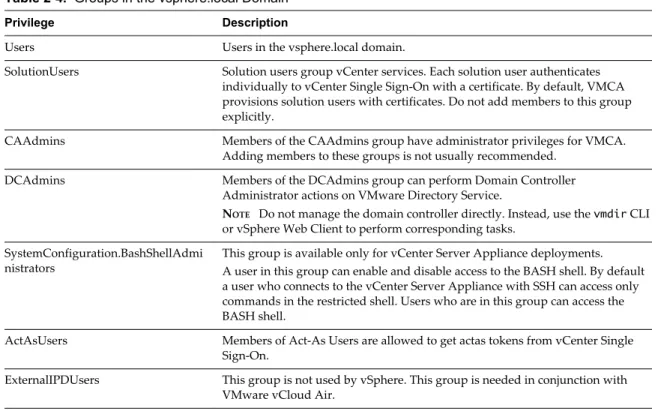
The vsphere.local domain includes several predefined groups. Assign users to one of those groups to be able to perform the corresponding actions.
For all objects in the vCenter Server hierarchy, permissions are assigned by pairing a user and a role with the object. For example, you can select a resource pool and give a group of users read privileges to that resource pool by giving them the corresponding role.
For some services that are not managed by vCenter Server directly, privileges are determined by membership to one of the vCenter Single Sign-On groups. For example, a user who is a member of the Administrator group can manage vCenter Single Sign-On. A user who is a member of the CAAdmins group can manage the VMware Certificate Authority, and a user who is in the LicenseService.Administrators group can manage licenses.
The following groups are predefined in vsphere.local.
NOTE Many of these groups are internal to vsphere.local or give users high-level administrative privileges.
Add users to any of these groups only after careful consideration of the risks.
NOTE Do not delete any of the predefined groups in the vsphere.local domain. If you do, errors with
authentication or certificate provisioning might result.
Table 2‑4. Groups in the vsphere.local Domain
Privilege Description
Users Users in the vsphere.local domain.
SolutionUsers Solution users group vCenter services. Each solution user authenticates individually to vCenter Single Sign-On with a certificate. By default, VMCA provisions solution users with certificates. Do not add members to this group explicitly.
CAAdmins Members of the CAAdmins group have administrator privileges for VMCA. Adding members to these groups is not usually recommended.
DCAdmins Members of the DCAdmins group can perform Domain Controller Administrator actions on VMware Directory Service.
NOTE Do not manage the domain controller directly. Instead, use the vmdir CLI or vSphere Web Client to perform corresponding tasks.
SystemConfiguration.BashShellAdmi
nistrators This group is available only for vCenter Server Appliance deployments.A user in this group can enable and disable access to the BASH shell. By default a user who connects to the vCenter Server Appliance with SSH can access only commands in the restricted shell. Users who are in this group can access the BASH shell.
ActAsUsers Members of Act-As Users are allowed to get actas tokens from vCenter Single Sign-On.
ExternalIPDUsers This group is not used by vSphere. This group is needed in conjunction with VMware vCloud Air.
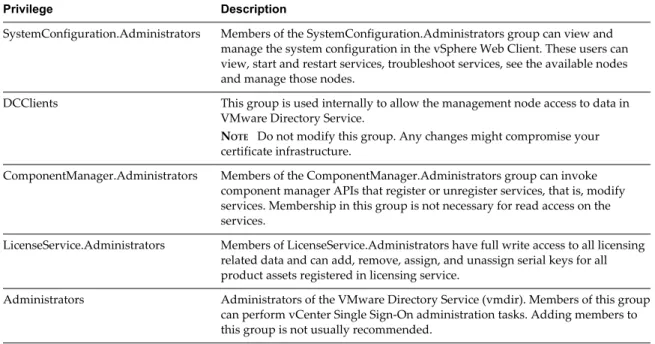
Table 2‑4. Groups in the vsphere.local Domain (Continued)
Privilege Description
SystemConfiguration.Administrators Members of the SystemConfiguration.Administrators group can view and manage the system configuration in the vSphere Web Client. These users can view, start and restart services, troubleshoot services, see the available nodes and manage those nodes.
DCClients This group is used internally to allow the management node access to data in VMware Directory Service.
NOTE Do not modify this group. Any changes might compromise your
certificate infrastructure.
ComponentManager.Administrators Members of the ComponentManager.Administrators group can invoke component manager APIs that register or unregister services, that is, modify services. Membership in this group is not necessary for read access on the services.
LicenseService.Administrators Members of LicenseService.Administrators have full write access to all licensing related data and can add, remove, assign, and unassign serial keys for all product assets registered in licensing service.
Administrators Administrators of the VMware Directory Service (vmdir). Members of this group can perform vCenter Single Sign-On administration tasks. Adding members to this group is not usually recommended.
vCenter Server Password Requirements and Lockout Behavior
To manage your environment, you must be aware of the vCenter Single Sign-On password policy, of vCenter Server passwords, and of lockout behavior.
vCenter Single Sign-On Administrator Password
The password for [email protected] must meet the following requirements:
n At least 8 characters
n At least one lowercase character n At least one numeric character n At least one special character
The password for [email protected] cannot be more than 20 characters long. Only visible ASCII characters are allowed. That means, for example, that you cannot use the space character.
vCenter Server Passwords
In vCenter Server, password requirements are dictated by vCenter Single Sign-On or by the configured identity source, which can be Active Directory, OpenLDAP, or the local operating system for the vCenter Single Sign-On server (not recommended).
Lockout Behavior
By default, any user, including users with Administrator privileges, are locked out after a preset number of consecutive failed attempts. By default, users are locked out after five consecutive failed attempt in three minutes. A locked account is unlocked automatically after five minutes. You can change these defaults using the lockout policy. See “Edit the vCenter Single Sign-On Lockout Policy,” on page 39.
Configuring vCenter Single Sign-On Identity Sources
When a user logs in, vCenter Single Sign-On checks in the default identity source whether that user can authenticate. You can add identity sources, remove identity sources, and change the default.
You configure vCenter Single Sign-On from the vSphere Web Client. To configure vCenter Single Sign-On, you must have vCenter Single Sign-On administrator privileges. Having vCenter Single Sign-On
administrator privileges is different from having the Administrator role on vCenter Server or ESXi. By default, only the user [email protected] has administrator privileges on the vCenter Single Sign-On server in a new installation.
n Identity Sources for vCenter Server with vCenter Single Sign-On on page 29
You can use identity sources to attach one or more domains to vCenter Single Sign-On. A domain is a repository for users and groups that the vCenter Single Sign-On server can use for user authentication.
n Set the Default Domain for vCenter Single Sign-On on page 30
Each vCenter Single Sign-On identity source is associated with a domain. vCenter Single Sign-On uses the default domain to authenticate a user who logs in without a domain name. Users who belong to a domain that is not the default domain must include the domain name when they log in.
n Add a vCenter Single Sign-On Identity Source on page 31
Users can log in to vCenter Server only if they are in a domain that has been added as a vCenter Single Sign-On identity source. vCenter Single Sign-On administrator users can add identity sources from the vSphere Web Client.
n Edit a vCenter Single Sign-On Identity Source on page 34
vSphere users are defined in an identity source. You can edit the details of an identity source that is associated with vCenter Single Sign-On.
n Remove a vCenter Single Sign-On Identity Source on page 35
vSphere users are defined in an identity source. You can remove an identity source from the list of registered identity sources.
n Use vCenter Single Sign-On with Windows Session Authentication on page 35
You can use vCenter Single Sign-On with Windows Session Authentication (SSPI). To make the checkbox on the login page available, the Client Integration Plug-in must be installed.
Identity Sources for vCenter Server with vCenter Single Sign-On
You can use identity sources to attach one or more domains to vCenter Single Sign-On. A domain is a repository for users and groups that the vCenter Single Sign-On server can use for user authentication. An identity source is a collection of user and group data. The user and group data is stored in Active Directory, OpenLDAP, or locally to the operating system of the machine where vCenter Single Sign-On is installed.
After installation, every instance of vCenter Single Sign-On has the identity source your_domain_name, for example vsphere.local. This identity source is internal to vCenter Single Sign-On. A vCenter Single Sign-On administrator can add identity sources, set the default identity source, and create users and groups in the vsphere.local identity source.
Types of Identity Sources
vCenter Server versions earlier than version 5.1 supported Active Directory and local operating system users as user repositories. As a result, local operating system users could always authenticate to the vCenter Server system. vCenter Server version 5.1 and version 5.5 uses vCenter Single Sign-On for authentication. See the vSphere 5.1 documentation for a list of supported identity sources with vCenter Single Sign-On 5.1. vCenter Single Sign-On 5.5 supports the following types of user repositories as identity sources, but supports only one default identity source.
n Active Directory versions 2003 and later. Shown as Active Directory (Integrated Windows
Authentication) in the vSphere Web Client. vCenter Single Sign-On allows you to specify a single
Active Directory domain as an identity source. The domain can have child domains or be a forest root domain. VMware KB article 2064250 discusses Microsoft Active Directory Trusts supported with vCenter Single Sign-On.
n Active Directory over LDAP. vCenter Single Sign-On supports multiple Active Directory over LDAP
identity sources. This identity source type is included for compatibility with the vCenter Single Sign-On service included with vSphere 5.1. Shown as Active Directory as an LDAP Server in the vSphere Web Client.
n OpenLDAP versions 2.4 and later. vCenter Single Sign-On supports multiple OpenLDAP identity
sources. Shown as OpenLDAP in the vSphere Web Client.
n Local operating system users. Local operating system users are local to the operating system where the
vCenter Single Sign-On server is running. The local operating system identity source exists only in basic vCenter Single Sign-On server deployments and is not available in deployments with multiple vCenter Single Sign-On instances. Only one local operating system identity source is allowed. Shown as localos in the vSphere Web Client.
NOTE Do not use local operating system users if the Platform Services Controller is on a different
machine than the vCenter Server system. Using local operating system users might make sense in an embedded deployment but is not recommended.
n vCenter Single Sign-On system users. Exactly one system identity source named vsphere.local is created
when you install vCenter Single Sign-On. Shown as vsphere.local in the vSphere Web Client.
NOTE At any time, only one default domain exists. If a user from a non-default domain logs in, that user
must add the domain name (DOMAIN\user) to authenticate successfully.
vCenter Single Sign-On identity sources are managed by vCenter Single Sign-On administrator users. You can add identity sources to a vCenter Single Sign-On server instance. Remote identity sources are limited to Active Directory and OpenLDAP server implementations.
Set the Default Domain for vCenter Single Sign-On
Each vCenter Single Sign-On identity source is associated with a domain. vCenter Single Sign-On uses the default domain to authenticate a user who logs in without a domain name. Users who belong to a domain that is not the default domain must include the domain name when they log in.
When a user logs in to a vCenter Server system from the vSphere Web Client, the login behavior depends on whether the user is in the default domain, that is, the domain that is set as the default identity source.
n Users who are in the default domain can log in with their user name and password.
n Including the domain, for example, [email protected]
n Users who are in a domain that is not a vCenter Single Sign-On identity source cannot log in to
vCenter Server. If the domain that you add to vCenter Single Sign-On is part of a domain hierarchy, Active Directory determines whether users of other domains in the hierarchy are authenticated or not.
Procedure
1 Log in to the vSphere Web Client as [email protected] or as another user with vCenter Single Sign-On administrator privileges.
Users with vCenter Single Sign-On administrator privileges are in the Administrators group in the vsphere.local domain.
2 Browse to Administration > Single Sign-On > Configuration.
3 On the Identity Sources tab, select an identity source and click the Set as Default Domain icon. In the domain display, the default domain shows (default) in the Domain column.
Add a vCenter Single Sign-On Identity Source
Users can log in to vCenter Server only if they are in a domain that has been added as a vCenter Single Sign-On identity source. vCenter Single Sign-Sign-On administrator users can add identity sources from the
vSphere Web Client.
An identity source can be a native Active Directory (Integrated Windows Authentication) domain or an OpenLDAP directory service. For backward compatibility, Active Directory as an LDAP Server is also available. See “Identity Sources for vCenter Server with vCenter Single Sign-On,” on page 29
Immediately after installation, the following default identity sources and users are available:
localos All local operating system users. If you are upgrading, those users who can
already authenticate continue to be able to authenticate. Using the localos identity source does not make sense in environments that use a
Platform Services Controller.
vsphere.local Contains the vCenter Single Sign-On internal users. Procedure
1 Log in to the vSphere Web Client as [email protected] or as another user with vCenter Single Sign-On administrator privileges.
Users with vCenter Single Sign-On administrator privileges are in the Administrators group in the vsphere.local domain.
2 Browse to Administration > Single Sign-On > Configuration. 3 On the Identity Sources tab, click the Add Identity Source icon. 4 Select the type of identity source and enter the identity source settings.
Option Description
Active Directory (Integrated Windows Authentication)
Use this option for native Active Directory implementations. The machine on which the vCenter Single Sign-Onservice is running must be in an Active Directory domain if you want to use this option.
See “Active Directory Identity Source Settings,” on page 32.
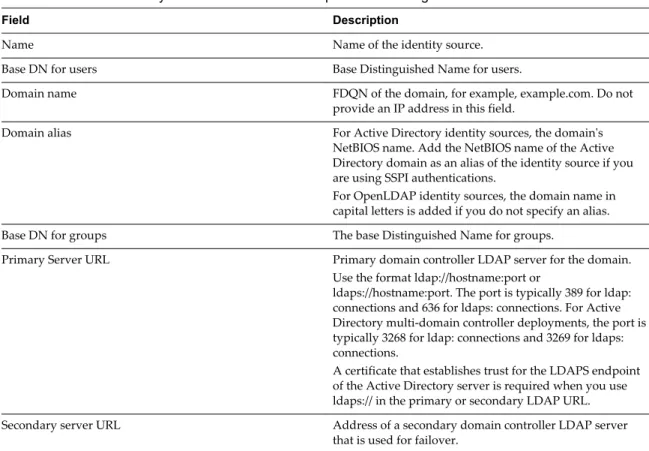
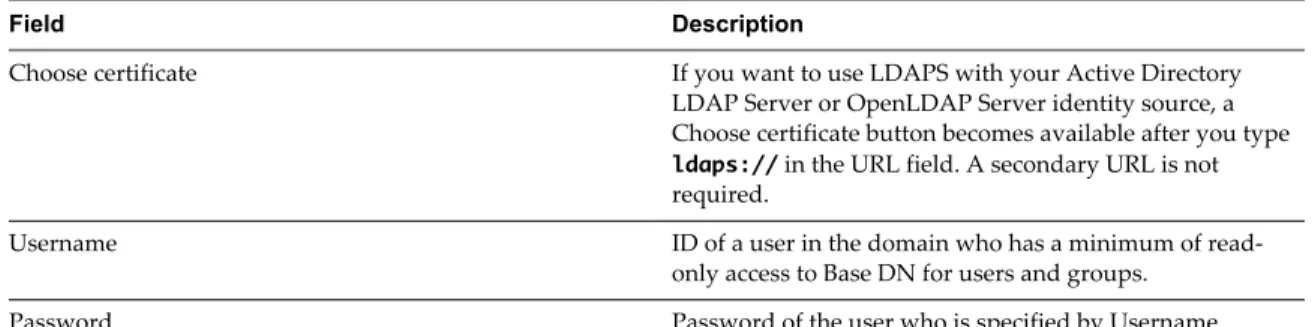
Active Directory as an LDAP Server This option is available for backward compatibility. It requires that you specify the domain controller and other information. See “Active Directory LDAP Server and OpenLDAP Server Identity Source Settings,” on page 33.
Option Description
OpenLDAP Use this option for an OpenLDAP identity source. See “Active Directory LDAP Server and OpenLDAP Server Identity Source Settings,” on page 33.
LocalOS Use this option to add the local operating system as an identity source. You are prompted only for the name of the local operating system. If you select this option, all users on the specified machine are visible to vCenter Single Sign-On, even if those users are not part of another domain.
NOTE If the user account is locked or disabled, authentications and group and user searches in the
Active Directory domain will fail. The user account must have read-only access over the User and Group OU, and must be able to read user and group attributes. This is the default Active Directory domain configuration for authentication permissions. VMware recommends using a special service user.
5 If you configured an Active Directory as an LDAP Server or an OpenLDAP identity source, click Test
Connection to ensure that you can connect to the identity source.
6 Click OK.
What to do next
When an identity source is added, all users can be authenticated but have the No access role. A user with vCenter Server Modify.permissions privileges can assign give users or groups of users privileges that enable them to log in to vCenter Server and view and manage objects. See “Add a Permission to an Inventory Object,” on page 120.
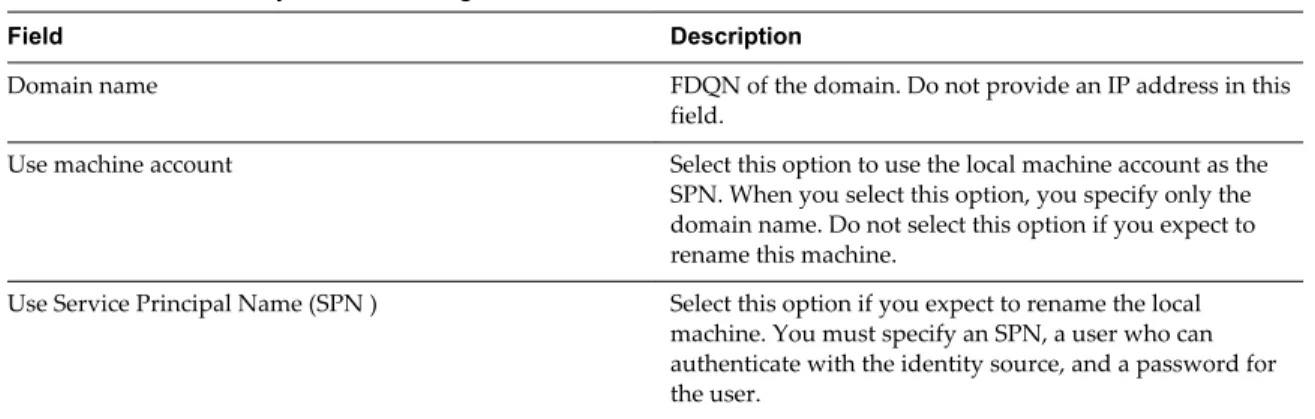
Active Directory Identity Source Settings
If you select the Active Directory (Integrated Windows Authentication) identity source type, you can either use the local machine account as your SPN (Service Principal Name) or specify an SPN explicitly. You can use this option only if the vCenter Single Sign-On server is joined to an Active Directory domain.
NOTE Active Directory (Integrated Windows Authentication) always uses the root of the Active Directory
domain forest. To configure your Integrated Windows Authentication identity source with a child domain within your Active Directory forest, see VMware Knowledge Base article 2070433.
Select Use machine account to speed up configuration. If you expect to rename the local machine on which vCenter Single Sign-On runs, specifying an SPN explicitly is preferable.
NOTE In vSphere 5.5, vCenter Single Sign-On uses the machine account even if you specify the SPN. See
VMware Knowledge Base article 2087978.
Table 2‑5. Add Identity Source Settings
Field Description
Domain name FDQN of the domain. Do not provide an IP address in this field.
Use machine account Select this option to use the local machine account as the SPN. When you select this option, you specify only the domain name. Do not select this option if you expect to rename this machine.