RingCentral for Outlook
RingCentral for Outlook | Installation &User Guide | Contents | 2
Contents
Introduction
. . . 4
About RingCentral for Outlook . . . 5
About this Guide . . . 5
Basics . . . 5
Installation . . . 7
Verify
Installation . . . 8
Login . . . 9
Collapse and Retract Button . . . 10
Options . . . 11
Dialer . . . 12
Click-to-Dial . . . 13
Outgoing Call . . . 14
Incoming Call . . . 15
Browser Call Control . . . 16
New SMS . . . 17
Messages . . . 18
New Message Indicator . . . 19
Message Details . . . 20
RingCentral for Outlook | Installation &User Guide | Contents | 3
Contents—continued
Fax Messages
. . . 22
Text Messages . . . 23
Message Conversation . . . 24
Contacts . . . 25
Contacts Search . . . 26
Contact Details . . . 27
Call Log . . . 28
Call Details . . . 29
RingCentral Conference . . . 30
RingCentral Conference—Outlook Calendar Invitation . . . 31
RingCentral Meetings . . . 32
RingCentral Meetings—Outlook Calendar Invitation . . . 33
RingCentral for Outlook | Installation &User Guide | Introduction | 4
RingCentral for Outlook | Installation &User Guide | Introduction | 5
About RingCentral for Outlook
RingCentral® for Outlook® provides seamless integration between your
Microsoft Outlook and your RingCentral services. It offers these features:
• Make or receive calls through the RingCentral phone system directly from your Outlook.
• Find your Outlook and RingCentral contacts combined together on an easy-to-search screen.
• Enable click-to-dial on any phone number in your Outlook, allowing you to spend more time servicing clients and less time dialing.
• Send or receive text messages and see them as conversations. • Listen to your voicemails directly from your Outlook.
• View calls you’ve made, received, or missed.
• Schedule a RingCentral Conference and RingCentral Meetings without leaving Outlook.
About this Guide
This guide is designed for users of RingCentral for Outlook. It shows how to install the application to your Windows computer and how to use the application. This guide also provides some basic troubleshooting tips.
Basics
For optimal user experience, ensure that:
You have set the correct number as your RingCentral Direct Number — you will be making and receiving calls from this number through Outlook. You can find RingCentral Direct Number in the RingCentral Portal at My Settings > Phones and Numbers > Direct Numbers. You are using Microsoft Outlook 2010 or later.
RingCentral for Outlook | Installation &User Guide | Installation | 6
RingCentral for Outlook | Installation &User Guide | Installation | 7
Figure 1
Installation
Make sure you have ability to install new software on your Windows computer, as sometimes administrator privileges are required to install software. Download the latest version of RingCentral for Outlook. Make sure you close all of your Outlook windows if they are open before you run the
RingCentral for Outlook | Installation &User Guide | Verify Installation | 8
Figure 2
Verify Installation
RingCentral for Outlook | Installation &User Guide | Login | 9
Figure 3
Login
To log in to RingCentral for Outlook, use your RingCentral Direct Number for the phone number and your RingCentral password. RingCentral for Outlook is available for all RingCentral customers.
You can select Remember me to stay logged in to RingCentral for Outlook for one week. (See Figure 3.)
RingCentral for Outlook | Installation &User Guide | Collapse and Retract Button | 10
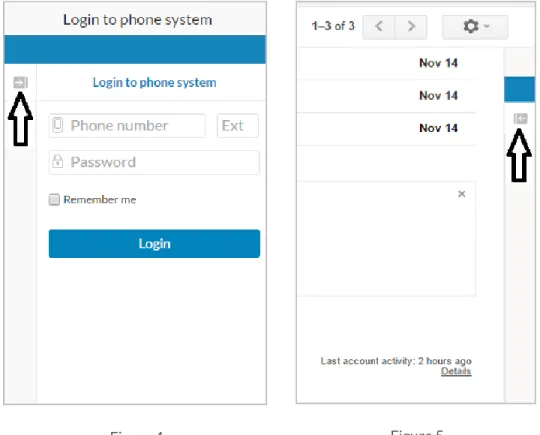
Figure 5 Figure 4
Collapse and Retract Button
When RingCentral for Outlook is not in use, you can collapse it for more reading area in your Outlook.
(
See Figures 4 and 5.)RingCentral for Outlook | Installation &User Guide | Options | 11
Figure 6
Options
You can also get to these options any time by clicking on the gear icon in the top navigation bar. On the Settings screen you can:
Dial from extension—allows you to make an outbound call using your RingCentral company phone number and extension when you do not have a direct phone number.
Click to dial—enables click-to-dial for Outlook so that you can select a phone number from an email and right-click to initiate a call.
RingCentral for Outlook | Installation &User Guide | Dialer | 12
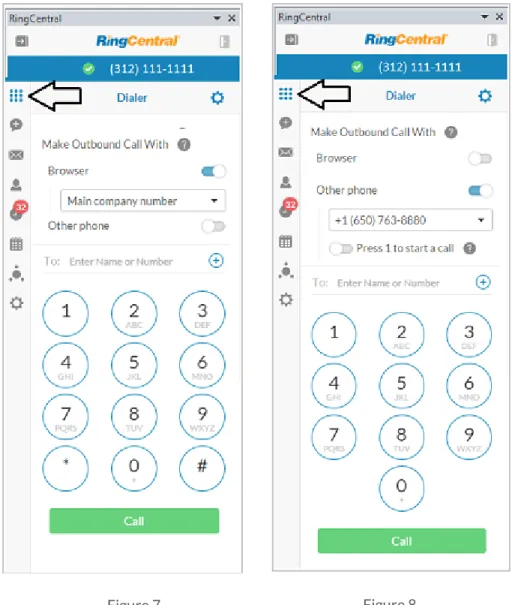
Figure 8 Figure 7
Dialer
You can bring up the dialer by clicking the dialer icon from the navigation bar. In order to make an outbound call you can either use the number buttons on the dial pad or type a number directly in the text box.
Make Outbound Call With
You can make an outbound call with either your browser or your RingCentral phone.
Browser—you can use your computer to make and receive calls. When you use this option make sure you have a working microphone and speaker. You can also select a caller ID that will be displayed to your call recipient. Please note your inbound call will also ring your computer when selecting this option.
Other phone—you can use your RingCentral phone such as your desk phone or RingCentral softphone on your computer. (See Figures 7 and 8.)
RingCentral for Outlook | Installation &User Guide | Click-to-Dial | 13
Figure 9
Click-to-Dial
You can also use the click-to-dial feature to make an outbound call. Once you are logged in successfully to RingCentral for Outlook, all phone numbers in your email can be selected to bring up a context menu with the “Call with RingCentral” option that, when clicked, will dial that number. (See Figure 9.)
RingCentral for Outlook | Installation &User Guide | Outgoing Call | 14
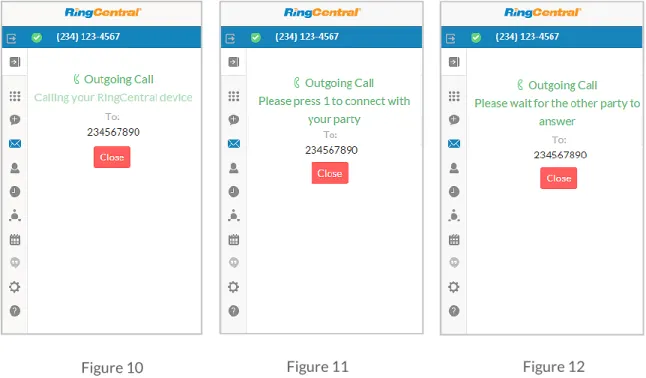
Figure 10 Figure 11 Figure 12
Outgoing Call
Once you click on a phone number as described in
Click to Dial above, or use the dial pad to make an outgoing call, RingCentral for Outlook shows the status of your call and your selected RingCentral device will ring. (See Figure 10.)
If you choose to use a RingCentral device rather than browser after you accept the call on your RingCentral device, you may be prompted to press 1 if you had selected the check box on your setting screen. After you accept the call (by pressing 1 or simply by picking up the phone depending on your settings), the destination phone will ring. (See Figure 11.)
When the call is connected and the destination phone rings, the call status is shown on RingCentral for Outlook. (See Figure 12.)
RingCentral for Outlook | Installation &User Guide | Incoming Call | 15
Figure 13
Figure 14
Incoming Call
When you have an incoming call, RingCentral for Outlook will show you the call indicator. If you are using the browser call option then you can take action in Outlook itself (shown in Figure 13); otherwise you can answer the call on your RingCentral device.
Once the call is connected, the call timer starts.
When you click the Close button you are returned to the screen you were on prior to the call. (See Figure 14.)
RingCentral for Outlook | Installation &User Guide | Browser Call Control | 16
Figure 15
Figure 16
Browser Call Control
When you have selected a browser for call handling and you are on a call, either incoming or outgoing, RingCentral for Outlook presents you with call control options.
Mute—the Mute button allows you to mute your speaker and microphone.
Hangup—the Hangup button allows you to hang up the phone.
Clicking the icon opens up additional call controls (See Figure 15.)
Clicking the icon opens up the dial pad, which allows you to enter digits when on a call—for example, when calling a certain 800 number and getting a voice prompt to “press 1 for customer support”. (See Figure 16.)
Transfer—the Transfer button allows your call to be forwarded to a different phone or extension.
Flip—the Flip button allows your call to be switched to a different RingCentral device.
Record—the Record button allowsyou to record an active call.
Hold — Puts an active call on hold.
RingCentral for Outlook | Installation &User Guide | New SMS | 17
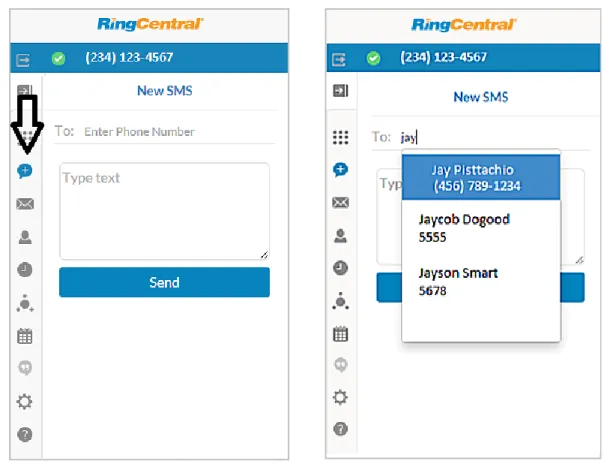
Figure 18 Figure 17
New SMS
The New SMS screen allows you to send a text message to your Outlook contacts, your company colleagues, your personal contacts, or any other phone number. The screen allows you to select more than one contact or phone number in case you want the same message to be sent to multiple recipients. (See Figure 17.)
As you start typing in the “To” field, RingCentral for Outlook will search across your RingCentral Corporate Directory, RingCentral Personal Contacts, and your Outlook Contacts to try to find a match. (See Figure 18.) After the message is sent, you will see the Conversation
screen. See the Message Conversation section for more details.
RingCentral for Outlook | Installation &User Guide | Messages | 18
Figure 19
Messages
Select tabs to view your Voice, Fax and Text messages on the Messages screen. This screen displays all of the messages that you have received for the past week.
RingCentral for Outlook | Installation &User Guide | New Message Indicator | 19
Figure 20
New Message Indicator
When you receive a new message, the RingCentral for Outlook Messages screen displays a new message indicator as a number inside a red field. The number indicates the total number of messages that are new (that is, not heard or read). (See Figure 20.)
s See
RingCentral for Outlook | Installation &User Guide | Message Details | 20
Figure 22 Figure 21
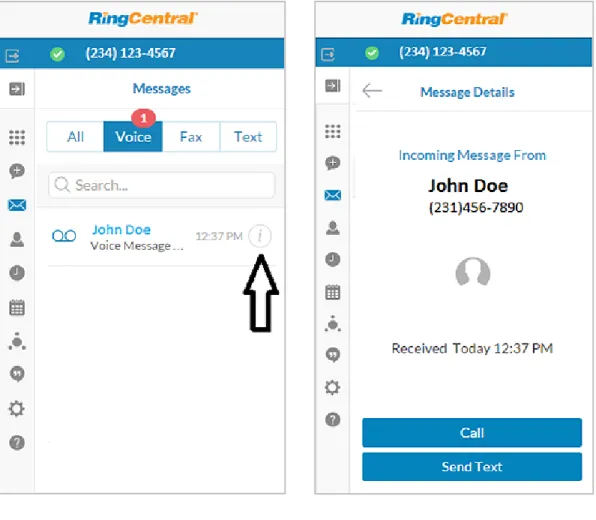
Message Details
The Message Details screen shows:
Direction of the message (Incoming or Outgoing). Contact name (if available).
Phone number.
Message Received or Sent time.
A Call button that allows you to make a call to your message sender or recipient.
A Send Text button allows you to send a text to your message sender or recipient.
A Back button allows you to go back to the message list.
RingCentral for Outlook | Installation &User Guide | Voicemail Messages | 21
Figure 23
Voicemail Messages
In order to listen to your voice messages, click on the name or number that appears on the message. A voicemail audio control will pop up.
The play button will allow you play your voice message through your computer’s audio. A voice message duration is displayed.
You can pause and resume anytime the message is playing.
You can return a call to the person who left you this message by clicking on the phone icon. You can send a text message to the person who left you this message by clicking the balloon
icon.
You can flag this message by clicking on the flag icon. You can delete a message by clicking on the delete icon. (See Figure 23.)
RingCentral for Outlook | Installation &User Guide | Fax Messages | 22
Figure 24
Fax Messages
To view a fax message, click on the name or number that appears on the message. A fax message control will pop up.
When you click on the fax icon on the pop up, the fax will open up in your browser. Clicking Delete will delete the fax message.
RingCentral for Outlook | Installation &User Guide | Text Messages | 23
Figure 25
Text Messages
When you see a list of messages, the list displays the most recent message if the message is part of a conversation.
To view your text message conversation, click on the name or number that appears on the message. (See Figure 25.)
RingCentral for Outlook | Installation &User Guide | Message Conversation | 24
Figure 26
Message Conversation
Once you are on the conversation screen, you will see messages that are part of this conversation. The messages are sorted by the time they arrived or were sent. Newer messages are displayed at the bottom.
You can send a new message as part of this conversation by typing in the text box and by clicking the Send button, or by hitting the Enter key.
RingCentral for Outlook | Installation &User Guide | Contacts | 25
Figure 27
Contacts
You can access your RingCentral Company Directory, RingCentral Personal Contacts, and Outlook Contacts from RingCentral for Outlook.
You can navigate to the Contacts screen by clicking on the person icon in the navigation bar. The screen is initially blank; type in the search box to find your contact. (See Figure 27.)
RingCentral for Outlook | Installation &User Guide | Contacts Search | 26
Figure 28
Contacts Search
As you start typing in the search text box, RingCentral for Outlook will simultaneously search your Outlook, Personal, and Company Directory contacts and display them on your Contacts screen. (See Figure 28.)
RingCentral for Outlook | Installation &User Guide | Contact Details | 27
Figure 29
Contact Details
On the Contacts screen (previous page) you can click on a name or the info icon to view the contact’s details: first name, last name, email, and phone number.
On the Contact Details screen (this page), when you click the down-facing caret next to a phone number, it will reverse and the screen will expand with options to initiate a call or send a text message to your contact.
Clicking the back arrow on the Contact Details screen will return you to the Contacts screen and your search results (shown on the previous page).
RingCentral for Outlook | Installation &User Guide | Call Log | 28
Figure 30
Call Log
The Call Log screen shows a list of all your calls in the last week. Click the clock icon on the navigation bar to bring up the Call Log screen.
The Call Log screen is organized into two tabs. The All tab displays all of your calls, while the
Missed tab displays a list of calls that you missed.
The list displays the caller name, caller location, and time of the call. The list of calls is sorted by time when the call was originated, with the newest calls on top.
The screen allows you to search for a call record. By entering a phone number or caller name in the search box, you can filter the call logs according to the search criteria you entered.
A phone icon with an arrow pointing to the right indicates an incoming call, and an arrow pointing to the left indicates an outgoing call.
RingCentral for Outlook | Installation &User Guide | Call Details | 29
Figure 31
Call Details
The Call Details screen shows detailed call information.
Here you can view the call direction, caller ID, call location, call time, and call duration. You can also initiate a call or send a text to the caller or person you called.
RingCentral for Outlook | Installation &User Guide | RingCentral Conference | 30
Figure 32
RingCentral Conference
You can view your RingCentral Conference information or schedule a new RingCentral Conference on the RingCentral New Conference screen.
The screen displays the dial-in number, your host code, and the participant code that you distribute to people whom you wish to participate in your conference.
When you select International participants, RingCentral for Outlook displays a list of countries along with their respective dial-in numbers.
The list is searchable; you can type in the first few letters of the country name to avoid scrolling through the entire list. You can select the country by selecting the checkbox for that country name.
Clicking Save in Calendar will create an Outlook calendar invitation, as described in the next section. (See Figure 32.)
RingCentral for Outlook | User Guide | RingCentral Conference —Outlook Calendar Invitation | 31
Figure 33
RingCentral Conference—Outlook Calendar Invitation
Once you have created an Outlook Calendar invitation from the RingCentral New Conference screen, you’ll find that the conference information has been prepopulated into your Outlook Calendar invitation. Here you can interact with your Outlook Calendar invitation just as you normally would; enter your event name, invite guests, or edit the description. (See Figure 33.)
RingCentral for Outlook | Installation &User Guide | RingCentral Meetings | 32
Figure 34
RingCentral Meetings
You can schedule a RingCentral Meetings event with your Outlook Calendar. RingCentral Meetings
allows you to host meetings with audio, video, or screen sharing. The calendar icon on the navigation bar brings up the RingCentral New Meeting schedule screen.
The meeting topic is required.
Select Recurring Meeting if you would like that option; otherwise select a single date and time. Select Meeting Type and Meeting Options; then click Create a meeting in Outlook.
RingCentral for Outlook | Installation &User Guide | RingCentral Meetings—Outlook Calendar Invitation | 33
Figure 35
RingCentral Meetings—Outlook Calendar Invitation
Once you have set up your meeting in RingCentral for Outlook, a new Outlook Calendar invitation will be created for you, prepopulated with the information you have specified. You will see the RingCentral Meeting information is also prepopulated in your Outlook Calendar invitation. (See Figure 35.)
RingCentral for Outlook | Installation &User Guide | Troubleshooting | 34
Troubleshooting
Q:I can’t see RingCentral for Outlook when I open Outlook. What is the problem? Does it require some special permission?
A: No, RingCentral for Outlook does not require any special permission. Make sure RingCentral for Outlook is installed correctly and is enabled—you can check this by going to the Outlook menu, and then to Outlook Options > Add-Ins. Also make sure RingCentral OutlookAdd In is checked.
Q: I would like to disable this feature for now.
A: Go to Windows Control Panel and Uninstall RingCentral for Outlook.
Q: Which operating systems are supported?
A: The following operating systems are supported: Windows 7 and above.
©2015 RingCentral, Inc. All rights reserved. RingCentral, RingCentral Office, RingCentral Meetings, and the RingCentral logo are registered trademarks of RingCentral, Inc. Other third-party marks and logos displayed in this document are the trademarks of their respective owners. KID-3051 11/15