Assistive Techniques for Precise Touch Interaction
in Handheld Augmented Reality Environments
Gun A. Lee∗and Mark Billinghurst†
The Human Interface Technology Laboratory New Zealand, University of Canterbury
Abstract
Recent advances in mobile computing and augmented reality (AR) technology have lead to popularization of mobile AR applications. Touch screen interfaces are common in mobile devices, and are also widely used in AR applications running on mobile devices, such as smartphones. However, due to unsteady camera view move-ment in handheld AR environmove-ment, it is hard to carry out precise interactions, such as drawing, especially when tracing physical ob-jects. In this paper, we investigate two types of interaction tech-niques, Freeze-Set-Go and Snap-To-Feature, that help users to per-form more accurate touch screen based AR interactions. The two techniques are compared in a user experiment with a task of tracing physical objects, which can be encountered when making annota-tion on or modeling physical objects within the AR scene. The results from the experiment show that a combination of these two makes a significant difference in accuracy and usability of touch screen based AR interaction.
CR Categories: H.5.2 [Information Interfaces and Presentation]: User Interfaces—Interaction styles; H.5.1 [Information Interfaces and Presentation]: Multimedia Information Systems—Artificial, augmented, and virtual realities;
Keywords: augmented reality, touch screen interface, annotation, freeze, snap
1
Introduction
Mobile computing has developed to the point that todays handheld devices can handle everyday computing tasks almost as powerful as in desktop computing environments. For example, smartphones can run Augmented Reality (AR) applications which overlay vir-tual imagery on the real world [Wagner et al. 2008; Henrysson et al. 2005; Mohring et al. 2004]. Hundreds of AR applications are being widely distributed in the smartphone marketplaces, and the technol-ogy is attracting more attention.
With mobile computing, touch screen interfaces are a popular in-put method [Xin et al. 2008; G¨uven et al. 2006; Lee et al. 2009]. Most commercially available smartphones and mobile devices use touch for input, and touch screens are even replacing traditional keyboards and buttons.
While touch screen interfaces are intuitive and easy to use, they can be less effective for tasks requiring precise interaction [Forlines et al. 2007; Meyer et al. 1994]. One common approach to overcome this problem is by using stylus pens. While users can point with
∗e-mail:[email protected] †e-mail:[email protected]
more accuracy using stylus pens than with their fingers, it is still hard and tiresome to maintain precise interaction on small touch screens with high resolution displays.
With handheld devices, users also often move while they are using the interface, which makes the problem worse. To operate a touch screen interface on a mobile device, users need to hold the device with one hand, and interact with the touch screen using the other hand. This requires accurate coordination between both hands, but in mobile environments, hands can shake frequently, which could easily lead to unexpected errors.
Precise interaction with touch screens is difficult when applied to AR environments. In AR applications, the scene shown on the touch screen, including the object under interaction, changes ac-cording to the movement of the camera viewpoint. This can cause unexpected errors even when the user keeps pointing at the same physical point on the touch screen surface. The scene displayed on the screen continually updates and the object interacted with moves according with changes in the viewpoint.
One way to overcome the problem of imprecise user input is to use another type of physical interface, but touch screens are still useful, especially in mobile AR applications involving free hand drawings. Tracing physical features (e.g., edges and corners) is common in AR applications using annotations [G¨uven et al. 2006; Lee et al. 2009] and sketch-based modeling [Xin et al. 2008]. However, it is difficult to precisely trace physical features from the video image using touch screen interfaces.
Several interaction techniques have been proposed for helping users perform precise interaction with touch screen based handheld AR applications. One is freezing the AR view before performing pre-cise interaction [G¨uven et al. 2006; Lee et al. 2009], and another is snapping user input positions to visual features in the AR scene [Lee et al. 2010]. In the rest of this paper we refer to these as the Freeze-Set-Go and Snap-To-Feature techniques, respectively.
Previous usability studies have shown that each technique is useful for helping users to perform with better accuracy [Lee et al. 2009; Lee and Billinghurst 2011]. However, to our best knowledge, there has been no formal user study with comparing the two techniques combined together. Considering that each technique has its pros and cons, we try to investigate the advantage of combining these techniques together in a way that they complement each other.
While both techniques could be applied to other types of AR in-teractions (e.g., manipulating position and orientation of virtual ob-jects), in this paper, we focus on drawing tasks typical of annotation and sketch-based modeling AR applications.
In the rest of this paper, we first review the Freeze-Set-Go and Snap-To-Feature techniques further, and discuss how the two interaction techniques could complement each other. Then we describe the de-sign and setup of an experiment comparing the usability of the two techniques. We continue with reporting the results from the ex-periment and discuss usability issues found from the exex-perimental results. Finally, we close by giving conclusions and suggestions for future work.
2
Assistive Techniques for Precise Touch
Interaction in Handheld AR
2.1 The Freeze-Set-Go Technique
The Freeze-Set-Go technique provides users the ability to freeze the AR view, and manipulate the scene on the still image [Lee et al. 2009; G¨uven et al. 2006]. With this interaction technique, users first freeze the AR view and then start to manipulate the virtual objects in the AR scene using standard 3D interaction methods. While the image of the real world is fixed, users can still interact with virtual objects in the AR scene. When they have finished manipulating the virtual objects, the user can release the frozen view, and let the scene get updated with the live camera image and tracking data.
The Freeze-Set-Go technique is mainly useful in shaky environ-ments, such as in a moving vehicle or while walking. In this case it is hard to hold the mobile device still, and it is difficult to watch the screen. It is even worse when the content displayed on the screen is an AR view, where the viewpoint and the scene are both updated according to the movement of the camera on the physical device.
When one has to interact with the AR scene, it is more difficult. It is hard to precisely manipulate objects on the screen when the view is shaking. While users can stop moving before they start to interact, it is still challenging to hold their device still with one hand while using their second hand to touch the screen. With Freeze-Set-Go, users can instantly freeze the viewpoint of the AR scene and manipulate objects while they remain still on the screen, and consequently, manipulate objects in the AR scene more precisely.
The Freeze-Set-Go technique can also help users dealing with mov-ing targets. Users have to continuously control their viewpoint so that the moving object can remain in their view. With the Freeze-Set-Go technique, users can take a snapshot of the moving object and manipulate it, without needing to keep tracking the target in view.
As shown in a previous user study [Lee et al. 2009], another merit of the Freeze-Set-Go technique is that users can interact with the scene while holding the handheld device in a comfortable posture. Some virtual objects may be in positions which are hard for users to reach. For example, for managing virtual objects hanging over the users head, the user would need to raise their AR viewing de-vice and keep it facing upward until s/he has finished manipulating the scene. With Freeze-Set-Go, one can capture the ceiling and move the device down to manipulate it in easier position. This is especially helpful when users need to interact with the scene for an extended period.
Although Freeze-Set-Go has the advantages described above, its main shortcoming is that the real world view does not get updated. While the virtual objects are updated continuously within the frozen scene, the real world view with physical objects remains a still pic-ture which is not updated until the user lets the scene go. This may be a problem when the user has to deal with the current up-to-date status of the physical scene.
Another problem is getting lost. As described, users can change their posture to make themselves comfortable when manipulating the frozen AR scene. While this might help users to work in a more comfortable pose, the current orientation of the handheld de-vice does not match the view being shown in the frozen AR view. Therefore, when the users set the frozen scene free, it might take time for them to move the handheld device to the last viewpoint and check out the results of their object manipulation during the frozen period.
2.2 The Snap-To-Feature Technique
While freezing successfully overcomes the problem of the view be-ing shaky while interactbe-ing, it has a drawback in that the real world scene from the camera is not being updated. The Snap-To-Feature technique [Lee et al. 2010; Lee and Billinghurst 2011] which uses snapping for enhancing interaction accuracy in handheld mobile AR environments could be an alternative. Snapping is a well known technique for enhancing accuracies of interactions in direct ma-nipulation graphical user interfaces [Bier and Stone 1986]. With snapping, the interaction point (i.e. pointer) is attracted to specific graphical features (such as grids, or vertices) when the user moves the interaction point close enough to these features.
While traditional snapping interaction techniques snap the interac-tion points to geometrical features of graphical objects [Bier and Stone 1986; Bier 1990; Sutherland 2000], the SnTo-Feature ap-proach snaps the interaction point to features of the real physical scene in the AR view.
Tracing physical features (e.g. edges and corners) is common in AR applications, such as annotation and sketch-based modeling. How-ever, on a handheld device it is difficult to use a touch screen inter-face to precisely trace physical features from the live video image. By applying the snapping technique to such situations, the interface becomes more tolerable to input errors, both from the user and from unsteady camera view movements. So the Snap-To-Feature tech-nique can help users to perform input tasks with more ease while making fewer errors.
The Snap-to-Feature for AR detects features on the image of the real world scene, and snaps the interaction point (i.e. pointer or cursor) to the image features if it is near enough (within a certain maximum snapping distance) to those features. The image of the real world is obtained from a live camera, and the image features are detected through computer vision techniques.
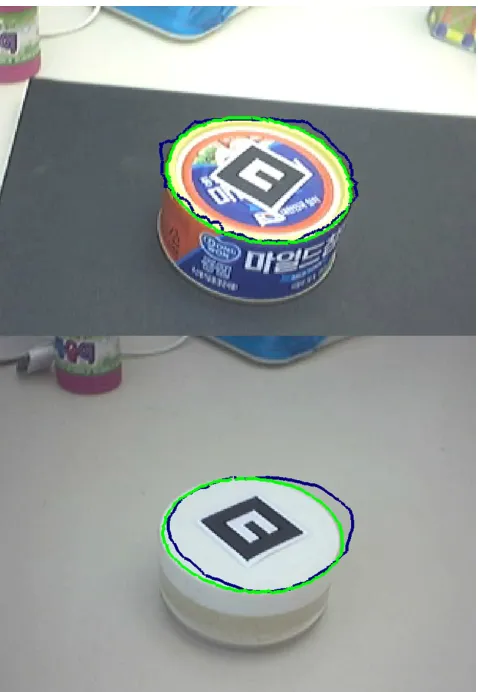
There are a number of image features that can be obtained through using modern computer vision algorithms, such as corner points, edges, centroid and principal axes of image blobs, etc. While each type of feature has its own strengths, edges and corner points are most useful for tracing tasks in annotation and sketch-based mod-eling AR applications. Figure 1 shows some examples of using the Snap-To-Feature technique for tracing physical objects in AR scenes. The blue lines are the original input strokes by the user, while the green lines are the results of using the Snap-To-Feature function. As can be seen the result is a line that more closely fol-lows the object edge.
The Snap-To-Feature technique is not only a real-time version of image snapping [Gleicher 1995] used in image editing applications, but it also introduces specific features to make snapping efficient and effective in AR applications.
Detecting features on the entire image space is reasonable for image-based applications where the input image is static. However, in AR applications with live video, the input image changes contin-uously over time and feature detection should be performed every frame in real-time. Searching the entire image for features to snap to is inefficient. Since snapping does not happen with the features farther away than the maximum snapping distance, only the portion of the image around the interaction point needs to be processed. In this way, the feature detection can be processed more efficiently, and the overall frame rate of the AR application can be kept high, providing better interactivity as a result.
Figure 1: Results of tracing physical objects with (green strokes) and without (blue strokes) the Snap-To-Feature technique.
image features in the AR view move dynamically according to the camera motion. The same point on the image space can be differ-ent in the AR scene as the view position and oridiffer-entation changes. Hence, it is easy to commit more unintentional errors when the viewpoint is moving while interacting on the image space in a hand-held AR environment. In order to prevent losing snapping due to substantial view movement, the maximum snapping distance can be changed adaptively according to the camera motion. The sys-tem increases the maximum snapping distance value as the move-ment between frames gets farther, allowing the snapping algorithm to search a larger area for image feature to snap to.
Other improvements in the Snap-To-Feature technique to make it work better in AR environments include giving different snapping priorities to different types of features, keeping spatial coherence, and implicitly disabling the snapping function for annotation. A detailed explanation of these features is found in [Lee et al. 2010].
While the Snap-To-Feature technique can effectively reduce errors when tracing objects, it suffers from jittering in video frame images, which changes the image features detected over time. Difference in edges and corner points between frames causes jittery tracing re-sults when using the Snap-To-Feature technique on a live AR view. Post processing methods such as curve fitting could help reduce jitters, and the effect might be application dependent. Using the Freeze-Set-Go technique in combination would be another possible way to have less jittery results.
In the following sections we describe a user experiment that in-vestigates how the combination of the Freeze-Set-Go and Snap-To-Feature techniques could help users better perform tracing of phys-ical objects in an AR scene.
3
Experimental Design
There are two purposes of this user experiment. One is to inves-tigate the usability of Snap-To-Feature technique under different input methods (stylus pen or fingers), and the other is to investigate the benefit of using it together with the Freeze-Set-Go technique. The user experiment was designed to include two factors as inde-pendent variables: (1) the type of interaction technique in use and (2) the touch screen input method. Four interaction techniques were compared: a plain AR interface, Freeze-Set-Go, Snap-To-Feature, and Snap-To-Feature with Freeze-Set-Go. For touch screen input we compare between whether using a stylus pen or not. By com-paring between using stylus pen and fingers we investigated the us-ability of each technique with input methods of different physical accuracy. With four interaction techniques and two touch screen input methods, a total of eight combinations of experimental condi-tions were investigated.
3.1 Experimental Task
[image:3.612.319.559.375.553.2]As an experimental task we chose tracing which is widely used in annotation and sketch-based modeling AR applications. For sim-plicity and to prevent unintentional problems, such as tracking fail-ure, tracing the outline of a square AR marker was chosen as an experimental task (see Figure 2).
Figure 2:Experimental task – tracing a square AR marker.
Participants were instructed to trace the marker as accurately and as fast as possible. They were instructed to start and finish tracing at the top of the square marker, where a green triangle was displayed in the AR view. Other than the starting and finishing point, the style of tracing were left up to the participants preference. They were able to trace clockwise or counterclockwise, and were allowed to draw multiple strokes in a piecewise manner while drawing a square. Participants were also allowed to use undo function if they needed to.
left corner of the screen showed how many times the participant traced the marker in current trial. Each trial took about a minute in average for tracing the marker five times.
For trials involving the Freeze-Set-Go techniques, participants were required to freeze the scene before tracing, and to unfreeze the scene after they finished. A brief text message was given on the screen to freeze or unfreeze appropriately, and the next button only appeared when the scene was not frozen.
3.2 Experimental Procedure
The experiment started with a survey questionnaire for collecting participants profile, including their background with touch screen interfaces. Verbal instructions were then given explaining each in-teraction technique and the experimental task and procedure, fol-lowed by experimental trials.
The experiment was a within-subject design in that each participant tried all eight combinations of experimental conditions. The exper-imental trials of eight conditions were divided into two sessions, one for using fingers, and the other a stylus pen. The touch screen needed to be calibrated for switching between fingers and stylus pen, and users also needed some time to practice and get used to the input methods. Hence, those trials with the same input method were grouped into the same session for efficiency. The order of ses-sions was counter balanced, and the order of each condition within each session was also counter balanced using balanced Latin square design, in order to cancel out any learning effects.
Participants were given time for touch screen calibration and prac-ticing before each session. At this moment, participants were in-structed to perform touch screen calibration so that the touch screen interface would reflect personal differences between participants. Participants were also instructed to test the touch screen interface with the corresponding input method using a 2D drawing appli-cation in order to make sure it is working accurately enough for performing the experimental task. As a practice, participants tried tracing a square on a 2D drawing application and in an AR environ-ment.
The performance of the participant was automatically measured in terms of error and task completion time during each trial. At the end of each trial and session, participants answered questionnaires, giving subjective ratings on the usability of the interface used in the trial (or session).
The experiment ended with a post-experimental questionnaire ask-ing participants preference for the type of interaction technique. Participants were also asked to write down their comments on the interfaces used in the experiment, and to report any problems if they had during the experiment. The overall experimental proce-dure took about 30 minutes on average for each subject.
4
Prototype Implementation and
Experimen-tal Setup
The prototype system used for the experiment was built on a UMPC (Sony VAIO VGN-UX58LN) running the Microsoft Windows Vista operating system. The UMPC has 1.2 GHz Intel Core2Solo CPU, 1 GB of main memory, an integrated Intel GMA 945 graphics chip, a 4.5 inch TFT LCD touch screen on the front side of the device, and a USB camera on the backside. The camera captures video images with 640x480 resolution at 30 frames per second.
For tracking square fiducial markers and AR visualization, we used ARToolkit (http://www.hitl.washington.edu/artoolkit), and for implementing Snap-to-Feature interaction, the OpenCV
(http://opencv.willowgarage.com) computer vision software library for detecting edges and corners from input camera image.
To support Freeze-Set-Go, we used a customizable mouse button on the left to the screen as a freeze button. The button worked in toggle style, in that once a user presses the button, the scene freezes, and when the button is pressed again the scene gets released.
For rendering graphical objects and tracing results, we used the OpenGL real-time computer graphics library. The whole visual-ization process of the AR scene ran at 25 frames per seconds on average.
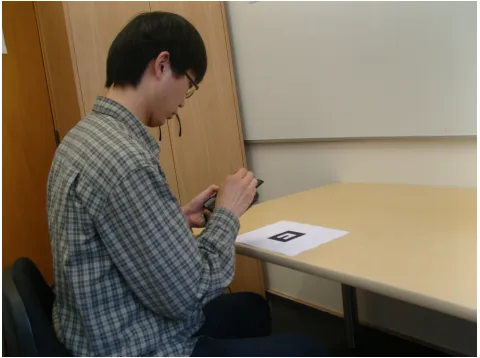
[image:4.612.318.558.278.457.2]The experiment was held in an ordinary office environment (see Figure 3). Participants were sitting in front of a desk on which an AR marker was placed. However, they were instructed not to lean on the desk while performing the experimental task, in order to prevent unintentional advantage from holding the system still. The physical size of the marker was 8cm in both width and height. Participants were instructed to hold the prototype system in their non-dominant hand, and operate the touch screen interface with the other hand.
Figure 3:Experimental setup.
5
Experimental Results
Eight subjects participated in the experiment. Three of the partic-ipants were female, and one participant was left handed. The age of participants ranged from 24 to 47 years old. All subjects had more than 15 years of experience using computers, and used com-puters daily. They all had previous experience with using mobile devices with touch screen interface more than 10 times and were using them at least twice a week. All of the subjects had former experience using VR, AR or 3D graphics applications.
We had mainly two types of dependent variables, objective mea-surements of participants task performance and subjective ratings on the usability of each interface, collected through questionnaires. To check statistically significant difference between conditions, we performed two-factor within-subject ANOVA tests with alpha level of 0.05.
5.1 Task Performance
The prototype system measured the task completion time in sec-onds. The time was calculated starting from the moment when user tapped on start button on the touch screen, and ending at the mo-ment when the user tapped the next button after finishing the last tracing of the marker square.
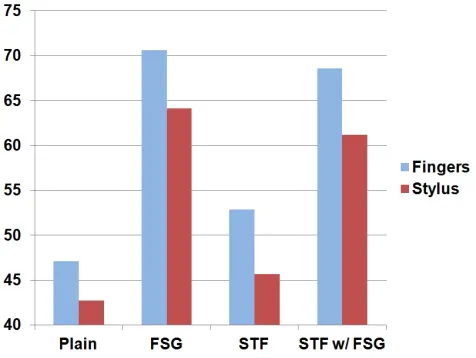
[image:5.612.320.558.53.231.2]According to the ANOVA results, the task completion time was significantly different between interaction techniques (p <0.001), but not between input methods (using a stylus pen and fingers). Post hoc tests, a pair wise t-test with a Bonferroni correction, re-vealed that the Freeze-Set-Go technique took significantly longer time (M = 67.381, S.E. = 7.86) than both the plain interface (M = 44.91, S.E. = 5.13) and the Snap-To-Feature technique (M = 49.30, S.E. = 5.20), where thep-values were 0.004 and 0.022, respectively.
Figure 4 shows the mean values of task completion times. Those conditions using the Freeze-Set-Go technique appears to be spend-ing more time. No significant difference was reported between the plain interface and Snap-To-Feature technique (p = 0.987), ac-cording to the post hoc test pair wise t-test after ANOVA.
Figure 4:Task completion time (in seconds).
The tracing error was calculated as the distance between the tracing point and the nearest edge or corner of the marker, in millimeters, the unit used in ARToolkit. The error was measured every frame and the average of these errors were used as a measure for accuracy.
According to the results from the ANOVA test on tracing error, a significant difference was found between both the interaction tech-niques and input methods (bothp < 0.001). All pairs of interac-tion techniques showed significant difference in post hoc tests (all p <0.047).
As shown in Figure 5, the difference in tracing errors between us-ing fus-ingers and a stylus pen decreased from 1.046 down to 0.117 by using the Snap-To-Feature together with the Freeze-Set-Go tech-nique. According to the ANOVA result, the interaction between interaction technique and input method appeared significant (p= 0.004).
5.2 Usability Questionnaire
Participants answered a questionnaire after each trial with differ-ent conditions. It contained usability questions asking such as how useful the interface was and how easy the task was under given condition. The participants answered the questions in a rating scale ranging from 0 to 100.
Figure 5:Tracing error (in millimeters).
[image:5.612.55.293.269.448.2]The first question asked how well (fast and accurate) the participant was performing with the given interface (0 = performed very poor, 100 = performed very well). The results from ANOVA showed that the subjective performance is significantly different between interaction techniques (p <0.001). Post hoc tests revealed that the Snap-To-Feature with Freeze-Set-Go technique showing significant difference from both plain interface and Freeze-Set-Go technique (p= 0.025and0.036, respectively).
Figure 6 shows the mean values of ratings on subjective perfor-mance under each condition. The Snap-To-Feature with Freeze-Set-Go technique received a mean rating of 94.1 (S.E. = 2.4) from subjects very satisfied in their performance, while the plain interface and the Freeze-Set-Go technique were rated only 56.3 (S.E.= 8.6) and 68.4 (S.E.= 6.5) on average, respectively.
Figure 6:Subjective performance rating from 0 (very poor) to 100 (very well).
[image:5.612.325.556.439.573.2]The mean value of usefulness rating of the Snap-To-Feature with Freeze-Set-Go technique was 95.94 (S.E. = 1.89) compared to that of the plain interface 58.75 (S.E.= 9.99). Figure 7 shows the mean values of usefulness ratings under each condition.
Figure 7:Usefulness of the interface rating from 0 (no use) to 100 (very useful).
The third question asked how easy it was to perform the task with the given interface. The results of an ANOVA test found significant difference of ratings between interaction techniques (p= 0.001). The post hoc test revealed significant difference only between the plain interface and the Snap-To-Feature with Freeze-Set-Go tech-nique (p= 0.043), and there was no significant difference between the other combinations (p > 0.15for all pairs). See Figure 8 for the mean values of rating on ease of using the interface.
Figure 8:Ease of using the interface rating from 0 (very difficult) to 100 (very easy).
For each trial, participants were also asked to describe their stress level from 0 (not stressful at all) to 100 (very stressful). Partici-pants gave both mental and physical stress levels. No significant difference was found in both mental and physical stresses between interaction techniques and input methods (allp >0.05). The over-all stress level was low, showing that participants did not feel seri-ous stress using the interfaces. On average, the mental stress level was rated 15.08 (S.E. = 19.14), and physical stress level 23.20 (S.E.= 22.14).
[image:6.612.61.293.108.244.2]At the end of each session (one using a stylus pen and the other us-ing fus-ingers as a touch screen input), participants were asked to rate the usefulness of the two interaction techniques: the Freeze-Set-Go and the Snap-To-Feature. The results coincide with the results from the per trial questionnaires. While the Snap-To-Feature technique was rated slightly higher (M = 83.125, S.E. = 5.743) than the
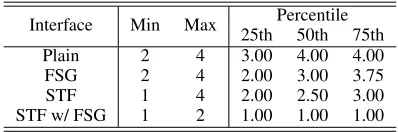
Table 1: Preference ranking from 1 (most preferred) to 4 (least preferred)
Interface Min Max Percentile 25th 50th 75th Plain 2 4 3.00 4.00 4.00
FSG 2 4 2.00 3.00 3.75
STF 1 4 2.00 2.50 3.00
STF w/ FSG 1 2 1.00 1.00 1.00
Freeze-Set-Go technique (M = 86.563, S.E.= 5.688), no signif-icant difference in usefulness was found between two (p= 0.627).
At the end of the experiment, participants were asked to rank the four interaction techniques, based on their preference. Seven sub-jects out of eight gave the highest rank to the Snap-To-Feature with Freeze-Set-Go technique, while only one ranked the Snap-To-Feature technique at the first place. Using a Friedman test, there was a statistically significant difference in preference between inter-action techniques (χ2(3) = 14.550, p= 0.002
). Table 1 summa-rizes the descriptive statistics of preference based ranking between interaction techniques, the lower the value, the more preferred.
6
Discussion
Based on the results of the user experiment, we conclude that the Snap-To-Feature technique significantly reduces errors in tracing tasks in a handheld AR environment, while no more time is required for using the technique. It appears to be more effective under less accurate input methods (i.e. using fingers on touch screen), as it reduces greater error.
The Freeze-Set-Go technique was also confirmed to reduce errors significantly, although the amount of error reduced was relatively small compared to the Snap-To-Feature technique. This significant reduction in errors confirmed previous results [Lee et al. 2009], but the significant loss in time was newly found in this work. This is probably due to the difference in tasks given. While the time for freezing and releasing the scene between manipulations would be ignorable for long tasks, it appears to be still a significant amount of time for performing simple tasks.
In terms of usability, while there was no significant difference found between the Freeze-Set-Go and the Snap-To-Feature techniques, using both together appeared to be significantly better than all other cases.
The combination of the two techniques was also found to be the best in terms of task performance. The amount of error reduced by us-ing the Freeze-Set-Go together with the Snap-To-Feature technique was statistically significant even compared to using the Snap-To-Feature technique alone.
Thinking of such difference was observed in relatively comfortable environment, based on the previous user study [Lee et al. 2009], we can expect the investigated techniques could show more advantages in tough work conditions (e.g., performing tasks in uncomfortable pose).
[image:6.612.60.293.385.521.2]When asked about the disadvantages of the Snap-To-Feature tech-nique, four of the participants mentioned that it was annoying to have snapping suddenly lost when they were at the boundary of snapping distance. Subtle changes are made on the input stroke when having sudden loss of snapping, showing zigzag lines instead of smooth curves.
Four of the participants mentioned that repeatedly freezing and re-leasing the scene was annoying, requiring extra steps. This appears to be of more concern since freezing was enforced during the ex-periment, while in actual use cases, users will only need to freeze when they need or decide to.
While the object used in the experiment was a fiducial marker with visual features, real objects from arbitrary scenes might have ei-ther not enough or too many features to let snapping work effec-tively. Adjusting thresholds for edge and corner detection helped maintaining the appropriate amount of features as shown in Fig-ure 1. Introducing a method for automatically adjusting thresholds for detecting features would be useful for improving usability of the Snap-To-Feature technique.
Overall, the Snap-To-Feature combined with the Freeze-Set-Go technique helped users to perform most accurately, and also was the most preferred one over other interfaces. However, the combined technique inherits weaknesses from the Freeze-Set-Go technique, such as taking more time and losing live updates in the real world view, so it would be still be useful to have other interfaces available for users to choose the one most appropriate based on the condition and needs. For instance, if a live update of the scene is important, users can choose to use Snap-To-Feature alone.
7
Conclusion and Future Work
In this paper, we investigated the usability of the Snap-to-Feature and the Freeze-Set-Go interaction techniques through a user exper-iment. The results showed the Snap-To-Feature technique helped users to interact significantly more precisely. Using it together with the Freeze-Set-Go technique showed a significant gain in both ac-curacy and usability, but at the cost of slower user performance.
For future work, we suggest to continue investigating other types of interaction methods (e.g., zooming interface) that can assist users to precisely interact with touch screen based handheld AR interfaces.
References
BIER, E. A., ANDSTONE, M. C. 1986. Snap-dragging. ACM SIGGRAPH Computer Graphics 20, 4 (Aug.), 233–240. BIER, E. A. 1990. Snap-dragging in three dimensions. In
Proceed-ings of the 1990 symposium on Interactive 3D graphics, ACM, New York, NY, USA, I3D ’90, 193–204.
FORLINES, C., WIGDOR, D., SHEN, C.,ANDBALAKRISHNAN, R. 2007. Direct-touch vs. mouse input for tabletop displays. InProceedings of the SIGCHI conference on Human factors in computing systems, ACM, New York, NY, USA, CHI ’07, 647– 656.
GLEICHER, M. 1995. Image snapping. InProceedings of the 22nd annual conference on Computer graphics and interactive techniques, ACM, New York, NY, USA, SIGGRAPH ’95, 183– 190.
G ¨UVEN, S., FEINER, S.,ANDODA, O. 2006. Mobile augmented reality interaction techniques for authoring situated media on-site. In Mixed and Augmented Reality, 2006. ISMAR 2006. IEEE/ACM International Symposium on, 235 –236.
HENRYSSON, A., BILLINGHURST, M., ANDOLLILA, M. 2005. Face to face collaborative ar on mobile phones. InMixed and Augmented Reality, 2005. Proceedings. Fourth IEEE and ACM International Symposium on, 80 – 89.
LEE, G. A.,ANDBILLINGHURST, M. 2011. A user study on the snap-to-feature interaction method. InMixed and Augmented Reality (ISMAR), 2011 10th IEEE International Symposium on, 245 –246.
LEE, G. A., YANG, U., KIM, Y., JO, D., KIM, K.-H., KIM, J. H.,
ANDCHOI, J. S. 2009. Freeze-set-go interaction method for handheld mobile augmented reality environments. In Proceed-ings of the 16th ACM Symposium on Virtual Reality Software and Technology, ACM, New York, NY, USA, VRST ’09, 143–146. LEE, G. A., YANG, U., KIM, Y., JO, D.,ANDKIM, K.-H. 2010.
Snap-to-feature interface for annotation in mobile augmented re-ality. InAugmented Reality Super Models Workshop (non peer-reviewed) at The Ninth IEEE International Symposium on Mixed and Augmented Reality (ISMAR2010).
MEYER, S., COHEN, O.,ANDNILSEN, E. 1994. Device compar-isons for goal-directed drawing tasks. InConference companion on Human factors in computing systems, ACM, New York, NY, USA, CHI ’94, 251–252.
MOHRING, M., LESSIG, C.,ANDBIMBER, O. 2004. Video see-through ar on consumer cell-phones. InProceedings of the 3rd IEEE/ACM International Symposium on Mixed and Augmented Reality, IEEE Computer Society, Washington, DC, USA, IS-MAR ’04, 252–253.
SUTHERLAND, I. 2000. Sketchpad: A Man Machine Graphical Communication System. PhD thesis, Massachusetts Institute of Technology.
WAGNER, D., REITMAYR, G., MULLONI, A., DRUMMOND, T.,
ANDSCHMALSTIEG, D. 2008. Pose tracking from natural fea-tures on mobile phones. InProceedings of the 7th IEEE/ACM In-ternational Symposium on Mixed and Augmented Reality, IEEE Computer Society, Washington, DC, USA, ISMAR ’08, 125– 134.