COMP150: Practical Programming (in Python)
Jeffrey Elkner
Allen B. Downey
Chris Meyers
Brendan McCane
Iain Hewson
Nick Meek
Contents
1 The way of the program 1
1.1 The Python programming language . . . 1
1.2 What is a program? . . . 3
1.3 What is debugging? . . . 4
1.4 Experimental debugging . . . 4
1.5 Formal and natural languages . . . 5
1.6 The first program . . . 6
1.7 Glossary . . . 6
1.8 The COMP150 lab . . . 7
1.8.1 Logging-on . . . 8
1.8.2 The OSX desktop . . . 8
1.8.3 Menus . . . 8
1.8.4 The dock . . . 8
1.8.5 The Finder window . . . 10
1.8.6 Your home directory . . . 10
1.8.7 Applications . . . 10 1.8.8 IDLE . . . 11 1.8.9 Getting help . . . 11 1.8.10 Coursework files . . . 13 1.8.11 Terms requirements . . . 13 1.9 Blackboard . . . 14 1.10 Laboratory exercises . . . 14
2 Variables, expressions and statements 19 2.1 Values and types . . . 19
2.2 Variables . . . 20
2.3 Variable names and keywords . . . 21
2.4 Statements . . . 22
2.6 Operators and operands . . . 23
2.7 The modulus operator . . . 23
2.8 Order of operations . . . 24
2.9 Operations on strings . . . 24
2.10 Glossary . . . 25
2.11 Laboratory exercises . . . 26
3 Python built-ins (batteries included) 29 3.1 Function calls . . . 29 3.2 Type conversion . . . 30 3.3 Input . . . 31 3.4 Methods . . . 32 3.5 Examining things . . . 33 3.6 More types . . . 33
3.7 Strings and lists . . . 34
3.8 Glossary . . . 35
3.9 Laboratory exercises . . . 35
4 Functions: part 1 39 4.1 Composing expressions . . . 39
4.2 Function definitions and use . . . 39
4.3 Flow of execution . . . 41
4.4 Parameters and arguments . . . 42
4.5 Function composition . . . 43
4.6 Glossary . . . 43
4.7 Laboratory exercises . . . 44
5 Functions: part 2 47 5.1 Variables and parameters are local . . . 47
5.2 Stack diagrams . . . 48
5.3 Comments . . . 49
5.4 Glossary . . . 49
5.5 Laboratory exercises . . . 49
6 Conditionals 53 6.1 Boolean values and expressions . . . 53
6.2 Logical operators . . . 54
6.3 Conditional execution . . . 54
6.4 Alternative execution . . . 54
6.6 Nested conditionals . . . 56
6.7 Booleans and type conversion . . . 57
6.8 Glossary . . . 57
6.9 Laboratory exercises . . . 58
7 Fruitful functions 63 7.1 The return statement . . . 63
7.2 Return values . . . 63
7.3 Program development . . . 65
7.4 Composition . . . 66
7.5 Boolean functions . . . 67
7.6 The function type . . . 68
7.7 Glossary . . . 69
7.8 Laboratory exercises . . . 70
8 Test driven development 71 8.1 Modules, files and theimportstatement . . . 71
8.2 Programming with style . . . 72
8.3 Triple quoted strings . . . 72
8.4 Unit testing withdoctest. . . 73
8.5 Test-driven development demonstrated . . . 75
8.6 Glossary . . . 75
8.7 Laboratory exercises . . . 76
9 Files and modules 79 9.1 Files . . . 79
9.2 Processing things from a file . . . 80
9.3 Directories . . . 82
9.4 Modules . . . 82
9.5 Creating modules . . . 83
9.6 Namespaces . . . 84
9.7 Attributes and the dot operator . . . 84
9.8 Glossary . . . 84
9.9 Laboratory Test . . . 86
10 Iteration: part 1 91 10.1 Multiple assignment . . . 91
10.2 Updating variables . . . 92
10.3 Thewhilestatement . . . 92
10.5 Counting digits . . . 94 10.6 Abbreviated assignment . . . 94 10.7 Tables . . . 95 10.8 Glossary . . . 96 10.9 Laboratory exercises . . . 97 11 Iteration: part 2 99 11.1 Two-dimensional tables . . . 99
11.2 Encapsulation and generalization . . . 99
11.3 More encapsulation . . . 100 11.4 Local variables . . . 101 11.5 More generalization . . . 101 11.6 Functions . . . 103 11.7 Newton’s method . . . 103 11.8 Algorithms . . . 103 11.9 Glossary . . . 104 11.10Laboratory exercises . . . 104 12 In-class test 107 13 Graphical user interface programming 109 13.1 Event driven programming . . . 109
13.2 TkInter introduction . . . 109 13.3 Introducing callbacks . . . 112 13.4 User input . . . 114 13.5 Mini-case study . . . 115 13.6 Glossary . . . 116 13.7 Laboratory exercises . . . 117
14 Case study: Catch 119 14.1 Graphics . . . 119
14.2 Moving the ball . . . 119
14.3 Adding randomness . . . 121
14.4 Glossary . . . 123
14.5 Laboratory exercises . . . 124
15 Case study: Catch continued 125 15.1 Keyboard input . . . 125
15.2 Checking for collisions . . . 126
15.4 Glossary . . . 131
15.5 Laboratory exercises . . . 132
15.6 Optional extension project: pong.py . . . 132
16 Strings part 1 133 16.1 A compound data type . . . 133
16.2 Length . . . 133
16.3 Traversal and theforloop . . . 134
16.4 String slices . . . 135
16.5 String comparison . . . 136
16.6 Strings are immutable . . . 136
16.7 Theinoperator . . . 136
16.8 A find function . . . 137
16.9 Looping and counting . . . 138
16.10Optional parameters . . . 138 16.11Glossary . . . 139 16.12Laboratory exercises . . . 140 17 Strings part 2 143 17.1 strMethods . . . 143 17.2 Character classification . . . 145 17.3 String formatting . . . 145 17.4 Glossary . . . 147 17.5 Laboratory exercises . . . 148 18 Lists part 1 151 18.1 List values . . . 151 18.2 Accessing elements . . . 152 18.3 List length . . . 153 18.4 List membership . . . 153 18.5 List operations . . . 154 18.6 List slices . . . 154
18.7 The range function . . . 154
18.8 Lists are mutable . . . 155
18.9 List deletion . . . 156
18.10Objects and values . . . 156
18.11Aliasing . . . 157
18.12Cloning lists . . . 158
18.14Laboratory exercises . . . 159
19 Lists part 2 161 19.1 Lists and for loops . . . 161
19.2 List parameters . . . 162
19.3 Pure functions and modifiers . . . 163
19.4 Which is better? . . . 163
19.5 Nested lists . . . 164
19.6 Matrices . . . 164
19.7 Strings and lists . . . 165
19.8 Glossary . . . 165
19.9 Laboratory exercises . . . 166
20 Tuples 167 20.1 Tuples and mutability . . . 167
20.2 Tuple assignment . . . 168
20.3 Tuples as return values . . . 169
20.4 Why tuples? . . . 169
20.5 When should you use tuples? . . . 169
20.6 Sets . . . 170 20.7 Glossary . . . 170 20.8 Laboratory Test . . . 171 21 Dictionaries 177 21.1 Dictionary operations . . . 178 21.2 Dictionary methods . . . 178
21.3 Aliasing and copying . . . 179
21.4 Sparse matrices . . . 179
21.5 Counting letters . . . 180
21.6 Glossary . . . 181
21.7 Laboratory exercises . . . 182
22 System programming 183 22.1 The sys module and argv . . . 183
22.2 Theosandglobmodule . . . 184
22.3 A mini-case study . . . 186
22.3.1 ImageMagick . . . 186
22.3.2 Scripting ImageMagick . . . 187
22.4 Glossary . . . 190
23 Classes and objects 193
23.1 Object-oriented programming . . . 193
23.2 User-defined compound types . . . 193
23.3 The init Method andself. . . 194
23.4 Attributes . . . 194
23.5 Methods . . . 195
23.6 Sameness . . . 196
23.7 Rectangles . . . 197
23.8 Instances as return values . . . 198
23.9 Objects are mutable . . . 199
23.10Copying . . . 199
23.11Glossary . . . 200
23.12Laboratory exercises . . . 202
24 Case study 2 205 24.1 Program Design . . . 205
24.2 The Initial Program . . . 206
24.3 Opening a File . . . 206
24.4 Saving to a File . . . 208
24.5 Encrypting the Contents . . . 208
24.6 Putting it All Together . . . 211
24.7 Glossary . . . 213
24.8 Laboratory Exercises . . . 214
25 The last lecture 215 25.1 Stuff we haven’t covered . . . 215
25.2 What you can expect from COMP160 and Computer Science . . . 215
Extra Extension Exercises from Part 1 217 GNU Free Documentation License 221 1. APPLICABILITY AND DEFINITIONS . . . 221
2. VERBATIM COPYING . . . 222
3. COPYING IN QUANTITY . . . 223
4. MODIFICATIONS . . . 223
5. COMBINING DOCUMENTS . . . 224
6. COLLECTIONS OF DOCUMENTS . . . 225
7. AGGREGATION WITH INDEPENDENT WORKS . . . 225
8. TRANSLATION . . . 225
10. FUTURE REVISIONS OF THIS LICENSE . . . 226 ADDENDUM: How to use this License for your documents . . . 226
Lecture 1
The way of the program
The goal of this paper is twofold: to teach you how to program in Python; and to teach you to think like a computer scientist. It is almost impossible to become a competent programmer without also learning how to think like a computer scientist. This way of thinking combines some of the best features of math-ematics, engineering, and natural science. Like mathematicians, computer scientists use formal languages to denote ideas (specifically computations). Like engineers, they design things, assembling components into systems and evaluating trade-offs among alternatives. Like scientists, they observe the behaviour of complex systems, form hypotheses, and test predictions.
If you aren’t interested in becoming a computer scientist, but just want to gain some programming skills, then this is the perfect paper for you. In this paper we are going to focus on practical programming skills suitable for solving smallish programming problems. Problems that you will often encounter if you use a computer regularly.
The single most important skill for a computer scientist isproblem solving. Problem solving means the ability to formulate problems, think creatively about solutions, and express a solution clearly and accu-rately. As it turns out, the process of learning to program is an excellent opportunity to practice problem-solving skills. That’s why this chapter is called, “The way of the program.”
On one level, you will be learning to program, a useful skill by itself. On another level, you will use programming as a means to an end. As we go along, that end will become clearer.
1.1
The Python programming language
The programming language you will be learning is Python. Python is an example of ahigh-level language; other high-level languages you might have heard of are C++, PHP, and Java.
As you might infer from the name high-level language, there are also low-level languages, sometimes referred to as machine languages or assembly languages. Loosely speaking, computers can only execute programs written in low-level languages. Thus, programs written in a high-level language have to be processed before they can run. This extra processing takes some time, which is a small disadvantage of high-level languages.
But the advantages are enormous. First, it is much easier to program in a high-level language. Programs written in a high-level language take less time to write, they are shorter and easier to read, and they are more likely to be correct. Second, high-level languages areportable, meaning that they can run on different kinds of computers with few or no modifications. Low-level programs can run on only one kind of computer and have to be rewritten to run on another.
Due to these advantages, almost all programs are written in high-level languages. Low-level languages are used only for a few specialized applications.
Two kinds of applications process high-level languages into low-level languages:interpretersand compil-ers. An interpreter reads a high-level program and executes it, meaning that it does what the program says. It processes the program a little at a time, alternately reading lines and performing computations.
OUTPUT SOURCE
CODE
INTERPRETER
A compiler reads the program and translates it into a low-level program, which can then be run.
In this case, the high-level program is called thesource code, and the translated program is called the object codeor theexecutable. Once a program is compiled, you can execute it repeatedly without further translation. OUTPUT CODE OBJECT EXECUTOR CODE SOURCE COMPILER
Many modern languages use both processes. They are first compiled into a lower level language, called byte code, and then interpreted by a program called avirtual machine. Python uses both processes, but because of the way programmers interact with it, it is usually considered an interpreted language.
There are two ways to use the Python interpreter:shell modeandscript mode. In shell mode, you type Python statements into thePython shelland the interpreter immediately prints the result.
In this course we will be using an IDE (Integrated Development Environment) called IDLE. When you first start IDLE it will open an interpreter window.1
Python 2.5.1 (r251:54863, Apr 15 2008, 22:57:26) [GCC 4.0.1 (Apple Inc. build 5465)] on darwin
Type "copyright", "credits" or "license()" for more information.
**************************************************************** Personal firewall software may warn about the connection IDLE makes to its subprocess using this computer’s internal loopback interface. This connection is not visible on any external interface and no data is sent to or received from the Internet. ****************************************************************
IDLE 1.2.1 >>>
The first few lines identify the version of Python being used as well as a few other messages; you can safely ignore the lines about the firewall. Next there is a line identifying the version of IDLE. The last line starts with >>>, which is thePython prompt. The interpreter uses the prompt to indicate that it is ready for instructions.
If we typeprint 1 + 1the interpreter will reply2and give us another prompt.2
1You can also run the python interpreter by just entering the commandpythonin a terminal. To exit from the interpreter type exit()and hit return, or press Ctrl-D on a new line.
>>> print 1 + 1 2
>>>
Alternatively, you can write a program in a file and use the interpreter to execute the contents of the file. Such a file is called ascript. For example, we used the text editor in IDLE (but we could have used any text editor) to create a file namedfirstprogram.pywith the following contents:
print 1 + 1
By convention, files that contain Python programs have names that end with.py. To execute the program we have to invoke the interpreter and tell it the name of the script:
$ python firstprogram.py 2
This example shows Python being run from a terminal (with $ representing the Unix prompt). In other de-velopment environments, the details of executing programs may differ. IDLE simplifies the whole process by presenting interpreter windows and a text editor within the same application. You can run a script in IDLE by either choosingRun→Run Moduleor pressing F5. Most programs are more interesting than this one. The examples in this book use both the Python interpreter and scripts. You will be able to tell which is intended since shell mode examples (i.e. entering lines directly into the interpreter) will always start with the Python prompt,>>>. Working in shell mode is convenient for testing short bits of code because you get immediate feedback. Think of it as scratch paper used to help you work out problems. Anything longer than a few lines should be put into a script so it can be saved for future use.
1.2
What is a program?
Aprogramis a sequence of instructions that specifies how to perform a computation. The computation might be something mathematical, such as solving a system of equations or finding the roots of a poly-nomial, but it can also be a symbolic computation, such as searching and replacing text in a document or (strangely enough) compiling a program.
The details look different in different languages, but a few basic instructions appear in just about every language:
input: Get data from the keyboard, a file, or some other device.
output: Display data on the screen or send data to a file or other device. math: Perform basic mathematical operations like addition and multiplication.
conditional execution: Check for certain conditions and execute the appropriate sequence of statements. repetition: Perform some action repeatedly, usually with some variation.
Believe it or not, that’s pretty much all there is to it. Every program you’ve ever used, no matter how com-plicated, is made up of instructions that look more or less like these. Thus, we can describe programming as the process of breaking a large, complex task into smaller and smaller subtasks until the subtasks are simple enough to be performed with one of these basic instructions.
That may be a little vague, but we will come back to this topic later when we talk aboutalgorithms. print(1+1)
1.3
What is debugging?
Programming is a complex process, and because it is done by human beings, programs often contain errors. For whimsical reasons, programming errors are calledbugsand the process of tracking them down and correcting them is calleddebugging.
Three kinds of errors can occur in a program: syntax errors, runtime errors, and semantic errors. It is useful to distinguish between them in order to track them down more quickly.
Syntax errors Python can only execute a program if the program is syntactically correct; otherwise, the process fails and returns an error message. Syntaxrefers to the structure of a program and the rules about that structure. For example, in English, a sentence must begin with a capital letter and end with a period. this sentence contains asyntax error. So does this one
For most readers, a few syntax errors are not a significant problem, which is why we can read the poetry of e. e. cummings without spewing error messages. Python is not so forgiving. If there is a single syntax error anywhere in your program, Python will print an error message and quit, and you will not be able to run your program. During the first few weeks of your programming career, you will probably spend a lot of time tracking down syntax errors. As you gain experience, though, you will make fewer syntax errors and find them faster.
Runtime errors The second type of error is a runtime error, so called because the error does not appear until you run the program. These errors are also calledexceptionsbecause they usually indicate that something exceptional (and bad) has happened. Runtime errors are rare in the simple programs you will see in the first few chapters, so it might be a while before you encounter one.
Semantic errors The third type of error is thesemantic error. If there is a semantic error in your program, it will run successfully, in the sense that the computer will not generate any error messages, but it will not do the right thing. It will do something else. Specifically, it will do what you told it to do.
The problem is that the program you wrote is not the program you wanted to write. The meaning of the program (its semantics) is wrong. Identifying semantic errors can be tricky because it requires you to work backward by looking at the output of the program and trying to figure out what it is doing.
1.4
Experimental debugging
One of the most important skills you will acquire is debugging. Although it can be frustrating, debugging is one of the most intellectually rich, challenging, and interesting parts of programming.
In some ways, debugging is like detective work. You are confronted with clues, and you have to infer the processes and events that led to the results you see.
Debugging is usually a trial and error process. Once you have an idea what is going wrong, you modify your program and try again. If your hypothesis was correct, then you can predict the result of the modifica-tion, and you take a step closer to a working program. If your hypothesis was wrong, you have to come up with a new one. As Sherlock Holmes pointed out, “When you have eliminated the impossible, whatever remains, however improbable, must be the truth.” (A. Conan Doyle,The Sign of Four)
For some people, programming and debugging are the same thing. That is, programming is the process of gradually debugging a program until it does what you want. The idea is that you should start with a program that doessomethingand make small modifications, debugging them as you go, so that you always have a working program.
For example, Linux is an operating system that contains thousands of lines of code, but it started out as a simple program Linus Torvalds used to explore the Intel 80386 chip. According to Larry Greenfield, one
of Linus’s earlier projects was a program that would switch between printing AAAA and BBBB. This later evolved into Linux (The Linux Users’ GuideBeta Version 1).
Later chapters will make more suggestions about debugging and other programming practices.
1.5
Formal and natural languages
Natural languagesare the languages that people speak, such as English, Spanish, and French. They were not designed by people (although people try to impose some order on them); they evolved naturally. Formal languagesare languages that are designed by people for specific applications. For example, the notation that mathematicians use is a formal language that is particularly good at denoting relationships among numbers and symbols. Chemists use a formal language to represent the chemical structure of molecules. And most importantly:
Programming languages are formal languages that have been designed to express computations.
Formal languages tend to have strict rules about syntax. For example, 3+3=6 is a syntactically correct mathematical statement, but 3=+6$ is not. H2O is a syntactically correct chemical name, but 2Zz is not. Syntax rules come in two flavors, pertaining totokensand structure. Tokens are the basic elements of the language, such as words, numbers, and chemical elements. One of the problems with 3=+6$ is that $ is not a legal token in mathematics (at least as far as we know). Similarly, 2Zz is not legal because there is no element with the abbreviation Zz. The second type of syntax rule pertains to the structure of a statement— that is, the way the tokens are arranged. The statement 3=+6$ is structurally illegal because you can’t place a plus sign immediately after an equal sign. Similarly, molecular formulas have to have subscripts after the element name, not before.
When you read a sentence in English or a statement in a formal language, you have to figure out what the structure of the sentence is (although in a natural language you do this subconsciously). This process is calledparsing. For example, when you hear the sentence, “The brown dog barked”, you understand that the brown dog is the subject and barked is the verb. Once you have parsed a sentence, you can figure out what it means, or the semantics of the sentence. Assuming that you know what a dog is and what it means to bark, you will understand the general implication of this sentence.
Although formal and natural languages have many features in common—tokens, structure, syntax, and semantics—there are many differences:
ambiguity: Natural languages are full of ambiguity, which people deal with by using contextual clues and other information. Formal languages are designed to be nearly or completely unambiguous, which means that any statement has exactly one meaning, regardless of context.
redundancy: In order to make up for ambiguity and reduce misunderstandings, natural languages employ lots of redundancy. As a result, they are often verbose. Formal languages are less redundant and more concise.
literalness: Natural languages are full of idiom and metaphor. If someone says, “The penny dropped”, there is probably no penny and nothing dropped. Formal languages mean exactly what they say. People who grow up speaking a natural language—everyone—often have a hard time adjusting to formal languages. In some ways, the difference between formal and natural language is like the difference between poetry and prose, but more so:
Poetry: Words are used for their sounds as well as for their meaning, and the whole poem together creates an effect or emotional response. Ambiguity is not only common but often deliberate.
Prose: The literal meaning of words is more important, and the structure contributes more meaning. Prose is more amenable to analysis than poetry but still often ambiguous.
Programs: The meaning of a computer program is unambiguous and literal, and can be understood entirely by analysis of the tokens and structure.
Here are some suggestions for reading programs (and other formal languages). First, remember that formal languages are much more dense than natural languages, so it takes longer to read them. Also, the structure is very important, so it is usually not a good idea to read from top to bottom, left to right. Instead, learn to parse the program in your head, identifying the tokens and interpreting the structure. Finally, the details matter. Little things like spelling errors and bad punctuation, which you can get away with in natural languages, can make a big difference in a formal language.
1.6
The first program
Traditionally, the first program written in a new language is called Hello, World! because all it does is display the words, Hello, World! In Python, it looks like this:
print "Hello, World!"
This is an example of aprint statement, which doesn’t actually print anything on paper. It displays a value on the screen. In this case, the result is the words
Hello, World!
The quotation marks in the program mark the beginning and end of the value; they don’t appear in the result.
Some people judge the quality of a programming language by the simplicity of the Hello, World! program. By this standard, Python does about as well as is possible.
1.7
Glossary
algorithm: A general process for solving a category of problems. bug: An error in a program.
byte code: An intermediate language between source code and object code. Many modern languages first compile source code into byte code and then interpret the byte code with a program called avirtual machine.
compile: To translate a program written in a high-level language into a low-level language all at once, in preparation for later execution.
debugging: The process of finding and removing any of the three kinds of programming errors. exception: Another name for a runtime error.
executable: Another name for object code that is ready to be executed.
formal language: Any one of the languages that people have designed for specific purposes, such as repre-senting mathematical ideas or computer programs; all programming languages are formal languages.
high-level language: A programming language like Python that is designed to be easy for humans to read and write.
interpret: To execute a program in a high-level language by translating it one line at a time.
low-level language: A programming language that is designed to be easy for a computer to execute; also called machine language or assembly language.
natural language: Any one of the languages that people speak that evolved naturally. object code: The output of the compiler after it translates the program.
parse: To examine a program and analyze the syntactic structure.
portability: A property of a program that can run on more than one kind of computer.
print statement: An instruction that causes the Python interpreter to display a value on the screen. problem solving: The process of formulating a problem, finding a solution, and expressing the solution. program: a sequence of instructions that specifies to a computer actions and computations to be performed. Python shell: An interactive user interface to the Python interpreter. The user of a Python shell types commands at the prompt (>>>), and presses the return key to send these commands immediately to the interpreter for processing.
runtime error: An error that does not occur until the program has started to execute but that prevents the program from continuing.
script: A program stored in a file (usually one that will be interpreted).
semantic error: An error in a program that makes it do something other than what the programmer in-tended.
semantics: The meaning of a program.
source code: A program in a high-level language before being compiled. syntax: The structure of a program.
syntax error: An error in a program that makes it impossible to parse (and therefore impossible to inter-pret).
token: One of the basic elements of the syntactic structure of a program, analogous to a word in a natural language.
1.8
The COMP150 lab
The COMP150 lab is in Rm.209 on the top floor of Science 1. It currently houses 34 iMac computers running the latest version of Mac OSX. You will be streamed to two two-hour labs per week, you are expected to attend at those times and your attendance will be recorded for Terms requirements. During your streamed times lab demonstrators will be available to assist you. You should also feel free to attend the lab at other times as well, if there is a spare seat you are most welcome to it. Check the noticeboard outside the lab for more details. Also check the whiteboard in the lab each time you attend, we will put notices and hints for completing lab work there.
Computer Science operates its own authentication and Home directory system. This means that your user-name and password in labs operated by Computer Science are different from your ITS ones. It also means
that the contents of your Home directories will be different from your ITS Home directory, after all it is a different directory on a completely different and separate system. Files saved in the COMP150 lab will not be available to you in the ITS labs and vice versa. You may however transfer files between the systems by using either a USB flash drive or by visitingwww.otago.ac.nz/NetStorage.
1.8.1
Logging-on
If this is your first time you have used a Computer Science laboratory your username will usually3beyour first initial followed by up to 7 letters of your last name. For example Billie Blogs has the username bblogs, and Edwin Heisenberg has the username eheisenb. Your password will be yourid number as shown on your student id card. You will be asked to change your password as soon as you log-on. Your new password must follow the following convention:
• Include an upper-case letter. • Include a lower-case letter. • Include a digit.
• Not be an English word
When you leave the lab remember to log-out. To do this click on the Apple menu (top-left of the Desktop) and choose “Log-out<your username>”
In the rest of this book, the action of selecting menu items will be denotedApple→Log Out.
1.8.2
The OSX desktop
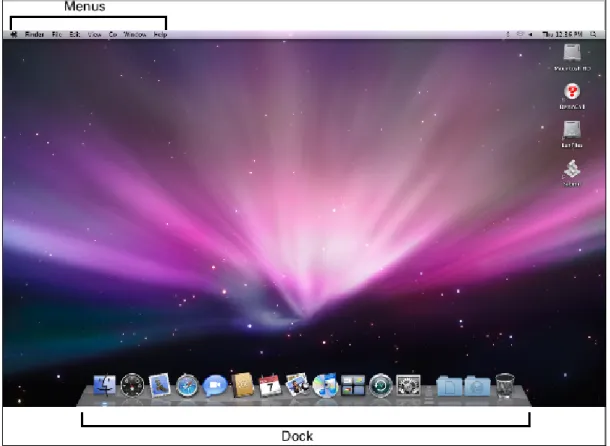
If you are used to a Microsoft Windows environment you will find the Mac OS X environment sort of the same, but different. Pointing, selecting, dragging-and-dropping, left- and right-clicking with the mouse are all much the same. There are still menus and they are in a familiar order; File, Edit, View etc.. There is now a Dock instead of a Taskbar, but it operates in much the same fashion - all those icons on the Dock are links to applications and folders. There are however some differences between the Mac way of doing things and the Microsoft way. The following will help you use the Mac environment.
1.8.3
Menus
An application’s menus are always displayed in the Menu bar at the top of the Desktop. The default set of menus, as shown, are the Finder’s menus. In addition to the familiar sounding menus, there is an Apple menu and a Finder menu. The Apple menu is always there and always has the same contents; explore the contents of the Apple menu, especially the About This Mac, System Preferences and the Dock options. The next menu is the Finder menu. Finder is actually an application, it is the one which manages your Desktop. The options on the Finder menu and in fact all the rest of the menus are currently specific to the Finder application. When a different application is active the menus in the Menu bar will be specific to that application.
1.8.4
The dock
The Dock is similar in nature to Windows’ Taskbar.
• The left part of the Dock contains shortcuts (aliases in Mac-talk) to applications.
• You can remove application aliases from the Dock by simply dragging them to the Desktop and re-leasing them.
• To add an application to the Dock drag its icon from the Application folder to the Dock, see below. • An application that is running has a small blue/white dot beneath it.
• Any application that is running will appear in the Dock, even if it doesn’t usually have an alias there. • The right-hand side of the Dock contains the Trash and any windows or documents you have
col-lapsed (minimised) and aliases to folders.
Clicking once on an item in the Dock will do one of a number of things:
• If the item is an application that is not already running it will start the application.
• If the item is an application that is already running it will become the active application. Note that an application window may not be displayed in which case you will need to selectFile→Newor similar. • If the application was ‘hidden’ it will be unhidden.
• If the application had been collapsed it will be restored.
1.8.5
The Finder window
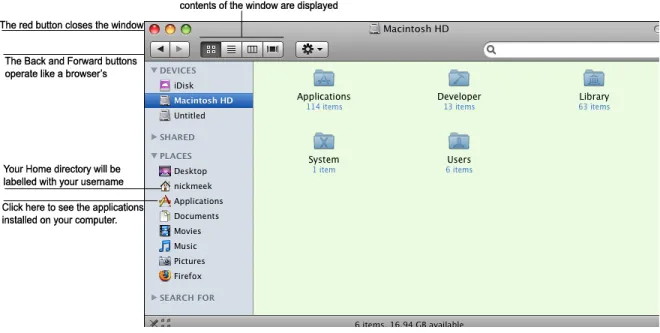
A Finder window is similar to a Windows Explorer window, it allows you to navigate folders and drives and see and manipulate their contents.
Open a new Finder window by clicking the Finder icon in the Dock, it is the left-most one, or by clicking the Desktop (to make Finder the active program) then choosingFile→New Finder Window.
The buttons along the top (from the left) allow you to: navigate back and forth (like in a web browser), modify the view options, burn folders and files to CD and make new folders. The left column lists place, drives and locations you can navigate to and explore. The most useful locations for you will be your Home drive, the Applications folder and the LabFiles folder.
1.8.6
Your home directory
Your Home directory is in fact an amount of space of the department’s shared RAID array. This is where you should save your lab work, We recommend that you make folders calledLab1,Lab2(or similar) so that you can keep your work organised. You are going to be creating a lot of files during this course, keeping them organised will make working with them much easier.
Click on your Home directory in the Places list and create folders for the first few labs by making sure the Finder window is active (click on it once) and thenFile→New Folderor by clicking the New Folder button on the Finder window or by using the shortcut.
1.8.7
Applications
On a Mac, most of the GUI (Graphical User Interface) applications are installed in the Applications folder. • Open a Finder window and click on the Applications folder, it is also in the Places group. A list of all
Figure 1.2: A Finder Window
• Scroll down the list until you find the Firefox application icon, drag the icon to the Dock to create an alias to the Firefox application.
• Scroll down further until you find the Utilities folder. Click the little triangle to expand the list. Scroll down the list until you find Terminal.
• Drag Terminal to the Dock to create an alias for it as well. Terminal starts a shell session. • Create a shortcut to IDLE as well, it is also in the Applications folder.
Remember, you can remove unwanted items from the Dock by simply dragging them to the Desktop and releasing them.
1.8.8
IDLE
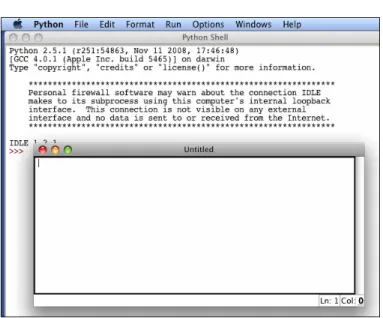
In COMP150 you will be using a development environment (also called anIDE- Integrated Development Environment) calledIDLE. IDLE is a very simple IDE and is ideal for our purposes. Start IDLE by clicking on the IDLE shortcut icon in your Dock you created moments ago. You should see a window that looks like Figure 1.3 on page 12. By default IDLE starts with an interpreter window open. Click on the window to give itfocus. Notice the menu bar changes and now contains (perversely) Python menus; this is because IDLE is a Python application.
To open an editor window for writing scripts either chooseFile→New Window or use the Command-N shortcut. Open an editor window now.
1.8.9
Getting help
Demonstrators will be available to help you in the lab. However, before you call a demonstrator stop and think; is the answer to your question written in the lab book or your lecture notes? Have you tried a number
Figure 1.3: IDLE starts with an interpreter window open.
of different approaches? Do you know exactly what the problem is? Have you looked on the Internet?! One of the skills we want you to develop this semester is that of finding solutions yourself. However if you get really stuck please feel free to ask. On your Mac OS Desktop you will see a “?” icon labeled “DemoCall”, double-clicking on it will start the DemoCall application. Clicking on “Call” will place you in the queue and a demonstrator will be along shortly. While you wait continue working on the problem; if you solve it you can dequeue yourself by clicking “Cancel”.
1.8.10
Coursework files
For some exercises in this course we will supply you with files to work with. These files can be found incoursework/COMP150/coursefiles150. There should be a link to coursework on your Desktop, double click it to open the remote drive. At the start of each lab copy the appropriate folder to your Desktop or Home drive by simply clicking and dragging the appropriate folder. There is a folder for this lab. Try dragging theLab1folder fromcoursework/COMP150/coursefiles150to your Desktop now.
1.8.11
Terms requirements
To establish you were at a lab, which is necessary for Terms requirements, you will need to submit at least 1 file during each lab you attend. To make this easier (and to keep the files you create during this course organised) we suggest that you create a new folder in your home directory at the start of each lab. To do this:
• Open a Finder window and then click on your Home directory link. • Create a new folder byFile→New Folder.
• Re-name the folder with a sensible name (Lab01 for instance) by selecting it (left-click once) and then hitting Return on the keyboard and typing in the new name.
Save all the files you create in this lab to that folder. When you have finished the lab exercises:
• Duplicate the folder by right-clicking on it and choosing Duplicate.
• Rename the duplicate folder with your initials and the lab number e.g. NBM Lab01 • Drag the renamed folder tocoursework/COMP150/submit150.
You might find it easier to open a new Finder window first (File →New Finder Window), navigating to coursework/COMP150and then drag your<your initials>Lab01 folder tosubmit150.
To verify that your folder arrived safely open the folderSubmissionReceipts, it is in your Home di-rectory. Copies of files successfully submitted will appear in this folder within a few (15-20) seconds of a successful submission. If after 30 seconds the file hasn’t appeared try submitting again.
Ideally at the end of each lab you should submit a folder containing all the files you created during that lab. These submissions are used to establish your presence in the lab and are necessary to gain Terms. The files will not be marked or assessed but should you need to apply for special consideration due to impairment or similar during the course they will give us an indication of your progress in and commitment to the course and assist us in coming to a fair and reasonable decision.
1.9
Blackboard
Many papers at Otago make use of Blackboard, an online course management tool that provides staff and students with communication and file sharing tools as well as a host of other features. COMP150 will use blackboard for making class announcements and for the discussion boards. You should check Blackboard every time you come to the lab. To log-on to Blackboard:
• Start a browser and navigate to http://blackboard.otago.ac.nz.
• Log-on (using your University username and password).
• Locate theMyPapersgroup of links and click on theCOMP150link. You will be taken to the An-nouncements page. This is where all important course-related messages will be posted.
• Read the announcements.
• Examine the options you have on the left.
• Click on theDiscussion Boardlink. We have created two Discussion Boards, one for questions about Python or any other part of the course, the other for any suggestions or requests you have for COMP150.
• There is at least one posting on each board, read them and reply as appropriate.
• When you have finished log out from Blackboard.
1.10
Laboratory exercises
Remember: you should submit all files you create during a lab at the end of that lab
1. Write an English sentence with understandable semantics but incorrect syntax.
zend
2. Write another sentence which has correct syntax but has semantic errors.
zend
3. If you haven’t already done so, start IDLE. Type2 + 3at the prompt and then hit return. The symbols+ and-stand for plus and minus as they do in mathematics. The asterisk (*) is the symbol for multiplication, and**is the symbol for exponentiation (so5**2means 5 to the power of 2).
Pythonevaluatesanyexpressionyou type in, prints the result, and then prints another prompt. Experiment by entering different expressions and recording what is printed by the Python interpreter.
zend
What happens if you use/(the division operator)? Are the results what you expect? Explain.4
zend
4. Typeprint ’hello’at the prompt. Python executes this statement, which has the effect of printing the letters h-e-l-l-o. Notice that the quotation marks that you used to enclose the string are not part of the output.
Now typeprint ’"hello"’and describe and explain your result.
zend
4This is another thing that has changed with Python 3000. The / operator returns a float (a number with a fractional part) in Python
5. Start an editor in IDLE (File → New Window, or Command-N) and typeprint ’hello’into the editor window, which is currently called Untitled. Save your script (File→Save, or Command-S) by first changing to your home directory in the Save Dialog Box, then creating a New Folder calledLab1, and finally changing the nameuntitledtohello.pybefore clicking Save. Once you have done this run it by either pushing F5 or clickingRun→Run Module. Write down and explain what happens in the prompt window below:
zend
6. Typeprint cheesewithout the quotation marks into the interpreter. The output will look some-thing like this:
Traceback (most recent call last):
File "<pyshell#7>", line 1, in <module> cheese
NameError: name ’cheese’ is not defined
This is a run-time error; specifically, it is a NameError, and even more specifically, it is an error because the name cheese is not defined. If you don’t know what that means yet, you will soon.
7. Still in the interpreter, type1 2(with a space in between) and then hit return. Python tries to evaluate the expression, but it can’t because the expression is not syntactically legal. Instead, it prints the error message:
SyntaxError: invalid syntax
In many cases, Python indicates where the syntax error occurred, but it is not always right, and it doesn’t give you much information about what is wrong. So, for the most part, the burden is on you to learn the syntax rules. In this case, Python is complaining because there is no operator between the numbers.
Write down three more examples of statements that will produce error messages when you enter them at the Python prompt. Explain why each example is not valid Python syntax.
1) 2) 3) zend
8. Type’This is a test...’at the prompt and hit enter. Record what happens.
zend
9. Now open a new file (File→New Window, or Command-N) and type’This is a test...’ into the Untitled document.
Save your file in theLab1folder (you can quickly change to it using the drop down list) astest.py. What happens when you run this script (Run→Run Module, or F5)?
zend
Now change the contents to:
print 'This is a test...'
save and run it again. What happened this time?
zend
Whenever anexpressionis typed at the Python prompt, it isevaluatedand the result is printed on the line below. ’This is a test...’ is an expression, which evaluates to’This is a test...’ (just like the expression 42 evaluates to 42). In a script, however, evaluations of expressions are not sent to the program output, so it is necessary to explicitly print it.
Lecture 2
Variables, expressions and statements
2.1
Values and types
Avalueis one of the fundamental things—like a letter or a number—that a program manipulates. The values we have seen so far are 2 (the result when we added 1 + 1), and “Hello, World!”. These values belong to differenttypes: 2 is aninteger, and “Hello, World!” is astring. You (and the interpreter) can identify strings because they are enclosed in quotation marks.
The print statement also works for integers. >>> print 4
4
If you are not sure what type a value has, the interpreter can tell you. >>> type("Hello, World!")
<type ’str’> >>> type(17) <type ’int’>
Strings belong to the typestrand integers belong to the typeint. Less obviously, numbers with a decimal point belong to a type calledfloat, because these numbers are represented in a format calledfloating-point. >>> type(3.2)
<type ’float’>
What about values like “17” and “3.2”? They look like numbers, but they are in quotation marks like strings. >>> type("17")
<type ’str’> >>> type("3.2") <type ’str’>
They’re strings. Strings in Python can be enclosed in either single quotes (’) or double quotes (”): >>> type(’This is a string.’)
<type ’str’>
>>> type("And so is this.") <type ’str’>
Double quoted strings can contain single quotes inside them, as in"What’s your name?", and single quoted strings can have double quotes inside them, as in’The cat said "Meow!"’.
When you type a large integer, you might be tempted to use commas between groups of three digits, as in 1,000,000. This is not a legal integer in Python, but it is legal:
>>> print 1,000,000 1 0 0
Well, that’s not what we expected at all! Python interprets 1,000,000 as a list of three items to be printed. So remember not to put commas in your integers.
2.2
Variables
One of the most powerful features of a programming language is the ability to manipulatevariables. A variable is a name that refers to a value. Theassignment statementcreates new variables and assigns them values:
>>> message = "What’s your name?" >>> n = 17
>>> pi = 3.14159
This example makes three assignments. The first assigns the string "What’s your name?" to a new variable namedmessage. The second assigns the integer 17 ton, and the third assigns the floating-point number 3.14159 topi. Theassignment operator, =, should not be confused with an equals sign (even though it uses the same character). Assignment operators link aname, on the left hand side of the operator, with avalue, on the right hand side. This is why you will get an error if you enter:
>>> 17 = n
A common way to represent variables on paper is to write the name with an arrow pointing to the variable’s value. This kind of figure is called astate diagrambecause it shows what state each of the variables is in (think of it as the variable’s state of mind). This diagram shows the result of the assignment statements:
message n pi
17 3.14159
The print statement also works with variables. >>> print message
What’s your name? >>> print n 17
>>> print pi 3.14159
In each case the result is the value of the variable. Variables also have types; again, we can ask the interpreter what they are.
>>> type(message) <type ’str’> >>> type(n) <type ’int’> >>> type(pi) <type ’float’>
The type of a variable is the type (or kind) of value it refers to.
2.3
Variable names and keywords
Programmers generally choose names for their variables that are meaningful—they document what the variable is used for. Variable names can be arbitrarily long. They can contain both letters and num-bers, but they have to begin with a letter. Although it is legal to use uppercase letters, by convention we don’t. If you do, remember that case matters.Bruceandbruceare different variables. The underscore character ( ) can appear in a name. It is often used in names with multiple words, such asmy name or price of tea in china. If you give a variable an illegal name, you get a syntax error:
>>> 76trombones = "big parade" SyntaxError: invalid syntax >>> more$ = 1000000
SyntaxError: invalid syntax >>> class = "COMP150" SyntaxError: invalid syntax
76trombonesis illegal because it does not begin with a letter. more$ is illegal because it contains an illegal character, the dollar sign. But what’s wrong withclass? It turns out that class is one of the Python keywords. Keywords define the language’s rules and structure, and they cannot be used as variable names. Python has thirty-one keywords:
and del from not while
as elif global or with
assert else if pass yield
break except import print
class exec in raise
continue finally is return
def for lambda try
You might want to keep this list handy. If the interpreter complains about one of your variable names and you don’t know why, see if it is on this list.
2.4
Statements
Astatementis an instruction that the Python interpreter can execute. We have seen two kinds of statements: print and assignment. When you type a statement on the command line, Python executes it and displays the result, if there is one. The result of a print statement is a value. Assignment statements don’t produce a visible result. A script usually contains a sequence of statements. If there is more than one statement, the results appear one at a time as the statements execute. For example, the script
print 1 x = 2
print x
produces the output 1
2
Again, the assignment statement produces no output.
2.5
Evaluating expressions
Anexpressionis a combination of values, variables, and operators. If you type an expression on the com-mand line, the interpreterevaluatesit and displays the result:
>>> 1 + 1 2
Theevaluation of an expressionproduces a value, which is why expressions can appear on the right hand side of assignment statements. A value all by itself is a simple expression, and so is a variable.
>>> 17 17 >>> x 2
Confusingly, evaluating an expression is not quite the same thing as printing a value. >>> message = "What’s your name?"
>>> message
"What’s your name?" >>> print message What’s your name?
When the Python shell displays the value of an expression, it uses the same format you would use to enter a value. In the case of strings, that means that it includes the quotation marks. But the print statement prints the value of the expression, which in this case is the contents of the string. In a script, an expression all by itself is a legal statement, but it doesn’t do anything. The script
17 3.2
"Hello, World!" 1 + 1
produces no output at all. How would you change the script to display the values of these four expressions?
2.6
Operators and operands
Operatorsare special symbols that represent computations like addition and multiplication. The values the operator uses are calledoperands. The following are all legal Python expressions whose meaning is more or less clear: 20 + 32 hour - 1 hour * 60 + minute minute / 60 5 ** 2 (5 + 9) * (15 - 7)
The symbols +, -,*, /, have the usual mathematical meanings. The symbol, **, is the exponentiation operator. The statement,5 ** 2, means 5 to the power of 2, or 5 squared in this case. Python also uses parentheses for grouping, so we can force operations to be done in a certain order just like we can in mathematics.
When a variable name appears in the place of an operand, it is replaced with its value before the operation is performed. Addition, subtraction, multiplication, and exponentiation all do what you expect, but you might be surprised by division. The following operation has an unexpected result:
>>> minute = 59 >>> minute / 60 0
The value ofminuteis59, and59divided by60is0.98333, not0. The reason for the discrepancy is that Python is performinginteger division1. When both of the operands are integers, the result must also be
an integer, and by convention, integer division always roundsdown, even in cases like this where the next integer is very close. A possible solution to this problem is to calculate a percentage rather than a fraction: >>> minute * 100 / 60
98
Again the result is rounded down, but at least now the answer is approximately correct. Another alternative is to use floating-point division. We’ll see in Lecture 3.2 how to convert integer values and variables to floating-point values.
2.7
The modulus operator
Themodulus operator works on integers (and integer expressions) and floats and yields the remainder when the first operand is divided by the second. In Python, the modulus operator is a percent sign (%). The syntax is the same as for other operators:
>>> quotient = 7 / 3 >>> print quotient 2 >>> remainder = 7 % 3 >>> print remainder 1
So7 divided by3 is2 with1 left over. The modulus operator turns out to be surprisingly useful. For example, you can check whether one number is divisible by another—ifx % yis zero, thenxis divisible byy. Also, you can extract the right-most digit or digits from a number. For example,x % 10yields the right-most digit ofx(in base 10). Similarlyx % 100yields the last two digits.
2.8
Order of operations
When more than one operator appears in an expression, the order of evaluation depends on therules of precedence. Python follows the same precedence rules for its mathematical operators that mathematics does. The acronym PEMDAS is a useful way to remember the order of operations:
1. Parentheses have the highest precedence and can be used to force an expression to evaluate in the or-der you want. Since expressions in parentheses are evaluated first,2*(3-1)is4, and(1+1)**(5-2) is 8. You can also use parentheses to make an expression easier to read, as in(minute*100)/60, even though it doesn’t change the result.
2. Exponentiation has the next highest precedence, so2**1+1is3and not4, and3*1**3is3and not 27.
3. Multiplication andDivision have the same precedence, which is higher thanAddition andSubtraction, which also have the same precedence. So2*3-1yields5rather than4, and2/3-1is-1, not1 (re-member that in integer division,2/3=0).
4. Operators with the same precedence are evaluated from left to right. So in the expression minute*100/60, the multiplication happens first, yielding 5900/60, which in turn yields 98. If the operations had been evaluated from right to left, the result would have been59*1, which is59, which is wrong.
If in doubt, use parentheses.
2.9
Operations on strings
In general, you cannot perform mathematical operations on strings, even if the strings look like numbers. The following are illegal (assuming that message has type string):
message - 1 "Hello" / 123 message * "Hello" "15" + 2
Interestingly, the + operator does work with strings, although it does not do exactly what you might expect. For strings, the + operator representsconcatenation, which means joining the two operands by linking them end-to-end. For example:
fruit = "banana"
baked_good = " nut bread"
print fruit + baked_good
The output of this program isbanana nut bread. The space before the word nut is part of the string, and is necessary to produce the space between the concatenated strings. The * operator also works on strings; it performs repetition. For example,’Fun’*3is’FunFunFun’. One of the operands has to be a string; the other has to be an integer. On one hand, this interpretation of + and * makes sense by analogy with addition and multiplication. Just as4*3is equivalent to4+4+4, we expect‘Fun’*3to be the same as ‘Fun’+’Fun’+’Fun’, and it is. On the other hand, there is a significant way in which string concatenation and repetition are different from integer addition and multiplication. Can you think of a property that addition and multiplication have that string concatenation and repetition do not?
2.10
Glossary
value: A number or string (or other thing to be named later) that can be stored in a variable or computed in an expression.
type: A set of values. The type of a value determines how it can be used in expressions. So far, the types you have seen are integers (type int), floating-point numbers (type float), and strings (type string). type function: A function which returns the type of the given argument, for example:
>>> type("Hello, world!") <type 'str'>
>>> type(17) <type 'int'>
int: A Python data type that holds positive and negative whole numbers. str: A Python data type that holds a string of characters.
float: A Python data type which storesfloating-pointnumbers. Floating-point numbers are stored internally in two parts: abaseand anexponent. When printed in the standard format, they look like decimal num-bers. Beware of rounding errors when you use floats, and remember that they are only approximate values.
variable: A name that refers to a value.
assignment statement: A statement that assigns a value to a name (variable). To the left of the assignment operator, =, is a name. To the right of the assignment operator is an expression which is evaluated by the Python interpreter and then assigned to the name. The difference between the left and right hand sides of the assignment statement is often confusing to new programmers. In the following assignment:
n = n + 1
n plays a very different role on each side of the =. On the right it is avalueand makes up part of the expressionwhich will be evaluated by the Python interpreter before assigning it to the name on the left.
assignment operator: = is Python’s assignment operator, which should not be confused with the mathe-matical comparison operator using the same symbol.
state diagram: A graphical representation of a set of variables and the values to which they refer.
variable name: A name given to a variable. Variable names in Python consist of a sequence of letters (a..z, A..Z, and ) and digits (0..9) that begins with a letter. In best programming practice, variable names should be chosen so that they describe their use in the program, making the programself documenting. keyword: A reserved word that is used by the compiler to parse a program; you cannot use keywords like
if,def, andwhileas variable names.
statement: An instruction that the Python interpreter can execute. Examples of statements include the assignment statement and the print statement.
expression: A combination of variables, operators, and values that represents a single result value. evaluate: To simplify an expression by performing the operations in order to yield a single value.
operator: A special symbol that represents a simple computation like addition, multiplication, or string concatenation.
operand: One of the values on which an operator operates.
modulus operator: An operator, denoted with a percent sign (%), that works on integers and floats and yields the remainder when one number is divided by another.
integer division: An operation that divides one integer by another and yields an integer. Integer divi-sion yields only the whole number of times that the numerator is divisible by the denominator and discards any remainder.
rules of precedence: The set of rules governing the order in which expressions involving multiple opera-tors and operands are evaluated.
concatenate: To join two operands end-to-end.
composition: The ability to combine simple expressions and statements into compound statements and expressions in order to represent complex computations concisely.
2.11
Laboratory exercises
1. Create a Folder in your Home Directory calledLab2to store the files you create during this lab. 2. Record what happens when you print an assignment statement:
>>> print n = 7
zend
How about this? >>> print 7 + 5
zend
Or this?
>>> print 5.2, "this", 4 - 2, "that", 5/2.0
zend
Can you think a general rule for what can follow the print statement?
zend
3. Take the sentence:All work and no play makes Jack a dull boy.Show how you would use the interpreter to store each word in a separate variable, then print out the sentence on one line using print.
zend
Check that your answer is correct by entering it into the interpreter. 4. Repeat exercise 3, this time using a script.
5. Add parentheses to the expression6*1-2to change its value from4to-6.
zend
6. Try to evaluate the following numerical expressions in your head, and put the answer beside each one, then use the Python interpreter to check your results:
>>> 5 % 2 >>> 9 % 5 >>> 15 % 12 >>> 12 % 15 >>> 6 % 6 >>> 0 % 7 >>> 7 % 0
What happened with the last example? Why? If you were able to correctly anticipate the computer’s response in all but the last one, it is time to move on. If not, take time now to make up examples of your own. Explore the modulus operator until you are confident you understand how it works. 7. Start the Python interpreter and enterbruce + 4at the prompt. This will give you an error:
NameError: name ’bruce’ is not defined
Assign a value tobruceso thatbruce + 4evaluates to10.
8. Since this lab is reasonably short we have provided you with a little game to play that can help you practice thinking in a problem solving way. Look on the whiteboard for instructions on how to begin the game. Work your way through the first three levels.
Lecture 3
Python built-ins (batteries included)
Many common tasks come up time and time again when programming. Instead of requiring you to con-stantly reinvent the wheel, Python has a number of built-in features which you can use. Including so much ready to use code in Python is sometimes referred to as a ’batteries included’ philosophy. Python comes with just under fifty predefined functions (of which we’ll be using only about a dozen) and the simplest way to use this prewritten code is via function calls.1
3.1
Function calls
The syntax of a function call is simply FUNCTIONNAME(ARGUMENTS)
Not all functions take an argument, and some take more than one (in which case they are separated by commas).
You have already seen an example of afunction call: >>> type("Hello, World!")
<type ’str’> >>> type(17) <type ’int’>
The name of the function istype, and it displays the type of a value or variable. The value or variable, which is called theargumentof the function, has to be enclosed in parentheses. It is common to say that a function “takes” an argument and “returns” a result. The result is called thereturn value.
Instead of printing the return value we could assign it to a variable: >>> result = type(17)
>>> print result <type ’int’>
Another useful function islen. It takes a sequence as an argument and returns its length. For a string this is the number of characters it contains.
1Not everything that appears to be a function call actually is, but you don’t need to worry about that in this course. For the sake of
>>> my_str = ’Hello world’ >>> len(my_str)
11
Thelenfunction can only be used on sequences. Trying to use it on a number, for example, results in an error.
>>> len(3)
TypeError: object of type ’int’ has no len()
3.2
Type conversion
Each Python type comes with a built-in function that attempts to convert values of another type into that type. Theint(ARGUMENT)function, for example, takes any value and converts it to an integer, if possible, or complains otherwise:
>>> int("32") 32
>>> int("Hello")
ValueError: invalid literal for int() with base 10: ’Hello’
Theintfunction can also convert floating-point values to integers, but note that it truncates the fractional part: >>> int(-2.3) -2 >>> int(3.99999) 3 >>> int("42") 42 >>> int(1.0) 1
Thefloat(ARGUMENT)function converts integers and strings to floating-point numbers: >>> float(32) 32.0 >>> float("3.14159") 3.14159 >>> float(1) 1.0
It may seem odd that Python distinguishes the integer value1from the floating-point value1.0. They may represent the same number, but they belong to different types. The reason is that they are represented differently inside the computer.
Thestr(ARGUMENT)function converts any argument given to it to type string: >>> str(32) ’32’ >>> str(3.14149) ’3.14149’ >>> str(True) ’True’ >>> str(true)
NameError: name ’true’ is not defined
The str(ARGUMENT)function will work with any value and convert it into a string. Note: Trueis a predefined value in Python; true is not. We will see more ofTruein lecture 6.
3.3
Input
Remember at the start of the course we said that programs are made up of instructions which only perform a handful of operations2. The first two of these operations were input and output. Input involves getting
data from the keyboard, a file, or some other device. Output is concerned with displaying data on the screen or sending data to a file or other device.
So we have done quite a bit of displaying data on the screen using theprintcommand, which fits into the category of output. We are now going to look at one of the most basic input tasks: getting keyboard input. There are two built-in functions in Python for getting keyboard input,inputandraw input:
name = raw_input("Please enter your name: ")
print name
num = input("Enter a numerical expression: ")
print num
A sample run of this script would look something like this: $ python tryinput.py
Please enter your name: Arthur, King of the Britons Arthur, King of the Britons
Enter a numerical expression: 7 * 3 21
Each of these functions allows apromptto be given as an argument to the function between the parentheses. The result returned byraw inputis always a string. But the result returned frominputcan be any valid Python type.
>>> n = raw_input() hello >>> n ’hello’ >>> type(n) <type ’str’> >>> n = input() 1.5 + 2 >>> n 3.5 >>> type(n) <type ’float’>
3.4
Methods
In addition to the functions which we have seen so far there is also a special type of function which we call a method. You can think of a method as a function which is attached to a certain type of variable (e.g. a string).
When calling a function you just need the name of the function followed by parentheses (possibly with some arguments inside). In contrast a method also needs a variable (also called an object) to be called upon. The syntax that is used is the variable (or object) name followed by a dot followed by the name of the method along with possibly some arguments in parentheses like this:
VARIABLE.METHODNAME(ARGUMENTS)
You can see that it looks just like a function call except for the variable name and the dot at the start. Compare how thelenfunction and theuppermethod are used below.
>>> my_str = ’hello world’ >>> len(my_str)
11
>>> my_str.upper() ’HELLO WORLD’
Thelenfunction returns the length of the sequence which is given as an argument. Theuppermethod returns a new string which is the same as the string that it is called upon except that each character has been converted to uppercase. In each case the original string remains unchanged.
An example of a method which needs an argument to operate on is thecountmethod. >>> my_str = ’the quick brown fox jumps over the lazy dog.’
>>> my_str.count(’the’) 2 >>> my_str.count(’hello’) 0 >>> my_str.count(’e’) 3