Operating Instructions
Blu-ray Disc
TM
Player
Model No. DMP-BDT280
DMP-BDT180
DMP-BDT167
DMP-BD84
Thank you for purchasing this product.
Please read these instructions carefully before using this product, and save this manual for future use. Model number suffix “EB” denotes UK model.
Unless otherwise indicated, illustrations in these operating instructions are of DMP-BDT280.
Firmware updates
Panasonic is constantly improving the unit’s firmware to ensure that our customers are enjoying the latest technology.
Panasonic recommends updating your firmware as soon as you are notified.
For details, refer to “Firmware updates” (>15) or
http://panasonic.jp/support/global/cs/ (This site is in English only.)
Unit
To reduce the risk of fire, electric shock or product damage, ≥Do not expose this unit to rain, moisture, dripping or splashing. ≥Do not place objects filled with liquids, such as vases, on this
unit.
≥Use only the recommended accessories. ≥Do not remove covers.
≥Do not repair this unit by yourself. Refer servicing to qualified service personnel.
≥Do not let metal objects fall inside this unit. ≥Do not place heavy items on this unit.
AC mains lead
To reduce the risk of fire, electric shock or product damage, ≥Ensure that the power supply voltage corresponds to the
voltage printed on this unit.
≥Insert the mains plug fully into the socket outlet. ≥Do not pull, bend, or place heavy items on the lead. ≥Do not handle the plug with wet hands.
≥Hold onto the mains plug body when disconnecting the plug. ≥Do not use a damaged mains plug or socket outlet. The mains plug is the disconnecting device.
Install this unit so that the mains plug can be unplugged from the socket outlet immediately.
Unit
≥This unit utilizes a laser. Use of controls or adjustments or performance of procedures other than those specified herein may result in hazardous radiation exposure.
≥Do not place sources of naked flames, such as lighted candles, on this unit.
≥This unit may receive radio interference caused by mobile telephones during use. If such interference occurs, please increase separation between this unit and the mobile telephone.
[For_the_United_Kingdom,_Ireland,_HongKong,_Australia_and_New_Zealand]
≥This unit is intended for use in moderate climates.
[For_the_South_East_Asia]
≥This unit is intended for use in tropical climates.
Placement
Place this unit on an even surface.
To reduce the risk of fire, electric shock or product damage, ≥Do not install or place this unit in a bookcase, built-in cabinet or
in another confined space. Ensure this unit is well ventilated. ≥Do not obstruct this unit’s ventilation openings with newspapers,
tablecloths, curtains, and similar items.
≥Do not place the unit on amplifiers/receivers or equipment that may become hot. The heat can damage the unit.
≥Do not expose this unit to direct sunlight, high temperatures, high humidity, and excessive vibration.
Batteries
Mishandling of batteries can cause electrolyte leakage and may cause a fire.
≥Danger of explosion if battery is incorrectly replaced. Replace only with the type recommended by the manufacturer. ≥When disposing of the batteries, please contact your local
authorities or dealer and ask for the correct method of disposal. ≥Do not mix old and new batteries or different types at the same
time.
≥Do not heat or expose to flame.
≥Do not leave the battery(ies) in a car exposed to direct sunlight for a long period of time with doors and windows closed. ≥Do not take apart or short circuit.
≥Do not recharge alkaline or manganese batteries. ≥Do not use batteries if the covering has been peeled off. Remove batteries if you do not intend to use the remote control for a long period of time. Store in a cool, dark place.
[BDT167][BD84] AC adaptor
The AC adaptor operates on AC between 110 V and 240 V. But obtain a suitable plug adaptor if the plug does not fit the AC mains socket.
Precautions
WARNING
CAUTION
Caution for AC Mains Lead
(For the AC mains plug of three pins) For your safety, please read the following text carefully. This appliance is supplied with a moulded three pin mains plug for your safety and convenience.
A 5-ampere fuse is fitted in this plug.
Should the fuse need to be replaced please ensure that the replacement fuse has a rating of 5-ampere and that it is approved by ASTA or BSI to BS1362.
Check for the ASTA mark Ï or the BSI mark Ì on the body of the fuse.
If the plug contains a removable fuse cover you must ensure that it is refitted when the fuse is replaced.
If you lose the fuse cover the plug must not be used until a replacement cover is obtained.
A replacement fuse cover can be purchased from your local dealer.
Before use
Remove the connector cover.
How to replace the fuse
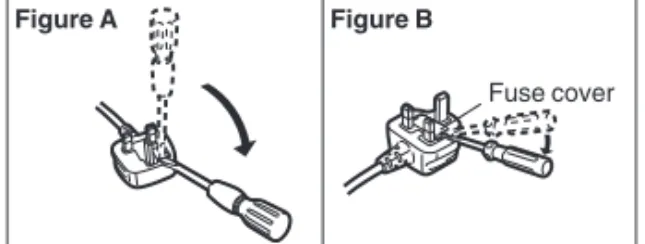
The location of the fuse differ according to the type of AC mains plug (figures A and B). Confirm the AC mains plug fitted and follow the instructions below.
Illustrations may differ from actual AC mains plug. 1. Open the fuse cover with a screwdriver.
2. Replace the fuse and close or attach the fuse cover.
Fuse cover
This unit adopts the following technology for copyright protection. Cinavia Notice
This product uses Cinavia technology to limit the use of unauthorized copies of some commercially-produced film and videos and their soundtracks. When a prohibited use of an unauthorized copy is detected, a message will be displayed and playback or copying will be interrupted.
More information about Cinavia technology is provided at the Cinavia Online Consumer Information Center at
http://www.cinavia.com. To request additional information about Cinavia by mail, send a postcard with your mailing address to: Cinavia Consumer Information Center, P.O. Box 86851, San Diego, CA, 92138, USA.
≥The operation history may be recorded in the memory of this unit.
Disposal of Old Equipment and Batteries Only for European Union and countries with recycling systems
These symbols on the products, packaging, and/or accompanying documents mean that used electrical and electronic products and batteries must not be mixed with general household waste.
For proper treatment, recovery and recycling of old products and used batteries, please take them to applicable collection points in accordance with your national legislation.
By disposing of them correctly, you will help to save valuable resources and prevent any potential negative effects on human health and the environment. For more information about collection and recycling, please contact your local municipality.
Penalties may be applicable for incorrect disposal of this waste, in accordance with national legislation. Note for the battery symbol (bottom symbol):
This symbol might be used in combination with a chemical symbol. In this case it complies with the requirement set by the Directive for the chemical involved.
Restriction on use of
unauthorized copied content
[BDT280]
Wireless LAN connection
The following limits are in place regarding the usage of this unit. You must be aware of these limits before using this unit. Panasonic will in no way be responsible for any incidental damage which may arise due to a failure to obey these limits, or to any condition of use or disuse of this unit.
≥Data transmitted and received over radio waves may be intercepted and monitored.
≥This unit contains delicate electronic components.
Please use this unit in the manner in which it was intended and follow the following points:
– Do not expose this unit to high temperatures or direct sunlight.
– Do not bend, or subject this unit to strong impacts. – Keep this unit away from moisture.
– Do not disassemble or alter this unit in any way.
[For_the_United_Kingdom_and_Ireland]
Declaration of Conformity (DoC)
Hereby, “Panasonic Corporation” declares that this product is in compliance with the essential requirements and other relevant provisions of Directive 1999/5/EC.
Customers can download a copy of the original DoC to our R&TTE products from our DoC server:
http://www.doc.panasonic.de Contact to Authorised Representative:
Panasonic Marketing Europe GmbH, Panasonic Testing Centre, Winsbergring 11, 22525 Hamburg, Germany
This product is in compliance with the radio standards of the following countries.
Austria, Belgium, Bulgaria, Cyprus, Czech Republic, Denmark, Finland, France, Germany, Greece, Hungary, Ireland, Italy, Iceland, Liechtenstein, Luxembourg, Malta, Netherlands, Norway, Poland, Portugal, Romania, Slovakia, Slovenia, Spain, Sweden, United Kingdom, Switzerland
This product on purpose to connect to access point of 2.4 GHz WLAN.
To dispose or transfer this
unit
The unit may keep the user settings information in the unit. If you discard this unit either by disposal or transfer, then follow the procedure to return all the settings to the factory presets to delete the user settings. (>30, “To return all settings to the factory preset.”)
Table of contents
Precautions . . . 2
Getting started
Accessories . . . 5
Unit and media care . . . 6
Playable media. . . 7
Control reference guide . . . 9
Connections and settings
Connecting to a TV . . . 11
Connecting to an amplifier/
receiver. . . 12
Connecting to the network . . . 13
Settings . . . 14
Playback
Inserting or removing media . . . . 15
HOME menu . . . 16
Playback . . . 17
Enjoying Network Service . . . 19
Home Network feature . . . 20
“HDMI CEC” . . . 22
USB Sharing . . . 22
Settings
Option menu . . . 23
Setup menu. . . 24
Reference
Troubleshooting guide . . . 30
Specifications . . . 34
Limited Warranty (ONLY FOR
AUSTRALIA) . . . 38
Getting started
Getting started
Accessories
Check the supplied accessories before using this unit. 1 Remote control [BDT280] [For_the_United_Kingdom_and_Ireland] (N2QAYB001031) [For_Australia_and_New_Zealand] (N2QAYB000962) [BDT180] [For_the_United_Kingdom_and_Ireland] [For_Australia_and_New_Zealand] (N2QAYB001030) [For_the_South_East_Asia_and_HongKong] (N2QAYB001033) [BDT167][BD84] [For_the_United_Kingdom_and_Ireland] [For_Australia_and_New_Zealand] (N2QAYB001029) [For_the_South_East_Asia_and_HongKong] (N2QAYB000958)
2 Batteries for remote control [BDT280][BDT180] AC mains lead [For_the_United_Kingdom_and_Ireland] (K2CT2CA00007) [For_Australia_and_New_Zealand] (K2CJ2DA00014) [For_the_South_East_Asia_and_HongKong]* [BDT167][BD84] 1 AC adaptor [For_the_United_Kingdom_and_Ireland,_and_HongKong] (SAE0003) [For_Australia_and_New_Zealand] (SAE0004) [For_the_South_East_Asia] (SAE0002) [Except_the_United_Kingdom_and_Ireland] 1 HDMI Cable
≥Product numbers are provided in these operating instructions correct as of December 2015. These may be subject to change.
≥Do not use AC mains lead and AC adaptorwith other equipment.
≥Do not use any other AC mains lead and AC adaptors except the supplied one.
* See page 11 for more information.
∫
Using the remote control
Insert the batteries to the terminal so that it (i
and j) matches those in the remote control.
Point it at the remote control signal sensor on this unit. (>9)
R6/LR6, AA
Getting started
Unit and media care
∫
Clean this unit with a soft, dry
cloth
≥Never use alcohol, paint thinner or benzine to clean this unit.
≥Before using chemically treated cloth, carefully read the instructions that came with the cloth.
∫
This unit’s lens
Use the lens cleaner (not supplied) to clean the unit’s lens.
∫
Clean discs
Wipe with a damp cloth and then wipe dry with a dry cloth.
≥Handle discs by the edges to avoid inadvertent scratches or fingerprints on the disc.
≥Do not attach labels or stickers to discs.
≥Do not use disc cleaning sprays, benzine, thinner, static electricity prevention liquids or any other solvent.
≥Do not use the following discs:
– Discs with exposed adhesive from removed stickers or labels (rented discs, etc.). – Discs that are badly warped or cracked. – Irregularly shaped discs, such as heart
shapes.
∫
Disc handling precautions
Getting started
Playable media
Device Media markings
Device types
Contents format
BD-Video Video BD-RE Video, JPEG, MPO*, AAC, ALAC, DSD, FLAC, MP3, WAV, WMA BD-R Video, MKV, Xvid, AAC, ALAC, DSD, FLAC, MP3, WAV, WMA DVD-Video Video DVD-R Video, AVCHD, MKV, Xvid, JPEG, MPO*, AAC, ALAC, DSD, FLAC, MP3, WAV, WMA DVD-R DL DVD-RW Video, AVCHD — +R/+RW/+R DL
Music CD Music [CD-DA]
— CD-R
CD-RW
MKV, Xvid, JPEG, MPO*, AAC, ALAC,FLAC, MP3, Music [CD-DA], WAV, WMA — USB devices (up to 4 TB) MKV, MP4, MPEG2, Xvid, JPEG, MPO*, AAC, ALAC, DSD, FLAC, MP3, WAV, WMA
BD
DVD
CD
USB
Getting started
∫
Types of discs that cannot be
played by this unit
Any other disc that is not specifically supported or previously described.
∫
Region management information
The unit can play back BD-Video/DVD-Video discs of the following regions codes, including “ALL”:
Example: BD-Video DVD-Video
[For_the_United_Kingdom_and_Ireland]
[For_Australia_and_New_Zealand]
[For_the_South_East_Asia_and_HongKong]
∫
Finalize
Any DVD-R/RW/R DL, +R/+RW/+R DL and CD-R/RW that are recorded by a recorder need to be finalized by the recorder to play on this unit. Please refer to the recorder’s instructions.
∫
BD-Video
≥This unit supports high bit rate audio (Dolby®
Digital Plus, Dolby® TrueHD, DTS-HD High
Resolution AudioTM and DTS-HD Master
AudioTM) adopted in BD-Video.
∫
Music CD
Operation and sound quality of CDs that do not comply with CD-DA specifications (copy control CDs, etc.) cannot be guaranteed to work.
∫
USB device
≥This unit does not guarantee connection with all USB devices.
≥This unit does not support USB device charging.
≥FAT12, FAT16, FAT32, and NTFS file systems are supported.
≥This unit supports USB2.0 High Speed.
≥This unit supports an HDD formatted in FAT32 and NTFS. If the HDD is not recognized, the power to the HDD may not be supplied. Supply power from an external source.
∫
BD-RE, BD-R
Discs recorded in DR mode using Panasonic Blu-ray Disc recorders may not play back the audio etc., correctly.
≥It may not be possible to play the above media in some cases due to the type of media, the condition of the recording, the recording method, and how the files were created.
≥The producers of the disc can control how discs are played, so you may not always be able to control play as described in these operating instructions. Read the disc’s instructions carefully.
≥DVD-RAM
≥Super Audio CD
≥Photo CD
≥DVD-Audio
≥Video CD and Super Video CD
≥HD DVD
≥If “Dolby D/Dolby D +/Dolby TrueHD” is set to “PCM” and “DTS Neo:6” is set to “Off”, the maximum possible number of Dolby® sound is
2ch PCM. (>25, 26)
2
4
Getting started
Control reference guide
When other Panasonic devices respond to the remote control of the unit, change the remote control code. (>29) e.g., [For_the_United_Kingdom_and_Ireland] [For_Australia_and_New_Zealand] e.g., [For_the_South_East_Asia_and_HongKong] 1 2 3 6 4 5 7 8 19 10 9 20 18 16 15 17 14 13 12 11 abc jkl mno pqrs tuv wxyz ㄅㄆㄇ ㄈㄉㄊ [BDT180] [BDT167] [BD84] abc jkl mno pqrs tuv wxyz ㄅㄆㄇ ㄈㄉㄊ 1 2 3 6 4 7 8 19 9 10 20 18 16 15 17 14 13 12 11 5 [BDT180] [BD84] 21 21 22 22 23 23 24 24 28 27 25 26 28 25 [BDT280] [BDT180] [BDT167][BD84]
Getting started 1 Turn the unit on and off
2 TV operation buttons
You can operate the Panasonic TV using this unit’s remote control. Some buttons may not work depending on the TV.
[ÍTV] : Turn the TV on and off [AV] : Change input
[i jVOL] : Adjust the volume
3 Select title numbers, etc./Enter numbers or [BDT280][BDT180]characters
4 Cancel
5 Change soundtrack (>17)
6 Basic playback control buttons (>17) 7 [For_the_United_Kingdom_and_Ireland]
[For_Australia_and_New_Zealand]
Show Pop-up menu (>17)
[For_the_South_East_Asia_and_HongKong]
Show USB Sharing menu (>22) 8 Show Top menu (>17) 9 Show Option menu (>23)
10 Coloured buttons (red, green, yellow, blue) Used for various purposes depending on the display
11 Transmit the remote control signal 12 Open or close the disc tray (>15) 13 Show the status messages (>18) 14 [BDT280]
Show MiracastTM screen (>20)
[BDT180][BDT167][BD84]
Switch Secondary Video on/off (Picture-in-picture) (>23)
15 Show the Home Screen of the Network Service (>19)
16 Exit the Menu screen 17 [For_the_United_Kingdom_and_Ireland]
[For_Australia_and_New_Zealand]
Show Netflix screen (>19)
[For_the_South_East_Asia_and_HongKong]
Show Pop-up menu (>17) 18 Show HOME menu (>16)
19 [3,4,2,1] : Move the highlight for selection
[OK] : Confirm the selection (;1) : Frame-by-frame (>17) 20 Return to previous screen
21 Disc tray (>15) 22 USB port (>15) 23 POWER LED
The LED lights when the unit is turned on, and flashes when error occurs.
24 Remote control signal sensor Distance: Within approx. 7 m
Angle: Approx. 20e up and down, 30e left and right
25 Open or close the disc tray (>15) 26 [BDT280][BDT180]
Stop (>17) 27 [BDT280][BDT180]
Start play (>17)
28 Standby/on switch (Í/I) (>14)
Press to switch the unit from on to standby mode or vice versa. In standby mode, the unit is still consuming a small amount of power. Rear panel terminals (>11–13)
∫Available keys for HDMI CEC (>22) 3 Number keys
6 Basic playback control buttons 9 Option button
10 Coloured buttons (red, green, yellow, blue) 16 Exit button
19 [3,4,2,1]/[OK] button 20 Return button
Connections and settings
Connections and settings
Connecting to a TV
Connect the AC mains lead after making all connections.
≥Before making any connections, we recommend that you temporarily disconnect all the units from AC power.
≥Use the High Speed HDMI cables. Non-HDMI-compliant cables cannot be utilized.
It is recommended that you use Panasonic’s HDMI cable. When outputting 1080p or [BDT280][BDT180] 24p (4K) signal, please use HDMI cables 5.0 meters or less.
[Except_the_United_Kingdom_and_Ireland] The HDMI-compliant cable is supplied with this unit.
≥This unit consumes a small amount of AC power (>34) even when turned off in standby mode. For the purpose of energy conservation, the unit should be disconnected if you will not be using it for extended period of time.
≥[BDT167][BD84]The unit is in the standby condition when the AC adaptor is connected. The primary circuit is always “live” as long as the AC adaptor is connected to an electrical outlet.
HDMI IN
[BDT280]
[BDT180] [BDT167][BD84]
AC mains lead (supplied) HDMI cable ([Except_the_United_Kingdom_and_Ireland] supplied) [BDT167] [BD84] [BDT280] [BDT180] AC adaptor (supplied)
To a household mains socket
[BDT180][For_the_South_East_Asia_and_HongKong]
2 AC mains leads are supplied.
Use the AC mains lead that matches the socket for the area you live in.
Connections and settings
Connecting to an amplifier/receiver
≥Set “Digital Audio Output” (>25).
≥[BDT280][BDT180][BDT167] When connecting to a non-3D or [BDT280][BDT180] 4K compatible amplifier/receiver, connect this unit to a TV, then connect the TV and the amplifier/receiver. Please note, however, that the audio can only be up to 5.1ch.
≥When using the TV or amplifier/receiver that does not have the indication of “(ARC)”
(non-ARC-compatible) on the HDMI terminal, the amplifier/receiver and TV must also be connected using an optical digital cable in order to enjoy the TV’s sound through the amplifier/receiver.
HDMI IN (ARC) HDMI OUT (ARC) HDMI IN HDMI cable Amplifier/receiver [BDT280] [BDT180] [BDT167][BD84] HDMI cable ([Except_the_United_Kingdom_and_Ireland] supplied) [BDT280] [BDT180] [BDT167] [BD84]
Connections and settings
Connecting to the network
The following services can be used when this unit is connected to broadband.
≥Firmware can be updated (>15)
≥You can enjoy BD-Live (>18)
≥You can enjoy Network Service (>19)
≥[BDT280][BDT180]You can access other devices (Home Network) (>20)
For details about connection method, refer to the instructions supplied with the connected equipment.
≥For up-to-date compatibility information on your wireless router, refer to http://panasonic.jp/support/global/cs/
(This site is in English only.)
≥Use category 5 or above straight LAN cables (STP) when connecting to peripheral devices.
≥Inserting any cable other than a LAN cable in the LAN port can damage the unit.
≥[BDT280] This unit supports Wi-Fi Direct® and can make a wireless connection to wireless devices
without router. You can use this function when enjoying Home Network feature, etc. Internet access is not available while connected via Wi-Fi Direct®. (>20, 27)
[BDT280]
Wireless LAN connection
This unit has built-in Wi-Fi® and can be connected to a wireless router.
Wireless router, etc. Internet
≥The unit is not compatible with public wireless LAN services (Hotspot etc.) provided in airports, stations, cafes, etc.
≥See page 3 for the precautions for wireless LAN connection.
LAN cable connection
Internet LAN Cable
Broadband router, etc. [BDT167] [BD84] [BDT280]
Connections and settings
Settings
The following settings can be performed anytime in the Setup menu. (>27, 28)
After connecting your new player for the first time and pressing [Í], the basic settings screen will appear.
Preparation
Turn on the TV and select the appropriate video input.
1
Press [Í].Setup screen appears.
2
Follow the on-screen instructions to continue with the settings.After completing “Easy Settings”, you can perform “Easy Network Setting”.
Follow the on-screen instructions to establish your connection settings.
e.g., [BDT280]
Select “Wired” or “Wireless” and press [OK].
[BDT280]
∫
About the wireless connection
Before beginning wireless connection setup
≥Obtain your network name (SSID*).
≥If your wireless connection is encrypted, please be sure that you know your encryption key. If your SSID is not displayed;
≥Search again by pressing the red button on the remote control.
≥Stealth SSIDs will not be displayed; in this case, enter manually by using “Manual setting”. Press [HOME]
>press [OK] to select “Setup” >select “Player Settings” >select “Network” and press [OK] >select “Network Settings” and press [OK] >select “Wireless Settings” and press [OK] >select “Connection Setting” and press [OK] >select “Manual setting” and press [OK] If your wireless network is encrypted; Encryption Key input screen will be displayed. Input the encryption key of your network.
≥An USB keyboard can be used, but only for the keys displayed on the screen.
If your wireless router is supports WPS (Wi-Fi Protected SetupTM);
You can easily set up a connection by pressing the green button on the remote control.
≥Refer to the operating instructions of the hub or router. ≥[BDT280]Do not use this unit to connect to any wireless
network for which you do not have usage rights. Using these networks may be regarded as illegal access.
≥If you have trouble getting online on your PC after performing network settings on this unit, perform the network settings on your PC.
≥[BDT280]Please be aware that connecting to a network without encryption may result in the leaking of data such as personal or secret information.
* SSID:
An SSID (Service Set IDentification) is a name used by wireless LAN to identify a particular network. Transmission is possible if the SSID matches for both devices.
Easy Settings
Easy Network Setting
Easy Network Setting
Wired Wireless Select a connection mode.
OK RETURN
Playback
Occasionally, Panasonic may release updated firmware for this unit that may add or improve the way a feature operates. These updates are available free of charge.
This unit is capable of checking the firmware automatically when connected to the Internet via a broadband connection.*
When a new firmware version is available, the following message is displayed.
You can also download the latest firmware from the following website and store it to a USB device to update the firmware.
http://panasonic.jp/support/global/cs/ (This site is in English only.)
DO NOT DISCONNECT the unit from the AC power or perform any operation while the update takes place.
≥To show the firmware version on this unit. (>29, “Firmware Version Information”)
≥Downloading will require several minutes. It may take longer or may not work properly depending on the connection environment.
≥If you do not want to check for the latest firmware version, set “Automatic Update Check” to “Off”. (>29)
* You must agree to the terms of use for the Internet function and the privacy policy. ([BDT280][BDT180]>16, “Notice”,
[BDT167][BD84]>28, “Notice”)
Playback
Inserting or removing
media
Notes
≥When inserting a media item, ensure that it is facing the correct way, which is the right side facing up.
≥If you connect a Panasonic product with a USB connection cable, the setup screen may be displayed on the connected equipment. For details, refer to the instructions for the connected equipment.
CAUTION
Do not place objects in front of the unit. The disc tray may collide with objects when it is opened, and this may cause malfunction.
Firmware updates
After the firmware is installed, unit will restart and the following screen will be displayed.
e.g.,
Firmware Update Current Version: X.XX New Version: X.XX Do you want to start firmware update? For the update information, please visit the following website:
http://panasonic.jp/support/global/cs/ Yes No
OK RETURN
The firmware has been updated. Current Version: x.xx
Playback
HOME menu
Major functions of this unit can be operated from the HOME menu.
Preparation
Turn on the TV and select the appropriate video input.
1
Press [Í] to turn on the unit.2
Press [OK] or [3,4,2,1] to select the item.≥If there are any other items, repeat this step.
[BDT280][BDT180] [BDT167][BD84]
Network Service
Displays the Home Screen of Network Service. (>19)
[BDT280][BDT180] Notice
Displays the terms of service for the cloud services.
To show the HOME menu Press [HOME].
≥After network service introduction banner is shown, the HOME menu is displayed. – When connected to the network, the
banner content may be changed. – You can disable the “Start-up Banner”
(>29). Videos Music Photos Setup Network HOME
Blu-ray Disc Player
Setup Notice
Videos/Photos/Music
Disc Play back the contents.
(>17)
≥When multiple contents are recorded, select the types of contents or the title.
USB
[BDT280][BDT180] Network Network Service
Displays the Home Screen of Network Service. (>19) Home Network DLNA Client (>20) [BDT280] Miracast (>20) Media Renderer (>21) Setup Player Settings (>24) USB Management (>18) [For_the_South_East_Asia] [For_the_HongKong] USB Sharing (>22)
Playback
Playback
1
Insert the media.Playback starts depending on the media.
2
Select the item to play and press [OK].Repeat this step if necessary.
≥DISCS CONTINUE TO ROTATE WHILE MENUS ARE DISPLAYED. Press [∫STOP] when you have finished playback to protect the unit’s motor, your TV screen and so on.
≥[BDT280][BDT180] When the following conditions are met, a still picture will be played back in 4K. The resolution of the still picture will be changed automatically.
– The unit is connected to a 4K compatible TV – “HDMI Video Format” is set to “Automatic” (>25) – The still picture is being played back in 2D
≥It is not possible to play back AVCHD and MPEG2 videos which have been dragged and dropped or copied and pasted to the media.
The following functions may not work depending on the media and contents.
Press [∫STOP].
The stopping point is memorized. Resume play function
Press [1PLAY] to restart from this point.
≥The point is cleared if the media is removed.
≥On BD-Video discs including BD-J, the resume play function does not work.
Press [;PAUSE].
≥Press [;PAUSE] again or [1PLAY] to restart play.
Search
While playing, press [SEARCH6] or [SEARCH5].
Slow motion
While paused, press [SEARCH5].
≥Xvid, MKV, MP4 and MPEG2: Not effective. The speed increases up to 5 steps.
≥Music, MP3, etc.: The speed is fixed to a single step.
≥Press [1PLAY] to revert to normal playback speed.
While playing or paused, press [:] or [9].
Skip to the title, chapter or track.
While paused, press [1] (;1).
≥Press and hold to fast forward.
≥Press [1PLAY] to revert to normal playback speed.
≥Xvid, MKV, MP4 and MPEG2: Not effective.
Press [AUDIO].
You can change the audio channel number or soundtrack language, etc.
Select the item and press [OK].
Operations during playback
Stop
Pause
Search/Slow motion
Skip
Frame-by-frame
Changing soundtrack
Show top menu/pop-up menu
Press [TOP MENU] or [POP-UP MENU].Playback
While playing, press [STATUS].
The status messages give you information about what is currently being played. Each time you press [STATUS], the display information may change or disappear from the screen.
≥Depending on media and contents, the display may change or not appear.
e.g., BD-Video
A T: Title, C: Chapter, PL: Playlist B Elapsed time in the title C Current position D Total time e.g., JPEG
With “BD-Live” discs, you can enjoy bonus contents that use Internet access.
For this BD-Live function, connection of a USB device is necessary along with Internet connection.
1
Perform network connection and settings. (>13, 14)2
Connect a USB device with 1 GB or more free space.≥The USB device is used as the local storage.
3
Insert the disc.∫
Deleting data on the USB device
Select “USB Management” in the HOME menu (>16), then select “BD-Video Data Erase” and press [OK].
≥The usable functions and the operating method may vary with each disc, please refer to the instructions on the disc and/or visit their website.
≥“BD-Live Internet Access” may need to be changed for certain discs (>28).
Play a slideshow of photos and adjust various settings during the playback.
1
Insert the media.2
Select “Photos”.3
Select an item and press the green button. The following items can be set.Show the status messages
[BDT280][BDT180][BDT167]
Enjoying 3D video and photos
Preparation
Connect this unit to a 3D compatible TV. (>11)
≥Perform the necessary preparations for the TV.
≥Play back following the instructions displayed on the screen.
≥3D Settings (>24, 26)
≥Please refrain from viewing 3D images if you do not feel well or are experiencing visual fatigue.
In the event that you experience dizziness, nausea, or other discomfort while viewing 3D images, discontinue use and rest your eyes.
≥3D video might not output the way it is set in “HDMI Video Format” and [BDT280][BDT180] “24p(4K)/24p Output”/
[BDT167] “24p Output” (>25). Play BD-Video T1 C1 0:05.14 0:20.52 A C D B Date Size Manufacturer Equipment 1 / 26 11.12.2007 500 X 375
Enjoying BD-Live
Slideshow
Start SlideshowStart the slideshow.
You can display still pictures in the selected folder one by one at a constant interval. Interval Change the display interval. Transition
Effect
Select the effect when sliding pictures.
Playback
Enjoying Network
Service
Network Service allows you to access some specific websites supported by Panasonic. [BDT167][BD84] This unit has no full browser function and some features of websites may not be available.
* Images are for illustration purposes, contents may change without notice. Preparation ≥Network connection (>13) ≥Network settings (>14)
1
Press [INTERNET]. [For_the_United_Kingdom_and_Ireland] [For_Australia_and_New_Zealand]≥Netflix can be accessed directly by pressing [NETFLIX] button even when this unit is off.
2
Select the item and press [OK]. To exit from Network Service Press [HOME]. * MORE BACK XXXXXX XXXXXXXXXXXXXXX XXXXXXXXXXX XXXXXXXX XXXX XXXX XXXXXX, XXXX XXXXXXXX 39°C X Market XXXXXXXXXXXXXXXXXXXX XXXXX XXXXXX XXXXNetwork Service provides a variety of selected Internet services such as the following.
≥Online movie rental service
≥Video browsing service
Internet [BDT280]
≥When playing content in the media, Network Service cannot be accessed by pressing [INTERNET]. ≥An USB keyboard can be used, but only for the keys
displayed on the screen. It may not be used depending on the service.
≥In the following cases, settings are possible using the Setup menu items.
– When restricting the use of Network Service (>28, “Network Service Lock”)
– When correcting the displayed time (>27, “Time Zone”, “Summer Time”)
– When using another device such as a smartphone in combination with the unit by using a certain app on the device
(>27, “Remote Device Operation”)
≥When using a slow Internet connection, the video may not be displayed correctly. A high speed Internet service with a speed of at least 6 Mbps is recommended.
≥Be sure to update the firmware as soon as a firmware update notice is displayed on the screen. If the firmware is not updated, you may not be able to use Network Service function properly. (>15)
≥Network Service Home Screen is subject to change without notice.
≥The services through Network Service are operated by their respective service providers, and service may be discontinued either temporarily or permanently without notice. Therefore, Panasonic will make no warranty for the content or the continuity of the services.
≥Some features of websites or content of the service may not be available.
≥Some content may be inappropriate for viewers. ≥Some content may only be available for specific countries
Playback
You can share photos, videos and music stored in the DLNA Certified media server [PC with Windows 7 installed, smartphone, recorders, etc.] connected to your home network.
≥About support format of DLNA (>35).
Preparation
1 Perform network connection (>13) and network settings (>14) of this unit.
2 Add the contents and folder to the libraries of the Windows Media® Player or the
smartphone, etc.
≥Playlist of Windows Media® Player can play
back only the contents that are stored in the libraries.
≥When connected to Panasonic DLNA compatible recorders, register this unit to your Panasonic DLNA compatible recorders.
≥The list can be updated by pressing the red button on the remote control.
5
Select the equipment and press [OK].6
Select the item to play and press [OK].≥You may be able to use convenient
Home Network feature
Before using the following features, be sure to configure the connected equipment on your Home Network.
[BDT280]
Using Miracast
TMYou can enjoy the content you are viewing on a Miracast-compatible smartphone, etc. on the big screen of your TV.
≥Compatible with AndroidTM devices, ver. 4.2
and above and Miracast certified.
For information on whether the smartphone, etc. supports Miracast, contact the manufacturer of the device.
1
Press [MIRACAST].2
Operate the Miracast compatible device.≥On the device, enable Miracast and select this unit as the device to be connected. For details, refer to the instructions supplied with the device.
To exit from Miracast Press [HOME].
Player Miracast compatible device
[BDT280][BDT180]
Playing back contents on the
DLNA server
1
Press [HOME].2
Select “Network”.3
Select “Home Network”.4
Select “DLNA Client”.≥[BDT280] The connection method can be
switched to Wi-Fi Direct by pressing the green button on the remote control.
Playback
You can use a smartphone or tablet as the Digital Media Controller (DMC) to playback contents from DLNA server on the Renderer (this unit). Possible applications:
* DMC compatible software should be installed. Preparation
Perform steps 1 and 2. (>20)
3 Perform the “Remote Device Settings”. (>27)
≥You can register up to 16 devices.
1
Press [HOME].2
Select “Network”.4
Select “Media Renderer”.6
Operate the DMC compatible devices. To exit from Media Renderer screen Press [HOME].≥Depending on the contents and the connected equipment, playback may not be possible.
≥Items displayed in grey on the display cannot be played back by this unit.
[BDT280][BDT180]
Using the Digital Media
Controller
3
Select “Home Network”.5
[BDT280] Select “Home Network” or “Wi-Fi Direct” and press [OK], then follow the indications on the screen.* * * + Renderer Server Controller Renderer Server Controller [BDT280][BDT180]
About DLNA and Media Renderer
For more details, refer to the following website and the operating instructions for each of the equipment.
http://panasonic.jp/support/global/cs/ (This site is in English only.)
≥[BDT280] Wi-Fi Direct connection while using Home Network feature is only temporary, and the network connection method returns to the original setting when exiting.
≥[BDT280] Depending on the device or connection environment, the data transfer rate may decrease.
Playback
“HDMI CEC”
This unit supports “HDMI CEC” (Consumer Electronics Control) function.
See the operating instructions for connected equipment for operational details.
Preparation
1 Set “HDMI CEC” to “On” (>29). (The default setting is “On”.)
2 Set the “HDMI CEC” operations on the connected equipment (e.g., TV).
3 Turn on all “HDMI CEC” compatible
equipment and select this unit’s input channel on the connected TV so that the “HDMI CEC” function works properly.
Repeat this procedure when the connections or settings are changed.
When the unit starts playback, the TV will automatically switch the input channel and the screen of the unit will be displayed.
Additionally when the TV is off, the TV will automatically turn on.
All connected equipment compatible with “HDMI CEC”, including this unit, automatically turns off when you switch the TV off.
By using the TV remote control, you can perform the same operations as you use the remote control of this unit. (>10)
USB Sharing
[For_the_South_East_Asia_and_HongKong]
This function allows you to copy content between the following media.
Preparation
≥Insert the media. (>15)
1
Press [USB SHARING].2
Select the copy source and press [OK].3
Select the folder or file to be copied andpress the red button on the remote control.
≥Press the red button on the remote control again to cancel.
4
Press [OK].5
Select the copy destination and press [OK].6
Select “Yes” on the confirmation screen and press [OK].≥When the destination contains a folder or file with the same name, you can change the option for resolving the conflict by pressing [OPTION].
≥You cannot set the media formatted to NTFS as a copy destination.
≥Copying of files in all formats is not guaranteed. ≥Videos on discs and copyrighted content on discs cannot
be copied.
≥Panasonic does not accept any responsibility for damages directly or indirectly due to any type of problems that result in loss of copying content (data), and does not guarantee any content if copying does not work properly.
≥The recording and playback of content on this or any other device may require permission from the owner of the copyright or other such rights in that content. Panasonic has no authority to and does not grant you that permission and explicitly disclaims any right, ability or intention to obtain such permission on your behalf. It is your You can use this function by connecting the
equipment that supports “HDMI CEC”.
Automatic input switching
Power on link
Power off link
Easy control only with TV
remote control
Settings
Settings
Option menu
A variety of playback operations and settings can be performed from this menu.
Available options differ depending on the playing contents and the condition of the unit.
1
Press [OPTION].≥When playing music, select “Playback Settings” and press [OK].
[BDT280][BDT180][BDT167] e.g., BD-Video
2
Select an item and change the settings. To exit the screenPress [OPTION].
Regarding Language : (>36)
∫Soundtrack
Show or change the soundtrack.
∫Audio channel
Select the audio channel number.
∫Subtitle
Change the subtitle settings.
∫Angle
Select the number of the angle.
∫Repeat Play
Select the item that you want to repeat.
≥You can repeat the playback of a chapter, playlist, the entire disc, etc., but the items displayed will differ depending on the type of
∫Random
Select whether or not to play random.
∫Start Slideshow Start the slideshow.
∫Status
Show the status messages. [BDT280][BDT180]
∫Sound
Select the soundtrack and audio channel number during the playback of DLNA.
[BDT280]
∫Reception
The radio wave status during the playback of DLNA is displayed. (Only when a wireless connection is used)
∫Rotate RIGHT
∫Rotate LEFT Rotate the still picture.
∫Wallpaper
Set the still picture to the wallpaper of HOME menu. (>16)
∫Video
The recording method of original video appears.
∫Primary Video
The recording method of original primary video appears.
∫Secondary Video
∫Zoom
Videos and pictures are magnified.
∫Top Menu Display Top Menu.
∫Pop-up Menu Display Pop-up Menu.
∫Menu Display Menu.
Operation Menu
Operation Menu Zoom Pop-up Menu Top Menu Secondary Video Primary Video Status Repeat Play Angle Subtitle Soundtrack Off 1MPEG-4 AVC – 1 ENG Dolby TrueHD 3/...Video
Select on/off for images. The recording method of original video appears.
≥During search/slow motion, only the primary video is displayed.
Settings
∫Picture Mode
Select the picture quality mode during play.
≥If you select “User”, you can change settings in “Picture Adjustment”.
∫Picture Adjustment
Specific picture quality settings can be changed.
∫Progressive
Select the method of conversion for progressive output to suit the type of material being played.
∫24p
Movies and other material recorded on DVD-Video at 24p are output at 24p.
∫Reset to Default Picture Settings Return picture settings to the factory defaults.
Setup menu
Change the unit’s settings if necessary. The settings remain intact even if you switch the unit to standby.
Some items are common to the Option menu. You can get the same effect with both menus.
1
Press [HOME].2
Press [OK] to select “Setup”.3
Select “Player Settings”.[BDT280][BDT180][BDT167]
4
Select an item and change the settings. To exit the screenPress [HOME].
Picture Settings
≥If the video is disrupted when “Auto” is selected, select either “Video” or “Film” depending on the material to be played back.
≥[BDT280][BDT180] Only when you have selected “24p(4K)” or “24p” in “24p(4K)/24p Output” (>25) and play discs recorded at a rate of 60 fields per second.
[BDT167][BD84]Only when you have selected “On” in “24p Output” (>25) and play discs recorded at a rate of 60 fields per second.
≥This may not work with the PAL contents.
[BDT280][BDT180][BDT167]
3D Settings
[BDT280][BDT180]∫Signal Format
Original Keep original picture format. Side by side 3D picture format comprising of left and right screens. 2D to 3D Converts 2D pictures to 3D effect.
∫Distance OK RETURN Player Settings System Ratings Network Language 3D Sound Picture HDMI Output Picture Adjustment
Settings
∫Picture Mode (>24)
∫Picture Adjustment (>24)
∫HDMI Output
Press [OK] to show the following settings:
¾HDMI Video Format
The items supported by the connected devices are indicated on the screen as “¢”. When any item without “¢” is selected, the images may be distorted.
≥If “Automatic” is selected, the best suited output resolution to the connected TV is automatically selected.
≥To enjoy high-definition video up-converted to 1080p, you need to connect the unit directly to 1080p compatible HDTV (High Definition TV). If this unit is connected to an HDTV through other equipment, the other equipment must also be 1080p compatible.
¾Deep Colour Output
This setting is for selecting whether to use Deep Colour Output when a TV that supports Deep Colour is connected.
¾Contents Type Flag
Depending on the playback content, the TV will output adjusting to the optimal method when a TV that supports this function is connected.
∫Dynamic Range Compression You can listen at low volumes but still hear dialogue clearly.
(Dolby Digital, Dolby Digital Plus and Dolby TrueHD only)
∫Digital Audio Output
Press [OK] to show the following settings:
¾Dolby D/Dolby D +/Dolby TrueHD
¾DTS/DTS-HD [BDT280][BDT180][BDT167]
¾DSD Output Mode
Select the audio signal to output.
≥Select “PCM” or [BDT280][BDT180][BDT167]“Off”, when the connected equipment cannot decode the respective audio format. This unit decodes the audio format and transmits to the connected equipment.
≥If you do not make proper settings the audio may be static or noisy.
¾BD-Video Secondary Audio
Select whether or not to mix the primary and secondary audio (including the button click sound).
If “Off” is selected, the unit outputs the primary audio only.
Picture
[BDT280][BDT180]
¾24p(4K)/24p Output
This setting is for selecting the output method for content recorded in 24p*1, such as movies.
24p(4K) Outputs signals by upconverting them to 4K*2.
24p Outputs in 24p.
≥Connect the compatible TV for each (4K or 1080/24p) output to the HDMI AV OUT terminal of this unit.
≥“24p(4K)” works only when playing back in 2D.
≥When playing DVD-Video, set this setting to “24p(4K)” or “24p”, and then “24p” in “Picture Settings” (>24) to “On”.
≥When BD-Video/DVD-Video images other than 24p are played, images are output at 60p.
[BDT167][BD84]
¾24p Output
When this unit is connected to a TV supporting 1080/24p output, movies and other material recorded at 24p*1 are output at 24p. ≥When playing DVD-Video, set to “On” and
then set “24p” in “Picture Settings” (>24) to “On”.
*1A progressive image recorded at a rate of 24 frames per
second (motion-picture film). Many BD-Video movie contents are recorded in 24 frames/second in accordance with the film materials.
*2A high resolution image/display technology of
approximately 4000 (width) k 2000 (height) pixels.
Sound
≥“Automatic” is effective only when playing Dolby TrueHD.
Settings
∫Downmix
Select the downmix system of multi-channel to 2-channel sound.
≥Select “Surround encoded”, when the connected equipment supports the virtual surround function.
≥The downmix effect is not available when “Digital Audio Output” is set to “Bitstream”.
≥The audio will be output in “Stereo” in the following cases:
– AVCHD playback
– Playback of secondary audio (including the button click sound).
∫DTS Neo:6
2ch (2.1ch) audio is expanded to 7ch (7.1ch).
≥This function works when the following conditions are met:
– Audio recorded at 96 kHz or lower is output. – “Digital Audio Output” is set to “PCM” when
audio other than PCM is output.
∫Soundtrack Preference Choose the language for audio.
≥If “Original” is selected, the original language of each disc will be selected.
≥When the selected language is not recorded on the disc, or depending on how the navigation is created on the disc, it may playback in a different language than the selected language.
≥Enter a code (>36) when you select “Other
¢¢¢¢”.
∫Subtitle Preference
Choose the language for the subtitle.
≥When “Automatic” is selected, a subtitle for the language selected in the “Soundtrack Preference” is displayed only when the language other than the language selected in the “Soundtrack Preference” is played back.
≥When the selected language is not recorded on the disc, or depending on how the navigation is created on the disc, it may playback in a different language than the selected language.
≥Enter a code (>36) when you select “Other
¢¢¢¢”.
∫Menu Preference
Choose the language for the disc menus.
≥Enter a code (>36) when you select “Other
¢¢¢¢”.
[Except_South_East_Asia_and_HongKong]
[BDT280][BDT180][BDT167]
3D
∫3D BD-Video Playback
Select the playback method of 3D compatible video software.
∫3D Playback Message
Set to display or hide the 3D viewing warning screen when playing back the 3D compatible video software.
∫Graphic Display Level (>24)
Language
∫Subtitle Text
Select a desired item according to the language used for MKV/Xvid subtitles text.
≥This item is displayed only after playing back a file.
[Except_Australia,_New_Zealand]
∫On-Screen Language
Choose the language for menus and on-screen messages.
Settings
∫Easy Network Setting (>14)
∫Network Settings
Perform network-related settings individually. Press [OK] to show the following settings:
[BDT280]
¾LAN Connection Mode Select the LAN connection method.
≥[For_the_United_Kingdom_and_Ireland]When not using wireless LAN (when turning it off), select “Wired”.
[BDT280]
¾Wireless Settings
This allows the wireless router and connection settings to be set up. Current connection settings and connection state can be checked. Press [OK] to show the following settings:
Connection Setting
The wireless router connection wizard will be displayed.
Double Speed Mode Setting (2.4GHz) Set the connection speed for a 2.4 GHz wireless format.
≥If you connect using the “Double Speed Mode (40MHz)”, 2 channels use the same frequency band, and there is consequently a greater risk of reception interference. This can cause the connection speed to drop or become unstable.
¾IP Address / DNS Settings
This is for checking the state of the network connection and setting the IP address and DNS-related.
Press [OK] to show the respective setting.
¾Proxy Server Settings
This is for checking the state of connection with the Proxy server and performing settings. Press [OK] to show the respective setting.
Time Zone
Set the unit’s time to match your location.
≥Some Network Service contents require the time zone to be set. Set time zone if necessary.
Summer Time
Select “On” when using summer time.
¾Remote Device Settings (>19, 21) Press [OK] to show the following settings:
Remote Device Operation
Enable to start Network Service on this unit by using another device such as Smartphone, etc.
[BDT280][BDT180] Enable to operate the unit by DMC.
Device Name Entry
Set the name of this unit to be displayed on the connected equipment.
[BDT280][BDT180] Registration Type
[BDT280][BDT180] Remote Device List
Registering/deregistering of the displayed equipment can be performed when “Manual” in “Registration Type” is selected.
Network
¾Press [OK] to show the following settings:Network Service Settings (>19)[BDT280][BDT180]
[Except_South_East_Asia_and_HongKong]
¾Network Drive Connection
This unit can access a hard disk shared folder on a network and play back videos, still pictures, and music.
For the setting and operation method of connected equipment, refer to the following website.
http://panasonic.jp/support/global/cs/ (This site is in English only.)
Automatic
Allow connections to all the equipment accessing this unit.
Manual
Set the permission for individual equipment connections accessing this unit.
Settings
¾BD-Live Internet Access (>18)
You can restrict Internet access when BD-Live functions are used.
≥If “Limit” is selected, Internet access is permitted only for BD-Live contents which have content owner certificates.
[BDT167][BD84]
∫Notice
Displays the terms of service for the cloud services.
The following items use the same password. Don’t forget your password.
∫DVD-Video Ratings
Set a ratings level to limit DVD-Video play.
∫BD-Video Ratings
Set an age limit of BD-Video play.
∫Easy Settings
You can execute basic settings.
∫TV Settings
Press [OK] to show the following settings:
¾TV Aspect
Set to match the type of TV connected. When connected to a 4:3 aspect TV and playing 16:9 ratio image:
When connected to a 16:9 widescreen TV and playing 4:3 ratio image:
¾Screen Saver Function
This is to prevent image retention on the screen.
≥When this is set to “On”:
If a list of playback content is displayed and there is no operation for 10 minutes or more, the screen switches to HOME menu
Ratings
∫Network Service Lock
You can restrict the usage of Network Service.
System
4:3 Pan & Scan
The sides are cut off so the picture fills the screen.
When playing BD-Video, video is output as “4:3 Letterbox”.
4:3 Letterbox
Black bands appear at the top and bottom of the picture.
16:9
Video is displayed as a 4:3 ratio image in the centre of the screen. 16:9 full Video is displayed as a horizontally stretched 16:9 image. ¾TV System
Perform the setup so it matches the TV System of the connected TV.
Settings
¾On-Screen Messages
Choose whether to show status messages automatically.
¾HDMI CEC
Set to use “HDMI CEC” function when connected to a device that supports “HDMI CEC”.
≥Select “Off” when you do not want to use “HDMI CEC”.
∫Quick Start
Speed of start-up from standby mode is increased.
[For_the_United_Kingdom_and_Ireland]
≥When set to “On”, the internal control unit will be powered and in Network standby mode. The idle power consumption will increase so compared to when set to “Off”.
(Power consumption >34)
[For_Australia_and_New_Zealand] [For_the_South_East_Asia_and_HongKong]
≥When set to “On”, the internal control unit will be powered and the idle power consumption will increase so compared to when set to “Off”. (Power consumption >34)
∫Remote Control
Change the remote control code if other Panasonic products react to this remote control.
∫Firmware Update (>15)
Press [OK] to show the following settings:
¾Automatic Update Check
When this equipment remains connected to the Internet, it will check for the latest firmware version when it is turned on and you can update it if necessary.
¾Update Now
You can update the firmware manually if a firmware update is available.
∫System Information
Press [OK] to show the following settings:
¾Software Licence
Information about the software used by this unit is displayed.
¾Firmware Version Information
Display firmware version of this unit and [BDT280] wireless LAN module.
∫Default Settings
∫Start-up Banner
Select whether to display the banner after turning on this unit. (>16)
This returns all values in the Setup menu and the Option menu to the default settings, except for some settings of network, ratings, remote control code, on-screen language*, etc.
Reference
Reference
Troubleshooting guide
Before requesting service, please perform the following checks.If the problem remains unresolved, consult your dealer for instructions.
∫
Unit does not respond to remote
control or unit’s buttons.
Disconnect the AC mains lead, wait 1 minute, then reconnect the AC mains lead.The following do not indicate a problem with this unit:
– Regular disc rotating sounds. – Image disturbance during search.
∫
Cannot eject disc.
1 Turn the unit on.
2 Press and hold [OK], the yellow button and the blue button on the remote control at the same time for more than 5 seconds.
4 Press [OK].
To return to the factory defaults.
¾ Select “Yes” in “Default Settings” in the Setup menu. (>29)
To return all settings to the factory preset.
¾ Reset the unit as follows:
1 Turn the unit on.
2 Press and hold [OK], the yellow button and the blue button on the remote control at the
The remote control does not work properly.
¾ Change the batteries in the remote control. (>5)
¾ The remote control and this unit are using different codes.
Press and hold [OK] and the displayed number (“”) for more than 5 seconds. The TV tuner mode is not displayed when the TV is turned on.
¾ This phenomenon may occur, depending on the TV setting, when “Quick Start” is set to “On”.
¾ Depending on the TV, this phenomenon may be prevented by reconnecting the HDMI cable to a different HDMI input terminal or by changing the HDMI auto connection setting. This unit is turned off automatically.
¾ To save on electricity, this unit is turned off automatically if there is no button operation for about 20 minutes when not playing back (such as when paused or displaying the menu, displaying still pictures, etc.). You have forgotten your ratings password. You want to cancel the ratings level.
¾ The ratings level returns to the factory defaults.
1 Turn the unit on.
2 Press and hold [OK], the yellow button and the blue button on the remote control at the same time for more than 5 seconds.
4 Press [OK].
The TV screen turns black.
¾ In the following cases, HDMI authentication takes place and a black screen is displayed: –[BDT280][BDT180] When “24p(4K)/24p Output”
is set to “24p(4K)” or “24p”. Do you have the latest firmware installed?
Panasonic is constantly improving the unit’s firmware to ensure that our customers are enjoying the latest technology. (>15)
–[BDT280][BDT180][BDT167] Image disturbance when replacing 3D discs.
– POWER LED starts to flash, and “00 RET” is displayed on the screen.
3 Press [1] (right) repeatedly on the remote control until “06 FTO” is displayed on the screen.
General operation
Turn on this unit by using the standby/on switch on this unit, and check “Remote control ”, which is displayed on the screen when you press a button on the remote control.
– POWER LED starts to flash, and “00 RET” is displayed on the screen.
3 Press [1] (right) repeatedly on the remote control until “03 VL” is displayed on the screen.
Reference This unit does not recognize the USB
connection correctly.
¾ Disconnect and re-connect the USB cable. If it still does not recognize the connection, turn this unit off and on again.
¾ USB devices may not be recognized by this unit when connected using the following : – a USB hub
¾ If you connect USB HDD to this unit, use the USB cable that is supplied with the HDD.
The images from this unit do not appear on the TV.
Picture is distorted.
¾ An incorrect resolution is selected in “HDMI Video Format”. Reset the setting as follows:
1 Turn the unit on.
2 Press and hold [OK], the yellow button and the blue button on the remote control at the same time for more than 5 seconds.
Set the item again. (>25)
– When Dolby Digital Plus, Dolby TrueHD, and DTS-HD® audio are not output properly,
select “Yes” in “Default Settings” (>29) and make proper settings.
Video is not output in high-definition.
¾ Confirm that “HDMI Video Format” in the
A black band is displayed around the edge of the screen.
The aspect ratio of the screen is abnormal.
¾ Confirm the “TV Aspect” is set properly. (>28)
¾ Adjust the aspect setting on the TV.
Cannot hear the desired audio type.
¾ Check the connections and the “Digital Audio Output” settings. (>12, 25)
– a USB extension cable
Picture
– POWER LED starts to flash.
3 Press [8] and the blue button on the remote control at the same time for more than 5 seconds.
¾ PAL discs cannot be correctly viewed on an NTSC TV.
¾ [BDT280][BDT180][BDT167]When “3D BD-Video Playback” in the Setup menu is set to “Automatic”, images may not be output depending on the connection method. After removing the disc from this unit, select “Set before play” in the Setup menu, and select “2D Playback” in the setup screen displayed when playing 3D discs. (>26)
¾ [BDT280][BDT180] When outputting in 24p (4K), images may be distorted depending on the HDMI cable. Use an HDMI cable that supports 4K output.
[BDT280][BDT180][BDT167] 3D video is not output.
¾ Connect to a full high-definition TV.
¾ Is there a non-3D compatible amplifier/ receiver connected between this unit and a TV? (>12)
¾ Are the settings on this unit and the TV correct? (>18)
¾ Is the amplifier/receiver that is connected between this unit and TV on?
¾ Depending on the connected TV, the video being played back might switch to 2D video due to changes in resolution etc. Check the 3D setting on the TV.
[BDT280][BDT180][BDT167]
3D video is not output correctly as 2D.
¾ Select “Set before play” in the Setup menu, and select “2D Playback” in the setup screen displayed when playing 3D discs. (>26, “3D BD-Video Playback”)
¾ Discs that have recorded titles with Side by side (2 screen structure) and that can be enjoyed in 3D are played back in accordance with the settings of the TV.
Audio
Cannot switch audio.
¾ The audio cannot switch, if “Digital Audio Output” is set to “Bitstream” or[BDT280][BDT180] [BDT167]“On”*. Set “Digital Audio Output” to “PCM” or [BDT280][BDT180][BDT167]“Off”*. (>25)
Reference
Disc cannot be played.
¾ The disc is dirty. (>6)
¾ The disc is not finalized. (>8) Still pictures (JPEG) do not play back normally.
¾ The images that were edited on the PC, such as Progressive JPEG, etc., may not be played back.
I can’t play back BD-Live.
¾ Confirm that this unit is connected to the broadband Internet. (>13)
¾ Confirm the “BD-Live Internet Access” settings. (>28)
¾ Confirm a USB device is connected to the USB port. (>15)
¾ [BDT280]Connect this unit to the network by a wired connection.
I can’t connect to the network.
¾ Confirm the network connection and settings. (>13, 14, 27)
¾ [BDT280]There may be interference that prevents the unit from detecting your home network. Place the unit and the wireless router closer to each other. This unit may be able to detect your network name (>14, “SSID”).
¾ Check the operating instructions for each device and connect accordingly.
[BDT280]
When using wireless LAN connection, video from the DLNA Certified media server is not played back or video frames are dropped during playback.
¾ On the “Wireless Settings” screen (>27), the continuous lighting of at least 4 “Reception” indicators is the target for a stable connection. If 3 or fewer indicators are lit or the
connection is being interrupted, change the position or angle of your wireless router and see if the connection state improves. If there is no improvement, connect to a wired network and perform the “Easy Network Setting” (>14) again.
Playback
Network
¾ Higher transfer rate router such as 802.11n (2.4 GHz) wireless router may solve the problem. If you use 802.11n (2.4 GHz) wireless router, it is necessary to set the encryption type to “AES”.
Simultaneous use with a microwave, cordless telephone etc. at 2.4 GHz may result in connection interruptions or other problems.