www.fortinet.com
FortiGate
SSL VPN User Guide
Version 3.0 MR5
FortiGate SSL VPN User Guide 11 September 2007
01-30005-0348-20070911
© Copyright 2007 Fortinet, Inc. All rights reserved. No part of this publication including text, examples, diagrams or illustrations may be reproduced, transmitted, or translated in any form or by any means, electronic, mechanical, manual, optical or otherwise, for any purpose, without prior written permission of Fortinet, Inc.
Trademarks
ABACAS, APSecure, FortiASIC, FortiAnalyzer, FortiBIOS, FortiBridge, FortiClient, FortiGate, FortiGuard, FortiGuard-Antispam, FortiGuard-Antivirus, FortiGuard-Intrusion, FortiGuard-Web, FortiLog, FortiManager, Fortinet, FortiOS, FortiPartner, FortiProtect, FortiReporter, FortiResponse, FortiShield, FortiVoIP, and FortiWiFi are trademarks of Fortinet, Inc. in the United States and/or other countries. The names of actual companies and products mentioned herein may be the trademarks of their respective owners.
Contents
Contents
Introduction ... 7
About FortiGate SSL VPN ... 7
About this document... 8
Document conventions... 8 Typographic conventions... 9 FortiGate documentation ... 9 Related documentation ... 10 FortiManager documentation ... 10 FortiClient documentation ... 11 FortiMail documentation ... 11 FortiAnalyzer documentation ... 11
Fortinet Tools and Documentation CD ... 11
Fortinet Knowledge Center ... 11
Comments on Fortinet technical documentation ... 12
Customer service and technical support ... 12
Configuring a FortiGate SSL VPN ... 13
Comparison of SSL and IPSec VPN technology... 13
Legacy versus web-enabled applications ... 13
Authentication differences ... 14
Connectivity considerations ... 14
Relative ease of use ... 14
Client software requirements ... 14
Access control ... 14
Session failover support ... 15
SSL VPN modes of operation ... 15
Web-only mode ... 15
Web-only mode client requirements ... 16
Tunnel mode ... 16
Tunnel-mode client requirements ... 17
Topology... 17
Infrastructure requirements ... 18
Configuration overview... 18
Configuring SSL VPN settings ... 19
Enabling SSL VPN connections and editing SSL VPN settings ... 19
Specifying a port number for web portal connections ... 21
Contents
To reserve a range of IP addresses for tunnel-mode clients... 22
Enabling strong authentication through security certificates ... 22
Specifying the cipher suite for SSL negotiations ... 22
Setting the idle timeout setting ... 23
Setting the client authentication timeout setting ... 23
Adding a custom caption to the web portal home page ... 23
To add a custom caption ... 23
Adding WINS and DNS services for clients ... 23
Redirecting a user group to a popup window ... 23
To display a custom popup window for a user group ... 24
Customizing the web portal login page ... 24
To edit the HTML code ... 24
Configuring user accounts and SSL VPN user groups ... 25
To create a user account in the Local domain... 25
To create a user group ... 26
Configuring firewall policies ... 28
Configuring firewall addresses ... 28
Configuring Web-only firewall policies... 29
To specify the destination IP address... 29
To define the firewall policy for web-only mode connections ... 29
Configuring tunnel-mode firewall policies ... 30
To specify the source IP address ... 31
To specify the destination IP address... 32
To define the firewall policy for tunnel-mode operations ... 32
Configuring SSL VPN event-logging ... 33
To log SSL VPN events... 33
To filter SSL VPN events ... 33
To view SSL VPN event logs ... 33
Monitoring active SSL VPN sessions ... 34
Configuring SSL VPN bookmarks and bookmark groups... 35
Viewing the SSL VPN bookmark list ... 35
Configuring SSL VPN bookmarks ... 35
Viewing the SSL VPN Bookmark Groups list ... 36
Configuring SSL VPN bookmark groups... 36
Assigning SSL VPN bookmark groups to SSL VPN users ... 37
Granting unique access permissions for SSL VPN tunnel user groups.... 38
Sample configuration for unique access permissions with tunnel mode user groups ... 38
Working with the web portal ... 43
Connecting to the FortiGate unit ... 43
To log in to the FortiGate secure HTTP gateway ... 43
Contents
Launching web portal applications ... 45
Adding a bookmark to the My Bookmarks list ... 46
To add an HTTP or HTTPS connection and access the web server .... 47
To add a telnet connection and start a telnet session ... 47
To add an FTP connection and start an FTP session ... 48
To add a SMB/CIFS connection and start a SMB session ... 50
To add a VNC connection and start a VNC session... 52
To add a RDP connection and start a RDP session... 53
Starting a session from the Tools area ... 55
To connect to a web server from the Tools area ... 55
To ping a host or server behind the FortiGate unit ... 55
To start a telnet session from the Tools area ... 55
Tunnel-mode features ... 55
Working with the ActiveX plugin ... 56
To download and install the ActiveX plugin ... 56
To initiate a VPN tunnel with the FortiGate unit ... 57
Uninstalling the ActiveX plugin ... 58
To uninstall the ActiveX plugin... 58
Logging out ... 58
Introduction About FortiGate SSL VPN
Introduction
This section introduces you to FortiGate™ Secure Sockets Layer (SSL) VPN technology and provides supplementary information about Fortinet™ publications. The following topics are included in this section:
• About FortiGate SSL VPN • About this document • FortiGate documentation • Related documentation
• Customer service and technical support
About FortiGate SSL VPN
FortiGate SSL VPN technology makes it safe to do business over the Internet. In addition to encrypting and securing information sent from a web browser to a web server, FortiGate SSL VPN can be used to encrypt most Internet-based traffic. With the FortiGate unit’s built-in SSL VPN capabilities, small home offices, medium-sized businesses, enterprises, and service providers can ensure the confidentiality and integrity of data transmitted over the Internet. The FortiGate unit provides enhanced authentication and restricted access to company network resources and services.
The two modes of SSL VPN operation, supported in NAT/Route mode only, are: • web-only mode, for thin remote clients equipped with a web browser only • tunnel mode, for remote computers that run a variety of client and server
applications
When the FortiGate unit provides services in web-only mode, a secure web connection between the remote client and the FortiGate unit is established using the SSL VPN security in the FortiGate unit and the SSL security in the web browser. After the connection has been established, the FortiGate unit provides access to selected services and network resources through a web portal.
Where users have complete administrative rights over their computers and use a variety of applications, tunnel mode allows remote clients to access the local internal network as if they were connected to the network directly. In tunnel mode, a secure SSL connection is established initially for the FortiGate unit to download SSL VPN client software (an ActiveX plugin) to the web browser. After the user installs the SSL VPN client software, they can initiate a VPN tunnel with the FortiGate unit whenever the SSL connection is open.
When the SSL VPN feature is used, all client traffic is encrypted and sent to the SSL VPN. This includes both traffic intended for the private network and Internet traffic that is normally sent unencrypted. Split tunneling ensures that only the traffic for the private network is sent to the SSL VPN gateway. Internet traffic is sent through the usual unencrypted route. This conserves bandwith and alleviates bottlenecks.
About this document Introduction
The mode of operation needed depends on the number and type of applications installed on the remote computer. Access to any application not supported through web-only mode can be supported through tunnel mode. For more information about these modes of operation, see “Configuring a FortiGate SSL VPN” on page 13.
About this document
This document explains how to configure SSL VPN operation using the web-based manager and contains the following chapters:
• Configuring a FortiGate SSL VPN describes the two modes of operation, recommends a deployment topology, and provides an overview of the associated infrastructure dependencies. The high-level steps for configuring each mode of operation are also included with cross-references to underlying procedures. This chapter also details the basic administrative tasks needed to support the two modes of operation, and describes the additional step-by-step procedures needed to configure each mode.
• Working with the web portal introduces the web portal applications and explains how to work with them. The chapter also explains how to install the ActiveX plugin and initiate a VPN tunnel when tunnel mode is enabled.
Document conventions
The following document conventions are used in this guide:
• In the examples, private IP addresses are used for both private and public IP addresses.
• Notes and Cautions are used to provide important information:
Note: Highlights useful additional information.
Introduction FortiGate documentation
Typographic conventions
FortiGate documentation uses the following typographical conventions:
FortiGate documentation
The most up-to-date publications and previous releases of Fortinet product documentation are available from the Fortinet Technical Documentation web site at http://docs.forticare.com.
The following FortiGate product documentation is available: • FortiGate QuickStart Guide
Provides basic information about connecting and installing a FortiGate unit. • FortiGate Installation Guide
Describes how to install a FortiGate unit. Includes a hardware reference, default configuration information, installation procedures, connection procedures, and basic configuration procedures. Choose the guide for your product model number.
• FortiGate Administration Guide
Provides basic information about how to configure a FortiGate unit, including how to define FortiGate protection profiles and firewall policies; how to apply intrusion prevention, antivirus protection, web content filtering, and spam filtering; and how to configure a VPN.
• FortiGate online help
Provides a context-sensitive and searchable version of the Administration Guide in HTML format. You can access online help from the web-based manager as you work.
Convention Example
Keyboard input In the Name field, type admin. Code examples config sys global
set ips-open enable end
CLI command syntax config firewall policy edit id_integer
set http_retry_count <retry_integer> set natip <address_ipv4mask>
end
Document names FortiGate SSL VPN User Guide
File content <HTML><HEAD><TITLE>Firewall Authentication</TITLE></HEAD>
<BODY><H4>You must authenticate to use this service.</H4>
Menu commands Go to VPN > SSL > Config. Program output Welcome!
Related documentation Introduction
• FortiGate CLI Reference
Describes how to use the FortiGate CLI and contains a reference to all FortiGate CLI commands.
• FortiGate Log Message Reference
Available exclusively from the Fortinet Knowledge Center, the FortiGate Log Message Reference describes the structure of FortiGate log messages and provides information about the log messages that are generated by FortiGate units.
• FortiGate High Availability User Guide
Contains in-depth information about the FortiGate high availability feature and the FortiGate clustering protocol.
• FortiGate IPS User Guide
Describes how to configure the FortiGate Intrusion Prevention System settings and how the FortiGate IPS deals with some common attacks.
• FortiGate IPSec VPN User Guide
Provides step-by-step instructions for configuring IPSec VPNs using the web-based manager.
• FortiGate SSL VPN User Guide
Compares FortiGate IPSec VPN and FortiGate SSL VPN technology, and describes how to configure web-only mode and tunnel-mode SSL VPN access for remote users through the web-based manager.
• FortiGate PPTP VPN User Guide
Explains how to configure a PPTP VPN using the web-based manager. • FortiGate Certificate Management User Guide
Contains procedures for managing digital certificates including generating certificate requests, installing signed certificates, importing CA root certificates and certificate revocation lists, and backing up and restoring installed
certificates and private keys.
• FortiGate VLANs and VDOMs User Guide
Describes how to configure VLANs and VDOMS in both NAT/Route and Transparent mode. Includes detailed examples.
Related documentation
Additional information about Fortinet products is available from the following related documentation.
FortiManager documentation
• FortiManager QuickStart Guide
Explains how to install the FortiManager Console, set up the FortiManager Server, and configure basic settings.
• FortiManager System Administration Guide
Describes how to use the FortiManager System to manage FortiGate devices. • FortiManager System online help
Provides a searchable version of the Administration Guide in HTML format. You can access online help from the FortiManager Console as you work.
Introduction Related documentation
FortiClient documentation
• FortiClient Host Security User Guide
Describes how to use FortiClient Host Security software to set up a VPN connection from your computer to remote networks, scan your computer for viruses, and restrict access to your computer and applications by setting up firewall policies.
• FortiClient Host Security online help
Provides information and procedures for using and configuring the FortiClient software.
FortiMail documentation
• FortiMail Administration Guide
Describes how to install, configure, and manage a FortiMail unit in gateway mode and server mode, including how to configure the unit; create profiles and policies; configure antispam and antivirus filters; create user accounts; and set up logging and reporting.
• FortiMail online help
Provides a searchable version of the Administration Guide in HTML format. You can access online help from the web-based manager as you work. • FortiMail Web Mail Online Help
Describes how to use the FortiMail web-based email client, including how to send and receive email; how to add, import, and export addresses; and how to configure message display preferences.
FortiAnalyzer documentation
• FortiAnalyzer Administration Guide
Describes how to install and configure a FortiAnalyzer unit to collect FortiGate and FortiMail log files. It also describes how to view FortiGate and FortiMail log files, generate and view log reports, and use the FortiAnalyzer unit as a NAS server.
• FortiAnalyzer online help
Provides a searchable version of the Administration Guide in HTML format. You can access online help from the web-based manager as you work.
Fortinet Tools and Documentation CD
All Fortinet documentation is available from the Fortinet Tools and Documentation CD shipped with your Fortinet product. The documents on this CD are current at shipping time. For up-to-date versions of Fortinet documentation see the Fortinet Technical Documentation web site at http://docs.forticare.com.
Fortinet Knowledge Center
Additional Fortinet technical documentation is available from the Fortinet Knowledge Center. The knowledge center contains troubleshooting and how-to articles, FAQs, technical notes, and more. Visit the Fortinet Knowledge Center at http://kc.forticare.com.
Customer service and technical support Introduction
Comments on Fortinet technical documentation
Please send information about any errors or omissions in this document, or any Fortinet technical documentation, to [email protected].
Customer service and technical support
Fortinet Technical Support provides services designed to make sure that your Fortinet systems install quickly, configure easily, and operate reliably in your network.
Please visit the Fortinet Technical Support web site at http://support.fortinet.com to learn about the technical support services that Fortinet provides.
Configuring a FortiGate SSL VPN Comparison of SSL and IPSec VPN technology
Configuring a FortiGate SSL VPN
This section provides a comparison of SSL and IPSec VPN technology, in addition to an overview of the two modes of SSL VPN operation. The high-level steps for configuring each mode are also included with cross-references to underlying procedures.
The following topics are included in this section: • Comparison of SSL and IPSec VPN technology • SSL VPN modes of operation
• Topology
• Configuration overview • Configuring SSL VPN settings
• Configuring user accounts and SSL VPN user groups • Configuring firewall policies
• Configuring SSL VPN event-logging • Monitoring active SSL VPN sessions
• Configuring SSL VPN bookmarks and bookmark groups
• Granting unique access permissions for SSL VPN tunnel user groups
Comparison of SSL and IPSec VPN technology
The FortiGate unit supports both SSL and IPSec VPN technologies. Each combines encryption and VPN gateway functions to create private communication channels over the Internet, which helps to defray physical network costs. Both enable you to define and deploy network access and firewall policies using a single management tool. In addition, both support a simple client/user
authentication process (including optional X.509 security certificates). You have the freedom to use both technologies; however, one may be better suited to the requirements of your situation.
In general, IPSec VPNs are a good choice for site-to-site connections where appliance-based firewalls are used to provide network protection, and company sanctioned client computers are issued to users. SSL VPNs are a good choice for roaming users who depend on a wide variety of thin-client computers to access enterprise applications and/or company resources from a remote location. SSL and IPSec VPN tunnels may operate simultaneously on the same FortiGate unit.
Legacy versus web-enabled applications
IPSec is well suited to network-based legacy applications that are not web-based. As a layer 3 technology, IPSec creates a secure tunnel between two host devices. IP packets are encapsulated by the VPN client and server software running on the hosts.
Comparison of SSL and IPSec VPN technology Configuring a FortiGate SSL VPN
SSL is typically used for secure web transactions in order to take advantage of web-enabled IP applications. After a secure HTTP link has been established between the web browser and web server, application data is transmitted directly between selected client and server applications through the tunnel.
Authentication differences
IPSec is a well-established technology with robust features that support many legacy products such as smart cards and biometrics.
SSL supports sign-on to a web portal front-end, from which a number of different enterprise applications may be accessed. The Fortinet implementation enables you to assign a specific port for users to log in to the web portal and customize the login page if desired.
Connectivity considerations
IPSec supports multiple connections to the same VPN tunnel—a number of remote VPN devices effectively become part of the same network.
SSL forms a connection between two end points such as a remote client and an enterprise network. Transactions involving three (or more) parties are not supported because traffic passes between client and server applications only.
Relative ease of use
Although managing IPSec VPNs has become easier, configuring SSL VPNs is simple in comparison. IPSec protocols may be blocked or restricted by some companies, hotels, and other public places, whereas the SSL protocol is usually unrestricted.
Client software requirements
Dedicated IPSec VPN software must be installed on all IPSec VPN peers and clients and the software has to be configured with compatible settings.
To access server-side applications with SSL VPN, the remote user must have a web browser (Internet Explorer, Netscape, or Mozilla/Firefox), and if
Telnet/VNC/RDP are used, Sun Java runtime environment. Tunnel-mode client computers must also have ActiveX (IE) or Java Platform (Mozilla/Firefox) enabled.
Access control
IPSec VPNs provide secure network access only. Access to the network resources on a corporate IPSec VPN can be enabled for specific IPSec peers and/or clients. The amount of security that can be applied to users is limited. SSL VPNs provide secure access to certain applications. Web-only mode provides remote users with access to server applications from any thin client computer equipped with a web browser. Tunnel-mode provides remote users with the ability to connect to the internal network from laptop computers as well as airport kiosks, Internet cafes, and hotels. Access to SSL VPN applications is controlled through user groups.
Configuring a FortiGate SSL VPN SSL VPN modes of operation
Session failover support
In a FortiGate high availability (HA) cluster with session pickup enabled, session failover is supported for IPSec VPN tunnels. After an HA failover, IPSec VPN tunnel sessions will continue with no loss of data.
Session failover is not supported by SSL VPN tunnels, however cookie failover is supported for communication between the SSL VPN client and the FortiGate unit - this means that after a failover the SSL VPN client can re-establish the SSL VPN session without having to authenticate again. However, all sessions inside the SSL VPN tunnel with resources behind the FortiGate unit will stop, and will therefore have to be restarted.
SSL VPN modes of operation
When a remote client connects to the FortiGate unit, the FortiGate unit authenticates the user based on user name, password, and authentication domain. A successful login determines the access rights of remote users
according to user group. The user group settings specify whether the connection will operate in web-only mode (see “Web-only mode” on page 15) or tunnel mode (see “Tunnel mode” on page 16).
In tunnel mode, you can enable a client integrity checker to scan the remote client. The integrity checker probes the remote client computer to verify that it is “safe” before access is granted. Security attributes recorded on the client computer (for example, in the Windows registry, in specific files, or held in memory due to running processes) are examined and uploaded to the FortiGate unit. You can enable a cache cleaner to remove any sensitive data that would
otherwise remain on the remote computer after the session ends. For example, all cache entries, browser history, cookies, encrypted information related to user authentication, and any temporary data generated during the session are removed from the remote computer. If the client’s browser cannot install and run the cache cleaner, the user is not allowed to access the SSL-VPN portal.
Web-only mode
Web-only mode provides remote users with a fast and efficient way to access server applications from any thin client computer equipped with a web browser. Web-only mode offers true clientless network access using any web browser that has built-in SSL encryption and the Sun Java runtime environment.
Support for SSL VPN web-only mode is built into the FortiOS operating system. The feature comprises an SSL daemon running on the FortiGate unit, and a web portal, which provides users with access to network services and resources including HTTP/HTTPS, telnet, FTP, SMB/CIFS, VNC, and RDP.
In web-only mode, the FortiGate unit acts as a secure HTTP/HTTPS gateway and authenticates remote users as members of a user group. After successful authentication, the FortiGate unit redirects the web browser to the web portal home page and the user can access the server applications behind the FortiGate unit.
SSL VPN modes of operation Configuring a FortiGate SSL VPN
Configuring the FortiGate unit involves selecting web-only-mode access in the user group settings and enabling the feature through SSL VPN configuration settings. The user group settings determine which server applications can be accessed. SSL encryption is used to ensure traffic confidentiality.
Web-only mode client requirements
The remote client computer must be equipped with the following software: • Microsoft Windows 2000/XP/2003/Vista, Linux, or UNIX operating system • Microsoft Internet Explorer 6.0 (or later), Netscape Navigator 7.0 (or later), or
Mozilla Foundation/Firefox 1.2 (or later)
• If Telnet/VNC or RDP are used, Sun Java runtime environment 1.4 (or later), with Java applet access, JavaScript access, and enabled cookie acceptance
Tunnel mode
Tunnel mode offers remote users the freedom to connect to the internal network using the traditional means of web-based access from laptop computers, as well as from airport kiosks, hotel business centers, and Internet cafés. If the
applications on the client computers used by your user community vary greatly, you can deploy a dedicated SSL VPN client to any remote client through its web browser. The SSL VPN client encrypts all traffic from the remote client computer and sends it to the FortiGate unit through an SSL VPN tunnel over the HTTPS link between the web browser and the FortiGate unit. Also available is split tunneling, which ensures that only the traffic for the private network is sent to the SSL VPN gateway. Internet traffic is sent through the usual unencrypted route. This conserves bandwith and alleviates bottlenecks.
In tunnel mode, remote clients connect to FortiGate unit and the web portal login page using Microsoft Internet Explorer or Mozilla Foundation/Firefox. The FortiGate unit acts as a secure HTTP/HTTPS gateway and authenticates remote users as members of a user group. After successful authentication, the FortiGate unit redirects the web browser to the web portal home page. The user can then download the SSL VPN client (an ActiveX or Java plugin) and install it using controls provided through the web portal.
When the user initiates a VPN connection with the FortiGate unit through the SSL VPN client, the FortiGate unit establishes a tunnel with the client and assigns the client a virtual IP address from a range of reserved addresses. The client uses the assigned IP address as its source address for the duration of the connection. After the tunnel has been established, the user can access the network behind the FortiGate unit.
Configuring the FortiGate unit to establish a tunnel with remote clients involves selecting tunnel-mode access in the user group settings and enabling the feature through SSL VPN configuration settings. The firewall policy and protection profiles on the FortiGate unit ensure that inbound traffic is screened and processed securely.
Note: Web browsers offer different SSL security capabilities. The FortiGate unit offers an SSL version 2 option through the CLI if required to support older browsers. In addition, the FortiGate unit supports a range of cipher suites for negotiating SSL communications with a variety of web browsers. The web browser must at least support a 64-bit cipher length.
Configuring a FortiGate SSL VPN Topology
Tunnel-mode client requirements
The remote computer must be equipped with the following software: • Microsoft Windows 2000/XP/2003 (32-bit only)
• Microsoft Internet Explorer 6.0 (or later) with ActiveX enabled, or Mozilla Foundation/Firefox (1.2 or later) with Java Platform enabled
Topology
In the most common Internet scenario, the remote client connects to an ISP that offers connections with dynamically assigned IP addresses. The ISP forwards packets from the remote client to the Internet, where they are routed to the public interface of the FortiGate unit.
At the FortiGate unit, you configure user groups and firewall policies to define the server applications and IP address range or network that remote clients will be able to access behind the FortiGate unit.
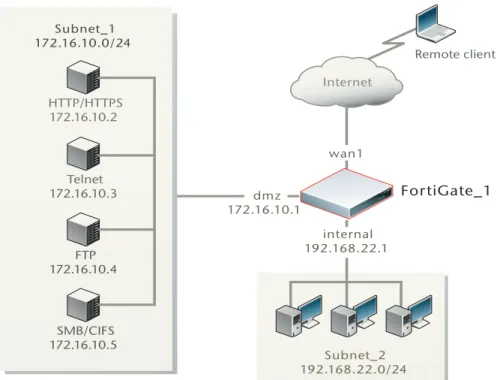
For example, Figure 1 shows a FortiGate gateway (FortiGate_1) to two private networks, Subnet_1 and Subnet_2.
Figure 1: Example SSL VPN configuration
To provide remote clients with access to all of the servers on Subnet_1 from the Internet, you would configure FortiGate_1 as follows:
• Create an SSL VPN user group and include the remote users in the user group. When you create the user group, you also specify whether the users may access the web portal in web-only mode or tunnel mode.
Note: The user account used to install the SSL VPN client on the remote computer must have administrator privileges.
Subnet_2 192.168.22.0/24 internal 192.168.22.1 Subnet_1 172.16.10.0/24 HTTP/HTTPS 172.16.10.2 Telnet 172.16.10.3 FTP 172.16.10.4 SMB/CIFS 172.16.10.5 Internet FortiGate_1 wan1 dmz 172.16.10.1 Remote client
Configuration overview Configuring a FortiGate SSL VPN
• For tunnel-mode users, define the virtual IP addresses that the FortiGate unit is to assign to remote clients when they connect.
• Create a firewall destination IP address of 172.16.10.0/24.
• Bind the user group to the firewall destination address when you define the firewall policy. The firewall policy identifies which IP packets to encrypt and send through the secure SSL link.
If your user community needs access to Subnet_2, you would create a second firewall destination IP address of 192.168.22.0/24 and create a second firewall policy that binds the associated remote clients to the Subnet_2 destination address.
Infrastructure requirements
• The FortiGate unit must be operating in NAT/Route mode and have a static public IP address.
• The ISP assigns IP addresses to remote clients before they connect to the FortiGate unit.
• If the remote clients need web-only mode access, see “Web-only mode client requirements” on page 16.
• If the remote clients need tunnel-mode access, see “Tunnel-mode client requirements” on page 17.
Configuration overview
Before you begin, install your choice of HTTP/HTTPS, telnet, SSH, FTP,
SMB/CIFS, VNC, and/or RDP server applications on the internal network. As an alternative, these services may be accessed remotely through the Internet. All services must be running. Users must have individual user accounts to access the servers (these user accounts are not related to FortiGate user accounts or FortiGate user groups).
To configure FortiGate SSL VPN technology, you should follow these general steps:
1 Enable SSL VPN connections and set the basic options needed to support SSL VPN configurations. See “Configuring SSL VPN settings” on page 19.
2 To use X.509 security certificates for authentication purposes, load the signed server certificate, CA root certificate, and Certificate Revocation List (CRL) onto the FortiGate unit, and load the personal/group certificates onto the remote clients. For more information, see theFortiGate Certificate Management User Guide.
3 Create one FortiGate user account for each remote client, and assign the users to SSL VPN type user groups. See “Configuring user accounts and SSL VPN user groups” on page 25.
4 Configure the firewall policy and the remaining parameters needed to support the required mode of operation:
• For web-only mode operation, see “Configuring Web-only firewall policies” on page 29.
• For tunnel-mode operation, see “Configuring tunnel-mode firewall policies” on page 30.
Configuring a FortiGate SSL VPN Configuring SSL VPN settings
5 Define SSL VPN event-logging parameters. See “Configuring SSL VPN event-logging” on page 33.
6 You can also monitor active SSL VPN sessions. See “Monitoring active SSL VPN sessions” on page 34.
Configuring SSL VPN settings
You can configure and manage the FortiGate unit through a secure HTTP (HTTPS) connection from any computer running a web browser. For information about how to connect to the based manager, see “Connecting to the web-based manager” in theFortiGate Installation Guide.
Refer to the FortiGate Installation Guide and FortiGate Administration Guide to change the password, configure the interfaces of the FortiGate unit, and assign basic operating parameters, including a default gateway.
There are basic administrative tasks common to all modes of operation that must be completed first, regardless of the connection mode you select.
The VPN > SSL > Config page contains basic SSL VPN settings including idle-timeout values and SSL encryption preferences for compatibility with various web browsers. You may also optionally enable authentication through X.509 security certificates (for more information about security certificates, see the FortiGate Certificate Management User Guide).
In addition to setting these preferences on the VPN > SSL > Config page, you may choose to modify the following system settings:
• The FortiGate unit redirects web browsers to the web portal home page after the remote client has been authenticated and the user has logged in
successfully. As an option, you can display a second HTML page in a popup window for all members of a user group. For more information, see
“Redirecting a user group to a popup window” on page 23.
• You can customize the look of the web portal login page through replacement messages. For more information, see “Customizing the web portal login page” on page 24.
Enabling SSL VPN connections and editing SSL VPN settings
To enable SSL VPN connections and configure or edit SSL VPN settings, go to VPN > SSL > Config and select Enable SSL-VPN. The FortiGate unit does not accept web-only mode or tunnel-mode connections while SSL VPN operation is disabled.
Note: As an alternative, you can connect the management computer to the Console connector of the FortiGate unit directly using a serial cable and configure the FortiGate unit through the Command Line Interface (CLI). The CLI can also be launched from within the web-based manager. For more information, see “Connecting to the FortiGate console” in theFortiGate CLI Reference.
Configuring SSL VPN settings Configuring a FortiGate SSL VPN
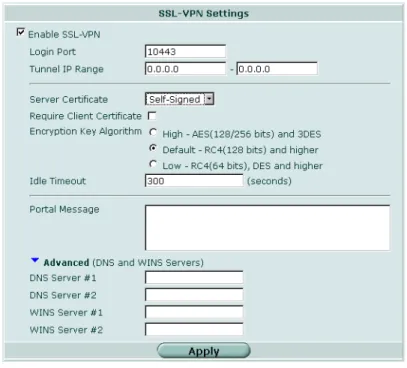
Figure 2: Edit SSL VPN settings
Enable SSL VPN Select to enable SSL VPN connections.
Login Port Enter a different HTTPS port number for remote client web browsers to connect to the FortiGate unit, if required. The default port number is 10443. See Specifying a port number for web portal connections. Tunnel IP Range Specify the range of IP addresses reserved for
tunnel-mode SSL VPN clients. Type the starting and ending address that defines the range of reserved IP addresses. See Specifying an IP address range for tunnel-mode clients.
Server Certificate Select the signed server certificate to use for
authentication purposes. If you leave the default setting (Self-Signed), the FortiGate unit offers its factory installed (self-signed) certificate from Fortinet to remote clients when they connect. See Enabling strong authentication through security certificates.
Require Client Certificate If you want to enable the use of group certificates for authenticating remote clients, select the option.
Afterward, when the remote client initiates a connection, the FortiGate unit prompts the client for its client-side certificate as part of the authentication process. Encryption Key Algorithm
See Specifying the cipher suite for SSL negotiations.
Select the algorithm for creating a secure SSL
connection between the remote client web browser and the FortiGate unit.
Default - RC4(128 bits) and higher
If the web browser on the remote client is capable of matching a 128-bit or greater cipher suite, select this option.
High - AES(128/256 bits) and 3DES
If the web browser on the remote client is capable of matching a high level of SSL encryption, select this option to enable cipher suites that use more than 128 bits to encrypt data.
Low - RC4(64 bits), DES and higher
If you are not sure which level of SSL encryption the remote client web browser supports, select this option to enable a 64-bit or greater cipher suite.
Configuring a FortiGate SSL VPN Configuring SSL VPN settings
When you finish making your selections, select Apply.
Specifying a port number for web portal connections
You can optionally specify a different TCP port number for users to access the web portal login page through the HTTPS link. By default, the port number is 10443 and users can access the web portal login page using the following default URL:
https://<FortiGate_IP_address>:10443/remote
where <FortiGate_IP_address> is the IP address of the FortiGate interface that accepts connections from remote users.
1 Go to VPN > SSL > Config.
2 In the Login Port field, type an unused port number. 3 Select Apply.
Specifying an IP address range for tunnel-mode clients
The Tunnel IP Range fields on the VPN > SSL > Config page enable you to reserve a range of IP addresses for remote SSL VPN clients. After the FortiGate unit authenticates a request for a tunnel-mode connection, the SSL VPN client connects to the FortiGate unit and is assigned an IP address from this range. Afterward, the FortiGate unit uses the assigned address to communicate with the SSL VPN client.
Idle Timeout Type the period of time (in seconds) to control how long the connection can remain idle before the system forces the user to log in again. The range is from 10 to 28800 seconds. This setting applies to the SSL VPN session. The interface does not time out when web application sessions or tunnels are up. See Setting the idle timeout setting.
Portal Message If you want to display a custom caption at the top of the web portal home page, type the message. See Adding a custom caption to the web portal home page.
Advanced (DNS and WINS Servers) See Adding WINS and DNS services for clients. DNS Server #1
DNS Server #2
Enter up to two DNS Servers to be provided for the use of clients.
WINS Server #1 WINS Server #2
Enter up to two WINS Servers to be provided for the use of clients.
Note: The Tunnel IP Range fields are used to configure tunnel-mode access only. If you are configuring web-only mode operation, leave 0.0.0.0 values in the Tunnel IP Range fields. If you are configuring tunnel-mode operation, see “Specifying an IP address range for tunnel-mode clients” on page 21. For information about enabling certificate-based authentication through the Server Certificate and Require Client Certificate options, refer to the FortiGate Certificate Management User Guide.
Note: Do not select port number 443 for user access to the web portal login page. Port number 443 is reserved to support administrative connections to the FortiGate unit through the web-based manager.
Configuring SSL VPN settings Configuring a FortiGate SSL VPN
To reserve a range of IP addresses for tunnel-mode clients 1 Go to VPN > SSL > Config.
2 In the Tunnel IP Range fields, type the starting and ending IP addresses (for example, 10.254.254.80 to 10.254.254.100).
3 Make a note of this address range for future reference. You will need this information when you define the firewall source IP address for tunnel-mode connections.
4 Select Apply.
Enabling strong authentication through security certificates
The FortiGate unit supports strong (two-factor) authentication through X.509 security certificates (version 1 or 3). Strong authentication can be configured for SSL VPN user groups by selecting the Server Certificate and Require Client Certificate options on the VPN > SSL > Config page. However, you must first ensure that the required certificates have been installed.
To generate certificate requests, install signed certificates, import CA root certificates and certificate revocation lists, and back up and/or restore installed certificates and private keys, refer to the FortiGate Certificate Management User Guide.
Specifying the cipher suite for SSL negotiations
The FortiGate unit supports a range of cryptographic cipher suites to match the capabilities of various web browsers. The web browser and the FortiGate unit negotiate a cipher suite before any information (for example, a user name and password) is transmitted over the SSL link.
1 Go to VPN > SSL > Config.
2 In Encryption Key Algorithm, select one of the following options:
• If the web browser on the remote client is capable of matching a 128-bit or greater cipher suite, select Default - RC4(128 bits) and higher.
• If the web browser on the remote client is capable of matching a high level of SSL encryption, select High - AES(128/256 bits) and 3DES. This option enables cipher suites that use more than 128 bits to encrypt data.
• If you are not sure which level of SSL encryption the remote client web browser supports, select Low - RC4(64 bits), DES and higher. The web browser must at least support a 64-bit cipher length.
3 Select Apply.
Note: Use the Tunnel IP Range fields on the VPN > SSL > Config page to reserve a range of global IP addresses. If you configure a user group and define Restrict tunnel IP range for this group, the group range is used in the SSL VPN configuration. If you do not define a range of global IP addresses, you must define a group range. If you define both IP address ranges, the group level range is applied to the configuration. See To create a user group for more information about the group IP address range configuration.
!
Caution: Take care to prevent overlapping IP addresses. Do not assign IP addresses that are already in use on the private network. As a precaution, consider assigning IP addresses from a network that is not commonly used (for example, 10.254.254.0/24).Configuring a FortiGate SSL VPN Configuring SSL VPN settings
Setting the idle timeout setting
The idle timeout setting controls how long the connection can remain idle before the system forces the remote user to log in again. To improve security, keep the default value of 300 seconds.
1 Go to VPN > SSL > Config.
2 In the Idle Timeout field, type an integer value. The valid range is from 10 to 28800 seconds.
3 Select Apply.
Setting the client authentication timeout setting
The client authentication timeout setting controls how long an authenticated connection will remain connected. When this time expires, the system forces the remote client to authenticate again.
For example, to change the authentication timeout to 1800 seconds, enter the following commands:
config vpn ssl settings set auth-timeout 1800 end
Adding a custom caption to the web portal home page
You can add a custom caption (maximum 31 characters) to the top of the web portal home page.
To add a custom caption 1 Go to VPN > SSL > Config.
2 In the Portal Message field, type the caption. 3 Select Apply.
Adding WINS and DNS services for clients
You can specify the WINS or DNS servers that are made available to SSL-VPN clients.
1 Go to VPN > SSL > Config.
2 Select the blue triangle to open the Advanced section.
3 Enter the IP addresses of one or two DNS Servers to be provided for the use of clients.
4 Enter the IP addresses of one or two WINS Servers to be provided for the use of clients.
Redirecting a user group to a popup window
The FortiGate unit redirects web browsers to the web portal home page after the remote client has been authenticated and the user has logged in successfully. Note: The default value is 1500 seconds. You can only modify this timeout value in the CLI.
Configuring SSL VPN settings Configuring a FortiGate SSL VPN
As an option, you can have the FortiGate unit display a second HTML page in a popup window when the client web browser is redirected to the web portal home page. To support this feature, the level of security settings associated with the Internet zone in the web browser must be set to permit popup windows.
The following procedure assumes that SSL VPN user groups have been defined (see “Configuring user accounts and SSL VPN user groups” on page 25). A different popup window can be specified per user group.
To display a custom popup window for a user group 1 Go to User > User Group.
2 Select the Edit icon in the row that corresponds to the SSL VPN user group. 3 Expand SSL-VPN User Group Options.
4 In the Redirect URL field, type the URL of the web page that you want to display in the popup window.
5 Select OK.
Customizing the web portal login page
The HTML code making up the web portal login page can be edited. Before you begin, copy the default text to a separate text file for safe-keeping. Afterward, if editing produces unexpected results, you can restore the text to the original version.
To edit the HTML code
1 Go to System > Config > Replacement Messages.
2 Expand the SSL VPN row and select the Edit icon that corresponds to the SSL VPN login message.
3 Edit the HTML text, subject to the restrictions given in the FortiGate Administration Guide (see “Changing the authentication login page” in the “System Config” chapter).
Configuring a FortiGate SSL VPN Configuring user accounts and SSL VPN user groups
Configuring user accounts and SSL VPN user groups
Remote users must be authenticated before they can request services and/or access network resources through the web portal. The authentication process relies on FortiGate user group definitions, which can optionally use established authentication mechanisms such as RADIUS and LDAP to authenticate remote clients.
You can choose to use a plain text password for authentication through the FortiGate unit (Local domain), forward authentication requests to an external RADIUS or LDAP server, or utilize PKI certificate authentication. If password protection will be provided through a RADIUS or LDAP server, you must configure the FortiGate unit to forward authentication requests to the RADIUS or LDAP server. In the case of certificate authentication, you must install the required certificates.
The following procedures explain how to create a user account and user group in the Local domain. For information about how to create RADIUS, LDAP or PKI user accounts, refer to the “User” chapter of the FortiGate Administration Guide. For information about certificate authentication, see the FortiGate Certificate Management User Guide.
To create a user account in the Local domain 1 Go to User > Local and select Create New.
2 Select OK.
3 Repeat this procedure for each remote user.
User Name Type or edit the remote user name (for example, User_1). Disable Select Disable to prevent this user from authenticating.
Password Select Password to authenticate this user using a password stored on the FortiGate unit.
Type or edit the password to be associated with the user account. The password should be at least six characters long.
LDAP Select LDAP to authenticate this user using a password stored on an LDAP server. Select the LDAP server from the drop-down list.
RADIUS Select RADIUS to authenticate this user using a password stored on a RADIUS server. Select the RADIUS server from the drop-down list.
Configuring user accounts and SSL VPN user groups Configuring a FortiGate SSL VPN
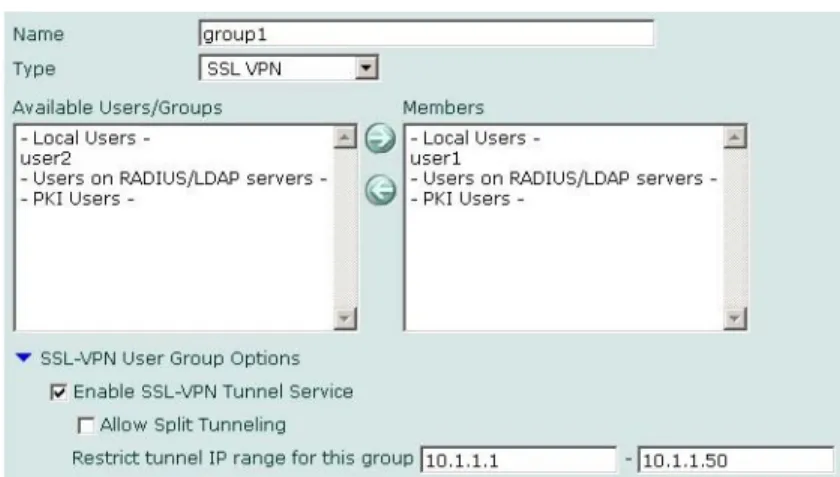
To create a user group
1 Go to User > User Group and select Create New.
2 In the Name field, type a name for the group (for example, Web-only_group). 3 From the Type drop-down list, select SSL VPN.
4 One at a time, select user names from the Available Users/Groups list, and select the right-pointing arrow to move them to the Members list.
5 Select the blue triangle to expand the SSL-VPN User Group Options.
6 Select Enable SSL-VPN Tunnel Service If the remote clients associated with the user group need to establish an SSL VPN tunnel with the FortiGate unit.
Note: If a user has been configured to use tunnel-mode only, when they log in, the tunnel is brought up automatically.
Configuring a FortiGate SSL VPN Configuring user accounts and SSL VPN user groups
7 To activate the split tunnel feature, select Enable Split Tunneling. Split tunneling ensures that only the traffic for the private network is sent to the SSL VPN gateway. Internet traffic is sent through the usual unencrypted route.
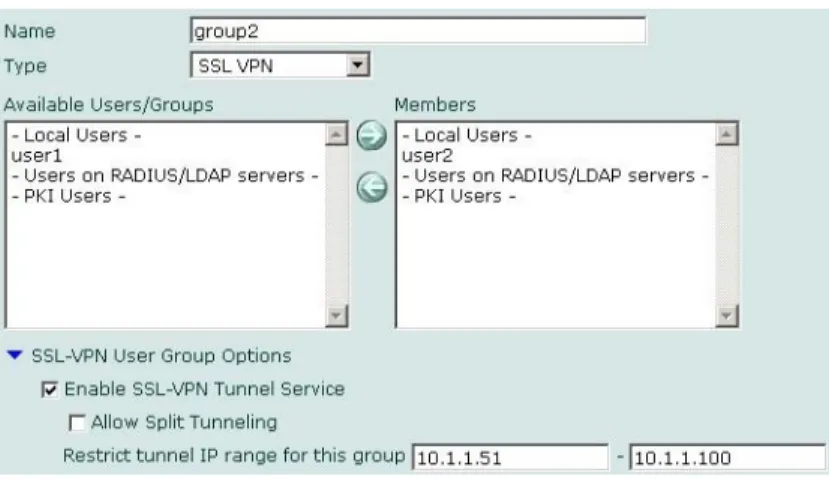
8 To override the Tunnel IP range defined in VPN > SSL > Config, enter the starting and ending IP address range for this group in the Restrict tunnel IP range for this group fields.
9 If the user group requires web-only-mode access, select Enable Web Application and then select the web applications and/or network file services that the user group needs. The corresponding server applications can be running on the network behind the FortiGate unit or accessed remotely through the Internet. 10 To enable client-integrity checking options, select from the following:
• Check FortiClient AV Installed and Running • Check FortiClient FW Installed and Running • Check for Third Party AV Software
• Check for Third Party Firewall Software
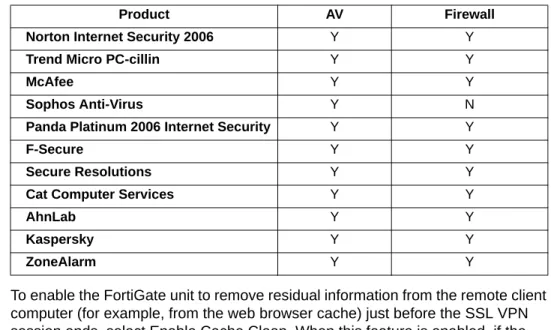
The client-integrity checking options determine whether the FortiClient™ Host Security application or other antivirus/firewall applications are running on the client computer before a tunnel is established. If there are no applications installed and enabled on the client computer, the connection is refused. Table 1 lists the products supported for clients who have Windows XP SP2. All other systems must have Norton (Symantec) AntiVirus or McAfee VirusScan software installed and enabled.
11 To enable the FortiGate unit to remove residual information from the remote client computer (for example, from the web browser cache) just before the SSL VPN session ends, select Enable Cache Clean. When this feature is enabled, if the client’s browser cannot install and run the cache cleaner, the user is not allowed to access the SSL-VPN portal.
Note: If you configure a user group and define Restrict tunnel IP range for this group, the group range is used in the SSL VPN configuration. If you do not define a range of global IP addresses, you must define a group range. If you define both IP address ranges, the group level range is applied to the configuration. See To reserve a range of IP addresses for tunnel-mode clients for more information about the global IP address range configuration.
Table 1: AV/Firewall supported product detection
Product AV Firewall
Norton Internet Security 2006 Y Y
Trend Micro PC-cillin Y Y
McAfee Y Y
Sophos Anti-Virus Y N
Panda Platinum 2006 Internet Security Y Y
F-Secure Y Y
Secure Resolutions Y Y
Cat Computer Services Y Y
AhnLab Y Y
Kaspersky Y Y
Configuring firewall policies Configuring a FortiGate SSL VPN
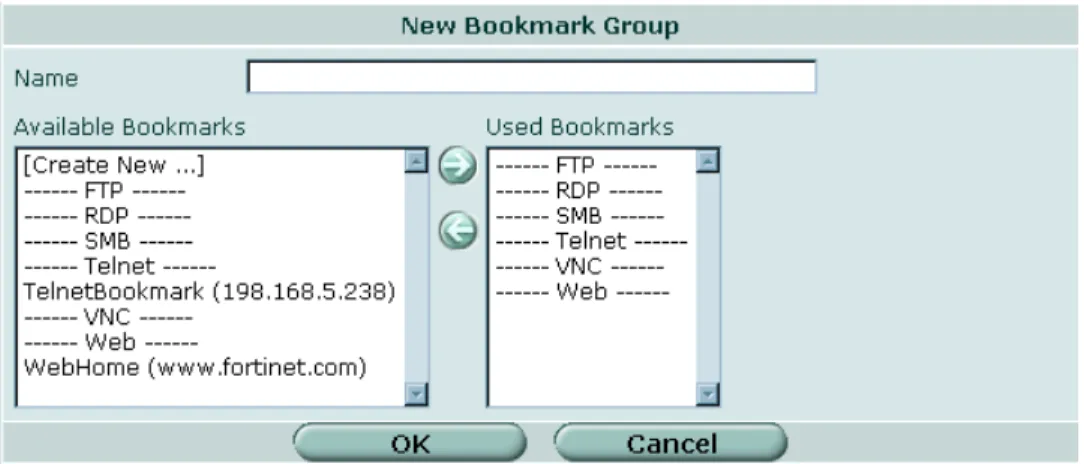
12 To allow the SSL VPN user group to use a pre-configured bookmark group, enable Bookmarks and select the bookmark group from the drop-down list.
13 To have the FortiGate unit display a second HTML page in a popup window when the web portal home page is displayed, type the URL of the web page into the Redirect URL field.
14 To display a custom web portal home page caption for this group, enter the message in the Customize portal message for this group field.
Note: This custom message overrides the portal message configured in VPN > SSL > Config.
15 Select OK.
Configuring firewall policies
This section contains the procedures needed to configure firewall policies for web-only mode operation and tunnel-mode operation. These procedures assume that you have already completed the procedures outlined in “Configuring user
accounts and SSL VPN user groups” on page 25.
A firewall policy specifies the originating (source) IP address of a packet and the destination address defines the IP address of the intended recipient or network. In general, configuring a firewall policy involves:
• specifying the IP source and destination addresses
• specifying the level of SSL encryption to use and the authentication method • binding the user group to the firewall policy
The following topics are included in this section: • Configuring firewall addresses
• Configuring tunnel-mode firewall policies • Configuring SSL VPN event-logging • Monitoring active SSL VPN sessions
Configuring firewall addresses
Configuring the firewall addresses for web-only and tunnel mode connections involves specifying the IP source/host and destination addresses:
Note: In tunnel mode, it is necessary to create a DENY firewall policy that immediately follows the SSL VPN policy. If this policy is not created, SSL VPN tunnels will use other ACCEPT firewall policies. See the configuration below:
Configuring a FortiGate SSL VPN Configuring firewall policies
Web-only mode:
• For the source address, select the predefined address “all” in the firewall encryption policy to refer to web-only mode clients.
• The destination address corresponds to the IP address or addresses that remote clients need to access. The destination address may correspond to an entire private network (behind the FortiGate unit), a range of private IP addresses, or the private IP address of a server or host.
Tunnel mode:
• The source address corresponds to the range of IP addresses that can be connected to the FortiGate unit. This address is used to restrict who can access the FortiGate unit.
• The destination address corresponds to the IP address or addresses that remote clients need to access. The destination address may correspond to an entire private network (behind the FortiGate unit), a range of private IP addresses, or the private IP address of a server or host.
Configuring Web-only firewall policies
To specify the destination IP address
1 Go to Firewall > Address and select Create New.
2 In the Address Name field, type a name that represents the local network, server(s), or host(s) to which IP packets may be delivered (for example,
Subnet_1).
3 From the Type list, select Subnet/IP Range.
4 In the Subnet/IP Range field, type the corresponding IP address and subnet mask (for example, 172.16.10.0/24).
5 Select OK.
To define the firewall policy for web-only mode connections 1 Go to Firewall > Policy and select Create New.
2 Enter these settings in particular:
Note: To provide access to a single host or server, you would type an IP address like
172.16.10.2/32. To provide access to two servers having contiguous IP addresses, you would type an IP address range like 172.16.10.[4-5].
Source Interface/Zone
Select the FortiGate interface that accepts connections from remote users.
Address Name Select all. Destination Interface/Zone
Select the FortiGate interface to the local private network (for example,
dmz).
Address Name
Select the IP destination address that you defined previously (for example, Subnet_1).
Service Select ANY. Action Select SSL-VPN.
Configuring firewall policies Configuring a FortiGate SSL VPN
3 Select OK.
4 If the user group requires access to another server or network, create the IP destination address (see “To specify the destination IP address” on page 29) and repeat this procedure to create the required firewall policy.
5 Create additional IP destination addresses and firewall policies if required for each additional user group.
Configuring tunnel-mode firewall policies
Follow the procedures in this section to complete a tunnel-mode configuration. These procedures assume that you have already completed the procedures found in “Configuring user accounts and SSL VPN user groups” on page 25.
When a remote client initiates a connection to the FortiGate unit, the FortiGate unit authenticates the client and determines which mode of operation is in effect for the user. When tunnel mode is enabled, the user can access the server applications and network services on the internal network if required and/or download and install an ActiveX plugin from the web portal. The ActiveX control provides SSL VPN client software.
After the user adds the ActiveX plugin to the web browser on the remote client, the user can start the SSL VPN client software to initiate an SSL VPN tunnel with the FortiGate unit. The FortiGate unit establishes the tunnel with the SSL client and assigns the client a virtual IP address. Afterward, the SSL client uses the assigned virtual IP address as its source address for the duration of the session.
SSL Client Certificate Restrictive
Select to allow traffic generated by holders of a (shared) group certificate, for example, a user group containing PKI peers/users. The holders of the group certificate must be members of an SSL VPN user group, and the name of that user group must be present in the Allowed list.
Cipher Strength Select one of the following options to determine the level of SSL encryption to use. The web browser on the remote client must be capable of matching the level that you select:
• To use any cipher suite, select Any.
• To use a 164-bit or greater cipher suite, select High >= 164. • To use a 128-bit or greater cipher suite, select Medium >= 128. User
Authentication Method
Select one of the following options to bind user groups to authentication methods:
• If the user group contains only local users, select Local.
• If the remote clients will be authenticated by an external RADIUS server, select Radius.
• If the remote clients will be authenticated by an external LDAP server, select LDAP.
• If the user group contains Local, RADIUS, and LDAP users, select Any to enable all of the authentication methods. Local is attempted first, then RADIUS, then LDAP.
Available Groups
Select the name of the user group requiring SSL VPN access, and then select the right-pointing arrow. Do not select more than one user group unless all members of the selected user groups have identical access requirements.
Note: On the web browser, ensure that the security settings associated with the Internet zone permit ActiveX controls to be downloaded and run.
Configuring a FortiGate SSL VPN Configuring firewall policies
To configure the FortiGate unit to support tunnel-mode access, you perform the following configuration tasks on the FortiGate unit:
• Specify the range of IP addresses that can be assigned to SSL VPN clients when they establish tunnels with the FortiGate unit. See “Specifying an IP address range for tunnel-mode clients” on page 21.
• Define a firewall policy to support tunnel-mode operations.
A firewall policy specifies the originating (source) IP address of a packet and the destination address defines the IP address of the intended recipient or network. In this case, the source address corresponds to the range of IP addresses permitted to connect to the FortiGate unit, and the destination address corresponds to the IP address(es) of the host(s), server(s), or network behind the FortiGate unit. Configuring the firewall policy involves:
• specifying the source and destination IP addresses:
• The source address corresponds to the range of IP addresses that can be connected to the FortiGate unit.
• The destination address corresponds to the IP address or addresses that remote clients need to access. The destination address may correspond to an entire private network, a range of private IP addresses, or the private IP address of a server or host.
• specifying the level of SSL encryption to use and the authentication method • binding the user group to the firewall policy
To specify the source IP address
1 Go to Firewall > Address and select Create New.
2 In the Address Name field, type a name that represents the IP addresses permitted to set up SSL VPN connection (for example, SSL_Tunnel_Host). 3 From the Type list, select Subnet/IP Range.
4 In the Subnet/IP Range field, type the corresponding IP address and subnet mask (for example, 172.16.10.0/24). Enter 0.0.0.0/0.0.0.0 to indicate ‘all’.
5 In the Interface field, select the interface to the internal (private) network. 6 Select OK.
Note: If your destination address, SSL encryption, and user group are the same as for your web-only mode connection, you do not need to create a firewall policy for tunnel mode. The FortiGate unit uses the web-only mode policy settings except for the source address range, which it obtains from the tunnel IP range settings.
Note: To provide access to a single host or server, you would type an IP address like
172.16.10.2/32. To provide access to two servers having contiguous IP addresses, you would type an IP address range like 172.16.10.[4-5].
Configuring firewall policies Configuring a FortiGate SSL VPN
To specify the destination IP address
1 Go to Firewall > Address and select Create New.
2 In the Address Name field, type a name that represents the local network, server(s), or host(s) to which IP packets may be delivered (for example,
Subnet_2).
3 In the Subnet/IP Range field, type the corresponding IP address (for example,
192.168.22.0/24 for a subnet, or 192.168.22.2/32 for a server or host), or IP address range (192.168.22.[10-25]).
4 In the Interface field, select the interface to the external (public) network. 5 Select OK.
To define the firewall policy for tunnel-mode operations 1 Go to Firewall > Policy and select Create New.
2 Enter these settings:
Source Interface/Zone
Select the FortiGate interface that accepts connections from remote users (for example, external).
Address Name
Select the name that corresponds to the range of IP addresses that you reserved for SSL VPN clients (for example,
SSL_Tunnel_clients). Destination Interface/Zone
Select the FortiGate interface to the local private network (for example, internal).
Address Name
Select the IP destination address that you defined previously for the host(s), server(s), or network behind the FortiGate unit (for example, Subnet_2).
Service Select ANY. Action Select SSL-VPN. SSL Client Certificate
Restrictive
Select to allow traffic generated by holders of a (shared) group certificate, for example, a user group containing PKI peers/users. The holders of the group certificate must be members of an SSL VPN user group, and the name of that user group must be present in the Allowed field.
Cipher Strength Select one of the following options to determine the level of SSL encryption to use. The web browser on the remote client must be capable of matching the level that you select:
• To use any cipher suite, select Any.
• To use a 164-bit or greater cipher suite, select High >= 164. • To use a 128-bit or greater cipher suite, select Medium >= 128. User Authentication
Method
Select one of the following options to bind user groups to authentication methods:
• If the user group contains only local users, select Local. • If the remote clients will be authenticated by an external
RADIUS server, select Radius.
• If the remote clients will be authenticated by an external LDAP server, select LDAP.
• If the user group contains Local, RADIUS, and LDAP users, select Any to enable all of the authentication methods. Local is attempted first, then RADIUS, then LDAP.
Available Groups Select the name of the user group requiring SSL VPN access, and then select the right-pointing arrow. Do not select more than one user group unless all members of the selected user groups have identical access requirements.
Configuring a FortiGate SSL VPN Configuring SSL VPN event-logging
3 Select OK.
4 If the user group requires access to another server or network, create the IP destination address (see “To specify the destination IP address” on page 29) and repeat this procedure to create the required firewall policy.
5 Create additional IP destination addresses and firewall policies if required for each additional user group.
Configuring SSL VPN event-logging
You can configure the FortiGate unit to log SSL VPN events. For information about how to interpret log messages, see the FortiGate Log Message Reference.
To log SSL VPN events
1 Go to Log&Report > Log Config > Log Setting.
2 Enable the storage of log messages to one or more of the following locations: • a FortiAnalyzer unit
• the FortiGate system memory
• a remote computer running a syslog server
3 If the options are concealed, select the blue arrow beside each option to reveal and configure associated settings.
4 If logs will be written to system memory, from the Log Level list, select Information. For more information, see the “Log & Report” chapter of the FortiGate
Administration Guide. 5 Select Apply.
To filter SSL VPN events
1 Go to Log&Report > Log Config > Event Log.
2 Select Enable, and then select one or more of the following options: • SSL VPN user authentication event
• SSL VPN administration event • SSL VPN session event 3 Select Apply.
To view SSL VPN event logs 1 Go to Log&Report > Log Access.
2 If the option is available from the Type list, select the log file from disk or memory. Note: If you apply a protection profile in a SSL VPN firewall policy, it will only apply to tunnel-mode operations.
Note: If available on your FortiGate unit, you can enable the storage of log messages to a system hard disk. In addition, as an alternative to the options listed above, you may choose to forward log messages to a remote computer running a WebTrends firewall reporting server. For more information about enabling either of these options through CLI commands, see the “log” chapter of the FortiGate CLI Reference.
Monitoring active SSL VPN sessions Configuring a FortiGate SSL VPN
You can modify the settings in the top row to meet your requirements. Log messages are displayed beneath the top row.
Monitoring active SSL VPN sessions
You can display a list of all active SSL VPN sessions. The list displays the user name of the remote user, the IP address of the remote client, and the time that the connection was made. The list also identifies which services are being provided (see Figure 3 on page 34).
To view the list of active sessions, go to VPN > SSL > Monitor.
Figure 3: Monitor list: Web-only mode connections
When a tunnel-mode user is connected, the Description field displays the IP address that the FortiGate unit assigned to the remote host (see Figure 4 on page 34).
Figure 4: Monitor list: Tunnel-mode connection
If required, you can end a session/connection by selecting the Delete button in the row that corresponds to the connection.
No. The identifier of the connection.
User The user names of all connected remote users.
Source IP The IP addresses of the host devices connected to the FortiGate unit. Begin Time The starting time of each connection.
Description Information about which services are being provided.