DigitalPersona, Inc.
One Touch® for Windows SDK
Java Edition
Version 1.6
DigitalPersona, Inc.
© 1996–2010 DigitalPersona, Inc. All Rights Reserved.
All intellectual property rights in the DigitalPersona software, firmware, hardware, and documentation included with or described in this guide are owned by DigitalPersona or its suppliers and are protected by United States copyright laws, other applicable copyright laws, and international treaty provisions. DigitalPersona and its suppliers retain all rights not expressly granted.
DigitalPersona, U.are.U, and One Touch are trademarks of DigitalPersona, Inc., registered in the United States and other countries. Adobe and Adobe Reader are either registered trademarks or trademarks of Adobe Systems Incorporated in the United States and/or other countries. Microsoft, Visual C++, Visual Studio, Windows, Windows Server, and Windows Vista are registered trademarks of Microsoft Corporation in the United States and other countries.
This guide and the software it describes are furnished under license as set forth in the “License Agreement” that is shown during the installation process.
Except as permitted by such license or by the terms of this guide, no part of this document may be reproduced, stored, transmitted, and translated, in any form and by any means, without the prior written consent of DigitalPersona. The contents of this guide are furnished for informational use only and are subject to change without notice. Any mention of third-party companies and products is for demonstration purposes only and constitutes neither an endorsement nor a recommendation. DigitalPersona assumes no responsibility with regard to the performance or use of these third-party products. DigitalPersona makes every effort to ensure the accuracy of its documentation and assumes no responsibility or liability for any errors or inaccuracies that may appear in it.
Technical Support
Upon your purchase of a Developer Support package (available from http://buy.digitalpersona.com), you are entitled to a specified number of hours of telephone and email support.
Feedback
Although the information in this guide has been thoroughly reviewed and tested, we welcome your feedback on any errors, omissions, or suggestions for future improvements. Please contact us at
DigitalPersona, Inc. 720 Bay Road, Suite 100 Redwood City, California 94063 USA
(650) 474-4000 (650) 298-8313 Fax
Table of Contents
1 Introduction . . . 1 Target Audience . . . 2 Chapter Overview . . . 2 Document Conventions . . . 3 Additional Resources . . . 4 System Requirements . . . 4Supported DigitalPersona Hardware Products . . . 4
Fingerprint Template Compatibility . . . 5
2 Quick Start . . . 6
Quick Concepts . . . 6
Installation . . . 6
Connect the Fingerprint Reader . . . 7
Using the Sample Applications . . . 7
Java UI Sample . . . 7
Functions . . . 7
Enrolling Fingerprints . . . 8
Deleting an Enrolled Fingerprint . . . 10
Verifying a fingerprint . . . 10
Fingerprint Enrollment and Verification Sample . . . 11
Functions . . . 11
Functions . . . 13
3 Installation . . . 14
Installing the SDK . . . 14
Installing the Runtime Environment (RTE) . . . 15
Installing and Uninstalling the RTE Silently . . . 18
4 Overview . . . 19 Biometric System . . . 19 Fingerprint . . . 19 Fingerprint Recognition . . . 20 Fingerprint Enrollment . . . 20 Fingerprint Verification . . . 20 Creating an object . . . 21
False Positives and False Negatives . . . 22
Workflows . . . 22
Fingerprint Enrollment Workflow . . . 23
Table of Contents
Unenrolling (Deleting) a Fingerprint Template . . . 29
Fingerprint Verification . . . 31
Fingerprint Verification with UI Support . . . 34
Fingerprint Data Object Serialization/Deserialization . . . 36
Serializing a Fingerprint Data Object . . . 36
Deserializing a Serialized Fingerprint Data Object . . . 37
5 API Reference . . . 38 class onetouch . . . 38 DPFPCaptureFeedback . . . 38 DPFPDataPurpose . . . 40 DPFPError . . . 40 DPFPFingerIndex . . . 42 DPFPGlobal . . . 44 DPFPData . . . 46 DPFPFeatureSet . . . 46 DPFPFeatureSetFactory . . . 46 DPFPSample . . . 47 DPFPSampleFactory . . . 47 DPFPTemplate . . . 47 DPFPTemplateFactory . . . 47 capture package . . . 49 DPFPCapturePriority . . . 49 DPFPCapture . . . 50 DPFPCaptureFactory . . . 53 event package . . . 54 DPFPDataAdapter . . . 54 DPFPDataEvent . . . 55 DPFPErrorAdapter . . . 55 DPFPErrorEvent . . . 56 DPFPImageQualityAdapter . . . 56 DPFPImageQualityEvent . . . 57 DPFPReaderStatusAdapter . . . 57 DPFPReaderStatusEvent . . . 58 DPFPSensorAdapter . . . 59 DPFPSensorEvent . . . 59 DPFPDataListener . . . 60 DPFPErrorListener . . . 60 DPFPImageQualityListener . . . 61 DPFPReaderStatusListener . . . 61 DPFPSensorListener . . . 62
Table of Contents processing package . . . 63 DPFPImageQualityException . . . 63 DPFPTemplateStatus . . . 63 DPFPEnrollment . . . 64 DPFPEnrollmentFactory . . . 64 DPFPFeatureExtraction . . . 65 DPFPFeatureExtractionFactory . . . 65 DPFPSampleConversion . . . 66 readers package . . . 67 DPFPReaderImpressionType . . . 67 DPFPReaderSerialNumberType . . . 67 DPFPReaderTechnology . . . 68 DPFPReaderDescription . . . 69 DPFPReaderVersion . . . 70 DPFPReadersCollection . . . 70 DPFPReadersCollectionFactory . . . 70 swing package . . . 71 DPFPEnrollmentControl . . . 71 DPFPEnrollmentEvent . . . 73 DPFPEnrollmentVetoException . . . 75 DPFPVerificationControl . . . 76 DPFPVerificationEvent . . . 78 DPFPVerificationVetoException . . . 79 DPFPEnrollmentListener . . . 80 DPFPVerificationListener . . . 80 verification package . . . 81 DPFPVerification . . . 81 DPFPVerificationFactory . . . 83 DPFPVerificationResult . . . 83
6 Graphical User Interfaces . . . 84
DPFPEnrollmentControl User Interface . . . 84
Enrolling a Fingerprint . . . 84
Unenrolling (Deleting) a Fingerprint . . . 91
DPFPVerificationControl Graphical User Interface . . . 93
7 Redistribution . . . 94
RTE\Install Folder . . . 94
Redist Folder . . . 94
Fingerprint Reader Documentation . . . 99
Table of Contents
Fingerprint Reader Use and Maintenance Guide . . . 99
8 Developing Citrix-aware applications . . . 100
9 Setting the False Accept Rate . . . 101
False Accept Rate (FAR) . . . 101
Representation of Probability . . . 101
Requested FAR . . . 102
Specifying the FAR . . . 102
Achieved FAR . . . 102
Testing . . . 103
Platinum SDK Enrollment Template Conversion for Microsoft Visual C++ . . . 104
Platinum SDK Enrollment Template Conversion for Visual Basic 6.0 . . . 106
Glossary . . . 107
Introduction
1
The One Touch® for Windows SDK: Java Edition is a software development tool for integrating fingerprint biometrics into a wide set of Java-based applications, services, and products. It enables developers to perform basic fingerprint biometric operations: capturing a fingerprint from a DigitalPersona fingerprint reader, extracting the distinctive features from the captured fingerprint sample, and storing the resulting data in a template for later comparison of a submitted fingerprint and an existing fingerprint template.
Other editions of the One Touch for Windows SDK enable developers to use a variety of programming
languages in a number of development environments (Visual Basic, C++ and .NET) to create their applications. Each edition includes detailed documentation and sample code that can be used to guide developers to quickly and efficiently produce fingerprint biometric additions to their products.
The One Touch® for Windows SDK: Java Edition builds on a decade-long legacy of fingerprint biometric technology, being the most popular set of development tools with the largest set of enrolled users of any biometric product in the world. Because of its popularity, the DigitalPersona® Fingerprint Recognition Engine software —with its high level of accuracy—and award-winning U.are.U® Fingerprint Reader hardware have been used with the widest-age, hardest-to-fingerprint demographic of users in the world.
The One Touch for Windows SDK: Java Edition has been designed to authenticate users on the Microsoft® Windows Vista® and Microsoft® Windows® XP operating systems running on any of the x86-based platforms. The product is used with DigitalPersona fingerprint readers in a variety of useful configurations: standalone USB peripherals, modules that are built into customer platforms, and keyboards.
Also note that the DigitalPersona One Touch I.D. SDK includes the One Touch for Windows RTE, .NET documentation and .NET samples as well; and can be used to implement a full-fledged biometrics product encompassing fingerprint collection, enrollment, and verification. We strongly suggest that OTID developers use this embedded version of OTW.
Fingerprint Authentication on a Remote Computer
This SDK includes transparent support for fingerprint authentication through Windows Terminal Services (including Remote Desktop Connection) and through a Citrix connection to Metaframe Presentation Server using a client from the Citrix Presentation Server Client package.
Through Remote Desktop or a Citrix session, you can use a local fingerprint reader to log on to, and use other installed features of, a remote machine running your fingerprint-enabled application.
The following types of Citrix clients are supported:
Program Neighborhood Program Neighborhood Agent Web Client
Note that to take advantage of this feature, your fingerprint-enabled application must run on the Terminal Services or Citrix server, not on the client. If you are developing a Citrix-aware application, see additional information in Chapter 8, Developing Citrix-aware applications, on page 100.
Chapter 1: Introduction Target Audience
Target Audience
This guide is for developers who have a working knowledge of the Java programming language.
Chapter Overview
Chapter 1, Introduction (this chapter), describes the audience for which this guide is written; defines the typographical, notational, and naming conventions used throughout this guide, cites a number of resources that may assist you in using the One Touch for Windows SDK: Java Edition, identifies the minimum system requirements needed to run the SDK, and lists the DigitalPersona products and fingerprint templates supported by the SDK.
Chapter 2, Quick Start, provides a quick introduction to the One Touch for Windows SDK: Java Edition using one of the sample applications provided as part of the SDK.
Chapter 3, Installation, contains instructions for installing the various components of the product and identifies the files and folders that are installed on your hard disk.
Chapter 4, Overview, introduces One Touch for Windows SDK: Java Edition terminology and concepts. This chapter also includes typical workflow diagrams and explanations of the One Touch for Windows SDK: Java Edition API components used to perform the tasks in the workflows.
Chapter 5, API Reference, defines the components that are used for developing applications based on the One Touch for Windows SDK: Java Edition API.
Chapter 6, Graphical User Interfaces, describes the functionality of the graphical user interfaces included with the DPFPEnrollmentControl and DPFPVerificationControl objects.
Chapter 7, Redistribution, identifies the files that you may distribute according to the End User License Agreement (EULA) and lists the functionalities that you need to provide to your end users when you develop products based on the One Touch for Windows SDK: Java Edition API.
Chapter 9, Setting the False Accept Rate, provides information about determining and using specific values for the FAR and evaluating and testing achieved values.
Chapter 1: Introduction Document Conventions
Document Conventions
This section defines the notational, typographical, and naming conventions used in this guide.
Notational Conventions
The following notational conventions are used throughout this guide:
NOTE: Notes provide supplemental reminders, tips, or suggestions.
IMPORTANT: Important notations contain significant information about system behavior, including problems or side effects that can occur in specific situations.
Typographical Conventions
The following typographical conventions are used in this guide:
Typeface Purpose Example
Bold Used for keystrokes and window and dialog box elements and to indicate data types
Click Fingerprint Enrollment.
The Fingerprint Enrollment dialog box appears. String that contains a fingerprint reader serial number
Courier bold
Used to indicate computer programming code Check the TemplateStatus property after each call to the addFeatures method.
Initialize a new instance of the DPFPCapture. Capture class.
Italics Used for emphasis or to introduce new terms If you are viewing this document online, clicking text in italics may also activate a hypertext link to other areas in this guide or to URLs.
This section includes illustrations of typical fingerprint enrollment and fingerprint verification workflows. (emphasis)
A fingerprint is an impression of the ridges on the skin of a finger. (new term)
See Installing the SDK on page 8. (link to heading and page)
Chapter 1: Introduction Additional Resources
Additional Resources
You can refer to the resources in this section to assist you in using the One Touch for Windows SDK: Java Edition.
Related Documentation
Online Resources
System Requirements
This section lists the minimum software and hardware requirements needed to run the One Touch for Windows SDK: Java Edition.
x86-based processor or better
JRE or JDK 1.5 or 1.6 (needed to run samples and completed applications) USB connector on the computer where the fingerprint reader is to be connected
Supported DigitalPersona Hardware Products
The One Touch for Windows SDK: Java Edition supports the following DigitalPersona hardware products: DigitalPersona U.are.U 4000B/4500 or later fingerprint readers and modules
DigitalPersona U.are.U Fingerprint Keyboard
Subject Document
Fingerprint recognition, including the history and basics of fingerprint identification and the advantages of DigitalPersona’s Fingerprint Recognition Engine
The DigitalPersona White Paper: Guide to Fingerprint Recognition. The file, Fingerprint Guide.pdf, is located in the Docs folder in the One Touch for Java SDK software package, and is not automatically installed on your computer as part of the setup process.
Late-breaking news about the product The Readme.txt files provided in the root directory in the SDK software package as well as in some subdirectories
Web Site name URL
DigitalPersona Developer Connection Forum for peer-to-peer interaction between DigitalPersona Developers
http://www.digitalpersona.com/webforums/
Latest updates for DigitalPersona software products http://www.digitalpersona.com/support/downloads/ software.php
Chapter 1: Introduction Fingerprint Template Compatibility
Fingerprint Template Compatibility
Fingerprint templates produced by the One Touch for Windows SDK are also compatible with the following DigitalPersona SDKs:
Gold SDK Gold CE SDK
One Touch for Linux SDK, all distributions
NOTE: Platinum SDK enrollment templates must be converted to a compatible format to work with these SDKs. See Appendix B on page 93 for sample code that converts Platinum SDK templates to this format.
Quick Start
2
This chapter provides a quick introduction to the One Touch for Windows SDK: Java Edition using the included sample applications.
There are three sample applications.
Fingerprint Enrollment & Verification Sample - Provides a basic UI for exploring fingerprint enrollment and verification and the events that are produced in the process. Also provides the ability to save and open a fingerprint template.
Java UI Sample - Includes a professionally designed series of integrated dialogs that can be used for enrolling and unenrolling fingerprints.
Java Console Sample - Creates a simple console-based application illustrating enrollment and verification, reader selection and adding a user to the fingerprint database.
Quick Concepts
The following definitions will assist you in understanding the purpose and functionality of the sample application that is described in this section.
Enrollment—The process of capturing a person’s fingerprint four times, extracting the features from the fingerprints, creating a fingerprint template, and storing the template for later comparison.
Verification—The process of comparing a captured fingerprint to a fingerprint template to determine whether the two match.
Unenrollment—The process of deleting a fingerprint template associated with a previously enrolled fingerprint.
For further descriptions of these processes, see Chapter 4 on page 19.
Installation
Before you can use the sample applications, you must install the One Touch for Windows SDK: Java Edition, which includes the DigitalPersona One Touch for Windows Runtime Environment (RTE).
The Java runtime (JRE) or Java SDK (JDK) is required in order to run the sample applications, but is not required prior to installing the One Touch for Windows SDK: Java Edition.
To install the One Touch for Windows SDK: Java Edition
1. In the SDK\Install folder of the software package, launch the Setup.exe file, and then click Next. If installing on a 64-bit computer, use the setup.exe located in the SDK\Install\x64 folder.
Chapter 2: Quick Start Connect the Fingerprint Reader
2. Follow the installation instructions as they appear.
3. Restart your computer.
4. Optionally install a supported JRE or JDK. See page 4 for supported JRE/JDKs.
Connect the Fingerprint Reader
Insert the fingerprint reader into the USB connector on the system where you installed the SDK.
Using the Sample Applications
After installation, you will find the sample applications in the following folder, <installation path>\One Touch SDK\Java\Samples The sample applications are:
Java UI Sample
To start the Java UI sample application - 1. Launch the run.bat file. in the
Samples\uisupport folder.
2. The Java UI Sample dialog box displays.
Functions
This sample application illustrates the following enrollment functions:
Max. Enrolled Fingerprints Count - allows you to specify the maximum number of fingerprints that can be enrolled.
Enrolled Fingerprints - displays a checkmark next to each enrolled finger. Click on any enrolled finger to unenroll (delete) the finger.
Name File to Launch Page
Java UI Sample \Samples\uisupport\run.bat 7
Fingerprint Enrollment and Verification Sample \Samples\enrollment\run.bat 11
Chapter 2: Quick Start Java UI Sample
Enforce enrollment or unenrollment failure - when checked, the enrollment and unenrollment processes will always fail.
Enroll Fingerprints - Click this button to enroll or unenroll (delete) a finger This sample application illustrates the following verification functions:
False Accept Rate (FAR) requested - Illustrates setting the FAR, the proportion of fingerprint verification transactions, by fingerprint data subjects not enrolled in the system, where an incorrect decision of match is returned.
False Accept Rate (FAR) achieved - Illustrates the FAR actually achieved during the current transaction.
Fingerprint Matched - When verifying a fingerprint, if the scanned fingerprint matches a previously enrolled fingerprint, this box will be checked.
Verify Fingerprint - Click this button to verify a fingerprint. The button is disabled until at least one fingerprint has been enrolled.
Enrolling Fingerprints
To enroll a fingerprint -1. Click Enroll Fingerprints. The Fingerprint Enrollment dialog displays.
Chapter 2: Quick Start Java UI Sample
3. Scan your fingerprint successfully four times. The previous screen will display, with the successfully enrolled finger highlighted in green.
Chapter 2: Quick Start Java UI Sample
Deleting an Enrolled Fingerprint
To delete an enrolled fingerprint - On the Java UI Sample dialog, click any enrolled finger, i.e. one with a checkmark in the box next to it. Or, on the Enroll a Fingerprint dialog, click any enrolled fingerprint, i.e. one that is highlighted in green.
Verifying a fingerprint
To verify a fingerprint -1. Click Verify Fingerprint.
Chapter 2: Quick Start Fingerprint Enrollment and Verification Sample
Fingerprint Enrollment and Verification Sample
To start the Fingerprint Enrollment and Verification Sample application - 1. Launch the run.bat file in the Samples\Enrollment folder.
2. The Fingerprint Enrollment and Verification Sample dialog box displays.
Functions
This sample application illustrates the following functions:
Fingerprint Enrollment - illustrates default prompts and standard events occurring in the enrollment process. Also shows the image captured by the fingerprint reader.
Chapter 2: Quick Start Fingerprint Enrollment and Verification Sample
Fingerprint Verification - illustrates default prompts and standard events occurring in the verification process. Also shows image captured by the fingerprint reader.
Save Fingerprint Template - illustrates saving the fingerprint template as a file using a standard Java Save dialog.
Read Fingerprint Template - illustrates opening and reading the fingerprint template using a standard Java Save dialog.
Chapter 2: Quick Start Fingerprint Enrollment and Verification Sample
Console UI Sample
To start the Console UI Sample application -
1. Launch the run.bat file in the Samples\console folder. 2. The Console UI displays.
Functions
This sample application illustrates the following functions:
List all available readers - illustrates listing all available fingerprint readers.
Select a reader - illustrates selection of a specific fingerprint reader or an option to use any available reader.
Add a person to the database - illustrates adding a person to the user database. You must select a reader and add a person to the database before you can enroll their fingerprints.
Perform fingerprint enrollment - illustrates a console-based enrollment process. You must select a reader and add a person to the database before you can enroll a fingerprint.
Perform fingerprint verification - illustrates a console-based verification process. You must select a reader and add a person to the database and enroll a fingerprint before you can perform verification.
Installation
3
This chapter contains instructions for installing the various components of the One Touch for Windows SDK: Java Edition and identifies the files and folders that are installed on your hard disk.
The following two installations are located in the SDK software package:
SDK, which you use in developing your application. This installation is located in the SDK folder.
RTE (runtime environment), which you must provide to your end users to implement the One Touch for Windows SDK: Java Edition API components. This installation is located in the RTE folder. (The RTE installation is also included in the SDK installation.)
Installing the SDK
NOTE: All installations share the DLLs and the DPHostW.exe file that are installed with the C/C++ edition. Additional product-specific files are provided for other editions.
To install the One Touch for Windows SDK: Java Edition for 32-bit operating systems
1. In the SDK folder in the SDK software package, open the Setup.exe file, and then click Next.
2. Follow the installation instructions as they appear.
3. Restart your computer.
To install the One Touch for Windows SDK: Java Edition for 64-bit operating systems
1. In the SDK\x64 folder in the SDK software package, open the Setup.exe file, and then click Next.
2. Follow the installation instructions as they appear.
3. Restart your computer.
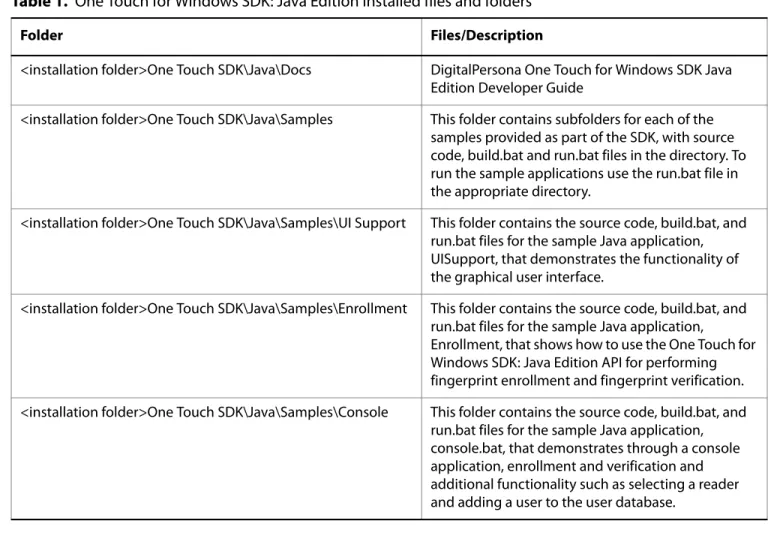
Table 1 describes the files and folders that are installed in the <destination folder> folder on your hard disk for the 32-bit and 64-bit installations. The RTE files and folders, which are described in Table 2 on page 16 for the 32-bit installation and in Table 3 on page 17 for the 64-bit installation, are also installed on your hard disk.
Chapter 3: Installation Installing the Runtime Environment (RTE)
Installing the Runtime Environment (RTE)
When you develop a product based on the One Touch for Windows SDK: Java Edition, you need to provide the redistributables to your end users. These files are designed and licensed for use with your application. You may include the installation files located in the RTE\Install folder in your application or you may incorporate the redistributables directly into your installer. You may also use the merge modules located in the Redist folder in the SDK software package to create your own MSI installer. (See Redistribution on page 94 for licensing terms.)
If you created an application based on the One Touch for Windows SDK: Java Edition API that does not include an installer, your end users must install the One Touch for Windows SDK: Java Edition Runtime Environment to run your application.
Table 1. One Touch for Windows SDK: Java Edition installed files and folders
Folder Files/Description
<installation folder>One Touch SDK\Java\Docs DigitalPersona One Touch for Windows SDK Java Edition Developer Guide
<installation folder>One Touch SDK\Java\Samples This folder contains subfolders for each of the samples provided as part of the SDK, with source code, build.bat and run.bat files in the directory. To run the sample applications use the run.bat file in the appropriate directory.
<installation folder>One Touch SDK\Java\Samples\UI Support This folder contains the source code, build.bat, and run.bat files for the sample Java application, UISupport, that demonstrates the functionality of the graphical user interface.
<installation folder>One Touch SDK\Java\Samples\Enrollment This folder contains the source code, build.bat, and run.bat files for the sample Java application,
Enrollment, that shows how to use the One Touch for Windows SDK: Java Edition API for performing fingerprint enrollment and fingerprint verification. <installation folder>One Touch SDK\Java\Samples\Console This folder contains the source code, build.bat, and
run.bat files for the sample Java application, console.bat, that demonstrates through a console application, enrollment and verification and additional functionality such as selecting a reader and adding a user to the user database.
Chapter 3: Installation Installing the Runtime Environment (RTE)
To install the One Touch for Windows SDK: Java Edition RTE for 32-bit operating systems
1. In the RTE folder in the SDK software package, open the Setup.exe file.
2. Follow the installation instructions as they appear.
Table 2 identifies the files that are installed on your hard disk for 32-bit versions of the supported operating systems.
Table 2. One Touch for Windows SDK: Java Edition RTE installed files and folders, 32-bit installation
Folder File Description
<installation folder>\Bin DPCOper2.dll DPDevice2.dll DPDevTS.dll DpHostW.exe DPmsg.dll DPMux.dll DpSvInfo2.dll DPTSClnt.dll
DLLs and executable file used by all of the One Touch for Windows APIs
<installation folder>\Bin\Java dpfpenrollment.jar dpfpverification.jar dpotapi.jar dpotjni.jar
Java library files and executables used to create One Touch for Windows functionality.
<system folder> DPFPApi.dll DpClback.dll dpHFtrEx.dll dpHMatch.dll DPFpUI.dll
DLLs used by all of the One Touch for Windows APIs
<system folder> otdpfpjni.dll otfxjni.dll otmcjni.dll
DLLs used by the One Touch for Windows SDK: Java Edition API
Chapter 3: Installation Installing the Runtime Environment (RTE)
To install the One Touch for Windows SDK: Java Edition RTE for 64-bit operating systems
1. In the RTE\x64 folder in the SDK software package, open the Setup.exe file.
2. Follow the installation instructions as they appear.
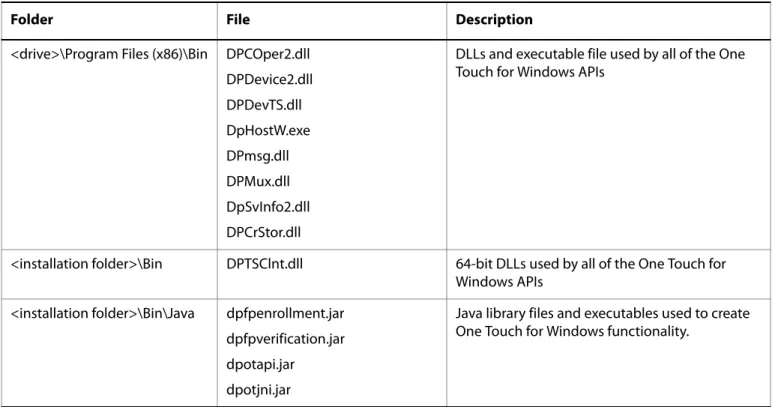
Table 3 identifies the files that are installed on your hard disk for 64-bit versions of the supported operating systems.
Table 3. One Touch for Windows SDK: Java Edition RTE installed files and folders, 64-bit installation
Folder File Description
<drive>\Program Files (x86)\Bin DPCOper2.dll DPDevice2.dll DPDevTS.dll DpHostW.exe DPmsg.dll DPMux.dll DpSvInfo2.dll DPCrStor.dll
DLLs and executable file used by all of the One Touch for Windows APIs
<installation folder>\Bin DPTSClnt.dll 64-bit DLLs used by all of the One Touch for Windows APIs
<installation folder>\Bin\Java dpfpenrollment.jar dpfpverification.jar dpotapi.jar dpotjni.jar
Java library files and executables used to create One Touch for Windows functionality.
Chapter 3: Installation Installing and Uninstalling the RTE Silently
Installing and Uninstalling the RTE Silently
The One Touch for Windows SDK: Java Edition software package contains a batch file, InstallOnly.bat, that you can use to silently install the RTE. In addition, you can modify the file to selectively install the various features of the RTE. Refer to the file for instructions.
The SDK software package also contains a file, UninstallOnly.bat, that you can use to silently uninstall the RTE.
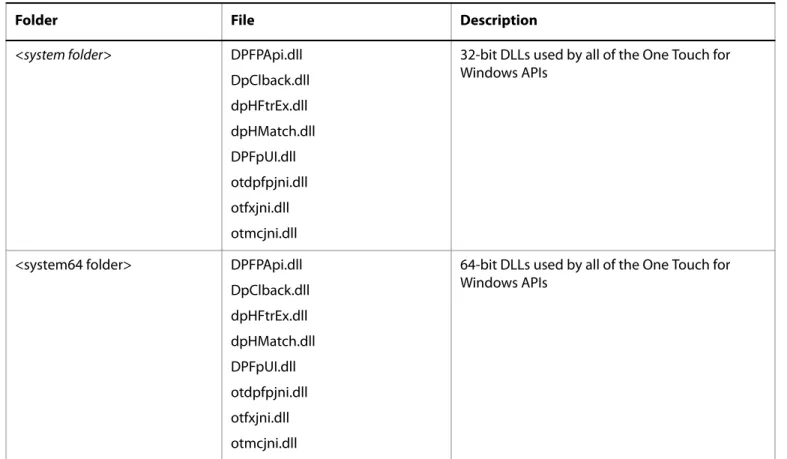
<system folder> DPFPApi.dll DpClback.dll dpHFtrEx.dll dpHMatch.dll DPFpUI.dll otdpfpjni.dll otfxjni.dll otmcjni.dll
32-bit DLLs used by all of the One Touch for Windows APIs
<system64 folder> DPFPApi.dll DpClback.dll dpHFtrEx.dll dpHMatch.dll DPFpUI.dll otdpfpjni.dll otfxjni.dll otmcjni.dll
64-bit DLLs used by all of the One Touch for Windows APIs
Table 3. One Touch for Windows SDK: Java Edition RTE installed files and folders, 64-bit installation (continued)
Overview
4
This chapter introduces One Touch for Windows SDK: Java Edition concepts and terminology. (For more details on the subject of fingerprint biometrics, refer to the “DigitalPersona White Paper: Guide to Fingerprint
Recognition” included in the One Touch for Windows SDK: Java Edition software package.) This chapter also includes typical workflow diagrams and explanations of the One Touch for Windows SDK: Java Edition API functions used to perform the tasks in the workflows.
Biometric System
A biometric system is an automatic method of identifying a person based on the person’s unique physical and/
or behavioral traits, such as a fingerprint or an iris pattern, or a handwritten signature or voice. Biometric identifiers are
Universal Distinctive
Persistent (sufficiently unchangeable over time) Collectable
Biometric systems have become an essential component of effective person recognition solutions because biometric identifiers cannot be shared or misplaced and they naturally represent an individual’s bodily identity. Substitute forms of identity, such as passwords (commonly used in logical access control) and identity cards (frequently used for physical access control), do not provide this level of authentication that strongly validates the link to the actual authorized user.
Fingerprint recognition is the most popular and mature biometric system used today. In addition to meeting the four criteria above, fingerprint recognition systems perform well (that is, they are accurate, fast, and robust), they are publicly acceptable, and they are hard to circumvent.
Fingerprint
A fingerprint is an impression of the ridges on the skin of a finger. A fingerprint recognition system uses the distinctive and persistent characteristics from the ridges, also referred to as fingerprint features, to distinguish one finger (or person) from another. The One Touch for Windows SDK: Java Edition incorporates the
DigitalPersona Fingerprint Recognition Engine (Engine), which uses traditional as well as modern fingerprint recognition methodologies to convert these fingerprint features into a format that is compact, distinguishing, and persistent. The Engine then uses the converted, or extracted, fingerprint features in comparison and decision-making to provide reliable personal recognition.
Chapter 4: Overview Fingerprint Recognition
Fingerprint Recognition
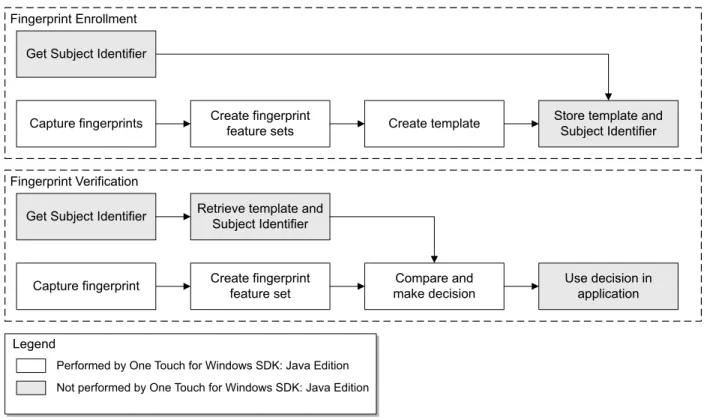
The DigitalPersona fingerprint recognition system uses the processes of fingerprint enrollment and fingerprint verification, which are illustrated in the block diagram in Figure 1 on page 21. Some of the tasks in these processes are done by the fingerprint reader and its driver; some are accomplished using One Touch for Windows SDK: Java Edition API functions, which use the Engine; and some are provided by your software application and/or hardware.
Fingerprint Enrollment
Fingerprint enrollment is the initial process of collecting fingerprint data from a person (enrollee) and storing the resulting data as a fingerprint template for later comparison. The following procedure describes typical
fingerprint enrollment. (Steps preceded by an asterisk are not performed by the One Touch for Windows SDK: Java Edition.)
1. *Obtain the enrollee’s identifier (Subject Identifier).
2. Capture the enrollee’s fingerprint using the fingerprint reader.
3. Extract the fingerprint feature set for the purpose of enrollment from the fingerprint sample.
4. Repeat steps 2 and 3 until you have enough fingerprint feature sets to create a fingerprint template.
5. Create a fingerprint template.
6. *Associate the fingerprint template with the enrollee through a Subject Identifier, such as a user name, email address, or employee number.
7. *Store the fingerprint template, along with the Subject Identifier, for later comparison.
Fingerprint templates can be stored in any type of repository that you choose, such as a fingerprint capture device, a smart card, or a local or central database.
Fingerprint Verification
Fingerprint verification is the process of comparing the fingerprint data to the fingerprint template produced at enrollment and deciding if the two match. The following procedure describes typical fingerprint verification. (Steps preceded by an asterisk are not performed by the One Touch for Windows SDK: Java Edition.)
1. *Obtain the Subject Identifier of the person to be verified.
2. Capture a fingerprint sample using the fingerprint reader.
3. Extract a fingerprint feature set for the purpose of verification from the fingerprint sample.
Chapter 4: Overview Creating an object
5. Perform a one-to-one comparison between the fingerprint feature set and the fingerprint template, and make a decision of match or non-match.
6. *Act on the decision accordingly, for example, unlock the door to a building for a match, or deny access to the building for a non-match.
Figure 1. DigitalPersona fingerprint recognition system
Creating an object
In the workflows and their descriptions on the following pages, there are instructions such as “Create Capture object.” As you can see from the description, step 1 on page 25, this is done using the DPFPCapture class.
However, unlike in the .NET language, we cannot just call DPFPCapture capture = new DPFPCapture(), because DPFPCapture is an abstract interface, not a concrete class. To create a concrete class you must invoke some factory which will construct the object with the desired interface. The One Touch for Windows SDK: Java Edition provides standard factories via the DPFPGlobal object, so the construction code will be similar to -
DPFPCapture capture = DPFPGlobal.getCaptureFactory().createCapture(); &UHDWHILQJHUSULQW
IHDWXUHVHWV 6WRUHWHPSODWHDQG6XEMHFW,GHQWLILHU
&DSWXUHILQJHUSULQWV &UHDWHWHPSODWH
&UHDWHILQJHUSULQW
IHDWXUHVHW PDNHGHFLVLRQ&RPSDUHDQG 8VHGHFLVLRQLQDSSOLFDWLRQ *HW6XEMHFW,GHQWLILHU )LQJHUSULQW(QUROOPHQW )LQJHUSULQW9HULILFDWLRQ *HW6XEMHFW,GHQWLILHU 3HUIRUPHGE\2QH7RXFKIRU:LQGRZV6'.-DYD(GLWLRQ 1RWSHUIRUPHGE\2QH7RXFKIRU:LQGRZV6'.-DYD(GLWLRQ /HJHQG 5HWULHYHWHPSODWHDQG 6XEMHFW,GHQWLILHU &DSWXUHILQJHUSULQW
Chapter 4: Overview False Positives and False Negatives
False Positives and False Negatives
Fingerprint recognition systems provide many security and convenience advantages over traditional methods of recognition. However, they are essentially pattern recognition systems that inherently occasionally make certain errors, because no two impressions of the same finger are identical. During verification, sometimes a person who is legitimately enrolled is rejected by the system (a false negative decision), and sometimes a person who is not enrolled is accepted by the system (a false positive decision).
The proportion of false positive decisions is known as the false accept rate (FAR), and the proportion of false negative decisions is known as the false reject rate (FRR). In fingerprint recognition systems, the FAR and the FRR are traded off against each other, that is, the lower the FAR, the higher the FRR, and the higher the FAR, the lower the FRR.
A One Touch for Windows SDK: Java Edition API function enables you to set the value of the FAR, also referred to as the security level, to accommodate the needs of your application. In some applications, such as an access control system to a highly confidential site or database, a lower FAR is required. In other applications, such as an entry system to an entertainment theme park, security (which reduces ticket fraud committed by a small fraction of patrons by sharing their entry tickets) may not be as significant as accessibility for all of the patrons, and it may be preferable to decrease the FRR at the expense of an increased FAR.
It is important to remember that the accuracy of the fingerprint recognition system is largely related to the quality of the fingerprint. Testing with sizable groups of people over an extended period has shown that a majority of people have feature-rich, high-quality fingerprints. These fingerprints will almost surely be recognized accurately by the DigitalPersona Fingerprint Recognition Engine and practically never be falsely accepted or falsely rejected. The DigitalPersona fingerprint recognition system is optimized to recognize fingerprints of poor quality. However, a very small number of people may have to try a second or even a third time to obtain an accurate reading. Their fingerprints may be difficult to verify because they are either worn from manual labor or have unreadable ridges. Instruction in the proper use of the fingerprint reader will help these people achieve the desired results.
Workflows
Typical workflows are presented in this section for the following operations: Fingerprint enrollment
Fingerprint enrollment with UI support Fingerprint verification
Fingerprint verification with UI support
Fingerprint data object serialization and deserialization
NOTE: Steps in the following workflows which are preceded by two asterisks (**) are performed by a fingerprint reader, while steps preceded by a single asterisk (*) are performed by an application.
Chapter 4: Overview Fingerprint Enrollment Workflow
Fingerprint Enrollment Workflow
This section contains a typical workflow for performing fingerprint enrollment. The workflow is illustrated in
Figure 2 and is followed by explanations of the One Touch for Windows SDK: Java Edition API functions used to
perform the tasks in the workflow. Your application workflow may be different than the one illustrated here. For example, you could choose to create fingerprint feature sets locally and then send them to a server for
Chapter 4: Overview Fingerprint Enrollment Workflow
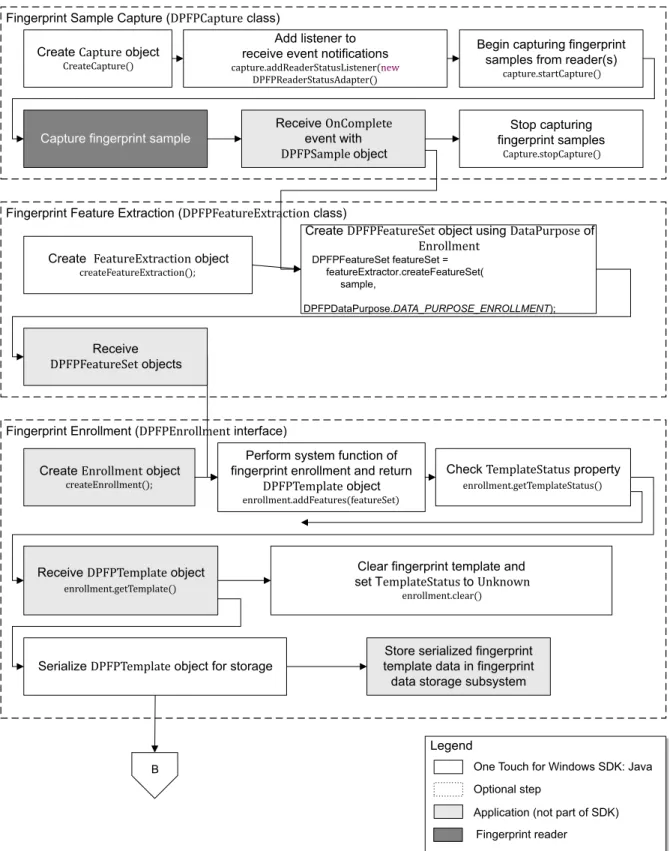
Figure 2. Typical fingerprint enrollment workflow &UHDWHREMHFW ሺሻǢ )LQJHUSULQW(QUROOPHQW LQWHUIDFH 2QH7RXFKIRU:LQGRZV6'.-DYD $SSOLFDWLRQQRWSDUWRI6'. )LQJHUSULQWUHDGHU /HJHQG 2SWLRQDOVWHS 6HULDOL]H REMHFWIRUVWRUDJH &OHDUILQJHUSULQWWHPSODWHDQG VHW7WR Ǥ ሺሻ 3HUIRUPV\VWHPIXQFWLRQRI ILQJHUSULQWHQUROOPHQWDQGUHWXUQ REMHFW Ǥ ሺሻ 5HFHLYH REMHFW Ǥሺሻ )LQJHUSULQW)HDWXUH([WUDFWLRQ FODVV )LQJHUSULQW6DPSOH&DSWXUH FODVV &UHDWHREMHFW ሺሻ $GGOLVWHQHUWR UHFHLYHHYHQWQRWLILFDWLRQV Ǥሺ ሺሻ %HJLQFDSWXULQJILQJHUSULQW VDPSOHVIURPUHDGHUV Ǥሺሻ
&DSWXUHILQJHUSULQWVDPSOH 5HFHLYHHYHQWZLWK
REMHFW 6WRSFDSWXULQJ ILQJHUSULQWVDPSOHV Ǥሺሻ 5HFHLYH REMHFWV &UHDWH REMHFWXVLQJRI '3)3)HDWXUH6HWIHDWXUH6HW IHDWXUH([WUDFWRUFUHDWH)HDWXUH6HW VDPSOH '3)3'DWD3XUSRVH'$7$B385326(B(152//0(17 &UHDWH REMHFW ሺሻǢ &KHFNSURSHUW\ Ǥሺሻ 6WRUHVHULDOL]HGILQJHUSULQW WHPSODWHGDWDLQILQJHUSULQW GDWDVWRUDJHVXEV\VWHP %
Chapter 4: Overview Fingerprint Enrollment Workflow
Fingerprint Sample Capture (DPFPCapture Class)
1. Create a new instance of the DPFPCapture class (page 50).
2. Load a fingerprint sample capture operation event handler for receiving event notifications by adding event listeners (page 50).
3. Begin capturing fingerprint samples from the fingerprint reader(s) connected to a system by calling the
startCapture() method (page 52).
4. **Capture a fingerprint sample from a fingerprint reader. Note that you cannot change the priority or the reader(s) setting of a DPFPCapture object after it is started.
5. *Receive the dataAcquired() event from the fingerprint sample capture event handler along with a
DPFPSample object when the fingerprint sample is successfully captured by the fingerprint reader (page 54).
6. *Pass the DPFPFeatureExtraction.createFeatureSet(DPFPSample sample,
DPFPDataPurpose purpose); method. (See step 2 in the next section.)
7. Stop capturing fingerprint samples by calling the stopCapture method (page 52).
Fingerprint Feature Extraction (DPFPFeatureExtraction Class)
1. Create a new instance of the DPFPFeatureExtraction class (page 65).
2. Create DPFPFeatureSet objects by calling the createFeatureSet(DPFPSample sample, DPFPDataPurpose purpose) method using the value Enrollment for DataPurpose and passing the DPFPSample object from step 6 of the previous section (page 65).
3. *Pass the DPFPFeatureSet objects created in the previous step to the addFeatures method. (See step 2 in the next section.)
Fingerprint Enrollment (DPFPEnrollment Class)
1. Create a new instance of the DPFPEnrollment class (page 64).
2. Perform the system function of fingerprint enrollment by calling the addFeatures(featureSet)
method and passing the DPFPFeatureSet objects from step 3 of the previous section (page 64).
3. Check the TemplateStatus property after each call to the addFeatures method using
getTemplateStatus() "getter" method (page 64). When the TemplateStatus property returns the value
DPFPTemplateStatus.TEMPLATE_STATUS_READY, a DPFPTemplate object is created.
4. *Receive the DPFPTemplate object.
Chapter 4: Overview Fingerprint Enrollment Workflow
6. *Store the serialized fingerprint template data in a fingerprint data storage subsystem.
7. Clear the fingerprint template and set the value of TemplateStatus to
DPFPTemplateStatus.TEMPLATE_STATUS_UNKNOWN by calling the clear() method (page 64).
Chapter 4: Overview Fingerprint Enrollment with UI Support
Fingerprint Enrollment with UI Support
This section contains two typical workflows for performing fingerprint enrollment: one for enrolling a
fingerprint and one for unenrolling (deleting) a fingerprint. The workflows are illustrated in Figure 3 and Figure 4
and are followed by explanations of the One Touch for Windows SDK: Java Edition API functions used to perform the tasks in the workflows.
Enrolling a Fingerprint
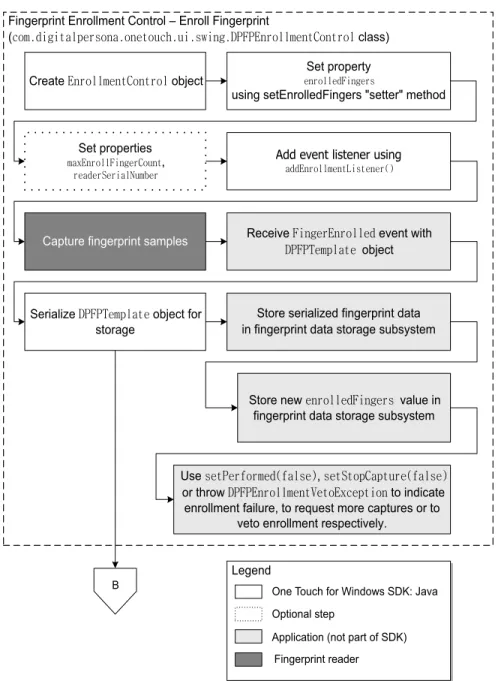
Figure 3. Typical fingerprint enrollment with UI support workflow: Enrolling a fingerprint )LQJHUSULQW(QUROOPHQW&RQWURO±(QUROO)LQJHUSULQW ھۊۈډڿۄۂۄۏڼۇۋۀۍێۊۉڼډۊۉۀۏۊېھۃډېۄډێےۄۉۂډڟګڡګڠۉۍۊۇۇۈۀۉۏڞۊۉۏۍۊۇFODVV 6HULDOL]HڟګڡګگۀۈۋۇڼۏۀREMHFWIRU VWRUDJH % &UHDWHڠۉۍۊۇۇۈۀۉۏڞۊۉۏۍۊۇREMHFW 6WRUHVHULDOL]HGILQJHUSULQWGDWD LQILQJHUSULQWGDWDVWRUDJHVXEV\VWHP $GGHYHQWOLVWHQHUXVLQJ ڼڿڿڠۉۍۊۇۇۈۀۉۏڧۄێۏۀۉۀۍڃڄ
&DSWXUHILQJHUSULQWVDPSOHV 5HFHLYHڟګڡګگۀۈۋۇڼۏۀٻڡۄۉۂۀۍڠۉۍۊۇۇۀڿREMHFWHYHQWZLWK 6HWSURSHUWLHV ۈڼۓڠۉۍۊۇۇڡۄۉۂۀۍڞۊېۉۏٻ ۍۀڼڿۀۍڮۀۍۄڼۇکېۈڽۀۍ 6HWSURSHUW\ ۀۉۍۊۇۇۀڿڡۄۉۂۀۍێٻ XVLQJVHW(QUROOHG)LQJHUVVHWWHUPHWKRG 8VHێۀۏګۀۍہۊۍۈۀڿڃہڼۇێۀڄێۀۏڮۏۊۋڞڼۋۏېۍۀڃہڼۇێۀڄ RUWKURZڟګڡګڠۉۍۊۇۇۈۀۉۏڱۀۏۊڠۓھۀۋۏۄۊۉWRLQGLFDWH HQUROOPHQWIDLOXUHWRUHTXHVWPRUHFDSWXUHVRUWR YHWRHQUROOPHQWUHVSHFWLYHO\ 6WRUHQHZۀۉۍۊۇۇۀڿڡۄۉۂۀۍێٻYDOXHLQ ILQJHUSULQWGDWDVWRUDJHVXEV\VWHP 2QH7RXFKIRU:LQGRZV6'.-DYD $SSOLFDWLRQQRWSDUWRI6'. )LQJHUSULQWUHDGHU /HJHQG 2SWLRQDOVWHS
Chapter 4: Overview Fingerprint Enrollment with UI Support
1. Create a new instance of the
com.digitalpersona.onetouch.ui.swing.DPFPEnrollmentControl class (page 71).
2. Set the enrolledFingers property using the setEnrolledFingers "setter" method
(page 72).
3. Optionally, set the EnrollFingerCount and readerSerialNumber properties, using the
setMaxEnrollFingerCount and setReaderSerialNumber methods (page 72).
4. Add an event listener for receiving event notifications using addEnrollmentListener() (page 71).
5. **Capture a predetermined number of fingerprint samples from a fingerprint reader.
6. *Receive the fingerEnrolled(DPFPEnrollmentEvent) event from the fingerprint enrollment control event handler, along with the DPFPTemplate object (page 80).
7. Serialize the DPFPTemplate object (see Serializing a Fingerprint Data Object on page 36).
8. *Store the serialized fingerprint template data and the new value of enrolledFingers,using
getEnrolledFingers() getter, in a fingerprint data storage subsystem.
9. *Use the setPerformed(false)or setStopCapture(false) methods of the
DPFPEnrollmentEvent; or throw DPFPEnrollmentVetoException to indicate enrollment failure, to request more captures or to veto enrollment (page 73).
Chapter 4: Overview Fingerprint Enrollment with UI Support
Unenrolling (Deleting) a Fingerprint Template
Figure 4. Typical fingerprint enrollment with UI support workflow: Unenrolling (deleting) a fingerprint
1. Create a new instance of the
com.digitalpersona.onetouch.ui.swing.DPFPEnrollmentControll class (page 71).
2. *Retrieve the value of the enrolledFingers property stored in the fingerprint data storage subsystem.
3. Set the enrolledFingers property using the setEnrolledFingers "setter" method
(page 72).
4. Add an event listener for receiving event notifications using addEnrollmentListener() (page 71).
5. *Receive the fingerDeleted event from the enrollment control event handler, along with the finger index value (page 80).
6. *Delete the appropriate fingerprint template from the fingerprint data storage subsystem.
7. *Store the new value of enrolledFingers in the fingerprint data storage subsystem. )LQJHUSULQW(QUROOPHQW&RQWURO±8QHQUROO)LQJHUSULQW ھۊۈډڿۄۂۄۏڼۇۋۀۍێۊۉڼډۊۉۀۏۊېھۃډېۄډێےۄۉۂډڟګڡګڠۉۍۊۇۇۈۀۉۏڞۊۉۏۍۊۇFODVV 2QH7RXFKIRU:LQGRZV6'.-DYD $SSOLFDWLRQQRWSDUWRI6'. /HJHQG &UHDWHڠۉۍۊۇۇۈۀۉۏڞۊۉۏۍۊۇREMHFW 6HWSURSHUW\ ۀۉۍۊۇۇۀڿڡۄۉۂۀۍێٻ XVLQJێۀۏڠۉۍۊۇۇۀڿڡۄۉۂۀۍێٻVHWWHU PHWKRG $GGHYHQWOLVWHQHUXVLQJ ڼڿڿڠۉۍۊۇۇۈۀۉۏڧۄێۏۀۉۀۍڃڄ 5HFHLYHہۄۉۂۀۍڟۀۇۀۏۀڿHYHQW ZLWKLQGH[YDOXH 'HOHWHDSSURSULDWHILQJHUSULQW WHPSODWHIURPILQJHUSULQWGDWD VWRUDJHVXEV\VWHP 8VHێۀۏګۀۍہۊۍۈۀڿڃہڼۇێۀڄێۀۏڮۏۊۋڞڼۋۏېۍۀڃہڼۇێۀڄRUWKURZ ڟګڡګڠۉۍۊۇۇۈۀۉۏڱۀۏۊڠۓھۀۋۏۄۊۉWRLQGLFDWHHQUROOPHQWIDLOXUHWR UHTXHVWPRUHFDSWXUHVRUWRYHWRHQUROOPHQWUHVSHFWLYHO\ 6WRUHQHZۀۉۍۊۇۇۀڿڡۄۉۂۀۍێٻ YDOXHLQILQJHUSULQWGDWDVWRUDJH VXEV\VWHP
Chapter 4: Overview Fingerprint Enrollment with UI Support
8. *Use the setPerformed(false)or setStopCapture(false) methods of the
DPFPEnrollmentEvent; or throw DPFPEnrollmentVetoException to indicate enrollment failure, to request more captures or to veto enrollment (page 73).
Chapter 4: Overview Fingerprint Verification
Fingerprint Verification
This section contains a typical workflow for performing fingerprint verification. The workflow is illustrated in
Figure 5 and is followed by explanations of the One Touch for Windows SDK: Java Edition API functions used to
perform the tasks in the workflow.
)LQJHUSULQW6DPSOH&DSWXUH FODVV &UHDWH REMHFWXVLQJ RI Ǥ ሺ ǡǡ ǡ ሻ &UHDWH REMHFW 5HFHLYH REMHFW )LQJHUSULQW)HDWXUH([WUDFWLRQ FODVV 6HWSURSHUW\ &UHDWH REMHFW )LQJHUSULQW9HULILFDWLRQ FODVV 5HFHLYH REMHFW 2QH7RXFKIRU:LQGRZV6'.-DYD $SSOLFDWLRQQRWSDUWRI6'. )LQJHUSULQWUHDGHU /HJHQG 2SWLRQDOVWHS $ 5HWULHYHGHVHULDOL]HG ǤREMHFW
&UHDWHREMHFW UHFHLYHHYHQWQRWLILFDWLRQV/RDGHYHQWKDQGOHUWR
3HUIRUPV\VWHPIXQFWLRQ RIILQJHUSULQWYHULILFDWLRQDQGUHWXUQ REMHFW ሺ ǡ ǡሻ %HJLQFDSWXULQJILQJHUSULQW VDPSOHVIURPILQJHUSULQW UHDGHUV ሺሻ
&DSWXUHILQJHUSULQWVDPSOH 5HFHLYHHYHQWZLWK ǤREMHFW
6WRSFDSWXULQJ ILQJHUSULQWVDPSOHV
Chapter 4: Overview Fingerprint Verification
Fingerprint Sample Capture (DPFPCapture Class)
1. Create a new instance of the DPFPCapture class (page 50).
2. Load a fingerprint sample capture operation event handler for receiving event notifications by adding event listeners (page 54).
3. Begin capturing fingerprint samples from the fingerprint reader(s) connected to a system by calling the
startCapture() method (page 52).
4. **Capture a fingerprint sample from a fingerprint reader. Note that you cannot change the priority or the reader(s) setting of a DPFPCapture object after it is started.
5. *Receive the dataAcquired() event from the fingerprint sample capture event handler along with a
DPFPSample object when the fingerprint sample is successfully captured by the fingerprint reader (page 54).
6. *Pass the DPFPFeatureExtraction.createFeatureSet(DPFPSample sample,
DPFPDataPurpose purpose); method. (See step 2 in the next section.)
7. Stop capturing fingerprint samples by calling the stopCapture method (page 52).
Fingerprint Feature Extraction (DPFPFeatureExtraction Class)
1. Create a new instance of the DPFPFeatureExtraction class (page 65).
2. Create DPFPFeatureSet objects by calling the createFeatureSet(DPFPSample sample, DPFPDataPurpose purpose) method using the value Verification for DataPurpose and passing the DPFPSample object from step 6 of the previous section (page 65).
3. *Pass the DPFPFeatureSet objects created in the previous step to the addFeatures method. (See step 2 in the next section.)
Fingerprint Verification (DPFPVerification Class)
1. Create a new instance of the DPFPVerification class (page 81).
Example:
DPFPVerification matcher = DPFPGlobal .getVerificationFactory()
.createVerification();
2. Optionally, set the FARRequested property (page 82). You can use this property to set or to change the value of the FAR from the default or from a specified value.
Example:
matcher.setFARRequested(DPFPVerification.MEDIUM_SECURITY_FAR);
Chapter 4: Overview Fingerprint Verification
4. Create a DPFPTemplate object from the serialized data (see Deserializing a Serialized Fingerprint Data Object on page 37).
5. Perform the system function of fingerprint verification by calling the verify(featureSet, template) method and passing the DPFPTemplate object created in the previous step and the
DPFPFeatureSet object from step 3 of the previous section (page 82).
Example:
DPFPVerificationResult result = matcher.verify(featureSet, template);
if (result.isVerified()) { ... }
6. *Receive the DPFPVerificationResult object, which provides the comparison decision of match or non-match (page 83).
Chapter 4: Overview Fingerprint Verification with UI Support
Fingerprint Verification with UI Support
This section contains a typical workflow for performing fingerprint verification with UI support. The workflow is illustrated in Figure 6 and is followed by explanations of the One Touch for Windows SDK: Java Edition API functions used to perform the tasks in the workflow.
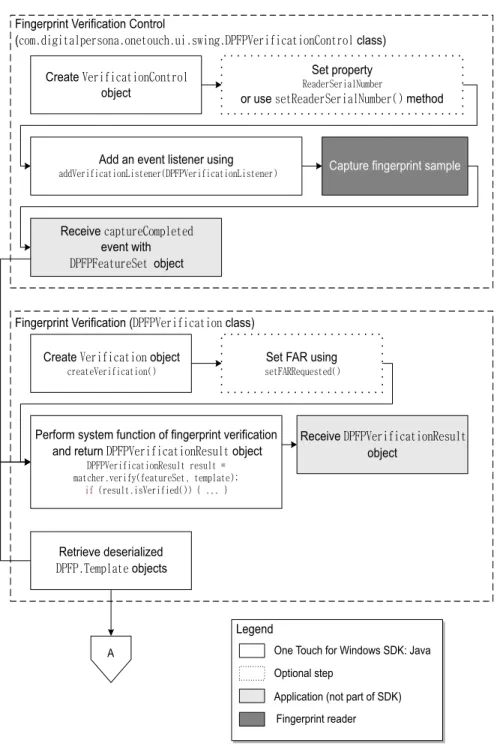
Figure 6. Typical fingerprint verification with UI support workflow )LQJHUSULQW9HULILFDWLRQ&RQWURO ھۊۈډڿۄۂۄۏڼۇۋۀۍێۊۉڼډۊۉۀۏۊېھۃډېۄډێےۄۉۂډڟګڡګڱۀۍۄہۄھڼۏۄۊۉڞۊۉۏۍۊۇFODVV 5HFHLYHھڼۋۏېۍۀڞۊۈۋۇۀۏۀڿ HYHQWZLWK ڟګڡګڡۀڼۏېۍۀڮۀۏٻREMHFW 6HW)$5XVLQJ ێۀۏڡڜڭڭۀیېۀێۏۀڿڃڄ &UHDWHڱۀۍۄہۄھڼۏۄۊۉREMHFW ھۍۀڼۏۀڱۀۍۄہۄھڼۏۄۊۉڃڄ )LQJHUSULQW9HULILFDWLRQڟګڡګڱۀۍۄہۄھڼۏۄۊۉFODVV 5HFHLYHڟګڡګڱۀۍۄہۄھڼۏۄۊۉڭۀێېۇۏ REMHFW 3HUIRUPV\VWHPIXQFWLRQRIILQJHUSULQWYHULILFDWLRQ DQGUHWXUQڟګڡګڱۀۍۄہۄھڼۏۄۊۉڭۀێېۇۏREMHFW ڟګڡګڱۀۍۄہۄھڼۏۄۊۉڭۀێېۇۏٻۍۀێېۇۏٻژٻ ۈڼۏھۃۀۍډۑۀۍۄہ۔ڃہۀڼۏېۍۀڮۀۏڇٻۏۀۈۋۇڼۏۀڄږ ۄہٻڃۍۀێېۇۏډۄێڱۀۍۄہۄۀڿڃڄڄٻۖٻډډډٻۘ 2QH7RXFKIRU:LQGRZV6'.-DYD $SSOLFDWLRQQRWSDUWRI6'. )LQJHUSULQWUHDGHU /HJHQG 2SWLRQDOVWHS $ 5HWULHYHGHVHULDOL]HG ڟګڡګډگۀۈۋۇڼۏۀREMHFWV &UHDWHڱۀۍۄہۄھڼۏۄۊۉڞۊۉۏۍۊۇ REMHFW &DSWXUHILQJHUSULQWVDPSOH $GGDQHYHQWOLVWHQHUXVLQJ ڼڿڿڱۀۍۄہۄھڼۏۄۊۉڧۄێۏۀۉۀۍڃڟګڡګڱۀۍۄہۄھڼۏۄۊۉڧۄێۏۀۉۀۍڄ 6HWSURSHUW\ ڭۀڼڿۀۍڮۀۍۄڼۇکېۈڽۀۍ RUXVHێۀۏڭۀڼڿۀۍڮۀۍۄڼۇکېۈڽۀۍڃڄPHWKRG
Chapter 4: Overview Fingerprint Verification with UI Support
Fingerprint Verification Control (DPFPVerificationControl Class)
1. Create a new instance of the DPFPVerificationControl class (page 76).
2. Optionally, set the ReaderSerialNumber property (page 76).
3. Add an event listener usingaddVerificationListener(DPFPVerificationListener)
(page 76).
4. **Capture a fingerprint sample from a fingerprint reader.
5. Receive the captureCompleted event from the fingerprint verification control event handler along with the DPFPFeatureSet object (page 80).
Fingerprint Verification (DPFPVerification Class)
1. Create a new instance of the DPFPVerification class (page 81).
Example:
DPFPVerification matcher = DPFPGlobal .getVerificationFactory()
.createVerification();
2. Optionally, set the FARRequested property (page 82). You can use this property to set or to change the value of the FAR from the default or from a specified value.
Example:
matcher.setFARRequested(DPFPVerification.MEDIUM_SECURITY_FAR);
3. *Retrieve serialized fingerprint template data from the fingerprint data storage subsystem.
4. Create a DPFPTemplate object from the serialized data (see Deserializing a Serialized Fingerprint Data Object on page 37).
5. Perform the system function of fingerprint verification by calling the verify(featureSet, template) method and passing the DPFPTemplate object created in the previous step and the
DPFPFeatureSet object from step 3 of the previous section (page 82).
Example:
DPFPVerificationResult result = matcher.verify(featureSet, template);
if (result.isVerified()) { ... }
6. *Receive the DPFPVerificationResult object, which provides the comparison decision of match or non-match (page 83).
Chapter 4: Overview Fingerprint Data Object Serialization/Deserialization
Fingerprint Data Object Serialization/Deserialization
This section contains two workflows: one for serializing a fingerprint data object and one for deserializing a serialized fingerprint data object. The workflows are illustrated in Figure 7 and Figure 8 and are followed by explanations of the One Touch for Windows SDK: Java Edition API functions used to perform the tasks in the workflows.
Serializing a Fingerprint Data Object
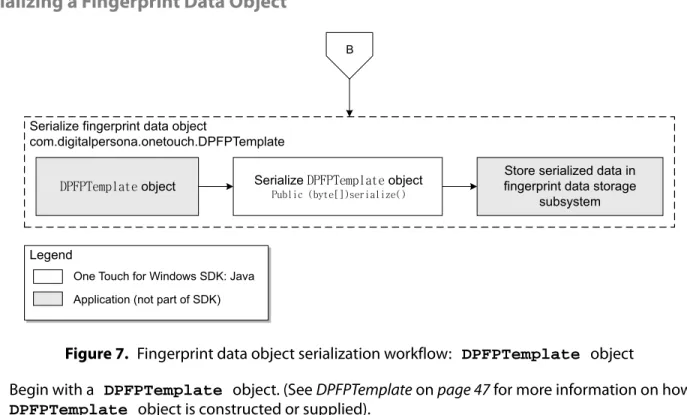
Figure 7. Fingerprint data object serialization workflow: DPFPTemplate object
1. Begin with a DPFPTemplate object. (See DPFPTemplate on page 47 for more information on how a
DPFPTemplate object is constructed or supplied).
2. Serialize the DPFPTemplate object by calling the serialize method (page 46).
3. *Store the serialized fingerprint template data in a fingerprint data storage subsystem.
2QH7RXFKIRU:LQGRZV6'.-DYD $SSOLFDWLRQQRWSDUWRI6'. /HJHQG 6HULDOL]HILQJHUSULQWGDWDREMHFW FRPGLJLWDOSHUVRQDRQHWRXFK'3)37HPSODWH %
ڟګڡګگۀۈۋۇڼۏۀREMHFW 6HULDOL]HڟګڡګگۀۈۋۇڼۏۀREMHFW ګېڽۇۄھٻڃڽ۔ۏۀڶڸڄێۀۍۄڼۇۄەۀڃڄ
6WRUHVHULDOL]HGGDWDLQ ILQJHUSULQWGDWDVWRUDJH
Chapter 4: Overview Fingerprint Data Object Serialization/Deserialization
Deserializing a Serialized Fingerprint Data Object
Figure 8. Deserialization of serialized fingerprint data object workflow: DPFPTemplate object
1. *Retrieve serialized fingerprint template data from a fingerprint data storage subsystem.
2. Deserialize a DPFPTemplate object by calling the deserialize method (page 46).
3. Return a DPFPTemplate object.
2QH7RXFKIRU:LQGRZV6'.-DYD $SSOLFDWLRQQRWSDUWRI6'. /HJHQG $ 5HWULHYHVHULDOL]HGILQJHUSULQW WHPSODWHGDWDIURPILQJHUSULQW GDWDVWRUDJHVXEV\VWHP 'HVHULDOL]HڟګڡګگۀۈۋۇڼۏۀREMHFW
GHVHULDOL]HE\WH>@GDWD 5HWXUQڟګڡګگۀۈۋۇڼۏۀREMHFW 'HVHULDOL]HILQJHUSULQWGDWDREMHFW
API Reference
5
class onetouch
Type: Package Package: digitalpersonaDPFPCaptureFeedback
Type: Enumeration Package: onetouchDescription: Feedback from capture operation.
Attributes
Attribute Description
CAPTURE_FEEDBACK_GOOD
Public «enum»
The sample is of good quality.
CAPTURE_FEEDBACK_NONE Public «enum» There is no sample. CAPTURE_FEEDBACK_TOO_LIGHT Public «enum»
The sample is too light.
CAPTURE_FEEDBACK_TOO_DARK
Public «enum»
The sample is too dark.
CAPTURE_FEEDBACK_TOO_NOISY
Public «enum»
The sample is too noisy.
CAPTURE_FEEDBACK_LOW_CONTRAST
Public «enum»
The sample contrast is too low.
CAPTURE_FEEDBACK_NOT_ENOUGH_FEATURES
Public «enum»
Chapter 5: API Reference DPFPCaptureFeedback
CAPTURE_FEEDBACK_NO_CENTRAL_REGION
Public «enum»
The sample is not centered.
CAPTURE_FEEDBACK_NO_FINGER
Public «enum»
The object scanned is not a finger.
CAPTURE_FEEDBACK_TOO_HIGH
Public «enum»
The finger was too high on the swipe reader.
CAPTURE_FEEDBACK_TOO_LOW
Public «enum»
The finger was too low on the swipe reader.
CAPTURE_FEEDBACK_TOO_LEFT
Public «enum»
The finger was too close to the left border of swipe reader.
CAPTURE_FEEDBACK_TOO_RIGHT
Public
«enum»
The finger was too close to the right border of swipe reader.
CAPTURE_FEEDBACK_TOO_STRANGE
Public «enum»
The scan looks strange.
CAPTURE_FEEDBACK_TOO_FAST
Public «enum»
The finger was swiped too quickly.
CAPTURE_FEEDBACK_TOO_SKEWED
Public «enum»
The image is too skewed.
CAPTURE_FEEDBACK_TOO_SHORT
Public «enum»
The image is too short.
CAPTURE_FEEDBACK_TOO_SLOW
Public «enum»
Chapter 5: API Reference DPFPDataPurpose
DPFPDataPurpose
Type: Enumeration
Package: onetouch
Description: Fingerprint data purpose.
Attributes
DPFPError
Type: Class
Package: onetouch
Description: Describes the error structure.
Operations
Attribute Description
DATA_PURPOSE_UNKNOWN
Public «enum»
The purpose of the data is not known.
DATA_PURPOSE_VERIFICATION
Public «enum»
Fingerprint data will be used for the verification.
DATA_PURPOSE_ENROLLMENT
Public «enum»
Fingerprint data will be used for the enrollment.
Method Description Parameters
DPFPError()
Protected
Constructs the error object. int [in]errorCode The error code.
int [in]extendedErrorCode The extended error code.
String [in]errorText The error text.
Exception [in]exception The exception caught.
DPFPError()
Public
Constructs the error object. int [in]errorCode The error code.
Chapter 5: API Reference DPFPError
DPFPError()
Public
Constructs the error object. int [in]errorCode The error code.
String [in]errorText The error text.
DPFPError()
Public
Constructs the error object. int [in]errorCode The error code.
int [in]extendedErrorCode The extended error code.
DPFPError()
Public
Constructs the error object. int [in]errorCode The error code.
int [in]extendedErrorCode The extended error code.
String [in]errorText The error text.
DPFPError()
Public
Constructs the error object. Exception [in]exception The exception caught.
String [in]errorText The error text.
DPFPError()
Public
Constructs the error object. Exception [in]exception The exception caught.
getErrorCode() int Public
Returns the error code.
getErrorText() String Public
Returns the error text.
getException()
Exception Public
Returns the exception caught.
getExtendedErrorCode( ) int
Public
Returns the extended error code.
Chapter 5: API Reference DPFPFingerIndex
DPFPFingerIndex
Type: Enumeration
Package: onetouch
Description: Enumeration of fingers
Attributes
Attribute Description
LEFT_PINKY
Public «enum»
left little finger
LEFT_RING
Public «enum»
left ring finger
LEFT_MIDDLE
Public «enum»
left middle finger
LEFT_INDEX
Public «enum»
left index finger
LEFT_THUMB Public «enum» left thumb RIGHT_THUMB Public «enum» right thumb RIGHT_INDEX Public «enum»
right index finger
RIGHT_MIDDLE
Public «enum»
right middle finger
RIGHT_RING
Public «enum»
right ring finger
RIGHT_PINKY
Public «enum»
Chapter 5: API Reference DPFPFingerIndex
Operations
Method Description Parameters
toBit() long Public
Returns the finger's bitmask. The left little finger corresponds to the least significant bit of the mask. The right little finger corresponds to the most significant bit of the mask.
Static fromMask()
EnumSet<DPFPFingerIndex> Public
Chapter 5: API Reference DPFPGlobal
DPFPGlobal
Type: Class
Package: onetouch
Description: This class represents a main access point to the OneTouch for Windows SDK: Java Edition library, and contains a set of static factory methods which allow the user to create various SDK classes.
Connections
Operations
Connector Source Target
Association Source -> Destination Public DPFPGlobal Private featureExtractionFactory DPFPFeatureExtractionFactory Association Source -> Destination Public DPFPGlobal Private featureSetFactory DPFPFeatureSetFactory Association Source -> Destination Public DPFPGlobal Private readersCollectionFactory DPFPReadersCollectionFactory Association Source -> Destination Public DPFPGlobal Private sampleConversion DPFPSampleConversion Association Source -> Destination Public DPFPGlobal Private templateFactory DPFPTemplateFactory Association Source -> Destination Public DPFPGlobal Private captureFactory DPFPCaptureFactory Association Source -> Destination Public DPFPGlobal Private enrollmentFactory DPFPEnrollmentFactory Association Source -> Destination Public DPFPGlobal Private verificationFactory DPFPVerificationFactory Association Source -> Destination Public DPFPGlobal Private sampleFactory DPFPSampleFactory
Method Description Parameters
Static getCaptureFactory() DPFPCaptureFactory Public
Returns the default factory for DPFPCapture objects.
Static getEnrollmentFactory()
DPFPEnrollmentFactory Public
Returns the default factory for DPFPEnrollment objects.
Chapter 5: API Reference DPFPGlobal
Static getFeatureExtractionFactory()
DPFPFeatureExtractionFactory Public
Returns the default factory for DPFPFeatureExtraction objects.
Static getFeatureSetFactory() DPFPFeatureSetFactory Public
Returns the default factory for DPFPFeatureSet objects.
Static getReadersFactory()
DPFPReadersCollectionFactory Public
Returns the default factory for DPFPReadersCollection objects.
Static getSampleConversionFactory()
DPFPSampleConversion Public
Returns the default factory for DPFPSampleConversion objects.
Static getSampleFactory() DPFPSampleFactory Public
Returns the default factory for DPFPSample objects.
Static getTemplateFactory() DPFPTemplateFactory Public
Returns the default factory for DPFPTemplate objects.
Static getVerificationFactory()
DPFPVerificationFactory Public
Returns the default factory for DPFPVerification objects.
Chapter 5: API Reference DPFPData
DPFPData
Type: Interface
Package: onetouch
Description: Common structure of fingerprint data.
Operations
DPFPFeatureSet
Type: Interface DPFPData
Package: onetouch
Description: The fingerprint feature set.
DPFPFeatureSetFactory
Type: Interface
Package: onetouch
Description: DPFPFeatureSet factory interface.
Operations
Method Description Parameters
deserialize() void Public
Imports the data from the binary representation. byte[] [in]data
The binary representation of a fingerprint object.
serialize() byte Public
Serializes opaque biometric data.
Returns the binary representation of the fingerprint object.
Method Description Parameters
createFeatureSet()
DPFPFeatu