Dave Carlson
Boulder, Colorado
http://www.EclipseDistilled.com
Eclipse Distilled
:
2 Eclipse Distilled: A Quick Start to Agile Development © 2005 by David Carlson; made available under the EPL v1.0
Goals of This Tutorial
Identify and discuss
Best Practices
for using and configuring Eclipse
Examine
Agile Development
workflows and tool support
Learn to
Think like Eclipse
For any Java development task, including writing new plug-ins
The best new plug-ins fit seamlessly into the Eclipse best practices and workflows
Agile Development with Eclipse
5 of the 12 Agile Development Practices identified in Kent Beck’s
Extreme Programming Explained
:
Continuous testing with JUnit. Programmers continually write unit tests, which must run flawlessly for development to continue.
Refactoring your code. Programmers restructure the system without changing its behavior to remove duplication, improve communication, simplify, or add flexibility.
Continuous integration with Ant. Integrate and build the entire system many times a day, every time a task is completed. Integrating one set of changes at a time makes it easy to identify problems and prevents a surprise at the end of an iteration.
Team ownership. This requires good tools that enable efficient code sharing and a team culture that encourages such behavior.
Coding standards. In agile development processes the code is of central importance in documenting system design and behavior, and this is
4 Eclipse Distilled: A Quick Start to Agile Development © 2005 by David Carlson; made available under the EPL v1.0
Agenda
Eclipse Functional Architecture
Managing Your Workspace(s) and Projects
Configuring Java Projects and Shared Libraries
Rapid Development: Content Assist, Quick Fix, Code Navigation
Update Manager: Adding new Features and Plug-ins
Eclipse & Agile Development
Team Ownership & CVS
Continuous Integration with Ant
JUnit Testing
Refactoring
Part 1: Getting Started
Eclipse Functional Architecture
Managing Your Workspace(s) and Projects
Rapid Development
Content Assist, Quick Fix, Code Navigation
Configuring Java Projects and Shared Libraries
6 Eclipse Distilled: A Quick Start to Agile Development © 2005 by David Carlson; made available under the EPL v1.0
Eclipse Platform Architecture
Multi-platform. The target operating systems of Eclipse 3.0 are Windows, Linux (motif and GTK), Solaris, AIX, HP-UX, and Mac OSX.
Multi-language. Eclipse is developed using the Java language, but it supports writing applications in Java, C/C++, and Cobol; additional language support is being
developed for Python, Perl, PHP, and others. Plug-in contributions to Eclipse must be written in Java.
Multi-role. In addition to programming activities, Eclipse supports modeling, testing, Web authoring, and many other roles.
Eclipse Runtime Platform Integrated Development Environment (IDE)
Rich Client Platform
(RCP) Applications
JDT CDT PDE
Web Tools Platform
Contributed Plug-ins
Runtime Platform Facilities
Plug-in registry. Loading plug-ins and managing a registry of available plug-ins.
Resources. Managing a platform-independent view of operating system files and folders, including linked resource locations.
UI components. The Eclipse user interface components are based on SWT and JFace libraries.
Update facility. Eclipse applications have built-in support for installing and updating plug-ins from URL addressable locations, including remote Internet sites.
8 Eclipse Distilled: A Quick Start to Agile Development © 2005 by David Carlson; made available under the EPL v1.0
Generic IDE Features
Shared views. Many Eclipse features share the use of common views for displaying and editing properties, listing syntax problems found in the code, and listing work tasks.
Perspectives. A perspective collects a related group of views in a layout suited to particular tasks, such as Java development, debugging, and
version control.
Preferences. A centralized dialog gathers preference setting pages for all plug-ins installed in the workbench.
Search engine. The platform search engine provides general capabilities for searching resources and presenting results. This facility can be
extended with resource-specific search criteria, e.g. for Java, C++, or UML model resources.
Debugging. Defines a language independent debug model and UI classes for building debuggers and launchers.
Ant project build files. Ant provides general-purpose, flexible build services that can be extended with specialized tasks. The IDE includes an Ant editor and runtime configuration.
Team-oriented. Eclipse provides a generic API for integration with version control repositories. Complete support for CVS is included and plug-ins are available for other vendors’ repositories.
Editor Features – Specific to Content
Synchronized editor and outline. An outline displays a hierarchical list of constructs in the file being edited. Select an outline item to position the editor at the corresponding location.
Content Assist. The editor suggests appropriate content to be inserted at the cursor location when the Ctrl+Space key combination is pressed.
Templates. Code or other text patterns are defined in templates that are inserted into a file as part of Content Assist. For example, a Java for loop
or an HTML table.
Formatter. Syntactic formatting rules are defined and customized in preference settings, and applied to editor selections or entire files.
Problems identified on-the-fly. Errors or warnings are identified while typing in the editor and are highlighted by icons and messages in the editor gutters.
10 Eclipse Distilled: A Quick Start to Agile Development © 2005 by David Carlson; made available under the EPL v1.0
Other Eclipse Projects
Other contributions build on these infrastructure libraries. For example, the Web Tools Platform (WTP) uses EMF, XSD, and GEF.
Eclipse Runtime Platform Eclipse Modeling Framework (EMF)
BIRT UML2
XSD GEF
Service Data Objects
(SDO) (Hyades)
Test and Performance (VE)
Part 1: Getting Started
Eclipse Functional Architecture
Managing Your Workspace(s) and Projects
Rapid Development
Content Assist, Quick Fix, Code Navigation
Configuring Java Projects and Shared Libraries
12 Eclipse Distilled: A Quick Start to Agile Development © 2005 by David Carlson; made available under the EPL v1.0
Installation Folders
You may have more than one version of Eclipse installed (e.g. 3.0.1 and 3.1 M5)
Install plug-in contributions in
folders separate from your Eclipse product folder (e.g. eclipse-contrib)
More on this topic when we
Eclipse Launcher Options
eclipse.exe
(on Windows, similar on other platforms) is a
convenience wrapper for launching the workbench Java main class.
C:\eclipse-3.0.1\eclipse.exe
-showlocation
-vm c:\j2sdk1.4.2_02\bin\javaw.exe
-vmargs –Xmx256M
Tip: It’s common to have several JVMs installed on your machine. You may have both Sun’s Java SDK and IBM’s J9 VM, or JDK versions 1.3.1, 1.4.2, and 1.5.0. Use the –vm option when starting Eclipse to specify which JVM is used to run the workbench. It is a good idea to always add this option to your startup command because many developers are surprised to find that the wrong JVM is being used by default.
14 Eclipse Distilled: A Quick Start to Agile Development © 2005 by David Carlson; made available under the EPL v1.0
SDK – Standard Features
Help > Software Updates > Manage Configuration…
Help > About Eclipse Platform
Feature Details Plug-in Details
Eclipse SDK Welcome Screen
Go to the Workbench
Return to this Welcome Screen at any time
16 Eclipse Distilled: A Quick Start to Agile Development © 2005 by David Carlson; made available under the EPL v1.0
18 Eclipse Distilled: A Quick Start to Agile Development © 2005 by David Carlson; made available under the EPL v1.0
Eclipse Resources – OS Independent
Folder File Project Workspace * * * * * 1 1 1 1 1 Eclipse resources provide a logical view that is platform independent and identical in structure whether running on Windows, Linux, Macintosh, or other operating systems. If you create, delete, or modify a file system resource within a folder that is managed by
Eclipse, then the Eclipse workspace must be refreshed to synchronize its state with that of the actual files.
Manual refresh using File > Refreshmenu action on the selected resource
20 Eclipse Distilled: A Quick Start to Agile Development © 2005 by David Carlson; made available under the EPL v1.0
Eclipse Projects
Projects are special entities in your workspace. A project is a
container that groups resources into buildable, reusable units:
A project collects together a set of files and folders. A project's location controls where the project's resources are stored in the local file system.
A project's build specification controls how its resources are built. A project can carry session and persistent properties.
A project can be open or closed; a closed project is passive and has a minimal in-memory footprint.
A project can refer to other projects.
The type of project is determined by its
project natures
(there can be
more than one), which are assigned by a wizard when a project is
created.
Linked Resource Locations
By default your workspace hierarchy is identical to the corresponding
file system directory and file structure. You can, however, map parts
of the Eclipse workspace hierarchy onto disjoint locations in the file
system. Some reasons for doing this are:
Including configuration or class file directories that are stored outside of the project, e.g. in a Tomcat or JBoss server installation.
Accommodating inflexible file location requirements of other tools used in combination with Eclipse.
Referencing shared network drive locations containing source or library files. Referencing other product installations on your file system.
Linked folders and files appear as an integral part of your Eclipse
project, but they must be located directly within a project, not nested
within a subfolder.
22 Eclipse Distilled: A Quick Start to Agile Development © 2005 by David Carlson; made available under the EPL v1.0
Create a Linked Folder Location
Select New > File or New > Folder
Expand the Advanced options
Best Practice:
Avoid absolute path locations in all project configurations
Create a path variable pointing to the external base path
Extend a variable to pick a file or folder at that location
Manage all path variables via
Preferences > Workbench > Linked Resources
Multiple Workspaces
If you create multiple workspace locations, then the project resources
contained within each workspace should be independent of those in
other workspaces. However, independent projects may be included
in the same workspace. Some common reasons for multiple
workspaces include:
Independent work topics, possibly managed in different version control
repositories (although projects within one workspace can be associated with any number of repositories).
You are a consultant and need to maintain clear separation between client resources.
Two or more workspaces are used to distinguish concurrent work on maintenance branch versions in CVS.
To create a new workspace, simply start Eclipse and enter a new
location in the
Workspace Launcher
dialog.
© 2005 by David Carlson; made available under the EPL v1.0 February 28, 2005
Part 1: Getting Started
Product Catalog
Catalog name : String description : Sting startDate : Date endDate : Date getItems() : ListaddItem(item : CatalogItem) : void
Product photo : URI units : UnitOfMeasure Service units : UnitOfTime Party (from ubl) ProductBundle CatalogItem name : String description : String listPrice : Amount sku : String identifier : Identifier 0..* +items 0..1 +supplier 1..* 0..* +contains
26 Eclipse Distilled: A Quick Start to Agile Development © 2005 by David Carlson; made available under the EPL v1.0
Java Package Explorer vs. Resource Navigator
Resource Navigator is a generalpurpose view that displays all resources in every project.
Java Package Explorer is specialized to view contents of Java projects.
source folders collapsed into package names
hide bin folder
hide project config files, e.g. .project
and .classpath
Java class files are expandable to show
28 Eclipse Distilled: A Quick Start to Agile Development © 2005 by David Carlson; made available under the EPL v1.0
Code Template Preferences
Code generation templates used by project and class wizards are customizable
Export templates and publish (via CVS) for other team
Automatic, Incremental Compiling
A Java project includes a builder that automatically compiles each source file when it’s saved.
30 Eclipse Distilled: A Quick Start to Agile Development © 2005 by David Carlson; made available under the EPL v1.0
Customizing Java Task Tags
Add new Java comment tags to be extracted into Task entries.
© 2005 by David Carlson; made available under the EPL v1.0 February 28, 2005
Part 1: Getting Started
Eclipse Functional Architecture
Managing Your Workspace(s) and Projects
Rapid Development:
Content Assist, Quick Fix, Code Navigation
Configuring Java Projects and Shared Libraries
Features for Rapid Development
Editor Hover Pop-ups
Source Navigation
Content Assist
Source Code Templates
Quick Fix
Generate Getters and Setters
Exploring Type Hierarchies
Most of these features are becoming “standard” capabilities in other non-Java plug-ins. For example, the new Web Tools Platform supports these features for JSP, XML, XSD, CSS, and other editors.
34 Eclipse Distilled: A Quick Start to Agile Development © 2005 by David Carlson; made available under the EPL v1.0
Editor Hovers
Shift+F2 – opens external Javadoc in your browser
36 Eclipse Distilled: A Quick Start to Agile Development © 2005 by David Carlson; made available under the EPL v1.0
Source Navigation
F3: Navigate to a type, method, or field at the current cursor location.
Ctrl+Shift+T: Open an editor for any Java type that is available in your
workspace. Also via menu Navigate > Open Type… or using a toolbar icon.
Ctrl+O: Open a lookup dialog containing a list of members in the current Java editor. Start typing characters to limit the list and press Enter to go to the selected member. A quick alternative to the Outline view.
Ctrl+F3: Open a member lookup dialog for the class name at the current cursor location; e.g. position on Date and press Ctrl+F3 to review and lookup one of its methods.
Content Assist (Ctrl + Space)
Complete type, variable, or method
names anywhere in your code.
Guess new variable or parameter
names from their types.
Insert code templates representing
common coding pattern.
In Javadoc comments, insert HTML
tags or standard Javadoc tags.
Fill field values in dialogs and wizards.
You can control several aspects of how Content Assist is invoked or the way its changes are made to your code. See the Java > Editor > Code Assistpreference page. These preferences
38 Eclipse Distilled: A Quick Start to Agile Development © 2005 by David Carlson; made available under the EPL v1.0
Quick Fix (Ctrl + 1)
Remove unused, unresolved or
non-visible import statements (these are normally shown as warnings in the Java editor).
Add an import statement for a type that
cannot be resolved but exists in the project.
Create a new method for reference to a
method signature that cannot be resolved.
Add a method return statement if
missing.
Handle an uncaught exception by
surrounding a method call with a
try/catch block or adding a catch block to an existing try block.
Remove an unneeded catch block
when the exception is not thrown within its try block.
Ctrl+Shift+O: Organize imports for the Java type being edited. For all types that are unresolved, import statements are added automatically if the types can be found in the Java Build Path.
40 Eclipse Distilled: A Quick Start to Agile Development © 2005 by David Carlson; made available under the EPL v1.0
Generate Getters and Setters
Alt+Shift+S: Opens the source
context menu for the current cursor selection (or right-click mouse).
Hierarchy Explorer
F4
selected type in the editor
Ctrl+Shift+H
open dialog to select a type
Ctrl+T
open quick type hierarchy popup for selection in the editor
Select a type in the hierarchy to display its fields and methods in the lower pane.
42 Eclipse Distilled: A Quick Start to Agile Development © 2005 by David Carlson; made available under the EPL v1.0
Quick Type Hierarchy
Ctrl+T
open quick type hierarchy popup for selection in the editor
Part 1: Getting Started
Eclipse Functional Architecture
Managing Your Workspace(s) and Projects
Rapid Development
Content Assist, Quick Fix, Code Navigation
Configuring Java Projects Libraries
44 Eclipse Distilled: A Quick Start to Agile Development © 2005 by David Carlson; made available under the EPL v1.0
Example Project Dependencies
orders catalog
ubl orders.webapp
orders.webapp .test
One project, or several? Best Practices
Eclipse project modularity reflects loose coupling of application components Create unit tests in separate projects, one per tested project
Avoid absolute file path references to supporting libraries (e.g. log4j)
Beyond Default Project Configuration
Plan your dependencies
between projects in your workspace to supporting libraries
Keep configuration portable between developers and platforms
Avoid absolute path references to libraries
Create a User Library for multi-JAR dependencies
E.g. Apache Axis for web services46 Eclipse Distilled: A Quick Start to Agile Development © 2005 by David Carlson; made available under the EPL v1.0
Java Source Configuration
Each Java project is configured with a builder that automatically compiles every .java file from the
source folders and saves the
.class files into an output folder. Your source folder must contain
subfolders for the complete
package hierarchy as used by your Java source files.
automatic when you use the New
Java Package wizard.
Menu: Project > Properties
Source– Configure the source and output folders. If you initially create a project without
separate source and output folders, you can change it here. Multiple source folders can be used in one project; e.g. to separate application source code from unit tests.
Project Dependencies
Output folders from two projects are included in the build path and their classes are available while compiling classes in this project:
com.eclipsedistilled.orders
These other project classes are available in Quick Assist completion lists, so typing “cat” then
Ctrl+Space will now include the Catalog and CatalogItem classes in the pick list while writing the Order class.
Projects– Check-off other projects in the workspace whose output folders should be added to Configuring project:com.eclipsedistilled.orders
orders catalog
ubl orders.webapp
orders.webapp .test
48 Eclipse Distilled: A Quick Start to Agile Development © 2005 by David Carlson; made available under the EPL v1.0
Java Library Configuration
Best option: Add JARs using relative
workspace location
Source attachments enable more complete
hover displays
Javadoc location enables quick display of
complete HTML docs
Navigate > Open External Javadoc
Shift + F2
Add Variable uses shared preferences
Java > Build Path > Classpath Variables
Add Libraryadds User Library definition
Java > Build Path > User Libraries
If possible, avoid use of Add External JARS
command
Order and Export Configuration
Change the order of class path entries in situations where the same class name exists in more than one project or JAR location. Choose which project or JAR
entries are contributed to other projects that have this project as one if their dependencies.
Caution: Users of projects with exported dependencies may unintentionally use exported libraries.
50 Eclipse Distilled: A Quick Start to Agile Development © 2005 by David Carlson; made available under the EPL v1.0
User Libraries
Define a named group of interdependent JAR libraries
Add a User Library to one or more projects as a single collection
Similar to the JRE System Library
added to all Java projects
Configure Javadoc location and source attachments as part of the user library.
Weakness: requires absolute path reference to JARs in the library.
User Library– Define a named group of related JAR files that are added to one ore more project build paths.
Java Projects with Shared Common Libraries
Gather all of your open source libraries in a common
folder named /eclipse-contrib/libraries.
Download binary, source, Javadoc, and other related
specifications into the same folder. Leave source and Javadoc files compressed in ZIP files.
Create a Simple Project in each Eclipse workspace
using a linked folder location for the project’s contents. If you use multiple workspaces to separate your work, then they can share the same reference libraries.
Create user libraries when you often use several JAR
files in combination. Export the user library definitions to share them between workspaces.
Use the libraries project to add other individual JAR files to the build path of Java projects; use the Add JARs… button for portable location references.
52 Eclipse Distilled: A Quick Start to Agile Development © 2005 by David Carlson; made available under the EPL v1.0
Individual and Team Preferences
Individual Preferences
Keyboard shortcuts
Workbench and editor appearance, colors, and font
Perspective layout and view selection
View filters
Linked resource locations
Team Preferences
Code style and format Code templates
Comment templates Task tags
Java JRE version (1.3, 1.4, or 1.5) Compiler options (flagging errors
and warnings)
Team file content types (e.g. binary or text)
Part 1: Getting Started
Eclipse Functional Architecture
Managing Your Workspace(s) and Projects
Rapid Development
Content Assist, Quick Fix, Code Navigation
Configuring Java Projects and Shared Libraries
Update Manager: Adding new Features
and Plug-ins
54 Eclipse Distilled: A Quick Start to Agile Development © 2005 by David Carlson; made available under the EPL v1.0
Eclipse Features vs. Plug-ins
Features
are organized for the purposes of distributing and updating
products, whereas
plug-ins
are organized to facilitate development
by the product team.
A feature is a way of grouping and describing different functionality that makes up a product. Grouping plug-ins into features allows the product to be installed and updated using the Eclipse update server and related support.
A feature definition can include constraints for which
operating/windowing systems, languages, and/or system architectures are supported.
The Eclipse 3.0.1 distribution consists of 7 features
Eclipse Update Manager
Manage installed features, but not individual plug-ins that are copied into eclipse
plugins folder
Configuration changes are saved in configuration
subfolder of eclipse home Launch eclipse with –clean
command option if you
change plug-ins without using Update Manager. This
flushes cached plug-in information.
56 Eclipse Distilled: A Quick Start to Agile Development © 2005 by David Carlson; made available under the EPL v1.0
Updates Available for Eclipse 3.0.1
This list is subject to change, whatever is made available on the eclipse.org update site. New remote or local update
sites must be configured according to the Eclipse site specification
site.xml config file
JAR archives of features and plug-ins
Installing Web Tools Platform (WTP)
WTP 1.0 M3
Requires
Eclipse 3.1 M5
EMF (latest for platform 3.1 M5) GEF (latest for platform 3.1 M5)
© 2005 by David Carlson; made available under the EPL v1.0 February 28, 2005
Part 2: Agile Development with Eclipse
Agile Practices
Team Ownership with CVS
Continuous Integration with Ant
Continuous Testing with JUnit
Refactoring
Agile Development Cycle
Track & Adjust Plan Releases Product Owners Small Releases Iterate Customers Define System Release Roadmap V 2 V 1 Centralized Work Features Defec ts Tests Resources UseCases Requirements Accept ?
60 Eclipse Distilled: A Quick Start to Agile Development © 2005 by David Carlson; made available under the EPL v1.0
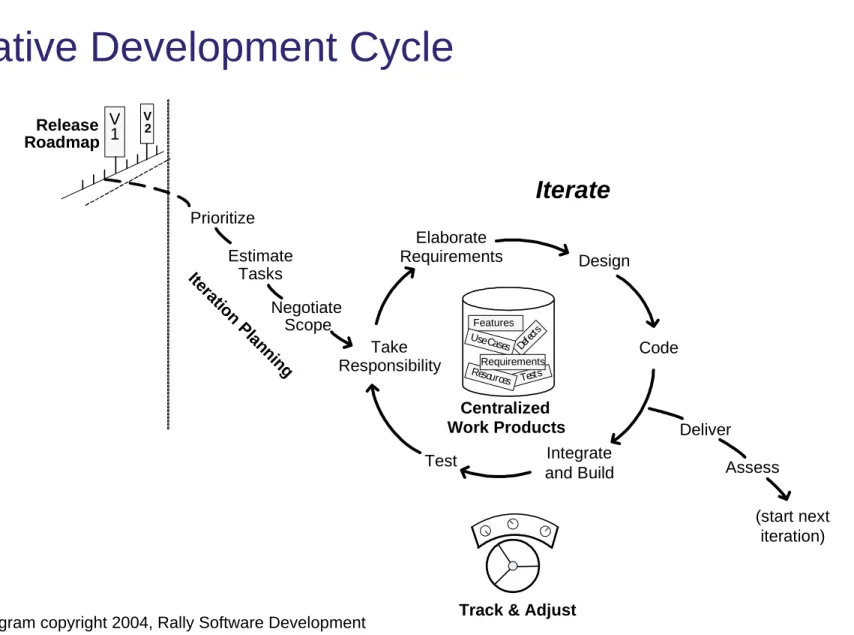
Iterative Development Cycle
Track & Adjust
Assess Take Responsibility Test Integrate and Build Code Design Elaborate Requirements Iterate Prioritize Negotiate Scope Estimate Tasks Deliver Release Roadmap V 2 V 1 (start next iteration) Centralized Work Products Features Defe cts Tests Resources UseCases Requirements Ite ra tion P la nning
Agile Development with Eclipse
5 of the 12 Agile Development Practices identified in Kent Beck’s
Extreme Programming Explained
:
Continuous testing with JUnit. Programmers continually write unit tests, which must run flawlessly for development to continue.
Refactoring your code. Programmers restructure the system without changing its behavior to remove duplication, improve communication, simplify, or add flexibility.
Continuous integration with Ant. Integrate and build the entire system many times a day, every time a task is completed. Integrating one set of changes at a time makes it easy to identify problems and prevents a surprise at the end of an iteration.
Team ownership. This requires good tools that enable efficient code sharing and a team culture that encourages such behavior.
Coding standards. In agile development processes the code is of central importance in documenting system design and behavior, and this is
62 Eclipse Distilled: A Quick Start to Agile Development © 2005 by David Carlson; made available under the EPL v1.0
Our Agile Agenda
Agile practices advocate test-first development. We’ll deviate from this
sequence to illustrate a scenario where you are joining an
established team and are starting with code-generation tools.
1. Use CVS to join an established project
2. Use Ant to generate Java code from XML Schemas and to
automate continuous integration with schema modifications
3. Use JUnit to test our use of the generated libraries
4. Refactor to generalize our design
Agile Development with Eclipse
Agile Practices
Team Ownership with CVS
Continuous Integration with Ant
Continuous Testing with JUnit
Refactoring
64 Eclipse Distilled: A Quick Start to Agile Development © 2005 by David Carlson; made available under the EPL v1.0
Generic Team Support in Eclipse
Configure one or more repository locations with protocols and user
authentication for secure access
Share existing local projects by committing files to the repository
Browse repository contents and check out projects for local use
Synchronize your workspace contents with the repository by
retrieving updates from others, committing your changes, and
resolving conflicts
Compare the content of a local file with its counterpart in the
repository
Review a history of revision dates and notes for each file
Eclipse plug-ins are available for many source control repository clients.CVS Workflow
CVS Uses an optimistic model for coordinating work – assumes that conflicting edits on the same lines are rare
1. Start fresh. Before starting work, update the resources in your workspace with the latest from the repository.
2. Run all unit tests. Run the unit tests and be sure that they all pass. If the system is broken when you start, you'll have more difficulty testing your own changes.
3. Make changes. Add, delete, and edit resources in your local workspace. If necessary, write new unit tests that exercise the new behavior. Debug until the new feature is working successfully.
4. Run all unit tests again. Run all unit tests again to ensure that none of the changes broke other components that you thought were unrelated.
5. Synchronize. When you are ready to commit your work, synchronize with the repository. First, examine incoming changes and add them to your local workspace. Resolve conflicts. Rerun unit tests to verify integrity of what you are about to commit. Finally, commit your changes.
66 Eclipse Distilled: A Quick Start to Agile Development © 2005 by David Carlson; made available under the EPL v1.0
Get Connected…
Eclipse Distilled in CVS
Host: cvs.sourceforge.net
Repository path: /cvsroot/eclipsedistill User: anonymous
Password:
--Connection type: pserver
Apache Jakarta CVS repository (see
jakarta.apache.org/site/cvsindex.html):
Host: cvs.apache.org Repository path: /home/cvspublic User: anoncvs
Password: anoncvs Connection type: pserver
Browse CVS to Choose a Project
Use the CVS Repositories view in the CVS Repository Exploring
perspective to browse one or more repositories
You can also browse file content and revision history before
deciding what to check out
This is the best approach when connecting to large repositories, such as Apache, SourceForge, or Eclipse
68 Eclipse Distilled: A Quick Start to Agile Development © 2005 by David Carlson; made available under the EPL v1.0
Alternatively, Use a Wizard to Check Out Projects
File > Import > Checkout Projects from CVS… Either way, you end up here:Store Shared Libraries in a CVS Project
Optional: share libraries across several Eclipse workspaces
Check Out to linked folder location
Add this external folder location as a project named libraries in several workspaces
70 Eclipse Distilled: A Quick Start to Agile Development © 2005 by David Carlson; made available under the EPL v1.0
Store Project Config & Team Preferences in CVS
.project .classpath .cvsignore
And other plug-in specific settings
Web Tools J2EE projects
Checkstyle plug-in
Recommendation
create a workspace project named
eclipse-config, commit to a CVS module that holds shared team configuration files
72 Eclipse Distilled: A Quick Start to Agile Development © 2005 by David Carlson; made available under the EPL v1.0
Configure Ignored Resources (.cvsignore)
Do not share generated resources (in most cases)
.cvsignore option applies to one directory, and not to its
subdirectories
You must choose to ignore
resources while sharing a project, before committing them to CVS Alternatively, set preference to
ignore all resources in your
workspace having a given name or file extension:
Team > Ignored Resources
bin *.log *.class
Configure ASCII (Text) vs. Binary Files
If your project include text files with extensions such as .bat, .sh, or
.php, you must add these extensions as ASCII content types in
Eclipse.
Most common files related to Java development are pre-configured in the Eclipse SDK
The term “ASCII” is misleading in CVS, these are any text files
Make this change on the
Team > File Content
preferences page
before committing new resources. Otherwise, these unknown types
will be versioned as Binary files and line-oriented text comparison or
CVS merge will not be available.
74 Eclipse Distilled: A Quick Start to Agile Development © 2005 by David Carlson; made available under the EPL v1.0
Behavior of Commit and Update Operations
The context menu on selected resources in the
Synchronizeview contains these commands: Update All selected incoming and
automergable conflicting changes are processed by updating local files with repository content. Conflicts that are not automergable will not be updated.
Override and Update This command operates on conflicts by replacing the local resources with the remote contents. Use this command with caution, only on conflicts where you want to throw away your local changes. Commit… All selected outgoing files with no
conflicts are committed to the repository. Override and Commit… This command
operates on conflicts by replacing the remote repository resources with the local contents. Use this command with caution, only on conflicts where you want to ignore changes made in the repository by another developer.
It’s usually best to work in the Team
Synchronizingperspective while updating and committing with CVS. Updates from the Java Package Explorer can sometimes have undesirable effects when conflicts occur.
© 2005 by David Carlson; made available under the EPL v1.0 February 28, 2005
Agile Development with Eclipse
Agile Practices
Team Ownership with CVS
Continuous Integration with Ant
Continuous Testing with JUnit
Refactoring
Building the UBL Project
1. Generate Java code from XML Schemas that define UBL data types and enumerated code lists 2. Run all JUnit tests and generate an HTML report of the test results 3. Generate Javadoc HTML files
from the source code
4. Automate the entire project build and test process so that it can be run either inside or outside of Eclipse com.eclipsdistilled.ubl src (Java source) schemas xsd codelist (several .xsd files) common (several .xsd files) ubl.wsdl build.xml build.xml build doc
78 Eclipse Distilled: A Quick Start to Agile Development © 2005 by David Carlson; made available under the EPL v1.0
Automatic Incremental Build & External Tools
Many projects get satisfactory continuous integration using the default automatic build process
all projects in your workspace
current Problems and Tasks views
Other non-Java tools can be configured and (optionally) automated as External Tools Large builds can be run inside or
Very Brief Introduction to Ant
Project. Each build file contains one project. It’s not necessary for an Ant project to be equivalent to an Eclipse project; an Ant project represents a logical group of related targets.
Target. An Ant project contains one or more targets that produce the build output, such as a library archive, or perform interim steps such as compiling source code or running tests. Dependencies between targets assure that prerequisites are completed before a target is run.
Task. Each target contains tasks that represent its individual operations. Ant includes a long list of built-in tasks for performing operations such as copying files, running the
<project name="UBL data type gen"
default="wsdl2java" basedir="."> <target name="init"
description="Define folder locations and classpath"> </target>
<target name="wsdl2java" depends="init"
description="Generate Java from WSDL"> </target>
<target name="clean" depends="init"
description="Remove build folders"> </target>
80 Eclipse Distilled: A Quick Start to Agile Development © 2005 by David Carlson; made available under the EPL v1.0
Ant Editor
Tip: Use a small number of consistent names for your build files. Any names other than build.xml must be associated with the Ant Editor. In the preference page Workbench > File Associations, add javadoc.xml and associate it with the Ant Editor.
Ant Target: init
<target name="init">
<property name="ubl.home" location="${basedir}" />
<property name="build.dir" location="${ubl.home}/build" /> <property name="src.dir" location="${build.dir}/src" />
<property name="libraries" value="c:/eclipse-contrib/libraries" /> <path id="axis.classpath"> <fileset dir="${libraries}/axis"> <include name="*.jar" /> </fileset> </path> <taskdef name="wsdl2java" classname="org.apache.axis.tools.ant.wsdl.Wsdl2javaAntTask"> <classpath refid="axis.classpath"/> </taskdef> </target>
82 Eclipse Distilled: A Quick Start to Agile Development © 2005 by David Carlson; made available under the EPL v1.0
Ant Target: wsdl2java
<target name="wsdl2java" depends="init"
description="Generate Java code for WSDL"> <echo level=”info”
message="Generate Java mapping into: ${src.dir}" /> <mkdir dir="${src.dir}"/> <wsdl2java url="${ubl.home}/ubl.wsdl" output="${src.dir}" deployscope="session" serverSide="no" skeletonDeploy="no" noimports="no" verbose="no" typeMappingVersion="1.1" testcase="no"> <mapping namespace="urn:oasis:names:tc:ubl:CoreComponentTypes:1:0" package="com.eclipsedistilled.ubl.datatypes.ccts" /> <mapping namespace="urn:oasis:names:tc:ubl:codelist:CurrencyCode:1:0" package="com.eclipsedistilled.ubl.codelist" /> </wsdl2java> </target>
Running Ant in Eclipse
84 Eclipse Distilled: A Quick Start to Agile Development © 2005 by David Carlson; made available under the EPL v1.0
Ant Runtime Configuration
Add two JARs to the Ant classpath:
tools.jar is required when using the <javac> Ant task. This JAR
(or others with equivalent classes) includes the Java compiler
provided by your Java SDK. junit.jar is required when using
the <junit> Ant task that runs JUnit tests. This JAR is included with Eclipse in the org.junit_3.8.1 plug-in folder.
Adding an Automatic Project Builder
Our code generation builder must run before the Java Builder
86 Eclipse Distilled: A Quick Start to Agile Development © 2005 by David Carlson; made available under the EPL v1.0
Configure Build Parameters
In the Properties tab we need to override one of the property values set in the build file's init target. First, uncheck the
option to Use global properties.
Press Add Property and enter the name “src.dir”. Press
Variables and choose
build_project. Click OK. In the
Value field, append “/src” to the variable.
Agile Development with Eclipse
Agile Practices
Team Ownership with CVS
Continuous Integration with Ant
Continuous Testing with JUnit
Refactoring
88 Eclipse Distilled: A Quick Start to Agile Development © 2005 by David Carlson; made available under the EPL v1.0
Unit Testing New Code
Unit testing can support several general strategies for validating the
behavior of your software. When developing new code, write tests
that:
Specify the intended outcome of code yet to be written; then write
code until the tests pass. This is the ideal test-first strategy
advocated by agile development principles.
Specify the correct operation for bug reports; then modify the code
until these bug-fix tests pass.
Focus on writing the tests that will catch most bugs; don’t worry about the fact that you can’t catch every bug.
Testing Software APIs with JUnit
Helps you define the API for as-yet unwritten types. Although this
might feel strange to start with, you’ll soon find it liberating being
able to use the API before they are even written.
Helps you understand or confirm your understanding of a new
complex API. For example, an XML parser, a business rules
engine, or a JAX-RPC compliant implementation for Web services.
Verifies correct operation of a library acquired from another team or
vendor.
Verifies expected results from classes produced by a code
generator. Code generation is becoming more prevalent for large
frameworks like J2EE and for database or XML data binding.
When you get a bug report, start by writing a unit test that exposes the bug. Keep the test case around after the bug has been fixed because it will let you know if the bug
90 Eclipse Distilled: A Quick Start to Agile Development © 2005 by David Carlson; made available under the EPL v1.0
Organizing Unit Tests in Eclipse
Second source folder
Do not put JUnit tests in the same source folder as your project code A second source folder allows clear separation
Separate Project
Preferred configuration
No unit test libraries are added to your primary project classpath
UBL Model (very small subset)
Amount value : BigDecimal currency : CurrencyCodeContent CurrencyCodeContent <<enumeration>> Measure value : BigDecimal unitCode : MeasureUnitCodeContent MeasureUnitCodeContent <<enumeration>> Order lineExtensionTotalAmount : Amount pricingCurrencyCode : CurrencyCodeContent transactionCurrencyCode : CurrencyCodeContent OrderLine 1..* Item description : Text catalogueIndicator : Indicator BasePrice priceAmount : Amount baseQuantity : Measure 0..* LineItem lineExtensionAmount : Amount quantity : Measure 1 1 0..1 Write unit tests for order pricing calculation. Pseudo code:
LineItem amount = quantity ÷ baseQuantity * priceAmount Order totalAmount = sum( LineItem amount )
92 Eclipse Distilled: A Quick Start to Agile Development © 2005 by David Carlson; made available under the EPL v1.0
JUnit Infrastructure Classes
Assert
assertTrue(condition : boolean) assertFalse(condition : boolean)
assertEquals(expected : Object, actual : Object) assertNull(o : Object) assertNotNull(o : Object) fail() TestCase setUp() tearDown() TestSuite addTest(test : Test) addTestSuite(suite : Class) Test run(result : TestResult) <<Interface>> 0..*
Your test classes will inherit from TestCase and will implement one or more test methods having this pattern:
UBL Test Cases
TestCase setUp() tearDown() AmountTest setUp() testEqualsObject() testSetCurrencyID() testInvalidValue() ItemTest setUp() testFindBasePrice() LineItemTest setUp() testSetQuantity() testComputeExtensionAmount() OrderTest setUp() testSetPricingCurrencyCode() testComputeExtensionAmount() testComputeTransactionAmount()94 Eclipse Distilled: A Quick Start to Agile Development © 2005 by David Carlson; made available under the EPL v1.0
Write a Skeleton Class for
Order.java
public class Order {
private AmountType lineExtensionTotalAmount;
private CurrencyCodeContentType pricingCurrencyCode; private CurrencyCodeContentType transactionCurrencyCode; private Vector orderLines = new Vector();
96 Eclipse Distilled: A Quick Start to Agile Development © 2005 by David Carlson; made available under the EPL v1.0
Generated Test Case
public class OrderTest extends TestCase { /*
* @see TestCase#setUp() */
protected void setUp() throws Exception { super.setUp();
}
public void testGetLineExtensionTotalAmount() { }
public void testGetPricingCurrencyCode() { }
public void testSetPricingCurrencyCode() { }
public void testGetTransactionCurrencyCode() { }
public void testSetTransactionCurrencyCode() { }
public void testGetOrderLines() { }
public void testAddOrderLine() { }
Write the Test Methods
public class OrderTest extends TestCase { private LineItem lineItem1;
private Item item1; private Order order1;
protected void setUp() throws Exception { item1 = new Item();
lineItem1 = new LineItem(item1); order1 = new Order();
order1.addOrderLine(new OrderLine(lineItem1)); }
public void testGetLineExtensionTotalAmount() { try {
AmountType amount = order1.getLineExtensionTotalAmount(); assertNotNull("Order extension amount is null", amount); assertEquals("Order extension amount does not equal 300.00",
amount.get_value(), new BigDecimal("300.00")); } catch (PriceException e) {
fail("Unexpected PriceException"); }
}
Make sure that all tests are fully automatic and that they check their own results. Don’t forget to test whether exceptions are raised when things are expected to go
98 Eclipse Distilled: A Quick Start to Agile Development © 2005 by David Carlson; made available under the EPL v1.0
Running JUnit in Eclipse
•Configure JUnit View as a Fast View
•
Test results summary on status bar icon•
Double click error trace to go to test/app source•
Failure: JUnit assertion or fail was invokedAdditional Controls in JUnit View
Filter Stack Trace
remove stack trace entries related to JUnit infrastructure
filter is configurable in preferences
Java > JUnit
Compare Results
available when assertEquals()
100 Eclipse Distilled: A Quick Start to Agile Development © 2005 by David Carlson; made available under the EPL v1.0
Running JUnit in Ant
<!-- Run the tests -->
<junit printsummary="yes" fork="yes" errorProperty="test.failed" failureProperty="test.failed"> <classpath refid="test.classpath" /> <formatter type="xml" /> <batchtest todir="${test.data.dir}"> <fileset dir="${test.classes.dir}" includes="**/*Test.class" /> </batchtest> </junit> <junitreport todir="${test.data.dir}">
<fileset dir="${test.data.dir}" includes="TEST-*.xml" /> <report format="frames" todir="${test.reports.dir}" /> </junitreport>
<!-- Build fails if any of the unit tests fail --> <fail if="test.failed"
message="JUnit tests failed. Check log and/or reports."/> •Run all tests in batch build
•Use JUnit XML formatter and
create an HTML report of results
•Build file terminates if any unit
Agile Development with Eclipse
Agile Practices
Team Ownership with CVS
Continuous Integration with Ant
Continuous Testing with JUnit
Refactoring
102 Eclipse Distilled: A Quick Start to Agile Development © 2005 by David Carlson; made available under the EPL v1.0
When to Refactor
Refactoring is done is small bursts when you encounter “bad smells”
in your code:
Duplicated code Large classes Long methods
Tightly coupled components
Whenever you have difficulty understanding or modifying some
code, try to find the cause of this difficulty and refactor it away.
Most common reason to refactor is when you need to add a new
feature to your software.
Eclipse automates many of the common Java refactorings described
in Martin Fowler’s book,
Refactoring: Improving the Design of
Example Refactoring Task
Extract Interfaces. Extract interfaces from the UBL class implementations for Amount, Measure, Item, LineItem, and Order. Create a new Java package that separates these interfaces from their implementations.
Introduce a factory class for creating instances of these types.
The following sequence of refactoring operations is required to accomplish our design goal:
1. If possible, commit all code to the repository before refactoring.
2. Run all of your JUnit test cases and confirm that they all pass.
3. Rename Package to add .impl suffix.
4. Rename Classes with Impl suffix.
5. Extract an Interface from each class.
6. Move Interfaces out of .impl packages, e.g., move data type interfaces from ubl.datatypes.impl to ubl.datatypes package.
7. Introduce a Factory class for creating all UBL types.
8. Search for remaining class references and change to interfaces.
104 Eclipse Distilled: A Quick Start to Agile Development © 2005 by David Carlson; made available under the EPL v1.0
Rename Package
Alt+Shift+T:
Shows the refactoring menu for the view/editor selection.
Alt+Shift+R:
Starts a Rename refactoring operation on the view/editor selection.
Extract Interface
106 Eclipse Distilled: A Quick Start to Agile Development © 2005 by David Carlson; made available under the EPL v1.0
Introduce Factory
The refactoring operation inserts this method into the factory class:
public class DatatypesFactory {
public static AmountImpl createAmount(double val, CurrencyCodeContent curr) { return new AmountImpl(val, curr);
} }
Catalog of Refactoring Commands
Composing Methods
Extract Method Inline Method
Moving Features Between Objects
Move Field Move Method
Extract Class
Making Method Calls Simpler
Rename Method
Change Method Signature Introduce Parameter
108 Eclipse Distilled: A Quick Start to Agile Development © 2005 by David Carlson; made available under the EPL v1.0
Catalog of Refactoring Commands (cont.)
Organizing Data
Encapsulate Field Extract Local Variable Extract Constant
Convert Local Variable to Field Inline Local Variable or Constant
Dealing with Generalization
Push Down
Pull Up
Extract Interface Generalize Type
Catalog of Refactoring Commands (cont.)
Organizing Classes and Packages
Rename Type or Package
Move Package
Move Type
Rename Source Folder or Project Move Member Type to New File
© 2005 by David Carlson; made available under the EPL v1.0 February 28, 2005
Agile Development with Eclipse
Agile Practices
Team Ownership with CVS
Continuous Integration with Ant
Continuous Testing with JUnit
Refactoring
Eclipse Support for Coding Standards
Code formatter
.
Format a selection of source lines or Java files
to follow a configured set of formatter rules.
Code templates
.
Configure comment text and code statements
added to generated code.
Spell checker
.
Check the spelling of comments in your Java
source files.
Compiler warnings and errors
.
Configure the Java compiler to
produce warnings or errors for common problems, beyond the
usual syntax errors.
112 Eclipse Distilled: A Quick Start to Agile Development © 2005 by David Carlson; made available under the EPL v1.0
Code Formatter
To customize the formatter, press the New… button and enter a name for your profile, e.g. “Acme Corporation”
Export your customized formatting rules and share them with your team
Ctrl+Shift+F: Format the selected lines in the current Java editor, or format all lines if there is no selection. Or invoke via the editor context menu Source > Format.
Change Formatting for White Space
Many details of the formatter are configurable.
For example, select the
White Space category and change the Function
Invocations to insert a space before opening parenthesis.
Before: bar(x, y)
114 Eclipse Distilled: A Quick Start to Agile Development © 2005 by David Carlson; made available under the EPL v1.0
Conforming to Jakarta Coding Standards
The Cactus subproject of Apache Jakarta includes the following two coding standards:
“Method parameters should be prefixed by the(for differentiating them from inner variables).”
public void someMethod(String theClassName) {
String className; // inner variable }
“Class variables should not have any prefix and must be referenced using the this object.”
public class SomeClass {
private String someString; public void someMethod() {
logger.debug("Value = " + this.someString); }
Customize Javadoc Templates
The Turbine subproject of Apache Jakarta includes the following coding standard:
“When writing Javadocs for variables, try to keep the comment on just one line.”
Modify the Fieldscomment template as follows:
/** Comment for <code>${field}</code> */
Alt+Shift+J: Insert a Javadoc comment for the declaration contained by the current cursor position: a class, field, or method. Or invoke via the editor context menu Source > Add
116 Eclipse Distilled: A Quick Start to Agile Development © 2005 by David Carlson; made available under the EPL v1.0