Avaya Solution & Interoperability Test Lab
Configuring Avaya Distributed Office For Key System
Features including Outside Line Groups, Voice Announce,
and Busy Indication and Transfer – Issue 1.0
Abstract
These Application Notes illustrate the configuration and operation of select Avaya Distributed Office Key System features. In particular, these Application Notes illustrate features such as Outside Line Groups, Line Appearances, Voice Announce, and One Button Transfer with Busy Indication that would not be present in an Avaya Communication Manager system. The sample configuration uses an Avaya Distributed Office i40 configured via Distributed Office Local Manager with a loop-start analog Outside Line Group with incoming Caller ID. Avaya one-X™ Value Edition 1600-Series IP Telephones, ideal for key system environments, are included in the sample configuration. An Avaya 4600-Series IP Telephone is also included, to show how key system features can be leveraged on devices other than the Avaya 1600-Series IP Telephones.
JRR; Reviewed: SPOC 9/26/2007
Solution & Interoperability Test Lab Application Notes ©2007 Avaya Inc. All Rights Reserved.
2 of 61 DO-Key
1. Introduction and Scope
The features available in Avaya Distributed Office include many of the powerful and popular PBX features available in Avaya Communication Manager, as well as a set of key system features developed specifically for Avaya Distributed Office. Rather than describing the well-understood PBX features that Avaya Distributed Office has in common with Avaya
Communication Manager, these Application Notes highlight Distributed Office key system features that would not be present in an Avaya Communication Manager Release 4 system. For a description of all the Avaya Distributed Office features, consult Reference [1].
Figure 1 illustrates the network used to verify these Application Notes. Avaya 1600-Series IP Telephones [4], ideal for key system operation, are included, fitting the “Walkup”, “Everyday”, and “Navigator” user profiles. These user profiles are summarized along with the Distributed Office configuration in Section 4. Section 5 illustrates expected operation for representative call scenarios using the configuration presented in Section 4. The Avaya 4621 IP Telephone is included to give an example of how the Avaya Distributed Office key system features can be leveraged on devices other than the Avaya 1600-Series IP Telephones.
Avaya Distributed Office
Avaya AM110 Application Module (2.2.40.88) Avaya Distributed Office i40 (2.2.40.87)
Ethernet Avaya 4621 IP Telephone x200 "Ian Distributed" Avaya 1603 IP Telephone x203 "Donald Walkup" Avaya 1608 IP Telephone x208 "Dominic Everyday" Avaya 1616 IP Telephone with 32-button module
x216 "Donna Navigator" Avaya 1616 IP Telephone x202 "Joan Limepie" CO CO CO CO Loop-Start Analog Outside Line
1.1. Avaya Distributed Office Key System Feature Summary
The following list summarizes select Distributed Office key system concepts, and indicates the level of coverage included in these Application Notes:
• Outside Lines, Outside Line Groups: An Outside Line connects Avaya Distributed Office to a public network trunk. An Outside Line Group is associated with one Outside Line. Each Outside Line can appear under a different key (button) on Avaya 1600-Series IP Telephones that are members of an Outside Line Group. The key (button) allows the user to answer an incoming call arriving from the Outside Line, join an existing call using the Outside Line, and see the status of the Outside Line via red and green lamp status associated with the button. An “Exclusion” feature button (which may be familiar to readers experienced with Avaya Communication Manager) can be used to prevent other users from bridging on to the Outside Line. Sections 4.1 through 4.3 illustrate the configuration of Outside Lines, Outside Line Groups, including the concepts of membership and ownership of an Outside Line Group.
• Line Appearances: A button type called a Line Appearance may be used by Avaya 1600-Series IP Telephones to handle a call using an Outside Line. Avaya 1600-Series IP Telephones have both Red and Green lamps associated with each button that can be used to indicate line status. See Sections 4.1 through 4.3 for configuration information. See
Table 2 in Section 5 for a summary of lamp states.
• Specific Line Feature Access Codes: The Specific Line Pickup and Specific Line Originate Feature Access Codes enable access to an Outside Line for telephones that are not configured with a Line Appearance button for the Outside Line. See Section 4.5.
• Voice Announce and Whisper Page Answer-back: The Voice Announce feature access code enables a caller to initiate a special type of call to the called user that is the target of the voice announce attempt. Via a Voice Announce Answer button, the target may control whether the voice announce call rings in as an intercom call, is automatically answered with one-way (listen-only) talk path, or is automatically answered with two-way talk path. For example, the feature could be used to allow a caller to begin speaking to the called party to “voice announce” a call. The Whisper Page Answer-back button complements the Voice Announce Answer button for users that may often be targets of a Voice Announce call. With the Whisper Page Answer-back button, a call at the target that is currently one-way (listen-only) can be converted to a two-way call. See Sections 4.6 and 5.7 for additional information.
JRR; Reviewed: SPOC 9/26/2007
Solution & Interoperability Test Lab Application Notes ©2007 Avaya Inc. All Rights Reserved.
4 of 61 DO-Key
2. Equipment and Software Validated
Table 1 shows the equipment and version information used in the sample configuration shown in
Figure 1. All versions used are generally available.
Network Component Version Information
Avaya Distributed Office AM110 1.1 SP1 (1.1.0_33.02-SP-1.0.0)
Avaya Distributed Office i40-DS1 27.12
Avaya 4600-Series IP Telephones (H.323) 2.8
Avaya 1600-Series IP Telephones (H.323) 1.0
Table 1 – Equipment Version Information
3. Summary of Basic Distributed Office Configuration
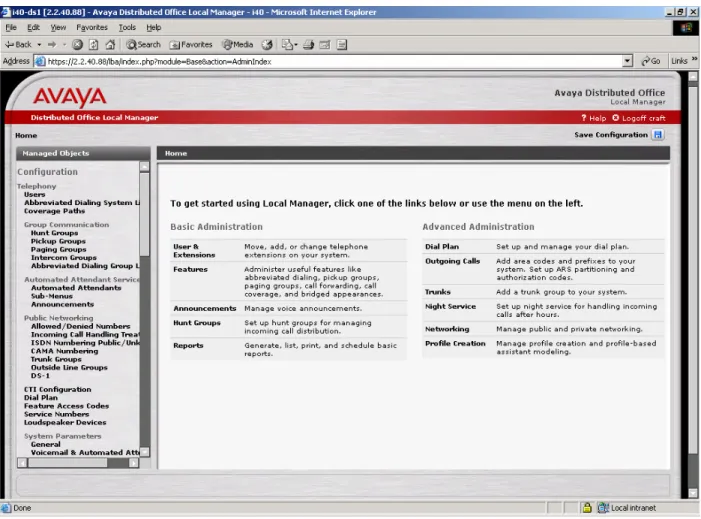
This section illustrates aspects of the Avaya Distributed Office configuration that are not specific to the key system features. The reader familiar with Avaya Distributed Office may skip forward to Section 4. All configuration screens shown in these Application Notes use the Distributed Office Local Manager accessed by entering the URL of the Distributed Office AM110 into a web browser. Upon log in, the following screen is presented.
To view the default dial-plan used in these Application Notes, click the Dial Plan link under the
Managed Objects heading on the left. Key system feature access codes such as Voice Announce, Specific Line Originate, and Specific Line Pickup must conform to the dial plan. Outside Line dial access codes must also conform to the dial plan defined here.
JRR; Reviewed: SPOC 9/26/2007
Solution & Interoperability Test Lab Application Notes ©2007 Avaya Inc. All Rights Reserved.
6 of 61 DO-Key
To view the default automated attendant configuration used in these Application Notes, click the
Automated Attendants link under the Managed Objects heading. The following screen illustrates the default auto-attendant extensions. It may be desirable to allow an Outside Line Group to use the call coverage feature to reach an auto-attendant, which can be customized.
To view the default service number configuration used in these Application Notes, click the
Service Numbers link under the Managed Objects heading. The following screen illustrates the default service numbers, which includes the extension to dial to reach voice mail. It may be desirable to allow an Outside Line Group to use the call coverage feature to reach the voice- messaging mailbox of the owner of the Outside Line Group. The service number for voice mail (e.g., 700) can appear as a point in a customized coverage path, if for example an owned Outside Line Group should ring at alternate destinations before proceeding to voice mail. For more information on ownership of an Outside Line Group, see Section 4.1.
The following screens provide examples of coverage path configuration. To access coverage path configuration, click the Coverage Paths link under the Managed Objects heading as shown below. Add a new coverage path by clicking Add, or edit an existing coverage path by clicking on the Path Name.
JRR; Reviewed: SPOC 9/26/2007
Solution & Interoperability Test Lab Application Notes ©2007 Avaya Inc. All Rights Reserved.
8 of 61 DO-Key
A coverage path can be assigned to customize how a call is handled under various criteria such as no-answer conditions, distinguished for internal and external calls. The following screen illustrates a simple coverage path named “Long-ring-vmail” which directs both internal and external calls to voice mail after 5 rings. Other alternatives should be self-evident from the screen choices.
The following screen provides an example coverage path that varies behavior based on whether the caller is an internal caller or external caller. Using this coverage path, internal calls will be directed to extension 216, equipped with an Avaya 1616 IP Telephone that meets the
“Navigator” user profile (see Section 4). External calls, such as those arriving from an outside line configured to use this coverage path (see Section 4), would be directed to an auto-attendant.
JRR; Reviewed: SPOC 9/26/2007
Solution & Interoperability Test Lab Application Notes ©2007 Avaya Inc. All Rights Reserved.
10 of 61 DO-Key
4. Key System Feature Configuration
This section illustrates the configuration of the Avaya Distributed Office key system features summarized in Section 1.1.
4.1. Outside Line Group Configuration
To configure an Outside Line Group, click the Outside Line Groups link under the Public Networking heading, as shown below. Click Add new to configure a new Outside Line Group, or click the name of an existing Outside Line Group such as “Sim-PSTN-Analog”.
The General tab of Outside Line Group 1 is shown in the following screen. Each Outside Line Group is assigned a two-digit number (e.g., 01) that can be used in conjunction with the Specific Line Originate and Specific Line Pickup feature access codes, valuable for users that are not members of the Outside Line Group (see Section 4.5). The TAC must match the dial-plan as explained in Section 3. The Direction field can be used to allow incoming calls only, outgoing calls only, or two-way calls (incoming or outgoing allowed). The Port field indicates the physical port associated with this Outside Line Group. In this case, port 1V301 corresponds to an analog trunk on the Avaya Distributed Office i40-DS1. This port is used in the sample configuration for expedience only (i.e., not necessarily a typical or recommended physical configuration). Other Avaya Distributed Office physical lines may be used in a production environment, including the DS1 interface of the i40-DS1, or the analog trunk interfaces available on other Avaya Distributed Office i40 constructs or the modular Avaya Distributed Office i120. The focus of these Application Notes is the logical feature configuration, which would apply to these various physical configurations. The BRI interface of an i40-BRI may also be used for
Outside Lines, with some unique considerations that are beyond the scope of these Application Notes.
An Outside Line Group can optionally have an “owner” via configuration of an Owner’s
Extension. If the Outside Line Group has an owner, an incoming call from the Outside Line will follow the redirection features associated with the owner’s extension, including call coverage, call forwarding, send all calls, and Extension to Cellular, if applicable. In the sample screen below, extension 202 was chosen as the owner. Although only Avaya 1600-Series IP Telephones may be configured with a Line Appearance button, the configured owner of an Outside Line is automatically a member of the Outside Line Group, and therefore need not have a Line Appearance button. The concept of an owner can be useful for devices such as fax machines that may need to answer calls from an Outside Line, but can not have a Line Appearance button programmed. In these Application Notes, the owner is an Avaya 1600-Series IP Telephone that also has a Line Appearance button. Alternatively, it would have been possible to configure the Avaya 4621 IP Telephone as the line owner, handling calls from the outside line on a call appearance button.
JRR; Reviewed: SPOC 9/26/2007
Solution & Interoperability Test Lab Application Notes ©2007 Avaya Inc. All Rights Reserved.
12 of 61 DO-Key
If no owner is specified, incoming calls can still follow a coverage path to other system users or an auto-attendant, as shown in the screen below. If neither a coverage path nor an owner is configured, incoming calls will ring at the members of the Outside Line Group indefinitely.
A configuration screen from the Trunk Parameters tab of Outside Line Group 1 is shown below. The parameters selected on this tab must match the physical configuration of the trunk. In this case, the parameters correspond to an analog loop-start trunk capable of supplying Caller ID for incoming calls. (In the testing of the sample configuration, the Central Office function was simulated.) Note that if incoming disconnect supervision can not be guaranteed on the trunk type used, it may be undesirable to allow incoming calls to redirect to voice mail.
If Caller ID is available for an incoming call from an Outside Line, the Caller ID is displayed on display-equipped telephones, such as the Avaya 1600-Series and 4600-Series IP Telephones used in these Application Notes. If Caller ID is not available, the Caller ID displayed will be of the form “nn xxxxxxxxxx” where “nn” is the Outside Line Group number and “xxxxxxxxxx” is the first 10 characters of the Outside Line Group name (configured on the General tab). For example, in the configuration in these Application Notes, if Caller ID were not available, the display would include “01 PSTN-A”. The Line Appearance button label is also “01 SIM-PSTN-A”. The Line Appearance button label can be viewed from an Avaya 1600-Series IP Telephone by using the up/down navigation arrows to scroll through the list of Call
Appearances, Bridged Appearances, and Line Appearances.
User extensions become members of the Outside Line Group either via explicit ownership, or via the configuration of a Line Appearance button for the Outside Line in User Configuration. The following screen shows an example of the Members tab, captured after the configuration in Section 4.2 was completed.
JRR; Reviewed: SPOC 9/26/2007
Solution & Interoperability Test Lab Application Notes ©2007 Avaya Inc. All Rights Reserved.
14 of 61 DO-Key
4.2. Configuring Users as Members of the Outside Line Group
Users become members of the Outside Line Group either via explicit ownership as shown in Section 4.1 for extension 202, or via the configuration of a Line Appearance button for the Outside Line Group.
4.2.1. User Extension 202, “Joan Limepie”, Owner of Outside Line Group 1
To access user configuration, click the Users link under the Telephony heading. Add a user, or select a user from the list. The following screen shows the General tab for extension 202, “Joan Limepie”, the owner of the Outside Line Group in the sample configuration. Most fields are self-explanatory. The Privileges field has been set to “High”, typical for an executive or manager, to grant access to advanced features, to grant permission for toll calls, and to offer contrast with other users configured later. For a full description of user privileges, see Reference [1].
The following screen shows the Station tab for extension 202. An Avaya 1616 IP Telephone is used as the Set Type. The Coverage option has been set to a coverage path named “Long-ring-vmail” (shown in Section 3) which allows the call to ring longer at the line appearances before proceeding to the voice mailbox of this owner’s extension. The Specific Line FACsallowed
checkbox remains set to the “checked” default, which would allow this user to use the Specific Line Originate and Specific Line Pickup feature access codes. In the sample configuration, these features may not be necessary for this user, since this user will be a member of the only
configured Outside Line Group. In a larger configuration with many Outside Line Groups, it may not be practical to have a Line Appearance button associated with every Outside Line. The Specific Line Feature Access Codes would allow a user to handle calls on Outside Line Groups for which no Line Appearance hard button is programmed.
JRR; Reviewed: SPOC 9/26/2007
Solution & Interoperability Test Lab Application Notes ©2007 Avaya Inc. All Rights Reserved.
16 of 61 DO-Key
The following screen shows the Buttons tab for extension 202. In the screen, button 4 is chosen, and “Line Appearance” is selected from the drop-down list. Under Additional Parameters for the selected button, the Outside Line Group drop-down lists the configured Outside Line Groups. Outside Line Group 1, previously configured in Section 4.1, is selected. Each Line Appearance of the Outside Line Group can choose a Ring Type from a drop-down list. For the owner, the default “Normal Ringing” has been retained. For contrast, other members of this Outside Line Group will be assigned a different Ring Type in subsequent sections.
Observe also the configuration of an Exclusion button (shown on button 8). An Exclusion button provides Joan a means to prevent others from joining a call. For example, if Joan is on a private call on the Outside Line, and wishes to prevent others from joining the call (e.g., via Line Appearance buttons or the Specific Line Pickup Feature Access Code), Joan may press the Exclusion button. Pressing the Exclusion button when there are already multiple parties joined to the Outside Line will result in all other parties besides Joan being disconnected, leaving Joan and the Outside Line connected.
The Voice Announce Answer button and Whisper Page Answerback button are also evident from the configuration screen. These features are profiled in Section 4.6.
4.2.2. Non-owner Member of Outside Line Group 1: Domanic Everyday
The following screen illustrates the General tab for the user with extension 208, Domanic Everyday. For contrast with Joan Limepie, the Privileges parameter retains the default value Medium to allow access to most features, but prevent access to potentially abused capabilities such as toll calls, and call forwarding to an outside number.
JRR; Reviewed: SPOC 9/26/2007
Solution & Interoperability Test Lab Application Notes ©2007 Avaya Inc. All Rights Reserved.
18 of 61 DO-Key
The following screen illustrates the Station tab for Domanic Everyday, who will use an Avaya 1608 IP Telephone. Like the Avaya 9600-Series IP Telephones, the Avaya 1600-Series IP Telephones have been designed with “user profiles” (types of telephone users) in mind. The Avaya 1608 IP Telephone is ideal for the “everyday” user profile. The “everyday” user profile needs a straightforward telephone for common everyday tasks. Examples of an everyday user are an accountant or an engineer.
As with Joan Limepie, default configuration of the Specific Line FACs allowed field is retained. Although Domanic may not need to use Specific Line feature access codes, he will not be
The following screen illustrates the Buttons tab for Domanic Everyday. Button 4 is selected and defined as a Line Appearance, enabling the configuration of the Additional Parameters as illustrated previously for user Joan Limepie. For contrast, the Ring Type of the Line Appearance on Domanic Everyday’s telephone has been set to “Automatically Abbreviated Ringing” to illustrate the per-button ring control feature that can be applied to Line Appearances (as well as Bridged Appearances and Call Appearances). With Automatically Abbreviated Ringing, the Line Appearance will initially ring audibly as the call is delivered, but the audible ringing will cease after two ring cycles, even if the call has not redirected away from the telephone. With the longer ringing interval before coverage to voice mail used in the sample configuration in these Application Notes, an incoming call from the Outside Line will continue to ring audibly on Line Appearances with Normal Ringing, but stop ringing audibly at Domanic Everyday after two ring cycles. Although the set may no longer be ringing audibly, Domanic may still use the flashing Line Appearance button to answer the call. See Section 5.1 for additional information on per button ring control behaviors.
JRR; Reviewed: SPOC 9/26/2007
Solution & Interoperability Test Lab Application Notes ©2007 Avaya Inc. All Rights Reserved.
20 of 61 DO-Key 4.2.3. Non-owner Member of Outside Line Group 1: Donna Navigator
The following screen illustrates the General tab for the user with extension 216, “Donna
Navigator”. The Privileges parameter has been set to “Admin” to not only allow personal access to advanced features, but also enable Donna to activate certain features on behalf of others. Readers familiar with Avaya Communication Manager can draw the analogy between “Admin” privileges and the concept of “Console Permissions” in Avaya Communication Manager.
The following screen illustrates the Station tab for Donna Navigator, who will use an Avaya 1616 IP Telephone with a 32-button expansion module Note that the Expansion Module box is checked. Like the Avaya 9600-Series IP Telephones, the Avaya 1600-Series IP Telephones have been designed with “user profiles” in mind. The Avaya 1616 IP Telephone with optional
expansion module is ideal for the “Navigator” user profile. Navigators manage telephone calls for other people as part of their job, and need to be fast and efficient in connecting calls to the right people. Executive assistants and receptionists are examples of the “navigator” profile.
JRR; Reviewed: SPOC 9/26/2007
Solution & Interoperability Test Lab Application Notes ©2007 Avaya Inc. All Rights Reserved.
22 of 61 DO-Key
The following screen illustrates the Buttons tab for Donna Navigator. Button 4 is selected and defined as a Line Appearance, enabling the configuration of the Additional Parameters as illustrated previously. For contrast, the Line Appearance Ring Type for Donna Navigator has been set to “Silent ringing” to further illustrate the per-button ring control feature that can be applied to Line Appearances (as well as other types of appearances). With silent ringing, the Line Appearance will not ring audibly. Although the set does not ring audibly, Donna may still select the flashing Line Appearance button to answer an incoming call.
Additional features that enable Donna to be more efficient in handling calls will be profiled in subsequent sections. Press the Next button to access configuration for buttons 13 through 16 of the Avaya 1616 IP Telephone, as shown in the following screen.
Since Donna handles calls for others, and may have silent ringing defined for various call appearances, line appearances, or bridged appearances, she may benefit from having an Inspect button configured, as shown in the screen below (Button 16). Donna can use the Inspect function to view information about various calls on the telephone’s display (e.g., to observe the Caller ID prior to answer).
If Donna wants to lift the handset and begin dialing when making an outgoing call, silent ringing will allow her to simply go off-hook and dial, even if incoming calls are currently ringing on appearances configured for silent ringing. That is, with silent ringing, going off-hook does not automatically answer a ringing Line Appearance. A summary of key implications of the various per-button ring control states for the Outside Line is provided in Section 5.1.
JRR; Reviewed: SPOC 9/26/2007
Solution & Interoperability Test Lab Application Notes ©2007 Avaya Inc. All Rights Reserved.
24 of 61 DO-Key
Since Donna is using an Avaya 1616 IP Telephone with a 32-button expansion module, there are 32 additional configurable buttons available by pressing the Next button shown in the preceding screen. An example screen showing the first twelve buttons on the expansion module is shown below. Relevant button features such as the Busy Indication and Transfer button, Voice
Announce Answer button, and Whisper Page Answerback button will be profiled in subsequent sections.
4.3. Users Who Will Not Be Members of the Outside Line Group
In the sample configuration, the Avaya 1603 IP Telephone and Avaya 4621 IP Telephone will not be members of the Outside Line Group. For the Avaya 1603 IP Telephone, assume that the telephone should not have the privilege of answering an outside line. In the case of the Avaya 4621 IP Telephone, assume that the telephone user ought to be able to handle calls on the outside line, even though the user is equipped with a telephone that cannot be configured with a Line Appearance button.
4.3.1. Avaya 1603 Walk-up Telephone
The following screen illustrates the General tab for an Avaya 1603 IP Telephone that fits the “walkup” user profile. For example, a “walkup” phone may be used in a lobby, break room, or other common area. Note that the Privileges field is set to Low. With Low privileges, the walkup user can make station to station calls, emergency calls and other basic calls, but would not be able to access features such as call forwarding or voice announce. For additional information on user privileges, see Reference [1].
JRR; Reviewed: SPOC 9/26/2007
Solution & Interoperability Test Lab Application Notes ©2007 Avaya Inc. All Rights Reserved.
26 of 61 DO-Key
The following screen illustrates the Station tab. The Set Type is configured for an Avaya 1603 IP Telephone. Call Coverage is set to “none” and no voice mailbox has been assigned
(Voicemail tab not shown), assumed appropriate for this walkup user. By un-checking the
Specific Line FACs allowed checkbox, this walkup user will not be able to use the Specific Line Originate or Specific Line Pickup feature access codes associated with Outside Lines.
4.3.2. Avaya 4621 IP Telephone
The following screen illustrates the General tab for extension 200, user “Ian Distributed”. Like Domanic Everyday, Ian is assigned the default “Medium” Privileges.
JRR; Reviewed: SPOC 9/26/2007
Solution & Interoperability Test Lab Application Notes ©2007 Avaya Inc. All Rights Reserved.
28 of 61 DO-Key
The following screen shows the Station tab for user Ian Distributed. Ian cannot have a Line Appearance defined because Ian’s physical Set Type is an Avaya 4621 IP Telephone (i.e., not a 1600-Series IP Telephone). Assume that management wants to allow Ian to answer calls and originate calls that use an Outside Line. The Specific line FACs allowed box is checked, which will allow Ian to use the Specific Line Originate and Specific Line Pickup access codes.
If handling calls on the Outside Line owned by Joan is a frequent operation for Ian, Abbreviated Dialing buttons could be programmed that automatically dial the appropriate feature access code and Outside Line Group number for one-button answer and join to the Outside Line. In the screen below, an Abbreviated Dialing entry is shown configured with the Specific Line Pickup feature access code followed by the line number of the Outside Line Group owned by Joan.
In the screen below, the Abbreviated Dialing entry is configured on a button on Ian’s telephone. With this configuration, Ian can answer a ringing call on Outside Line Group 1 as well as join an existing call on Outside Line Group 1 by simply pressing button 15. However, unlike Avaya 1600-Series IP Telephones configured with a Line Appearance button, Ian will not see visual status of the line on button 15, which is labeled “Pickup OLG-01”. To be aware that the line is ringing or that an active call on the Outside Line requires attention, Ian would need to hear the line ringing (i.e., on another set), or be told to pickup the line via other means (e.g., via the voice announce feature).
Since Avaya 4600-Series IP Telephones support Speed Dial buttons and Avaya 1600-Series IP Telephones support a Contact list application, an alternative to configuring an Abbreviated Dialing button on a feature button would be to program the appropriate dial strings in the phone
JRR; Reviewed: SPOC 9/26/2007
Solution & Interoperability Test Lab Application Notes ©2007 Avaya Inc. All Rights Reserved.
30 of 61 DO-Key
Another option to allow Ian to answer a ringing call on the Outside Line owned by Joan is to include Ian and Joan in the same call pickup group. Although call pickup is not a unique Distributed Office key system feature, the screens below are included to illustrate an example interaction between a traditional PBX feature and the new key system features. To configure a pickup group, click the Pickup Groups link under the Managed Objects heading. In this case, the group was named “Mix-16and46” and the right arrows were used to select both Ian
Returning to Ian Distributed’s User configuration using the means previously illustrated, the
Groups tab is shown below. Observe that Ian is a member of the “Mix-16and46” (pickup) group. With this configuration, Ian can answer inbound calls ringing on the Outside Line by simply pressing a Call Pickup button on his set, or by dialing the call pickup feature access code from a Call Appearance.
JRR; Reviewed: SPOC 9/26/2007
Solution & Interoperability Test Lab Application Notes ©2007 Avaya Inc. All Rights Reserved.
32 of 61 DO-Key
The following screen shows the Buttons tab for Ian Distributed, and illustrates a traditional Call Pickup button on button 7. When an incoming call is ringing on the Outside Line owned by Joan, Ian can answer it by simply pressing the call pickup button. Joan, Domanic, and Donna could join using their Line Appearance buttons as usual. However, unlike using the Specific Line Pickup feature, Ian would not be able to join an active (already answered) call on the
Outside Line owned by Joan using the call pickup button. Note that Ian need not be a member of a pickup group with the owner of the outside line in order to use call pickup to answer the
ringing call on the outside line. For example, if Ian and Donna are in the pickup group, and the owner Joan is not in the pickup group, Ian using the call pickup feature can still answer an incoming call on the Outside Line.
The following screen is included to emphasize that there is no Line Appearance option in the drop-down for Avaya 4600-Series IP Telephones. However, a phone that is not an Avaya 1600-Series IP Telephone can be configured as the owner of an Outside Line Group, managing a call on the Outside Line using a traditional call appearance button. As illustrated, the Specific Line Originate and Specific Line Pickup feature access codes can also be used, and other traditional features, such as Call Pickup can be used to allow a phone other than an Avaya 1600-Series IP Telephone to interact with an Outside Line. Of course, users of phones other than the Avaya 1600-Series IP Telephones will not have the benefit of the Red and Green lamp status indicators available to the Avaya 1600-Series IP Telephones, as summarized in Table 2 in Section 5.
JRR; Reviewed: SPOC 9/26/2007
Solution & Interoperability Test Lab Application Notes ©2007 Avaya Inc. All Rights Reserved.
34 of 61 DO-Key
4.4. Allowed / Denied Numbers
Like any public call, outbound calls using the Outside Line can be allowed or denied using the
Allowed / Denied Numbers link under the Public Networking heading. The example in the following screen illustrates Call Type choices for a given matching dialed number pattern. Calls can be marked for explicit denial, and calls can be marked as Toll calls, allowing privileged users to dial the number but prohibiting users who lack sufficient privileges from dialing the same number.
The following screen shows a minimally configured Allowed / Denied Numbers configuration, used to illustrate various types of verification calls in Section 5.
4.5. Feature Access Codes Associated with Key Features
4.5.1. Voice Announce Feature Access Code
The Voice Announce feature access code allows a user to originate a special type of call towards the extension dialed after the access code, the target of the voice announce attempt. If the target has a Voice Announce Answer button, the target can control the voice announce call behavior. Detailed scenarios for the behavior of Voice Announce under various conditions are given as call verifications in Section 5.7. In short, the voice announce attempt can ring in to the target of the voice announce as either a typical intercom call, or as a call that automatically creates a one-way talk path from the voice announce feature access code user to the target, or as a call that
automatically creates a two-way talk path between the voice announce user and the target.
4.5.2. Specific Line and “Any Line” Feature Access Codes
The Specific Line Pickup feature access code enables a user who need not have a Line Appearance button for an outside line to:
• Answer an incoming call on an outside line
• Join an active or held call on an outside line (whether the call was an incoming call or an outgoing call)
The Specific Line Originate feature access code enables a user who need not have a Line Appearance button for an outside line to make an outbound call using the outside line. The specific line access codes are most useful for telephones for which Line Appearances of the outside line are either not configured or not capable of being configured.
The Automatic Route Selection (ARS) access code (e.g., often configured to “9”) is akin to an “Any Line Originate” feature access code. Outside Lines can in general be chosen by ARS if no public network trunks are available to handle the ARS call, and the caller is not otherwise restricted by a restriction feature such as user privileges.
JRR; Reviewed: SPOC 9/26/2007
Solution & Interoperability Test Lab Application Notes ©2007 Avaya Inc. All Rights Reserved.
36 of 61 DO-Key
The following screen illustrates the sample configuration of the key feature access codes used in the verification of these Application Notes. Click Feature Access Codes under the Managed Objects heading to access the configuration screen.
4.6. Voice Announce Answer and Whisper Page Answerback Buttons
Sufficiently privileged system users may dial the Voice Announce feature access code followed by the extension of User “A”. The Voice Announce Answer button on User A allows User A to control the behavior of calls arriving to User A due to the use of the Voice Announce feature. Detailed call verifications providing the expected behavior of the Voice Announce feature under a variety of call scenarios are provided in Section 5.7.
The following screen shows the configuration of a Voice Announce Answer button for Donna Navigator. Using this button, Donna can control how a voice announce attempt toward Donna will behave. The call can ring in requiring Donna to answer, automatically take Donna’s
speakerphone off-hook allowing a one-way voice announcement toward Donna, or automatically take Donna’s speakerphone off-hook creating a two-way talk path. Users with a Voice
Announce Answer button may also want a Whisper Page Answerback button (as shown on Button 7 below) to allow a two-way talk path to be created from a one-way talk path at the click of a button, as illustrated in the call verifications in Section 5.7.
JRR; Reviewed: SPOC 9/26/2007
Solution & Interoperability Test Lab Application Notes ©2007 Avaya Inc. All Rights Reserved.
38 of 61 DO-Key
If one user “A” frequently uses Voice Announce towards many other users “B through E”, the Voice Announce feature access code could be stored in an Abbreviated Dialing entry. If user A has a Busy Indication button or a Busy Indication and Transfer button tracking user B, pressing the button will automatically insert user B’s extension. For example, if user A had the Voice Announce feature access code alone programmed behind an Abbreviated Dial button, a voice announce call could be made to user B by pressing the Abbreviated Dial button followed by the Busy Indication or Busy Indication and Transfer button tracking user B.
In the example screen below, if Donna Navigator were to press button 8 followed by any of the buttons 1-4, a voice announce call would be made to the specific user being tracked by the Busy Indication and Transfer or Busy Indication button pressed.
If Voice Announce is used frequently towards one or a small number of other users, the Voice Announce feature access code and the voice announce target extensions could be programmed via Abbreviated Dialing for one-button voice announce to a specific user. For example, in the Abbreviated Dialing System List screen below, an entry is made with label “VA-Joan” that includes the Voice Announce feature access code (*82 in this case) and Joan’s extension (202 in this case). Any user who needs to frequently voice announce to Joan could have this
JRR; Reviewed: SPOC 9/26/2007
Solution & Interoperability Test Lab Application Notes ©2007 Avaya Inc. All Rights Reserved.
40 of 61 DO-Key
The following screen gives an example of Donna Navigator having one-button access for voice announce to Joan configured for button 9 on the expansion unit via Abbreviated Dialing.
4.7. Busy Indication and Transfer Buttons
The following screen shows the configuration of a Busy Indication and Transfer button on Donna Navigator’s telephone, associated with Joan Limepie’s extension. Button 1 on the expansion unit is configured with the Busy Indication and Transfer feature, and Joan Limepie’s extension is chosen from the drop-down Status of list. This button will track the status of Joan Limepie (green lamp on if Joan is active) and provide automatic dialing of Joan Limepie’s extension, like the Busy Indication button commonly understood and available with Avaya Communication Manager (and Distributed Office). Unlike a Busy Indication button, the Busy Indication and Transfer button will provide Donna an efficient way to transfer an existing call to Joan. This button type is particularly useful for a “navigator” user profile, such as an assistant or receptionist.
JRR; Reviewed: SPOC 9/26/2007
Solution & Interoperability Test Lab Application Notes ©2007 Avaya Inc. All Rights Reserved.
42 of 61 DO-Key
Note that the Busy Indication and Transfer button is not limited to Avaya 1600-Series IP Telephones. For example, the following screen shows a Busy Indication and Transfer button configured on Ian Distributed’s Avaya 4600-Series IP Telephone.
4.8. Secondary Dial-tone
If it is desired that users hear a different dial-tone when using an Outside Line compared to the standard dial-tone applied for internal calls, a unique “secondary dial-tone” can be configured as a custom tone. To configure custom tones, click Custom Tones under the Media Resources
headings on the left. An example screen is shown below. To configure a new custom tone, click Add.
JRR; Reviewed: SPOC 9/26/2007
Solution & Interoperability Test Lab Application Notes ©2007 Avaya Inc. All Rights Reserved.
44 of 61 DO-Key
Choose the desired Tone Frequency/Level from the drop-down list, and the duration the specified tone will be played. (The tone parameters shown highlighted below are just an
example used during verification, and not a recommendation.) When an Outside Line is chosen via ARS, Line Appearance button-select of an idle line, or the Specific Line Originate feature access code, the tone selected below will be heard rather than the dial-tone used for internal calls. If no secondary-dial tone is customized, the same dial-tone used for internal calls will apply to calls using the outside line as well.
JRR; Reviewed: SPOC 9/26/2007
Solution & Interoperability Test Lab Application Notes ©2007 Avaya Inc. All Rights Reserved.
46 of 61 DO-Key
5. Verification
The illustrated configuration has been verified. This section illustrates general system
information associated with the configuration. The sub-sections illustrate the expected behavior for a representative sample of calls using the configuration presented in these Application Notes. The following table summarizes the lamp states that a user of an Avaya 1600-Series IP
Telephone can use to discern call state and expected behaviors.
Red Lamp State
Green Lamp State
Meaning
On Slow (flash) Line is alerting. Going off-hook will automatically answer the line. Off Slow (flash) Line is alerting. Going off-hook will not automatically answer the
line. The line appearance must be selected to answer the call. On Steady on I am active on this line (“I-active”).
Off Steady on Another party is active on this line (“They-active”). On Fast (wink) I have put this line on hard hold (“I-hard-hold”).
Off Fast (wink) Another party has put this line on hard hold (“They-hard-hold”).
On Very Fast
(flutter)
I am transferring or conferencing this line (“I-soft-hold”).
Off Very Fast
(flutter)
Another party is transferring or conferencing this line (“They-soft-hold”).
Off Off Line is idle.
The following screen is included to supplement Table 1 in Section 2 showing the versions of components used in these Application Notes. The screen is accessible by clicking the Device
JRR; Reviewed: SPOC 9/26/2007
Solution & Interoperability Test Lab Application Notes ©2007 Avaya Inc. All Rights Reserved.
48 of 61 DO-Key
The following screen shows system summary information, accessible via the System Summary
The following screen was captured when there was a call active on the Outside Line. An incoming call arrived on the Outside Line and was answered by a member of the Outside Line Group. This information is accessible via the General link under the Media Services heading.
JRR; Reviewed: SPOC 9/26/2007
Solution & Interoperability Test Lab Application Notes ©2007 Avaya Inc. All Rights Reserved.
50 of 61 DO-Key
The following screen was captured at a time when a call on the Outside Line had 4 telephones connected (Conference – 4). Observe the use of 4 DSP channels. As with the preceding screen, this information is accessible via the General link under the Media Services heading.
The following screen shows the status of users in the sample configuration. This information is available via the Users link under the Maintenance and Monitoring and Telephony headings.
To access maintenance commands for Outside Line Groups, click the Outside Line Groups link under the Maintenance & Monitoring and Telephony headings, as shown below.
JRR; Reviewed: SPOC 9/26/2007
Solution & Interoperability Test Lab Application Notes ©2007 Avaya Inc. All Rights Reserved.
52 of 61 DO-Key
Check the desired Line Number, and click the “Test Checked” icon to run a diagnostic on the selected line. An example screen for a test run while the line was idle is provided below.
5.1. Incoming Call on Outside Line Group – Ringing Phase
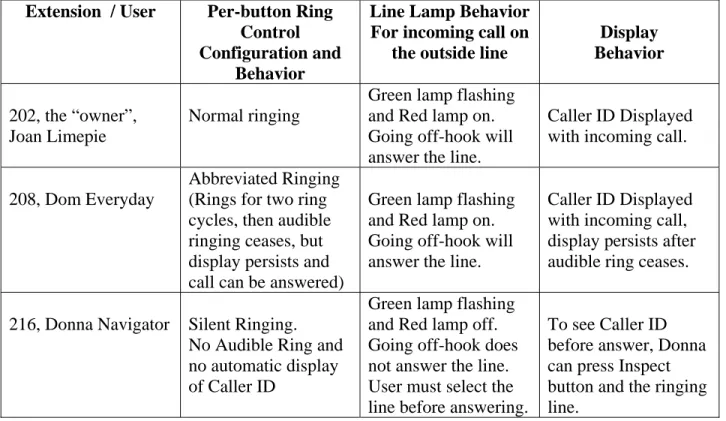
With the configuration described in Section 4, an incoming call on the Outside Line will exhibit the behavior summarized in the table below. The table assumes that no redirection features (call forwarding, etc.) are active for the owner of the Outside Line.
Extension / User Per-button Ring Control Configuration and
Behavior
Line Lamp Behavior For incoming call on
the outside line
Display Behavior
202, the “owner”, Joan Limepie
Normal ringing
Green lamp flashing and Red lamp on. Going off-hook will answer the line.
Caller ID Displayed with incoming call.
208, Dom Everyday
Abbreviated Ringing (Rings for two ring cycles, then audible ringing ceases, but display persists and call can be answered)
Green lamp flashing and Red lamp on. Going off-hook will answer the line.
Caller ID Displayed with incoming call, display persists after audible ring ceases.
216, Donna Navigator Silent Ringing. No Audible Ring and no automatic display of Caller ID
Green lamp flashing and Red lamp off. Going off-hook does not answer the line. User must select the line before answering.
To see Caller ID before answer, Donna can press Inspect button and the ringing line.
JRR; Reviewed: SPOC 9/26/2007
Solution & Interoperability Test Lab Application Notes ©2007 Avaya Inc. All Rights Reserved.
54 of 61 DO-Key
5.2. Incoming Call on Outside Line Group with Owner – No Answer
With the configuration described in Section 4, an incoming call on the Outside Line that is not answered will proceed to the voice mailbox of the owner of the Outside Line Group, extension 202, Joan Limepie. The caller will hear Joan Limepie’s no-answer greeting, and may leave a message, lighting the message-waiting lamp on Joan Limepie’s telephone. While the call is in voice mail, users cannot join the call. Automatic exclusion is in effect for calls that cover to voice mail (or an auto-attendant).
5.3. Incoming Call on Outside Line Group with Coverage – No Answer
If no owner is configured, but call coverage is configured, the call will follow the configured coverage path. With the configuration of coverage to an auto-attendant, an incoming call on the Outside Line that is not answered will be answered by the auto-attendant. While the call is in the auto-attendant, users cannot join the call. Automatic exclusion is in effect.
5.4. Incoming Call on Outside Line – Initial Answer of Line
With the configuration in Section 4, an incoming call on the Outside Line could be initially answered in any of the following ways:
• Answering Joan Limepie’s Line Appearance (configured on Button 4)
• Answering Domanic Everyday’s Line Appearance (configured on Button 4)
• Selecting Donna Navigator’s flashing Line Appearance (configured on Button 4), and then answering. Recall Donna Navigator’s Line Appearance is configured for Silent Ringing, and refer to Table 3 in Section 5.1.
• Using Call Pickup from Ian Navigator’s Call Pickup button (configured on Button 7)
• Using the Specific Line Pickup feature access code followed by the line number from any phone except the Avaya 1603 IP Telephone, which has been explicitly restricted from using the Specific Line feature access codes. Note that if the Specific Line Pickup feature access code is used from a call appearance to answer the call from a phone that also has a line appearance for the outside line, the call will “jump” from the call appearance to the line appearance.
• Using appropriately labeled Abbreviated Dial buttons that automatically dial the Specific Line Pickup access code and outside line group number. (See Section 4.3.2) Other approaches to pre-stored numbers, such as Speed Dials on Avaya 4600-Series IP Telephones or Contacts on Avaya 1600-Series IP Telephones could also be used to automate the dialing of the appropriate feature access code and outside line number.
5.5. Already Active Line – Other Parties Join Creating Conference
With the configuration in Section 4, an active call on the Outside Line (incoming or outgoing) could be joined in any of the following ways, assuming that exclusion is not in effect:
• Pressing the Line Appearance button on any of the telephones with a Line Appearance button configured. If the line has already been answered, the green lamp for the Line Appearance button will be illuminated either steadily (active call) or in a blinking state (hard held call, or call in the process of being transferred). Unless exclusion is in effect for the call, pressing the line appearance button will join the user to the existing call.
• Using the Specific Line Pickup feature access followed by the line number from any phone except the Avaya 1603 IP Telephone, which has been explicitly restricted in the sample configuration from using the Specific Line feature access codes. Note that if the Specific Line Pickup feature access code is used from a call appearance to join the call from a phone that also has a line appearance for the outside line, the call will “jump” from the call appearance to the line appearance.
• Using appropriately labeled Abbreviated Dial buttons that automatically dial the Specific Line Pickup access code and outside line group number. (See Section 4.3.2)
Users already joined to the call may also use the Conference button to join additional parties to the call, or the Transfer button to transfer the call, in the usual fashion.
5.6. Using Exclusion to Prevent Other Parties Joining
Pressing the “Exclusion” button to activate exclusion explicitly prevents other parties from joining the call whether via the Line Appearance button or Specific Line Pickup feature access code methods (or other means). The exclusion button can be used to toggle exclusion on and off during the same call. For example, exclusion can be activated to prevent other users from joining. Then, if the exclusion button is pressed again, the lamp associated with the active exclusion is extinguished, and other users may again join the call.
If other parties have already joined the call, pressing the exclusion button will drop all other parties except the outside line and the party pressing the exclusion button. Exclusion can be used from any user with an exclusion button on the call (i.e., exclusion is not associated with the concept of outside line ownership).
5.7. Voice Announce and Whisper Page Answer-back
See Section 4.6 for the corresponding configuration relevant to the following scenarios.
5.7.1. Voice Announce Towards an Idle Telephone with no Voice Announce Answer Button or with Button in Button State Off
When an idle user A with no Voice Announce Answer button is the target of a voice announce attempt, the call rings in with intercom ringing and must be answered by A to create a talk path.
JRR; Reviewed: SPOC 9/26/2007
Solution & Interoperability Test Lab Application Notes ©2007 Avaya Inc. All Rights Reserved.
56 of 61 DO-Key 5.7.2. Voice Announce Towards an Idle Telephone with Voice Announce
Answer Button in Button State One-Way
On an Avaya 1600-Series IP Telephone “A” with a Voice Announce Answer button, when the Green lamp is on, and the Red lamp is off, a Voice Announce attempt towards idle user “A” will result in auto-answer with one-way talk path behavior. The user dialing the Voice Announce call can speak to A without the need for A to manually answer the call. If A wants a talk path back to the user that activated voice announce, then A can press the Whisper Page Answer-Back button to create a two-way talk path.
In the sample configuration, with the Green lamp on and the Red lamp off on Donna Navigator’s Voice Announce Answer button and Donna not on a call, dial the voice announce feature access code followed by Donna’s extension (*82-216) from Joan Limepie’s telephone. Donna’s speaker goes off-hook automatically and the first call appearance is used. Joan can begin speaking to Donna. If Donna wants to speak back to Joan, Donna must press her Whisper Page Answer-Back button to create a two-way talk path.
Although the Voice Announce Answer button works optimally with the Avaya 1600-Series IP Telephones with both green and red lamps to indicate status, the button may also be assigned to other types of sets such as the Avaya 4621 IP Telephone in the sample configuration (user Ian Distributed). Ian can control the three available states using this button. When the LED is off, the state is off. Pressing the button once when the state is off will put the feature button in the one-way state and the button appearance will be “steady on”. Pressing the button once when the state is one-way and the button is “steady on” will put the feature button in the two-way state, but the appearance of the button will not change.
5.7.3. Voice Announce Towards an Idle Telephone with Voice Announce Answer Button with Button State Two-Way
On an Avaya 1600-Series IP Telephone “A” with a Voice Announce Answer button, when the Green lamp is on, and the Red lamp is also on, a Voice Announce attempt towards idle user “A” will result in auto-answer with two-way talk path behavior. The user dialing the Voice
Announce call can speak to A without the need for A to manually answer the call, and A has a talk path back to the user that activated voice announce automatically.
In the sample configuration, with the Green and Red lamps illuminated on Donna Navigator’s Voice Announce Answer button and Donna not on a call, dial the voice announce feature access code followed by Donna’s extension (*82-216) from Joan Limepie’s telephone. Donna’s speaker goes off-hook automatically and the first call appearance is used. Joan can speak to Donna, and Donna can speak to Joan.
5.7.4. Using Voice Announce Towards a Telephone Already on a Call – Interaction with Whisper Page Answerback
If Voice Announce is used toward a user A who is already on a call, the result of the Voice Announce call attempt depends on a number of factors, including whether user A has an idle call appearance that can be used for the voice announce call, user A’s coverage configuration if any, and the status of User A’s Voice Announce Answer button, if any. An exhaustive interaction list
is not in scope of these Application Notes, but some expected behaviors are provided below as a guide.
For this paragraph, assume that user A does not have a Voice Announce Answer button, or has a Voice Announce Answer button in the “off” state. Under these conditions, the voice announce call attempt will behave similarly to a regular intercom call. If no idle call appearances are available at user A, or if only one idle call appearance is available, and the Restrict Last
Appearance box is checked on the User’s Station Tab, the voice announce call will not ring in to user A at all. The Voice Announce call attempt can follow User A’s coverage path. If coverage does not apply, the user attempting the Voice Announce will get busy tone. That is, unlike a Priority call, the Voice Announce call attempt does not override last appearance restrictions or prevent the call from following coverage. If an idle call appearance is available and no other restrictions apply to prevent the call from ringing user A, the voice announce call can ring in on User A, and may follow coverage if applicable.
For this paragraph, assume that user A has a Voice Announce Answer button in either the “one-way” or “two-“one-way” button states (i.e., one or both lamps for the button are illuminated). If user A is on a call, and a Voice Announce call is attempted toward user A, the Voice Announce call is treated like a Whisper Page Activation toward User A. That is, User A will hear a tone, and the Voice Announce caller can speak to user A using a one-way talk path, even as User A’s prior call remains connected with a two-way talk path. If User A needs to communicate back to the party activating Voice Announce, User A can press the Whisper Page Answer-Back button. Pressing Whisper Page Answer-Back will auto-hold the prior call and create a two-way connection to the user activating Voice Announce on another call appearance (i.e., same operation as answering a Whisper Page).
For example, assume Donna Navigator is on a call with user B on either a line appearance or call appearance, and has her Voice Announce Answer button in either the one-way or two-way states. Joan attempts to Voice Announce to Donna. Donna hears a tone, and Joan can talk to Donna. While Donna hears Joan, party B does not hear Joan, nor does Joan hear Donna. If Donna needs to speak with Joan, she presses her Whisper Page Answer Back button, which holds the call with party B, and creates a two-way call with Joan.
5.7.5. Denial of Voice Announce Attempt Based on Insufficient Privileges
The Avaya 1603 IP Telephone is configured with “Low” privileges in Section 4.3.1. This user is denied use of the Voice Announce feature.
JRR; Reviewed: SPOC 9/26/2007
Solution & Interoperability Test Lab Application Notes ©2007 Avaya Inc. All Rights Reserved.
58 of 61 DO-Key
If Donna is on a call with user “B”, and Donna presses the Busy Indication and Transfer button tracking Joan, the call with user B is automatically held for transfer, and a new call is made to Joan. To complete the transfer, Donna may simply hang up, press the transfer button, or press the “Complete” soft-key on her Avaya 1616 IP Telephone display. At Donna’s discretion, the transfer can either be unattended (completed before Joan picks up) or attended (completed after Joan picks up and Donna has an opportunity to speak with Joan). In the example, if user “B” is the Outside Line profiled in these Application Notes, the transferred call from Donna will “jump” from Joan’s call appearance to Joan’s line appearance when Joan answers an unattended transfer, or when Donna completes an attended transfer.
If Donna presses the Busy Indication and Transfer button tracking Joan while Donna is in the dialing state, such as after dialing a feature access code, Joan’s extension will automatically be dialed. For example, if Donna dials a feature access code such as Voice Announce, and then presses the Busy Indication and Transfer button for Joan, a Voice Announce attempt will be made to Joan.
As shown in Section 4.7, the Busy Indication and Transfer button is not limited to Avaya 1600-Series IP Telephones. In the sample configuration, Ian Distributed uses an Avaya 4600-1600-Series IP Telephone, and can have Busy Indication and Transfer buttons tracking other users, with
operation similar to the scenarios described for Donna.
5.9. Specific Line Originate Feature Access Code
With the configuration described in Section 4, from a call appearance, if any user other than the Walkup user (x203) dials the Specific Line Originate feature access code (e.g., *09), followed by the two-digit Outside Line Group number (e.g., 01), an outbound call is attempted on the Outside Line. If the Outside Line is idle, regular dial-tone, or a configured secondary dial-tone (see Section 4.8) is heard, and the destination number can be dialed. If the Outside Line is already in use when the Specific Line Originate feature access code is dialed, busy tone is heard. Recall that the “walkup” user (x203) was restricted from using the Specific Line feature access codes. As such, the walkup user receives intercept tone if the Specific Line Originate access code is dialed.
5.10. ARS or “Any Line Originate” Feature Access Code
With the configuration described in Section 4, if the ARS access code (e.g., 9) is dialed, and no traditional public network trunks are available, and the Outside Line is idle, the Outside Line is selected for the call. Regular dial-tone, or a configured secondary dial-tone (see Section 4.8) will be heard, and the destination number can be dialed. If the Outside Line is already in use, and the ARS access code is dialed from a call appearance, and no other public trunks or outside lines are available to handle the call at the conclusion of dialing, reorder tone is heard. With the
configuration presented in Section 4, note that even the walkup user may access the Outside Line via the ARS feature access code, assuming all other public trunks are in use or unavailable at the time of the ARS call. If the dialed number is not restricted (e.g., not a toll call), the walkup user can in general complete a call using the Outside Line. To completely restrict the walkup user from using the Outside Line for non-emergency calls (e.g., even restricting local calls), while
still allowing station-to-station calls, the Privileges can be set to “No” via the General tab within
User configuration.
5.11. Example Calls With Allowed / Denied Numbers
With the configuration described in Section 4.4, if an outgoing call is attempted on the Outside Line via either direct selection of a Line Appearance, the Specific Line Originate feature, or the ARS “Any Line Originate” feature, the Allowed / Denied Numbers can be used to restrict or allow the call, depending on the caller’s privileges.
For example, if any user dials a “1900” number, the call is denied because such call types were set to be denied explicitly (see Section 4.4). Calls to any number pattern that is not defined (i.e., does not match an entry in the Allowed / Denied numbers) is similarly implicitly denied.
If Domanic Everyday or Ian Distributed, users with “Medium” privileges, attempt a call using the Outside Line that is marked as a “Toll” call (e.g., 12125551212), the call will be denied. Domanic and Ian can however make “Local” calls (e.g., 17325551212) using the Outside Line. Joan Limepie with “High” privileges or Donna Navigator with “Admin” privileges are allowed to complete calls marked as toll calls (e.g., 12125551212) using the Outside Line.
6. Conclusion
As illustrated in these Application Notes, Avaya Distributed Office enables Key System
operation using features such as Outside Line Groups, Line Appearances, Voice Announce, and Busy Indication with Transfer. While not an exhaustive list, these are examples of key system features developed uniquely for Avaya Distributed Office that are not available in an Avaya Communication Manager Release 4 system.
JRR; Reviewed: SPOC 9/26/2007
Solution & Interoperability Test Lab Application Notes ©2007 Avaya Inc. All Rights Reserved.
60 of 61 DO-Key
7. References
References [1-3] are examples of relevant Avaya Distributed Office Release 1.1 product documentation available at http://support.avaya.com
[1] Feature Description for Avaya Distributed Office, Document 03-602027, Issue 1.0, May 2007.
http://support.avaya.com/elmodocs2/distributedoffice/r1_1/03-602027.pdf
[2] Design and Implementation Guide for Avaya Distributed Office, Document 03-602023, Issue 1.0, May 2007.
http://support.avaya.com/elmodocs2/distributedoffice/r1_1/03-602023.pdf
[3] Maintenance and Troubleshooting Guide for Avaya Distributed Office, Document 03-602029, Issue 1.0, May 2007.
http://support.avaya.com/elmodocs2/distributedoffice/r1_1/03-602029.pdf
Reference [4] provides a wealth of information on the Avaya 1600-Series IP Telephones.
[4] Avaya one-X™ Value Edition 1600-Series IP Telephones Administrators Guide, Release 1.0, Doc ID 16-601443, Issue 1, June 2007
©2007 Avaya Inc. All Rights Reserved.
Avaya and the Avaya Logo are trademarks of Avaya Inc. All trademarks identified by ® and ™ are registered trademarks or trademarks, respectively, of Avaya Inc. All other trademarks are the property of their respective owners. The information provided in these Application Notes is subject to change without notice. The configurations, technical data, and recommendations provided in these Application Notes are believed to be accurate and dependable, but are
presented without express or implied warranty. Users are responsible for their application of any products specified in these Application Notes.
Please e-mail any questions or comments pertaining to these Application Notes along with the full title name and filename, located in the lower right corner, directly to the Avaya Solution & Interoperability Test Lab at [email protected]
![Figure 1 illustrates the network used to verify these Application Notes. Avaya 1600-Series IP Telephones [4], ideal for key system operation, are included, fitting the “Walkup”, “Everyday”, and “Navigator” user profiles](https://thumb-us.123doks.com/thumbv2/123dok_us/8654995.2337990/2.918.114.809.492.1009/illustrates-application-telephones-operation-included-everyday-navigator-profiles.webp)