HP NonStop SQL DDL
Replicator User’s Guide
Abstract
HP NonStop™ SQL DDL Replicator Software replicates NonStop SQL DDL operations to one or more backup systems.
Product Version
NonStop SQL DDL Replicator AAC Supported Release Version Updates (RVUs)
N/A
Part Number Published
Document History
Part Number Product Version Published
545799-001 NonStop SQL DDL Replicator 1.0 October 2008 545799-002 NonStop SQL DDL Replicator AAB January 2010 545799-003 NonStop SQL DDL Replicator AAC June 2010
Legal Notices
© Copyright 2008 Hewlett-Packard Development Company L.P.
Confidential computer software. Valid license from HP required for possession, use or copying. Consistent with FAR 12.211 and 12.212, Commercial Computer Software, Computer Software Documentation, and Technical Data for Commercial Items are licensed to the U.S. Government under vendor's standard commercial license.
The information contained herein is subject to change without notice. The only warranties for HP products and services are set forth in the express warranty statements accompanying such products and services. Nothing herein should be construed as constituting an additional warranty. HP shall not be liable for technical or editorial errors or omissions contained herein.
Export of the information contained in this publication may require authorization from the U.S. Department of Commerce.
Microsoft, Windows, and Windows NT are U.S. registered trademarks of Microsoft Corporation. Intel, Itanium, Pentium, and Celeron are trademarks or registered trademarks of Intel Corporation or its subsidiaries in the United States and other countries.
Java is a U.S. trademark of Sun Microsystems, Inc.
Motif, OSF/1, UNIX, X/Open, and the "X" device are registered trademarks and IT DialTone and The Open Group are trademarks of The Open Group in the U.S. and other countries.
Open Software Foundation, OSF, the OSF logo, OSF/1, OSF/Motif, and Motif are trademarks of the Open Software Foundation, Inc.
OSF MAKES NO WARRANTY OF ANY KIND WITH REGARD TO THE OSF MATERIAL PROVIDED HEREIN, INCLUDING, BUT NOT LIMITED TO, THE IMPLIED WARRANTIES OF
MERCHANTABILITY AND FITNESS FOR A PARTICULAR PURPOSE.
OSF shall not be liable for errors contained herein or for incidental consequential damages in connection with the furnishing, performance, or use of this material.
© 1990, 1991, 1992, 1993 Open Software Foundation, Inc. This documentation and the software to which it relates are derived in part from materials supplied by the following:
© 1987, 1988, 1989 Carnegie-Mellon University. © 1989, 1990, 1991 Digital Equipment Corporation. © 1985, 1988, 1989, 1990 Encore Computer Corporation. © 1988 Free Software Foundation, Inc. © 1987, 1988, 1989, 1990, 1991 Hewlett-Packard Company. © 1985, 1987, 1988, 1989, 1990, 1991, 1992 International Business Machines Corporation. © 1988, 1989 Massachusetts Institute of
Technology. © 1988, 1989, 1990 Mentat Inc. © 1988 Microsoft Corporation. © 1987, 1988, 1989, 1990, 1991, 1992 SecureWare, Inc. © 1990, 1991 Siemens Nixdorf Informationssysteme AG. © 1986, 1989, 1996, 1997 Sun Microsystems, Inc. © 1989, 1990, 1991 Transarc Corporation.
This software and documentation are based in part on the Fourth Berkeley Software Distribution under license from The Regents of the University of California. OSF acknowledges the following individuals and institutions for their role in its development: Kenneth C.R.C. Arnold,
Gregory S. Couch, Conrad C. Huang, Ed James, Symmetric Computer Systems, Robert Elz. © 1980, 1981, 1982, 1983, 1985, 1986, 1987, 1988, 1989 Regents of the University of California.
What’s New in This Manual
Manual Information
HP NonStop SQL DDL Replicator User’s Guide
Abstract
HP NonStop™ SQL DDL Replicator Software replicates NonStop SQL DDL operations to one or more backup systems.
Product Version
NonStop SQL DDL Replicator AAC Supported Release Version Updates (RVUs)
N/A
Document History
New and Changed Information
Note that SPR AAC, while classified as a Time Critical Fix, is a major upgrade to AAB and contains new configuration options that obsolete prior configuration options.
•
A new appendix has been added how to describe SDR testing configurations andoptions. See Appendix C, Testing SDR for details.
•
The global parameters EXTRACT and REPLICATION have been replaced by the new parameter DDLCAPTURE. See DDLCAPTURE { ENABLE[D] | DISABLE[D] | REQUIRED | TEST[ING} on page 6-6 for details.•
The RDFCONFIG global parameter has been changed. Existing RDFCONFIG global settings will not be processed. See RDFCONFIG { RDF-control-subvol | DEFAULT } { AUTO[MATIC] | MANUAL | NOREPL[ICATE] } on page 6-7 for details on the new options.•
A new STATUS * command has been added. See STATUS * on page 6-17 or details.Part Number Published
545799-003 June 2010
Part Number Product Version Published
545799-001 NonStop SQL DDL Replicator 1.0 October 2008 545799-002 NonStop SQL DDL Replicator AAB January 2010 545799-003 NonStop SQL DDL Replicator AAC June 2010
•
Paragraph SDR Fundamental Concepts on page 4-1 describing SDR basic rules has been added to Section 4, SDR Operations.About This Manual
This manual describes the uses, installation, and all other operational aspects of the HP NonStop SDR software.
This software product replicates SQL/MP DDL operations to one or more backup systems.
Notation Conventions
Hypertext Links
Blue underline is used to indicate a hypertext link within text. By clicking a passage of text with a blue underline, you are taken to the location described. For example: To start the SDR monitor, see START MONITOR on page 6-15.
General Syntax Notation
The following list summarizes the notation conventions for syntax presentation in this manual.
UPPERCASE LETTERS. Uppercase letters indicate keywords and reserved words; enter these items exactly as shown. Items not enclosed in brackets are required. For example:
MAXATTACH
lowercase italic letters. Lowercase italic letters indicate variable items that you supply. Items not enclosed in brackets are required. For example:
file-name
[ ] Brackets. Brackets enclose optional syntax items. For example:
TERM [\system-name.]$terminal-name
INT[ERRUPTS]
A group of items enclosed in brackets is a list from which you can choose one item or none. The items in the list may be arranged either vertically, with aligned brackets on each side of the list, or horizontally, enclosed in a pair of brackets and separated by vertical lines. For example:
FC [ num ] [ -num] [ text]
About This Manual General Syntax Notation
{ } Braces. A group of items enclosed in braces is a list from which you are required to choose one item. The items in the list may be arranged either vertically, with aligned braces on each side of the list, or horizontally, enclosed in a pair of braces and separated by vertical lines. For example:
LISTOPENS PROCESS { $appl-mgr-name } { $process-name } ALLOWSU { ON | OFF }
| Vertical Line. A vertical line separates alternatives in a horizontal list that is enclosed in brackets or braces. For example:
INSPECT { OFF | ON | SAVEABEND }
… Ellipsis. An ellipsis immediately following a pair of brackets or braces indicates that you can repeat the enclosed sequence of syntax items any number of times. For example:
M address-1 [ , new-value ]...
[ - ] {0|1|2|3|4|5|6|7|8|9}...
An ellipsis immediately following a single syntax item indicates that you can repeat that syntax item any number of times. For example:
"s-char..."
Punctuation. Parentheses, commas, semicolons, and other symbols not previously described must be entered as shown. For example:
error := NEXTFILENAME ( file-name ) ;
LISTOPENS SU $process-name.#su-name
Quotation marks around a symbol such as a bracket or brace indicate the symbol is a required character that you must enter as shown. For example:
"[" repetition-constant-list "]"
Item Spacing. Spaces shown between items are required unless one of the items is a punctuation symbol such as a parenthesis or a comma. For example:
CALL STEPMOM ( process-id ) ;
If there is no space between two items, spaces are not permitted. In the following example, there are no spaces permitted between the period and any other items:
$process-name.#su-name
Line Spacing. If the syntax of a command is too long to fit on a single line, each
About This Manual Change Bar Notation
a blank line. This spacing distinguishes items in a continuation line from items in a vertical list of selections. For example:
ALTER [ / OUT file-spec / ] LINE [ , attribute-spec ]...
Change Bar Notation
Change bars are used to indicate substantive differences between this edition of the manual and the preceding edition. Change bars are vertical rules placed in the right margin of changed portions of text, figures, tables, examples, and so on. Change bars highlight new or revised information. For example:
The message types specified in the REPORT clause are different in the COBOL85 environment and the Common Run-Time Environment (CRE).
The CRE has many new message types and some new message type codes for old message types. In the CRE, the message type SYSTEM includes all
HP NonStop SQL DDL
Replicator User’s Guide
Legal Notices 1-1
Introducing SDR 1-1
Introduction 1-1 Product Overview 1-2 SDR Components 1-2 Program Files 1-2 SDR Command Interpreter 1-2 SDR Monitor ($ZSDR) 1-3 SDR Runtime 1-3 SDR Updater 1-3 Data Files 1-3 SDRERROR 1-3 SDRHELP 1-3 ZSDRTMPL 1-3 SDRFLTR 1-3ZCOMTMPL and COMFLTR 1-3 NonStop Kernel and RDF Compatibility 1-4
Installing SDR 2-1
Prerequisites 2-1 Initial Installation 2-1
Move Files from the Product Media to the Installation Subvolume 2-2 Install Product Files 2-3
Start an EMS distributor 2-4
Create the SDR System Database 2-5 Install the SDR License 2-6
Enable SQL for DDL Replication 2-6 Install EMS templates 2-7
Update System Coldload Procedures 2-7 Updating SDR Software 2-8
Install Product Files for SDR Update 2-8
Disabling DDL Capture 2-9 Removing SDR Software 2-10 Changes to RDF Operations 2-10 ZRDF-EVT-Msg-736 2-11 ZRDF-EVT-Msg-908 2-11 ZRDF-EVT-Msg-700, ZRDF-EVT-Msg-705 2-11
Configuring SDR 3-1
RDF Considerations 3-1 RDF Topologies 3-1 RDF Configuration 3-1 REPLICATEPURGE 3-1NETWORK and NETWORKMASTER 3-1
Replicating Physical VOLUMEs in an SMF Environment 3-2 INCLUDE and EXCLUDE 3-2
RDF EMS Events and the LOGFILE 3-2 Configuring SDR 3-2
Configuring SDR Capture 3-3
Enabling and Disabling SDR 3-3 Requiring DDL Capture 3-3 Retaining Captured DDL 3-4
Handling DDL Operations performed under a User Transactions 3-4 Configuring SDR Replication 3-5
Setting CREATE Ownership and Security 3-5
Setting the User ID for Replicated DDL Operations 3-5 Automatic Catalog Creation 3-6
Replicating Unaudited Tables 3-6 Configuring the SDR Network 3-6
SDR Operations 4-1
SDR Monitor 4-1 SDR Fundamental Concepts 4-1 Rule 1 - DDL Capture 4-2 Rule 2 - DDL Replication 4-2 DDL Capture 4-2 DDL Capture Artifacts 4-2 SDR Depot Files 4-3Stop RDF Update Audit Records 4-3 Marker Files 4-3
Special cases 4-4 Create Catalog 4-4 CREATE Collation 4-5 User Transactions 4-6
Distributed Tables and Indexes 4-6 Unaudited Tables and Indexes 4-7 SQLCI DUP Utility 4-7
DDL Replication 4-7
SDR Updater Processes 4-7
Normal vs. Takeover Operations 4-7 EMS Messages 4-8
Replication Operations 4-8
Creating the SDR Depot Files on the Backup 4-8 Processing Stop RDF Update Audit Records 4-8 Translating DDL 4-9
Executing DDL 4-10
Restarting RDF Update 4-10 SDR and RDF Takeover 4-10
Distributed Table Replication 4-11
SDR Monitoring and Control 5-1
Checking Status 5-1 EMS Log 5-1 The SDR Log 5-1 STATUS Commands 5-2 STATUS MONITOR 5-2 STATUS SDR 5-3 STATUS RDF 5-3 STATUS UPDATE 5-4 STATUS * 5-4 Controlling Replication 5-4 Monitor-Level Commands 5-5 START UPDATE 5-5 STOP UPDATE 5-5 RESTART UPDATE 5-5 Updater-level Command 5-6 HOLD RDF-control 5-7 RELEASE RDF-control 5-7 EXECUTE RDF-control 5-8CANCEL RDF-control 5-9 RETRY RDF-control 5-10
SDR Commands 6-1
Running the Command Interpreter 6-1 Command Syntax 6-2
Command Description Overview 6-2
SDR Configuration and Management Commands 6-5 ALTER 6-5 CANCEL 6-9 CREATE SYSDB 6-9 EXECUTE 6-10 HOLD 6-11 INFO GLOBALS 6-11 INFO RUNTIME 6-11 INSTALL RUNTIME 6-11 INSTALL SDR 6-12 READLOG 6-12 RELEASE 6-14 RESET 6-14 RESTART UPDATE 6-14 RETRY 6-15 START MONITOR 6-15 START UPDATE 6-16 STATUS * 6-17 STATUS RDF 6-17 STATUS SDR 6-17 STATUS UPDATE 6-17 STOP MONITOR 6-18 STOP UPDATE 6-18 UNINSTALL SDR 6-18 Utility Commands 6-19 ABEND MONITOR 6-19 ALTER FILE 6-20 COPY 6-22 COMMENT 6-28 DELAY 6-28 ENV 6-28 EXIT 6-28
FC AND! 6-28 FILEINFO 6-29 FILES 6-29 HELP 6-30 HISTORY 6-31 LOG 6-31 MONITOR 6-32 OBEY 6-32 OUT 6-32 RESET 6-32 RUN[D] 6-33 SEMICOLON 6-33 STATUS MONITOR 6-34 TIME 6-34 VOLUME 6-34 Monitor Commands 6-34 EMSLEVEL 6-34 LOG 6-35 STATUS 6-36 BACKUPCPU 6-36 SWITCH 6-36
SQL DDL Statements A-1
DDL Statements A-1SQL object in Statement A-2
Catalog References in Statement A-3 PHYSVOL References in Statement A-3 WITH SHARED ACCESS Clauses A-3
SDR EMS Messages B-1
Informational Messages B-1 101 B-1 Critical Messages B-8Testing SDR C-1
Overview C-1Setting up the Test Environment C-1 Testing C-2
1
Introducing SDR
This manual describes HP NonStop SQL DDL Replicator (SDR). This section is an introduction to SDR. The information is organized as follows:
Introduction Product Overview SDR Components
NonStop Kernel and RDF Compatibility
Introduction
HP NonStop SQL DDL Replicator (SDR) is a companion to the NonStop Remote Database Facility (RDF) subsystem. It provides the ability to automatically replicate SQL DDL operations to a backup system in the same way that RDF replicates database updates to a backup database.
The initial release of SDR supports NonStop SQL/MP. All further references to SQL implies SQL/MP only. Also, all further references to DDL refer to NonStop SQL/MP DDL operations.
RDF uses TMF audit trail information to capture changes to a primary database and to replicate those changes to one or more backup copies of the database, usually on one or more remote systems. In the case of a planned or unplanned outage of a primary database system, the backup copies may be used to continue operations after a takeover operation.
Since the necessary information is not present in the TMF audit trail, RDF does not replicate DDL operations such as CREATE, DROP, and ALTER. In order to safely perform these operations in a standard RDF environment, HP recommends stopping all primary system applications, and stopping TMF and RDF (See RDF 5. – RDF and NonStop SQL/MP DDL Operations).
SDR performs a series of operations to both capture DDL operations and to replicate them on the backup database. It does this quickly, automatically, without user
intervention and without affecting applications or stopping TMF or RDF. SDR replicates all DDL operations that are executed by SQLCI, user applications, or access utilities like ODBC. No changes to user applications are required.
Note. Since SDR is an extension of RDF, this document assumes the reader has a good working knowledge of RDF and frequently makes reference to the HP NonStop RDF System Management Manual for H-Series RVUs (RDF 1.8) in the following form: (RDF 5. – Stopping RDF), which is the paragraph heading “Stopping RDF” in chapter 5 of the manual.
Introducing SDR Product Overview
Product Overview
SDR installs quickly. Once the product files are in place, you use the SDR command interpreter, SDRCOM, to issue a few commands that set up a small configuration database and to install SDR on your system.
SDR is privileged, so the installation of the product files must be performed by
SUPER.SUPER. It does not require a cold load, application outage, or stopping RDF or TMF. All other operations can be performed by a member of the SUPER group. SDR must be installed on both RDF primary and backup systems.
SDR requires licensing on each system where it is installed. Before attempting to install SDR, you must obtain a product licenses from HP, as instructed on the product CD.
During the installation process, components of SQL are updated and become
dependent on the presence of SDR. Be sure to read the installation section carefully before attempting to remove or alter the SDR software.
Once installed and licensed, SDR is ready to capture all DDL operations performed on the system. This happens automatically and is invisible to the SQL users. DDL can be executed in both SQLCI and in applications; no application or operational changes are necessary.
When a DDL operation has been captured, SDR uses the RDF configuration
information to translate the DDL to the backup database. SDR coordinates with RDF to execute the DDL at precisely the right time.
In general, you do not need to start and stop SDR, even if you are starting, stopping or reinitializing RDF. The SDR monitor is started when SDR is installed and should also be started whenever the system is cold-loaded. It automatically monitors the RDF state and activates SDR replication when RDF is started. SDR does not perform any DDL replication if RDF is stopped.
SDR Components
SDR consists of 4 program files and 6 data files. Each of the program files contains privileged code and must be licensed.
Program Files
SDR Command Interpreter
The command interpreter, SDRCOM, is the primary user interface for installing, configuring, and controlling SDR.
Introducing SDR Data Files
SDR Monitor ($ZSDR)
The SDR monitor (SDRMON) is a NonStop process pair with the reserved name $ZSDR. It should be started at cold load time and left running at all times, regardless of the state of RDF or TMF. If the SDR monitor is executing and properly licensed, then SDR is active.
SDR Runtime
The SDR runtime (SDRRUNTM) captures DDL operations and stores them in appropriate locations for replication at a later time. It does not require RDF to be executing to gather and store the necessary information for later use.
SDR Updater
The SDR updater (SDRUPDT) is a program that performs the actual replication of DDL at the appropriate time. It will only be executing if RDF is started.
Data Files
The following SDR components are files containing information required by SDR.
SDRERROR
A specially formatted file containing all information, warning, and error messages issued by the SDRCOM and, sometimes, by the monitor and updater processes.
SDRHELP
A specially formatted file containing HELP information issued by the SDRCOM.
ZSDRTMPL
An EMS template file containing templates for the SDR subsystem. These templates should be installed in your system as described in the HP DSM Services Manual.
SDRFLTR
An EMS filter for viewing SDR events.
ZCOMTMPL and COMFLTR
An EMS template file and filter for viewing events for the both RDF and SDR. This is an unsupported component of the SDR product, as it may not be consistent with the installed release of RDF on your system. But, it can be useful to monitor SDR as it operates in conjunction with RDF.
Introducing SDR NonStop Kernel and RDF Compatibility
NonStop Kernel and RDF Compatibility
SDR is a release-independent product. There is only one version of SDR and it runs on all supported NonStop servers supported by HP: NonStop S-series, NonStop H-series and NonStop J-series.
SDR is also compatible with all versions of RDF (IMP, IMPX and ZLT) starting with SPR T0346AAJ (released summer 2000), with a few exceptions. SDR will not work with T0346A07 SPRs ABJ or ABO, or with base release T0346H08. SDR checks usage of RDF and issues a warning message if you are using an incompatible release of RDF.
2
Installing SDR
This section describes the installation of SDR. It covers the following topics: Prerequisites
Initial Installation
Updating SDR Software
Enabling DDL Capture when Updating NonStop SQL Software Disabling DDL Capture
Removing SDR Software
Prerequisites
SDR works closely with RDF and must be installed on the RDF primary and backup systems. Versions of SDR software must be the same on all systems.
Read the Software Release Document before you install SDR.
SDR works with RDF and RDF/IMP as described in NonStop Kernel and RDF Compatibility on page 1-4.
Like RDF, you must be a member of the SUPER group to perform SDR operations. To install the SDR product files, you must be SUPER.SUPER, as described below in Install Product Files.
In anticipation of the SDR installation, the operators should be made aware of the RDF events that will no longer require their intervention. See paragraph Changes to RDF Operations below for a description of these changes.
Initial Installation
To insure that the backup system is ready for replication, first install SDR on the backup system.
For each system where SDR is to be installed, have your SDR licensing instructions available. Proceed as follows:
1. Move Files from the Product Media to the Installation Subvolume. 2. Install Product Files.
3. Start an EMS distributor.
4. Create the SDR System Database 5. Install the SDR License
Installing SDR Move Files from the Product Media to the Installation Subvolume
6. Enable SQL for DDL Replication 7. Install EMS templates
8. Update System Coldload Procedures
Repeat the installation on the all the systems in the RDF network.
Move Files from the Product Media to the Installation Subvolume
The SDR product media contains the files listed in Table 2-1. Instructions for placing the SDR software in the ISV subvolume ZISDR are delivered on the distribution media. After the initial installation, these files can also be copied from another system on your network, or copied using FTP over the Internet from an HP site.The subvolume ZISDR contains the following files:
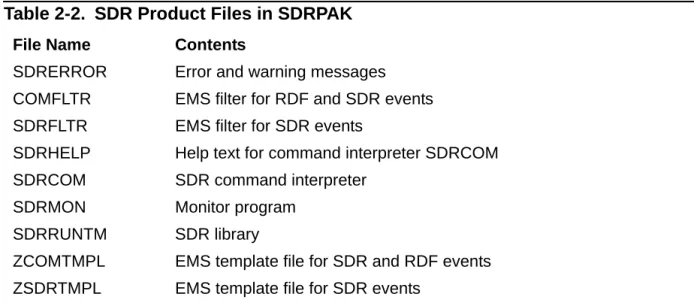
The actual operational product files for SDR are listed in Table 2-2. Table 2-1. ZISDR Subvolume
FIle Name Contents
SDRPAK A PAK file containing the SDR product files listed in Table 2-2
INSTALL TACL macro for installing SDR
T2828nnn Software release document where nnn designates the PVU level ZSDRTMPL EMS templates for SDR events
Table 2-2. SDR Product Files in SDRPAK File Name Contents
SDRERROR Error and warning messages COMFLTR EMS filter for RDF and SDR events SDRFLTR EMS filter for SDR events
SDRHELP Help text for command interpreter SDRCOM SDRCOM SDR command interpreter
SDRMON Monitor program SDRRUNTM SDR library
ZCOMTMPL EMS template file for SDR and RDF events ZSDRTMPL EMS template file for SDR events
Installing SDR Install Product Files
Install Product Files
The INSTALL macro is used for the initial SDR installation and for subsequent SDR product updates.
When installing SDR for the first time, INSTALL performs the following steps: 1. Restores the product files from ZISDR to the operational subvolume 2. Licenses the SDR object files.
You must be logged on as SUPER.SUPER to run the INSTALL macro. Because local SUPER.SUPER access is required to license object files, INSTALL cannot be run from a different system.
The default operational subvolume is $SYSTEM.SDR but you can install the files in other locations. Do not install the files in $SYSTEM.SYSTEM or $SYSTEM.SYSnn. To install SDR in $SYSTEM.SDR:
1. Log on as SUPER.SUPER
2. Type the following TACL commands:
VOLUME $vol.ZISDR RUN INSTALL
Installing SDR Start an EMS distributor
Running INSTALL:
If for any reason you want to install SDR in a location other than $SYSTEM, specify the target subvolume when you run the INSTALL macro:
Start an EMS distributor
Before you install the SDR EMS templates in the system templates, you can view SDR messages through an EMS distributor, using the SDR templates and filter. Enter the following TACL commands in a separate terminal window:
The EMS distributor will display SDR events.
> INSTALL
HP Nonstop(tm) SQL DDL Replicator(tm) Software File Installer *** SDR software will be installed in subvolume $system.sdr UNPAK - File decompression program - T1255G06 - (2008-06-03) Archive version: 1
File Mode RESTORE Program - T9074G08 (21JUL2008) (AFO)
(C)2000 Compaq (C)2006 Hewlett Packard Development Company, L.P. Drives: (\SIERRA.$X0HN)
System: \ATOM Operating System: H06 Tape Version: 3
Backup options: NO AUDITED, BLOCKSIZE 8, NO IGNORE, NO OPEN, PARTONLY OFF, INDEXES IMPLICIT
*WARNING-7147* Files created and stored via OSS and SQL/MX objects are not supported.
Restore time: 18Mar2010 11:00 Backup time: 8Mar2010 14:57 Page: 1 Tape: 1 Code EOF Last modif Owner RWEP Type Rec Bl $SYSTEM.SDR
COMFLTR 101 582 8May2008 15:59 -1 NUNU SDRCOM 100 3907336 8Mar2010 14:51 -1 NUNU
SDRERROR 270336 1Mar2010 10:35 -1 NUNU K 128 4 SDRFLTR 101 304 8May2008 15:59 -1 NUNU
SDRHELP 114688 3Mar2010 16:10 -1 NUNU K 1928 4 SDRMON 100 5677056 8Mar2010 14:54 -1 NUNU
SDRRUNTM 100 2748416 8Mar2010 14:55 -1 NUNU SDRUPDT 100 3696640 8Mar2010 14:57 -1 NUNU
ZCOMTMPL 839 233472 4Mar2010 10:25 -1 NUNU K 510 4 ZSDRTMPL 839 73728 4Mar2010 10:25 -1 NUNU K 510 4 Summary Information
Files restored = 10 Files not restored = 0
***************************************************************************** *** SDR software file installation is complete. Proceed to installation *** *** instructions described in the user manual. *** *****************************************************************************
RUN INSTALL $vol.SDR
ADD DEFINE =_EMS_TEMPLATES, CLASS MAP, FILE ZSDRTMPL
Installing SDR Create the SDR System Database
Create the SDR System Database
The SDR System Database (SysDB) is created using the SDR command interpreter SDRCOM. When starting SDRCOM during the initial installation, a warning message appears directing you to create a SysDB and license the SDR product.
You must be a member of the SUPER group in order to create the SysDB. If you are not logged on as a SUPER user, SDRCOM displays an error message and does not create the SysDB.
The SUPER user that creates the SYSDB becomes the SDR owner. The SDR owner is similar to the RDF owner, except that any SUPER user that has update access to the SysDB REGISTRY table is considered to be an SDR owner.
The SDR owner can start and stop the monitor, issue the INSTALL SDR command, and perform the SDR control functions described in Section 5, SDR Monitoring and Control under Controlling Replication.
To create the SDR SysDB: 1. Log on as a SUPER user
2. Invoke SDRCOM from the TACL prompt:
3. Create the SDR SysDB tables by issuing the CREATE SYSDB command.:
CREATE SYSDB performs the following operations:
7> sdrcom
SHP Nonstop(tm) SDR(tm) Command Interpreter(T2828V01) - System \SIERRA (C)2010 Hewlett Packard Development Company, L.P.
(C)2010 Carr Scott Software Incorporated
*Warning* The SysDB cannot be found. Issue the CREATE SYSDB command to * 1601 * create it. Enter HELP CREATE-SYSDB; for more information. *Warning* Use of SDR requires licensing. To obtain the
* 1801 * licensing key, send an e-mail to [email protected]. * * Please provide your system serial number and order number. * * This system has serial number 35507.
SDRCOM 1? create sysdb;
--- SysDB table $SYSTEM.SDRSYSDB.REGISTRY created. --- Starting Monitor process $ZSDR
SDR Monitor 1.9.1 - 29MAR2010 -- $ZSDR (0,221) - System \SIERRA Started at Mar 18 2010 11:09:20, elapsed time = 0:00:00
Backup process cpu 1, no takeovers Monitor hometerm: $0
EMS event logging level is NORMAL.
*Warning* Use of SDR requires licensing. To obtain the
* 1801 * licensing key, send an e-mail to [email protected]. * * Please provide your system serial number and order number. * * This system has serial number 35507.
SDR monitor $ZSDR (0,221) is monitoring 0 RDF environment(s). Current SDRUPDT processes: 0
Installing SDR Install the SDR License
1. Creates the REGISTRY table in subvolume $SYSTEM.SDRSYSDB. If creating tables on $SYSTEM is difficult due to system security or if $SYSTEM is not
audited, specify an alternative volume using the ON volume option. SysDB may be created on any audited volume.
The REGISTRY table is owned by the SUPER user that issues the CREATE SYSDB command and has a default security of “NOOO”. The REGISTRY table owner is the SDR owner who is authorized to manage SDR.
Use the SECURE option to secure REGISTRY differently. Setting the write security to “G” will allow all SUPER users to manage SDR.
2. Creates an SQL catalog on the volume specified in the CREATE SYSDB
command, in a subvolume called SDRCATLG. Use the CATALOG option to specify a different catalog.
3. Starts start the SDR monitor $ZSDR. This is the default name for the SDR monitor. See CREATE SYSDB on page 6-9 for details on the command options.
Install the SDR License
Follow the licensing procedure described in the documentation that accompanies the SDR software. The license is installed by entering the SDRCOM license command as it is supplied by HP. If you move the SDR to a different system, you must request a license for that system.
After you have successfully installed your SDR license, SDRCOM displays the state of your license:
To display the status of your SDR software license subsequently, use the Monitor STATUS LICENSE command.
Enable SQL for DDL Replication
If you are installing SDR on a system that hosts the production application or database and intend to test SDR on the system, please consult Appendix C, Testing SDR before you enable SQL for DDL replication.
Note. If you are upgrading your SDR license from a limited license to a permanent license, simply install the new license received from the License Manager. Installing a valid license is not disruptive and does not require any interruption of SQL operations.
Installing SDR Install EMS templates
After you have successfully installed your SDR license, SDRCOM notifies you that SQL is not yet configured to perform DDL capture and replication:
To enable DDL replication, enter the INSTALL SDR command. Because the SQL utilities might be in use at the time the INSTALL SDR command is executed, SDRCOM performs the following operations to insure that SQL is correctly enabled for SDR, without impacting the current users (here we assume SDR is installed in
$SYSTEM.SDR):
•
Notifies you that the SQL utilities will be unavailable for a brief moment, and prompts for permission to proceed. If you are ready, enter Y.•
Duplicates the utilities to $SYSTEM.ZASDR.SQLutilZ.•
Prepares the duplicated copy SQLutilZ.•
Renames $SYSTEM.SYSTEM.SQLutil to $SYSTEM.ZASDR.SQLutil,where it continues to execute, if it is in use.•
Renames the prepared $SYSTEM.ZASDR.SQLutilZ to$SYSTEM.SYSTEM.SQLutil, enabled for SDR when the next user executes the SQL utilities.
You are now able to replicate DDL operations for your RDF protected audited SQL tables.
Install EMS templates
The file ZSDRTMPL contains EMS templates for all events generated by SDR. The file ZCOMTMPL contains templates for SDR and RDF events. Please refer to the DSM Template Services Manual for instructions about installing system templates.
You can use the EMS filter file SDRFLTR with an EMS distributor to display SDR events, as described above in Start an EMS distributor on page 2-4.
Update System Coldload Procedures
To insure that the replication of DDL operations is active, the monitor process must be running. You should include the start of the monitor process with the other operational steps that normally follow a system cold load.
*Warning* $SYSTEM.SYSTEM.SQLCAT is not properly configured for use with SDR.
* 1669 * This file must be the NonStop SQL/MP product program and it * * must be activated for use with SDR with the following command: * *
* * INSTALL SDR * *
Note. . The next time INSTALL SDR is executed, SDRCOM will check that the renamed files in ZASDR are now closed. If they are still running, INSTALL SDR will terminate with an error message instructing you to stop them.
Installing SDR Updating SDR Software
Start the monitor process after TMF has been started and before any DDL operation is performed on your SQL database. To start the SDR monitor process, use the following TACL command:
Updating SDR Software
The version of SDR must be the same on the primary and backup systems. If you update SDR software on the any of the participating systems, you must update the software on all systems. For a safe and minimal outage, the SDR installation steps should be executed in the following sequence:
1. On both the primary and backup systems, restore the product media as instructed in Move Files from the Product Media to the Installation Subvolume
2. On the primary system:
1. Make sure that there are no DDL operations in progress on the primary system. Use STATUS UPDATE to verify that no operations are in progress. 2. Disallow SQL DDL operations during the period that SDR is unable to capture
them for later replication:
•
In SDRCOM: ALTER GLOBAL DDLCAPTURE REQUIRED 3. In SDRCOM: STOP UPDATE3. On the backup system (or systems):
1. Replace the SDR software components in the product subvolume using the INSTALL macro as described below in Install Product Files for SDR Update. The INSTALL macro restarts the SDR monitor.
2. Install the EMS templates. See Install EMS templates on page 2-7. 4. On the primary system:
1. Replace the SDR software components in the product subvolume using the INSTALL macro as described below in Install Product Files for SDR Update. The INSTALL macro restarts the monitor with UPDATE.
2. Install the EMS templates. See Install EMS templates on page 2-7.
3. RESET the DDLCAPTURE global parameter if it was set only for the duration of the installation: RESET GLOBAL DDLCAPTURE.
You do not need to re-issue the INSTALL SDR command.
Install Product Files for SDR Update
When replacing SDR product files, the INSTALL does additional processing to account RUN $SYSTEM.SDR.SDRCOM START MONITOR
Installing SDR Enabling DDL Capture when Updating NonStop SQL Software
•
Warns you that while the software is being replaced, DDL replications could be lost, and tells you what to do to prevent it.•
Prompts you for permission to proceed with the installation. If you are ready, enter Y.•
If the updater object file SDRUPDT is opened, instructs you to STOP UPDATE on the primary SDR system and to restart INSTALL.•
If other SDR product files are opened, instructs you to close them.•
Stops the SDR monitor if it is executing.•
If the SDRRUNTM is opened because it is in use by a prepared SQL utility, restores the new SDRRUNTM as NEWRUNTM in the SDR subvolume.•
Executes the SDRCOM command INSTALL RUNTIME to replace the existing SDR runtime with the new version. See description of the command below on page 6-11,Note also that INSTALL RUNTIME aborts with no change if any of the SQLutil
objects duplicated to the ZASDR.SQLutil for previous installation is still in use and cannot be purged.
•
After the product files have been replaced, restarts the monitor. On the primary system, INSTALL restarts the SDR monitor specifying the UPDATE option.Enabling DDL Capture when Updating
NonStop SQL Software
If you install a new version of the operating system or a new version of SQL, you need to enable the new SQL components for DDL capture and replication, as described above in Enable SQL for DDL Replication on page 2-6.
Disabling DDL Capture
To disable SDR DDL capture, set the DDLCAPTURE global parameter to DISABLED using SDRCOM command ALTER:
SDRCOM 1? alter global ddlcapture disabled;
--- SDR Global SDRDDLCAPTURE updated. --- Monitor $ZSDR globals refreshed.
Installing SDR Removing SDR Software
SDR displays a message in the EMS log and STATUS SDR shows the following:
Removing SDR Software
If you have enabled SQL for SDR, you must remove SDR from the SQL utilities before you remove the SDR software from your system. If SDR is not “uninstalled” and the SDR software is removed from your system, DDL operations on the primary system will fail.
To remove SDR from your system:
1. In SDRCOM, issue the UNINSTALL SDR command. Like INSTALL SDR,
UNINSTALL SDR performs the necessary duplications and rename operations to account for the possibility that the SQL utilities are in use at the time the command is executed. UNINSTALL SDR also stops the SDR monitor.
2. Use SQLCI to purge the REGISTRY table in the SDRSYSDB subvolume. 3. Purge the SDR software in SDR subvolume $SYSTEM.SDR or the subvolume
where it was installed.
4. Update your system startup and shutdown procedures to remove the commands that start and stop the SDR monitor process.
Changes to RDF Operations
The function of SDR is to automate the replication of SQL DDL statement to backup tables, thereby performing operations that were previously done manually by
operators. Moreover, to perform these functions, SDR coordinates its activities with RDF by monitoring RDF events. The installation of SDR on your system therefore calls for some changes in the way operators respond to a few specific RDF events that are reported on the backup system, mostly by ignoring them.
SDRCOM 2? status sdr
* Warning 1810 * SQL DDL Capture is disabled.
SDR monitor $ZSDR (0,817) is monitoring 1 RDF environment(s). Current SDRUPDT processes: 1
Total SDRUPDT processes: 6
---RDF ATOMJ (\ATOM -> \SIERRA) at 4/28/08 13:52:42 Current State: Normal
SDR Updater \SIERRA.$Y27G, holding
Installing SDR ZRDF-EVT-Msg-736
ZRDF-EVT-Msg-736
This message from the RDF Updater will appear after the initial installation of SDR the the first time a SQL DDL operation is performed on a table residing on $vol. It will appear for each volume protected by RDF at the first DDL operation captured and replicated and will not appear again. The $vol.ZASDRnnn.SDRDEPOT file is automatically created by SDR and the operator can safely ignore the message.
ZRDF-EVT-Msg-908
Prior to the installation of SDR, this message from the RDF Updater was used to notify the operator that an SQL DDL operation had been performed on the primary system, that all RDF updaters had processed the required audit and that it was now safe to execute the same DDL operation on the backup database. The operator was also advised to obtain the name of the source file involved in the operation on the primary system by looking for the last RDF 733 event.
The replication of the DDL operation is now automatically executed on the backup table by SDR and the RDF 733 event is no longer reported. The operator should ignore this message. The message will be followed by the RDF 807 event that signals that the SDR Updater has restarted RDF updates.
ZRDF-EVT-Msg-700, ZRDF-EVT-Msg-705
(with parallel volume-sharing RDF configurations)These messages from the RDF Updater appear if SDR is installed on systems where RDF is deployed in parallel configurations. Parallel configurations refer to sites where two or more RDF configurations are defined between same primary and backup systems and replicate to the same backup disk volume.
An example: Between \PRIM and \BACK, PRIMA replicates $P.SUBA to \BACK.$P.SUBA and PRIMB replicates $P.SUBB to \BACK.$P.SUBB.
In such RDF configurations, the operator can safely ignore the file system errors 10 and 71 and the open error 12 reported on the $vol.ZASDRnnn.SDRDEPOT file by the RDF Updaters.
Waiting to obtain FILEINFO on file $vol.ZASDRnnn.SDRDEPOT, error 11
A file is prepared for SQL DDL operation
File system error 10 on $vol.ZASDRnnn.SDRDEPOT,SNO n,RBA rba
and
File system error 71 n $vol.ZASDRnnn.SDRDEPOT,SNO n,RBA rba
3
Configuring SDR
This section discusses the SDR configuration options and, because many functions of SDR depend on proper configuration of RDF, a few pertinent RDF considerations. The chapter is organized as follows:
RDF Considerations
•
RDF Topologies•
RDF Configuration•
Configuring SDR•
Configuring SDR Capture•
Configuring SDR ReplicationRDF Considerations
RDF Topologies
SDR supports all RDF topologies (as described in the RDF - 1 – Features).
RDF Configuration
For the most part, you configure RDF in the normal way, without regard for SDR. However, there are a few RDF configuration options you need to consider.
REPLICATEPURGE
The REPLICATEPURGE option instructs RDF to automatically replicate Enscribe file purge operations (RDF 3 – Setting Global Parameters). Some installations disable this option in order to retain the backup database in case a user accidentally purges a critical primary file. Others perform regular file purges and would be inconvenienced if RDF stopped updating every time this happened.
When RDF REPLICATEPURGE is ON, SDR adopts the RDF setting and replicates DROP operations. If RDF automatically replicates purges, SDR automatically replicates DROP operations.
When RDF REPLICATEPURGE is OFF, there is a significant difference between RDF and SDR. While RDF simply ignores the purge (this usually leads to an updater error 10 at some future time), SDR issues EMS messages and holds off replication until the user decides to either execute or cancel the DROP statement.
NETWORK and NETWORKMASTER
The proper definition of an RDF network is of great importance to SDR if you perform DDL on distributed tables with secondary partitions or indexes remote from the primary
Configuring SDR Configuring SDR
table partition. See the discussion below in Configuring the SDR Network for further details.
Replicating Physical VOLUMEs in an SMF Environment
The RDF VOLUME configuration determines how SDR translates the DDL for execution on the backup systems. When configuring RDF to replicate databases on SMF virtual volumes, it is usually not necessary to specify the physical volumes. If, however, you specify PHYSVOL in DDL statements, you must specify the physical volume mappings in RDF.INCLUDE and EXCLUDE
SDR stores the DDL information it needs for replication in files called depot files, that reside in subvolumes on the replicated volumes named ZASDRnnn, where nnn is the primary node number.These files are described in detail in paragraph SDR Depot Files on page 4-3.
In order to function correctly, the depot files in ZASDRnnn subvolumes must be replicated by RDF.
•
More recent version of RDF, starting with SPRs H08^ABR and A07^ABS,automatically replicate ZASDRnnn subvolumes. In fact, ZASDRnnn subvolumes cannot be excluded from the RDF configuration.
•
When prior versions of RDF are in use, SDR checks the RDF configuration to insure that the ZASDR* subvolumes are replicated by RDF. If ZASDR* subvolumes have been excluded, or have not been included, SDR issues a warning to notify you that the RDF EXCLUDE or INCLUDE specification will cause SDR tomalfunction.
RDF subvolume name mapping using a mapfile (RDF 12) does not permit mapping subvolumes beginning with X, Y, or Z, so it cannot interfere with SDR replication.
RDF EMS Events and the LOGFILE
SDR monitors the operation of RDF in many ways, but one primary input is RDF events in the EMS event log. RDF writes events to both $0 and any EMS collector configured RDF as the RDF LOGFILE. SDR always monitors the LOGFILE collector if it is configured. Otherwise, it monitors the $0 collector.
You must not configure “pre-log filtration” to remove the RDF events from the event log that SDR is monitoring.
Configuring SDR
The following paragraphs describe global settings that control the capture and replication of DDL operations.
Configuring SDR Configuring SDR Capture
The global settings are changed using the ALTER command and reset to their default with the RESET command.
To issue the ALTER and RESET commands you must be a SUPER user and have update access to the REGISTRY table in the SDRSYSDB subvolume.
Configuring SDR Capture Configuring SDR Replication
Configuring SDR Capture
The following paragraphs describe global settings that control DDL capture: Enabling and Disabling SDR
Requiring DDL Capture Retaining Captured DDL
Handling DDL Operations performed under a User Transactions
Enabling and Disabling SDR
It is highly recommend to leave the SDR monitor running at all times. If it becomes necessary to disable DDL capture for any reason, it can be done by setting the DDLCAPTURE global parameter to DISABLED.
Requiring DDL Capture
When a DDL operation is performed on a SQL table, operational problems could prevent SDR from capturing and preserving the DDL statement for replication. For example, if the SDR monitor is stopped, DDL capture is impossible, or if a security error prevents SDR from accessing its files, then the statement cannot be stored. The capture problem on the primary table might cause the backup table to become
inconsistent or unusable.
By default, SDR allows the DDL operation to be performed on the primary table, even if it cannot be captured for replication. But you can choose to make the DDL replication mandatory by not allowing the DDL operation to succeed on the primary table if it cannot be captured by SDR. This is done by setting the global parameter
DDLCAPTURE to REQUIRED (instead of the default ENABLED).
Obviously, mandatory DDL replication could have an adverse affect on applications that perform DDL. But, if all DDL is performed using ad hoc SQLCI commands, it is a useful safeguard against accidental corruption of the backup database.
Configuring SDR Configuring SDR Capture
Retaining Captured DDL
At the time you perform either primary database updates or DDL operations, you might not have configured RDF yet, or even have a backup database. You can decide,
weeks after an application has started updating a database on the primary system, to initialize RDF and replicate all the updates that were performed in past weeks to a backup database. All you need to do is save the TMF audit trails.
Similarly, SDR captures and preserves the DDL being executed on a primary table, with no knowledge of RDF. Indeed, DDL capture is completely independent of DDL replication. This is very similar to the use of TMF that is independent of RDF.
The de-coupling of DDL capture from replication is why the DDL retention period is important. It can be set to any value between 1 day and 60 days. The default is one week. Set retention higher if you plan to initialize RDF to a date that goes back in time more than one week. To change the default retention period, set the global parameter RETENTION to the desired value.
Handling DDL Operations performed under a User
Transactions
Certain types of DDL operations can be done in a user-initiated transaction. For example, you can DROP and CREATE a table as a single transaction; if the
transaction fails, the original table is still available. User transactions containing DDL operations are rare, but they are allowed.
User transactions complicate the DDL replication. At the time SDR replicates the DDL, the outcome of the user transaction is not known.
You can configure how you want SDR to handle DDL operations that are executed in a user transaction, by setting the global parameter USERTRANSACTION to one of the following options:
•
ABORT: disallow DDL inside a user transaction. If a user attempts such anoperation, the transaction is aborted, the DDL operation fails, and the database is rolled back to the state it was when the transaction began. SDR writes a message to the home terminal and to EMS whenever it aborts a transaction.
•
ASSUMECOMMIT: assume that user transactions containing DDL always commits. SDR ignores the fact that the DDL is part of a user transaction and alwaysNote. SDR allows one extra day past the configured retention period when deleting old records from SDRDEPOT files on the backup system. In the normal case, old records are deleted on the primary system and those deletes are quickly replicated by RDF to the backup system. The delay prevents the backup system from deleting old records before the primary system has a chance to do so.If the backup SDR deletes records before the primary SDR, RDF issues EMS message 700, error 11 on the SDRDEPOT file. This has no ill effect but is an additional distraction for the operator.
Configuring SDR Configuring SDR Replication
•
HOLD: allow the operator to manually review each DDL operation executed under a user transaction, and decide if it should be executed or canceled. SDR and RDF updating is suspended until the operation is either executed or canceled.HOLD is the default.
Configuring SDR Replication
The following paragraphs describe global settings that control the replication of DDL operations:
Setting CREATE Ownership and Security
Setting the User ID for Replicated DDL Operations Automatic Catalog Creation
Replicating Unaudited Tables Configuring the SDR Network
Be sure to set the global parameters on the primary and backup systems. Unlike RDF, SDR does not copy its configuration files to the backup system, because a single instance of SDR can service many RDF configurations, both primary and backup. Use INFO GLOBALS with the OBEYFORM option to capture and reenter the SDR global settings from one system to another.
If SDR global settings are not the same on both the primary and backup systems, SDR may not operate properly.
Setting CREATE Ownership and Security
You can configure the user ID that will own the tables, indexes and views resulting from the replication of CREATE operations, by setting the global parameter CREATEID to the desired value. By default, the owner of the new SQL objects is the owner of the primary SQL object.
You can also specify a security string to add to CREATE TABLE, VIEW, and CATALOG operations if none is explicitly specified, by setting the global parameter
CREATESECURITY.
Setting the User ID for Replicated DDL Operations
By default, all replicated DDL operations other than CREATE (see discussion above) are performed under the super id.
You can choose instead to have the operations performed under the same user ID that performed the operation on the primary system, by setting the global parameter
Configuring SDR Configuring SDR Replication
Automatic Catalog Creation
If a DDL operation references a catalog that does not exist on the backup, SDR can be configured to create the catalog automatically, by setting the global parameter
AUTOCREATECATALOG to ON.
SDR creates a catalog automatically when audit records indicate that a catalog table is being updated, but only if the primary catalog resides on a subvolume that is replicated by RDF (included or, not excluded, in the RDF configuration).
When a catalog is updated on the primary system, the updated rows are placed in the TMF audit trail. If RDF is configured to replicate updates in the catalog subvolume, RDF requires that the catalog tables exist on the backup system. If they do not, then the RDF updater stalls, issuing event 736 messages.
If AUTOCREATECATALOG is set, then the SDR updater detects that RDF is looking for the catalog table and creates the catalog. SDR creates the catalog even if
DDLCAPTURE is DISABLED and the CREATE CATALOG was not captured.
Replicating Unaudited Tables
SDR is designed to operate in conjunction with RDF, to perform DDL replication automatically and at exactly the right time, relative to RDF audited data replication. Thus, it is designed primarily for audited tables.
SDR can be configured to replicate DDL for unaudited SQL operations, by setting the global parameter UNAUDITEDDDL. It cannot, however, coordinate DDL replication with any data operations, so this feature might have limited usefulness in your environment.
Configuring the SDR Network
To create and perform DDL operations on distributed tables, with partitions and indexes on multiple systems, SDR must have an accurate picture of all the RDF configurations, including the primary and backup systems for each one.
If you have installed RDF IMPX, it is preferable that you use the RDF NETWORK configuration to do this. RDF has excellent verification capabilities to ensure that the configuration is complete and consistent.
If you do not have RDF IMPX (or do not want to configure RDF for network
transactions) you can configure SDR to specify the primary and backup systems for all of the affected RDF configurations, using the NETWORK global parameter.
Note that, within SDR, an SDR network configuration overrides any RDF network configuration.
4
SDR Operations
This section describes how SDR captures, replicates and executes DDL operations and various special processing cases. The topics covered are the following:
SDR Monitor DDL Capture DDL Replication
SDR and RDF Takeover Distributed Table Replication
SDR Monitor
The SDR monitor process has a reserved process name, $ZSDR. It is a NonStop process pair to ensure that a CPU or network failure does not interrupt SDR processing.
The SDR monitor has three basic functions:
1. Maintain configuration options for the SDR software that captures the DDL operations.
2. Monitor the state of RDF and start an SDR updater process on the backup system for each active RDF configuration.
3. Implement an efficient resource locking protocol to coordinate the capture of DDL operations that are performed on distributed tables.
Once SDR is installed, the SDR monitor process should be executing at all times. It is required for the capture of DDL operations.
The SDR monitor must also be executing on the RDF backup system for SDR replication to occur.
The system cold load procedures should be updated to start the monitor right after TMF has been started. Unlike RDF, the SDR monitor does not need to be stopped in order to perform routine maintenance operations. Even stopping TMF does not require SDR to be stopped.
SDR Fundamental Concepts
There are two fundamental rules or concepts about SDR that users must keep in mind when trying to manage SDR. Users that have managed RDF systems can make
incorrect assumptions about how SDR works. Understanding the following “rules of the road” will help eliminate some confusion about what SDR is doing.
SDR Operations DDL Capture
Rule 1 - DDL Capture
The “capture” or extraction of SQL DDL on any system is, and must be, completely independent of any RDF configuration. RDF can be configured to replicate
database audit (and now SQL DDL) that was generated in the past, so SDR does not know whether or not you will configure and start RDF on a system at some future time. The SQL DDL must be already captured, along with the other TMF audit, to replicate everything.
DDL capture performed by SDR is analogous to TMF capture of database updates in the audit trail. TMF does not make any assumptions about whether or not you intend to replicate database updates using RDF. It simply captures the updates. The same is true of SDR capturing DDL statements; SDR has no knowledge of the RDF configuration, and it captures all SQL DDL operations.
Rule 2 - DDL Replication
The “replication” of SQL DDL is driven by RDF. There is no independent replication of SQL DDL by SDR unless RDF is actively replicating database updates.
You may notice SDR capturing SQL DDL on the backup system and wonder if SDR will replicate these operations to the primary system. Replication will NOT occur, unless you have configured and started RDF to replicate database audit from the backup to the primary system.
Understanding and remembering these basic rules is essential to dispel misconceptions and confusion about how SDR actually works.
DDL Capture
SDR installation modifies SQL software to enable DDL capture, but in a way that is invisible to your applications and database maintenance activities. Installing SDR does not change the way you use SQL. You should see no significant operational or
performance change when performing any SQL operations on the primary system. The following paragraphs discuss topics related to the capture and storage of DDL statements on the primary system:
DDL Capture Artifacts DDL Capture Operation Special cases
DDL Capture Artifacts
There are three artifacts used by SDR to perform DDL capture:
•
SDR Depot FilesSDR Operations DDL Capture Artifacts
•
Marker FilesSDR Depot Files
SDR depot files are automatically created by SDR as needed. A depot file is an
audited Enscribe key-sequenced file. A depot file is created on each primary database volume that has a SQL object (table, index, so on) that is the target of a captured DDL statement.
The name of the subvolume where a depot file is stored is a combination of the reserved name ZASDR and the Expand node number. The depot filename is always SDRDEPOT.
For example, the depot file $DATA.ZASDR004.SDRDEPOT is created for SQL objects residing on $DATA, on the primary RDF system with an Expand node number of 4. The replication of the SDRDEPOT files to the backup system is described below in Creating the SDR Depot Files on the Backup on page 4-8.
Stop RDF Update Audit Records
Stop RDF Update (SRU) audit records are described in (RDF 5 – Performing Shared Access DDL Operations). When SDR is not installed, SRU audit records are generated by SQL to signal the completion of a WITH SHARED ACCESS DDL operation. When RDF updaters encounter an SRU record, they stop at an appropriate location to allow you to manually perform the DDL operation on the backup system and then manually restart RDF updating.
The SRU record contains the name of the SQL table or index that was the target of the WITH SHARED ACCESS operation. The file name is used by RDF for informational purposes only; it is written to the EMS log to alert the operator to the need to manually replicate the DDL and restart RDF updating.
When SDR is installed, NonStop SQL no longer generate SRU audit records for WITH SHARED ACCESS operations, because SDR replicates the DDL operations
automatically.
You will, however, see SRU messages produced by RDF in the EMS log, because SDR generates SRU messages to coordinate its operation with RDF. For operational purposes, these EMS messages should be ignored.
Marker Files
Marker files are used to satisfy an artificial requirement of RDF that each file specified in a Stop RDF Update audit record must exist. If the file does not exist, the RDF Extractor aborts and cannot be restarted without reinitializing RDF.
Marker files are created in the same subvolume as depot files. They are empty, unaudited, and unstructured Enscribe files, with names like
SDR Operations DDL Capture Operation
$DATA.ZASDR004.AA000123. Marker files are managed automatically by SDR. They occupy no disk space. SDR purges marker files when they are no longer needed.
DDL Capture Operation
You can perform DDL operations in an application program, in SQLCI, or in other subsystems such as ODBC or DBA/m. In any of these cases, SDR is informed at various points of the DDL processing and performs some additional operations as described in this chapter.
DDL capture is completely independent of the RDF configuration. In the general case, RDF need not be configured when the primary DDL operation occurs.
When a DDL operation occurs, SQL performs numerous catalog updates and file label operations. It usually performs these as a single TMF transaction. During the DDL processing, SDR captures the operation, including environmental information such as DEFINEs and default subvolumes.
SQL eventually commits or aborts the transaction used to perform the DDL change. If the transaction commits, SDR writes a description of the DDL to a depot file, which is replicated by RDF to the RDF backup system(s). SDR also creates the marker file to prevent the RDF Extractor from aborting.
Later, when RDF is replicating the catalog audit for the DDL, it will replicate the SDR depot records and then encounter the SRU audit record and shut down the RDF updaters. SDR processing from this point is described below.
Special cases
Create Catalog User TransactionsDistributed Tables and Indexes Unaudited Tables and Indexes SQLCI DUP Utility
Create Catalog
In the DDL operation to create a catalog, SQL first creates all the audited catalog tables, opens them, and inserts the initial catalog rows into the tables. This is all done under a single transaction.
In the typical case, this causes RDF to stall if the catalog is not yet created on the WARNING. Purging Marker files manually can cause RDF to abort with no possibility of restart. You would need to reinitialize RDF to an audit location after the SRU record that references the marker file, and likely lose database audit that keeps the backup database synchronized.
SDR Operations Special cases
not know that they apply to a catalog and cannot discard them. More specifically, RDF events 736 appear in the EMS log, when the RDF updater detects the SQL updates to the catalog table VERSIONS:
Waiting to obtain FILEINFO on file $vol.catsubvol.VERSIONS, error 11
SDR detects this situation and updates the depot file with a CREATE CATALOG before the audited catalog inserts. The CREATE CATALOG will be replicated before the RDF updater would stall at the catalog inserts. The downside of this strategy is that there is a very slight chance that the primary CREATE CATALOG could be aborted and SDR could create a backup catalog where no primary catalog was created. But, this is not likely to have any adverse effect on maintaining a consistent duplicate database.
CREATE Collation
SDR replicates CREATE COLLATION on the backup system in two steps: first it translates the name of the collation and the input edit file used by the collation compiler, then it executes a SQL CREATE COLLATION statement.
SQL in turn executes the CREATE COLLATION in two steps: first it creates a special audited file to be used for output by the collation compiler, then it invokes the collation compiler that makes audited updates to its output file.
Because there are additional files involved, there are potential issues in replicating CREATE COLLATION relating to the use of these files.
The collation compiler input file
•
Since edit files are not replicated by RDF, you must ensure that the same character processing rules are present on both systems before executing the CREATE COLLATION on the primary system.If the input edit file does not exist on the backup system, SDR will continue to retry the CREATE COLLATION until the input file is created or until you cancel the operation.
•
Not only must the input edit file exist on the backup system, but it must also be in sync with the input file on the primary. Problems will occur if the primary input file is updated and an out-of-date file still exists on the backup.The audited collation output file
The audited updates that the collation compiler makes to its output file cause RDF to stall, because the corresponding audited compiler output file does not exist on the backup system.
Note. If you have automated the replication of non database files between your primary and backup systems, be sure to include the collation compiler input edit file into your automatically replicated file sets.
SDR Operations Special cases
Without SDR, the operator has to create a collation manually to allow RDF to continue processing.
With SDR, the operator no longer needs to intervene. SDR detects the absence of the audited file and inserts a CREATE COLLATION into the depot file, before the collation compiler has a chance to generate its audited updates. Thus, CREATE COLLATION is replicated before RDF encounters the compiler generated audited updates.
User Transactions
Normally, SQL creates and commits a transaction for each DDL operation. No user transaction management is required. But, you can execute DDL in a transaction that you create and commit. This leaves SDR with a dilemma, as it does not know the final status of the user transaction when it is time to replicate the DDL.
See paragraph Handling DDL Operations performed under a User Transactions on page 3-4 for a discussion on the options available to deal with this situation.
Distributed Tables and Indexes
If a table or index is distributed, with partitions or indexes on multiple systems, RDF updaters on all systems must be stopped at the same point in processing their primary system audit. SDR writes SRU audit to the audit trail of every referenced system. Since SDR might be processing another distributed DDL operation at the same time, this leads to the possibility of confusion and deadlock. Two sequences of SRU audit records sent to remote audit trails might be inserted in different orders. One RDF might be waiting for one distributed DDL replication while another RDF is waiting for a
different DDL replication.
To avoid this problem, SDR obtains an SDR lock on each of the affected systems before writing any of the SRU audit. The SDR monitor on each system manages the lock. If SDR cannot immediately obtain all the locks it needs, it releases all the locks, waits for a short time, and tries again. A random backoff algorithm ensures resolution within a short time.
If the SDR monitor on any of the affected systems is not accessible, the DDL operation will be terminated with an error message.
Caution. The downside of this strategy is that the CREATE COLLATION operation could fail on the primary system, for example due to syntax error in the compiler input, but succeed on the backup system. This can be avoided by making sure that both systems have the same input edit file.
Note. If you have a serious need to execute DDL in a user transaction, please contact HP product support.
SDR Operations DDL Replication
Unaudited Tables and Indexes
SDR writes every DDL operation to a depot file, but it writes the SRU audit record only if the target SQL object is audited. Since the SRU audit initiates SDR replication, DDL for unaudited objects is not replicated. See Replicating Unaudited Tables on page 3-6 for options available to process DDL replication on unaudited tables.
SQLCI DUP Utility
The DUP command executes several internal DDL operations to create tables and indexes and to alter table attributes. DDL for DUP operations are never captured or replicated by SDR.
DDL Replication
The following paragraphs discuss topics relating to the replication of the captured DDL statements to the backup system(s):
SDR Updater Processes Replication Operations
SDR Updater Processes
The SDR monitor is responsible for monitoring all RDF activity. It does so by
monitoring RDF events sent to collector $0. The SDR monitor also makes a periodic check of RDF and eventually makes the proper adjustments, even if the RDF events are not available. When the SDR monitor detects an active RDF subsystem, it starts an SDR updater process on the RDF backup system.
The SDR updater monitors events sent to the EMS collector that is configured as the RDF LOGFILE. Although RDF always sends events to both $0 and any configured LOGFILE, some installations might have a filter to eliminate RDF events. The SDR updater depends on analyzing RDF events for proper operation.
Although the SDR updater is started and managed from the primary RDF system, the SDR monitor must also be executing on the backup system.
Each SDR updater manages a specific RDF configuration. By RDF configuration, we refer to the configuration identified by an RDF control subvolume of format node[ suffix-character]. If there are multiple active RDF control subvolumes, the SDR monitor will start multiple SDR updater processes, one for each control subvolume. For example, if on system \PRIM there are RDF control subvolumes PRIMA and PRIMB, there will be two SDR updaters on the backup system, one for PRIMA and one for PRIMB.
Normal vs. Takeover Operations
When RDF is operating in normal mode, the SDR monitor on the primary RDF system manages the SDR updater on the backup system. When RDF is operating in takeover