NET PROFESSIONAL user's manual
User's manual version 3.0 (January 2012)
Contents
1. Introduction
... 5
1.1 System description
... 5
1.2 Video capture cards
... 5
1.3 System and hardware requirements
... 6
2. Installation of the system
... 7
2.1 Video capture cards installation
... 7
2.2 Installing USB dongle
... 7
2.3 Connecting cameras
... 8
2.4 Software installation
... 8
3.1 Running the program for the first time
... 9
3.1.1 Configuration Wizard
... 9
3.1.1.2 Regional settings
... 10
3.1.2 System administrator
... 17
3.2 Main Program Window
... 18
3.2.1 Camera view
... 21
3.3 Scheduler
... 23
3.3.1 Cameras schedule
... 25
3.3.2 Sounds schedule
... 26
3.3.3 Alarm inputs schedule
... 26
3.3.4 System alerts
... 27
3.3.5 Scheduler – Address book
... 27
3.3 Camera configuration
... 29
3.3.1 ANALOGUE SYSTEM CAMERA CONFIGURATION
... 30
3.3.1.1 Camera
... 30
3.3.1.2 Resolution
... 32
3.3.1.3 Compression
... 33
3.3.2 IP CAMERA CONFIGURATION
... 33
3.3.2.1 Resolution
... 35
3.3.2.2 Card
... 36
3.3.2.3 Network
... 37
3.3.2.4 Compression
... 38
3.3.2.5 Advanced
... 40
3.3.3 Common configuration settings
... 41
3.3.3.1 Frame rate
... 41
3.3.3.3 Recording
... 43
3.3.3.4 Dome
... 45
3.3.3.5 Sound
... 46
3.3.3.6 Alarms
... 47
3.3.3.7 Server
... 48
3.4 Sound configuration
... 49
3.4.1 Format
... 50
3.4.2 Recording
... 51
3.4.2 Alarms
... 52
3.5 Alarm inputs
... 52
3.6 Output switches
... 54
3.7 Network services
... 55
3.7.1 Video server
... 55
3.7.2 Http
... 56
3.7.3 Video for Java
... 60
3.7.4 Dial up
... 60
3.7.5 Backup
... 61
3.8 Archive storage
... 61
3.9 User accounts settings
... 62
3.9.1 User list
... 62
3.9.2 Synchronization
... 65
3.9.3 Other – inactivity log off
... 66
3.10 Dome control
... 67
3.10.1 Setting the parameters and protocols of the domes
... 67
3.10.2 Dome control panel
... 70
3.11 E-map editor
... 70
3.12 Program settings
... 73
3.12.1 Mail
... 73
3.12.2 Photos
... 74
3.12.3 Event log
... 75
3.12.4 Snapshots
... 76
3.12.5 Display
... 76
3.12.6 System settings
... 77
3.12.6 Database settings
... 78
3.13 External Tools
... 79
3.14 Save configuration
... 79
3.15 USB dongle update
... 79
4. System Tools
... 80
4.1 Browse archives
... 80
4.1.1 Searching for motion in the archive recordings
... 82
4.1.2 Export to .avi
... 82
4.1.3 Backup copy
... 83
4.1.4 Watermark check
... 87
4.2 Photo browser
... 88
4.3 Registering domain
... 89
4.4 Dynamic layout
... 90
4.5 Watermark export
... 91
4.6 Program console
... 92
4.7 Import/Export of program configuration
... 93
4.7.1 Configuration export
... 94
4.7.2 Configuration Import
... 94
4.8 Log browser
... 94
1. Introduction
We present to you next version of NET PROFESSIONAL system with many new functions and modules. Many of these changes are the effect of our cooperation with You and our Partners. Part of them are our ideas which extend capabilities of digital
video recording. Please pay your attention to the possibilities of simultaneous image
recording from network cameras and, widely used so far, analogue cameras,
developed archives and widercapabilities of controlling the whole system.
1.1 System description
NET PROFESSIONAL is a digital video recorder designed for cooperation with CCTV cameras. It uses PC class computers which work under control of Microsoft Windows VISTA / 7 32 Bit operating system. New NET PROFESSIONAL system version can record
image from up to 32 cameras, servicing 32 output switches and 32 alarm inputs.
Moreover the system can be hybrid that is one system can service both analogue an IP cameras – thanks to this it is possible to upgrade an existing installation and add IP or analogue cameras. Managing the video server through the network is possible. Program allows wide possibilities of motion detection settings, searching the motion in archives, servicing alarm events. Differential image-compression method guarantees image recording longer than in other systems of that type without changing the image quality and storage space.
Software for managing NET PROFESSIONAL system consists of two independent applications:
1.
NET PROFESSIONAL (Video Digital Recording - Server)2.
CMS (Client Mobile Software – Client)The first application is a server: processes image from the cameras, manages user accounts, tasks, controls the cameras. The second one is used as a client. We can connect to the server by a local network and do remote monitoring. Client application is available on mobile device (mobile phones, Pocket PC, Tablets) which allows access to camera images from any place in the world. Every installation of mobile application you
will find in this link http://mobi.alnetsystems.com/
1.2 Video capture cards
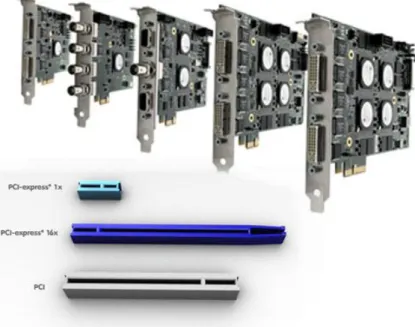
Video capture cards are mainboard extension placed inside the computer chassis. They use commonly accessible PCI, PCIe x interface on mainboards. Current technology allows image processing from 25 up to 400 frames per second for one card in PAL system.
Whole specification of available devices can be found on our website www.alnetsystems.com .
1.3 System and hardware requirements
NETSTATION CPU SCALABILITY
Intel CPU MAX. TOTAL RESOLUTION OF ALL IP CAMERAS*
Atom (2 Core) 5 – 6 MPix
Core 2 Duo ~2.6 – 2.8 GHz 7 – 8 MPix
Core i3 ~3.0 GHz 10 – 11 MPix
Core i5 ~2.8 – 3.0 GHz 18 – 20 MPix
Core 2 Quad 3.0 – 3.2 GHz 37 – 40 MPix
Core i7 ~3.0 GHz 42 – 45 MPix
Note 1: Presented values are calculated, assuming the stable functionality of Netstation software, and desired average framerate of 20 FPS /camera.
Note 2: Presented values are approximate, and may vary depending on compression type, quality, etc. settings in the IP cameras.
* Summary of all resolutions of all connected cameras
NET PROFESSIONAL MINIMUM SYSTEM REQUIREMENTS
General PRO Series RT Series AVC Series Netstation
CPU Intel CPU Atom, Dual Core
Intel CPU Atom, Dual
Core RT16: Core 2 Quad, Core i3 RT32: Core i5, Core i7 AVC4-AVC16: Core i3 AVC24-AVC32: Core i5
Core i3 - Core i7 (de-pending on camera(s) resolution, compres-sion type, desired FPS speed)
Mainboard Intel chipset based mainboard (ASUS, Gigabyte, Intel) RAM 2 GB DDR2 800 MHz KVR800D2N6K2 /2G KVR800D2N6K2/2 G KVR800D2N6K2 /2G KVR800D2N6K2/2G Graphics Intel inte-grated graphics, ATI chipset Intel integrated graphics, ATI chip-set based graphics
Intel GMA
Graphics ATI EAH3450 ATI EAH3450 ATI EAH3450
Storage Every SATA / NAS / RAID configuration providing sufficient data transfer rate and access times
WD Caviar Blue series WD Caviar Raid Edition Series WD WD Caviar Raid Edition Series WD
WD Caviar Raid Edi-tion Series WD
PSU Good brand PSU
(Chieftec, Antec, Corsair, BeQuiet, etc.) min. 450W
350W 500W 500W 500W
O/S Windows Vista / 7
Home Premium 32 Bit Windows Vista / 7 Home Pre-mium 32 Bit Windows Vista / 7 Home Premium 32 Bit Windows Vista / 7 Home Premi-um 32 Bit Windows Vista / 7 Home Premium 32 Bit
2. Installation of the system
The way of installing video capture cards and NET PROFESSIONAL system software on PC class computer is presented below.
2.1 Video capture cards installation
Depending on the system You get from one up to four cards1. Begin installation by
mounting all of the cards on the mainboard. Cards are placed in PCI, PCix1, PCix4 slots: Some of cards need additional power supply molex or Sata.
Current technology allows image processing from 25 up to 400 frames per second for one card in PAL system. Whole specification of available devices can be found on
our website www.alnetsystems.com .
If you decide to use watchdog function2 in this stage it is necessary to connect
video card with the mainboard with enclosed cable. On the video capture board find
two-pin watchdog socket and connect it with reset socketplacedon the mainboard.
2.2 Installing USB dongle
The system needs USB dongle installed for proper work. Plug it to USB port in Your computer. Remember to have it plugged permanently, if else the system will shut down. During the work of the system the dongle glows green, which indicates it's proper functioning.
1
In NETSTATION system no video capture cards are needed for image recording
2When the card won't receive a signal from the processor restart of the computer will occur. It is a protection against
uncontrolled system failure
2.3 Connecting cameras
To connect cameras plug camera cables with BNC connectors to video capture cards. If Your video capture card has 15 pin connector, it is necessary to plug "transition cable" to the card and then connect cameras to it. Lower input on the card connects cameras from numbers 1 to 8, the upper one cameras from 9 to 16, and the same for another card.
2.4 Software installation
When all the devices are connected correctly You can begin to install software.
Turn on the computer and when Your OS detects new devices do not install it until NET
PROFESSIONAL software is installed. Leave the system window without clicking. Next run
application NET_PROFESSIONAL_INSTALL.exe from the delivered cd with software.
Figure 2 Connecting the cameras
ATTENTION: during installation of NET PROFESSIONAL application, drivers for capture boards are installed at the same time, which can cause "Windows warning"
displayed regarding lack of Microsoft digital signature in the installed drivers. In this case press "Continue anyway" in order to install the drivers properly.
After the software is installed You will be asked to restart the computer. At this stage select "No, I will restart later". Begin video capture cards' drivers installation. If the Operating System still shows the system window regarding new devices, follow the steps of the installation panel. If else, You have to install devices manually. Click right mouse
button on My computer icon, select Properties, Hardware bookmark, Device manager
button. Next choose Scan for hardware changes. System will initiate a creator for
installing new devices. Follow the steps. To check if video capture card is installed
properly go to Device manager and "unroll" Sound, video and game controllers menu
(or DVR boards when DSP boards are used). After successful installation of all of the
devices restart Your computer.
3.1 Running the program for the first time
When running the program for the first time it is necessary to define some parameters, which are essential for proper work. Explanation of this matter is presented below.
3.1.1 Configuration Wizard
When running the program for the first time it is necessary to define some parameters, which are essential for proper work.
3.1.1.1 Choosing the language
Pick the language from the list. After this click next button.
3.1.1.2 Regional settings
In the next window set the time format: 24 hour (24 hour) or AM/PM (12 hour).
Below there are three data display formats. Symbols explanation:
dd – day, mm – month, yyyy – year Monitor format:
4:3 - normal 16:9 - widescreen
Go to the next step by clicking next.
3.1.1.3 Video capture cards
In this part point if the ConExt extensions are installed in the system. If yes, choose
the proper type from the list. If you will be using VRC6008ALM then choose None or EIO Card.
Figure 4 defining regional settings
ATTENTION: It is very important to check to which video capture card the extension board is connected. For instance first position corresponds with the first video capture card installed on the mainboard.
Next step is to choose between PAL and NTSC video recording standard.
Countries and areas which use above-mentioned standards can be found in the "Image
transmission standards" supplement.
3.1.1.4 Network cameras
Next panel allows to add network cameras (IP cameras) to the system. In the main
window there are positions defined by You. When starting NET PROFESSIONAL for the first
time they are blank. To add network camera click Add button. System will display
additional window. After finishing click OK. This will end the first stage (camera
configuration) and the system will proceed to creating video archives. It is important to remember that the wizard can be accessed later from Windows Start Menu – NET PROFESSIONAL PROFESSIONAL WIZARD.
Buttons Edit and Delete are responsible for editing and deleting the marked
position
Figure 5 Configuration wizard – video capture cards
3.1.1.4.1 Adding a network camera
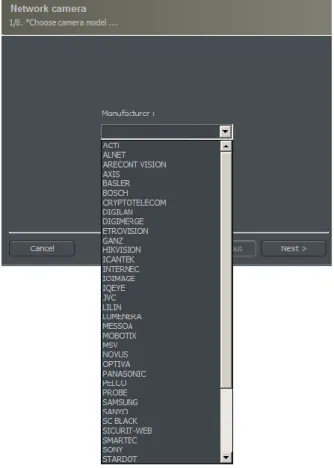
Figure 7 Choosing Network camera
Figure 6 The list of installed IP cameras. To add camera click Add button
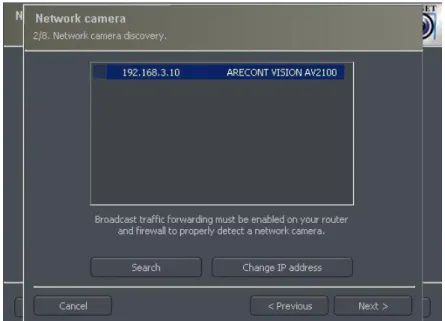
An example below shows step by step how to add Arecont Vision IP camera.
Attention: A window presented above and Search function is not available for all IP
cameras. In this case it is necessary to enter camera data manually (IP address, port, user name, password etc).
Figure 9 Additional options for the camera – available options differ depending on the manufacturer.
Figure 8 Search function automatically detects available network cameras. User can manually change camera IP address – Change IP address button.
Bookmark Field Description
Network Model Camera model, which we are currently using
Address Address (IP number or domain name)
User Name of the user which has full image streaming
rights
Password Password of the user
HTTP port Number of the port on which camera transmits its
image
Video Camera Type Choose PAL or NTSC format for image transmission
for the camera Video stream
configuration Video stream quality choice. When using many of cameras it is recommended to choose second or third option. Selecting the second option will cause the image to be displayed with less fps (only the key frame will be displayed). Recording will remain at full fps though. The third option creates two
separate connections: one for recording, one for displaying the image. The recorded and displayed image can be diverted. Low display quality saves the computational power of the processor
Sound
configuration camera Enable the sound transmission through the
Table 1: Configuration wizard -network cameras 3.1.1.5 Disk archive
For the proper work of the system it is necessary to configure the disk archive, that is to point the disk space which will be used for storing the camera image and sound. The more space will be used, the more archive recordings will be stored.
Disk archive is created in the second stage of configuration wizard – after the camera configuration is completed.
First window of archive creator offers 3 choose options: Create a new media archive – create new disk archive Use existing media archive – configuration of the existing disk
No, don't create media archive now, exit wizard – closing wizard, without creating disk archive
ATTENTION: In case of using the above option, recording function will not be
available. Later configuration and editing the archive will be available by "Archive Storage" function in the "Configuration" menu of NET PROFESSIONAL application.
In next step, must be defined, what type of archive will be created. By marking "Create archive which will use preallocate disk space" will cause creating disk archive, with size defined by user. Otherwise, archives will be build increasingly, which means that it will increase it's size during data recording, until it fills whole disk space of selected partition.
ATTENTION: After filling assigned disk space, NET PROFESSIONAL system continues recording, successively overwriting the "oldest" archives.
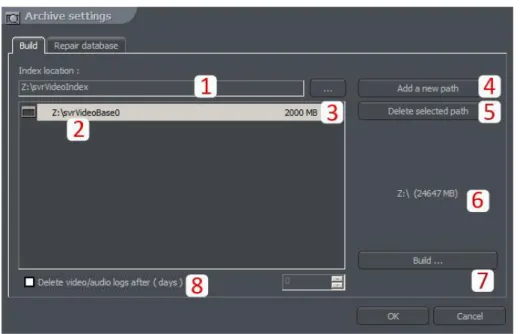
Next, location of the archive files have to be defined:
1. Index folder path - this folder contains information about stored archives - it must be defined in the first place.
2. Archive folder path - in defined folder archives will be stored. At the same time, configuration of multiple archive path's is possible.
3. Size of disk archives - defined size of archive folder - changing is possible after double-click on numerical value.
ATTENTION:
1. Option presented above is available only when the disk archive is created with preallocated disk space (see figure 10). If the increasing archive is created the option will not be available.
2. Minimum disk space cannot be lower than:
[number of connected cameras] x 32 MB, - lower disk space can cause recording malfunctions.
4. Adding path to archive – allows to add another paths to disk archive 5. Deleting archive path – erases the selected disk archive path
6. Declaring the available archive size on selected disk partition
7. Creating archive – after defining index paths and archive use this option to create archive for the recordings
8. Erasing recordings older than defined number of days
Clicking OK button after defining the paths to index folder and disk archives folder will make system to proceed to the next stage of archive configuration:
Figure 12 Creating disk archive
1. Yes, change allocated disk space now – this option should be checked when creating new archive or adding new path for data storage. After choosing this option system shows the next stage of configuration (see figure 13)
2. No, I preallocated disk space already – this option must be selected when path of the existing archive is added, or recording path is deleted.
Use fast disk space allocation – fast allocation of disk space - It lasts considerably faster than standard. However, it can cause archive files fragmentation.
Delete files with an unoptimal size – archive files which have unoptimal size will be deleted ( for example when adding existing archive, which was created increasingly )
On this stage, the configuration of disk archives is finished.
3.1.2 System administrator
When running the system for the first time it will ask to define system administrator's
Figure 13 Creating disk archive
login and password. Administrator is a person who possesses all the rights to change system parameters and control system's work. It's very important to remember administrator's login and password because once given they can not be changed. Also administrator shouldn't pass these parameters to anyone and keep it confidential.
Next step is to put the product license number. You can find the number printed on the attached Dongle Key. If this step is skipped some program functions will be unavailable. Every one hour system will automatically display notification and ask about license number.
After these actions NET PROFESSIONAL system is ready for use.
3.2 Main Program Window
Main program window is designed to give immediate access to the most important program functions. It is possible to simultaneously watch the image from the cameras, monitor alarm inputs status, switch between displayed cameras and make snapshots.
Main menu is placed at the top of the screen. It's structure looks as follows: Program
Minimize – minimizes the application window Log out – logs out the user
Shutdown system – shuts down the OS Restart system – restarts the OS
Exit – closes the application
Tools
Browse archives – opens the recordings archives Browse photos – opens the snapshots browser Register domain – domain registration
Layout manager – edits layout manager
Analogue video output – analogue video output configuration Export watermark – exports watermark to the file
Program console – opens text console
Program update – checks if any program updates are available Sound control – opens system sound mixer
On-screen keyboard – launches the on-screen keyboard Dome panel – opens dome control panel
E-Map – displays graphic camera layout at particular area Configuration
Scheduler – task scheduler tool Cameras – camera settings Sound – sound channels settings Alarm inputs – alarm inputs settings
Output switches – output switches settings Network services – remote access settings
Archive storage – disk space for archive storage settings User accounts – NET PROFESSIONAL user accounts settings Dome control – dome control settings
E-map editor – allows creating graphic layout of the devices at particular area Program settings – global program settings
External tools – Windows tools access
Time and day settings
Mouse properties
Modem options
Network settings
Save configuration – confirms all the program changes and saves them Bookmark - adds a bookmark in the archives
About – information about NET PROFESSIONAL server
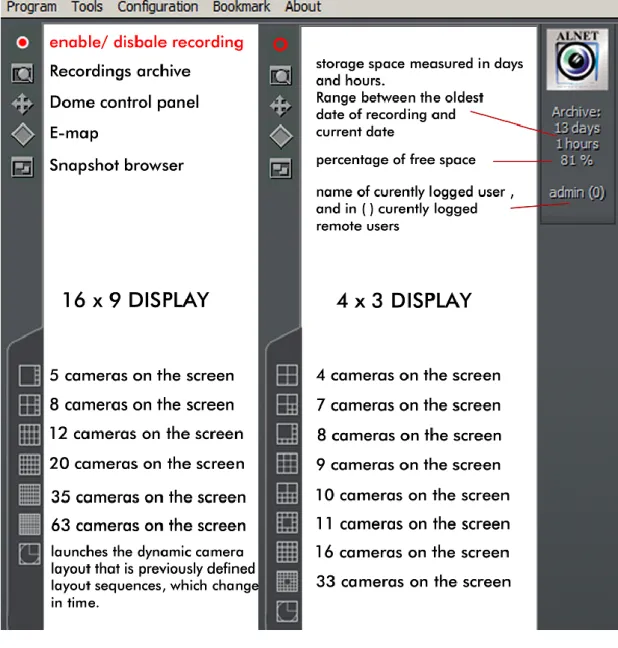
At the left side of the screen You can find icons, which are shortcuts to the most important tools.
Icons on the bar at the bottom of the screen represent the status of available cameras and audio channels. Each icon consists of number of camera/channel and it's name. Red rectangle, which appears beside the number symbolizes motion detection on the camera or sound detection if it appears beside audio channel number. If the icon is all red it means channel failure – the signal is not transmitted.
Clicking with left mouse button on the icon will maximize the camera view on full screen.
On the left side of the screen available layouts are placed. Layouts are different ways of placing camera views on the screen. Dependent on the system version different layouts are available.
If NET PROFESSIONAL system has integrated ConExt or VRC6008ALM ,type extensions icons with available inputs/outputs are displayed on the right side of the screen. A table below describes the meaning of each icon. Also if IP cameras have available inputs/outputs it will also be shown on this screen.
Inactive output switch Active output switch Inactive alarm input Active alarm input Unconfirmed alarm
Table 2: Main window – digital inputs/outputs 3.2.1 Camera view
In the center of the screen the most important elements of the system are placed. These elements are camera views. On each screen system can display information such as: camera name, current time, number of captured frames per second. Double clicking by left mouse button on the camera view will bring this view full screen. Another double click will bring back previous state of the view. When You put the cursor in the top right corner of the camera view an additional menu will appear.
Starts recording regardless of the scheduler settings, motion detection or complete disabling of the recording
Makes a snapshot
Selecting this option allows to enlarge the camera view. The example is presented below
When a camera works as a dome the icon starts the "mouse control" mode. To change the position just click with left mouse button on the desired place in the camera view
Remote microphone. Enabling this option allows to transmit the voice from the sound card to the IP camera (if enable microphone option was selected in the network cameras wizard)
Zooming the image
While holding the left mouse button pressed select
the area to be zoomed. This action does not
affect the image size stored in the archives. After releasing left mouse button the image will be digitally zoomed. This operation won't affect the size of the image recorded in the archives. This function may be useful when cameras with optical zoom are used. To go back to normal
state select the button .
If You click with right mouse button on the camera view area during the system work menu will appear. All available commands are described on the next page.
Active camera Displays the list of available cameras. Marked position means that the camera is assigned to the particular area. To assign other camera choose it from the list
Sound channels List of sound channels assigned to the particular camera Auto – assigns the channels as in camera configuration Edit channels – opens panel with sound channels
Displaying mode Normal - displays whole application window with tool bars Fullscreen – displays only camera image on fullscreen
Preview – displays application window at the size controlled by user. Changing the size is done by resizing window (catching it's corner with left mouse button)
Stay on top – in a preview mode application window will stay on top (that is it won't be covered by other active programs)
Show menu – shows/hides menu bar at the top
Hide buttons – hides the bottom bar with camera symbols Small buttons – small camera icons at the bottom bar
Large buttons – large camera icons at the bottom bar Show tool buttons – shows/hides toolbar at the bottom
Layout Switches to selected camera layout. Enables dynamic mode. Dynamic – if Camera pop-up after alarm option was selected in camera configuration, it is possible to temporarily disable/enable this option by marking it
Add bookmark Adds a bookmark to archive recording Snapshot Makes screenshot (photo)
Most of the options mentioned above refer to single camera. It is very important to choose the proper camera (by clicking with left mouse button on it's display area) before selecting any option. Selected camera has a red border.
3.3 Scheduler
NET PROFESSIONAL system allows to configure schedule for: cameras, sound recording, alarm inputs and system alerts. It allows to diverse the work of the system, it's reactions to alarms on working days of the week, weekends or in night hours. It is a very strong and versatile tool, which can help You to adjust the system to all of Your needs. Activation of the scheduler events can be achieved either by defining the time range or activation of the alarm input.
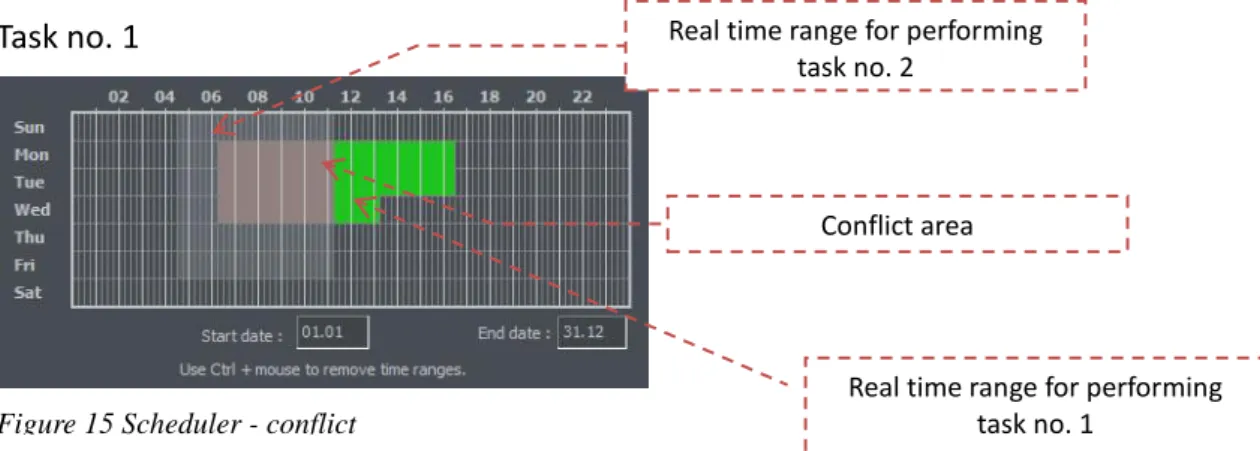
During the work with scheduler it is necessary to pay attention to the order of the scheduled tasks. The higher the task is on the list the lower is it's priority. For example if the first task on the list activates continuous image recording for all cameras and the second task disables the recording a the same time – then the system will disable recording as the second task has higher priority. In case on task conflict (overlapping) proper marks will be shown on the time axis. Suppose two positions were defined, which "time borders" overlap each other. Time axis will be displayed as follows:
To use e-mail notification in the scheduler access to SMTP server has to be
configured in the system (see Program settings)
The scheduler can be opened from the upper menu: Configuration Scheduler...
Buttons (the same for all bookmarks) are described below. - adds new position
- deletes selected position
- moves selected position one level up
- moves selected position one level down
Task no. 1
Figure 15 Scheduler - conflict Figure 15:
Task no. 2
Figure 16 Scheduler - conflict Figure 16:
Real time range for performing task no. 2
Real time range for performing task no. 1
Real time range for performing task no. 2
3.3.1 Cameras schedule
To add a new task select Add new. A new position will appear on the list – select it.
Beside the positions list Activation condition panel is placed. It characterizes the task to
be controlled by the time or alarm input activation.
- launching the task in due time
- launching the task by alarm input activation
When task is time-controlled, it is necessary to mark the days of the week and time of a day in which the task should be enabled. The vertical axis represents the days of the week (from Saturday to Sunday) and the horizontal axis is a time range. Single rectangle represents 15 minutes time. To mark a rectangle click it with left mouse button. To select larger time range – hold left mouse button and drag the mouse pointer.
The image below is an example of an event, that will be executed in the weekend, that is from 16.00 on Friday to 0:00 on Sunday. In the fields below the time axis You can define the date to begin (start date) and finish (end date) the task.
When task is activated by alarm input, choose the proper alarm input and mark the time range on the time axis, in which the alarm input activated events will be executed.
Figure 18 Camera schedule – time axis
Figure 17:
Figure 17 Camera schedule – alarm inputs Figure 18:
Description of other options:
Name Description
Task name Name of the task, which will appear on the task list
Cameras To which cameras the task will apply
Recording Image recording options
Options Recording time after motion detection – if motion option was
selected it determines how much time (in seconds) after the motion detection the recording will last; motion time before motion alarm – determines how long (in seconds) must the motion last, to activate the alarm event.
After motion alarm
The way that systems informs about alarm event. There are three possibilities:
Send email - sends email notification on previously given
address
Set outputs - activates selected output switches
Connect to client – activates the connection with selected remote client, used for example in monitoring headquarters
3.3.2 Sounds schedule
"Schedule sounds" bookmark allows to "plan" system reactions to sound events. Activation conditions are the same as in camera schedule. The difference is that You choose sound channels. Additional reaction to alarm event is starting the image
recording from selected cameras. Recording time is set in Options field.
Night can represent an example situation. Cameras have limited possibilities to detect motion but sensitive microphone can detect noise, start the alarm and enable output switch, which will turn on the light and this will make image recording possible.
3.3.3 Alarm inputs schedule
This module is used for programming the behavior of the alarm inputs and their reactions on alarm. Programming the event looks the same as in camera and sound schedule. Additionally, after the alarm detection system can add bookmark to archives
and enable the output switch (for example with connected siren). In the Options panel
Activation time before alarm can be set (a time needed for the system to recognize the input activation as an alarm).
3.3.4 System alerts
System alerts are responsible for notifications about changes in system work. You can set notifications for example about application shutdown, remote user login or camera signal lost. The list of available alerts is presented below:
Program start up Program shut down Recording on Recording off
Camera connected Camera disconnected Remote user login Remote user login failed Remote user logout Video signal restored Video signal lost
User is sleeping (no user reaction for system popups)
Defining new task process is the same as in previous modules.
3.3.5 Scheduler – Address book
Address book manages the contacts to which the alarm notifications are sent or to connect with remote clients.
3.3.5.1 E-mail address
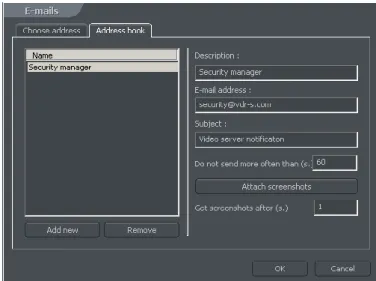
Address book panel consists of two bookmarks: Choose address and Address
book. First bookmark displays the list of available contacts, the second one allows to
add, remove and edit contacts. To add new contact choose "Add new" button in the Address book bookmark. After filling all of the empty fields click "Ok"button or "Add new" button if You want to add new address.
Field Description
Description Name which will appear in the contact list
E-mail address E-mail address to which notification will be sent
Subject Subject of an e-mail notification message
Do not send more often than
(s.) The minimum time gap between two messages
Attach screenshots Allows to attach screenshots from selected cameras to
e-mail notification message
Get screenshots after (s.) Time gap between alarm activation and camera
image snapshot
After filling all the fields select Ok to finish or Add new (to add new contact).
3.3.5.2 Client addresses
In this place You can add addresses of the remote client applications to which server application will send notifications. The way server sends notifications to client applications is presented on a diagram below.
To add new contact it is necessary to fill all the blank fields:
Field Description
Description Name which will appear in the contact list
Client address and port Address and port of the remote client
Client password Password selected for sending notifications
Server user Server user login
Server password Server user password
Dial-up connection If dial-up connection is configured it is possible to "call"
client application
After filling all the fields select Ok to finish or Add new (to add new contact).
3.3 Camera configuration
NET PROFESSIONAL system allows to configure many camera parameters. Quality of displayed image, compression settings, drawing a mask of areas, in which motion detection will be omitted. Configuration panel can be reached from the top menu bar:
Configuration Cameras
or by Ctrl+C shortcut combination.
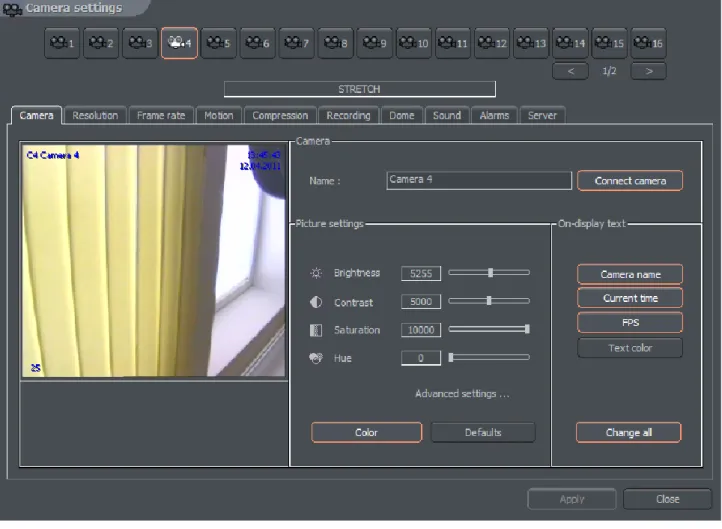
At the top of the window there are placed icons, which represent cameras. By clicking on them You can switch between configuration panels for each camera. Icons
with white border refer to cameras, which are not serviced by the system3. In NET
PROFESSIONAL PRO 4 AV first four cameras will be available, the rest will be inactive. Camera settings are divided into several sections. To switch between sections click on the bookmarks.
3.3.1 ANALOGUE SYSTEM CAMERA CONFIGURATION
3.3.1.1 Camera
Figure 22 Analogue camera
3It depends on the version of the system
Panel Field Description
Camera Name Name describing camera
Connect camera Enables the video stream capture
Picture settings Brightness, Contrast,
Saturation, Hue, Sharpness
Parameters characterizing the image. To change parameter move the slider
Color Enables the color mode (if color camera)
Default Restores the default settings
On-display text Camera name Display camera name on the screen
Current time Display current time on the screen
Fps Display the number of captured fps on the
screen
Text color Changes the text color
Change all Changes the settings for all connected
cameras Advanced settings ( applies only to small camera view )
Sharpen Sharpen the image on small view
Software
deinterlace During the analogue – digital signal conversion, semi-images are not created in the same time but gathered one after
another. After they are put together there is a visible effect of shift between even and odd lines. It is especially visible in fast-changing scenes. Selecting this option will remove the effect.
Decode scale 1:1
1:2 1:4 1:8
Decode framerate Unlimited – the same amount of frames as on
live view.
Medium – half of the frames on live view Low – 1/4 quarter
Lowest – 1/8 of the frames on live view
On-display text Camera name Display camera name on the screen
Current time Display current time on the screen
Fps Display the number of captured fps on the
screen
Text color Changes the text color
Change all Changes the settings for all connected
3.3.1.2 Resolution
Figure 23 Resolution
Panel Field Description
Device Software deinterlace
During the analogue – digital signal conversion, semi-images are not created in the same time but
gathered one after another. After they are put together there is a visible effect of shift between even and odd lines. It is especially visible in fast-changing scenes. Selecting this option will remove the effect.
Resolution
CIF Display the camera at 352 x 288
2 CIF Display the camera at 704 x 288
4 CIF Display the camera at 704 x 576
D1 Display the camera at 720 x 576
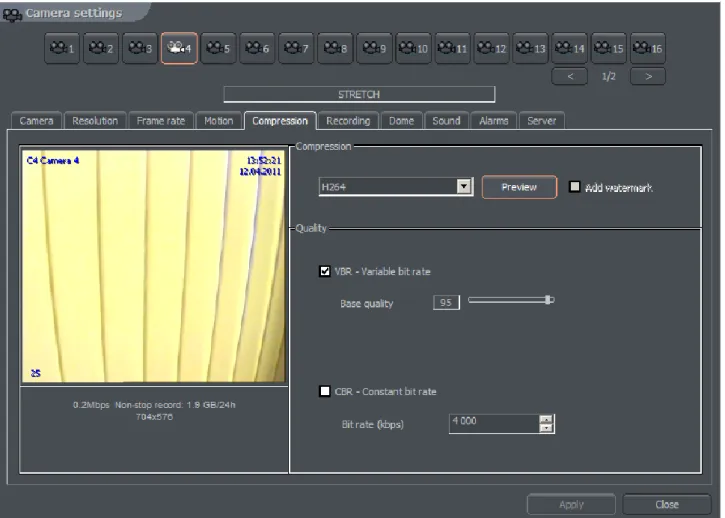
3.3.1.3 Compression
Figure 24 Compression
3.3.2 IP CAMERA CONFIGURATION
Depending on the IP camera, the tags can be different. Most of the new IP
devices need to be set on www and the stream
Figure 25 Camera configuration – Camera bookmark
Panel Field Description
Camera Name Connect camera Name describing camera Enables the video stream capture
Picture settings
Brightness, Contrast, Saturation, Hue, Sharpness
Parameters characterizing the image. To change parameter move the slider
Color Enables the color mode (if color camera)
Default Restores the default settings
On-display text
Camera name Display camera name on the screen
Current time Display current time on the screen
Fps Display the number of captured fps on the screen
Text color Changes the text color
Change all Changes the settings for all connected cameras
Advanced settings
( applies only to small camera view )
Sharpen Sharpen the image on small view
Software deinterlace
During the analogue – digital signal
conversion, semi-images are not created in the same time but gathered one after
another. After they are put together there is a visible effect of shift between even and odd lines. It is especially visible in fast-changing scenes. Selecting this option will remove the
effect.
Decode scale 1:1 1:2
1:4 1:8
Decode framerate
Unlimited – the same amount of frames as on live view.
Medium – half of the frames on live view Low – 1/4 quarter
Lowest – 1/8 of the frames on live view
On-display text
Camera name Display camera name on the screen
Current time Display current time on the screen
Fps Display the number of captured fps on the screen
Text color Changes the text color
Change all Changes the settings for all connected cameras
3.3.2.1 Resolution
Figure 26 Camera configuration – Resolution bookmark
Panel Field Description
Device Software
deinterlace During the analogue – digital signal conversion, semi-images are not created in the same time but gathered one after another. After they are put together there is a visible effect of shift between even and odd lines. It is especially visible in fast-changing scenes. Selecting this option will remove the effect.
Resolution Resolution of captured image. The higher resolution the better image
quality and more space is required for archive recordings storage. Some cameras, instead of specific resolution can provide only ImHalf and ImFull – it means that the image is in half and full available resolution for
particular camera
Apply to all Applies the changes to all connected cameras
3.3.2.2 Board
Panel Description
System Camera image transmission standard PAL/NTSC
Skip frames Option allows to set the number of frames to skip. Increasing the
parameter lowers the number of displayed and recorded frames. It lowers both the CPU usage and storage place needed on the hard disk
Settings AGC – Automatic Gain Control. Auto regulation of source amplifier
3.3.2.3 Network
Panel Field Description
Network
Configuration Address Camera address (IP number or domain name) which was put in configuration
wizard. This field can be modified
Login Name of the user which has rights to
connect with the camera
Password User password
Http port Port through which the camera sends an
image
Camera enabled Deselecting this field causes the system
not to service the camera (including digital inputs/outputs, sound)
Extended log System administrator help in solving
problems with network cameras. After marking this option every command sent to camera and every camera reply is saved to logs
Advanced Go to configuration
on the website Opens internet browser on the camera configuration web page Execute network
camera command Loads the camera configuration (brightness, contrast, resolution etc.) from the camera to NET Professional. If the camera configuration is changed from the www browser level it is possible to download these new settings to VDRS, set factory defaults or restart the camera.
3.3.2.4 Compression
Panel Field Description Compression Analogue cameras
MJPEG Records the individual frames as JPEG images –
each frame is coded individually (every frame is a key frame). It requires plenty of hard disk space but gives good image quality. It uses average CPU power. Amount of generated data doesn't depend on amount of motion on the screen
MPEG-4 Encoding and decoding uses a lot of CPU power.
Uses key and delta frames. Delta is an ordinary full frame calculated from a difference between previous frame and current frame. That's why big amount of data is generated when there are no changes in the image (but less when changes are big). It guarantees high image quality
DJPEG Codec developed by Alnetsystems Company.
Codes only image areas which are changed – uses key and delta frames. When image doesn't
change system is not generating any data. CPU usage is low and hard disk space for archive storage strongly depends on how much motion is on the screen. Digital cameras MPEG4@rtp-unicast MPEG4@rtp-multicast MPEG4@rtp-tcp MPEG4@rtp-http MJPEG@http
Frames Quality of key frames, which are background to
delta frames. The higher value the higher quality (and more hard disk space needed for the archives)
Delta Quality of Delta frames (the part of the image
which changes)
Delta Sensitivity Parameter which allows to set how system reacts
on changing image. When set too low delta frames won't be replaced (for instance person in motion wearing clothes which color match the background color)
Quality VBR Variable Bit Rate – codec generates a stream of
compressed data with variable intensity (which depends on amount of motion on the screen). The image quality is at the same level
CBR Constant Bit Rate – codec changes the image
quality so the data stream will have approximately constant bit-rate. This option is useful for network cameras, which use UDP protocol
Target bit rate (kbps)
Bit-rate value for CBR
Mode Watermark Certain value (pattern) "entangled" with recorded
Watermark is not visible on the screen, but it is possible to check (by VDR-A application) if it exists in the archives or not. Watermark is unique for each VDR-S system. Every modification of the recorded video destroys the watermark and during the watermark check the system will pop up error. To make checking watermark function possible it is necessary to export it first:
Tools -> Export watermark Preview
decoding Preview framerate Only for IP cameras – frames per second for the stream sent to:
- display
- motion detection
- remote clients with free bandwidth
Preview scale Applies only for IP cameras with MJPEG codec
Preview Allows to calculate approximate size of recorded data and video stream
for specified image quality settings
3.3.2.5 Advanced
Bookmark and the options in it depends on type of connected camera. With that bookmark, it is possible to control the advance parameters of the camera.
3.3.3 Common configuration settings 3.3.3.1 Frame rate
Panel Description
Multiplexer Enables the mode for dynamic frame assigning for each
camera. In the window You can see frames used / frames available. In the configuration presented above there are 24 frames used (6 frames x 4 cameras).
Framerate settings
(frames per second ) Panel shows a list of available cameras in the system and number of frames per second assigned to them. It is possible to enable the dynamic frames assigning by clicking the icon with a camera number
- means that the dynamic mode is enabled - means that frame assigning is constant
Dynamic mode assigns all available frames per second to the camera, which detected motion and entered the recording mode. Suppose we have PRO4 system (25 fps). We
set the constant number of frames per second for each camera on 4. 9 frames per second stay unused ( 25 fps - [4 cam. X 4 fps = 16 fps] = 9 fps). These 9 unused frames can be assigned to any camera by enabling it's dynamic mode. If the dynamic mode is enabled for two or more cameras, the system assigns unused frames between the cameras evenly.
3.3.3.2 Motion
Panel Field Description
Mask Allows to mark areas on which any motion will be skipped
Draw Enables the mask drawing mode. Drawing is realized
by drag-and-drop method
Delete Mask delete mode. Cutting the areas from
previously masked areas
Invert Invert the marked mask. Masked areas become
unmasked and vice versa
Clear Clears the mask
Enabled Sets the mask active
Change mask
color Changes the mask color
Motion
detection Detection sensitivity The system detects motion as changes in the image. Application analyses the data and classifies them as a motion detection or not. The slider allows to set the sensitivity level for these changes
Alarm threshold Level, from which the system reacts to changes in
the image. It is recommended to set the threshold when the image is in stillness. It will help to eliminate recording of the insignificant motion, such as leaves motion on the wind and camera noise. Below the slider there is a field which shows current alarm level Show motion
blocks Enables plotting the motion blocks on the image, in which the system detects motion. This option is useful while modifying the motion detection settings
3.3.3.3 Recording
Panel Field Description
Recording The options are set only when no scheduled task is active.
Scheduler tasks have higher priority!
Disabled Recording is disabled
Motion only Recording will start on motion detection
Always Continuous recording
Recording time (s) Recording time after motion detection
Prealarm
Prealarm is function of early reaction for alarm. It enables to recreate recordings from moments before activating alarm. When the function is enabled, the application is buffering image, and when movement is detected (and recording is set on) the frames recorded before alarm remain to user's disposal. The length of buffered image in case of network cameras depends on memory size reserved for prealarm. For analogue cameras two parameters are being set up:
Prealarm buffer size (frame) – quantity of buffered frames
Buffer every n-th frame – ratio of buffered frames to non-buffered Example:
Camera in the system records 5 fr/sec. If define 5 buffered frames and quantity of buffered frames for one the result will be 1 second of buffered recording. The formula for calculating length of the buffer is presented below.
For the example above: (5 * 1) / 5 = 1 sec
Advanced Limit recorded
video to [fps] Function limits fps in the recorded video – this function can be used to save space on a hard drive Re-encode
video to: Function allows to re-compress video stream to other format independently on the input video stream which is sent by camera or video capture card
Quality Setting for quality of re-compressed video
Ignore limits
when: Option ignores limits mentioned above in two defined cases:
- Recording is triggered manually by the operator - Motion detection alarm has occurred
Buffer =
Prealarm buffer size(frame) * Buffer every n-th frame Number of recorded frames
3.3.3.4 Dome
Panel Field Description
Dome settings Address Address, which was set on hardware, for
example by jumpers on the dome. It is necessary to pay attention which address is assigned to particular setting (dome manual). Sometimes position '1' means address number '0', and not '1' as one may suppose (for
instance Pelco D protocol)
Port COM port, to which the dome control is
plugged. If the protocol is set in Dome control panel it's name will be visible
Protocol Protocol for dome control
Dome enabled Enables the dome control in the system
Preset
Sequence Automatic dome control. Switching between previously set positions. This option works only with domes, which support saving and recalling presets. It is possible to set up to 128 positions. For proper work the dome protocol has to have two command included: 'Save preset' and 'Recall preset'.
Activate after [sec] The time gap between last manual command
(for example from the keyboard) and Preset activation
Preset dwell time
[sec.] The time the dome stops on a preset for
Activate on program
start Activates sequence on Net Professional system start
Preset Sequence
On the left side there is a list, from which the set of presets can be chosen. One set is 16 positions. To save the dome position under desired preset click on its number. To add preset to AutoPan sequence mark it's checkbox.
ATTENTION! To activate AutoPan it is necessary to mark option in the dome control panel. You can call dome control panel using the Ctrl+D
keyboard shortcut or from the current bookmark
3.3.3.5 Sound
The panel is responsible for connecting particular camera with sound channels. It is made by choosing numbered buttons or from the list. Selection mode is made by clicking button. Connecting camera with a sound channel means that during live monitoring when camera is marked the system will play sound from the previously chosen channels.
3.3.3.6 Alarms
Panel Field Description
Actions after motion
alarm Play sound Activates sound alarm. System will play sound defined below in sound file path. Show
camera Marking this option will cause the camera image to be shown in full screen. When application is minimized after the motion detection the program window will be
maximized and will show the camera, on which the motion was detected. The the program window will minimize. During the normal work the system will show the camera on full screen and will back to the previous layout
Show text Shows pop up message from the VDRS system
tray icon Motion time
before motion alarm
Determines the time which should last before the motion is detected as an alarm
Sound file path
Actions after signal loss Play sound Activates sound alarm. System will play sound defined in settings panel
Show
camera Marking this option will cause the camera image to be shown in full screen. When application is minimized after the motion detection the program window will be
maximized and will show the camera, on which the motion was detected. The the program window will minimize. During the normal work the system will show the camera on full screen and will back to the previous layout
Show text Shows pop up message from the VDRS system
tray icon Motion time
before motion alarm
Determines the time which should last before the motion is detected as an alarm
3.3.3.7 Server
Server bookmark allows activation and configuration of additional video streams for remote clients for fast and slow connections.
Panel Field Description
Server /fast
connections/ Codec Choice of codec for video stream transmission
Framerate Amount of frames per second in transferred
image FR unlimited
Frame size Frame size of the
image
Key quality See paragraph 3.3.7 Compression
Delta quality See paragraph 3.3.7 Compression
Server /slow
connections/ Maximum framerate Maximum frames per second for video stream transmission
Maximum frame size Maximum frame size
Maximum key quality See paragraph 3.3.7 Compression
Maximum delta
quality See paragraph 3.3.7 Compression
Delta sensitivity See paragraph 3.3.7 Compression
Preview See paragraph 3.3.7 Compression
3.4 Sound configuration
NET PROFESSIONAL System allows sound capture by extension cards or sound card. It is possible to capture up to 32 channels. You can set system to enable alarm inputs on sound, control the dome. For each channel the panel below allows to configure recording quality, volume and way the system reacts on sound detection.
3.4.1 Format
Panel Field Description
Channel Name Channel name which will be visible in the system, for
example hall, office. The device, from which the sound will be captured, is listed under the window.
ALNET – channel from AudExt extension boards DIRECT SOUND – sound card channel
When sound is captured from IP camera, it's IP will be visible
Enable Marking this option activates the channel in the system
Settings
aassasa Format Sound sample frequency. The higher it is, the better quality. This parameter is limited by the device, from which the sound is captured
Capture gain electronic sound amplification Playback
Volume
Playback volume Noise
detection LevelThreshold Threshold for the system to qualify sound as alarm Settings for quality of recorded sound. Window beside shows current bits per second size
3.4.2 Recording
Panel Field Description
Mode Disabled Sound level to be classified as an alarm
Noise only The number of seconds the sound has to last (sound above
the threshold) to be classified as an alarm
Always Continuous recording
Format
Codec
DRS speech
Codec designed for VDRS system adapted mainly for human voice recording. Good sound quality is achieved by multiple compression (comparing to RAW audio) RAW
audio
Format without any compression. Occupies much more disk space but has lower CPU usage. Useful for high quality recordings
Quality Settings for quality of recorded sound. Window beside shows current bits per second size
3.4.2 Alarms
Panel Field Description
Sound detection Alarm threshold Sound level to be classified as an alarm
Noise duration
The number of seconds the sound has to last (sound above the threshold) to be classified as an alarm
Video recording Minimal video
recording time after sound detection
Recording time after sound detection
Cameras Cameras, which will record image after the alarm
After sound
detection Show window When program works minimized it will be maximized
3.5 Alarm inputs
NET PROFESSIONAL system allows cooperation with digital in/out extension cards. These cards allow to gather signals from the PCB sensors, reed relays etc. Alarm inputs configuration menu is available from from the top menu:
Configuration -> Alarm inputs Figure 40: Sound configuration - Alarms
Figure 42: Alarm inputs - Alarms
Panel Field Description
Input Input name Input name
Normal state State, which doesn't enable the alarm NC – normally closed NO – normally open
Recording Recording time after input activation
Cameras Button allows to select cameras, which image will be recorded after input activation
Panel Field Description
Alarms Play sound Plays sound from the "settings" panel in current window
Show text Shows notifications which pop up over the VDRS icon in tray
Show
win-dow When program is minimized it will maximize after the alarm
Go to
pre-set Sets the dome on the preset chosen in panel beside
Invoke alarm after
: Time before input activation and raising the alarm
Preset on
alarm Dome List of available cameras. It is necessary to choose the dome camera
Go to pre-set
Dome position, to which camera should go after the alarm Defining presets was described in paragraph 3.3.9
On alarm
off Wait for (sec) Time, after which the dome moves to the preset defined be-low
Go to
pre-set The position the dome goes after the finished alarm
Options
and settings Path to the sound file, which will be played during the alarm Play sound once
3.6 Output switches
Output switches allows to manipulate with devices, for example with light, gates, sirens etc. The cooperation between output switches and alarm inputs can be defined in the scheduler.
Panel Field Description
Output Output name Name of the output, for example "Gate"
Active state State, which doesn't enable the switch
NC – normally closed NO – normally open Event
swi-tching
Activation by the events defined in the scheduler
Pulsate The switch will pulsate (will change it's state every 1
se-cond)
Triggered Enables the possibility to define the time of switch
acti-vation Hold output
switched on for :
Time of switch activation
Manual
swi-tching Auto switch off If user manually activates the switch the system can au-tomatically disable the switch Switch off after
:
Time to elapse before the auto switch off
3.7 Network services
Network services are designed to allow access to the server from outside, for example from the Internet. The access may be realized by four ways:
1.
by CMS PROFESSIONAL client application2.
by using mobile devices (Pocket PC, cell phones)3.
by using Internet browser (java applets)4.
by dial-up connection3.7.1 Video server
The bookmark concerns
server access settings for CMS
PROFESSIONAL client
application
Field Description
Server name Name of the video server
Server ports NET PROFESSIONAL uses two (following) ports. Here You can define port
for connection between server and client. By default it's port 9000 (and the following – 9001)
Max.
Connection count
Number represents the maximum amount of simultaneous connections. When the bandwidth is low it is possible to limit the number of
connections Dynamic IP
address
This option allows to use ALNET DNS server. When using the connection with dynamic IP address it's very difficult and sometimes impossible to connect to the server because dynamic IP address can change even several times a day. The solution is to register a domain. By the first configuration of the Network Services, if the option is marked, the form will appear. To register domain it is necessary to fill this form. These subject will be described in the further part of the manual.
Enabled/Disab
led Enables/Disables the access to the server from outside network
3.7.2 Http
Server configuration for WWW services. It is possible to connect to the server by using Internet browser.
Field Description
Root path Path to the folder, where HTML files are located. If the field stays
blank, the application will set root path as "http" subfolder in the NET PROFESSIONAL installation folder. If other than default folder is defined as the "root path" it is necessary to copy all the files from "http" subfolder where NET PROFESSIONAL application is installed to the place where "root path" leads
Server port Port number for the connection by Internet browser
Max. Connection
count Maximum number of simultaneous connections
Enabled/Disabled Enables/Disables the WWW server service
To test the http connection You can type local host number in Your Internet browser http://127.0.0.1/
By default java applet connects to the AL-NET demo server. Applet consists of the following windows:
Window with image parameters.
Changes refer to all of the cameras
Frame – quality of the frame
Delta – quality of the Delta frame
Resolution
Number of frames per second
The list of cameras is on the right side of the window. Clicking on the camera name will open/close the window with camera view.
Main applet window. It contains a list of active connections, alarm inputs and output switches control module.
Opens a window with connections list. Choosing the connection from the active connections list and clicking the icon will disconnect from this particular server. Opens a window with image parameters
To add or modify network connection parameters it is necessary to edit and modify index.htm file, which is placed in the folder defined in http settings. In the file there are some connections created by default. One block refers to one connections. It consists of five parameters:
Connection name
<param name="Server1Name" value="localhost">
Server address
<param name="Server1Address" value="127.0.0.1">
Pot number
<param name="Server1Port" value="9000">
User name
<param name="Server1Login" value="admin">
User password
<param name="Server1Password" value="1">
Attention: Single connection is defined in two places in the file! In <param> section and <embed> section. The reason is that different Internet browsers interpret it variously.
It is possible to implement the applet on Your own website. The example of single frame, which can be displayed, is included in single.html file. The code responsible for displaying the window with camera is presented below.
<OBJECT
classid="clsid:CAFEEFAC-0014-0000-0000-ABCDEFFEDCBA"
WIDTH = "322" HEIGHT = "264"NAME = "TestApplet" ALIGN = "middle" VSPACE ="0" HSPACE ="0"
codebase= win.cab#Version=1,4,0,0">
<PARAM NAME = CODEVALUE = "pl.npc.kamery.Main.class" > <PARAM NAME = CODEBASEVALUE = "." >
<PARAM NAME = ARCHIVEVALUE = "kamerys.jar" > <PARAM NAME = NAME VALUE = "TestApplet" >
<PARAM NAME="type"VALUE="application/x-java-applet;jpi-version=1.4"> <PARAM NAME="scriptable"VALUE="false">
<PARAM NAME = "progressbar" VALUE ="true">
<!--Here we put text, which will be displayed during loading -->
<PARAM NAME = "boxmessage" VALUE ="Loading applett, please wait">
<!--Name of the first server on the list -->
<param name="Server0Name"value="AL-NET demo server">
<!--Address of the first server on the list -->
<param name="Server0Address"value="demo.alnetsystems.com">
<!--Port number of the first server on the list -->
<param name="Server0Port"value="9000">
<!--Login for the first server on the list -->
<param name="Server0Login" value="demo">