167
■ ■ ■
Web Controls
T
he previous chapter introduced the event-driven and control-based programming model of ASP.NET. This model allows you to create programs for the Web using the same object-oriented, modern code you would use to write a Windows application.However, HTML server controls really show only a glimpse of what is possible with ASP.NET’s new server control model. To see some of the real advantages, you need to dive into the richer and more extensible web controls. In this chapter, you’ll explore the basic web controls and their class hierarchy. You’ll also delve deeper into ASP.NET’s event han-dling, learn the details of the web page life cycle, and put your knowledge to work by creating a web page for designing greeting cards.
Stepping Up to Web Controls
Now that you’ve seen the new model of server controls, you might wonder why you need additional web controls. But in fact, HTML controls are much more limited than server controls need to be. For example, every HTML control corresponds directly to an HTML tag, meaning you’re bound by the limitations and abilities of HTML. Web controls, on the other hand, have no such restriction. They emphasize the future of web design.
These are some of the reasons you should switch to web controls:
They provide a consistent object model: HTML is full of quirks and idiosyncrasies. For example, a simple text box can appear as one of three elements, including <textarea>, <input type="text">, and <input type="password">. With web controls, these three elements are consolidated as a single TextBox control. Depending on the properties you set, the underlying HTML element that ASP.NET renders may differ. Similarly, the names of properties don’t follow the HTML attribute names. For example, con-trols that display text, whether it’s a caption or a text box that can be edited by the user, expose a Text property.
They tailor their output automatically: ASP.NET server controls can detect the type of browser and automatically adjust the HTML code they write to take advantage of features such as support for JavaScript. You don’t need to know about the client because ASP.NET handles that layer and automatically uses the best possible set of features.
They provide high-level features: You’ll see that web controls allow you to access addi-tional events, properties, and methods that don’t correspond directly to typical HTML controls. ASP.NET implements these features by using a combination of tricks.
Throughout this book, you’ll see examples that use the full set of web controls. To master ASP.NET development, you need to become comfortable with these user-interface ingredients and understand their abilities. HTML server controls, on the other hand, are less important for web development, unless you need to have fine-grained control over the HTML code that will be generated and sent to the client. They are de-emphasized in .NET.
Basic Web Control Classes
If you’ve ever created a Windows application before, you’re probably familiar with the basic set of standard controls, including labels, buttons, and text boxes. ASP.NET provides web controls for all these standbys. (And if you’ve created .NET Windows applications, you’ll notice that the class names and properties have many striking similarities, which are designed to make it easy to transfer the experience you acquire in one type of applica-tion to another.)
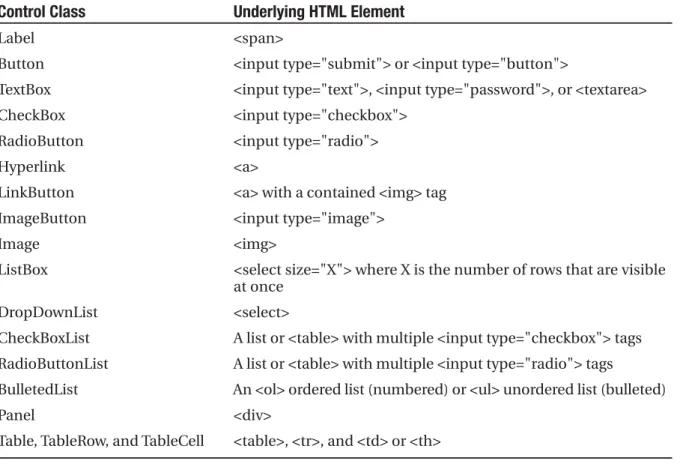
Table 6-1. Basic Web Controls
Control Class Underlying HTML Element
Label <span>
Button <input type="submit"> or <input type="button">
TextBox <input type="text">, <input type="password">, or <textarea>
CheckBox <input type="checkbox">
RadioButton <input type="radio">
Hyperlink <a>
LinkButton <a> with a contained <img> tag
ImageButton <input type="image">
Image <img>
ListBox <select size="X"> where X is the number of rows that are visible at once
DropDownList <select>
CheckBoxList A list or <table> with multiple <input type="checkbox"> tags
RadioButtonList A list or <table> with multiple <input type="radio"> tags
BulletedList An <ol> ordered list (numbered) or <ul> unordered list (bulleted)
Panel <div>
Table, TableRow, and TableCell <table>, <tr>, and <td> or <th>
This table omits some of the more specialized controls used for data, navigation, security, and web portals. You’ll see these controls as you learn about the corresponding feature throughout this book.
The Web Control Tags
ASP.NET tags have a special format. They always begin with the prefix asp: followed by the class name. If there is no closing tag, the tag must end with />. (This syntax conven-tion is borrowed from XML, which you’ll learn about in much more detail in Chapter 17.) Each attribute in the tag corresponds to a control property, except for the runat="server" attribute, which signals that the control should be processed on the server.
The following, for example, is an ASP.NET TextBox:
<asp:TextBox id="txt" runat="server" />
When a client requests this .aspx page, the following HTML is returned. The name is a special attribute that ASP.NET uses to track the control.
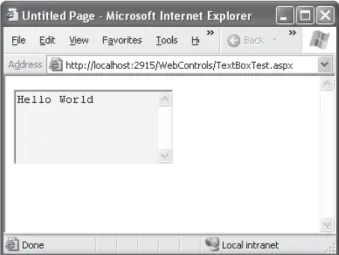
Figure 6-1. A customized text box
Alternatively, you could place some text in the TextBox, set its size, make it read-only, and change the background color. All these actions have defined properties. For example, the TextBox.TextMode property allows you to specify SingleLine (the default), MultiLine (for a <textarea> type of control), or Password (for an input control that displays all asterisks when the user types in a value). You can adjust the color using the BackColor and ForeColor properties. And you can tweak the size of the TextBox using the Rows property. Here’s an example of a customized TextBox:
<asp:TextBox id="txt" BackColor="Yellow" Text="Hello World" ReadOnly="True" TextMode="MultiLine" Rows="5" runat="server" />
The resulting HTML uses the <textarea> element and sets all the required style attri-butes. Figure 6-1 shows it in the browser.
<textarea name="txt" rows="5" readonly="readonly" id="txt" style="background-color:Yellow;">Hello World</textarea>
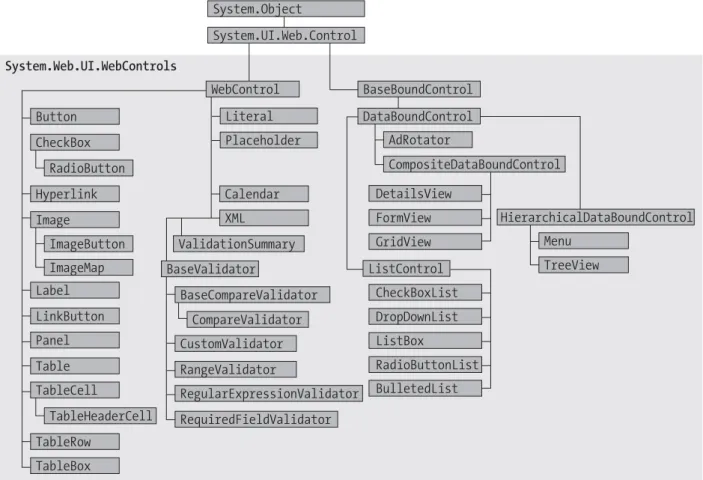
Figure 6-2. The web control hierarchy
CASE-SENSITIVITY IN ASP.NET FORMS
The .aspx layout portion of a web page tolerates different capitalization for tag names, property names, and enumeration values. For example, the following two tags are equivalent, and both will be interpreted correctly by the ASP.NET engine, even though their case differs:
<asp:Button id="Button1" runat="server"
Enabled="False" Text="Button" Font-Size="XX-Small" /> <asp:button id="Button2" runat="server"
Enabled="false" tExT="Button" font-size="xx-SMALL" />
This design was adopted to make .aspx pages behave more like ordinary HTML web pages, which ignore case completely. However, you can’t use the same looseness in the tags that apply settings in the web.config file or the machine.config file. Here, case must match exactly.
Web Control Classes
This inheritance diagram includes some controls that you won’t study in this chapter, including the data controls, such as the GridView, DetailsView, and FormView, and the validation controls. You’ll explore these controls in later chapters.
The WebControl Base Class
All web controls begin by inheriting from the WebControl base class. This class defines the essential functionality for tasks such as data binding and includes some basic properties that you can use with any control, as described in Table 6-2.
Table 6-2. WebControl Properties
Property Description
AccessKey Specifies the keyboard shortcut as one letter. For example, if you set this to Y, the Alt+Y keyboard combination will automatically change focus to this web control. This feature is supported only on Internet Explorer 4.0 and higher.
BackColor, ForeColor, Sets the colors used for the background, foreground, and border of the and BorderColor control. In most controls, the foreground color sets the text color.
BorderWidth Specifies the size of the control border.
BorderStyle One of the values from the BorderStyle enumeration, including Dashed, Dotted, Double, Groove, Ridge, Inset, Outset, Solid, and None.
Controls Provides a collection of all the controls contained inside the current control. Each object is provided as a generic System.Web.UI.Control object, so you will need to cast the reference to access control-specific properties.
Enabled When set to False, the control will be visible, but it will not be able to receive user input or focus.
EnableViewState Set this to False to disable the automatic state management for this control. In this case, the control will be reset to the properties and formatting specified in the control tag every time the page is posted back. If this is set to True (the default), the control uses the hidden input field to store information about its properties, ensuring that any changes you make in code are remembered.
Font Specifies the font used to render any text in the control as a System.Web.UI.WebControls.FontInfo object.
Height and Width Specifies the width and height of the control. For some controls, these properties will be ignored when used with older browsers.
Page Provides a reference to the web page that contains this control as a System.Web.UI.Page object.
Parent Provides a reference to the control that contains this control. If the control is placed directly on the page (rather than inside another control), it will return a reference to the page object.
Property Description
ToolTip Displays a text message when the user hovers the mouse above the control. Many older browsers don’t support this property.
Visible When set to False, the control will be hidden and will not be rendered to the final HTML page that is sent to the client.
The next few sections describe some of the common concepts you’ll use with almost any web control, including how to set properties that use units and enumerations and how to use colors and fonts.
Units
All the properties that use measurements, including BorderWidth, Height, and Width, require the Unit structure, which combines a numeric value with a type of measurement (pixels, percentage, and so on). This means when you set these properties in a control tag, you must make sure to append px (pixel) or % (for percentage) to the number to indicate the type of unit.
Here’s an example with a Panel control that is 300 pixels wide and has a height equal to 50 percent of the current browser window:
<asp:Panel Height="300px" Width="50%" id="pnl" runat="server" />
If you’re assigning a unit-based property through code, you need to use one of the shared methods of the Unit type. Use Pixel() to supply a value in pixels, and use Percentage() to supply a percentage value:
' Convert the number 300 to a Unit object ' representing pixels, and assign it. pnl.Height = Unit.Pixel(300)
' Convert the number 50 to a Unit object ' representing percent, and assign it. pnl.Width = Unit.Percentage(50)
You could also manually create a Unit object and initialize it using one of the supplied constructors and the UnitType enumeration. This requires a few more steps but allows you to easily assign the same unit to several controls:
' Create a Unit object.
Dim myUnit As New Unit(300, UnitType.Pixel)
' Assign the Unit object to several controls or properties. pnl.Height = myUnit
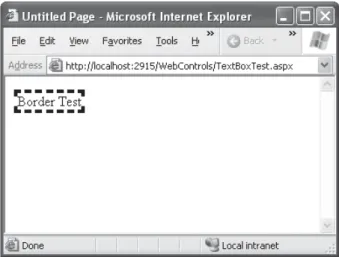
Figure 6-3. Modifying the border style
Enumerated Values
Enumerations are used heavily in the .NET class library to group a set of related constants. For example, when you set a control’s BorderStyle property, you can choose one of several predefined values from the BorderStyle enumeration. In code, you set an enumeration using the dot syntax:
ctrl.BorderStyle = BorderStyle.Dashed
In the .aspx file, you set an enumeration by specifying one of the allowed values as a string. You don’t include the name of the enumeration type, which is assumed automatically.
<asp:Label BorderStyle="Dashed" Text="Border Test" id="ctrl" runat="server" />
Figure 6-3 shows the label with the altered border.
Colors
Using an ARGB (alpha, red, green, blue) color value: You specify each value as an integer from 0 to 255. The alpha component represents the transparency of a color, and usually you’ll use 255 to make the color completely opaque.
Using a predefined .NET color name: You choose the correspondingly named read-only property from the Color structure. These properties include the 140 HTML color names.
Using an HTML color name: You specify this value as a string using the ColorTranslator class.
To use any of these techniques, you’ll probably want to start by importing the System.Drawing namespace, as follows:
Imports System.Drawing
The following code shows several ways to specify a color in code:
' Create a color from an ARGB value
Dim alpha As Integer = 255, red As Integer = 0 Dim green As Integer = 255, blue As Integer = 0
ctrl.ForeColor = Color.FromARGB(alpha, red, green, blue)
' Create a color using a .NET name ctrl.ForeColor = Color.Crimson
' Create a color from an HTML code
ctrl.ForeColor = ColorTranslator.FromHtml("Blue")
When defining a color in the .aspx file, you can use any one of the known color names:
<asp:TextBox ForeColor="Red" Text="Test" id="txt" runat="server" />
The HTML color names that you can use are listed in the MSDN Help. Alternatively, you can use a hexadecimal color number (in the format #<red><green><blue>) as shown here:
<asp:TextBox ForeColor="#ff50ff" Text="Test" id="txt" runat="server" />
Fonts
Table 6-3. FontInfo Properties
Property Description
Name A string indicating the font name (such as Verdana).
Size The size of the font as a FontUnit object. This can represent an absolute or relative size.
Bold, Italic, Strikeout, Underline, Boolean properties that apply the given style attribute. and Overline
In code, you can assign a font by setting the various font properties using the familiar dot syntax:
ctrl.Font.Name = "Verdana" ctrl.Font.Bold = True
You can also set the size using the FontUnit type:
' Specifies a relative size. ctrl.Font.Size = FontUnit.Small
' Specifies an absolute size of 14 pixels. ctrl.Font.Size = FontUnit.Point(14)
In the .aspx file, you need to use a special “object walker” syntax to specify object properties such as Font. The object walker syntax uses a hyphen (-) to separate proper-ties. For example, you could set a control with a specific font (Tahoma) and font size (40 point) like this:
<asp:TextBox Font-Name="Tahoma" Font-Size="40" Text="Size Test" id="txt" runat="server" />
Or you could set a relative size like this:
<asp:TextBox Font-Name="Tahoma" Font-Size="Large" Text="Size Test" id="txt" runat="server" />
Figure 6-4. Modifying a control’s font
Focus
Unlike HTML server controls, every web control provides a Focus() method. The Focus() method affects only input controls (controls that can accept keystrokes from the user). When the page is rendered in the client browser, the user starts in the focused control.
For example, if you have a form that allows the user to edit customer information, you might call the Focus() method on the first text box in that form. That way, the cursor appears in this text box immediately when the page first loads in the browser. If the text box is partway down the form, the page even scrolls down to it automatically. The user can then move from control to control using the time-honored Tab key.
If you’re a seasoned HTML developer, you know there isn’t any built-in way to give focus to an input control. Instead, you need to rely on JavaScript. This is the secret to ASP.NET’s implementation. When your code is finished processing and the page is rendered, ASP.NET adds an extra block of JavaScript code to the end of your page. This JavaScript code simply sets the focus to the last control that used the Focus() method. If you haven’t called Focus() at all, this code isn’t added to the page.
Rather than call the Focus() method programmatically, you can set a control that should always be focused by setting the DefaultFocus property of the <form> tag:
<form id="Form1" DefaultFocus="TextBox2" runat="server">
For example, the following label gives focus to TextBox2 when the keyboard combi-nation Alt+2 is pressed:
<asp:Label AccessKey="2" AssociatedControlID="TextBox2" runat="server"> TextBox2:</asp:Label><asp:TextBox runat="server" ID="TextBox2" />
Focusing and access keys are also supported in non-Microsoft browsers, including Firefox.
The Default Button
Along with control focusing, ASP.NET also allows you to designate a default button on a web page. The default button is the button that is “clicked” when the user presses the Enter key. For example, if your web page includes a form, you might want to make the submit button into a default button. That way, if the user hits Enter at any time, the page is posted back and the Button.Click event is fired for that button.
To designate a default button, you must set the HtmlForm.DefaultButton property with the ID of the respective control, as shown here:
<form id="Form1" DefaultButton="cmdSubmit" runat="server">
The default button must be a control that implements the IButtonControl interface. The interface is implemented by the Button, LinkButton, and ImageButton web controls but not by any of the HTML server controls.
In some cases, it makes sense to have more than one default button. For example, you might create a web page with two groups of input controls. Both groups may need a different default button. You can handle this by placing the groups into separate panels. The Panel control also exposes the DefaultButton property, which works when any input control it contains gets the focus.
List Controls
All the selectable list controls provide a SelectedIndex property that indicates the selected row as a zero-based index (just like the HtmlSelect control you used in the previ-ous chapter). For example, if the first item in the list is selected, the SelectedIndex will be 0. Selectable list controls also provide an additional SelectedItem property, which allows your code to retrieve the ListItem object that represents the selected item. The ListItem object provides three important properties: Text (the displayed content), Value (the hidden value from the HTML markup), and Selected (True or False depending on whether the item is selected).
In the previous chapter, you used code like this to retrieve the selected ListItem object from an HtmlSelect control called Currency, as follows:
Dim item As ListItem
item = Currency.Items(Currency.SelectedIndex)
With a web control, you can simplify this with a clearer syntax:
Dim item As ListItem
item = Currency.SelectedItem
Multiple-Select List Controls
Some list controls can allow multiple selections. This isn’t allowed for the DropDownList or RadioButtonList, but it is supported for a ListBox, provided you have set the SelectionMode property to the enumerated value ListSelectionMode.Multiple. The user can then select multiple items by holding down the Ctrl key while clicking the items in the list. With the CheckBoxList, multiple selections are always possible.
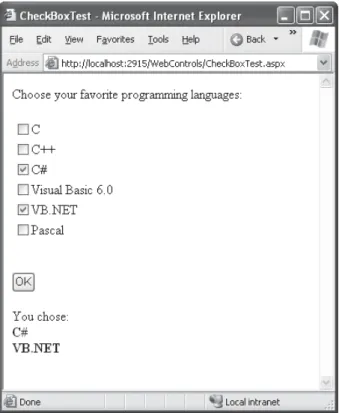
The .aspx file for this page defines CheckListBox, Button, and Label controls, as shown here:
<%@ Page Language="VB" AutoEventWireup="false"
CodeFile="CheckListTest.aspx.vb" Inherits="CheckListTest" %> <html>
<head runat="server">
<title>CheckBoxTest</title> </head>
<body>
<form method="post" runat="server">
Choose your favorite programming languages:<br /><br /> <asp:CheckBoxList id="chklst" runat="server" /><br /><br /> <asp:Button id="cmdOK" Text="OK" runat="server" />
<br /><br />
<asp:Label id="lblResult" runat="server" /> </form>
</body> </html>
The code adds items to the CheckListBox at startup and iterates through the collec-tion when the button is clicked:
Public Partial Class CheckBoxTest Inherits System.Web.UI.Page
Protected Sub Page_Load(ByVal sender As Object, _ ByVal e As EventArgs) Handles Me.Load
If Me.IsPostBack = False chklst.Items.Add("C") chklst.Items.Add("C++") chklst.Items.Add("C#")
chklst.Items.Add("Visual Basic 6.0") chklst.Items.Add("VB.NET")
chklst.Items.Add("Pascal") End If
End Sub
Protected Sub cmdOK_Click(ByVal sender As Object, _ ByVal e As EventArgs) Handles cmdOK.Click
lblResult.Text = "You chose:<b>"
Dim lstItem As ListItem
For Each lstItem In chklst.Items If lstItem.Selected = True Then
' Add text to label.
lblResult.Text &= "<br>" & lstItem.Text End If
Next
lblResult.Text &= "</b>" End Sub
CONTROL PREFIXES
When working with web controls, it’s often useful to use a three-letter lowercase prefix to identify the type of control. The preceding example (and those in the rest of this book) follows this convention to make user interface code as clear as possible. Some recommended control prefixes are as follows:
• Button: cmd • CheckBox: chk • Image: img • Label: lbl • List control: lst • Panel: pnl • RadioButton: opt • TextBox: txt
If you’re a veteran programmer, you’ll also notice that this book doesn’t use prefixes to identify data types. This is in keeping with the new philosophy of .NET, which recognizes that data types can often change freely and without consequence and that variables often point to full-featured objects instead of simple data variables.
The BulletedList Control
The BulletedList control is a server-side equivalent of the <ul> (unordered list) and <ol> (ordered list) elements. As with all list controls, you set the collection of items that should be displayed through the Items property. Additionally, you can use the properties in Table 6-4 to configure how the items are displayed.
Table 6-4. Added BulletedList Properties
Property Description
BulletStyle Determines the type of list. Choose from Numbered (1, 2, 3...), LowerAlpha (a, b, c...) and UpperAlpha (A, B, C...), LowerRoman (i, ii, iii...) and
UpperRoman (I, II, III...), and the bullet symbols Disc, Circle, Square, or CustomImage (in which case you must set the BulletImageUrl property).
Figure 6-6. Various BulletedList styles
Property Description
FirstBulletNumber In an ordered list (using the Numbered, LowerAlpha, UpperAlpha, LowerRoman, and UpperRoman styles), this sets the first value. For example, if you set FirstBulletNumber to 3, the list might read 3, 4, 5 (for Numbered) or C, D, E (for UpperAlpha).
DisplayMode Determines whether the text of each item is rendered as text (use Text, the default) or a hyperlink (use HyperLink).
If you choose to set the DisplayMode to use hyperlinks, you can react to the Button.Click event to determine which item was clicked. Here’s an example:
Protected Sub BulletedList1_Click(ByVal sender As Object, _ ByVal e As BulletedListEventArgs) Handles BulletedList1.Click
Dim itemText As String = BulletedList1.Items(e.Index).Text Label1.Text = "You choose item" & itemText
End Sub
Table Controls
Essentially, the Table control is built out of a hierarchy of objects. Each Table object con-tains one or more TableRow objects. In turn, each TableRow object concon-tains one or more TableCell objects. Each TableCell object contains other ASP.NET controls of HTML con-tent that displays information. If you’re familiar with the HTML table tags, this relationship (shown in Figure 6-7) will seem fairly logical.
Figure 6-7. Table control containment
To create a table dynamically, you follow the same philosophy as you would for any other web control. First, you create and configure the necessary ASP.NET objects. Then, ASP.NET converts these objects to their final HTML representation before the page is sent to the client.
Figure 6-8. The table test options
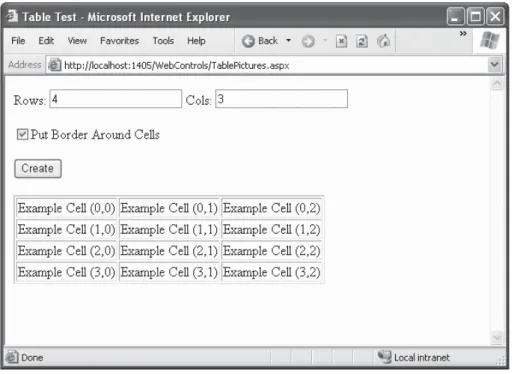
Figure 6-9. A dynamically generated table
The .aspx code creates the TextBox, CheckBox, Button, and Table controls:
<%@ Page Language="VB" AutoEventWireup="false"
CodeFile="TableTest.aspx.vb" Inherits="TableTest" %> <html>
<head runat="server"> <title>Table Test</title> </head>
<body>
<form method="post" runat="server"> Rows:
<asp:TextBox id="txtRows" runat="server" /> Cols:
<asp:TextBox id="txtCols" runat="server" /><br /><br /> <asp:CheckBox id="chkBorder" runat="server"
Text="Put Border Around Cells" /> <br /><br />
<asp:Button id="cmdCreate" runat="server" Text="Create" /><br /><br />
<asp:Table id="tbl" runat="server" /> </form>
</body> </html>
You’ll notice that the Table control doesn’t contain any actual rows or cells. To make a valid table, you would need to nest several layers of tags. The following example creates a table with a single cell that contains the text A Test Row:
<asp:Table id="tbl" runat="server"> <asp:TableRow id="row" runat="server">
<asp:TableCell Text="A Test Row" id="cell" runat="server">
<!-- Instead of using the Text property, you could add other ASP.NET control tags here. -->
</asp:TableCell> </asp:TableRow> </asp:Table>
The table test web page doesn’t have any nested elements. This means the table will be created as a server-side control object, but unless the code adds rows and cells, the table will not be rendered in the final HTML page.
Public Partial Class TableTest Inherits System.Web.UI.Page
Protected Sub Page_Load(ByVal sender As Object, _ ByVal e As EventArgs) Handles Me.Load
' Configure the table's appearance.
' This could also be performed in the .aspx file, ' or in the cmdCreate_Click event handler.
tbl.BorderStyle = BorderStyle.Inset tbl.BorderWidth = Unit.Pixel(1) End Sub
Protected Sub cmdCreate_Click(ByVal sender As Object, _ ByVal e As EventArgs) Handles cmdCreate.Click
' Remove all the current rows and cells.
' This would not be necessary if you set EnableViewState = False. tbl.Controls.Clear()
Dim i, j As Integer
For i = 0 To Val(txtRows.Text - 1)
' Create a new TableRow object. Dim rowNew As New TableRow()
' Put the TableRow in the Table. tbl.Controls.Add(rowNew)
For j = 0 To Val(txtCols.Text - 1)
' Create a new TableCell object. Dim cellNew As New TableCell()
cellNew.Text = "Example Cell (" & i.ToString() & "," cellNew.Text &= j.ToString() & ")"
If chkBorder.Checked = True Then
cellNew.BorderStyle = BorderStyle.Inset cellNew.BorderWidth = Unit.Pixel(1) End If
Next Next End Sub
End Class
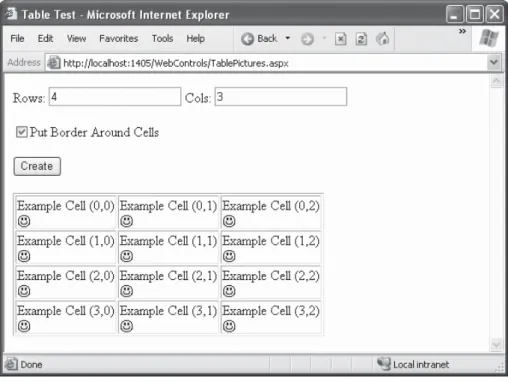
This code uses the Controls collection to add child controls. Every container control provides this property. You could also use the TableCell.Controls collection to add web controls to each TableCell. For example, you could place an Image control and a Label control in each cell. In this case, you can’t set the TableCell.Text property. The following code snippet uses this technique, and Figure 6-10 displays the results:
' Create a new TableCell object. Dim cellNew As New TableCell()
' Create a new Label object. Dim lblNew As New Label()
lblNew.Text = "Example Cell (" & i.ToString() & "," & j.ToString() & ")<br>"
Dim imgNew As New System.Web.UI.WebControls.Image() imgNew.ImageUrl = "cellpic.png"
' Put the label and picture in the cell. cellNew.Controls.Add(lblNew)
cellNew.Controls.Add(imgNew)
' Put the TableCell in the TableRow. rowNew.Controls.Add(cellNew)
Web Control Events and AutoPostBack
The previous chapter explained that one of the main limitations of HTML server controls is their limited set of useful events—they have exactly two. HTML controls that trigger a post-back, such as buttons, raise a ServerClick event. Input controls provide a ServerChange event that doesn’t actually fire until the page is posted back.
Server controls are really an ingenious illusion. You’ll recall that the code in an ASP.NET page is processed on the server. It’s then sent to the user as ordinary HTML. Figure 6-11 illustrates the order of events in page processing.
This is the same in ASP.NET as it was in traditional ASP programming. The question is, how can you write server code that will react immediatelyto an event that occurs on the client?
Some events, such as the Click event of a button, do occur immediately. That’s because when clicked, the button posts back the page. This is a basic convention of HTML forms. However, other actions docause events but don’ttrigger a postback. An example is when the user changes the text in a text box (which triggers the TextChanged event) or chooses a new item in a list (the SelectedIndexChanged event). You might want to respond to these events, but without a postback your code has no way to run.
ASP.NET handles this by giving you two options:
• You can wait until the next postback to react to the event. For example, imagine you want to react to the SelectedIndexChanged event in a list. If the user selects an item in a list, nothing happens immediately. However, if the user then clicks a button to post back the page, twoevents fire: Button.Click followed by TextBox.TextChanged. And if you have several controls, it’s quite possible for a single postback to result in several change events, which fire one after the other.
• You can use the automatic postbackfeature to force a control to post back the page immediately when it detects a specific user action. In this scenario, when the user clicks a new item in the list, the page is posted back, your code executes, and a new version of the page is returned.
The option you choose depends on the result you want. If you need to react immedi-ately (for example, you want to update another control when a specific action takes place), you need to use automatic postbacks. On the other hand, automatic postbacks can sometimes make the page less responsive, because each postback and page refresh adds a short, but noticeable, delay.
All input web controls support automatic postbacks. Table 6-5 provides a basic list of web controls and their events.
Table 6-5. Web Control Events
Event Web Controls That Provide It Always Posts Back
Click Button, ImageButton True
TextChanged TextBox (fires only after the user changes False the focus to another control)
CheckChanged CheckBox, RadioButton False
SelectedIndexChanged DropDownList, ListBox, CheckBoxList, False RadioButtonList
This postback system isn’t ideal for all events. For example, some events that you may be familiar with from Windows programs, such as mouse movement events or key press events, aren’t practical in an ASP.NET application. Resubmitting the page every time a key is pressed or the mouse is moved would make the application unbearably slow and unresponsive.
How Postback Events Work
Chapter 1 explained that not all types of web programming use server-side code like ASP.NET. One common example of client-side web programming is JavaScript, which uses simple code that’s limited in scope and is executed by the browser. ASP.NET uses the client-side abilities of JavaScript to bridge the gap between client-client-side and server-client-side code.
Here’s how it works: If you create a web page that includes one or more web controls that are configured to use AutoPostBack, ASP.NET adds a special JavaScript function to the rendered HTML page. This function is named __doPostBack(). When called, it triggers a postback, sending data back to the web server.
ASP.NET also adds two additional hidden input fields that are used to pass informa-tion back to the server. This informainforma-tion consists of the ID of the control that raised the event and any additional information that might be relevant. These fields are initially empty, as shown here:
<input type="hidden" name="__EVENTTARGET" id="__EVENTTARGET" value="" /> <input type="hidden" name="__EVENTARGUMENT" id="__EVENTARGUMENT" value="" />
The __doPostBack() function has the responsibility for setting these values with the appropriate information about the event and then submitting the form. A sample __doPostBack() function is shown here:
<script language="text/javascript">
<!--function __doPostBack(eventTarget, eventArgument) { var theform = document.Form1;
theform.__EVENTTARGET.value = eventTarget; theform.__EVENTARGUMENT.value = eventArgument; theform.submit();
} // --> </script>
Remember, ASP.NET generates the __doPostBack() function automatically, provided at least one control on the page uses automatic postbacks.
The following example shows the tag for a list control named lstBackColor, which posts back automatically. Whenever the user changes the selection in the list, the client-side onchange event fires. The browser then calls the __doPostBack() function, which sends the page back to the server.
<select id="lstBackColor" onchange="__doPostBack('lstBackColor','')" language="javascript">
In other words, ASP.NET automatically changes a client-side JavaScript event into a server-side ASP.NET event, using the __doPostBack() function as an intermediary. Figure 6-13 shows this process.
If you’re a seasoned ASP developer, you may have manually created a solution like this for traditional ASP web pages. ASP.NET handles these details for you automatically, simplifying life a great deal.
The Page Life Cycle
To understand how web control events work, you need to have a solid understanding of the page life cycle. Consider what happens when a user changes a control that has the AutoPostBack property set to True:
1. On the client side, the JavaScript __doPostBack function is invoked, and the page is resubmitted to the server.
2. ASP.NET re-creates the Page object using the .aspx file.
3. ASP.NET retrieves state information from the hidden view state field and updates the controls accordingly.
4. The Page.Load event is fired.
5. The appropriate change event is fired for the control. (If more than one control has been changed, the order of change events is undetermined.)
6. The Page.Unload event fires, and the page is rendered (transformed from a set of objects to an HTML page).
7. The new page is sent to the client.
To watch these events in action, it helps to create a simple event tracker application (see Figure 6-14). All this application does is write a new entry to a list control every time one of the events it’s monitoring occurs. This allows you to see the order in which events are triggered.
Listing 6-1 shows the markup code for the event tracker, and Listing 6-2 shows the code-behind class that makes it work.
Listing 6-1. EventTracker.aspx
<%@ Page Language="VB" AutoEventWireup="false"
CodeFile="EventTracker.aspx.vb" Inherits="EventTracker" %> <html>
<head runat="server">
<title>Event Tracker</title> </head>
<body>
<form method="post" runat="server"> <h3>List of events:</h3>
<asp:ListBox id=lstEvents runat="server" Width="355px" Height="505px" /><br />
<br /><br /><br />
<h3>Controls being monitored for change events:</h3>
<asp:TextBox id="txt" runat="server" AutoPostBack="True" /> <br /><br />
<asp:CheckBox id="chk" runat="server" AutoPostBack="True" /> <br /><br />
<asp:RadioButton id="opt1" runat="server" GroupName="Sample" AutoPostBack="True" />
<asp:RadioButton id="opt2" runat="server" GroupName="Sample" AutoPostBack="True" />
</form> </body> </html>
Listing 6-2. EventTracker.vb
Public Partial Class EventTracker Inherits System.Web.UI.Page
Protected Sub Page_Load(ByVal sender As Object, _ ByVal e As EventArgs) Handles Me.Load
Log("<< Page_Load >>") End Sub
Protected Sub Page_PreRender(ByVal sender As Object, _ ByVal e As EventArgs) Handles Me.PreRender
' When the Page.UnLoad event occurs it is too late ' to change the list.
' This control handles an event from all four controls. Protected Sub CtrlChanged(ByVal sender As Object, _
ByVal e As System.EventArgs) _
Handles chk.CheckedChanged, opt1.CheckedChanged, opt2.CheckedChanged, _ txt.TextChanged
' Find the control ID of the sender.
' This requires converting the Object type into a Control class. Dim ctrlName As String = CType(sender, Control).ID
Log(ctrlName & " Changed") End Sub
Private Sub Log(ByVal entry As String) lstEvents.Items.Add(entry)
' Select the last item to scroll the list so the most recent ' entries are visible.
lstEvents.SelectedIndex = lstEvents.Items.Count – 1 End Sub
End Class
Dissecting the Code...
The following points are worth noting about this code:
• The code writes to the ListBox using a private Log() subroutine. The Log() subroutine adds the text and automatically scrolls to the bottom of the list each time a new entry is added, thereby ensuring that the most recent entries remain visible.
• All the change events are handled by the same method, CtrlChanged(). The Handles clause for CtrlChanged() clearly reflects this. The event handling code uses the source parameter to find out what control sent the event, and it incorporates that infor-mation in the log string.
A Simple Web Page
The web page is divided into two regions. On the left is an ordinary <div> tag con-taining a set of web controls for specifying card options. On the right is a Panel control (named pnlCard), which contains two other controls (lblGreeting and imgDefault) that are used to display user-configurable text and a picture. This text and picture represents the greeting card. When the page first loads, the card hasn’t yet been generated, and the right portion is blank (as shown in Figure 6-15).
■
Tip
The <div> tag is useful when you want to group text and controls and apply a set of formatting prop-erties (such as a color or font) to all of them. The <div> tag is used in many of the examples in this book, but it can safely be omitted—the only change will be the appearance of the formatted page.Whenever the user clicks the Update button, the page is posted back and the “card” is updated (see Figure 6-16).
The .aspx layout code is straightforward. Of course, the sheer length of it makes it diffi-cult to work with efficiently. This is an ideal point to start considering Visual Studio, which will handle the .aspx details for you automatically and won’t require you to painstakingly format and organize the user interface markup tags. Here’s the code:
<%@ Page Language="VB" AutoEventWireup="false"
Inherits="GreetingCardMaker" CodeFile="GreetingCardMaker.aspx.vb" %> <html>
<head runat="server">
<title>Greeting Card Maker</title> </head>
<body>
<form method="post" runat="server">
<!-- div style attribute left out for clarity. --> <div>
<!-- Here are the controls: --> Choose a background color:<br />
<asp:DropDownList id="lstBackColor" runat="server" Width="194px" Height="22px"/><br /><br />
Choose a font:<br />
<asp:DropDownList id="lstFontName" runat="server" Width="194px" Height="22px" /><br /><br />
Specify a numeric font size:<br />
<asp:TextBox id="txtFontSize" runat="server" /><br /><br /> Choose a border style:<br />
<asp:RadioButtonList id="lstBorder" runat="server" Width="177px" Height="59px" /><br /><br />
<asp:CheckBox id="chkPicture" runat="server"
Text="Add the Default Picture"></asp:CheckBox><br /><br /> Enter the greeting text below:<br />
<asp:TextBox id="txtGreeting" runat="server" Width="240px" Height="85px" TextMode="MultiLine" /><br /><br />
<asp:Button id="cmdUpdate" runat="server" Width="71px" Height="24px" Text="Update" />
</div>
<!-- Here is the card: -->
<asp:Panel id="pnlCard" runat="server" Width="339px" Height="481px"
HorizontalAlign="Center"><br />
<asp:Label id="lblGreeting" runat="server" Width="256px" Height="150px" /><br /><br /><br />
<asp:Image id="imgDefault" runat="server" Width="212px" Height="160px" />
</asp:Panel> </form>
</body></html>
The code follows the familiar pattern with an emphasis on two events: the Page.Load event, where initial values are set, and the Button.Click event, where the card is generated. The using statements are omitted from the following listing, because the basic set of required namespaces should be familiar to you by now:
Imports System.Drawing
Protected Sub Page_Load(ByVal sender As Object, _ ByVal e As EventArgs) Handles Me.Load
If Me.IsPostBack = False Then
' Set color options.
lstBackColor.Items.Add("White") lstBackColor.Items.Add("Red") lstBackColor.Items.Add("Green") lstBackColor.Items.Add("Blue") lstBackColor.Items.Add("Yellow")
' Set font options.
lstFontName.Items.Add("Times New Roman") lstFontName.Items.Add("Arial")
lstFontName.Items.Add("Verdana") lstFontName.Items.Add("Tahoma")
' Set border style options by adding a series of ' ListItem objects.
' Each item indicates the name of the option, and contains the ' corresponding integer in the Value property.
lstBorder.Items.Add(New _
ListItem(BorderStyle.None.ToString(), BorderStyle.None)) lstBorder.Items.Add(New _
ListItem(BorderStyle.Double.ToString(), BorderStyle.Double)) lstBorder.Items.Add(New _
ListItem(BorderStyle.Solid.ToString, BorderStyle.Solid))
' Select the first border option. lstBorder.SelectedIndex = 0
' Set the picture.
imgDefault.ImageUrl = "defaultpic.png" End If
End Sub
Protected Sub cmdUpdate_Click(ByVal sender As Object, _ ByVal e As EventArgs) Handles cmdUpdate.Click
' Update the color.
pnlCard.BackColor = Color.FromName(lstBackColor.SelectedItem.Text)
' Update the font.
If Val(txtFontSize.Text) > 0 Then
lblGreeting.Font.Size = FontUnit.Point(Val(txtFontSize.Text)) End If
' Update the border style.
pnlCard.BorderStyle = Val(lstBorder.SelectedItem.Value)
' Update the picture.
If chkPicture.Checked = True Then imgDefault.Visible = True Else
imgDefault.Visible = False End If
' Set the text.
lblGreeting.Text = txtGreeting.Text End Sub
End Class
As you can see, this example limits the user to a few preset font and color choices. The code for the BorderStyle option is particularly interesting. The lstBorder control has a list that displays the text name of one of the BorderStyle enumerated values. You’ll remember from the introductory chapters that every enumerated value is really an integer with a name assigned to it. The lstBorder also secretly stores the corresponding number so that the code can retrieve the number and set the enumeration easily when the user makes a selection and the cmdUpdate_Click event handler fires.
Improving the Greeting Card Applet
ASP.NET pages have access to the full .NET class library. With a little exploration, you’ll find classes that might help the greeting-card maker, such as tools that let you retrieve all the known color names and all the fonts installed on the web server.
For example, you can fill the lstFontName control with a list of fonts using the special System.Drawing.Text.InstalledFontCollection class. Here’s the code you’ll need:
' Get the list of available fonts, and add them to the font list. Dim fonts As New System.Drawing.Text.InstalledFontCollection() For Each family As FontFamily In fonts.Families
Figure 6-17 shows the resulting font list.
To get a list of the color names, you need to resort to a more advanced trick. Although you could hard-code a list of common colors, .NET actually provides a long list of color names in the System.Drawing.KnownColor enumeration. However, actually extracting the names from this enumeration takes some work.
The trick is to use a basic feature of all enumerations: the shared Enum.GetNames() method, which inspects an enumeration and provides an array of strings, with one string for each value in the enumeration. The web page can then use data binding to automati-cally fill the list control with the information in the ColorArray. (You’ll explore data binding in much more detail in Chapter 14.)
■
Note
Don’t worry if this example introduces a few features that look entirely alien! These features are more advanced (and aren’t tied specifically to ASP.NET). However, they show you some of the flavor that the full .NET class library can provide for a mature application.Here’s the code that copies all the color names into the list box:
' Get the list of colors.
Dim colorArray As String() = System.Enum.GetNames( _ GetType(System.Drawing.KnownColor))
lstBackColor.DataSource = colorArray lstBackColor.DataBind()
A minor problem with this approach is that it includes system environment colors (for example, ActiveBorder) in the list. It may not be obvious to the user what colors these values represent. Still, this approach works well for this simple application. You can use a similar technique to fill in BorderStyle options:
' Set border style options. Dim borderStyleArray As String()
borderStyleArray = System.Enum.GetNames(GetType(BorderStyle)) lstBorder.DataSource = borderStyleArray
lstBorder.DataBind()
This code raises a new challenge: how do you convert the value that the user selects into the appropriate constant for the enumeration? When the user chooses a border style from the list, the SelectedItem property will have a text string like “Groove”. But to apply this border style to the control, you need a way to determine the enumerated constant that matches this text.
You can handle this problem in a few ways. (Earlier, you saw an example in which the enumeration integer was stored as a value in the list control.) In this case, the most direct approach involves using an advanced feature called a TypeConverter. A TypeConverter is a special class that is able to convert from a specialized type (in this case, the BorderStyle enumeration) to a simpler type (such as a string), and vice versa.
To access this class, you need to import the System.ComponentModel namespace:
Imports System.ComponentModel
You can then add the following code to the cmdUpdate_Click event handler:
' Find the appropriate TypeConverter for the BorderStyle enumeration. Dim cnvrt As TypeConverter
cnvrt = TypeDescriptor.GetConverter(GetType(BorderStyle))
' Update the border style using the value from the converter.
pnlCard.BorderStyle = cnvrt.ConvertFromString(lstBorder.SelectedItem.Text)
Generating the Cards Automatically
The last step is to use ASP.NET’s automatic postback events to make the card update dynamically every time an option is changed. The Update button could now be used to submit the final, perfected greeting card, which might then be e-mailed to a recipient or stored in a database.
To configure the controls so they automatically trigger a page postback, simply add the AutoPostBack="True" attribute to each user input control. An example is shown here:
Choose a background color:<br />
<asp:DropDownList id="lstBackColor" AutoPostBack="True" runat="server" Width="194px" Height="22px"/><br /><br />
Next, you need to create an event handler that can handle the change events. To save a few steps, you can use the same event handler for all the input controls. All the event handler needs to do is call the update routine that regenerates the greeting card.
Protected Sub ControlChanged(ByVal sender As System.Object, _ ByVal e As System.EventArgs) _
Handles lstBackColor.SelectedIndexChanged, chkPicture.CheckedChanged, _ txtFontSize.TextChanged, lstBackColor.SelectedIndexChanged, _ lstBorder.SelectedIndexChanged, _
lstFontName.SelectedIndexChanged, _ lstForeColor.SelectedIndexChanged, _
' Refresh the greeting card (because a control was clicked). UpdateCard()
End Sub
Protected Sub cmdUpdate_Click(sender As Object, e As EventArgs) _ Handles cmdUpdate.Click
' Refresh the greeting card (because the button was clicked). UpdateCard();
End Sub
Private Sub UpdateCard()
' (The code that draws the greeting card goes here.) End Sub
■
Tip
Automatic postback isn’t always best. Sometimes an automatic postback can annoy a user, especially when the user is working over a slow connection or when the server needs to perform a time-consuming option. For that reason, it’s sometimes best to use an explicit submit button and not enable AutoPostBack for most input controls.A WORD ABOUT CONVENTIONS
From this point on, the examples will adopt a few conventions designed to make code examples more concise and readable:
• The .aspx layout file is rarely shown with an example, unless it requires special coding (such as the creation of a template or data-binding syntax, two topics you’ll explore in Part 3 of this book). The .aspx files are really nothing more than an ordering of standard control tags.
• The Imports statements in the code-behind file are omitted, unless they reference an unusual namespace that hasn’t been identified. Generally, you’ll reuse the same standard block of Imports statements for each code-behind file.
These changes won’t affect you if you’re using an IDE such as Visual Studio, which generates the .aspx file, control variables, and most Imports statements automatically. And if you want to see the full details, you’ll find them in the downloadable code.
The Last Word
This chapter introduced you to web controls and their object interface. As you continue through this book, you’ll learn more about the web controls. The following highlights are still to come:
• In Chapter 8, you’ll learn about advanced controls such as the AdRotator, the Calendar, and the validation controls. You’ll also learn about specialized container controls, such as the MultiView and Wizard.
• In Chapter 11, you’ll learn about navigation controls such as the TreeView and Menu.
• In Chapter 15, you’ll learn about the GridView, DetailsView, and FormView—high-level web controls that let you manipulate a complex table of data from any data source.
• In Chapter 25, you’ll learn how you can use .NET inheritance to create your own customized web controls.