Dell SonicWALL™ SRA 8.0
Application Offloading and HTTP(S)
Bookmarks Feature Module
© 2015 Dell Inc.
ALL RIGHTS RESERVED.
This guide contains proprietary information protected by copyright. The software described in this guide is furnished under a software license or nondisclosure agreement. This software may be used or copied only in accordance with the terms of the applicable agreement. No part of this guide may be reproduced or transmitted in any form or by any means, electronic or mechanical, including photocopying and recording for any purpose other than the purchaser’s personal use without the written permission of Dell Inc.
The information in this document is provided in connection with Dell products. No license, express or implied, by estoppel or otherwise, to any intellectual property right is granted by this document or in connection with the sale of Dell products. EXCEPT AS SET FORTH IN THE TERMS AND CONDITIONS AS SPECIFIED IN THE LICENSE AGREEMENT FOR THIS PRODUCT, DELL ASSUMES NO LIABILITY WHATSOEVER AND DISCLAIMS ANY EXPRESS, IMPLIED OR STATUTORY WARRANTY RELATING TO ITS PRODUCTS INCLUDING, BUT NOT LIMITED TO, THE IMPLIED WARRANTY OF MERCHANTABILITY, FITNESS FOR A PARTICULAR PURPOSE, OR NON-INFRINGEMENT. IN NO EVENT SHALL DELL BE LIABLE FOR ANY DIRECT, INDIRECT, CONSEQUENTIAL, PUNITIVE, SPECIAL OR INCIDENTAL DAMAGES (INCLUDING, WITHOUT LIMITATION, DAMAGES FOR LOSS OF PROFITS, BUSINESS INTERRUPTION OR LOSS OF INFORMATION) ARISING OUT OF THE USE OR INABILITY TO USE THIS DOCUMENT, EVEN IF DELL HAS BEEN ADVISED OF THE POSSIBILITY OF SUCH DAMAGES. Dell makes no representations or warranties with respect to the accuracy or completeness of the contents of this document and reserves the right to make changes to specifications and product descriptions at any time without notice. Dell does not make any commitment to update the information contained in this document.
If you have any questions regarding your potential use of this material, contact: Dell Inc.
Attn: LEGAL Dept
5 Polaris Way
Aliso Viejo, CA 92656
Refer to our website (software.dell.com) for regional and international office information.
Trademarks
Dell™, the Dell logo, SonicWALL™, and all other SonicWALL product and service names and slogans are trademarks of Dell Inc. Microsoft Windows 7, Windows Vista, Windows XP, Internet Explorer, and Active Directory, are trademarks or registered trademarks of Microsoft Corporation. FireFox is a registered trademark of Mozilla. Other trademarks and trade names may be used in this document to refer to either the entities claiming the marks and names or their products. Dell disclaims any proprietary interest in the marks and names of others.
Dell SonicWALL SRA Application Offloading and HTTP(S) Bookmarks Feature Module
Updated - March 2015
Version - 8.0
232-002809-00 Rev A Legend
CAUTION: A CAUTION icon indicates potential damage to hardware or loss of data if instructions are not followed. WARNING: A WARNING icon indicates a potential for property damage, personal injury, or death.
Contents
Document Scope . . . 3
Overview . . . 4
What are HTTP(S) Bookmarks and Application Offloading? . . . 4
Benefits of HTTP(S) Bookmarks . . . 5
Benefits of Application Offloading . . . 5
How Does Application Offloading Work? . . . 5
Supported Platforms . . . 6
Software Prerequisites . . . 8
Configuring and Using Offloaded Applications . . . 9
Application Offloading Portal Settings . . . 9
Configuring an Offloaded Application . . . 9
Configuring Offloading Settings . . . .10
Configuring General Portal Settings . . . .12
Configuring Virtual Host Settings . . . .14
Configuring an HTTP/HTTPS Application Offloading Portal . . . .15
Using Offloaded Applications . . . .18
Configuring and Using HTTP(S) User Bookmarks . . . 19
Configuring a HTTP(S) user bookmark . . . .19
Using HTTP and HTTPS bookmarks . . . .21
Using HTTP(S) bookmarks with SharePoint and Lotus Domino . . . .21
Application configuration and considerations . . . .21
SharePoint server 2007 . . . .23
SharePoint server 2010 . . . .23
SharePoint server 2013 . . . .24
Enabling basic authentication for SharePoint servers . . . .24
Enabling basic authentication for a Web Application zone . . . .25
Disabling client integration on a Web Application zone . . . .25
Lotus Domino Web Access support . . . .26
Securing Microsoft Exchange Access Using SRA . . . 29
Securing Microsoft Exchange access with Application Offloading . . . .29
Configuring the Application Offloading portal . . . .29
Configuring and accessing with Outlook Anywhere . . . .31
Configuring and accessing with ActiveSync clients . . . .32
Accessing with OWA . . . .35
OWA Bookmarks . . . .35
Microsoft Outlook Web Access Premium . . . .35
Application and Feature Support . . . .36
Premium and Basic Modes . . . .37
Configuring URL Based Aliasing . . . 39
Adding a URL Based Aliasing Group . . . .39
Adding a Member . . . .40
Deleting a Group . . . .41
Deleting a Member . . . .42
URL Based Aliasing Group with Application Offloading . . . .42
Creating Policies for URL Objects . . . 44
Creating User/Group/Global Policies . . . .44
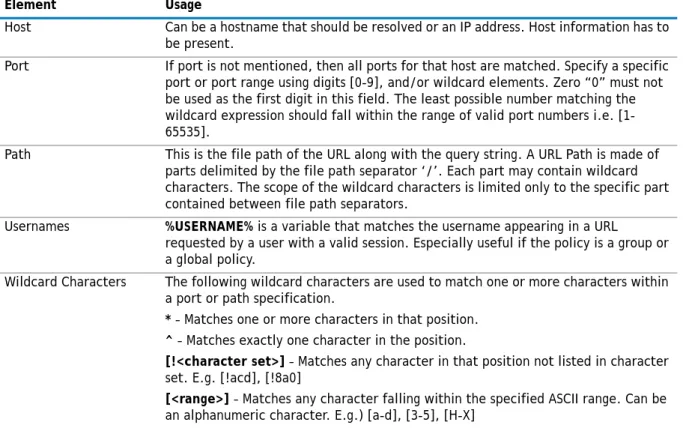
Policy URL Object Field Elements . . . .45
Configuring Single Sign-On and Cross Domain Sign-On . . . 46
Configuring Single Sign-On . . . .46
Configuring Cross Domain Single Sign-On . . . .48
Glossary . . . 49
About Dell . . . 50
Contacting Dell . . . .50
1
Document Scope
This document describes the implementation of HTTP(S) reverse proxy to provide access to offloaded Web-based applications and HTTP/HTTPS bookmark access to Microsoft SharePoint, Microsoft Outlook Web Access (OWA) Premium, and IBM Lotus Domino Web Access 8.0.1, 8.5.1, and 8.5.2 on Dell SonicWALL SRA appliances running the latest firmware.This document contains the following sections:
• Overview on page 4
• What are HTTP(S) Bookmarks and Application Offloading? on page 4 • Benefits of HTTP(S) Bookmarks on page 5
• Benefits of Application Offloading on page 5 • How Does Application Offloading Work? on page 5 • Supported Platforms on page 6
• Software Prerequisites on page 8
• Configuring and Using Offloaded Applications on page 9 • Application Offloading Portal Settings on page 9 • Configuring an Offloaded Application on page 9 • Using Offloaded Applications on page 18
• Configuring and Using HTTP(S) User Bookmarks on page 19 • Configuring a HTTP(S) user bookmark on page 19 • Using HTTP and HTTPS bookmarks on page 21
• Using HTTP(S) bookmarks with SharePoint and Lotus Domino on page 21 • Securing Microsoft Exchange Access Using SRA on page 29
• Securing Microsoft Exchange access with Application Offloading on page 29 • OWA Bookmarks on page 35
• Configuring URL Based Aliasing on page 39 • URL Based Aliasing Overview on page 39 • Adding a URL Based Aliasing Group on page 39
• URL Based Aliasing Group with Application Offloading on page 42 • Creating Policies for URL Objects on page 44
• Creating User/Group/Global Policies on page 44 • Policy URL Object Field Elements on page 45
• Configuring Single Sign-On and Cross Domain Sign-On on page 46 • Configuring Single Sign-On on page 46
• Configuring Cross Domain Single Sign-On on page 48 • Glossary on page 49
2
Overview
This section provides an introduction to application offloading and HTTP(S) bookmarks. This section contains the following subsections:
• What are HTTP(S) Bookmarks and Application Offloading? on page 4 • Benefits of HTTP(S) Bookmarks on page 5
• Benefits of Application Offloading on page 5 • How Does Application Offloading Work? on page 5 • Supported Platforms on page 6
• Software Prerequisites on page 8
What are HTTP(S) Bookmarks and
Application Offloading?
Dell SonicWALL uses HTTP(S) bookmarks and application offloading on SRA appliances to provide access to Web-based applications running on servers within the intranet. This includes SharePoint 2007, SharePoint 2010, and the enhanced versions of commonly used Web mail interfaces, such as Microsoft OWA Premium and Lotus Domino Web Access. SharePoint 2010 is supported with application offloading.
Both application offloading and HTTP(S) bookmarks use an HTTP(S) reverse proxy. A reverse proxy is a proxy server that is deployed between a remote user outside an intranet and a target Web server within the intranet. The reverse proxy intercepts and forwards packets that originate from outside the intranet. An HTTP(S) reverse proxy specifically intercepts HTTP(S) requests and responses.
Application Offloading provides secure access to both internal and publicly hosted Web applications. An application offloading host is created as a special-purpose portal with an associated virtual host acting as a proxy for the backend Web application.
Unlike HTTP(S) bookmarks, access to offloaded applications is not limited to remote users. The administrator can enforce strong authentication and access policies for specific users or groups. For instance, in an organization certain guest users may need Two-factor or Client Certificate authentication to access Outlook Web Access (OWA), but are not allowed to access OWA public folders. If authentication is enabled, multiple layers of Dell SonicWALL advanced authentication features such as One Time Password, Two-factor
Authentication, Client Certificate Authentication and Single Sign-On can be applied on top of each other for the offloaded host.
The offloaded application portal must be configured as a virtual host with a suitable SRA domain. It is possible to disable authentication and access policy enforcement for such an offloaded host.
Web transactions can be centrally monitored by viewing the logs. In addition, Web Application Firewall can protect offloaded application hosts from any unexpected intrusion, such as Cross-site scripting or SQL Injection. Access to offloaded Web applications happens seamlessly as URLs in the proxied page are not rewritten in the manner used by HTTP or HTTPS bookmarks.
Benefits of HTTP(S) Bookmarks
By using HTTP(S) bookmarks, users can access the full-featured versions of SharePoint 2007, SharePoint 2010, Microsoft OWA with Autodiscover, Microsoft OWA Premium, and Domino Web Access Web mail interfaces. These interfaces are easier to use and provide more enhanced features than their basic counterparts. For a full description of the application features supported using application offloading and HTTP(S) bookmarks, refer to the following sections:
• SharePoint server 2007 on page 23 • SharePoint server 2010 on page 23 • SharePoint server 2013 on page 24
• Lotus Domino Web Access support on page 26
Benefits of Application Offloading
An offloaded Web application has the following advantages over the Web application as an HTTP(S) bookmark in the SRA appliance:
• No URL rewriting is necessary, thereby improving throughput significantly.
• The functionality of the original Web application is retained almost completely, while an HTTP(S)
bookmark is a best-effort solution.
• Application offloading extends the SRA appliance security features to publicly hosted Web sites.
Application offloading can be used in any of the following scenarios:
• To function as an SSL offloader to offload encryption operations for Web servers and add HTTPS support
to the offloaded Web application, using the integrated SSL accelerator hardware of the SRA appliance.
• In conjunction with the Web Application Firewall subscription service to provide the offloaded Web
application continuous protection from malicious Web attacks.
• To add strong or stacked authentication to the offloaded Web application, including Two-factor
authentication, One Time Passwords and Client Certificate authentication.
• To control granular access to the offloaded Web application using global, group or user based access
policies.
• To control access to internal Web sites using host, URL, or port based access policies
• As an SSL accelerator to enhance throughput over the Internet using caching, compression, connection
persistence and multiplexing
• To support Web applications not currently supported by HTTP/HTTPS bookmarks. Application Offloading
does not require URL rewriting, thereby delivering complete application functionality without compromising throughput.
How Does Application Offloading Work?
For example, Application Offloading portals can be used for Web applications and sites that already exist and could be accessed directly, such as an internal Web application, a resource on the internal network, or a public site. When using Application Offloading portals, remote access to these sites or applications is controlled by the SRA appliance and mapped to Application Offloading portals that are protected by other functions of the SRA appliance, such as SSL encryption and Web Application Firewall.
Supported Platforms
Appliance Platforms
Application Offloading and HTTP(S) bookmarks are supported on the following Dell SonicWALL SRA appliances:
• SRA 4600 • SRA 4200 • SRA 1600 • SRA 1200
• SRA Virtual Appliance
HTTP Versions
HTTP(S) bookmarks and application offloading portals support both HTTP/1.0 and HTTP/1.1.
Certain performance optimization features, such as caching, compression, SSL hardware acceleration, HTTP connection persistence, TCP connection multiplexing and transfer-chunk encoding for proxies are automatically enabled depending on the usage.
Applications
Starting in Dell SonicWALL SRA 5.5, SharePoint 2010 is supported with application offloading, but not with HTTP(S) bookmarks. The following features have been tested and verified as working well on the indicated browsers:
Secure Remote Access
X1 X0 1200 SRA PWRTEST ALARM CONSOLE GET /exchange/ Host: webmail.company.com GET /orders/Billing.aspx Host: www.company.com GET /view_employee.asp?id=123 Host: intranet.company.com GET /exchange/ Host: 192.168.2.4 GET /orders/Billing.aspx Host: 10.50.50.12 GET /view_employee?id=123 Host: 192.168.2.5
Exchange
Server
Company
Network/
Servers
E-Commerce
Server
Mapped IP’s of
Actual Servers
Virtual Hostnames
for Application
Offloading Portals
External
User
Employee
User
SonicWALL SRA Appliance
ew tr em 68 /o w er 50 /ex w ha .1
The following Web applications have been tested and verified to work with HTTP(S) bookmarks and as offloaded applications on all SRA platforms:
• Microsoft Outlook Web Access 2013 (Application Offloading only)
Microsoft Outlook Web Access 2010 (Application Offloading only) Microsoft Outlook Web Access 2007
• Microsoft Outlook Anywhere • Windows SharePoint 2013
Windows SharePoint 2010 Windows SharePoint 2007 Windows SharePoint Services 3.0
• Lotus Domino Web Access 8.0.1
Lotus Domino Web Access 8.5.1 Lotus Domino Web Access 8.5.2
• Novell Groupwise Web Access 7.0 • ActiveSync with Microsoft Exchange 2010
ActiveSync with Microsoft Exchange 2007 ActiveSync with Microsoft Exchange 2003
Exchange ActiveSync is supported on the following:
• Apple iPhone • Apple iPad
• Android 4.4x (KitKat) based phones • Windows Mobile 8.0 based phones • Windows Mobile 7.5 based phones
Authentication Schemes
The following authentication schemes are supported for use with application offloading and HTTP(S) bookmarks:
• Basic – Collects credentials in the form of a username and password.
• NTLM (Microsoft NT LAN Manager) – Provides automatic authentication between Active Directory aware
applications.
SharePoint Features Browsers
Add Announcement Delete Announcement Download Document Add Document Delete Document Add New Item Delete Item
Internet Explorer 10/11 Firefox 32 or later Chrome 36 or later
• Forms-based authentication – Uses a Web form to collect credentials.
Software Prerequisites
The following end-user requirements must be met in order to access the complete set of application offloading and HTTP(S) bookmarks features:
• Internet Explorer 8.0 or later
• One of the following Windows operating systems: • Windows 8.1
• Windows 8 • Windows 7 • Windows XP
3
Configuring and Using Offloaded
Applications
The SRA administrator can configure Web (HTTP) or Secure Web (HTTPS) offloaded applications or bookmarks to allow user access to Web-based resources and applications such as SharePoint 2007, Microsoft OWA Premium, or Domino Web Access. When user or group bookmarks are defined, the user or group member will see the defined bookmarks on the SRA appliance Virtual Office home page.
This section contains the following subsections:
• Application Offloading Portal Settings on page 9 • Configuring an Offloaded Application on page 9 • Using Offloaded Applications on page 18
Application Offloading Portal Settings
The table below shows appropriate Application Offloading portal settings when the portal is providing Web Application Firewall protection to remotely accessed internal sites and to public sites:
Dell SonicWALL recommends using the same FQDN for the Virtual Host Name and the application server site to avoid the need for URL rewriting.
Configuring an Offloaded Application
This section contains the following subsections:
• Configuring Offloading Settings on page 10 • Configuring General Portal Settings on page 12 • Configuring Virtual Host Settings on page 14
• Configuring an HTTP/HTTPS Application Offloading Portal on page 15
Application Offloading Portal Settings For Remote Access to an Internal Site For a Public Site
DNS Configuration Split DNS Public DNS Authentication Enabled Disabled (likely) Access Policies User/Group/Global Global
SSL VPN Domains Enabled None Login Customization Optional None Custom Logo Optional None
NOTE: The Application Offloading feature will not work well if the application refers to resources within the same host using absolute URLs. In this case, you may need to convert an absolute URL reference to its relative form.
Configuring Offloading Settings
To configure an offloaded Web application:
1 Navigate to Portals > Portals and click the Offload Web Application button. The Add Portal screen opens.
2 Configure the fields on the General tab. See Configuring General Portal Settings on page 12 for information about the settings on the General tab.
3 On the Offloading tab, select the Enable Load Balancing check box if you want to distribute the workload across multiple resources.
4 Select the Enable URL Based Aliasing check box if you want the ability to access several Web sites using one portal and domain name. If this option is enabled, the screen options will change. You will need to select the URL Based Aliasing Group from the drop down list. For more information, see Configuring URL Based Aliasing on page 39.
5 Select the Enable URL Rewriting for self-referenced URLs check box if you want to rewrite absolute URLs that refer to this application server in HTML, Javascript, or CSS content. Depending on how the
Web application has been developed, all the URLs may not be rewritten. (This limitation is usually the same for other WAF/SRA vendors employing reverse proxy mode.)
6 Select one of the following from the Scheme drop-down list:
• Web (HTTP) – access the Web application using HTTP
• Secure Web (HTTPS) – access the Web application using HTTPS
• Auto (HTTP/HTTPS) – allows the user to determine the actual scheme used to talk to the backend
When using the Auto scheme, users can type http://www.example.virtual.host.com or
https://www.example.virtual.host.com in a browser’s address bar to test this feature. Even when the scheme is set to Auto, it’s still under the control of the access policy.
• Generic (SSL Offloading) – access the Web application using SSL Offloading
7 Enter the host name or private IP address of the backend host into the Application Server Host field. 8 Optionally enter the IPv6 address of the backend host into the Application Server IPv6 Address field. 9 In the Port Number (optional) field, optionally enter a custom port number to use for accessing the
application.
10 In the Homepage URI (optional) field, optionally enter a URI to a specific resource on the Web server to which the user will be forwarded the first time the user tries to access the Application Offloading Portal. This is a string in the form of: /exch/test.cgi?key1=value1&key2=value2
When this field is configured, it redirects the user to the Web site’s home page the first time the user accesses the portal. This happens only when the user is accessing the site with no URL path (that is, when accessing the root folder, for example: https://www.google.com/). This is not an alias for the root folder. The user can edit the URL to go back to the root folder.
The key=value pairs allow you to specify URL query parameters in the URL. You can use these for any Web site that does not have a default redirect from the root folder to the home page URL. Outlook Web Access is one example, but note that most public sites do have a default redirect.
11 Under Security Settings, select the Disable Access Policies check box if you do not need access policies. This is useful for publicly hosted Web sites.
12 Check the Disable Authentication Controls check box if you do not need authentication controls. Authentication controls are useful for publicly hosted Web sites. Otherwise, clear the Disable
Authentication Controls check box and select the Enable ActiveSync authentication check box, and Default Domain Name field to configure ActiveSync Authentication. Configuring an offloading portal for
ActiveSync support is explained in Using Offloaded Applications on page 18.
13 The Share session with other local applications check box allows web application browsers to work with other local applications or SharePoint client integration. Select the check box to enable this option. 14 Select the Automatically Login check box to use Single Sign-On or Cross Domain Single Sign-On. See
Configuring Single Sign-On and Cross Domain Sign-On on page 46 and Configuring Single Sign-On and Cross Domain Sign-On on page 46 for information about configuring SSO options for an offloaded application. 15 Configure the fields on the Virtual Host tab. See the Configuring Virtual Host Settings on page 14 for
information about the settings on the Virtual Host tab.
16 Click OK. You are returned to the Portals > Portals page where you will see the Web application listed as an Offloaded Web Application under Description.
IMPORTANT: It is the Administrator’s responsibility to configure the correct scheme used to talk to the backend server. Auto (HTTP/HTTPS) Scheme can operate only if HTTP access is enabled for the Virtual Host (under the Virtual Host tab) and authentication is disabled (under the Offloading tab), which may be insecure. Therefore, you will be prompted to click OK to enable HTTP for Virtual Host and enable Anonymous access.
NOTE: The Disable Authentication Controls check box must be cleared to select the
17 If you want users to authenticate when accessing the offloaded application (you have not disabled authentication in Step 11 above), navigate to the Portals > Domains page and create a domain for this portal. See the Dell SonicWALL SRA Administrator Guide for information about creating a domain. 18 Update your DNS server for the virtual host domain name and alias (if any).
Configuring General Portal Settings
To configure the settings on the General tab for an offloaded application portal:
1 Navigate to the Portals > Portals page.
2 On the General tab, enter a descriptive name for the portal in the Portal Name field. This name will be part of the path in the portal URL. For example, if your Dell SonicWALL SRA portal is hosted at
https://vpn.company.com, and you created a portal named “sales,” then users will be able to access
3 Enter the title for the Web browser window in the Portal Site Title field.
4 To display a banner message to users before they login to the portal, enter the banner title text in the
Portal Banner Title field.
5 Enter an HTML compliant message, or edit the default message in the Login Message field. This message is shown to users on the custom login page.
6 The Portal URL field is automatically populated with your SRA network address and Portal Name. 7 To enable visibility of your custom logo, message, and title information on the login page, select the
Display custom login page check box.
8 Select the Display login message on custom login page check box to display the login message (from the
Login Message field) when users log into the custom login page.
9 Select the Enable HTTP meta tags for cache control check box to apply HTTP meta tag cache control directives to the portal. Cache control directives include:
<meta http-equiv="pragma" content="no-cache">
<meta http-equiv="cache-control" content="no-cache">
<meta http-equiv="cache-control" content="must-revalidate">
These directives help prevent client browsers from caching the SRA appliance portal pages and other Web content.
NOTE: Only alphanumeric characters, hyphen (-), and underscore (_) are accepted in the
Portal Name field. If other types of characters or spaces are entered, the portal name will
be truncated before the first non-alphanumeric character.
NOTE: Custom logos can only be added to existing portals. To add a custom logo to a new portal, first complete general portal configuration, then add a logo.
NOTE: Enabling HTTP meta tags is strongly recommended for security reasons and to prevent out-of-date Web pages and data being stored in a user Web browser cache.
10 Select the Enforce login uniqueness check box to restrict each account to a single session at a time. When login uniqueness is not enforced, each account can have multiple, simultaneous sessions.
11 Select the Enforce client source uniqueness check box to prevent multiple connections by a user with the same client source address when connecting with a Dell SonicWALL client (NetExtender, Mobile Connect, Virtual Assist etc.). This prevents a user from consuming multiple licenses when a user reconnects after an unexpected network interruption.
For example, a user on an unreliable network is disconnected due to a network issue. If login uniqueness is NOT enabled, the user session on the appliance stays active for this type of disconnect until the timeout value is reached. The user reconnects and consumes a second license with the potential of consuming more licenses before the original connection timeout disconnects them.
12 Specify the link(s) for the Small / Medium / Wide / Large Logo to be used with Live Tile. 13 Specify the Background Color for Live Tile. If no value is specified, the default color is #0085C3. 14 Specify the Site Name to be displayed for Live Tile. If no value is specified, the default is the Portal
Name.
Configuring Virtual Host Settings
Creating a virtual host allows users to access the application using a different host name than your default URL. For example, sales members can access https://sales.company.com instead of the default domain,
https://vpn.company.com that you use for administration. The portal URL (for example,
https://vpn.company.com/portal/sales) will still exist even if you define a virtual host name. Virtual host names enable administrators to give separate and distinct login URLs to different groups of users. URL rewriting should be enabled in this case.
To avoid the need for URL rewriting, use the same FQDN for the Virtual Host Name and the application server site.
To configure the settings on the Virtual Host tab for an offloaded application portal:
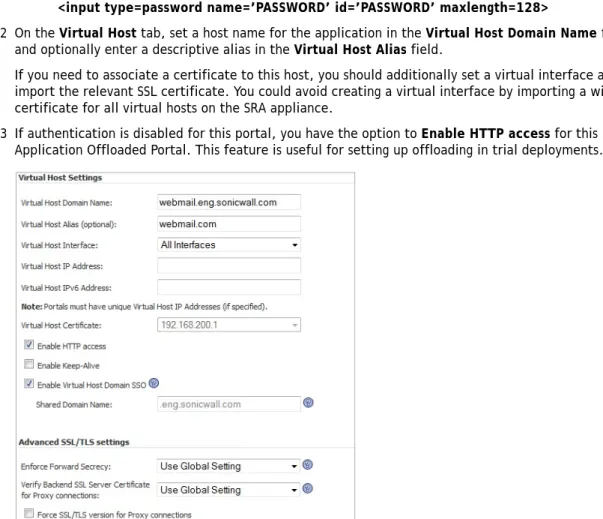
1 Enter a host name in the Virtual Host Domain Name field, for example, sales.company.com.
Only alphanumeric characters, hyphen (-) and underscore (_) are accepted in the Virtual Host Domain
Name field.
2 Optionally enter a descriptive alias in the Virtual Host Alias field.
3 If you are using IP based virtual hosting, select a specific Virtual Host Interface for this portal. If using name based virtual hosts — where more than one hostname resides behind a single IP address — choose
All Interfaces.
When selecting All Interfaces, you can import a wildcard certificate for all virtual hosts on the SRA appliance. See Step 6.
4 If you selected a specific interface for this portal in the previous step, enter the desired Virtual Host IP
Address in the field provided. This is the IP address users will access in order to access the portal.
5 If you selected a specific interface for this portal, you can specify an IPv6 address in the Virtual Host
IPv6 Address field. You can use this address to access the virtual host. Enter the IPv6 address using
decimal or hexadecimal numbers in the form: 2001::A987:2:3:4321
6 If you plan to use a unique security certificate for this sub-domain, select the corresponding port interface address from the Virtual Host Certificate list.
If you need to associate a certificate to this host, first import the relevant SSL certificate into the SRA appliance:
NOTE: For external access, be sure to add an entry in your external DNS server to resolve the virtual hostname and domain name to the external IP address of your SRA appliance.
• For name-based virtual hosting, you can import a wildcard certificate to use for all virtual hosts
on the SRA.
• For IP-based virtual hosting, import a regular SSL certificate. This type of certificate includes the
hostname of the server.
7 Select the Enable Virtual Host Domain SSO check box to allow users logged into this portal to automatically log into other portals or Web sites that share the same Virtual Host Domain.
Configuring an HTTP/HTTPS Application Offloading
Portal
To offload a Web application and create a portal for it:
1 Navigate to Portals > Portals and click the Virtual Host tab. The Virtual Host Settings screen opens. This allows you to access the Portal directly.
2 Enter a descriptive name in the Virtual Host Domain Name field.
3 On the Offloading tab, select the Enable Load Balancing check box for load balancing among offloaded application servers.
4 Select one of the following from the Scheme drop-down list:
• Web (HTTP) – access the Web application using HTTP (default scheme) • Secure Web (HTTPS) – access the Web application using HTTPS
• Auto (HTTP/HTTPS) – allows the user to determine the actual scheme used to talk to the
backend server when accessing an offloading portal. Access is still under the control of the access policy.
NOTE: Unless you have a certificate for each virtual host domain name, or if you have purchased a *.domain SSL certificate, your users may see a Certificate host name
mismatch warning when they log into the portal. The certificate hostname mismatch only
affects the login page; the SRA appliance client applications will not be affected by a hostname mismatch.
NOTE: Some ActiveSync clients do not work well with servers that have invalid SSL certificates.
When using the Auto scheme, users can type http://www.example.virtual.host.com or
https://www.example.virtual.host.com in browser’s address bar to test this feature. Even scheme set to Auto, it’s still under the control of the access policy.
• Generic (SSL Offloading) – use SSL offloading to access custom SSL applications
(non-HTTP(S) applications)
5 Enter the host name or private IP address of the backend host into the Application Server Host field. 6 Optionally enter the IPv6 address of the backend host into the Application Server IPv6 Address field. 7 In the Port Number (optional) field, optionally enter a custom port number to use for accessing the
application.
8 In the Homepage URI (optional) field, optionally enter a URI to a specific resource on the Web server to which the user will be forwarded the first time the user tries to access the Application Offloading Portal. This is a string in the form of: /exch/test.cgi?key1=value1&key2=value2
When this field is configured, it redirects the user to the Web site’s home page the first time the user accesses the portal. This happens only when the user is accessing the site with no URL path (that is, when accessing the root folder, for example: https://www.google.com/). This is not an alias for the root folder. The user can edit the URL to go back to the root folder.
The key=value pairs allow you to specify URL query parameters in the URL. You can use these for any Web site that does not have a default redirect from the root folder to the home page URL. Outlook Web Access is one example, but note that most public sites do have a default redirect.
a Under Security Settings, select the Enable Web Application Firewall button to enable the feature.
b Select the Disable Authentication Controls, Access Policies, and CSRF Protection (if
enabled) check box if you need no authentication, access policies, or CSRF protection enforced.
This is useful for publicly hosted Web sites.
a To configure ActiveSync authentication, clear the Disable Authentication Controls check box to display the authentication fields. Select the Enable ActiveSync authentication check box and then type the default domain name. The default domain name will not be used when the domain name is set in the email client’s setting.
9 Select the Automatically Login check box to configure Single Sign-On settings.
10 For automatic login using SSO, select one of the following radio buttons:
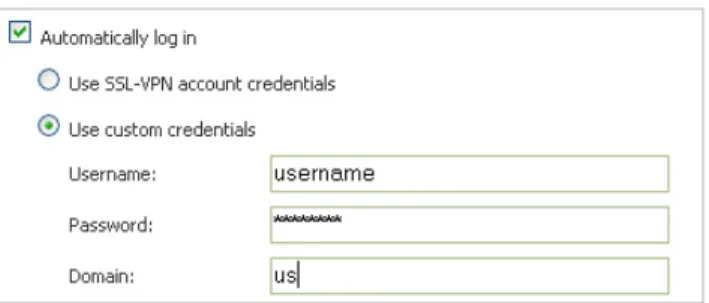
• Use SSL-VPN account credentials – allow login to the offloaded application using the
credentials configured on the SRA appliance
• Use custom credentials – displays Username, Password, and Domain fields where you can
enter the custom credentials for the application or use dynamic variables. For the Password field, enter the custom password to be passed, or leave the field blank to pass the current user’s password to the offloaded application portal. For the other fields, dynamic variables can be used, such as those shown below:
CAUTION: It is the Administrator’s responsibility to configure the correct scheme used to talk to the backend server. Auto (HTTP/HTTPS) Scheme can operate only if HTTP access is enabled for the Virtual Host (under the Virtual Host tab) and authentication is disabled (under the Offloading tab), which may be insecure. Therefore, you will be prompted to click OK to enable HTTP for Virtual Host and enable Anonymous access.
11 If you selected Automatically Login, select the Forms-based Authentication check box to configure Single Sign-On for forms-based authentication.
• Configure the User Form Field to be the same as the ‘name’ and ‘id’ attribute of the HTML
element representing User Name in the Login form, for example:
<input type=text name=’userid’>
• Configure the Password Form Field to be the same as the ‘name’ or ‘id’ attribute of the HTML
element representing Password in the Login form, for example:
<input type=password name=’PASSWORD’ id=’PASSWORD’ maxlength=128>
12 On the Virtual Host tab, set a host name for the application in the Virtual Host Domain Name field, and optionally enter a descriptive alias in the Virtual Host Alias field.
If you need to associate a certificate to this host, you should additionally set a virtual interface and import the relevant SSL certificate. You could avoid creating a virtual interface by importing a wildcard certificate for all virtual hosts on the SRA appliance.
13 If authentication is disabled for this portal, you have the option to Enable HTTP access for this Application Offloaded Portal. This feature is useful for setting up offloading in trial deployments.
14 Click Accept. You are returned to the Portals > Portals page where you will see the Web application listed as an Offloaded Web Application under Description.
Table 1. Supported dynamic variables
Text Usage Variable Example Usage
Login Name %USERNAME% US\%USERNAME%
Domain Name %USERDOMAIN% %USERDOMAIN\%USERNAME% Group Name %USERGROUP% %USERGROUP%\%USERNAME%
15 If you have not disabled authentication, navigate to the Portals > Domains page and create a domain for this portal.
16 Update your DNS server for this virtual host domain name and alias (if any).
Using Offloaded Applications
An offloaded application has its own portal page on the SRA appliance. The portal can be accessed directly by entering the URL in a Web browser. You can also create an External Web site Bookmark on the SRA Virtual Office portal that takes you to the offloaded application portal.
To use an offloaded application:
1 For direct access, point your Web browser to the URL of the offloaded application portal.
2 For access via an External Web site Bookmark, log into the Dell SonicWALL Virtual Office and then click on the bookmark.
A new window is launched in your default browser that connects to the offloaded application portal specified in the bookmark.
4
Configuring and Using HTTP(S) User
Bookmarks
Dell SonicWALL uses HTTP(S) bookmarks on SRA appliances to provide access to Web-based applications running on SharePoint 2007servers within the intranet.
This section contains the following subsections:
• Configuring a HTTP(S) user bookmark on page 19 • Using HTTP and HTTPS bookmarks on page 21
• Using HTTP(S) bookmarks with SharePoint and Lotus Domino on page 21
Configuring a HTTP(S) user bookmark
To create HTTP or HTTPS user bookmarks:
1 Log into your SRA appliance.
2 From the Users tab, select either Local Users or Local Groups.
3 Click the Configure icon next to the user or group for which you want to create the bookmark. 4 Select the Bookmarks tab.
6 Type the name of the bookmark in the Bookmark Name field.
7 Enter the HTTP or HTTP(S) address of your Web mail server in the Name or IP Address field. For example, webmail.company.com or company.notes.net/example/mail.
8 Optionally, type a brief description that will be used to identify the bookmark.
9 Optionally, in the Tabs field, identify a comma-separated list of tabs where the bookmark should appear. Standard tabs (Desktop, Web, Files, Terminal) include the bookmark by default and do not need to be specified.
10 If you are creating the bookmark for a Local User, you have the option to allow or deny users the ability to edit or delete this bookmark.
• Select Allow from the Allow user to edit/delete drop-down menu to allow them to edit or delete
the bookmark.
• To prevent users from editing or deleting the bookmark, select Deny. • To allow or deny based on the individual user policy, select Use user policy.
11 Select Web (HTTP) or Secure Web (HTTPS) the service type in the Service pull-down menu.
12 Select the Automatically Login check box to use Single Sign-On. See Configuring Single Sign-On and Cross NOTE: For HTTP and HTTPS bookmarks you can specify custom ports and paths, for example
www.mycompany.com:8080.
NOTE: Only Local Users bookmarks have the option of allowing users edit/delete privileges. Bookmarks created in the Local Groups tab are permanently displayed on portals for all users in the group and can only be removed or edited by the administrator.
13 Click Add to add the bookmark. Once the configuration has been updated, the new user bookmark will be displayed in the Edit User Settings window as shown below:
Figure 1. User Bookmarks
Using HTTP and HTTPS bookmarks
HTTP or HTTPS bookmarks are accessed directly from the Virtual Office.
To use HTTP(S) bookmarks:
1 Log into the Dell SonicWALL Virtual Office.
2 Click on the Web (HTTP) or Secure Web (HTTPS) bookmark.
A new window is launched in your default browser that connects to the domain name or IP address specified in the bookmark.
Using HTTP(S) bookmarks with SharePoint
and Lotus Domino
This section includes the following topics:
• Application configuration and considerations on page 21 • SharePoint server 2007 on page 23
• SharePoint server 2010 on page 23 • SharePoint server 2013 on page 24
• Enabling basic authentication for SharePoint servers on page 24 • Enabling basic authentication for a Web Application zone on page 25 • Disabling client integration on a Web Application zone on page 25 • Lotus Domino Web Access support on page 26
Application configuration and considerations
The SharePoint and Lotus Domino both have general considerations when using these software applications with HTTP(S) bookmarks. This section lists includes details regarding configuration and deployment considerations.
NOTE: Microsoft OWA Premium and Lotus Domino Web Access are supported in SRA 5.5 and later. For information about non HTTP(s) bookmarks, refer to the Dell SonicWALL SRA 8.0 Administrator Guide.
NOTE: The maximum number of users supported is limited by the number of applications being accessed and the volume of application traffic being sent.
NOTE: Feature support varies based on your hardware and installation, see the respective sections for more detailed information about specific application support.
Supported application deployment considerations
Be aware of these installation and general considerations when using application offloading and HTTP(S) bookmarks with the following software applications:
• SharePoint
• Client integration is supported for SharePoint 2010 and 2013 while it is accessed through an
offloaded portal.
• Other authentication methods are supported when Application Offloading is used. • Single Sign-On (SSO) is supported only for basic authentication.
• SharePoint 2010 is supported with application offloading, but not with HTTP(S) bookmarks. • Domino Web Access
• This technology uses ActiveX controls for access using Internet Explorer 6.0 and later. Single
Sign-On is not supported for Domino Web Access 8.0.1, 8.5.1, and 8.5.2 through the reverse proxy. SharePoint utilizes distributed authoring to make additions and edits easy. Users can collaboratively create Wiki-style entries including events, contact information, documents, and news groups. Customized views can also be set up for diverse teams requiring multiple views and secured access to information.
Supported SharePoint features
The following features are supported in the Dell SonicWALL SRA appliance reverse proxy feature:
• Using Site Templates to Collaborate or Manage Meetings - The site templates in the Collaboration
group are designed to help teams within an organization work on projects and collaborate on documents. The templates in this group support everything from basic meetings to decision-focused meetings or even social events.
• Sharing Documents, Contacts, Tasks, and Calendars - Synchronize your Office SharePoint Server
calendar with Office Outlook, enter all-day events and specify more types of repeating, or recurring events. Track team projects more effectively with visual day and month views.
• Brainstorm Easily with Wiki Sites - Collaborate on a team design, build an encyclopedia of knowledge,
or just gather routine information in a format that is easy to create and modify. Your team members can contribute to wikis from their browsers — they don't need a word processor or special technical
knowledge.
• Share Ideas with Blogs - With just a few clicks, easily publish customized short posts that are displayed
in order, starting with the most recent post.
• Receive updates to lists and libraries with RSS - Automatically update members of your workgroup
about changes to content using Really Simple Syndication (RSS) technology.
• Manage Projects - Create a Project Tasks list, which includes a Gantt chart for a visual overview of
project tasks to monitor dates and progress of team tasks.
• Get Mobile Access to Content - View portals, team sites, and lists on a mobile device to help you stay
current on team projects and tasks when you are travelling.
• Store and Share Information on Your Own “My Site” - Each user can store content, links, and contacts
on their personal My Site. Your My Site also serves as a point of contact for others to find information about you such as your skills and roles, your colleagues and managers, the groups and distribution lists that you belong to, and the documents that you are working on. Each site contains stringent privacy control and security mechanisms so that you can choose how much information to present and to whom.
TIP: If you are using the correct Web browser and operating system, and a supported application does not work, delete the browser session cookies, close and reopen all instances of your browser, clear the browser cache, and then try again.
• Search from the Search Center - A central location for initiating queries and browsing search results to
locate users with specific skill sets, documents, information about projects, and even data in enterprise applications such as SAP and Siebel.
• Manage Documents in the Document Center - Create large-scale document management sites that
support highly structured document management scenarios with strong content control: Check-out, major and minor version control, multiple content types, and auditing to track content changes over time.
• Manage Document Translation - Create, store, and manage translated documents to facilitate the
manual document translation process.
• Web Content Management - Office SharePoint Server includes many features that are useful for
designing, deploying, and managing enterprise intranet portals, corporate Internet presence Web sites, and divisional portal sites.
• Streamline Processes with Workflows - Collaborate on documents and manage project tasks by
implementing specific business processes on documents and items on an Office SharePoint Server site.
• Store Reports in a Report Center - Link to business applications such as SAP, Siebel, and Microsoft SQL
Server 2005 to easily publish reports, lists, and key performance indicators (KPIs). The Report Center site provides a central location for storing reports that are common to a group.
SharePoint server 2007
SharePoint is a Web portal management tool that lets users share information including spreadsheets,
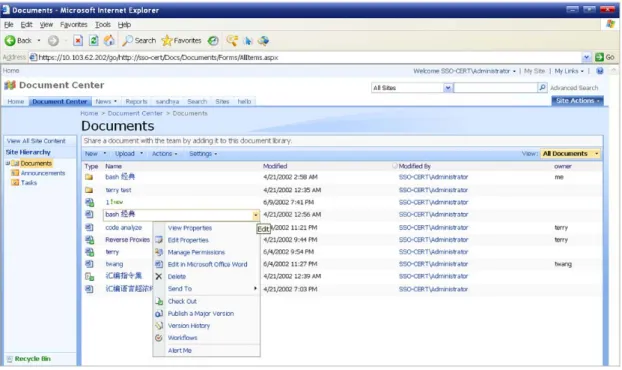
presentations, photographs, and more. SharePoint facilitates creating a site for each project and managing the relevant data, allowing management with nothing more than a browser.
Figure 2. SharePoint Web User Interface
SharePoint server 2010
Starting in Dell SonicWALL SRA 5.5, SharePoint 2010 is supported with application offloading, but not with HTTP(S) bookmarks. The client integration is only supported on Internet Explorer under the following caveats:
• The Scheme used by the offloaded portal and the back end SharePoint must be the same. If the back end
SharePoint is running on HTTP, the offloaded portal must enable HTTP access and be accessed with HTTP.
• The same Scheme between the offloaded portal and the back end SharePoint means that URL Rewriting
for the offloaded portal does not need to be enabled.
• The Share session with other local application option must be enabled. This check box is located on the Portals > Portals > Offloading tab.
• The Restrict Request Headers option must be disabled. This check box is located on the Services > Settings page.
• If using Windows Vista or Windows 7 with the client, the offloaded portal should be added as a “Trusted
Site” on the Internet Explorer browser. To configure your trusted sites, navigate to Tools > Internet
Options. On the Security tab, click the Trusted Sites icon.
The Share session with other local applications option must be enabled at login.
SharePoint server 2013
When the SharePoint 2013 server is accessed through an offloaded portal, basic functionalities, such as adding, editing, or deleting documents, tasks, or calender events are supported. The client integration is supported if the offloaded portal’s authentication controls are enabled or disabled. However, when the Authentication Controls are enabled, the client integration is only supported on Internet Explorer under the following caveats:
• The offloaded portal created for SharePoint must use a valid certificate.
• The Scheme used by the offloaded portal and the back end SharePoint must be the same. If the back end
SharePoint is running on HTTP, the offloaded portal must enable HTTP access and be accessed with HTTP.
• The same Scheme between the offloaded portal and the back end SharePoint means that URL Rewriting
for the offloaded portal does not need to be enabled.
• The Share session with other local application option must be enabled. This check box is located on the Portals > Portals > Offloading tab.
• The Restrict Request Headers option must be disabled. This check box is located on the Services > Settings page.
• If using Windows Vista or Windows 7 with the client, the offloaded portal should be added as a “Trusted
Site” on the Internet Explorer browser. To configure your trusted sites, navigate to Tools > Internet
Options. On the Security tab, click the Trusted Sites icon.
• The Share session with other local applications option must be enabled at login.
Enabling basic authentication for SharePoint servers
To enable basic authentication for a SharePoint server:
1 Navigate to Administrative Tools panel, open the SharePoint Central Administration Web site application. The Central Administration home page displays.
2 Navigate to Application Management > Authentication Providers. The Authentication Providers page displays.
3 On the Authentication Providers page in the Site Actions section, select the application you want to configure by choosing Change Web Application from the Web Application drop-down list.
NOTE: In the following cases, the Enable URL Rewriting for self-referenced URLs option should be enabled for the offloaded portal:
1 The SharePoint 2010 server is using HTTP schema, and the offloaded portal pointing to the SharePoint server is using HTTPS schema.
2 The SharePoint 2010 server is using HTTPS schema, and the offloaded portal pointing to the SharePoint server is using HTTP schema.
4 In the Select Web Application dialog box, choose the Web application that you want to configure. 5 On the Authentication Providers page, click the zone of the Web application on which you want to
enable authentication. The zones that are configured for the selected Web application are listed on the Authentication Providers page.
6 On the Edit Authentication page, in the IIS Authentication section, clear the Integrated Windows
authentication and Digest authentication check boxes.
7 Click Save to commit your changes.
Enabling basic authentication for a Web Application
zone
To enable authentication for a zone of a Web application:
1 From Administrative Tools, open the SharePoint Central Administration Web site application. 2 On the Central Administration home page, click Application Management.
3 On the Application Management page, in the Application Security section, click Authentication
Providers.
4 On the Authentication Providers page, make sure the Web application that is listed in the Web
Application box (under Site Actions) is the one that you want to configure. If the listed Web application
is not the one that you want to configure, click the drop-down arrow to the right of the Web Application drop-down list box and select Change Web Application.
5 In the Select Web Application dialog box, click the Web application that you want to configure. 6 On the Authentication Providers page, click the zone of the Web application on which you want to
enable authentication. The zones that are configured for the selected Web application are listed on this page.
7 On the Edit Authentication page, in the IIS Authentication section, clear the Integrated Windows
authentication and Digest authentication check boxes, and then click Save.
The reverse proxy does not support client integration capability on Internet Explorer. These are a set of features built into SharePoint that work exclusively on IE and not on other browsers.
Disabling client integration on a Web Application
zone
Disabling client integration on the SharePoint server is an option to consider if users might be confused when client integration is not supported through HTTP bookmarks. Without client-integration, the SharePoint features look the same between IE and non-IE browsers.
To disable Client Integration support on the SharePoint server:
1 From Administrative Tools, open the SharePoint Central Administration Web site application. 2 On the Central Administration home page, click Application Management.
3 On the Application Management page, in the Application Security section, click Authentication
providers.
4 On the Authentication Providers page, make sure the Web application that is listed in the Web
Application box (under Site Actions) is the one that you want to configure. If the listed Web application NOTE: The SharePoint administrator should consider disabling client integration on the SharePoint server. Having these features appear on the UI and not supporting them through the HTTP bookmarks could confuse some users. Without client-integration, the SharePoint features look the same between IE and non-IE browsers.
is not the one that you want to configure, click the drop-down arrow to the right of the Web Application drop-down list box and select Change Web Application.
5 In the Select Web Application dialog box, click the Web application that you want to configure. 6 On the Authentication Providers page, click the zone of the Web application on which you want to
disable client integration. The zones that are configured for the selected Web application are listed on this page.
7 Clear all of the client integration check boxes, and then click Save.
Lotus Domino Web Access support
Lotus Domino Web Access 8.0.1, 8.5.1, and 8.5.2 is a Web client for IBM Lotus Domino server with an easy-to-use interface. It provides features such as advanced Web messaging and rich-text messages, scheduling meetings, managing tasks, collaboration, and managing personal information. Domino Web Access 8.0.1, 8.5.1, and 8.5.2 also provide increased server capability and reduced CPU usage to boost performance and response time. Figure 3 provides a view of the Lotus Domino Web Access 8.5.1 interface using the SRA appliance HTTP(S) reverse proxy.
Figure 3. Lotus Domino Web Access 8.5.1
The Dell SonicWALL SRA appliance HTTP(S) reverse proxy application support for Domino Web Access 8.0.1, 8.5.1, and 8.5.2, using Internet Explorer 6.0 or higher, provides users with full functionality of the following features:
NOTE: Domino Web Access 8.0.1, 8.5.1, and 8.5.2 uses ActiveX controls for access using Internet Explorer 7.0 and later.
• Send and receive email • Send and receive attachments • Delete messages
• Open attachment from reading and preview panes • Spell check
• Quick Flags and message flags • Set message importance • Send and receive HTML mail • Mark messages as read or unread • Navigation
• Navigate folder hierarchy in navigation pane • Sort message list by standard fields
• Search capabilities • Logout
• Calendar
• Calendar views of different time periods • Create a meeting
• Check schedule
• Use address book to pick attendees • Search for resource
• Change invitee list • Delete meeting
Table 2. Domino Web Access: Supported features
Domino Web Access 8.5.1 and 8.5.2 Domino Web Access 8.0.1
Full Mode Email Full Mode Email Calendar Calendar Contacts Contacts
To Do To Do
Notebook Notebook Lite Mode Email Lite Mode Email
Calendar Calendar Contacts
Ultra Lite Mode Inbox Sent All Docs Day At a Glance Contacts Trash
• Folders and Storage • Create a folder
• Move messages using drag and drop • Recover from trash
• Empty trash • Contacts
• View by options • Add and edit contacts • Delete contact • Tasks and Options
• Create a to-do list • View to-do list
• Use notebook to create a new note. • Delegation
• Change password • Display options • Change notes ID • Out of office settings • Rules
• Create new mail and quick rules • Delete rules
• Test created rules
5
Securing Microsoft Exchange Access
Using SRA
This section provides information about configuring Microsoft Exchange access using SRA. Outlook Anywhere, ActiveSync, and OWA are supported by the Application Offloading portal. OWA is also supported by HTTP(S) bookmarks. Authentication and Access Policy are enforced for access to these applications.
The Outlook Anywhere with Autodiscover Application Offloading is a feature that provides the ability for clients using Outlook 2013, Outlook 2010, or Outlook 2007 to access the Outlook Exchange Server from the Internet. Autodiscover support provides a simple configuration of the user’s account by only requiring the user’s email address and password. Autodiscover also updates the settings on the client side when the Outlook Exchange server settings have changed.
ActiveSync provides the ability for customers to use email clients on mobile phones to synch email messages. This section contains the following subsections:
• Securing Microsoft Exchange access with Application Offloading on page 29 • OWA Bookmarks on page 35
Securing Microsoft Exchange access with
Application Offloading
This section provides information about how Microsoft Exchange is accessed with Application Offloading portal. Outlook Anywhere with Autodiscover, ActiveSync, and OWA can be supported with just one Application
Offloading portal.
See the following topics for more information:
• Configuring the Application Offloading portal on page 29 • Configuring and accessing with Outlook Anywhere on page 31 • Configuring and accessing with ActiveSync clients on page 32 • Accessing with OWA on page 35
Configuring the Application Offloading portal
The following configuration procedures for the Application Offloading portal applies to all clients.To configure the Application Offloading portal:
1 Navigate to the Portals > Offloading tab.
2 Configure an Application Offloading portal as described in Configuring and Using Offloaded Applications
on page 9 with the following settings:
NOTE: If Authentication Control of the SRA appliance is enabled, only the Basic Authentication for Outlook Anywhere can be supported.
• Set the Scheme to the Exchange Server setting.
• Set the Application Server Host to your Exchange Server.
3 Under the Security Settings section, leave the Disable Authentication Controls check box unselected if you want to enforce Authentication for SRA.
4 Select the Enable Email Clients Authentication check box to allow the portal to be accessed by Email clients, such as ActiveSync or Outlook. Specify a Default Domain Name from the drop down list. The Domain Name is used as the default for SRA authentication if the domain name is not specified in the Email client.
5 Navigate to the Virtual Host tab.
6 Specify the Virtual Host Domain Name.
7 If Autodiscover is enabled, set the Virtual Host Alias as the Autodiscover URL.
8 If Autodiscover is enabled, specify the Virtual Host Certificate. If Autodiscover is enabled, a wildcard certificate is recommended.
9 Click Accept to save and apply all settings.
Configuring and accessing with Outlook Anywhere
1 Open Microsoft Outlook.2 On the File > Info page, click the Add Account button. The Add New Account window displays.
You can select Auto or Manually to configure the email account. If Autodiscover is configured, select
Auto Account Setup. If Autodiscover is not enabled or does not function properly, select the Manually NOTE: Outlook Anywhere with Autodiscover uses a different URL for fetching configuration. Verify that the Autodiscover URL is aligned with the Exchange Server settings.
configure server settings or additional server types check box to specify Outlook Anywhere settings
manually. Then, click Next.
3 On the Microsoft Exchange Settings window, click the More Settings button.
4 Under the Connection tab, select the Connect to Microsoft Exchange using HTTP check box under the Outlook Anywhere section.
5 Next, click the Exchange Proxy Settings button.
6 On the Microsoft Exchange Proxy Settings Screen, specify the host name of the Outlook Anywhere portal in the Use this URL to connect to my proxy server for Exchange field.
7 Next, select the proxy authentication setting from the drop down list. If SRA authentication is enabled, select Basic Authentication.
8 Click OK to save the configuration, and then exit out of Microsoft Outlook.
9 Open Microsoft Outlook to start a new session. Log messages will generate when the Outlook Anywhere portal is accessed.
Configuring and accessing with ActiveSync clients
The following example shows how to set up ActiveSync to check Dell SonicWALL emails with an Android. Be sure to replace entries shown in this example with entries for your environment, and be careful to input the correct password. Otherwise, the account will be blocked.
1 If the virtual host name cannot be resolved by the DNS server, modify the hosts file in the Android. 2 Turn on the Android phone, open the Email application, and type your email address and password. Click
3 Choose Exchange.
4 Input your Domain\Username, Password, and Server. No domain name is displayed, so use the default domain name specified in the offloading portal’s setting. Select Accept all SSL certificates and click
Next.
5 If the AD authentication times out, the Setup could not finish message is displayed. Wait about 20 seconds and try again. You can also check the SRA log described in ActiveSync Log Entries on page 34 to see if the user logged in successfully. You may not encounter this problem if the AD authentication is fast.
6 When the authentication finishes, a security warning appears. Click OK to continue, modify your account settings, and click Next.
7 Try to send and receive emails, and ensure that ActiveSync entries are included in the SRA log, as shown in ActiveSync Log Entries on page 34.
ActiveSync Log Entries
Use the Log > View page to confirm that ActiveSync is working properly.
The SRA log contains two ActiveSync entries (Android and Windows Mobile), each identifying when the client began to use ActiveSync through the offloading portal. The ActiveSync message identifies the device ID (ActiveSync: Device Id is…) for an ActiveSync request unless a client sets up the account and the request does not contain a device ID.
Accessing with OWA
Application Offloading is supported on Outlook Web Access (OWA). OWA is a Webmail service part of Microsoft Exchange Server and is supported with SRA 8.0. OWA allows users to connect their email accounts through a Web browser without requiring the installation of Microsoft Outlook. Features on the installed version of Microsoft Outlook such as managing calendars, contacts, tasks, and documents, as well as other mailbox content is also available for OWA users. OWA does require an Internet connection in order to sync with the Exchange Server.
OWA Bookmarks
The following section describes configuration information regarding Outlook Web Access and using it with the SRA appliance. See the following topics for more details:
• Microsoft Outlook Web Access Premium on page 35 • Application and Feature Support on page 36 • Premium and Basic Modes on page 37
Microsoft Outlook Web Access Premium
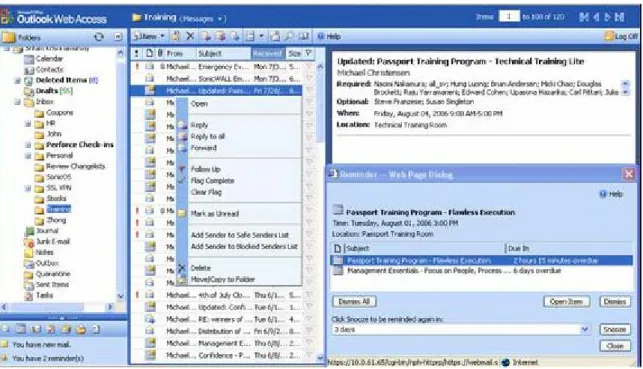
Microsoft OWA Premium mode is a Web client for Microsoft Outlook 2003/2007 that simulates the Microsoft Outlook interface and provides more features than basic OWA. Microsoft OWA Premium includes features such as spell check, creation and modification of server-side rules, Web beacon blocking, support for tasks, auto-signature support, and address book enhancements.
Figure 4 provides a view of the Microsoft OWA Premium interface using the SRA appliance HTTP(S) reverse proxy.
Application and Feature Support
The SRA appliance HTTP(S) reverse proxy application support for Microsoft OWA Premium, using Internet Explorer 6.0 or higher, provides users with full functionality of the following features:
• Access to email, calendar, and tasks
• New Outlook look-and-feel, including right-click functionality • Ability to mark an email as unread
• Server-side spelling checker (limited to six languages) • Forms-based authentication (session time-out) • S/MIME support
• Two-line view • Context menus
• Improved keyboard shortcuts • Ability to forward meeting requests • Notifications on navigation pane • Ability to add to contacts
• Ability to pick names from address book
• Ability to set maximum number of messages displayed in views • Support for bi-directional layout for Arabic and Hebrew
• Option to set message status “mark as read” when using the reading pane • Public folders display in their own browser window
• Access to GAL property sheets within an email message or meeting request • Message sensitivity settings on information bar
• Attendee reminder option for meeting request • Ability to launch the calendar in its own window • User interface to set common server-side rules • Outlook style Quick Flags
• Support for message signatures
• Search folders (must be created in Outlook online mode) • Deferred search for new messages after delete
• Attachment blocking
• Web beacon blocking to make it more difficult for senders of spam to confirm email addresses • Protection of private information when a user clicks a hyperlink in the body of an email message
NOTE: S/MIME support for Microsoft OWA Premium is only available on Internet Explorer 6 SP1.
NOTE: Bi-directional layout support for Arabic and Hebrew for Microsoft OWA Premium is only available on Internet Explorer 6 SP1.
TIP: For better performance, it is recommended that the Exchange administrator configure OWA to list at the most 40 items in any page. This can be done in the Outlook Web Access Administration Web-based utility provided part of the Exchange installation. Navigate to Server Settings > Administration > View
Settings. On the View Settings page, the Maximum View Rows attribute defines the maximum row count