Owner of the content within this article is
www.msexchange.org
Written by Marc Grote –
www.it-training-grote.de
Explaining the usage of System Mailboxes in Exchange 2003
Written by Marc Grote - mailto:[email protected]Abstract
In this article I will show you the function of system mailboxes in Exchange Server 2003 and how to open these system mailboxes to view the content.
Let’s begin
In Exchange Server 2003 there are three different types of system mailboxes which are used by different components of the Exchange subsystems.
The three different system mailboxes are: • SystemMailbox{GUID}
• System Attendant Mailbox
• SMTP <Servername--{GUID}> Mailbox SystemMailbox{GUID}
Every private information store in Exchange Server 2003 has one SystemMailbox. The
SystemMailbox will be created during the creation process of the private information store and will be deleted when the information store will be deleted.
A SystemMailbox consist of two parts:
The mailbox with its content in the corresponding information store
An associated directory object in the Microsoft Exchange System Objects – sometimes called MESO.
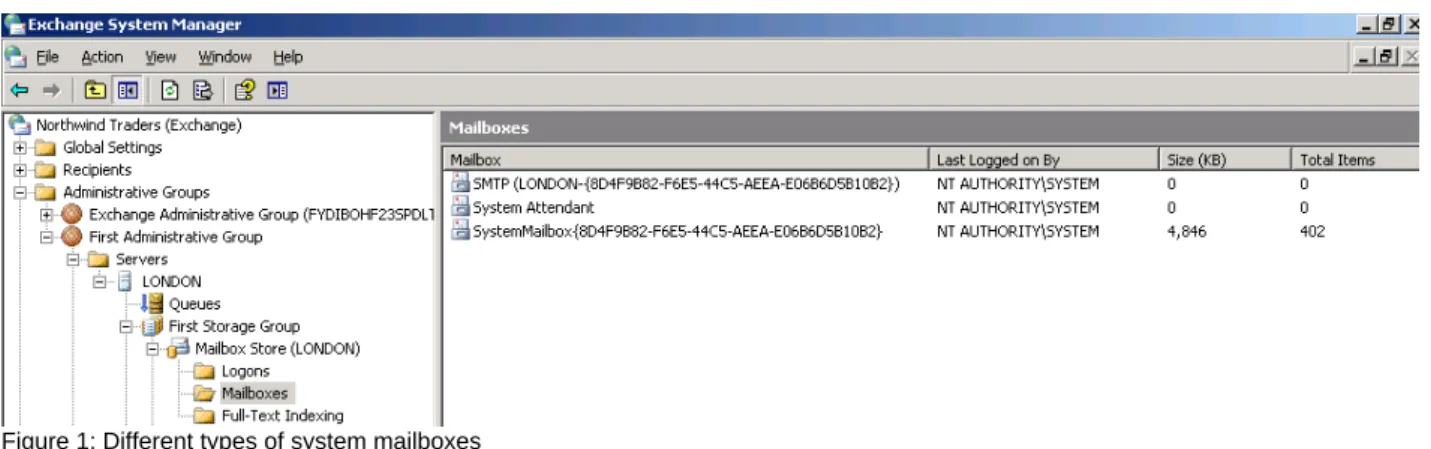
The next figure shows the three different types of system mailboxes.
Figure 1: Different types of system mailboxes
Active Directory Users and Computers
You can see the Microsoft Exchange System objects (MESO) in advanced view of the
Microsoft Active Directory Users and Computers tool.
Figure 2: MESO objects in ADUC
ADSI Edit
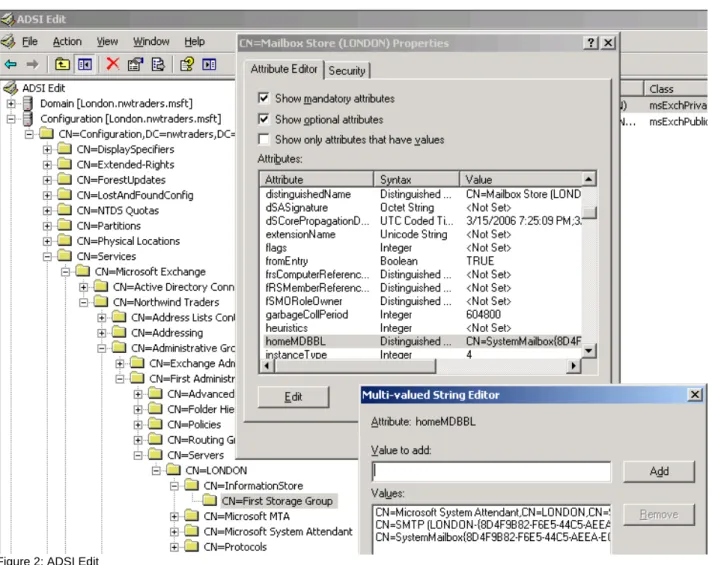
You can use ADSI Edit from the Windows Server 2003 support tools to see the system mailboxes that are associated to the private information store.
Figure 2: ADSI Edit
How to see the content of the SystemMailbox
Have you ever asked you what content the SystemMailbox has? Have you tried to open the SystemMailbox but without luck? If so, here is the answer. I will show you how to open the SystemMailbox.
There are different tools that allow access to the SystemMailbox and low level access to the store in general. One of the tools is the MAPI Editor, formerly MFCMAPI. Using the MAP Editor is free.
You will find the download link at the end of this article. But there are some steps before we can use the MAPI Editor.
Enable System Mailbox in ADUC
First, we have to enable the SystemMailbox in Active Directory Users and Computers. This is requird because we need a configured MAPI profile to access the mailbox later via MAPI Editor. Disable Hide from address book
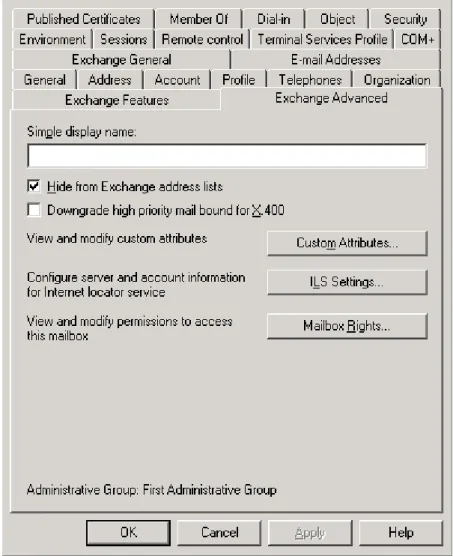
The next step is to disable the Hide from Exchange address lists setting in Active Direcrory Users and Computers. This is required because without disabling this setting we cannot see the mailbox in the MAPI profile.
Figure 3: Disable Hide from address lists
Grant Full Mailbox Access (Send AS / Receive AS)
The account which will open the SystemMailbox requires full mailbox access, so you have to set the required permissions in ADUC (Active Directory Users and Computers).
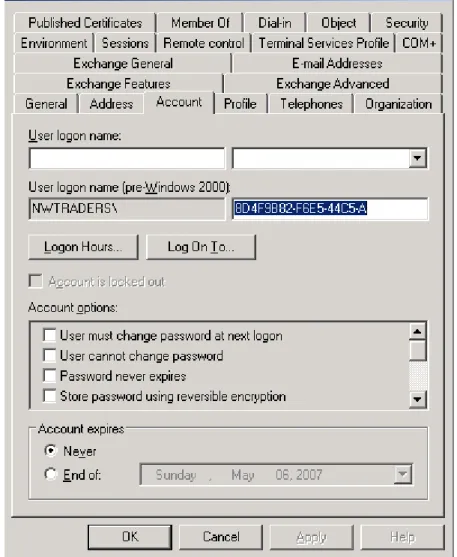
Copy the Pre Windows 2000 logon name to clipboard
Because we need to create a MAPI profile for the SystemsMailbox you have to note the Pre Windows 2000 logon name. The easiest way is to copy the name to the clipboard.
Figure 4: Pre Windows 2000 logon name
Create an Outlook Profile
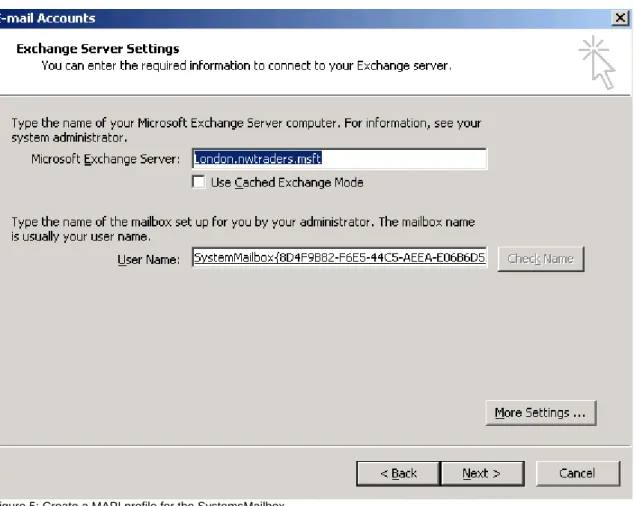
As a next step you must create an Outlook profile for the SystemsMailbox. Use the pre Windows 2000 logon name shown in the following screenshot.
Figure 5: Create a MAPI profile for the SystemsMailbox
MAPI Editor
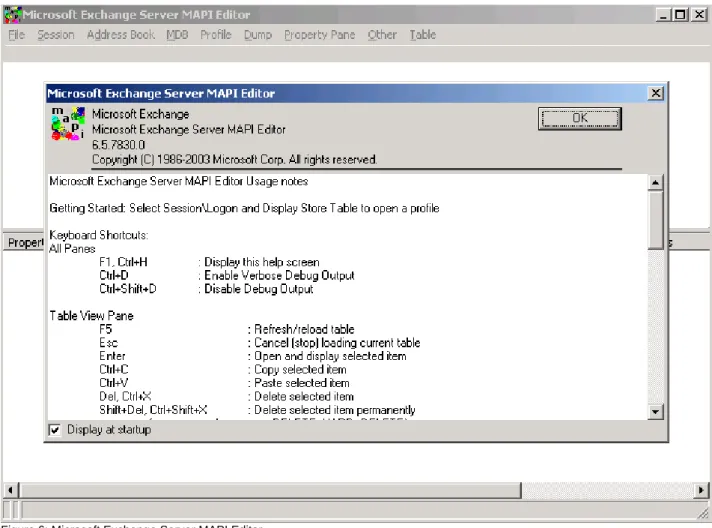
Now it is time to use the MAPI Editor to grant access to the content of the SystemsMailbox. After downloading and extracting the MAPI Editor files you can start the MAPI Editor.
Figure 6: Microsoft Exchange Server MAPI Editor
To logon to the SystemsMailbox click – Sessions – Logon and Display Store Table – and select the previously created MAPI profile and logon to these profile. You will need permissions to access the mailbox. You can read more about how to grant permissions to a mailbox in the link at the end of this article.
Figure 7: General SystemsMailbox overview
Doubleclick the SystemsMailbox and navigate through the Root Container to the “Top of the Information Store”. Here you will find the Inbox and other relevated mailbox properties.
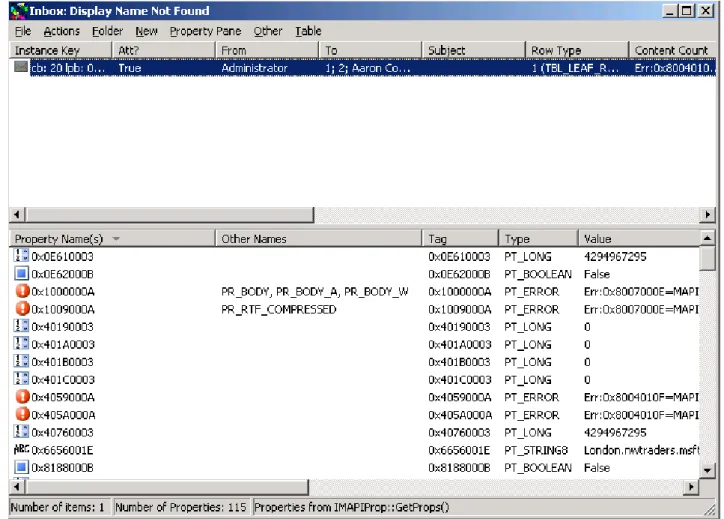
Figure 8: SystemsMailbox Inbox
To see the emails in the SystemsMailbox Inbox click Special Folder – Inbox as shown in the following screenshot.
Figure 9: General SystemsMailbox overview
System Attendant Mailbox
Every Exchange Srever has a System Attendant (SA) mailbox. The System Attendant maibox will be created when the System Attendant service will be created during the Exchange installation process.
The System Attendant Mailbox also consists as two parts: • A mailbox object in the first private information store
• A configuration object in the configuration partition of Active Directory The System Attendant Mailbox has the following functions:
The System Attendant Mailbox contains the folder SpecialPrivateFolderForFreeBusyStorage, for Free/Busy information for Microsoft Outlook and CDO Applications (Collaboration Data Objects) which will be temporary stored in MSExchangeFBPublish.
The System Attendant Mailbox will also be used to send and receive Exchange monitoring messages for the Link Monitoring Service. You can find this function in the Exchange System Manager under Tools – Monitoring and Status.
The System Attendant Mailbox has no deactivated user account like the SystemMailbox so it is not so easy to open the mailbox. You must use MFCMAPI (Microsoft Foundation Classes API) to open the System Attendant mailbox.
SMTP <Servername--{GUID}> Mailbox
Every private mailbox store contains a SMTP mailbox to store temporary message. The SMTP mailbox will be generated when the private information store will be created and mounted. Every SMTP mailbox consists of two parts:
• SMTP mailbox in the corresponding private information store
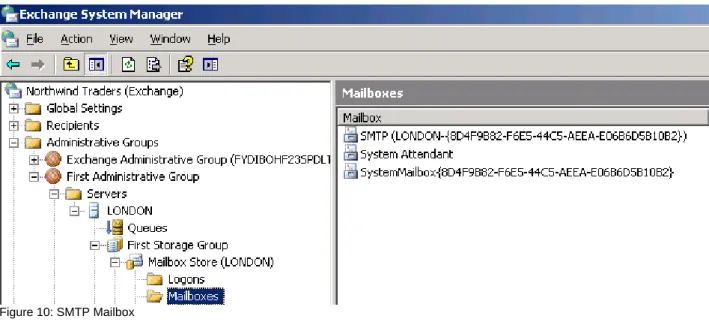
• Active Diretory object of class Mailgateway under –MailOrganization name – Connections. The following screenshot shows the SMTP maibox of the first private mailbox store.
Figure 10: SMTP Mailbox
Open the SMTP Mailbox
Figure 11: SMTP Mailbox properties
The following screenshot shows the TempTable space of the SMTP mailbox and the
MTS-IN and MTS-OUT queue.
Figure 12: SMTP Mailbox TempTable properies
The folders MTS-IN and MTS-OUT are used by Exchange Deploymnet Kit (EDK) connectors to transfer messages between the MTA (Microsoft Exchange Transport Agent) and the information store (store.exe) of Exchange. They are also used for X400 connectors, Exchange site connectors, and connectors for fax.
Conclusion
I hope you now have a better understanding about the different type of system mailboxes in Exchange Server 2003 and you will now know how to open the content of these mailboxes with tools like MAPI Editor. The MAPI Editor is a very powerful tool and I can recommend to you that you should spend some time learning the powerful features of the MAPI Editor.
Related Links
MAPI Editor Download
http://www.microsoft.com/downloads/details.aspx?FamilyID=55fdffd7-1878-4637-9808-1e21abb3 ae37&DisplayLang=en
More information about the MAPI Editor