http://www.3com.com/
Guide
Version 2.0
Also includes sections on:
n APX Voice Messaging
n NBX NetSet n DSS/BLF Adjunct
to time without obligation on the part of 3Com Corporation to provide notification of such revision or change. 3Com Corporation provides this documentation without warranty, term, or condition of any kind, either implied or expressed, including, but not limited to, the implied warranties, terms or conditions of merchantability, satisfactory quality, and fitness for a particular purpose. 3Com may make improvements or changes in the product(s) and/or the program(s) described in this documentation at any time.
If there is any software on removable media described in this documentation, it is furnished under a license agreement included with the product as a separate document, in the hard copy documentation, or on the removable media in a directory file named LICENSE.TXT or !LICENSE.TXT. If you are unable to locate a copy, please contact 3Com and a copy will be provided to you.
UNITED STATES GOVERNMENT LEGEND
If you are a United States government agency, then this documentation and the software described herein are provided to you subject to the following:
All technical data and computer software are commercial in nature and developed solely at private expense. Software is delivered as “Commercial Computer Software” as defined in DFARS 252.227-7014 (June 1995) or as a “commercial item” as defined in FAR 2.101(a) and as such is provided with only such rights as are provided in 3Com’s standard commercial license for the Software. Technical data is provided with limited rights only as provided in DFAR 252.227-7015 (Nov 1995) or FAR 52.227-14 (June 1987), whichever is applicable. You agree not to remove or deface any portion of any legend provided on any licensed program or documentation contained in, or delivered to you in conjunction with, this User Guide.
3Com, the 3Com logo, and NBX are registered trademarks of 3Com Corporation. NBX 100, NBX NetSet, Advanced PowerMail eXchange, Palm Pilot, and Network Based Exchange are trademarks of
3Com Corporation.
Microsoft, Windows, Windows NT and the Internet Explorer logo are registered trademarks of Microsoft Corporation. Adobe and Acrobat Exchange are trademarks and Adobe Acrobat is a registered trademark of Adobe Systems Incorporated. Netscape Navigator is a registered trademark of Netscape Communications.
All other company and product names may be trademarks of the respective companies with which they are associated.
Guide written and illustrated by Gregory Paul Brucato. Updated and edited by Laura Fergusson.
A
BOUTT
HISG
UIDE How to Use This Guide 71
T
HENBX B
USINESST
ELEPHONE The Telephone’s Buttons and Controls 10The NBX 100 Communication System’s Features 13
2
U
SINGT
HET
ELEPHONE Basic Operation 17Placing an Internal Call 17
Using the Internal User Directory 17 Placing an External Call 18
Answering a Call 18 Answering Behaviors 19 Placing a Call on Hold 19
Status Lights 19 Transferring a Call 20
Announced Transfer 20 Blind Transfer 20
Conferencing Other Parties on a Call 21 Conference Call Behaviors 21 Handsfree Answer on Intercom 21
Mute 22
Redialing a Call 22
Using the Speakerphone 22 Setting the Volume 22
Features Not Assigned to a Dedicated Button 23 Using Feature Codes 23
Direct Mail Transfer 27
Flash 27
Hunt Groups and Calling Groups 27
Paging 29
Internal Paging 29 External Paging 29 Simultaneous Paging 29 Release (Using a Headset) 29 Dialing Speed Dials 30
One-touch Speed Dials 30 Personal Speed Dials 30 System-wide Speed Dials 31
3
APX V
OICEM
ESSAGINGTypes of Mailboxes 34
Setting Up Your Voice Mail 34 Listening to Messages 35
Listening to Messages Remotely 36 Envelope Options 37
Replying to a Message 38
Forwarding a Message with Comments 38 Creating and Sending a Message 39 Message Delivery Options 40 Creating Group Lists 41
Modifying Group Lists 41 Forwarding Callers to Voice Mail 42
Accessing Voice Mail Messages Through Your E-mail 42 Changing Your Password 42
Security Tips 43
4
NBX N
ETS
ETStarting NBX NetSet 45 User Information 47
Viewing Group Members 52
Default Pickup Group Membership 52 NBX TAPI Service Provider (NBXTSP) 52 Quick Reference Sheet 54
Speed Dials 54
Assigning One-touch Speed Dials 54 Assigning Personal Speed Dials 55 System-wide Speed Dial List 56 Printing Speed Dial Lists 56 Directed Pickup 56
Telephone and DSS/BLF Label Makers 58
APX Messaging 58
Changing the Password 59
Off Site Notification 59 Ringer Tones 61
Silent Ring 61
Internal User Directory 62
5
T
HEDSS/BLF A
DJUNCT6
T
ELEPHONEM
AINTENANCE ANDT
ROUBLESHOOTING Connecting the Telephone 67Attaching and Adjusting the Support Bracket 68 Moving Your Telephone 70
Troubleshooting Possible Problems 70
This guide provides instructions for using the 3Com® NBX® Business
Telephone and related features. It also includes sections for using the APX Voice Messaging System, the NBX NetSet web user interface and the DSS/BLF adjunct.
This guide is intended for anyone using the NBX Business Telephone and its features. For a glossary of terms used in this guide, and other common telephony terms, please refer to the 3Com NBX 100 Communications System Administration Guide.
If release notes are shipped with your product and the information there differs from the information in this guide, follow the instructions in the release notes.
The latest versions of user guides and release notes are available in Adobe Acrobat Reader Portable Document Format (PDF) on the 3Com
World Wide Web site: http://www.3com.com/
How to Use This
Guide
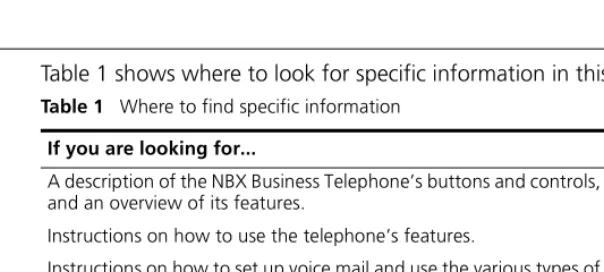
Table 1 shows where to look for specific information in this guide.
Table 1 Where to find specific information
If you are looking for... Turn to...
A description of the NBX Business Telephone’s buttons and controls, and an overview of its features.
Chapter 1
Instructions on how to use the telephone’s features. Chapter 2
Instructions on how to set up voice mail and use the various types of mailboxes.
Chapter 3
Instructions on how to use the NBX NetSet user interface to view and change your telephone’s personal settings.
Chapter 4
Information about the DSS/BLF adjunct. Chapter 5
Conventions
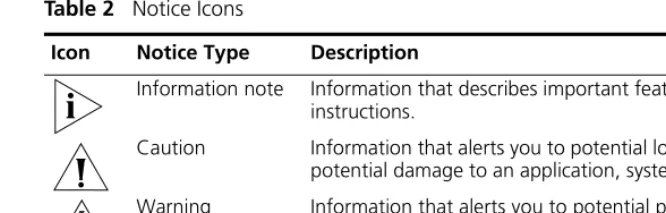
Table 2 and Table 3 list conventions that are used throughout this guide.The term “administrator” refers to the person or persons tasked with maintaining your business’s NBX 100 Communications System.
Year 2000
Compliance
For information on Year 2000 compliance and 3Com products, visit the 3Com Year 2000 Web page:
http://www.3com.com/products/yr2000.html
Table 2 Notice Icons
Icon Notice Type Description
Information note Information that describes important features or instructions.
Caution Information that alerts you to potential loss of data or potential damage to an application, system, or device.
Warning Information that alerts you to potential personal injury.
Table 3 Text Conventions
Convention Description
Screen displays This typeface represents information as it appears on the display panel or on a computer screen.
The words “enter” and “type”
When you see the word “enter” in this guide, you must type something, and then press Return or Enter. Do not press Return or Enter when an instruction simply says “type.”
Words in italics Italics are used to:
n Emphasize a point.
n Denote a new term at the place where it is defined in the text.
n Identify menu names, menu commands, and software button names. Example:
The NBX Business Telephone, along with the NBX 100 Communications System, offers a large number of features, options and flexibility to you the user as well as the person tasked with administering the system. As a result, many of the features have alternate ways in which to use them, some better suited to a particular situation than others. In addition to using the telephone, the NetSet browser-based user interface can be used to access features.
This chapter contains information about the following:
n The Telephone’s Buttons and Controls
The Telephone’s
Buttons and
Controls
Figure 1 shows the NBX® 100 Business Telephone’s buttons and controls:
Figure 1 NBX Business Telephone
Handset
Forward to Voice Mail Button — Press to have all incoming calls sent to your voice mail after one ring. You can modify the settings of this feature to forward incoming calls to the Automated Attendant, or to a telephone number of your choosing. For more information, see
“Forwarding Callers to Voice Mail” on page 42.
Message Button — Press to access your voice mail through the APX Voice Messaging System. For more information, see “Listening to
Messages” on page 35. When there are messages in your mailbox, the
indicator to the left of the Message button lights up and the display panel
indicates the total number of messages in your mailbox and the number of new messages. For example, “3 Msgs 2 New.”
Speaker
Dial Pad
Handsfree Button — Press to enable this feature. Handsfree allows you to answer internal (intercom) calls without picking up the handset. The telephone sounds an alert tone to notify you while activating the speakerphone for a hands-free conversation. For more information, see
“Handsfree Answer on Intercom” on page 21.
Display Panel — The display panel provides telephone status messages, Caller ID information, and an indication of the number of messages in your voice mail mailbox. You can also use it to view the internal user directory. When your telephone is idle, the current date and time are displayed.
Soft Buttons — These buttons allow you to select commands while using the internal user directory. The three commands are Select, Back, and Exit.
Scroll Buttons — These buttons allow you to scroll through user names in the internal user directory.
Program Button — Reserved for future use.
Access Buttons — These buttons allow you to access internal and external telephone lines. Your administrator can configure them to access various features and system speed dials, or you can assign your own personal speed dials to available access buttons. See Figure 3 on page 23. An indicator light to the left of each button shows which lines are available, in use, or on hold.
Access Buttons (without indicator lights) — Apart from the oval shape and the absence of indicator lights, these Access buttons serve the same purpose as those with lights. Most of these Access buttons come pre-assigned with features. See Figure 3 on page 23. However, your system administrator can re-assign features or speed dials to these buttons.
4
5
6
7
8
9
10
11
The pre-assigned features are as follows:
Feature Code Button — Press to access features which are not assigned to an Access button on your telephone using feature codes. For more information, see “Using Feature Codes” on page
23.
Direct Mail Transfer Button — Press to send a caller directly to another user’s voice mail. For more information, see “Direct Mail
Transfer” on page 27.
Call Park Button — Press to place a call in a “holding pattern” so it can be retrieved from any other telephone on the system. For more information, see “Call Park” on page 25.
Flash Button — Use to activate certain features that may be available from your local telephone company, such as Call Waiting.
Release Button — When using a headset with microphone instead of the handset, use the Release button to end calls. For more information, see “Release (Using a Headset)” on page 29.
Mute Button — While on a speakerphone call, press the Mute button to turn the speakerphone’s microphone off. The Mute button does not mute the handset. For more information, see “Mute” on page 22.
Volume Control Buttons — Press to adjust the volume of the handset, the speaker, or the ringer. For more information, see “Setting the
Volume” on page 22.
Speaker Button — Press to activate the speakerphone. The indicator above the button lights up when this feature is enabled. For more information, see “Using the Speakerphone” on page 22.
Redial Button — Press this to redial the last telephone number or extension you called.
Conference Button — Use to establish a single call with up to three additional internal and/or external parties. For more information, see
“Conferencing Other Parties on a Call” on page 21.
Transfer Button — Use to send a call to another telephone. For more information, see “Transferring a Call” on page 20.
a
b
c
d
e
13
14
15
16
17
Hold Button — Press to place a caller on hold. For more information, see
“Placing a Call on Hold” on page 19.
Microphone (located on underside of telephone) — The microphone activates when the telephone is in speakerphone mode. For best results keep the area around the microphone free of obstructions.
The NBX 100
Communication
System’s Features
The following descriptions provide an overview of the major features of the NBX 100 Communications System—most of which work directly in conjunction with the NBX Business Telephone.
Your administrator controls whether or not the following features are available for your telephone or the entire system, so some of these features may not be available to you.
Account Codes — These allow you to keep track of calls associated with a particular client or account. When answering or placing a call, you enter a numeric account code which allows time spent with a client to be to be tracked, and perhaps associated with a billable account. See “Account
Codes for Call Detail Reporting” on page 24.
Automated Attendant — This is an automated answering system controlled by your administrator, which gives incoming callers menu options to assist them in reaching the appropriate person or information they are seeking. When the administrator or receptionist activates this feature, incoming calls are answered by the Automated Attendant. For example, incoming calls answered by a receptionist during business hours can be redirected to the Automated Attendant at night.
Automatic Telephone Relocation — You can connect your telephone to a different Ethernet jack at a new location on the same local area network without losing your personal and system settings, or your extension number.
Since your extension and personal settings are associated with your telephone, you cannot swap your telephone with another user’s without first having the administrator re-associate each of you with the other telephone.
Caller ID — Internal Caller ID displays the extension and name of an internal caller on the display panel. External Caller ID provides the same 19
information for external incoming calls but requires your administrator to subscribe to the service from your local telephone company.
Availability and service charges for external Caller ID in your area may vary.
Calling Groups — These allow incoming calls to be simultaneously directed to a particular group of telephones. This means the call is more likely to be answered and also means that calls can be directed to a group of users with a particular speciality within an organization. See “Hunt
Groups and Calling Groups” on page 27.
Call Forward — When you are unable to answer your telephone, all of your calls forward to either your voice mail (default setting), the
Automated Attendant, or a telephone number of your choosing. See
“Call Forward” on page 48.
Call Permissions — Call Permissions are established by the administrator to control the types of calls that can be placed from your telephone. Your Call Permissions can be configured to automatically change depending on the time of day. For example, your administrator can prevent long distance calls from being placed from your telephone after business hours. See “Call Permissions” on page 48.
Call Pickup — This allows you to retrieve calls ringing on other user’s telephones from your telephone. There are two types of call pickup, Directed call pickup and Group call pickup. See “Call Pickup” on page 25
and on page 51.
Delayed Ringing — This prevents a telephone on a shared line from ringing until an incoming call has rung on other telephones a specified number of times. This allows users, such as supervisors, to work uninterrupted, answering only calls that have not been answered by other users. Although incoming calls initially do not ring audibly, the line’s status light will still flash allowing calls to be retrieved.
Group Mailboxes — Group mailboxes are not associated with a particular telephone but allow a group of users to have joint access to a single mailbox. See “Types of Mailboxes” on page 34.
member’s telephone, and so on until an available member answers the call. See “Hunt Groups and Calling Groups” on page 27.
Inspect Caller ID — Caller ID information of a second incoming call displays briefly on the display panel when you already have a call in progress. You can place the current call on hold to answer the second call or let the second call be answered by your voice mail.
Internal User Directory — You use the LCD display on the telephone to find and dial the extensions of other users on the system. You can also access these using NBX NetSet on your computer. See “Using the Internal
User Directory” on page 17.
Label Maker — You can create professional-looking labels for your telephone using the label maker available from NetSet or the NBX Resource Pack CD-ROM. You need the Adobe Acrobat Reader to open and edit the label maker; this is available free of charge from the Adobe Web site or the Resource Pack. See “Telephone and DSS/BLF Label
Makers” on page 58.
Message WaitingIndicator — The administrator can assign an Access button on your telephone to indicate when there are messages in a phantom, group or normal extension mailbox. This is similar to the MSG button but allows users to access mailboxes other than their own. This feature is also available on the DSS/BLF Adjunct.
NBX NetSet — You access this browser-based user interface using Internet Explorer or Netscape. It allows you to modify many of the telephones features including the following:
n Modify your telephone’s speed dials
n View your personal settings
n Change your telephone’s ringer tone
n Change your call forwarding path
n Arrange Offsite Notification
One-touch Speed Dials — One-touch speed dials allow you to directly dial a number at the touch of a button. Pressing a One-touch speed dial without having first picked up the handset activates the speakerphone. You can assign speed dials to any available Access button. See “Assigning
Off Site Notification — When enabled, this feature sends a notification message to either your pager or an outside telephone number informing you that you have received a voice mail message. You can then retrieve your messages. See “Off Site Notification” on page 59.
Paging —You can use your telephone for both internal and external paging. You can broadcast a message over the speaker of every
telephone on the system, an external speaker system (if your business is so equipped), or both. See “Paging” on page 29.
Phantom Mailboxes — These mailboxes are not associated with a particular telephone but are established to accommodate users who do not have their own NBX Business Telephone. See “Types of Mailboxes” on
page 34.
Ringer Tone Selection — There are nine different ringing tones available to help you distinguish your telephone from others in noisy areas. Silent Ring prevents your telephone from ringing audibly. See
“Ringer Tones” on page 61.
Speed Dial Lists — You can access and print a list of up to 99 personal speed dial numbers and a list of up to 100 system-wide speed dial numbers. See “Printing Speed Dial Lists” on page 56.
Transfer Timeout/Park Timeout — Depending on how the
administrator has set up the system, when you park or transfer a call and it is not answered within a specified amount of time, the call may ring back to your telephone. See “Call Park” on page 25, and “Transferring a
Call” on page 20.
Voice Mail Messages Through Your e-mail — The NBX 100 allows you to listen to your voice mail using any computer from which you can access your e-mail.
Your e-mail software must be IMAP-compliant and your computer must be equipped with a sound card and speakers. See your network
This chapter contains information about the following:
n Basic Operation
n Features Not Assigned to a Dedicated Button
n Dialing Speed Dials
Many of the NBX Business Telephone’s features can be can be modified using the NetSet browser-based user interface, often with more options available than with using the telephone alone. See “NBX NetSet” on
page 45.
Basic Operation
This section describes the most commonly-used telephone features.Placing an Internal Call
To place an internal call:
1 Pick up the handset or press the Speaker button.
If your telephone defaults to an external line or you have inadvertently chosen one, select an internal line.
2 Dial the three or four digit extension number for another user.
3 When finished, hang up the handset, or if on speakerphone, press the Speaker button again to end the call.
Using the Internal User Directory
To access the internal user directory:
1 Press either scroll key to the right of the display panel. The first name in the directory appears in the display panel. Note that the last name is displayed first.
2 You can move around the directory as follows:
n To scroll up and down through the list, press either the up or down scroll button.
n Use the dial pad to jump to the first name in the list beginning with a particular letter, for example, press ‘4’ twice to jump to the first name beginning with ‘H’.
n If you do not select a name immediately, the system alternates between the list of names and the menu choices, [Select | Back | Exit].
n To exit from the system, press the soft button under Exit.
3 When you have found the user you want to contact, ensure that the cursor is at that entry, and press the soft button under Select.
Figure 2 Using the Internal Directory
Placing an External Call
To place an external call:
1 Pick up the handset or press the Speaker button.
If your telephone defaults to an internal line, dial ‘9’ or ‘8’ to access an external line or select an external line button.
2 Dial the number.
3 When finished, hang up the handset, or if on speakerphone, press the Speaker button again to terminate the call.
Answering a Call To answer an incoming call, lift the handset or press the Speaker button. The display panel displays the name and extension of internal callers.
6HOHFWDQHQWU\ 6OFW_%DFN_([LW !0DQVIHLOG7RGG
Caller ID service from your local telephone company is required for name and number information of external callers.
Answering Behaviors
n If two calls ring to your telephone at the same time, the call that arrived first is answered when you pick up the handset.
n If you do not answer a call within four rings, the caller is automatically forwarded to your voice mail. To change the number of rings or the call forwarding path, see “Call Forward” on page 48.
n When Forward to Mail is activated, all incoming calls are forwarded to your voice mail after one ring. However, you still have the opportunity to answer the call during that ring. For more information, see
“Forwarding Callers to Voice Mail” on page 42.
n If another call comes in while you already have a call in progress, your telephone rings once to alert you, and then the name and extension of internal callers appear briefly in the display panel. The call can be retrieved as long as the line’s status light is still flashing.
n You can activate the Handsfree Answer on Intercom feature to have internal calls sent to your speakerphone. Your telephone notifies you with an alert tone, and then the speakerphone automatically activates for a hands-free conversation. For more information, see “Handsfree
Answer on Intercom” on page 21.
Calls that come in to your telephone through your extension follow the coverage path that you have set up. Calls that come in to your telephone through Hunt groups and Calling groups follow the coverage path set up for that group.
Placing a Call on Hold To place a call on hold, press the Hold button. To return to the call, press the Access button from which the call originated.
Status Lights
Transferring a Call The Transfer feature allows you to send a call from your telephone to any other internal line and, if your call permissions allow, to outside lines as well. For more information, see “Call Permissions” on page 48.
You can transfer a call in two ways: by announcing the transfer or by sending a blind transfer.
Announced Transfer
With an announced transfer, you notify the recipient that you are about to send them a call before completing the transfer. This allows the recipient to refuse to take the call.
To announce a transfer:
1 While on a call, press the Transfer button. The system automatically places the caller on hold and selects a new line.
2 Dial the number to which you want to transfer the call.
3 Announce the call when the recipient answers the telephone. If the recipient does not want to take the call, you can retrieve it by pressing the Access button from which the call originated, otherwise continue with step 4.
4 Press the Transfer button again to complete the transfer, and then hang up the handset.
Blind Transfer
With a blind transfer you transfer the call without notifying the recipient.
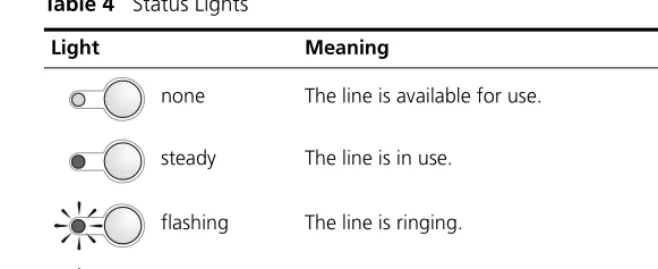
Table 4 Status Lights
Light Meaning
none The line is available for use.
steady The line is in use.
flashing The line is ringing.
To send a blind transfer:
1 While on a call, press the Transfer button. The system automatically places the caller on hold and selects a new line.
2 Dial the number to which you want to transfer the call.
3 Press the Transfer button as soon as you hear ringing, and then hang up the handset.
Conferencing Other Parties on a Call
You can conference up to four parties, including yourself. The other three parties can be any combination of internal and external calls.
To place a conference call:
1 While on a call, press the Conference button. The system automatically selects a new line and places the other party on hold.
2 Place a call to another party, wait for that party to answer the call and press the Conference button again.
Until the Conference button is pressed a second time, the first party is on hold and you may converse with the second party privately.
3 Repeat steps 1 and 2 to conference in a fourth party.
Conference Call Behaviors
n To place a conference call on hold, press the Hold button. The other parties can talk among themselves but they cannot hear you. (When a conference call is placed on hold, there is no music-on-hold.)
n To place a conference call on speakerphone, simply press the Speaker button. Pressing the Mute button turns the microphone off. The conference parties cannot hear you but you can hear them.
n To transfer a conference call to another telephone, press the Transfer button. Dial the number you want to transfer the call to and then press the Transfer button again. All parties are transferred.
Handsfree Answer on Intercom
Activating this feature allows you to answer internal (intercom) calls without picking up the handset. The telephone will sound an alert tone to notify you of the incoming call while activating the speakerphone for a handsfree conversation.
To enable this feature, press the Handsfree button—the indicator to the left of the button lights up.
Mute When on speakerphone, press the Mute button to turn off the microphone. You can hear the other party but they cannot hear you. Press the Mute button again to turn the microphone back on.
The indicator to the left of the button lights up when this feature is enabled.
The Mute button does not mute the handset.
Redialing a Call Press the Redial button to automatically redial the last number you called. You can either pick up the handset and press Redial, or simply press Redial to automatically activate the speakerphone as the number is being redialed.
Using the Speakerphone
Press the Speaker button to activate the speakerphone. You can do this before dialing the call or during a call in progress. Picking up the handset while on speakerphone turns the speakerphone off and allows you to resume the conversation using the handset.
Setting the Volume Use the volume control buttons to raise or lower the volume of the handset, the speaker, or the ringer.
n Handset Volume — To raise or lower the volume of the handset, lift the handset and press the volume control buttons repeatedly until the desired volume is achieved. This can be done during a conversation or by listening to the dial tone for an indication of volume.
n Speaker Volume — To raise or lower the volume of the speaker, press the Speaker button and then press the volume control buttons repeatedly until the desired volume is achieved. This can be done during a conversation or by listening to the dial tone for an indication of volume.
Features Not
Assigned to a
Dedicated Button
The administrator can assign additional features to available Access buttons on all telephones or certain groups of telephones on the system. In addition, some of these Access button may be available to you for assigning One-touch Speed Dials.
The Figure 3 shows features as they are assigned to Access buttons from
the factory. The One-touch Speed Dials screen in NetSet shows your telephone’s current button mappings. See, “Assigning One-touch Speed
Dials” on page 54.
Figure 3 Access Buttons
Using Feature Codes You can access any features that have not been assigned to your telephone while the handset is off-hook by pressing the Feature Code button (See Figure 3 on page 23.) and then entering the relevant feature code. The following are codes for features that you may find useful. This button comes pre-assigned
as FeatureCode.
This button comes pre-assigned as Direct Mail Transfer.
The bottom two or three buttons are usually assigned for shared system access and are used to access internal (intercom) lines. These access buttons can have direct lines, speed dials, message waiting indicators or other features assigned to them.
This button comes pre-assigned as Release. This button comes pre-assigned as Call Park. This button comes pre-assigned as Flash.
available
Table 5 Feature Codes
Feature Code Then...
Account Codes 888 Enter the account code and press #
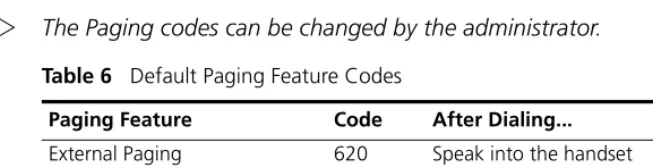
The Paging Feature Codes are dialed directly. You do not press the Feature Code button to access them.
The Paging codes can be changed by the administrator.
Account Codes for Call Detail Reporting
Account codes allow you to keep track of calls associated with a particular client or account. This allows you to accurately bill individual clients for the time spent on the telephone with them. You can use the Account Code feature when placing and receiving calls.
To activate an account code:
1 While on a call, press the Feature Code button followed by 888 or, if available, press the Access button assigned as Account Code.
2 Enter the numeric account code associated with the current client—this can be up to 64 digits in length—then press #.
Call Pickup
Direct Call Pickup 455 Enter the telephone’s extension
Group Call Pickup 456 Enter the Call Pickup Group number
Direct Mail Transfer 441 Enter the telephone extension to which you want to transfer the call
Flash 260 Enter the code provided by your local
telephone company.
Hunt Groups and Calling Groups
840 Enter the hunt group number and then the group’s password
Table 6 Default Paging Feature Codes
Paging Feature Code After Dialing... External Paging 620 Speak into the handset
Internal Paging 621 Speak into the handset
Internal and External Paging 622 Speak into the handset Table 5 Feature Codes (continued)
The call is then logged using the account code and appears in the Call Detail Reports. Call reports can then be used to bill customers for time that was spent assisting them over the telephone.
The system does not verify the account code you enter, so ensure that the code you enter is valid.
Call Park Call Park allows you to place a call in a “holding pattern” and make it available for someone else to pick up from any telephone on the system. You can use the internal and/or external paging feature to announce the call to all users and the recipient can then retrieve the call by entering the Call Park extension given during the announcement. This feature is useful when the recipient is not at their telephone, or when you want to continue a call on another telephone and transferring the call does not give you enough time to retrieve it.
When parking a call, you assign it a three-digit Call Park Extension which is then used to retrieve it. If the call is not answered within 3–4 minutes of being parked (this can be adjusted by the administrator), it rings back to the original telephone.
To park a call:
1 While on a call, press the Access button assigned to “Call Park”.
If Call Park has not been assigned to your telephone, it can still be accessed by pressing the Feature Code button, followed by 444. For more information, see “Using Feature Codes” on page 23.
2 Use the dial pad to enter a Call Park extension.
If you select a call park extension that is already in use, the display panel displays “Park Cancelled” and the call rings back to your telephone. You can then try another Call Park extension.
To retrieve a parked call:
1 Pick up the handset of any telephone on the system.
2 Dial the Call Park extension assigned to the call.
You can retrieve a call ringing on another user’s telephone only if that user and you are both members of the same Call Pickup group, or that user is a member of a Call Pickup group that allows “non-member pickup.” You can view which group(s) you are a member of through the
Call Pickup screen in NetSet, see “Call Pickup” on page 51.
There are two types of call pickup:
n Directed Call Pickup — Allows you to retrieve a call ringing to a specific telephone.
n Group Call Pickup — Allows you to retrieve a call ringing to any one of a group of telephones.
There are three ways pickup a call ringing on another telephone using either Group or Directed Pickup:
n Press the Feature Code button, enter the appropriate feature code (455 for directed pickup and 456 for group pickup.) and then dial either the group number or the user’s extension.
n Press the Feature Code button and then enter the group number or the directed pickup code.
n Press an Access button assigned with a one-touch group or directed pickup extension. Your administrator must assign one of the Access buttons as a one-touch pickup for your telephone.
Directed Call Pickup
To retrieve a call ringing on someone else’s telephone using the feature code:
1 Pick up the handset.
2 Press the Feature Code button followed by 455, or if available, press the Access button assigned for Directed Pickup.
Group Call Pickup
To retrieve a call ringing on group members telephone’s using the feature code:
1 Pick up the handset.
2 Press the Feature Code button followed by 456, or if available, press the Access button assigned for Call Pickup.
3 Enter the group number. The call is now directed to your telephone.
Direct Mail Transfer This feature allows you to transfer a caller directly to another user’s voice mail without requiring them to wait through ringing or interrupting the recipient.
To directly transfer a caller to another user’s voice mail:
1 While on a call, press the Access button assigned to “Direct Mail
Transfer.” Direct Mail Transfer comes preassigned to an Access button, as shown in Figure 3 on page 23.
2 Dial the extension of the recipient whose voice mail you want to transfer the call.
3 Hang up the handset.
Calls transferred to a user’s mailbox using Direct Mail Transfer are always directed into the mailbox, even if the other user has chosen to forward their calls to another number.
Flash Flash is used to activate certain features that may be available from your local telephone company, such as Call Waiting.
Hunt Groups and Calling Groups
Hunt groups allow you to establish informal “call centers” which ensure that calls are never missed. An incoming call rings to a member of the hunt group. If that member is not available to answer the call the system “hunts” for another member of the group until the call is answered or forwarded to the group call coverage path. For example, if there are no available members of the hunt group, the call might be forwarded to a group mailbox.
calls can be directed to a group of users with a particular speciality within an organization.
Hunt groups can either be static or dynamic. When a user is a member of a static hunt group, they are always part of that group along with the other members. With a dynamic hunt group, members must log in to the group to be part of it. Hunt groups can also be configured so that when members step away from their desk and a hunt group call comes in to their telephone and goes unanswered, the member is logged out of the group so that further calls do not ring to an unattended telephone.
Use NetSet to determine which hunt groups you belong to, see “Hunt
Groups” on page 49.
To log in to a hunt group using the telephone:
1 Pick up the handset.
2 Press the Feature Code button followed by the Hunt group number. (Hunt group numbers range from 850 - 879.)
3 Enter the hunt group password and then press #.
To log out of the hunt group, press the Feature Code button followed by the hunt group number.
Your administrator can map a particular hunt group to an Access button. If this is the case, press the Access button and enter the password to log in or out of the hunt group. The indicator to the left of the button lights up to let you know that you are logged in.
If you have logged in to a dynamic Hunt group, and then do not answer a call when it rings on your telephone, the system automatically logs you out.
Calls that come in to your telephone through your extension follow the coverage path that you have set up. Calls that come in to your telephone through Hunt groups and Calling groups follow the coverage path set up for that group.
Paging Paging allows you to broadcast a message internally through the
speakerphones of NBX phones not currently on a call, externally through a paging amplifier, or both simultaneously.
You access the paging system by dialing one of three reserved extensions.
Internal Paging
Internal paging allows you to broadcast a message over the speaker of every telephone on the system.
To page internally:
1 Pick up the handset.
2 Dial 621 (the Internal Paging extension).
3 Speak into the handset.
4 When finished, hang up the handset to end the broadcast.
External Paging
If your business is equipped with a paging amplifier and speaker system connected to the NBX 100 Communications System, you can broadcast a message over the speakers by dialing the external paging extension and speaking into the handset or the speakerphone’s microphone.
To page externally:
1 Pick up the handset.
2 Dial 620 (the External Paging extension).
3 Speak into the handset.
When finished, hang up the handset to end the broadcast.
Simultaneous Paging
To page externally and internally simultaneously:
1 Pick up the handset.
2 Dial 622 (the simultaneous paging extension).
3 Speak into the handset.
Release (Using a Headset)
When using a headset, either the headset or the headset’s amplifier is plugged into the handset cord’s receptacle on the telephone’s underside. Although the handset may then be plugged into the amplifier so that either the headset or handset may be used, the handset must be removed from the cradle when using a headset.
n To place and end calls using a headset, select an available line button and place the call as usual.
n To end a call using a headset, press the Release button.
Dialing Speed Dials
There are three types of speed dials available:n One-touch
n Personal
n System-wide
To see which speed dials are already assigned to your telephone, look at your telephone’s current button mappings using the One-touch Speed Dials screen in NetSet. See “Assigning One-touch Speed Dials” on page
54.
One-touch Speed Dials
A One-touch speed dial is a telephone number that is dialed
automatically by pressing the Access button assigned to it by you or the administrator. Pressing a One-touch speed dial without having first picked up the handset activates the speakerphone. For instructions on assigning One-touch speed dials to your telephone using NetSet, see
“Assigning One-touch Speed Dials” on page 54.
Personal Speed Dials You can create a list of up to 99 Personal speed dials. These are available only from the telephone for which they were created, and are especially useful when there are no available Access buttons for assigning
One-touch speed dials. You can create, view and print a Personal speed dial list through NetSet. For more information, see “Assigning Personal
Speed Dials” on page 55.
To use a Personal speed dial:
1 Pick up the handset or press the Speaker button.
2 Press the Access button assigned for “Feature Code.”
Personal speed dial codes range from 601–699 and are assigned
sequentially by the system each time you create a speed dial. If you enter a speed dial code that has no number assigned to it, the display panel returns the message “No number stored.”
System-wide Speed Dials
System-wide speed dials are set by the administrator for numbers that are frequently dialed by most users. The System-wide speed dial list can be accessed through NetSet and is available to all users on the system.
To use a System-wide speed dial:
1 Pick up the handset or press the Speaker button.
2 Press the Access button assigned for “Feature Code” (as shown in
Figure 3 on page 23).
3 Enter the three-digit speed dial code for the number you want to dial.
One of the standard features of the NBX 100 Communications System is the Advanced PowerMail eXchange Voice Messaging System. This allows callers to leave voice mail messages in your “mailbox” when you are not able to answer your telephone. You can then listen to, save, and forward those messages from any touchtone telephone. APX Messaging also allows you to retrieve your voice mail through your e-mail.
In addition, you can use NetSet to arrange automatic notification of voice mail messages left in your mailbox with the Offsite Notification feature.
See “Off Site Notification” on page 59.
This chapter contains information about the following:
n Types of Mailboxes
n Setting Up Your Voice Mail
n Listening to Messages
n Listening to Messages Remotely
n Replying to a Message
n Forwarding a Message with Comments
n Creating and Sending a Message
n Creating Group Lists
n Forwarding Callers to Voice Mail
Types of Mailboxes
The NBX 100 Communications System provides access to three types of mailboxes:n Personal Mailbox — This type of mailbox is associated with a particular telephone.
n Group Mailbox — The system administrator sets up this type of mailbox. It is usually associated with a group of users rather than with a particular telephone. For example, groups such as sales personnel could benefit from having access to a communal mailbox. Users who access group mailboxes may also have personal mailboxes of their own.
n Phantom Mailbox — Phantom mailboxes are similar to group mailboxes in that they are not associated with a particular telephone. They are often used by workers who do not have a telephone of their own.
Setting Up Your
Voice Mail
There are three steps involved in setting up your voice mail:
n Setting your password — When your telephone is first installed, your voice mail mailbox has no password. To prevent anyone else from listening to your messages you must set a password. This is the same password used to change your telephone’s personal settings through NBX NetSet, and you can change it from either your telephone or from NetSet.
n Recording your name announcement — Your name
announcement identifies your mailbox and extension to other users in the Internal User Directory.
n Recording your personal greeting — Your personal greeting is played to callers when they reach your voice mail. Change your greeting as often as necessary to let callers know that you will be away from your desk for an extended period, or to inform them that you have gone on vacation, etc.
When you access the voice messaging system for the first time by pressing the Message button, you are prompted to follow these steps.
To set up your voice mail:
1 Pick up the handset and press the Message button. You are then prompted to enter a personal password.
2 Enter a 4 to 10 digit password, and then press #.
3 Press ‘1’ to save the password, or ‘2’ to change the password. You are then prompted to record your name announcement.
4 Speak your name clearly into the handset’s receiver, and then press #.
Example: John Smith, extension 200.
5 Press ‘1’ to save your name announcement, or ‘2’ to re-record your name announcement. You are then prompted to record your personal greeting.
6 Record your greeting after the tone, and then press #.
Example: Hello, you have reached __________(name)___________ of ___________(company)____________. I am unavailable to take your call at the moment, please leave your name, number and a brief message after the tone and I will return your call as soon as possible.
7 Press ‘1’ to save your greeting or ‘2’ to re-record your greeting.
The voice prompt will verify that you successfully set up your voice mail by saying, “Your account is active and ready to receive messages.”
Listening to
Messages
When there are messages in your mailbox, the indicator to the left of the Message button lights up and the display panel shows the total number of messages, for example, “3 Msgs 2 New.” After listening to messages, you should either save them or delete them to clear them from the New Messages Queue.
To listen to your messages:
1 Pick up the handset and press the Message button to access the voice messaging system.
If you are using a telephone other than your own, press
*
after pressing the Message button, and then enter your extension.2 Enter your password and then press #.
3 Press ‘1’, and the system plays all new messages in the order they arrived.
Choose from the following options:
Listening to
Messages Remotely
You can listen to your messages from any telephone, from any location, by calling your business’s main telephone number, and accessing the voice messaging system with your extension and password.
Press to repeat the previous message.
Press to save the message.
Press to delete the message from your mailbox.
Press to reply to the message.
Press to forward the message.
Press for Envelope Options.
Press to backup in current message 5 seconds.
Press to move ahead in current message 5 seconds.
Press to skip to the next message.
To listen to your messages remotely:
1 Call your business’s main telephone number.
n If the receptionist answers your call, ask to be forwarded to your voice mail, then press
*
, and continue with step 2.n If the Automated Attendant greets your call, Press
*
twice to access the voice messaging system, continue with step 2.The
*
button is the default for accessing the Voice messaging system remotely, however, the administrator may have changed this, so listen to the voice prompts.2 Enter your extension. Your name announcement plays.
3 Enter your password and then press #.
4 Press ‘1’, and the system plays all new messages in the order they arrived.
Choose from the following options:
Envelope Options Envelope Options provide date, time and sender information for messages that have been left in your mail box. To access Envelope
Press to replay the previous message.
Press to save the message.
Press to delete the message from your mailbox.
Press to reply to the message.
Press to forward the message.
Press for Envelope Options.
Press to backup in current message 5 seconds.
Press to move ahead in current message 5 seconds.
Press to skip to the next message.
Options, press ‘6’ while, or after listening to a message and choose from the following options:
Replying to a
Message
After listening to a message, you can send a reply to just the originator or all recipients of the original message. You can also add recipients to the reply list.
If a message is marked Private, a reply can be sent only to the user who sent the message.
To reply to a message:
1 Press ‘4’ after listening to the message.
2 Record your reply after the tone.
3 Press # to end the recording.
Choose from the following options:
Forwarding a
Message with
Comments
After listening to a message, you can forward it to other users on the system with your comments. Your comments will introduce the message to the other user(s).
Press for date and time information.
Press for sender information.
Press for information regarding a previous message.
Press to reply to the sender.
Press to re-record the message.
Press to listen to the message again.
Press to select a delivery option.
If a message is marked Private, it cannot be forwarded.
To forward a message with comments:
1 Press ‘5’ after listening to the message.
2 Record an introductory comment after the tone and then press # when finished.
3 Enter the extension or mailbox number(s) of the recipient(s), or group list number, and then press #.
Choose from the following options:
Creating and
Sending a Message
You can record a message and send it directly to the recipient’s mailbox without actually placing a call. You can enter the extension(s) of the recipient(s) or use a predefined group list. For more information, see
“Creating Group Lists” on page 41.
To create and send a message:
1 Press the Message button to access the voice messaging system.
2 Enter your password and then press #.
3 Press ‘2’ to select Create and Send Message.
4 Record your message, and then press # to end the recording.
5 Enter the extension(s) or mailbox number(s) of the recipient(s), or a group list number, and then press #.
Press to send the message.
Press to re-record the message.
Press to review the introductory comment.
Press to select a delivery option.
Choose from the following options:
Message Delivery
Options
When you leave a message in someone else’s mailbox you have the option to leave it as a Normal, Private, or Urgent message. If you do not select a delivery option, your message will be sent as a Normal message.
n Private Messages — Sending a message as Private prevents the recipient from forwarding the message to others.
n Urgent Messages — Normally, incoming messages are arranged in a mailbox from the oldest to newest message. Urgent messages, however, are sent to the top of the recipient’s message queue, ensuring that the message is heard first. In addition, when users have Offsite Notification setup, they can choose to be notified when receiving urgent messages only.
To select a message delivery option:
1 Press # after you have finished recording your message.
2 Press 9 for Message Delivery Options after recording a message.
Choose from the following options:
Press to send the message.
Press to re-record the message.
Press to review the message.
Press to select a delivery option.
Press to cancel the message.
Press to mark the message as Urgent.
Creating Group
Lists
A group list is a collection of extensions and/or mailbox numbers assigned a special “group number.” By using this group number, you can send a message to everyone on the list at one time.
To create a group list:
1 Pick up the handset and press the Message button to access the voice messaging system.
2 Enter your password and then press #.
3 Press ‘9’ for Mailbox Options.
4 Press ‘3’ to select Group Lists.
5 Press ‘2’ to select Create Group.
6 Enter a two-digit Group Number. This can be any two numbers you want.
7 Record a name for the group after the tone, and then press #.
8 Press ‘1’ to save the group name, ‘2’ to change the group name, or
*
to exit without saving.9 Enter the extensions and/or mailbox numbers of other users on the system that you want to add to this group list.
Choose from the following options:
Modifying Group Lists
You can review each of your group lists and add or remove members, or you can delete a group list entirely.
To modify a group list:
1 Pick up the handset and press the Message button to access the voice messaging system.
2 Enter your password and then press #.
3 Press ‘9’ for Mailbox Options.
4 Press ‘3’ to select Group Lists.
Press to save the group list.
Press to cancel creation of a group.
Choose from the following options:
Forwarding Callers
to Voice Mail
To forward incoming calls immediately to your voice mail after one ring, press the Forward to Mail button. The indicator to the left of the button lights up to show that this feature has been enabled. When a call comes in, the telephone rings once to notify you—giving you an opportunity to answer the call—and the caller is then sent to your voice mail.
To disable this feature, press the Forward to Mail button again. When Forward to Mail is turned off, callers will not be forwarded to your voice mail until the telephone has rung four times.
You can use NetSet to change the number of rings required before the call forwards and to change the forwarding path to either the Automated Attendant or a telephone number of you choosing. For more
information, see “Call Forward” on page 48.
Accessing Voice
Mail Messages
Through Your
You can listen to your voice mail from any computer which allows you to access your e-mail. (Your e-mail software must be IMAP compliant.) Voice mail messages are sent as sound files, so your computer must have a sound card installed. (See your administrator for further assistance.)
Changing Your
Password
Since the password for accessing your voice mail is the same as that used to access NetSet, it can be changed from either your telephone or through NetSet. See “Changing the Password” on page 59 for instructions on changing your password through NetSet.
Press to review your list of groups.
Press to create a group.
Press to delete a group.
Press to review or change the members in a group.
To change your password using the telephone:
1 Pick up the handset and press the Message button.
2 Enter your password and then press #.
3 Press ‘9’ for mailbox options.
4 Press ‘2’ to select Change Password.
5 Enter your new 4 to 10 digit password, and then press #.
6 Press ‘1’ to save the new password or ‘2’ to change the password again.
Security Tips n Never give out your password to anyone.
n Do not use passwords that are easily identifiable with you, such as your birth date, license number, etc.
n Avoid simple passwords such as, 1234, 0000, etc.
n Longer passwords are more secure.
NetSet is a browser-based user interface for viewing and changing your telephone’s personal settings, such as speed dials, ringer tone, call forwarding path, and Off Site Notification. You can also use NetSet to access the internal user directory to find extensions of other users on the system.
All you need is a computer connected to your business’s local area network (LAN) and a web browser.
Although a web browser is used to view NetSet over your business’s LAN, you do not need Internet access to use NetSet.
NetSet is best viewed using one of the following browsers:
n Microsoft Internet Explorer version 4.0 or later.
n Netscape Navigator version 4.0 or later.
NetSet allows you to view and change information in the following areas:
Starting NBX
NetSet
You access NBX NetSet through a web browser as if you were visiting a Web site on the Internet; however, you do not need to have Internet access.
n User Information
n Speed Dials
n APX Messaging
n Ringer Tones
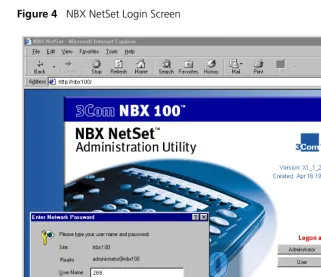
To start NetSet:
1 Start a web browser on a computer connected to your business’s LAN.
2 Type the NetSet “web address” (supplied by your administrator) in the
Address field, and then press Enter.
3 Login asUser by clicking the User button on the Login screen that appears in your browser.
The password dialog box then appears on the screen.
4 Enter your username—this is your telephone’s three-digit extension.
5 Enter your voice mail password, and then press Enter.
Figure 4 NBX NetSet Login Screen
The NetSet password is the same password used for accessing your voice mail through the APX Voice Messaging System. It can be changed from
either your telephone or NetSet. If you have not yet set a password, you must first do so by setting up your voice mail. For more information, see
“Setting Up Your Voice Mail” on page 34.
When you have finished using NetSet, close all open browsers. Web browsers cache (save) passwords and closing your browser clears this cache, preventing others from accessing and changing your telephone’s personal settings.
User Information
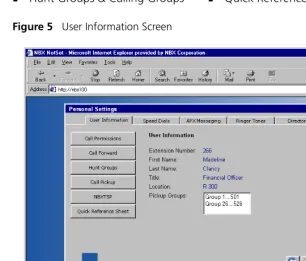
The User Information screen displays your personal information. This information is available to other users through the internal user directory and can be modified only by your administrator. This screen is also used to access the following functions:Figure 5 User Information Screen
n Call Permissions
n Call Forward
n Hunt Groups & Calling Groups
n Call Pickup Groups
n NBX TAPI Service Provider
Call Permissions Use Call Permissions in NetSet to view which types of calls and features are allowed on your telephone. These settings can only be changed by the administrator. In addition, the administrator can set different permissions different times of the day such as, open, closed, lunch or other time periods.
To view your call permissions:
1 Login to NetSet as a User.
2 Select the User Information tab, then click the Call Permissions button.
Call Forward Use Call Forward to select where you want your calls routed when you are unable to answer your telephone. Your calls can be forwarded to your voice mail (default setting), the Automated Attendant, or a telephone number of your choosing. You can also select how many times you want the telephone to ring before the call is forwarded. This is can be used to give yourself more time to answer a call, or prevent your telephone from ringing too many times and disturbing others. The default setting is four rings.
Also see “Forwarding Callers to Voice Mail” on page 42.
To change your call forwarding path and the number of rings before your calls forward:
1 Login to NetSet as a User.
2 Select the User Information tab, then click the Call Forward button.
3 Select either, Voice Mail, Automated Attendant, or Phone Number from the Call Forward screen.
n When selecting Automated Attendant, choose an attendant from the pull-down list.
n When selecting Phone Number, enter a phone number in the Phone Number field. Do not use parenthesis, dashes or spaces. For external calls, start by entering a 9 (or 8) and then a comma to access an outside line (e.g., 9,2813451212 dials (281) 345-1212). The telephone number you choose may be limited by your Call
Permissions. For example, you may be allowed to forward calls only to toll-free telephone numbers or only to internal extensions.
4 Select how many time you would like your phone to ring before calls are forwarded (the default is 4).
If you change the default setting from voice mail, all of your calls are then forwarded to the new location when you are not available to answer your telephone. Callers are unable to reach your voice mail unless forwarded to your voicemail by another user through a Direct Mail Transfer.
When you forward your calls to another user’s telephone and they are not at their desk, your calls will then be forwarded to the call forwarding path that they have set. If that user has set your telephone number as their call forwarding path, then any incoming calls will forward back and forth between the two telephones.
Hunt Groups Hunt groups allow you to establish informal “call centers” which ensure that calls are never missed. An incoming call rings to a member of the hunt group. If that member is not available to answer the call the system “hunts” for another member of the group until the call is answered or forwarded to the group call coverage path. For example, if there are no available members of the hunt group, the call might be forwarded to a group mailbox.
Another type of group is a Calling group. Calling groups allow incoming calls to be simultaneously directed to a particular group of telephones. This means the call is more likely to be answered and also means that calls can be directed to a group of users with a particular speciality within an organization.
Hunt groups can either be static or dynamic. When a user is a member of a static hunt group, they are always part of that group along with the other members. With a dynamic hunt group, members log in and out of the group. Hunt groups can also be configured so that when members step away from their desk and a hunt group call comes in to their telephone and goes unanswered, the member is logged out of the group so that further calls do not ring to an unattended telephone.
To log in to a hunt group:
1 Login to NetSet as a User.
2 Select the User Information tab, then click the Hunt Groups button.
3 Select the hunt group or calling group to which you want to log in.
Figure 6 Hunt Groups Screen
Your administrator may have mapped a particular hunt group to an Access button. If this is the case, the indicator to the left of the button lights up when you are logged in to the hunt group.
If you have logged in to a dynamic hunt group, and then do not answer a call when it rings on your telephone, the system automatically logs you out.
Calls that come in to your telephone through your extension follow the coverage path that you have set up. Calls that come in to your telephone through Hunt groups and Calling groups follow the coverage path set up for that group.
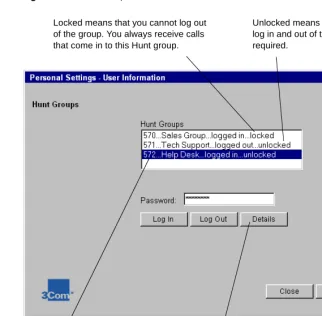
Select a group and then click the Details button to view which users belong to a group.
Locked means that you cannot log out of the group. You always receive calls that come in to this Hunt group.
Unlocked means that you can log in and out of the group as required.
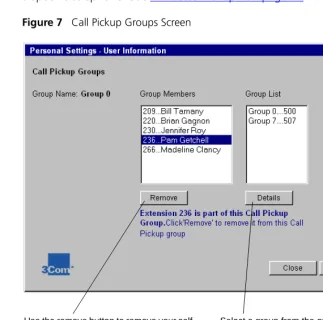
Call Pickup Call pickup allows you to answer a call ringing on any telephone belonging to a Call Pickup Group. In order for you to retrieve that call, you must also be a member of the same group, or that user must be a member of a Call Pickup group that allows “non-member pickup.” You can view which group(s) you are a member of through the Call Pickup
screen in NetSet.
There may also be a default group (500), which allows anyone to pick up a call ringing on any telephone. You can add or remove your telephone extension from this default group to allow or prevent others from picking up calls ringing to your telephone.
A similar feature, Directed Pickup allows you to retrieve calls ringing on a specific telephone. See “Directed Pickup” on page 56.
Figure 7 Call Pickup Groups Screen
Select a group from the group list and then click Details to view the members of that group.
You can only pickup calls ringing on other member’s telephones. Some groups allow non-member pickup, however, these groups are not listed. Use the remove button to remove your self
from the default group (500). This button then becomes an Add button so you can add yourself back to the group again if desired.
Viewing Group Members
To view the members of a particular call pickup group:
1 Login to NetSet as a User.
2 Select the User Information tab, then click the Call Pickup button.
3 Select the group number that you want to view from the Group List, then click Details to display the members of that group in the Group Members list.
Default Pickup Group Membership
To add or remove your telephone extension from the default pickup group:
1 Login to NetSet as a User.
2 Select the User Information tab, then click the Call Pickup button.
3 Select the default group (500) number from the Group List.
4 Select your extension number from the Groups Members list.
5 Click Add or Remove as required. You can only add or remove your extension from the default group.
NBX TAPI Service Provider (NBXTSP)
The NBX TAPI Service Provider allows your telephone and computer to communicate. (Your computer must be using Microsoft Windows.) Certain software programs take advantage of this technology to intergrate computer/telephone tasks.
To install NBXTSP:
1 Login to NetSet as a User.
2 Select the User Information tab, then click the NBXTSP button.
3 From the NBXTSP dialog box, select “NBX TAPI Service Provider” and click the Apply button.
Windows 95 users must install the “Windows 95 Prerequisites Kit” first.
The installation program guides you through the process of installing NBXTSP. It will prompt you to input the following three pieces of information:
n Your telephone extension.
n Your NetSet password. (This is the same password you use to access your voice mail.
Once NBXTSP is installed, you can use the features of your TAPI-enabled software program. Consult your software manual or the software’s help files.
To change your NBXTSP configuration:
1 Open the Windows Con