MERLIN MAIL™
Voice Messaging System
Multi-Lingual Version
for MERLIN LEGEND Communications System
®Allocation Delayed Answer Fax Extension All Ports Automated Attendant All Ports
Call Answer AllocationSplit
Weekly Business Schedule On All Ports On Automated Attendant Ports On Call Answering Ports No Delayed Answer
Open Closed Temporarily
Automated Attendant
Day Menu
Play a Mailbox Configuration Play the Menu Modify the Menu Night Menu Create a Mailbox Play the Menu Modify the Menu
Submenus Delete aMailbox
Play the Menu Create the Menu Announcements Modify a Mailbox Delete an Announcement Mailboxes Modify the Menu Delete the Menu Play the
Announcement AnnouncementRecord an ModifyName
Modify Class of
Service
Initialize
Password LanguageChange
Group Lists Greeting
Create a
Group List AttendantGreeting
Day
Greeting GreetingNight
Modify or Review a Group List
Add Entry
Delete Entry Delete a
Notice
Every effort was made to ensure that the information in this book was complete and accurate at the time of printing. However, information is subject to change.
Federal Communications Commission (FCC) Interference Notice
This equipment has been tested and found to comply with the limits of a Class A digital device, pursuant to Part 15 of FCC rules. These limits are designed to provide reasonable protection against harmful interference when the equipment is operated in a commercial environment. This equipment generates, uses, and can radiate radio frequency energy and, if not installed and used in accordance with the instruction manual, may cause harmful interference to radio communications. Operation of this equipment in a residential area is likely to cause harmful interference in which case the user will be required to correct the interference at his or her own expense.
Canadian Department of Communications (DOC) Interference
Information
This digital apparatus does not exceed the Class A limits for radio noise emissions set out in the radio interference regulations of the Canadian Department of Communications. Le Présent Appareil Numérique n’émet pas de bruits radioelectriques depassant les limites applicable aux appareils numériques de la class A prescrites dans le reglement sur le brouillage radioelectrique edicté par le ministère des Communications du Canada.
Security
As a customer of new telecommunications equipment, you should be aware of the
significant and growing problem of theft of long distance services by third parties, known commonly as “toll fraud.” It is particularly important that you understand and take
AT&T provides a limited warranty to this product. Refer to the “Limited Use Software License Agreement” card provided with your package.
Ordering Information
The order number for this book is 585-320-141. To order additional books, call 1-800-432-6600 in the U.S. and 1-800-255-1242 in Canada. In other countries, call 1-317-322-6646 or fax 1-317-322-6699. For more information on how to order this and other system reference materials, see “About This Guide.”
Support Telephone Numbers
AT&T provides a toll-free customer helpline 24 hours a day. In the U.S., call the AT&T Helpline at 1-800-628-2888 or your AT&T Authorized Dealer if you need assistance when installing, programming, or using your system. For assistance outside the U.S., contact your local AT&T authorized representative.
FCC Notification and Repair Information
This equipment is registered-with the Federal Communications Commission (FCC) in accordance with Part 68 of its rules. In compliance with those rules, you are advised of the following:
Means of Conection: Connection to the telephone network shall be through a standard
network interface jack USOC RJ11C. These USOCs must be ordered from your Telephone Company. This equipment may not be used with party lines or coin telephone lines.
Notification to the Telephone Companies: Before connecting this equipment, you or your
equipment supplier must notify your local telephone company’s business office of the following:
■ The telephone numbers you will be using with this equipment.
■ The appropriate registration number and ringer equivalence number (REN) which can be found on the back or bottom of the control unit.
You must also notify your local telephone company if and when this equipment is permanently disconnected from the line(s).
Repair Instructions: If you experience trouble because your equipment is malfunctioning,
Your local telephone company may make changes in its facilities, equipment, operations, or procedures that affect the proper functioning of this equipment. If they do, you will be
notified in advance to give you an opportunity to maintain uninterrupted telephone service.
Interference Information Notice: FCC Rules require that you be notified of the following: ■
■
This equipment generates, uses, and can radiate radio frequency energy and, if not installed and used in accordance with the instructions in this manual, may cause interference to radio communications.
This equipment has been tested and found to comply with the limits for a Class A computing device pursuant to Subpart J of Part 15 of FCC Rules, which are designed to provide reasonable protection against such interference when the equipment is operated in a commercial environment.
Operating this equipment in a residential area is likely to cause interference, in which case the user, at his or her own expense, will be required to do whatever is necessary to correct the interference.
About This Guide
vii■ Terms and Conventions viii
■ Related Guides viii
1
Introduction
1-1■ System Services and Features
Monolingual or Bilingual Operation Automated Attendant Service Voice Mail Service
Call Answer Service
■
■
■
MERLIN MAIL—ML System Configurations Installation and Programming Responsibilities Subscribers’ Responsibilities
System Administrator System Operator
General Mailbox Owner
■ ■ Helpful Hints 1-1 1-4 1-5 1-16 1-20 1-21 1-22 1-22 1-23 1-24 1-25 1-25
2
Installation
2-1■ Preparing for Installation 2-1
Parts Checklist 2-2
MERLIN LEGEND Hardware Requirements 2-2
Preparing the Site 2-5
■ Installing the MERLIN MAIL—ML Unit 2-6
Mounting the MERLIN MAIL—ML Unit 2-7
Connecting the Unit to the MERLIN LEGEND System 2-10 Connecting the Remote Maintenance Device to the Unit 2-13
■ Adding or Replacing a Voice-Processing Card 2-16
3
MERLIN MAIL—ML System Programming
■ MERLIN MAIL—ML Forms
■ Before Beginning MERLIN MAIL—ML Programming
Using the MLX-20L for MERLIN LEGEND Programming Using SPM for MERLIN LEGEND Programming
Accessing the MERLIN MAIL—ML System Preparing the MERLIN LEGEND System for
MERLIN MAIL—ML Programming
■ Programming MERLIN MAIL—ML System Parameters
3-1 3-3 3-4 3-5 3-6 3-8
Specifying Maximum Number of Digits in an Extension Specifying Languages
■ Programming Voice Mailboxes
Creating Mailboxes
Creating the Delayed Call Handling Group Coverage Mailbox
Creating the Night Service Call Handling Only Group Coverage Mailbox
■ Changing Factory-Set Mailboxes
Assigning the System Administrator Mailbox Changing the System Administrator’s Password Assigning the System Operator Extension
Assigning a General Mailbox Owner
■ Programming the Schedule
Setting the Date and Time
Setting the Weekly Business Schedule
■ Setting the Touch-Tone Gate
Touch-Tone Gate Setting in Monolingual Mode Touch-Tone Gate Setting in Bilingual Mode
■ Recording System Greetings
Recording the Day and Night Greetings Recording a Voice Mail Greeting
■ Programming the Automated Attendant Menus
Selector Codes and Selector Code Actions
Creating the Day/Night Main Menus 3-67
■ Creating Group Lists 3-72
4
MERLIN LEGEND System Programming
■ MERLIN LEGEND Planning Forms ■ Optional Group-Assigned Features
Hunt Type
Transfer Return Interval VMS Transfer Return Interval
■ Call Answer Service
Programming Group Coverage
Creating the Group Coverage Delay Interval Redirecting Calls Sent to Unassigned Extensions
■ Call Handling Methods
MERLIN LEGEND Planning Forms Immediate Call Handling
Fax Call Handling Delayed Call Handling
Night Service Call Handling Only
■ Setting Up the RMD
■ Optional System Features
5
Post-Implementation
■ Programming Optional Features
Programming a MERLIN MAIL—ML Auto Dial Button Programming a Delete Message Button
Programming a Message Return Call Button Programming a Coverage VMS Off Button Programming a Coverage Inside Button
■ Performing Acceptance Tests
Automated Attendant Service
Checking Call Answer Service (Extension Coverage) Checking Call Answer Service (Line Coverage) Voice Mail Service
5-1 5-1 5-2 5-3 5-4 5-6 5-7 5-8 5-8 5-12 5-13 5-13
6
Troubleshooting
6-1A
MERLIN MAIL—ML Factory Settings
A-1B
MERLIN LEGEND Release 1.x
GL
G l o s s a r y
GL-1This guide provides information and instructions for installing and
programming the MERLIN MAIL™ Voice Messaging System—Multi-Lingual Version. It is intended for technicians who install, maintain, and repair communications systems as well as the implementers who program the system features.
The installation and system programming instructions in this guide are presented in the order in which they should be performed.
In addition to instructions, this guide contains the following information:
■ Listing of MERLIN MAIL—ML system factory settings in
Appendix A
■ Supplemental programming instructions in Appendix B for
installing the MERLIN MAIL—ML system with MERLIN LEGEND® Communications System Releases 1.0, 1.1, and 1.2i
■ Glossary of terms ■ I n d e x
■ Detachable form on which to provide feedback on this guide to
Terms and Conventions
The following conventions are used throughout this guide:
Subscriber means a registered MERLIN MAIL—ML Voice Mail Service user.
Telephone dialpad buttons are shown as rounded boxes enclosing the digit, letter, or character they represent, such as [1] for the button containing the number "1".
[#] means press the pound button. The pound button is frequently
used as a termination character, enabling the system to detect the end of an extension or password you have entered.
[*] means press the star button.
The prompts or responses provided by the MERLIN MAIL—ML system are shown in italics:
This is a system prompt or response.
Factory-settings, or defaults, are identified by ◆ .
Related Guides
The following guides are available to help you set up, use, and maintain the MERLIN MAIL Voice Messaging System-Multi-Lingual Version when it is installed with MERLIN LEGEND Communications System Releases 1.0, 1.1, 1.2i, and 2.0. The guides that are supplied with the MERLIN MAIL—ML system are marked with an asterisk.
Guide Title
Order Number
MERLIN MAIL Voice Messaging System-Multi-Lingual Version
Planning Guide and Forms 585-322-541
Installation, System Programming and 585-320-141 Maintenance
System Administration* 585-322-742
User’s Quick Reference* 585-322-741
MERLIN LEGEND Release 1.0
System Programming 555-610-111
PBX System Planning 555-610-113
PBX System Planning Forms 555-610-117
Key System Planning 555-610-112
Key System Planning Forms 555-610-116
MERLIN LEGEND Release 1.1
Release 1.1 Notes 555-610-119
MERLIN LEGEND Release 1.2i
Release 1.2i Notes 555-611-119
MERLIN LEGEND Release 2.0
System Programming 555-620-111
System Planning 555-620-112
System Planning Forms 555-620-113
MERLIN LEGEND Release 2.1
1
System Services and Features
MERLIN MAIL Voice Messaging System—Multi-Lingual Version, hereafter called the MERLIN MAIL—ML system, works with the MERLIN LEGEND Communications System to automate the call handling, call answering, and voice messaging needs of your company. To meet these needs, the MERLIN MAIL—ML system offers three services:
■ Automated Attendant Service ■ Call Answer Service
■ Voice Mail Service
Voice Mail Service provides the MERLIN MAIL—ML system’s voice messaging features. Voice Mail Service lets subscribers send voice mail messages to other subscribers and listen to messages left in their mailboxes by subscribers and external callers.
All services provided by the MERLIN MAIL—ML system can be implemented in a single language (monolingual mode) or two languages (bilingual mode). If set up for bilingual mode, the MERLIN MAIL—ML system lets callers select the language in which they want to hear prompts, menus, and
announcements. The MERLIN MAIL—ML system can operate in English, French, or Spanish. In bilingual mode, English must be one of the language choices.
MERLIN MAIL—ML Voice Messaging System Monolingual/Bilingual Mode
Automated Attendant Service Voice Mail Service Call Answer Service
Prompts caller to make a choice from a menu of options, then routes the call to the selected destination.
In bilingual mode, callers hear prompts in the primary system language. Callers can choose to hear prompts in the alternate language.
Immediate
Call Handling Call HandlingDelayed Call HandlingNight Only Extention Coverage Line Coverage
MERLIN MAIL—ML system answers external calls day and night Callers receive Automated Attendant Service. The System Operator answers overflow calls.
The System Operator answers external calls. Overflow calls
go to Automated Attendant Service day and night.
Allows subscribers to: ■ Send Messages ■ Listen to Messages ■ Forward Messages ■ Delete Messages ■ Reply to Messages ■ Record Personal Greeting ■ Change Password. ■ Administer Outcalling
In bilingual mode, after logging in, subscribers hear prompts in the language administered for their voice mailbox.
The Automated Attendant Service answers calls only after normal business hours and transfers them to selected extensions.
Prompts caller to leave a message or transfer to another extension when the called party does not answer.
In bilingual mode, callers hear personal greeting in the language administered for the
voice mailbox. Callers can choose to hear prompts in the alternate language.
Picksup unanswered calls ringing at SA or ICOM buttons and accepts messages left by caller
Pick up unanswered Calls ringing on a line button and accept message left by caller, (the call can be ringing at more than o n e e x t e n t i o n . )
Monolingual or Bilingual Operation
You choose to operate the MERLIN MAIL—ML system in monolingual or bilingual mode. In monolingual mode, you select the single language in which MERLIN MAIL—ML system prompts, menus, and announcements are played. In bilingual mode, you select both a primary system language and a
secondary system language. The primary system language is the default language for which system prompts, menus, and announcements are played. The secondary system language is the alternate language which callers can choose to play prompts, menus, and announcements.
Whether you choose to operate in a monolingual or bilingual mode depends on the needs of your callers and subscribers (voice mail users).
The MERLIN MAIL—ML system offers you the choice of three languages: ■ For monolingual mode, one of the following languages:
— English — French — Spanish
■ For bilingual mode, one of the following primary/secondary system language combinations:
Primary Language Secondary Language
English French
English Spanish
French English
Spanish English
NOTE:
Automated Attendant Service
The MERLIN MAIL—ML system’s Automated Attendant Service consists of a greeting and one or more menus, providing callers with a number of options that allow them to quickly access an extension, a department, or information by pressing a single dialpad button. This service provides several major benefits, both to the callers and to the company:
■
■
■
■
■
System greetings, announcements, and menus can be recorded and played in one language (monolingual mode) or two languages (bilingual mode).
In bilingual mode, callers can select their language preference for system greetings, prompts, announcements, and menus.
Different greetings, menus, and announcements can be recorded to play during the day and night.
For example, during the day you may want to tell callers to stay on the line for assistance by an operator. At night, when there maybe no operator, you may want to tell callers to stay on the line to leave a message in the General Mailbox.
Calls are efficiently routed to the correct party.
Incoming fax calls from machines that produce industry-standard fax (CNG) tones, are recognized and automatically routed to the fax extension.
Callers using rotary phones or needing assistance, are
automatically transferred to the system operator or General Mailbox, or disconnected, based on your company’s preference.
If the party the caller wants does not answer or the phone is busy, the caller is prompted to leave a message.
■
■
■ Announcements of frequently requested information (such as
directions or business hours) can be included as menu options, thereby freeing an employee’s time for other tasks.
Examples of Automated Attendant Service
The following examples show how you can set up Automated Attendant Service for monolingual and bilingual modes. The examples illustrate how a caller can quickly reach the extension he or she wants.
Monolingual Mode Example—English as the Only Language.
The following example consists of a greeting followed by a menu of options to reach particular extensions.Automated Attendant Service Prompts Caller Response
Thank you for calling the XYZ Company. If you are calling from a touch-tone phone, press [1] now.
For sales, press [1]
For customer service, press [2].
If you know the extension of the person you are calling, press [8] and dial the extension now.
For a directory of employees listed by last name, press [*] [A] .
Or stay on the line for assistance.
Caller presses [1] to indicate the call is from a touch-tone phone.
Bilingual Mode Example — French Speaking Caller and French as the
Primary Language.
The following example shows what a French speaking caller would hear if French was set up as the primary system language and English was set up as the secondary system language. As part of the initial greeting set up by the customer, the caller hears an English prompt to press[*] [1] to select English. By ignoring the English prompt to press [*] [1] , the
caller "selects" the primary system language automatically.
Automated Attendant Service Prompts Caller Response
Merci davoir appeler la compagnie XYZ.
For English, press [*] [1] now. Caller ignores the English prompt to press [*] [1] — prompts are now played in French.
Si vous connaissez le numéo de poste de la personne avec qui vous désirez parler composez le maintenant.
Pour le département des ventes appuyez sur le [1] .
Pour le service appuyez sur Ie [2] . Pour le répertoire de postes composez
[*] [2]
Caller presses dialpad Sinon rester en ligne. buttons in response to the
Bilingual Mode Example—Spanish Speaking Caller and EngIish as the
Primary Language.
The following example shows what a Spanish speaking caller would hear if English was setup as the primary system language and Spanish was set up as the secondary system language. As part of the initial greeting set up by the customer, the caller hears a Spanish prompt to press[*] [1] to select Spanish. By pressing [*] [1] in response to this prompt, the
caller selects the secondary system language. All remaining prompts, menus, and announcements play in Spanish.
Automated Attendant Service Prompts Caller Response
Thank you for calling the XYZ Company.
Para escuchar en español, marque Ios Caller presses [*] [1] —
[*] [1] ahora. prompts are now played in Spanish.
Gracias por Ilamar a la compañia XYZ. Para el department de ventas, marque
el [1].
Para servicio de los clientes, marque el [2] . Si sabe la extensión de la persona a quien
llama, marque el [8] y la extensión ahora.
Para el directorio de empleados Iistado por Caller presses dialpad apellido marque [*] [2] . buttons in response to the O espere en la Iínea para la operadora. prompts, or waits for the
Bilingual Mode Multilevel Menu Example—English Speaking Caller and
English as the Primary Language.
The following example shows what an English speaking caller would hear after reaching an Automated Attendant Service that includes submenus and pre-recorded announcements:Automated Attendant Service Prompts Caller Response You have reached the City Zoo.
Para escuchar en español, marque Ios
[*] [1] ahora.
For admission charges, press [1] For special events, press [2] For group sales, press [3] For travel directions, press [4]
If you know the extension of the person you are calling, press [8] and dial that person’s extension.
Or stay on the line for operator assistance.
Caller ignores the Spanish prompt to press [*] [1] — prompts are played in English.
Caller presses [4] to get directions — the directions submenu plays.
If you are coming by subway, press [1] If you are coming by bus, press [2] If you are coming by car, press [3]
Caller presses dialpad buttons in response to the prompts.
The menu allows bank employees to handle banking transactions instead of being tied up reciting repetitive information. In a business like this, the
Automated Attendant Service should always be programmed to allow the caller to stay on the line or enter an extension to reach an employee.
RECOMMENDATION:
Callers may get confused if presented with more than 3 levels of menus or more than 5 options on a menu. Although the MERLIN MAIL—ML system lets you create up to 99 menus and up to 9 options on each menu, it is recommended that you limit the number of menu levels to 3 and the number of options on each menu to 5. Also, remind callers from each menu that they can get assistance by dialing 0 (zero).
Call Handling Methods
Automated Attendant Service can be set to handle calls in one of the following ways:
■ Immediate Call Handling, which also allows Fax Call Handling ■ Delayed Call Handling
■ Night Only Call Handling, which also allows Fax Call Handling with
Immediate Call Handling
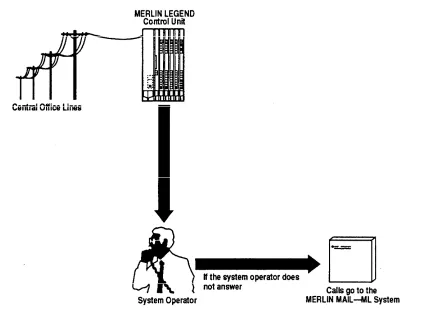
With Immediate Call Handling, Automated Attendant Service answers all incoming calls, both day and night. If the MERLIN MAIL—ML system is busy and does not answer the call, additional calls (called overflow calls) will ring at the system operator’s phone, as shown in Figure 1-2.
Delayed Call Handling
With Delayed Call Handling, external calls ring immediately at the MERLIN LEGEND system operator’s console, both day and night. If the system operator does not answer, calls automatically go to Automated Attendant Service, as shown in Figure 1-3.
Figure 1-3. MERLIN MAIL—ML System as Delayed Call Handler
With Delayed Call Handling, like Immediate Call Handling, Automated
If you want most calls handled by the system operator, use Delayed Call Handling. If the system operator is busy or does not answer, the calls are handled by the MERLIN MAIL—ML system.
Night Only Call Handling
With Night Only Call Handling, the Automated Attendant Service answers external calls only when the MERLIN LEGEND system is in Night Service. To use Night Only Call Handling, you must use MERLIN LEGEND Night Service. During the day, calls ring at the system operator’s console. With Night Only Call Handling, the Automated Attendant Service plays your company’s night greeting, menus, and announcements when the MERLIN LEGEND system is in Night Service. The day greeting, menus, and announcements are not played.
If you want callers to receive the Automated Attendant Service only when your business is closed, use Night Only Call Handling.
Fax Call Handling
Automated Attendant Service can be setup to recognize incoming fax calls from machines that produce industry-standard fax (CNG) tones and transfer the calls to a designated fax extension. The sending fax machine must send industry-standard
recognize the call company may not can dial the same Fax Call Handling addition, Fax Call
fax (CNG) tones for the Automated Attendant Service to automatically as a fax call. With Fax Call Handling, your
need a separate telephone line for its fax machine—callers number for voice and fax calls.
can be combined with Immediate Call Handling. In
Automated Attendant Service Scheduling
You can set up Automated Attendant Service to provide different greetings, menus, and announcements for calls received when your company is open for business and when it is closed. For calls received during scheduled business hours, Automated Attendant Service plays the day greeting, menus, and announcements; for calls received after scheduled business hours, Automated Attendant Service plays the night greeting, menus, and announcements.
The Automated Attendant Service uses the Night Service schedule from your MERLIN LEGEND system, or a separate schedule you setup for the MERLIN MAIL—ML system, to determine whether your company is open or closed at the time of a call.
RECOMMENDATION:
Use the MERLIN LEGEND Night Service feature to administer the schedule and set every day to closed on the MERLIN MAIL—ML business schedule. In this way, the MERLIN LEGEND system controls the MERLIN MAIL—ML schedule.
It is not recommended to use the MERLIN MAIL—ML business schedule to enter your company’s normal hours of operation if you also use the MERLIN LEGEND Night Service feature. When you use both, the
schedules can contain different information and there can be undesired interactions between the schedules.
When the MERLIN LEGEND system begins or ends Night Service, it sends a command to the MERLIN MAIL—ML system causing the
MERLIN MAIL—ML system to go into night or day mode. The commands sent by the MERLIN LEGEND system will override the business schedule set on the MERLIN MAIL—ML system.
For example, if the MERLIN MAIL—ML business schedule is
Administering the Schedule Using
MERLIN LEGEND Night Service
The MERLIN LEGEND system notifies the MERLIN MAIL—ML system when MERLIN LEGEND Night Service begins and ends. When the MERLIN MAIL—ML system is notified that Night Service is on, the Automated Attendant Service plays the night greeting, menus, and announcements. When the MERLIN MAIL—ML system is notified that Night Service is off, the Automated Attendant Service plays the day greeting, menus, and
announcements.
There are three ways that the MERLIN MAIL—ML system can be notified when MERLIN LEGEND Night Service begins and ends:
■
■
■
Night Service with Time Set — On the MERLIN LEGEND system,
you set up a schedule that specifies when Night Service begins and ends. The MERLIN LEGEND system notifies the MERLIN MAIL—ML system automatically whenever the MERLIN LEGEND system goes into or out of Night Service.
Night Service with Group Assignment — The MERLIN LEGEND
system notifies the MERLIN MAIL—ML system that Night Service is on when all system operator positions have Night Service activated. The MERLIN LEGEND system notifies the MERLIN MAIL — ML
system that Night Service is off when one system operator position has deactivated Night Service.
Night Service with Outward Restriction — The MERLIN LEGEND
system notifies the MERLIN MAIL—ML system when Night Service goes on and off when one operator activates or deactivates Night Service.
Administering the Schedule Using the
MERLIN MAIL—ML Business Schedule
The MERLIN MAIL—ML business schedule can be used to enter your company’s hours of operation and any temporary changes to the schedule. Use the MERLIN MAIL— ML business schedule to enter your normal hours of operation only if you are not using the MERLIN LEGEND Night Service feature. You must use the MERLIN MAIL—ML business schedule to enter temporary changes to the schedule. You can enter special hours for a day up to a week in advance. You can also set the current day to open or closed.
Voice Mail Service
The MERLIN MAIL—ML system’s Voice Mail Service (also called Voice Mail) lets subscribers:
■
■
■
■
■
■
■
Listen to messages from non-subscribers and other subscribers. Record their own personal greetings and names.
Forward a received message to one or more subscribers, with additional comments, if desired.
Assign their own passwords, which they can change to ensure that messages are kept confidential.
Create a message and send it to one or more subscribers. In bilingual mode, listen to Voice Mail Service prompts in the language they prefer.
Addressing Voice Mail
Voice Mail provides the following methods of addressing (sending) voice mail messages to subscriber mailbox:
■ Subscriber extension number (voice mailbox number) ■ Voice mailbox name (directory listing)
■ Pre-designated group of subscribers (Group List)
■ Broadcast message to all subscribers (system administrator only)
Addressing Voice Mail by Extension Number
If the sender knows the recipient’s extension number (voice mailbox number), a voice mail message can be addressed by entering the recipient’s extension number and [#] . Voice Mail ensures that the mail is addressed correctly by playing back the subscriber’s name after the extension number is entered. The sender can then delete the extension if it is not correct.
Once all the recipients’ extension numbers have been entered, the sender enters [*] [#] to send the message.
Addressing Voice Mail by Voice Mailbox Name
Subscribers who want to send a voice mail message may not always know the extension number of the message recipient. The MERLIN MAIL—ML system lets these subscribers address voice mail messages by accessing the directory of subscribers’ voice mailbox names and selecting the message recipient(s) from the directory. The directory can be organized by first or last name.
The directory is accessed by pressing [*] [A] (numeric equivalent, [*] [2] ) after hearing the system prompt to enter the extension number. The message
Addressing Voice Mail to a Group List
There are times when a subscriber wants to send the same voice mail
message to more than one subscriber. Rather than dialing each subscriber’s extension to address a message, Voice Mail Service lets the system
administrator set up a Group List (list of voice mailbox numbers) that
subscribers can use to address messages to more than one subscriber by entering the appropriate Group List number.
This feature is useful in many different situations as shown in the following examples:
■ A sales manager can send a single message to a group of
salespeople who are often traveling and hard to reach by telephone.
■ A faculty department chairperson can send a message to
department members, not all of whom are on campus on the same day.
■ A hospital or plant administrator can send a message to a group of
employees working on different shifts.
Addressing Voice Mail to All Subscribers (Broadcast Message)
Sometimes information needs to be sent to all MERLIN MAIL—ML subscribers. The system administrator can use the Voice Mail Service
Broadcast Message feature to send a message to all subscribers at one time instead of addressing the message by entering all extension numbers or creating a group list containing all subscribers.
NOTE:
Broadcast messages are delivered immediately to subscribers’ voice mailboxes, however, message waiting indicators are not lit until 3 a.m. for these messages. Also, subscribers do not receive Outcalling
Outcalling
The MERLIN MAIL—ML system’s Outcalling feature can dial a designated telephone number or pager/beeper and notify a subscriber that a new message has arrived in the subscriber’s voice mailbox.
Outcalling is particularly useful because it immediately calls the
subscriber-designated car phone, pager/beeper service, or telephone, and tells him or her that there is a new message in the mailbox. Subscribers who use Outcalling know that they will get their messages whether they are at their desk, on the road, or at an alternate work location.
If the designated Outcalling number is a telephone number, when a subscriber gets a new message, MERLIN MAIL—ML dials the Outcalling number and delivers the following message:
"This is MERLIN MAIL. You have a new message. To access your new message, enter extension and [#] . To avoid further notification about this message, press [*] [#] "
For pager/beeper calls, MERLIN MAIL — ML does not play this message. The MERLIN MAIL—ML system dials the designated outcalling number up to 5 times, once every 30 minutes until the subscriber logs in or cancels
Outcalling for that message by pressing [*] [#] during the Outcalling message call. If the subscriber does not log in or cancel Outcalling for that message within 5 dialing attempts, the MERLIN MAIL—ML system waits until a new message is left for the subscriber before outcalling again.
■ The subscriber must turn Outcalling “on.”
■ The subscriber must specify an Outcalling number. For a
pager/beeper, a call-back number can be programmed as part of the Outcalling number.
NOTE:
Before you use Outcalling, its is strongly recommended that you read “Security of Your System — Preventing Toll Fraud” in your MERLIN LEGEND documentation.
Call Answer Service
The MERLIN MAIL—ML system’s Call Answer Service allows callers to leave messages or transfer to another extension when the extension called is busy or does not answer. When a message is left, Call Answer Service deposits the message in the subscriber’s voice mailbox, then lights the message-waiting indicator on the subscriber’s phone. If the subscriber has Outcalling turned on, the MERLIN MAIL—ML system will also place a call to the specified Outcalling number.
In addition to acting as an answering machine, Call Answer Service enables callers to
■
■
■
■
perform any of the following actions: Press [0] (zero) for the system operator.
Transfer to another extension by dialing [*] [T] (or [*] [8] ) before or after leaving a message.
Review and edit messages before depositing them in the voice mailbox.
■ If the MERLIN MAIL—ML system has been setup for bilingual
operation, callers hear the subscriber’s personal greeting in the language administered for the voice mailbox. Callers can choose to hear the personal greeting and all other prompts in the alternate (secondary) language by pressing [*] [1]
Guest Mailboxes
You can set up Guest Mailboxes so that Voice Mail users who do not have their own extension, such as temporary workers, contract workers, and consultants, can receive messages from subscribers and non-subscribers.
MERLIN MAIL—ML System
Configurations
The MERLIN MAIL—ML system is available in two configurations: the two-port configuration uses a single voice processing card and the four-port
configuration uses two voice processing cards. The ports of a voice
processing card connect to a Basic Telephone (012) Module in the MERLIN LEGEND system. Each MERLIN MAIL—ML port can support multiple services: Automated Attendant Service, Call Answer Service, and Voice Mail Service. Either MERLIN MAIL—ML configuration can store approximately four hours of messages.
The MERLIN MAIL—ML system can be upgraded from a two-port system to a four-port system. Contact your AT&T representative or authorized dealer for more information.
Installation and Programming
Responsibilities
One or more people will be responsible for these tasks:
■ Installing and wiring the MERLIN MAIL—ML unit.
■ Programming the MERLIN MAIL—ML unit to provide the services
specified by the customer.
■ Programming MERLIN LEGEND parameters that integrate the
operation of the MERLIN MAIL—ML and MERLIN LEGEND systems. Collect the completed planning worksheets from the MERLIN LEGEND system manager and from the MERLIN MAIL—ML system administrator before
installing and programming the MERLIN MAIL—ML system. (In many companies, both functions are performed by the same person. )
Subscribers’ Responsibilities
Before programming the MERLIN MAIL—ML system, subscribers should be designated to serve in the following support roles:
■ System administrator ■ System operator
System Administrator
The system administrator is responsible for making these routine changes to the system:
■
■
■
Maintaining voice mailboxes
Besides adding and deleting voice mailboxes, the system administrator is responsible for resetting voice mailbox
passwords if subscribers forget them, changing subscribers’ mailbox language, and changing the mailbox’s Class of Service which determines Outcalling permissions, call transfer
permissions, message length, and storage space. Changing greetings, menus, and announcements
Changes in personnel, your company’s operations, or your company’s services may require changes to Automated Attendant Service greetings, menus, and announcements.
Maintaining the business schedule
Holidays and temporary company closings or openings must be entered to ensure the proper Automated Attendant greetings and menus are played during these times.
Maintaining Group Lists for use by subscribers
The system administrator can create, update, or delete a Group List. The system administrator is also responsible for informing subscribers of any changes to Group Lists.
Maintaining system parameters
Changes in personnel or telephone configuration may require changes to some of the system parameters, such as the fax extension, system operator extension, or system administrator’s
■
■ Resolving problems with the MERLIN MAIL— ML system
If users experience problems with the MERLIN MAIL—ML system, they can send a message reporting the problem to the Trouble Mailbox. The system administrator is responsible for responding to the messages left in the Trouble Mailbox. When a message is sent to the Trouble Mailbox, the
message-waiting indicator lights on the MERLIN MAIL—ML system administrator’s telephone.
System Operator
The person designated as the system operator has primary responsibility for answering calls in the following situations:
■
■
■
■
If Delayed Call Handling is used, the system operator is expected to handle all calls. The MERLIN MAIL—ML system serves as
a backup to the system operator.
If Immediate Call Handling is used, the system operator handles calls when the MERLIN MAIL—ML system is busy and cannot answer the call.
General Mailbox Owner
Messages are sent to the General Mailbox in the following situations:
■ Messages can not be delivered to a subscriber’s voice mailbox
because the subscriber’s voice mailbox is full.
■ Automated Attendant Service is setup to transfer calls to the
General Mailbox when a caller presses [0] (zero) or does not press any dialpad buttons.
■ Automated Attendant Service attempts to transfer a call to a busy
extension that does not have a voice mailbox.
The person designated as the General Mailbox owner forwards the messages from the General Mailbox to the intended recipient. The recipient must be a voice mail subscriber. If a message is left in the General Mailbox for a person who is not a subscriber, the General Mailbox owner will need to deliver the message to the person in some other way.
A copy of the instructions for forwarding General Mailbox messages should be given to the person designated as the General Mailbox owner. These instructions are included at the back of this guide.
Helpful Hints
After you become familiar with the MERLIN MAIL—ML system, the following hints and shortcuts can save you time:
■ The MERLIN MAIL—ML system can be programmed from any
touch-tone phone.
■ You never need to wait for a greeting or a prompt to play before
■ ■ ■ ■ ■ ■ ■ ■
Press [*] [7] at any point during system programming always brings you back to the System Administration Main Menu. Press
[*] [7] again to return you to the Voice Mail Activity Menu.
Enter [*] [#] to return to the previous menu.
Enter [*] [4] to repeat the current menu, prompt, or instruction. Press [*] [*] [9] to exit the system. (You can also hang up.)
Use the handset to record messages, greetings, names, menus, and announcements. The speakerphone is not recommended for making recordings.
If you are using a speakerphone, turn off your speakerphone’s microphone when programming the system.
When calling the MERLIN MAIL—ML system from your own MERLIN LEGEND system extension, you do not have to enter your extension number during Iogin. Simply enter [#] when the following prompt plays:
"Please enter extension and [#] sign."
Though you can set your mailbox for no password checking, to maintain a more secure telephone system and reduce the possibility of toll fraud, it is strongly recommended that neither the system administrator nor other subscribers eliminate MERLIN MAIL—ML passwords.
Planning Forms
2
This chapter details what you need to install the MERLIN MAIL— ML system unit and provides instructions for installing and connecting the MERLIN MAIL—ML system to the MERLIN LEGEND system.
Preparing for Installation
Read through this chapter before you perform the installation instructions it contains.
Verify that you have all the required MERLIN MAIL—ML and MERLIN LEGEND components, and that your installation site meets the environmental
Parts Checklist
The AT&T MERLIN MAIL Voice Messaging System—Multi-Lingual Version shipment should contain the following parts:
[ ✓ ] [ ✓ ]
[ ✓ ]
[ ✓ ]
[ ✓ ] [ ✓ ] [ ✓ ]
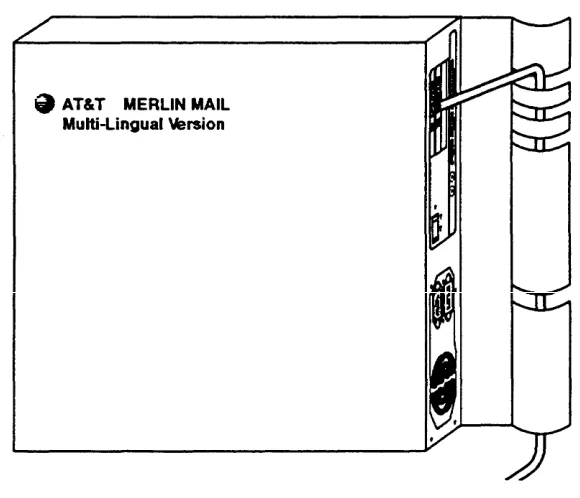
MERLIN MAIL—ML cabinet
Wall mount and cable manager bracket
NOTE:
The cabinet and bracket are together referred to as the MERLIN MAIL—ML unit.
For a single voice-processing card configuration:
— two 8-foot modular D4BU telephone cords (2 pair, T/R connection) For a dual voice-processing card configuration:
— four 8-foot modular D4BU telephone cords (2 pair, T/R connection) Power cord (6-foot, 3-prong, male/female ends)
Modem cable
Remote Maintenance Device (shipped in a separate box) and 1 modular telephone cord
MERLIN LEGEND Hardware
Requirements
The following MERLIN LEGEND equipment is required to install the MERLIN MAIL—ML system:
[ ✓ ] MERLIN LEGEND Processor Module
[ ✓ ] Basic Telephone (012) Module, model 517C13 or later (models
517A13 and 517B13 can not be used)
The ring generator should be installed in the power supply module of the carrier, either basic or expansion, containing the 012 module to which the MERLIN MAIL—ML system ports are connected.
NOTE:
:For 012 module model 517G13, the ring generator is built-in. A separate ring generator is not needed in the power supply module.
The following chart lists the number of devices that can be supported at the same time by a 012 module, model 517F13 or earlier, when MERLIN
MAIL—ML is installed:
MERLIN MAIL—ML
Configuration
Fax
R M D
Single Line Sets
2 port 1 1 3
4 port 1 1 2
Figure 2-1. Sample Configuration of MERLIN MAIL—ML Voice Messaging System and MERLIN LEGEND Communications System
Preparing the Site
The MERLIN MAIL—ML unit should be wall-mounted adjacent to the MERLIN LEGEND processor, on the same wood mounting surface if possible. The MERLIN MAIL—ML unit should be connected to the same branch circuit as the MERLIN LEGEND processor.
WARNING:
If there is not sufficient room on the existing wood mounting surface, either secure anew surface (apiece of plywood) or use wall studs to install the MERLIN MAIL—ML unit. This ensures permanent mounting and will prevent wall damage.
If the MERLIN LEGEND processor is connected to an uninterruptible power supply (UPS) or surge protector, it is recommended that the MERLIN
MAIL—ML unit be connected to the same UPS or surge protector.
To help ensure trouble-free operation, maintain the following environmental conditions:
■ Dust-free area (preferably in an office environment) ■ Relative humidity < 90%
■ No exposure to any liquids (avoid areas near drinking fountains,
coffee makers, and so on).
Installing the MERLIN
MAIL—ML Unit
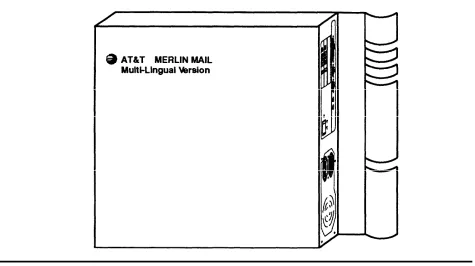
Installation of the MERLIN MAIL—ML unit (Figure 2-2) involves the phases:
following
■ Mounting the unit on the wall near the MERLIN LEGEND processor in
close proximity to the power supply to which the MERLIN LEGEND processor is connected.
■ Connecting the unit to the MERLIN LEGEND system. ■ Connecting the Remote Maintenance Device to the unit. ■ Verifying the installation connections.
Mounting the MERLIN MAIL—ML Unit
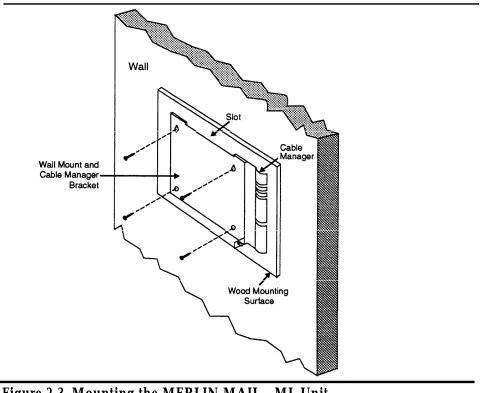
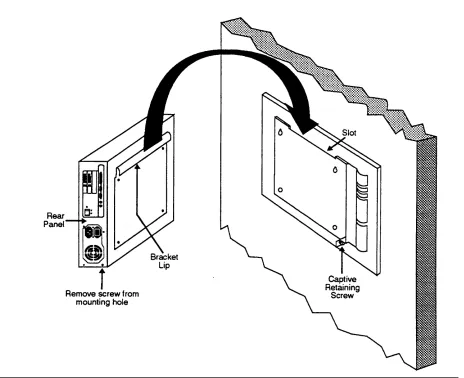
Refer to Figures 2-3 and 2-4 as you follow the instructions for mounting the MERLIN MAIL—ML unit below:
1. Remove the wall mount and cable manager bracket from the shipment package.
2. Position this bracket so that the slot is upward and use the bracket as a template to mark the four points on the plywood surface or wall studs where the wall-mounting screws will be inserted.
WARNING:
Be sure to install the wall-mounting screws in wall studs or in a piece of plywood to ensure permanent mounting and to prevent
wall damage.
3. Secure the wall mount and cable manager bracket as shown in Figure 2-3.
For mounting on plywood, use the four #8 X 3/4-inch pan-head sheet metal screws provided (or their equivalent). For mounting to wall studs through drywall, use four #8 x 1 1/4-inch (or longer) pan-head sheet metal screws.
Figure 2-3. Mounting the MERLIN MAIL—ML Unit
Figure 2-4. Mounting the MERLIN MAIL—ML Unit
Connecting the Unit to the
LEGEND System
MERLIN
Refer to Figures 2-5 and 2-6 as you follow the MERLIN MAIL—ML unit:
the instructions below to connect
1 . Route the 8-foot modular telephone cords through mount and cable manager bracket, located on the
MAIL—ML unit, to the MERLIN LEGEND processor module the slots on the wall
right side of the
(see Figure 2-5).
2.
3.
4. 5. 6.
7.
Connect the two (for a two-port) or four (for a four-port) modular telephone cords into the appropriate ports (jacks) on the MERLIN
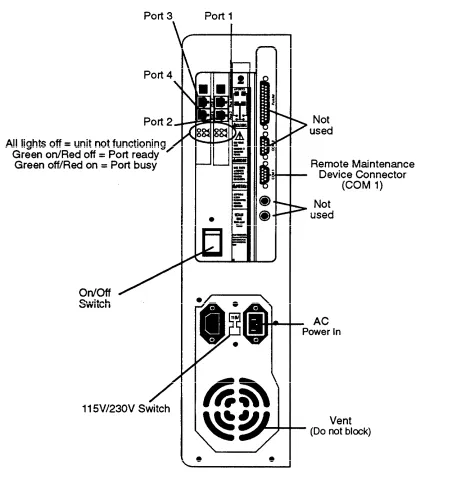
MAIL—ML system. The MERLIN MAIL—ML ports are numbered 1 through 4 (see Figure 2-6).
Connect the other end of the modular telephone cords into telephone jacks on the MERLIN LEGEND Basic Telephone (012) Module. Refer to MERLIN LEGEND System Form 2a: System Numbering—Station Jacks for proper jack assignments.
Set the 115/230V switch to the appropriate voltage.
Plug the power cord provided into the unit’s AC Power In socket.
Connecting the Remote Maintenance
Device to-the Unit
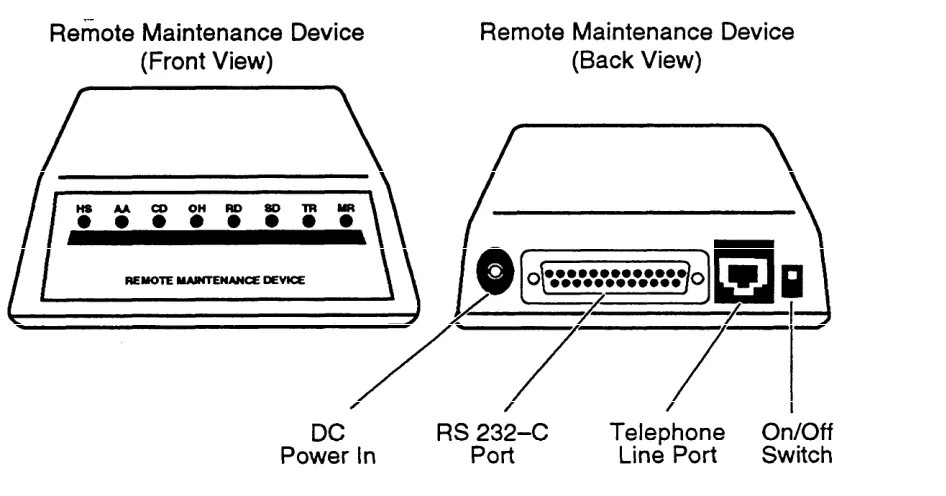
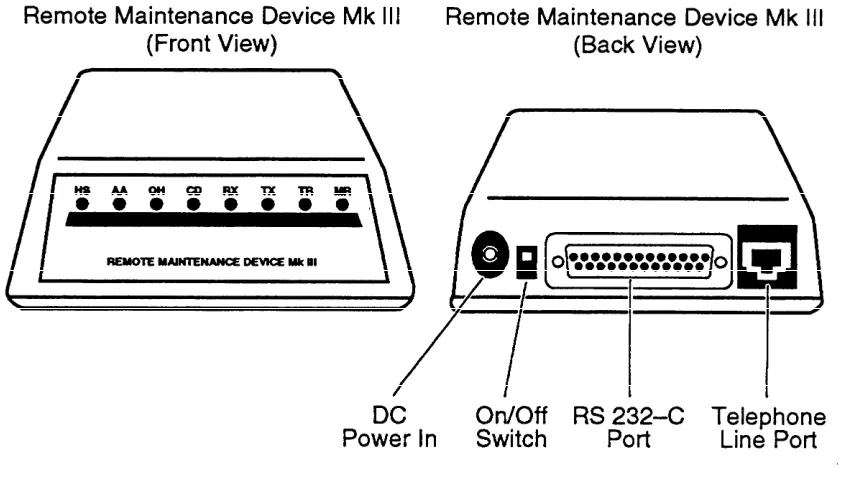
Refer to Figures 2-6, 2-7, and 2-8 as you follow the instructions below to connect the Remote Maintenance Device:
NOTE:
Skip step 1 for RMD Mk Ill.
1. The Remote Maintenance Device comes preset from the factory.
Confirm that the switches, located on the bottom of the modem, are set as follows:
NOTE:
If you reset the switches, you must switch the Remote Maintenance Device off and back on again before the new settings take effect.
2. Use the modem cable provided to connect the RS-232-C port on the Remote Maintenance Device to the COM1 port on the MERLIN
Figure 2-8. MERLIN MAIL—ML Remote Maintenance Device MK III
3. Use a modular line cord to connect the remote maintenance device’s telephone line port to the Basic Telephone (012) Module jack. Refer to MERLIN LEGEND Form 2a: System Numbering—Station Jacks for jack number.
4. Attach the power cord to the Remote Maintenance Device. 5. Plug the power cord into a grounded AC electrical source. 6. Switch the Remote Maintenance Device on.
Adding or Replacing a
Voice-Processing Card
Customers with a two-port configuration may want to upgrade to a four-port configuration to support a greater volume of calls or subscribers. To upgrade from two to four ports, you need to add a voice-processing card.
CAUTION:
Only a qualified installer should open the MERLIN MAIL—ML unit, and add or replace voice-processing cards.
WARNING:
Attach a grounded wrist-strap to the bare skin of your body before handling any components sensitive to electrostatic discharge. The wrist strap should be connected to the ground through a one meg ohm
resistor (usually built into the grounding cord).
1. Switch the MERLIN MAIL—ML unit off. (The on/off switch is located in the center of the rear panel. See Figure 2-6.)
2 . Unplug the power cord.
WARNING:
The MERLIN MAIL—ML unit must be unplugged before removing the cover. Hazardous voltage is inside. Failure to comply could cause electric shock.
3. Disconnect all modular telephone cords and the modem cable from the MERLIN MAIL—ML unit.
Figure 2-9. Removing the MERLIN MAIL—ML Unit from the Wall
5. Carefully lift the cabinet from the wall mount and cable manager bracket slot and place it on a sturdy flat table top with the bracket side down. 6. Using a Phillips head screwdriver, loosen the four cover screws located
on the right and left sides of the MERLIN MAIL—ML cabinet. (See Figure 2-9 for placement of screws.)
Figure 2-10. Removing the Slot Plate and Plastic Card Spacer
10. Verify that the following DIP-switch processing card(s) being installed
settings are set on the voice-(see Figure 2-11).
11. Install the voice-processing card into the appropriate slot of the MERLIN MAIL—ML cabinet, making sure the pins on the back of the
voice-processing card are firmly connected into the slots. Card 1 goes in Slot 1 and Card 2 goes in Slot 2.
Figure 2-12. Installing the Voice-Processing Card
12. Insert and tighten the screw. 13. Re-install the plastic card spacer. 14. Replace the cover.
17.
18.
19. 20. 21. 22.
Tighten the captive retaining screw on the wall mount and cable manager bracket into the mounting hole on the lower right side of the cabinet.
Plug in the modular telephone cords from the MERLIN MAIL—ML ports to the correct MERLIN LEGEND jacks. Be sure to connect the cords from lowest-numbered port to lowest-numbered jack and
highest-numbered port to highest-numbered jack. Refer to MERLIN LEGEND System Form 2a: System Numbering—Station Jacks for jack assignments.
Reconnect the modem cable to the COM1 port. Plug in the MERLIN MAIL—ML unit power cord. Switch the MERLIN MAIL—ML unit power on.
3
In this chapter, you will program the MERLIN MAIL—ML system.
Program the MERLIN MAIL—ML features in the order in which they are presented in this chapter. The MERLIN MAIL—ML system requires certain programming information (for example, language selection) before it can be programmed for other features (such as voice mailbox assignments).
Figure 3-1 illustrates the programming menus available from the Administration Main Menu.
You will be using the system administrator’s extension and password to program these features. Although the MERLIN MAIL—ML system provides a default (factory-set) administrator extension and password, you should change them at some point during the system programming. Note that you must create a mailbox for the new system administrator before changing the system administrator’s extension to that mailbox. After you change the system administrator’s extension and password, be sure to use the new values
whenever you log on to the MERLIN MAIL—ML system.
MERLIN MAIL—ML Forms
The following MERLIN MAIL—ML planning forms contain information you will need to program the MERLIN MAIL—ML system. These forms should be kept with the System Administration guide.
■ Form A: System Parameters
■ Form B: Voice Mailbox Assignments
■ Form C: Automated Attendant Service Greeting ■ Form D: Voice Mail Greeting
■ Form E: Automated Attendant Service Day Main Menu ■ Form F: Automated Attendant Service Night Main Menu ■ Form G: Automated Attendant Service Submenus
Before Beginning MERLIN
MAIL—ML Programming
Before beginning MERLIN MAIL—ML programming, you should have the following forms:
■ Completed MERLIN MAIL—ML planning forms ■ Updated MERLIN LEGEND planning forms
Instructions for completing the MERLIN LEGEND and MERLIN MAIL—ML forms are provided in the MERLIN MAIL—ML Planning Guide and Forms. Once you have completed the MERLIN LEGEND and MERLIN MAIL—ML forms, you are ready to begin programming the system.
You can use either of the following to program the MERLIN LEGEND system:
■ MLX-20L™ telephone identified as the system programming
console
■ Personal computer (PC) with the MERLIN LEGEND System
Programming and Maintenance (SPM) software
Using the MLX-20L for
MERLIN LEGEND Programming
The MLX-20L telephone provides a seven-line display and 14 buttons located to the left and right of the display. The top two buttons on each side of the display are Iabelled and have fixed functions as described below:
Button
Action
[Home] Returns to normal call-handling mode after you finish the
programming steps.
[Menu] Displays the System Programming Main Menu.
[More] than will fit in the seven-line display. A “>” displays next toDisplays more menu options when there are more options
the [More] button when there are additional menu options.
[Inspct] View (inspect) programmed buttons on a telephone or
system features which have been programmed.
The remaining five buttons on each side of the display are used to select menu options. Select the menu option by pressing the button located next to the displayed menu option.
When programming on the MLX-20L console, you may need to write over the previously entered choices. Use the backspace key to move the cursor to the left to write over characters or press [Drop] to erase the whole entry.
Using SPM for MERLIN LEGEND
Programming
The MERLIN LEGEND System Programming and Maintenance (SPM) software lets you use a personal computer to program the MERLIN LEGEND system. SPM simulates the MLX-20L by displaying a representation of the MLX-20L display and buttons on the computer’s monitor screen. Instead of pressing a button next to the displayed menu option as you would with the MLX-20L, you press the computer keyboard key corresponding to the one displayed next to the menu option.
Figure 3-2 shows the MLX-20L and SPM display and button configurations.
MLX-20L Display and Buttons SPM Screen and Key Equivalents
[HOME] [MENU] [ ] [ ] [ ] [ ] [ ]
MENU Mode: Select Feature Press HOME to exit
Directory Messages
Posted Msg Sys Pro Alarm Clock Maintenance Timer Ext Program
[MORE] [INSP] [ ] [ ] [ ] [ ] [ ] Home End F 1 F 2 F 3 F 4 F 5
MENU Mode: Select Feature Press HOME to exit
Directory Messages
Posted Msg Sys Pro Alarm Clock Maintenance Timer Ext Program
PgUp PgDn F6 F7 F8 F9 F10
The following chart shows the relationship between the buttons displayed on the SPM screen and the MLX-20L button equivalents:
Label
Key
Home
[Home]
End [Menu]
P g U p [More]
P g D n [Inspct]
Action
Exit from SPM and return to the DOS prompt after you finish the programming steps.
Displays the System Programming Main Menu.
Displays more menu options when there are more options than will fit in the
seven-line display. A “>” displays next to the [More] button label when there are additional menu options.
View (inspect) programmed buttons on a telephone or system features which have been programmed.
When programming using SPM on the personal computer, you will need to write over the previously set choices. Use the [F4] key to move the cursor to the left to write over characters. If you are using SPM Release 2.09 or later, you can also use the [Backspace] key to move the cursor to the left and erase characters.
Accessing the MERLIN MAIL—ML System
You must first log into the MERLIN MAIL—ML system before you can perform any MERLIN MAIL—ML system programming tasks.
To log into the MERLIN MAIL—ML system:
1. Enter MERMAIL (the MERLIN MAIL—ML Calling Group extension). The MERLIN MAIL—ML greeting plays.
2. Enter the system administrator’s EXTENSION followed by [#] The Password prompt plays.
NOTE:
Until you change it, the system administrator’s extension is
[ 9 ] [ 9 ] [ 9 ] [ 7 ]
3. Enter the system administrator’s PASSWORD followed by [#]
The system administrator’s name plays; then the Voice Mail Activity Menu plays.
NOTE:
Until you change it, the system administrator’s password is
[1] [2] [3] [4] . To help maintain system security, it is strongly
recommended that after installation, you change the system
Preparing the MERLIN LEGEND System
for MERLIN MAIL—ML Programming
This procedure must be completed before programming the MERLIN MAIL—ML system.
Perform the following MERLIN LEGEND system programming to create the MERLIN MAIL—ML Calling Group and assign its group members (MERLIN MAIL—ML ports).
■ Use MERLIN LEGEND Form 6e to determine the extensions of the
members of the MERLIN MAIL—ML Calling Group.
Step Instruction
MLX-20L
PC
1. Enter programming mode. [Menu] [S] [P] [M]
[Enter]
[any key]
Sys Program [F1]
Exit [F5]
2. Select Extensions. Extensions [F6]
3. Display next page of menu. [More] [PgUp]
4. Select Group Calling. Grp Calling [F4]
5. Select Members. Members [F9]
6. Enter extension number of [nnn] [nnn]
the MERLIN MAIL—ML Enter [F10]
Calling Group.
7. Enter the members of the [nnn] [nnn]
MERLIN MAIL—ML Calling Enter [F10]
8. To return to Extensions Exit [F5]
m e n u .
9. Display next page of menu. [More] [PgUp]
10. Select Group Calling. Grp Calling [F4]
11. Display next page of menu. [More] [PgUp]
12. Select Group Type. Group Type [F1]
13. Enter extension of the [nnn] [nnn]
MERLIN MAIL—ML Calling Enter [F10]
Group.
14. Select Integrated VMI. Integ. VMI [F3] Enter [F10]
15. To return to System Programming menu.
Programming MERLIN
MAIL—ML System Parameters
The MERLIN MAIL —ML System Parameters must be programmed regardless of the services being used. Figure 3-3 shows these parameters.
Specifying Port Allocation
Specify which service is assigned for external calls to the MERLIN MAIL—ML ports. The MERLIN MAIL—ML ports may be assigned Automated Attendant
Service or Call Answer Service, or on a 4-port system, the MERLIN MAIL—ML ports can be split between the two services.
■ The factory setting allocates all ports to Automated Attendant
Service. This makes the ports available for all services.
■ Guidelines for port allocation:
— If you do not want to use Automated Attendant Service but you want direct Voice Mail Service access on external lines, set all
ports to Call Answer Service.
— For 4-port systems, a split allocation—that is, 2 ports Automated Attendant Service (AA) and 2 ports Call Answer Service
(CA)—should be used only when you need to provide
Automated Attendant Service for calls on some lines and direct Voice Mail access for calls on other lines. Special installation steps are required when both services are used. Call your AT&T representative or authorized dealer for more information on using both services.
■ MERLIN MAIL—ML Form A: System Parameters identifies the
planned port allocation.
To program the port allocation, follow the instructions below:
1. Log into the MERLIN MAIL—ML system as the system administrator. The system administrator’s name plays; then the Voice Mail Activity Menu plays.
3. [1] for System Parameters.
The System Parameters Menu plays.
4. [2] to specify port allocations.
The current port allocation plays, followed by the Port Allocation Menu.
5. Select one of the following options:
— [1] to allocate all ports to Automated Attendant Service (AA—factory setting).
— [2] to allocate all ports to Call Answer Service (CA — use only when your business does not want Automated Attendant Service but wants outside callers to access Voice Mail Service directly.)
— [3] to split allocation (2 ports AA, 2 ports CA).
The system plays the new port allocation, followed by the System Parameters Menu.
Confirming No Delayed Answer
With No Delayed Answer (Immediate Answer), MERLIN MAIL—ML ports will answer calls immediately (after one ring). With Delayed Answer, MERLIN MAIL—ML ports will answer calls after four rings.
■ The factory setting is No Delayed Answer on all ports (Immediate
Answer ).
■ It is recommended that you do not change the factory setting. ■ MERLIN MAIL—ML Form A: System Parameters identifies the
To confirm No Delayed Answer, follow the instructions below:
1. Log in to the MERLIN MAIL—ML system as the system administrator. The system administrator’s name plays; then the Voice Mail Activity Menu plays.
2. [9] to program the MERLIN MAIL — ML system. The System Administration Menu plays.
3. [1] for System Parameters.
The System Parameters Menu plays.
4. [3] to administer the Delayed Answer setting.
The system plays back the current Delayed Answer setting, followed by the Delayed Answer Administration Menu.
5. Choose one:
— If the setting is correct, press [*] [#] to return to the System Parameters Menu. This procedure is complete.
— If the setting is incorrect, go to Step 6. 6. Select one of the following options:
—
—
—
—
[1] to set all ports to Delayed Answer.
[2] to set Automated Attendant Service ports to Delayed
Answer.
[3] to set Call Answer Service ports to Delayed Answer.
[4] to set all ports to No Delayed Answer (Immediate Answer).
Identifying Fax Extensions
Program the fax or fax calling group extension where the Automated Attendant Service will transfer fax calls.
■ MERLIN MAIL—ML Form A: System Parameters identifies the
planned fax extension.
■ If the MERLIN MAIL—ML system has been set up for monolingual
operation, the Touch-Tone Gate is set “On” automatically when you program the MERLIN MAIL—ML system to receive fax
messages. This enables fax calls to be immediately detected and sent to the fax extension or extension of the fax calling group. To program the fax extension, follow the instructions below:
1. Log in to the MERLIN MAIL—ML system as the system administrator. The system administrator’s name plays; then the Voice Mail Activity Menu plays.
2. [9] to program the system.
The System Administration Menu plays.
3. [1] for System Parameters,
The System Parameters Menu plays.
4. [4] to change the fax extension.
The current fax extension plays, followed by a prompt to enter the fax extension number.
5. Enter the fax extension followed by [#]
Specifying Maximum Number of Digits
in an Extension
Specify the maximum number of digits (2, 3, or 4) in an extension or calling group so that Automated Attendant Service will begin to transfer calls when the number of digits entered by the caller equals the maximum length.
■ The MERLIN MAIL—ML factory setting is 2 digits.
■ MERLIN MAIL—ML Form A: System Parameters identifies the
maximum digits in an extension.
To specify the maximum number of digits in an extension, follow the instructions below:
1. Log into the MERLIN MAIL— ML system as the system administrator. The system administrator’s name plays; then the Voice Mail Activity Menu plays.
2.
3.
4.
[9] to program the MERLIN MAIL—ML system.
The System Administration Menu plays.
[1] for System Parameters.
The System Parameters Menu plays.
[8] to specify the maximum length of an extension.
The current extension length plays.
5. Enter the number of digits (2, 3, or 4).
Specifying Languages
Before you can create subscriber voice mailboxes, you must specify whether the MERLIN MAIL—ML system is to operate in mon