Google technology for teachers
Sandhya Digambar Shinde
Assistant Professor,
Department of Library and Information Science, Jayakar Library, University of Pune-411007
Pune, Maharashtra, India
Abstract
Google.com is a most popular search engine which people prefer to
choose whenever they want to search something on internet.
Google.com is ranked #1 in the world according to the three-month
Alexa traffic rankings, and the site has been online for more than
fourteen years8. Google developed several services in recent years
which are more valuable for searching information quickly. Teacher
is a most important part in learning process. Consequently, teachers
must know the use of technology for inclusion into learning
process. Hence, in this paper, the author attempts to present an
overview of some of the important services of Google and their
application for teachers.
Key Words: Google, search engine, teacher, etc.
INTRODUCTION
Google's corporate history page has a pretty strong background on Google,
starting from when Larry met Sergey at Stanford right up to present day. In 1995 Larry
Page met Sergey Brin at Stanford.
By January of 1996, Larry and Sergey had begun collaboration on a search engine
given website. Larry, who had always enjoyed tinkering with machinery and had gained
some notoriety for building a working printer out of Lego™ bricks, took on the task of
creating a new kind of server environment that used low-end PCs instead of big
expensive machines. Afflicted by the perennial shortage of cash common to graduate
students everywhere, the pair took to haunting the department's loading docks in hopes of
tracking down newly arrived computers that they could borrow for their network.
A year later, their unique approach to link analysis was earning BackRub a growing
reputation among those who had seen it. Buzz about the new search technology began to
build as word spread around campus.
BackRub ranked pages using citation notation, a concept which is popular in
academic circles. If someone cites a source they usually think it is important. On the web,
links act as citations. In the PageRank algorithm links count as votes, but some votes
count more than others. Your ability to rank and the strength of your ability to vote for
others depends upon your authority: how many people link to you and how trustworthy
those links are.
In 1998, Google was launched. Sergey tried to shop their PageRank technology, but
nobody was interested in buying or licensing their search technology at that time7.
In next section, the author provided overview of some of the important services of
Google and their application for teachers.
1. Google Books
2. Google Scholar
3. Google News
4. Google advanced search 5. Google Docs
6. Google Maps
7. Google Custom Search
1. Google Books
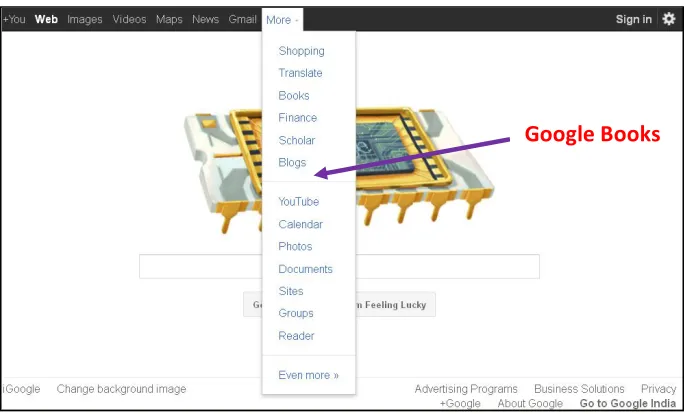
In the homepage of Google one option called “More” is there at the top. When we
click on that option we can see all Google Products. One of the most important products
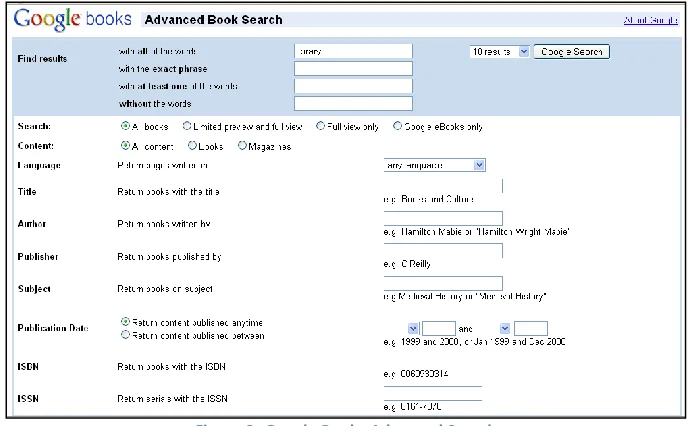
is Google Books (See fig. 1). In Google Books Advanced Search (See fig. 2) you can
search books by Title, Author, Publisher, Subject, etc. Those same books can also be
embedded into your blog or website and can also be added to the “My library” in Google
Books (See fig. 3). The teacher can give students an assignment in which they have to
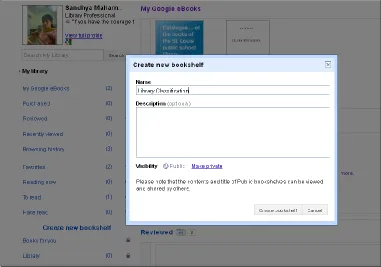
read and analyze a book. One can even create a Virtual Bookshelf in Google Books (See
fig. 4) and Name the bookshelf and select Public or Private view (See fig. 5).
Figure 1: Google Books
[image:3.612.153.496.318.525.2]Figure 2: Google Books Advanced Search
Figure 3: embed books into your blog or website Copy this embed and
Figure 4: Virtual Bookshelf in Google Books
Figure 5: Name the bookshelf and select Public or Private view
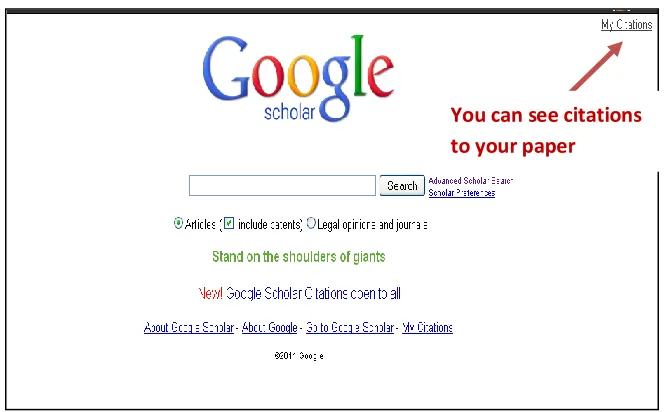
[image:5.612.133.514.370.637.2]Find Google Scholar at http://scholar.google.co.in
Google Scholar provides a simple search and “My citations” option to see citations to
your paper (See fig. 6) as well as advanced search (See fig. 7) for scholarly literature.
From one place, you can search across many disciplines and sources: articles, theses,
books, abstracts and court opinions, from academic publishers, professional societies,
online repositories, universities and other web sites. Google Scholar helps you find
relevant work across the world of scholarly research1.
Features of Google Scholar
Search diverse sources from one convenient place
Find articles, theses, books, abstracts or court opinions
Locate the complete document through your library or on the web
[image:6.612.158.491.331.537.2] Learn about key scholarly literature in any area of research
Figure 6: Google Scholar's simple search
Figure 7: Google Scholar's advanced search
3. Google News
Find Google News at http://news.google.co.in
Google News is a computer-generated news site that aggregates headlines from more
than 4,500 English-language news sources worldwide, groups similar stories together and
displays them according to each reader's personalized interests2.
You can refine searches by date to look at current stories (default setting) or to
look back at news stories from years ago. You can also refine their searches by specifying
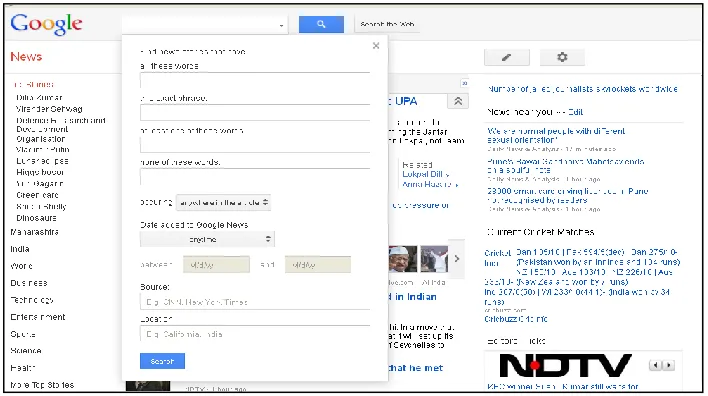
a particular news source and or a particular location (See fig. 8).
Figure 8: refine news search
[image:7.612.147.501.484.682.2]Sometimes from Google Basic search, if we cannot find relevant information,
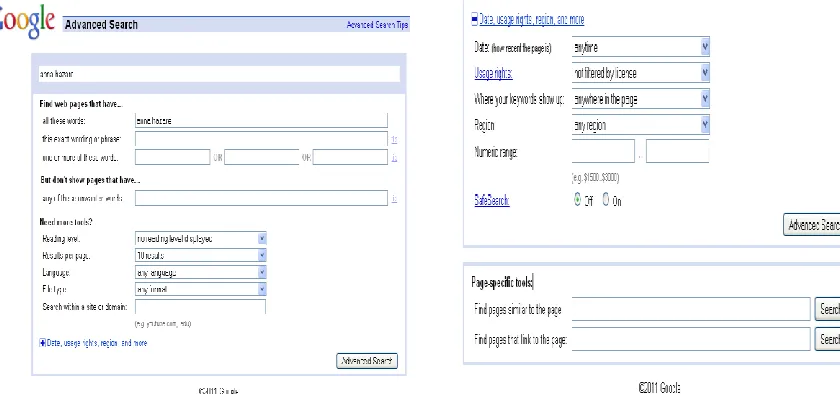
then you can use Google advanced search option3. It limits your search by providing
some search refinement tools such as Phrase search (""), Search within a specific website
(site:), The Boolean operators (and, or, not), Terms you want to exclude (-), filetype,
language, region, etc. (See fig. 9 & 10)
Figure 9: Google advanced search Figure 10: Google advanced search
5. Google Docs
You can create and share your work online, upload your files from your desktop
such as
Documents Spreadsheets Presentations Drawings Forms
Advantages
a) It's easy to get started and
b) It’s free!
c) Access anywhere
[image:8.612.119.539.191.388.2]e) Share your work.
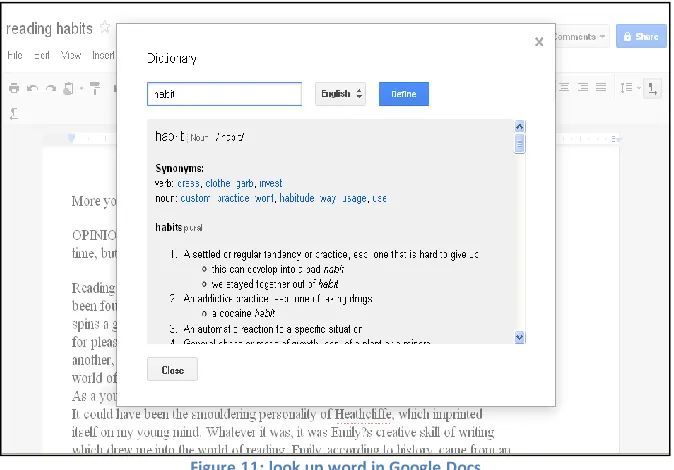
Google Docs contains an integrated thesaurus, dictionary, and encyclopedia tool. It is a
simple tool to use. Simply highlight a word in your document then select "look up word"
from the "tools" drop-down menu. From there you can find a synonym, a definition, of
[image:9.612.156.493.196.431.2]your selected word (See fig. 11).
Figure 11: look up word in Google Docs
6. Google Maps
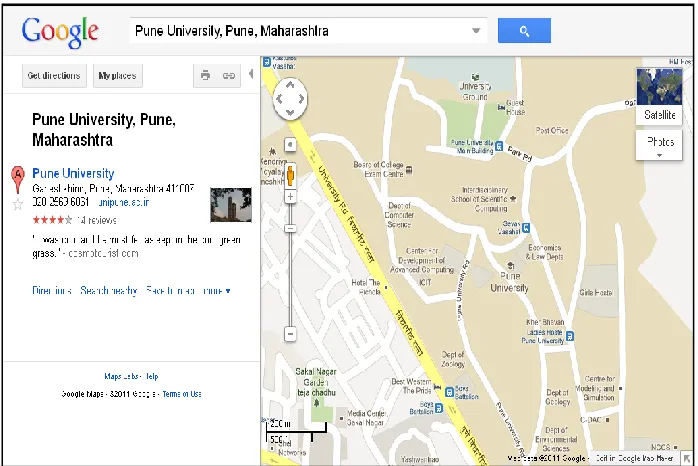
Google Maps is a map service that you view in your web browser (See fig. 12).
Depending on your location, you can view basic or custom maps and local business
information, including business locations, contact information, and driving directions
Figure 12: Pune University on Google map
Figure 13: Get directions to Pune University from Bavdhan
7. Google Custom Search
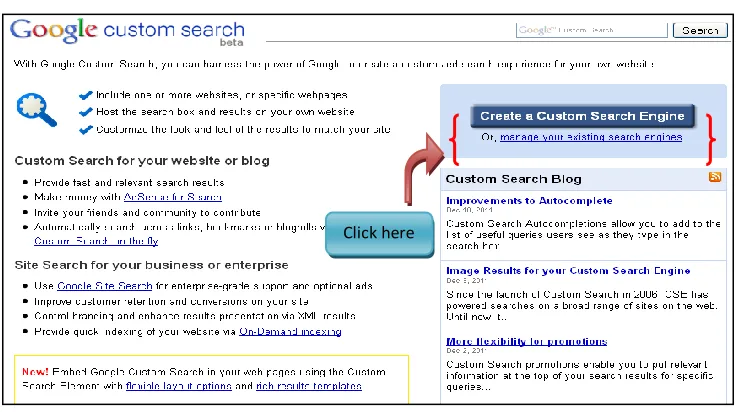
Google Custom Search4 (http://www.google.com/cse/) allows you to create your own custom search engine (See fig. 14). In creating your custom search engine
you can specify the sites that you want Google to search when someone uses your
search engine (See fig. 15).
[image:10.612.148.501.340.561.2] Customize the look and feel of the results to match your site (See fig. 16)
Applications for Teachers
Teachers and school librarians can have students conducting searches without worrying that they’ll stumble upon inappropriate websites or other sites they don’t
want students to see.
Once you have created your custom search engine you can embed it into your
blog or website. You can create as many custom search engines as you like. If you
teach multiple subjects, you may want to create a search engine for each of those
classes.
Steps to create your own Google Custom Search Engine
If you don’t have a Google Account, it is best to create one before beginning to
create your custom search engine. You can create an account by going to Google.com
then clicking “sign in.” Clicking “sign in” will bring you to a registration field.
[image:11.612.140.508.379.585.2]A. Step 1 - Go to http://www.google.com/cse/
Figure 14: Create a custom search engine
B. Step 2 - Enter basic information such as title, description, language. Then enter search specifics.
Figure 15: Enter title, description, language, specific sites to search
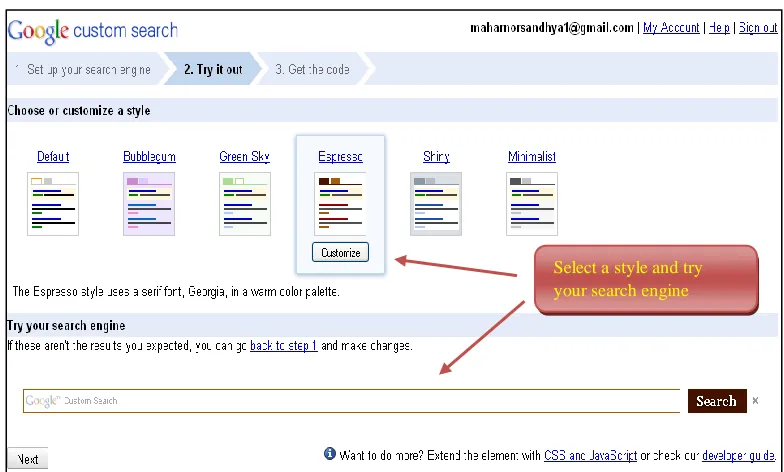
C. Step 3 - Select a style and try your search engine.
Figure 16: Choose style and try your search engine
D. Step 4 - Copy code for your search engine and place it into your blog or website. If you’re using Blogger, I provide the steps for you in later pages.
[image:12.612.127.519.336.572.2]Figure 17: Copy code and paste into your site
8. Google Sites
Google Sites (sites.google.com) is a free service that allows anyone to create his or her
own website. You do not need to have any technical skills in order to build a website
using Google Sites.
Applications for teacher
In this modern era of Information and Communication Technology, every teacher should
have some type of blog or website through which they can communicate information to
students and their parents. Google Sites makes it possible for you to build your own
website free of charge.
If haven’t built a website for your course(s) before here are some things to keep in mind
when building your first website.
An FAQ or “homework help” section enables students and their parents to quickly
get answers to their questions without having to wait for your email reply.
A calendar section will help keep students aware of important due dates. Posting
assignment descriptors and other hand-outs on your website will dramatically
decrease the number of photocopies you have to make for your students.
Google Sites allows you to quickly add document files to your website. So if you
already have a lot of hand-outs written, you can simply upload them to your new
Google Site without having to retype them.
Creating a website with Google Sites can be a collaborative process. By giving others
permission to edit your site, they can add content to make the site better. If you’re on
teaching team, each teacher can edit his or her own page within a team site.
Students can use Google Sites to create a wiki about the topics they’re studying in your
class. Students can also use Google Sites to create a digital portfolio of the work they’ve
created in your classroom and or as they progress through grade levels in school.
Steps to create a website using Google Site
[image:14.612.149.497.319.563.2]Step 1 - Go to https://sites.google.com and Log in with your Google account and then click “create new site.”
Step 2 - Select a template, name your site and provide URL to your site
Figure 19: Select a template and name your site
Step 4 – Select “New Page” to create a new page for your site and then select “edit page” to add content to your page.
Figure 20: Select “New Page” and then select “edit page”
Select template, name your site. Provide URL to your site
Edit page
[image:15.612.144.505.403.645.2]Step 6 - To add multimedia content select “insert” from editor menu. Then select the media type you want to insert.
Figure 21: select “insert” to add multimedia content
9. Google Alerts
Google Alerts5 are email updates of the latest relevant Google results (web, news, etc.)
based on your queries. Enter a search query you wish to monitor. You will see a preview
of the type of results you'll receive. Some handy uses of Google Alerts include:
monitoring a developing news story
keeping current on a competitor or industry
getting the latest on a celebrity or event
keeping tabs on your favorite sports teams
Google Alerts (http://www.google.com/alerts) brings the latest news about your specified topics to your email inbox or RSS reader. You can create an alert for any keyword or
phrase.
Applications for Teacher
Google Alerts can be great for keeping up with the latest developments in a current
events story. Google Alerts can also be helpful for learning about new web resources for
Steps to create Google Alerts 1) Enter your query
Enter your query just as if you were doing a normal Google search. Enter your email
address. Enter the email address you want your alerts delivered to (See fig. 22). Google
[image:17.612.160.485.172.354.2]will protect your email address in accordance with their privacy policy.
Figure 22: Creating Google alert
2) Done!
That's it! Your alert is active, and you'll receive an email whenever Google Alerts finds
new results for your search. Each email you receive contains a link to delete the alert, so
you can cancel any time you want. After creating an alert, you can edit it (See fig. 23).
Figure 23: edit alert
[image:17.612.149.498.487.682.2]10.Google Groups
Google Groups6 (http://groups.google.com) allows anyone to quickly create private or public discussion groups. Groups can be as large or as small as you make them.
Applications for Teacher
Google Groups can be created by teachers to host a discussion forum for their students. A
teacher can post a “latest issue” or “debate” for students to respond to. Teachers can also
use Google Groups to post reminders of important due dates.
Steps for creating Google Group
[image:18.612.146.502.320.569.2]Step 1 - If you don’t have a Google Account, create one.Otherwise click “create a group.”
Figure 24: create a group
Step 2 - Name your group. A unique URL will be assigned to your group. You can restrict access to your group by selecting an access level for your group.
Figure 25: Name your group
Step 3 - Invite people to join your group.
[image:19.612.145.504.481.695.2]Step 4 - Start discussions and post it on your group.
Figure 27: Start discussions
Conclusion
As Google is most popular search engine, the teachers are adopting Google technology in
their teaching-learning process as a medium. There are more services or Google products
which are also useful for teachers. Teacher should explore them.
References
1. http://scholar.google.co.in/intl/en/scholar/about.html (accessed on 12 December 2011)
2. http://news.google.co.in/intl/en_in/about_google_news.html (accessed on 12 December 2011)
3. http://support.google.com/websearch/bin/answer (accessed on 12 December 2011) 4. http://www.google.com/cse/ (accessed on 12 December 2011)
5. https://support.google.com/alerts/ (accessed on 13 December 2011) 6. http://support.google.com/groups (accessed on 13 December 2011)
7. http://www.searchenginehistory.com/#google (accessed on 13 December 2011) 8. http://www.alexa.com/siteinfo/google.com+yahoo.com+altavista.com (accessed on
15 December 2011)