The Euler’s Spreadsheet Calculator Using VBA programming For Solving
Ordinary Differential Equations
Kim Gaik Tay
1,a, Sie Long Kek
2,b, Tau Han Cheong
3,cand Rosmila
Abdul-Kahar
4,d1 Department of Communication Engineering, Faculty of Electrical and Electronic Engineering, Universiti Tun Hussein Onn Malaysia
2,4 Department of Mathematics & Statistics, Faculty of Science, Technology and Human Development, Universiti Tun Hussein Onn Malaysia
3Faculty of Education, Universiti Teknologi Mara
a [email protected], b[email protected], c[email protected], d[email protected]
Keywords: Excel spreadsheet, ordinary differential equations spreadsheet calculator, Euler’s method
Abstract. Motivated by the works of a Richardson’s Extrapolation spreadsheet calculator for differentiation, we have developed the Euler’s spreadsheet calculator using VBA programming to solve ordinary differential equations (ODEs). Users simply need to enter the independent and dependent variables used, a starting value and ending value for the independent variable, an initial value for the dependent variable, the step size, the ODE and exact function for the ODE. Lastly click the APPLY button which is associated with the VBA programming written to solve the ODEs by the Euler’s method, and finally its full solution is automatically calculated and displayed. Hopefully, this Euler’s ODEs spreadsheet calculator can help educators to prepare their marking scheme easily and assist students in checking their answers.
Introduction
The computing approaches of the ordinary differential equations (ODEs) can be roughly divided into the exact solution method and the numerical method. Since the use of the exact solution method is limited to the linear ODEs, the application of the numerical method is seen to be practical in solving engineering problems. This is because the exact solution of the nonlinear ODEs is difficult to be analysed and its existence might be questioned. In view of these, the applications of the numerical method could approximate the solution of the ODEs, particularly for the nonlinear ODEs. As such, it is necessary to develop a tool in order to solve the ODEs easily.
Euler’s method for Ordinary Differential Equations
Consider a general form of the first-order ordinary differential equation given below:
( , )
dy
f x y
dx (1)
with the initial value y x( )0 y0 for the interval x0 x xn. Here, x is the independent variable, y is the dependent variable, n is the number of point values, and f is the function of the derivation. The aim is to determine the unknown function y x( ) whose derivative satisfies (1) and the corresponding initial values. In doing so, let us discretize the interval x0 x xn to be
0, 1 0 , 2 0 2 , ..., n 0
x x x h x x h x x nh (2)
where h is the fixed step size. On this basis, the unknown function y x( ) can be written as the first-order Taylor series approximation at the corresponding points as given in (2), given below:
0 0
( )
y x y
1 0 0 0
( ) ( ) ( , ( )),
y x y x hf x y x h x 1 x0
2 1 1 1
( ) ( ) ( , ( )),
y x y x hf x y x h x 2x1
(3)
1 2 2 2
( n ) ( n ) ( n , ( n )),
y x y x hf x y x h x n1xn2
1 1 1
( )n ( n ) ( n , ( n )),
y x y x hf x y x h x nxn1
Notice that (3) can simply be formulated as
1 ( , ), 0,1, 2,
i i i i
y y hf x y i n (4)
Hence, the Euler’s method, which is defined by (4), gives the numerical solution of (1) in order to determine the unknown function y x( ).
Numerical Example
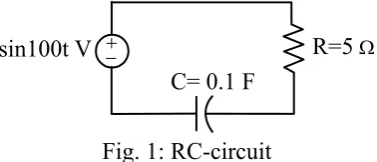
[image:2.595.204.393.587.668.2]For illustration, consider the RC-circuit as shown in Figure 1.
Fig. 1: RC-circuit
The governing first order ordinary differential equation is given by
'( )
di i
R E t
dt C (5)
where R is the resistance (ohms), C is the capacitance (farads), i is the current (ampere), and E t( ) is the voltage (volts).
R=5
sin100t V
Given E t( ) sin(100 ) t volts,R5 ohms, C0.1 farads and at the initial time t0the initial
current is i = 0. We want to solve the differential equation (5), which is the RC-circuit ODE, for
time interval 0 t 5 seconds with the time step size t 0.01seconds by using the Euler’s
method. If the exact solution is given by
2
10 500 10
cos100 sin100 ,
2501 2501 2501
t
i t t e
(6)
then the absolute errors are calculated at each iteration.
The computation procedure of the Euler’s method is summarized as follows:
Euler’s solution method
Step 1: Rewrite the ODE in (5) by substituting the given values. That is,
100cos100
20cos100 2 ( , )
5 5(0.1)
di t i
t i f t i
dt (7)
Step 2: By using the Euler’s method, formulate (7) into the form of (4), given by
1 1
( , )
0.01(20 cos100 2 )
k k i k k k
k k
i i hi i hf t i
i i t i
with h t 0.01 and i0 when t0
Step 3: Apply the Euler’s spreadsheet calculator, which is discussed in the next section, to obtain the numerical solution.
The Euler’s Spreadsheet Calculator for Solving ODEs
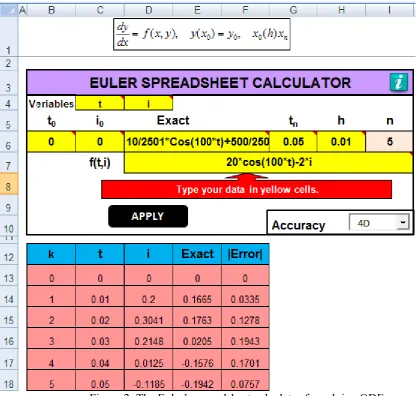
In this section, the use of the Euler’s spreadsheet calculator is discussed. Figure 2 illustrates the template of the Euler’s spreadsheet calculator and the method of usage. Firstly, users enter the independent and dependent variables into the cells C4 and D4 respectively. Secondly, the initial values for both of the mentioned variables are entered into the cells B6 and C6 respectively, whereas the ending value of the independent variable is entered into the cell G6. Thirdly, the step size h is entered into the cell H6. Fourthly, the ODE given by (7) is entered into the cell D7 naturally via programming syntax or mathematical form instead of using Excel command. Fifthly, the exact solution of the ODE, which is given by (6), is entered into the cell D6.
Users can select the desired accuracy upon the number of decimal places, which are ranged from one to nine decimal places from the drop down menu in cell I10. Finally, click the APPLY button in the cell D10, which is associated with the VBA programming for the computation of the Euler’s method. Then, the numerical solution of the ODE, which is shown in the red colour cells in Figure 2, is calculated automatically based on the desired accuracy.
Figure 2: The Euler’s spreadsheet calculator for solving ODEs
Conclusion
In this paper, a spreadsheet calculator, which applies the Euler’s method for solving the ODEs, was developed. In this spreadsheet calculator design, we employed the utility of the VBA programming to simplify the use of the spreadsheet calculator. This spreadsheet calculator is very user friendly since users only need to enter relevant information to compute the full solution of the ODEs which will then be displayed to the users. In future, we hope to develop a spreadsheet calculator for solving ODEs using other numerical methods. We hope this spreadsheet calculator can serve as a tool for educators and students who need full solution of the ODEs using the Euler’s method.
Acknowledgement
This work is fully supported by UTHM multi dicipinary research grant MDR vote 1109.
Appendix Sub IIES() Dim i As Integer Dim f As String Dim exactf As String
Range("B13:F65536").Clear
'Label x0, y0, xn
Cells(5, 2) = Cells(4, 3) & "0"
Cells(5, 2).Characters(Start:=2, Length:=2).Font.Subscript = True Cells(5, 3) = Cells(4, 4) & "0"
Cells(5, 3).Characters(Start:=2, Length:=2).Font.Subscript = True Cells(5, 7) = Cells(4, 3) & "n"
Cells(5, 7).Characters(Start:=2, Length:=2).Font.Subscript = True
'Label f(x,y)
Cells(7, 3) = "f(" & Cells(4, 3) & "," & Cells(4, 4) & ")"
'i0, x0, y0 Cells(13, 2) = 0
Cells(13, 3) = Cells(6, 2) Cells(13, 4) = Cells(6, 3)
'column i, x
For i = 1 To Cells(6, 9) Cells(13 + i, 2) = 0 + i
Cells(13 + i, 3) = Cells(12 + i, 3) + Cells(6, 8) Next i
'column y
For i = 1 To Cells(6, 9)
f = Replace(Cells(7, 4), Cells(4, 4), Cells(12 + i, 4))
Cells(13 + i, 4) = Round(Cells(12 + i, 4) + Cells(6, 8) * Evaluate(Replace(f, Cells(4, 3), Cells(12 + i, 3))), Cells(7, 12))
Next i
'column exact y
For i = 1 To (Cells(6, 9) + 1)
exactf = Replace(Cells(6, 4), Cells(4, 4), Cells(12 + i, 4))
Cells(12 + i, 5) = Round(Evaluate(Replace(exactf, Cells(4, 3), Cells(12 + i, 3))), Cells(7, 12)) Next i
'|error|
For i = 1 To (Cells(6, 9) + 1)
Cells(12 + i, 6) = Abs(Cells(12 + i, 5) - Cells(12 + i, 4)) Next i
Range(Cells(13, 2), Cells(13 + Cells(6, 9), 6)).Borders.LineStyle = xlContinuous Range(Cells(13, 2), Cells(13 + Cells(6, 9), 6)).ShrinkToFit = True
Range(Cells(13, 2), Cells(13 + Cells(6, 9), 6)).Interior.Color = RGB(255, 150, 150) End Sub
References
[1] K. G. Tay, S. L. Kek, and R. Abdul-Kahar, Solving Non-Linear Systems by Newton’s
[2] S. L. Kek and K. G. Tay, Solver for System of Linear Equations, Proceeding of the National Symposium on Application of Science Mathematics 2008 (SKASM 2008). (2008) 605-615.
[3] S. L. Kek and K. G. Tay, Design of Spreadsheet Solver for Polynomial Interpolation,
National Seminar on Science and Technology 2009 (PKPST 2009). (2009) 69-73.
[4] K. G. Tay, S. L. Kek and R. Abdul-Kahar, Langrange Interpolating Polynomial Solver
Using Spreadsheet Excel, Proceeding of the National Symposium on Application of Science Mathematics 2010 (SKASM 2010) and 18th Mathematical Science National Symposium (SKSM 2010). (2010) 331-337.
[5] K. G. Tay, S. L. Kek, and R. Abdul-Kahar, A Bivariate Approximation Spreadsheet
Calculator by Lagrange Interpolation. Spreadsheets in Education (eJSiE). 7(1) (2014). 1-8.
[6] K. G. Tay and S. L. Kek, Approximating The Dominant Eigenvalue Using Power Method
Through Spreedsheet Excel, Proceeding of the National Symposium on Application of Science Mathematics 2008 (SKASM 2008). (2008) 599-604.
[7] K. G. Tay and S. L. Kek, Approximating the Smallest Eigenvalue Using Inverse Method
Through Spreadsheet Excel, Proceeding of the 17th National Symposium on Mathematical Science (SKSM 2009). (2009) 653-658.
[8] K. G. Tay, S. L. Kek and R. Abdul-Kahar, M. A. Azlan, & M. F. Lee, A Richardson’s
Extrapolation Spreadsheet Calculator for Numerical Differentiation, Spreadsheets in Education (eJSiE). 6(2) (2013) 1-5.
[9] K. G. Tay, S. L. Kek and R. Abdul-Kahar, Numerical Differentiation Spreadsheet
Calculator, Proceedings of the National Symposium on Application of Science Mathematics 2008 (SKASM 2013). (2013) 111-120.
[10] K. G. Tay, S. L. Kek and R. Abdul-Kahar, Improved Richardson’s Extrapolation Spreadsheet Calculator for Numerical Differentiation," AIP Conference Proceedings 1605. (2014). 740-743.
[11] K. G. Tay and S. L Kek, Fourth Order Runge-Kutta Method Using Spreadsheet Excel, Proceedings of the 4th International Conference on Research and Education in Mathematics (ICREM4). (2009). 666-672.
[12] K. G. Tay, S. L. Kek and R. Abdul-Kahar, A Spreadsheet Solution of a System of Ordinary Differential Equations Using the Fourth-Order Runge-Kutta Method, Spreadsheets in Education (eJSiE). 5(2): (2012). 1-10.