Operating Instructions
Dear customer
Thank you for purchasing this product. For optimum performance and safety, please read these instructions carefully. Before connecting, operating or adjusting this product, please read the instructions completely.
Please keep this manual for future reference.
This Blu-ray Disc Recorder is for viewing and recording free to view channels only. It does not receive pay TV or encrypted channels.
DVB and the DVB logos are trademarks of the DVB Project.
Blu-ray Disc™ Recorder
Model No.
DMR-BWT800
DMR-BWT700
∫ Region management information
BD-Video:
This unit plays BD-Video marked with labels containing the region code “B”.
DVD-Video:
This unit plays DVD-Video marked with labels containing the region number “2” or “ALL”.
Example: Example:
Getting started
∫3D video and 3D photo playback (>51, 66)
3D videos and 3D photos can be played back when this unit is connected to a 3D compatible TV using a High Speed HDMI Cable and 2D video can be enjoyed as 3D virtually.
∫Wireless connection (>12, 16)
This unit supports Wi-Fi technology and it is possible to make a wireless connection. [BWT800] A wireless LAN is built in.
[BWT700] A wireless connection can be made with the Wireless LAN Adaptor (optional).
∫DLNA (>82, 83)
You can enjoy the video and photos saved on the HDD of this unit on DLNA (Client) compatible equipment connected via a network. Additionally, you can enjoy viewing video, photos and music saved on a DLNA Certified media server and Panasonic DLNA compatible recorders.
∫VIERA CAST (>81)
Internet services (such as YouTube, Picasa Web Albums, video communication, etc.) can be accessed easily by using the VIERA CAST button.
∫ VIERA Link “HDAVI ControlTM” (>84)
Operation of this unit can be controlled by the remote control of the TV (VIERA) by connecting with the HDMI cable to the TV (VIERA).
∫ DVB-T / DVB-T2 tuner built-in (>26)
This unit has two DVB (Digital Video Broadcasting) terrestrial tuners built-in.
DVB-T2 is an advanced digital terrestrial system for more efficient transmission.
It is possible to record 2 programmes being broadcasted at the same time.
∫ Supports Audio Description signal (>29)
Audio Description (when broadcast) adds an additional soundtrack to describe events on screen (narration) and aids understanding and enjoyment, particularly for visually-impaired viewers.
∫ Owner ID (>102)
Owner ID is an anti-theft function. Entering the PIN number and owner’s personal information will help the Police to determine the owner in the case of theft.
G
etting
sta
rte
d
Please check and identify the supplied accessories. (Product numbers correct as of March 2011. These may be subject to change.)
1 Remote control (N2QAYB000614) 2 Batteries for remote control 1 AC mains lead (K2CT2YY00003)
≥Do not use AC mains lead with other equipment.
1 RF coaxial cable (K1TWACC00003)
Insert so the poles (i and j) match those in the remote control.
≥Use alkaline or manganese batteries.
Point it at remote control signal sensor on this unit. (>9)
Supplied accessories
Using the remote control
G etting sta rte d ∫Unit
≥To reduce the risk of fire, electric shock or product damage,
–Do not expose this unit to rain, moisture, dripping or splashing.
–Do not place objects filled with liquids, such as vases, on this unit.
–Use only the recommended accessories. –Do not remove covers.
–Do not repair this unit by yourself. Refer servicing to qualified service personnel.
–Do not let metal objects fall inside this unit. –Do not place heavy items on this unit.
∫AC mains lead
≥To reduce the risk of fire, electric shock or product damage,
–Ensure that the power supply voltage corresponds to the voltage printed on this unit.
–Insert the mains plug fully into the socket outlet. –Do not pull, bend, or place heavy items on the
lead.
–Do not handle the plug with wet hands.
–Hold onto the mains plug body when disconnecting the plug.
–Do not use a damaged mains plug or socket outlet.
≥Install this unit so that the AC mains lead can be unplugged from the socket outlet immediately if any problem occurs.
∫SD card
≥Keep the Memory Card out of reach of children to prevent swallowing.
∫ Unit
≥This unit utilizes a laser. Use of controls or adjustments or performance of procedures other than those specified herein may result in hazardous radiation exposure.
≥Do not place sources of naked flames, such as lighted candles, on this unit.
≥This unit may receive radio interference caused by mobile telephones during use. If such interference occurs, please increase separation between this unit and the mobile telephone.
≥This unit is intended for use in moderate climates.
∫ Placement
≥Place this unit on an even surface.
≥To reduce the risk of fire, electric shock or product damage,
–Do not install or place this unit in a bookcase, built-in cabbuilt-inet or built-in another confbuilt-ined space. Ensure this unit is well ventilated.
–Do not obstruct this unit’s ventilation openings with newspapers, tablecloths, curtains, and similar items.
–Do not expose this unit to direct sunlight, high temperatures, high humidity, and excessive vibration.
∫ Batteries
≥Danger of explosion if battery is incorrectly
replaced. Replace only with the type recommended by the manufacturer.
≥Mishandling of batteries can cause electrolyte leakage and may cause a fire.
–Do not mix old and new batteries or different types at the same time.
–Do not heat or expose to flame.
–Do not leave the battery(ies) in a car exposed to direct sunlight for a long period of time with doors and windows closed.
–Do not take apart or short circuit.
–Do not recharge alkaline or manganese batteries. –Do not use batteries if the covering has been
peeled off.
–Remove batteries if you do not intend to use the remote control for a long period of time. Store in a cool, dark place.
≥When disposing the batteries, please contact your local authorities or dealer and ask for the correct method of disposal.
Safety precautions
G
etting
sta
rte
d
For your safety, please read the following text carefully.
This appliance is supplied with a moulded three pin mains plug for your safety and convenience. A 5-ampere fuse is fitted in this plug.
Should the fuse need to be replaced please ensure that the replacement fuse has a rating of 5-ampere and that it is approved by ASTA or BSI to BS1362. Check for the ASTA mark Ï or the BSI mark Ì on the body of the fuse.
If the plug contains a removable fuse cover you must ensure that it is refitted when the fuse is replaced. If you lose the fuse cover the plug must not be used until a replacement cover is obtained.
A replacement fuse cover can be purchased from your local dealer.
If a new plug is to be fitted please observe the wiring code as stated below.
If in any doubt please consult a qualified electrician.
IMPORTANT
The wires in this mains lead are coloured in accordance with the following code: Blue: Neutral, Brown: Live.
As these colours may not correspond with the coloured markings identifying the terminals in your plug, proceed as follows:
The wire which is coloured Blue must be connected to the terminal which is marked with the letter N or coloured Black or Blue.
The wire which is coloured Brown must be connected to the terminal which is marked with the letter L or coloured Brown or Red.
WARNING: DO NOT CONNECT EITHER WIRE TO THE EARTH TERMINAL WHICH IS MARKED WITH THE LETTER E, BY THE EARTH SYMBOL Ó OR COLOURED GREEN OR GREEN/YELLOW. THIS PLUG IS NOT WATERPROOF—KEEP DRY. Before use
Remove the connector cover.
How to replace the fuse
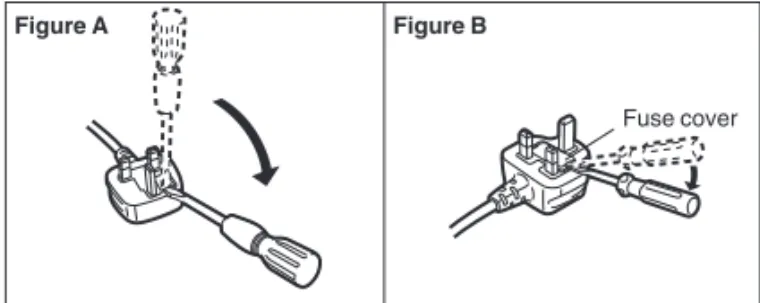
The location of the fuse differ according to the type of AC mains plug (figures A and B). Confirm the AC mains plug fitted and follow the instructions below. Illustrations may differ from actual AC mains plug. 1.Open the fuse cover with a screwdriver.
2.Replace the fuse and close or attach the fuse cover.
Caution for AC Mains Lead
CAUTION!
IF THE FITTED MOULDED PLUG IS UNSUITABLE FOR THE SOCKET OUTLET IN YOUR HOME THEN THE FUSE SHOULD BE REMOVED AND THE PLUG CUT OFF AND DISPOSED OF SAFELY.
THERE IS A DANGER OF SEVERE ELECTRICAL SHOCK IF THE CUT OFF PLUG IS INSERTED INTO ANY 13- AMPERE SOCKET.
Fuse cover Figure A Figure B Figure A Figure B Fuse (5 ampere) Fuse (5 ampere)
Table of contents
∫Getting started
Features. . . 2
Supplied accessories. . . 3
Using the remote control . . . 3
Safety precautions . . . 4
Caution for AC Mains Lead . . . 5
Control reference guide . . . 8
Remote control . . . 8 Main unit . . . 9 Basic Connection . . . 10 Network connection. . . 12 Settings . . . 14 Easy Setting . . . 14
Network Easy Setting . . . 16
HDD and media information . . . 19
Recording mode . . . 19
HDD and media you can use for recording and play. . . 20
Notes . . . 22
Common Operations . . . 24
Preparations . . . 24
Basic operation . . . 25
Menu screen . . . 25
FUNCTION MENU screen . . . 25
∫Watching broadcasts Watching broadcasts . . . 26
Using TV Guide system. . . 26
Using Channel List . . . 28
Channel information . . . 28
Operations while watching broadcast . . . 29
REWIND LIVE TV/PAUSE LIVE TV . . . 30
∫Recording Recording TV programmes . . . 32
Operation during recording . . . 34
Direct TV Recording . . . 35
Timer recording . . . 36
Various functions with Freeview+ . . . 38
To search the programme . . . 39
Timer recording from channel information. . . 39
Manually programming timer recording. . . 40
Timer recording options. . . 40
To confirm and edit a timer programme . . . 41
To cancel recording when timer recording has already begun . . . 42
Notes on timer recording . . . 42
∫Playing back video Playing BD-Video or DVD-Video . . . 43
Enjoying BD-Live or picture-in-picture in BD-Video . . . 43
Playing recorded video contents . . . 44
Using the DIRECT NAVIGATOR (VIDEO) . . . 46
Playback from Chapter View . . . 48
Operation during play . . . 49
Enjoying 3D video . . . 51
∫Editing video Deleting recorded titles . . . 52
Editing recorded titles . . . 53
∫ Copying video Copying titles . . . 57
Copying to HDD with DIRECT NAVIGATOR . . . 58
Copying titles with copying list . . . 59
Notes for copying . . . 62
Copying Title Playing . . . 64
Copying HD Video (AVCHD format) from HDD . . . 64
Copying a finalised disc . . . 65
∫ Photo Playing photos . . . 66
Photo play option . . . 68
Slideshow Settings. . . 68
Editing photos . . . 69
Copying photos . . . 71
Selecting and copying the photos . . . 71
Copying automatically . . . 72
∫ Music Playing music/Copying music to HDD. . . 73
Playing music recorded on HDD . . . 74
Operations during music play. . . 75
Useful functions during music play. . . 75
Editing music/playlist . . . 76
∫ With Other Equipment Copying the HD Video or the SD Video . . . 77
Copying HD Video (AVCHD format) . . . 77
Copying SD Video (MPEG2 format) . . . 78
Recording from external equipment . . . 79
Manual Recording . . . 79
Linked timer recording (SKY Digital STB, etc.) –EXT LINK . . . 80
∫ Convenient functions Enjoying VIERA CAST. . . 81
To enjoy video communication (ex. SkypeTM) . . . 81
Playing contents from other equipment (Server) . . . 82
Playing contents on other equipment (Client) . . . 83
VIERA Link/Q Link functions . . . 84
Playback menu. . . 86
Media management . . . 88
Entering text. . . 90
Changing the unit’s settings . . . 91
Common procedures . . . 91 Tuning . . . 92 HDD / Disc . . . 94 Picture . . . 96 Sound. . . 96 Display . . . 98 Connection . . . 98 Network . . . 100 Others . . . 101
Software (Firmware) Update . . . 104
Other Settings . . . 105
Switching the aspect ratio of the screen . . . 105
TV operation setting . . . 105
HOLD function . . . 105
Other Connections . . . 106
Amplifier connections . . . 106
Watching broadcasts
Recording
Playing back video
Editing video
Copying video
Photo
With Other Equipment
Music
Convenient functions
Troubleshooting
Reference
Getting started
∫TroubleshootingMessages on the unit’s display . . . 108
Troubleshooting guide . . . 110
Power . . . 110
Displays . . . 110
TV screen and video . . . 111
Sound. . . 112
Operation . . . 112
Recording, timer recording and copying . . . 112
Play . . . 113 Edit . . . 113 Photo . . . 113 Music . . . 114 USB . . . 114 TV Guide . . . 114 Broadcast . . . 114 VIERA Link. . . 114 Network . . . 115
To reset this unit. . . 115
∫Reference Unit care . . . 116
Operations that can be performed simultaneously . . . 118
Operations that can be performed while recording or copying a title . . . 118
Starting the timer recording while executing other operation . . . 118
Regarding DivX . . . 119
Specifications. . . 120
Audio information . . . 122
About JPEG/MPO/MP3/DivX/MKV/MPEG2/ AVCHD files . . . 122
Recording modes and approximate recording times . . . . 124
Maximum number of titles that can be recorded . . . 125
Licenses . . . 126
Index . . . 128
Glossary
Refer to following site for technical terms.
http://www.panasonic.co.uk/html/en_GB/ Technology/0-9/217724/index.html
About descriptions in these operating instructions
G
etting
sta
rte
d
Control reference guide
Instructions for operations are generally described using the remote control.
1Turn the unit on or off (>14, 24)
2Select drive (HDD, BD, SD or USB) (>24)
3Select channels and title numbers, etc./Enter numbers or characters (The character buttons may be used when operating VIERA CAST contents.)
4To delete unwanted recorded titles, timer programmes, photos or music (>52)
5Basic operations for recording and play
6Show channel information (>28)/Programme information within TV Guide screen (>26)/Show status messages (>49)/Show Information (>47)
7Selection/OK (>25), Frame-by-frame (>50)
8Show DIRECT NAVIGATOR, Top menu, Pop-up Menu (>43, 46)
9Show OPTION menu (>53, 69, 76)
:Colour buttons
Use in accordance with instruction on the screen.
;Recording functions (>32)
<Show digital text (>29)
=Show subtitles (>29)
>Create chapter (>48)
?Skip the specified time (>50)
@Transmit the remote control signal
ATV operation area (>105)
BChannel select (>26)/
Change pages in the DIRECT NAVIGATOR screen etc. (>46)
CShow VIERA CAST (>81)
DInput select (>26, 32, 79)
EStart up a video communication (>81)
FExit the menu screen
GShow the TV Guide screen (>26)
HShow FUNCTION MENU screen (>25)
IReturn to previous screen
JDirect TV recording (>35)
KEXT LINK function (>80)
LShow Timer Recording screen (>40)
MListen to Audio Description (>29)
NSkip approx. 1 minute forward (>49)
OSkip approx. 10 seconds backward (>49)
Remote control
STATUS FUN CTIO N M EN U DIR EC T NAV IGATO R GUIDE PLAY/x1.3 PAUSE PAUSE LIVE TV STOP SLOW/SEARCH SKIP CH PAGE SELECTINPUT CH AV INPUT TV DRIVE SELECT
DEL EXIT OK OPTION VOL0
2
abc5
jkl8
tuv1
4
ghi7
qrsp3
def6
mno9
xyzw TIME SLIP -10s +60s REC MODE PROG/CHECK REC TEXT STTLCHAPTER MANUAL SKIP
REWIND LIVE TV
BACK/ RETURN
EXT LINK DIRECT TV REC AD
G
etting
sta
rte
d
1Standby/on switch (Í/I) (>14, 24)
Press to switch the unit from on to standby mode or vice versa. In standby mode, the unit is still consuming a small amount of power.
2Disc tray (>24)
3Blue LED
≥It is possible to set the LED to turn on/off. (>98)
4Recording indicator
≥The indicator will light up while recording.
≥The indicator will blink while recording is paused.
5CALL LED
≥The LED will light up when this unit receives incoming call etc. of the video communication. (>81)
6Remote control signal sensor
–Angle: Approx. 20° up and down, 30° left and right
–Distance: Within approx. 7 m in front of the unit
7Open/close disc tray (>24)
8USB port (>24)
9SD card slot (>24)
:Stop
;Start play
<[BWT800] HDMI (SUB) V.OFF LED (Video off LED)
≥It is possible to set the LED to turn on/off. (>98)
=Display
1 Disc indicator
2 Copying indicator (>55) 3 USB port indicator 4 SD card slot indicator 5 EXT LINK indicator 6 Timer recording indicator
This indicator lights up when the timer recording standby is activated.
7 Remote control signal indicator 8 Drive (HDD, BD or SD) indicator 9 Main display section indicator
Current time/playback counter, various messages
10 Playback indicator
¾ Rear panel terminals (>10-12, 106, 107)
Main unit
Pull to flip down the front panel.
PLAY
COPY USB SD EXT -L
HDD
SD
BD
2 3 4 1 5 6 7 8 9 10G etting sta rte d
Basic Connection
When connected to an HDMI compatible unit, you can enjoy high quality, digital video and audio.
3D programmes can be played back when this unit is connected to a 3D compatible TV using an HDMI cable.
≥Before connection, turn off all equipment and read the appropriate operating instructions.
≥Other TV and amplifier connections (>106)
BE SURE TO READ THE CAUTION FOR AC MAINS LEAD ON PAGE 5
Required setting:
Set “HDMI Audio Output” to “On” (>99). (The default setting is “On”.)
After completing the connections, proceed to Easy Setting (>14).
≥You can view only with the 21-pin Scart cable connection, without connecting an HDMI cable. Set according to the connected TV. (>99, AV1 Output)
≥The 21-pin Scart cable connection with the Q Link compatible TV supports “Q Link” (>84).
≥Keep the RF coaxial cables as far away as possible from other cables.
≥Do not roll up the RF coaxial cables.
HDMI AV RF IN HDMI AV OUT (MAIN) AV1 (TV) RF IN RF OUT AC IN HDMI cable 21-pin Scart cable Aerial cable
RF Coaxial cable (supplied) AC mains lead (supplied)
TV’s rear panel
This unit’s rear panel To household mains socket
(AC 220 to 240 V, 50 Hz)
Connect only after all other
connections are complete.
To the aerial
G
etting
sta
rte
d
About HDMI cable
≥Please use High Speed HDMI Cables that have the HDMI logo (as shown on the cover).
≥When outputting 1080p signal, please use HDMI Cables 5.0 meters or less.
≥Recommended Panasonic HDMI cable part number:
RP-CDHS15 (1.5 m), RP-CDHS30 (3.0 m), RP-CDHS50 (5.0 m), etc.
≥The HDMI connection supports VIERA Link “HDAVI Control” (>84).
However, to perform PAUSE LIVE TV (>30) and Direct TV Recording (>35) for programmes that cannot be received by this unit, you need to connect a 21-pin Scart cable.
([BWT800] VIERA Link “HDAVI Control” can only be used
on the connection from the HDMI (MAIN) terminal.)
≥You cannot connect this unit to DVI devices that are incompatible with HDCP.
Depending on the device, images may not display properly or at all when connecting with a DVI/HDMI switching cable. (Audio cannot be output.)
≥If you are connecting to a TV that is only compatible with 2 channel audio output, audio with 3 channels or more will be down mixed and output as 2 channels, even if connecting with an HDMI cable. (Some discs cannot be down mixed.)
§ A 21-pin Adaptor is required for AUDIO/VIDEO terminal.
When the unit is not to be used for a long time
To save power, unplug it from the household mains socket. This unit consumes a small amount of power, even when it is turned off
[approx. 0.2 W (“Power Save in Standby” is activated and “RF OUT ( Aerial Signal )” is set to “Off”)]
When connecting the Set Top Box or
video equipment
Connect the unit directly to the TV
If you connect the unit through an AV selector or VCR to the TV, video signal will be affected by copy protection systems and the picture may not be shown correctly.
≥When connecting to a TV with a built-in VCR
Connect to the input terminals on the TV side if there are both TV and VCR input terminals.
AV2 (EXT)
AV※
21-pin Scart cable This unit’s rear panel
Set Top Box or video equipment (Satellite receiver, CATV, VCR, etc.)
TV
VCR This unit
G etting sta rte d
Basic Connection
Following functions will be available when this unit is connected to the network.
≥DLNA functions (>82, 83)
≥Network Service functions (>81)
≥BD-Live functions with Internet (>43)
≥Automatically acquiring the title of the CD (>73)
≥Updating the software (firmware) of this unit from Internet (>104)
For details about connection method, refer to the instructions supplied with the connected equipment.
≥Use category 5 or above straight LAN cables (STP) when connecting to peripheral devices.
≥Inserting any cable other than a LAN cable in the LAN terminal can damage the unit.
≥[BWT800] Wireless LAN is built in. (There is no need to connect a Wireless LAN Adaptor.)
≥[BWT700] Connect the Wireless LAN Adaptor DY-WL10 (optional).
≥[BWT700] Only the Wireless LAN Adaptor DY-WL10
(optional) can be used. Read the operating instructions for the Wireless LAN Adaptor DY-WL10 (optional) thoroughly when using it.
Connect/disconnect the Wireless LAN adaptor DY-WL10 (optional) when the unit is turned off and not using functions that use the network, such as downloading a programme, etc.
≥For up to date compatibility information on your Wireless router refer to
http://panasonic.jp/support/global/cs/ (This site is in English only.)
≥The unit is not compatible with public wireless LAN services provided in airports, stations, cafes etc.
Network connection
LAN (ethernet) cable connection
10BASE-T/
100BASE-TX
LAN
This unit’s rear panel
Broadband router, etc.
Internet
LAN cable
(Straight)
Wireless LAN connection
COMMUNICATION CAMERA WIRELESS LAN ADAPTOR Internet Wireless router, etc.
This unit’s rear panel
Wireless LAN Adaptor
G
etting
sta
rte
d
∫ Precautions of Wireless LAN connection
The following limits are in place regarding the usage of this unit. You must be aware of these limits before using this unit.
Panasonic will in no way be responsible for any incidental damage which may arise due to a failure to obey these limits, or to any condition of use or disuse of this unit.
≥Data transmitted and received over radio waves may be intercepted and monitored.
≥This unit contains delicate electronic components.
Please use this unit in the manner in which it was intended and follow the following points:
–Do not expose this unit to high temperatures or direct sunlight.
–Do not bend, or subject this unit to strong impacts. –Keep this unit away from moisture.
G etting sta rte d
Settings
1
Turn on the TV, then select the appropriate AV input to suit the connections to this unit.2
Press [Í].DVB Auto Setup starts.
DVB Auto Setup takes about 3 minutes.
≥After DVB Auto Setup has been completed, clock will be set automatically.
If the clock setting menu appears, set the time manually (>102, Clock)
3
Enter the PIN.This PIN will be used only for the Owner ID-Data Entry screen.
1Press the number button to enter 4-digit PIN.
2Repeat step1 to confirm.
≥Make a note of PIN in case you forget it.
4
Set the Owner ID-Data Entry (“NAME”, “HOUSE NO” and “POSTCODE”).1Select the item, then press [OK].
2Select the character, then press [OK].
3Repeat step2. 4Press [BACK/RETURN ]. TIME SLIP STATUS AD -10s +60s REC MODE PROG/CHECK REC TEXT STTL CHAPTER FUNCT IO N M EN U DIR EC T N AVIGA TOR GUIDE PLAY/x1.3 PAUSE PAUSE LIVE TV STOP SLOW/SEARCH SKIP CH PAGE SELECT INPUT CH AV TV DRIVE SELECT DEL EXIT OK OPTION MANUAL SKIP VOL 0 2abc 5jkl 8tuv 1 4ghi 7qrsp 3def 6mno 9xyzw INPUT REWIND LIVE TV BACK/ RETURN DIRECT TV REC EXT LINK
Easy Setting
Progress DVB Auto Setup CH 21 68 CHFree TV: 0 Pay TV: 0 Radio: 0 Data: 0
Searching
Quality Type Channel Name
RETURN
This will take about 3 minutes.
Actual number of channels may differ due to channel duplication
Owner ID
Please enter new PIN
PIN * * * *
0 - 9 PIN entry
RETURN
*
You now have the opportunity to enter your
details and help the police to crack crime.
See Instruction Book.
Owner ID-Data Entry
PIN 0000
NAME HOUSE NO POSTCODE
RETURN Change PINSelect
G etting sta rte d
5
Press [BACK/RETURN ].6
Enter the new PIN.≥The default PIN is “0000”.
1Select the number, then press [1] (right).
2Repeat step1.
≥Make a note of PIN in case you forget it.
3Press [OK] twice.
7
Set “Power Save” to “On”, “On Timer” or “Off”, then press [OK].≥Power consumption is lowered additionally when “RF OUT ( Aerial Signal )” is set to “Off”. (>102)
≥Video from AV2 input cannot be viewed with this unit in standby mode when Power Save in Standby mode is activated.
When the following screen appears, Easy Setting is complete.
≥Select “Yes” to proceed to “Network Easy Setting”. (>16)
≥Select “No” to finish the Easy Setting.
To stop partway
Press [BACK/RETURN ].
To restart set up
1 While stopped
Press [FUNCTION MENU].
2 Select “Setup” in “Others”, then press [OK]. 3 Select “Auto Setup” in “Tuning”, then press [OK].
To display the Owner ID information on TV 1While the unit is on, press and hold [OK], the
yellow button and the blue button on the remote control at the same time for more than 5 seconds. –“00 RET” is displayed on the unit’s display.
2Repeatedly press [1] (right) on the remote control or [Í/I] on the main unit until “01 OID” is displayed on the unit’s display.
3Press [OK] on the remote control or [<OPEN/ CLOSE] on the main unit.
The PIN is not displayed.
¾ To edit the Channel List (>92, Channel List) ¾ To check the signal condition (>93, Signal
Condition)
¾ To change PIN (>102, PIN Entry)
¾ To sort the Channel List by region (>92, Channel Sorting by Region)
On It will go into the Power Save in Standby mode.
On Timer
Set the start and stop time and then press [OK].
≥Power Save in Standby mode is activated at the set time period.
Off It is possible to start quickly from the standby mode. (Quick Start mode)
≥If you use Home Network ( DLNA ) Server function (>101), select “Off”. This function is not available with other settings.
RETURN
Enter a new 4-digit PIN, then press OK.
This PIN will be used for controlling viewing and playback. PIN will be set to “0000” by pressing “RETURN” when there is no number input.
0
-Number 9 PIN Entry
- - -
-Power Save in Standby
From To Power Save 0 6 On OK Easy Setting
Easy Setting has been completed.
To use Internet functions, network connection needs to be made first. Proceed Network Easy Setting ? Select “Yes” to start. Select “No” to exit the Setup.
G etting sta rte d
Settings
After completing “Easy Setting”, you can continue with “Network Easy Setting”.
Select “Wired” or “Wireless”, then press [OK].
e.g., [BWT800]
Follow the on-screen instructions and make the following settings.
≥Network Easy Setting ( Home Network Connection Check )
≥Home Network ( DLNA ) Server function
≥Network Easy Setting ( Internet Connection Test )
This screen appears, Setup is complete.
Press [OK].
¾When you experience problems with settings
(>17)
Before beginning wireless connection setup
≥Obtain your Network name (SSID§1).
≥If your wireless connection is encrypted please be sure that you know your encryption key. ≥[BWT700] If “Wireless LAN Adaptor is not connected.”
is displayed, check that the Wireless LAN Adaptor is fully inserted. Alternatively, disconnect and
reconnect it. If there is still no change in the display, consult your dealer for advice.
Select “Search for wireless network” or “WPS (PUSH button)” and then follow the on-screen instructions and make the settings.
∫ Search for wireless network:
≥When you select “Search for wireless network”, the available wireless networks will be displayed. Select your network name and press [OK].
–If your Network name is not displayed search again by pressing the “Red” button on the remote control.
–Stealth SSID will not be displayed when you select “Search for wireless network”. Enter Manually by using “Wireless Settings”. (>100)
≥If your wireless network is encrypted, Encryption Key Input Screen will be displayed.
Input the encryption key of your network.
∫ WPS (PUSH button):
If your Wireless router supports WPS (PUSH button), you can easily perform the settings by pressing WPS button on it. WPS (Wi-Fi Protected Setup) is a standard that facilitates settings relating to the connection and security of wireless LAN devices.
1Press WPS button or corresponding button of Wireless router until the lamp starts flashing.
≥For details, refer to the operating instruction of Wireless router.
2Press [OK].
§1 An SSID (Service Set IDentification) is a name
used by wireless LAN to identify a particular network. Transmission is possible if the SSID matches for both devices.
§2 Wi-Fi Protected Setup-compatible Wireless router
may have the mark.
Network Easy Setting
“Wired” connection
“Wireless” connection
OK RETURN
Network Easy Setting
Settings and tests for connection required for home network and the Internet will be conducted.
First, please select a connection mode. LAN cable connection:
Connect a LAN cable to the unit and select “Wired”. Wireless LAN connection:
Select “Wireless”. Current setting : Wired
Wired Wireless
OK RETURN
Network Easy Setting
Network Easy Setting have been finished. Press OK.
OK RETURN
Wireless Settings
Select a connection method to wireless access point. Please refer to the operating instructions of your wireless access point about connection methods.
Search for wireless network WPS (PUSH button)
2 e.g.,
G etting sta rte d ∫Wireless Settings
≥If there is no problem, the following screen is displayed.
≥If there is any problem, the following message is displayed on the screen.
∫Network Easy Setting ( Home Network Connection Check )
≥If there is no problem, the following screen is displayed.
e.g., “Wireless” connection
≥If there is any problem, the following message is displayed on the screen.
When you experience problems with
settings
Display Check the following
A conflict with other devices occurred.
≥Please wait a few moments, and then try again.
A time out error occurred.
≥Setting of the Wireless router for MAC Address etc.
≥The signal may be weak. [BWT700] Using the USB extension cable supplied with the Wireless LAN Adaptor, adjust the position of the Wireless LAN Adaptor.
≥The SSID and the encryption key of the Wireless router.
≥Please wait a few moments, and then try again.
An authentication error or a time out error occurred.
A device error occurred.
≥[BWT700] Connection of Wireless LAN Adaptor
≥If there is no improvement in symptom, contact your dealer. OK Wireless Settings Complete. Network name (SSID) : Wireless type : Authentication type : Encryption type : Reception
Press OK to check network connection. For better performance of Home Network (DLNA), it is recommended using a wireless access point compatible with 802.11n (5GHz).
:
Display Check the following
1. LAN cable connection or Wireless setting: “Fail” ≥Connection of the LAN cables (>12) ≥Settings of the hub and router 2. IP address setting: “Fail” 3. Connection to gateway: “Fail” 1. LAN cable connection or Wireless setting: “Pass” ≥Connection and settings of the hub and router ≥Settings of “IP Address / DNS Settings” (>100) 2. IP address setting: “Fail” 3. Connection to gateway: “Fail” 1. LAN cable connection or Wireless setting: “Pass” 2. IP address setting: “Pass” 3. Connection to gateway: “Fail” 1. LAN cable connection or Wireless setting: “Pass” 2. IP address setting: “Home network available” 3. Connection to “Fail” OK
Network Easy Setting ( Home Network Connection Check )
Completed.
Network connection check has finished. Press OK.
1. Wireless setting : Pass 2. IP address setting : Pass 3. Connection to gateway : Pass
G etting sta rte d
Settings
∫Network Easy Setting ( Internet Connection Test )
≥If there is no problem, the following screen is displayed.
≥If there is any problem, the following message is displayed on the screen.
To restart Network Easy Setting
1 Press [FUNCTION MENU].
2 Select “Setup” in “Others”, then press [OK]. 3 Select “Network Easy Setting” in “Network”, then
press [OK].
To redo settings individually
1 Press [FUNCTION MENU].
2 Select “Setup” in “Others”, then press [OK]. 3 Select “Network Settings” in “Network”, then press
[OK].
4 Select “IP Address / DNS Settings” (>100) or “Proxy Server Settings” (>100), then press [OK].
Check security before using Home Network ( DLNA ) Server function
If you set “Home Network ( DLNA ) Server function” to “On”, all connected devices on the same network can access this unit. Ensure that the router for your home network has adequate security system to prevent unauthorized access.
≥Refer to the operating instructions of the hub or router.
≥Home Network ( DLNA ) Server function setting can be set only when you selected “Off” for “Power Save in Standby” in “Easy Setting”. (>15, step 7)
≥Even if you set “Home Network ( DLNA ) Server function” to “Off”, it is possible to set to “On” later. (>101)
≥You can perform this setup anytime by selecting “Network Easy Setting” in the Setup menu. (>100)
≥You can redo these settings individually using “Network Settings”. (>100)
≥Do not use this unit to connect to any wireless network for which you do not have usage rights.
During automatic searches in a wireless network environment, wireless networks (SSID) for which you do not have usage rights may be displayed; however, using these networks may be regarded as illegal access.
≥After performing network settings on this unit, the settings (encryption level, etc.) of the Wireless router might change. When you have trouble getting online on your PC, perform the network settings on your PC in accordance with the settings of Wireless router.
≥Please be aware that connecting to a network without encryption may result in the content of the communication being illegitimately viewed by a third party, or the leaking of data such as personal or secret information.
Display Check the following
Cannot find the server. (B019) ≥“Primary DNS” and “Secondary DNS” settings of “IP Address / DNS Settings” (>100) No connection could be made to the server. (B020)
≥The server may be busy or the service may have been suspended. Please wait a few moments, and then try again.
≥Settings of “Proxy Server Settings” (>100) and the router
OK
Network Easy Setting (Internet Connection Test)
Completed.
Press OK.
Network connection check has finished. Internet functions are available. - Connection to the internet : Pass
G
etting
sta
rte
d
§1The SD quality programme can not be converted to HD quality.
§2You cannot select during play whether it appears or disappears.
§3You cannot select during play whether it activates or deactivates.
¾ Recording modes and approximate recording times (>124)
∫FR (Flexible Recording Mode)
The unit automatically selects a recording rate between XP and EP (8 hours) that will enable the recordings to fit in the remaining disc space with the best possible recording quality.
Recording mode
Recording Mode DR HG/HX/HE/HL/HM XP/SP/LP/EP,
FR (>below)
Feature Programmes can be
recorded in a nearly perfect broadcasted state.
Recording can be done with reduced recording volume in HD quality.
Recording can be done with reduced recording volume in SD quality.
Quality Quality as the broadcast High Definition§1 Standard Definition
Recordable media Multiple audio (audio language)
Record all multiple audio Record only one audio
Subtitles Can be recorded Can be recorded (only one subtitle)§2
Audio Description Can be recorded Can be recorded§3
Surround audio Surround audio as the
broadcast
Depends on the settings (>97, Audio for HG / HX / HE / HL / HM Recording)
G
etting
sta
rte
d
HDD and media information
(–: Impossible)
HDD and media you can use for recording and play
Media Standard symbol Recordable contents Playable contents
Hard disk drive (HDD)§1 [HDD]
≥Video
≥AVCHD
≥JPEG
≥MPO
≥Music copied from music CD
≥MP3
BD-Video
[BD-V] –
≥Movie and music
BD-RE§1 [BD-RE] ≥Video ≥AVCHD ≥JPEG ≥MPO BD-R [BD-R] ≥Video ≥AVCHD§2 – ≥DivX® ≥MKV DVD-Video§3 [DVD-V] –
≥Movie and music
≥Video in finalised disc
DVD-RAM§1 [RAM] ≥Video ≥JPEG ≥MPO – ≥AVCHD§2 DVD-R DVD-R DL [DVD-R] ≥Video ≥AVCHD§2 – ≥DivX® ≥MKV ≥JPEG ≥MPO ≥MP3 DVD-RW§1 [DVD-RW] ≥Video – ≥AVCHD§ 2 +R/+R DL [+R] ≥Video – ≥AVCHD§2 +RW§1 [+RW] ≥Video – ≥AVCHD§2
G etting sta rte d §1Rewritable media
§2This unit can playback media recorded with AVCHD compatible devices (Panasonic video camera, etc.).
However, it may not be able to playback, add, or edit depending on the device that was used to record. §3Includes finalised DVD-R, DVD-R DL, DVD-RW, +R and +R DL.
§4It cannot be played back directly from the media. Playback is possible by copying to the HDD.
≥[BD-R] LTH type is also supported.
≥[RAM] Take the disc out from the cartridge to use the DVD-RAM with a cartridge. (TYPE1 cannot be used)
≥[+RW] 8X Speed +RW disc is not supported.
≥[USB]Video images of the copyright-protected DivX contents stored on USB device can be output only through the HDMI output terminal.
≥With certain recording states and folder structures, the play order may differ or playback may not be possible.
Media Standard symbol Recordable contents Playable contents
Audio CD (CD-DA) [CD] – ≥Music CD (including CD-R/RW) – ≥DivX® ≥MKV ≥JPEG ≥MPO ≥MP3 SD Cards§1 [SD] ≥JPEG ≥MPO ≥AVCHD ≥MPEG2§4 ≥JPEG ≥MPO
USB memories [USB] –
≥AVCHD§2, 4 ≥MPEG2§4 ≥DivX® ≥MKV ≥JPEG ≥MPO ≥MP3
G
etting
sta
rte
d
HDD and media information
The manufacturer accepts no responsibility and offers no compensation for loss of recorded or edited material due to a problem with the unit or recordable media, and accepts no responsibility and offers no compensation for any subsequent damage caused by such loss.
Examples of causes of such losses are
≥A disc recorded and edited with this unit is played in a Blu-ray Disc Recorder or computer disc drive manufactured by another company.
≥A disc used as described above and then played again in this unit.
≥A disc recorded and edited with a Blu-ray Disc Recorder or computer disc drive manufactured by another company is played in this unit.
∫Disc recorded on another device
≥DVD-RW recorded in DVD Video Recording (DVD-VR) format
–This unit can playback and copy to HDD. –This unit does not support editing or recording. –It is possible to record and edit with DVD-Video
format by formatting discs with this unit.
≥It may be necessary to finalize the disc or close the session on the equipment used for recording to play on this unit.
≥Discs recorded on equipment other than this unit may not be used for recording on this unit.
∫Play on other players
[BD-RE][BD-R]
It can be played on the players compatible with BD-RE (Ver. 2.1) and BD-R.
≥When BD-RE and BD-R cannot be played back on other Blu-ray Disc players, etc. (e.g., title recorded with HE-AAC audio format), convert the recording mode to play them back. (>55, File Conversion)
[DVD-R][DVD-RW][+R][+RW] Finalisation is needed. (>89) [+RW]
If the disc failed to play on other equipment, we recommend you create a Top Menu (>89).
∫ Regarding 8 cm Disc
This unit cannot record or edit the 8 cm disc. Only playback or copy to the HDD is possible.
∫ Discs that cannot be played
≥DVD-RAM that cannot be removed from their cartridges
≥2.6 and 5.2 GB DVD-RAM, 12 cm
≥DVD-Audio
≥HD DVD
≥WMA discs, DivX Plus HD discs
≥Super Video CD, Super Audio CD, Video CD
≥+R (8 cm), CD-ROM, Photo CD, PD, etc.
≥The producer of the disc can control how discs are played. So you may not always be able to control play as described in these operating instructions. Read the disc’s instructions carefully.
≥Operation and sound quality of CDs that do not conform to CD-DA specifications (copy control CDs, etc.) cannot be guaranteed.
Notes
G etting sta rte d ∫Compatible SD card
–SD Memory Card (from 8 MB to 2 GB) –SDHC Memory Card (from 4 GB to 32 GB) –SDXC Memory Card (48 GB, 64 GB)
≥This unit is compatible with SD Memory Cards that meet SD Card Specifications FAT12 and FAT16 formats, as well as SDHC Memory Cards in FAT32 format and SDXC Memory Cards in exFAT format.
∫Setting the protection
∫Using miniSD card or microSD card
≥Useable memory is slightly less than the card capacity.
≥If the SD card is formatted on other equipment, the time necessary for recording may be longer. Also, if the SD card is formatted on a PC, you may not be able to use it on this unit. In these cases, format the card on this unit (>88).
≥SDHC Memory Cards and SDXC Memory Cards can be used in equipment that is compatible with the appropriate cards. (SDHC Memory Cards can also be used in equipment compatible with SDXC Memory Cards)
Using either of these cards in a non-compatible PC or non-compatible equipment may result in formatting etc. and the loss of recorded content.
∫Compatible USB memories
≥USB memories that support USB 1.0/1.1 and USB 2.0 Full Speed/High Speed.
≥FAT16 and FAT32 file systems are supported.
≥This unit’s USB port does not support bus-powered USB device.
≥Despite meeting the conditions mentioned above, there may be USB memories that cannot be used for this unit.
≥This unit supports connecting a USB memory, digital camera and video camera produced by Panasonic, etc. It is not warranted that all USB devices will meet this unit.
≥USB memories support DivX and MKV files less than 4 GB.
≥[BWT800] USB port at the rear of this unit is dedicated for
optional Communication Camera (TY-CC10W or compatible equipment).
≥[BWT700] When using Communication Camera TY-CC10W
or Wireless LAN Adaptor DY-WL10, connect it to the rear terminal of this unit. (>12, 81)
Notes for the SD cards
Switch the write-protect switch to the “LOCK” position.
Mini-type and micro-type cards can also be used, but must be used with adaptor cards. These are usually supplied with such cards, or otherwise customer provided.
e.g.,
LOCK
G etting sta rte d
Common Operations
1Turn on the TV, then select the appropriate
AV input to suit the connections to this unit.
2Press [Í] on the remote control or [Í/I] on this unit.
≥When the indicator on this unit's display blinks, do not turn off the unit or remove the media. Such action may result in loss of the media contents.
≥When inserting the media, ensure that it is facing the right way up.
≥Wipe off the dust or fingerprints from the discs before use. (>117)
≥Return discs to their cases or cartridges after use; this helps to protect the discs against scratches and dust.
≥When removing the SD card, press on the centre of the card and pull it straight out.
≥If you connect a Panasonic product with a USB connection cable, setup screen may be displayed on the connected equipment. For details, refer to the instructions for the connected equipment.
∫ To select a drive
Press [DRIVE SELECT] to select the media drive that you operate.
∫ Release disc protection
[BD-RE][BD-R][RAM]
If the disc is protected when writing to the disc, release the protection (>88, Setting the protection).
Preparations
Turning on this unit
TIME SLIP STATUS AD -10s +60s REC MODE PROG/CHECK REC TEXT STTL CHAPTER FUNCT IO N M EN U DIR EC T NAV IGATO R GUIDE PLAY/x1.3 PAUSE PAUSE LIVE TV STOP SLOW/SEARCH SKIP CH PAGE SELECTINPUT CH AV TV DRIVE SELECT DEL EXIT OK OPTION MANUAL SKIP VOL 0 2abc 5jkl 8tuv 1 4ghi 7qrsp 3def 6mno 9xyzw INPUT REWIND LIVE TV BACK/ RETURN DIRECT TV REC EXT LINK TV operation area (>105)
Inserting or removing a media
Press [<OPEN/CLOSE]on the main unit to open the tray and insert a disc.
SD card USB memory
G
etting
sta
rte
d
This unit is basically operated via the following method by using the remote control.
Operating method can also be confirmed on the screen.
Available functions and buttons used are displayed on each screen.
Menu screen for selecting each operation is displayed when the media is inserted, and you can access the operation screen easily.
e.g., [USB]
≥Display items differ depending on what is recorded in each media.
If the menu screen is not displayed, display it by performing the following operation.
You can easily access the desired functions via the FUNCTION MENU.
1
Press [FUNCTION MENU].2
Select the item, then press [OK].≥Repeat step 2 if necessary.
Basic operation
To return to the previous
screen Press
To exit the screen Press
Display Navigation
Menu screen
OK OK Select Enter BACK/ RETURN EXIT Page 001/002 Copy Select OPTION LIVE CAT 2 SPORTS NEWS World news 29/10 29/10 2 29/10 1 1 1 1 1 PLAY RETURN PHOTO / MUSIC KD2A DOG LIVE CAT 04.10 04/10 29/10 Delete Page Up Page Down World news 29/10 DEL USB OK RETURNUSB device is inserted.
View Photos Play Video
Play / Copy Music ( MP3 ) Copy Video ( MPEG2 ) Copy Video ( AVCHD ) Copy New Photos
FUNCTION MENU screen
Playback Contents Video (>44) Photo (>66) Music (>73) TV Guide (>26, 36) Timer Recording (>40) Copy Copy Video (>59)
Copy Video (AVCHD) to DVD-R (>64)
Network
Home Network (DLNA) (>83) Internet Content (>81)
Others
Ext Link Standby (>80)
Flexible Recording via AV input (>79) BD-Video Data Management (>88) Setup (>91)
Drive Select
Disc / SD Card / USB
FUNCTION MENU
Drive Select
OK RETURN
Titles recorded to the HDD can be viewed, edited, or deleted.
Blu-ray
Timer Recording Copy
Others
Disc / SD Card / USB Network Playback Contents TV Guide HDD Video Photo Music
Wa tchin g broa dca s ts
Watching broadcasts
Watch ing broad casts≥You can set the time to display the channel information. (>98, On-Screen Information)
1
Press [GUIDE].2
Select the programme, then press [OK].3
Select “View”, then press [OK].Page up/down
Press [W XCH].
To view a programme list for another day
Press the “Red” button (Previous) or the “Green” button (Next).
¾ Timer Recording using the TV Guide System
(>36)
≥Some broadcast may not send programme information.
Press
and select “TV”,
then press
.
Press
to select the
channel.
Everytime you change the channel, channel information appears automatically.
Unit’s display;
≥You can also select the channel with the number buttons. TIME SLIP STATUS AD -10s +60s REC MODE PROG/CHECK REC TEXT STTL CHAPTER FUNCT IO N M EN U DIR EC T NAV IGATO R GUIDE PLAY/x1.3 PAUSE PAUSE LIVE TV STOP SLOW/SEARCH SKIP CH PAGE SELECTINPUT CH AV TV DRIVE SELECT DEL EXIT OK OPTION MANUAL SKIP VOL 0 2abc 5jkl 8tuv 1 4ghi 7qrsp 3def 6mno 9xyzw INPUT REWIND LIVE TV BACK/ RETURN DIRECT TV REC EXT LINK SELECTINPUT OK TV AV2 AV1 Input Selection RETURN ChangeSelect CH
Using TV Guide system
Landscape TV Guide: WED 13/10/2011
19:36 WED 13th All Types All Channels
Time:
RETURN OK Select Programme Select Channel
+24 hours Prog. Type Category Page Up Page Down Portrait/Landscape Info CH GUIDE 19:00-20:00 OPTION: Advert 1 2 3 4 5 6 7
Selection Screen WED 13/10/2011 19:36
RETURN OK Drama WED 13/10/2011 19:00 - 20:00 View Single Timer Rec. Series Timer Rec. Delete Recommended
Wa tchin g broa dca s ts Press [STATUS ].
Additional information is available for these programmes.
To show other pages
Press [CHW] (Previous) or [XCH] (Next).
To exit the screen
Press [STATUS ].
Press [OPTION].
To show other advertisement
Press [3,4].
To exit the screen
Press [BACK/RETURN ].
While displaying TV Guide screen
Press [GUIDE].
To see programme information
(Programmes with the symbol)To see advertisement
Switch the appearance
Landscape TV Guide: WED 13/10/2011
19:36 WED 13th All Types All Channels
Time:
RETURN OK Select Programme Select Channel
+24 hours Prog. Type Category Page Up Page Down Portrait/Landscape Info CH GUIDE 19:00-20:00 OPTION: Advert 1 2 3 4 5 6 7 Portrait TV Guide: WED 13/10/2011
19:36 WED 13th All Types All Channels
Vacation News Shopping House dog Venus 00:05-02:30 23:00-00:05 22:00-23:00 21:00-22:00 20:55-21:00 20:00-20:55 19:30-20:00 Hunting Football Baseball Landscape view
Wa tchin g broa dca s ts
Watching broadcasts
You can select from the list of channel names.
After performing step (>26)
1
Press [OK].2
Select the channel, then press [OK].¾To edit the Channel List (>92)
Press [STATUS ].
1Current Category
2Title with Guidance information 3Audio Description
4Subtitle 5Digital text 6Multiple audio 7Set timer (>39)
To show detailed information
Press [STATUS ] again.
To hide the information screen
Press [EXIT].
To change Favourites
Press the “Blue” button.
≥Register your favourite channels
1 Press [OPTION].
2 Select “Digital TV Menu”, then press [OK]. 3 Select “Favourites Edit”, then press [OK]. 4 Refer to page 92 (Favourites Edit).
To switch between the current programme and the next programme
Press [2,1].
To check the programmes currently broadcasting on other channels
Press [3,4].
≥You can switch to another channel displayed on the channel information by pressing [OK].
Using Channel List
All DVB Channels 1 2 3 4 5 6 7 RETURN View Select HD HD HD HD HD Page up Page down Channel names
Channel information
All DVB Channels Set timer 19:00 - 19:30 Now Multi Audio D A STTL MPEG TEXT 19:07 Select favourites 12
e.g.,Wa tchin g broa dca s ts
When “STTL” appears in channel information (>28)
Press [STTL ].
To hide subtitle
Press [STTL ].
To change subtitle language 1Press [OPTION].
2Select “Subtitle Language” in “Digital TV Menu”, then press [OK].
3Select the desired language.
≥Press [EXIT] to exit the screen.
When “Multi Audio” appears in channel information (>28)
1Press [OPTION].
2Select “Multi Audio” in “Digital TV Menu”, then press [OK].
3Select the desired audio. To exit the screen
Press [EXIT].
Audio Description adds an additional soundtrack to describe events on screen (narration) and aids understanding and enjoyment, particularly for visually-impaired viewers.
When “AD” appears in channel information (>28)
1Press [AD].
2Select “Audio Description” and set to
“Automatic”.
3Select “Volume”, then adjust the volume with [2,1].
When “TEXT” appears in channel information (>28)
Press [TEXT ].
To select the page or access to certain topic areas and navigation
Use [3,4,2,1], number buttons or colour buttons, etc. according to on-screen instructions.
≥Some functions of Digital text are deactivated during recording.
You can switch the screen mode. (>105)
3D programmes can be played back when this unit is connected to a 3D compatible TV using an HDMI cable.
≥Change the setting if you cannot view 3D compatible programmes in 3D.
¾ Enjoying 3D video (>51)
Operations while watching
broadcast
To show subtitle
To select Multi Audio
To listen to the Audio Description
To view Digital text (MHEG)
Aspect
To show 3D programme
e.g.,
Side by side programme 1 Press [OPTION]. 2 Select “3D Settings”,
then press [OK]. 3 Select “Side by side”
in “Signal Format”, then press [OK].
Wa tchin g broa dca s ts
Watching broadcasts
This unit temporarily saves a live TV programme you are watching with this unit’s tuner on HDD and you can use the following functions.
≥Select the HDD drive to perform these functions correctly.
1
While watching TV(REWIND]LIVE]TV)
Press [SLOW/SEARCH6] to rewind.
≥“REWIND LIVE TV” appears on the unit’s display.
(PAUSE]LIVE]TV)
Press [PAUSE;] to pause.
≥“PAUSE LIVE TV” appears on the unit’s display.
2
When you want to resumePress [PLAY/a1.31].
≥You can perform search or Quick View, etc.
≥If temporary save stops (>31), playback will be performed by that point.
∫ While pausing or rewinding a broadcast:
Press [STATUS ].
≥Press [STATUS ] again.
∫ While pausing a programme via external input:
Press [STATUS ].
1The time that you can rewind the live programme 2The amount of time temporarily saved on HDD
(maximum: 2 hours).
3The time of the current playback position
4The time which is 2 hours after PAUSE LIVE TV or REWIND LIVE TV started
≥After 2 hours from PAUSE LIVE TV or REWIND LIVE TV started, current time is displayed
REWIND LIVE TV/PAUSE LIVE
TV
∫REWIND LIVE TV
You can rewind live TV programme up to 2 hours before as long as temporary save has not been stopped.
∫PAUSE LIVE TV
You can pause live TV programme and restart watching from the paused position.
≥PAUSE LIVE TV also works when watching a programme via external input.
Pause 20:35 22:35 20:35
Display information
Pause 20:35 22:35 21:50
18:53:50 11/11/2011 Play 18:53.50
Play 18:53:50 01/01/2011 Wa tchin g broa dca s ts
To stop REWIND LIVE TV or PAUSE LIVE TV
1 Press [STOP∫].
2 Select “Yes”, then press [OK].
To hide the display information
Press [EXIT].
≥Temporary save stops in the following cases: – When switching to other channels or other screen – When recording of the watching programme is started – When 2 programmes simultaneous recording is started – When performing PAUSE LIVE TV or REWIND LIVE TV
for more than 8 hours (This may vary depending on the HDD free space.)
≥These functions do not work in the following cases: – When the clock is not set
– While recording 2 programmes simultaneously – While copying
– While watching a programme being recorded – When a radio programme is selected
–(REWIND]LIVE]TV) When “REWIND LIVE TV” is set to “Off” (>95)
–(PAUSE]LIVE]TV) When a timer recording via external input is started while watching a programme via external input
≥(PAUSE]LIVE]TV) You can operate this unit with the TV remote control by using VIERA Link (>84).
Refer to the TV operating instructions for operation.
≥(PAUSE]LIVE]TV) When you connect the TV with a HDMI cable and a 21-pin Scart cable, it is possible to pause programmes that cannot be received with the tuner of this unit.
Re co rdin g
Recording TV programmes
Recor dingThis operation will only record to HDD.
Press
and select “TV”,
then press
.
Press
to select the
channel.
You can also select the channel with the number buttons. TIME SLIP STATUS -10s +60s REC MODE REC TEXT STTL CHAPTER FUNCT IO N M EN U DIR EC T NAV IGATO R GUIDE PLAY/x1.3 PAUSE PAUSE LIVE TV STOP SLOW/SEARCH SKIP CH PAGE SELECTINPUT CH AV TV DRIVE SELECT DEL EXIT OK OPTION MANUAL SKIP VOL 0 2abc 5jkl 8tuv 1 4ghi 7qrsp 3def 6mno 9xyzw INPUT REWIND LIVE TV AD PROG/CHECK BACK/ RETURN DIRECT TV REC EXT LINK SELECTINPUT OK TV AV2 AV1 Input Selection RETURN ChangeSelect CH
Press
and select the
conversion mode, then
press .
≥This unit will record the programmes in DR mode once, and then automatically convert to the selected recording mode while this unit is in standby. (>19, Recording mode)
≥The recorded title will be kept in DR mode without any conversion when “Off (DR)” is selected.
≥The conversion mode set here is inherited as an initial value for the next recording or timer recording.
≥If the confirmation message appears
Press [OK].
Press .
Recording starts. REC MODE OK HG HX HE HL HM XP SP LP EP Off (DR)Conversion Mode Setting
OK RETURN Remain: h m(DR) High Definition Data Size Large Small Large Small Standard Definition REC REC1 “REC1” or “REC2” will light
Re
co
rdin
g
To set the recording time
1 Select “Recording Time” or “Continuous recording” in step .
2 Press [OK].
≥One recording will terminate when simultaneous recording is being done and timer recording starts.
≥When “Automatic Standby after OTR” is set to “On” (>101), this unit is turned to standby mode if this unit is not operated for approximately 5 minutes after completing “Automatic Stop” or “Recording Time” (>above).
≥The SD quality programme can not be converted to HD quality.
¾ To convert the recording mode after recording
in DR mode (>55)
¾ Recording modes and approximate recording
times (>19, 124)
∫ Recording mode conversion
Conversion will be performed after the unit is turned off in a time slot for which no timer
recording is set. It will take about the same time as the recorded duration.
¾ To confirm whether the conversion is
completed (>55)
¾ To cancel a conversion (>55, To cancel a
“During standby” conversion)
Select “Automatic Stop”,
then press
.
≥One touch recording (OTR)
Recording stops automatically when the programme ends.
≥You can also select “Recording Time” or “Continuous recording”. (>below)
Recording Time
You can set the length of recording time from 30 minutes to 4 hours.
Select the recording time.
≥You can also set the time with [¥REC].
Continuous recording
The recording is continued until you press [STOP∫].
OK
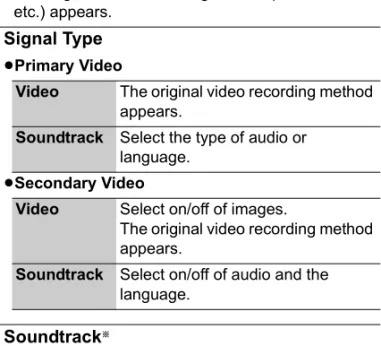
Automatic Stop ( Guide Link ) at 22:00
21:00-22:00 REC1/OTR Recording Time Continuous recording 30 min Life
≥The title before conversion (the title recorded in DR mode) will be deleted once the conversion is completed.
≥When the HDD does not have enough remaining time, conversion will not start.
≥This function is stopped when this unit is turned on. Conversion will start from the beginning again once the unit is turned off.
≥When converted, audio language, Audio Description, audio track, multi channel audio and subtitle will be converted with the same settings as at the start of recording.