WHITEPAPER SERIES
Shredded Storage in SharePoint 2013
What does Shredded Storage mean, how much does it actually save and how to take advantage of it in SharePoint 2013.
What is “Shredded Storage”?
Shredded Storage in SharePoint 2013 is a new feature that makes better use of storage and
performance of your SQL server and ultimately SharePoint itself. For those that don’t peak behind the SharePoint curtains, all elements of SharePoint are stored and referenced from an underlying SQL database. Each site or list you create becomes a reference stored in SQL and more importantly each piece of content that is created or uploaded is also stored in SQL as BLOBs. This article is not intended to get too far into the weeds about SQL, BLOBs, database tables and the like, I only mention these terms because your Content Database and BLOBs are the main components of the new Shredded Storage feature. For a deep dive into these topics, you can review Microsoft’s TechNet article
( http://blogs.technet.com/b/wbaer/archive/2012/11/12/introduction-to-shredded-storage-in-sharepoint-2013.aspx ).
Problems with BLOB Storage
Before jumping into SharePoint 2013’s Shredded Storage, we need to journey back to SharePoint 2010 and briefly discuss the underlying issues with storage and I/O performance there. In the next section I will dive into the actual numbers, but for now here is a basic explanation.
In SharePoint 2010 when version history was enabled, each version of a document created an additional BLOB in your content database. To put that into perspective, if you had a 10MB PowerPoint file that would create a 10MB BLOB. When version 2 was created, that would result in an additional 10MB BLOB. You are probably thinking that this makes sense. The file was modified and I may need to pull that particular version out of SharePoint. However, consider that some modifications do not involve the actual content. For example if you modified a metadata value, SharePoint would still add another 10MB BLOB storage to the database. As a result, that 10MB PowerPoint with 10 versions is now taking up 100MB of space in your content database, even though the file itself may never have been altered. Good thing there are history limits that can be placed on versions - something I am sure you have implemented, right?
Due to these inherit inefficiencies with storage, people looked outside of SQL for answers. This is where Remote BLOB Storage (RBS) solutions fit in to the picture. These solutions take all that content (BLOBs) and externalize them to an alternate location, where storage could be optimized and I/O improved, and
Back to present day and the release of SharePoint 2013, with its Shredded Storage function. Using the earlier example of the 10MB PowerPoint file, what happens now with SharePoint 2013 is that each version of the file is no longer stored as 10MB in the content database, but rather it is “chunked” or “shredded” into smaller pieces, each representing only the actual modification (metadata or differential if content was altered). So the same 10MB file with 10 versions will not take up 100MB of storage with Shredded Storage, but a significantly smaller footprint. In an unlikely scenario where all 10 version are limited to metadata changes, SharePoint could consume only a little more than the original 10MB. Even if the file was modified, SharePoint 2013 intelligently chunks each version into smaller BLOBs containing only the content deltas. This is a great thing. Did I mention yet that it is enabled by default with no configuration required!
Are you still with me? Good. How it works behind the scenes or how SharePoint reconstructs these BLOBs is a beyond the scope of this article, so I would encourage you to “Bing It” for more information if you are interested. There are many technical articles online written by experts describing the nooks and crannies of Shredded Storage. For now, we care that it is there, it works and it is a standard feature of SharePoint 2013.
How Does Shredded Storage Actually Effect Storage?
Now that you have a basic understanding of what Shredded Storage does and why it was included in SharePoint 2013, let’s examine some actual numbers to see where the savings occur.
For our testing, we used the following configuration:
o SharePoint 2010 with SQL Server 2012, running on Server 2012 (Hyper-V)
o New Web Application using default options
1 Site Collection created using the out of the box Team Site template
Default “Shared Documents” library with Major versions enabled, a single custom text column and a modified “All Documents” view
o SharePoint 2013 with SQL Server 2012, running on Server 2012 (Hyper-V)
o New Web Application using default options
1 Site Collection created using the out of the box Team Site template
Default “Documents” library with Major versions enabled, a single custom text column and a modified “All Documents” view
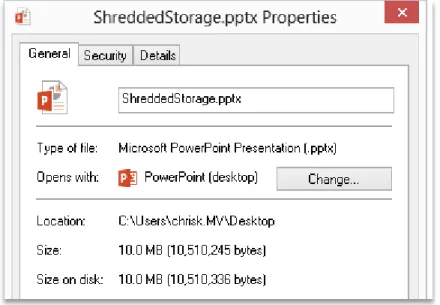
o PowerPoint 2013 file
Figure 1: Windows File Properties of Test Document
o Measurements were taken using the SQL Server 2012 Management Interface, more specifically the Object Explorer’s “Data Space Used” value. All numbers are reported in KB (kilobytes) unless otherwise noted.
On to the numbers! The first test is purely a baseline to compare how efficiently (or inefficiently) SharePoint 2010 and 2013 stored the same PowerPoint file with multiple versions.
Test 1: Baseline Comparison of SharePoint 2010 & 2013 Default Storage
Within my environment, the identical testing process for both 2010 and 2013 was;1. Measure the baseline database space usage without content 2. Upload the PowerPoint file and measure the size increase
3. Create a second version by simply modifying the metadata (the file was not altered, just the metadata) and measure the increase
4. Repeat the test until 5 versions were created
Here are the results for SharePoint 2013:
The evidence is quite dramatic. As you can clearly see in the third column “Database Increase with Zero Baseline (KB)”, each metadata modification in 2010 causes an additional 10+MB of storage space to be utilized. With 2013 that same change only resulted in a few extra KBs in your content database. Represented as percent changes, you have the following view:
Based on these numbers, the 2013 content database shows a 79% decrease in database size compared to 2010 which then translates into a 485% increase in database efficiency. Multiply that out to cover the
Action Database Size (KB)
Database Increase with Zero Baseline (KB)
Empty Web App 13520
Site Collection (/) and Document Library created 15136 0
Uploaded First Version using browser 25624 10488
Created v2 by modifying metadata only 36144 21008
Created v3 by modifying metadata only 46640 31504
Created v4 by modifying metadata only 57136 42000
Created v5 by modifying metadata only 67624 52488
Action Database Size (KB)
Database Increase with Zero Baseline (KB)
Empty Web App 16992
Site Collection (/) and Document Library created 19152 0
Uploaded First Version using browser 29792 10640
Created v2 by modifying metadata only 29840 10688
Created v3 by modifying metadata only 29880 10728
Created v4 by modifying metadata only 29928 10776
Created v5 by modifying metadata only 29968 10816
Total Change from Baseline Incremental Change from Previous Total Change from Baseline Incremental Change from Previous 69.29% 69.29% 55.56% 55.56% 138.79% 41.06% 55.81% 0.16% 208.14% 29.04% 56.02% 0.13% 277.48% 22.50% 56.27% 0.16% 346.78% 18.36% 56.47% 0.13% SharePoint 2010 SharePoint 2013
GBs or TBs of content in your SharePoint farm and you can quickly realize the benefits of Shredded Storage in SharePoint 2013.
Before someone claims that this test is not indicative of real-life scenarios, I admit that this was a very basic case using a single Open XML Office document, but it does show the strength of the underlying technology. I will do a follow-up post later comparing numbers in 2013 with varying types and sizes of content. Keep in mind that all content is shredded in SharePoint 2013, not just Office files.
Can I Take Advantage of Shredded Storage when Upgrading?
The numbers above are very exciting for new content, but you may be asking yourself what about all my GBs/TBs of existing SharePoint 2010 content. Won’t that still take up the same amount of space? How can I get that into 2013 and will it be “shredded”?
In order to properly answer these questions, we need to review the supported methods of getting your content into SharePoint 2013.
o In-place upgrades
o Database Attach (Backup/Restore)
o Third party migration tools
In-place upgrades are no longer supported in SharePoint 2013, so we can cross that off our list. The next option is Database Attach and this is probably the most commonly used method. This process requires the construction of a new SharePoint farm specifically for 2013; detaching or backing up your 2010 databases; moving them to the new farm; and re-attaching or restoring them to 2013. An oversimplified explanation, yes, but that is the basic process. For a more detailed description, you can download Microsoft’s “SharePoint 2013 Upgrade Process” from
http://www.microsoft.com/en-us/download/details.aspx?id=30371.
You might be thinking…that earlier I said that Shredded Storage only works with new content. Isn’t this database backup method only restoring my existing data? The answer is emphatically, YES. Since SharePoint does not consider this content new, it is not processed and therefore left ‘un-shredded’. Your 100GBs of content in SharePoint 2010 will take up the same 100GBs (give or take) in 2013. You will only start to reap the benefits of Shredded Storage when users start adding new content OR modifying some of that 100GBs upgraded data. New versions and modifications of this content will be shredded. To illustrate this point, let’s go back to the testing and proceed with:
Test 2: Database Backup/Restore
Figure 2: 2010 DB Restored to SharePoint 2013
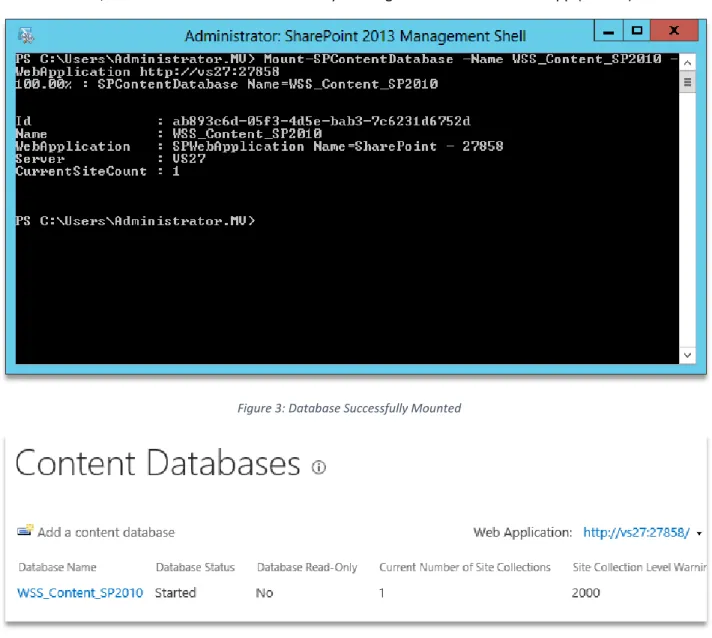
With that done, now I can “Mount” it to one of my existing SharePoint 2013 Web App (:27858).
Figure 3: Database Successfully Mounted
As seen in Central Admin, it is now available in my SharePoint 2013 Web App. The option to update the User Experience which was not performed for these tests.
Figure 5: Accessed in SharePoint 2013
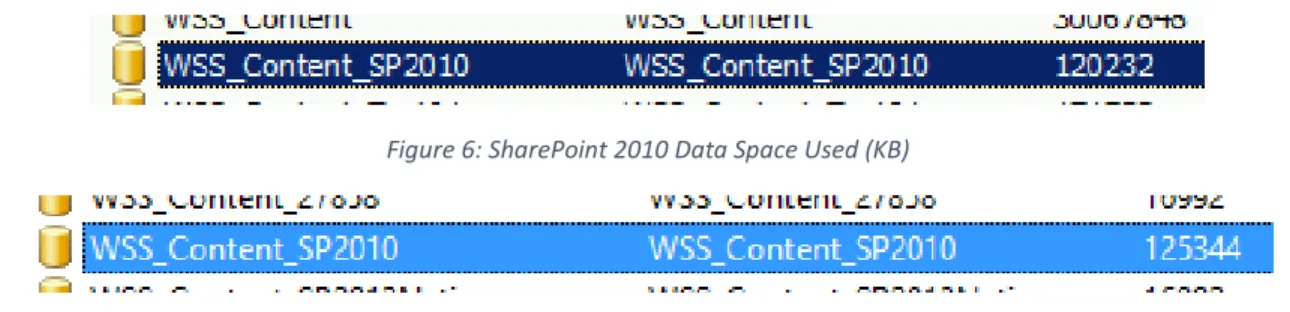
With that process complete, we can examine the baseline size of each database in SQL. First is the SharePoint 2010 WSS_Content_SP2010 which was used for back up and then the SharePoint 2013 which was restored, mounted and accessed:
Figure 6: SharePoint 2010 Data Space Used (KB)
Figure 7: SharePoint 2013 Data Space Used (KB)
A few extra MBs of space were added during the upgrade process, but as clearly illustrated the content contained within this database (10MB PowerPoint with 10 versions) was not shredded. This emphasizes the point that upgraded content databases are not shredded when mounted on a 2013 Web App.
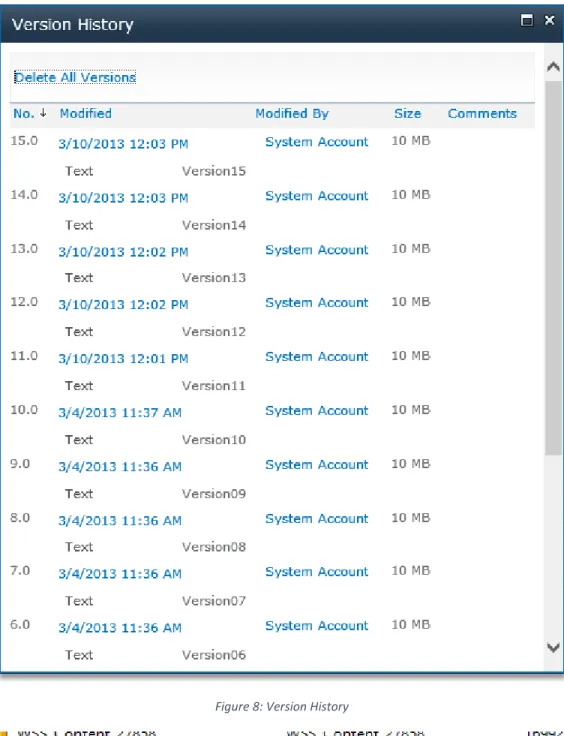
I logged back into the updated 2013 site and began modifying my PowerPoint file. I proceeded to add 5 additional versions to the file, each one consisting of a simple change to the metadata. Here is the resulting database after 15 versions of the file were created.
Figure 8: Version History
The first new version in SharePoint 2013 (Version 11.0 in Figure 8) adds 10MB of space to the database, but subsequent versions consume only about 50KB each (as shredding is utilized). Overall, an
approximate 11MB increase rather than the 50MB you would have observed in SharePoint 2010 running the same test. This is great news for those that plan ahead and allocate enough space to accommodate their 2010 databases.
You might ask --What about that initial 125MBs, can that also be shredded? The answer is, Yes it can! We will cover that process in more detail a little later.
The final option to upgrade your SharePoint 2010 to SharePoint 2013 is to use a third party migration tool. I won’t get into the Pros and Cons of using a migration tool vs. a database restore (that is definitely a topic for another day). What I do want to stress here are the benefits you can achieve from the Shredded Storage feature during migration. Using a migration tool, SharePoint 2013 treats all content as new content. This means it is immediately shredded reducing the overall database size. Again you might be saying “Really?! Is that true?” Yes. If you don’t want to take my word on it (I don’t blame you), let’s once again go look to the numbers.
Test 3: Migrating from SharePoint 2010 to 2013
For this test, I created similar 2010 and 2013 environments:o A single Web Application using default settings
o A single root site collection using the Team Site Template
o A single, empty document library with versions enabled, a custom text column and a modified view
To establish a base line, I am going to migrate just the content during this test (again my PowerPoint file with 5 versions), but I could have just as easily migrated the entire site collection and received similar results.
To illustrate the impact of Shredded Storage, I migrated the same content into another SharePoint 2010 site collection:
Figure 10: SharePoint 2010 Space Usage after Migration
As expected there was a 50+ MB increase in size. And now, here is how the SharePoint 2013 Database Space increased during the same test:
Action Database Size (KB)
Database Increase with Zero Baseline (KB)
Site Collection (/) and Document Library created 67776
Created identical destination Document Library 67792 0
Figure 11: SharePoint 2013 Space Usage after Migration
Impressive, right? What used to take over a 50MB, now takes as little as 15MB. Once content is migrated into SharePoint 2013, the content is shredded immediately leading to a significant decrease in storage and increase in efficiency from Day One! That can be a huge savings if you extrapolate that over your many GBs/TBs of SharePoint content.
To conclude this section, it is evident that regardless of which method you take, Shredded Storage in SharePoint 2013 has a positive impact on your storage requirements. With the database method, the impact will be felt gradually as your SharePoint 2013 content grows with use, while the migration path will provide the same positive impact immediately.
Can I Still Take Advantage of Shredded Storage if I Use a Database
Attach Method?
As I hinted earlier, even if you performed a Database Attach, you can still take advantage of Shredded Storage. Before we examine this option in more detail, I want to disclose that I am going to review a feature that we pioneered in MetaVis Migrator; this is not functionality that is native to SharePoint 2013.
If you recall the previous scenario when I reviewed the Database Attach method to upgrade from SharePoint 2010 to 2013, the original 120MB database still consumed the identical amount of space in the 2013 farm. Of course, any new content will be shredded, but the original content does not take advantage of this.
This is where MetaVis Migrator enters the picture. We engineered the ability to “Compress Storage” for any content that was “upgraded”. Sounds too good to be true? Let’s look at the numbers and show you what is possible.
Test 4: MetaVis Migrator’s “Compress Storage” Feature for SharePoint
2013
Setting the stage for this test, I attached a 2010 Content Database to SharePoint 2013 which contains the now infamous 10MB PowerPoint file with its 10 versions.
Figure 12: 2010 DB restored to 2013
Action Database Size (KB)
Database Increase with Zero Baseline (KB)
Empty Site Collection (/) 60016
Created identical destination Document Library 60040 0
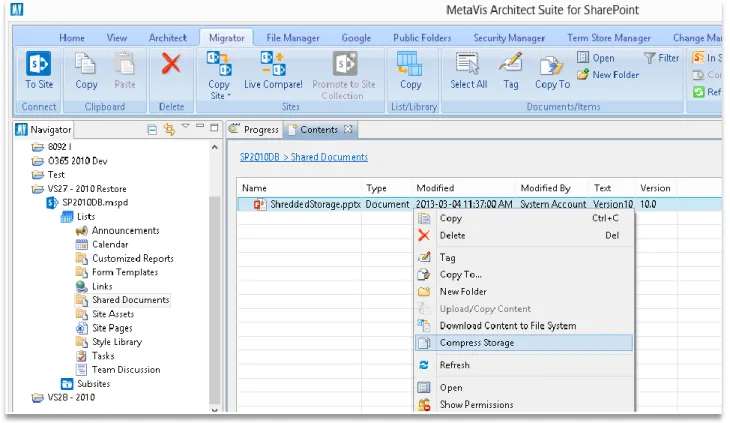
I then connected MetaVis Migrator to this site and navigated into Shared Documents, where the file is located. I selected my single PowerPoint file and choose the “Compress Storage” option.
Figure 13: Compress Storage in MetaVis Migrator
I waited a few seconds and was greeted with a message letting me know that the process was complete and the storage was compressed successfully.
Figure 14: Compress Successfully Processed
Before:
After:
Now we’re talking! The database space usage was reduced from a total of 125360KB down to 37896KB with absolutely no data lose. I still have all 10 versions of my PowerPoint file and its metadata. To keep with the same consistency as the rest of my tests, I added 5 new versions (metadata changes only) and measured the database usage along the way. Here are the raw numbers for each step of the process.
In summary, the Compress Storage feature reduced the overall usage size by 87MB or roughly 70%. This is a significant reduction right from the start. Each subsequent version was shredded automatically, but at this point that was expected.
To learn more about MetaVis Migrator’s Compress Storage feature visit our site
(http://www.metavistech.com ), download a free trial of Migrator and give it a shot in your SharePoint 2013 environment. We’re sure you will be quite pleased with the results.
Action Database Size (KB)
2010 Database Restored to 2013 SQL 120040
2010 Database Mounted to 2013 Web Application 125352
2010 Database Before MetaVis Compress 125360
2010 Database After MetaVis Compress 37896
2010 Database after v11 38136 2010 Database after v12 38288 2011 Database after v13 38448 2012 Database after v14 38592 2013 Database after v15 38744 SharePoint 2013
All Good Things…
As I conclude this long winded topic, my intent is not to imply that this was such a great piece of writing that it is sad to see it come to an end (well, maybe a little tongue in cheek), but rather a nice phrase to summarize what Shredded Storage actually is, All Good Things. It is a fantastically useful feature that is bundled into SharePoint 2013. It requires no additional installation, configuration or management (I’m looking at you, 2013 Workflow Manager!). It does exactly what it claims to do and does it with great ease and efficiency: reduced storage footprint, increased performance and more bang from your buck. What more could you possibly ask for from SharePoint?
If you managed to stay with me and read through this entire post, thank you for your time. If not, I can’t say that I blame you, but I hope that the pieces you did read were helpful in gaining a better insight into Shredded Storage.
I plan to write more about Shredded Storage in the future, including actual results with different file types (particularly PDFs), sizes and changes to content instead of just metadata. We can then delve into the numbers and see just how efficient (or not) SharePoint 2013 turn out to be. Until next time, thanks again for your time!