by Doug Lowe
Networking
A L L - I N - O N E D E S K R E F E R E N C E
FOR
DUMmIES
‰by Doug Lowe
Networking
A L L - I N - O N E D E S K R E F E R E N C E
FOR
DUMmIES
‰Networking All-in-One Desk Reference For Dummies®, 2nd Edition
Published by
Wiley Publishing, Inc.
111 River Street Hoboken, NJ 07030-5774 www.wiley.com
Copyright © 2005 by Wiley Publishing, Inc., Indianapolis, Indiana Published by Wiley Publishing, Inc., Indianapolis, Indiana Published simultaneously in Canada
No part of this publication may be reproduced, stored in a retrieval system or transmitted in any form or by any means, electronic, mechanical, photocopying, recording, scanning or otherwise, except as permit-ted under Sections 107 or 108 of the 1976 Unipermit-ted States Copyright Act, without either the prior written permission of the Publisher, or authorization through payment of the appropriate per-copy fee to the Copyright Clearance Center, 222 Rosewood Drive, Danvers, MA 01923, (978) 750-8400, fax (978) 646-8600. Requests to the Publisher for permission should be addressed to the Legal Department, Wiley Publishing, Inc., 10475 Crosspoint Blvd., Indianapolis, IN 46256, (317) 572-3447, fax (317) 572-4355, or online at http://www.wiley.com/go/permissions.
Trademarks:Wiley, the Wiley Publishing logo, For Dummies, the Dummies Man logo, A Reference for the Rest of Us!, The Dummies Way, Dummies Daily, The Fun and Easy Way, Dummies.com, and related trade dress are trademarks or registered trademarks of John Wiley & Sons, Inc. and/or its affiliates in the United States and other countries, and may not be used without written permission. All other trademarks are the property of their respective owners. Wiley Publishing, Inc., is not associated with any product or vendor mentioned in this book.
LIMIT OF LIABILITY/DISCLAIMER OF WARRANTY: THE PUBLISHER AND THE AUTHOR MAKE NO REPRESENTATIONS OR WARRANTIES WITH RESPECT TO THE ACCURACY OR COMPLETENESS OF THE CONTENTS OF THIS WORK AND SPECIFICALLY DISCLAIM ALL WARRANTIES, INCLUDING WITHOUT LIMITATION WARRANTIES OF FITNESS FOR A PAR-TICULAR PURPOSE. NO WARRANTY MAY BE CREATED OR EXTENDED BY SALES OR PROMOTIONAL MATERIALS. THE ADVICE AND STRATEGIES CONTAINED HEREIN MAY NOT BE SUITABLE FOR EVERY SITUATION. THIS WORK IS SOLD WITH THE UNDERSTANDING THAT THE PUBLISHER IS NOT ENGAGED IN RENDERING LEGAL, ACCOUNTING, OR OTHER PROFESSIONAL SERVICES. IF PROFESSIONAL ASSISTANCE IS REQUIRED, THE SERVICES OF A COMPETENT PROFESSIONAL PERSON SHOULD BE SOUGHT. NEITHER THE PUBLISHER NOR THE AUTHOR SHALL BE LIABLE FOR DAMAGES ARISING HEREFROM. THE FACT THAT AN ORGANIZATION OR WEBSITE IS REFERRED TO IN THIS WORK AS A CITATION AND/OR A POTENTIAL SOURCE OF FURTHER INFORMATION DOES NOT MEAN THAT THE AUTHOR OR THE PUBLISHER ENDORSES THE INFORMATION THE ORGANIZATION OR WEBSITE MAY PROVIDE OR RECOMMEN-DATIONS IT MAY MAKE. FURTHER, READERS SHOULD BE AWARE THAT INTERNET WEBSITES LISTED IN THIS WORK MAY HAVE CHANGED OR DISAPPEARED BETWEEN WHEN THIS WORK WAS WRITTEN AND WHEN IT IS READ.
For general information on our other products and services, please contact our Customer Care Department within the U.S. at 800-762-2974, outside the U.S. at 317-572-3993, or fax 317-572-4002.
For technical support, please visit www.wiley.com/techsupport.
Wiley also publishes its books in a variety of electronic formats. Some content that appears in print may not be available in electronic books.
Library of Congress Control Number: 2005927615 ISBN-13: 978-0-7645-9939-2
ISBN-10: 0-7645-9939-9
Manufactured in the United States of America 10 9 8 7 6 5 4 3 2 1
2O/QX/QZ/QV/IN
About the Author
Doug Lowehas written a whole bunch of computer books, including more than 35 For Dummiesbooks, among them Networking For Dummies, 7th Edition, Java All-in-One Desk Reference For Dummies, PowerPoint 2003 For Dummies, and Word 2003 All-in-One Desk Reference For Dummies. He lives in sunny Fresno, California, where the motto is “No, we aren’t really the Armpit of California,” with his wife, the youngest of his three daughters, and a goofy-looking six-month-old Shar-Pei/Black Lab mix named Lucy. He’s one of those obsessive-compulsive decorating nuts who puts up tens of thousands of lights at Christmas and creates computer-controlled Halloween decorations that rival Disney’s Haunted Mansion. Last year he actually built a pirate ship in his backyard.
Dedication
To Debbie, Rebecca, Sarah, and Bethany.
Author’s Acknowledgments
I’d like to start by thanking everyone who was involved with the second edi-tion of this book, especially project editor Christopher Morris, who heeded the Hitchhiker’s Guidecreed (“Don’t panic!”) when I was occasionally late with submissions and who did a great job following through on all the little edito-rial details needed to put a book of this scope together on time. Thanks also to Dan DiNicolo, who gave the manuscript a thorough review and offered many excellent suggestions for improvements, and to copy editors Jean Rogers and Andy Hollandbeck, who whipped my prose into shape, crossing all the i’s and dotting all the t’s, or something like that. And, as always, thanks to all the behind-the-scenes people who chipped in with help I’m not even aware of.
Publisher’s Acknowledgments
We’re proud of this book; please send us your comments through our online registration form
located at www.dummies.com/register/.
Some of the people who helped bring this book to market include the following: Acquisitions, Editorial, and
Media Development
Project Editor:Christopher Morris
Acquisitions Editor:Melody Layne
Copy Editors:Jean Rogers, Andy Hollandbeck
Technical Editor:Dan DiNicolo
Editorial Manager:Kevin Kirschner
Media Development Supervisor:
Richard Graves
Editorial Assistant:Amanda Foxworth
Cartoons:Rich Tennant (www.the5thwave.com)
Composition Services
Project Coordinator: Adrienne Martinez
Layout and Graphics: Andrea Dahl, Lauren Goddard, Denny Hager, Stephanie D. Jumper, Heather Ryan, Mary Gillot Virgin
Proofreaders: Leeann Harney, Jessica Kramer, Joe Niesen, Dwight Ramsey, Evelyn W. Still
Indexer: Infodex Indexing Services Inc.
Publishing and Editorial for Technology Dummies
Richard Swadley,Vice President and Executive Group Publisher
Andy Cummings,Vice President and Publisher
Mary Bednarek,Executive Acquisitions Director
Mary C. Corder,Editorial Director
Publishing for Consumer Dummies
Diane Graves Steele,Vice President and Publisher
Joyce Pepple,Acquisitions Director
Composition Services
Gerry Fahey,Vice President of Production Services
Contents at a Glance
Introduction ...1
Book I: Networking Basics ...7
Chapter 1: Understanding Networks ...9
Chapter 2: Understanding Network Protocols and Standards ...19
Chapter 3: Understanding Network Hardware ...41
Chapter 4: Understanding Network Operating Systems ...59
Book II: Building a Network ...75
Chapter 1: Planning a Network ...77
Chapter 2: Installing Network Hardware ...95
Chapter 3: Setting Up a Network Server ...111
Chapter 4: Configuring Client Computers ...127
Chapter 5: Configuring Other Network Features ...139
Chapter 6: Verifying Your Network Installation ...151
Book III: Network Administration and Security ...157
Chapter 1: Help Wanted: Job Description for a Network Administrator ...159
Chapter 2: Security 101 ...173
Chapter 3: Managing User Accounts ...183
Chapter 4: Firewalls and Virus Protection ...191
Book IV: Network Troubleshooting
and Disaster Planning ...203
Chapter 1: Solving Network Problems ...205
Chapter 2: Network Performance Anxiety ...219
Chapter 3: Protecting Your Network ...229
Chapter 4: Disaster Recovery and Business Continuity Planning ...239
Chapter 5: Dealing with Dysfunctional E-Mail ...247
Book V: TCP/IP and the Internet ...255
Chapter 1: Introduction to TCP/IP and the Internet ...257
Chapter 2: Understanding IP Addresses ...265
Chapter 3: Using DHCP ...283
Chapter 4: Using DNS ...297
Chapter 5: Using FTP ...321
Book VI: Home Networking ...371
Chapter 1: Networking Your Home ...373
Chapter 2: Connecting to the Internet ...383
Chapter 3: Home Networking with Windows XP ...397
Chapter 4: Other Ways to Network Your Home ...421
Chapter 5: Using VoIP to Make the Internet Your Phone ...427
Book VII: Wireless Networking ...431
Chapter 1: Setting Up a Wireless Network ...433
Chapter 2: Securing a Wireless Network ...453
Chapter 3: Hotspotting ...465
Chapter 4: Troubleshooting a Wireless Network ...471
Chapter 5: Wireless Networking with Bluetooth ...477
Book VIII: Windows Server 2003 Reference ...483
Chapter 1: Installing and Configuring Windows Server 2003 ...485
Chapter 2: Managing Windows Server 2003 ...499
Chapter 3: Dealing with Active Directory ...515
Chapter 4: Managing Windows User Accounts ...525
Chapter 5: Managing a File Server ...545
Chapter 6: Managing Security ...561
Chapter 7: Managing Exchange Server 2003 ...575
Chapter 8: Troubleshooting ...585
Chapter 9: Windows Commands ...597
Book IX: Linux Networking Reference ...625
Chapter 1: Installing a Linux Server ...627
Chapter 2: Getting Used to Linux ...653
Chapter 3: Basic Linux Network Configuration ...663
Chapter 4: Running DHCP and DNS ...675
Chapter 5: Doing the Samba Dance ...691
Chapter 6: Running Apache ...705
Chapter 7: Running Sendmail ...717
Chapter 8: Linux Commands ...727
Book X: Appendixes ...755
Appendix A: Directory of Useful Web Sites ...757
Table of Contents
Introduction ...1
About This Book ...2
How to Use This Book ...3
How This Book Is Organized ...3
Book I: Networking Basics ...3
Book II: Building a Network ...4
Book III: Network Administration and Security ...4
Book IV: Network Troubleshooting and Disaster Planning ...4
Book V: TCP/IP and the Internet ...4
Book VI: Home Networking ...5
Book VII: Wireless Networking ...5
Book VIII: Windows Server 2003 Reference ...5
Book IX: Linux Networking Reference ...5
Icons Used in This Book ...6
Where to Go from Here ...6
Book I: Networking Basics ...7
Chapter 1: Understanding Networks . . . .9
What Is a Network? ...9
Network building blocks ...10
Why bother? ...11
Of Clients and Servers ...12
Dedicated Servers and Peers ...13
Networks Big and Small ...14
Network Topology ...15
Bus topology ...15
Star topology ...16
Expanding stars ...17
Ring topology ...17
Mesh topology ...18
Chapter 2: Understanding Network Protocols and Standards . . . .19
Understanding Protocols ...19
Understanding Standards ...21
The Seven Layers of the OSI Reference Model ...22
The Physical Layer ...23
The Data Link Layer ...24
Networking All-in-One Desk Reference For Dummies, 2nd Edition
x
The Network Layer ...26
Logical addressing ...26
Routing ...27
The Transport Layer ...28
The Session Layer ...29
The Presentation Layer ...30
The Application Layer ...30
Following a Packet through the Layers ...31
The Ethernet Protocol ...32
Standard Ethernet ...32
Fast Ethernet ...34
Gigabit Ethernet ...35
The TCP/IP Protocol Suite ...35
IP ...36
TCP ...37
UDP ...37
The IPX/SPX Protocol Suite ...38
Other Protocols Worth Knowing About ...39
Chapter 3: Understanding Network Hardware . . . .41
Servers ...41
What’s important in a server ...41
Components of a server computer ...42
Server form factors ...44
Network Interface Cards ...46
Network Cable ...47
Coaxial cable ...47
Twisted-pair cable ...48
Hubs and Switches ...50
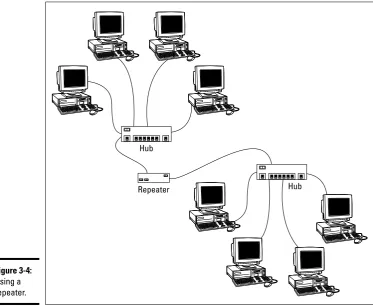
Repeaters ...52
Bridges ...54
Routers ...55
Network Attached Storage ...57
Network Printers ...58
Chapter 4: Understanding Network Operating Systems . . . .59
Network Operating System Features ...59
Network support ...59
File sharing services ...60
Multitasking ...60
Directory services ...62
Security services ...62
Microsoft’s Server Operating Systems ...63
Windows NT Server 4 ...63
Windows 2000 Server ...65
Table of Contents
xi
Novell NetWare ...68
NetWare versions ...68
NetWare 6.5 ...68
Other Server Operating Systems ...69
Linux ...69
Apple Mac OS/X Server ...70
Peer-to-Peer Networking with Windows ...70
Advantages of peer-to-peer networks ...70
Drawbacks of peer-to-peer networks ...71
Windows XP ...72
Older Windows versions ...73
Book II: Building a Network ...75
Chapter 1: Planning a Network . . . .77
Making a Network Plan ...77
Being Purposeful ...78
Taking Stock ...79
What you need to know ...79
Programs that gather information for you ...82
To Dedicate or Not to Dedicate: That Is the Question ...83
Types of Servers ...83
File servers ...83
Print servers ...84
Web servers ...84
Mail servers ...84
Database servers ...85
Choosing a Server Operating System ...85
Planning the Infrastructure ...85
Drawing Diagrams ...86
Sample Network Plans ...87
Building a small network: California Sport Surface, Inc. ...87
Connecting two networks: Creative Course Development, Inc. ....89
Improving network performance: DCH Accounting ...91
Chapter 2: Installing Network Hardware . . . .95
Installing a Network Interface Card ...95
Installing Twisted-Pair Cable ...97
Cable categories ...97
What’s with the pairs? ...98
To shield or not to shield ...98
When to use plenum cable ...99
Sometimes solid, sometimes stranded ...99
Installation guidelines ...100
Getting the tools that you need ...101
Pinouts for twisted-pair cables ...102
Networking All-in-One Desk Reference For Dummies, 2nd Edition
xii
Crossover cables ...105
Wall jacks and patch panels ...105
Installing Coaxial Cable ...107
Attaching a BNC connector to coaxial cable ...107
Installing Hubs and Switches ...109
Daisy-chaining hubs or switches ...109
Chapter 3: Setting Up a Network Server . . . .111
The Many Ways to Install a Network Operating System ...111
Full install versus upgrade ...111
Installing over the network ...113
Automated and remote installations ...113
Gathering Your Stuff ...113
A capable server computer ...114
The server operating system ...114
Other software ...115
A working Internet connection ...115
A good book ...115
Making Informed Decisions ...116
Final Preparations ...117
Installing a Network Operating System ...117
Phase 1: Collecting Information ...118
Phase 2: Dynamic Update ...118
Phase 3: Preparing Installation ...119
Phase 4: Installing Windows ...119
Phase 5: Finalizing Installation ...120
Life after Setup ...120
Logging on ...120
Activating Windows ...120
Service packs ...123
Testing the installation ...123
Configuring Server Roles ...124
Chapter 4: Configuring Client Computers . . . .127
Configuring Network Connections ...127
Windows XP and Windows 2000 ...128
Windows 9x ...132
Configuring Client Computer Identification ...132
Windows XP and Windows 2000 ...133
Windows 9x ...134
Configuring Network Domain Logon ...135
Windows XP and Windows 2000 ...135
Table of Contents
xiii
Chapter 5: Configuring Other Network Features . . . .139
Configuring Network Printers ...139
Adding a network printer ...139
Accessing a network printer using a Web interface ...141
Configuring Internet Access ...143
Configuring clients for DHCP ...143
Disabling dialup connections ...146
Using Internet Connection Sharing ...147
Mapping Network Drives ...147
Chapter 6: Verifying Your Network Installation . . . .151
Is the Computer Connected to the Network? ...151
Is the Network Configuration Working? ...152
Can the Computers Ping Each Other? ...154
Can You Log On? ...154
Are Network Drives Mapped Correctly? ...155
Do Network Printers Work? ...155
Book III: Network Administration and Security ...157
Chapter 1: Help Wanted: Job Description
for a Network Administrator . . . .159
Figuring Out What Network Administrators Do ...159
Choosing the Part-Time Administrator ...161
Completing Routine Chores ...162
Managing Network Users ...163
Patching Things Up ...164
Discovering Software Tools for Network Administrators ...164
Building a Library ...166
Certification ...167
CompTIA ...168
Microsoft ...168
Novell ...169
Cisco ...169
Gurus Need Gurus, Too ...170
Helpful Bluffs and Excuses ...170
Chapter 2: Security 101 . . . .173
Do You Need Security? ...174
Two Approaches to Security ...175
Physical Security: Locking Your Doors ...175
Networking All-in-One Desk Reference For Dummies, 2nd Edition
xiv
Obfuscating your usernames ...177
Using passwords wisely ...178
A Password Generator For Dummies ...179
Securing the Administrator account ...180
Hardening Your Network ...180
Using a firewall ...180
Disabling unnecessary services ...180
Patching your servers ...181
Securing Your Users ...181
Chapter 3: Managing User Accounts . . . .183
User Accounts ...183
Built-In Accounts ...184
The Administrator account ...184
The Guest account ...185
Service accounts ...185
User Rights ...186
Permissions (Who Gets What) ...187
Group Therapy ...188
User Profiles ...189
Logon Scripts ...190
Chapter 4: Firewalls and Virus Protection . . . .191
Firewalls ...191
The Many Types of Firewalls ...193
Packet filtering ...193
Stateful packet inspection (SPI) ...195
Circuit-level gateway ...195
Application gateway ...195
The Built-In Firewall in Windows XP ...196
Virus Protection ...197
What is a virus? ...198
Antivirus programs ...199
Safe computing ...200
Using the Windows XP Security Center ...200
Book IV: Network Troubleshooting
and Disaster Planning ...203
Chapter 1: Solving Network Problems . . . .205
When Bad Things Happen to Good Computers ...206
How to Fix Dead Computers ...207
Table of Contents
xv
A Bunch of Error Messages Just Flew By! ...209
Double-Checking Your Network Settings ...210
Using the Windows Networking Troubleshooter ...210
Time to Experiment ...211
Who’s on First ...212
How to Restart a Client Computer ...213
Restarting Network Services ...214
How to Restart a Network Server ...216
Looking at Event Logs ...217
Documenting Your Trials and Tribulations ...218
Chapter 2: Network Performance Anxiety . . . .219
Why Administrators Hate Performance Problems ...219
What Exactly Is a Bottleneck? ...220
The Five Most Common Network Bottlenecks ...222
The hardware inside your servers ...222
The server’s configuration options ...222
Servers that do too much ...223
The network infrastructure ...223
Malfunctioning components ...224
Tuning Your Network the Compulsive Way ...224
Monitoring Network Performance ...225
More Performance Tips ...227
Chapter 3: Protecting Your Network . . . .229
Backing Up Your Data ...229
All About Tapes and Tape Drives ...230
Backup Software ...230
Types of Backups ...231
Normal backups ...232
Copy backups ...232
Daily backups ...233
Incremental backups ...233
Differential backups ...234
Local versus Network Backups ...234
How Many Sets of Backups Should You Keep? ...235
A Word About Tape Reliability ...236
About Cleaning the Heads ...237
Backup Security ...238
Chapter 4: Disaster Recovery and Business Continuity
Planning . . . .239
Assessing Different Types of Disasters ...240
Environmental disasters ...240
Deliberate disasters ...241
Networking All-in-One Desk Reference For Dummies, 2nd Edition
xvi
Equipment failure ...242
Other disasters ...242
Analyzing the Impact of a Disaster ...242
Developing a Business Continuity Plan ...243
Holding a Fire Drill ...244
Chapter 5: Dealing with Dysfunctional E-Mail . . . .247
Coping with the Dreaded Nondelivery Report ...247
Viewing the Mail Server’s Error Logs ...249
Checking Out a Remote Mail System ...249
Discovering the mail server for a domain ...249
Verifying a mail server ...251
Viewing Message Headers ...252
Help! I’ve Been Blacklisted! ...253
Book V: TCP/IP and the Internet ...255
Chapter 1: Introduction to TCP/IP and the Internet . . . .257
What Is the Internet? ...257
A Little Internet History ...259
TCP/IP Standards and RFCs ...260
The TCP/IP Protocol Framework ...262
Network Interface layer ...262
Network layer ...263
Transport layer ...263
Application layer ...263
Chapter 2: Understanding IP Addresses . . . .265
Understanding Binary ...265
Counting by ones ...265
Doing the logic thing ...267
Working with the binary Windows Calculator ...268
Introducing IP Addresses ...270
Networks and hosts ...270
The dotted-decimal dance ...271
Classifying IP Addresses ...272
Class A addresses ...273
Class B addresses ...274
Class C addresses ...275
Subnetting ...275
Subnets ...276
Subnet masks ...277
Table of Contents
xvii
Default subnets ...278
The great subnet roundup ...279
IP block parties ...279
Private and public addresses ...280
Network Address Translation ...281
Chapter 3: Using DHCP . . . .283
Understanding DHCP ...283
Configuration information provided by DHCP ...284
DHCP servers ...284
How DHCP actually works ...285
Understanding Scopes ...286
Feeling excluded? ...286
Reservations suggested ...287
How long to lease? ...288
Working with a DHCP Server ...289
Installing and configuring a DHCP server ...289
Managing a DHCP server ...293
How to Configure a Windows DHCP Client ...295
Automatic Private IP Addressing ...295
Renewing and releasing leases ...295
Chapter 4: Using DNS . . . .297
Understanding DNS Names ...297
Domains and domain names ...298
Fully qualified domain names ...300
Top-Level Domains ...300
Generic domains ...300
Geographic domains ...301
The Hosts File ...303
Understanding DNS Servers and Zones ...305
Zones ...306
Primary and secondary servers ...307
Root servers ...308
Caching ...310
Understanding DNS Queries ...311
A real-life example ...311
Zone Files and Resource Records ...312
SOA records ...314
NS records ...315
A records ...315
CNAME records ...316
PTR records ...316
Networking All-in-One Desk Reference For Dummies, 2nd Edition
xviii
Reverse Lookup Zones ...317
Working with the Windows DNS Server ...318
How to Configure a Windows DNS Client ...320
Chapter 5: Using FTP . . . .321
Introducing FTP ...321
Configuring an FTP Server ...322
Installing FTP ...322
Changing the FTP site properties ...323
Adding content to your FTP site ...325
Adding an additional FTP site ...326
Accessing an FTP Site with a Browser ...326
Using an FTP Command-Line Client ...327
FTP Command and Subcommand Reference ...330
The FTP command ...330
! (Escape) ...331
? (Help) ...331
Append ...331
ASCII ...332
Bell ...332
Binary ...332
Bye ...332
Cd ...332
Close ...333
Debug ...333
Delete ...333
Dir ...334
Disconnect ...334
Get ...334
Glob ...335
Hash ...335
Help ...335
Lcd ...335
Literal ...336
Ls ...336
Mdelete ...336
Mdir ...336
Mget ...337
Mkdir ...337
Mls ...337
Mput ...338
Open ...338
Prompt ...338
Table of Contents
xix
Pwd ...339 Quit ...339 Quote ...339 Recv ...340 Remotehelp ...340 Rename ...340 Rmdir ...340 Send ...341 Status ...341 Trace ...341 Type ...342 User ...342 Verbose ...342
Chapter 6: TCP/IP Tools and Commands . . . .343
Networking All-in-One Desk Reference For Dummies, 2nd Edition
xx
Book VI: Home Networking ...371
Chapter 1: Networking Your Home . . . .373
Deciding Why You Need a Network ...373 Choosing How to Network Your Home ...375 Phone line networks ...375 Power line networks ...375 USB networks ...376 Wireless networks ...376 Cabled Ethernet ...378 Strange Things to Add to Your Network ...379 A Home Network Example ...380
Chapter 2: Connecting to the Internet . . . .383
Some General Tips ...383 Deciding How to Connect ...384 Choosing dialup ...384 Choosing cable ...386 Choosing DSL ...388 Choosing a Provider ...390 Online services ...392 Basic Internet service providers ...392 Getting Internet Explorer ...393 Setting Up Your Internet Connection ...395
Chapter 3: Home Networking with Windows XP . . . .397
Table of Contents
xxi
Sharing an Internet Connection ...415 Setting up a firewall ...416 Using a broadband router ...418 Managing Your Home Network ...419
Chapter 4: Other Ways to Network Your Home . . . .421
Networking Over Your Phone Lines ...421 Networking Over Power Lines ...423 Automating Your Home ...424
Chapter 5: Using VoIP to Make the Internet Your Phone . . . .427
Understanding VoIP ...427 Advantages of VoIP ...428 Disadvantages of VoIP ...429 Popular VoIP Providers ...430
Book VII: Wireless Networking ...431
Chapter 1: Setting Up a Wireless Network . . . .433
Diving into Wireless Networking ...434 A Little High School Electronics ...434 Waves and frequencies ...435 Wavelength and antennas ...436 Spectrums and the FCC ...436 Eight-Oh-Two-Dot-Eleventy Something? (Or, Understanding
Wireless Standards) ...438 Home on the Range ...439 Wireless Network Adapters ...440 Wireless Access Points ...442 Infrastructure mode ...442 Multifunction WAPs ...443 Roaming ...444 Wireless bridging ...445 Ad-hoc networks ...445 Configuring a Wireless Access Point ...445 Basic configuration options ...446 DHCP configuration ...448 Configuring Windows XP for Wireless Networking ...449 Using a Wireless Network with Windows XP ...450
Chapter 2: Securing a Wireless Network . . . .453
Networking All-in-One Desk Reference For Dummies, 2nd Edition
xxii
Eavesdroppers ...455 Spoilers ...456 Rogue access points ...456 What About Wardrivers and Warchalkers? ...457 Wardriving ...457 Warchalking ...458 Securing Your Wireless Network ...459 Changing the password ...459 Securing the SSID ...460 Enabling WEP ...461 Using WPA ...462 Using MAC address filtering ...463 Placing your access points outside the firewall ...464
Chapter 3: Hotspotting . . . .465
What Is a Hotspot? ...465 What’s So Great about Hotspots? ...466 Safe Hotspotting ...466 Free Hotspots ...467 Fee-Based Hotspots ...467 T-Mobile ...468 Boingo ...468 Wayport ...469 SBC FreedomLink ...469 Setting Up Your Own Hotspot ...470
Chapter 4: Troubleshooting a Wireless Network . . . .471
Checking for Obvious Problems ...471 Pinpointing the Problem ...472 Changing Channels ...472 Fiddle with the Antennas ...473 Adding Another Access Point ...474 Help! I Forgot My Router’s Password! ...475
Chapter 5: Wireless Networking with Bluetooth . . . .477
Table of Contents
xxiii
Book VIII: Windows Server 2003 Reference ...483
Chapter 1: Installing and Configuring Windows Server 2003 . . . .485
Planning a Windows Server Installation ...485 Checking system requirements ...485 Reading the release notes ...486 Deciding whether to upgrade or install ...486 Considering your licensing options ...487 Thinking about multiboot ...487 Choosing a file system ...488 Planning your partitions ...489 Deciding your TCP/IP configuration ...490 Choosing workgroups or domains ...490 Before You Install . . . ...491 Backing up ...491 Checking the event logs ...491 Uncompressing data ...491 Disconnect UPS devices ...492 Running Setup ...492 Now What? ...495
Chapter 2: Managing Windows Server 2003 . . . .499
Using the Administrator Account ...499 Using Remote Desktop Connection ...500 Enabling remote access ...500 Connecting remotely ...501 Using Microsoft Management Console ...502 Working with MMC ...503 An overview of the MMC consoles ...504 Customizing MMC ...507 Adding snap-ins ...507 Adding taskpads ...508
Chapter 3: Dealing with Active Directory . . . .515
Networking All-in-One Desk Reference For Dummies, 2nd Edition
xxiv
Trees ...520 Forests ...521 Creating a Domain ...522 Creating an Organizational Unit ...522
Chapter 4: Managing Windows User Accounts . . . .525
Understanding Windows User Accounts ...525 Local accounts versus domain accounts ...525 User account properties ...526 Creating a New User ...526 Setting User Properties ...529 Changing the user’s contact information ...530 Setting account options ...530 Specifying logon hours ...531 Restricting access to certain computers ...532 Setting the user’s profile information ...533 Resetting User Passwords ...534 Disabling and Enabling User Accounts ...534 Deleting a User ...535 Working with Groups ...535 Group types ...536 Group scope ...536 Default groups ...537 Creating a group ...538 Adding a member to a group ...539 User Profiles ...541 Types of user profiles ...541 Creating a roaming profile ...542 Creating a Logon Script ...543
Chapter 5: Managing a File Server . . . .545
Table of Contents
xxv
Chapter 6: Managing Security . . . .561
Configuring Account Policies ...561 Password policies ...561 Account lockout policy ...562 Kerberos policy ...563 Setting account policies ...564 Encrypting Files and Folders ...565 Understanding public key encryption ...566 Understanding EFS ...567 Encrypting a folder ...567 Sharing an encrypted folder with other users ...568 Auditing Security Events ...570 Using the RunAs Feature ...572
Chapter 7: Managing Exchange Server 2003 . . . .575
Using the Exchange System Manager Console ...575 Managing Mailboxes ...576 The Exchange General tab ...576 The E-mail Addresses tab ...577 The Exchange Features tab ...577 The Exchange Advanced tab ...579 Configuring Outlook for Exchange ...580 Viewing Another Mailbox ...581
Chapter 8: Troubleshooting . . . .585
Working with the Event Viewer ...585 Using the Event Viewer ...586 Setting event log policies ...587 Monitoring Performance ...588 Using the Performance console ...588 Creating performance logs ...591 Using the Computer Management Console ...593 Working with Services ...594
Chapter 9: Windows Commands . . . .597
Networking All-in-One Desk Reference For Dummies, 2nd Edition
xxvi
Environment variables ...601 Batch files ...603 The EventCreate Command ...604 Net Commands ...606 The Net Accounts command ...606 The Net Computer command ...607 The Net Config command ...607 The Net Continue command ...608 The Net File command ...609 The Net Group command ...609 The Net Help command ...611 The Net Helpmsg command ...611 The Net Localgroup command ...611 The Net Name command ...613 The Net Pause command ...613 The Net Print command ...614 The Net Send command ...615 The Net Session command ...616 The Net Share command ...616 The Net Start command ...617 The Net Statistics command ...618 The Net Stop command ...619 The Net Time command ...619 The Net Use command ...620 The Net User command ...621 The Net View command ...623 The RunAs Command ...623
Book IX: Linux Networking Reference ...625
Chapter 1: Installing a Linux Server . . . .627
Table of Contents
xxvii
Chapter 2: Getting Used to Linux . . . .653
Linux: It Isn’t Windows ...653 X Window ...653 Virtual consoles ...654 Understanding the file system ...654 On Again, Off Again ...655 Logging on ...656 Logging off ...657 Shutting down ...657 Using GNOME ...658 Getting to a Command Shell ...659 Managing User Accounts ...660
Chapter 3: Basic Linux Network Configuration . . . .663
Using the Network Configuration Program ...663 Restarting Your Network ...666 Working with Network Configuration Files ...667 The Network file ...668 The ifcfg files ...669 The Hosts file ...670 The resolv.conf file ...671 The nsswitch.conf file ...671 The xinetd.conf file ...673 Displaying Your Network Configuration with the ifconfig Command ...673
Chapter 4: Running DHCP and DNS . . . .675
Running a DHCP Server ...675 Installing DHCP ...676 Configuring DHCP ...677 Starting DHCP ...678 Running a DNS Server ...679 Installing BIND ...679 Looking at BIND configuration files ...680 named.conf ...680 named.custom ...681 named.ca ...682 named.local ...683 Zone files ...684 Creating a zone with the Red Hat BIND configuration tool ...684 Restarting BIND ...689
Chapter 5: Doing the Samba Dance . . . .691
Networking All-in-One Desk Reference For Dummies, 2nd Edition
xxviii
Starting and Stopping Samba ...693 Using the Samba Server Configuration Tool ...695 Configuring server settings ...695 Configuring server users ...697 Creating a share ...698 Editing the smb.conf File ...700 Using the Samba Client ...702
Chapter 6: Running Apache . . . .705
Installing Apache ...705 Starting and Stopping Apache ...706 Confirming that Apache Is Running ...707 Using the HTTP Configuration Tool ...708 Restricting Access to an Apache Server ...709 Configuring Virtual Hosts ...710 Configuring the default host ...711 Creating a virtual host ...712 Setting the Apache User Account ...714 Manually Editing Apache’s Configuration Files ...715 Creating Web Pages ...715
Chapter 7: Running Sendmail . . . .717
Understanding E-mail ...717 Installing Sendmail ...718 Modifying sendmail.mc ...719 Enabling connections ...720 Enabling masquerading ...721 Setting up aliases ...721 Using SpamAssassin ...722 Installing SpamAssassin ...722 Customizing SpamAssassin ...723 Blacklisting and whitelisting e-mail addresses ...723 Using the Mail Console Client ...724 Using Evolution ...725
Chapter 8: Linux Commands . . . .727
Table of Contents
xxix
Directory and File Handling Commands ...732 The pwd command ...732 The cd command ...732 The mkdir command ...733 The rmdir command ...733 The ls command ...734 The cp command ...735 The rm command ...736 The mv command ...737 The touch command ...737 The cat command ...738 Commands for Working with Packages and Services ...739 The service command ...739 The rpm command ...740 Commands for Administering Users ...741 The useradd command ...742 The usermod command ...743 The userdel command ...744 The chage command ...744 The passwd command ...744 The newusers command ...745 The groupadd command ...745 The groupdel command ...746 The gpasswd command ...746 Commands for Managing Ownership and Permissions ...747 The chown command ...747 The chgrp command ...747 The chmod command ...748 Networking Commands ...749 The hostname command ...749 The ifconfig command ...749 The netstat command ...751 The ping command ...752 The route command ...753 The traceroute command ...753
Book X: Appendixes ...755
Appendix A: Directory of Useful Web Sites . . . .757
Networking All-in-One Desk Reference For Dummies, 2nd Edition
xxx
Microsoft ...760 Network Standards Organizations ...760 Reference Sites ...761 Search Sites ...761 TCP/IP and the Internet ...762 Wireless Networking ...763
Introduction
W
elcome to the second edition of Networking All-in-One Desk Reference For Dummies,the one networking book that’s designed to replace an entire shelf full of the dull and tedious networking books you’d otherwise have to buy. This book contains all the basic and not-so-basic information you need to know to get a network up and running and to stay on top of the network as it grows, develops problems, and encounters trouble.If you’re just getting started as a network administrator, this book is ideal. As a network administrator, you have to know about a lot of different topics: installing and configuring network hardware, installing and configuring net-work operating systems, planning a netnet-work, net-working with TCP/IP, securing your network, working with wireless devices, backing up your data, and many others.
You can, and probably eventually will, buy separate books on each of these topics. It won’t take long before your bookshelf is bulging with 10,000 or more pages of detailed information about every imaginable nuance of networking. But before you’re ready to tackle each of those topics in depth, you need to get a birds-eye picture. This book is the ideal way to do that.
And if you already own 10,000 pages or more of network information, you may be overwhelmed by the amount of detail and wonder, “Do I really need to read 1,000 pages about Bind to set up a simple DNS server?” or “Do I really need a six-pound book to show me how to install Linux?” Truth is, most 1,000-page networking books have about 100 or so pages of really useful information — the kind you use every day — and about 900 pages of excruciating details that apply mostly to networks at places like NASA and the CIA.
The basic idea of this book is that I’ve tried to wring out the 100 or so most useful pages of information on nine different networking topics: network basics, building a network, network administration and security, trouble-shooting and disaster planning, working with TCP/IP, home networking, wireless networking, Windows server operating systems, and Linux.
So whether you’ve just been put in charge of your first network or you’re a seasoned pro, you’ve found the right book.
About This Book
2
About This Book
Networking All-in-One Desk Reference For Dummies, 2nd Edition, is intended to be a reference for all the great things (and maybe a few not-so-great things) that you may need to know when you’re setting up and managing a network. You can, of course, buy a huge 1,000-page book on each of the networking topics covered in this book. But then, who would you get to carry them home from the bookstore for you? And where would you find the shelf space to store them? In this book, you get the information you need all conveniently packaged for you in between one set of covers.
This book doesn’t pretend to be a comprehensive reference for every detail of these topics. Instead, this book shows you how to get up and running fast so that you have more time to do the things you really want to do. Designed using the easy-to-follow For Dummiesformat, this book helps you get the information you need without laboring to find it.
Networking All-in-One Desk Reference For Dummies, 2nd Edition, is a big book made up of several smaller books — minibooks, if you will. Each of these minibooks covers the basics of one key element of network manage-ment, such as setting up network hardware, installing a network operating system, or troubleshooting network problems. Whenever one big thing is made up of several smaller things, confusion is always a possibility. That’s why Networking All-in-One Desk Reference For Dummies, 2nd Edition, is designed to have multiple access points (I hear an acronym coming on — MAP!) to help you find what you want. At the beginning of the book is a detailed table of contents that covers the entire book. Then, each minibook begins with a minitable of contents that shows you at a glance what chapters are included in that minibook. Useful running heads appear at the top of each page to point out the topic discussed on that page. And handy thumb tabs run down the side of the pages to help you quickly find each minibook. Finally, a comprehensive index lets you find information anywhere in the entire book.
How This Book Is Organized
3
How to Use This Book
This book works like a reference. Start with the topic you want to find out about. Look for it in the table of contents or in the index to get going. The table of contents is detailed enough that you should be able to find most of the topics you’re looking for. If not, turn to the index, where you can find even more detail.
Of course, the book is loaded with information, so if you want to take a brief excursion into your topic, you’re more than welcome. If you want to know the big security picture, read the whole chapter on security. If you just want to know how to make a decent password, read just the section on passwords. You get the idea.
Whenever I describe a message or information that you see on the screen, I present it as follows:
A message from your friendly network
If you need to type something, you’ll see the text you need to type like this: Type this stuff. In this example, you type Type this stuffat the keyboard and press Enter. An explanation usually follows, just in case you’re scratching your head and grunting, “Huh?”
How This Book Is Organized
Each of the nine minibooks contained in Networking All-in-One Desk Reference For Dummies, 2nd Edition, can stand by themselves. The first minibook covers the networking basics that you should know to help you understand the rest of the stuff in this book. Of course, if you’ve been managing a network for awhile already, you probably know all this stuff, so you can probably skip Book I or just skim it over quickly for laughs. The remaining minibooks cover a variety of networking topics that you would normally find covered in sepa-rate books. Here is a brief description of what you find in each minibook.
Book I: Networking Basics
How This Book Is Organized
4
Book II: Building a Network
In this minibook, you find out the ins and outs of building a network. First, you see how to create a plan for your network. After all, planning is the first step of any great endeavor. Then, you discover how to install network hard-ware such as network interface cards and how to work with various types of networking cable. You receive some general pointers about installing a network server operating system. And finally, you gain insight into how to configure various versions of Windows to access a network.
Book III: Network Administration and Security
In this minibook, you discover what it means to be a network administrator, with an emphasis on how to secure your network so that it’s safe from intrud-ers, but at the same time allows your network’s users access to everything they need. In the real world, this responsibility isn’t as easy as it sounds. This minibook begins with an overview of what network administrators do. Then, it describes some of the basic practices of good network security, such as using strong passwords and providing physical security for your servers. Then, it presents an overview of setting up network user accounts. And it concludes with some additional security techniques, such as using virus scanners and setting up firewalls.
Book IV: Network Troubleshooting
and Disaster Planning
When something goes wrong with your network, you can turn to this mini-book for guidance on isolating the problem and determining how to correct it. This minibook covers not only major network problems (“my network’s dead,”) but also those insidious performance problems (“I can get to the server, but it’s ess-el-oh-double-ewe”). And you find help for one of the most common network complaints: e-mail that doesn’t get through.
Before something goes wrong with your network, I hope you turn to this minibook for guidance on how to protect your network through a good, comprehensive backup scheme, and how to create a disaster recovery plan (known now by the trendy term, Business Continuity Planning).
Book V: TCP/IP and the Internet
How This Book Is Organized
5
The aliens in Independence Dayhad a TCP/IP network on their spaceship, enabling Will Smith and Jeff Goldblum to hack their way in. The aliens should have read the section on firewalls in Book III.)
In this minibook, you discover the various protocols that make up the entire TCP/IP suite. You find out all about IP addresses, subnetting, routing, and all that good stuff. You encounter DHCP and DNS. And you discover how to use those handy TCP/IP troubleshooting tools like Ping and Tracert.
Book VI: Home Networking
This minibook covers the information you need to know to install a network at home. You discover how to set up a basic Windows network, the various options for networking your home (including wireless, phone networks, and PowerLine networks), and how to incorporate other gadgets into your net-work. You also find out about VoIP, which lets you replace your telephone service with Internet-based phone service.
Book VII: Wireless Networking
In this minibook, you discover the ins and outs of setting up and securing a wireless network.
Book VIII: Windows Server 2003 Reference
This minibook describes the basics of setting up and administering a server using the latest version of Windows Server 2003. You also find helpful infor-mation about its predecessor, Windows 2000 Server. You find chapters on installing a Windows server, managing user accounts, setting up a file server, and securing a Windows server. Plus, you find a handy reference to the many Windows networking commands that you can use from a command prompt.
Book IX: Linux Networking Reference
Icons Used in This Book
6
Icons Used in This Book
Like any For Dummiesbook, this book is chock-full of helpful icons that draw your attention to items of particular importance. You find the following icons throughout this book:
Hold it — technical stuff is just around the corner. Read on only if you have your pocket protector.
Pay special attention to this icon; it lets you know that some particularly useful tidbit is at hand.
Did I tell you about the memory course I took?
Danger, Will Robinson! This icon highlights information that may help you avert disaster.
Where to Go from Here
Yes, you can get there from here. With this book in hand, you’re ready to plow right through the rugged networking terrain. Browse through the table of contents and decide where you want to start. Be bold! Be courageous! Be adventurous! And above all, have fun!
Book I
Networking Basics
Contents at a Glance
Chapter 1: Understanding Networks ...9
Chapter 2: Understanding Network Protocols and Standards ...19
Chapter 3: Understanding Network Hardware ...41
Chapter 1: Understanding
Networks
In This Chapter
Introducing computer networks
Finding out all about clients, servers, and peers
Understanding the various types of networks
Figuring out the disadvantages of networking
T
he first computer network was invented when ancient mathematicians connected their abacuses (or is it abaci?) together with kite string so they could instantly share their abacus answers with each other. Over the years, computer networks became more and more sophisticated. Now, instead of string, networks use electrical cables, fiber-optic cables, or wireless radio signals to connect computers to each other. The purpose, however, has remained the same: sharing information and getting work done faster.This chapter describes the basics of what computer networking is and how it works.
What Is a Network?
A networkis nothing more than two or more computers connected to each other so that they can exchange information, such as e-mail messages or doc-uments, or share resources, such as disk storage or printers. In most cases, this connection is made via electrical cables that carry the information in the form of electrical signals. But in some cases, other types of connections are used. For example, fiber-optic cables let computers communicate at extremely high speeds by using impulses of light. Wireless networks let computers communicate by using radio signals, so the computers aren’t restricted by physical cables.
What Is a Network?
10
Network building blocks
All networks, large or small, require specialized network hardware to make them work. For small networks, the hardware may consist of nothing more than a network interface card in each computer, a cable for each computer, and a network switch that all the computers plug into. Larger networks prob-ably have additional components, such as routers or repeaters.
Small or large, all networks are built from the following basic building blocks:
✦ Client computers:The computers that end users use to access the resources of the network. Client computers are typically located on users’ desks. They usually run a desktop version of Windows such as Windows XP Professional, along with application software such as Microsoft Office. Client computers are sometimes referred to as
workstations.
✦ Server computers:Computers that provide shared resources, such as disk storage and printers, as well as network services, such as e-mail and Internet access. Server computers typically run a specialized net-work operating system such as Windows Server 2003, NetWare, or Linux, along with special software to provide network services. For example, a server may run Microsoft Exchange to provide e-mail services for the network, or it may run Apache Web Server so that the computer can serve Web pages.
✦ Network interface cards (NICs):A card installed in a computer that enables the computer to communicate over a network. Almost all NICs implement a networking standard called Ethernet. Newer computers come with either Ethernet cards already installed or with Ethernet support built into the motherboard so a separate card is not required. Every client and every server computer must have a network interface card (or a built-in network port) in order to be a part of a network.
✦ Cable:Computers in a network are usually physically connected to each other using cable. Although several types of cable have been popular over the years, the most commonly used cable today is called twisted pair,also known by its official designation 10BaseT. Another type of cable commonly used is coaxial,also called 10Base2. For high-speed network connections, fiber-optic cableis sometimes used.
In many cases, the cables run through the walls and converge on a cen-tral room called a wiring closet.But for smaller networks, the cables are often just strung along the floor.
Book I Chapter 1
Understanding
Networks
What Is a Network?
11
Switches can be connected to each other to build larger networks. For more information about switches, see the section, “Network Topology,” later in this chapter. (Older networks may use a more primitive type of device called a hubinstead of a switch. A hub provides the same func-tion as a switch, but it isn’t as efficient. The term hub is sometimes used to mean switch,even though hubs and switches are not technically the same thing.)
✦ Wireless networks:In many networks, cables and switches are making way for wireless network connections, which enable computers to com-municate via radio signals. In a wireless network, radio transmitters and receivers take the place of cables. The main advantage of wireless net-working is its flexibility. With a wireless network, you don’t have to run cables through walls or ceilings, and your client computers can be located anywhere within range of the network broadcast. The main disadvantage of wireless networking is that it is inherently less secure than a cabled network.
✦ Network software:Although network hardware is essential, what really makes a network work is software. A whole bunch of software has to be set up just right in order to get a network working. Server computers typically use a special network operating system (also known as a NOS) in order to function efficiently, and client computers need to have their network settings configured properly in order to access the network. One of the most important networking choices to make is which network operating system you’ll use on the network’s servers. That’s because much of the task of building a new network and managing an existing one is setting up and maintaining the network operating system on the servers.
Why bother?
If the truth be told, computer networks are a pain to set up. So, why bother? Because the benefits of having a network make the difficulty of setting one up worthwhile. You don’t have to be a Ph.D. to understand the benefits of networking. In fact, you learned everything you need to know about the benefits of networking in kindergarten. Networks are all about sharing. Specifically, networks are about sharing three things: information, resources, and applications.
✦ Sharing information:Networks allow users to share information in sev-eral different ways. The most common way of sharing information is to share individual files. For example, two or more people can work together on a single spreadsheet file or word-processing document. In most networks, a large hard drive on a central server computer is set up as a common storage area where users can store files to be shared with other users.
Of Clients and Servers
12
In addition to sharing files, networks allow users to communicate with each other in various ways. For example, messaging applications let network users exchange messages with each other using an e-mail appli-cation such as Microsoft Outlook. Users can also hold online meetings over the network. In fact, with inexpensive video cameras and the right software, users can hold videoconferences over the network.
✦ Sharing resources: Certain computer resources, such as printers or hard drives, can be set up so that network users can share them. Sharing these resources can result in significant cost savings. For example, it is cheaper to buy a single high-speed printer with advanced features such as collating, stapling, and duplex printing that can be shared by an entire workgroup than it is to buy separate printers for each user in the group. Hard drives can also be shared resources. In fact, providing users with access to a shared hard drive is the most common method of sharing files on a network. A computer whose main purpose in life is to host shared hard drives is called a file server.
In actual practice, entire hard drives are not usually shared. Instead, individual folders on a networked hard drive are shared. This way, the network administrator can allow different network users to have access to different shared folders. For example, a company may set up shared folders for its sales department and accounting department. Then, sales personnel can access the sales department’s folder and accounting per-sonnel can access the accounting department’s folder.
You can share other resources on a network. For example, a network can be used to share an Internet connection. In the early days of the Internet, it was common for each user who required access to the Internet to have his or her own modem connection. Nowadays, it’s more common for the network to provide a shared high-speed Internet connection that every-one on the network can access.
✦ Sharing applications:One of the most common reasons for networking in many businesses is so that several users can work together on a single business application. For example, an accounting department may have accounting software that can be used from several computers at the same time. Or a sales-processing department may have an order-entry application that runs on several computers to handle a large volume of orders.
Of Clients and Servers
The network computer that contains the hard drives, printers, and other resources that are shared with other network computers is called a server.
This term comes up repeatedly, so you have to remember it. Write it on the back of your left hand.
Book I Chapter 1
Understanding
Networks
Dedicated Servers and Peers
13
Any computer that’s not a server is called a client.You have to remember this term, too. Write it on the back of your right hand.
Only two kinds of computers are on a network: servers and clients. Look at your left hand and then look at your right hand. Don’t wash your hands until you have these terms memorized.
The distinction between servers and clients in a network would be some-what fun to study in a sociology class because it’s similar to the distinction between the haves and the have-nots in society:
✦ Usually, the most powerful and expensive computers in a network are the servers. This fact makes sense because every user on the network shares the server’s resources.
✦ The cheaper and less powerful computers in a network are the clients. Clients are the computers used by individual users for everyday work. Because clients’ resources don’t have to be shared, they don’t have to be as fancy.
✦ Most networks have more clients than servers. For example, a network with ten clients can probably get by with one server.
✦ In some networks, a clean line of segregation exists between servers and clients. In other words, a computer is either a server or a client, and not both. A server can’t become a client, nor can a client become a server.
✦ Other networks are more progressive, allowing any computer in the net-work to be a server and allowing any computer to be both server and client at the same time. The network illustrated in Figure 1-1, later in this chapter, is this type of network.
Dedicated Servers and Peers
In some networks, a server computer is a server computer and nothing else. This server computer is dedicated solely to the task of providing shared resources, such as hard drives and printers, to be accessed by the network client computers. Such a server is referred to as a dedicated serverbecause it can perform no other task besides network services. A network that relies on dedicated servers is sometimes called a client/server network.
Other networks take an alternative approach, enabling any computer on the network to function as both a client and a server. Thus, any computer can share its printers and hard drives with other computers on the network. And while a computer is working as a server, you can still use that same computer for other functions such as word processing. This type of network is called apeer-to-peer networkbecause all the computers are thought of as peers, or equals.
Networks Big and Small
14
While you’re walking the dog tomorrow morning, ponder these points con-cerning the difference between dedicated server networks and peer-to-peer networks:
✦ Peer-to-peer networking has been built in to all versions of Windows since Windows 95. Thus, you don’t have to buy any additional software to turn your computer into a server. All you have to do is enable the Windows server features.
✦ The network server features that are built into desktop versions of Windows (such as Windows XP) aren’t very efficient because these ver-sions of Windows were not designed primarily to be network servers. If you’re going to dedicate a computer to the task of being a full-time server, you should use a full-fledged network operating system, such as Windows Server 2003, instead.
Networks Big and Small
Networks come in all sizes and shapes. In fact, it is common to categorize networks based on the geographical size they cover, as described in the fol-lowing paragraphs.
✦ Local area networks:A local area network,or LAN,is a network in which computers are relatively close together, such as within the same office or building.
Note that the term LAN doesn’t imply that the network is small. A LAN can, in fact, contain hundreds of computers. What makes a network a LAN is that all those computers are located within close proximity to each other. Usually a LAN is contained within a single building, but a LAN can extend to several buildings on a campus — provided the build-ings are close to each other.
✦ Wide area networks:A wide area network,or WAN,is a network that spans a large geographic territory, such as an entire city, region, or even an entire country. WANs are typically used to connect two or more LANs that are relatively far apart. For example, a WAN may connect an office in San Francisco with an office in New York.
Again, it is the geographic distance that makes a network a WAN, not the number of computers involved. If the office in San Francisco and the office in New York both have only one computer, the WAN will have a total of two computers but will span more than 3,000 miles.
✦ Metropolitan area networks:A metropolitan area network,or MAN,is a network that’s smaller than a typical WAN but larger than a LAN. Typically, a MAN connects two or more LANs within a same city but are far enough apart that the networks can’t be connected using a simple cable or wire-less connection.
Book I Chapter 1
Understanding
Networks
Network Topology
15
Network Topology
The term network topologyrefers to the shape of how the computers and other network components are connected to each other. There are several differ-ent types of network topologies, each with advantages and disadvantages.
In the following discussion of network topologies, I use two important terms:
✦ Node:A nodeis a device that is connected to the network. For our pur-poses here, a node is the same as a computer. Network topology deals with how the nodes of a network are connected to each other.
✦ Packet:A packetis a message that is sent over the network from one node to another node. The packet includes the address of the node that sent the packet, the address of the node the packet is being sent to, and data.
Bus topology
The first type of network topology is called a bus,in which nodes are strung together in a line, as shown in Figure 1-1. Bus topology is commonly used for LANs.
The key to understanding how a bus topology works is to think of the entire network as a single cable, with each node “tapping” into the cable so that it can listen in on the packets being sent over that cable. If you’re old enough to remember party lines, you get the idea.
In a bus topology, every node on the network can see every packet that’s sent on the cable. Each node looks at each packet to determine whether the packet is intended for it. If so, the node claims the packet. If not, the node ignores the packet. This way, each computer can respond to data sent to it and ignore data sent to other computers on the network.
If the cable in a bus network breaks, the network is effectively divided into two networks. Nodes on either side of the break can continue to communi-cate with each other, but data can’t span the gap between the networks, so nodes on opposite sides of the break can’t communicate with each other.
Figure 1-1: Bus topology.
Network Topology
16
Star topology
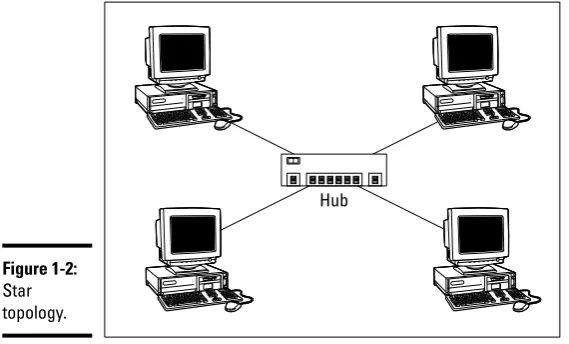
In a star topology, each network node is connected to a central device called a hubor a switch,as shown in Figure 1-2. Star topologies are also commonly used with LANs.
If a cable in a star network breaks, only the node connected to that cable is isolated from the network. The other nodes can continue to operate without interruption — unless, of course, the node that’s isolated because of the break happens to be the file server.
You should be aware of the somewhat technical distinction between a hub and a switch. Simply put, a hubdoesn’t know anything about the computers that are connected to each of its ports. So when a computer connected to the hub sends a packet to a computer that’s connected to another port, the hub sends a duplicate copy of the packet to all its ports. In contrast, a switch knows which computer is connected to each of its ports. As a result, when a switch receives a packet intended for a particular computer, it sends the packet only to the port that the recipient is connected to.
Strictly speaking, only networks that use switches have a true star topology. If the network uses a hub, the network topology has the physical appearance of a star, but is actually a bus. That’s because when a hub is used, each com-puter on the network sees all the packets sent over the network, just like in a bus topology. In a true star topology, as when a switch is used, each computer sees only those packets that were sent specifically to it, as well as broadcast packets that were specifically sent to all computers on the network.
Hub
Figure 1-2: Star topology.
Book I Chapter 1
Understanding
Networks
Network Topology
17
Expanding stars
Physicists tell us that the universe is expanding, and network administrators know they’re right. A simple bus or star topology is suitable only for small networks, with a dozen or so computers, but small networks inevitably become large networks as more computers are added. For larger networks, it’s common to create more complicated topologies that combine stars and buses.
For example, a bus can be used to connect several stars. In this case, two or more hubs or switches are connected to each other using a bus. Each of these hubs or switches is then the center of a star that connects two or more computers to the network. This type of arrangement is commonly used in buildings that have two or more distinct workgroups. The bus that connects the switches is sometimes called a backbone.
Another way to expand a star topology is to use a technique called daisy-chaining. When you use daisy-chaining, a hub or switch is connected to another hub or switch as if it were one of the nodes on the star. Then, this second hub or switch serves as the center of a second star.
Ring topology
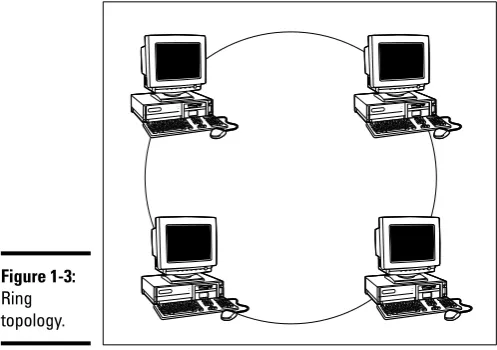
A third type of network topology is called a ring,shown in Figure 1-3. In a ring topology, packets are sent around the circle from computer to computer. Each computer looks at each packet to decide whether the packet was intended for it. If not, the packet is passed on to the next computer in the ring.
Figure 1-3: Ring topology.
Network Topology
18
Years ago, ring topologies were common in LANs, as two popular networking technologies used rings: ARCNET and Token Ring. ARCNET is still used for certain applications such as factory automation, but is rarely used in busi-ness networks. Token Ring is a popular network technology for IBM midrange computers. Although plenty of Token Ring networks are still in existence, not many new networks use Token Ring any more.
Ring topology was also used by FDDI, one of the first types of fiber-optic net-work connections. FDDI has given way to more efficient fiber-optic techniques, however. So ring networks have all but vanished from business networks.
Mesh topology
A fourth type of network topology, known as mesh,has multiple connections between each of the nodes on the network, as shown in Figure 1-4. The advan-tage of a mesh topology is that if one cable breaks, the network can use an alternative route to deliver its packets.
Mesh networks are not very practical in a LAN setting. For example, to net-work eight computers in a mesh topology, each computer would have to have seven network interface cards, and 28 cables would be required to connect each computer to the seven other computers in the network. Obviously, this scheme isn’t very scalable.
However, mesh networks are common for metropolitan or wide area networks. These networks use devices called routersto route packets from network to network. For reliability and performance reasons, routers are usually arranged in a way that provides multiple paths between any two nodes on the network in a mesh-like arrangement.
Router Router
Router
Router Router
Computer Computer
Figure 1-4: Mesh topology.
Chapter 2: Understanding Network
Protocols and Standards
In This Chapter
Deciphering the layers of the OSI reference model
Understanding an Ethernet
Getting the inside scoop on TCP/IP and IPX/SPX
Finding out about other important protocols
P
r