585-313-201 108647322 January 2000 Issue 3
Intuity™ CONVERSANT
®
System
Version 7.0
Copyright Copyright © 2000 by Lucent Technologies. All rights reserved.
Printed in the USA.
This material is protected by the copyright laws of the United States and other countries. It may not be reproduced, distributed, or altered in any fashion by any entity (either internal or external to Lucent Technologies), except in accordance with applicable agreements, contracts or licensing, without the express written consent of the Business Communications Systems (BCS) Global Learning Solutions (GLS) organization and the business management owner of the material.
Acknowledgment This document was prepared by the GLS organization of the BCS division of Lucent Technologies. Offices are located in Denver CO, Columbus OH, Middletown NJ, and Basking Ridge NJ, USA.
Trademarks Lucent Technologies has made every effort to supply the following trademark information about company names, products, and services mentioned in the Intuity CONVERSANT documentation library:
Copyright and Legal Notices
• CLEO Communications — Trademarks: LINKix.
• Hayes Microcomputer Products, Inc. — Trademarks: Hayes, Smartmodem.
• Intel Corporation — Registered trademarks: Pentium. • Interface Systems, Inc. — Trademarks: CLEO.
• International Business Machines Corporation — Registered trademarks: IBM, VTAM.
• Lucent Technologies — Registered trademarks: 5ESS, AUDIX,
CONVERSANT, DEFINITY, Voice Power. Trademarks: FlexWord, Intuity, Lucent.
• Microsoft Corporation — Registered trademarks: Excel, Internet Explorer, Microsoft, MS, MS-DOS, Windows, Windows NT.
• Minnesota Mining and Manufacturing — Trademarks: 3M. • Netscape Communications — Trademarks: Netscape Navigator. • Novell, Inc. — Registered trademarks: Novell.
• Oracle Corporation — Trademarks: OBJECT*SQL, ORACLE, ORACLE*Terminal, PRO*C, SQL*FORMS, SQL*Menu, SQL*Net, SQL*Plus, SQL*ReportWriter.
• Santa Cruz Operation, Inc. — Registered trademarks: UnixWare. • UNIX System Laboratories, Inc. — Registered trademarks: UNIX. • Veritas Software Corporation — Trademarks: VERITAS.
• Xerox Corporation — Trademarks: Ethernet.
Limited Warranty Lucent Technologies provides a limited warranty on this product. Refer to the “Limited Use Software License Agreement” card provided with your package. Lucent Technologies has determined that use of this electronic data delivery system cannot cause harm to an end user's computing system and will not assume any responsibility for problems that may arise with a user's computer system while accessing the data in these document.
Every effort has been made to make sure that this document is complete and accurate at the time of release, but information is subject to change.
United States FCC Compliance Information
Part 15: Class A statement. This equipment has been tested and found to comply with the limits for a Class A digital device, pursuant to Part 15 of the FCC Rules. These limits are designed to provide reasonable protection against harmful interference when the equipment is operated in a commercial environment. This equipment generates, uses, and can radiate
Copyright and Legal Notices
Operation of this equipment in a residential area is likely to cause harmful interference, in which case the user will be required to correct the
interference at his own expense.
Canadian Department of Communications (DOC) Interference Information
This digital apparatus does not exceed the Class A limits for radio noise emissions set out in the radio interference regulations of the Canadian Department of Communications.
Le Présent Appareil Nomérique n’émet pas de bruits radioélectriques dépassant les limites applicables aux appareils numériques de la class A préscrites dans le reglement sur le brouillage radioélectrique édicté par le ministére des Communications du Canada.
European Union Declaration of Conformity
Lucent Technologies Business Communications Systems declares that the Intuity™ CONVERSANT® System equipment specified in this document conforms to the referenced European Union (EU) Directives and Harmonized Standards listed below: EMC Directive 89/336/EEC Low-Voltage Directive 73/23/EEC. The “CE” mark affixed to the equipment means that it conforms to the above directives.
Telecom New Zealand Ltd Warning Notices
in all respects with other items of Telepermitted equipment of a different make or model, nor does it imply that any product is compatible with all of Telecom’s network services.
IMPORTANT NOTICE: Under power failure conditions, this device may not operate. Please ensure that a separate telephone, not dependent on local power, is available for emergency use.
AUTOMATIC RE-ATTEMPTS TO THE SAME NUMBER: Some parameters required for compliance with Telecom’s Telepermit requirements are dependent on the equipment (PC) associated with this device. The associated equipment shall be set to operate within the following limits for compliance with Telecom specifications:
• There shall be no more than 10 call attempts to the same number within any 30 minute period for any single manual call initiation, and,
Copyright and Legal Notices
USER INSTRUCTIONS (AUTOMATIC CALL SETUP): This equipment shall not be set up to make automatic calls to the Telecom "111" emergency service.
CALL ANSWERING (AUTOMATIC ANSWERING EQUIPMENT): Some parameters required for compliance with Telecom’s Telepermit requirements are dependent on the equipment (PC) associated with this device. In order to operate within the limits for compliance with Telecom specifications, the associated equipment shall be set to ensure that calls are answered between 3 and 30 seconds of receipt of ringing.
Toll Fraud Toll fraud is the unauthorized use of your telecommunications system by an unauthorized party, for example, persons other than your company’s employees, agents, subcontractors, or persons working on your company’s behalf. Note that there may be a risk of toll fraud associated with your telecommunications system and, if toll fraud occurs, it can result in substantial additional charges for your telecommunications services.
Your Responsibility for Your System’s Security
You and your system manager are responsible for the security of your system and for preventing unauthorized use. You are also responsible for reading all installation, instruction, and system administration documents provided with this product in order to fully understand the features that can introduce risk of toll fraud and the steps that can be taken to reduce that risk. Lucent
prevent unauthorized use of common-carrier telecommunication services or facilities accessed through or connected to it. Lucent Technologies will not be responsible for any charges that result from such unauthorized use.
Lucent Technologies Fraud Intervention and Corporate Security
If you suspect that you are being victimized by toll fraud and you need technical support or assistance, call the Lucent Technologies National Customer Care Center Toll Fraud Intervention Hotline at 1 800 643-2353. Aside from whether immediate support is required, all toll fraud incidents involving Lucent products or services should be reported to Lucent Corporate Security at 1 800 821-8235. In addition to recording the incident, Lucent Corporate Security is available for consultation on security issues,
investigation support, referral to law enforcement agencies, and educational programs.
Documentation Ordering Information
Copyright and Legal Notices
Write, Call, or Fax
Lucent Technologies Publications Center 2855 N. Franklin Road
Indianapolis, IN 46219
Voice 1 800 457-1235 International Voice 317 322-6791 FAX 1 800 457-1764 International FAX 317 322-6699
World Wide Web
Use a web browser to reach one of the following sites. Click Documents and follow the instructions at the site.
• Organizations within Lucent Technologies
http://www.cic.lucent.com
• Lucent Technologies customers and others
http://www.lucentdocs.com
Standing Orders
Copyright and Legal Notices
ii
Copyright. . . .ii
Acknowledgment. . . .ii
Trademarks . . . .ii
Limited Warranty . . . iv
United States FCC Compliance Information . . . iv
Canadian Department of Communications (DOC) Interference Information. . . v
European Union Declaration of Conformity. . . v
Telecom New Zealand Ltd Warning Notices . . . v
Toll Fraud . . . .vii
Documentation Ordering Information . . . viii
About This Book
xxvi
Overview . . . xxviIntended Audience . . . . xxvii
How This Book Is Organized. . . . xxvii
How to Use This Book . . . xxix
Conventions Used in This Book . . . xxx
Contents
Keyboard and Telephone Keypad Representations . . . xxxv
Cross References and Hypertext . . . xxxvi
Screen Displays . . . xxxvi
Other Typography . . . xxxvii
Safety and Security Alert Labels . . . xxxvii
Getting Help . . . . xxxviii
Technical Assistance. . . xxxix
Web Site . . . xxxix
Contact Numbers . . . xxxix
Related Resources. . . xl
Training . . . xl Documentation . . . .xli
Using the CD-ROM Documentation . . . . xlii
Setting the Default Magnification . . . xliii Adjusting the Window Size . . . xliii Hiding and Displaying Bookmarks . . . xliii Using the Button Bar . . . xliii Using Hypertext Links . . . xliii Navigating with Double Arrow Keys . . . xliv Searching for Topics . . . xliv Displaying Figures. . . xliv Printing the Documentation. . . xliv
How To Make Comments About This Book . . . . xlv
Contact Us Directly . . . xlvi
1 Overview of Speech
1
Overview . . . 1
The Speech Filesystem . . . 2
Speech Encoding and Storage . . . 2
Default Speech Directory . . . 3
Specifying a Speech Directory . . . 3
Saving and Restoring Speech Files . . . 4
Adding a Second Speech Disk . . . 4
Recovering from a Corrupted Speech Disk. . . 5
Changing the Size of the Speech Filesystem . . . 5
Creating and Removing Filesystems . . . 5
Displaying Filesystem Attributes . . . 5
Defining Phrases. . . 6
Defining Phrase Tags . . . 6
Defining Phrase Numbers . . . 8
Defining Talkfiles . . . 8
Defining Speech Files . . . 8
Defining the Speech Filesystem . . . 9
Speech Development Features . . . 9
Script Builder and Voice@Work . . . 10
Text-to-Speech . . . 11
Contents
Speech Recognition . . . 16
WholeWord Speech Recognition . . . 17
Requirements . . . 19
Reference . . . 19
FlexWord Speech Recognition . . . 20
FlexWord Toolkit . . . 20
Dial Pulse Recognition . . . 22
Form Filler Plus . . . 23
SSP Circuit Card . . . . 27
Description . . . 27
Capacity . . . 27
2 Developing Speech
29
Overview . . . . 29Determining the Transaction . . . . 31
Background . . . 31
Reference . . . 31
Planning the Voice Script . . . . 32
Writing the Voice Script . . . . 34
Using Framing in Voice Scripts . . . 35
Analyzing Speech Inflections . . . 36
Placing Frame Words . . . 37
Selecting Speech Sounds for Framing . . . 37
Selecting a Speech Development Method . . . . 38
Hiring a Professional Speaker. . . 39
Purchasing a Lucent Technologies Custom Speech Package . . . 40
Producing Self-Recorded Custom Speech . . . 41
Using the GSE (Graphical Speech Editor) . . . 42
Purchasing the EBS (Enhanced Basic Speech) Package . . . 43
Using TTS (Text-to-Speech) . . . 44
Sharing Speech. . . 46
Importing Speech . . . 47
Recording Speech . . . . 49
Working with a Professional Speaker . . . 49
Working with Lucent to Developa Custom Speech Package . . . 53
Recording Speech Independently . . . 55
Encoding Speech Phrases. . . . 56
Installing Speech. . . . 57
Installing Speech in a Script Builder or TSM Application . . . 57
Installing Speech in a Voice@Work Application . . . 57
Installing Speech in an IRAPI Application . . . 58
3 Editing Speech
59
Overview . . . . 59Using The Graphical Speech Editor . . . . 60
Contents
GSE Software and Hardware . . . 61
Starting the GSE . . . 62
Graphical Speech Editor User Interface . . . 64
Title Bar . . . 65
Menu Bar. . . 65
File Menu . . . 65
Voice Menu . . . 66
Edit Menu . . . 67
Help Menu. . . 68
Tool Bar . . . 68
Speech Display Area. . . 70
Scroll Bar. . . 72
Information Bar . . . 72
Editing a Speech File with the GSE . . . 73
Opening a File. . . 75
Setting the Marker. . . 77
Selecting a Segment of Speech . . . 78
Listening to Speech. . . 79
Cutting and Pasting Speech . . . 80
Copying and Pasting Speech . . . 82
Adjusting the Volume . . . 83
Undoing Changes . . . 83
Saving Changes . . . 83
Exiting . . . 85
Retrieving Files from Speech Pools . . . 86
Restoring Files to Speech Pools . . . 89
Retrieving Files from the Speech Filesystem . . . 91
Restoring Files to the Speech Filesystem. . . 93
Using Script Builder for Editing Speech . . . . 95
Using Voice@Work for Editing Speech . . . . 95
4 Recognizing WholeWord Speech Input
96
Overview . . . . 96WholeWord Hardware and Software. . . . 98
Languages Supported . . . . 98
Bilingual Capabilities . . . . 99
Standard Vocabulary. . . 100
Standard WholeWord Speech Recognition Types . . . 101
Description . . . 101
Models and Speaker Independence . . . 102
Grammars . . . 103
Keyword Recognition Types . . . 103
Connected-Digit Recognition Types . . . 105
Connected-Digit Recognition . . . 107
Fixed-Length versus Variable-Length Connected Digits . . . 107
Recognition DIPs . . . 108
Contents
Phrase Screening . . . 110
Recognition Confirmation . . . 111
Barge-In . . . 111
Enabling or Disabling Barge-In . . . 113
Discouraging Barge-In . . . 114
Encouraging Barge-In . . . 114
System Response for Barge-In . . . 115
Dual Tone Multifrequency (DTMF) Support . . . 115
Custom Grammars. . . 116
Custom Vocabulary . . . 118
Custom DIPs . . . 118
WholeWord Speech Recognition Accuracy . . . 119
Overview . . . 119
Positive Influences on WholeWord Speech Recognition Accuracy . . . 119
Negative Influences on WholeWord Speech Recognition Accuracy. . . 123
How WholeWord Speech Recognition Works . . . 126
Overview . . . 126
Caller Response . . . 126
The Recognizer. . . 127
Computational Processing . . . 128
5 Recognizing FlexWord Speech Input
130
Introduction . . . 130
Languages Supported . . . 131
Phonemes . . . 131
FlexWord Capacity. . . 139
FlexWord Toolkit . . . 140
Vocabularies . . . 140
Keyword Spotting . . . 141
Phrase Screening . . . 141
Barge-in. . . 142
Further Processing . . . 142
Designing a FlexWord Speech Recognition Application . . . 142
Defining Wordlists . . . 142
Using Wordlists in Scripts . . . 143
Using the FlexWord Toolkit to Create Wordlists . . . 147
FlexWord Software and Hardware . . . 147
Configuring the Tip/Ring Circuit Card . . . 148
Configuring the Speaker and Amplifier . . . 148
Connecting the Telephone Line. . . 149
Configuring the SSP Circuit Card . . . 149
FlexWord Commands . . . 151
Using the Mouse . . . 151
Contents
Modifying Entries in a FlexWord Wordlist . . . 154
Adding Entries to a Wordlist . . . 161
Deleting Entries from a Wordlist . . . 163
Special FlexWord Recognition Accents . . . 164
FlexWord Recognition Vocabulary Administration . . . 166
Copying Wordlists . . . 166
Installing and Activating Wordlists from Diskette . . . 167
Activating Wordlists Resident on the System . . . 168
Deactivating Wordlists. . . 170
Removing Wordlists . . . 171
FlexWord Speech Recognition Accuracy . . . 171
Positive Influences on FlexWord Recognition Accuracy . . . 172
Negative Influences on FlexWord Recognition Accuracy . . . 176
6 Recognizing Dial Pulse Input
179
Overview . . . 179Hardware. . . 180
Simultaneous Dial Pulse Capabilities . . . 180
Dial Pulse Recognition Types . . . 181
Grammars . . . 182
Recognition Confirmation . . . 183
Barge-In . . . 184
The Recognizer. . . 185
Recognition Accuracy . . . 185
Training . . . 185
Limitations . . . 186
DPR Troubleshooting . . . 187
Common Failure Modes . . . 189
7 Putting It Together
190
Overview . . . 190Using WholeWord and Dial Pulse Recognition Together . . . 191
Getting the Most Out of FlexWord Recognition . . . 191
Choosing a FlexWord Speech Recognition Vocabulary . . . 192
Caller Error . . . 192
Word Length . . . 193
Word Choice . . . 193
Prompting for Input . . . 193
Word Sounds . . . 193
Synonyms . . . 194
Examples of FlexWord Speech Recognition Applications . . . 194
Getting the Most out of Dial Pulse Recognition . . . 195
Getting the Most out of Text-to-Speech . . . 197
Using FlexWord Recognition and Text-to-Speech Together . . . 198
Contents
Using WholeWord and FlexWord Recognition Together. . . 201
WholeWord Speech Recognition Versus FlexWord Recognition Accuracy . . . 204
Comparison of Recognition Types . . . 204
Appendix A: Enhanced Basic Speech Formats
206
Overview . . . 206Languages Available. . . 207
Background Information . . . 209
Common Formats . . . 209
Variations on the Common Formats . . . 209
Inflections . . . 212
Grammatical Gender. . . 213
Converting Applications to Other Languages . . . 213
Maximum Values for Numbers and Currency . . . 213
Speaking Phrase Numbers and Packed Talkfile Numbers . . . 215
EBS Format Tables . . . 215
Australian English EBS Formats . . . 216
Brazilian Portuguese EBS Formats . . . 219
Canadian French EBS Formats. . . 221
Cantonese Chinese Enhanced Basic Speech Formats. . . 228
Castilian Spanish Enhanced Basic Speech Formats. . . 231
Czech Enhanced Basic Speech Formats . . . 233
French EBS Formats . . . 240 German EBS Formats . . . 245 Hindi EBS Formats . . . 247 Hungarian EBS Formats . . . 250 Indonesian Enhanced Basic Speech Formats. . . 254 Italian Enhanced Basic Speech Formats. . . 256 Japanese Enhanced Basic Speech Formats. . . 259 Korean Enhanced Basic Speech Formats. . . 261 Latin-American Spanish EBS Formats . . . 264 Malay Enhanced Basic Speech Formats. . . 268 Mandarin Chinese Enhanced Basic Speech Formats . . . 270 Polish EBS Formats. . . 273 Slovak EBS Formats . . . 278 Thai EBS Formats . . . 283 UK English EBS Formats. . . 285 US English EBS Formats. . . 289
Appendix B: Speech File Formats
293
Overview . . . 293 Speech File Formats . . . 294
PCM Encoding Formats . . . 294 ADPCM Encoding Formats . . . 295
Contents
Appendix C: Calculating the OS Index
300
Overview . . . 300 Background Information . . . 301 Calculating the OS Index . . . 302
Procedure . . . 302
Appendix D: Text-to-Speech Formats
305
Overview . . . 305 US English TTS Formats . . . 306
Appendix E: Advanced Text-to-Speech Features
311
Overview . . . 311 Escape Sequences . . . 312
Text and Variables. . . 312 Controls. . . 312
Inserting Silent Delays and Pauses . . . 313
Examples for Silence— Using Text . . . 315 Examples for Silence— Using a Variable . . . 317
Changing the Gender of the Speaking Voice . . . 318
Example for Speaking Voice Gender — Using Text . . . 320 Examples for Speaking Voice Gender— Using a Variable . . . 320
Example for Rate of Speech— Using Text . . . 323 Examples for Rate of Speech — Using a Variable . . . 324 Voice@Work Controls for Rate of Speech . . . 324
Setting Text Classes and Detectors . . . 325
Background . . . 325 Classes . . . 326 Class Detector Modes. . . 327 Guidelines . . . 328 Examples for Class Detectors — Using Text . . . 331 Examples for Class Detectors — Using a Variable . . . 333 Voice@Work Controls for Class Detectors . . . 335
Enabling Barge-In for Risky Mode . . . 336
Appendix F: Recognition Post-Processing
338
Overview . . . 338 Further Processing. . . 339 Return Top 4 (RT4) . . . 341
Script Builder Example . . . 342
Prefix List Check (LSC) . . . 344 Luhn Check (LNC) . . . 345
Validation Formula . . . 345
Contents
Further Processing Prefixes and Combinations . . . 347
Glossary
350
Overview
Most applications, whether generated with the Script Builder or the Voice@Work application development tool or written using the transaction state machine (TSM) script-level language or C language, involve some form of speech, for example, playing recorded phrases, recognizing speech input, recording spoken phrases, or playing synthesized speech. An application may use one, some, or all forms of speech the Intuity CONVERSANT system has to offer.
About This Book Intended Audience
Intended Audience
The primary audience for this book includes the following segments: • End customer developers — Responsible for creating and maintaining
applications in the INTUITY CONVERSANT system environment.
• Custom application developers — Responsible for creating applications to be used in the system environment for end-user customers. This segment includes Lucent Technologies custom application developers. • Application distributors — Distribute and implement applications for
end-users. This segment includes independent software vendors (ISVs) and voice processing co-marketers (VPCs).
How This Book Is Organized
This book is contains the following sections:
• Chapter 2, Developing Speech — Describes the procedures involved in producing speech, from determining the transaction and planning the script to recording and encoding the speech.
• Chapter 3, Editing Speech — Discusses use of the Graphical Speech Editor (GSE) and features of the Script Builder and Voice@Work application development tools available for editing speech.
• Chapter 4, Recognizing WholeWord Speech Input — Explains the concepts behind WholeWord speech recognition and includes sections on creating WholeWord vocabularies and improving the accuracy of speech recognition.
• Chapter 5, Recognizing FlexWord Speech Input — Explains the concepts behing FlexWord speech recognition and its features.
• Chapter 6, Recognizing Dial Pulse Input — Discusses the recognition of dial pulses on rotary or push button telephones.
• Chapter 7, Putting It Together — Discusses how to make the various speech-related features and work well together in a voice response application.
• Appendix A, Enhanced Basic Speech Formats — Contains complete lists of Enhanced Basic Speech formats for all available languages.
About This Book How to Use This Book
• Appendix C, Calculating the OS Index — Provides the procedure for computing channel numbers for the GSE.
• Appendix D, Text-to-Speech Formats — Contains a complete list of the Text-to-Speech (TTS) formats (available for US English only).
• Appendix E, Advanced Text-to-Speech Features — Discusses how to customize synthesized speech by using escape sequences to add silence delays, change the speaking rate, select the speaking voice gender, and mark text as belonging to a specific text category.
• Appendix F, Recognition Post-Processing — Describes the data interface process (DIP) associated with WholeWord and FlexWord speech
recognition and discusses five processing features that increase the system accuracy of recognition: Return Top 4, Prefix List Check, Luhn Check, Expected Value and Close Match.
• Glossary —Defines the terms, abbreviations, and acronyms used in system documentation.
• Index — Alphabetically lists the principal subjects covered in the book.
How to Use This Book
• Recognizing speech input or caller input during a transaction
This book is organized in a procedural manner in which you learn about speech on the Intuity CONVERSANT system (Chapter 1, Overview of Speech), followed by how to create speech (Chapter 2, Developing Speech) and edit speech (Chapter 3, Editing Speech).
Next, the focus turns to recognizing call input and using speech recognition features (Chapter 4, Recognizing WholeWord Speech Input, Chapter 5, Recognizing FlexWord Speech Input, and Chapter 6, Recognizing Dial Pulse Input).
Finally, you learn how to effectively use speech-related features together (Chapter 7, Putting It Together).
Conventions Used in This Book
Understanding the typographical and other conventions used in this book is necessary to interpret the information.
Terminology • The word “type” means to press the key or sequence of keys specified. For example, an instruction to type the letter “y” is shown as
About This Book Conventions Used in This Book
• The word “enter” means to type a value and then press the E N T E R key on the keyboard. For example, an instruction to type the letter “y” and press E N T E R is shown as
Enter y to continue.
• The word “select” means to move the cursor to the desired menu and then press E N T E R. For example, an instruction to move the cursor to the start test option on the Network Loop-Around Test screen and then press E N T E R is shown as
Select Start Test.
• The system displays menus, screens, and windows. Menus allow you to select options or to choose to view another menu, screen, or window (Figure 1 on page xxxii). Screens and windows both show and request system information (Figure 2 on page xxxii through Figure 5 on page xxxiv).
Figure 1. Example of Intuity CONVERSANT Menu
About This Book Conventions Used in This Book
Figure 3. Example of Intuity CONVERSANT Screen Showing Information
Figure 4. Example of Intuity CONVERSANT Window Requesting Information In order to install UnixWare, you must reserve a partition (a portion of your hard disk’s space) on your primary hard disk for the UNIX System.After you press ‘ENTER’ you will be shown a screen that will allow you to create new partitions, delete existing partitions or change the active partition of your primary hard disk (the partition that your computer will boot from).
WARNING: All files in any partition(s) you delete will be destroyed. If you wish to attempt to preserve any files from an existing UNIX System, do not delete its partition(s).
Figure 5. Example of Intuity CONVERSANT Screen Requesting Information
You may use a partition of your secondary hard disk. If you choose to use a partition of your secondary hard disk you will be shown a screen that will allow you to partition your secondary hard disk.
WARNING: All files in any partition(s) you delete will be destroyed. If you choose to create a UNIX System partition on your secondary hard disk, it must be at least 40 MBs.
Your Options are:
1. Do not use a partition of the secondary hard disk for the UNIX System.
2. Use a partition of the secondary hard disk for the UNIX System.
About This Book Conventions Used in This Book
Keyboard and Telephone Keypad Representations
• Keys that you press on your terminal or PC are represented as small, capitalized B O L D text. For example, an instruction to press the enter key is shown as
Press E N T E R.
• Two or three keys that you press at the same time on your terminal or PC (that is, you hold down the first key while pressing the second and/or third key) are represented in small capitalized B O L D text. For example, an instruction to press and hold the Alt key while typing the letter “d” is shown as
Press A LT + D.
• Function keys on your terminal, PC, or system screens, also known as soft keys, are represented as small capitalized B OL D t ext followed by the function or value of that key enclosed in parentheses. For example, an instruction to press function key 3 is shown as
Press F 3 (Choices).
• Keys that you press on your telephone keypad appear in small capitalized B O L D text. For example, an instruction to press the first key on your telephone keypad is shown as
Cross References and Hypertext
Blue underlined type indicates a cross reference or hypertext link that takes you to another location in the document when you click on it with your mouse.
Screen Displays • Values, system messages, field names, prompts that appear on the screen, as well as simulated screen displays appear in typewriter-style constant width type, as shown in the following examples:
Enter the number of ports to be dedicated to outbound traffic in the Maximum Simultaneous Ports field.
Alarm Form Update was successful. Press <Enter> to continue.
• The sequence of menu options that you must select to display a specific screen or submenu is shown as follows:
Start at the Intuity CONVERSANT main menu and select:
In this example, you would access the Intuity CONVERSANT main menu and select the Configuration Management menu. From the Configuration Management menu, you would then select the Database Administration option.
About This Book Safety and Security Alert Labels
Other Typography • Commands and text you type in or enter appear in bold type, as in the following examples:
Enter change-switch-time-zone at the Enter command: prompt. Type high or low in the Speed: field.
• Command variables are shown in bold italic type when they are part of what you must type in, and in blue type when they are referred to, for example
Enter ch ma machine_name, where machine_name is the name of the call delivery machine you just created.
• Command options are shown inside square brackets, for example: Enter connect switchname [-d] [-b | -w]
Safety and Security Alert Labels
This book uses the following symbols to call your attention to potential problems that could cause personal injury, damage to equipment, loss of data, service interruptions, or breaches of toll fraud security:
!
CAUTION:
WARNING:
!
Indicates the presence of a hazard that if not avoided can cause death or severe personal injury.
!
DANGER:
Indicates the presence of a hazard that if not avoided will cause death or severe personal injury.
!
SECURITY ALERT:
Indicates the presence of a toll fraud security hazard. Toll fraud is the unauthorized use of a telecommunications system by an unauthorized party.
Getting Help
The Intuity CONVERSANT system provides online help to assist you during installation, administration, and application development tasks.
To use the online help:
About This Book Technical Assistance
The first time you press F 1, the system displays information about the currently active window or menu.
~ When you are in a window, the help explains the purpose of the window window and describes its fields.
~ When you are in a menu, the help explains how to use menus. If you press F 1 again, the system displays a General Help screen that explains how to use the online help.
• Press F 2 (Choices) when you are in a field.
The system displays valid field choices either in a pop-up window or on the status line directly above the function keys.
• Press F 6 (Cancel) to exit the online help.
Technical Assistance
Web Site The following customer support web site contains resources where you can find solutions for technical problems:
http://support.lucent.com
Contact Numbers Technical assistance on the Intuity CONVERSANT product is available through the following telephone contacts:
• In Canada, call one of the following numbers, depending on your location: ~ 1-800-363-1882 for assistance in Quebec and eastern Canada ~ 1-800-387-4268 for assistance in Ontario and western Canada • In any other country, call your local distributor or check with your project
manager or systems consultant.
Related Resources
Additional training material and documentation and training material is available for you to learn more about the Intuity CONVERSANT product.
Training To obtain training on the Intuity CONVERSANT product, contact the BCS Education and Training Center at one of the following numbers:
• Organizations within Lucent Technologies (904) 636-3261 • Lucent Technologies customers and all others (800) 255-8988 You can also view information on Intuity CONVERSANT training at the Global Learning Solutions (GLS) web site at one of the following web links: • Organizations within Lucent Technologies
About This Book Related Resources
• Lucent Technologies customers and all others
http://www.lucenttraining.com
The courses listed below are recommended. Other courses are available. • For technicians doing repairs on Intuity CONVERSANT V7.0 systems
~ BTT509H, CONVERSANT Installation and Maintenance Voice Information System
• For technicians and administrators
~ BTC344M, Intuity CONVERSANT V7 Administration Overview (CD-ROM)
• For application developers
~ BTC128H, Introduction to Script Builder ~ BTC166H, Introduction to Voice@Work ~ BTC204H, Intermediate Voice@Work
~ BTC301H, Advanced CONVERSANT Programming
Note: Always refer to the appropriate book for specific information on planning, installing, administering, or maintaining an Intuity CONVERSANT system.
Additional Suggested Documentation
It is suggested that you also obtain and use the following book for information on security and toll fraud issues:
• GBCS Products Security Handbook, 555-025-600
Obtaining Printed Versions of the Documentation
See Documentation Ordering Information on page viii of Copyright and Legal Notices for information on how to order Intuity CONVERSANT documentation in printed form. You can also print documentation locally from the CD-ROM (see Printing the Documentation on page xliv ).
Using the CD-ROM Documentation
About This Book Using the CD-ROM Documentation
Windows platforms. It provides scrolling, zoom, and extensive search capabilities, along with online help. A copy of Acrobat Reader is included with the documents.
Note: If viewing documents online, it is recommended that you use a separate platform and not the Intuity CONVERSANT system.
Setting the Default
Magnification You can set your default magnification by selecting File | Preferences | General. We recommend the Fit Page option.
Adjusting the Window Size
On HP and Sun workstations, you can control the size of the reader window by using the -geometry argument. For example, the command string acroread -geometry 900x900 mainmenu.pdf opens the main menu with a window size of 900 pixels square.
Hiding and Displaying Bookmarks
By default, the document appears with bookmarks displayed on the left side of the screen. The bookmarks serve as a hypertext table of contents for the chapter you are viewing. You can control the appearance of bookmarks by selecting View | Page Only or View | Bookmarks and Page.
Using the Button Bar
The button bar can take you to the book’s Index, table of contents, main menu, and glossary. It also lets you update your documents. Click the corresponding button to jump to the section you want to read.
Using Hypertext
Navigating with Double Arrow Keys
The double right and double left arrows ( and ) at the top of the Acrobat Reader window are the back and forward functions. The go-back button takes you to the last page you visited prior to the current page. Typically, you use to jump back to the main text from a cross reference or illustration.
Searching for
Topics Acrobat has a sophisticated search capability. From the main menu, select Tools | Search. Then choose the Master Index.
Displaying Figures If lines in figures appear broken or absent, increase the magnification. You might also want to print a paper copy of the figure for better resolution.
Printing the
Documentation Note: For information on ordering printed copies of the documents, see Obtaining Printed Versions of the Documentation on page xlii. If you would like to read the documentation in paper form rather than on a computer monitor, you can print all or portions of the online screens.
Printing an Entire Document
To print an entire document, do the following:
1 From the documentation main menu screen, select one of the print-optimized documents. Print-print-optimized documents print two-screens to a side, both sides of the sheet on 8.5x11-inch or A4 paper.
About This Book How To Make Comments About This Book
3 Enter the page range you want to print, or select All. Note that the print page range is different from the page numbers on the documents (they print two to a page).
4 The document prints.
5 Close the file. Do not leave this file open while viewing the electronic documents.
Printing Part of a Document
To print a single page or a short section, you can print directly from the online version of the document.
1 Select File | Print.
2 Enter the page range you want to print, or select Current. The document prints, one screen per side, two sides per sheet.
How To Make Comments About This Book
Comment Form A comment form, available in paper and electronic versions, is available via the documentation CD-ROM. To use the comment form:
1 Select Comments from the Main Menu of the CD-ROM.
2 Follow the instructions provided on the CD-ROM to do one of the following:
~ Print the paper version of the form, complete it, and either fax or mail it to us.
~ Access a Lucent Technologies website where you can enter your comments electronically.
Contact Us Directly If you prefer not to use the comment form, you can contact us directly at the following address or fax number.
Note: Direct your correspondence to the attention of the Lucent Technologies Intuity CONVERSANT writing team. Be sure to mention the title of the book on which you are commenting. Lucent Technologies
GLS Information Development Division Room 22-2H15
1
Overview of Speech
Overview
This chapter provides:
• Information about the speech filesystem • Information about speech terminology
• An overview of the Intuity CONVERSANT features available for speech development
This chapter is designed to ensure that you:
• Understand the software features available for speech and ways in which they can be used
• Recognize speech hardware
The Speech Filesystem
All speech to be played as part of an application resides as UnixWare files in a mounted UnixWare filesystem. By default, speech filesystems reside in /voice1, which is linked to /home2. These two filesystems can be used interchangeably. With the Intuity CONVERSANT system, you can define where in /voice1 or /home2 speech files are stored.
Speech Encoding
and Storage Each speech phrase requires a minimum of 8 Kbytes of space. Depending on the encoding rate, an 8-Kbyte block holds different amounts of speech. See
Table 1 on page 2 to estimate how much speech is in each speech phrase block.
Table 1. Encoding Rates and Speech Phrase Blocks
Coding Rate Seconds of Speech per 8-Kbyte Block
SBC16 4.0
SBC24 2.6
ADPCM32 2.0
ADPCM64 1.0
1
Overview of Speech The Speech FilesystemSee Appendix B, Speech File Formats for detailed information about coding rates. For information about the encoding methods and capacities, see “Speech Storage Capacities” and “Speech Administration Capacities” in Chapter 4, “Features,” of Intuity CONVERSANT System Version 7.0 System Description, 585-313-204.
Default Speech
Directory The default speech directory is designated as /voice1/vfs/talkfiles, which is a UnixWare directory for storing speech. It is organized into 8-Kbyte blocks, which allows for quick and efficient retrieval of speech files.
Specifying a Speech Directory
Use the following procedure to change the directory in which speech files are stored from the default (/voice1/vfs/talkfiles):
Procedure
1 Stop the voice system.
For the procedure to do so, see “Common System Procedures” in Intuity CONVERSANT System Reference, 585-313-205.
2 Access the /vs/data/irAPI.rc file. 3 Add the following entry:
SPEECHDIR=directory
The SPEECHDIR variable specifies the new directory. 4 Restart the voice system.
The speech administration tools (for example, list, add, copy, erase, and vdf) are available for use only with speech files stored in the speech directory defined by the SPEECHDIR variable in the irAPI.rc file.
Saving and Restoring Speech Files
Speech files are backed up when a mkimage system backup is performed. The spsav (save) and spres (restore) commands are also available for backing up speech. See Intuity CONVERSANT System Version 7.0 Administration, 585-313-501, for information about these commands.
!
CAUTION:
Use the spsav command to copy all speech after you make any changes. This allows you to restore the speech disk(s) during a recovery process with the spres command rather than from a mkimage tape, which takes longer and may not restore all speech.
Adding a Second Speech Disk
If you require speech-intensive applications, or if your system has 72 or more channels (telephone network connections), it is recommended that you add a second disk specifically for storing speech.
1
Overview of Speech The Speech FilesystemThe second disk in the system is used to store speech filesystems that reside in /home3.
Recovering from a Corrupted Speech Disk
For information on recovering from a corrupted speech disk, see “Replacing a Hard Disk Drive” in the IntuityCONVERSANTmaintenance book for your platform.
Changing the Size of the Speech Filesystem
With the Veritas advanced filesystem, you can change the size of the speech filesystem without having to reload the UnixWare system.
For detailed information about increasing and decreasing the size of the filesystem, see “Basic Filesystem Operations” in Chapter 5, “OA&M Menu Interface Operation,” of Veritas Volume Manager System Administrator’s Guide in the Veritas documentation set, 585-350-906.
Creating and Removing Filesystems
With the Veritas advanced filesystem, you can create and remove Intuity CONVERSANT speech filesystems.
For detailed information about creating and removing filesystems, see “Basic Filesystem Operations” in Chapter 5, “OA&M Menu Interface Operation,” of Veritas Volume Manager System Administrator’s Guide in the Veritas documentation set, 585-350-906.
Displaying Filesystem Attributes
For detailed information about displaying the contents of filesystems, see the section “Basic Filesystem Operations, Underlying Speech Concepts,” in Chapter 5, “OA&M Menu Interface Operation,” of Veritas Volume Manager System Administrator’s Guide in the Veritas documentation set, 585-350-906.
Defining Phrases A phrase is a unit of speech, such as letter, number, word, sentence, or paragraph, that a speech application script speaks to a caller. Examples of phrases include a welcome message, a bank balance, or the name of a month. Every phrase in a speech application script is identified by a phrase tag or phrase number. The application speaks a phrase to callers by referencing either the phrase tag or the phrase number in the application. See Defining Phrase Tags on page 6 and Defining Phrase Numbers on page 8 for more information.
Defining Phrase Tags
A phrase tag is a string of up to 50 characters that identifies the contents of a phrase used by an application script. In other words, a phrase tag identifies a specific phrase. When you define a message to be played during a
transaction, you specify a given phrase by its phrase tag (as opposed to its content).
The two types of phrase tags are as follows: • Enhanced Basic Speech (EBS)
~ Currency (such as dollars and cents)
1
Overview of Speech The Speech Filesystem~ Days of the week ~ Months
~ Numbers ~ Characters
The EBS package includes prerecorded speech formats corresponding to the above types of phrases for all supported languages. For a list of these formats, see Appendix A, Enhanced Basic Speech Formats.
Script Builder and Voice@Work use predefined EBS phrase tags for spoken output, such as digits and letters in various inflections. For more information for Script Builder, see Chapter 9, “Speech Administration,” in Intuity
CONVERSANT Application Development with Script Builder, 585-310-760. For more information for Voice@Work, see the chapter on variables in Using Voice@Work, 585-313-207.
Note: Predefined EBS phrase tags begin with a colon (:). Therefore, do not use a colon as the first character in any custom phrase tag. • Custom speech
Custom phrase tags are designed specifically for the application you are developing and are usually more than one word in length. Examples: ~ “Your account balance is”
Defining Phrase Numbers
A phrase number is a number that identifies the contents of a phrase used by an application script. A script speaks a phrase to callers by referencing either the phrase tag or the phrase number. A phrase number is assigned to a phrase when you add the phrase to an application (for example, when you add a phrase through a Prompt and Collect action in a Script Builder application or through a Prompt and Collect node in a Voice@Work application).
Defining Talkfiles A talkfile is a list of phrases usually associated with an application script. Talkfiles are stored under the directory /speech/talk. All of these files have a .pl extension. The first line in the file shows the talkfile number. The rest of the file displays the phrases (as they were entered in the application) preceded by their phrase numbers. The actual phrases are located in the speech filesystem.
Each talkfile can contain as many as 65,535 phrases. The Intuity
CONVERSANT system can have up to 16,384 talkfiles, although the system is limited by the size of the hard disk. The talkfile number and phrase tag or phrase number together uniquely identify a phrase.
Defining Speech Files
1
Overview of Speech Speech Development FeaturesDefining the Speech Filesystem
A speech filesystem is a mounted UnixWare filesystem where speech resides and is defined in the irAPI.rc file. Only one speech filesystem can be active at a given time. See the various topics under The Speech Filesystem on page 2
for more information about Intuity CONVERSANT filesystems.
Speech Development Features
Nearly all applications involve playing speech to a caller. The following speech development tools and features are available for the creation, editing, recognition, and inclusion of speech in an application.
• Application development tools ~ Script Builder
~ Voice@Work • Features
~ Text-to-Speech
~ Graphical Speech Editor (GSE) ~ WholeWord Speech Recognition ~ FlexWord™ Speech Recognition ~ Dial Pulse Recognition
Script Builder and Voice@Work
The Script Builder and Voice@Work application development tools both enable you to design applications that specify every detail of the interaction between the Intuity CONVERSANT system and its callers. For example, the greeting heard by the caller when connecting with the service, the menu of options offered, the way callers are prompted for credit card numbers and other pertinent information, how long to wait for caller responses, and the relevant databases that need to be accessed are all parts of an application that you can define and implement with either of these tools.
Once an application is designed, you can use these tools to test, generate, transfer, and install it. Speech phrases can be recorded and edited with these applications.
• Script Builder applications are developed through an interface accessed through the Intuity CONVERSANT main menu,
• Voice@Work applications are developed on a Windows-based PC and then installed on the Intuity CONVERSANT system.
Reference
• For information about producing speech with Script Builder or Voice@Work, see Chapter 2, Developing Speech .
• For instructions to install the Script Builder feature software, see
1
Overview of Speech Speech Development Featuresplatform. For detailed information on using Script Builder, see Intuity CONVERSANT Version 7.0 Application Development with Script Builder, 585-313-206.
• For Voice@Work hardware requirements and instructions to install the feature software, see Using Voice@Work, 585-313-207.
Text-to-Speech The Text-to-Speech (TTS) feature allows you to include speech in an application by providing text as input and allowing the speech and signal processing (SSP) circuit card to produce synthesized speech. Currently TTS is available for US English only. The default gender for the speaking voice is male, although a female voice can be specified.
Text that TTS speaks can either be typed at the keyboard or obtained from a file or database. In a Script Builder or Voice@Work application, you can include the text in either an Announce or a Prompt and Collect action step (Script Builder) or node (Voice@Work), or you can use the tts_file external function, which directs the system to speck text from an ASCII file. TTS is specified in the
The conversion of text to speech involves many steps, in which TTS does the following:
• Filters the text to identify sentence and phrase boundaries
• Expands conventional abbreviations appropriate to the context (for example, “Dr.” can be expanded to “doctor” or “drive,” depending on the context)
• Identifies proper names and addresses for special handling
• Adjusts for inappropriate punctuation (for example, “Dr.” with or without a period is interpreted in the same way)
• Translates non-alphabetic characters (for example, $5 is spoken as “five dollars”)
• Analyzes the text to determine pronunciation, emphasis, timing, and pitch The synthesized voice can be made more natural sounding in several ways: • Punctuation marks such as commas, colons, and periods can be
used to insert natural pauses in the synthesized voice as well as changes in voice intonation.
1
Overview of Speech Speech Development FeaturesAccuracy of the TTS conversion can be increased through the use of advanced TTS features to mark text as belonging to a specific class, such as address, proper name, telephone number, or fraction. Class detectors can then resolve the ambiguity that some text presents (Dr., for example, would be spoken “doctor” in a proper name field, but “drive” in an address field). TTS can be used to produce text for prompts in an application. Use of TTS during the development of prototype applications eliminates the need to record custom phrases until the application is perfected. But TTS is most often used to speak text that changes frequently, for example:
• Fields from large databases of customer data, such as names, addresses, and order information
• Dynamic text, such as electronic mail
Requirements
The TTS feature requires:
• Text-to-Speech feature software package • SSP circuit card with TTS functionality assigned
Reference
• To use TTS in Voice@Work applications, see information on inserting controls with the prompt editor in the chapter on prompts in Using Voice@Work, 585-313-207.
• To use TTS with TAS applications, see Appendix B, “Summary of TAS Script Instructions,” in Intuity CONVERSANT System Version 7.0 Application Development with Advanced Methods, 585-313-203. • To install the TTS feature software, see “Installing the Text-to-Speech
Package” in “Installing the Optional Feature Software” in the Intuity CONVERSANT maintenance book for your platform.
• For information on SSP circuit card functions, see SSP Circuit Card on page 27.
Graphical Speech
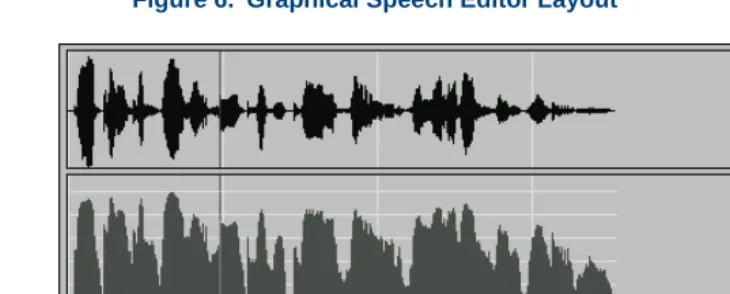
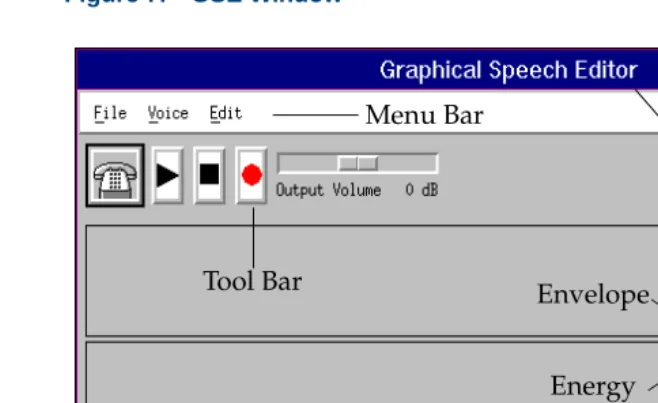
Editor The Graphical Speech Editor (GSE) provides a graphical interface for creating and editing recorded speech files. The interface includes menus that you can access to perform different functions associated with retrieving, creating, editing, and saving recorded speech. Typically, the editor is used to remove silence from the beginnings and endings of recorded speech
phrases.
1
Overview of Speech Speech Development FeaturesFigure 6. Graphical Speech Editor Layout
Requirements
The GSE feature requires:
• Graphical Speech Editor software package
• Tip/Ring card to receive audio input for recording and to output audio speech
• Stopping of the voice system
Note: The system cannot take calls when the voice system is stopped.
Reference
• To use the GSE to edit recorded speech, see Chapter 3, Editing Speech
• For information on system capacities and requirements for the Graphical Speech Editor, see “Graphical Speech Editor” in Chapter 5, “Feature Packages,” in Intuity CONVERSANT System Version 7.0 System Description, 585-313-204.
• To install the GSE feature software, see “Installing the Graphical Speech Editor Package” in “Installing Optional Feature System Software” in the Intuity CONVERSANT maintenance book for your platform.
• To administer the mouse, see “Initializing the Mouse” in “Installing Base System Software” in the Intuity CONVERSANT maintenance book for your platform.
• To configure the video controller circuit card, see “Setting Up the Monitor” in “Installing Base System Software” in the Intuity CONVERSANT maintenance book for your platform.
Speech
1
Overview of Speech Speech Development FeaturesPrevious system releases offered speech technologies on a per-system basis. Releases starting with versions 6.0 offer speech technologies on a per-channelbasis. The SSP, NGTR, and IVC6 circuit cards include basic playback and coding functions. WholeWord speech recognition and FlexWord speech recognition can be added on a per-channel basis.
WholeWord Speech
Recognition WholeWord speech recognition recognizes entire words, not phonemes or parts of words. However, WholeWord speech recognition is not restricted to recognizing single words. For example, “calling card” can be recognized as a whole word.
WholeWord speech recognition is available in the following languages: • Australian English
• Brazilian Portuguese • Canadian French • Castilian Spanish • Dutch
• Japanese
• Latin-American Spanish • UK English
• US English
Standard Versus Custom Vocabulary
Lucent Technologies provides a standard WholeWord speech recognition vocabulary that includes:
• The digits 0–9 (and their commonly used synonyms) • The words “yes” and “no”
The standard WholeWord recognition vocabulary also provides connected-digit recognition.
The standard speech vocabulary is best suited for applications that require callers to respond with “yes” or “no” (such as a survey application) or for number-intensive applications (such as a banking application that requires callers to enter account numbers).
1
Overview of Speech Speech Development FeaturesRequirements WholeWord speech recognition requires:
• WholeWord speech recognition base package and one or two language package(s)
• SSP circuit card with WholeWord functionality assigned
Reference • To install the WholeWord feature software, see “Installing the WholeWord Recognition Packages” in “Installing Optional Feature System Software” in the Intuity CONVERSANT maintenance book for your platform. • For information on:
~ Using the FlexWord toolkit to create words, wordlists, and
vocabularies, see Chapter 5, Recognizing FlexWord Speech Input
~ SSP circuit card functions, see SSP Circuit Card on page 27
~ Using the WholeWord feature in Script Builder applications, see “Using WholeWord Speech Recognition” in Chapter 8, “Using Optional Features,” in Intuity CONVERSANT System Version 7.0 Application Development with Script Builder, 585-313-206
FlexWord Speech Recognition
FlexWord speech recognition recognizes phonemes or parts of words. It is available for use in the following languages:
• Brazilian Portuguese • French
• German • Japanese
• Latin-American Spanish • US English
Because FlexWord recognition provides a cost-effective way of designing large, customized vocabularies and menu options, it is ideal for word-intensive or phrase-word-intensive applications. For example, a name dialer, an application that allows employees to speak the name of another employee instead of dialing a telephone extension, could be designed using FlexWord speech recognition. The names can be built from existing phoneme models, sparing the expense of custom whole-word data collection processes.
FlexWord Toolkit The optional FlexWord toolkit allows you to: • Create FlexWord wordlists and vocabularies
1
Overview of Speech Speech Development Features• Hear audible playback of the phonemic representation of a word (US English only)
Requirements
FlexWord speech recognition requires:
• FlexWord speech recognition base package and one language package • SSP circuit card with FlexWord functionality assigned
• Mouse configured for an appropriate serial port— normally COM2 (for the FlexWord toolkit)
• Video controller circuit card configured for the correct number of colors (for editing of wordlist entries in the FlexWord toolkit)
• Tip/Ring circuit card (for playback of wordlist entries in the FlexWord toolkit)
Note: To play back wordlist entries (for US English only) TTS must also be assigned to the SSP circuit card.
Reference
• To administer the mouse, see “Initializing the Mouse” in “Installing Base System Software” in the Intuity CONVERSANT maintenance book for your platform.
• To configure the video controller circuit card, see “Setting Up the Monitor” in “Installing Base System Software” in the Intuity CONVERSANT maintenance book for your platform.
• For information on SSP circuit card functions, see SSP Circuit Card on page 27.
• To use the FlexWord toolkit to create words, wordlists, and vocabularies, see Chapter 5, Recognizing FlexWord Speech Input .
• To use the FlexWord feature in Script Builder applications, see “Using FlexWord Speech Recognition” in Chapter 8, “Using Optional Features,” in Intuity CONVERSANT System Version 7.0 Application Development with Script Builder, 585-313-206.
• To use the FlexWord feature in Voice@Work applications, see the chapter on FlexWord speech recognition in Using Voice@Work, 585-313-207.
Dial Pulse
1
Overview of Speech Speech Development FeaturesRequirements
DPR requires:
• Dial Pulse Recognition software package • SSP and/or Tip/Ring circuit card
Reference
• To install the DPR feature software, see “Installing the Dial Pulse
Recognition Package” in “Installing the Optional Feature Software” in the Intuity CONVERSANT maintenance book for your platform.
• For information on SSP circuit card functions, see SSP Circuit Card on page 27.
Form Filler Plus The Form Filler Plus feature enables application scripts to record callers’ responses to prompts for later transcription and review. As many as ten responses can be recorded per call session. Caller responses are then stored in the Form Filler Plus database, where they can be retrieved at a later time using the Form Retriever transcription script.
Application
application. Alternatively, you can use the FF_Code and FF_Store action steps provided with the Form Filler Plus package to develop a customized Form Filler Plus application. In Voice@Work, Form Filler Plus is available as an external function.
Whichever of these methods you use, the Form Filler Plus package enables you to select the coding rate that best suits their application needs and access the advanced error-handling capabilities available with this feature, including the ability to store partial messages in the event of error or caller hang up.
Operation
The Form Retriever transcription script provides an easy-to-use one-key operation. Authorized Form Filler Plus transcribers and reviewers can retrieve caller responses by calling the Form Retriever transcription script by using the Execute action access code.
1
Overview of Speech Speech Development Featureswith the oldest record. Once a script is selected, call records are played from oldest to newest and each response recorded in a call record is played from first to last.
Transcription
Transcribers (using transcribe mode) can play and replay the recorded phrases in a new call record and either delete the record or mark it for review. Once the record is deleted or marked, the next-oldest new call record for the Script ID is played.
The number of records deleted or marked for review is announced at the termination of the transcription or review session, enabling Form Filler Plus users to note their activity.
Requirements
The Form Filler Application software package is required.
Reference
To install the Form Filler Plus feature software, see “Installing the Form Filler Application” in “Installing the Optional Feature Software” in the Intuity CONVERSANT maintenance book for your platform.
To use Form Filler Plus in a:
• Script Builder application, see “Using Form Filler Plus” in Chapter 8, “Using Optional Features with Script Builder,” of Intuity CONVERSANT System Version 7.0 Application Development with Script Builder, 585-313-206
1
Overview of Speech SSP Circuit CardSSP Circuit Card
Description The speech and signal processor (SSP) circuit card is a high-performance signal processor circuit card capable of simultaneous support for various speech technologies. A single SSP circuit card can run Text-to-Speech, WholeWord speech recognition, FlexWord speech recognition, voice code and play back, and full call classification analysis (CCA) simultaneously. This card replaces the older companion (CMP) circuit card set, consisting of one signal processor (SP) circuit card plus two CMP circuit cards. The ability of the SSP circuit card to do the work previously done by three circuit cards allows for more available space in the system.
Capacity Table 2 on page 28 lists the SSP speech channel capacities.
Channel counts assume that the entire SSP circuit card is dedicated to the specified feature. For SSP circuit card channel capacities for features other than those listed here, see “Speech and Signal Processor Card” in Chapter 2, “Hardware,” in Intuity CONVERSANT System Version 7.0 System
Reference
• To install an SSP circuit card, see “Installing or Replacing Circuit Cards” in the IntuityCONVERSANTmaintenance book for your platform.
• To assign SSP functionality to an SSP circuit card, see “Assign SP/SSP Functions” in Chapter 3, “Voice System Administration” in Intuity CONVERSANT System Version 7.0 Administration, 585-313-501. Table 2. SSP Circuit Card Channel Capacities
Feature Maximum Number of Simultaneous
Transactions for SSP Circuit Card
TTS 60
FlexWord speech recognition 15
WholeWord speech recognition without barge-in 15 WholeWord speech recognition with barge-in 10
2
Developing Speech
Overview
Speech processing begins with the creation of encoded and digitized speech files for disk storage. The content of each speech file is a single speech phrase that is spoken at some point in an application dialog.
A speech phrase can consist of any of the following elements: • A complete sentence
• A single word
• A silence period of specified duration • Music
• A tone (for example, a “beep”)
During a call, the individual speech phrases specified in the application are downloaded by the system from a hard disk drive to either a Tip/Ring circuit card or a speech and signal processor