o o I 00
"f" ...
V)
• • •
...
.
.
...
~?~~~~~~~~~~~~§~~:::
...
...
...
.
. . . . ..
:::
:
:::::::::::::::
:
:::
::::::"
.... ...... . . . . . . .. ......... . .... . .. . . .
....
.. .. ...
....
.. ...
......
.. ....
.....
.. .. .. .. .. .. .. .. .. .. . . . . . .... :.:.:.:.:.:.:.:.:.:.:.:.:.:-
:-:.:.:-
..
.
...
...
.
.
':-:~.:-I:-:-:. . . .............. . . as ............. ••••· . · .·
!
~~~~~~ffi.~~~~~~~~l~~~~~~~~~::~··;·i·I··;·I·~·:·~~·.~··l:·:~·j··lj·j·j·:·:l···
"
""
......... ... .. .. .. .. .. .. .. .. .. .. .. .. .. .. .. .. .. ..
.
.. .. . . . .. . ... .. .. .. .... .. . . . oo . . . • • • • • • • •
3+0pen MS-DOS LAN
Manager User Reference
A member of the 3+0pen family of products.
~Copyright© 3Com Corporation, 1989. All rights reserved. 3165 Kifer Road
Santa Clara, CA 95052-8145 Printed in the U.S.A.
pwpose. 3Com may make improvements or changes in the product(s) and/or the program(s) described in this manual at any time.
Portions of this manual are reproduced in whole or in part with permission from Microsoft Corporation.
Trademarks
3Com and 3+ are registered trademarks of 3Com Corporation. 3+Open is a trademark of 3Com Corporation.
Microsoft, MS, Microsoft Word, and MS-DOS are registered trademarks of Microsoft Corporation.
IBM and
osa
are trademarks of International Business Machines Corporation. Apple,LaserWriter, and Macintosh are registered trademarks of Apple Computer, Incorporated. MacDraw is a registered trademark of Claris Corporation.
Recognition
Writer: Robert Shepherd. Editors: Ruth Hartman and Nancy Newlin. Production: Cate Lush. Engineering information: Les Cheong, Ray Marshall, and Dan Myers.
This manual was produced by 3Com using 3+GIl for Macintosh (3Com), Microsoft WordGll 3.02, and
Table of Contents
Preface
Before You Begin xiv
Contents of This Reference xv Notational Conventions xvi
Notational Convention Examples xvi Text Examples with Commands xvi
Text Examples with the LAN Manager Screen xvii Procedural Conventions xvii
Finding Further Information xviii
Chapter 1: About MS-DOS LAN Manager
MS-DOS LAN Manager Basic 1-2 MS-DOS LAN Manager Enhanced 1-2 Startup and Security 1-3
Logging On to the Local Area Network 1-3 Automatic Startup 1-4
Using MS-DOS LAN Manager 1-4
MS-DOS LAN Manager Commands 1-5 LAN Manager Screen 1-5
Getting More Information 1-6 On-Line Help 1-6
The NET HELP Command 1-6
Help With the LAN Manager Screen 1-7 Error Messages 1-8
Using Passwords with Commands 2-6 Typing a Password 2-6
Using the * Option 2-7 Using /yes and /no 2-8
Command Reference Pages 2-8 Basic Commands 2-11
LOGOFF 2-12 Syntax 2-12 Comments 2-12 Example 2-13 See Also 2-13 LOGON 2-14
Syntax 2-14 Comments 2-16
General Usage 2-17
Logging On to Mixed Networks 2-18 Logging On to the 3+0pen Network 2-20 Logging On to the 3+Name Service 2-21 Changing Your Password 2-21
Automatic Logon 2-22 Example 2-22
See Also 2-22 NET CONTINUE 2-23
Syntax 2-23 Comments 2-24 Example 2-24 See Also 2-24
NET HELP 2-25
Syntax 2-25
Comments 2-26
Example 2-27
See Also 2-27
NET NAME 2-28
Syntax 2-28
Comments 2-28
Example 2-28
See Also 2-28
NET PAUSE 2-29
Syntax 2-29
Comments 2-30
Example 2-30
See Also 2-30
NET PRINT 2-31
Syntax 2-31
Comments 2-32
Example 2-34
See Also 2-34
NET START WORKSTATION 2-35
Syntax 2-35
Comments 2-35
Example 2-35 See Also 2-35 NET USE 2-36
Syntax 2-36
Comments 2-37
Example 2-39
See Also 2-40
Enhanced Commands 2-41
NET 2-43 Syntax 2-43 Comments 2-43 Example 2-44
See Also 2-44
NET COPY 2-54 Syntax 2-54 Comments 2-55 Example 2-57 See Also 2-57 NET HELP 2-58
Syntax 2-58 Comments 2-59 Example 2-60 See Also 2-60 NET LOAD 2-61
Syntax 2-61 Comments 2-62 About Profile Files 2-62 Example 2-63
See Also 2-63 NET LOGOFF 2-64
Syntax 2-64 Comments 2-64 Example 2-65 See Also 2-65 NET LOGON 2-66
Syntax 2-66 Comments 2-66 Example 2-68 See Also 2-68
NET MOVE 2-69 Syntax 2-69 Comments 2-69 Example 2-70 See Also 2-70 NET NAME 2-71
Syntax 2-71 Comments 2-72 Example 2-73 See Also 2-73 NET PASSWORD 2-74
Syntax 2-74 Comments 2-75 Example 2-76 See Also 2-76 NET SAVE 2-77
Syntax 2-77 Comments 2-78 About Profile Files 2-78 Example 2-79
See Also 2-79 NET SEND 2-80
Syntax 2-80 Comments 2-81 Example 2-82 See Also 2-82
NET START MESSENGER 2-83 Syntax 2-83
Comments 2-83 Example 2-84 See Also 2-84
NET START NETPOPUP 2-85 Syntax 2-85
Comments 2-85 Example 2-85 See Also 2-86
NET START WORKSTATION 2-87 Syntax 2-87
Logging On 3-5
Selecting Menus and Menu Items 3-6 Using Help 3-7
Using Dialog Box Elements 3-8
Menus and Dialog Boxes in This Chapter 3-11 View Menu 3-12
View -> Network Servers 3-12
Servers Available on Network 3-13 Listing a Server's Resources 3-14 Resources at (Server) 3-15
Using a Network Resource 3-17 Stop Using a Network Resource 3-17 Use the Resource (Network Path) 3-18
Connecting to a Shared Resource 3-19 View -> This Workstation 3-20
Network Resources in Use at Your Workstation 3-21 Adding a New Connection 3-22
Deleting a Connection 3-23
Getting More Information About a Network Resource 3-23 Use a Network Resource 3-24
Connecting to the Network Resource 3-26 Accessing (Network Path) 3-27
Supplying a Password 3-28
View Menu (continued)
View -> Print Queues 3-30 Show Print Queues For 3-31
Listing a Server's Printer Queues 3-32 Print Queues for (Server) 3-33
Changing the Status of Your Print Job 3-34
Getting More Information About a Job or Queue 3-35 Printing Options for Job 3-36
Printing Options for Queue 3-38 Message Menu 3-40
Message -> Send 3-40
Send a Message 3-41
Sending a Message 3-43 Message -> Aliases 3-44
Aliases for Messaging 3-44 Adding an Alias 3-45
Deleting a Message Alias 3-45 Add an Alias 3-46
Config Menu 3-48
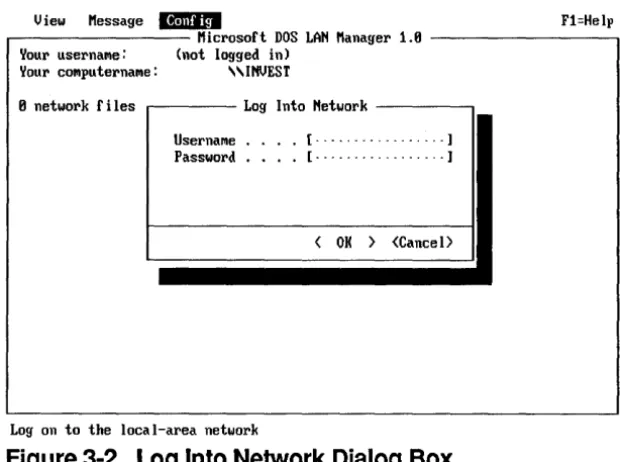
Config -> Logon 3-48 Log Into Network 3-49
Logging on to MS-DOS LAN Manager 3-50 Config -> Load Profile 3-51
Load Configuration 3-51 Loading a Profile 3-53 See Also 3-54 Config -> Save Profile 3-54
Saving Your Current Configuration 3-56 See Also 3-57
Config -> Change password 3-57
List of Figures
Figure 3-1 3-2 3-3 3-4 3-5 3-6 3-7 3-8 3-9 3-10 3-11 3-12 3-13 3-14 3-15 3-16 3-17 3-18 3-19 3-20 3-21 3-22 3-23 TitleLAN Manager Screen 3-3 Log Into Network Dialog Box 3-5 View Menu 3-6
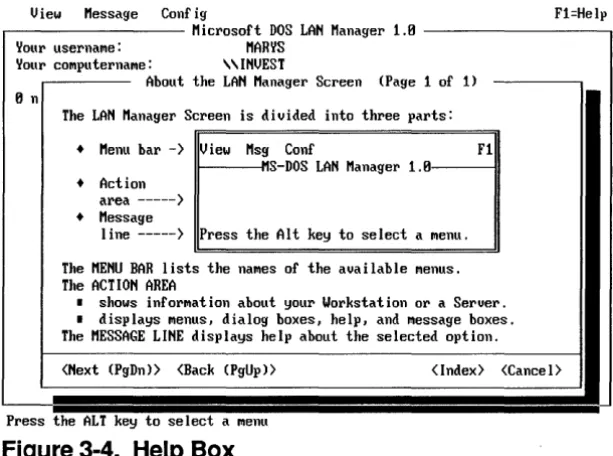
Using Help Dialog Box 3-7 Sample Dialog Box 3-8
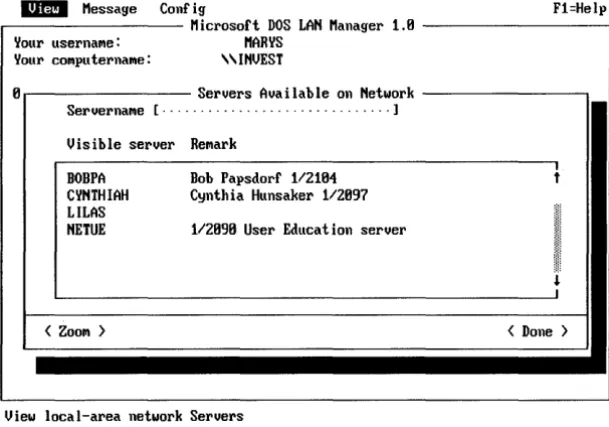
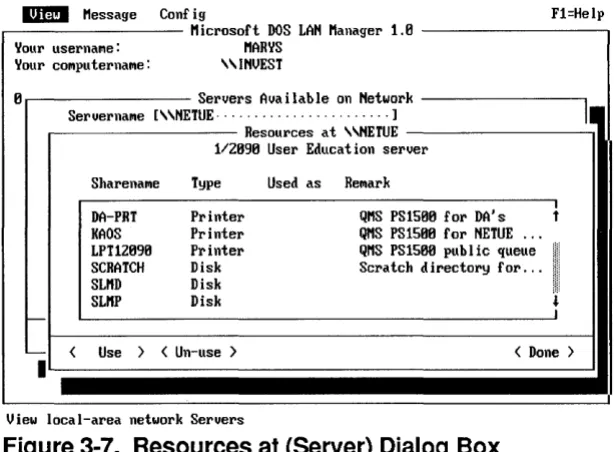
Servers Available on Network Dialog Box 3-13 Resources at (Server) Dialog Box 3-15
Use the Resource (Network Path) Dialog Box 3-18
Network Resources in Use at Your Workstation Dialog Box 3-21 Use a Network Resource Dialog Box 3-24
Accessing (Network Path) Dialog Box 3-27
Usage Information for a Network Resource Dialog Box 3-29 Show Print Queues For Dialog Box 3-31
Print Queues for (Server) Dialog Box 3-33 Printing Options for Job Dialog Box 3-36 Printing Options for Queue Dialog Box 3-38 Send a Message Dialog Box 3-41
Aliases for Messaging Dialog Box 3-44 Add an Alias Dialog Box 3-46
Log Into Network Dialog Box 3-49 Load Configuration Dialog Box 3-52 Save Configuration Dialog Box 3-55
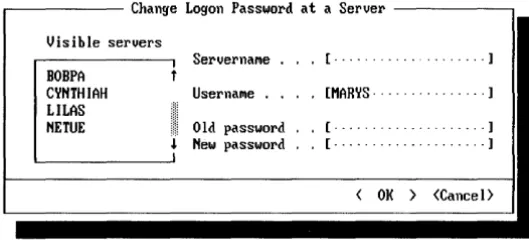
Change Logon Password at a Server Dialog Box 3-58
List of Tables
Table
2-1 2-2
Title
MS-DOS LAN Manager Basic Commands 2-11 MS-DOS LAN Manager Enhanced Commands 2-41
Preface
This 3+ Open MS-DOS LAN Manager User Reference describes individual commands and operations for both the Basic and Enhanced versions.
You should refer to this manual for help with specific tasks if you are using a netstation with 3+Open MS-DOS LAN Manager. A netstation is a computer linked to a local area network, using network resources but not offering its own resources to other computers.
• Have MS-DOS LAN Manager installed on your computer (see your system administrator if you have questions about this).
• Know if you are using the Basic or Enhanced version of MS-DOS LAN Manager.
• Be comfortable either typing MS-DOS LAN Manager commands at the MS-DOS prompt or, if you are using MS-DOS LAN Manager Enhanced, using the LAN Manager screen.
Contents of This Reference
The following list explains the chapters in this reference.
Chapter Contents
Chapter 1: AbOut MS-DOS
Features of MS-DOS LAN Manacfer and the differences between the Basic an Enhanced LAN Manager versions. This chapter also briefly explains how to
start and use 3+Open MS-DOS LAN Manager and how to get help.
Cha!I5er 2:
MS- OS LAN Manager
MS-DOS LAN Manager commands you can type at the MS-DOS prompt. The flrst section in this Command Reference chapter explains Basic commands, which can be
used with either Basic or Enhanced MS-DOS LAN Manager; the second section explains commands only available with the Enhanced version. The commands are listed alphabetically by section. Chapter 3:
LAN Manager Screen
LAN Manager screen, its menus, and dialog boxes. The reference is arranged in the order of the Reference menus as they appear across the menu bar. The
dialog boxes are presented in hierarchical order after their menus.
Appendix A: Error Messages
MS-DOS LAN Manager error messages and comments that m~ appear at the MS-DOS
prompt or in LA Manager screen message boxes.
Bold Courier typeface Input you enter.
Regular Courier typeface Screen text.
[Brackets] Nonalihabetic key names, such as [Enter , or command options.
Italics Variable command option names.
Notational Convention Examples
To show you how different types of text in this reference help you perform tasks with MS-DOS LAN Manager, this section gives you examples of usage with both MS-DOS LAN Manager commands and the LAN Manager screen.
Text Examples with Commands
MS-DOS LAN Manager commands are typed at the MS-DOS prompt. (The syntax for each command is detailed in Chapter 2: MS-DOS LAN Manager Command Reference.) The syntax defmitions in Chapter 2 include "bubble" diagrams which give you a definitive roadmap to follow to use each command and its options correctly.
Text Examples with the LAN Manager Screen
From the LAN Manager screen, you peiform tasks by selecting menus and menu items, which take you to dialog boxes. Dialog boxes have command buttons, text fields, and other features that let you accomplish a task easily.
To reach a dialog box, you must follow an access path, which begins with a menu and moves through a menu item to the dialog box. Arrows are used to show the progression through an access path. For example, the Use a Network Resource dialog box is reached through the View menu. Its access path is shown as:
View->This workstation->Add use
Each dialog box reference page in Chapter 3: LAN Manager Screen Reference shows the access path needed to reach the dialog box.
Procedural Conventions
Information you should enter is shown in blue. Terms shown in italics should be replaced with specific information. For example:
logon username password~
means that you type the command LOOON exactly as shown, and substitute specific information for the general terms shown in italics. In this example, you would substitute your own user name where the line shows the word
username,
and your own password where the line shows
password.
Press [Enter] at the end of the command.About MS-DOS LAN Manager
1
1-1
Chapter 1: About
MS-DOS
LAN Manager
3+Open MS-DOS LAN Manager lets you link your computer to a local area network and use shared resources such as disk drives and printers. Two versions of MS-DOS LAN Manager are available: Basic and Enhanced. Each is explained in this reference.
MS-DOS LAN Manager Basic
With MS-DOS LAN Manager Basic, you can:
• Keep your workgroup's data in a secure and centralized location.
• Add your personal computer to an existing MS-DOS or OS/2™ network.
• Read, revise, and create files on other computers.
• Use applications-such as Microsoft Word-with files on other computers.
• Use resources-like disks or printers-attached to servers.
• Display printer queues.
• Get on-line help.
MS-DOS LAN Manager Enhanced
With the advanced version of MS-DOS LAN Manager----called MS-DOS LAN Manager Enhanced-you can choose between typing commands at the MS-DOS prompt and using a full-screen interface. MS-DOS LAN Manager Enhanced gives you access to all of the features of MS-DOS LAN Manager Basic, plus several others. You can:
• Work with menus and dialog boxes on the LAN Manager screen instead of typing commands.
• Send and receive messages across the local area network with the Messenger and N etpopup services.
• Put together a customized set of connections----called a profile-so that you can connect to a number of frequently used resources with one command.
About MS-DOS LAN Manager
1
1-3
Startup and Security
Regardless of whether you are using the Basic or the Enhanced version, the fIrst step in using MS-DOS LAN Manager is to start the software on your computer. To
do this, you need to start the Workstation service, which links your computer to the
local area network as a netstation. The 3+Open MS-DOS LAN Manager setup program puts the following line in your AUTOEXEC.BAT startup flie to perform startup:
net start workstation
You may also start the Workstation service by typing this command at the MS-DOS prompt. This command identifIes your computer to the local area network so that you can perform networking tasks using either MS-DOS LAN Manager commands or, if you have the Enhanced version, the LAN Manager screen. See also Chapter
5: Startup and Security in the 3 + Open MS-DOS LAN Manager User Guide for a
discussion of starting MS-DOS LAN Manager and commands you can include in
AUTOEXEC.BAT.
If you are using MS-DOS LAN Manager Enhanced, you can also start two other
services on your netstation: the Messenger service and the Netpopup service. For
more information about these services, see the NET START MESSENGER and NET START NETPOPUP command reference pages in Chapter 2: MS-DOS LAN Manager Command Reference.
Logging On to the Local Area Network
Once you have identifIed your computer to the local area network, the next step is to identify yourself. To do this, you must log on using your user name and logon
password. The NETSETUP program installed the necessary commands in your
For example, Mary Sullivan's user name is marys, and her logon password is wanderer. Her netstation's AUTOEXEC.BA T fue contains the following
command to log on to the local area network:
logon marys wanderer
Once you start the Workstation service and log on to the local area network, you are ready to use local area network resources and perfonn other tasks with MS-DOS LAN Manager.
If your password or user name change, you can edit the LOGON line in your AUTOEXEC.BAT fue accordingly. Refer to the LOGON command in Chapter 2: MS-DOS LAN Manager Command Reference for more infonnation.
Automatic Startup
MS-DOS LAN Manager perfonns some logon tasks for you automatically. For instance, when you request use of a server, MS-DOS LAN Manager remembers your user name and password, and automatically sends them along for verification before logging you on to the server. See Chapter 2: MS-DOS LAN Manager Command Reference and Chapter 3: LAN Manager Screen Reference for more details on logging on.
Using MS-DOS LAN Manager
Once you have started the Workstation service, you are ready to perfonn local area network tasks. If you are using MS-DOS LAN Manager Enhanced, there are two ways to perfonn tasks:
• By typing MS-DOS LAN Manager commands at the MS-DOS prompt.
About MS-DOS
1
LAN Manager1-5
MS-DOS LAN Manager Commands
If you are using MS-DOS LAN Manager Basic, typing commands at the MS-DOS
prompt is the only way you can use the system. Even if you have the Enhanced version, you may prefer to type commands instead of using the menus and dialog boxes on the LAN Manager screen. It can be the quicker alternative if you are well acquainted with the commands and their options, and it lets you perform certain tasks-such as moving files-that cannot be done with the LAN Manager screen.
You can use many commands regardless of whether you have the Basic or the Enhanced version of MS-DOS LAN Manager. However, some commands are only available with the Enhanced version. For more information about MS-DOS LAN Manager commands and how to use them, see Chapter 2: MS-DOS LAN Manager Command Reference. The chapter is divided into an introduction and two sections. The fIrst section explains Basic commands, which are available to all users, and the second section explains Enhanced commands.
See also the 3+0pen MS-DOS LAN Manager User Guide for more information
about performing local area network tasks using MS-DOS LAN Manager
commands. If you are already familiar with the 3Com 3+ system, you will notice that many MS-DOS LAN Manager commands are similar.
To automate local area network tasks, you can place MS-DOS LAN Manager commands in batch files, such as your AUTOEXEC.BA T file.
LAN Manager Screen
The LAN Manager screen is a windowed user interface that organizes MS-DOS LAN Manager commands into a system of menus. It is available only to users with MS-DOS LAN Manager Enhanced.
Menus and dialog boxes provide you with various options from which you can choose without having to remember specific commands. Many people fmd that performing tasks using the LAN Manager screen is easier and more convenient than typing commands. For more information about using the LAN Manager screen,
see the 3+0pen MS-DOS LAN Manager User Guide.
Getting More Information
MS-DOS LAN Manager provides more information when you need it by displaying information or error messages and providing on-line help for both MS-DOS LAN Manager commands and the LAN Manager screen.
On-Line Help
Whether you are performing local area network tasks using MS-DOS LAN Manager commands or the LAN Manager screen, you can get additional information to help you as you work.
The NET HELP Command
MS-DOS LAN Manager provides a special help command to assist you in using MS-DOS LAN Manager commands (commands you type at the MS-DOS prompt or use in a batch fue). To get information about using a particular MS-DOS LAN Manager command, type NET HELP, followed by the command name. If the command begins with the word NET, type NET HELP followed only by the second word of the command. For example, if you want more information about using the NET USE command, type:
net help use
MS-DOS LAN Manager displays the following information:
The syntax of this command is:
NET USE [devicename I \ \computername\ sharename]
NET USE [devicename] \\computername\sharename [password] NET USE {devicename I \\computername\sharename} /DELETE
The NET USE command connects a netstation's local devicename to a server's shared resource.
About MS-DOS
1
LAN Manager1-7
You can also type NET HELP by itself. The following list appears to show you more about the help command:
The syntax of this command is: NET HELP [topic]
Help is available on: NET
Help on the following NET commands is available: ACCESS
HELP MOVE PRINT USE VIEW
CONTINUE LOAD PASSWORD SEND
COpy LOGOFF LOGON START
Help is also available on these special topics: NAMES SYNTAX
Help With the LAN Manager Screen
If you are using MS-DOS LAN Manager Enhanced and you are working in the LAN Manager screen, you can press [FI] to get context-sensitive help.
Error Messages
If you type an MS-DOS LAN Manager command with an option that MS-DOS LAN Manager does not recognize, you will see an error message in this form:
NETiiii: Message text.
#### is a four-digit number that uniquely identifies the MS-DOS LAN Manager
message.
Message text
is a short message that describes the error. For a complete listing of MS-DOS LAN Manager error messages that may appear at the MS-DOS prompt, see Appendix A: Error Messages.MS-DOS LAN
2
Manager CommandReference
2-1
Chapter 2: MS-DOS LAN Manager
Command Reference
3+0pen MS-DOS LAN Manager lets you perform LAN Manager operations by typing commands at the MS-DOS prompt. If you are using MS-DOS LAN Manager Basic, this is the only way you can operate the system.
If you have the Enhanced version of MS-DOS LAN Manager, you can perform most of the same operations using the LAN Manager screen, described in Chapter 3: LAN Manager Screen Reference. The option of typing MS-DOS LAN Manager commands is useful if:
• You are familiar with the 3Com 3+ command-line interfaces.
• You are an expert user who feels more comfortable typing commands than using menus in a full-screen interface (LAN Manager screen).
How to Use This Chapter
This chapter is divided into three major sections:
• "U sing MS-DOS LAN Manger Commands" provides general information about how to use all MS-DOS LAN Manager commands. You should read this section regardless of whether you use MS-DOS LAN Manager Basic or MS-DOS LAN Manager Enhanced.
• "Basic Commands" describes the commands that are part of MS-DOS LAN Manager Basic. Users of the Enhanced version will also use this section, because MS-DOS LAN Manager Enhanced includes all the Basic commands.
• "Enhanced Commands" describes the commands which are part of MS-DOS LAN Manager Enhanced, in addition to the commands included in Basic. Only users of the Enhanced version need to use this section.
MS-DOS LAN
2
Manager CommandReference
2-3
Using MS-DOS LAN Manager Commands
You should know a few rules and guidelines to help you best use the MS-DOS LAN Manager commands described in this chapter.
This section describes abbreviations you can use in some commands, and shows how to use passwords. Commands that depend on others-for example,
commands that must be run before other commands-are described, along with prompts that will help you remember these dependencies. MS-DOS LAN Manager commands may be used in batch files; this section provides some useful guidance for doing so.
Abbreviations
You may use abbreviations when typing MS-DOS LAN Manager commands. Although the command reference pages in this chapter spell out all command names, option names, and service names, MS-DOS LAN Manager allows you to abbreviate many of these for your convenience.
Service Names
MS-DOS LAN Manager allows you to use abbreviations and synonyms for the following MS-DOS LAN Manager services:
Service Abbreviations, synonyms
Option Names
MS-DOS LAN Manager also allows you to type any unambiguous abbreviation for a command option. This means you must type enough letters in the option's name to distinguish the option you choose from other options for that command.
For example, if you are using a command whose possible options are Iread and
Isend,
you may typeIr
instead ofIre
ad, andIs
instead ofIsend.
However, if the command's options were Iread and Iredo, MS-DOS LAN Manager would not accept /r, but would accept either Irea for Iread, or Ired for Iredo.The command reference pages in this chapter list command options in alphabetical order, making it easier for you to compare similar option names.
Commands That Start Services Automatically
Some MS-DOS LAN Manager commands will not work unless you have started a service or performed another command flrst. For example, you must start the Workstation service before you can display the LAN Manager screen.
In many cases, MS-DOS LAN Manager automatically prompts you to perform the prerequisite task.
Starting the Workstation Service Automatically
The Workstation service must be started before any of the following commands can run:
NET
NET
NAMENET USE
NET LOAD
NET PRINT
NET VIEW
MS-DOS LAN
2
Manager CommandReference
2-5
When you type one of these commands, MS-DOS LAN Manager checks to see if
the Workstation service is running. If it is not, MS-DOS LAN Manager displays
the following prompt:
The WORKSTATION is not started. Is i t OK to start it? (YIN) [Y]:
If you type Y (or press [Return], since Y is the default response noted in brackets),
MS-DOS LAN Manager first starts the Workstation service, then runs the command you typed. If you type N, MS-DOS LAN Manager does not start the Workstation service or run the command you typed.
Starting the Messenger Service Automatically
The Messenger service must be running before you can use the NET SEND
command. When you type NET SEND, MS-DOS LAN Manager checks to see if
that service is running. If it is not, MS-DOS LAN Manager displays the following
prompt:
The MESSENGER is not started. Is i t OK to start it? (YIN) [Y]:
If you type Y, MS-DOS LAN Manager starts the Messenger service, then runs the command you typed. If you type N, MS-DOS LAN Manager will not run the command you typed, and the Messenger service is not started.
Logging On Automatically
When you type a command that requires you to be logged on to the local area network first, MS-DOS LAN Manager Enhanced (but not MS-DOS LAN Manager Basic) checks to see if you are logged on. If you are, MS-DOS LAN Manager Enhanced runs the command you typed. If you are not logged on, MS-DOS LAN Manager offers to log you on to the local area network by reading your user name from the LANMAN.INI file on your computer:
Automatic logon can log you on to the 3+0pen network only; it cannot log you on to a 3+ network, if you are working in a mixed-network environment. Refer to the LOGON command later in this chapter for more information.
You must be logged on to the local area network before you can use any of the following four commands:
NET NET USE
NET ADMIN /COMMAND NET VIEW
If you are using MS-DOS Manager Enhanced, using these commands before you are logged on will cause MS-DOS LAN Manager to automatically log you on. If
you are using MS-DOS LAN Manager Basic, you must use the LOGON command before you use these four commands.
Using Passwords with Commands
Some commands require a password as an option. There are two ways for you to provide a password.
Typing a Password
The fIrst way to provide a password is to type it on the same line as the command itself (remember, your password can be up to 14 characters long). For example, if Mary, whose password is wanderer, wants to use a shared resource plotter on a
server admin that requires a password, she types:
MS-DOS LAN Manager Command
Reference
2
2-7
Using the * Option
You can also ask MS-DOS LAN Manager to prompt you for your password, by replacing the password with an asterisk (*) when you type the command. For example, Mary could type the following command to connect to the shared resource
plotter:
net use 1ptl: \\admin\p1otter
*
MS-DOS LAN Manager displays the following prompt:
Type the password for \\ADMIN\PLOTTER:
When you type a password at this prompt, the password is not displayed as you type. This allows you to keep your password confidential. Although this option may prove a little less convenient than typing your command and password together, it provides added security.
You can use the asterisk option with the following commands to cause MS-DOS LAN Manager to prompt you for a password:
LOGON
NET PASSWORD
NET LOGON NET USE
Depending on the command you type, MS-DOS LAN Manager may also prompt you for other pertinent information, such as your user name.
Using
Iyes
and
Ino
Some commands cause MS-DOS LAN Manager to prompt you for a decision. For example, if you use the LOGOFF command to log off from the local area network, MS-DOS LAN Manager displays a prompt similar to the following:
You have the following remote connections:
LPTl
Continuing will cancel the connections.
Do you want to continue this operation? (YIN) [N]:
You can use the
Iyes
andIno
options with any MS-DOS LAN Manager command toanticipate and respond to a prompt like the one shown. This expedites the function, because when MS-DOS LAN Manager reads one of these command options, it
does not pause to display the corresponding prompt. Instead, the
Iyes
orIno
optionis automatically accepted as your response.
For example, if you use the LOGOFF command and know that you want to respond to the prompt with a Y, you can type the following line:
logoff /yes
The
Iyes
andIno
options can also be added to commands in batch fues to keep functions from being interrupted by MS-DOS LAN Manager prompts. Use this feature with caution-MS-DOS LAN Manager generally prompts you like this for safety, to give you a chance to verify that you want to take an action that has important consequences (like logging off).Command Reference Pages
Each command reference page in this chapter includes the following information.
Command Name and Purpose
The top of each reference page shows the name of the MS-DOS LAN Manager command, followed by a brief description of what the command does. Generally, this description includes information displayed with the command, and the
MS-DOS LAN
2
Manager CommandReference
2-9
~b~~agrams
illustrate command syntax in this manual.( NET USE)
drive:
o
A bold, rounded-comer rectangle surrounds the command name. The command name is in all capital letters and bold type.
A rectangle surrounds variables. The variable is in lowercase
italic letters. This shape says "substitute something here."
An oval surrounds arguments that you type exactly as they appear in this manual.
A circle surrounds punctuation.
Arrows indicate direction.
A vertical line indicates a return.
Each element must be separated from the next by a space.
To read a bubble diagram, start at the command name, in the bold, rounded-comer rectangle. You may follow any line through the command, as long as you follow the direction of the arrows (imagine you are driving a car through a series of freeway interchanges). For example, when you come to the fIrst decision point in the NET USE diagram shown next, you could choose to continue to the end
without entering any further parameters. Or, you could take one of the branches
NET USE ~~---~~--~
devicename I---_~
...
I\ \ computername\sharename ....-...,
Following the bubble diagrams are explanations of all the options you can use with each command. Most option names can be abbreviated.
Comments
The comments section describes how to use the command, when to use it, and why. This section describes the command's options and explains which options
can be used in combination. The comments section may also contain warnings or
suggestions about using the command.
ExamDle
Exampfes show how the command is used. In the 3+0pen MS-DOS IAN
Manager User Guide, you were introduced to employees of a fictitious company,
MacroCorp, Inc. The examples in this chapter also use the names of MacroCorp employees.
See Also
Basic Commands
MS-DOS LAN
2
Manager Command Reference
2-11
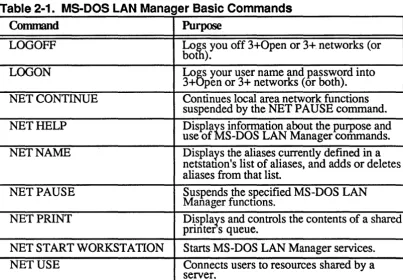
The following table lists the commands used with MS-DOS LAN Manager Basic. These commands are available to all users of MS-DOS LAN Manager, either Basic or Enhanced. Each command is discussed in detail on its own reference page.
[image:38.543.66.470.288.568.2]In the next section of this chapter, Enhanced Commands, commands are listed that are available only to users with MS-DOS LAN Manager Enhanced, which includes the LAN Manager screen. If you are uncertain which version of MS-DOS LAN Manager you are using, check with your network administrator.
Table 2-1. MS-DOS LAN Manager Basic Commands
Command Purpose
LOGOFF Lo~ you off 3+0pen or 3+ networks (or bot ).
LOGON Loe: your user name and password into 3+ pen or 3+ networks (or both). NET CONTINUE Continues local area network functions
suspended by the NET PAUSE command. NET HELP Displa~ information about the purpose and
use of S-DOS LAN Manager commands. NET NAME Displays the aliases currently defined in a
netstauon's list of aliases, and adds or deletes aliases from that list.
NET PAUSE Suspends the specified MS-DOS LAN Manager functIons.
NET PRINT D~splays and controls the contents of a shared pnnter s queue.
NET START WORKSTATION Starts MS-DOS LAN Manager services. NET USE Connects users to resources shared by a
LOGOFF
This command ends a computer's connection with the local area network and logs a user name off from the local area network. LOGOFF can be used to log off from both 3+Open and 3+ networks. MS-DOS LAN Manager Enhanced has a similar command, NET LOGOFF, which is used to log off only the 3+0pen network.
Syntax
LOGOFF
/3plus /30pen
Comments
The LOGOFF command is used to end a user's local area network session. Since only one user per netstation can be logged on to the local area network at a time, logging off one user name frees the netstation for use by someone else.
LOGOFF with no options logs you off both the 3+0pen and 3+ networks. A message is displayed, confirming each network logged off:
username successfully logged off the 3+0pen network username successfully logged off the 3+Name service
MS-DOS LAN
2
Manager CommandReference
2-13
If you are actively using any shared resources (for example, your current drive is a redirected drive), you must stop using those resources before you can log off. If
you have any connections to a server's shared resources when you use the LOGOFF command, MS-DOS LAN Manager warns you that logging off deletes those connections. Messages similar to the following will be displayed:
NET2404: The device is being accessed by an active process You have the following remote connections:
H:
I:
Continuing will cancel the connections.
Do you want to continue this operation? (YIN) [N]:
If you respond with Y, your current connections will be broken, and you will see messages confmning that you have been logged off.
Once the LOGOFF command has been completed, you no longer have active user name, password, or local area network sessions, and you cannot receive messages sent to your user name.
Example
At the end of the day, to log off from the local area network, Jenny types:
logoff
See Also
For more information about this command, see:
• The LOGON command in this chapter, for information about logging on.
LOGON
This command sets the user name and password for your netstation. The LOGON command logs you on to either 3+Open or 3+ networks, or both. Do not confuse LOOON with NET LOGON (available in MS-DOS LAN Manager Enhanced), which logs you on to the 3+0pen network only.
LOGON is quite versatile. The three syntax diagrams below show three different ways to use LOGON.
Syntax
1. Log on to both networks.
2. Log on to 3+Open network only.
3+0pen password
3+
MS-DOS LAN
2
Manager CommandReference
2-15
3. Log on to 3+ network with a three-part name.
Option Abbreviation Purpose
usernome Specifies the default user name for the local
netstation (up to 20 characters long).
*
You can type an asterisk instead of your E:assword to cause MS-DOS LAN Managernhanced to prompt you for your password.
3 + Open
password Password to be used on 3+0pen network.
3+ Password to be used on 3+ network.
password
1'lf1J11e: The puee-part name recognized by the 3+Name
domain:org service.
options may be any or all of the following:
Option Abbreviation Pur~
/no_pro /np Causes LOGON to not load profile files for
either the 3+0pen network grnTLOGON.PRO) or the 3+Name service (PR FILE.SYS).
/30pen /30 Forces LOGON to log on to 3+Open only.
/3plus /3p, /3+ Forces LOGON to log on to 3+ only.
/yes /y Skips confinnation prompts as if you had
answered yes.
!home_server= !hs= Sets environment variable used by redirector
computername computername to computername, to specify the home server
for Start volume users and netstation clock.
/no_time /nt Specifies that net station clock will not be set
from 3+Name server or home server.
/help help, I?, ? Displays a help screen for the LOGON
command.
/security= /SE= Sets an environment variable used for
user or share user or share establishing the initial Start volume connection.
Comments
The LOOON command is usually put into your netstation's AUTOEXEC.BAT file by the NETSETUP program. This way, logging on is handled each time you start your netstation. LOGON establishes your user name and password on the
MS-DOS LAN
2
Manager CommandReference
2-17
General Usage
When you use the LOGON command with no options, you are prompted for a user name and password. Similarly, if you type the LOOON command with just a user name and no password, it is assumed that no password is required.
Hyou type an asterisk after the user name (in place of either the 3+Open or 3+ password, or both), then you are prompted to supply a password:
Enter your 3+0pen password:
Enter your 3+Name service password:
Characters you enter will not be displayed, thereby keeping your password secure.
When you enter just one user name and one password, they are used to attempt to log on to the 3+0pen network and to the 3+Name service. If LOGON is successful in logging on to the 3+0pen network, it displays the message:
username successfully logged on the 3+0pen network
(username
is your user name).When logging on to the 3+Name service, the user name you supply LOGON is treated either as an alias or as a user name under the default Name service domain and organization. If 3+Name service logon is successful, you will see the message:
If your netstation is already logged on under a different user name and has remote connections, LOGON flrst displays a prompt similar to this:
You have the following remote connections: H:
I:
Continuing will cancel the connections.
Do you want to continue this operation? (yiN):
If you answer yes (by pressing Y), LOGON cancels these connections. In essence, your netstation will be logged off before it is logged on again. However, if any of your network connections are currently in use (for example, if your current drive, as shown by the MS-DOS prompt, is one of your redirected drives), LOGON displays the message:
NET2404: The device is being accessed by an active process
LOGON cannot continue in this case, and stops.
The LOGON command also tries to add the specifled user name as an alias for the netstation. If the user name cannot be added as an alias, MS-DOS LAN Manager Enhanced logs you on to the local area network, but displays a warning message.
Logging On to Mixed Networks
A mixed network is one in which there are both 3+0pen and 3+ servers, and which includes the 3+Name service. LOGON is designed to take care of logging in to both networks.
If your network does not provide the 3+Name service, LOGON will detect this automatically and log you on to the 3+Open network only.
It is simplest when your user name and password are both the same for both
networks. For example, if your user name is marys, and your password is
wanderer, for both networks, use the LOGON command like this:
MS-DOS LAN
2
Manager CommandReference
2-19
If you have the same user name but different passwords on both networks, you can
put both passwords in the command. If your 3+ password is traveler, then the
LOGON command would look like:
logon marys wanderer traveler
In this example, marys is your user name on both networks, wanderer is your
3+0pen password, and traveler is your 3+Name service password.
LOGON can also take 3+Name service logon infonnation from the name= and password= lines in your netstation's PROFILE.SYS file. PROFILE.SYS must be located in your current directory. This may be convenient if you use a three-part name for the 3+ Name service, or if you use different user names and/or passwords on 3+Open and 3+Name service. This will happen automatically unless you append the option /no-pro to the command, like this:
logon marys wanderer /no-pro
You can also run LOGON twice: once for each network. This also allows you to use three-part names or different user names on both networks. The commands might look like this:
logon marys wanderer /30pen
logon msmith:finance:macrocorp /pass=traveler /3plus
The options /30pen and /3plus determine which network LOGON will log you on to.
If your user name is registered with the 3+Name service, but your 3+0pen password is not correct as a 3+ password, you will see the following message:
Enter 3+Name service password:
Enter the correct password at this prompt. LOGON then gives you the opportunity to change your 3+Name service password to match your 3+0pen password:
If you press Y, you will be asked to type the 3+0pen password again (this is done partly for security, and partly to ensure you correctly remember the 3+Open password):
Enter your 3+0pen password:
If the two passwords match, LOGON will change your password in the 3+Name service and confirm with the following message:
Password successfully changed on the 3+Name service.
If your 3+0pen and 3+ passwords are different, you should consider making them the same. This will simplify use of the network for both you and your network administrator.
Logging On to the 3+0pen Network
The /30pen (/30) option directs LOGON to log on only to the 3+0pen network. For example:
1ogon marys wanderer /30pen
You might want to use this form of the LOGON command if you are currently logged on to both networks, and you wish to change only your 3+0pen logon.
MS-DOS LAN
2
Manager CommandReference
2-21
Logging On to the 3+Name Service
The /3plus (J3p, /3+) option directs LOOON to log on only to the 3+Name service. For example:
1ogon msmith trave1er /3p1us
Like logging on to only the 3+0pen network, this fonn of the LOGON command is useful to change your logon to 3+ while not changing your logon to 3+Open.
IT you wish to use a tbree-part name for your 3+ logon you must use a specific fonn of the LOGON command:
1ogon name: domain: org /pass=password /3p1us
Here
name:domain:org
is your three-part name. The option /pass= is required because part names can contain spaces; /pass= tells LOGON where the part name ends and the password begins. Note also that you cannot mix a three-part name and a 3+0pen user name. You must either use LOGON twice, as described earlier, or put your 3+Name service logon infonnation in the PROFILE.SYS file.Changing Your Password
You can use LOGON to change the password currently in effect. You might want to do this if you have separate passwords for different resources on the network, or different privilege levels. Note that this is a temporary change; the next time you start your netstation, the LOOON command(s) in AUTOEXEC.BAT will use your original password. If you want to change your password permanently, edit the LOGON command in AUTOEXEC.BAT.
To change only your 3+0pen password, type the LOGON command like this:
1ogon username password /30pen
In this case,
username
is youroriginal
user name, andpassword
is thenew
Automatic Logon
Certain MS-DOS LAN Manager commands require you to be logged on to the network before they can be used, as described earlier in this chapter, in the section "Logging On Automatically." These commands automatically run the NET LOGON command before they proceed with their own functions. Remember that NET LOGON does not provide the full functionality of the LOGON command on mixed networks; if your network requires you to log on to both the 3+Open network and the 3+Name service, be sure you have used LOGON before you attempt any of the commands that require you to be logged on to the network.
Example
For Jenny to establish her user name,jennyt, and password, babaloo, as the
defaults on a netstation, she types:
logon jennyt babaloo
If Jenny's network contains both 3+0pen servers and the 3+Name service, she sees the following prompts as confirmation:
jennyt was successfully logged on to the 3+0pen network
jennyt:finance:macrocorp was successfully logged on to the 3+Name service.
The second line of the message shows that Jenny's user name, jennyt, was
translated by the 3+Name service into a three-part name, containing her name, domain (macrocorp), and organization (finance).
See Also
For more information about this command, see:
• The NET LOOON command, for information about MS-DOS LAN Manager Enhanced's 3+0pen logon capabilities.
• The Config->Logon menu in Chapter 3: LAN Manager Screen Reference, for information about the Log Into Network dialog box.
MS-DOS LAN
2
Manager CommandReference
2-23
NET CONTINUE
This command continues MS-DOS LAN Manager services suspended by the NET PAUSE command.
Syntax
NET CONTINUE
Option Purpose
workstation Continues local area network connections to all parallel (LPT)
ports and disk drives.
prdr Continues local area network connections to printer ports only.
drdr Continues local area network connections to disk drives only_
Comments
The NET CONTINUE command reinstates services or resources that were paused using the NET PAUSE command. Specifically, you can pause and continue the Workstation service, or pause and continue connections to parallel (LPT) ports or disk drives only.
When you continue local area network connections to network printers, any local connections to parallel (LPT) ports are ignored, and connections to local area network resources are restored.
For example, suppose you have a dot-matrix printer connected to LPTI of your netstation. You may choose to redirect LPTI to a laser printer on the local area network, then pause your local area network connections when you want to use the dot-matrix printer. When you are ready to use the laser printer again, the NET CONTINUE command causes your netstation to redirect LPTI to the network laser printer and ignore the local dot-matrix printer connection.
Example
Mike Greenbaum paused the Workstation service on his computer earlier in the day. Now he wants to use local area network resources, so he continues the Netstation service by typing NET CONTINUE WORKSTATION.
See
Also
For more information about this command, see:
• The NET PAUSE command in this chapter, for information about pausing MS-DOS LAN Manager services.
NET HELP
MS-DOS LAN Manager Command
Reference
2
2-25
This command provides infonnation at the MS-DOS prompt about how to use MS-DOS LAN Manager Basic commands.
Syntax
( NET HELP)
1: ..
~
I
'1
commandr'
command may be one of the following MS-DOS LAN Manager Basic commands:
CONTINUE
NAME
START
Comments
When used without options, the NET HELP command displays a list of all
MS-DOS LAN Manager commands. You can type NET HELP, followed only by the second word of the MS-DOS LAN Manager command. For example, if you want help in using the NET USE command, type:
net help use
In response, NET HELP displays information about the NET USE command:
The syntax of this command is:
NET USE [devicename I \\computername\sharename]
NET USE [devicename] \\computername\sharename [password] NET USE {devicename I \\computername\sharename} /DELETE
The NET USE command connects a netstation's local devicename to a server's shared resource.
See the MS-DOS LAN Manager User Reference for more information about this command.
NOTE: You can also see help infonnation for an MS-DOS LAN Manager command by typing the command in the following fonn:
command /help
For example, you could see infonnation about the NET LOAD command by typing either of the following commands:
MS-DOS LAN Manager Command
Reference
2
2-27
You can type a command in the following form to see infonnation about syntax for that command only:
command /?
For example, if you were interested in seeing only what the proper syntax for the NET PRINT command is, you could type:
net print /?
Example
To get lielp with options and syntax associated with the NET PRINT command, Mike types:
net help print
See Also
For more infonnation about the NET HELP command, see:
NET NAME
Under MS-DOS LAN Manager Basic, NET NAME displays your netstation's user name.
Syntax
(NET NAME
H
Comments
NET NAME displays your netstation's user name when you are running MS-DOS LAN Manager Basic. When you are running MS-DOS LAN Manager Enhanced, this command displays more information about aliases at your netstation and allows you to change them.
Example
Jimmy Wilson has forgotten his user name. To find out, he types:
net name
NET NAME displays his user name:
Name JIMMYW
The command completed successfully.
See Also
For more infonnation about this command, see:
NET PAUSE
MS-DOS LAN
2
Manager Command Reference
2-29
This command suspends an MS-DOS LAN Manager service or connection to a
shared resource, and frees up memory used by a service.
Syntax
NET PAUSE
Option Purpose
workstation Pauses local area network connections to all parallel (LPT) ports
and disk drives.
prdr Pauses local area network connections to printer ports only.
Comments
When you pause the Workstation service, you temporarily suspend connections from your netstation to network printers and disk drives, and free memory on your computer for use by other programs you want to run. When you pause a
connection to a shared resource, you temporarily suspend the connection between your netstation and the shared resource.
For example, you might want to pause the connection between a shared printer and your netstation's LPTI port if you have connected a printer to that port temporarily.
To restore a paused resource or service, use the NET CONTINUE command.
Example
To pause the connection between a shared printer and his netstation, Ben types:
net pause workstation
When Ben is ready to resume this local area network connection, he types:
net continue workstation
See
Also
For more information about this command, see:
NET PRINT
MS-DOS LAN
2
Manager Command Reference
2-31
This command displays and controls the contents of a shared printer queue.
Syntax
NET PRINT ~---'~---~~---'~~r----'~--~~
\ \computername
1---'.
\ \ computername \sharename
\\computername\devicename
Option Purpose
\\.computername Specifies the server sharing the printer queue.
sharename Specifies the shared printer queue.
devicename Specifies the local print device connected to the queue.
job# Specifies the identification number assigned to a file in a
queue.
/hold Keeps a print job from printing. Print jobs held in the queue with. the /hold option stay in the queue and are not printed until released WIth the /release option.
/release Releases a held job from the queue.
Comments
When used with the \\.computername option, the NET PRINT command displays
infonnation about a specific printer queue. For example, the contents of a printer
queue in a MacroCorp server \\printl might be displayed as follows:
Printer Queues at Name
FAST PRT Queue JACKST
JENNYT JENNYT
\\PRINTI Job# 3 jobs
1
3
4
Size
2509 75 75
Status
*Queue Active* Printing on LPTI Waiting
Waiting PRT Queue The command completed successfully.
This display lists:
Column
Contents
Name Sharename of the printer queue and the user name of the owner for
each job sent to the queue.
Job# Identification number of each print job.
Size Size in bytes of each print job.
Status Status of each print job (Printing, Paused, Error) or Spooling), or
MS-DOS LAN Manager Command
Reference
2
2-33
When used with the computer name and sharename of a queue, or with the
redirected device name, the NET PRINT command displays only information about the specified queue. This display includes the status of the queue itself and a list of the jobs in the queue, including the size and status of each job. Print jobs for printers controlled by MS OS/2 LAN Manager servers are listed under a single heading, as if they consisted of one large printer queue.
The status of a printer queue can be OK, Held, Held until, Pending delete, or Error. The status of a print job can be Spooling, Held, Printing on (device), Held on (device), Out of paper on (device), Error on (device), Offline on (device), or Waiting.
Print jobs to be held or released (with the !hold and /release options) can be
specified either by the device name, or by the computer name of the server plus the sharename of the queue. For example, if your netstation's LPTI device name is redirected to a queue \\mis\print, any of the following commands will hold a job
(identification number 24):
net print l.pt2 24 /hol.d
Example
Realizing that he sent the wrong monthly budget to a shared printer queue laser on
the print1 server, Jack wants to delete his print request. First, he types the
following command to see what identification number is assigned to his print request:
net print \\printl\~aser
The following display appears:
Print Queues at \\PRINTl Name
LASER Queue BENS
JACKST
Job# 2 jobs 6
7
Size
2527 3074
Status
*Queue Active* Printing on COMl Waiting
He sees that his is request number 7. Next, Jack deletes his print request by typing:
net print \\printl\laser 7 /delete
See Also
For more information about this command, see:
MS-DOS LAN
2
Manager CommandReference
2-35
NET START WORKSTATION
This command starts the MS-DOS LAN Manager Workstation service.
Syntax
(NET START WORKSTATION
H
Comments
The MS-DOS LAN Manager Basic version of the NET START COMMAND has no options on its command line, unlike the Enhanced version, described later in this chapter. NET START WORKSTATION is included in your netstation's
AUTOEXEC.BAT flie by the NETSETUP program to start the Workstation service automatically each time you start your netstation. If the command has been
removed from your AUTOEXEC.BAT file, you can type it at the MS-DOS prompt.
Example
John has removed the NET START WORKSTATION command from his AUTOEXEC.BA T file. When he arrives at work in the morning, he turns on his computer and types the following command to start the Workstation service:
net start workstation
See
Also
For more information about this command, see:
NET USE
This command redirects a netstation's local device name to a server's shared resource.
Syntax
1. Making a connection
NET USE devicename \ \computername\sharename
1ooIr---...
2. Deleting a connection
( NET USE)-1 devicename
J-C:::
/delete:>-4
3. Getting information about connections
NET USE
devicename
I - - - -__
~..,~~-Option devicename \\computername \sharename password Idelete
Comments
MS-DOS LAN
2
Manager Command Reference
2-37
Purpose
S~cifies the name of thed:arallel port (for example, LPTl) or
dIsk drive (for example, :) you are using locally to identify a shared printer or directory.
Specifies the server controlling the shared resource. Specifies the shared resource.
For servers with share-level security, this specifies the password assigned to the shared resource. For servers with user-level security, this specifies the user's password to the server controlling the requested resource, if it is different from the password set with the LOGON command. You can &be an asterisk (*) instead of your password to cause
MS-S LAN Manager Basic to prompt you for your password. Disconnects a local area network connection.
When used without options, the NET USE command lists the netstation's
connections. The display lists the status, associated device, and sharename of each connection. For example:
Status Local name
DISCONNECTED G:
OK M:
ERROR LPTl
Remote name
\\GENERAL\C \\MIS\SCRATCH \\PRINT1\LASER
When used with just the device name or just the server's computer name and sharename, the NET USE command displays infonnation about a specific connection. For example:
net use \\admsvc\requests Local name R:
Remote name \\ADMSVC\REQUESTS
Type Disk
Status OK
Open count 1
Use count 1
The command completed successfully.
This display shows:
Field Contents
Local name The device name of the device connected to the shared resource. Remote name The sharename of the shared resource.
Type The type of shared resource being used: Disk or Printer. Status The status of the connection: OK, Error, or Disconnected. Open count The number of times a fue was opened via this connection. Use count The number of connections you have to the shared resource.
If you type the NET USE command before you log on to the local area network, MS-DOS LAN Manager prompts you to log on. (This is because MS-DOS LAN Manager must validate your user name and password before allowing you access to shared resources.)
MS-DOS LAN Manager Command
Reference
2
2-39
A connection listed as disconnected means that a server ended your session due to inactivity. In most cases, MS-DOS LAN Manager automatically reestablishes this connection the next time you try to use the resource. You do not have to retype the NET USE command to reestablish the connection.
Example
.
To connect her netstation's E: device name to a shared directory with the sharename
letters controlled by the general server, Debbie types:
net use e: \\general\letters
Later, Debbie wishes to connect her netstation's D: device name to a shared
directory with the sharename drY _c, which shares the entire contents of drive Con
the general server. drY _c requires the password goddess. Debbie types:
net use d: \\general\drv_c goddess
To connect her netstation's print device LPTI to the shared printer with the sharename laser2 controlled by the print2 server, Debbie types:
net use lptl: \\print2\laser2
When Debbie is ready to disconnect from this resource, she types:
See Also
For more information about this command, see:
• The LOOON command in this chapter, for information about logging on to the local area network.
• The NET SA VE command in this chapter (if you have MS-DOS LAN Manager Enhanced), for information about saving your netstation's current resource connections to a profile file.
• The NET LOAD command in this chapter (if you have MS-DOS LAN Manager Enhanced), for information about restoring saved resource connections from a profile file.
MS-DOS LAN
2
Manager CommandReference
2-41
Enhanced Commands
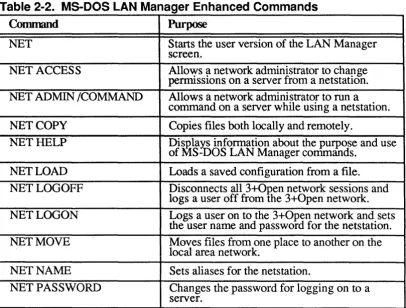
The following table lists the commands used with MS-DOS LAN Manager
[image:68.543.66.473.236.544.2]Enhanced. If you are using the Basic version of MS-DOS LAN Manager, only the commands listed in the previous section of this chapter are available to you. If you are uncertain which version you are using, check with your network administrator.
Table 2-2. MS-DOS LAN Manager Enhanced Commands
Command Purpose
NET Starts the user version of the LAN Manager screen.
NET ACCESS Allows a network administrator to change permissions on a server from a netstation. NET ADMIN /COMMAND Allows a network administrator to run a
command on a server while using a netstation. NET COpy Copies files both locally and remotely.
NET HELP- Disp'lays information about the purpose and use of MS-DOS LAN Manager commands.
NET LOAD Loads a saved configuration from a file. NET LOGOFF Disconnects all 3+0p'en network sessions and
logs a user off from the 3+0pen network. NET LOGON Logs a user on to the 3+0pen network and sets
the user name and password for the netstation. NET MOVE Moves files from one place to another on the
local area network.
NET NAME Sets aliases for the netstation.
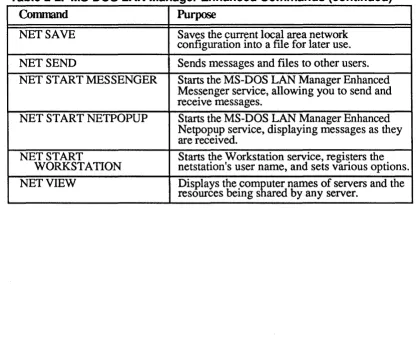
Table 2-2. MS-DOS LAN Manager Enhanced Commands (continued)
Conunand Purpose
NET SAVE Saves the current local area network configuration into a file for later use. NET SEND Sends messages and files to other users. NET START MESSENGER Starts the MS-DOS LAN Manager Enhanced
Mes~enger service, allowing you to send and receive messages.
NET START NETPOPUP Starts the MS-DOS LAN Manager Enhanced Netpopup service, displaying messages as they are received.
NET START Starts the Workstation service, registers the WORKSTATION netstation's user name, and sets various options. NET VIEW Displays the com~uter names of servers and the
NET
MS-DOS LAN
2
Manager Command Reference
2-43
This command displays the LAN Manager screen.
Syntax
(NET
H
Comments
The LAN Manager screen lets you perfonn MS-DOS LAN Manager Enhanced operations using menus and dialog boxes. You must start the Workstation service before using this command.
If you have not logged on to the local area network, the Log Into Network dialog box appears with the LAN Manager screen. This dialog box can only log you on to the 3+Open network. You must use the LOGON command (described at the
Example
To run the LAN Manager screen, Mike types the following command at the MS-DOS prompt:
net
The LAN Manager screen appears.
See Also
For more information about this command, see:
• Chapter 3: LAN Manager Screen Reference, for a description of each LAN Manager screen menu and dialog box.
• The 3
+
Open MS-DOS IAN Manager User Guide, for information about usingNET ACCESS
MS-DOS LAN
2
Manager Command Reference
2-45
This command allows a network administrator to list, create, change, and revoke permissions for resources at a server.
Option
resource
account
rights
/delete
/add /change /grant
/trail: [yeslno]
/revoke
/tree
Purpose
Names the resource to be assigned permissions. The resource can be a disk, directory, file, printer queue, or pipe.
Identifies the user name or group name of a specific account whose permissions are being mOdified.
Specifies an account name and permissions to be set, in the form
account:permissions.
The name of a user or group account is followed by the permissions for the resource (R, W, C, X, D, A, P, Y, N; these are explained later in this section).Removes permissions for a resource from the access-control database.
Adds permissions for a resource to the access-control database. Changes a user's or group's permissions for a resource. Adds .a l).ew user name and corresponding permissions to a preexlsnng resource record.
Turns audit trailing on or off for a particular resource. (The default is yes.)
MS-DOS LAN
2
Manager CommandReference
2-47
When used without options, the NET ACCESS command displays