Chacon
Straub
Shelve in Software Engineering/Software Development
Pro Git
Pro Git (Second Edition) is your fully-updated guide to Git and its usage in the modern world. Git has come a long way since it was first developed by Linus Torvalds for Linux kernel development. It has taken the open source world by storm since its inception in 2005, and this book teaches you how to use it like a pro.
Effective and well-implemented version control is a necessity for successful web projects, whether large or small. With this book you’ll learn how to master the world of distributed version workflow, use the distributed features of Git to the full, and extend Git to meet your every need.
Written by Git pros Scott Chacon and Ben Straub, Pro Git (Second Edition) builds on the
hugely successful first edition, and is now fully updated for Git version 2.0, as well as including an indispensable chapter on GitHub. It’s the best book for all your Git needs.
For your convenience Apress has placed some of the front
matter material after the index. Please use the Bookmarks
Contents at a Glance
About the Authors ��������������������������������������������������������������������������������������������������������������
xxi
Preface by Scott Chacon ��������������������������������������������������������������������������������������������������
xxiii
Preface by Ben Straub ������������������������������������������������������������������������������������������������������
xxv
Chapter 1: Getting Started
■
�������������������������������������������������������������������������������������������������
1
Chapter 2: Git Basics
■
�������������������������������������������������������������������������������������������������������
15
Chapter 3: Git Branching
■
�������������������������������������������������������������������������������������������������
43
Chapter 4: Git on the Server
■
��������������������������������������������������������������������������������������������
79
Chapter 5: Distributed Git
■
������������������������������������������������������������������������������������������������
97
Chapter 6: Github
■
�����������������������������������������������������������������������������������������������������������
131
Chapter 7: Git Tools
■
�������������������������������������������������������������������������������������������������������
181
Chapter 8: Customizing Git
■
��������������������������������������������������������������������������������������������
279
Chapter 9: Git and Other Systems
■
���������������������������������������������������������������������������������
307
Chapter 10: Git Internals
■
�����������������������������������������������������������������������������������������������
357
Appendix A: Git in Other Environments
■
�������������������������������������������������������������������������
389
Appendix B: Embedded Git in Your Applications
■
�����������������������������������������������������������
401
Appendix C: Git Commands
■
�������������������������������������������������������������������������������������������
407
This chapter is about getting started with Git. We will begin at the beginning by explaining some background on version control tools, then move on to how to get Git running on your system and finally how to get it set up to start working with. At the end of this chapter you should understand why Git is around, why you should use it, and you should be all set up to do so.
About Version Control
What is “version control,” and why should you care? Version control is a system that records changes to a file or set of files over time so that you can recall specific versions later. For the examples in this book you will use software source code as the files being version controlled, though in reality you can do this with nearly any type of file on a computer.
If you are a graphic or web designer and want to keep every version of an image or layout (which you would most certainly want to), a Version Control System (VCS) is a very wise thing to use. It allows you to revert files to a previous state, revert the entire project to a previous state, compare changes over time, see who last modified something that might be causing a problem, who introduced an issue and when, and more. Using a VCS also generally means that if you screw things up or lose files, you can easily recover. In addition, you get all this for very little overhead.
Local Version Control Systems
Many people’s version-control method of choice is to copy files into another directory (perhaps a time-stamped directory, if they’re clever). This approach is very common because it is so simple, but it is also incredibly error prone. It is easy to forget which directory you’re in and accidentally write to the wrong file or copy over files you don’t mean to.
One of the more popular VCS tools was a system called RCS, which is still distributed with many computers today. Even the popular Mac OS X operating system includes the rcs command when you install the Developer Tools. RCS works by keeping patch sets (that is, the differences between files) in a special format on disk; it can then re-create what any file looked like at any point in time by adding up all the patches.
Figure 1-2. Centralized version control
This setup offers many advantages, especially over local VCSs. For example, everyone knows to a certain degree what everyone else on the project is doing. Administrators have fine-grained control over who can do what; and it’s far easier to administer a CVCS than it is to deal with local databases on every client.
Distributed Version Control Systems
This is where Distributed Version Control Systems (DVCSs) step in. In a DVCS (such as Git, Mercurial, Bazaar, or Darcs), clients don’t just check out the latest snapshot of the files—they fully mirror the repository. Thus if any server dies, and these systems were collaborating via it, any of the client repositories can be copied back up to the server to restore it. Every checkout is really a full backup of all the data.
Simple design
•
Strong support for non-linear development (thousands of parallel branches)
•
Fully distributed
•
Able to handle large projects like the Linux kernel efficiently (speed and data size)
•
Since its birth in 2005, Git has evolved and matured to be easy to use and yet retain these initial qualities. It’s incredibly fast, it’s very efficient with large projects, and it has an incredible branching system for non-linear development (see Chapter 3).
Git Basics
Snapshots, Not Differences
The major difference between Git and any other VCS (Subversion and friends included) is the way Git thinks about its data. Conceptually, most other systems store information as a list of file-based changes. These systems (CVS, Subversion, Perforce, Bazaar, and so on) think of the information they keep as a set of files and the changes made to each file over time.
Figure 1-4. Storing data as changes to a base version of each file
For example, to browse the history of the project, Git doesn’t need to go out to the server to get the history and display it for you—it simply reads it directly from your local database. This means you see the project history almost instantly. If you want to see the changes introduced between the current version of a file and the file a month ago, Git can look up the file a month ago and do a local difference calculation, instead of having to either ask a remote server to do it or pull an older version of the file from the remote server to do it locally.
This also means that there is very little you can’t do if you’re offline or off VPN. If you get on an airplane or a train and want to do a little work, you can commit happily until you get to a network connection to upload. If you go home and can’t get your VPN client working properly, you can still work. In many other systems, doing so is either impossible or painful. In Perforce, for example, you can’t do much when you aren’t connected to the server; and in Subversion and CVS, you can edit files, but you can’t commit changes to your database (because your database is offline). This may not seem like a huge deal, but you may be surprised what a big difference it can make.
Git Has Integrity
Everything in Git is check-summed before it is stored and is then referred to by that checksum. This means it’s impossible to change the contents of any file or directory without Git knowing about it. This functionality is built in to Git at the lowest levels and is integral to its philosophy. You can’t lose information in transit or get file corruption without Git being able to detect it.
The mechanism that Git uses for this checksumming is called a SHA-1 hash. This is a 40-character string composed of hexadecimal characters (0–9 and a–f) and calculated based on the contents of a file or directory structure in Git. A SHA-1 hash looks something like this:
24b9da6552252987aa493b52f8696cd6d3b00373
You will see these hash values all over the place in Git because it uses them so much. In fact, Git stores everything in its database not by filename but by the hash value of its contents.
Git Generally Only Adds Data
When you do actions in Git, nearly all of them only add data to the Git database. It is hard to get the system to do anything that is not undoable or to make it erase data in any way. As in any VCS, you can lose or mess up changes you haven’t committed yet; but after you commit a snapshot into Git, it is very difficult to lose, especially if you regularly push your database to another repository.
The Three States
Now, pay attention. This is the main thing to remember about Git if you want the rest of your learning process to go smoothly. Git has three main states that your files can reside in: committed, modified, and staged. Committed means that the data is safely stored in your local database. Modified means that you have changed the file but have not committed it to your database yet. Staged means that you have marked a modified file in its current version to go into your next commit snapshot.
This leads us to the three main sections of a Git project: the Git directory, the working directory, and the staging area.
Figure 1-6. Working directory, staging area, and Git directory
The Git directory is where Git stores the metadata and object database for your project. This is the most important part of Git, and it is what is copied when you clone a repository from another computer.
The working directory is a single checkout of one version of the project. These files are pulled out of the compressed database in the Git directory and placed on disk for you to use or modify.
The staging area is a file, generally contained in your Git directory, that stores information about what will go into your next commit. It’s sometimes referred to as the “index”, but it’s also common to refer to it as the staging area.
The basic Git workflow goes something like this:
1. You modify files in your working directory.
2. You stage the files, adding snapshots of them to your staging area.
Installing Git
Before you start using Git, you have to make it available on your computer. Even if it’s already installed, it’s probably a good idea to update to the latest version. You can either install it as a package or via another installer, or download the source code and compile it yourself.
Note
■
this book was written using Git version 2.0.0. though most of the commands we use should work even in
ancient versions of Git, some of them might not or might act slightly differently if you’re using an older version. Since Git
is quite excellent at preserving backward compatibility, any version after 2.0 should work just fine.
Installing on Linux
If you want to install Git on Linux via a binary installer, you can generally do so through the basic package-management tool that comes with your distribution. If you’re on Fedora for example, you can use yum:
$ yum install git
If you’re on a Debian-based distribution like Ubuntu, try apt-get:
$ apt-get install git
For more options, there are instructions for installing on several different Unix flavors on the Git website, at http://git-scm.com/download/linux.
Installing on Mac
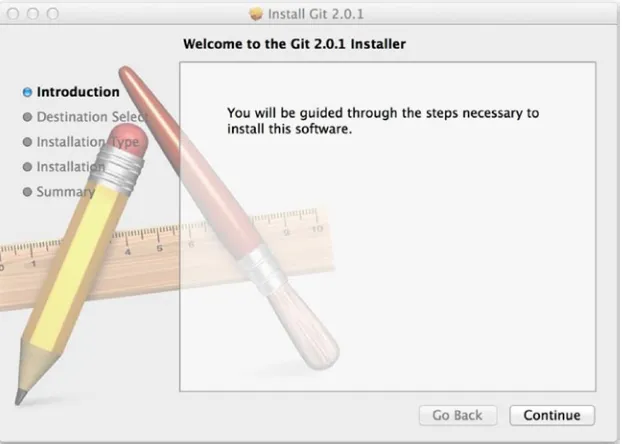
There are several ways to install Git on a Mac. The easiest is probably to install the Xcode command line tools. On Mavericks (10.9) or above you can do this simply by trying to run git from the Terminal the very first time. If you don’t have it installed already, it will prompt you to install it.
You can also install it as part of the GitHub for Mac install. Their GUI Git tool has an option to install command line tools as well. You can download that tool from the GitHub for Mac website, at http://mac.github.com.
Installing on Windows
There are also a few ways to install Git on Windows. The most official build is available for download on the Git website. Just go to http://git-scm.com/download/win and the download will start automatically. Note that this is a project called Git for Windows (also called msysGit), which is separate from Git itself; for more information on it, go to http://msysgit.github.io/.
Another easy way to get Git installed is by installing GitHub for Windows. The installer includes a command line version of Git as well as the GUI. It also works well with Powershell, and sets up solid credential caching and sane CRLF settings. We’ll learn more about those things a little later, but suffice it to say they’re things you want. You can download this from the GitHub for Windows website, at http://windows.github.com.
Some people may instead find it useful to install Git from source, because you’ll get the most recent version. The binary installers tend to be a bit behind, though as Git has matured in recent years, this has made less of a difference.
If you do want to install Git from source, you need to have the following libraries that Git depends on: curl, zlib, openssl, expat, and libiconv. For example, if you’re on a system that has yum (such as Fedora) or apt-get (such as a Debian-based system), you can use one of these commands to install all of the dependencies:
$ yum install curl-devel expat-devel gettext-devel \
$ git clone git://git.kernel.org/pub/scm/git/git.git
First-Time Git Setup
Now that you have Git on your system, you’ll want to do a few things to customize your Git environment. You should have to do these things only once on any given computer; they’ll stick around between upgrades. You can also change them at any time by running through the commands again.
Git comes with a tool called git config that lets you get and set configuration variables that control all aspects of how Git looks and operates. These variables can be stored in three different places:
• /etc/gitconfig file: Contains values for every user on the system and all their repositories. If you pass the option --system to git config, it reads and writes from this file specifically.
• ~/.gitconfig or ~/.config/git/config file: Specific to your user. You can make Git read and write to this file specifically by passing the --global option.
• config file in the Git directory (that is, .git/config) of whatever repository you’re currently using: Specific to that single repository.
Each level overrides values in the previous level, so values in .git/config trump those in /etc/gitconfig. On Windows systems, Git looks for the .gitconfig file in the $HOME directory (C:\Users\$USER for most people). It also still looks for /etc/gitconfig, although it’s relative to the MSys root, which is wherever you decide to install Git on your Windows system when you run the installer.
Your Identity
The first thing you should do when you install Git is to set your user name and e-mail address. This is important because every Git commit uses this information, and it’s immutably baked into the commits you start creating:
$ git config --global user.name "John Doe"
$ git config --global user.email [email protected]
Again, you need to do this only once if you pass the --global option, because then Git will always use that information for anything you do on that system. If you want to override this with a different name or e-mail address for specific projects, you can run the command without the --global option when you’re in that project.
Your Editor
Now that your identity is set up, you can configure the default text editor that will be used when Git needs you to type in a message. If not configured, Git uses your system’s default editor, which is generally Vim. If you want to use a different text editor, such as Emacs, you can do the following:
$ git config --global core.editor emacs
Note
■
Vim and emacs are popular text editors often used by developers on Unix-based systems like Linux and Mac. if
you are not familiar with either of these editors or are on a Windows system, you may need to search for instructions for
how to set up your favorite editor with Git.
Checking Your Settings
If you want to check your settings, you can use the git config --list command to list all the settings Git can find at that point:
$ git config --list user.name=John Doe
[email protected] color.status=auto
color.branch=auto color.interactive=auto color.diff=auto ...
You may see keys more than once, because Git reads the same key from different files (/etc/gitconfig and~/ .gitconfig, for example). In this case, Git uses the last value for each unique key it sees.
You can also check what Git thinks a specific key’s value is by typing git config <key>:
$ git config user.name John Doe
Getting Help
If you ever need help while using Git, there are three ways to get the manual page (manpage) help for any of the Git commands:
Git Basics
If you can read only one chapter to get going with Git, this is it. This chapter covers every basic command you need to do the vast majority of the things you’ll eventually spend your time doing with Git. By the end of the chapter, you should be able to configure and initialize a repository, begin and stop tracking files, and stage and commit changes. We’ll also show you how to set up Git to ignore certain files and file patterns, how to undo mistakes quickly and easily, how to browse the history of your project and view changes between commits, and how to push and pull from remote repositories.
Getting a Git Repository
You can get a Git project using two main approaches. The first takes an existing project or directory and imports it into Git. The second clones an existing Git repository from another server.
Initializing a Repository in an Existing Directory
If you’re starting to track an existing project in Git, you need to go to the project’s directory and type
$ git init
This creates a new subdirectory named .git that contains all your necessary repository files—a Git repository skeleton. At this point, nothing in your project is tracked yet. (See Chapter 11 for more information about exactly what files are contained in the .git directory you just created).
If you want to start version-controlling existing files (as opposed to an empty directory), you should probably begin tracking those files and do an initial commit. You can accomplish that with a few git add commands that specify the files you want to track, followed by a git commit:
$ git add *.c $ git add LICENSE
$ git clone https://github.com/libgit2/libgit2
That creates a directory named libgit2, initializes a .git directory inside it, pulls down all the data for that repository, and checks out a working copy of the latest version. If you go into the new libgit2 directory, you’ll see the project files in there, ready to be worked on or used. If you want to clone the repository into a directory named something other than libgit2, you can specify that as the next command-line option:
$ git clone https://github.com/libgit2/libgit2 mylibgit
That command does the same thing as the previous one, but the target directory is called mylibgit.
Git has a number of different transfer protocols you can use. The previous example uses the https:// protocol, but you may also see git:// or user@server:path/to/repo.git, which uses the SSH transfer protocol. Chapter 4 will introduce all of the available options the server can set up to access your Git repository and the pros and cons of each.
Recording Changes to the Repository
You have a bona fide Git repository and a checkout or working copy of the files for that project. You need to make some changes and commit snapshots of those changes into your repository each time the project reaches a state you want to record.
Remember that each file in your working directory can be in one of two states: tracked or untracked. Tracked files are files that were in the last snapshot; they can be unmodified, modified, or staged. Untracked files are everything else—any files in your working directory that were not in your last snapshot and are not in your staging area. When you first clone a repository, all your files will be tracked and unmodified because you just checked them out and haven’t edited anything.
Checking the Status of Your Files
The main tool you use to determine which files are in which state is the git status command. If you run this command directly after a clone, you should see something like this:
$ git status On branch master
nothing to commit, working directory clean
This means you have a clean working directory—in other words, there are no tracked and modified files. Git also doesn’t see any untracked files, or they would be listed here. Finally, the command tells you which branch you’re on and informs you that it has not diverged from the same branch on the server. For now, that branch is always “master,” which is the default; you won’t worry about it here. Branches and references are discussed in detail in Chapter 3.
Let’s say you add a new file to your project, a simple README file. If the file didn’t exist before, and you run git status, you see your untracked file like so:
$ echo 'My Project' > README $ git status
On branch master Untracked files:
(use "git add <file>..." to include in what will be committed)
README
nothing added to commit but untracked files present (use "git add" to track)
Changes to be committed:
(use "git reset HEAD <file>..." to unstage)
new file: README
You can tell that it’s staged because it’s under the Changes to be committed heading. If you commit at this point, the version of the file at the time you ran git add is what will be in the historical snapshot. You may recall that when you ran git init earlier, you then ran git add (files)—that was to begin tracking files in your directory. The git add command takes a path name for either a file or a directory; if it’s a directory, the command adds all the files in that directory recursively.
Staging Modified Files
Let’s change a file that was already tracked. If you change a previously tracked file called “benchmarks.rb” and then run your git status command again, you get something that looks like this:
$ git status On branch master
Changes to be committed:
(use "git reset HEAD <file>..." to unstage)
new file: README
Changes not staged for commit:
(use "git add <file>..." to update what will be committed)
(use "git checkout -- <file>..." to discard changes in working directory)
modified: benchmarks.rb
The benchmarks.rb file appears under a section named Changed but not staged for commit—which means that a file that is tracked has been modified in the working directory but not yet staged. To stage it, you run the git add command. git add is a multipurpose command—you use it to begin tracking new files, to stage files, and to do other things like marking merge-conflicted files as resolved. It may be helpful to think of it more as “add this content to the next commit” rather than “add this file to the project”. Let’s run git add now to stage the benchmarks.rb file, and then run git status again:
$ git add benchmarks.rb $ git status
Changes to be committed:
(use "git reset HEAD <file>..." to unstage)
new file: README modified: benchmarks.rb
Both files are staged and will go into your next commit. At this point, suppose you remember one little change that you want to make in benchmarks.rb before you commit it. You open it again and make that change, and you’re ready to commit. However, let’s run git status one more time:
$ vim benchmarks.rb $ git status On branch master
Changes to be committed:
(use "git reset HEAD <file>..." to unstage)
new file: README modified: benchmarks.rb
Changes not staged for commit:
(use "git add <file>..." to update what will be committed)
(use "git checkout -- <file>..." to discard changes in working directory)
modified: benchmarks.rb
What the heck? Now benchmarks.rb is listed as both staged and unstaged. How is that possible? It turns out that Git stages a file exactly as it is when you run the git add command. If you commit now, the version of benchmarks.rb as it was when you last ran the git add command is how it will go into the commit, not the version of the file as it looks in your working directory when you run git commit. If you modify a file after you run git add, you have to run git add again to stage the latest version of the file:
$ git add benchmarks.rb $ git status
On branch master
Changes to be committed:
(use "git reset HEAD <file>..." to unstage)
new file: README modified: benchmarks.rb
Short Status
$ cat .gitignore *.[oa]
*~
The first line tells Git to ignore any files ending in “.o” or “.a”—object and archive files that may be the product of building your code. The second line tells Git to ignore all files that end with a tilde (~), which is used by many text editors such as Emacs to mark temporary files. You may also include a log, tmp, or pid directory; automatically generated documentation; and so on. Setting up a .gitignore file before you get going is generally a good idea so you don’t accidentally commit files that you really don’t want in your Git repository.
The rules for the patterns you can put in the .gitignore file are as follows:
Blank lines or lines starting with # are ignored. •
Standard glob patterns work. •
You can end patterns with a forward slash (/) to specify a directory. •
You can negate a pattern by starting it with an exclamation point (!). •
Glob patterns are like simplified regular expressions that shells use. An asterisk (*) matches zero or more characters; [abc] matches any character inside the brackets (in this case a, b, or c); a question mark (?) matches a single character; and brackets enclosing characters separated by a hyphen ([0-9]) matches any character between them (in this case 0 through 9). You can also use two asterisks to match nested directories; a/**/z would match a/z, a/b/z,a/b/c/z, and so on.
Here is another example .gitignore file:
# a comment - this is ignored *.a # no .a files
!lib.a # but do track lib.a, even though you're ignoring .a files above /TODO # only ignore the root TODO file, not subdir/TODO
build/ # ignore all files in the build/ directory
doc/*.txt # ignore doc/notes.txt, but not doc/server/arch.txt
Tip
Viewing Your Staged and Unstaged Changes
If the git status command is too vague for you—you want to know exactly what you changed, not just which files were changed—you can use the git diff command. We’ll cover git diff in more detail later, but you’ll probably use it most often to answer these two questions: What have you changed but not yet staged? And what have you staged that you are about to commit? Although git status answers those questions very generally by listing the file names, git diff shows you the exact lines added and removed—the patch, as it were.
Let’s say you edit and stage the README file again and then edit the benchmarks.rb file without staging it. If you run your git status command, you once again see something like this:
$ git status On branch master
Changes to be committed:
(use "git reset HEAD <file>..." to unstage)
new file: README
Changes not staged for commit:
(use "git add <file>..." to update what will be committed)
(use "git checkout -- <file>..." to discard changes in working directory)
modified: benchmarks.rb
To see what you’ve changed but not yet staged, type git diff with no other arguments:
$ git diff
diff --git a/benchmarks.rb b/benchmarks.rb index 3cb747f..e445e28 100644
--- a/benchmarks.rb +++ b/benchmarks.rb
@@ -36,6 +36,10 @@ def main
@commit.parents[0].parents[0].parents[0] end
+ run_code(x, 'commits 1') do + git.commits.size
+ end +
run_code(x, 'commits 2') do log = git.commits('master', 15) log.size
That command compares what is in your working directory with what is in your staging area. The result tells you the changes you’ve made that you haven’t yet staged.
changes in the file that are staged and the changes that are unstaged:
$ git add benchmarks.rb
$ echo '# test line' >> benchmarks.rb $ git status
On branch master
Changes to be committed:
(use "git reset HEAD <file>..." to unstage)
modified: benchmarks.rb
Changes not staged for commit:
(use "git add <file>..." to update what will be committed)
(use "git checkout -- <file>..." to discard changes in working directory)
modified: benchmarks.rb
Now you can use git diff to see what is still unstaged:
$ git diff
diff --git a/benchmarks.rb b/benchmarks.rb index e445e28..86b2f7c 100644
--- a/benchmarks.rb +++ b/benchmarks.rb @@ -127,3 +127,4 @@ end main()
##pp Grit::GitRuby.cache_client.stats +# test line
and git diff --cached to see what you’ve staged so far:
$ git diff --cached
diff --git a/benchmarks.rb b/benchmarks.rb index 3cb747f..e445e28 100644
--- a/benchmarks.rb +++ b/benchmarks.rb
@@ -36,6 +36,10 @@ def main
+ run_code(x, 'commits 1') do + git.commits.size
+ end +
run_code(x, 'commits 2') do log = git.commits('master', 15) log.size
Committing Your Changes
Now that your staging area is set up the way you want it, you can commit your changes. Remember that anything that is still unstaged—any files you have created or modified that you haven’t run git add on since you edited them— won’t go into this commit. They will stay as modified files on your disk. In this case, let’s say that the last time you ran git status, you saw that everything was staged, so you’re ready to commit your changes. The simplest way to commit is to type git commit:
$ git commit
Doing so launches your editor of choice. (This is set by your shell’s $EDITOR environment variable—usually vim or emacs, although you can configure it with whatever you want using the git config --global core.editor command as you saw in Chapter 1).
The editor displays the following text (this example is a Vim screen):
# Please enter the commit message for your changes. Lines starting # with '#' will be ignored, and an empty message aborts the commit. # On branch master
# Changes to be committed: # new file: README # modified: benchmarks.rb #
~ ~ ~
".git/COMMIT_EDITMSG" 9L, 283C
You can see that the default commit message contains the latest output of the git status command commented out and one empty line on top. You can remove these comments and type your commit message, or you can leave them there to help you remember what you’re committing. (For an even more explicit reminder of what you’ve modified, you can pass the -v option to git commit. Doing so also puts the diff of your change in the editor so you can see exactly what changes you’re committing). When you exit the editor, Git creates your commit with that commit message (with the comments and diff stripped out).
before doing the commit, letting you skip the git add part:
$ git status On branch master
Changes not staged for commit:
(use "git add <file>..." to update what will be committed)
(use "git checkout -- <file>..." to discard changes in working directory)
modified: benchmarks.rb
no changes added to commit (use "git add" and/or "git commit -a") $ git commit -a -m 'added new benchmarks'
[master 83e38c7] added new benchmarks
1 file changed, 5 insertions(+), 0 deletions(-)
Notice how you don’t have to run git add on the “benchmarks.rb” file in this case before you commit.
Removing Files
To remove a file from Git, you have to remove it from your tracked files (more accurately, remove it from your staging area) and then commit. The git rm command does that, and also removes the file from your working directory so you don’t see it as an untracked file the next time around.
If you simply remove the file from your working directory, it shows up under the “Changed but not updated” (that is, unstaged) area of your git status output:
$ rm grit.gemspec $ git status On branch master
Changes not staged for commit:
(use "git add/rm <file>..." to update what will be committed)
(use "git checkout -- <file>..." to discard changes in working directory)
deleted: grit.gemspec
Then, if you run git rm, it stages the file’s removal:
$ git rm grit.gemspec rm 'grit.gemspec' $ git status On branch master
Changes to be committed:
(use "git reset HEAD <file>..." to unstage)
deleted: grit.gemspec
The next time you commit, the file will be gone and no longer tracked. If you modified the file and added it to the index already, you must force the removal with the -f option. This is a safety feature to prevent accidental removal of data that hasn’t yet been recorded in a snapshot and that can’t be recovered from Git.
Another useful thing you may want to do is to keep the file in your working tree but remove it from your staging area. In other words, you may want to keep the file on your hard drive but not have Git track it anymore. This is particularly useful if you forgot to add something to your .gitignore file and accidentally added it, like a large log file or a bunch of .a compiled files. To do this, use the --cached option:
$ git rm --cached README
You can pass files, directories, and file-glob patterns to the git rm command. That means you can do things such as
$ git rm log/\*.log
Note the backslash (\) in front of the *. This is necessary because Git does its own filename expansion in addition to your shell’s filename expansion. This command removes all files that have the .log extension in the log/ directory. Or, you can do something like this:
$ git rm \*~
This command removes all files that end with ~.
Moving Files
Unlike many other VCS systems, Git doesn’t explicitly track file movement. If you rename a file in Git, no metadata is stored in Git that tells it you renamed the file; however, Git is pretty smart about figuring that out after the fact. We’ll deal with detecting file movement a bit later.
Thus it’s a bit confusing that Git has a mv command. If you want to rename a file in Git, you can run something like:
$ git mv file_from file_to
Viewing the Commit History
After you have created several commits, or if you have cloned a repository with an existing commit history, you’ll probably want to look back to see what has happened. The most basic and powerful tool to do this is the git log command.
These examples use a very simple project called simplegit. To get the project, run
git clone https://github.com/schacon/simplegit-progit
When you run git log in this project, you should get output that looks something like this:
$ git log
commit ca82a6dff817ec66f44342007202690a93763949 Author: Scott Chacon <[email protected]> Date: Mon Mar 17 21:52:11 2008 -0700
changed the version number
commit 085bb3bcb608e1e8451d4b2432f8ecbe6306e7e7 Author: Scott Chacon <[email protected]> Date: Sat Mar 15 16:40:33 2008 -0700
removed unnecessary test
commit a11bef06a3f659402fe7563abf99ad00de2209e6 Author: Scott Chacon <[email protected]> Date: Sat Mar 15 10:31:28 2008 -0700
first commit
By default, with no arguments, git log lists the commits made in that repository in reverse chronological order—that is, the most recent commits show up first. As you can see, this command lists each commit with its SHA-1 checksum, the author’s name and e-mail, the date written, and the commit message.
One of the more helpful options is -p, which shows the difference introduced in each commit. You can also use -2, which limits the output to only the last two entries:
$ git log -p -2
commit ca82a6dff817ec66f44342007202690a93763949 Author: Scott Chacon <[email protected]> Date: Mon Mar 17 21:52:11 2008 -0700
changed the verison number
diff --git a/Rakefile b/Rakefile index a874b73..8f94139 100644 --- a/Rakefile
+++ b/Rakefile
@@ -5,7 +5,7 @@ require 'rake/gempackagetask' spec = Gem::Specification.new do |s|
s.platform = Gem::Platform::RUBY s.name = "simplegit"
- s.version = "0.1.0" + s.version = "0.1.1" s.author = "Scott Chacon"
s.email = "[email protected]"
s.summary = "A simple gem for using Git in Ruby code."
commit 085bb3bcb608e1e8451d4b2432f8ecbe6306e7e7 Author: Scott Chacon <[email protected]> Date: Sat Mar 15 16:40:33 2008 -0700
removed unnecessary test
diff --git a/lib/simplegit.rb b/lib/simplegit.rb index a0a60ae..47c6340 100644
--- a/lib/simplegit.rb +++ b/lib/simplegit.rb
@@ -18,8 +18,3 @@ class SimpleGit end
end
--if $0 == __FILE__ - git = SimpleGit.new - puts git.show -end
Rakefile | 2
1 file changed, 1 insertion(+), 1 deletion(-)
commit 085bb3bcb608e1e8451d4b2432f8ecbe6306e7e7 Author: Scott Chacon <[email protected]> Date: Sat Mar 15 16:40:33 2008 -0700
removed unnecessary test
lib/simplegit.rb | 5 1 file changed, 5 deletions(-)
commit a11bef06a3f659402fe7563abf99ad00de2209e6 Author: Scott Chacon <[email protected]> Date: Sat Mar 15 10:31:28 2008 -0700
first commit
README | 6 ++++++
Rakefile | 23 +++++++++++++++++++++++ lib/simplegit.rb | 25 +++++++++++++++++++++++++ 3 files changed, 54 insertions(+)
As you can see, the --stat option prints below each commit entry a list of modified files, how many files were changed, and how many lines in those files were added and removed. It also puts a summary of the information at the end.
Another really useful option is --pretty. This option changes the log output to formats other than the default. A few prebuilt options are available for you to use. The oneline option prints each commit on a single line, which is useful if you’re looking at a lot of commits. In addition, the short, full, and fuller options show the output in roughly the same format but with less or more information, respectively:
$ git log --pretty=oneline
The most interesting option is format, which allows you to specify your own log output format. This is especially useful when you’re generating output for machine parsing—because you specify the format explicitly, you know it won’t change with updates to Git:
$ git log --pretty=format:"%h - %an, %ar : %s"
ca82a6d - Scott Chacon, 6 years ago : changed the version number 085bb3b - Scott Chacon, 6 years ago : removed unnecessary test a11bef0 - Scott Chacon, 6 years ago : first commit
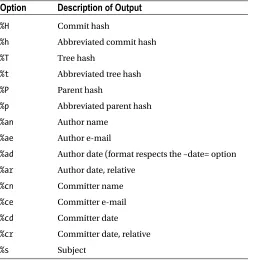
Table 2-1 lists some of the more useful options that format takes.
Table 2-1. Useful Options for git log --pretty=format
Option
Description of Output
%H Commit hash
%h Abbreviated commit hash %T Tree hash
%t Abbreviated tree hash %P Parent hash
%p Abbreviated parent hash %an Author name
%ae Author e-mail
%ad Author date (format respects the –date= option %ar Author date, relative
%cn Committer name %ce Committer e-mail %cd Committer date %cr Committer date, relative %s Subject
You may be wondering what the difference is between author and committer. The author is the person who originally wrote the work, whereas the committer is the person who last applied the work. So, if you send in a patch to a project and one of the core members applies the patch, both of you get credit—you as the author, and the core member as the committer. We’ll cover this distinction a bit more in Chapter 5.
Limiting Log Output
In addition to output-formatting options, git log takes a number of useful limiting options—that is, options that let you show only a subset of commits. You’ve seen one such option already—the -2 option, which shows only the last two commits. In fact, you can do -<n>, where n is any integer to show the last n commits. In reality, you’re unlikely to use that often, because Git by default pipes all output through a pager so you see only one page of log output at a time.
However, the time-limiting options such as --since and --until are very useful. For example, this command gets the list of commits made in the last two weeks:
$ git log --since=2.weeks
This command works with lots of formats—you can specify a specific date like "2008-01-15", or a relative date such as "2 years 1 day 3 minutes ago".
You can also filter the list to commits that match some search criteria. The --author option allows you to filter on a specific author, and the --grep option lets you search for keywords in the commit messages. (Note that if you want to specify both author and grep options, you have to add --all-match or the command will match commits with either).
Another really helpful filter is the -S option that takes a string and only shows the commits that introduced a change to the code that added or removed that string. For instance, if you wanted to find the last commit that added or removed a reference to a specific function, you could call:
$ git log --Sfunction_name
Option
Description
-p Show the patch introduced with each commit. --stat Show statistics for files modified in each commit.
--shortstat Display only the changed/insertions/deletions line from the --stat command. --name-only Show the list of files modified after the commit information.
--name-status Show the list of files affected with added/modified/deleted information as well. --abbrev-commit Show only the first few characters of the SHA-1 checksum instead of all 40.
--relative-date Display the date in a relative format (for example, “2 weeks ago”) instead of using the full date format.
--graph Display an ASCII graph of the branch and merge history beside the log output.
The last really useful option to pass to git log as a filter is a path. If you specify a directory or filename, you can limit the log output to commits that introduced a change to those files. This is always the last option and is generally preceded by double dashes (--) to separate the paths from the options.
Table 2-3 lists these and a few other common options for your reference.
Table 2-3. Options to Limit the output of git log
Option
Description
-(n) Show only the last n commits
--since, --after Limit the commits to those made after the specified date --until, --before Limit the commits to those made before the specified date
--author Only show commits in which the author entry matches the specified string --committer Only show commits in which the committer entry matches the specified string --grep Only show commits with a commit message containing the string
-S Only show commits adding or removing code matching the string
For example, if you want to see which commits modifying test files in the Git source code history were committed by Junio Hamano and were not merges in the month of October 2008, you can run something like this:
$ git log --pretty="%h - %s" --author=gitster --since="2008-10-01" \ --before="2008-11-01" --no-merges -- t/
5610e3b - Fix testcase failure when extended attributes are in use acd3b9e - Enhance hold_lock_file_for_{update,append}() API
f563754 - demonstrate breakage of detached checkout with symbolic link HEAD d1a43f2 - reset --hard/read-tree --reset -u: remove unmerged new paths 51a94af - Fix "checkout --track -b newbranch" on detached HEAD
b0ad11e - pull: allow "git pull origin $something:$current_branch" into an unborn branch
Of the nearly 40,000 commits in the Git source code history, this command shows the 6 that match those criteria.
Undoing Things
At any stage, you may want to undo something. Here, we’ll review a few basic tools for undoing changes that you’ve made. Be careful, because you can’t always undo some of these undos. This is one of the few areas in Git where you may lose some work if you do it wrong.
The next two sections demonstrate how to wrangle your staging area and working directory changes. The nice part is that the command you use to determine the state of those two areas also reminds you how to undo changes to them. For example, let’s say you’ve changed two files and want to commit them as two separate changes, but you accidentally type git add * and stage them both. How can you unstage one of the two? The git status command reminds you:
$ git add . $ git status On branch master
Changes to be committed:
(use "git reset HEAD <file>..." to unstage)
renamed: README.md -> README modified: benchmarks.rb
Right below the “Changes to be committed” text, it says use git reset HEAD <file>... to unstage. So, let’s use that advice to unstage the benchmarks.rb file:
$ git reset HEAD benchmarks.rb Unstaged changes after reset: M benchmarks.rb
$ git status On branch master
Changes to be committed:
(use "git reset HEAD <file>..." to unstage)
renamed: README.md -> README
Changes not staged for commit:
(use "git add <file>..." to update what will be committed)
(use "git checkout -- <file>..." to discard changes in working directory)
modified: benchmarks.rb
The command is a bit strange, but it works. The benchmarks.rb file is modified but once again unstaged.
Note
For now this magic invocation is all you need to know about the git reset command. We’ll go into much more detail about what reset does and how to master it to do really interesting things in Git Reset.
Unmodifying a Modified File
What if you realize that you don’t want to keep your changes to the benchmarks.rb file? How can you easily unmodify it—revert to what it looked like when you last committed (or initially cloned, or however you got it into your working directory)? Luckily, git status tells you how to do that, too. In the last example output, the unstaged area looks like this:
Changes not staged for commit:
(use "git add <file>..." to update what will be committed)
(use "git checkout -- <file>..." to discard changes in working directory)
modified: benchmarks.rb
It tells you pretty explicitly how to discard the changes you’ve made. Let’s do what it says:
$ git checkout -- benchmarks.rb $ git status
On branch master
Changes to be committed:
(use "git reset HEAD <file>..." to unstage)
renamed: README.md -> README
You can see that the changes have been reverted.
Important
■
it’s important to understand that
git checkout -- [file]is a dangerous command. any changes you
made to that file are gone—you just copied another file over it. Don’t ever use this command unless you absolutely know
that you don’t want the file.
If you would like to keep the changes you’ve made to that file but still need to get it out of the way for now, we’ll go over stashing and branching in Chapter 3—these are generally better ways to go.
Remember, anything that is committed in Git can almost always be recovered. Even commits that were on branches that were deleted or commits that were overwritten with an --amend commit can be recovered (see the section on data recovery). However, anything you lose that was never committed is likely never to be seen again.
Checking connectivity... done. $ cd ticgit
$ git remote origin
You can also specify -v, which shows you the URLs that Git has stored for the shortname to be used when reading and writing to that remote:
$ git remote -v
Origin https://github.com/schacon/ticgit (fetch) Origin https://github.com/schacon/ticgit (push)
If you have more than one remote, the command lists them all. For example, a repository with multiple remotes for working with several collaborators might look something like this.
$ cd grit $ git remote -v
bakkdoor https://github.com/bakkdoor/grit (fetch) bakkdoor https://github.com/bakkdoor/grit (push) cho45 https://github.com/cho45/grit (fetch) cho45 https://github.com/cho45/grit (push) defunkt https://github.com/defunkt/grit (fetch) defunkt https://github.com/defunkt/grit (push) koke git://github.com/koke/grit.git (fetch) koke git://github.com/koke/grit.git (push) origin [email protected]:mojombo/grit.git (fetch) origin [email protected]:mojombo/grit.git (push)
This means we can pull contributions from any of these users pretty easily. We may additionally have permission to push to one or more of these, though we can’t tell that here.
Adding Remote Repositories
I’ve mentioned and given some demonstrations of adding remote repositories in previous sections, but here is how to do it explicitly. To add a new remote Git repository as a shortname you can reference easily, run git remote add [shortname] [url]:
$ git remote origin
$ git remote add pb https://github.com/paulboone/ticgit $ git remote -v
origin https://github.com/schacon/ticgit (fetch) origin https://github.com/schacon/ticgit (push) pb https://github.com/paulboone/ticgit (fetch) pb https://github.com/paulboone/ticgit (push)
Now you can use the string pb on the command line in lieu of the whole URL. For example, if you want to fetch all the information that Paul has but that you don’t yet have in your repository, you can run git fetch pb:
$ git fetch pb
remote: Counting objects: 43, done.
remote: Compressing objects: 100% (36/36), done. remote: Total 43 (delta 10), reused 31 (delta 5) Unpacking objects: 100% (43/43), done.
From https://github.com/paulboone/ticgit * [new branch] master -> pb/master * [new branch] ticgit -> pb/ticgit
Paul’s master branch is now accessible locally as pb/master—you can merge it into one of your branches, or you can check out a local branch at that point if you want to inspect it. (We’ll go over what branches are and how to use them in much more detail in Chapter 3).
Fetching and Pulling from Your Remotes
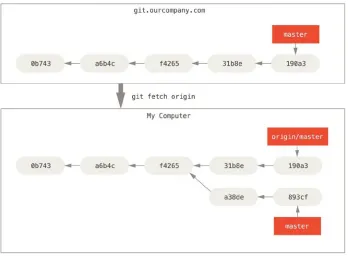
As you just saw, to get data from your remote projects, you can run:$ git fetch [remote-name]
The command goes out to that remote project and pulls down all the data from that remote project that you don’t have yet. After you do this, you should have references to all the branches from that remote, which you can merge in or inspect at any time.
before you’ll be allowed to push. See Chapter 3 for more detailed information on how to push to remote servers.
Inspecting a Remote
If you want to see more information about a particular remote, you can use the git remote show [remote-name] command. If you run this command with a particular shortname, such as origin, you get something like this:
$ git remote show origin * remote origin
Fetch URL: https://github.com/schacon/ticgit Push URL: https://github.com/schacon/ticgit HEAD branch: master
Remote branches:
master tracked dev-branch tracked Local branch configured for 'git pull': master merges with remote master Local ref configured for 'git push': master pushes to master (up to date)
It lists the URL for the remote repository as well as the tracking branch information. The command helpfully tells you that if you’re on the master branch and you run git pull, it will automatically merge in the master branch on the remote after it fetches all the remote references. It also lists all the remote references it has pulled down.
That is a simple example you’re likely to encounter. When you’re using Git more heavily, however, you may see much more information from git remote show:
$ git remote show origin * remote origin
URL: https://github.com/my-org/complex-project Fetch URL: https://github.com/my-org/complex-project Push URL: https://github.com/my-org/complex-project HEAD branch: master
Remote branches:
master tracked dev-branch tracked markdown-strip tracked
Local branches configured for 'git pull': dev-branch merges with remote dev-branch master merges with remote master Local refs configured for 'git push':
dev-branch pushes to dev-branch (up to date) markdown-strip pushes to markdown-strip (up to date) master pushes to master (up to date)
This command shows which branch is automatically pushed to when you run git push while on certain branches. It also shows you which remote branches on the server you don’t yet have, which remote branches you have that have been removed from the server, and multiple branches that are automatically merged when you run git pull.
Removing and Renaming Remotes
If you want to rename a reference you can run git remote rename to change a remote’s shortname. For instance, if you want to rename pb to paul, you can do so with git remote rename:
$ git remote rename pb paul $ git remote
origin paul
It’s worth mentioning that this changes your remote branch names, too. What used to be referenced at pb/master is now at paul/master.
If you want to remove a remote for some reason—you’ve moved the server or are no longer using a particular mirror, or perhaps a contributor isn’t contributing anymore—you can use git remote rm:
$ git remote rm paul $ git remote
origin
Tagging
Like most VCSs, Git has the ability to tag specific points in history as being important. Typically people use this functionality to mark release points (v1.0, and so on). In this section, you’ll learn how to list the available tags, how to create new tags, and what the different types of tags are.
Listing Your Tags
v1.8.5.4 v1.8.5.5
Creating Tags
Git uses two main types of tags: lightweight and annotated.
A lightweight tag is very much like a branch that doesn’t change—it’s just a pointer to a specific commit.
Annotated tags, however, are stored as full objects in the Git database. They’re checksummed; contain the tagger name, e-mail, and date; have a tagging message; and can be signed and verified with GNU Privacy Guard (GPG). It’s generally recommended that you create annotated tags so you can have all this information; but if you want a temporary tag or for some reason don’t want to keep the other information, lightweight tags are available too.
Annotated Tags
Creating an annotated tag in Git is simple. The easiest way is to specify -a when you run the tag command:
$ git tag -a v1.4 -m 'my version 1.4' $ git tag
v0.1 v1.3 v1.4
The -m specifies a tagging message, which is stored with the tag. If you don’t specify a message for an annotated tag, Git launches your editor so you can type it in.
You can see the tag data along with the commit that was tagged by using the git show command:
$ git show v1.4 tag v1.4
Tagger: Ben Straub <[email protected]> Date: Sat May 3 20:19:12 2014 -0700
my version 1.4
commit ca82a6dff817ec66f44342007202690a93763949 Author: Scott Chacon <[email protected]> Date: Mon Mar 17 21:52:11 2008 -0700
That shows the tagger information, the date the commit was tagged, and the annotation message before showing the commit information.
Lightweight Tags
Another way to tag commits is with a lightweight tag. This is basically the commit checksum stored in a file—no other information is kept. To create a lightweight tag, don’t supply the -a, -s, or -m option:
$ git tag v1.4-lw $ git tag
v0.1 v1.3 v1.4 v1.4-lw v1.5
This time, if you run git show on the tag, you don’t see the extra tag information. The command just shows the commit:
$ git show v1.4-lw
commit ca82a6dff817ec66f44342007202690a93763949 Author: Scott Chacon <[email protected]> Date: Mon Mar 17 21:52:11 2008 -0700
changed the verison number
Tagging Later
You can also tag commits after you’ve moved past them. Suppose your commit history looks like this:
$ git log --pretty=oneline
15027957951b64cf874c3557a0f3547bd83b3ff6 Merge branch 'experiment' a6b4c97498bd301d84096da251c98a07c7723e65 beginning write support 0d52aaab4479697da7686c15f77a3d64d9165190 one more thing
6d52a271eda8725415634dd79daabbc4d9b6008e Merge branch 'experiment' 0b7434d86859cc7b8c3d5e1dddfed66ff742fcbc added a commit function 4682c3261057305bdd616e23b64b0857d832627b added a todo file 166ae0c4d3f420721acbb115cc33848dfcc2121a started write support 9fceb02d0ae598e95dc970b74767f19372d61af8 updated rakefile 964f16d36dfccde844893cac5b347e7b3d44abbc commit the todo 8a5cbc430f1a9c3d00faaeffd07798508422908a updated readme
Tagger: Scott Chacon <[email protected]> Date: Mon Feb 9 15:32:16 2009 -0800
version 1.2
commit 9fceb02d0ae598e95dc970b74767f19372d61af8 Author: Magnus Chacon <[email protected]> Date: Sun Apr 27 20:43:35 2008 -0700
updated rakefile ...
Sharing Tags
By default, the git push command doesn’t transfer tags to remote servers. You will have to explicitly push tags to a shared server after you have created them. This process is just like sharing remote branches—you can run git push origin [tagname].
$ git push origin v1.5 Counting objects: 14, done.
Delta compression using up to 8 threads. Compressing objects: 100% (12/12), done.
Writing objects: 100% (14/14), 2.05 KiB | 0 bytes/s, done. Total 14 (delta 3), reused 0 (delta 0)
To [email protected]:schacon/simplegit.git * [new tag] v1.5 -> v1.5
If you have a lot of tags that you want to push up at once, you can also use the --tags option to the git push command. This transfers all your tags that are not already there to the remote server.
$ git push origin --tags Counting objects: 1, done.
Writing objects: 100% (1/1), 160 bytes | 0 bytes/s, done. Total 1 (delta 0), reused 0 (delta 0)
To [email protected]:schacon/simplegit.git * [new tag] v1.4 -> v1.4 * [new tag] v1.4-lw -> v1.4-lw
Git Aliases
Before we finish this chapter on basic Git, there’s just one little tip that can make your Git experience simpler, easier, and more familiar: aliases. We won’t refer to them or assume you’ve used them later in the book, but you should probably know how to use them.
Git doesn’t automatically infer your command if you type it in partially. If you don’t want to type the entire text of each of the Git commands, you can easily set up an alias for each command using git config. Here are a couple of examples you may want to set up:
$ git config --global alias.co checkout $ git config --global alias.br branch $ git config --global alias.ci commit $ git config --global alias.st status
This means that, for example, instead of typing git commit, you just need to type git ci. As you go on using Git, you’ll probably use other commands frequently as well; don’t hesitate to create new aliases.
This technique can also be very useful in creating commands that you think should exist. For example, to correct the usability problem you encountered with unstaging a file, you can add your own unstage alias to Git:
$ git config --global alias.unstage 'reset HEAD --'
This makes the following two commands equivalent:
$ git unstage fileA $ git reset HEAD fileA
This seems a bit clearer. It’s also common to add a last command, like this:
$ git config --global alias.last 'log -1 HEAD' This way, you can see the last commit easily:
$ git last
commit 66938dae3329c7aebe598c2246a8e6af90d04646 Author: Josh Goebel <[email protected]> Date: Tue Aug 26 19:48:51 2008 +0800
test for current head
Signed-off-by: Scott Chacon <[email protected]>
Nearly every VCS has some form of branching support. Branching means you diverge from the main line of development and continue to do work without messing with that main line. In many VCS tools, this is a somewhat expensive process, often requiring you to create a new copy of your source code directory, which can take a long time for large projects.
Some people refer to Git’s branching model as its “killer feature,” and it certainly sets Git apart in the VCS community. Why is it so special? The way Git branches is incredibly lightweight, making branching operations nearly instantaneous, and switching back and forth between branches generally just as fast. Unlike many other VCSs, Git encourages workflows that branch and merge often, even multiple times in a day. Understanding and mastering this feature gives you a powerful and unique tool and can entirely change the way that you develop.
Branching in a Nutshell
To really understand the way Git does branching, we need to take a step back and examine how Git stores its data. As you may remember from Chapter 1, Git doesn’t store data as a series of changesets or differences, but instead as a series of snapshots.
When you make a commit, Git stores a commit object that contains a pointer to the snapshot of the content you staged. This object also contains the author’s name and email, the message that you typed, and pointers to the commit or commits that directly came before this commit (its parent or parents): zero parents for the initial commit, one parent for a normal commit, and multiple parents for a commit that results from a merge of two or more branches.
To visualize this, let’s assume that you have a directory containing three files, and you stage them all and commit. Staging the files checksums each one (the SHA-1 hash we mentioned in Chapter 1), stores that version of the file in the Git repository (Git refers to them as blobs), and adds that checksum to the staging area:
$ git add README test.rb LICENSE
$ git commit -m 'initial commit of my project'
When you create the commit by running git commit, Git checksums each subdirectory (in this case, just the root project directory) and stores those tree objects in the Git repository. Git then creates a commit object that has the metadata and a pointer to the root project tree so it can re-create that snapshot when needed.
If you make some changes and commit again, the next commit stores a pointer to the commit that came immediately before it.
Figure 3-1. A commit and its tree
Creating a New Branch
What happens if you create a new branch? Well, doing so creates a new pointer for you to move around. Let’s say you create a new branch called testing. You do this with the git branch command:
$ git branch testing
This creates a new pointer at the same commit you’re currently on.
Figure 3-3. A branch and its commit history
Figure 3-4. Two branches pointing into the same series of commits
You can easily see this by running a simple git log command that shows you where the branch pointers are pointing. This option is called --decorate.
$ git log --oneline --decorate
f30ab (HEAD, master, testing) add feature #32 - ability to add new 34ac2 fixed bug #1328 - stack overflow under certain conditions 98ca9 initial commit of my project
You can see the “master” and “testing” branches that are right there next to the f30ab commit.
Switching Branches
To switch to an existing branch, you run the git checkout command. Let’s switch to the new testing branch:
$ git checkout testing
This moves HEAD to point to the testing branch.
What is the significance of that? Well, let’s do another commit:
$ vim test.rb
$ git commit -a -m 'made a change'
Figure 3-7. The HEAD branch moves forward when a commit is made Figure 3-6. HEAD points to the current branch
This is interesting, because now your testing branch has moved forward, but your master branch still points to the commit you were on when you ran git checkout to switch branches. Let’s switch back to the master branch:
That command did two things. It moved the HEAD pointer back to point to the master branch, and it reverted the files in your working directory to the snapshot that master points to. This also means the changes you make from this point forward will diverge from an older version of the project. It essentially rewinds the work you’ve done in your testing branch so you can go in a different direction.
SWItChING BraNCheS ChaNGeS FILeS IN YOUr WOrKING DIreCtOrY
it’s important to note that when you switch branches in Git, files in your working directory will change. if you
switch to an older branch, your working directory will be reverted to look like it did the last time you committed on
that branch. if Git cannot do it cleanly, it will not let you switch at all.
Let’s make a few changes and commit again:
$ vim test.rb
$ git commit -a -m 'made other changes'
Now your project history has diverged. You created and switched to a branch, did some work on it, and then switched back to your main branch and did other work. Both of those changes are isolated in separate branches: you can switch back and forth between the branches and merge them when you’re ready. And you did all that with simple branch, checkout, and commit commands.