Summarized
OpenStack Install Guide
Telmo Silva Morais
Student of Doctoral Program of Informatics Engineering
Computer Systems Security
Faculty of Engineering, University of Porto Porto, Portugal
Abstract
Cloud systems are becoming a common computing platform in the world of computers, they bring many advantages over traditional server environment by providing massive scalability, and a rich set of features like Infrastructure-‐as-‐a-‐ Service, but this arises new challenges for security management.
Through this paper I will make a short, easy to read and implement, guide for an OpenStack learner that wishes to learn by doing, while avoiding automatized obscure deploy scripts that may or may not compromise the security of the cloud.
Table of Contents
Abstract ... 1
Introduction ... 2
Requirements ... 2
Network Architecture Setup ... 3
OpenStack packages ... 6
Database ... 6
Messaging server ... 6
OpenStack Identity ... 6
Create tenants, users, and roles ... 8
Add the Image Service ... 10
Install and configure a compute node ... 14
Add a network node ... 16
Install and configure network node ... 19
Configure compute node to use neutron network ... 23
Creating the initial networks ... 25
Add the dashboard (Horizon) ... 26
Launch an instance with OpenStack Networking ... 27
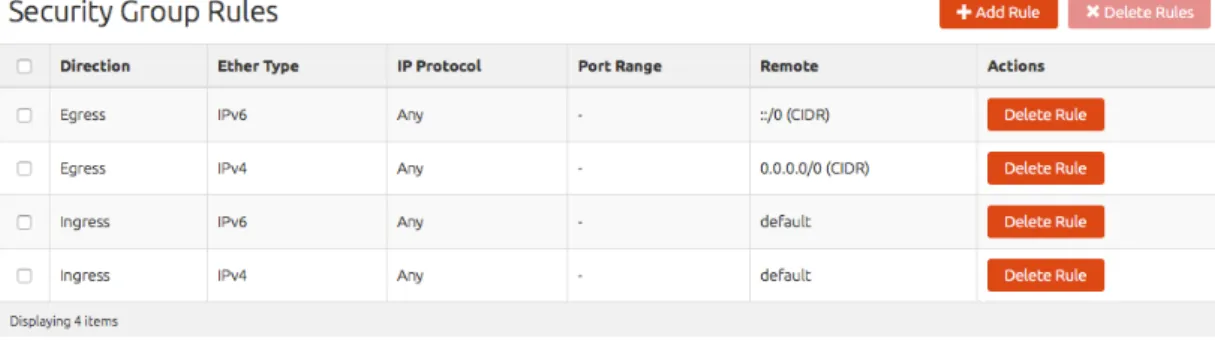
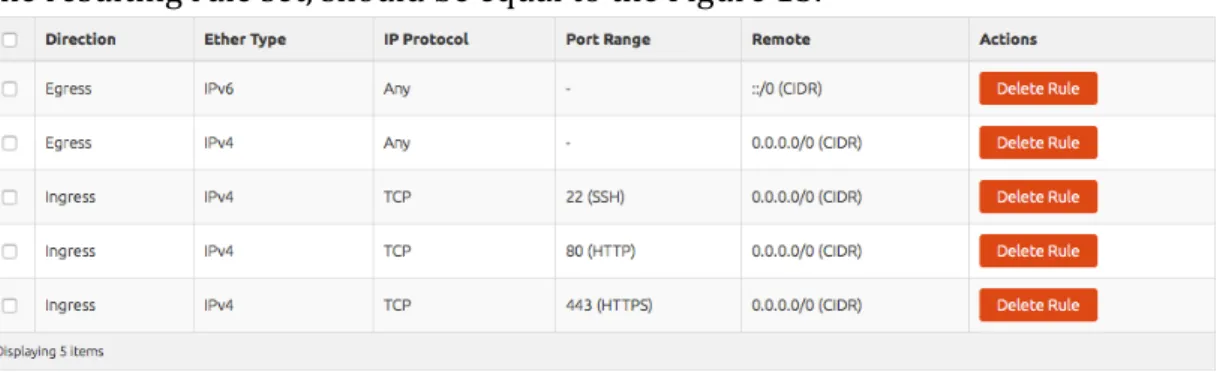
Creating my 1st security group ... 30
Discussion ... 30
Future work ... 31
Bibliography ... 31
Introduction
As we are in a fast paced oriented guide, we will leave most of the “whys” to the OpenStack.org manual, and focus on the deployment of a secured OpenStack, for learning purposes.
Prior knowledge of GNU/Linux operating systems (Ubuntu flavour) will be helpful for a successful deploy, especially when things go wrong, that being said, let’s start.
Requirements
For a secured OpenStack it’s recommended that we split the management of the cloud to an isolated network, so that the tenant do not have any access to the host by design, this means using neutron.
Usually for learning we don’t want to buy three computers to learn OpenStack, so the hardware requirements of this guide will be kept to the minimum, so that we can virtualize our entire cloud:
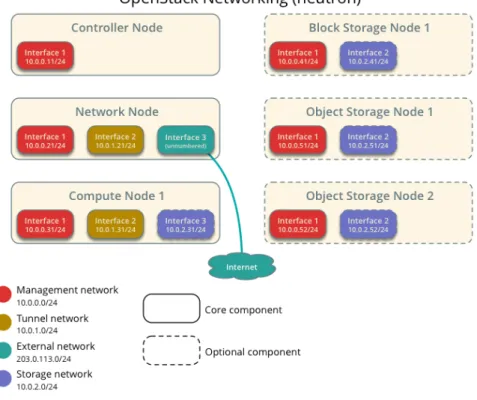
1. Controller Node: 1 CPU, 1,5 GB ram, and 5 GB storage, 1 NIC; 2. Network Node: 1 CPU, 512 MB ram, and 5 GB storage, 3 NIC; 3. Compute Node: 1 CPU, 2 GB ram, and 8 GB storage, 2 NIC. Yes, your machine will benefit of 6GB or more of RAM .
Figure 1 -‐ OpenStack 3 node hardware requirements [1]
After creating the required VMs, make sure your hypervisor permits promiscuous mode and disable MAC address filtering on the external network, or setting up the physical ones, deploy Ubuntu Server 14.04, on the disk partition favour LVM.
The table below has the list of all the passwords that you will require to install OpenStack, will be useful to write it somewhere during install procedure.
You can use openssl to help generate different random passwords for each one:
# openssl rand -hex 10
Password name Description
Database password (no variable used) Root password for the database
RABBIT_PASS Password of user guest of RabbitMQ
KEYSTONE_DBPASS Database password of Identity service
DEMO_PASS Password of user demo
ADMIN_PASS Password of user admin
GLANCE_DBPASS Database password for Image Service
GLANCE_PASS Password of Image Service user glance
NOVA_DBPASS Database password for Compute service
NOVA_PASS Password of Compute service user nova
DASH_DBPASS Database password for the dashboard
CINDER_DBPASS Database password for the Block Storage service
CINDER_PASS Password of Block Storage service user cinder
NEUTRON_DBPASS Database password for the Networking service
NEUTRON_PASS Password of Networking service user neutron
Figure 2 -‐ List of OpenStack services passwords
Network Architecture Setup
So we will now start configuring our nodes to achieve the topology in the image below:
Figure 3 -‐ Minimal architecture example
On Controller node:
1. Configure the first interface as the management interface:
IP address: 10.0.0.11
Network mask: 255.255.255.0 (or /24) Default gateway: 10.0.0.1
2. Reboot system
To configure name resolution:
3. Set the hostname of the node to controller. 4. Edit the /etc/hosts file to contain the following:
# controller
10.0.0.11 controller # network
10.0.0.21 network # compute1
10.0.0.31 compute1
You must remove or comment the line beginning with 127.0.1.1
Network node
To configure networking:
1. Configure the first interface as the management interface:
IP address: 10.0.0.21
Network mask: 255.255.255.0 (or /24) Default gateway: 10.0.0.1
2. Configure the second interface as the instance tunnels interface:
IP address: 10.0.1.21
Network mask: 255.255.255.0 (or /24)
3. The external interface uses a special configuration without an IP address assigned to it. Configure the third interface as the external interface: Replace INTERFACE_NAME with the actual interface name. For example, eth2 or ens256.
Edit the /etc/network/interfaces file to contain the following:
# The external network interface auto INTERFACE_NAME
iface INTERFACE_NAME inet manual up ip link set dev $IFACE up down ip link set dev $IFACE down
4. Reboot the system to activate the changes. 5. Set the hostname of the node to network.
6. Repeat step 4 from controller node in network node.
Compute node
To configure networking:
1. Configure the first interface as the management interface:
IP address: 10.0.0.31
Network mask: 255.255.255.0 (or /24) Default gateway: 10.0.0.1
2. Configure the second interface as the instance tunnels interface:
IP address: 10.0.1.31
Network mask: 255.255.255.0 (or /24)
3. Reboot the system to activate the changes. 4. Set the hostname of the node to compute1.
5. Repeat step 4 from controller node in network node.
You should verify network connectivity, by using ping for all interfaces of all nodes.
Controller node
1. Install NTP service
# apt-get install ntp
2. Edit the /etc/ntp.conf file and add, change, or remove the following keys as necessary for your environment:
server NTP_SERVER iburst
restrict -4 default kod notrap nomodify restrict -6 default kod notrap nomodify
Replace NTP_SERVER with the hostname or IP address of a suitable more accurate (lower stratum) NTP server. The configuration supports multiple server keys.
For the restrict keys, you essentially remove the nopeer and noquery options.
Remove the /var/lib/ntp/ntp.conf.dhcp file if it exists. 3. Restart the NTP service:
# service ntp restart
Other nodes
1. Install NTP service
# apt-get install ntp
2. Edit the /etc/ntp.conf file and comment out or remove all but one server key and change it to reference the controller node:
server controller iburst
3. Remove the /var/lib/ntp/ntp.conf.dhcp file if it exists.
OpenStack packages
On all nodes:1. Install the Ubuntu Cloud archive keyring and repository:
# apt-get install ubuntu-cloud-keyring
# echo "deb http://ubuntu-cloud.archive.canonical.com/ubuntu" \
"trusty-updates/juno main" > /etc/apt/sources.list.d/cloudarchive-juno.list
2. Upgrade the packages on your system:
# apt-get update && apt-get dist-upgrade
Database
On Controller Node only: 1. Install the packages:
# apt-get install mariadb-server python-mysqldb
2. Choose a suitable password for the database root account.
3. Edit the /etc/mysql/my.cnf file and complete the following actions:
a. In the [mysqld] section, set the bind-‐address key to the management IP address of the controller node to enable access by other nodes via the management network:
[mysqld] ...
bind-address = 10.0.0.11 ...
default-storage-engine = innodb innodb_file_per_table
collation-server = utf8_general_ci init-connect = 'SET NAMES utf8' character-set-server = utf8
To finalize installation
4. Restart the database service:
# service mysql restart
5. Secure the database service:
# mysql_secure_installation
Messaging server
On Controller node:To install the RabbitMQ message broker service # apt-get install rabbitmq-server
To configure the message broker service
Replace RABBIT_PASS with a suitable password.
# rabbitmqctl change_password guest RABBIT_PASS Changing password for user "guest" ...
...done.
OpenStack Identity
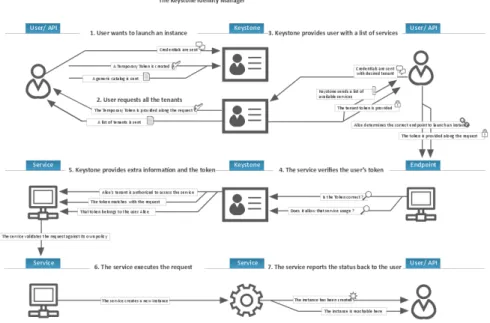
After deployment you should read the details of keystone identity service. For now the diagram below should be enough:
Figure 4 -‐ OpenStack Identity flow
On Controller node
1. Use the database access client to connect to the database server as the root user:
$ mysql -u root -p
2. Create the keystone database:
CREATE DATABASE keystone;
3. Grant proper access to the keystone database:
GRANT ALL PRIVILEGES ON keystone.* TO 'keystone'@'localhost' \ IDENTIFIED BY 'KEYSTONE_DBPASS';
GRANT ALL PRIVILEGES ON keystone.* TO 'keystone'@'%' \ IDENTIFIED BY 'KEYSTONE_DBPASS';
Replace KEYSTONE_DBPASS with a suitable password.
4. Exit the database access client.
Install and configure the components
5. Run the following command to install the packages:
# apt-get install keystone python-keystoneclient
6. Edit the /etc/keystone/keystone.conf file and complete the following actions:
In the [DEFAULT] section, define the value of the initial administration token:
[DEFAULT] ...
admin_token = ADMIN_TOKEN
Replace ADMIN_TOKEN with the random value that you generated. In the [database] section, configure database access:
[database] ...
connection = mysql://keystone:KEYSTONE_DBPASS@controller/keystone
Replace KEYSTONE_DBPASS with the password you chose for the database.
In the [token] section, configure the UUID token provider and SQL driver:
[token] ...
provider = keystone.token.providers.uuid.Provider driver = keystone.token.persistence.backends.sql.Token
To assist with troubleshooting, enable verbose logging in the [DEFAULT] section:
[DEFAULT] ...
verbose = True
7. Populate the Identity service database:
# su -s /bin/sh -c "keystone-manage db_sync" keystone
8. To finalize installation restart the Identity service:
# service keystone restart
9. Remove the SQLite database file:
# rm -f /var/lib/keystone/keystone.db
Note: By default, the Identity service stores expired tokens in the database indefinitely. The accumulation of expired tokens considerably increases the database size and might degrade service performance, particularly in environments with limited resources.
Configure a periodic task that purges expired tokens hourly:
# (crontab -l -u keystone 2>&1 | grep -q token_flush) || \
echo '@hourly /usr/bin/keystone-manage token_flush >/var/log/keystone/keystone-tokenflush.log 2>&1' \ >> /var/spool/cron/crontabs/keystone
Create tenants, users, and roles
Lets install the Identity service, create tenants (projects), users, and roles for your environment. Later for more details please refer to Managing projects and users.
Configure prerequisites
1. Configure the administration token:
$ export OS_SERVICE_TOKEN=ADMIN_TOKEN
2. Replace ADMIN_TOKEN with the administration token that you generated in the section called “Install and configure”. For example:
$ export OS_SERVICE_TOKEN=294a4c8a8a475f9b9836
3. Configure the endpoint:
$ export OS_SERVICE_ENDPOINT=http://controller:35357/v2.0
Create an administrative tenant, user, and role for administrative operations in your environment:
4. Create the admin tenant:
$ keystone tenant-create --name admin --description "Admin Tenant"
5. Create the admin user:
$ keystone user-create --name admin --pass ADMIN_PASS --email EMAIL_ADDRESS
Replace ADMIN_PASS with a suitable password and EMAIL_ADDRESS with a suitable e-‐mail address.
6. Create the admin role:
$ keystone role-create --name admin
7. Add the admin tenant and user to the admin role:
$ keystone user-role-add --tenant admin --user admin --role admin
By default, the dashboard limits access to users with the _member_ role.
Create the _member_ role:
8. Add the admin tenant and user to the _member_ role:
$ keystone user-role-add --tenant admin --user admin --role _member_
Note: Any roles that you create must map to roles specified in the policy.json file included with each OpenStack service. The default policy for most services grants administrative access to the admin role.
9. Create the demo tenant:
$ keystone tenant-create --name demo --description "Demo Tenant"
Note: Do not repeat this step when creating additional users for this tenant.
10.Create the demo user:
$ keystone user-create --name demo --pass DEMO_PASS --email EMAIL_ADDRESS
Replace DEMO_PASS with a suitable password and EMAIL_ADDRESS with a suitable e-‐mail address.
11.Add the demo tenant and user to the _member_ role:
$ keystone user-role-add --tenant demo --user demo --role _member_
Note: You can repeat this procedure to create additional tenants and users.
OpenStack services also require a tenant, user, and role to interact with other services. You will create a user in the service tenant for each service that you install.
12.Create the service tenant:
$ keystone tenant-create --name service --description "Service Tenant"
The Identity service manages a catalog of services in your OpenStack environment. Services use this catalog to locate other services in your environment.
1. Create the service entity for the Identity service:
$ keystone service-create --name keystone --type identity \ --description "OpenStack Identity"
The Identity service manages a catalog of API endpoints associated with the services in your OpenStack environment. Services use this catalog to determine how to communicate with other services in your environment. OpenStack provides three API endpoint variations for each service: admin, internal, and public. In a production environment, the variants might reside on separate networks that service different types of users for security reasons. Also, OpenStack supports multiple regions for scalability. For simplicity, this configuration uses the management network for all endpoint variations and the regionOne region.
2. Create the API endpoint for the Identity service:
$ keystone endpoint-create \
--service-id $(keystone service-list | awk '/ identity / {print $2}') \ --publicurl http://controller:5000/v2.0 \
--internalurl http://controller:5000/v2.0 \ --adminurl http://controller:35357/v2.0 \ --region regionOne
Note: This command references the ID of the service that you created in the previous step.
Note: Each service that you add to your OpenStack environment requires adding information such as API endpoints to the Identity service. The sections of this guide that cover service installation include steps to add the appropriate information to the Identity service.
Verify operation
3. Unset the temporary OS_SERVICE_TOKEN and OS_SERVICE_ENDPOINT environment variables:
$ unset OS_SERVICE_TOKEN OS_SERVICE_ENDPOINT
4. As the admin tenant and user, request an authentication token:
$ keystone --os-tenant-name admin --os-username admin --os-password ADMIN_PASS \ --os-auth-url http://controller:35357/v2.0 token-get
Replace ADMIN_PASS with the password you chose for the admin user in the Identity service. You might need to use single quotes (') around your password if it includes special characters.
Lengthy output that includes a token value verifies operation for the admin tenant and user.
5. As the admin tenant and user, list tenants to verify that the admin tenant and user can execute admin-‐only CLI commands and that the Identity service contains the tenants that you created in the section called “Create tenants, users, and roles”:
$ keystone --os-tenant-name admin --os-username admin --os-password ADMIN_PASS \ --os-auth-url http://controller:35357/v2.0 tenant-list
+---+---+---+ | id | name | enabled | +---+---+---+ | 6f4c1e4cbfef4d5a8a1345882fbca110 | admin | True | | 4aa51bb942be4dd0ac0555d7591f80a6 | demo | True | | 6b69202e1bf846a4ae50d65bc4789122 | service | True | +---+---+---+ Create OpenStack client environment scripts
On the controller node, in root home:
Edit the admin-‐openrc.sh file and add the following content:
export OS_TENANT_NAME=admin export OS_USERNAME=admin export OS_PASSWORD=ADMIN_PASS
export OS_AUTH_URL=http://controller:35357/v2.0
Replace ADMIN_PASS with the password you chose for the admin user in the Identity service.
Edit the demo-‐openrc.sh file and add the following content:
export OS_TENANT_NAME=demo export OS_USERNAME=demo export OS_PASSWORD=DEMO_PASS
export OS_AUTH_URL=http://controller:5000/v2.0
Replace DEMO_PASS with the password you chose for the demo user in the Identity service.
Identity ports
Note the two different ports used above. Port 35357 is used for administrative functions only. Port 5000 is for normal user functions and is the most commonly used.
Add the Image Service
1. Use the database access client to connect to the database server as the root user:
$ mysql -u root -p
2. Create the glance database:
CREATE DATABASE glance;
3. Grant proper access to the glance database:
GRANT ALL PRIVILEGES ON glance.* TO 'glance'@'localhost' \ IDENTIFIED BY 'GLANCE_DBPASS';
GRANT ALL PRIVILEGES ON glance.* TO 'glance'@'%' \ IDENTIFIED BY 'GLANCE_DBPASS';
Replace GLANCE_DBPASS with a suitable password. 4. Exit the database access client.
$ source admin-openrc.sh
To create the Identity service credentials, complete these steps: 6. Create the glance user:
$ keystone user-create --name glance --pass GLANCE_PASS
Replace GLANCE_PASS with a suitable password.
7. Link the glance user to the service tenant and admin role:
$ keystone user-role-add --user glance --tenant service --role admin
8. Create the glance service:
$ keystone service-create --name glance --type image \ --description "OpenStack Image Service"
9. Create the Identity service endpoints:
$ keystone endpoint-create \
--service-id $(keystone service-list | awk '/ image / {print $2}') \ --publicurl http://controller:9292 \
--internalurl http://controller:9292 \ --adminurl http://controller:9292 \ --region regionOne
To install and configure the Image Service components 10.Install the packages:
# apt-get install glance python-glanceclient
Edit the /etc/glance/glance-‐api.conf file and complete the following actions: 11.In the [database] section, configure database access:
[database] ...
connection = mysql://glance:GLANCE_DBPASS@controller/glance
Replace GLANCE_DBPASS with the password you chose for the Image Service database.
12.In the [keystone_authtoken] and [paste_deploy] sections, configure Identity service access:
[keystone_authtoken] ...
auth_uri = http://controller:5000/v2.0 identity_uri = http://controller:35357 admin_tenant_name = service
admin_user = glance
admin_password = GLANCE_PASS [paste_deploy]
...
flavor = keystone
Replace GLANCE_PASS with the password you chose for the glance user in the Identity service.
Important: Comment out any auth_host, auth_port, and auth_protocol options because the identity_uri option replaces them.
13.In the [glance_store] section, configure the local file system store and location of image files:
[glance_store] ...
default_store = file
filesystem_store_datadir = /var/lib/glance/images/
14.(Optional) To assist with troubleshooting, enable verbose logging in the [DEFAULT] section:
[DEFAULT] ...
verbose = True
Edit the /etc/glance/glance-‐registry.conf file and complete the following actions: 15.In the [database] section, configure database access:
[database] ...
Replace GLANCE_DBPASS with the password you chose for the Image Service database.
16.In the [keystone_authtoken] and [paste_deploy] sections, configure Identity service access:
[keystone_authtoken] ...
auth_uri = http://controller:5000/v2.0 identity_uri = http://controller:35357 admin_tenant_name = service
admin_user = glance
admin_password = GLANCE_PASS
[paste_deploy] ...
flavor = keystone
Replace GLANCE_PASS with the password you chose for the glance user in the Identity service.
Important:Comment out any auth_host, auth_port, and auth_protocol options because the identity_uri option replaces them.
17.(Optional) To assist with troubleshooting, enable verbose logging in the [DEFAULT] section:
[DEFAULT] ...
verbose = True
18.Populate the Image Service database:
# su -‐s /bin/sh -‐c "glance-‐manage db_sync" glance 19.To finalize installation
20.Restart the Image Service services:
# service glance-registry restart # service glance-api restart
By default, the Ubuntu packages create an SQLite database.
21.Because this configuration uses a SQL database server, you can remove the SQLite database file:
# rm -f /var/lib/glance/glance.sqlite
22.Create and change into a temporary local directory:
$ mkdir /tmp/images $ cd /tmp/images
23.Download the image to the temporary local directory:
$ wget http://cdn.download.cirros-cloud.net/0.3.3/cirros-0.3.3-x86_64-disk.img
24.Source the admin credentials to gain access to admin-‐only CLI commands:
$ source admin-openrc.sh
25.Upload the image to the Image Service:
$ glance image-create --name "cirros-0.3.3-x86_64" --file cirros-0.3.3-x86_64-disk.img \
--disk-format qcow2 --container-format bare --is-public True --progress
For information about the parameters for the glance image-‐create command, see Image Service command-‐line client in the OpenStack Command-‐Line Interface Reference.
For information about disk and container formats for images, see Disk and container formats for images in the OpenStack Virtual Machine Image Guide.
Note: Because the returned image ID is generated dynamically, your deployment generates a different ID than the one shown in this example. 26.Confirm upload of the image and validate attributes:
$ glance image-list
27.Remove the temporary local directory:
$ rm -r /tmp/images
Compute service
On controller:1. Create the database, complete these steps:
$ mysql -u root -p
2. Create the nova database:
CREATE DATABASE nova;
3. Grant proper access to the nova database:
GRANT ALL PRIVILEGES ON nova.* TO 'nova'@'localhost' \ IDENTIFIED BY 'NOVA_DBPASS';
GRANT ALL PRIVILEGES ON nova.* TO 'nova'@'%' \ IDENTIFIED BY 'NOVA_DBPASS';
Replace NOVA_DBPASS with a suitable password. 4. Exit the database access client.
5. Source the admin credentials to gain access to admin-‐only CLI commands:
$ source admin-openrc.sh
Create the Identity service credentials, complete these steps: 6. Create the nova user:
$ keystone user-create --name nova --pass NOVA_PASS
Replace NOVA_PASS with a suitable password.
7. Link the nova user to the service tenant and admin role:
$ keystone user-role-add --user nova --tenant service --role admin
8. Create the nova service:
$ keystone service-create --name nova --type compute \ --description "OpenStack Compute"
9. Create the Compute service endpoints:
$ keystone endpoint-create \
--service-id $(keystone service-list | awk '/ compute / {print $2}') \ --publicurl http://controller:8774/v2/%\(tenant_id\)s \
--internalurl http://controller:8774/v2/%\(tenant_id\)s \ --adminurl http://controller:8774/v2/%\(tenant_id\)s \ --region regionOne
To install and configure Compute controller components 10.Install the packages:
# apt-get install nova-api nova-cert nova-conductor nova-consoleauth \ nova-novncproxy nova-scheduler python-novaclient
Edit the /etc/nova/nova.conf file and complete the following actions: 11.In the [database] section, configure database access:
[database] ...
connection = mysql://nova:NOVA_DBPASS@controller/nova
Replace NOVA_DBPASS with the password you chose for the Compute database. 12.In the [DEFAULT] section, configure RabbitMQ message broker access:
[DEFAULT] ...
rpc_backend = rabbit rabbit_host = controller rabbit_password = RABBIT_PASS
Replace RABBIT_PASS with the password you chose for the guest account in RabbitMQ.
13.In the [DEFAULT] and [keystone_authtoken] sections, configure Identity service access:
...
auth_strategy = keystone [keystone_authtoken] ...
auth_uri = http://controller:5000/v2.0 identity_uri = http://controller:35357 admin_tenant_name = service
admin_user = nova
admin_password = NOVA_PASS
Replace NOVA_PASS with the password you chose for the nova user in the Identity service.
Important: Comment out any auth_host, auth_port, and auth_protocol
options because the identity_uri option replaces them.
14.In the [DEFAULT] section, configure the my_ip option to use the management interface IP address of the controller node:
[DEFAULT] ...
my_ip = 10.0.0.11
# VNC proxy to use the management interface IP address of the controller node vncserver_listen = 10.0.0.11
vncserver_proxyclient_address = 10.0.0.11
15.In the [glance] section, configure the location of the Image Service:
[glance] ...
host = controller
16.To assist with troubleshooting, enable verbose logging in the [DEFAULT] section:
[DEFAULT] ...
verbose = True
17.Populate the Compute database:
# su -s /bin/sh -c "nova-manage db sync" nova
To finalize installation
18.Restart the Compute services:
# service nova-api restart # service nova-cert restart # service nova-consoleauth restart # service nova-scheduler restart # service nova-conductor restart # service nova-novncproxy restart
19.Remove SQLite database:
# rm -f /var/lib/nova/nova.sqlite
Install and configure a compute node
On compute node:1. Install the packages:
# apt-get install nova-compute sysfsutils
Edit the /etc/nova/nova.conf file and complete the following actions:
2. In the [DEFAULT] section, configure RabbitMQ message broker access:
[DEFAULT] ...
rpc_backend = rabbit rabbit_host = controller rabbit_password = RABBIT_PASS
Replace RABBIT_PASS with the password you chose for the guest account in RabbitMQ.
3. In the [DEFAULT] and [keystone_authtoken] sections, configure Identity service access:
...
auth_strategy = keystone [keystone_authtoken] ...
auth_uri = http://controller:5000/v2.0 identity_uri = http://controller:35357 admin_tenant_name = service
admin_user = nova
admin_password = NOVA_PASS
Replace NOVA_PASS with the password you chose for the nova user in the Identity service.
Important: Comment out any auth_host, auth_port, and auth_protocol options because the identity_uri option replaces them.
4. In the [DEFAULT] section, configure the my_ip option:
[DEFAULT] ...
my_ip = MANAGEMENT_INTERFACE_IP_ADDRESS
Replace MANAGEMENT_INTERFACE_IP_ADDRESS with the IP address of the management network interface on your compute node, typically 10.0.0.31 for the first node in the example architecture.
In the [DEFAULT] section, enable and configure remote console access: [DEFAULT]
...
vnc_enabled = True
vncserver_listen = 0.0.0.0
vncserver_proxyclient_address = MANAGEMENT_INTERFACE_IP_ADDRESS novncproxy_base_url = http://controller:6080/vnc_auto.html
The server component listens on all IP addresses and the proxy component only listens on the management interface IP address of the compute node. The base URL indicates the location where you can use a web browser to access remote consoles of instances on this compute node.
Replace MANAGEMENT_INTERFACE_IP_ADDRESS with the IP address of the management network interface on your compute node, typically 10.0.0.31 for the first node in the example architecture.
5. In the [glance] section, configure the location of the Image Service:
[glance] ...
host = controller
To assist with troubleshooting, enable verbose logging in the [DEFAULT] section: [DEFAULT]
...
verbose = True
To finalize installation
6. Determine whether your compute node supports hardware acceleration for virtual machines:
$ egrep -c '(vmx|svm)' /proc/cpuinfo
If this command returns a value of one or greater, your compute node supports hardware acceleration which typically requires no additional configuration.
If this command returns a value of zero, your compute node does not support hardware acceleration and you must configure libvirt to use QEMU instead of KVM.
7. Edit the [libvirt] section in the /etc/nova/nova-‐compute.conf file as follows:
[libvirt] ...
virt_type = qemu
8. Restart the Compute service:
9. Remove the SQLite database file:
# rm -f /var/lib/nova/nova.sqlite Verify operation
Perform these commands on the controller node.
10.Source the admin credentials to gain access to admin-‐only CLI commands:
$ source admin-openrc.sh
11.List service components to verify successful launch of each process:
$ nova service-list
+----+---+---+---+---+---+---+---+ | Id | Binary | Host | Zone | Status | State | Updated_at | Disabled Reason | +----+---+---+---+---+---+---+---+ | 1 | nova-conductor | controller | internal | enabled | up | 2014-09-16T23:54:02.000000 | - | | 2 | nova-consoleauth | controller | internal | enabled | up | 2014-09-16T23:54:04.000000 | - | | 3 | nova-scheduler | controller | internal | enabled | up | 2014-09-16T23:54:07.000000 | - | | 4 | nova-cert | controller | internal | enabled | up | 2014-09-16T23:54:00.000000 | - | | 5 | nova-compute | compute1 | nova | enabled | up | 2014-09-16T23:54:06.000000 | - | +----+---+---+---+---+---+---+---+
This output should indicate four components enabled on the controller node one component enabled on the compute node.
12.List images in the Image Service catalog to verify connectivity with the Identity service and Image Service:
$ nova image-list
+---+---+---+---+ | ID | Name | Status | Server | +---+---+---+---+ | acafc7c0-40aa-4026-9673-b879898e1fc2 | cirros-0.3.3-x86_64 | ACTIVE | | +---+---+---+---+
Add a network node
OpenStack Networking (neutron) manages all networking facets for the Virtual Networking Infrastructure (VNI) and the access layer aspects of the Physical Networking Infrastructure (PNI) in your OpenStack environment.
On Controller:
1. To create the database, complete these steps:
$ mysql -u root -p
2. Create the neutron database: CREATE DATABASE neutron;
3. Grant proper access to the neutron database:
GRANT ALL PRIVILEGES ON neutron.* TO 'neutron'@'localhost' \ IDENTIFIED BY 'NEUTRON_DBPASS';
GRANT ALL PRIVILEGES ON neutron.* TO 'neutron'@'%' \ IDENTIFIED BY 'NEUTRON_DBPASS';
Replace NEUTRON_DBPASS with a suitable password. 4. Exit the database access client.
5. Source the admin credentials to gain access to admin-‐only CLI commands:
$ source admin-openrc.sh
To create the Identity service credentials, complete these steps: 6. Create the neutron user:
$ keystone user-create --name neutron --pass NEUTRON_PASS
Replace NEUTRON_PASS with a suitable password.
7. Link the neutron user to the service tenant and admin role:
$ keystone user-role-add --user neutron --tenant service --role admin
8. Create the neutron service:
$ keystone service-create --name neutron --type network \ --description "OpenStack Networking"
9. Create the Identity service endpoints:
--service-id $(keystone service-list | awk '/ network / {print $2}') \ --publicurl http://controller:9696 \
--adminurl http://controller:9696 \ --internalurl http://controller:9696 \ --region regionOne
10.Install the Networking components
# apt-get install neutron-server neutron-plugin-ml2 python-neutronclient
Edit the /etc/neutron/neutron.conf file and complete the following actions: 11.In the [database] section, configure database access:
[database] ...
connection = mysql://neutron:NEUTRON_DBPASS@controller/neutron
Replace NEUTRON_DBPASS with the password you chose for the database.
In the [DEFAULT] section, configure RabbitMQ message broker access:
[DEFAULT] ...
rpc_backend = rabbit rabbit_host = controller rabbit_password = RABBIT_PASS
Replace RABBIT_PASS with the password you chose for the guest account in RabbitMQ.
12.In the [DEFAULT] and [keystone_authtoken] sections, configure Identity service access:
[DEFAULT] ...
auth_strategy = keystone [keystone_authtoken] ...
auth_uri = http://controller:5000/v2.0 identity_uri = http://controller:35357 admin_tenant_name = service
admin_user = neutron
admin_password = NEUTRON_PASS
Replace NEUTRON_PASS with the password you chose or the neutron user in the Identity service.
Important: Comment out any auth_host, auth_port, and auth_protocol
options because the identity_uri option replaces them.
13.In the [DEFAULT] section, enable the Modular Layer 2 (ML2) plug-‐in, router service, and overlapping IP addresses:
[DEFAULT] ...
core_plugin = ml2 service_plugins = router allow_overlapping_ips = True
14.In the [DEFAULT] section, configure Networking to notify Compute of network topology changes:
[DEFAULT] ...
notify_nova_on_port_status_changes = True notify_nova_on_port_data_changes = True nova_url = http://controller:8774/v2
nova_admin_auth_url = http://controller:35357/v2.0 nova_region_name = regionOne
nova_admin_username = nova
nova_admin_tenant_id = SERVICE_TENANT_ID nova_admin_password = NOVA_PASS
Replace SERVICE_TENANT_ID with the service tenant identifier (id) in the Identity service and NOVA_PASS with the password you chose for the nova user in the Identity service.
15.To obtain the service tenant identifier (id):
$ keystone tenant-get service
16.(Optional) To assist with troubleshooting, enable verbose logging in the [DEFAULT] section:
[DEFAULT] ...
verbose = True
Edit the /etc/neutron/plugins/ml2/ml2_conf.ini file and complete the following actions:
17.In the [ml2] section, enable the flat and generic routing encapsulation (GRE) network type drivers, GRE tenant networks, and the OVS mechanism driver:
[ml2] ...
type_drivers = flat,gre tenant_network_types = gre mechanism_drivers = openvswitch
Warning: Once you configure the ML2 plug-‐in, be aware that disabling a network type driver and re-‐enabling it later can lead to database inconsistency.
18.In the [ml2_type_gre] section, configure the tunnel identifier (id) range:
[ml2_type_gre] ...
tunnel_id_ranges = 1:1000
19.In the [securitygroup] section, enable security groups, enable ipset, and configure the OVS iptables firewall driver:
[securitygroup] ...
enable_security_group = True enable_ipset = True
firewall_driver=
neutron.agent.linux.iptables_firewall.OVSHybridIptablesFirewallDriver On Compute:
Edit the /etc/nova/nova.conf file and complete the following actions: 20.In the [DEFAULT] section, configure the APIs and drivers:
[DEFAULT] ...
network_api_class = nova.network.neutronv2.api.API security_group_api = neutron
linuxnet_interface_driver = nova.network.linux_net.LinuxOVSInterfaceDriver firewall_driver = nova.virt.firewall.NoopFirewallDriver
21.In the [neutron] section, configure access parameters:
[neutron] ...
url = http://controller:9696 auth_strategy = keystone
admin_auth_url = http://controller:35357/v2.0 admin_tenant_name = service
admin_username = neutron admin_password = NEUTRON_PASS
Replace NEUTRON_PASS with the password you chose for the neutron user in the Identity service.
Finalize installation
22.Populate the database:
# su -s /bin/sh -c "neutron-db-manage --config-file /etc/neutron/neutron.conf \ --config-file /etc/neutron/plugins/ml2/ml2_conf.ini upgrade juno" neutron
Note: Database population occurs later for Networking because the script requires complete server and plug-‐in configuration files.
23.Restart the Compute services:
# service nova-api restart # service nova-scheduler restart
# service nova-conductor restart
24.Restart the Networking service:
# service neutron-server restart Verify operation
On the controller
25.Source the admin credentials to gain access to admin-‐only CLI commands:
$ source admin-openrc.sh
26.List loaded extensions to verify successful launch of the neutron-‐server process:
$ neutron ext-list
+---+---+ | alias | name | +---+---+ | security-group | security-group | | l3_agent_scheduler | L3 Agent Scheduler | | ext-gw-mode | Neutron L3 Configurable external gateway mode | | binding | Port Binding | | provider | Provider Network | | agent | agent | | quotas | Quota management support | | dhcp_agent_scheduler | DHCP Agent Scheduler | | l3-ha | HA Router extension | | multi-provider | Multi Provider Network | | external-net | Neutron external network | | router | Neutron L3 Router | | allowed-address-pairs | Allowed Address Pairs | | extraroute | Neutron Extra Route | | extra_dhcp_opt | Neutron Extra DHCP opts | | dvr | Distributed Virtual Router | +---+---+
Install and configure network node
The network node primarily handles internal, external routing and DHCP services for virtual networks.
On network node:
1. Edit the /etc/sysctl.conf file to contain the following parameters:
net.ipv4.ip_forward=1
net.ipv4.conf.all.rp_filter=0 net.ipv4.conf.default.rp_filter=0
2. Implement the changes:
# sysctl -p
3. Install the Networking components
# apt-get install neutron-plugin-ml2 neutron-plugin-openvswitch-agent \ neutron-l3-agent neutron-dhcp-agent
Configure the Networking common components
4. Edit the /etc/neutron/neutron.conf file and complete the following actions:
5. In the [database] section, comment out any connection options because network nodes do not directly access the database.
6. In the [DEFAULT] section, configure RabbitMQ message broker access:
[DEFAULT] ...
rpc_backend = rabbit rabbit_host = controller rabbit_password = RABBIT_PASS
Replace RABBIT_PASS with the password you chose for the guest account in RabbitMQ.
7. In the [DEFAULT] and [keystone_authtoken] sections, configure Identity service access:
[DEFAULT] ...
auth_strategy = keystone
[keystone_authtoken] ...
auth_uri = http://controller:5000/v2.0 identity_uri = http://controller:35357 admin_tenant_name = service
admin_user = neutron
admin_password = NEUTRON_PASS
Replace NEUTRON_PASS with the password you chose or the neutron user in the Identity service.
Important: Comment out any auth_host, auth_port, and auth_protocol
options because the identity_uri option replaces them.
8. In the [DEFAULT] section, enable the Modular Layer 2 (ML2) plug-‐in, router service, and overlapping IP addresses:
[DEFAULT] ...
core_plugin = ml2 service_plugins = router allow_overlapping_ips = True
9. (Optional) To assist with troubleshooting, enable verbose logging in the [DEFAULT] section:
[DEFAULT] ...
verbose = True
To configure the Modular Layer 2 (ML2) plug-‐in
10.Edit the /etc/neutron/plugins/ml2/ml2_conf.ini file and complete the following actions:
11.In the [ml2] section, enable the flat and generic routing encapsulation (GRE) network type drivers, GRE tenant networks, and the OVS mechanism driver:
[ml2] ...
type_drivers = flat,gre tenant_network_types = gre mechanism_drivers = openvswitch
12.In the [ml2_type_flat] section, configure the external flat provider network:
[ml2_type_flat] ...
flat_networks = external
In the [ml2_type_gre] section, configure the tunnel identifier (id) range: [ml2_type_gre]
...
tunnel_id_ranges = 1:1000
13.In the [securitygroup] section, enable security groups, enable ipset, and configure the OVS iptables firewall driver:
[securitygroup] ...
enable_security_group = True enable_ipset = True
firewall_driver =
neutron.agent.linux.iptables_firewall.OVSHybridIptablesFirewallDriver
14.In the [ovs] section, enable tunnels, configure the local tunnel endpoint, and map the external flat provider network to the br-‐ex external network bridge:
[ovs] ...
local_ip = INSTANCE_TUNNELS_INTERFACE_IP_ADDRESS enable_tunneling = True
bridge_mappings = external:br-ex
Replace INSTANCE_TUNNELS_INTERFACE_IP_ADDRESS with the IP address of the instance tunnels network interface on your network node. 15.In the [agent] section, enable GRE tunnels:
[agent] ...
tunnel_types = gre
To configure the Layer-‐3 (L3) agent, the Layer-‐3 (L3) agent provides routing services for virtual networks.
16.Edit the /etc/neutron/l3_agent.ini file and complete the following actions: 17.In the [DEFAULT] section, configure the driver, enable network
namespaces, and configure the external network bridge:
[DEFAULT] ...
debug = True
interface_driver = neutron.agent.linux.interface.OVSInterfaceDriver use_namespaces = True
18. (Optional) To assist with troubleshooting, enable verbose logging in the [DEFAULT] section:
[DEFAULT] ...
verbose = True
To configure the DHCP agent, the DHCP agent provides DHCP services for virtual networks.
19.Edit the /etc/neutron/dhcp_agent.ini file and complete the following actions:
20.In the [DEFAULT] section, configure the drivers and enable namespaces:
[DEFAULT] ...
interface_driver = neutron.agent.linux.interface.OVSInterfaceDriver dhcp_driver = neutron.agent.linux.dhcp.Dnsmasq
use_namespaces = True
21.(Optional) To assist with troubleshooting, enable verbose logging in the [DEFAULT] section:
[DEFAULT] ...
verbose = True
Note: Some cloud images ignore the DHCP MTU option in which case you should configure it using metadata, script, or other suitable method.
22.Edit the /etc/neutron/dhcp_agent.ini file and complete the following action:
23.In the [DEFAULT] section, enable the dnsmasq configuration file:
[DEFAULT] ...
dnsmasq_config_file = /etc/neutron/dnsmasq-neutron.conf
24.Create and edit the /etc/neutron/dnsmasq-‐neutron.conf file and complete the following action:
25.Enable the DHCP MTU option (26) and configure it to 1454 bytes:
dhcp-option-force=26,1454
26.Kill any existing dnsmasq processes:
# pkill dnsmasq
To configure the metadata agent, the metadata agent provides configuration information such as credentials to instances.
27.Edit the /etc/neutron/metadata_agent.ini file and complete the following actions:
[DEFAULT] ...
auth_url = http://controller:5000/v2.0 auth_region = regionOne
admin_tenant_name = service admin_user = neutron
admin_password = NEUTRON_PASS
Replace NEUTRON_PASS with the password you chose for the neutron user in the Identity service.
29.In the [DEFAULT] section, configure the metadata host:
[DEFAULT] ...
nova_metadata_ip = controller
30.In the [DEFAULT] section, configure the metadata proxy shared secret:
[DEFAULT] ...
metadata_proxy_shared_secret = METADATA_SECRET
Replace METADATA_SECRET with a suitable secret for the metadata proxy.
31.(Optional) To assist with troubleshooting, enable verbose logging in the [DEFAULT] section:
[DEFAULT] ...
verbose = True
On the controller node.
32.Edit the /etc/nova/nova.conf file and complete the following action: 33.In the [neutron] section, enable the metadata proxy and configure the
secret:
[neutron] ...
service_metadata_proxy = True
metadata_proxy_shared_secret = METADATA_SECRET
Replace METADATA_SECRET with the secret you chose for the metadata proxy. 34.On the controller node, restart the Compute API service:
# service nova-api restart
35.Restart the OVS service:
# service openvswitch-switch restart
36.Add the external bridge:
# ovs-vsctl add-br br-ex
37.Add a port to the external bridge that connects to the physical external network interface:
38.Replace INTERFACE_NAME with the actual interface name. For example, eth2 or ens256.
# ovs-vsctl add-port br-ex INTERFACE_NAME
Depending on your network interface driver, you may need to disable generic receive offload (GRO) to achieve suitable throughput between your instances and the external network.
39.To temporarily disable GRO on the external network interface while testing your environment:
# ethtool -K INTERFACE_NAME gro off
40.Finalize the installation Restart the Networking services:
# service neutron-plugin-openvswitch-agent restart # service neutron-l3-agent restart
# service neutron-dhcp-agent restart # service neutron-metadata-agent restart
Verify operation.
41.Source the admin credentials to gain access to admin-‐only CLI commands:
$ source admin-openrc.sh
42.List agents to verify successful launch of the neutron agents:
$ neutron agent-list
+---+---+---+---+---+---+ | id | agent_type | host | alive | admin_state_up | binary | +---+---+---+---+---+---+ | 30275801-e17a-41e4-8f53-9db63544f689 | Metadata agent | network | :-) | True | neutron-metadata-agent | | 4bd8c50e-7bad-4f3b-955d-67658a491a15 | Open vSwitch agent | network | :-) | True | neutron-openvswitch-agent | | 756e5bba-b70f-4715-b80e-e37f59803d20 | L3 agent | network | :-) | True | neutron-l3-agent | | 9c45473c-6d6d-4f94-8df1-ebd0b6838d5f | DHCP agent | network | :-) | True | neutron-dhcp-agent | +---+---+---+---+---+---+
Configure compute node to use neutron network
1. Edit the /etc/sysctl.conf file to contain the following parameters:
net.ipv4.conf.all.rp_filter=0 net.ipv4.conf.default.rp_filter=0
2. Implement the changes:
# sysctl -p
3. To install the Networking components
# apt-get install neutron-plugin-ml2 neutron-plugin-openvswitch-agent
4. Edit the /etc/neutron/neutron.conf file and complete the following actions:
5. In the [database] section, comment out any connection options because compute nodes do not directly access the database.
6. In the [DEFAULT] section, configure RabbitMQ message broker access:
[DEFAULT] ...
rpc_backend = rabbit rabbit_host = controller rabbit_password = RABBIT_PASS
Replace RABBIT_PASS with the password you chose for the guest account in RabbitMQ.
7. In the [DEFAULT] and [keystone_authtoken] sections, configure Identity service access:
[DEFAULT] ...
auth_strategy = keystone [keystone_authtoken] ...
auth_uri = http://controller:5000/v2.0 identity_uri = http://controller:35357 admin_tenant_name = service
admin_user = neutron
admin_password = NEUTRON_PASS
Replace NEUTRON_PASS with the password you chose or the neutron user in the Identity service.
8. Important: Comment out any auth_host, auth_port, and auth_protocol options because the identity_uri option replaces them.
9. In the [DEFAULT] section, enable the Modular Layer 2 (ML2) plug-‐in, router service, and overlapping IP addresses:
[DEFAULT] ...
core_plugin = ml2 service_plugins = router allow_overlapping_ips = True
10.(Optional) To assist with troubleshooting, enable verbose logging in the [DEFAULT] section:
[DEFAULT] ...
11.Edit the /etc/neutron/plugins/ml2/ml2_conf.ini file and complete the following actions:
12.In the [ml2] section, enable the flat and generic routing encapsulation (GRE) network type drivers, GRE tenant networks, and the OVS mechanism driver:
[ml2] ...
type_drivers = flat,gre tenant_network_types = gre mechanism_drivers = openvswitch
13.In the [ml2_type_gre] section, configure the tunnel identifier (id) range:
[ml2_type_gre] ...
tunnel_id_ranges = 1:1000
14.In the [securitygroup] section, enable security groups, enable ipset, and configure the OVS iptables firewall driver:
[securitygroup] ...
enable_security_group = True enable_ipset = True
firewall_driver =
neutron.agent.linux.iptables_firewall.OVSHybridIptablesFirewallDriver
15.In the [ovs] section, enable tunnels and configure the local tunnel endpoint:
[ovs] ...
local_ip = INSTANCE_TUNNELS_INTERFACE_IP_ADDRESS enable_tunneling = True
16.Replace INSTANCE_TUNNELS_INTERFACE_IP_ADDRESS with the IP address of the instance tunnels network interface on your compute node. 17.In the [agent] section, enable GRE tunnels:
[agent] ...
tunnel_types = gre
18.Restart the OVS service:
# service openvswitch-switch restart
19.Edit the /etc/nova/nova.conf file and complete the following actions: 20.In the [DEFAULT] section, configure the APIs and drivers:
[DEFAULT] ...
network_api_class = nova.network.neutronv2.api.API security_group_api = neutron
linuxnet_interface_driver = nova.network.linux_net.LinuxOVSInterfaceDriver firewall_driver = nova.virt.firewall.NoopFirewallDriver
21.In the [neutron] section, configure access parameters:
[neutron] ...
url = http://controller:9696 auth_strategy = keystone
admin_auth_url = http://controller:35357/v2.0 admin_tenant_name = service
admin_username = neutron admin_password = NEUTRON_PASS
Replace NEUTRON_PASS with the password you chose for the neutron user in the Identity service.
22.Finalize the installation 23.Restart the Compute service:
# service nova-compute restart
24.Restart the Open vSwitch (OVS) agent:
# service neutron-plugin-openvswitch-agent restart Verify operation
On the controller node.
25.Source the admin credentials to gain access to admin-‐only CLI commands:
$ source admin-openrc.sh
26.List agents to verify successful launch of the neutron agents:
$ neutron agent-list
+---+---+---+---+---+---+ | id | agent_type | host | alive | admin_state_up | binary | +---+---+---+---+---+---+ | a5a49051-05eb-4b4f-bfc7-d36235f9131 | Open vSwitch agent | compute1 | :-) | True | neutron-openvswitch-agent | +---+---+---+---+---+---+
Creating the initial networks
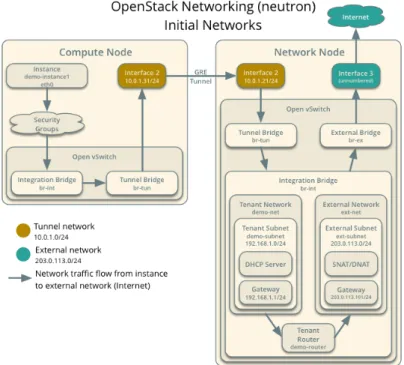
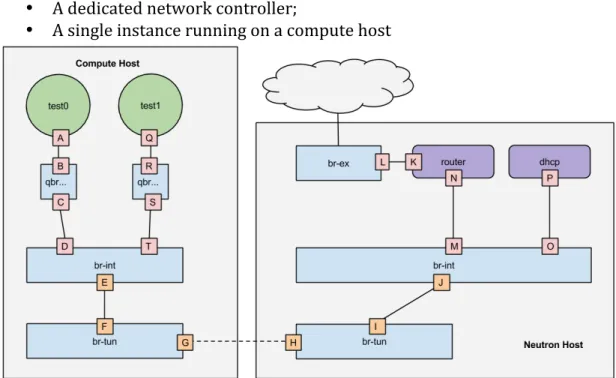
The Figure 5, exemplifies our initial virtual network infrastructure setup, where the instance will connect.
Figure 5 -‐ initial networks
On controller node:
Create the external network:
1. Source the admin credentials to gain access to admin-‐only CLI commands:
$ source admin-openrc.sh
2. Create the network:
$ neutron net-create ext-net --shared --router:external True \ --provider:physical_network external --provider:network_type flat
3. Create the subnet:
$ neutron subnet-create ext-net --name ext-subnet \
--allocation-pool start=FLOATING_IP_START,end=FLOATING_IP_END \
--disable-dhcp --gateway EXTERNAL_NETWORK_GATEWAY EXTERNAL_NETWORK_CIDR
For example, using 203.0.113.0/24 with floating IP address range 203.0.113.101 to 203.0.113.200:
$ neutron subnet-create ext-net --name ext-subnet \
--allocation-pool start=203.0.113.101,end=203.0.113.200 \ --disable-dhcp --gateway 203.0.113.1 203.0.113.0/24
4. Create the tenant network
Source the demo credentials to gain access to user-‐only CLI commands:
$ source demo-openrc.sh
$ neutron net-create demo-net
6. Create the subnet:
$ neutron subnet-create demo-net --name demo-subnet \ --gateway TENANT_NETWORK_GATEWAY TENANT_NETWORK_CIDR
7. Example using 192.168.1.0/24:
$ neutron subnet-create demo-net --name demo-subnet \ --gateway 192.168.1.1 192.168.1.0/24
A virtual router passes network traffic between two or more virtual networks. Each router requires one or more interfaces and/or gateways that provide access to specific networks. In this case, you will create a router and attach your tenant and external networks to it.
8. Create the router:
$ neutron router-create demo-router Created a new router:
9. Attach the router to the demo tenant subnet:
$ neutron router-interface-add demo-router demo-subnet
Added interface b1a894fd-aee8-475c-9262-4342afdc1b58 to router demo-router.
10.Attach the router to the external network by setting it as the gateway:
$ neutron router-gateway-set demo-router ext-net Set gateway for router demo-router
11.Verify by doing a ping to tenant router gateway.
Hurray!!
Your OpenStack environment now includes the core components necessary to launch a basic instance!
Add the dashboard (Horizon)
The dashboard enables web-‐based interactions with the OpenStack Compute cloud controller through the OpenStack APIs.
Let’s make it pretty J
1. Install the dashboard components
# apt-get install openstack-dashboard apache2 libapache2-mod-wsgi memcached python-memcache
Note: Ubuntu installs the openstack-‐dashboard-‐ubuntu-‐theme package as a dependency. Some users reported issues with this theme in previous releases. If you encounter issues, remove this package to restore the original OpenStack theme.
2. Edit the /etc/openstack-‐dashboard/local_settings.py file and complete the following actions:
OPENSTACK_HOST = "controller"
3. Allow all hosts to access the dashboard:
ALLOWED_HOSTS = ['*']
4. Configure the memcached session storage service:
CACHES = { 'default': {
'BACKEND': 'django.core.cache.backends.memcached.MemcachedCache', 'LOCATION': '127.0.0.1:11211',
} }
5. Important: Comment out any other session storage configuration. 6. Finalize installation restart the web server and session storage service:
# service apache2 restart # service memcached restart
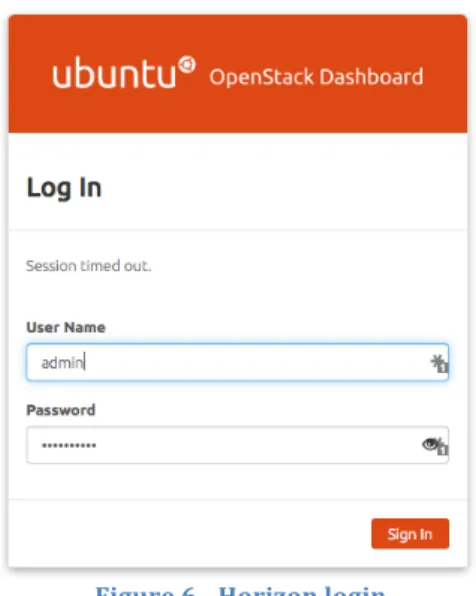
Figure 6 -‐ Horizon login
8. Authenticate using admin user credentials.
Figure 7 -‐ The admin dashboard
Launch an instance with OpenStack Networking
Most cloud images support public key authentication rather than conventional user name/password authentication, this is a good thing from the security stand point, as only the beholder of the private key will be allowed access to the machine.
1. Use demo account credentials to login into horizon.
2. On the left menu chose ‘Access & Security’ -‐> ‘Key Pairs’ -‐> ‘Create key Pair’, give it a name, the private key will be automatically downloaded, save it somewhere safe. You will need it.
3. On the left menu chose ‘Instance’ -‐> ‘Launch Instance’, in details give it a name, in ‘Access & Security’ chose the key from previous step, in ‘Networking’ select ‘demo-‐net’ (the demo tenant private network).
![Figure
1
-‐
OpenStack
3
node
hardware
requirements
[1]](https://thumb-us.123doks.com/thumbv2/123dok_us/8569513.2321053/3.892.225.666.156.514/figure-openstack-node-hardware-requirements.webp)