Digital Business Telephone Systems
Publication Information
Contents
Introduction
Organization ... iv
Conventions ... v
Mnemonics ... vii
Related Documents ... vii
Chapter 1 – The Grand Tour
Hardware Requirements ... 2Integrated Data Interface Unit (RPCI-DI) ... 2
RPCI-DI Buttons and LEDs ... 3
Stand-alone Data Interface Unit (PDIU-DS) Connections ... 5
Communication Parameters ... 7
Chapter 2 – Features
Data Call to Internal Printer or Other Data Device ... 9Data Call to Another Internal Data Telephone’s PC or Terminal ... 10
Simultaneous Voice and Data Calls ... 14
Voice Call While On Data Call ... 14
Data Call While On a Voice Call ... 14
Data Call to Data Telephone While on a Voice Call to Another Telephone ... 15
Chapter 3 - Mode Definitions
Incoming Data Call (External) ... 20
Switch From Outside Voice Call to Data Call ... 23
Switch Back to the Voice Call Using Privacy Override ... 25
Switch Back to the Voice Call Using Executive Override ... 26
Personal Computer Dialing of Voice Calls ... 27
Chapter 3 – Mode Definitions
Data Communications Mode ... 29Switching Between Data Communications and TAPI Modes ... 29
Data Communications Command Mode ... 30
Data Communications Mode (On-line state) ... 32
Switching Between Data Communication Modes ... 32
RPCI/DIU Data Speed (Baud Rate) ... 33
RPCI/DIU Default Communication Parameters ... 33
Introduction
This guide provides instructions for the use of the Strata DK Personal Computer (RCPI-DI) and Data Interface Unit (PDIU-DS) features for the Strata DK systems. These systems include:
♦ DK14
♦ DK16e/16
♦ DK40i/DK40
♦ DK424/DK280 (Release 3.0 or higher)
All the features in this guide have practical applications for diverse office
environments. Instructions are provided on how to use the RCPIs and DIUs to connect Personal Computers (PCs) together to exchange files, to share a printer or a modem, to access a mainframe, and more.
Organization
Organization
This user guide is divided as follows:
♦ Chapter 1 – The Grand Tour provides an overview of DIU hardware: their
function, controls, and applicable indicators.
♦ Chapter 2 – User Instructions provides descriptions and instructions for each
type of voice and data transmission made from the DIUs.
♦ Chapter 3 – Mode Definitions contains information on various advanced
Conventions
Conventions
Note Elaborates specific items or references other information.
Important! Calls attention to important instructions or information.
Letters in [brackets] represent buttons which have Directory Numbers on them. For example:
Note Throughout this guide, RPCI-DI-equipped digital telephones that are connected to ASCII terminals or PCs are referred to as data telephones. [PDN] represents a Primary Directory Number (also known
as an Extension Number for your telephone).
[SDN] represents a Secondary appearance of a [PDN]. A [PDN] which appears on another telephone is considered an [SDN].
[PhDN] represents a Phantom Directory Number button (an additional Directory Number).
[DN] represents a Directory Number button (also known as an Extension or Intercom Number). Whenever [DN] is used in this guide, it means the user can use any [PDN], [SDN], or [PhDN].
[DSS] represents the directory number of another station which is accessed from a DADM or DSS Console when this button is pressed.
([WUDEROG represents buttons on a telephone.
~ means “through”
+ is used for multiple key entries.
➤ denotes the step in a one-step procedure.
represents text that appears on a PC or terminal screen.
Mnemonics
Mnemonics
Mnemonics appearing in this user guide are defined below:
BPS Bits Per Second
DIU Data Interface Unit
LCD Liquid Crystal Display
LED Light Emitting Diode
PC Personal Computer
DPIU-DS Stand-alone Data Interface Unit
RPCI-DI Personal Computer/Data Interface Unit
Related Documents
The following user guides are available for Strata DK telephones:
♦ Strata DK Digital Telephone User Guide, which includes instructions for LCD Telephones, Add-on Modules, and Digital Direct Station Selection (DDSS) Consoles.
♦ Strata DK Installation and Maintenance Manual provides installation instructions and requirements for RPCI-DIs and Data Interface Units connecting to a Strata DK system. See the chapter on Peripherals.
The Grand Tour
1
Toshiba provides two interface units that integrate the Strata DK telephone system with PCs, printers, and modems for a variety of applications.
The Stand-alone Data Interface Units (PDIU-DS) normally connects to printers and modems so that they can be shared by all users via data calls through the DK telephone system.
The telephone PC Interface Unit (RPCI-DI) is built into the base of the digital telephone and connects to the COM port of a PC. There are two operating modes:
♦ Telephone Application Program Interface (TAPI) mode
♦ Data communication mode
The PC TAPI software program automatically controls the operation mode (TAPI or Data Communications) of the RPCI.
A 2B+D ISDN-type digital link in conjunction with the RCPIs and DIUs enable digital telephones to participate in simultaneous voice and data calls. Voice and data calls are transmitted over the same digital telephone wire pair. This offers you several calling options. For example, a digital telephone user can place a voice call while in the middle of a data call to a printer or host computer, etc.
Hardware Requirements
Hardware Requirements
The following hardware is required to originate a data call:
♦ A RPCI-DI (replaces digital telephone base)
♦ A PC or ASCII Terminal
♦ One of the following Toshiba 2000- or 1000-Series Digital Telephones:
♦ DKT2010-H (10-button model)
♦ DKT2010-SD (10-button model with a LCD and speakerphone)
♦ DKT2020-S (20-button model)
♦ DKT2020-SD (10-button model equipped with LCD and speakerphone)
♦ DKT1010-H (10-button model)
♦ DKT1020-SD (10-button model equipped with LCD and speakerphone)
A data call can be made to a device connected to a DIU (RPCI-DI or PDIU-DS), such as mainframe computers, printers, modems, PCs, and ASCII terminals.
Integrated Data Interface Unit (RPCI-DI)
Integrated Data Interface Unit (RPCI-DI)
RPCI-DI Buttons and LEDs
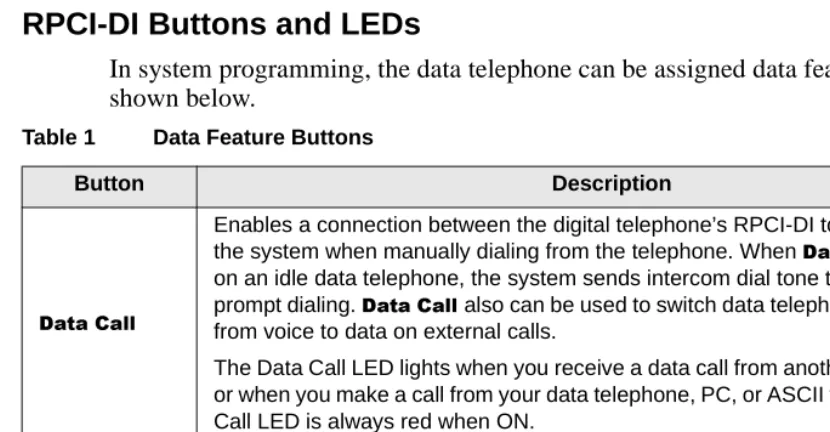
In system programming, the data telephone can be assigned data feature buttons shown below.
Table 1 Data Feature Buttons
Button Description
'DWD&DOO
Enables a connection between the digital telephone’s RPCI-DI to another DIU in the system when manually dialing from the telephone. When 'DWD&DOOis pressed on an idle data telephone, the system sends intercom dial tone to the telephone to prompt dialing. 'DWD&DOOalso can be used to switch data telephones and CO lines from voice to data on external calls.
The Data Call LED lights when you receive a data call from another data telephone or when you make a call from your data telephone, PC, or ASCII terminal. The Data Call LED is always red when ON.
'DWD5HOHDVH Terminates data calls. The Data Release LED never illuminates.
0RGHP
Reserves a system modem for 60 seconds. If a modem is not accessed within this time limit, press this button again to reserve for another 60 seconds.
A flashing Modem LED indicates that a modem is currently reserved for your telephone; a continuously lit LED indicates that you have accessed a modem or that all modems are busy. The Modem LED is always red when ON or flashing.
RPCI-DI RS-232 Connector
0601
Integrated Data Interface Unit (RPCI-DI)
RPCI-DI Data Connections
See the Strata DK I&M Manual for detailed installation instructions.
If a data terminal is connected to a data telephone, the terminal must be an ASCII type with a standard keyboard and a display screen or printer display.
If a PC is connected to a data telephone, the PC must be running at least one of the following types of programs: word processor, desk organizer dialer, or
communications software. Also, the PC must be active (on-line) on its COM port connected to the data telephone’s RPCI-DI.
Note It is not possible to establish data call connections from your PC DOS prompt.
Stand-alone Data Interface Unit (PDIU-DS) Connections
Stand-alone Data Interface Unit (PDIU-DS)
Connections
Data devices, such as printers, modems, mainframe computers, etc., must be
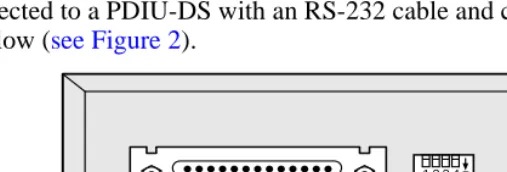
connected to a PDIU-DS with an RS-232 cable and connector. An RS-232 connector is below (see Figure 2).
Figure 2 Stand-alone DIU Connector
See the Strata DK I&M Manual for detailed installation instructions.
Note
● The PDIU-DS must be connected to the Strata DK system with a modular cord.
Similar to a regular station, the PDIU-DS is assigned a station number.
● Toshiba recommends connecting the line sides of the modems to standard
telephone ports to ensure access to the complete set of modem pooling features. Connecting the modems to a dedicated CO line may not allow access to the whole set.
1 2 3 4 DNT4 ON
RS-232 Connector
Stand-alone Data Interface Unit (PDIU-DS) Connections
PDIU-DS LEDs
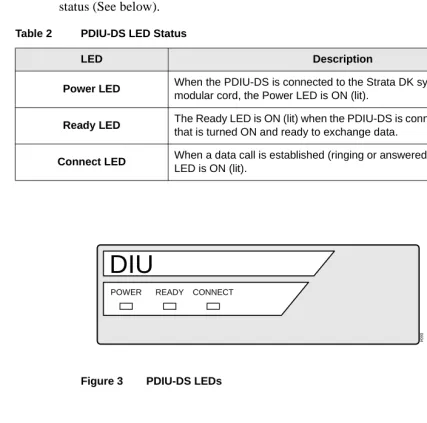
The PDIU-DS has three green LEDS on its front panel which indicate transmission status (See below).
Figure 3 PDIU-DS LEDs Table 2 PDIU-DS LED Status
LED Description
Power LED When the PDIU-DS is connected to the Strata DK system with a modular cord, the Power LED is ON (lit).
Ready LED The Ready LED is ON (lit) when the PDIU-DS is connected to a device that is turned ON and ready to exchange data.
Connect LED When a data call is established (ringing or answered), the Connect LED is ON (lit).
DIU
POWER READY CONNECT
Communication Parameters
Communication Parameters
Before a data connection is established, the communication parameters—data speed (baud rate or bps), parity, data bits, stop bits—of the terminal or PC must be the same as the data device that is calling or being called. The PC communication parameters are set with MS-DOS MODE commands.
➤ To set the PC Communication parameters
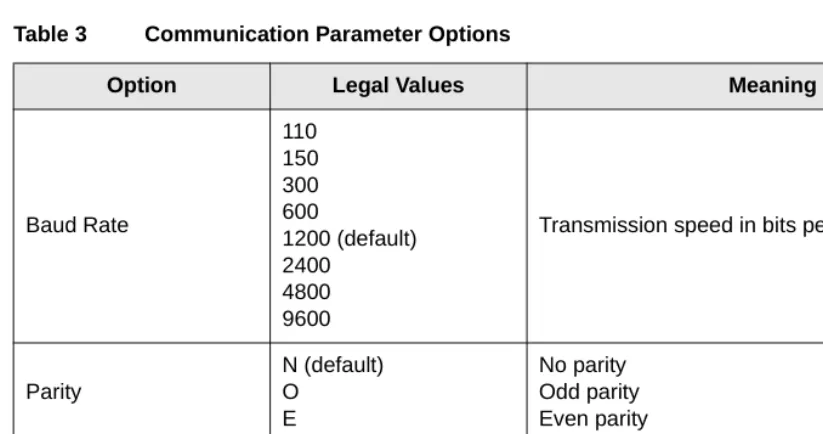
Communication parameter options are shown in Table 3. ➤ Enter MODE
LPTx:=COMx (x = 1, 2, 3, or 4)
Use this parameter, if you connect to your printer via an RPCI to DIU-DS data call connection.
...or MODE COMx: baud rate, parity, data bits, stop bits
Notes
● Toshiba recommends entering these MODE
command lines into the DOS AUTOEXEC.BAT file, in most cases.
● The COM port number and communication
Communication Parameters
Table 3 Communication Parameter Options
Option Legal Values Meaning
Baud Rate
110 150 300 600
1200 (default) 2400
4800 9600
Transmission speed in bits per second
Parity
N (default) O
E
No parity Odd parity Even parity
Data Bits 7
8 (default)
Features
2
This chapter explains how to use your data telephone to connect to other data devices, such as an internal printer, modem pool, or mainframe computer. It also explains how to originate and answer simultaneous voice and data transmissions from your
telephone or another telephone.
Data Call to Internal Printer or Other Data Device
If using a PC, data calls to printers can be connected anytime while running a word processor, spread sheet, or database program. This procedure can also be used to make data calls to other internal data devices, such as modems or mainframe computers, that are connected to stand-alone DIUs. A communications software program is generally required for these types of internal data calls.
Data Call to Another Internal Data Telephone’s PC or Terminal
➤ To call a data device
➤ To terminate the call
Data Call to Another Internal Data Telephone’s
PC or Terminal
PCs involved in this call must be running a communications software program. 1. Press 'DWD&DOOon
your data telephone.
The Data Call, Spkr, and Mic (see note) LEDs turn ON (red); and the [DN] LED turns ON (green). The data telephone receives internal dial tone.
Note Depending on system programming, the Mic LED may or may not turn ON.
2. Enter the station number of the DIU connected to the printer.
The Spkr, Mic, and [DN] LEDs turn OFF; the Data Call LED remains ON (red).
If busy, press 'DWD5HOHDVHand try again; if busy tone is not received, the call is connected.
3. Print the data. The data can be printed using your terminal or PC software program.
➤ Press 'DWD5HOHDVH on your data
telephone.
Data Call to Another Internal Data Telephone’s PC or Terminal
➤ To verify communications from your PC or terminal
➤ To call from your PC or terminal
➤ Type AT and then press Enter on your PC or terminal.
Type AT commands as capital letters (use caps lock).
AT commands appear on your PC or terminal as you type them.
Wait for this display:
The above display verifies that communications exist between your PC or terminal and your data telephone. The Data Call LED turns ON (red) after you press
Enter.
1. Type ATDD, the [PDN] of the other data telephone, and then press Enter. If “BUSY” displays on your screen, the call automatically terminates. You can then try again.
Wait for this display:
This display indicates that a connection has been established between the called and calling terminals and/or PCs.
XXXX = data transmission speed YYY = called data telephone number
The [DN] of a data telephone’s RPCI-DI is the same as its voice [PDN].
Example: If the other data telephone’s [PDN] is 209, type ATDD209 and press Enter. (ATDD is the DIU command for data call dialing, and 209 represents the [PDN] of the other data telephone).
2. Exchange data. The data can be exchanged using your terminal or PC software program as required.
AT
OK
Data Call to Another Internal Data Telephone’s PC or Terminal
➤ To call from your data telephone
1. Press 'DWD&DOO. The Data Call, Spkr, and Mic (see note) LEDs turn ON (red); and the [PDN] LED turns ON (green). The data telephone receives an internal dial tone.
Note Depending on system programming, the Mic LED may or may not turn ON.
2. Dial the [PDN] of the other data telephone.
The Spkr, Mic, and [PDN] LEDs turn off. The Data Call LED remains ON (red).
Wait for this display:
3. Press 'DWD5HOHDVH again,if the called number is busy.
The above message appears at both the sending and destination locations, indicating that a connection has been established.
XXXX = data transmission speed.
4. Exchange the data. The data can be exchanged using your terminal or PC software program, as required. Either the calling or called user can terminate the data call using the following procedures.
Data Call to Another Internal Data Telephone’s PC or Terminal
➤ To terminate the call from your PC or terminal
➤ To terminate the call from either data telephone
1. Hold the Shift key down and type +++.
Wait for this display:
The above display indicates that the RPCI-DI connected to your terminal or PC is now in the command mode and can accept AT commands.
The following screen displays on the other PC or terminal screen.
The Data Call LED on both data telephones turns OFF.
2. Type ATH, and then press Enter.
Wait for this display:
This display indicates that the call is terminated.
➤ Press 'DWD
5HOHDVH.
The Data Call LED on both data telephones turns OFF.
Wait for the following screen to display on both PCs and/or terminal screens.
This display indicates that the call is terminated.
+++
OK
+++
ATH
OK
Simultaneous Voice and Data Calls
Simultaneous Voice and Data Calls
Voice Call While On Data Call
You can make a simultaneous voice and data call between the same or different telephones.
While on a data call, a data telephone can originate, answer, and disconnect any type of voice call without interrupting the data call. For example, Phone 1 can be on a voice call with Phone 2, and during the call, Phone 1 can also send data to Phone 2.
➤ To make a voice call while on a data call
➤ Make a voice call in the normal manner, while on a data call.
See “Data Call to Internal Printer or Other Data Device” on Page 9 or “Data Call to Another Internal Data Telephone’s PC or Terminal”on Page 10 for additional information on making data calls.
Data Call While On a Voice Call
You can make a simultaneous voice and data transmission between the same data telephones.
Without interrupting their voice conversation, two data telephones can establish a data call between each other.
➤ To make a data call while on a voice call
1. Press 'DWD&DOO while on a voice call
The Data Call LED turns ON (red).
Simultaneous Voice and Data Calls
Data Call to Data Telephone While on a Voice Call to Another
Telephone
You can make a simultaneous voice and data transmission to different data telephones.
While established on an internal or external voice call, a data telephone can make a data call to another internal or external data telephone or data device. For example, Phone 1 can be on a voice call to Phone 2. At the same time, Phone 1 can also be transmitting data to Phone 3.
➤ To make a data call while on a voice call
➤ To return to the voice call
➤ To terminate voice or data calls
1. Press +ROG on your data telephone, while on a voice call.
The voice call is placed on hold.
2. Make a data call to a different data telephone or data device.
For more information, see “Data Call to Internal Printer or Other Data Device”on Page 9 or “Data Call to Another Internal Data Telephone’s PC or
Terminal”on Page 10.
3. Exchange the data. The data can be exchanged using your terminal or PC software program as required.
➤ Press the held CO
/LQH or [DN] button on your data
telephone.
The voice call is re-established and the data call continues uninterrupted.
➤ Press 'DWD5HOHDVH on your data
telephone
The data call terminates; the voice call, if not terminated earlier, continues.
...or 6SNU on your data telephone or
Outgoing Data Call
Outgoing Data Call
Dialing Through the System Modem Pool
A PC involved in this type of call must be running a communications software program. Before making this call, verify that the communication parameters of your PC or terminal match those of the device that your are calling.
To place the RPCI-DI into the command mode while keeping the modem in the communications mode, Toshiba recommends that the RPCI-DI escape sequence be changed from +++ to some other sequence before beginning. For example: Using the ATS2 command, send ATS2=36 to the RPCI-DI to change its escape sequence to $$$. Store these commands in the PC communication software modem initialization sequence - this sets the RPCI-DI escape sequence each time the communication software is run.
➤ To verify communications from your PC or terminal
➤ Type AT, and press
Enter on your PC or terminal.
Wait for the following to display on your PC or terminal screen.
This display verifies that communications exist between your PC or terminal and your data telephone.
Note AT commands must be typed as capital letters (use caps lock), and they appear on your PC or
Outgoing Data Call
➤ To dial an internal modem from your PC or terminal
➤ Type ATDD, the [PDN] of the DIU connected to the system modem (pool), and then press
Enter.
The Data Call and Modem LEDs turn ON (red) after you press Enter.
Wait for this display:
The above display indicates that a connection has been established between your PC or terminal and the PDIU-DS connected to the system modem (pool).
XXXX = data transmission speed
YYY = [PDN] of the PDIU-DS connected to the system modem (pool)
The system DIUs at this time are transparent and in the communication mode, ready to pass data. The system modem is in the command mode, ready to receive AT dialing commands.
Entry Example: If the station number of the DIU connected to the system modem is 208, type
ATDD208 and press Enter. (ATDD is the DIU command for data call dialing, and 208 is the station number of the DIU connected to the system modem).
Outgoing Data Call
➤ To issue commands to the modem
1. Type ATDT (a system CO line access code, the telephone number of the external modem, or data service) from your PC or terminal keyboard, and then press
Enter.
Wait 5~30 seconds for the following screen to display on your PC or terminal screen.
This display indicates that a connection has been established between the Strata DK system modem and the external modem.
XXXX = data transmission speed
YYYYYYYYYYYYYY = external telephone number (CO line access code, see Table 4 on Page 28 CO line access codes)
The commands issued and the telephone number dialed in this step are sent to the system modem transparently through the system DIUs.
Note If the modem seizes a CO line that appears on your data telephone, the CO line LED turns ON and is red.
Entry Example: If the telephone number is (714) 837-4408 and the call is made on CO line 1, type
ATDT80117148374408 and press Enter. (ATDT
is the modem dial command; 801 is the access code for system CO line Group 1; and 7148374408 is the telephone number.)
Outgoing Data Call
Terminating a Call to an Internal Modem from a Terminal or PC
This sequence should only be used if your modem is connected to a system station port. This sequence should not be used if your modem is connected directly to a CO line.
➤ To terminate the call from your data telephone
1. Hold down the
Shift key and type
+++.
The following screen displays on your PC or terminal screen.
The Data and Modem LEDs turn OFF.
2. Type ATH, and then press Enter.
The following screen displays on your PC or terminal screen.
This display indicates that the call is terminated.
➤ Press 'DWD
5HOHDVH.
If your modem is connected to a system station port directly to an outside line. The Data Call and Modem LEDs turn OFF.
The following screen displays on your PC or terminal screen.
This display indicates that the call is terminated.
+++
OK
ATH
OK
Incoming Data Call (External)
Incoming Data Call (External)
An external data call (from the outside) can be made to the Strata DK system. Before making the call, verify that the communication parameters of the external PC or terminal and modem match those of the internal device (PC, terminal, or host computer, and modem) that you are calling.
PCs involved in this call must be running a communications software program.
➤ To verify communications from your external PC or terminal
➤ Type AT from the external PC or terminal, and press
Enter.
The following screen displays on your (external) PC or terminal screen.
This display verifies that communications exist between your PC or terminal and your modem.
Note AT commands must be typed as capital letters (use caps lock), and they appear on your PC or terminal screen as you type them.
Incoming Data Call (External)
➤ To make the call from the external PC or terminal
1. Type ATDT, the number of the CO line that rings the DK system internal modem, and then press Enter on the external PC or terminal.
The internal modem rings and auto answers.
Wait 5~30 seconds for the following screen to display on your (external) PC or terminal screen.
This display indicates that the external and internal modems are connected and in the communication mode.
XXXX = data transmission speed
YYYYYYY = telephone number of the internal modem
The PDIU-DS connected to the internal modem is in the command mode, ready to accept AT commands from the external PC or terminal. The internal and external modems are in the communication mode, ready to pass data.
Entry example: If the telephone number is 1213-4567, type ATDT12134567 and press Enter. (ATDT is the dial command, and 12134567 is the telephone number.)
Incoming Data Call (External)
➤ To terminate the call from the external PC or terminal
2. Type ATDD, the [PDN] of the PDIU-DS or data telephone connected to the internal device you wish to connect to, and then press
Enter on the external PC or terminal.
Wait for the following screen to display on your (external) PC or terminal screen.
This display indicates that the external PC or terminal and the internal data device are connected.
XXXX = data transmission speed YYY = station number of the DIU
If calling a device connected to a PDIU-DS, the CONNECT LED turns ON; if calling a device
connected to a data telephone, the Data Call LED turns ON (red).
Entry example: If the station number of the DIU is 210, type ATDD210 and press Enter. (ATDD is the DIU command for data dialing, and 210 is the number of the DIU.)
3. Exchange the data. The data can be exchanged by using your terminal or PC software program.
1. Hold down the
Shift key and type
+++ on the external PC or terminal.
The following screen displays on your (external) PC or terminal screen.
ATDDYYY
CONNECTXXXX
Switch From Outside Voice Call to Data Call
Switch From Outside Voice Call to Data Call
While on a CO line voice call, an internal (Strata DK system) data telephone can switch to a data call on the same line.
Before making the call, verify that the communication parameters of your internal PC or terminal match those of the external modem and PC or terminal. PCs involved in this call must be running a communications software program.
The external telephone must share its CO line with a modem connected to a PC or terminal. The external CO line must be plugged into the external modem jack labeled “LINE”, and the external telephone must be plugged into the modem jack labeled “PHONE”. The internal modem must be installed and programmed in the system modem pool configuration (i.e., the modem is connected to a system standard telephone port, not a CO line).
2. Type ATH and then press Enter on the external PC or terminal.
The following screen displays on your (external) PC or terminal screen.
This display indicates that the call is terminated.
Note Always terminate incoming data calls from the external PC or terminal.
Switch From Outside Voice Call to Data Call
l
1. Verify
communications from your PC or terminal by typing AT and pressing Enter on your PC or terminal.
The following screen displays on your PC or terminal screen.
This display verifies that communications exist between your PC or terminal and your data telephone.
Note AT commands must be typed as capital letters (use caps lock), and they appear on your PC or terminal screen as you type them.
2. Establish an external voice call.
The normal method establishes your voice call. You can do this before verifying communications.
3. Press 0RGHP on your data telephone.
The Modem LED flashes red.
This flash indicates that a system modem is reserved. The modem is reserved for 60 seconds. The voice call continues during this time.
4. Press the 0RGHP button again.
If the LED turns OFF before a modem is accessed, this reserves another 60 seconds. The voice call continues during this time.
5. Press'DWD&DOO on your data telephone.
The Data Call LED lights red. The Modem LED stops flashing and stays red.
The CO line you were talking on is picked up by the internal modem. The CO line LED blinks and changes
Switch From Outside Voice Call to Data Call
Switch Back to the Voice Call Using Privacy Override
To perform this function, your data telephone must have Privacy Override assigned in system programming.
6. Type ATD#42 from your PC or terminal, and then press
Enter.
The following screen displays on your PC or terminal screen.
This display indicates that the internal modem has gone off-key and originated. XXXX indicates the data transmission speed.
7. Type ATA from the external terminal or PC, and then press
Enter (do not hang up the external telephone).
The external modem answers.
Wait 3~20 seconds the following screen to display on the external PC or terminal screen.
8. Exchange the data. This display indicates that a data path has been established. XXXX indicates the data transmission speed.
Exchange data using your terminal or PC software program. The voice call is on-hold during the data exchange. The external telephone can be placed on-hook or remain off-on-hook during data transmission.
1. Make sure that the external telephone is off-hook.
If the voice call is on a CO Line that appears on your [DN] button, refer to the following procedure, “To switch back to the voice call using Executive Override.”
ATD42
CONNECTXXXX
ATA
Switch From Outside Voice Call to Data Call
Switch Back to the Voice Call Using Executive Override
If you are on a data call, you can switch back to a voice call from a data call using Privacy or Executive Override, but the data telephone must have Privacy or Executive Override assigned in system programming.
2. Press the busy CO
/LQHbutton on the data telephone.
The Data and Modem LEDs turn OFF, and the CO line LED changes from red to green.
The following screen displays on both PC and/or terminal screens.
The system modem is dropped, and the CO line is transferred to the voice path. The external modem goes on-hook, and the voice path connects to the external telephone.
1. Make sure that the external telephone is off-hook.
If the voice call did not appear on your [DN] button, see the previous section, “Switch Back to the Voice Call Using
Personal Computer Dialing of Voice Calls
➤ To terminate the call when in the voice connection state
➤ To terminate the call if in the data connection state
Personal Computer Dialing of Voice Calls
A PC which contains a software package and provides a dialing feature can be used to place outgoing voice calls. Typically, Personal Information Management or
Appointment type software packages contain dialing programs. The dialing program must be Hayes modem compatible; however, when using the Toshiba Data Telephone, a modem or special line is not required.
2. Press a [DN] on the data telephone, dial the modem’s standard telephone port number.
3. Press 3when you hear busy tone.
The Data and Modem LEDs turns OFF, and the CO line LED changes from red to green.
The following screen displays on both PC and/or terminal screens.
The system modem is dropped, and the CO line is transferred to the voice path. The external modem goes on-hook, and the voice path connects to the external telephone.
➤ Press 6SNU on your data telephone or go on-hook.
The CO line or [DN] LED turns OFF and the voice call terminates.
➤ Press 'DWD5HOHDVH on your data
telephone.
The Data, Modem, and CO line LEDs turn off and the data call terminates.
Personal Computer Dialing of Voice Calls
Dialing programs vary, but most require that you enter the telephone number to be called in a designated field or space. When using a Toshiba Data Telephone you must also enter the outgoing call access code in front of the telephone number to be called.
Example: If the telephone number is 1-714-583-3700, the following sequence should be entered in the telephone number field:
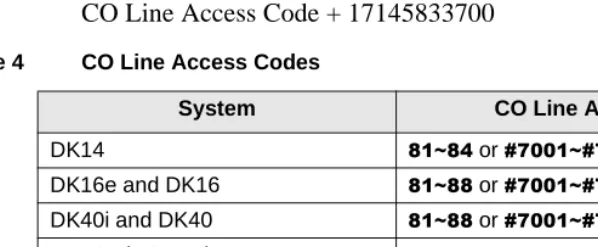
CO Line Access Code + 17145833700
When the CO line access code and telephone number is entered into the dialing field properly and the computer software dialing is initiated, the PC automatically sends the following sequence to the Data Telephone:
ATDT + CO Line Access Code + 17145833700
Note ATDT is the Hayes modem dialing command automatically inserted by the computer dialing software.
When the Data Telephone receives the above dialing command, it automatically accesses an outgoing CO line and dials 17145833700. The Data Telephone’s [DN] Table 4 CO Line Access Codes
System CO Line Access
DK14 a or a
DK16e and DK16 a or a
DK40i and DK40 a or a
DK424 (RCTUA) a or a
DK424 (RCTUBA/BB) a or a
DK424 (RCTUC/D) a or a
Mode Definitions
3
This chapter contains advanced information for the sophisticated data communication user. The contents are not required for typical operation.
Data Communications Mode
When in the Data Communications mode, the RPCI and DIU can operate in either the Command Mode or the Communication Mode. All the dialing, answering, and disconnecting activities related to a data call take place during the command mode using standard Hayes “AT” commands. The actual data operation—file transferring, printing, etc.—takes place during the communication mode.
Switching Between Data Communications and TAPI Modes
The PC software normally controls the RPCI operating mode (TAPI or DATA). To switch between modes, the PC software or manual keyboard must send the following chapters to the RPCI:
♦ When in the TAPI mode, send the HEX (FØ), decimal 240, or the ∫ (ASCII character) to the RPCI to switch it to the Data Communications mode.
Data Communications Mode
♦ When in the Data Communications mode, send (ATCØ) to the RPCI to switch it to the TAPI mode.
♦ RPCI mode switching should be performed automatically by the application programs running on the PC connected to the RPCI-DI.
Data Communications Command Mode
A RPCI or DIU must be told what number to dial, whether to answer, or whether to disconnect. These instructions, when typed from the keyboard of a PC or terminal, are called AT commands. A complete list of RPCI or DIU-supported AT commands is provided in Table 4 on Page 28. RPCIs or DIUs remain in or enter into the Command Mode when any of the following actions occur.
♦ The RPCI and DIU are powered up by connecting it to the Strata DK system via the modular jack/cord. The RPCI powers up in the Data Communications mode as opposed to the TAPI mode.
♦ The reset (Z) AT command is issued.
♦ No carrier is detected while originating or answering a data call.
♦ The carrier signal from a remote DIU or modem is lost.
♦ A semicolon (;) is entered at the end of the dial (D) command.
♦ The escape sequence (+++) is entered while the RPCI or DIU is in the Communication Mode (on-line mode).
Data Communications Mode
Dialing Modifiers can be used for a variety of applications, including tone dialing, dial pulse dialing, and pause and flash inserting. DIUs support the Dialing Modifiers listed in Table 9 on Page 36.
Registers: RPCIs and DIUs can be configured for specific applications with S-Registers, which can only be changed or checked during the Command Mode. When power is first applied to it and whenever its modular line cord is temporarily
disconnected and then reconnected, the RPCI and DIU initializes the S-Registers to the default values and enters the Command Mode. DIUs support the S-Registers listed in Table 7 on Page 35. To check or change an S-Register, refer to the following procedure:
➤ To check the value of an S-Register
➤ To change the value of an S-Register
Notes
● A PC must be running communications software or a desk organizer dialing
program (be on-line) to issue AT commands. AT commands cannot be inputted from a data telephone’s dial pad, a PC DOS prompt, word processor, database, or spread sheet-type programs.
● AT commands are executed by the DIUs only after the carriage return key is
pressed. The carriage return is referred to as Enter in this guide. On some keyboards, though, this key may have a different designation, such as
RETURN, <CR>, ENTER, etc. ➤ Type ATSX? and
press Enter (X is the S-Register you want to check).
The value along with the “OK” Result Code is displayed.
➤ Type ATSX=Y and press Enter (X is the S-Register you want to change and Y is its value).
Data Communications Mode
● DIUs can operate at up to 19,200 bps with manual dialing from a data
telephone. If keyboard dialing with AT commands, the DIUs can operate at up to 9600 bps.
Data Communications Mode (On-line state)
A PDIU-DI automatically enters the communication mode when its call to another DIU is answered. At this point, the desired data operation—file transfer, printing, etc., can begin. DIUs remain in the Communications Mode until the data operation is manually terminated or the escape sequence (see “Switching Between Data Communication Modes”on Page 32) is issued. A calling PDIU-DI switches to the Communication Mode from the Command Mode when the following sequences occur:
♦ When the ATD or ATDD command strings are typed and Enter is pressed, the called DIU answers (manually or automatically).
♦ When the ATO command string is typed and Enter is pressed, a DIU-to-DIU data connection is established (see “Switching Between Data Communication Modes”on Page 32).
♦ When a remote modem issues the ATA command string after the calling DIU issues the ATD42 command string, a CO line voice call is switched to a data call using the system modem pool.
Note A called DIU switches to the Communication Mode when it answers, automatically or manually.
Switching Between Data Communication Modes
Data Communications Mode
RPCI/DIU Data Speed (Baud Rate)
DIUs pass data at a baud rate of up to 19,200 bits per second (bps), if the call was established by manually dialing from a data telephone. If the call was established with AT commands from a PC or terminal, the DIU passes data at up to 9600 bps. The baud rate of a DIU is transparent when originating calls with the data telephone or when receiving data calls, manually and automatically. When originating data calls with AT commands from a PC or terminal, the DIU speed is the same as the rate of the first AT command. When answering data calls with the ATA command string, the DIU baud rate is the same as the command string; the AT command baud rate is determined by software running the terminal or PC.
RPCI/DIU Default Communication Parameters
Default parameters for the DIUs are shown below; however, they are transparent or changed by the first AT commands issued, as described above. A DIU assumes these default parameters when power is initially applied to it, or after the modular cord is disconnected and then reconnected.
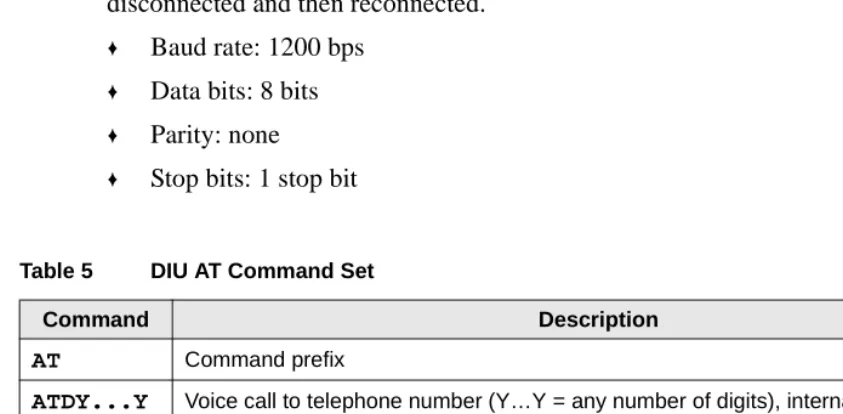
♦ Baud rate: 1200 bps
♦ Data bits: 8 bits
♦ Parity: none
♦ Stop bits: 1 stop bit
Table 5 DIU AT Command Set
Command Description
AT Command prefix
ATDY...Y Voice call to telephone number (Y…Y = any number of digits), internal or external
ATDDXXXX Data call to DIU station number XXXX (1~4 digits)
Enter Carriage return character
A Go into the answer mode; attempt to go to Communication Mode
Data Communications Mode
Note A DIU assumes the V1 default value when power is initially applied to it or when the modular line cord is disconnected and then reconnected.
EO Disable character echo in Command Mode
E1 Enable character echo in Command Mode
H0 Go on-hook (hang up)
H1 Go off-hook
O Go to Communication Mode
Q0 DIU returns Result Codes
Q1 DIU does not return Result Codes
SR = n Set Register “R” to value “n” (R = 0~12)
SR? Display value stored in Register “R” (R = 0~12)
V0 Display Result Codes in numeric form
V1 Display Result Codes in words
X0 Enable features represented by Result Codes 0~4
X1 Enable features represented by Result Codes 0~7, 10~12
X2 Enable features represented by Result Codes 0 ~ 5, 10 ~ 12
X3 Enable features represented by Result Codes 0~7, 10~12
X4 Enable features represented by Result Codes 0~7, 10~12 Table 5 DIU AT Command Set (continued)
Data Communications Mode
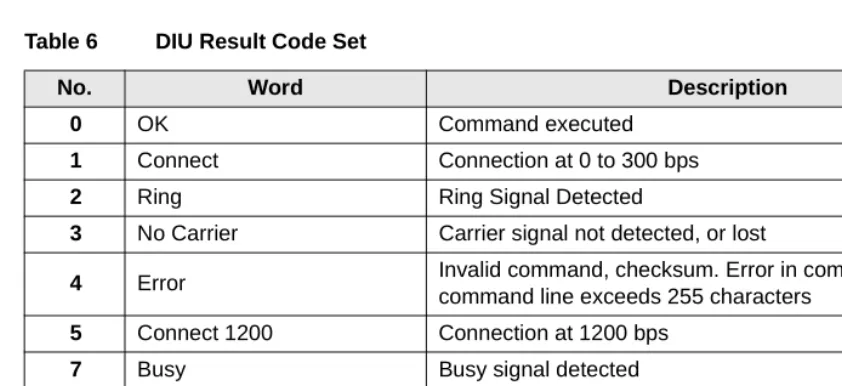
Table 6 DIU Result Code Set
No. Word Description
0 OK Command executed
1 Connect Connection at 0 to 300 bps 2 Ring Ring Signal Detected
3 No Carrier Carrier signal not detected, or lost
4 Error Invalid command, checksum. Error in command line, or command line exceeds 255 characters
5 Connect 1200 Connection at 1200 bps 7 Busy Busy signal detected 10 Connect 2400 Connection at 2400 bps 11 Connect 4800 Connection at 4800 bps 12 Connect 9600 Connection at 9600 bps
Table 7 DIU S-Register Set
Register Range Description
S0 0~255 rings Select ring to answer on specific number of rings S1 0~255 rings Ring count (increment with each ring)
Data Communications Mode
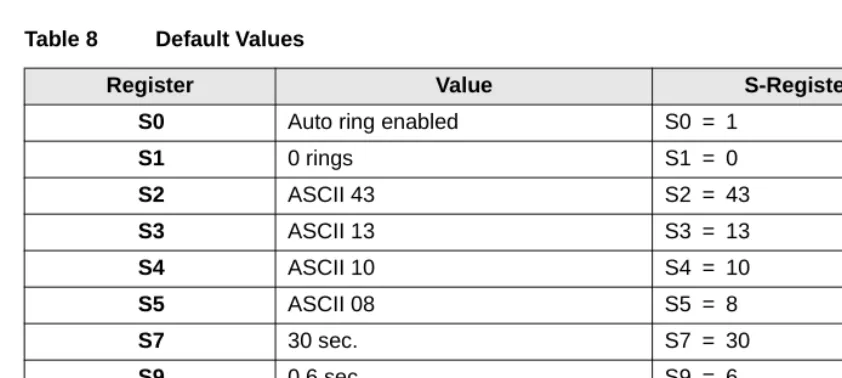
Note A DIU assumes these default values when power is initially applied to it or when the modular line cord is disconnected and then reconnected.
Table 8 Default Values
Register Value S-Register Control
S0 Auto ring enabled S0 = 1
S1 0 rings S1 = 0
S2 ASCII 43 S2 = 43
S3 ASCII 13 S3 = 13
S4 ASCII 10 S4 = 10
S5 ASCII 08 S5 = 8
S7 30 sec. S7 = 30
S9 0.6 sec. S9 = 6
S10 0.7 sec. S10 = 7
S12 1 sec. S12 = 50
Table 9 DIU Dialing Modifier Set
Modifier Description
0~9*# Digits/characters for dialing ABCD Digits/characters for dialing
P Pulse dial T Tone dial
Index
B
baud rate,
7
C
calldata call while on a voice call,
14
,15
data device,10
from data telephone,
12
from the externa PC or terminal,
21
from your PC or terminal,11
terminate,10
voice call while on a data call,
14
CO line,15
,26
CO line access codes,
28
communication parameters,7
options,
7
connect LED,6
D
data bits,
8
data call,
3
,10
,12
,14
,24
data communicationscommand mode,
30
modedata communications mode,
29
data release,3
,10
,12
,13
,15
,19
,27
default values,36
dial internal modem from your PC or terminal,
17
dialing modifiers,
30
DIU dialing modifier set,36
DIU S-register set,35
H
hardware requirements,
2
hold,15
M
modem,
3
,18
,24
P
parity,8
power LED,6
R
ready LED,
6
result codes,30
S ~ V
S
spkr,
16
,27
s-registers,31
stop bits,8
switch between data communications and TAPI modes,
29
T
terminate a call
data connection state,
27
from data telephones,13
,19
from external PC or terminal,22
from PC or terminal,13
voice connection state,
27
voice or data,15
V
verify communications,