Digital Video Recorder
User Manual
Hikvision® Network Digital Video Recorder User Manual
This manual, as well as the software described in it, is furnished under license and may be used or copied only in accordance with the terms of such license. The content of this manual is furnished for informational use only, is subject to change without notice, and should not be construed as a commitment by Hangzhou Hikvision Digital Technology Co., Ltd. (Hikvision). Hikvision assumes no responsibility or liability for any errors or inaccuracies that may appear in the book.
Except as permitted by such license, no part of this publication may be reproduced, stored in a retrieval system, or transmitted, in any form or by any means, electronic, mechanical, recording, or otherwise, without the prior written permission of Hikvision.
HIKVISION MAKES NO WARRANTIES, EXPRESS OR IMPLIED, INCLUDING WITHOUT LIMITATION THE IMPLIED WARRANTIES OF MERCHANTABILITY AND FITNESS FOR A PARTICULAR PURPOSE, REGARDING THE HIKVISION SOFTWARE. HIKVISION DOES NOT WARRANT, GUARANTEE, OR MAKE ANY REPRESENTATIONS REGARDING THE USE OR THE RESULTS OF THE USE OF THE HIKVISION SOFTWARE IN TERMS OF ITS CORRECTNESS, ACCURACY, RELIABILITY, CURRENTNESS, OR OTHERWISE. THE ENTIRE RISK AS TO THE RESULTS AND PERFORMANCE OF THE HIKVISION SOFTWARE IS ASSUMED BY YOU. THE EXCLUSION OF IMPLIED WARRANTIES IS NOT PERMITTED BY SOME STATES. THE ABOVE EXCLUSION MAY NOT APPLY TO YOU.
IN NO EVENT WILL HIKVISION, ITS DIRECTORS, OFFICERS, EMPLOYEES, OR AGENTS BE LIABLE TO YOU FOR ANY CONSEQUENTIAL, INCIDENTAL, OR INDIRECT DAMAGES (INCLUDING DAMAGES FOR LOSS OF BUSINESS PROFITS, BUSINESS INTERRUPTION, LOSS OF BUSINESS INFORMATION, AND THE LIKE) ARISING OUT OF THE USE OR INABILITY TO USE THE HIKVISION SOFTWARE EVEN IF HIKVISION HAS BEEN ADVISED OF THE POSSIBILITY OF SUCH DAMAGES. BECAUSE SOME STATES DO NOT ALLOW THE EXCLUSION OR LIMITATION OF LIABILITY FOR CONSEQUENTIAL OR INCIDENTAL DAMAGES, THE ABOVE LIMITATIONS MAY NOT APPLY TO YOU.
3
Regulatory information
FCC information
FCC compliance: This equipment has been tested and found to comply with the limits for a digital device, pursuant to part 15 of the FCC Rules. These limits are designed to provide reasonable protection against harmful interference when the equipment is operated in a commercial environment. This equipment generates, uses, and can radiate radio frequency energy and, if not installed and used in accordance with the instruction manual, may cause harmful interference to radio communications. Operation of this equipment in a residential area is likely to cause harmful interference in which case the user will be required to correct the interference at his own expense.
FCC conditions
This device complies with part 15 of the FCC Rules. Operation is subject to the following two conditions: 1. This device may not cause harmful interference.
2. This device must accept any interference received, including interference that may cause undesired operation.
EU Conformity Statement
This product and - if applicable - the supplied accessories too are marked with "CE" and comply therefore with the applicable harmonized European standards listed under the Low Voltage Directive 2006/95/EC, the EMC Directive 2004/108/EC, the RoHS Directive 2011/65/EU.
2012/19/EU (WEEE directive): Products marked with this symbol cannot be disposed of as unsorted municipal waste in the European Union. For proper recycling, return this product to your local supplier upon the purchase of equivalent new equipment, or dispose of it at designated collection points. For more information, see: www.recyclethis.info.
2006/66/EC (battery directive): This product contains a battery that cannot be disposed of as unsorted municipal waste in the European Union. See the product documentation for specific battery information. The battery is marked with this symbol, which may include lettering to indicate cadmium (Cd), lead (Pb), or mercury (Hg). For proper recycling, return the battery to your supplier or to a designated collection point. For more information see: www.recyclethis.info.
Preventive and Cautionary Tips
Before connecting and operating your DVR, please be advised of the following tips:
•
Ensure unit is installed in a well-ventilated, dust-free environment.•
Unit is designed for indoor use only.•
Keep all liquids away from the DVR.•
Ensure environmental conditions meet factory specifications.•
Ensure unit is properly secured to a rack or shelf. Major shocks or jolts to the unit as a result of dropping it may cause damage to the sensitive electronics within the unit.•
Use the DVR in conjunction with an UPS if possible.•
Power down the unit before connecting and disconnecting accessories and peripherals.•
A factory recommended HDD should be used for this device.•
Improper use or replacement of the battery may result in hazard of explosion. Replace with the same or equivalent type only. Dispose of used batteries according to the instructions provided by the manufacturer.5
Trademarks and Registered Trademarks
•
Windows and Windows mark are trademarks or registered trademarks of Microsoft Corporation in the United States and/or other countries.•
HDMI, HDMI mark and High-Definition Multimedia Interface are trademarks or registered trademarks of HDMI Licensing LLC.•
The products contained in this manual are authorized by HDMI Licensing LLC with the use right of the HDMI technology.•
VGA is the trademark of IBM.•
UPnPTM is a certification mark of the UPnPTM Implementers Corporation.•
Other names of companies and product contained in this manual may be trademarks or registered trademarks of their respective owners.Thank you for purchasing our product. If there is any question or request, please do not hesitate to contact dealer. The figures in this manual are for reference only.
This manual is applicable to the models listed in the following table.
Series Model Type
DS-7100HGHI-SH DS-7104HGHI-SH DS-7108HGHI-SH
Network DVR
DS-7100HQHI-SH DS-7104HQHI-SH Network HDVR
DS-7200HGHI-SH DS-7204HGHI-SH DS-7208HGHI-SH DS-7216HGHI-SH
Network HDVR
7200HQHI-SH DS-7204HQHI-SH DS-7208HQHI-SH
Network HDVR 7300HGHI-SH DS-7304HGHI-SH
DS-7308HGHI-SH DS-7316HGHI-SH
Network HDVR
7300HQHI-SH DS-7304HQHI-SH DS-7308HQHI-SH DS-7316HQHI-SH
Network HDVR
8100HGHI-SH DS-8104HGHI-SH DS-8108HGHI-SH DS-8116HGHI-SH
Network HDVR
8100HQHI-SH DS-8104HQHI-SH DS-8108HQHI-SH DS-8116HQHI-SH
7
Product Key Features
General
Connectable to HD-TVI and analog cameras;
Connectable to the Coaxitron camera/dome with long transmission distance;
Connectable to IP cameras from Hikvision for HDVR series;
Each channel supports dual-stream. Main stream supports up to 1080P resolution and sub-stream supports up to WD1 resolution;
Independent configuration for each channel, including resolution, frame rate, bit rate, image quality, etc.
Encoding for both video stream and video & audio stream; audio and video synchronization during composite stream encoding;
Watermark technology;
Local Monitoring
Simultaneous HDMI, VGA and CVBS outputs (no CVBS output for DS-7200 and DS-7100 series);
HDMI output and VGA output at up to 1920*1080 resolution;
1/4/6/8/9/16 screen live view is supported, and the display sequence of screens is adjustable;
Live view screen can be switched in group and manual switch and automatic cycle live view are also provided, the interval of automatic cycle can be adjusted;
Quick setting menu is provided for live view;
The selected live view channel can be shielded;
Motion detection, video-tampering detection, video exception alarm and video loss alarm functions;
Privacy mask;
Several PTZ protocols supported; PTZ preset, patrol and pattern;
Zooming in/out by clicking the mouse and PTZ tracing by dragging mouse;
HDD Management
For DS-7100HGHI-SH and DS-7104HQHI-SH series, 1 SATA hard disk can be connected; For DS-7200HGHI&HQHI-SH series, up to 2 SATA hard disks can be connected;
For DS-7300HGHI&HQHI-SH series, 4 SATA hard disks and 1 eSATA disk can be connected; For DS-8100HGHI&HQHI-SH series, 8 SATA hard disks and 1 eSATA disk can be connected. (Each disk with a maximum of 4TB storage capacity.)
8 network disks (8 NAS disks, or 7 NAS disks+1 IP SAN disk) can be connected;
Support eSATA disks for recording or backup;
Support S.M.A.R.T. and bad sector detection;
Support HDD sleeping function;
HDD property: redundancy, read-only, read/write (R/W);
HDD group management;
HDD quota management; different capacity can be assigned to different channels;
Recording and Playback
Holiday recording schedule configuration;
Cycle and non-cycle recording modes;
Normal and event video encoding parameters;
8 recording time periods with separated recording types;
Pre-record and post-record for motion detection triggered recording, and pre-record time for schedule and manual recording;
Searching record files by events (alarm input/motion detection);
Customization of tags, searching and playing back by tags;
Locking and unlocking of record files;
Local redundant recording;
Searching and playing back record files by camera number, recording type, start time, end time, etc.;
Smart playback to go through less effective information;
Zooming in for any area when playback;
Reverse playback of multi-channel;
Supports pause, fast forward, slow forward, skip forward, and skip backward when playback, locating by dragging the mouse on the progress bar;
Up to 16-ch synchronous playback at 1080P;
Backup
Export data by a USB, SATA or eSATA device;
Export video clips when playback;
Management and maintenance of backup devices;
Alarm and Exception
Configurable arming time of alarm input/output;
Alarm for video loss, motion detection, video tampering, abnormal signal, video input/recording resolution mismatch, illegal login, network disconnected, IP confliction, record exception, HDD error, and HDD full, etc.;
Alarm triggers full screen monitoring, audio alarm, notifying surveillance center, sending email and alarm output;
Automatic restore when system is abnormal.
Other Local Functions
Manual and automatic video quality diagnostics;
Users can operate by mouse and remote control;
Three-level user management; admin user can create many operating account and define their operating permission, which includes the permission to access any channel;
Completeness of operation, alarm, exceptions and log writing and searching;
Manually triggering and clearing alarms;
Importing and exporting of configuration file of devices;
Getting cameras type information automatically.
Network Functions
1 self-adaptive 10M/100M network interface for DS-7204HGHI-SH; 2 self-adaptive 10M/100M/1000M network interfaces for DS-8100HQHI&HGHI-SH series, and three working modes are configurable: multi-address, load balance, network fault tolerance; and 1 self-adaptive 10M/100M/1000M network interface for other models;
IPv6 is supported;
TCP/IP protocol, PPPoE, DHCP, DNS, DDNS, NTP, SADP, SMTP, SNMP, NFS, iSCSI, UPnP™ and HTTPS are supported;
9
Support access by EZVIZ Cloud P2P.
TCP, UDP and RTP for unicast;
Auto/Manual port mapping by UPnPTM
Remote search, playback, download, locking and unlocking the record files, and downloading files broken transfer resume;
Remote parameters setup; remote import/export of device parameters;
Remote viewing of the device status, system logs and alarm status;
Remote keyboard operation;
Remote locking and unlocking of control panel and mouse;
Remote HDD formatting and program upgrading;
Remote system restart and shutdown;
Support upgrading via remote FTP server;
RS-232, RS-485 transparent channel transmission;
Alarm and exception information can be sent to the remote host;
Remotely start/stop recording;
Remotely start/stop alarm output;
Remote PTZ control;
Remote JPEG capture;
Two-way audio and voice broadcasting;
Embedded WEB server.
Development Scalability
SDK for Windows and Linux system;
Source code of application software for demo;
Table of Contents
Product Key Features ... 7
Chapter 1Introduction ... 14
1.1 Front Panels ... 15
1.2 IR Remote Control Operations ... 23
1.3 USB Mouse Operation ... 25
1.4 Input Method Description ... 26
1.5 Rear Panel ... 27
Chapter 2Getting Started ... 30
2.1 Starting Up and Shutting Down the DVR ... 31
2.2 Using the Wizard for Basic Configuration... 33
2.3 Adding and Connecting the IP Cameras ... 37
2.3.1 Adding the Online IP Cameras... 37
2.3.2 Editing the Connected IP Cameras and Configuring Customized Protocols ... 40
Chapter 3Live View ... 42
3.1 Introduction of Live View ... 43
3.2 Operations in Live View Mode ... 44
3.2.1 Front Panel Operation ... 44
3.2.2 Using the Mouse in Live View ... 45
3.2.3 Using an Auxiliary Monitor ... 46
3.2.4 Main/Aux Output Switching ... 46
3.2.5 Quick Setting Toolbar in Live View Mode ... 47
3.3 Channel-zero Encoding ... 49
3.4 Adjusting Live View Settings ... 50
3.5 Manual Video Quality Diagnostics ... 52
3.6 User Logout ... 53
Chapter 4PTZ Controls ... 54
4.1 Configuring PTZ Settings ... 55
4.2 Setting PTZ Presets, Patrols & Patterns... 57
4.2.1 Customizing Presets ... 57
4.2.2 Calling Presets ... 57
4.2.3 Customizing Patrols ... 58
4.2.4 Calling Patrols ... 59
4.2.5 Customizing Patterns ... 60
4.2.6 Calling Patterns ... 61
4.2.7 Customizing Linear Scan Limit ... 61
4.2.8 Calling Linear Scan ... 62
4.2.9 One-touch Park ... 63
4.3 PTZ Control Panel ... 64
Chapter 5Recording Settings ... 65
5.1 Configuring Encoding Parameters ... 66
11
5.3 Configuring Motion Detection Record ... 72
5.4 Configuring Alarm Triggered Record ... 74
5.5 Manual Record ... 76
5.6 Configuring Holiday Record ... 77
5.7 Configuring Redundant Recording ... 79
5.8 Configuring HDD Group for Recording ... 81
5.9 Files Protection ... 82
Chapter 6Playback ... 84
6.1 Playing Back Record Files ... 85
6.1.1 Playing Back by Channel ... 85
6.1.2 Playing Back by Time ... 87
6.1.3 Playing Back by Event Search ... 89
6.1.4 Playing Back by Tag ... 91
6.1.5 Smart Playback ... 94
6.1.6 Playing Back by System Logs ... 95
6.1.7 Playing Back External File ... 97
6.2 Auxiliary Functions of Playback ... 98
6.2.1 Playing Back Frame by Frame ... 98
6.2.2 Smart Search ... 98
6.2.3 Digital Zoom ... 100
6.2.4 Reverse Playback of Multi-channel ... 100
Chapter 7Backup ... 102
7.1 Backing up Record Files ... 103
7.1.1 Backing up by Normal Video Search ... 103
7.1.2 Backing up by Event Search ... 106
7.1.3 Backing up Video Clips ... 109
7.2 Managing Backup Devices ... 112
Chapter 8Alarm Settings ... 114
8.1 Setting Motion Detection... 115
8.2 Setting Sensor Alarms ... 117
8.3 Detecting Video Loss... 120
8.4 Detecting Video Tampering ... 122
8.5 Setting All-day Video Quality Diagnostics ... 124
8.6 Handling Exceptions ... 125
8.7 Setting Alarm Response Actions ... 127
8.8 Triggering or Clearing Alarm Output Manually ... 129
Chapter 9Network Settings ... 130
9.1 Configuring General Settings ... 131
9.2 Configuring Advanced Settings ... 133
9.2.1 Configuring PPPoE Settings ... 133
9.2.2 Configuring Extranet Access ... 133
9.2.3 Configuring NTP Server ... 137
9.2.4 Configuring SNMP ... 138
9.2.6 Configuring the Remote Alarm Host ... 140
9.2.7 Configuring Multicast ... 141
9.2.8 Configuring RTSP ... 141
9.2.9 Configuring Server and HTTP Ports ... 142
9.2.10 Configuring HTTPS Port ... 142
9.2.11 Configuring Email ... 144
9.2.12 Telnet Settings... 145
9.3 Checking Network Traffic ... 147
9.4 Configuring Network Detection ... 148
9.4.1 Testing Network Delay and Packet Loss ... 148
9.4.2 Exporting Network Packet ... 148
9.4.3 Checking Network Status ... 150
9.4.4 Checking Network Statistics ... 150
Chapter 10 HDD Management... 152
10.1 Initializing HDDs ... 153
10.2 Managing Network HDD ... 155
10.3 Managing eSATA ... 157
10.4 Managing HDD Group ... 158
10.4.1 Setting HDD Groups ... 158
10.4.2 Setting HDD Property ... 159
10.5 Configuring Quota Mode... 161
10.6 Checking HDD Status ... 162
10.7 Checking S.M.A.R.T Information ... 163
10.8 Detecting Bad Sector ... 164
10.9 Configuring HDD Error Alarms ... 165
Chapter 11 Camera Settings ... 166
11.1 Configuring OSD Settings ... 167
11.2 Configuring Privacy Mask... 168
11.3 Configuring Video Parameters ... 169
Chapter 12 DVR Management and Maintenance ... 170
12.1 Viewing System Information ... 171
12.2 Searching and Exporting Log Files ... 171
12.3 Importing/Exporting IP Camera Info ... 174
12.4 Importing/Exporting Configuration Files ... 175
12.5 Upgrading System ... 176
12.5.1 Upgrading by Local Backup Device ... 176
12.5.2 Upgrading by FTP ... 176
12.6 Restoring Default Settings ... 177
Chapter 13 Others ... 178
13.1 Configuring RS-232 Serial Port... 179
13.2 Configuring General Settings ... 180
13.3 Configuring DST Settings ... 181
13.4 Configuring More Settings ... 182
13
13.5.1 Adding a User ... 183
13.5.2 Deleting a User ... 185
13.5.3 Editing a User ... 185
13.6 Logging out/Shutting down/Rebooting Device ... 187
Appendix ... 188
Glossary ... 189
Troubleshooting ... 190
15
1.1
Front Panels
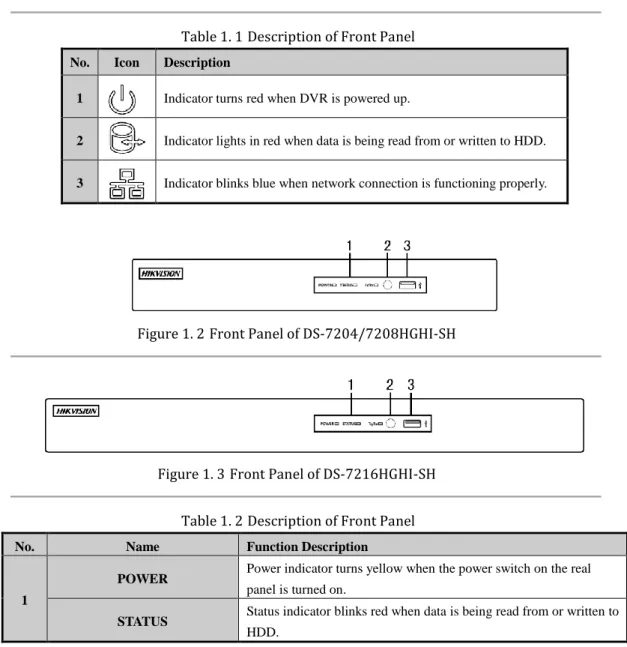
Figure 1. 1Front Panel of DS-7100HGHI-SH and DS-7100HQHI-SH
Table 1. 1Description of Front Panel
No. Icon Description
1 Indicator turns red when DVR is powered up.
2 Indicator lights in red when data is being read from or written to HDD.
3 Indicator blinks blue when network connection is functioning properly.
Figure 1. 2Front Panel of DS-7204/7208HGHI-SH
Figure 1. 3Front Panel of DS-7216HGHI-SH
Table 1. 2Description of Front Panel
No. Name Function Description
1
POWER Power indicator turns yellow when the power switch on the real
panel is turned on.
STATUS Status indicator blinks red when data is being read from or written to
No. Name Function Description
Tx/Rx Tx/Rx indictor blinks yellow when network connection is
functioning properly.
2 IR Receiver Receiver for IR remote
3 USB Interfaces Universal Serial Bus (USB) ports for additional devices such as
USB mouse and USB Hard Disk Drive (HDD).
Figure 1. 4Front Panel of DS-7200HQHI-SH
Table 1. 3Description of Front Panel
No. Name Function Description
1
POWER Power indicator turns yellow when the device s running.
STATUS
Status indicator blinks red when data is being read from or written to HDD, and turns yellow when the SHIFT function is realized.
Tx/Rx Tx/Rx indictor blinks yellow when network connection is
functioning properly.
2 Composite Keys
SHIFT Switch between the numeric or letter input and functions of the
composite keys.
1/MENU Enter numeral “1”;
Access the main menu interface.
2/ABC/F1
Enter numeral “2”; Enter letters “ABC”;
The F1 button when used in a list field will select all items in the list.
In PTZ Control mode, it will turn on/off PTZ light and when the image is zoomed in, the key is used to zoom out. In live view or playback mode, the F1 button can be used to switch between main and spot video output.
3/DEF/F2
Enter numeral “3”; Enter letters “DEF”;
The F2 button is used to change the tab pages. In PTZ control mode, it zooms in the image.
4/GHI/ESC
Enter numeral “4”; Enter letters “GHI”;
Exit and back to the previous menu.
5/JKL/EDIT
Enter numeral “5”; Enter letters “JKL”;
Delete characters before cursor;
Check the checkbox and select the ON/OFF switch; Start/stop record clipping in playback.
17
No. Name Function Description
6/MNO/PLAY
Enter numeral “6”; Enter letters “MNO”;
In Playback mode, it is used for direct access to playback interface.
7/PQRS/REC
Enter numeral “7”; Enter letters “PQRS”;
Manual record, for direct access to manual record interface; manually enable/disable record.
8/TUV/PTZ
Enter numeral “8”; Enter letters “TUV”; Access PTZ control interface.
9/WXYZ/PREV
Enter numeral “9”; Enter letters “WXYZ”;
Multi-channel display in live view.
0/A
Enter numeral “0”;
Shift the input methods in the editing text field. (Upper and lowercase, alphabet, symbols or numeric input).
3
DIRECTION
The DIRECTION buttons are used to navigate between different fields and items in menus.
In the Playback mode, the Up and Down button is used to speed up and slow down recorded video. The Left and Right button will select the next and previous record files.
In Live View mode, these buttons can be used to cycle through channels.
In PTZ control mode, it can control the movement of the PTZ camera.
ENTER
The ENTER button is used to confirm selection in any of the menu modes.
It can also be used to tick checkbox fields.
In Playback mode, it can be used to play or pause the video. In single-frame Playback mode, pressing the button will advance the video by a single frame.
In Auto-switch mode, it can be used to stop /start auto switch.
4 USB Interface Universal Serial Bus (USB) ports for additional devices such
as USB mouse and USB Hard Disk Drive (HDD).
5 IR Receiver Receiver for IR remote control.
Table 1. 4Description of Front Panel
No. Name Function Description
1
POWER Power indicator lights in green when DVR is powered up. READY Ready indicator is normally green, indicating that the DVR is
functioning properly.
STATUS
Indicator turns green when DVR is controlled by an IR remote control with the address from 1~254;
Indicator turns red when the SHIFT button is used;
Indicator does not light when the DVR is controlled by a keyboard or by the IR remote control with the address of 255;
Indicator turns green when the DVR is controlled by IR remote control (with the address from 1~254) and keyboard at the same time , and the SHIFT button is not used;
Indicator turns orange : (a) when the DVR is controlled by IR remote control (with the address from 1~254) and keyboard at the same time and the SHIFT button is used as well; (b) when the DVR is
controlled by IR remote control (with the address from 1~254) and the SHIFT button is used.
ALARM Alarm indicator turns red when a sensor alarm is detected.
HDD HDD indicator blinks in red when data is being read from or written
to HDD.
Tx/Rx Tx/Rx indictor blinks in green when network connection is
functioning properly.
2 DVD-R/W Slot for DVD-R/W.
3 Composite Keys
SHIFT
Switch between the numeric or letter input and functions of the composite keys. (Input letter or numbers when the light is out; Realize functions when the light is red.)
1/MENU Enter numeral “1”;
Access the main menu interface.
2/ABC/F1
Enter numeral “2”; Enter letters “ABC”;
The F1 button when used in a list field will select all items in the list. In PTZ Control mode, it will turn on/off PTZ light and when the image is zoomed in, the key is used to zoom out.
In live view or playback mode, the F1 button can be used to switch between main and spot video output.
3/DEF/F2
Enter numeral “3”; Enter letters “DEF”;
The F2 button is used to change the tab pages. In PTZ control mode, it zooms in the image.
4/GHI/ESC
Enter numeral “4”; Enter letters “GHI”;
Exit and back to the previous menu.
5/JKL/EDIT
Enter numeral “5”; Enter letters “JKL”;
Delete characters before cursor;
Check the checkbox and select the ON/OFF switch; Start/stop record clipping in playback.
6/MNO/PLAY
Enter numeral “6”; Enter letters “MNO”;
19
No. Name Function Description
7/PQRS/REC
Enter numeral “7”; Enter letters “PQRS”;
Manual record, for direct access to manual record interface; manually enable/disable record.
8/TUV/PTZ
Enter numeral “8”; Enter letters “TUV”; Access PTZ control interface.
9/WXYZ/PREV
Enter numeral “9”; Enter letters “WXYZ”;
Multi-channel display in live view.
0/A
Enter numeral “0”;
Shift the input methods in the editing text field. (Upper and lowercase, alphabet, symbols or numeric input).
4
DIRECTION
The DIRECTION buttons are used to navigate between different fields and items in menus.
In the Playback mode, the Up and Down button is used to speed up and slow down recorded video. The Left and Right button will select the next and previous record files.
In Live View mode, these buttons can be used to cycle through channels.
In PTZ control mode, it can control the movement of the PTZ camera.
ENTER
The ENTER button is used to confirm selection in any of the menu modes.
It can also be used to tick checkbox fields.
In Playback mode, it can be used to play or pause the video. In single-frame Playback mode, pressing the button will advance the video by a single frame.
In Auto-switch mode, it can be used to stop /start auto switch.
5 POWER Power on/off switch.
6 JOG SHUTTLE Control
Move the active selection in a menu. It will move the selection up and down.
In Live View mode, it can be used to cycle through different channels.
In the Playback mode, it can be used to jump 30s forward/backward in video files.
In PTZ control mode, it can control the movement of the PTZ camera.
7 USB Interface Universal Serial Bus (USB) ports for additional devices such as USB
mouse and USB Hard Disk Drive (HDD).
Figure 1. 6Front Panel of DS-8100HGHI-SH and DS-8100HQHI-SH
Table 1. 5Description of Front Panel
No. Name Function Description
1 Status
Indicators
ALARM Alarm indicator turns red when a sensor alarm is detected. READY Ready indicator is normally blue, indicating that the DVR is
functioning properly.
STATUS
Indicator turns blue when DVR is controlled by an IR remote. Indicator turns red when controlled by a keyboard and orange when IR remote and keyboard is used at the same time.
Indicator does not light when the DVR is controlled by the IR remote control with the address of 255.
HDD HDD indicator blinks in red when data is being read from or written
to HDD.
Tx/Rx Tx/Rx indictor blinks in blue when network connection is functioning
properly.
GUARD
Indicator turns blue when the device is armed; Indicator does not light when the device is disarmed;
The arm/disarm state can be initiated by pressing and holding on the ESC button for more than 3 seconds in live view mode.
2 Alphanumeric Buttons
Switch to the corresponding channel in Live view or PTZ Control mode.
Input numbers and characters in Edit mode.
Switch between different channels in Playback mode.
The light of the button is blue when the corresponding channel is recording; it is red when the channel is in network transmission status; it is pink when the channel is recording and transmitting.
3 Control
Buttons
DIRECTION
The DIRECTION buttons are used to navigate between different fields and items in menus.
In the Playback mode, the Up and Down button is used to speed up and slow down recorded video. The Left and Right button will select the next and previous record files.
In Live View mode, these buttons can be used to cycle through channels.
In PTZ control mode, it can control the movement of the PTZ camera.
ENTER
The ENTER button is used to confirm selection in any of the menu modes.
It can also be used to tick checkbox fields.
21
No. Name Function Description
In single-frame Playback mode, pressing the button will advance the video by a single frame.
In Auto-switch mode, it can be used to stop /start auto switch.
4 JOG SHUTTLE Control
Move the active selection in a menu. It will move the selection up and down.
In Live View mode, it can be used to cycle through different channels.
In the Playback mode: the outer ring is used to speed up or slow down the record files and the inner ring is used to jump 30s forward/backward in records files.
In PTZ control mode, it can control the movement of the PTZ camera.
5 POWER Power on/off switch.
6 USB Interfaces Universal Serial Bus (USB) ports for additional devices such as USB
mouse and USB Hard Disk Drive (HDD).
7 Composite Keys
ESC
Exit and back to the previous menu. Arm/disarm the DVR in live view mode.
REC/SHOT
Enter the Manual Record setting menu.
In PTZ control settings, press the button and then you can call a PTZ preset by pressing Numeric button.
It is also used to turn audio on/off in the Playback mode.
PLAY/AUTO
Enter the Playback menu;
Auto scan in the PTZ Control mode.
ZOOM+ Zoom in the PTZ camera in the PTZ Control setting.
A/FOCUS+
Adjust focus in the PTZ Control menu.
It is also used to switch between input methods (upper and lowercase alphabet, symbols and numeric input).
EDIT/IRIS+
Edit text fields. When editing text fields, it will also function as a Backspace button to delete the character in front of the cursor. On checkbox fields, pressing the button will tick the checkbox. In PTZ Control mode, the button adjusts the iris of the camera. In Playback mode, it can be used to generate video clips for backup. Enter/exit the folder of USB device and eSATA HDD.
MAIN/SPOT/Z OOM-
Switch between main and spot output.
In PTZ Control mode, it can be used to zoom out the image.
F1/ LIGHT
Select all items on the list when used in a list field.
In PTZ Control mode, it will turn on/off PTZ light(if applicable). In Playback mode, it is used to switch between play and reverse play.
F2/ AUX Cycle through tab pages.
In synchronous playback mode, it is used to switch between channels.
MENU/WIPER
Press the button will help you return to the Main menu (after successful login).
Press and hold the button for 5 seconds will turn off audible key beep.
In PTZ Control mode, the MENU/WIPER button will start wiper (if applicable).
No. Name Function Description
In Playback mode, it is used to show/hide the control interface.
PREV/FOCUS-
Switch between single screen and multi-screen mode.
In PTZ Control mode, it is used to adjust the focus in conjunction with the A/FOCUS+ button.
PTZ/IRIS-
Enter the PTZ Control mode.
In the PTZ Control mode, it is used to adjust the iris of the PTZ camera.
8 IR Receiver Receiver for IR remote control.
23
1.2
IR Remote Control Operations
The DVR may also be controlled with the included IR remote control, shown in Figure 1. 7.
Batteries (2×AAA) must be installed before operation.
Figure 1. 7Remote Control
The keys on the remote control closely resemble the ones found on the front panel. Refer to Table 1. 6, they include:
Table 1. 6Description of the IR Remote Control Buttons
No. Name Description
1 POWER Power on/off the device.
No. Name Description
3 Alphanumeric Buttons Same as Alphanumeric buttons on front panel.
4 EDIT Button Same as EDIT/IRIS+ button on front panel.
5 A Button Same as A/FOCUS+ button on front panel.
6 REC Button Same as REC/SHOT button on front panel.
7 PLAY Button Same as the PLAY/AUTO button on front panel.
8 INFO Button Same as the ZOOM+ button on front panel.
9 VOIP/MON Button Same as the MAIN/SPOT/ZOOM- button on front panel.
10 MENU Button Same as the MENU/WIPER button on front panel.
11 PREV Button Same as the PREV/FOCUS- button on front panel.
12 DIRECTION/ENTER Buttons
Same as the DIRECTION/ENTER buttons on front panel.
13 PTZ Button Same as the PTZ/IRIS- button on front panel.
14 ESC Button Same as the ESC button on front panel.
15 RESERVED Reserved for future usage.
16 F1 Button Same as the F1/LIGHT button on front panel.
17 PTZ Control Buttons Buttons to adjust the iris, focus and zoom of a PTZ camera.
18 F2 Button Same as the F2/AUX button on front panel.
Troubleshooting Remote Control:
Make sure you have install batteries properly in the remote control. And you have to aim the remote control at the IR receiver in the front panel.
If there is no response after you press any button on the remote, follow the procedure below to troubleshoot.
Steps:
1. Go into Menu > Settings > General > More Settings by operating the front control panel or the mouse.
2. Check and remember DVR ID#. The default ID# is 255. This ID# is valid for all IR remote controls.
3. Press the DEV button on the remote control.
4. Enter the DVR ID# in step 2.
5. Press the ENTER button on the remote.
If the Status indicator on the front panel turns blue, the remote control is operating properly. If the Status indicator does not turn blue and there is still no response from the remote, please check the following:
1. Batteries are installed correctly and the polarities of the batteries are not reversed.
2. Batteries are fresh and not out of charge.
3. IR receiver is not obstructed.
If the remote still cannot function properly, please change the remote and try again, or contact the device provider.
25
1.3
USB Mouse Operation
A regular 3-button (Left/Right/Scroll-wheel) USB mouse can also be used with this DVR. To use a USB mouse:
Steps:
1. Plug USB mouse into one of the USB interfaces on the front panel of the DVR.
2. The mouse should automatically be detected. If in a rare case that the mouse is not detected, the possible reason may be that the two devices are not compatible, please refer to the recommended the device list from your provider.
The operation of the mouse:
Table 1. 7Description of the Mouse Control
Name Action Description
Left-Click
Single-Click Live view: Select channel and show the quick set menu. Menu: Select and enter.
Double-Click Live view: Switch between single-screen and multi-screen.
Click and Drag PTZ control: Wheeling.
Privacy mask and motion detection: Select target area. Digital zoom-in: Drag and select target area.
Live view: Drag channel/time bar.
Right-Click Single-Click Live view: Show menu.
Menu: Exit current menu to upper level menu.
Scroll-Wheel Scrolling up Live view: Previous screen. Menu: Previous item.
Scrolling down Live view: Next screen. Menu: Next item.
1.4
Input Method Description
Figure 1. 8Soft Keyboard
Description of the buttons on the soft keyboard:
Table 1. 8Description of the Soft Keyboard Icons
Icons Description Icons Description
English Capital English
Numbers Symbols
Lowercase/Uppercase Backspace
Space Enter
27
1.5
Rear Panel
Figure 1. 9DS-7100HGHI-SH and DS-7100HQHI-SH
Table 1. 9Description of Front Panel
No. Item Description
1 VIDEO IN BNC interface for TVI and analog video input.
2 HDMI HDMI video output connector.
3 VGA DB15 connector for VGA output. Display local video output and menu.
4 AUDIO OUT RCA connector.
5 AUDIO IN RCA connector.
6 Network Interface Connector for network
7 USB Port Universal Serial Bus (USB) port for additional devices.
8 GND Ground
9 Power Supply DC 12V power supply.
Figure 1. 10DS-7200HGHI-SH
Figure 1. 11DS-7200HQHI-SH
Table 1. 10Description of Front Panel
No. Item Description
1 VIDEO IN BNC interface for TVI and analog video input.
2 AUDIO IN RCA connector
3 AUDIO OUT RCA connector
4 VGA DB15 connector for VGA output. Display local video output and menu.
5 HDMI HDMI video output connector.
6 USB Port Universal Serial Bus (USB) port for additional devices.
7 Network Interface Connector for network
8 RS-485 Interface Connector for RS-485 devices.
10 Power Switch Switch for turning on/off the device.
11 GND Ground
12 Alarm In/Out (for DS-7200HQHI-SH)
Connectors for alarm inputs and alarm outputs.
Figure 1. 12DS-7300HQHI-SH and DS-7300HGHI-SH
Figure 1. 13DS-8100HGHI-SH
Figure 1. 14DS-8100HQHI-SH
Table 1. 11Description of Front Panel
No. Item Description
1 VIDEO IN BNC interface for TVI and analog video input.
2 VIDEO OUT BNC connector for video output.
3 AUDIO IN RCA connector
4 USB Port Universal Serial Bus (USB) port for additional devices.
5 HDMI HDMI video output connector.
6 VGA DB15 connector for VGA output. Display local video output and
menu.
7 AUDIO OUT RCA connector
29
No. Item Description
9 RS-485 Interface Connector for RS-485 devices. T+ and T- pins connect to R+ and R- pins of PTZ receiver respectively.
D+, D- pin connects to Ta, Tb pin of controller. For cascading devices, the first DVR’s D+, D- pin should be connected with the D+, D- pin of the next DVR.
Connector for alarm input. Connector for alarm output.
10 Power Supply AC 100 ~ 240V power supply.
11 Power Switch Switch for turning on/off the device.
12 GND Ground
13 LINE IN BNC connector for audio input.
14 eSATA Connects external SATA HDD, CD/DVD-RW.
31
2.1
Starting Up and Shutting Down the DVR
Purpose:
Proper startup and shutdown procedures are crucial to expanding the life of the DVR.
Before you start:
Check that the voltage of the extra power supply is the same with the DVR’s requirement, and the ground connection is working properly.
Starting up the DVR Steps:
1. Check the power supply is plugged into an electrical outlet. It is HIGHLY recommended that an Uninterruptible Power Supply (UPS) be used in conjunction with the device.
2. Turn on the power switch on the rear panel, and the Power indicator LED should turn on indicating that the unit begins to start up.
3. After startup, the Power indicator LED remains on.
Shutting down the DVR Steps:
There are two proper ways to shut down the DVR. To shut down the DVR:
OPTION 1: Standard shutdown 1. Enter the Shutdown menu.Menu > Shutdown
Figure 2. 1Shutdown Menu
2. Select the Shutdown button.
3. Click the Yes button.
4. Turn off the power switch on the rear panel when the note appears (for DS-7200 and DS-7100 series).
Figure 2. 2Shutdown Tips
OPTION 2: By operating the front panel (for DS-7300 and DS-8100 series) 1. Press and hold the POWER button on the front panel for 3 seconds.2. Enter the administrator’s username and password in the dialog box for authentication. 3. Click the Yes button.
Do not press the POWER button again when the system is shutting down.
The device remains standby mode after shutting down, and the POWER indicator turns red; you can turn on the device by pressing the POWER button on the remote control.
Rebooting the DVR
While in the Shutdown menu (Figure 2. 1), you can also reboot the DVR.
Steps:
1. Enter the Shutdown menu by clicking Menu > Shutdown.
33
2.2
Using the Wizard for Basic Configuration
By default, the Setup Wizard will start once the DVR has loaded, as shown in Figure 2. 3.
Steps:
1. Please select the system language in the drop-down list on your demand.
Figure 2. 3Language Selection
2. The Setup Wizard can walk you through some important settings of the DVR. If you do not want to use the Setup Wizard at this time, click the Cancel button. You can also choose to use the Setup Wizard next time by leaving the “Start wizard when device starts?” checkbox in checked status.
Figure 2. 4Start Wizard Interface
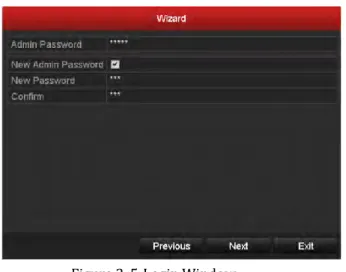
Figure 2. 5Login Window
4. Enter the admin password. By default, the password is 12345.
You are highly recommended to change the default password right after the first login to avoid safety problem.
5. To change the admin password, check the New Admin Password checkbox. Enter the new password and confirm the password in the given fields.
6. Click the Next button to enter the date and time settings window, as shown in Figure 2. 6.
Figure 2. 6Date and Time Settings
7. After the time settings, click Next button which will take you back to the General Network Setup Wizard window, as shown in Figure 2. 7.
35
Figure 2. 7General Network Configuration
1 self-adaptive 10M/100M network interface is provided for DS-7204HGHI-SH; 2 self-adaptive 10M/100M/1000M network interfaces for DS-8100HQHI&HGHI-SH series, and three working modes are configurable: multi-address, load balance, network fault tolerance; and 1 self-adaptive 10M/100M/1000M network interface for other models.
8. Click Next button after you having configured the network parameters, which will take you to the Advanced Network Setup Wizard window, as shown in Figure 2. 8.
Figure 2. 8 Advanced Network Configuration
9. Set the parameters of port No., EZVIZ Cloud P2P, Auto UPnP or DDNS if required.
10.Click Next button after configuring the advanced network parameters, which will take you to the HDD Management window, shown in Figure 2. 9.
Figure 2. 9HDD Management
11.To initialize the HDD, click the Init button. Initialization will remove all the data saved in the HDD.
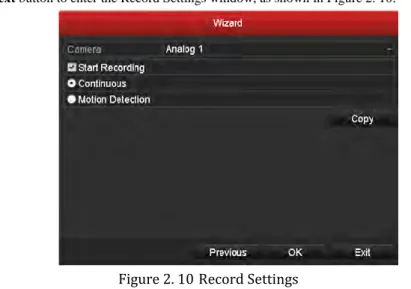
12.Click Next button to enter the Record Settings window, as shown in Figure 2. 10.
Figure 2. 10Record Settings
13.Click Copy to copy the recording setting to other cameras.
37
2.3
Adding and Connecting the IP Cameras
This section is not available for the DS-7100-SH series DVR.
2.3.1
Adding the Online IP Cameras
Purpose:
The main function of the NVR is to connect the network cameras and record the video got from it. So before you can get a live view or record of the video, you should add the network cameras to the connection list of the device.
Before you start:
Ensure the network connection is valid and correct. For detailed checking and configuring of the network, please see Chapter 9.1, 9.3and 9.4.
For the 4-ch device, 1-ch IP camera can be connected; and for other models, up to 2-ch IP cameras can be connected.
OPTION 1: Steps:1. Right-click the mouse when you in the live view mode to show the right-click menu.
DS-7200 Series DS-7300 and DS-8100 Series
Figure 2. 11Right-click Menu
Figure 2. 12Adding IP Camera Interface
3. The online cameras with same network segment will be displayed in the camera list. Click the button to add the camera.
Or you can click the Add All button to add all the detected online IP cameras.
Table 2. 1Explanation of the icons
Icon Explanation Icon Explanation
Edit basic parameters of the camera Add the detected IP camera.
The camera is connected.
The camera is disconnected; you can click the icon to get the exception information of camera.
Delete the IP camera Advanced settings of the camera.
Update the IP camera
4. To add other IP cameras:
1) Click the Custom Adding button to pop up the Add IP Camera (Custom) interface.
Figure 2. 13Custom Adding IP Camera Interface
2) You can edit the IP address, protocol, management port, and other information of the IP camera to be added.
39 3) Click Add to add the camera.
OPTION 2: Steps:1. Enter the Camera Management interface. Menu> Camera> Camera
Figure 2. 14Main Menu
2. Repeat the step 3 and 4 of OPTION 1 to add the camera.
Figure 2. 15IP Camera Management Interface
Table 2. 2Explanation of the icons
Icon Explanation Icon Explanation
Edit basic parameters of the camera Add the detected IP camera. The camera is connected; you can
click the icon to get the live view of the camera.
The camera is disconnected; you can click the icon to get the exception information of camera.
Delete the IP camera Advanced settings of the camera,
Update the IP camera
3. (For the encoders with multiple channels only) check the checkbox of Channel No. in the pop-up window, as shown in the following figure, and click OK to finish adding.
Figure 2. 16Selecting Multiple Channels
2.3.2
Editing the Connected IP Cameras and Configuring
Customized Protocols
After the adding of the IP cameras, the basic information of the camera lists in the page, you can configure the basic setting of the IP cameras.
Steps:
1. Click the icon to edit the parameters; you can edit the IP address, protocol and other parameters.
Figure 2. 17Edit the Parameters
Channel Port: If the connected device is an encoding device with multiple channels, you can choose the channel to connect by selecting the channel port No. in the dropdown list.
2. Click OK to save the settings and exit the editing interface.
To edit advanced parameters: Steps:
41
Figure 2. 18Network Configuration of the Camera
2. You can edit the network information and the password of the camera.
Figure 2. 19Password Configuration of the Camera
43
3.1
Introduction of Live View
Live view shows you the video image getting from each camera in real time. The DVR will automatically enter Live View mode when powered on. It is also at the very top of the menu hierarchy, thus hitting the ESC many times (depending on which menu you’re on) will bring you to the Live View mode.
Live View Icons
In the live view mode, there are icons at the right top of the screen for each channel, showing the status of the record and alarm in the channel, so that you can know whether the channel is recorded, or whether there are alarms occur as soon as possible.
Table 3. 1Description of Live View Icons
Icons Description
Alarm (video loss, tampering, motion detection or sensor alarm)
Record (manual record, schedule record, motion detection or alarm triggered record) Alarm & Record
Event/Exception (motion detection, sensor alarm or exception information. For details, see Chapter 8.6 Handling Exceptions.)
3.2
Operations in Live View Mode
In live view mode, there are many functions provided. The functions are listed below.
•
Single Screen: show only one screen on the monitor.•
Multi-screen: show multiple screens on the monitor simultaneously.•
Auto-switch: the screen is auto switched to the next one. And you must set the dwell time for each screen on the configuration menu before enabling the auto-switch. Menu>Configuration>Live View>Dwell Time.•
Start Recording: normal record and motion detection record are supported.•
Quick Set: select the output mode to Standard, Bright, Gentle or Vivid.•
Playback: play back the recorded videos for current day.•
Aux/Main output switch: the DVR checks the connection of the output interfaces to define the main and auxiliary output interfaces. The priority level for the main and aux output is HDMI>VGA>CVBS. This means if the HDMI is used, it will be the main output. If the HDMI is not used, the VGA output will be the main output. See the table below.Table 3. 2Priorities of Interfaces
HDMI VGA CVBS Main output Auxiliary
output
1 √ √ √ HDMI VGA
2 √ × √ HDMI CVBS
3 × √ √ VGA CVBS
4 × × √ CVBS
√ means the interface is in use, × means the interface is out of use or the connection is invalid. And the HDMI, VGA and CVBScan be used at the same time.
When the aux output is enabled, the main output cannot do any operation, and you can do some basic operation on the live view mode for the Aux output.
3.2.1
Front Panel Operation
This function is not supported by DS-7200HGHI-SH and DS-7100-SH series.
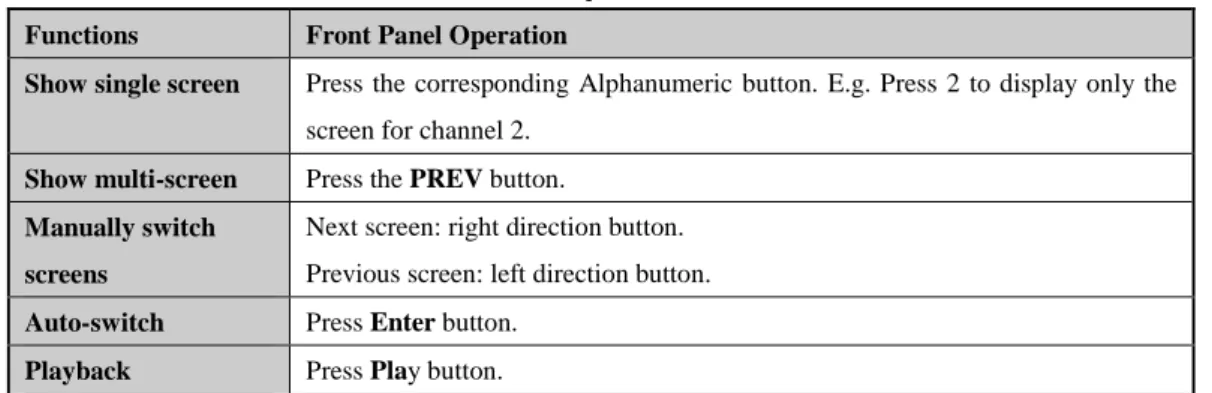
Table 3. 3Front Panel Operation in Live View
Functions Front Panel Operation
Show single screen Press the corresponding Alphanumeric button. E.g. Press 2 to display only the screen for channel 2.
Show multi-screen Press the PREV button.
Manually switch screens
Next screen: right direction button. Previous screen: left direction button.
Auto-switch Press Enter button.
45
3.2.2
Using the Mouse in Live View
Table 3. 4Mouse Operation in Live View
Name Description
Menu Enter the main menu of the system by right clicking the mouse.
Single Screen Switch to the single full screen by choosing channel number from the dropdown list.
Multi-screen Adjust the screen layout by choosing from the dropdown list.
Previous Screen Switch to the previous screen.
Next Screen Switch to the next screen.
Start/Stop Auto-switch
Enable/disable the auto-switch of the screens.
The dwell time of the live view configuration must be set before using Start Auto-switch.
Start Recording Start recording of all channels, Normal Record and Motion Detection Recording are selectable from the dropdown list.
Add IP Camera A shortcut to enter the IP camera management interface.(For HDVR series only)
Quick Set Output Mode is configurable with Standard, Bright, Gentle and Vivid options.
Playback Enter the playback interface and start playing back the video of the selected channel immediately.
PTZ Control A shortcut to enter the PTZ control interface of the selected camera.
Aux Monitor Switch to the auxiliary output mode and the operation for the main output is disabled.
If you enter Aux monitor mode and the Aux monitor is not connected, the mouse
operation is disabled; you need to switch back to the Main output with the F1 button on front panel or VOIP/MON button on IR remote control and then press the Enter button.
DS-7200 Series DS-7300 and DS-8100 Series
The Add IP Camera is not supported by DS-7100-SH series DVR.
3.2.3
Using an Auxiliary Monitor
Certain features of the Live View are also available while in an Aux monitor. These features include:
•
Single Screen: Switch to a full screen display of the selected camera. Camera can be selected from a dropdown list.•
Multi-screen: Switch between different display layout options. Layout options can be selected from a dropdown list.•
Previous Screen: When displaying less than the maximum number of cameras in Live View, clicking this feature will switch to the previous set of displays.•
Next Screen: When displaying less than the maximum number of cameras in Live View, clicking this feature will switch to the next set of displays.•
Quick Set: Set the video output mode to Standard, Bright, Gentle or Vivid.•
Menu Output Mode: Select the menu output mode to HDMI/VGA, Main CVBS or Auto.•
PTZ Control: The shortcut to enter the PTZ control interface.•
Main Monitor: Enter Main operation mode.In the live view mode of the main output monitor, the menu operation is not available while Aux output mode is enabled.
3.2.4
Main/Aux Output Switching
When the HDMI/VGA output is configured as the main output, you can perform the following operation to switch to CVBS output as the main output.
Steps:
1. Use the mouse wheel to double-click on the HDMI/VGA output screen, and the following message box pops up:
Figure 3. 2Switch Main and Aux Output
2. Use the mouse wheel to double-click on the screen again to switch to the Aux output, or click Cancel to cancel the operation.
3. Select the Menu Output Mode to Main CVBS from the right-click menu on the CVBS output monitor.
47
You can select the Menu Output Mode under Menu>Configuration>More Settings to Auto or HDMI/VGA and then restart the device to switch the main output back to HDMI/VGA output.
3.2.5
Quick Setting Toolbar in Live View Mode
On the screen of each channel, there is a quick setting toolbar which shows when you point the mouse to the bottom of the screen.
Figure 3. 3Quick Setting Toolbar
Table 3. 5Description of Quick Setting Toolbar Icons
Icons Description Icons Description Icons Description
/
Enable/Disable
Manual Record Instant Playback / Mute/Audio on
PTZ Control Digital Zoom Image Settings
Close Live View
The DS-7100-SH series DVR does not support the RS-485 interface, thus the PTZ control function is not applicable to it.
Instant Playback only shows the record in last five minutes. If no record is found, it means there is no record during the last five minutes.
Digital Zoom can zoom in the selected area to the full screen. Click and draw to select the area to zoom in, as shown in Figure 3. 4.
Image Settings icon can be selected to enter the Image Settings menu. Four modes are selectable according to the real situation:
•
Standard: for general lighting conditions (default).•
Indoor: the image is relatively smoother.•
Dim Light: the image is smoother than the other two modes.•
Outdoor: the image is relatively clearer and sharper. The degree of contrast and saturation is high.Figure 3. 5Image Settings
You can adjust the image parameters, including brightness, contrast, saturation, hue, sharpness and denoising. You can also click Default to restore the default settings and click Copy to copy the image settings to other analog cameras.
49
3.3
Channel-zero Encoding
This chapter is applicable to DS-7300 and DS-8100 series only.
Purpose:
Sometimes you need to get a remote view of many channels in real time from web browser or CMS (Client Management System) software, in order to decrease the bandwidth requirement without affecting the image quality, channel-zero encoding is supported as an option for you.
Steps:
1. Enter the Live View Settings interface. Menu> Configuration> Live View
2. Select the Channel-Zero Encoding tab.
Figure 3. 6Live View- Channel-Zero Encoding
3. Check the checkbox after Enable Channel-Zero Encoding. 4. Configure the Frame Rate, Max. Bitrate Mode and Max. Bitrate.
5. Click the Apply button to activate the settings.
After you set the Channel-Zero encoding, you can get a view in the remote client or web browser of 16 channels in one screen.
3.4
Adjusting Live View Settings
Purpose:
Live View settings can be customized according to different needs. You can configure the output interface, dwell time for screen to be shown, mute or turning on the audio, the screen number for each channel, etc.
Steps:
1. Enter the Live View Settings interface. Menu> Configuration> Live View
Figure 3. 7Live View-General
The settings available in this menu include:
•
Video Output Interface: Designates the output to configure the settings for. Outputs include HDMI/VGA and CVBS (depends on the model).•
Live View Mode: Designates the display mode to be used for Live View.•
Dwell Time: The time in seconds to dwell between switching of channels when enabling auto-switch in Live View.•
Enable Audio Output: Enables/disables audio output for the selected camera in the live view mode.•
Event Output: Designates the output to show event video; if available, you can select a different video output interface from the Video Output Interface when an event occurs.•
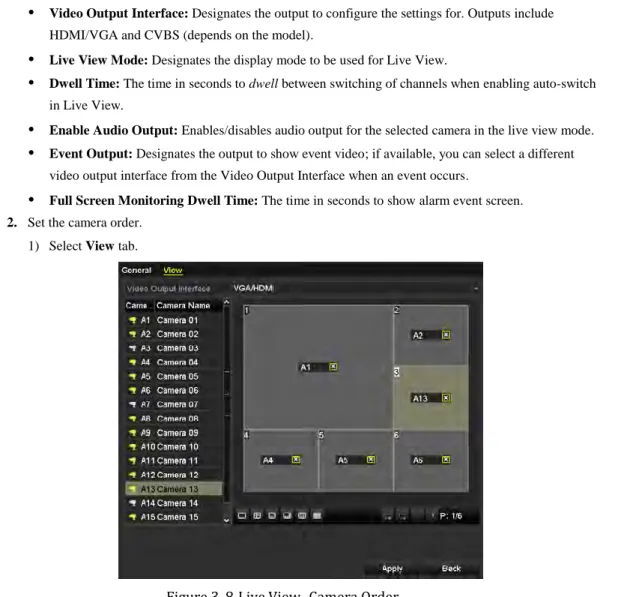
Full Screen Monitoring Dwell Time: The time in seconds to show alarm event screen.2. Set the camera order. 1) Select View tab.
51
2) Click a window to select it, and then double-click a camera name in the camera list you would like to display. Setting an ‘X’ means the window will not display any camera.
3) You can also click to start live view of all channels in order and click to stop live view of all channels. Click or to go to the previous or next page.
3.5
Manual Video Quality Diagnostics
Purpose:
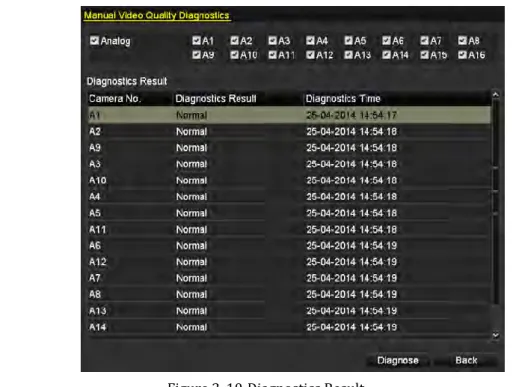
The video quality of the analog channels can be diagnosed manually and you can view the diagnostic results from a list.
Steps:
1. Enter the Manual Video Quality Diagnostics interface. Menu> Manual >Manual Video Quality Diagnostics
Figure 3. 9 Video Quality Diagnostics
2. Check the checkboxes to select the channels for diagnostics.
3. Click the button Diagnose, and the results will be displayed on a list. You can view the video status and diagnostics time of the selected channels.
Figure 3. 10Diagnostics Result
Connect the camera to the device for the video quality diagnostics.
53
3.6
User Logout
Purpose:
After logging out, the monitor turns to the live view mode and if you want to do some operation, you need to enter user name and password to log in again.
Steps:
1. Enter the Shutdown menu. Menu>Shutdown
Figure 3. 11Shutdown
2. Click Logout.
After you have logged out the system, menu operation on the screen is invalid. It is required a user name and password to login the system.
55
4.1
Configuring PTZ Settings
Purpose:
Follow the procedure to set the parameters for PTZ. The configuring of the PTZ parameters should be done before you control the PTZ camera.
Steps:
1. Enter the PTZ Settings interface. Menu >Camera> PTZ
Figure 4. 1PTZ Settings
2. Choose the camera for PTZ setting in the Camera dropdown list.
3. Click the RS-485 Settings button to set the RS-485 parameters.
Figure 4. 2PTZ- General
4. Enter the parameters of the PTZ camera.
For the Coaxitron camera/dome connected, you can select the PTZ protocol to HIKVISION-C (Coaxitron) or PELCO-C (Coaxitron). Make sure the protocol selected here is supported by the connected camera/dome. When the Coaxitron protocol is selected, all the other parameters like the baud rate, data bit, stop bit, parity and flow control are not configurable.
57
4.2
Setting PTZ Presets, Patrols & Patterns
Before you start:
Please make sure that the presets, patrols and patterns should be supported by PTZ protocols.
4.2.1
Customizing Presets
Purpose:
Follow the steps to set the Preset location which you want the PTZ camera to point to when an event takes place.
Steps:
1. Enter the PTZ Control interface. Menu>Camera>PTZ
Figure 4. 3PTZ Settings
2. Use the directional button to wheel the camera to the location where you want to set preset; and the zoom and focus operations can be recorded in the preset as well.
3. Enter the preset No. (1~255) in the preset text field, and click the Set button to link the location to the preset.
Repeat the steps2-3 to save more presets.
You can click the Clear button to clear the location information of the preset, or click the Clear All button to clear the location information of all the presets.
4.2.2
Calling Presets
Purpose:
This feature enables the camera to point to a specified position such as a window when an event takes place.
1. Click the button PTZ in the lower-right corner of the PTZ setting interface;
Or press the PTZ button on the front panel or click the PTZ Control icon in the quick setting bar, or select the PTZ option in the right-click menu to show the PTZ control panel.
2. Choose Camera in the dropdown list.
3. Click the button to show the general settings of the PTZ control.
Figure 4. 4PTZ Panel - General
4. Click to enter the preset No. in the corresponding text field.
5. Click the Call Preset button to call it.
When the Coaxitron camera/dome connected and the PTZ protocol is selected to HIKVISION-C (Coaxitron) or PELCO-C (Coaxitron), you can call the preset 95 to enter the menu of the connected Coaxitron camera/dome. Use the directional buttons on the PTZ control panel to operate the menu.
4.2.3
Customizing Patrols
Purpose:
Patrols can be set to move the PTZ to different key points and have it stay there for a set duration before moving on to the next key point. The key points are corresponding to the presets. The presets can be set following the steps above in Customizing Presets.
Steps:
1. Enter the PTZ Control interface. Menu>Camera>PTZ