Technical Documentation
SECON-X
SECON-Vap user manual
Version: 1 Edition: 2013-09 Article no.: 350113
Table of contents
1 Overview... 1
1.1 SECON-X system components ... 1
1.2 SECON-Vap ... 2
1.3 About this document ... 2
1.4 Safety information ... 3
2 SECON-Vap as a local application on the SECON clients ... 4
2.1 Display of the SECON clients ... 4
2.1.1 Fuelling points ... 4
2.1.2 Alarms ... 7
2.1.3 Information ... 8
3 Remote access by user clients ... 12
3.1 Connection to the SECON server ... 12
3.1.1 Requirements ... 12
3.1.2 VPN connection... 12
3.1.3 Browser ... 13
3.1.4 SECON Server home page ... 13
3.1.5 Verification ... 15
3.2 Remote display of the SECON clients ... 16
3.2.1 Main View ... 16
3.2.2 History ... 19
3.2.3 Info ... 20
4 List of figures ... 21
© Copyright:
Reproduction and translation is only permitted with the written consent of FAFNIR GmbH. FAFNIR GmbH reserves the right to carry out product alterations without prior notice.
1
Overview
1.1
SECON-X system components
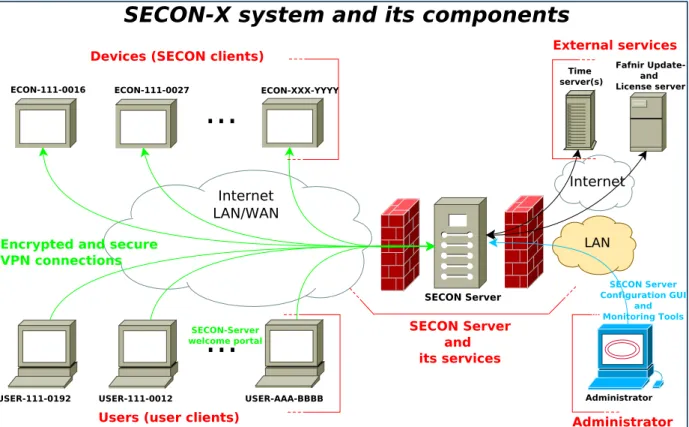
SECON-X is a hardware-software network system which comprises several components (see figure below) and performs the following tasks:
• Global data access with web interface with SECON clients • Remote diagnostics
• Remote display, evaluation and data storage • Universal data format
SECON-Vap is the display module software for the SECON devices (SECON clients).
Figure 1: SECON-X system and components
For installation and operation of the SECON client, see technical documentation: • SECON client, art. no. 350076
ECON-111-0027 ECON-111-0016 USER-111-0192
...
ECON-XXX-YYYY USER-111-0012 USER-AAA-BBBB...
Internet LAN/WAN LAN SECON Server Configuration GUI and Monitoring Tools SECON ServerEncrypted and secure VPN connections SECON-Server welcome portal Administrator Internet Time server(s) Fafnir Update-and License server
Devices (SECON clients)
Users (user clients)
External services
Administrator SECON Server
and its services
1.2
SECON-Vap
SECON-Vap is an optional component of the VAPORIX automatic monitoring device; it monitors and assesses vapour recovery on the fuel pumps.
As a central signalling device, the SECON-Vap is used to display the functional status of vapour recovery and of the VAPORIX system.
The display component is a TFT colour screen. All functions are accessible using the touch screen user interface.
SECON-Vap is connected to the control units for the VAPORIX system for all petrol pumps (16 control units = 32 fuelling points) and can signal both optically and audibly if a fuel-ling point has a fault. This means that the responsible technical service can be informed immediately, and that the cause of the disturbance can be resolved.
If the vapour recovery or VAPORIX system is not functioning properly, and the error is remedied punctually, the control unit automatically switches the affected fuelling point off. The system can display all the relevant service information in addition to displaying faults. With the SECON, alarms are signalled audibly by a buzzer as well as visually.
1.3
About this document
This documentation describes the functioning and use of the software as a local applica-tion on SECON clients, as well as use by remote access via a web browser (USER clients). To configure the SECON-Vap software and install the VPN software for remote access, see technical documentation:
1.4
Safety information
The SECON-Vap software is designed for use in the petrol station sector and is used to monitor vapour recovery at petrol pumps. The system must be used exclusively for this purpose. Please observe and follow all product safety notes and operating instructions. The manufacturer accepts no liability for any form of damage resulting from improper use!
The SECON-X system has been developed, manufactured and tested in accordance with the latest good engineering practices and recognised technical safety regulations. Never-theless, the system may be a source of danger. The following safety precautions must be observed in order to reduce the risk of injury, electric shocks, fire or damage to the equipment:
• Do not change or modify the system or add any equipment without the prior -consent of the manufacturer.
• Only use original parts. These are in line with the technical requirements specified by the manufacturer.
• The installation, operation and maintenance of the SECON, together with the SECON-Vap software, may only be carried out by expert personnel.
• Operators, installers and service technicians must observe all applicable safety rules and regulations. This also applies to any local safety and accident prevention regulations which are not specified in these operating instructions.
If these safety instructions are not observed, it may result in the risk of accident or damage to the SECON-X system.
The SECON touch screen may only be operated using a finger or a stylus de-signed for this purpose. The use of pointed objects (e.g. screwdrivers, pens) may cause damage to the touch screen.
Useful tips and information in this manual that should be observed are writ-ten in italics and identified by this symbol.
2
SECON-Vap as a local application on the SECON clients
Certain functions may be activated or deactivated depending on what the software is being used for. In the case of the SECON-VAP, for example, the “Level” function is deactivated.
The lock symbol indicates an existing VPN connection.
2.1
Display of the SECON clients
2.1.1 Fuelling points
Figure 2: VAPORIX main menu
The main view shows the status of the individual VAPORIX-Controls / fuelling points. When a petrol pump (e.g. ZP 1/2) is selected, the window shown below is displayed (see Figure 3).
Figure 3: Fuelling point 1/2
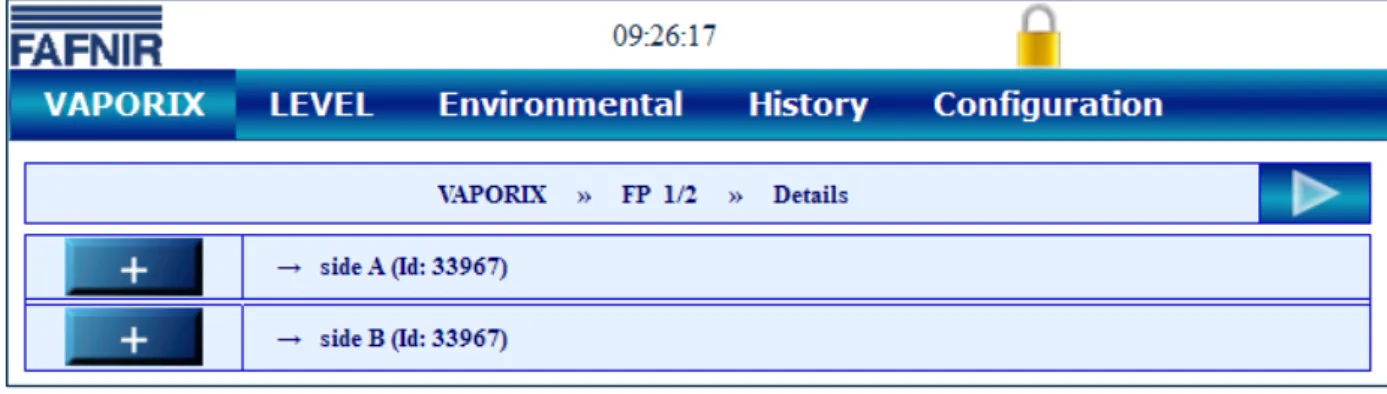
If you click on the PLUS sign, the status, date and the measured values for an individual fuelling point are displayed (see figure below):
Figure 4: Fuelling point 1/2 – details
Status: OK, WARNING or ERROR
Year-month: Period for which measured values are displayed
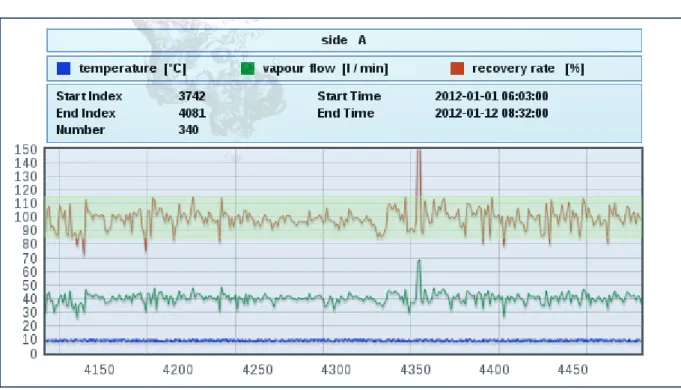
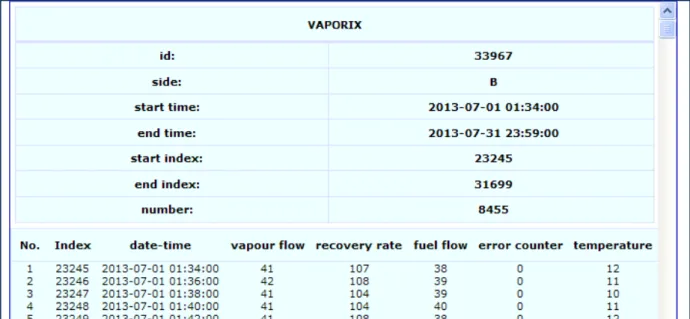
Measured values:
− graph: graphic display of the recorded data (see Figure 5) − table: tabular display of the recorded data (see Figure 6) − service: tabular display of the services deployed (see Figure 7)
Figure 6: Fuelling point 1/2 – Details – Table
2.1.2 Alarms
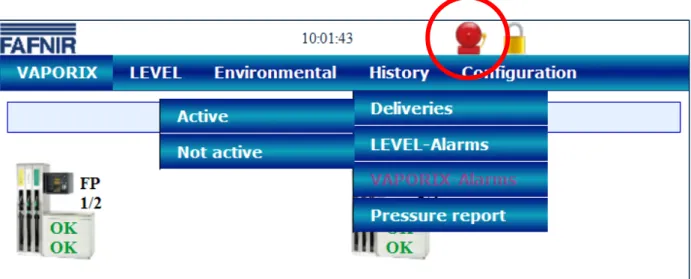
Alarms generated by the VAPORIX system are displayed as follows: The yellow alarm symbol indicates a warning.
The red alarm symbol indicates an error.
The grey alarm symbol indicates that the status cannot be requested. For the meaning of the warnings and alarms, see technical documentation:
• VAPORIX Flow and Control, art. no. 207083
Figure 8: VAPORIX alarms
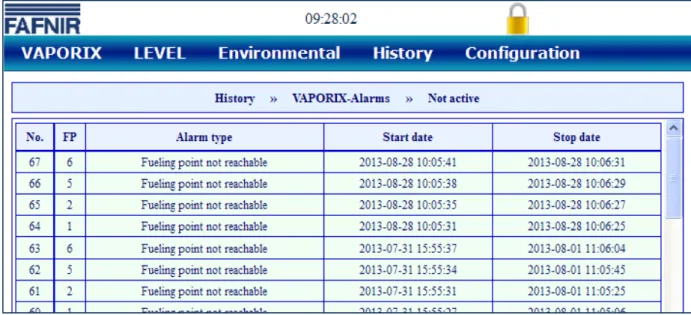
In the menu, the user can choose between active and inactive alarms:
• Active alarms are confirmed or unconfirmed alarms that are currently available. • Inactive alarms are expired alarms that have been cancelled by the system.
Figure 10: Inactive alarms
2.1.3 Information
The following sub-menus are displayed in the Configuration ≫ Info menu option: • Station info
• Software version • Software licence • Current IP address • Route table
• VPN
Station info
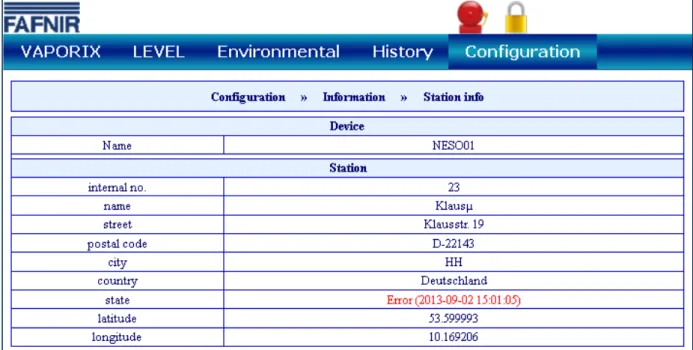
The configured address, the geographical coordinates and the global status of the station are displayed in this table.
Figure 12: Information – Station data
The “State” status is equivalent to the alarm messages and is displayed here in the col-ours green (OK), yellow (warning) and red (error).
Software version
Software licence
The menu option Configuration ≫Information ≫ Software licence is not supported yet.
Figure 14: Information – Software licence
Current IP address
The current data and configurations for the local network connection are displayed here. The local connection and the VPN interface must be active in order to ensure that the system can be accessed externally.
Figure 15: Information – Current IP address
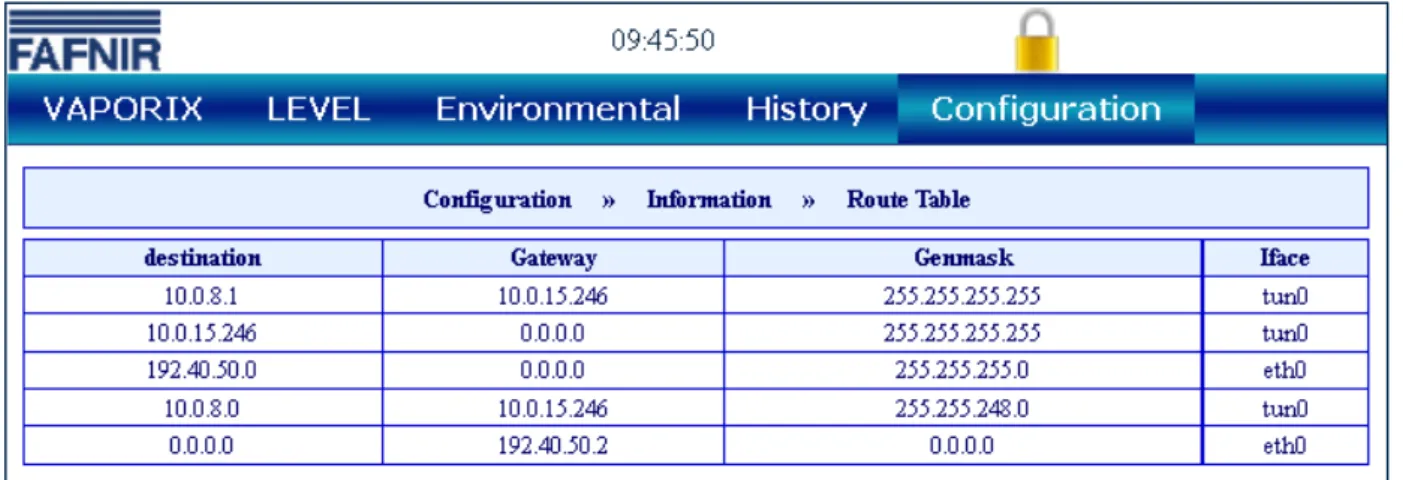
Route table
The routing IP addresses are listed here.
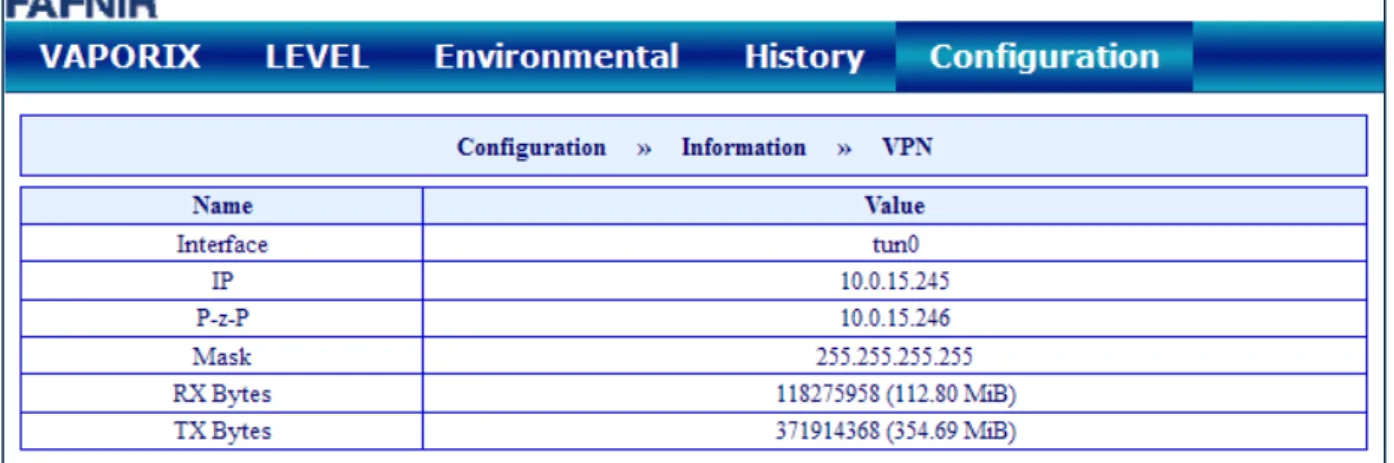
VPN
The current data and configurations for the virtual private network (VPN) are displayed here. The interface must be active in order to ensure that the system can be accessed externally.
3
Remote access by user clients
3.1
Connection to the SECON server
3.1.1 RequirementsFor remote access by user clients to the SECON server, VPN software (pre-ferably Open VPN) has to be installed on the PCs being used.
For remote access, “Mozilla Firefox” or “Opera” are the preferred brows-ers. Full functionality may be restricted with other browsbrows-ers.
To install the VPN software, see the technical documentation: • SECON-VAP Administrator, art. no. 350134
3.1.2 VPN connection
A secure VPN connection (TLS) is used for remote access, i.e. all the data is encrypted.
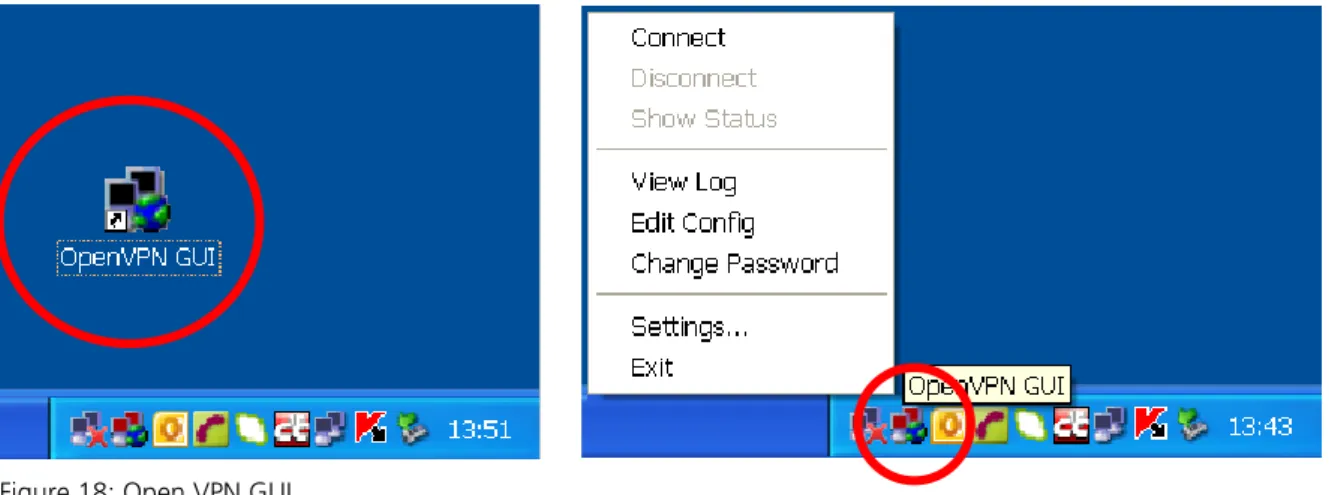
(1) Start the program “OpenVPN GUI”.
(2) The VPN connection is created by right clicking on the “OpenVPN GUI” symbol on the Windows taskbar and selecting “Connect”.
Figure 18: Open VPN GUI
When a connection is successfully created, the colour of the “OPEN VPN GUI” symbol in the Windows taskbar changes from red to green.
3.1.3 Browser
The home page for the SECON server can now be called using the web browser. To do this, enter the allocated IP address in the address line of the browser.
3.1.4 SECON Server home page
Figure 19: SECON Server home page
A table showing the configured petrol stations is displayed on the home page for the SECON server. Using Google Maps, the petrol station locations can also be displayed on a map.
Table view
In table view, all the petrol stations are displayed with their number, name, address, status and network connection:
No.: serial number
Internal lD: Internal petrol station number (see SECON-Vap configuration)
Address: Petrol station address
Status: Status of the SECON-Vap
(if the user hovers over this with the mouse, a data table is displayed)
Online: The network connection is displayed with “–” (not connected) or “con-nect” (connected).
The connection to the individual petrol stations is created by clicking on “Connect”. To obtain access to the petrol stations, a password must be entered (see section on “Verification”).
Google Maps / Full screen view
In order to display the petrol station locations on a map, select the menu option “View – Google Maps” or “View – Full screen”.
Each individual pin represents a petrol station. A jumping pin indicates that the petrol station is online and that it can be accessed by clicking on it.
The colour indicates the status: - Green: OK
- Yellow: Warning - Red: Error
Figure 20: Station locations
In order to obtain detailed information regarding the petrol stations, all the user needs to do is to point at the relevant pin with the mouse. This opens a pop-up window showing further details.
Double clicking (left mouse button) on a pin creates a direct connection to the selected petrol station. To do this, a password must be entered (see next section).
In full screen view, the Google map is displayed without any further SECON menu bars. The normal view is restored by clicking the Back button in the address line of the browser.
3.1.5 Verification
A password is requested in order to verify the user:
Figure 21: Verification
User name: fafnir
Password: fafnir22766
If verification is successful, you will go to the SECON-Vap home page, displaying the SECON clients, by remote access to the selected petrol stations.
3.2
Remote display of the SECON clients
3.2.1 Main ViewIn main view, the status of the individual VAPORIX-Control / fuelling points is displayed.
Figure 22: Fuelling points
When a fuelling point is selected, the relevant window, showing further details, is dis-played (e.g. Figure 3: Fuelling point 1/2).
The data shown by remote access is identical to the data in the display for the SECON clients (see section 2).
Figure 23: Fuelling point (ZP) 1/2
If you click on the PLUS sign, the status and measured values for the fuelling point are displayed for the selected date:
Status: OK, WARNING or ERROR
Year-month: Period for which measured values are displayed
Measured values: show: Graphic and tabular display of the recorded data (see figure below)
The measured values are displayed in graphic and tabular form:
Measured values: download: If the user clicks on the required xml file, the data is dis-played in tabular form (see figure below). If the
user right clicks on the required xml file, a drop-down list is dis-played and the file can be downloaded.
Figure 25: Fuelling point 1/2 – Details – Download
Measured values: service: Tabular display of service deployment (see figure below)
3.2.2 History History – Downloads
This menu provides central access to history data for the activated services which can be downloaded in xml format for further processing. To do this, select your application (e.g. VAPORIX) in order to obtain access to the SECON client history data. The data is identical to the history data available directly in menu option VAPORIX – Fuelling point – Measured values – Download.
Figure 27: History – Downloads
History – VAPORIX alarms
With this menu option, the history of alarms is listed, sorted by date.
The type of display can be selected broken down by active, inactive or all alarms.
3.2.3 Info
The “Info” menu option in remote access is equivalent to the “Info” menu option of the SECON client (see section 2.1.3 Info).
Figure 29: Information – Station data
Figure 30: Information – Software version
4
List of figures
Figure 1: SECON-X system and components ... 1
Figure 2: VAPORIX main menu ... 4
Figure 3: Fuelling point 1/2... 4
Figure 4: Fuelling point 1/2 – details ... 5
Figure 5: Fuelling point 1/2 – Details – Graph ... 5
Figure 6: Fuelling point 1/2 – Details – Table ... 6
Figure 7: Fuelling point 1/2 – Details – Service ... 6
Figure 8: VAPORIX alarms ... 7
Figure 9: Active alarms ... 7
Figure 10: Inactive alarms ... 8
Figure 11: System information ... 8
Figure 12: Information – Station data ... 9
Figure 13: Information – Software version ... 9
Figure 14: Information – Software licence ... 10
Figure 15: Information – Current IP address ... 10
Figure 16: Information – Route table ... 10
Figure 17: Information – VPN ... 11
Figure 18: Open VPN GUI ... 12
Figure 19: SECON Server home page ... 13
Figure 20: Station locations ... 14
Figure 21: Verification ... 15
Figure 22: Fuelling points ... 16
Figure 23: Fuelling point (ZP) 1/2 ... 16
Figure 24: Fuelling point 1/2 – Details – Show ... 17
Figure 25: Fuelling point 1/2 – Details – Download ... 18
Figure 26: Fuelling point 1/2 – Details – Service ... 18
Figure 27: History – Downloads ... 19
Figure 28: VAPORIX alarms (all) ... 19
Figure 29: Information – Station data ... 20
Figure 30: Information – Software version ... 20
FAFNIR GmbH Bahrenfelder Str. 19
22765 Hamburg, Germany Tel.: +49 / 40 / 39 82 07–0 Fax: +49 / 40 / 390 63 39 E-mail: [email protected] Web: www.fafnir.com