AlterPath
™ACS
Command Reference Guide
Software Version 2.6.1
Cyclades Corporation 3541 Gateway Boulevard Fremont, CA 94538 USA 1.888.CYCLADES (292.5233) 1.510.771.6100 1.510.771.6200 (fax) http://www.cyclades.comALTERPATH
AlterPathACS32LINUX INSIDE
The following are registered or registration-pending trademarks of Cyclades Corporation in the United States and other countries: Cyclades and AlterPath.
All trademarks, trade names, logos and service marks referenced herein, even when not specifically marked as such, belong to their respective companies and are not to be considered unprotected by law.
...
Table of Contents
Preface xix
Purpose . . . xix
Audience and User Levels. . . xix
New Users . . . xix
Power Users . . . xx
How to use the CLI . . . xxi
Modes of Operation . . . xxi
Keywords meanings . . . xxii
Interactive Mode . . . xxii
CLI arguments. . . xxv
Other important features of the CLI . . . xxv
List of CLI Keywords . . . xxvii
. . . How to use this Guide xxx Conventions and Symbols. . . xxxi
Typeface and Fonts . . . xxxi
Hypertext Links. . . xxxi
Glossary Entries . . . xxxi
Quick Steps . . . xxxi
Parameter Syntax . . . xxxii
Brackets and Hyphens (dashes) . . . xxxii
Ellipses. . . xxxii
Pipes. . . xxxii
Greater-than and Less-than signs. . . xxxii
Spacing and Separators . . . xxxiii
Cautionary and Instructional Information. . . xxxiii
Networking Settings . . . 1
Performing Basic Network Configuration Using the wiz Command . . . 1
Log Into ACS Through the Console . . . 1
Selecting A Security Profile. . . 6
To Select a Security Profile . . . 6
CLI Mode . . . 6
Enabling Serial Ports . . . 9
To Enable a Serial Port [VI method] . . . 9
To Enable a Serial Port [CLI method] . . . 9
Cha
Chapter 2 - Device Access
11
Accessing Serial Ports . . . 11Default Configuration Parameters . . . 12
Opening and closing a Telnet session to a serial port . . . 12
Opening and closing an SSH session to a serial port. . . 13
Accessing Serial Ports using “ts_menu” . . . 13
Calling ts_menu without arguments . . . 13
Calling ts_menu with arguments . . . 14
How to close the session from ts_menu (from the console of your unit). . . . 15
How to close the session from ts_menu (from a Telnet/SSH session to your unit) 16 CLI Mode - ts_menu . . . 17
Data Buffering . . . 18
Ramdisks . . . 19
Linear vs. Circular Buffering. . . 19
How to Configure VI mode - Parameters Involved and Passed Values . . . 19
CLI Method - Data Buffering. . . 23
Menu Shell . . . 25
How to use . . . 25
How to configure . . . 25
Setting up the Menu Shell . . . 26
Assigning ports to the Menu Shell . . . 27
CLI Method - Terminal Profile Menu . . . 28
Clustering using Ethernet Interface . . . 29
How to Configure Clustering. . . 29
VI mode . . . 29
Clustering using NAT (Enhanced). . . 35
Examples: . . . 37
How it works . . . 38
General Configuration . . . 39
Master ACS Configuration. . . 40
Slave-1 ACS Configuration . . . 42
Slave-2 ACS Configuration . . . 42
Slave-3 ACS Configuration . . . 43
Example of starting CAS session commands . . . 43
CLI Method - Clustering . . . 44
47
Chapter 3 - Authentication
47
Device Authentication . . . 47How to configure . . . 48
VI mode - Parameters involved and passed values . . . 48
CLI Method - Authentication . . . 51
One Time Password Authentication on the ACS . . . 52
Editing the otp.conf File . . . 55
Running the /bin/do_create_otpdb Script . . . 57
How User are Registered with OTP and Obtain OTP Passwords . . . 58
Obtaining and Using One Time Passwords for Dial-ins . . . 61
To configure user access to the serial ports . . . 63
To configure authentication type for device console access. . . . 64
To configure an authentication server. . . . 65
To activate the configuration.. . . 65
To save the configuration. . . . 65
To exit the CLI mode. . . . 65
Access Control via Radius Attribute NAS-Port-id . . . 65
NIS Client . . . 66
NIS Client Configuration. . . 67
Testing the Configuration . . . 68
nsswitch.conf file format . . . 68
Kerberos Server Authentication with Tickets support. . . 70
How Kerberos Works . . . 70
Configuring ACS to use Kerberos Tickets authentication . . . 71
ACS Configuration . . . 71
Kerberos Server Authentication . . . 74
LDAP Authentication . . . 77
Active Directory . . . 80
What needs to be set in the /etc/ldap.conf . . . 80
Enabling TACACS+ Authorization for Serial Ports . . . 81
Group Authorization . . . 83
Configuring a TACACS+ authentication server . . . 83
Configuring an LDAP authentication server . . . 86
Linux-PAM . . . 87
The Linux-PAM Configuration Directory. . . 89
Configuration File Syntax . . . 89
Module Path. . . 92
Arguments . . . 96
Shadow Passwords. . . 97
Certificate for HTTP Security . . . 98
Procedure . . . 98
User Configured Digital Certificate. . . 100
X.509 Certificate on SSH . . . 101
To configure X.509 certificate for SSH. . . 101
vi Mode. . . 101
CLI Mode . . . 102
Script Mode . . . 102
To connect to ACS using SSH X.509 certificate. . . 103
To connect to ACS’s serial ports using SSH X.509 certificate . . . 103
Chapter 4 - Network
105
Introduction . . . 105Basic Network Settings . . . 105
Hostname . . . 105
CLI Method - Hostname. . . 106
IP address and Netmask. . . 106
VI mode . . . 106
CLI Method - IP address . . . 108
DHCP Client . . . 109
VI mode . . . 109
Files related to DHCP: . . . 111
CLI Method - DHCP . . . 111
Routes and Default Gateway . . . 112
VI mode . . . 113
CLI Method - Routes . . . 114
DNS Server and Domain Name . . . 115
VI mode . . . 115
CLI Method - DNS and Domain Name . . . 115
Bonding . . . 116
VI mode . . . 117
CLI Method - Bonding . . . 117
Hosts . . . 121
VI mode . . . 121
CLI Method - Hosts . . . 122
TCP Keepalive . . . 123
How it works . . . 123
VI mode . . . 123
CLI Method - TCP Keep Alive . . . 124
Filters and Network Address Translation . . . 124
Description. . . 124
Structure of the iptables . . . 125
Table . . . 125 Chain. . . 125 Rule. . . 126 Syntax . . . 126 Command . . . 127 Rule Specification . . . 129
TCP Extensions . . . 133 UDP Extensions . . . 134 ICMP Extension . . . 135 Multiport Extension . . . 135 Target Extensions . . . 135 LOG . . . 136
REJECT (filter table only) . . . 136
SNAT (NAT table only) . . . 137
DNAT (nat table only) . . . 138
MASQUERADE (nat table only) . . . 138
REDIRECT (NAT table only) . . . 139
How to configure it . . . 139
VI method . . . 140
VPN Configuration . . . 140
Applications of IPsec . . . 141
Using secure tunnels to create a VPN . . . 141
Road Warriors . . . 141
Before you start . . . 142
"Road Warrior" configuration . . . 143
Necessary Information . . . 143
Setup on the "Road Warrior" machine . . . 144
Setup on the ACS . . . 145
VPN configuration . . . 145
Authentication Keys . . . 147
IPsec Management. . . 148
The IPsec Daemon . . . 148
NAT-Transversal . . . 149
Adding and Removing a Connection . . . 149
Starting and Stopping a Connection . . . 149
IPsec whack . . . 150
The IPsec Configuration Files in Detail . . . 150
Description . . . 150
Conn Sections . . . 153
Config Section . . . 156
CLI Method - VPN Configuration . . . 158
SNMP. . . 161
Configuration . . . 164
CLI Method - SNMP . . . 164
SUDO Configuration Group . . . 166
CronD. . . 168
How to configure . . . 168
Dual Power Management. . . 171
Data Buffering . . . 172
Syslog-ng . . . 173
Port Slave Parameters Involved with syslog-ng . . . 173
The Syslog Functions . . . 174
Syslog-ng and its Configuration . . . 174
Some examples of defining actions:. . . 184
Syslog-ng configuration to use with Syslog buffering feature . . . 189
VI Method . . . 189
Syslog-ng configuration to use with multiple remote Syslog servers . . . 190
VI Method . . . 190
CLI Method - Syslog . . . 191
How Syslog Messages are generated . . . 192
Generated Syslog Messages . . . 192
DCD ON/OFF Syslog messages . . . 196
How to configure . . . 196
Examples . . . 197
Generating Alarms (Syslog-ng) . . . 197
How to configure . . . 198
VI method - Configuration to use with Alarm Feature . . . 198
CLI Method - Alarm Notification . . . 202
Terminal Appearance. . . 204
VI Method - Involved parameters and passed values. . . 204
CLI Method - Banner . . . 205
Centralized Management . . . 206
VI Method - Involved parameters and passed values. . . 207
Steps for using Centralized Configuration . . . 209
Date, Time, Timezone, and Daylight Savings . . . 210
Date and Time . . . 210
Setting Local Timezone . . . 216
Configuring using set_timezone. . . 216
Configuring Using CLI. . . 218
NTP (Network Time Protocol) . . . 219
VI mode configuration . . . 219
CLI Method - NTP . . . 220
Session Sniffing . . . 221
VI Method - Involved parameters and passed values. . . 222
CLI Method - Session Sniffing. . . 223
Saveconf and Restoreconf . . . 224
Saveconf Utility . . . 224
Restoreconf Utility . . . 225
CLI Method - Save/Restore Configuration . . . 226
Start and Stop Services . . . 226
How to Configure Them . . . 229
Security Profiles. . . 230
CLI Method - Selecting a Pre-defined Security Profile . . . 231
CLI Method - Configuring a Custom Profile . . . 234
Chapter 6 - AlterPath PM integration
241
Introduction to AlterPath Power Management . . . 241Power Management Configuration . . . 241
Prerequisites for Power Management. . . 243
Configuring Power Management . . . 243
CLI Method - IPDU Configuration . . . 244
How to change the IPDU Password . . . 247
Accessing the AlterPath PM regular menu from the Console Session . . . 250
Using the Power Management Utility . . . 251
Manage Devices Plugged into a Single Outlet . . . 252
Manage Devices Plugged into Multiple Outlets . . . 255
To Manage Multiple IPDUs from the Command Line . . . 257
To Manage Power Through the Console . . . 259
Power Management for Authorized Users (firmware version prior to 2.2.0) . . . 265
Adding an user of the pmusers group. . . 265
pm command . . . 266
Turning the outlet off . . . 268
Locking the outlets . . . 269
Retrieving the status of the outlets . . . 270
pmCommand command. . . 270
Listing the commands available for the AlterPath PM . . . 272
Cycling all the outlets . . . 273
Unlocking the outlets 1, 5 and 8 . . . 273
Retrieving the status of all outlets . . . 273
Turning the outlet off . . . 273
ACS Firmware Upgrade . . . 274
Upgrade Process . . . 274
SNMP Proxy . . . 275
How to Configure . . . 275
Examples: . . . 277
Chapter 7 - PCMCIA Cards Integration
279
Supported Cards. . . 279Tools for Configuring and Monitoring PCMCIA Devices . . . 279
Ejecting Cards . . . 280
PCMCIA Network devices configuration . . . 280
Ethernet PC cards . . . 280
VI Method . . . 280
Removing the configuration from a Ethernet PCMCIA device . . . 281
CLI Method - Ethernet PCMCIA . . . 281
Wireless LAN PC Cards . . . 282
Removing the configuration from a wireless PCMCIA device . . . 283
CLI Method - Wireless PCMCIA. . . 284
Modem PC Cards. . . 285
VI Method . . . 285
GSM Card Configuration . . . 292
VI Method . . . 292
CLI Method . . . 292
CDMA Card Configuration . . . 293
ISDN PC Cards . . . 297
VI Method . . . 297
Establishing a Callback with your ISDN PC Card . . . 298
Establishing a Callback with your ISDN PC Card (2nd way) . . . 301
CLI Method - ISDN PCMCIA . . . 302
Media Cards . . . 303
How it works . . . 304
CLI Method - Media Cards PCMCIA . . . 307
How to Save/Load Configuration to/from CF/IDE . . . 308
Generic Dial-Out . . . 310
Configuring the generic-dial.conf . . . 312
Configuring Generic Dial-Out . . . 312
Chapter 8 - Profile Configuration
317
The pslave.conf file . . . 317pslave.conf common parameters . . . 318
ACS1 only: . . . 329
pslave.conf CAS (Console Access Server) parameters . . . 331
pslave.conf TS (Terminal Server) parameters . . . 347
pslave.conf Dial-in parameters . . . 349
pslave.conf Bidirectional Telnet parameters . . . 352
Using the CLI interface to configure common parameters . . . 355
General State Parameters:. . . 355
Other State Parameters: . . . 355
Examples for configuration testing . . . 356
Console Access Server . . . 356
Terminal Server . . . 360
Dial-in Access . . . 361
Chapter 9 - Additional Features and Applications
365
Windows 2003 Server Management . . . 365How it works . . . 365
Parameters: . . . 366
Switches:. . . 366
VI mode - Parameters Involved and Passed Values . . . 374 Server Commands . . . 378 IPMI Configuration . . . 380 How it works . . . 380 IPMI [ipmitool] . . . 380 Name. . . 380 Usage . . . 380 Options . . . 381 Expressions. . . 381 IPMI [CLI] . . . 382
Line Printer Daemon . . . 383
CAS Port Pool . . . 385
How to Configure it . . . 386
VI method . . . 386
Billing . . . 388
General Feature Description . . . 388
How to configure it . . . 388
VI method - Passed Values and Involved Parameters . . . 388
Data Buffering Section: . . . 389
How it works . . . 389
Disk Space Issue. . . 390
Billing Wizard . . . 390
How to Configure . . . 390
To configure a port for billing . . . 390
Appendix A - New User Background Information
393
User and Passwords . . . 393Who is logged in and what they are doing. . . 394
Linux File Structure . . . 395
Basic File Manipulation . . . 395
The VI Editor . . . 397
Secure Shell Session . . . 399
The Session Channel Break Extension . . . 400
How it works in SSH Server (all.protocol is socket_ssh) . . . 401
How it works in SSH Client . . . 401
Configuring the Session Channel Break Extension in SSH Server . . . 402
The Process Table . . . 403
TS Menu Script . . . 403
Appendix B - Upgrades and Troubleshooting
407
Upgrades . . . 407The Upgrade Process . . . 407
CLI Method - Firmware Upgrade. . . 409
Troubleshooting . . . 410
Flash Memory Loss . . . 410
Hardware Test . . . 412
Port Test . . . 412
To start the Port test,. . . 413
Port Conversation . . . 413
Test Signals Manually . . . 414
Single User Mode . . . 415
Using a different speed for the Serial Console . . . 417
Setting the Maximum Number of Bytes Received by the Interface . . . 417
To set a limit of bytes received by the interface per second: . . . 418
LEDs . . . 419
CPU LEDs . . . 419
Rear Panel LEDs . . . 420
Ethernet Connector . . . 420
Console Connector . . . 420
Serial Connector . . . 420
Administration parameters in the CLI interface . . . 421
Boot configuration parameters: . . . 421
Administration Menu: . . . 422
General Hardware Specifications . . . 423
The RS-232 Standard. . . 425
Cable Length . . . 426
Connectors . . . 426
Straight-Through vs. Crossover Cables . . . 427
Which cable should be used?. . . 428
Cable Diagrams . . . 428
Cable Packages . . . 429
Cable No. 1: Cyclades RJ-45 to DB-25 Male, straight-through. . . 429
Cable No. 2: Cyclades RJ-45 to DB-25 Female/Male, crossover . . . 429
Cable No. 3: Cyclades RJ-45 to DB-9 Female, crossover . . . 430
Cable No. 4: Cyclades RJ-45 to Cyclades RJ-45, straight-through . . . 430
Cable No. 5: Cyclades/Sun Netra Cable. . . 431
Adapters . . . 431
Loop-Back Connector for Hardware Test . . . 432
Cyclades\Sun Netra Adapter . . . 432
RJ-45 Female to DB-25 Male Adapter . . . 433
RJ-45 Female to DB-25 Female Adapter . . . 433
RJ-45 Female to DB-9 Female Adapter . . . 433
ACS1-only Cabling Information . . . 434
ACS1 Connectors . . . 434
ACS1-only Cabling Information . . . 435
The RS-485 Standard . . . 435
Cable #1: Terminal Block to Terminal Block, crossover half duplex . . . 435
Cable #2: Terminal Block to Terminal Block, crossover full duplex . . . 436
Appendix D - Copyrights
439
Bash . . . 439 Bootparamd . . . 439 Busybox . . . 439 Cron . . . 439 DHCPCD . . . 439 Flex . . . 440 GNU . . . 440 HardHat Linux . . . 440IPtables . . . 440 Linux Kernel. . . 440 Net-SNMP . . . 440 NTP. . . 441 OpenSSH . . . 441 OpenSSL. . . 441 PAM . . . 441 Portslave . . . 441 RSYNC. . . 441 Syslog-ng . . . 441 Tinylogin . . . 442 UCD-SNMP . . . 442 WEBS . . . 442 ZLIB . . . 442
Glossary 443
Authentication . . . 443 Break Signal . . . 443Console Access Server (CAS) . . . 443
Console Port . . . 443
Cluster. . . 443
Flash . . . 444
In-band network management . . . 444
IP packet filtering . . . 444
KVM Switch (KVM) . . . 444
Mainframe . . . 444
MIBs . . . 444
Out-of-band network management. . . 444
Off-line data buffering . . . 445
Profile . . . 445 RADIUS . . . 445 RISC . . . 445 RS-232 . . . 445 Secure Shell (SSH) . . . 445 Server Farm . . . 445 Shadow Password . . . 445 SNMP . . . 446
Telnet . . . 446
Terminal Server . . . 446
TTY . . . 446
U Rack height unit . . . 447
...
Preface
Preface
Purpose
This Reference Guide covers configuration and administration of the Cyclades™ AlterPath ACS using VI and Command Line Interface (CLI) methods.
VI is a text editor for UNIX type systems, therefore related configuration involves editing text files. All available features in the ACS can be configured using the VI editor. For each configuration method, the feature have an indicator where the configuration is done using the VI editor or the CLI (when available). For further information about how to use the VI editor, consult Appendix A - New User Information.
Audience and User Levels
This command reference guide is intended for the users who are
responsible for the deployment and day-to-day operation and maintenance of the AlterPath ACS. It assumes that the reader understands networking basics and is familiar with the terms and concepts used in Local and Wide Area Networking. UNIX and Linux users will find the configuration process very familiar. It is not necessary to be a UNIX expert, to get the ACS up and running. There are two audiences or user levels for this manual:
New Users
These are users new to Linux and/or UNIX with a primarily PC/Microsoft background. You might want to brush up on such things as common Linux/UNIX commands and how to use the VI editor prior to attempting installation and configuration. This essential background information appears in “Appendix A - New User Background Information” on page 393. It is recommended that New Users configure the ACS using a Web browser following the User’s Guide that is totally based on the Web
Power Users
These are UNIX/Linux experts who will use this manual mostly for reference. Power Users can choose between configuring the AlterPath ACS via Web browser, vi, or CLI.
Note: The AlterPath ACS is based on an embedded Linux operating system. Configurations are done using the VI text editor or the CLI. If you are f new to Linux, it is advisable to refer to the ACS Installation, Administration, and User Guide, which is focused on the ACS Web Manager.
Note: Appendix A - New User Background Information has a section dedicated to the VI text editor and its commands.
How to use the CLI
How to use the CLI
Throughout the manual a number of features can be configured using the CLI interface instead of the VI editor. The CLI tool is preferred by many network and system administrators since it allows for automation of configuration through scripting, and provides a simple way to document and record a system’s configuration. This section introduces the CLI tool and provides information on how to use the interface.
Modes of Operation
Note: Each invocation of the CLI should:
o return a value to the shell indicating success or failure of the command o return a text string if any error occurred (no text returned if successful For example, from the ACS prompt, to change the hostname you can directly do:
[root@CAS root]#/bin/CLI config network hostsettings hostname <host_name>
Both modes are oriented by keywords that allow the moving from one state to another. Each state will have a specific set of keywords attached to it.
Note: Strings with spaces in CLI Batch Mode must be quoted with both single and double quotes. To enter strings with spaces using the Batch Mode the user must type '"<string1 string2>"' . Example:
# CLI config network hostsettings banner "'Welcome to ACS'"
Table 1-1: Modes of Operation
Mode Description
Interactive Commands are read from standard input File Batch Commands are taken from a file (-f <file>)
Keywords meanings
1. Changing from one state to another.
Example: Entering configuration mode or exiting from configuration mode. Once the CLI goes to one state it will remain in this state until another keyword is entered to change the state.
2. Specifying a function or an action to be performed.
Example: Apply changes (runconfig), save changes into flash (savetoflash), back up configuration script (backupconfig), upgrade firmware (upgradefw), connect to a console (console), and so on. 3. Specifying a set of parameters to be configured.
Example:
cli> config security
security>adduser username john password john12 admin yes biouser no shell /bin/sh
4. Specifying a parameter to be changed. Example:
cli> network hostsettings hostsettings> dhcp yes
Interactive Mode
The CLI has some features in order to easy its use. All of them are described in the lines below:
1. AutoComplete of keywords using the tab key. 2. Cursor movement keys:
• <Ctrl> a - Move to the start of the current line. • <Ctrl> e - Move to the end of the line.
• <Ctrl> b - Move back a character (same as <left arrow key>). • <Ctrl> f - Move forward a character (same as <right arrow key). • <Esc> b - Move back to the start of the current or previous word.
How to use the CLI
• <Esc> f - Move forward to the end of the next word. Words are composed of letters and digits.
• <Ctrl> l - Clear the screen and redraw the current line, leaving the current line at the top of the screen.
3. Command History keys:
• <Ctrl> n - Move `forward' through the history list, fetching the next command (same as <down arrow key>).
• <Ctrl> p - Move `back' through the history list, fetching the previous command (same as <up arrow key>)
Note: The command history buffer is only available for the last 500 commands in the current session. The history is cumulative, so terminating the session will not clear the buffer. This means a user can login to the CLI and go back over the commands entered by a previous user.
4. Changing text keys:
• <Ctrl> d - Delete the character under the cursor (same as <delete key>)
• <Ctrl> h - Same as <Backspace key>
• <Ctrl> k - Kill the text from the cursor to the end of the line. • <Ctrl> u - Kill backward from the cursor to the beginning of the
current line.
• <Ctrl> w - Kill the word behind point.
• <Esc> d - Kill from point to the end of the current word, or if between words, to the end of the next word
• <Esc> <tab> - This displays the current value of the parameter keyword entered. You can then edit the value
For example: To display the current value for domain and edit it.
cli> config network hostsettings
You see:
hostsettings> domain cyclades.com
5. Special Keywords
Special keywords are global and can be used in any state. For these special keywords to work, they must either be entered before the rest of the keywords for that state, or they must be the only word in the command line.
• quit - It finishes the CLI session.
• return - It goes back to the previous state.
• info - This shows the help info available for the current state. For example, user can enter the network more and type ‘info’ and a brief overview about network configuration may be presented. Or he can type ‘info config network’ from the
cli>
prompt. Depending on the screen size of the user’s current shell, users may page through the info. If the info text lines exceeds the number of lines capable of being shown in the screen, the user will get the option to type ‘m’ for more, ‘b’ for back, or ‘q’ for quit.• show - Display the configuration parameter(s). It's valid only in configuration state. For example, the following displays some configurations for port 1.
Example:
cli> config physicalports 1 Ports[1]> show general general: alias: protocol: consoletelnet speed: 9600 flow: none parity: none datasize: 8 stopbits: 1
How to use the CLI
CLI arguments
When invoking the CLI interface by typing CLI in the shell prompt, you can pass some arguments to it. A brief description follows.
• -q- suppresses the output of error messages from the CLI. • -t <time> - the timeout in minutes. Default 10 minutes. • -T - disable idle timeout. Same as "-t 0"
• -s- save changes to flash (same as savetoflash keyword) (batch mode only)
• -r- activate changes (same as runconfig keyword) (batch mode only) • -f<filename> - executes the commands in the file <filename>
Other important features of the CLI
1. Only one user logged in as “root” or “admin” can have an active CLI or Web Manager session. A second user who connects through the CLI or the Web Manager as the “root” or “admin” has a choice to abort the session or close the other user’s session.
Note: If there are cron jobs running through automated scripts, a “root” or “admin” user login can cause the automated cron jobs to fail. Make sure that the users with administrative privileges are aware of this.
2. CLI has three possible user levels:
• Root user (Linux root user) - Has access to the full functionality of the CLI. Has ‘shell’ command in the CLI that gives the user access to the ACS Linux shell prompt. (See note below)
• Admin - Has access to the full functionality of the CLI except for the ‘shell’ command. An admin user will not have access to the ACS Linux shell prompt. (See note below)
• Regular user - Has only limited functionality of the CLI. Only has access to
cli->applications
functionality.Note: Users can change the login shell in /etc/passwd to execute /bin/CLI so that they will get the CLI right away when they log into the ACS. If user, root is configured to have /bin/CLI as the user’s default shell, the user can still have access to the ACS shell prompt by executing the command ‘shell’ from the CLI. Any other users who configured /bin/CLI as their default shell won’t have the ‘shell’ command so they won’t be able to have access to the ACS shell prompt.
3. The CLI will generate syslog messages when the user open or close a session and for each command executed.
Examples:
Apr 19 17:51:44 src_dev_log@swes-129 CLI[413]: User root starts an interactive CLI session.cli>config
Apr 19 16:18:02 src_dev_log@swes-129 CLI[412]: User root executed [config]config>
Apr 19 16:28:02 src_dev_log@swes-129 CLI[412]: Session closed due idletimeout
Apr 19 17:54:23 src_dev_log@swes-129 CLI[413]: User root executed [quit]
Apr 19 17:54:23 src_dv_log@swes-129 CLI[413]: User root finishes the CLI session
4. The CLI will write every command executed in interactive mode in the file "~/.history". This file will keep the last 1000 commands executed in any CLI session.
How to use the CLI
List of CLI Keywords
The following table list the keywords accessible through the CLI interface. Table 1-2: CLI Keywords
administration
backupconfig To restore/save configurations from/to a FTP server or a storage device.
sessions To manage sessions
kill - End a session to a specific serial port. list - Display the list of current serial port connections.
upgradefw To upgrade the firmware.Provide a domain name or the IP address of the server
applications
connect To access the console server connection menu.
pm To access the ACS power management menu.
view To display the data buffer files for a serial port.
config
administration
bootconfig To configure boot configuration parameters. date/time To set the date and timer.
notifications To set up alarm notifications.
ntp To configure Network Time Protocol.
timezone To select and set a GMT zone.
terminalmenu To configure a terminal profile menu. discardchanges To cancel the configuration changes
ipmi To configure devices configured with IPMI.
network To configure Network Parameters. hosttable To add or delete a host from the table. pcmcia To configure supported PCMCIA cards.
snmp To configure SNMP server.
stroutes To setup routes manually for data routing to other subnets.
syslog To setup a syslog server for logging system messages.
vpn To setup a VPN connection.
physicalports To configure serial ports individually or collectively.
restorefromflash To restore the configuration saved in flash. savetoflash To save the configuration changes to flash
security To configure security profiles and authentication servers.
virtualports To cascade multiple AltherPath ACS console servers.
portStatus
To display the status on all serial ports.shell
To open the command shell.version To display the CLI version
runconfig
To activate the changes.How to use the CLI
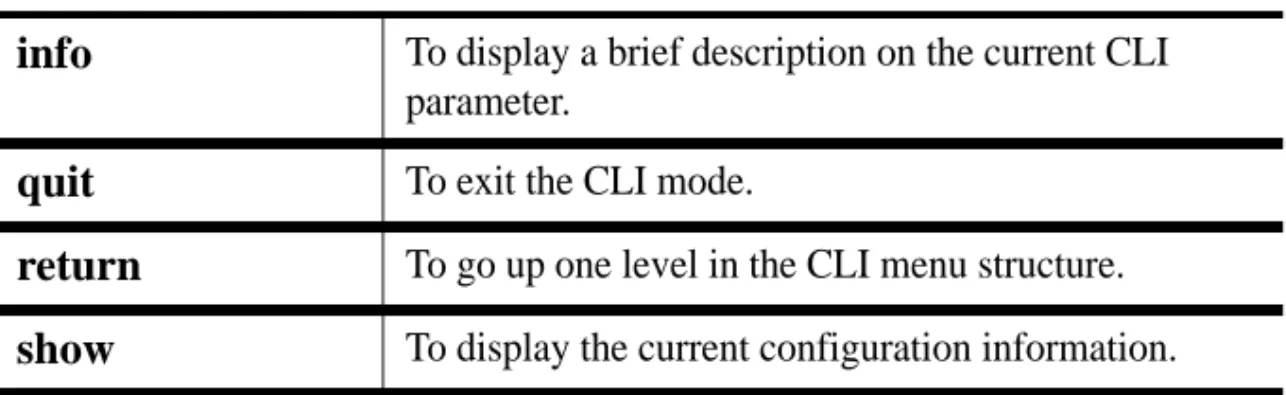
info
To display a brief description on the current CLI parameter.quit
To exit the CLI mode.return
To go up one level in the CLI menu structure.show
To display the current configuration information.How to use this Guide
This guide is organized into the following sections:
• Basic Network Configuration describes the basic configuration
procedures to make the AlterPath ACS operational and available on the network. It includes configuring the network parameters, logging in and selecting a security profile.
• Device Access contains the ways to access the serial ports, depending on the protocol you configured for that serial port. This chapter also has information about clustering, menu shell and data buffering.
• Chapter 3 provides configuration instructions for different types of authentication available in the ACS. This chapter includes detailed information about the Linux-PAM module and Shadow Passwords. • Chapter 4 all configuration related to network is explained in this chapter.
This chapter approaches since basic configuration until the most the most advanced ones such as filters and VPN.
• The objective of this chapter is showing any task related to the
administration of the unit. This includes the following topics: contains system’s management, administration and maintenance related features. • Power Management with AlterPath™ PM Integration involves features
for those who have an IPDU being controlled by the ACS.
• PCMCIA Cards Integration this chapter has information about compatible PCMCIA cards and the respective instructions to make them work with the ACS.
• Profile Configuration approaches the main configuration file of the unit. This chapter explains each parameter of the pslave.conf file. It also has step by step examples for TS, CAS and RAS profiles.
• Additional Features and Applications has information about special features and step by step instructions on how to set up them.
• Appendix A - New User Background Information contains information for those who are new to Linux/UNIX.
• Appendix B - Upgrades and Troubleshooting covers the most common problems that users faces when using the ACS.
• Appendix C - Cabling and Hardware Information Information has detailed information and pinout diagrams for cables used with the ACS. • Appendix D - Copyrights lists details about applications that were
Conventions and Symbols
• Glossary contains information about specific words and terms used in this manual.
Conventions and Symbols
This section explains the significance of each of the various fonts, formatting, and icons that appear throughout this guide.
Typeface and Fonts
This guide uses the Times New Roman typeface for most of the body text and Courier for terminal keyboard inputs and responses, such as a command line instruction or data that you would receive back on the monitor, such as an error message. An example of this would be:
# telnet 200.200.200.1 7001
Hypertext Links
References to another section of this manual are hypertext links are
underlined (and are also blue in the PDF version of the manual). When you click on them in the PDF version of the manual, you will be taken to that section.
Glossary Entries
Terms that can be found in the glossary are underlined and slightly larger than the rest of the text. These terms hyperlinked to the glossary.
Quick Steps
Step-by-step instructions for installing and configuring the ACS are numbered with a summarized description of the step for quick reference. Underneath the quick step is a more detailed description. Steps are numbered 1, 2, 3, and so on.
For example:
1. Modify the pslave.conf file.
You will modify four Linux files to let the ACS know about its local environment. Open the file plsave.conf and add the following lines...
Parameter Syntax
This manual uses standard Linux command syntax and conventions for the parameters described within it.
Brackets and Hyphens (dashes)
Brackets ([]) indicate that the parameter inside them is optional, meaning that the command will be accepted as is if the parameter is not defined. When the text inside the brackets starts with a dash (-) or indicates a list of characters, or both, the parameter can be one of the letters listed within the brackets.
Example:
iptables [-ADC] chain rule-specification [options]
Ellipses
Ellipses (...) indicate that the latest parameter can be repeated as many times as needed. Usually this is used to describe a list of subjects.
Example:
ls [OPTION]...[FILE]...
Pipes
The pipe (|) indicates that one or the other of the words separated by this character should be used in the command.
Example:
netstat {--statistics|-s} [--tcp|-t] [--udp|-u] [--raw|-w]
When a configuration parameter is defined, the Linux command syntax conventions will be also used. Differences will be noted.
Greater-than and Less-than signs
When the text is encapsulated with the “<>” characters, the meaning of the text will be considered, and not the literal text. When the text is not encapsulated, the literal text will be considered.
Conventions and Symbols
Spacing and Separators
The list of users in the following example must be separated by semicolons (;); the outlets should be separated by commas (,) to indicate a list or with dashes(-) to indicate range; there should not be any spaces between the values. sXX.pmusers: The user access list. For example: jane:1,2;john:3,4. The format of this field is:
[<username>:<outlet list>][;<username>:<outlet list>...]
where <outlet list>'s format is:
[<outlet number>|<outlet start>-<outlet end>][,<outlet number>|<outlet start>-<outlet end>]...
Cautionary and Instructional Information
Note boxes contain instructional or cautionary information that the reader especially needs to bear in mind. There are three levels of information: Note: WARNING: A very important type of tip or warning. Do not ignore this
information.
Note: IMPORTANT: An important tip that should be read. Review all of these notes for critical information.
Note: TIP: An informational tip or tool that explains and/or expedites the use of the product.
...
Chapter 1
Basic Network Configuration
This chapter describes the procedures for setting up the basic network configuration to make AlterPath ACS available on the network. In addition, it provides procedures to login, change the default password, and setup the security profile.
Configuring network setting using the VI method or the CLI method are described in Chapter , “” in detail.
Networking Settings
This following section describes how to configure the network parameters using the wiz command, vi, or CLI where applicable. The instructions assume that you are installing a new AlterPath ACS in your network, or you are restarting an existing unit from factory default parameters.
Performing Basic Network Configuration Using
the wiz Command
The following procedure assumes that a hardware connection is made between the ACS’s console port and the COM port of a computer.
Log Into ACS Through the Console
From your terminal emulation application, log into the console port as root.
ACS login: root
Password: tslinux
Note: IMPORTANT: It is strongly recommended to change the default password “tslinux” to a new password before setting up the ACS for secure access.
Password
Change the “root” password. The default /etc/passwd file has the user “root” with password “tslinux”. You should change the password for user “root” as soon as possible.
To change any user password, run the command:
# passwd <user>
Security Advisory
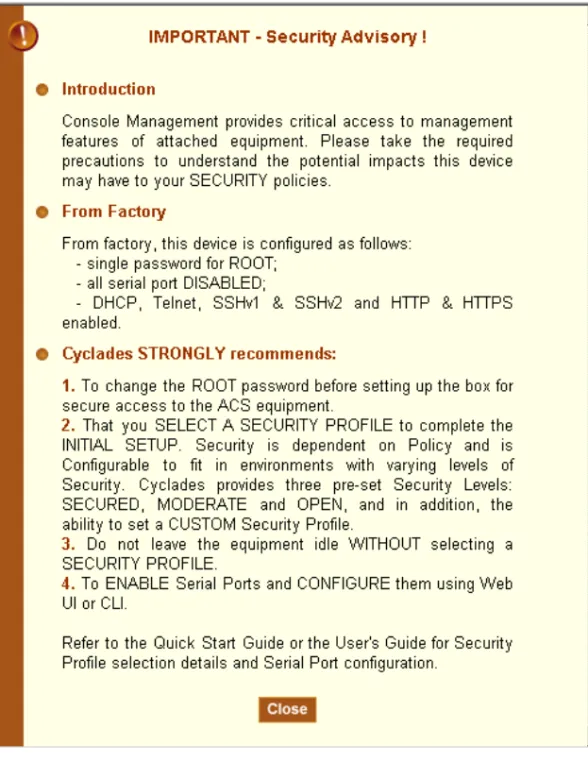
The following Security Advisory appears the first time ACS is powered on, or when the unit is reset to factory default parameters. After you have configured the basic network settings, a Security Profile must be selected before
proceeding to other configuration procedures, such as user and port settings. See Selecting A Security Profile on how to configure a profile using CLI. See the ACS Installation, Administration, and User Guide for detailed information on security profiles and configuration options using the Web Manager.
Networking Settings
Use the wiz Command to Configure Network
Parameters
1. Launch the Configuration Wizard by entering the wiz command:
[root@CAS etc]# wiz
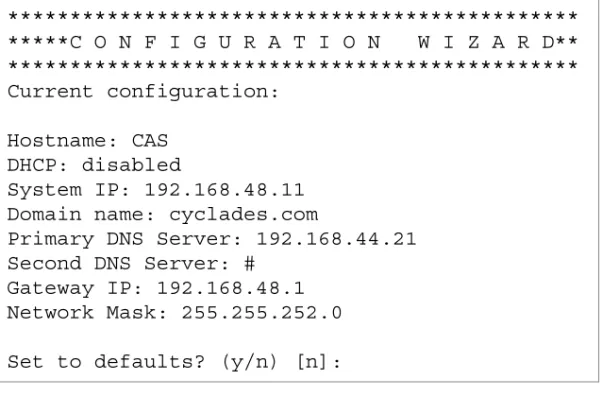
The system brings up a configuration wizard banner similar to the following figure and begins running the wizard.
Figure 1-2: Configuration Wizard Startup Screen
2. At the prompt “Set to defaults?”, enter
n
to change the defaults.Set to defaults (y/n)[n]: n
3. Press Enter to accept the default hostname, otherwise enter your own hostname.
Hostname [CAS]: fremont_branch_ACS
4. Press Enter to keep DHCP enabled, or enter “
n
” to specify a static IP address for ACS.By default, ACS uses the IP address provided by the DHCP server. If your network does not use DHCP, then ACS will default to 192.168.160.10. ********************************************** *****C O N F I G U R A T I O N W I Z A R D** ********************************************** Current configuration: Hostname: CAS DHCP: disabled System IP: 192.168.48.11 Domain name: cyclades.com
Primary DNS Server: 192.168.44.21 Second DNS Server: #
Gateway IP: 192.168.48.1 Network Mask: 255.255.252.0 Set to defaults? (y/n) [n]:
Networking Settings
Do you want to use DHCP to automatically assign an IP for your system? (y/n) [n] :
5. Change the default static IP address, see your network administrator to obtain a valid IP address.
System IP[192.168.160.10]: ACS_IP_address
6. Enter the domain name.
Domain name[cyclades.com]: domain_name
7. Enter the IP address for the Primary DNS (domain name) server.
Primary DNS Server[192.168.44.21]: DNS_server_IP_address
8. Enter the IP address for the gateway.
Gateway IP[eth0]: gateway_IP_address
9. Enter the netmask for the subnetwork.
Network Mask[#] : netmask
The network configuration parameters appear.
10.Enter y after the prompts shown in the following screen example.
Are all these parameters correct? (y/n)[n]: y
Do you want to activate your configurations now? (y/n)[y]: y
Do you want to save your configuration to Flash? (y/n)[n]: y
Selecting A Security Profile
A security profile must be selected before proceeding further with
configuration of ACS. For detailed information on security profiles see ACS Installation, Administration, and User Guide.
To Select a Security Profile
Select a pre-defined Security Profile, or define a Custom profile for specific services.
The available profiles are:
• Secure: Disables all protocols except SSHv2, HTTPS, and SSH to Serial Ports.
• Moderate: Enables SSHv1, SSHv2, HTTP, HTTPS, Telnet, SSH and Raw connections to Serial Ports, ICMP, and HTTP redirection to HTTPS. • Open: Enables all services, Telnet, SSHv1, SSHv2, HTTP, HTTPS,
SNMP, RPC, ICMP and Telnet, SSH and Raw connections to Serial Ports. • Default: Sets the profile to the same configuration as Moderate profile. • Custom: Configure individual protocols and services and configure
access to ports.
CLI Mode
1. Enter the CLI mode
[root@CAS etc]# CLI
2. At the prompt enter the following string.
Selecting A Security Profile
The following commands are available under the “profile” prompt.
profile>
3. To configure a Default, Moderate, or Secured pre-defined security profile, enter the following string.
profile> <moderate>
or,
profile> <secured>
or,
profile> <default>
4. To configure a custom security profile, navigate to the custom menu.
profile > custom
5. From the custom menu enable or disable desired protocols using the following syntax.
custom > [protocol] [yes/no]
6. To display the current configuration as shown in the following figure, enter:
custom > show
Table 1-1: Available commands under “profile” prompt
custom info open return show
Figure 1-3: Displaying the Current Configuration custom>show [custom] ftp: no telnet: no .[ssh] ..[ssh_x509] CA_file: hostkey: authorizedkeys: sshv1: yes sshv2: yes sshd_port: 22 root_access: yes snmp: no .[web] http: yes https: yes http_port: 80 https_port: 443 http2https: yes rpc: no ipsec: no icmp: yes .[ports] ssh2sport: yes telnet2sport: yes raw2sport: yes auth2sport: no bidirect: yes
Enabling Serial Ports
Enabling Serial Ports
From the factory, ACS is configured with all serial ports disabled.
To Enable a Serial Port [VI method]
1. From the terminal window navigate to the portslave directory to edit the pslave.conf file.
[root@CAS /] cd /etc/portslave
[root@CAS portslave]# vi pslave.conf
2. Navigate to Port-specific parameters to uncomment the sxx.tty and enable the serial ports.
# Port-specific parameters # s1.tty ttyS1 #s2.tty ttyS2 #s3.tty ttyS3 #s4.tty ttyS4 #s5.tty ttyS5 #s6.tty ttyS6 #s7.tty ttyS7 #s8.tty ttyS8
To Enable a Serial Port [CLI method]
1. Open the CLI interface by issuing the command:
# CLI
2. To enable single or multiple serial ports enter the following command:
...
ChaChapter 2 - Device Access
Chapter 2
Device Access
This chapter will introduce all the possible ways to access the serial ports of the ACS. From this point is considered that the unit is properly configured using one of the possible profiles (CAS or TS). More
information about how to configure a profile can be found on Chapter 8 - Profile Configuration.
Accessing Serial Ports
There are four ways to access serial ports, depending on the protocol you configured for that serial port: setting all.protocol to socket_server for Telnet access, setting it to socket_ssh for SSH access, or setting it to socket_server_ssh both.
An administrator can access the serial port by statically addressing it (using TCP port number, alias name, or IP address) or by accessing the next free serial port available from an existent pool (by using the pool's TCP port number, alias or IP address).
Default Configuration Parameters
These are the default configuration settings:• DHCP enabled (if there is no DHCP Server, IP for Ethernet is 192.168.160.10 with a Netmask of 255.255.255.0)
• CAS configuration
• socket_server in all ports (access method is Telnet) • 9600 bps, 8N1
• No Authentication
Opening and closing a Telnet session to a serial
port
To open a Telnet session to a serial port or the first free serial port belonging to a pool of serial ports, issue the command:
# telnet <CAS hostname> <TCP port number>
where:
• <CAS hostname> is the hostname configured in the workstation where the Telnet client will run (through /etc/hosts or DNS table). It can also be just the IP address of the ACS (Ethernet's interface) configured by the user or learned from DHCP.
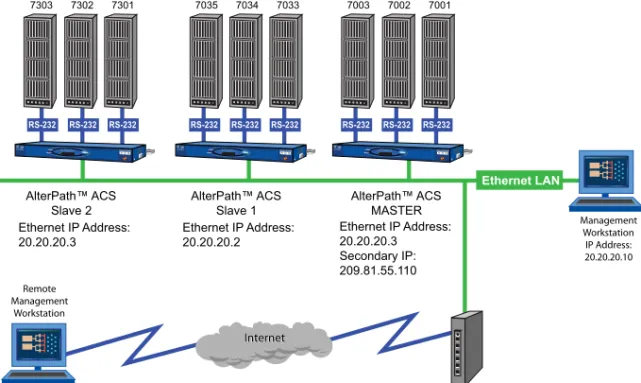
• <TCP port number> is the number associated to the serial port or pool of serial ports. From factory, 7001 corresponds to serial port 1, 7002 to serial port 2 and so forth, and 3000 is a pool with all serial ports.
To close the Telnet session, just press the Telnet hotkey configured in Telnet client application (usually it's "Ctrl]") and "q" to quit.
Accessing Serial Ports
Opening and closing an SSH session to a serial
port
To open a SSH session to a serial port or the next free serial port from a pool, issue the command:
# ssh -l <Username>:<Server> <CAS hostname>
• <Username> is the user configured to access that serial port. It is present either in the local CAS database or in a Radius/Tacacs/LDAP/Kerberos, etc database.
• <Server> can be just the TCP port number assigned for that serial port (7001, 7002, etc), pool of ports (3000, etc), the alias for the server connected to that serial port or the alias of a pool of ports.
• <CAS hostname> is the hostname configured in the workstation where the SSH client will run (through /etc/hosts or DNS table). It can also be just the IP address of the ACS (Ethernet's interface) configured by the user or learned from DHCP.
To close the SSH session, press the hotkey defined for the SSH client followed by a “.”
The default is "~."
Note: Make sure you enter the escape character followed by a “.” at the beginning of a line to close the SSH session.
Accessing Serial Ports using “ts_menu”
ts_menu is an application to facilitate connection to the serial ports. The following are the methods of executing the ts_menu command.
• Calling ts_menu without specifying any arguments. • Calling ts_menu with command line arguments • Using CLI to call ts_menu.
Calling ts_menu without arguments
serial ports will be shown as option to start a connection (Telnet/SSH). After typing ts_menu, you will see something similar to the following:
Calling ts_menu with arguments
Apart from calling ts_menu with no arguments (which directs the user to the traditional ts_menu interface) this application can be used with the following command line arguments:
ts_menu [-u<user>] [-l[c]] [-ro] [-s] [-auth] [<console port>]
The meaning of each argument is:
• -u<user> - Invokes ts_menu as the user named by <user>. This requires a password to be entered. The user have access only to the authorized serial ports.
• -l[c] - Generates a list of all ports that the user has access to and
terminates. Port aliases will be presented if defined. For the remote ports (clustering) if port alias is not defined they will be shown as
"ip_addr:port" (ip_addr referring to the Slave ACS). The default is displaying ports in alphabetical order, but in case "c" flag is also specified the listing will be sorted by console server (Master unit showing first). • -ro - Invokes ts_menu in read only mode. It works even if the user is the
only one logged to a certain port. In this mode, the user can connect to any port he has access to but cannot type in. He is in sniff mode. A message stating "Read only mode" is provided in case the user attempts to interact
Serial Console Server Connection Menu for your Master Terminal Server
1 ttyS1 2 ttyS2 3 ttyS3 4 ttyS4 5 ttyS5 6 ttyS6 7 ttyS7 8 ttyS8
Type 'q' to quit, a valid option[1-8], or anything else to refresh:
Accessing Serial Ports
with that port. Note however that a real sniff session (the user isn't the first one to log to a certain port) is only allowed if he is authorized to.
• -s - Invokes ts_menu in a way that all ports (including Slave ACSs) are presented in a single list sorted in alphabetical order. Not using this option causes the display to be as for the old implementation.
• -auth - For backward compatibility, this option makes the new ts_menu implementation behave as the old one so that authentication is performed again to access each port.
• <console port> - If issued, produces a direct connection to that port. In the case the user doesn't have access to that port or the port doesn't exist, the application returns a "console not found" message and terminates. <console port> can be the port alias or the port number. In case of clustering, port number must include a reference to the Slave ACS as "host:port" (where host is the Slave hostname or IP address).
Other options:
• -p - Display TCP port
• -P - Use the TCP port instead of IP address • -i - Display Local IP assigned to the serial port • -s - Show the ports in a sorted order
• -u <name> - Username to be used in SSH/Telnet command • -U - Always ask for an username
• -e <[^]char> - Escape char used by Telnet or SSH
How to close the session from ts_menu (from the console of
your unit)
To close the session from the ts_menu, follow the steps bellow: 1. Enter the escape character.
2. The escape character is shown when you first connect to the port. In character/text Mode, the Escape character is ^]
3. After entering the escape character, the following is shown: Console escape. Commands are:
• c - go to character mode • z - suspend telnet • b - send break • t - toggle binary • e - exit telnet
4. Press “e” to exit from the session and return to the original menu. 5. Select the exit option and you will return to the shell prompt.
How to close the session from ts_menu (from a Telnet/SSH
session to your unit)
You have to be sure that a different escape character is used for exiting your Telnet/SSH session; otherwise, if you were to exit from the session created through the ts_menu, you will close your entire Telnet session to your unit. To do this, when you first Telnet/SSH to your unit, use the -e option. So for example, to set Ctrl-? as the escape character, type:
# telnet -e ^? 192.168.160.10 # ssh -e ^? [email protected]
To exit from the session created through the ts_menu, just follow Step 1 from above.
To exit from the entire Telnet session to your unit, type the escape character you had set. To exit from the entire SSH session to your unit, type the escape character you had set plus character "."(dot).
Note: To close an SSH session the escape character followed by a “.” must be entered at the beginning of a line.
Accessing Serial Ports
CLI Mode - ts_menu
You can call ts_menu from the CLI interface.
1. Open the CLI interface by issuing the command:
# CLI
2. Call the menu.
To call the ts_menu, access the following menu:
cli> applications connect [Enter]
A screen similar to the following will appear:
3. To see the “connect” options, at the following prompt press [tab] twice.
cli > applications > connect
The following options display.
consolename list readonly
4. To display a list of the available ports run the following command.
cli > applications > connect list
Serial Console Server Connection Menu for your Master Terminal Server
1 PM 2 ttyS3 3 ttyS4 4 ttyS5 5 ttyS6 6 ttyS7 7 ttyS8 8 ttyS9 9 ttyS10 10 ttyS11 11 ttyS12 12 ttyS13 13 ttyS14 14 ttyS15 15 ttyS16
Type 'q' to quit, 'b' to return to previous menu, a valid port[1-15], or anything else to refresh:
5. To connect to the console of a device in a read-only mode run the following command.
cli > applications > connect readonly consolename <consolename>
The connection is made to the device and a “Read only mode” message is displayed.
6. To make a direct connection to the console of a device run the following command.
cli > applications > connect consolename <consolename>
Exiting the CLI mode.
7. To exit the CLI mode and return to ACS’s shell, type the following command:
cli> quit
Data Buffering
Data buffering can be done in local files or in remote files through NFS. When using remote files, the limitation is imposed by the remote Server (disk/ partition space) and the data is kept in linear (sequential) files in the remote Server. When using local files, the limitation is imposed by the size of the available ramdisk. You may wish to have data buffering done in file, syslog or both. For syslog, all.syslog_buffering and conf.DB_facility are the parameters to be dealt with, and syslog-ng.conf file should be set accordingly. (Please see Syslog-ng for the syslog-ng configuration file.) For the file, all.data_buffering is the parameter to be dealt with.
Conf.nfs_data_buffering is a remote network file system where data buffering will be written, instead of using the default directory /var/run/DB. When commented, it indicates local data buffering. The directory tree to which the file will be written must be NFS-mounted and the local path name is /mnt/ DB_nfs. The remote host must have NFS installed and the administrator must create, export, and allow reading/writing to this directory. The size of this file is not limited by the value of the parameter s1.data_buffering, though the value cannot be zero since a zero value turns off data buffering.
The conf.nfs_data_buffering parameter format is:
Data Buffering
If data buffering is turned on for port 1, for example, the data will be stored in the file ttyS1.data in local directory /var/run/DB or in remote path name and server indicated by conf.nfs_data_buffering.
Ramdisks
Data buffering files are created in the directory /var/run/DB. If the parameter s<nn>.alias is configured for the port <nn>, this name will be used. For example, if the alias is called bunny, the data buffering file will be named bunny.data.
Linear vs. Circular Buffering
For local data buffering, this parameter allows users to buffer data in either a circular or linear fashion. Circular format (cir) is a revolving buffer file that is overwritten whenever the limit of the buffer size (set by all.data_buffering) is reached. In linear format (lin), data transmission between the remote device and the serial port ceases once the 4k bytes Rx buffer in the kernel is reached. Then if a session is established to the serial port, the data in the buffer is shown (all.dont_show_DBmenu or sxx.dont_show_DBmenu must be 2), cleared, and data transmission is resumed. Linear buffering is impossible if flow control is set to none. Default is cir.
How to Configure VI mode - Parameters Involved
and Passed Values
To configure Data Buffering, follow the steps bellow: 1. Open the /etc/portslave/pslave.conf file.
All parameters related to Data Buffering are in the pslave.conf file. Change the desired parameters according to the table below:
Table 2-1: Data buffering parameters in /etc/portslave/pslave.conf file
Parameter Description
all.data_buffering A non zero value activates data buffering (local or remote, according to what was configured in the parameter conf.nfs_data_buffering). If local data buffering, a file is created on the ACS; if remote, a file is created through NFS in a remote server. All data received from the port is captured in this file. If local data buffering, this parameter means the maximum file size (in bytes). If remote, this
parameter is just a flag to activate (greater than zero) or deactivate data buffering. When local data
buffering is used, each time the maximum file size is reached the oldest 10% of stored data is discarded, releasing space for new data (FIFO system) - circular file. When remote data buffering is used, there's no maximum file size other than the one imposed by the remote server - linear file. This file can be viewed using the normal UNIX tools (cat, vi, more, tail, etc...). Size is in BYTES not kilobytes.
conf.nfs_data_buff ering
This is the Remote Network File System where data captured from the serial port will be written instead of being written to the local directory /var/run/ DB. The directory tree to which the file will be written must be NFS-mounted, so the remote host must have NFS installed and the administrator must have created, exported and allowed reading/writing to this directory. The size of this file is not limited by the value of the parameter all.data_buffering, though the value cannot be zero since a zero value turns off data buffering. The size of the file is dependent on the NFS server only (hard drive, partition size, etc.).
Data Buffering
all.DB_mode When configured as cir for circular format, the buffer is like a revolving file that is overwritten whenever the limit of the buffer size (as configured in all.data_buffering or s<n>.data_buffering) is reached. When configured as lin for linear format, once 4k bytes of the Rx buffer in the kernel is reached, a flow control stop (RTS off or XOFF-depending on how all.flow or s<n>.flow is set) is issued to prevent the serial port from receiving further data from the remote. Then when a session is
established to the serial port, a flow control start (RTS on or XON) will be issued and data reception will then resume. If all.flow or s<n>.flow is set to none, linear buffering isn’t possible. Default is cir.
all.DB_user_logs When "on", a line containing the time stamp, the username, the event itself (connection/disconnection) and the type of session (Read/Write or Read Only) will be added to the data buffering file every time a user connects or disconnects to the corresponding port.
The log message has the following formats:
1) "<connect> [timestamp] [username] [session type] </connect>"
2)"<disconnect> [timestamp] [username] </ disconnect>".
when [timestamp] = "YYYY-MM-DD hh:mm:ss" [session type] = "Read/Write" or "Read_Only" Table 2-1: Data buffering parameters in /etc/portslave/pslave.conf file
all.syslog_bufferin g
When non zero, the contents of the data buffer are sent to the syslog-ng every time a quantity of data equal to this parameter is collected. The syslog level for data buffering is hard coded to level 5 (notice) and facility is local plus
conf.DB_facility. The file /etc/syslog-ng/syslog-ng.conf
should be set accordingly for the syslog-ng to take some action. For more information about it consult “Syslog-ng” on page 173.
all.syslog_sess This parameter determines whether syslog is
generated when a user is connected to the port or not. Originally, syslog is always generated whether the user is connected to the port or not. Now, ACS administrators have the option to NOT have syslog generate messages when there is a user connected to a port. This feature does not affect the local
data_buffering file. When set to 0 (default), syslog is always generated. When set to 1, syslog is only generated when there are no users connected to the port sending the data. When a user connects to the port that is sending data, syslog messages stop being generated.
all.dont_show_DB menu
When zero, a menu with data buffering options is shown when a user connects to a port with a non empty data buffering file. When 1, the data buffering menu is not displayed. When 2, the data buffering menu is not shown but the data buffering file is displayed if not empty. When 3, the data buffering menu is shown, but without the erase and show and erase options.
Table 2-1: Data buffering parameters in /etc/portslave/pslave.conf file
Data Buffering
2. Activate and save the changes made. To activate the changes issue the command:
# runconf
To save the changes, run the command:
# saveconf
CLI Method - Data Buffering
1. Open the CLI interface by issuing the command:
# CLI
2. Configure data buffering as follows:
Data buffering parameters are under the following menu:
cli>config physicalports all databuffering
Configurable parameters are:
• buffersyslogeverytime - If YES is chosen Syslog will be buffered at all time. If NO is chosen, it will only be buffered when nobody is connected to the port.
• nfspath - Defines the NFS path.
all.DB_timestamp Records the time stamp in the data buffering file (1) or not (0). If it is configured as 1, the software will accumulate input characters until it receives a CR and LF from the serial port or the accumulated data reaches 256 characters. Either way, the accumulated data will be recorded in the data buffering file along with the current time. The parameter
all.data_buffering has to be with a non-zero value for this parameter to be meaningful.
Table 2-1: Data buffering parameters in /etc/portslave/pslave.conf file
• filesize - Defines the maximum size of the data buffer file. This parameter must be greater than zero otherwise all parameters relating to data buffering are disregarded.
• showmenu - Controls the DB menu options. Valid values are: yes, no, noerase, file.
• syslogsize - Maximum size of syslog data buffer message. • mode - Chooses between circular or linear data buffering.
• syslogfacility - Defines the facility number for messages generated by the ACS to be sent to the Syslog server.
• timestamp - Choose YES to enable timestamp and NO to disable it. 3. Activate the configuration.
cli> config runconfig
4. Save the configuration.
cli> config savetoflash
5. Exiting the CLI mode.
To exit the CLI mode and return to ACS’s shell, type the following command:
Menu Shell
Menu Shell
This application allows you to customize the menu presented to users when they connect to the ACS from a dumb terminal. The menu can be set up to allow users to connect to different servers; thereby, making it quick and easy for users to connect to the those servers on the LAN.
How to use
Once the appropriate configurations are done the user will connect to the ACS using a serial terminal. The user will then automatically receive a menu similar to that shown below:
The user selects the option required to connect to the desired server or to exit the system.
How to configure
Basically the configuration for this feature is divided in two parts that are going to be described in this section.
First, it is necessary to assign which users are going to use the Menu Shell by using the proper options provided by the menush_cfg utility. The second part is Welcome! 1) Sun server 2) Dell server 3) Linux server 4) Quit Option ==>
Setting up the Menu Shell
1. Type "menush_cfg" and use the options shown below to define the menu title and menu commands.
2. Choose the second option (Add Menu Option) and complete the requested fields.
The first question will be:
Enter the name for the new menu option:
3. Enter a description of the host to be accessed.
The second question defines the action that must be taken:
Enter the command for the new menu option:
Note: Action can be telnet host_ip or ssh -l username host_ip where host_ip is the IP address of the server to connect to.
4. Save the changes.
Save the changes made by choosing the fifth option: 5. Save the configuration to Flash
---MenuShell Configuration Utility
---Please choose from one of the following options: 1. Define Menu Title
2. Add Menu Option 3. Delete Menu Option
4. List Current Menu Settings 5. Save Configuration to Flash 6. Quit
![Figure 1-3: Displaying the Current Configurationcustom>show [custom] ftp: no telnet: no .[ssh] ..[ssh_x509] CA_file: hostkey: authorizedkeys: sshv1: yes sshv2: yes sshd_port: 22 root_access: yes snmp: no .[web] http: yes https: y](https://thumb-us.123doks.com/thumbv2/123dok_us/8706207.2356642/42.918.201.785.172.786/figure-displaying-current-configurationcustom-custom-telnet-hostkey-authorizedkeys.webp)