GFI Backup 2010
Business Edition
http://www.gfi.com [email protected]
Information in this document is subject to change without notice. Companies, names, and data used in examples herein are fictitious unless otherwise noted. No part of this document may be reproduced or transmitted in any form or by any means, electronic or mechanical, for any purpose, without the express written permission of GFI Software Ltd.
GFI Backup is copyright of GFI SOFTWARE Ltd. - 1999-2010 GFI Software Ltd. All rights reserved.
Contents
1
About GFI Backup
1
1.1
Introduction... 1
1.2
Using this manual ... 1
1.2.1 Administration and User Guide ... 2
1.3
How does GFI Backup work? ... 3
1.3.1 GFI Backup Administration Console ... 3
1.3.2 GFI Backup Agents... 4
1.4
GFI Backup licensing... 4
2
Installing GFI Backup
5
2.1
System Requirements ... 5
2.1.1 Software... 5
2.1.2 Minimum hardware ... 6
2.2
Installing GFI Backup Administration Console... 6
2.3
Startup Wizard... 10
2.3.1 Completing the Startup Wizard ... 11
2.4
Configuring Proxy Settings ... 13
3
Testing GFI Backup
15
3.1
Step 1: Adding a test backup task ... 15
3.2
Step 2: Starting test backup task ... 24
3.3
Step 3: Restoring test backup task ... 25
3.4
Step 4: Validating the restore process... 27
4
Troubleshooting and support
29
4.1
Introduction... 29
4.2
General issues... 29
4.3
Knowledge Base... 29
4.4
Web Forum... 29
4.5
Request technical support ... 30
4.6
Build notifications... 30
6.1
Introduction... 35
6.2
One account for all ... 35
6.3
Custom ... 37
6.3.1 Password Security ... 39
1 About GFI Backup
1.1
Introduction
GFI Backup is a simple yet powerful backup and restore utility that enables you to back up and restore data stored on local and networked computers. GFI Backup offers the following main features:
FEATURE DESCRIPTION
Network wide backup and restore capabilities
Backup and restore data on servers, computers, and laptops all over your network.
Backup to a wide variety of media
Including local and external storage devices, removable media such as CD/DVD/Blu-ray discs and Tape drives, and other locations such as NAS or FTP.
Extensive scheduling controls
Configure backups to run at specific intervals such as daily, weekly and everyx
days, hours, minutes.
Secure backup Archive data to ZIP password (less secure but faster) or AES encryption (more secure but slower) encrypted archives, ensuring that data cannot be maliciously compromised.
Complete set of backup types
Full backup, incremental and differential backups as well as stack backups enable the setting up of different backups that cater for all business needs. Granular control on user
actions
User permission settings dictate the level of access to backup and restore features that are available to the users on their computers. These are fully customizable to cater for all requirements, from the most basic user to the most advanced.
Full visibility on systems operation
The availability of reports on all system functions, an activity dashboard, as well as screens showing backup, restore, and agent functions provide all the necessary information related to all your backup activity.
Ease of use A user-centric design that emphasizes ease of use enables users to configure and use GFI Backup in the easiest way possible.
1.2
Using this manual
This user manual is a comprehensive guide aimed at assisting you in installing and configuring GFI Backup for first time use.
This manual contains the following chapters:
Chapter 1 About GFI Backup
Introduces this manual and provides the basic information on how to use it. Chapter 2 Installing GFI Backup
Provides information on how to install the GFI Backup Administration Console. Chapter 3 Testing GFI Backup
Glossary Defines technical terms used within GFI Backup Appendix 1 GFI Backup Data Access Method
Provides you with extensive information on the method used by GFI Backup to gain access to the data to back up from networked computers.
1.2.1 Administration and User Guide
Detailed administration and configuration guidelines are provided in a separate manual calledGFI Backup Administration and User Guide that is installed with the product or separately downloadable from the GFI web site:
http://www.gfi.com/business-backup-software/manual
This Administration and User Guide complements this Getting Started Guide by providing more detailed information on how to use and customize the features provided in GFI Backup.
1.3
How does GFI Backup work?
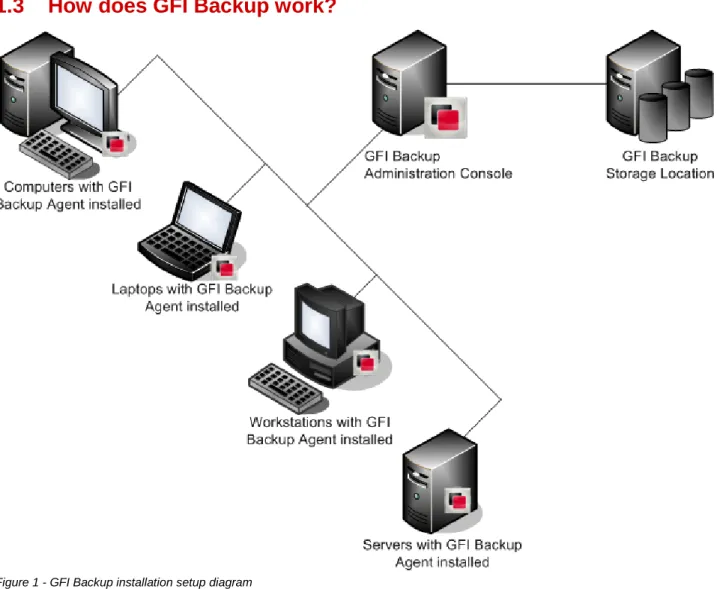
Figure 1 - GFI Backup installation setup diagram
GFI Backup is composed of two interdependent components: GFI Backup Administration Console
GFI Backup Agents
1.3.1 GFI Backup Administration Console
Install the GFI Backup Administration Console in a location with network access to all the computers that require a backup solution. On deploying all the required agents on your networked computers, use the GFI Backup Administration Console to:
Configure and manage backup and restore tasks across multiple computers on your network Manage GFI Backup Agents deployed on your network
Restore data on networked computers from a central location
1.3.2 GFI Backup Agents
The GFI Backup Agents are the components that backup and restore data on the client machines, including the computer where GFI Backup Administration Console is installed. Through the setting up of user permissions by systems administrators, users can also configure their own backups, restores and sync operations on their workstations and computers.
1.4
GFI Backup licensing
Information on licensing is available from:
2 Installing GFI Backup
2.1
System Requirements
2.1.1 Software
Supported operating systems
Microsoft Windows 7 (x86 or x64)
Microsoft Windows Server 2008 (x86 or x64) Microsoft Windows Vista (x86 or x64)
Microsoft Windows Server 2003 Standard/Enterprise (x86 or x64) Microsoft Windows XP (x86 or x64)
Supported web browsers
Microsoft Internet Explorer 8 Microsoft Internet Explorer 7 Mozilla Firefox 3
Other components
Adobe Flash Player- Required by GFI Backup to display the Activity and Disk space charts in the GFI Backup Administration Console Home Page. Freely downloadable from:
http://www.adobe.com/products/flashplayer/
(Optional) Microsoft Volume Snapshot Service (Microsoft VSS) - required to back up files currently in use.
Other requirements
Static IP address - Install GFI Backup Administration Console on a computer with a static IP address. Using DHCP for the GFI Backup Administration Console server may lead the GFI Backup Agents to not communicate with the Administration Console.
Open ports 5580 & 5543 - Required for GFI Backup Administration Console access and for the communication between GFI Backup Agent and GFI Backup Administration Console. NOTE 1: Ensure that your firewall settings enable communications between all the computers where the GFI Backup Agents are installed and the server where GFI Backup Administration Console resides.
NOTE 2:In case where the GFI Backup Administration console is installed on a computer with multiple IP addresses (e.g. Internal and External networks), it is recommended that during the installation you specify an IP address reachable by all subnets where the GFI Backup Agents will be installed.
2.1.2 Minimum hardware
Processor
Intel Pentium 4 or compatible processor
Memory
512 MB
Physical Storage
100MB for installation
2.2
Installing GFI Backup Administration Console
1. Double click the GFI Backup Administration Console application setupgfibackupbusiness.exe to start installation.
2. ClickNextat theWelcomescreen to continue setup.
3. Read carefully the End-User License Agreement. If you agree to the terms laid out in the agreement, selectI accept the terms of the license agreementand clickNext.
Screenshot 1 - GFI Backup Administration Console installation: Use default or custom connection settings
4. Select Use default settingsand click Nextto install GFI Backup Administration Console using the discovered IP address, HTTP and HTTPS ports. To change the discovered settings, click Use custom settingsand clickNext.
NOTE: If the installation wizard detects multiple IP addresses due to multiple network cards on the computer where GFI Backup is being installed it will force you to select an IP address from the ones discovered.
Screenshot 2 - GFI Backup Administration Console installation: Specify custom connection settings
5. If Use custom settings was selected in the previous dialog, or if multiple IP addresses were discovered, select and key in the IP address, HTTP and HTTPS ports to use and click Next to continue setup.
NOTE 1:For computers with multiple IP addresses (e.g. Internal and External networks), you must specify an IP address reachable by all subnets where the GFI Backup Agents will be installed. NOTE 2:If Use default settingswas selected, this screen is not displayed. In this case, proceed to the next step.
Screenshot 3 - GFI Backup Administration Console installation: Specify credentials used for local backup
6. Key in the local administrator account details required by the GFI Backup Agent to execute backup and restore tasks and for the configuration of other administrative settings. Click Next to continue setup.
7. Key in or browse to select the folder where GFI Backup Administration Console will be installed and clickNext.
Screenshot 4 - GFI Backup Administration Console installation: Installation summary
8. On installation completion, review the Installation Summary page and click Finish to finalize installation.
2.3
Startup Wizard
On completion of the installation of GFI Backup Administration Console, the GFI Backup Startup Wizard is automatically launched. This enables you to configure a login account. This account will enable you to access and use the GFI Backup Administration Console.
NOTE: If the GFI Backup Startup Wizard is not displayed, refer to the General issues section in the Troubleshooting and support chapter.
To manually load the GFI Backup Administration Console web interface, click Start ► Programs
► GFI Backup 2010►GFI Backup 2010 Administration Console.
The first time GFI Backup Administration Console is launched, you will be asked to:
Create a login account by providing the login credentials that will be used to log in GFI Backup Administration Console
Provide the Data Access method to be used to access data located on networked computers.
2.3.1 Completing the Startup Wizard
Configuring the Administration Console login account
The GFI Backup Administration Console login account is an in-built account used to login GFI Backup. Provide the credentials that will be used to login GFI Backup.
1. In theLogin namefield, key in a login name to be used when logging in GFI Backup.
2. In the Login password andConfirm Login password fields key in the password to use with the login name previously configured
3. ClickNextto save the new login credentials and continue the wizard.
NOTE: The GFI Backup Administration Console login account password can be changed at a later stage from the General tab in the Settings. For more information, refer to the GFI Backup Administration Console - Administration and User Guide manual available from:
http://www.gfi.com/business-backup-software/manual
Selecting the Data Access Method
The Data Access Method is the method used by GFI Backup to retrieve information located on the networked computers to back up. For detailed information on the Data Access Methods, refer to the Appendix 1 - GFI Backup Data Access Method chapter in this manual.
Screenshot 6 - GFI Backup: Select Data Access Method
1. Select one of the following options:
One account for all:Choose this option if your network setup allows for a single user account that has read access privileges on all the data to back up from networked computers and write rights over the locations where to restore data. (e.g. a domain or a local administrator account) Also, key in the user account’s credentials.
This option is recommended for Microsoft Active Directory environments.
NOTE: Key in the credentials in ‘domain\user’ or ‘[email protected]’ format. In case of workgroups, key in the credentials in ‘computer name\user’ format.
Custom:Choose this option if there is no common user account in your network setup that can be relied upon to access data on networked computers, e.g. in Microsoft Windows Workgroup
where it is deployed to input his/her login credentials. This data will be encrypted, stored and used to access the data to back up on networked computers.
This option is recommended for Microsoft Windows Workgroup environments. 2. ClickFinishto finalize Startup Wizard setup.
2.4
Configuring Proxy Settings
If your network settings require that you configure GFI Backup to use a proxy:
1. Locate the config.ini file in the <GFI Backup installation path>\GFI Backup 2010 Administration Console\htdocs\config\folder.
2. Openconfig.iniwith a text editor and locate the[proxy]identifier. 3. Provide the following information:
OPTION DESCRIPTION EXAMPLE
proxy_address = Defines proxy IP address where data should be relayed to.
proxy_address = 192.168.3.122
proxy_port = Defines proxy IP port where data should be relayed to.
proxy_port = 225
proxy_username= Defines the username using which you can access the proxy service
proxy_username=proxyuser
proxy_password= Defines the password using which you can access the proxy service
proxy_username=proxyuserpassword
3 Testing GFI Backup
Once GFI Backup is installed and the login credentials are configured, test your GFI Backup installation to ensure that GFI Backup is working correctly. Follow the steps in the example in this section to configure a test backup. This test will enable you to configure a basic backup task with minimal configuration to execute the backup task and to restore data back to its original location. NOTE: The information contained within this test is aimed ONLY at providing you with basic backup and restore test setup. For detailed information on how to configure backups and restores and on the options provided by GFI Backup, refer to the GFI Backup Administration Console -Administration and User Guide available from:
http://www.gfi.com/business-backup-software/manual
3.1
Step 1: Adding a test backup task
1. From the GFI Backup Administration Console main screen, selectNew Backupoption.
Screenshot 7 - GFI Backup: Select Backup files, folders and settings option
Screenshot 8 - GFI Backup: Select the destination media used for backup
3. In theWelcome to the New Backup Wizarddialog, selectBackup to Local/External HDD or LAN/FTP location.
4. In theGeneraltab, key in the new backup task details:
Backup Task Name: Define the backup task name that will be associated with the new task being created.
E.g., ‘Test backup’.
Backup Description:Key in an optional description of the new backup task being created. E.g., ‘Test backup to ensure that GFI Backup works properly’.
5. ClickNextto continue the new backup task configuration.
Screenshot 10 - New Backup task: Computer tab
6. In theComputertab, chooseAll users on selected computers option from theRun backups jobs for: drop-down. Choose the computers for which the new backup operation will be applicable and clickNext.
Screenshot 11 - New Backup task: Source tab
7. In theSourcetab, select the source files/folders, drives and/or emails to back up, and click Next to continue setup.
E.g., Select Files/Folders and chooseSpecific Paths to specify a local folder to backup. Key in the path of the test folder to backup or click Browse to select. Click Add… to add the selected folder to the list of source folders.
Screenshot 12 - New Backup task: Destination tab
8. In the Destination tab, select the destination location where the backup will be saved by selecting an option from theDestinationdrop-down, define a destination path and clickNext. E.g., To backup to a folder called ‘destination’ on your local HDD (c:\), selectFolder/External HDD on computer running agentand key in or selectc:\destination.
Screenshot 13 - New Backup task: Options tab
9. In the Options tab, select the compression and encryption settings as well as the type of backup. ClickNextto continue the new backup setup.
E.g., Select Use Zip compression option, and select Best from the Compression level drop-down. Select Use Zip password protection option and key in ‘testpassword’ in Password and Confirm passwordfields. ChooseStack Backupoption.
Screenshot 14 - New Backup task: Scheduler tab
10. In the Scheduler tab, set up the backup schedule that the new backup task being configured will follow and clickNextto continue setup.
E.g., Select Run manually from the Schedule type drop-down to execute the task manually on completion of the configuration of the test backup task.
Screenshot 15 - New Backup task: Pre & Post Actions tab
11. In the Pre & Post Actions tab, configure the notifications and actions that will be performed with this the backup and clickNextcontinue setup.
E.g., Select Notify on Errors (that stop this backup), Notify on Warnings and Notify on completion of backupand setShow messageas the action for all options.
Screenshot 16 - New Backup task: Summary of backup settings dialog
12. In the Summary of backup settings dialog review the task being set up and click Finish to finalize new task setup. In case you want to change any of the options set up, click Back, or select one of the GFI Backup tabs to change any of the backup settings.
3.2
Step 2: Starting test backup task
1. From the GFI Backup Administration Console, selectBackup and Restore tab.
2. Choose the test task created to start backing up by selecting the checkbox next to the tasks’ names.
3. ClickStartbutton to start the selected tasks and wait for the task to complete.
NOTE:If backup does not complete successfully, refer to the Troubleshooting and support chapter in this manual.
3.3
Step 3: Restoring test backup task
1. After the backup task is complete, locate the source files previously backed up on the local computer and either remove (delete) or rename the folder containing such files.
NOTE: This will facilitate the restore validation process where it will be easier to see that the files are restored.
2. From the GFI Backup Administration Console main screen, selectRestoreoption. 3. ClickNextat the Welcome screen to continue with theRestore Backup Wizard.
Screenshot 17 - Restore task: Selecting Full-Backup restore
Screenshot 18 - Restore task: Select computer and backup to restore
5. From theSelect Computerlist, select the computers for which to restore data. E.g., Select local computer.
6. From the list of backups displayed, select the backup to restore and click Next to continue restore configuration.
Screenshot 19 - Restore task: Summary of backup restore dialog
7. In theSummary of backup restoredialog, review the restore information displayed. 8. ClickFinishto start restore operation and wait for the task to complete.
3.4
Step 4: Validating the restore process
Check that the contents of the restored folders match the original source files previously backed up. Files should match in both content and attributes.
4 Troubleshooting and support
4.1
Introduction
This chapter explains how to resolve any issues encountered during installation of GFI Backup. The main sources of information available to solve these issues are:
This manual - most issues can be solved through the information in this section. GFI Knowledge Base articles
Web forum
Contacting GFI Technical Support
4.2
General issues
ISSUE ENCOUNTERED SOLUTION GFI Backup does not load
startup wizard or login screen.
Description:On some Microsoft Windows Server installations, GFI Backup user interface might not load until GFI Backup is added as a trusted site. Solution:Add GFI Backup website as a trusted site within Internet Explorer. 1. In Internet Explorer, selectToolsInternet Options
2. SelectSecuritytab, chooseTrusted Sitesicon and clickSites.
3. Uncheck ‘Require server verification (https :) for all sites in this zone’ option, add the GFI Backup website (e.g. 192.168.3.27:5580) as a trusted site and clickAdd.
4. ClickCloseandOKto exit. GFI Backup does not back up
open files.
Cause:
There might be a problem with Microsoft Volume Shadow Copy Service (VSS). Solution:
Refer tohttp://kbase.gfi.com/showarticle.asp?id=KBID003549for a detailed procedure on how to solve VSS issues.
4.3
Knowledge Base
GFI maintains a comprehensive Knowledge Base repository, which includes answers to the most common installation problems. In case that the information in this manual does not solve your installation problems, next refer to the Knowledge Base. The Knowledge Base always has the most up-to-date listing of technical support questions and patches. Access the Knowledge Base by visiting:
http://kbase.gfi.com/
4.4
Web Forum
User to user technical support is available via the GFI web forum. Access the web forum by visiting:
4.5
Request technical support
If none of the resources listed above enable you to solve your issues, contact the GFI Technical Support team by filling in an online support request form or by phone.
Online: Fill out the support request form and follow the instructions on this page closely to submit your support request on:
http://support.gfi.com/supportrequestform.asp
Phone:To obtain the correct technical support phone number for your region please visit:
http://www.gfi.com/company/contact.htm
NOTE: Before you contact Technical Support, please have your Customer ID available. Your Customer ID is the online account number that is assigned to you when you first register your license keys in our Customer Area at:
http://customers.gfi.com.
We will answer your query within 24 hours or less, depending on your time zone.
4.6
Build notifications
We strongly suggest that you subscribe to our build notifications list. This way you will be immediately notified about new product builds. To subscribe to our build notifications, visit:
http://www.gfi.com/pages/productmailing.htm.
4.7
Documentation
If this manual does not satisfy your expectations, or if you think that this documentation can be improved in any way, let us know via email on:
5 Glossary
TERM DEFINITION
Active Directory A technology that provides a variety of network services, including LDAP-like directory services.
Advanced Encryption Standard
An encryption standard approved by and in use, amongst others, by the National Security Agency (NSA) of the U.S. Government for the encryption of sensitive material. While it is slower than ZIP encryption, it is more secure.
AES See Advanced Encryption Standard
Advanced Intelligent Tape
A proprietary technology owned by Sony based on helical scan like DAT but different tape technology. It is not as popular as DAT due to significant cost difference and the format is considered End-Of-Life. Sony joined HP to further develop media for DAT/DDS drives. AIT See Advanced Intelligent Tape
Authorize Agent An operation triggered at the GFI Backup Administration Console that enables an installed agent to be used with GFI Backup.
Backup actions Actions automatically performed by GFI Backup just before or after a backup is taken. This includes running applications (e.g. anti-virus) and backup verification.
Backup destination The location where backups will be located once a backup is completed.
Backup notifications
The visual and audio notifications displayed or sent to users on specific events being triggered, e.g. send email notification on backup task successful execution.
Backup policy Rules and procedures in force within an organization that enable that organization to take adequate amounts and types of backup. This includes testing of the restore processes. Backup rotation
scheme
A method used to backup data effectively where different media is moved from storage to use and vice versa.
Backup schedule The schedule that the backup task will be executed upon, e.g. execute weekly on Thursday at 23:00.
Backup source The data that will be backed up by the backup task in question.
Backup window The time period during which a system is available for backups.
Backup task name A user-friendly name used to identify backup tasks name within GFI Backup.
Blu-ray disc An optical disc storage medium designed to cater for capacities up to 50 Gigabytes.
Compression A mechanism that enables the encoding of information using a reduced number of bits to represent data. This enables considerable savings in terms of storage space.
Compression level The level of compression applied to a specific data set.
Credentials A user name and password used to authenticate users within systems.
DAT See Digital Audio Tape
Deployment The act of installing software on to a system, e.g. the installation of the GFI Backup Agent on client computers.
Desktop applications
Applications installed on the computers where GFI Backup Agent is installed and which can be backed up by GFI Backup.
Digital Audio Tape The most popular tape format in use at the low end of the tape drive market. Capacities vary from 72GB to 320GB.
Digital Linear Tape A proprietary technology owned by Quantum. DLT-V is targeted for small and medium-sized businesses while DLT-S/SDLT is a high capacity range aimed for enterprise and larger businesses. DLT-S / SDLT also supports DLT-V for backward compatibility. DLT includes WORM capability It supports Hardware compression with a compressed capacity up to 1.6TB per cartridge and also higher data throughput than DAT drives. Disaster recovery The process of recovering and restoring data in the eventuality of a disaster. It is highly
recommended that such a process is planned, audited and tested on a regular basis.
DLT See Digital Linear Tape
Encryption settings The settings that enable GFI Backup to encrypt the data to back up. This includes the type of encryption (ZIP/AES) and the encryption password.
FTP location A remote backup destination accessible via the FTP protocol where the files to be backed up by GFI Backup will be stored.
Full Backup A backup type where all the data will be backed up, regardless of whether this data was previously backed up or not.
Full-Backup restore The complete restore of a backup previously taken.
GFI Backup Agent A software application deployed on the computers to back up data from that enables GFI Backup to collect, archive and compress data to a central backup destination.
GFI LANguard A GFI application that provides network security scanning and vulnerability management services. Can be also used to deploy software such as the GFI Backup Agent. Refer to http://www.gfi.com/lannetscanfor more information on GFI LANguard.
Hot backup The backup of a database that is has not been stopped for backup purposes.
Incremental Backup A replace backup type where only the data changed in the period between the backup being taken and the last backup taken is backed. Typically this backup type is faster to take but slower to restore.
Item level restore A type of backup restore where only selected files/folders/settings are restored.
LAN folder A backup destination on a LAN where backups will be saved on the successful execution of a backup task.
Media Spanning The process of splitting a backup task across multiple media to backup data which volume is more than what the media allows.
Microsoft Volume Shadow Copy Service
A Microsoft Windows OS (Windows XP and Windows 2003 onwards) that provides the backup infrastructure for Windows based computers and servers. Also provides a mechanism for creating consistent point-in-time copies of data known as shadow copies. It is also the service through which open files can be backed up.
Linear Tape Open An open standard for magnetic data tape storage which is supported by LTO consortium initiated by Seagate, HP and IBM. It is the product of choice for high performance backups in an enterprise and large business. LTO is cheaper and more readily available (Ultrium form factor) than DLT-S /SDLT while performance is almost the same. LTO also supports Encryption.
LTO See Linear Tape Open
Open File Backup The ability of a software application to take a backup of a file that is currently in use. Within GFI Backup this is possible through VSS.
Registry keys Entries within the Microsoft Windows system file that contains varied information about the Windows operating system as well as configuration information about installed applications.
Replace Backup A type of backup where rather than taking a full backup, only the files that changed since the last backup are archived. This data replaces the data in the original fileset and, due to the lower volume of data to backup, is quicker to take.
Remote Store A backup that is permanently stored in an offsite facility for disaster recovery purposes.
Self extracting archive
A type of zip archive that requires no software for decompression.
Stack Backup A type of backup similar to a full backup but which append a version number to files previously backed up.
Status monitor A visual mechanism within GFI Backup Administration Console that enables users to discover various statistics on the functions of GFI Backup.
Tape A backup medium where data is stored on a magnetic tape.
Unauthorize Agent The process through which agents previously authorized are set an unauthorized. This invalidates the GFI Backup Agent functionality and operations (backups and restores) can no longer be performed.
User permissions A set of rules that define what operations users can execute with the GFI Backup Agent installed on their computer.
VSS See Microsoft Volume Shadow Copy Service
Workgroup A Microsoft peer-to-peer computer network where members can access each other’s resources such as files, printers, and internet connection.
ZIP password protection
A data compression and archive format that offers encryption mechanisms that are faster than AES but less secure.
6 Appendix 1 - GFI Backup Data Access Method
6.1
Introduction
On all Microsoft systems, an entity that requests access to data requires rights to access such data, otherwise access is denied. In the case of GFI Backup, the “data access method” is defined as the method used by GFI Backup to acquire read rights to the data to back up.
GFI Backup requires this setting to know how you intend to provide the read access rights to the data to back up. Since different networks have different requirements, GFI Backup cannot automatically determine what your network’s requirements are. This setting will enable GFI Backup to know if you will:
Provide a single account credentials that has rights to all the data to back up (e.g. a domain or local administrator password)
Or
Have your network users provide their own password, which will be securely stored and used at the time of backup to access data residing on the computers that they use.
6.2
One account for all
This option is typically recommended for Active Directory environments where system administrators have exact control over users and permissions. Through a single account with domain or local administrator privileges, or an ad-hoc account purposely created with rights over the data to access, you typically can access all the data over the network and have GFI Backup back it up for you.
This option could also work in Windows Workgroup environments if you create an administrator account on each and every computer on the workgroup with the same set of login credentials. While this might be feasible for small networks, this may not be practical in larger workgroup environments due to the management overhead.
Screenshot 20 - GFI Backup: Select Data Access Method
TheOne account for alloption requires that you provide a single set of credentials that have read rights over all the data to back up and write access rights on the locations to restore to. These credentials are typically your domain or local administrator credentials which have full access rights to the data to backup. For added security you may also however, create an ad-hoc, administrative, account with “read” rights over all the data to back up and “write” rights over all the locations to restore data to.
The account to be used should be keyed in using one of the following two formats: domain\username
6.3
Custom
This option is typically recommended for workgroups where the use of a single, common user account cannot be relied upon to access data on networked computers. In this case, users will be asked to key in their login credentials via the GFI Backup Agent login credentials screen. These credentials are then securely stored and used at the time of backup execution to access the data to back up.
This option can also be used in Microsoft Windows Active Directory environments. It is however often not required since typically providing the credentials of a user with rights to access all data to back up in theOne account for all option requires less management overhead.
Screenshot 21 - GFI Backup Agent: Credentials screen
Choosing theCustomoption will prompt users to provide their credentials at these times:
Upon agent installation: The user installing the agent will be asked to provide his/her credentials when the agent is installed.
Upon first login: Users other than the one that installed the agent will be asked to provide their credentials when they log in for the first time on a computer that has the agent installed. Upon credential changes: Users will automatically be asked to re-supply their passwords
when their login credentials change.
Upon password resets: Users will automatically be asked to re-supply their passwords if you instruct GFI Backup to reset a user’s password. This is done from theAgents► Properties► Users ► Reset Password option. For more information on resetting passwords, refer to the
6.3.1 Password Security
GFI takes your network security very seriously. To ensure that your passwords are as secure as possible when in transit and when stored in the GFI Backup database we have taken the following actions:
All credential information exchanges between your network computers and GFI Backup are securely encrypted to prevent anyone from reading your data while this is in transit.
Index
A
Actions, 1, 23, 31, 39
Active Directory, 12, 31, 35, 37
Administration and User Guide, 2, 11, 15, 38 Advanced Encryption Standard, 31
AES encryption, 1 AIT, 31
B
Backup and Restore, 1, 3, 4, 8, 15, 24 Backup policy, 31
Backup schedule, 22, 31 Backup source, 31 Backup Tasks, 31 Blu-ray disc, 1, 31 Build notifications, 30
C
CD, 1Central network location, 3 Compression, 21, 31, 32, 33 Credential information, 39
credentials, 8, 11, 12, 13, 15, 31, 35, 36, 37, 38
D
Data access method, 2, 11, 12, 35, 36 Desktop applications, 31
Differential backup, 1, 31 Disk Space, 5
DLT, 32
Documentation, 30 DVD, 1
E
Encryption, 1, 21, 31, 32, 33
F
Firewall, 5 FTP, 1, 16, 32
Full backup, 1, 31, 32, 33 Full-Backup Restore, 25, 32
G
General Tab, 11, 17, 18 GFI Backup Agents, 3, 4, 5, 7 GFI LANguard, 32
Glossary, 2, 31
I
Incremental backup, 32 Installation Summary, 9 Item level restore, 32
K
Knowledge Base, 29
L
Licensing, 4
Login credentials, 11, 13, 15, 35, 37, 38 LTO, 32
N
Notification, 31
O
One account for all, 12, 35, 36, 37
P
Password Security, 39 Pre & Post Actions, 23 Proxy settings, 13
R
S
Scheduler, 22
Self extracting archive, 33 Stack Backup, 1, 21, 33 Startup wizard, 10, 11, 13, 29 System requirements, 5
T
Tape, 1, 31, 32, 33 Technical support, 29, 30 Time Zone, 30
U
Use default settings, 6, 7
User permissions, 4, 33
V
Volume Shadow Copy Service, 29, 32
W
Web Forum, 29
Windows Server 2008, 5 Workgroups, 12, 37
Z
ZIP compression, 21 Zip password protection, 21