Novell
w w w . n o v e l l . c o m
E
NU)
29
Ja
nua
ry
200
7
Password Management
3 . 1 x
M a r c h 9 , 2 0 0 7
NU)
29
Ja
nua
ry
200
7
Legal Notices
Novell, Inc. makes no representations or warranties with respect to the contents or use of this documentation, and specifically disclaims any express or implied warranties of merchantability or fitness for any particular purpose. Further, Novell, Inc. reserves the right to revise this publication and to make changes to its content, at any time, without obligation to notify any person or entity of such revisions or changes.
Further, Novell, Inc. makes no representations or warranties with respect to any software, and specifically disclaims any express or implied warranties of merchantability or fitness for any particular purpose. Further, Novell, Inc. reserves the right to make changes to any and all parts of Novell software, at any time, without any obligation to notify any person or entity of such changes.
Any products or technical information provided under this Agreement may be subject to U.S. export controls and the trade laws of other countries. You agree to comply with all export control regulations and to obtain any required licenses or classification to export, re-export or import deliverables. You agree not to export or re-export to entities on the current U.S. export exclusion lists or to any embargoed or terrorist countries as specified in the U.S. export laws. You agree to not use deliverables for prohibited nuclear, missile, or chemical biological weaponry end uses. See the
Novell International Trade Services Web page (http://www.novell.com/info/exports/) for more information on exporting Novell software. Novell assumes no responsibility for your failure to obtain any necessary export approvals.
Copyright © 2006 Novell, Inc. All rights reserved. No part of this publication may be reproduced, photocopied, stored on a retrieval system, or transmitted without the express written consent of the publisher.
Novell, Inc. has intellectual property rights relating to technology embodied in the product that is described in this document. In particular, and without limitation, these intellectual property rights may include one or more of the U.S. patents listed on theNovell Legal Patents Web page (http://www.novell.com/company/legal/patents/) and one or more additional patents or pending patent applications in the U.S. and in other countries.
Novell, Inc.
404 Wyman Street, Suite 500 Waltham, MA 02451
U.S.A.
www.novell.com
Online Documentation: To access the latest online documentation for this and other Novell products, see the Novell Documentation Web page (http://www.novell.com/documentation).
NU)
29
Ja
nua
ry
200
7
Novell Trademarks
For Novell trademarks, see the Novell Trademark and Service Mark list (http://www.novell.com/company/legal/ trademarks/tmlist.html).
Third-Party Materials
NU)
29
Ja
nua
ry
200
Contents 5
Contents
NU)29
Ja
nua
ry
200
7
About This Guide 7
1 Overview 9
1.1 Universal Password . . . 9
1.2 Password Policies . . . 9
1.3 Password Self-Service. . . 10
1.4 Password Synchronization . . . 10
2 Deploying Universal Password 11 2.1 Universal Password Background. . . 11
2.1.1 How Secure Is Universal Password? . . . 11
2.2 Deployment Steps . . . 12
2.2.1 Step 1: Review the Services You Currently Use and Understand their Current Password Limitations . . . 12
2.2.2 Step 2: Identify Your Need for Universal Password . . . 14
2.2.3 Step 3: Make Sure Your Security Container is Available . . . 14
2.2.4 Step 4: Verify That Your SDI Domain Key Servers Are Ready for Universal Password. . . 15
2.2.5 Step 5: Upgrade at Least One Server in the Replica Ring to NetWare 6.5 or Later or eDirectory 8.7.3 or Later . . . 16
2.2.6 Step 6: Check the Tree for SDI Key Consistency . . . 17
2.2.7 Step 7: Enable Universal Password . . . 17
2.2.8 Step 8: Deploy Novell Client Software . . . 18
2.3 Backward Compatibility . . . 18
2.4 Password Management . . . 20
2.5 Issues to Watch For. . . 21
3 Managing Passwords by Using Password Policies 23 3.1 Overview of Password Policy Features . . . 23
3.1.1 Universal Password. . . 24
3.1.2 Advanced Password Rules . . . 24
3.1.3 Enforcement of Policies in eDirectory . . . 24
3.2 Planning for Password Policies . . . 25
3.2.1 Planning How to Assign Password Policies in the Tree . . . 25
3.2.2 Planning the Rules for Your Password Policies . . . 25
3.2.3 Planning Login and Change Password Methods for your Users . . . 25
3.3 Prerequisite Tasks for Using Password Policies . . . 28
3.3.1 (NetWare 6.5 only) Re-Creating Universal Password Assignments . . . 29
3.4 Creating Password Policies . . . 31
3.4.1 Advanced Password Rules . . . 32
3.4.2 Universal Password Configuration Options. . . 38
3.5 Assigning Password Policies to Users. . . 39
3.6 Finding Out Which Policy a User Has . . . 41
3.7 Setting A User's Password . . . 41
NU)
29
Ja
nua
ry
200
7
4 Password Self-Service 45
4.1 Overview of Password Self-Service . . . 45
4.2 Prerequisites for Using Password Self-Service . . . 46
4.3 Managing Forgotten Passwords. . . 46
4.3.1 Enabling Forgotten Password . . . 47
4.3.2 Creating or Editing Challenge Sets . . . 48
4.3.3 Selecting a Forgotten Password Action . . . 51
4.3.4 Disabling Password Hint by Removing the Hint Gadget . . . 53
4.3.5 Configuring Forgotten Password Self-Service . . . 53
4.3.6 What Users See When They Forget Passwords . . . 58
4.4 Providing Users with Password Reset Self-Service . . . 60
4.5 Adding a Password Change Message . . . 60
4.6 Configuring E-Mail Notification for Password Self-Service. . . 61
4.6.1 Prerequisites . . . 62
4.6.2 Setting Up the SMTP Server to Send E-Mail Notification . . . 62
4.6.3 Setting Up E-Mail Templates for Notification . . . 63
4.7 Test-Driving Password Self-Service . . . 63
4.8 Adding Password Self-Service to Your Company Portal . . . 64
4.8.1 Integrating Password Self-Service with Virtual Office . . . 65
4.8.2 Linking to Password Self-Service from a Company Portal. . . 65
4.8.3 Making Sure Users Have Configured Password Features. . . 69
4.9 Troubleshooting Password Self-Service. . . 69
5 Password Synchronization across Connected Systems 71 A Documentation Updates 73 A.1 January 5, 2007 . . . 73
A.2 February 2, 2007 . . . 73
About This Guide
NU)
29
Ja
nua
ry
200
7
7
About This Guide
This guide provides information on how to manage passwords on Novell® systems. It includes instructions on how to deploy, configure, and manage Universal Password, password policies, and password self-service. It is written primarily for network administrators.
Chapter 1, “Overview,” on page 9
Chapter 2, “Deploying Universal Password,” on page 11
Chapter 3, “Managing Passwords by Using Password Policies,” on page 23 Chapter 4, “Password Self-Service,” on page 45
Chapter 5, “Password Synchronization across Connected Systems,” on page 71 Documentation Updates
For the most recent version of the Password Management Administration Guide, visit the Password Management Documentation Web site (http://www.novell.com/documentation/
password_management31/index.html). Documentation Conventions
In Novell documentation, a greater-than symbol (>) is used to separate actions within a step and items in a cross-reference path.
A trademark symbol (®, TM, etc.) denotes a Novell trademark. An asterisk (*) denotes a third-party trademark.
When a single pathname can be written with a backslash for some platforms or a forward slash for other platforms, the pathname is presented with a backslash. Users of platforms that require a forward slash, such as Linux* or UNIX*, should use forward slashes as required by your software. User Comments
We want to hear your comments and suggestions about this manual and the other documentation included with this product. Please use the User Comment feature at the bottom of each page of the online documentation, or go to www.novell.com/documentation/feedback.html and enter your comments there.
NU)
29
Ja
nua
ry
200
Overview
1
NU)
29
Ja
nua
ry
200
7
9
1
Overview
This section provides an overview of Universal Password, password policy, and password self-service.
1.1 Universal Password
The traditional NDS password has proven troublesome for integration within heterogeneous systems. Novell introduced Universal Password, a way to simplify the integration and management of different password and authentication systems into a coherent network.
In the past, administrators have had to manage multiple passwords (simple password, NDS® password, enhanced password) because of password limitations. Administrators have also had to deal with keeping the passwords synchronized.
NDS Password: The older NDS password is stored in a hash form that is nonreversible. Only the NDS system can make use of this password, and it cannot be converted into any other form for use by any other system.
Simple Password: The simple password was originally implemented to allow administrators to import users and passwords (clear text and hashed) from foreign LDAP directories such as Active Directory* and iPlanet*.
The limitations of the simple password are that no password policy (minimum length, expiration, etc.) is enforced. Also, by default, users do not have rights to change their own simple passwords.
Enhanced Password: The enhanced password, the forerunner of Universal Password, offers some password policy, but its design is not consistent with other passwords. It provides a one-way synchronization and it replaces the simple or NDS password.
Universal Password was created to address these password problems by Providing one password for all access to eDirectoryTM.
Enabling the use of extended characters in password. Enabling advanced password policy enforcement.
Allowing synchronization of passwords from eDirectory to other systems. For detailed information, see Chapter 2, “Deploying Universal Password,” on page 11.
1.2 Password Policies
With the release of Universal Password, Novell introduced the ability to create advanced password policies.
A password policy is a collection of administrator-defined rules that specify the criteria for creating and replacing end user passwords. NMAS allows you to enforce password policies that you assign to users in Novell eDirectory.
Most features of password management require Universal Password to be enabled. You manage password policies using iManager.
NU)
29
Ja
nua
ry
200
7
For more information, see Chapter 3, “Managing Passwords by Using Password Policies,” on page 23.
1.3 Password Self-Service
Password Self-Service enables users to do the following: Recover from forgotten passwords
This service reduces calls to the help desk when users forget passwords. Reset passwords
Users change their passwords while viewing the rules that you have specified in the password policy.
You manage the policy for password service using iManager. Users access the password self-service features using one of the following:
iManager 2.02 portal Novell ClientTM Virtual Office eXtend Director
For more information, see Chapter 4, “Password Self-Service,” on page 45.
1.4 Password Synchronization
Using Password Synchronization, you can also enforce password policies on connected systems, as explained in Chapter 5, “Password Synchronization across Connected Systems,” on page 71.
Deploying Universal Password
2
NU)
29
Ja
nua
ry
200
7
11
2
Deploying Universal Password
This section decribes how to deploy and manage Universal Password.2.1 Universal Password Background
Universal Password is managed by the Secure Password Manager (SPM), a component of the NMASTM module (nmas.nlm on NetWare®). SPM simplifies the management of password-based authentication schemes across a wide variety of Novell® products as well as Novell partner
products. The management tools expose only one password and do not expose all of the behind-the-scenes processing for backwards compatibility.
Secure Password Manager and the other components that manage or make use of Universal Password are installed as part of the NetWare 6.5 or later and eDirectoryTM 8.7.3 or later install; however, Universal Password is not enabled by default. Because all APIs for authentication and setting passwords are moving to support Universal Password, all the existing management tools, when run on clients with these new libraries, automatically work with the Universal Password. NOTE: Password Management 2.02 for Novell eDirectory for iManager 2.x is available for download at the Novell Free Download Site (http://download.novell.com). Minimum requirements are eDirectory 8.7.3 or later and iManager 2.02 or later. Information on how to download and install this plug-in is available on the download site.
Novell ClientTM software supports the Universal Password. It also continues to support the NDS® password for older systems in the network. After Universal Password has been configured and enabled for a user, Novell Client has the capability of automatically upgrading/migrating the NDS password to the Universal Password.
2.1.1 How Secure Is Universal Password?
Reversible encryption of Universal Password is required for convenient interoperation with other password systems. Administrators have to evaluate the costs and benefits of the system. Using a Univeral Password stored in eDirectory might be more secure or convenient than attempting to manage several different passwords. Novell provides several levels of security to make sure Universal Password is protected while stored in eDirectory.
A Universal Password is protected by three levels of security: triple DES encryption of the password itself, eDirectory rights, and file system rights.
The Universal Password is encrypted by a triple DES, user-specific key. Both the Universal Password and the user key are stored in system attributes that only eDirectory can read. The user key (3DES) is stored encrypted with the tree key, and the tree key is protected by a unique NICI key on each machine. (Note that neither the tree key nor the NICI key is stored within eDirectory. They are not stored with the data they protect.) The tree key is present on each machine within a tree, but each tree has a different tree key. So, data encrypted with the tree key can be recovered only on a machine within the same tree. Thus, while stored, the Universal Password is protected by three layers of encryption.
NU)
29
Ja
nua
ry
200
7
Each key is also secured via eDirectory rights. Only administrators with the Supervisor right or the users themselves have the rights to change Universal Passwords.
File system rights ensure that only a user with the proper rights can access these keys.
If Universal Password is deployed in an environment requiring high security, you can take the following precautions:
1. Make sure that the following directories and files are secure:
Consult the documentation for your system for specific details of the location of NICI and eDirectory files.
2. As with any security system, restricting physical access to the server where the keys reside is very important.
2.2 Deployment Steps
Follow the steps below to deploy Universal Password:
2.2.1 Step 1: Review the Services You Currently Use and
Understand their Current Password Limitations
The following table outlines some Novell services and the password limitations they have. These limitations are addressed by Universal Password:
NetWare sys:\system\nici Windows \system32\novell\nici
\system32\ where the NICI DLL is installed Linux/Unix /var/novell/nici
etc/nici.cfg
/usr/locall/lib/libccs2.so and the NICI shared libraries in the same directory
On LSB-compliant systems:
The above mentioned directories and files as well as
/var/opt/novell/nici etc/opt/novell /opt/novell/lib
Deploying Universal Password 13 NU) 29 Ja nua ry 200 7
Service Description Limitations
Novell Client for Windows* NT*/2000/XP versions earlier than 4.9 and Novell Client for Windows 95/98 versions earlier than 3.4.
The Novell Client software for file and print services. Uses the NDS® password, which is based on the RSA public/private key system.
Has limited support for passwords with extended characters
Passwords are inaccessible from non-Novell systems
Passwords are stored in such a way as to prevent extraction, thus disallowing interoperability with the simple password
Windows Native Networking (CIFS) in NetWare 6 and NetWare 5.1 (NFAP add-on pack for NetWare 5.1)
Novell’s CIFS server as part of the Native File Access Protocols. It allows Windows clients to access Novell services using the built-in Windows Client Networking Services.
Uses a separately administered password called the simple password Has no expiration or restriction
capabilities for the simple password Attempts to synchronize with NDS
password but can get out of sync Macintosh* Native
Networking (AFP) in NetWare 6 and NetWare 5.1 (NFAP add-on pack for NetWare 5.1)
Novell’s AFP server as part of the Native File Access Protocols. It allows
Macintosh clients to access Novell services using the built-in Macintosh Client Networking Services.
Uses a separately administered password called the simple password Has no expiration or restriction
capabilities for the simple password Attempts to synchronize with the NDS
password but can get out of sync LDAP Novell’s LDAP services
allow a user to bind using username and password across a Secure Sockets Layer (SSL) connection.
Limited interoperability with Novell Client services (NDS password) for extended character or international versions
First tries NDS passowrd, then attempts to utilize the simple password if bind is not a simple bind (that is, the bind is using an encrypted password) LDAP User Import Uses ICE or other tools to
import users from foreign directories into eDirectory. Passwords are also brought in.
Passwords are imported into the simple password
Mutually exclusive of NFAP solutions (Windows and Macintosh Native File Access) if not clear text password Password is in its digested/hashed
native format Web-Based Services Novell Web-based services
(Apache Web server) authentications. This includes eGuide, Novell Portal Services, and other Web-based applications.
Limited interoperability with Novell Client services (NDS password) for extended character or international versions
Not designed to check the simple password
RADIUS Services Novell RADIUS Authentication Services
Limited interoperability with the Novell Client services (NDS password) for extended character or international versions
NU) 29 Ja nua ry 200 7
2.2.2 Step 2: Identify Your Need for Universal Password
If you answer yes to any of the following questions, you should plan to deploy and use Universal Password:
Do you currently use Native File Access and desire to enforce policies such as password expiration or password length?
Do you use or plan to use Native File Access (Windows or Macintosh)?
Do you plan to have international users access Novell Web-based services or use Novell Client for Windows to access Novell file and print services?
Do you plan to use Novell Nsure® Identity Manager 2 or 3, powered by DirXML, with its enhanced password policy and password synchronization capabilities?
Do you plan to use NterpriseTM Branch OfficeTM 2.0?
2.2.3 Step 3: Make Sure Your Security Container is Available
NMAS relies on storage of policies that are global to the eDirectory tree, which is effectively the security domain. The security policies must be available to all servers in the tree.NMAS places the authentication policies and login method configuration data in the Security container that is created off of the [Root] partition. This information must be readily accessible to all servers that are enabled for NMAS. The purpose of the Security container is to hold global policies that relate to security properties such as login, authentication, and key management.
With NMAS, we recommend that you create the Security container as a separate partition and that the container be widely replicated. This partition should be replicated as a Read/Write partition only on those servers in your tree that are highly trusted.
eDirectory 8.8 provides security container caching. This feature caches the security container data NetWare Remote Manager Novell’s Web-based server
health and management interface.
Limited interoperability with Novell Client services (NDS password) for extended character or international versions
Not designed to check the simple password
DirXML® Password Synchronization for Windows 1.0 and DirXML Starter Pack
Enables synchronization of passwords for NT, Active Directory, and eDirectory accounts.
eDirectory password changes made outside of the Novell Client are not synchronized. For example, an eDirectory password change made through eGuide would not be
synchronized to Active Directory or NT. See Sample Password Scenarios (http://www.novell.com/documentation/ lg/dirxmlstarterpack/jetset/data/ aktnwz0.html) for detailed information about DirXML Password
Synchronization for Windows.
Deploying Universal Password 15
NU)
29
Ja
nua
ry
200
7
See the eDirectory 8.8 Administration Guide (http://www.novell.com/documentation/edir88/ edir88new/data/bwpla84.html) for more information.
WARNING: Because the Security container contains global policies, be careful where writable replicas are placed, because these servers can modify the overall security policies specified in the eDirectory tree. In order for users to log in with NMAS, replicas of the User objects and security container must be on the NMAS server.
For additional information, see Novell TID 10091343 (http://support.novell.com/cgi-bin/search/ searchtid.cgi?/10091343.htm).
2.2.4 Step 4: Verify That Your SDI Domain Key Servers Are
Ready for Universal Password
1 Verify that the SDI Domain Key servers meet minimum configuration requirements and have consistent keys for distribution and use by other servers within the tree. These steps are crucial. If you don't follow them as outlined, you could cause serious password issues on your system when you turn on Universal Password.
1a At a NetWare server console, load sdidiag.nlm.
At a Windows server, open a command prompt box and run sdidiag.exe.
Sdidiag.nlm ships with NetWare 6.5 or later. Sdidiag.exe ships with the Windows version of eDirectory 8.7.3 or later. Both files are available as part of a security patch
(sdidiag21.exe) associated with Novell TID 2966746 (http://support.novell.com/severlet/ tidfinder/2966746).
1b Log in as an Administrator by entering the server (full context), the tree name, the username, and the password.
1c Check to make sure all you servers are using 168 bit keys.
Follow the instructions in Novell TID 10093969 (http://support.novell.com/cgi-bin/ search/searchtid.cgi?/10093969.htm) to ensure this requirement is met.
1d Enter the command CHECK -v >> sys:system\sdinotes.txt. The output to the screen displays the results of the CHECK command.
If no problems are found, go to “Step 5: Upgrade at Least One Server in the Replica Ring to NetWare 6.5 or Later or eDirectory 8.7.3 or Later” on page 16.
If problems are found, follow the instructions written to the sys:system\sdinotes.txt file to resolve any configuration and key issues. Continue with Step 2.
2 Verify that the SDI Domain Key Servers are running NICI 2.6.x or later.
We recommend that NetWare 6.5 or later or eDirectory 8.7.3 or later be installed on your SDI Domain Key servers.
To find out if NICI 2.6.x is installed on these servers:
2a At the server console, enter the NetWare command M NICISDI.NLM. The version must be 264xx.xx or later.
If the version is earlier, you must do one of the following:
NU)
29
Ja
nua
ry
200
7
You can download NICI from the Novell Free Download site (http://
download.novell.com). Select NICI from the Product or Technology drop-down list, then click Search.
Update the SDI Domain Key servers to NetWare 6.5 or later or eDirectory 8.7.3 or later.
Remove the servers as SDI Domain Key Servers and add a NetWare 6.5 or eDirectory 8.7.3 or later server.
To remove a server as an SDI Domain Key Server 1. At a NetWare server console, load sdidiag.nlm.
At a Windows server, open a command prompt box and run sdidiag.exe.
NOTE: Sdidiag.nlm ships with NetWare 6.5 or later. Sdidiag.exe ships with the Windows version of eDirectory 8.7.3 or later. Both files are available as part of a security patch (sdidiag21.exe) associated with Novell TID 2966746 (http:// support.novell.com/severlet/tidfinder/2966746).
2. Log in as an administrator that has management rights over the Security container and the W0.KAP.Security objects by entering the server (full context), the tree name, the user name, and the password.
3. Enter the command RS -s servername.
For example, if server1 exists in container PRV in the organization Novell within the Novell_Inc tree, you would type .server1.PRV.Novell.Novell_Inc. for the
servername.
To add a server as an SDI Domain Key Server 1. From a NetWare server console, load sdidiag.nlm.
From a Windows server, open a command prompt box and run sdidiag.exe.
2. Log in as an Administrator by entering the server (full context), the tree name, the user name, and the password.
3. Enter the command AS -s servername
For example, if server1 exists in container PRV in the organization Novell within the Novell_Inc tree, you would type .server1.PRV.Novell.Novell_Inc. for the
servername.
2b (Optional) After completing one of the options above, you might want to rerun the SDIDIAG check command.
See Step 1d on page 15.
NOTE: For more information on SDIDIAG, see Novell TID 10088626 (http://support.novell.com/ cgi-bin/search/searchtid.cgi?/10088626.htm).
2.2.5 Step 5: Upgrade at Least One Server in the Replica Ring
to NetWare 6.5 or Later or eDirectory 8.7.3 or Later
1 Identify the container that holds the User objects of those users who will be using Universal Password.
Deploying Universal Password 17
NU)
29
Ja
nua
ry
200
7
3 Identify at least one server that holds a writable replica of the partition. 4 Upgrade that server to NetWare 6.5 or later or eDirectory 8.7.3 or later.
You do not need to upgrade all servers in your tree in order to enable Universal Password; however, we recommend that you upgrade them all as soon as possible. Plan to upgrade the servers that hold writable replicas first, followed by those with read-only replicas or no replicas. This allows Universal Password support for services on all those servers.
IMPORTANT: If you have LDAP and CIFS (Windows Native Networking) and/or AFP
(Macintosh Native Networking) servers that you want to use Universal Password, you must upgrade those servers to NetWare 6.5.
2.2.6 Step 6: Check the Tree for SDI Key Consistency
Verify that all instances of cryptographic keys are consistent throughout the tree. Sdidiag ensures that each server has the cryptographic keys necessary to securely communicate with the other servers in the tree.
1 At a NetWare server console, load sdidiag.nlm.
At a Windows server, open a command prompt box and run sdidiag.exe.
2 Enter the command CHECK -v >> sys:system\sdinotes.txt -n container DN.
For example, if user Bob exists in container USR in the organization Acme within the Acme_Inc tree, you would type .USR.Acme.Acme_Inc. for the container DN.
This reports if there are any key consistency problems among the various servers and the Key Domain servers.
The output to the screen displays the results of the CHECK command.
3 If no problems are reported, you are ready to enable Universal Password. Go to “Step 7: Enable Universal Password” on page 17.
If problems are reported, follow the instructions in the sdinotes.txt file.
In most cases, you are prompted to run the command RESYNC -T. This command can be repeated any time NMAS reports -1418 or -1460 errors during authentication with Universal Password.
For more information on SDIDIAG options and operations, refer to Novell TID 10081773 (http://support.novell.com/servlet/tidfinder/10081773).
2.2.7 Step 7: Enable Universal Password
To turn on Universal Password, do the following:1 Start Novell iManager.
2 Click Roles and Tasks > Passwords > Password Policies. 3 Start the Password Policy Wizard by clicking New. 4 Provide a name for the policy and click Next. 5 Select Yes to enable Universal Password. 6 Complete the Password Policy Wizard.
NU)
29
Ja
nua
ry
200
7
IMPORTANT: If you assign a policy to a container that is the root of a partition, the policy assignment is inherited by all users in that partition, including users in subcontainers. To determine whether a container is a partition root, browse for the container and note whether a partition icon is displayed beside it.
If you assign a policy to a container that is not the root of a partition, the policy assignment is inherited only by users held in that specific container. It is not inherited by users that are held in subcontainers. If you want the policy to apply to all users below a container that is not a partition root, you must assign the policy to each subcontainer individually.
2.2.8 Step 8: Deploy Novell Client Software
You can deploy the Novell Client for Windows version 4.91, but the client does not take advantage of these services until you enable Universal Password on the server (see “Step 7: Enable Universal Password” on page 17).
The new Novell Client software automatically starts using the Universal Password. Users see no differences in the client, except with case-sensitive passwords.
NOTE: Novell Client 4.9.1 includes NMAS Client 3.0.
2.3 Backward Compatibility
Universal Password is designed to supply backward compatibility to existing services. By default, passwords changed with this service can be synchronized to the simple and NDS passwords on the User object (you can choose which passwords you want to have synchronized using the Password Management plug-in). This way, NetWare 6 and 5.1 servers running Native File Access protocols for Windows and Apple* native workstations continue to have their passwords function properly. Novell Client software earlier than the Novell Client for Windows version 4.9 or the Novell Client for Windows version 3.4, which don't take advantage of NMAS, also have their passwords continue to function properly.
The exception to this is the use of international characters in passwords. Because the character translations are different for older clients, the actual values no longer match. Customers who have deployed Web-based or LDAP services and who use international passwords have already seen these problems and have been required to change passwords so they do not include international characters. We recommend that all servers be upgraded to NetWare 6.5 and all Novell Client software be upgraded in order for full, system-wide international passwords to function properly. The Novell NetWare Storage Management ServicesTM (SMS) infrastructure is used for Novell and third-party backup and restore applications. Additionally, the Novell Server Consolidation utility, Distributed File Services Volume Move, and Server Migration utilities use SMS as their data management infrastructure. The system passwords used by these Novell and third-party products cannot contain extended characters if they are to function in a mixed environment of NetWare 4, 5, and 6 servers. However, when all servers are upgraded to NetWare 6.5, extended character
passwords can be used.
NOTE: Refer to Novell TID 10083884 (http://support.novell.com/servlet/tidfinder/10083884) so see which applications/services are Universal Password-capable, as well as which applications/
Deploying Universal Password 19 NU) 29 Ja nua ry 200 7
services are extended character-capable. Many applications/services can use extended characters without Universal Password.
The following table shows the expected behavior of Universal Password when it interacts with older services.
Password Change Method Passwords Synchronized
Novell Client software earlier than Novell Client for Windows NT/2000/XP version 4.9 or Novell Client for Windows 95/98 version 3.4 to any server version
NDS password only.
Native File Access (Windows or Macintosh) on NetWare 5.1 or NetWare 6
Simple password and NDS password. The password change is successful only if the old NDS and simple passwords were in sync.
Native File Access (Windows or Mac) on NetWare 6.5
Universal, simple, and NDS passwords are changed. All are synchronized, even if old ones were out of sync (if configuration allows for synchronization).
LDAP (standard) earlier than eDirectory 8.7.3 NDS password only.
LDAP (extended) earlier than eDirectory 8.7.3 Simple password or NDS password is changed (extensions specify which one). Simple password change will result in -1697 failure.
LDAP (standard) to NetWare 6.5 (or NetWare 5.1 or 6 running eDirectory 8.7.3)
Universal, simple, and NDS passwords are changed. All are synchronized even if old ones were out of sync.
LDAP (extended) to NetWare 6.5 Universal, simple, or NDS password changed (extensions specify which one).
NetWare Administrator (run on a workstation with a client earlier than version 4.9) to any User object in any container
NDS password only.
NetWare Administrator (run on a workstation with the version 4.9 client) to a User object in a container that has a R/W replica on a NetWare 6.5 server (or NetWare 5.1or 6 running eDirectory 8.7.3)
(Untested and unsupported) Universal, simple, and NDS passwords are changed. All are synchronized even if old ones were out of sync. ConsoleOne (run on a workstation with a client
earlier than version 4.9) to any User object in any container
There is a separate change password page for NDS password and simple password.
ConsoleOne (run on a workstation with the version 4.9 client) with the NMAS client installed and enabled to a User object in a container that has a R/ W replica on a NetWare 6.5 server (or NetWare 5.1 or 6 running eDirectory 8.7.3)
Universal, simple, and NDS passwords are changed. All are synchronized even if old ones were out of sync.
ConsoleOne (run on a workstation with the version 4.9 client) to a User object in a container that has no R/W replicas on any NetWare 6.5 servers, or NetWare 5.1 or 6 with eDirectory 8.7.3 (only R/W replicas on NetWare 5.1 or NetWare 6 servers with eDirectory versions earlier than 8.7.3)
There is a separate change password page for NDS password and simple password.
NU) 29 Ja nua ry 200 7
2.4 Password Management
You can use the following methods to administer Universal Password:
iManager (Recommended): Administering passwords by using Novell iManager automatically sets the Universal Password to be synchronized to simple and NDS password values for backward compatibility. The NMAS task in iManager does allow for granular management of individual passwords and authentication methods that are installed and configured in the system.
ConsoleOne: The NDS Password tab in ConsoleOne run on a NetWare 6.5 server, or on a Windows workstation with the Novell Client for Windows version 4.9/4.9.1 installed, automatically sets the Universal Password and synchronizes for backward compatibility. NWAdmin32: The same results should be seen when using NWAdmin32 as with ConsoleOne,
although Novell has not tested this case.
LDAP: Changing passwords via LDAP on a NetWare 6.5 server also sets the Universal Password and synchronizes the others for backward compatibility.
Third-party Applications: Third-party applications that are written to Novell Cross-Platform Libraries and that perform password management also set the Universal Password and synchronize the others if the newer libraries are installed on the Novell Client for Windows version 4.9/4.9.1 workstation or NetWare 6.5 server.
Novell iManager 1.5 (NetWare 5.1 or NetWare 6 only) to any User object in any container
NDS password only. Novell iManager 2.0 (NetWare 6.5 only) to a User
object in a container that has a R/W replica on a NetWare 6.5 server (or NetWare 5.1 or 6 running eDirectory 8.7.3)
Universal, simple, and NDS passwords are changed. All are synchronized even if old ones were out of sync.
Novell iManager 2.0 (NetWare 6.5 only) to a User object in a container that does not have any R/W replica on any NetWare 6.5 server, or NetWare 5.1 or 6 servers running eDirectory version 8.7.3
NDS password only.
NetWare Remote Manager running on a NetWare 6.5 server to a User object in a container that has a R/W replica on a NetWare 6.5 server, or NetWare 5.1 or 6 servers running eDirectory version 8.7.3
Universal, simple, and NDS passwords are changed. All are synchronized, even if old ones were out of sync.
NetWare Remote Manager running on a NetWare 6.5 server to a User object in a container that does not have a R/W replica on a NetWare 6.5 server, or NetWare 5.1 or 6 servers running eDirectory version 8.7.3
NDS password only.
NetWare Remote Manager NDS change password running on a NetWare 5.1 or NetWare 6 server
NDS password only. NetWare Remote Manager simple password
management (NetWare 5.1 and 6 only with Native File Access installed)
Simple password only.
Deploying Universal Password 21 NU) 29 Ja nua ry 200 7
NOTE: In iManager using the Password Management plug-in, you can use password policies to specify how Universal Password is synchronized with NDS, simple, and distribution passwords. In addition, an iManager task is provided that lets an Administrator set a user's Universal Password.
2.5 Issues to Watch For
In a mixed environment of Novell Client software earlier than the Novell Client for Windows NT/2000/XP version 4.9 or the Novell Client for Windows 95/98 version 3.4 (including Native File Access servers on NetWare 5.1 and NetWare 6), if passwords are changed from those older systems, only the older values are changed, driving the NDS or the simple password out of synchronization with the Universal password. This might be an issue only for users who log in to their accounts from both older Novell Client workstations (earlier than Client for Windows NT/2000/XP version 4.9 or Novell Client for Windows 95/98 v3.4) and from newer Novell Client workstations (Novell Client for Windows NT/2000/XP version 4.9 or Novell Client for Windows 95/98 version 3.4). If so, the problem occurs only if users either use international characters in passwords or change the password from the older workstation.
When you disable a user’s NDS password, the NDS password is set to an arbitrary value that is unknown to the user. The following list describes how some login methods handle this change: The Simple Password method is not disabled if the NDS password is disabled. The Simple Password method uses the Universal Password if it is enabled and available. Otherwise, it uses the simple password. If Universal Password is enabled but not set, then the Simple Password method sets the Universal Password with the simple password.
The Enhanced Password method is not disabled when the NDS password is disabled. The enhanced password does not use the Universal Password for login.
The NDS Password method (Universal Password) is not disabled when the NDS password is disabled. The NDS Password method uses the Universal Password if it is enabled and available. Otherwise, it uses the NDS password. If the Universal Password is enabled but not set, then the NDS Password method sets the Universal Password with the NDS password.
A security enhancement was added to NMAS 2.3.4 regarding Universal Passwords changed by an administrator. It works the same way as the feature previously provided for NDS password. If an administrator changes a user's password, such as when creating a new user or in response to a help desk call, for security reasons the password is automatically expired if you have enabled the setting to expire passwords in the password policy. The setting is named “Number of days before password expires (0-365)” in the password policy under Advanced Password Rules. For this particular feature, the number of days is not important, but the setting must be enabled.
NDS password settings are replaced by new password policies prior to NMAS 3.1.
If you create a Password Policy and enable Universal Password and enable Advanced Policy, the Advanced Password Rules are enforced instead of any existing password settings for NDS password. The legacy password settings are ignored. No merging or copying of previous settings is done automatically when you create Password Policies.
For example, if you had a setting for the number of grace logins that you were using with the NDS Password, when you enable Universal Password you need to re-create the grace logins setting in the Advanced Password Rules in the password policy.
NMAS 3.1 and later copies the password policy settings to the User objects so they aren’t replaced.
NU)
29
Ja
nua
ry
200
Managing Passwords by Using Password Policies
3
NU)
29
Ja
nua
ry
200
7
23
3
Managing Passwords by Using
Password Policies
Using password policies, you can increase security by setting rules for how users create their passwords. You can also decrease help desk costs by providing users with self-service options for forgotten passwords and for resetting passwords.
The following is discussed in this section:
Overview of Password Policy Features (page 23) Planning for Password Policies (page 25)
Prerequisite Tasks for Using Password Policies (page 28) Creating Password Policies (page 31)
Assigning Password Policies to Users (page 39) Finding Out Which Policy a User Has (page 41) Setting A User's Password (page 41)
Troubleshooting Password Policies (page 42)
For information on Forgotten Password Self-Service and Reset Password Self-Service, see Chapter 4, “Password Self-Service,” on page 45.
3.1 Overview of Password Policy Features
A password policy is a collection of administrator-defined rules that specify the criteria for creating and replacing enduser passwords. NMASTM enables you to enforce password policies that you assign to users in Novell® eDirectoryTM.
Password policies also include Forgotten Password Self-Service features, to reduce help desk calls for forgotten passwords. Another self-service feature is Reset Password Self-Service, which lets users change their passwords while viewing the rules the administrator has specified in the password policy. Users access these features through the iManager self-service console.
Most features of password management require Universal Password to be enabled. Ideally, you would also integrate the iManager self-service console into your existing company portal, if you have one, to give users easy access to Forgotten Password Service and Reset Password Self-service. The iManager self-service console is available only with iManager 2.0.2.
You create Password Policies by using a wizard. In iManager, click Passwords > Password Policies > New.
Password Management lets you set the following: Universal Password (page 24)
Advanced Password Rules (page 24)
NU)
29
Ja
nua
ry
200
7
3.1.1 Universal Password
Password Policy requires you to enable Universal Password for your users if you want to use Advanced Password Rules, Password Synchronization, and many of the Forgotten Password features.
For information on deploying Universal Password, see Chapter 2, “Deploying Universal Password,” on page 11.
3.1.2 Advanced Password Rules
Advanced Password Rules let you define the following criteria for the Universal Password:
The lifetime of a password: Password Policies provide the same policy features eDirectory has offered in the past, so you can specify how often a password must be changed, and whether it can be reused.
What a password contains: You can require a combination of letters, numbers, upper- or lowercase letters, and special characters. You can exclude passwords that you don’t feel are secure, such as your company name.
To use Advanced Password Rules in a password policy, you must enable Universal Password. If you don't enable Universal Password for a policy, the password restrictions set for NDS® Password are enforced instead.
NOTE: When you create a password policy and enable Universal Password, the Advanced Password Rules are enforced instead of any existing password settings for NDS Password. The legacy password settings are ignored. No merging or copying of previous settings is done automatically when you create password policies.
For example, if you have a setting for the number of grace logins that you use with the NDS Password, when you enable Universal Password you need to re-create the grace logins setting in the Advanced Password Rules in the password policy.
If you later disabled Universal Password in the password policy, the existing password settings that you had are no longer ignored. They would be enforced for NDS Password.
3.1.3 Enforcement of Policies in eDirectory
When you assign a password policy to users in the tree, any password changes going forward must comply with the Advanced Password Rules in that policy. In the portal (iManager 2.02, Virtual Office, and eXtend Director), the password rules are displayed in the page where the user changes the password. In Novell ClientTM 4.9 SP2 or later, the rules are also displayed. In both methods, a noncompliant password is rejected. NMAS is the application that enforces these rules.
You can specify in the policy that existing passwords are checked for compliance and users are required to change existing noncompliant passwords.
You can also specify that when users authenticate through a portal, they are prompted to set up any Forgotten Password features you have enabled. This is called post-authentication services. For example, if you want users to create a Password Hint that can be e-mailed to them when they forget a password, you can use post-authentication services to prompt users to create a Password Hint at
Managing Passwords by Using Password Policies 25
NU)
29
Ja
nua
ry
200
7
The post-authentication setting is the last option on the Forgotten Password property page.
3.2 Planning for Password Policies
The following are discussed in this section:
Planning How to Assign Password Policies in the Tree (page 25) Planning the Rules for Your Password Policies (page 25)
Planning Login and Change Password Methods for your Users (page 25)
3.2.1 Planning How to Assign Password Policies in the Tree
We recommend that you assign a default policy to the whole tree and assign any other policies you use as high up in the tree as possible, to simplify administration.NMAS determines which password policy is in effect for a user. See Section 3.5, “Assigning Password Policies to Users,” on page 39 for more information.
3.2.2 Planning the Rules for Your Password Policies
You can use the Advanced Password Rules in a password policy to enforce your business policies for passwords.
Keep in mind that only the Novell Client (4.9 SP2) and the iManager self-service console (iManager 2.0.2) display the password rules from the password policy. If your users will be changing their passwords through the LDAP server or on a connected system, you need to make the password rules readily available to users to help them be successful in creating a compliant password.
If you are using Password Synchronization, keep in mind that you must make sure that the users who are assigned password policies match with the users you want to participate in Password Synchronization for connected systems. Password policies are assigned with a tree-centric
perspective. By contrast, Password Synchronization is set up per driver, on a per-server basis. To get the results you expect from Password Synchronization, make sure the users that are in a read/write or master replica on the server running the drivers for Password Synchronization match with the containers where you have assigned password policies with Universal Password enabled. Assigning a password policy to a partition root container ensures that all users in that container and
subcontainers are assigned the password policy.
3.2.3 Planning Login and Change Password Methods for your
Users
There are several different ways a user can log in or change a password. For all of them, you need to upgrade your environment to eDirectory 8.7.3 or later with the associated LDAP server, NMAS 2.3 or later, and iManager 2.0.2 or later. For more information about upgrading to support Universal Password, see Chapter 2, “Deploying Universal Password,” on page 11.
This section explains the additional requirements for supporting Universal Password in each case: Novell Client (page 26)
NU) 29 Ja nua ry 200 7
Other Protocols (page 27) Connected Systems (page 27) Novell Client
If you are using the Novell Client, upgrade it to version 4.9 SP2 or later.
Keep in mind that using the Novell Client is not required, because users can log in through the iManager self-service console or other company portals depending on your environment. Also, the Novell Client is no longer required for Password Synchronization on Active Directory or NT. The following table describes the differences between Novell Client versions in regard to Universal Password and gives suggestions for handling legacy Clients.
iManager 2.02 and Virtual Office
iManager 2.02 and Virtual Office provide Password Self-Service, so users can reset passwords and set up Forgotten Password Self-Service if the password policy provides it. The iManager self-service console is accessible to users on your iManager 2.02 server using a URL such as https:// www.servername.com/nps (for example, https://www.myiManager.com/nps).
Novell Client
version Login Change Password
Earlier than 4.9
Does not go through NMAS, so it does not support Universal Password.
Instead, it logs in directly using the NDS
Password.
Changes the NDS Password directly, instead of going through NMAS.
If you are using Universal Password, this can create a problem called “password drift,“ meaning that the NDS Password and the Universal Password are not kept synchronized. To prevent this, you have three options:
Upgrade all the clients to version 4.9 or later.
Block legacy clients from changing passwords, using an attribute value on a container. With this solution, legacy clients can still log in, but they cannot change the password. Password changes must be done using a later Client or iManager. See “Preventing Legacy Novell Clients from Changing Passwords” on page 27.
Use the Password Policy setting. Remove the NDS Password when Setting Universal Password. This is a rather drastic measure, because it prevents both login and password change using NDS Password. 4.9 Supports Universal
Password.
Enforces password policy rules for Universal Password. If a user tries to create a password that is not compliant, the password change is rejected. However, the list of rules is not displayed to the user.
4.9 SP2 Supports Universal Password.
Enforces password policy rules for Universal Password. In addition, it displays the rules to the users to help them create compliant passwords.
Managing Passwords by Using Password Policies 27
NU)
29
Ja
nua
ry
200
7
We recommend that in your password policies you select Synchronize NDS Password When Setting Universal Password. It is the default setting.
Make sure you have the NMAS Simple Password login method installed. You can install it when you install eDirectory or you can manually install it afterward.
Other Protocols
As noted earlier, make sure that eDirectory, LDAP server, NMAS, and iManager are upgraded to support Universal Password.
For information about using AFP, CIFS, and other protocols with Universal Password, see Chapter 2, “Deploying Universal Password,” on page 11.
Connected Systems
If you are using Identity Manager Password Synchronization, make sure the following requirements are met so that user password changes are successful.
The DirXML® driver for the system has been upgraded to Identity Manager format. The DirXML driver configuration includes the new Password Synchronization Policies. The Password Synchronization settings specify that Universal Password should be used, and
Distribution Password as well if bidirectional Password Synchronization is desired. Password filters have been deployed on the connected system to capture passwords, if
necessary.
For more information, see the Novell Identity Manager Administration Guide (http:// www.novell.com/documentation/idm/index.html).
Preventing Legacy Novell Clients from Changing Passwords
For versions of the Novell Client earlier than to 4.9, login and password changes go straight to the NDS Password instead of through NMAS, so Universal Password is not supported.
If you are using Universal Password, using legacy Clients to change passwords can create a problem called password drift, meaning that the NDS Password and the Universal Password are not kept synchronized.
To prevent this issue, one option is to block password changes from Clients earlier than version 4.9. This is done using an eDirectory attribute on a partition root container, class, or object. The
attributes are part of the schema in eDirectory 8.7.3 or later and are not supported on eDirectory 8.7.0 or earlier.
The method used by legacy Clients to change the NDS Password is called NDAP password management. The following list explains how you can use an attribute to disable NDAP password management at the partition level. You can still enable it per class or per object if necessary, using other attributes.
ndapPartitionPasswordMgmt: For partition-level containers. If the attribute is not present or the value is not set at the partition level, then NDAP password management is enabled. To disable NDAP password management, add this attribute to the partition and set it to 0. To enable it again, set the attribute to 1.
NU)
29
Ja
nua
ry
200
7
You can use the other attributes listed below to let classes or objects use NDAP password management even if it is disabled at the partition level. However, if NDAP password
management is enabled at the partition level, then NDAP password management is enabled for all objects in that partition regardless of the class and entry level policies.
ndapClassPasswordMgmt: For a class. If you add this attribute to a class definition, the class can use NDAP password management even if the partition-level policy specifies that it is disabled. The presence of this attribute is what enables is NDAP password management; the value is not important.
ndapPasswordMgmt: For a specific object. If you add this attribute to a specific object and set the value to 1, the object can use NDAP password management even if the partition or class specifies that it is disabled.
A setting of 0 disables NDAP password management, but only if it is also disabled at the partition level.
IMPORTANT: Remember that eDirectory 8.7.0 and earlier does not support this feature. If a tree exists with an eDir 8.7.3 or later server and an eDir 8.7.0 or earlier server, and the two servers share a partition, disabling NDAP password management on that partition will have unreliable results. The 8.7.3 server enforces the setting, preventing legacy Clients from changing the NDS Password; however, the 8.7.0 server does not enforce the setting. So if a user tries to change the NDS Password via the 8.7.0 server, the change succeeds.
3.3 Prerequisite Tasks for Using Password
Policies
If you want to take advantage of all the features of password policies, you need to complete some steps to prepare your environment.
1 Upgrade your environment to support Universal Password.
For more information, see Chapter 2, “Deploying Universal Password,” on page 11. 2 Upgrade your client environment to support Universal Password.
See Section 3.2.3, “Planning Login and Change Password Methods for your Users,” on page 25 and Chapter 2, “Deploying Universal Password,” on page 11.
3 If you have not run the iManager Configuration Wizard previously when you set up iManager (either as part of the iManager install or post-installation), you must run it.
IMPORTANT: After you run the iManager Configuration Wizard, iManager runs in RBS mode. This means that administrators do not see any tasks unless they have assigned
themselves to specific roles. Make sure you assign administrators to roles to give them access to all the iManager tasks.
4 Install the Password Management plug-ins.
This is available for download at the Novell Free Download Site (http://download.novell.com). 5 Make sure that SSL is configured between the iManager Web server and eDirectory, even if
they are running on the same machine.
This is a requirement for NMAS 2.3 or later, and for Step 6.
Managing Passwords by Using Password Policies 29
NU)
29
Ja
nua
ry
200
7
This is the default setting when you configure iManager. Requiring TLS for simple bind is strongly recommended for Password Self-Service functionality, and is required for using the iManager task Passwords > Set Universal Password.
If you are requiring TLS for simple bind, no additional configuration is needed for the LDAP SSL port.
IMPORTANT: If you choose not to require TLS for simple bind, this means that users are allowed to log in to the iManager self-service console using a clear-text password.
You can use this option, but another step is required.
By default, the Password Self-Service functionality assumes that the LDAP SSL port is the one specified in the System.DirectoryAddress setting in the PortalServlet.properties file. If your LDAP SSL port is different, you must indicate the correct port by adding the following key pair to the PortalServlet.properties file:
LDAPSSLPort=your_port_number
For example, if you are running Tomcat, you would add this keypair in the PortalServlet.properties file in the tomcat\webapps\nps\WEB_INF directory. 7 To enable e-mail notification for Forgotten Password features, complete the steps in
Section 4.6, “Configuring E-Mail Notification for Password Self-Service,” on page 61. You must set up the SMTP server and customize the e-mail templates.
8 (NetWare 6.5 users only) If you have previously set up Universal Password for use with NetWare 6.5, complete the steps in Section 3.3.1, “(NetWare 6.5 only) Re-Creating Universal Password Assignments,” on page 29.
You are now ready to use all the features of password policies. Create policies as described in Section 3.4, “Creating Password Policies,” on page 31.
3.3.1 (NetWare 6.5 only) Re-Creating Universal Password
Assignments
If you have previously set up Universal Password for use with NetWare 6.5, you must remove the old password policies and use the new plug-ins and password policies.
The NMAS plugins that were used in NetWare 6.5 for Universal Password are no longer available. Instead you use Passwords > Password Policies, which offers more features.
The first time you use the Password Policies in the new plug-ins, you see three policy objects in the list that cannot be edited:
Universal Password On Universal Password Off Universal Password On - S
These objects were used for the NetWare 6.5 implementation of Universal Password. To take advantage of the additional benefits of password policies provided by Identity Manager, you need to remove them.
NU)
29
Ja
nua
ry
200
7
The following figure shows an example:
To remove the old policy objects and re-create your policies using password policies: 1 Decide where you want Universal Password enabled in your tree.
If you want it turned on for the same containers as when you set up Universal Password the first time with the NetWare 6.5 plug-ins, continue with Step 2.
If you want it turned on everywhere in your tree, simply create a new password policy with Universal Password enabled and assign it to the Login Policy object. Then continue with Step 4 to remove the old policies.
2 Find out where in the tree you had previously enabled Universal Password when you set it up using the plug-ins that shipped with NetWare 6.5.
This step is necessary because the plug-ins do not display where the assignments were made using the old plug-ins. Instead, you find by searching the tree.
2a Search the tree for objects that have the nspmPasswordPolicyDN attribute populated with one of the following values:
Universal Password On Universal Password On - S
2b Make a note of all the containers that are the results of the search. These are the containers where Universal Password is turned on.
Managing Passwords by Using Password Policies 31
NU)
29
Ja
nua
ry
200
7
3 If you want Universal Password assigned in the same containers where you had assigned it previously, create one or more new password policies with Universal Password enabled and assign them to the same containers.
Refer to the list of containers from Step 2, to make sure your assignments match.
4 Go to Passwords > Password Policies and remove the policy objects that remain from the first NetWare 6.5 implementation:
Universal Password Off Universal Password On Universal Password On - S
After removing the old policy objects, you can use new password policies to meet your password needs.
3.4 Creating Password Policies
1 Make sure you have completed the steps in Section 3.3, “Prerequisite Tasks for Using Password Policies,” on page 28.
These steps prepare you to use all the features of password policies. 2 In iManager, click Passwords > Password Policies.
3 Click New to create a new password policy.
4 Follow the steps in the wizard to create Advanced Password Rules, Universal Password Configuration Options, and Forgotten Password selections for the policy.
See the online help for information about each step, as well as the information in Chapter 3, “Managing Passwords by Using Password Policies,” on page 23 and in Chapter 4, “Password Self-Service,” on page 45.
NU)
29
Ja
nua
ry
200
7
3.4.1 Advanced Password Rules
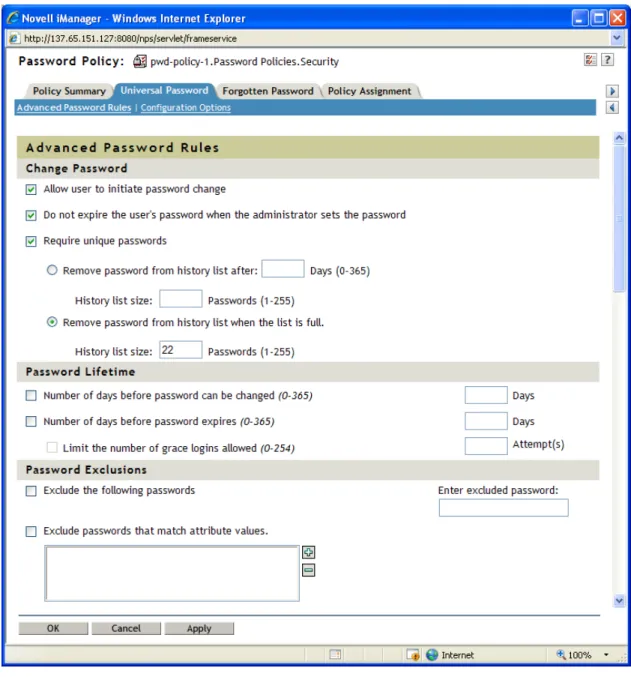
Figure 3-1 shows the first section of the advanced password rules: Figure 3-1 Advanced Password Rules
Change Password
Allow user to initiate password change
This allows the user to use the password self-service features (see Chapter 4, “Password Self-Service,” on page 45).
Managing Passwords by Using Password Policies 33 NU) 29 Ja nua ry 200 7
The default in eDirectory, when password expiration is set, is to expire the user’s password when the administrator sets the password. This requires the user to go and change his or her password. This feature lets you to override the default.
Require unique passwords
You can specify how unique passwords are enforced by using one of the following two values. Remove password from history list after a specified number of days (0-365) and a
specified history list size (1-255).
If you require unique passwords, you can specify how many days a previous password remains stored in the history list for comparison.
For example, if you specify 30 and the user's previous password was “mountains99”, that password remains in the history list for 30 days. During that time, if the user tries to change his or her password and reuse “mountains99”, the password policy rejects that password and the user is prompted to specify a different one. After the 30-day period, the old password is no longer stored for comparison, and the password policy allows it to be reused.
If you require unique passwords, you can indicate how many passwords are stored in the history list for comparison. For example, if you specify 3, then the user's previous three passwords are stored. If a user tries to change his or her password and reuse one that is in the history list before the number of days specified for removal from the history list, the password policy rejects the password and the user is prompted to specify a different one. If Require unique passwords is selected and you select Remove password from history list after a specified number of days (0-365) but don’t specify a number of days, the password will be on the history list for 8 times the value set in the Number of days before password expires (0-365) field. If neither field has a value, the password will be on the history list for 365 days.
Remove password from history list when the list is full and a specified history list size (1-255).
If you require unique passwords, you can indicate how many passwords are stored in the history list for comparison. This field will prevent a user from changing his or her password if the history list is full. For example, if you specify 3, then the user's previous three passwords are stored. If a user tries to change his or her password and reuse one that is in the history list, the password policy rejects the password and the user is prompted to specify a different one.
Password Lifetime
Number of days before password can be changed (0-365)
For example, if this value is set to 30, a user must keep the same password for 30 days before he or she can change it. The password policy does not allow the Universal Password to be changed by the user before that time has elapsed.
Number of days before password expires (0-365)
For example, if this value is set to 90, a user's password expires 90 days after it has been set. If grace logins are not enabled, the user cannot log in after a password has expired, and
administrator assistance is needed to reset the password. However, if you enable grace logins, described in the next item, the user can log in with the expired password the specified number of times.