1
Introducing Hardware
• That a computer requires both hardware and software to work • About the manydifferent hard-ware components inside of and connected to a computer In this chapter, you will learn:
C H A P T E R
1
L
ike millions of other computer users, you have probably used your desktop or notebook computer to play games, update your blog, write papers, or build spreadsheets. You can use all these applications without understanding exactly what goes on inside your computer case or notebook. But if you are curious to learn more about personal computers, and if you want to graduate from simply being the end user of your computer to becoming the master of your machine, then this book is for you. It is written for anyone who wants to under-stand what is happening inside the machine, in order to install new hardware, diagnose and solve hardware problems, and make purchas-ing decisions and then install new hardware. The only assumption made here is that you are a computer user—that is, you can turn on your machine, load a software package, and use that software to accomplish a task. No experience in electronics is assumed.In addition, this book prepares you to pass the hardware-related content on the A+ Essentials 220-701 exam and the A+ Practical Application 220-702 exam required by CompTIA (www.comptia.org) for A+ Certification. Its companion book, A+ Guide to Software: Managing, Maintaining, and Troubleshooting Software(Course Technology 1435487370), prepares you for the software-related content on the A+ 220-701 Essentials exam and the A+ 220-702 Practical Application exam.
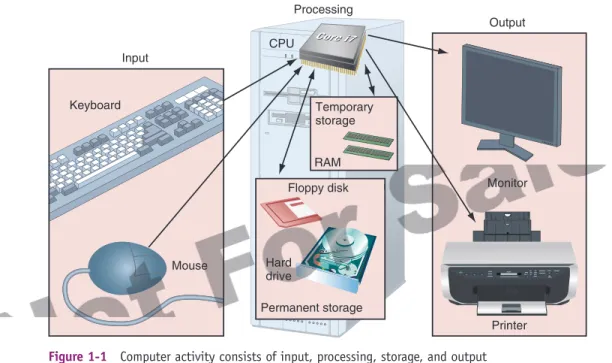
CPU Printer Output Monitor Temporary storage RAM Permanent storage Hard drive Floppy disk Input Processing Keyboard Mouse Core i7 Core i7
Figure 1-1 Computer activity consists of input, processing, storage, and output Courtesy: Course Technology/Cengage Learning
HARDWARE NEEDS SOFTWARE TO WORK
In the world of computers, the term hardwarerefers to the computer’s physical compo-nents, such as the monitor, keyboard, motherboard, and hard drive. The term software
refers to the set of instructions that directs the hardware to accomplish a task. To perform a computing task, software uses hardware for four basic functions: input, processing, storage, and output (see Figure 1-1). Also, hardware components must communicate both data and instructions among themselves, which requires an electrical system to provide power, because these components are electrical. In this chapter, we introduce the hardware components of a computer system and how they work.
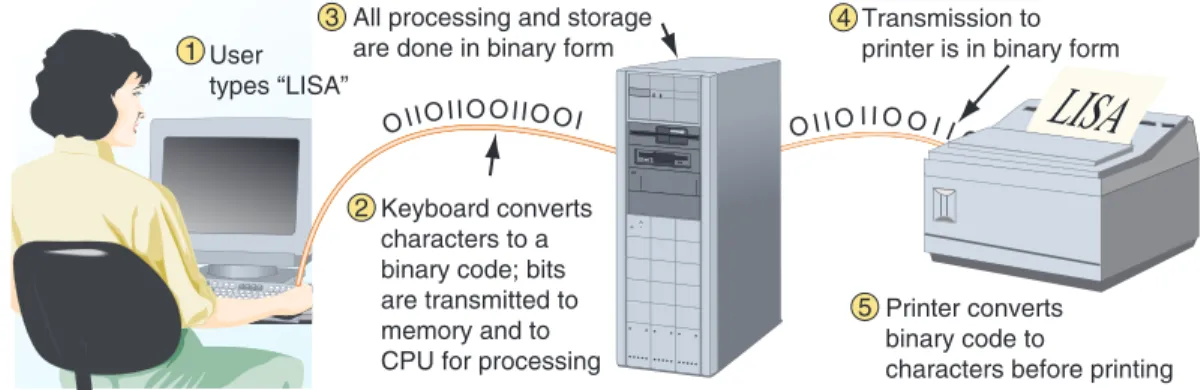
A computer user must interact with a computer in a way that both the user and the software understand, such as with entries made by way of a keyboard or a mouse (see Figure 1-2). However, software must convert that instruction into a form that hardware can “understand.” As incredible as it might sound, every communication between hardware and software, or between software and other software, is reduced to a simple yes or no, which is represented inside the computer by two simple states: on and off.
It was not always so. For almost half a century, people attempted to invent an elec-tronic computational device that could store all 10 digits in our decimal number system and even some of our alphabet. Scientists were attempting to store a charge in a vacuum tube, which is similar to a light bulb. The charge would later be “read” to determine what had been stored there. Each digit in our number system, zero through nine, was stored with increasing degrees of charge, similar to a light bulb varying in power from off to dim all the way up to bright. However, the degree of “dimness” or “brightness” was difficult to measure, and it would change because the voltage in the equipment could not be accu-rately regulated. For example, an eight would be stored with a partially bright charge, but later it would be read as a seven or nine as the voltage on the vacuum tube fluctuated slightly.
1
O I I OI I O O I IO All processing and storage
are done in binary form
Transmission to printer is in binary form User
types “LISA”
O IIO IIO O IIO O I
Keyboard converts characters to a binary code; bits are transmitted to memory and to CPU for processing
Printer converts binary code to
characters before printing 3
2
5 1
4
Figure 1-2 All communication, storage, and processing of data inside a computer are in binary form until presented as output to the user
Courtesy: Course Technology/Cengage Learning
The letter A stored as 8 bits using ASCII code:
The number 25 stored as 8 bits using the binary number system:
A = 25 =
0100 0001 = 0001 1001 =
Figure 1-3 All letters and numbers are stored in a computer as a series of bits, each represented in the computer as on or off
Courtesy: Course Technology/Cengage Learning
Then, in the 1940s, John Atanasoff came up with the brilliant idea to store and read only two values, on and off. Either there was a charge or there was not a charge, and this was easy to write and read, just as it’s easy to determine if a light bulb is on or off. This technology of storing and reading only two states is called binary, and the number system that only uses two digits, 0 and 1, is called the binary number system. A 1 or 0 in this system is called a bit, or binary digit. Because of the way the number system is organized, grouping is often done in groups of eight bits, each of which is called a byte. (Guess what four bits are called? A nibble!)
To learn more about binary and computer terminology related to the binary and hexadecimal number system, look on the CD that accompanies this book for the content “The Hexadecimal Number System and Memory Addressing.”
Notes
In a computer, all counting and calculations use the binary number system. Counting in binary goes like this: 0, 1, 10, 11, 100, 101, and so forth. For example, in binary code the number 25 is 0001 1001 (see Figure 1-3). When text is stored in a computer, every letter or other character is first converted to a code using only zeros and ones. The most common cod-ing method for text is ASCII (American Standard Code for Information Interchange). For example, the uppercase letter A in ASCII code is 0100 0001 (see Figure 1-3).
The A+ 220-701 Essentials exam expects you to know all the key terms in this chapter. Pay careful attention to all these terms. In later chapters, notice the mapping lines in the margins of the chapters that mark the in-depth content for each A+ exam objective. As you read this chapter, consider it your introduction to the hardware content on the A+ 220-701 Essentials exam.
PC HARDWARE COMPONENTS
In this section, we cover the major hardware components of a microcomputer system used for input, output, processing, storage, electrical supply, and communication. Most input and output devices are outside the computer case. Most processing and storage components are contained inside the case. The most important component in the case is the central process-ing unit (CPU), also called the processoror microprocessor. As its name implies, this device is central to all processing done by the computer. Data received by input devices is read by the CPU, and output from the CPU is written to output devices. The CPU writes data and instructions in storage devices and performs calculations and other data processing. Whether inside or outside the case, and regardless of the function the device performs, each hardware input, output, or storage device requires these elements to operate:
A method for the CPU to communicate with the device. The device must send data to and/or receive data from the CPU. The CPU might need to control the device by pass-ing instructions to it, or the device might need to request service from the CPU.
Software to instruct and control the device. A device is useless without software to control it. The software must know how to communicate with the device at the detailed level of that specific device, and the CPU must have access to this software in order to interact with the device. Each device responds to a specific set of instructions based on the device’s functions. The software must have an instruction for each possi-ble action you expect the device to accomplish.
Electricity to power the device. Electronic devices require electricity to operate. Devices can receive power from the power supply inside the computer case, or they can have their own power supplied by a power cable connected to an electrical outlet.
In the next few pages, we take a sightseeing tour of computer hardware, first looking out-side and then inout-side the case. I’ve tried to keep the terminology and concepts to a minimum in these sections, because in future chapters, everything is covered in much more detail.
HARDWARE USED FOR INPUT AND OUTPUT
Most input/output devices are outside the computer case. These devices communicate with components inside the computer case through a wireless connection or through cables attached to the case at a connection called a port. Most computer ports are located on the back of the case (see Figure 1-4), but some cases have ports on the front for easy access. The most popular input devices are a keyboard and a mouse, and the most popular output devices are a monitor and a printer.
The keyboardis the primary input device of a computer (see Figure 1-5). The keyboards that are standard today are called enhanced keyboards and hold 104 keys. Ergonomic keyboards are curved to make them more comfortable for the hands and wrists. In addition, some keyboards come equipped with a mouse port used to attach a mouse to the keyboard, although it is more common for the mouse port to be on the computer case. Electricity to run the keyboard comes from inside the computer case and is provided by wires in the keyboard cable.
A mouseis a pointing device used to move a pointer on the screen and to make selections. The bottom of a mouse has a rotating ball or an optical sensor that tracks movement and controls the location of the pointer. The one, two, or three but-tons on the top of the mouse serve different purposes for differ-ent software. For example, Windows Vista uses the left mouse button to execute a command and the right mouse button to display a shortcut menu of commands related to the item.
Examining the Back of a PC
1
Keyboard port
S/PDIF out Parallel
port Mouse port Four USB ports Serial port Network port Analog video port S-Video port Sound ports Power in FireWire port Digital video port
Two phone line ports for modem
Figure 1-4 Input/output devices connect to the computer case by ports usually found on the back of the case Courtesy: Course Technology/Cengage Learning
6-pin keyboard and mouse connectors
Figure 1-5 The keyboard and the mouse are the two most popular input devices
15-pin, three-row analog video connector
USB connector
Figure 1-6 The two most popular output devices are the monitor and the printer Courtesy: Course Technology/Cengage Learning
The monitor and the printer are the two most popular output devices (see Figure 1-6). The
monitoris the visual device that displays the primary output of the computer. Hardware manufac-turers typically rate a monitor according to the diagonal size of its screen (in inches) and by the monitor’s resolution, which is a function of the number of dots on the screen used for display.
A very important output device is the printer, which produces output on paper, often called hard copy. The most popular printers available today are ink-jet, laser, thermal, and impact printers. The monitor and the printer need separate power supplies. Their electrical power cords connect to electrical outlets.
Figure 1-6 showed the most common connectors used for a monitor and a printer: a 15-pin analog video connector and a universal serial bus (USB) connector. In addition, a digital monitor can use a digital video connector and an older printer can use a 25-pin parallel connector (see Figure 1-7).
Analog video connector Parallel port connector USB connector Digital Visual Interface (DVI) connector
Figure 1-7 Two video connectors and two connectors used by a printer Courtesy: Course Technology/Cengage Learning
1
HARDWARE INSIDE THE COMPUTER CASE
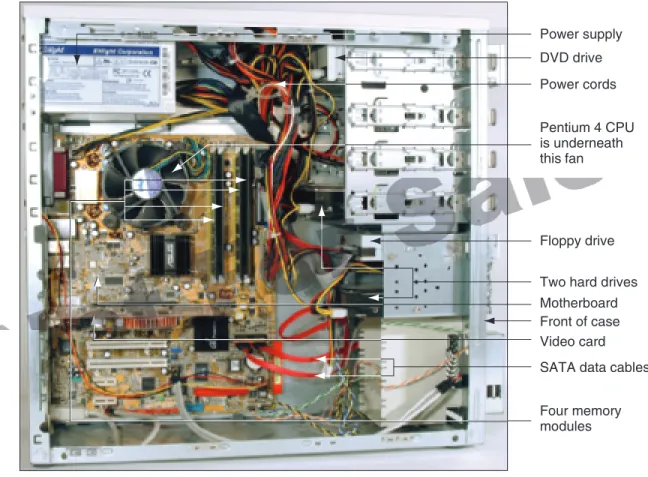
Most storage and all processing of data and instructions are done inside the computer case, so before we look at components used for storage and processing, let’s look at what you see when you first open the computer case. Most computers contain these devices inside the case (see Figure 1-8):
A motherboard containing the CPU, memory, and other components A hard drive and optical drive (CD or DVD) used for permanent storage
A power supply with power cords supplying electricity to all devices inside the case Adapter cards used by the CPU to communicate with devices inside and outside the case Cables connecting devices to adapter cards and the motherboard
Some of the first things you’ll notice when you look inside a computer case are adapter cards. An adapter cardis a circuit board that holds microchips, or integrated circuits (ICs), and the circuitry that connects these chips. Adapter cards,
also called expansion cardsor simply cards, are installed in long narrow expansion slotson the motherboard. All adapter cards contain microchips, which are most often manufactured using CMOS (complementary metal-oxide semiconductor)
technology. The other major components inside the case look like small boxes and include the power supply, hard drive, CD drive, and possibly a floppy drive.
There are two types of cables inside the case: data cables, which connect devices to one another, and power cables or power cords, which supply power. If the cable is flat, it most likely is a data cable. However, to know for sure what type of cable you’re dealing with, trace the cable from its source to its destination.
Pentium 4 CPU is underneath this fan Power supply
Two hard drives Floppy drive DVD drive Power cords
Front of case
SATA data cables Motherboard Video card
Four memory modules
Figure 1-8 Inside the computer case
Courtesy: Course Technology/Cengage Learning
Looking Inside a PC
Fan with CPU below PCIe ×16 slot for video card Two PCIe ×1 slots
Three standard PCI slots
Four DIMM slots Chipset
Figure 1-9 All hardware components are either located on the motherboard or directly or indirectly connected to it because they must all communicate with the CPU
Courtesy: Course Technology/Cengage Learning
THE MOTHERBOARD
The largest and most important circuit board in the computer is the motherboard, also called the
main board, the system board, or the techie jargon term, the mobo (see Figure 1-9). The mother-board contains a socket to hold the CPU; the CPU is the component in which most processing takes place. The motherboard is the most complicated piece of equipment inside the case, and Chapter 3 covers it in detail. Because all devices must communicate with the CPU installed on the motherboard, all devices in a computer are either installed directly on the motherboard, directly linked to it by a cable connected to a port on the motherboard, or indirectly linked to it by expan-sion cards. A device that is not installed directly on the motherboard is called a peripheral device.
Some ports on the motherboard stick outside the case to accom-modate external devices such as a keyboard, and some ports pro-vide a connection for a device, such as a CD drive, inside the case.
Listed next are the major components found on all motherboards (some of them are labeled in Figure 1-9). In the sections that follow, we discuss these components in detail. Here are the components used primarily for processing:
Processor or CPU (central processing unit), the computer’s most important chip Chipset that supports the processor by controlling many motherboard activities
The component used for temporary storage is:
RAM (random access memory), which holds data and instructions as they are processed
Components that allow the processor to communicate with other devices are as follows:
Traces, or wires, on the motherboard used for communication Expansion slots to connect expansion cards to the motherboard The system clock that keeps communication in sync
Connections for data cables to devices inside the case Ports for devices outside the case
Looking at Motherboards
1
The electrical system consists of:
Power supply connections that provide electricity to the motherboard and expansion cards
Every motherboard has programming and setup data stored on it:
Flash ROM, a memory chip used to permanently store instructions that control basic hardware functions (explained in more detail later in the chapter)
CMOS RAM and CMOS setup chip that holds configuration data
Figure 1-10 shows the ports coming directly off a motherboard to the outside of the case: a keyboard port, a mouse port, a parallel port, two S/PDIF sound ports (for optical or coaxial cable), a FireWire port, a network port, four USB ports, six sound ports, and a wireless network antenna port. A parallel porttransmits data in parallel and is most often used by an older printer. An S/PDIF (Sony-Philips Digital Interface) sound portconnects to an external home theater audio system, providing digital output and the best signal quality. A FireWire port (also called an IEEE 1394 port, pronounced “I-triple-E 1394 port”) is used for high-speed multimedia devices such as digital camcorders. A universal serial bus (USB) portcan be used by many different input/output devices, such as keyboards, printers, scanners, and digital cameras. In addition to these ports, some older motherboards provide a serial portthat transmits data serially (one bit following the next); it is often used for an external modem or scanner. A serial port looks like a parallel port, but is not as wide. You will learn more about ports in Chapter 7.
THE PROCESSOR AND THE CHIPSET
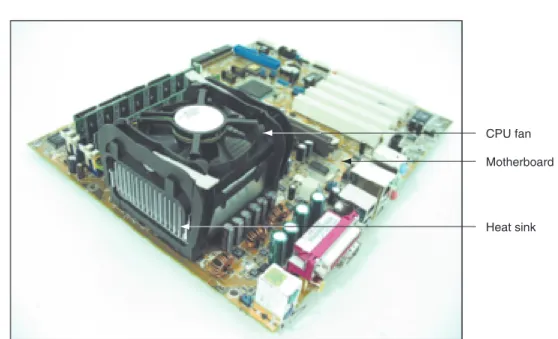
The processor or CPU is the chip inside the computer that performs most of the actual data processing (see Figure 1-11). The processor could not do its job without the assistance of the
chipset, a group of microchips on the motherboard that control the flow of data and instructions to and from the processor. The chipset is responsible for the careful timing and coordination of activities. The chipset is an integrated component of the motherboard and is contained in two packages embedded on the motherboard, which you saw in Figure 1-9.
In this book, we discuss various types of computers, but we focus on the most common personal computers (PCs); PCs often are referred to as IBM-compatible. These are built around microprocessors manufactured by Intel Corporation and AMD. The Macintosh family of computers, manufactured by Apple Computer, Inc., was formerly built around a family of microprocessors, the PowerPC microprocessors, built by Motorola and IBM. Currently, Apple computers are built using Intel processors. You will learn more about processors in Chapter 4.
Mouse port Keyboard port S/PDIF port (for coaxial cable)
S/PDIF port (for optical cable)
Four USB ports Wireless LAN antenna port Six sound ports Network port FireWire port
Parallel port
Figure 1-10 A motherboard provides ports for common I/O devices Courtesy: Course Technology/Cengage Learning
Motherboard
Heat sink CPU fan
Figure 1-11 The processor is hidden underneath the fan and the heat sink, which keep it cool Courtesy: Course Technology/Cengage Learning
STORAGE DEVICES
In Figure 1-1, you saw two kinds of storage: temporary and permanent. The processor uses temporary storage, called primary storageor memory, to temporarily hold both data and instructions while it is processing them. However, when data and instructions are not being used, they must be kept in permanent storage, sometimes called secondary storage, such as a hard drive, CD, DVD, or USB drive. Primary storage is much faster to access than perma-nent storage. Figure 1-12 shows an analogy to help you understand the concept of primary and secondary storage.
In our analogy, suppose you must do some research at the library. You go to the stacks, pull out several books, carry them over to a study table, and sit down with your notepad
CPU Data Memory (temporary storage) Secondary storage Instructions Output
Figure 1-12 Memory is a temporary place to hold instructions and data while the CPU processes both Courtesy: Course Technology/Cengage Learning
1
and pencil to take notes and do some calculations. When you’re done, you leave with your notepad full of information and calculations, but you don’t take the books with you. In this example, the stacks are permanent storage, and the books (data and instructions) are perma-nently kept there. The table is temporary storage, a place for you to keep data and instruc-tions as you work with them. The notepad is your output from all that work, and you are the CPU, doing the work of reading the books and writing down information.
You kept a book on the table until you knew you were finished with it. As you worked, it would not make sense to go back and forth with a book, returning and retrieving it to and from the stacks. Similarly, the CPU uses primary storage, or memory, to temporarily hold data and instructions as long as it needs them for processing. Memory (your table) gives fast but temporary access, while secondary storage (the stacks) gives slow but permanent access.
PRIMARY STORAGE
Primary storage is provided by devices called memory or RAM (random access memory)
located on the motherboard and on some adapter cards. RAM chips are embedded on a small board that plugs into the motherboard (see Figure 1-13). These small RAM boards are called memory modules, and the most common type of module is the DIMM (dual inline memory module). There are several variations of DIMMs, and generally you must match the module size and type to that which the motherboard supports. Also, video cards contain their own memory chips embedded on the card; these chips are called video memory.
DIMM
Three empty DIMM slots
Figure 1-13 A DIMM holds RAM and is mounted directly on a motherboard Courtesy: Course Technology/Cengage Learning
Whatever information is stored in RAM is lost when the computer is turned off, because RAM chips need a continuous supply of electrical power to hold data or software stored in them. This kind of memory is called volatilebecause it is temporary in nature. By contrast, another kind of memory called non-volatile memory, holds its data permanently, even when
the power is turned off. Non-volatile memory is used in flash drives, memory cards, and some types of hard drives.
SECONDARY STORAGE
As you remember, RAM installed on the motherboard is called primary storage. Primary storage temporarily holds both data and instructions as the CPU processes them. These data and instructions are also permanently stored on devices, such as DVDs, CDs, hard drives, and USB drives, in locations that are remote from the CPU. Data and instructions cannot be processed by the CPU from this remote storage (called secondary storage), but must first be copied into primary storage (RAM) for processing. The most important difference between primary and secondary storage is that secondary storage is permanent. When you turn off your computer, the information in secondary storage remains intact. Secondary storage devices are often grouped in these three categories: hard drives, optical drives, and removable storage.
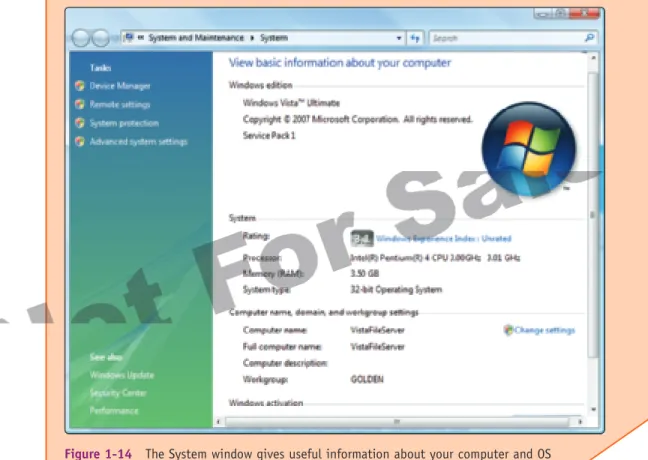
Figure 1-14 The System window gives useful information about your computer and OS Courtesy: Course Technology/Cengage Learning
Using Windows Vista, you can see what type of CPU you have and how much memory you have installed. Click
Start, right-click Computer, and then select Propertieson the shortcut menu. The System window appears (see Figure 1-14). You can also see which version of Windows you are using. Using Windows XP, click Start, right-click My Computer, select Propertieson the shortcut menu, and click the
Generaltab.
1
Hard Drives
The main secondary storage device of a computer is the hard drive, also called a hard disk drive (HDD). Most hard drives consist of a sealed case containing platters or disks that rotate at a high speed (see Figure 1-15). As the platters rotate, an arm with a sensitive read/write head reaches across the platters, both writing new data to them and reading existing data from them. The data is written as magnetic spots on the surface of each platter. These magnetic hard drivesuse an internal technology called Integrated Drive Electronics (IDE).
A newer technology for hard drives uses non-volatile flash memory chips, rather than using moving mechanical disks, to hold the data. These flash memory chips are similar to those used in USB flash drives. Any device that has no moving parts is called solid state (solid parts versus moving parts). Therefore, a drive made with flash memory is called a solid state drive (SSD), solid state disk (SSD), or solid state device (SSD). (Unfortunately, the acronym can have either definition.). Figure 1-16 shows four SSD drives. The two larger drives are used in desktop computers, and the two smaller drives are used in laptops. Because SSD drives have no moving parts, they are much faster, more rugged, consume less power, last longer, and are considerably more expensive than magnetic drives. SSD drives are used in industries that require extreme durability, such as the military, and are making their way into the retail markets as the prices go lower.
Regardless of the internal technology used, the interface between an internal hard drive and the motherboard is likely to conform to an ATA (AT Attachment) standard, as published by the American National Standards Institute (ANSI, see www.ansi.org). The two major ATA standards for a drive interface are serial ATA (SATA), the newer and faster
Figure 1-15 Hard drive with sealed cover removed Courtesy: Seagate Technologies LLC
Don’t forget that primary storage, or RAM, is temporary; as soon as you turn off the computer, any information there is lost. That’s why you should always save your work frequently into secondary storage.
standard, and parallel ATA (PATA), the older and slower standard. Hard drives, CD drives, DVD drives, Zip drives, and tape drives, among other devices, can use these interfaces.
Figure 1-17 shows an internal SATA drive interface. SATA cables are flat and thin; one end connects to the device and the other end to the motherboard connector. The external SATA (eSATA) standard allows for a port on the computer case to connect an external eSATA hard drive or other device. Motherboards usually offer from two to eight SATA and eSATA connectors. A motherboard that uses SATA might also have a parallel ATA connec-tor for older devices. External drives, including hard drives, optical drives, and other drives, might use a USB connection, a FireWire connection (which is faster than USB), or an eSATA connection (which is faster than FireWire).
Figure 1-16 Four SSD drives
Courtesy: Course Technology/Cengage Learning
Serial ATA cable
Power cord
Figure 1-17 A hard drive subsystem using the serial ATA data cable Courtesy: Course Technology/Cengage Learning
1
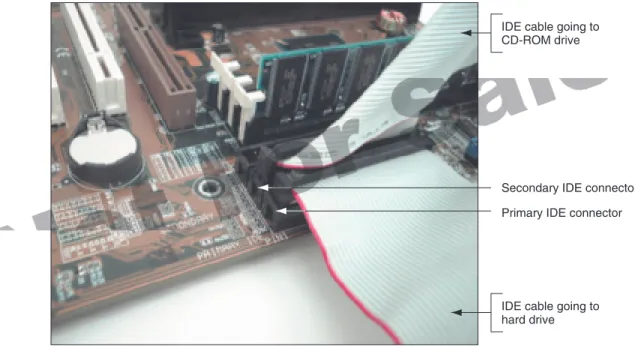
Parallel ATA, sometimes called the EIDE (Enhanced IDE) standard or the IDE standard, is slower than SATA and allows for only two connectors on a motherboard for two data cables (see Figure 1-18). Each IDE ribbon cable has a connection at the other end for an IDE device and a connection in the middle of the cable for a second IDE device. Using this interface, a motherboard can accommodate up to four IDE devices in one system. A typical system has one hard drive connected to one IDE connector and a CD drive con-nected to the other (see Figure 1-19). Figure 1-20 shows the inside of a computer case with three PATA devices. The CD-ROM drive and the Zip drive share an IDE cable, and the hard drive uses the other cable. Both cables connect to the motherboard at the two IDE connections.
Primary IDE connector IDE cable going to CD-ROM drive
IDE cable going to hard drive
Secondary IDE connector
Figure 1-18 Using a parallel ATA interface, a motherboard has two IDE connectors, each of which can accommodate two devices; a hard drive usually connects to the motherboard using the primary IDE connector
Courtesy: Course Technology/Cengage Learning
The A+ 220-701 Essentials exam expects you to know about PATA, IDE, EIDE, SATA, and eSATA.
A+ Exam Tip
Confusion with industry standards can result when different manufacturers call one standard by different names. This inconsistency happens all too often with computer parts. The industry uses the terms ATA, IDE, and EIDE almost interchangeably even though technically they have different meanings. Used correctly, “ATA” refers to drive interface standards as published by ANSI. Used correctly, “IDE” refers to the technology used internally by a hard drive, and “EIDE” is
commonly used by manufacturers to refer to the parallel ATA interface that CD drives, DVD drives, Zip drives, tape drives, and IDE hard drives use to connect to a motherboard. The term “IDE” is more commonly used, when in fact “EIDE” is actually the more accurate name for the interface standards. In this book, to be consistent with manufacturer documentation, we loosely use the term “IDE” to indicate IDE, EIDE, and parallel ATA. For instance, look closely at Figure 1-18 where the motherboard connectors are labeled Primary IDE and Secondary IDE; technically they really should be labeled Primary EIDE and Secondary EIDE.
A hard drive receives its power from the power supply by way of a power cord (see Figure 1-21). Looking back at Figure 1-20, you can see the power connections to the right of the cable connec-tions on each drive (the power cords are disconnected to make it easier to see the data cable connections). Chapter 6 covers how a hard drive works and how to install one.
Optical Drives
An optical drive is considered standard equipment on most computer systems today because most software is distributed on CDs or DVDs. Popular choices for optical drives are CD
CD-ROM drive
Zip drive
Hard drive
Unused connection for fourth IDE device Primary IDE cable Secondary IDE cable
Both cables connected to motherboard
Figure 1-20 This system has a CD-ROM and a Zip drive sharing the secondary IDE cable and a hard drive using the primary IDE cable
Courtesy: Course Technology/Cengage Learning
Connection for a second device on this cable
CD-ROM drive Two 40-pin IDE cables
Hard drive
Figure 1-19 Two IDE devices connected to a motherboard using both IDE connections and two cables Courtesy: Course Technology/Cengage Learning
Identifying Drives
Video
1
drives, DVD drives, and Blu-ray Disc (BD) drives. If the drive can burn (write to) a disc as well as read a disc, RW is included in its name. For example, a CD-RW drive can both read and write to CDs. If the drive can only read a disc, it might have ROM (read-only memory) in its name, such as a DVD-ROM drive. (Don’t let the use of the word memory confuse you; optical drives don’t hold memory.) Figure 1-22 shows the rear of a CD drive with the IDE data cable and power cord connected. Chapter 8 discusses different CD, DVD, and Blu-ray Disc technologies and drives and the discs they can use.
USB Flash Drives and Memory Cards
Two popular removable storage devices are USB flash drives (also called thumb drives) and memory cards commonly used with digital cameras. Both types of devices use non-volatile flash memory chips. USB flashdrives (see Figure 1-23) are compact, easy to use, and cur-rently hold up to 64 GB of data. Several types of memory cards are on the market. One example is the SD card shown in Figure 1-24, partially inserted into an SD card slot on a laptop. Notice the open and empty SD card slot in the digital camera sitting nearby. SD cards that follow the first SD card standard can hold up to 4 GB of data, but later SD card standards can accommodate much more data.
Hard drive
Power connected Power supply
Figure 1-21 A hard drive receives power from the power supply by way of a power cord connected to the drive Courtesy: Course Technology/Cengage Learning
IDE cable CD-ROM drive
Power cord
Figure 1-22 This CD drive is an EIDE device and connects to the motherboard by way of an IDE data cable Courtesy: Course Technology/Cengage Learning
Floppy Disk Drives
An older secondary storage device sometimes found inside the case is a floppy drive, also called a floppy disk drive (FDD), that can hold 3.5-inch disks containing up to 1.44 MB of data. Most motherboards provide a connection for a floppy drive cable (see Figure 1-25). The floppy drive cable can accommodate one or two drives (see Figure 1-26). The drive at the end of the cable is drive A. If another drive were connected to the middle of the cable, it would be drive B in a computer system. Electricity to a floppy drive is provided by a power cord from the power supply that connects to a power port at the back of the drive.
Figure 1-23 This flash drive, called the JumpDrive by Lexar, snaps into a USB port Courtesy: Course Technology/Cengage Learning
SD slot in camera
SD card
Figure 1-24 Most laptops have a memory card slot that can accommodate an SD card Courtesy: Course Technology/Cengage Learning
Primary IDE connector Secondary IDE connector Floppy drive connector
Figure 1-25 A motherboard usually provides a connection for a floppy drive cable Courtesy: Course Technology/Cengage Learning
The A+ 220-701 Essentials exam expects you to know these terms: HDD, FDD, CD, DVD, RW, and Blu-ray.
1
Floppy drives are not as necessary as they once were because the industry is moving toward storage media, such as CDs, DVDs, and USB devices, that can hold more data. For years, every PC and notebook computer had a floppy drive, but many newer notebook computers don’t, and manufacturers often offer floppy drives on desktop systems as add-on options only.
MOTHERBOARD COMPONENTS USED FOR COMMUNICATION AMONG
DEVICES
When you look carefully at a motherboard, you see many fine lines on both the top and the bottom of the board’s surface (see Figure 1-27). These lines, sometimes called traces, are circuits or paths that enable data, instructions, and power to move from component to compo-nent on the board. This system of pathways used for communication and the protocol and methods used for transmission are collectively called the bus. (A protocolis a set of rules and
Floppy drive data cable
Connection for power cord Two possible connections for another floppy drive
Figure 1-26 One floppy drive connection on a motherboard can support one or two floppy drives Courtesy: Course Technology/Cengage Learning
One bus line
Bottom of the CPU socket
Figure 1-27 On the bottom of the motherboard, you can see bus lines terminating at the CPU socket Courtesy: Course Technology/Cengage Learning
standards that any two entities use for communication.) The parts of the bus that we are most familiar with are the lines of the bus that are used for data; these lines are called the data bus. Binary data is put on a line of a bus by placing voltage on that line. We can visualize that bits are “traveling” down the bus in parallel, but in reality, the voltage placed on each line is not “traveling”; rather, it is all over the line. When one component at one end of the line wants to write data to another component, the two components get in sync for the write operation. Then, the first component places voltage on several lines of the bus, and the other component immediately reads the voltage on these lines.
The CPU or other devices interpret the voltage, or lack of voltage, on each line on the bus as binary digits (0s or 1s). Some buses have data paths that are 8, 16, 32, 64, or 128 bits wide. For example, a bus that has eight wires, or lines, to transmit data is called an 8-bit bus. Figure 1-28 shows an 8-bit bus between the CPU and memory that is transmitting the letter A (binary 0100 0001). All bits of a byte are placed on their lines of the bus at the same time. Remember there are only two states inside a computer: off and on, which repre-sent zero and one. On a bus, these two states are no voltage for a zero and voltage for a one. So, the bus in Figure 1-28 has voltage on two lines and no voltage on the other six lines in order to pass the letter A on the bus. This bus is only 8 bits wide, but most buses today are much wider: 16, 32, 64, 128, or 256 bits wide. Also, a bus might use a ninth bit for error checking. Adding a check bit for each byte allows the component reading the data to verify that it is the same data written to the bus.
The width of a data bus is called the data path size. A motherboard can have more than one bus, each using a different protocol, speed, data path size, and so on. The main bus on the motherboard that communicates with the CPU, memory, and the chipset goes by several names: system bus, front side bus (FSB), memory bus, host bus, local bus, or external bus. In our discussions, we’ll use the terms system bus or memory bus because they are more descriptive, but know that motherboard ads typically use the term front side bus. The data portion of most system buses on today’s motherboards is 128 bits wide with or without additional lines for error checking.
One of the most interesting lines, or circuits, on a bus is the system clockor system timer, which is dedicated to timing the activities of the chips on the motherboard. A quartz crystal on the motherboard (see Figure 1-29), similar to that found in watches, generates the oscilla-tion that produces the continuous pulses of the system clock. Traces carry these pulses over the motherboard to chips and expansion slots to ensure that all activities are synchronized. Remember that everything in a computer is binary, and this includes the activities themselves. Instead of continuously working to perform commands or move data, the CPU, bus, and
Memory CPU 0 1 0 0 0 0 0 1 Data bus 0 = No voltage 1 = Voltage
The letter "A" on the 8-line data bus between the CPU and memory
Figure 1-28 A data bus has traces or lines that carry voltage interpreted by the CPU and other devices as bits Courtesy: Course Technology/Cengage Learning
other devices work in a binary fashion—do something, stop, do something, stop, and so forth. Each device works on a clock cycle or beat of the clock. Some devices, such as the CPU, do two or more operations on one beat of the clock, and others do one operation for each beat. Some devices might even do something on every other beat, but all work according to beats or cycles. You can think of this as similar to children jumping rope. The system clock (child turning the rope) provides the beats or cycles, while devices (children jumping) work in a binary fashion (jump, don’t jump). In the analogy, some children jump two or more times for each rope pass.
How fast does the clock beat? The beats, called the clock speed, are measured in hertz (Hz), which is one cycle per second; megahertz (MHz), which is one million cycles per second; and
gigahertz (GHz), which is one billion cycles per second. Common ratings for motherboard buses today are 2600 MHz, 2000 MHz, 1600 MHz, 1333 MHz, 1066 MHz, 800 MHz, 533 MHz, or 400 MHz, although you might still see some motherboards around rated at 200 MHz, 133 MHz, or slower. In other words, data or instructions can be put on a 1600 MHz system bus at the rate of 1600 million every second. A CPU operates from 166 MHz to almost 4 GHz. The CPU can put data or instructions on its internal bus at a much higher rate than does the mother-board. Although we often refer to the speed of the CPU and the motherboard bus, talking about the frequency of these devices is more accurate, because the term “speed” implies a continuous flow, while the term “frequency” implies a digital or binary flow: on and off, on and off.
Motherboard crystal generates the system clock
Figure 1-29 The system clock is a pulsating electrical signal sent out by this component that works much like a crystal in a wristwatch (one line, or circuit, on the motherboard bus is dedicated to carrying this pulse)
Courtesy: Course Technology/Cengage Learning
Motherboard buses are most often measured in frequencies such as 2600 MHz, but sometimes you see a motherboard bus measured in performance such as the nForce 730a motherboard by EVGA built to support an AMD processor including the Phenom X4 Quad Core processor (see www.evga.comand
www.amd.com). This motherboard bus is rated at 5200 MT/s. One MT/s is one megatransfer per second or one million bytes per second transferred over the bus.
Notes
1
The lines of a bus, including data, instruction, and power lines, often extend to the expan-sion slots (see Figure 1-30). The size and shape of an expanexpan-sion slot depend on the kind of bus it uses. Therefore, one way to determine the kind of bus you have is to examine the expansion slots on the motherboard.
Figure 1-31 shows an older motherboard with two types of expansion slots. Looking back at Figure 1-9, you can see a newer motherboard that uses a newer type of expansion slot.
PCI slot
Pins on connector edge of expansion card
Bus lines
Figure 1-30 The lines of a bus terminate at an expansion slot where they connect to pins that con-nect to lines on the expansion card inserted in the slot
Courtesy: Course Technology/Cengage Learning
CMOS battery Drive connectors Power supply connection Four slots for RAM CPU with fan on top AGP slot for video card PCI slots
Chipset
Figure 1-31 The one AGP slot used for a video card is set farther from the edge of the board than the PCI slots Courtesy: Course Technology/Cengage Learning
The types of slots shown on both boards include the following:
PCI (Peripheral Component Interconnect) expansion slot used for input/output devices PCI Express (PCIe) slots that come in several lengths and are used by high-speed input/output devices
AGP (Accelerated Graphics Port) expansion slot used for a video card
Notice in Figures 1-9 and 1-31 the white PCI slots are used on both the older and newer boards. A motherboard will have at least one slot intended for use by a video card. The older board uses an AGP slot for that purpose, and the newer board uses a long PCIe x16 slot for video. PCIe currently comes in four different slot sizes; the longest size (PCIe x16) and the shortest size (PCIe x1) are shown in Figure 1-9.
With a little practice, you can identify expansion slots by their length, by the position of the breaks in the slots, and by the distance from the edge of the motherboard to a slot’s position.
In Chapter 3, you’ll learn that each expansion slot communicates with the CPU by way of its own bus. There can be a PCI Express bus or an AGP bus and a PCI bus, each running at different speeds and providing different features to accommodate the expansion cards that use these differ-ent slots. But all these buses connect to the main bus or system bus, which connects to the CPU.
EXPANSION CARDS
Expansion cards are mounted in expansion slots on the motherboard (see Figure 1-32). Figure 1-33 shows the motherboard and expansion cards installed inside a computer case. By studying this figure carefully, you can see the video card installed in the PCIe x16 slot and a modem card and wireless network card installed in two PCI slots. The other three PCI slots are not used. (Notice the fan on the video card to help keep it cool.) Figure 1-33 also shows the ports these cards provide at the rear of the PC case.
Modem card
PCI slot
Motherboard
Phone line ports
Figure 1-32 This adapter card is a modem card and is mounted in a PCI slot on the motherboard Courtesy: Course Technology/Cengage Learning
You can see a full view of a video card in Figure 1-34. These cards all enable the CPU to connect to an external device or, in the case of a modem card or network card, to a phone line or network. The video card, also called a graphics card, provides one or more ports for a monitor. The network card provides a port for a network cable to con-nect the PC to a network, and the modem card provides ports for phone lines. The technology
Identifying Expansion Cards
Video
24
Video card in PCIe ×16 slot
Modem card in PCI slot
Wireless network card in PCI slot
Three empty PCI slots
Three video ports
Two modem ports
Wireless antenna
Figure 1-33 Three cards installed on a motherboard, providing ports for several devices Courtesy: Course Technology/Cengage Learning
Cooling fan
Heat sink
Tab used to stabilize the card
PCI Express x16 connector
15-pin analog video port
TV-out connector
Digital video port Figure 1-34 The easiest way to identify this video card is to look at the ports on the end of the card
to access these devices is embedded on the card itself, and the card also has the technology to communicate with the slot it is in, the motherboard, and the CPU.
The easiest way to determine the function of a particular expansion card (short of seeing its name written on the card, which doesn’t happen very often) is to look at the end of the card that fits against the back of the computer case. A network card, for example, has a port designed to fit the network cable. A modem card has one, or usually two, telephone jacks as its ports. You’ll get lots of practice in this book identifying ports on expansion cards. However, as you examine the ports on the back of your PC, remember that some-times the motherboard provides ports of its own.
THE ELECTRICAL SYSTEM
The most important component of the computer’s electrical system is the power supply, which is usually near the rear of the case (see Figure 1-35). This power supply does not actually gener-ate electricity but converts and reduces it to a voltage that the computer can handle. A power supply receives 110–120 volts of AC power from a wall outlet and converts it to a much lower DC voltage. Older power supplies had power cables that provided either 5 or 12 volts DC. Newer power supplies provide 3.3, 5, and 12 volts DC. In addition to providing power for the computer, the power supply runs a fan directly from the electrical output voltage to help cool the inside of the computer case. Temperatures over 185 degrees Fahrenheit (85 degrees Celsius) can cause components to fail. When a computer is running, this and other fans inside the case and the spinning of the hard drive are the primary noisemakers.
Figure 1-35 Power supply with connections
Courtesy: Course Technology/Cengage Learning
A motherboard has one primary connection to receive power from the power supply (see Figure 1-36). This power is used by the motherboard, the CPU, and other components that receive their power from ports and expansion slots coming off the motherboard. In addi-tion, there might be other power connectors on the motherboard to power a small fan that cools the CPU, to power the CPU itself, or to provide additional power to expansion cards.
INSTRUCTIONS STORED ON THE MOTHERBOARD AND OTHER BOARDS
Some very basic instructions are stored on the motherboard—just enough to start the com-puter, use some simple hardware devices such as a monitor and keyboard, and search for an operating system stored on a storage device such as a hard drive or CD. These data and instructions are stored on special ROM (read-only memory) chips on the board and are called the BIOS (basic input/output system). Some adapter cards, such as a video card, also have ROM BIOS chips. In the case of ROM chips, the distinction between hardware and software becomes vague. Most of the time, it’s easy to distinguish between hardware and software. For example, a USB flash drive is hardware, but a file on the drive containing a set of instructions is software. This software file, sometimes called a program, might be stored on the drive today, but you can erase that file tomorrow and write a new one to the drive. In this case, it is clear that a flash drive is a permanent physical entity, whereas the program is not. Sometimes, however, hardware and software are not so easy to distinguish. For instance, a ROM chip on an adapter card inside your computer has software instructions permanently etched into it during fabrication. This software is actually a part of the hard-ware and is not easily changed. In this case, hardhard-ware and softhard-ware are closely tied together, and it’s difficult to separate the two, either physically or logically. Software embedded into hardware is often referred to as firmwarebecause of its hybrid nature. Figure 1-37 shows an embedded firmware chip on a motherboard that contains the ROM BIOS programs.
The motherboard ROM BIOS serves three purposes: The BIOS that is sometimes used to manage simple devices is called system BIOS, the BIOS that is used to start the computer is called startup BIOS, and the BIOS that is used to change some settings on the motherboard is called BIOS setupor CMOS setup.
These motherboard settings are stored in a small amount of RAM located on the firmware chip and are called CMOS RAMor just CMOS. Settings stored in CMOS RAM include such things as the current date and time, which hard drives are present, and how the parallel port is configured. When the computer is first turned on, it looks to settings in CMOS RAM to find out what hardware it should expect to find. CMOS RAM is volatile memory. When the computer is turned off, CMOS RAM is powered by a trickle of electric-ity from a small battery located on the motherboard or computer case, usually close to the
P1 power connector on a motherboard
Figure 1-36 The motherboard receives its power from the power supply by way of a 20- or 24-pin connector called the P1 connector
Coin battery
Firmware chip
Figure 1-37 This firmware chip contains flash ROM and CMOS RAM; CMOS RAM is powered by the coin battery located near the chip
Courtesy: Course Technology/Cengage Learning
firmware chip (refer back to Figure 1-37). This battery power is necessary so that the motherboard configuration is not lost when the PC is turned off.
Motherboard manufacturers often publish updates for the ROM BIOS on their moth-erboards; if a board is giving you problems or you want to use a new feature just released, you might want to upgrade the BIOS. In the past, this meant buying new ROM chips and exchanging them on the motherboard. However, ROM chips on motherboards today are made of non-volatile memory and can be reprogrammed. Called flash ROM, the software stored on these chips can be overwritten by new software that remains on the chip until it is overwritten. (You will learn how to do this in Chapter 3; the process is called flashing ROM.)
>>
CHAPTER SUMMARY
A computer requires both hardware and software to work.
The four basic functions of the microcomputer are input, output, processing, and storage of data.
Data and instructions are stored in a computer in binary form, which uses only two states for data—on and off, or 1 and 0—which are called bits. Eight bits equal one byte.
The four most popular input/output devices are the mouse, keyboard, printer, and monitor.
The most important component inside the computer case is the motherboard, also called the main board or system board. It holds the most important microchip inside the case, the central processing unit (CPU), a microprocessor or processor. The motherboard also gives access to other circuit boards and peripheral devices. All communications between the CPU and other devices must pass through the motherboard.
Most microchips are manufactured using CMOS (complementary metal-oxide semicon-ductor) technology.
Each hardware device needs a method to communicate with the CPU, software to control it, and electricity to power it.
Devices outside the computer case connect to the motherboard through ports on the case. Common ports are network, FireWire, sound, serial, parallel, USB, keyboard, and mouse ports.
An adapter card inserted in an expansion slot on the motherboard can provide an inter-face between the motherboard and a peripheral device, or can itself be a peripheral. (An example is a network card.)
The chipset on a motherboard controls most activities on the motherboard.
Primary storage, called memory or RAM, is temporary storage the CPU uses to hold data and instructions while it is processing both.
Most RAM sold today is stored on memory chips embedded on memory modules, which are called DIMMs.
Secondary storage is slower than primary storage, but it is permanent storage. Some examples of secondary storage devices are hard drives, CD drives, DVD drives, Blu-ray drives, flash drives, memory cards, Zip drives, and floppy drives.
Most older hard drives, CD drives, and DVD drives use the parallel ATA (PATA) interface standard, also called the EIDE (Enhanced Integrated Drive Electronics) standard, which can accommodate up to four EIDE or IDE devices on one system. Newer drives use the serial ATA (SATA) interface standard.
The system clock is used to synchronize activity on the motherboard. The clock sends continuous pulses over the bus that different components use to control the pace of activity.
A motherboard can have several buses, including the system bus, the PCI Express bus, the PCI bus, and the older AGP bus.
The frequency of activity on a motherboard is measured in megahertz (MHz), or one mil-lion cycles per second. The processor operates at a much higher frequency than other components in the system, and its activity is often measured in gigahertz (GHz), or one billion cycles per second.
The power supply inside the computer case supplies electricity to components both inside and outside the case. Some components external to the case get power from their own electrical cables.
A ROM BIOS or firmware microchip is a hybrid of hardware and software containing programming embedded into the chip.
ROM BIOS on a motherboard holds the basic software needed to start a PC and begin the process of loading an operating system. Most ROM chips are flash ROM, meaning that these programs can be updated without exchanging the chip.
The BIOS setup program is part of ROM BIOS stored on the firmware chip. This pro-gram is used to change motherboard settings or configuration information. When power to the PC is turned off, a battery on the motherboard supplies power to CMOS RAM that holds these settings.
1
>>
KEY TERMS
adapter card
binary number system
BIOS (basic input/output system) BIOS setup bit
bus byte cards
central processing unit (CPU) chipset
clock speed
CMOS (complementary metal-oxide semiconductor) CMOS RAM
CMOS setup data bus data path size
DIMM (dual inline memory module)
expansion cards expansion slots firmware flash ROM
floppy disk drive (FDD) floppy drive
front side bus (FSB) gigahertz (GHz) graphics card hard copy
hard disk drive (HDD) hard drive
hardware hertz (Hz) host bus keyboard
magnetic hard drive main board megahertz (MHz) memory microprocessor monitor motherboard mouse non-volatile memory parallel ATA (PATA) parallel port peripheral device port power supply primary storage printer processor program protocol
RAM (random access memory) ROM (read-only memory) S/PDIF (Sony-Philips Digital
Interface) sound port secondary storage serial ATA (SATA) serial port software
solid state drive (SSD) startup BIOS system BIOS system board system bus system clock traces
universal serial bus (USB) port video card
video memory volatile
For explanations of key terms, see the Glossary near the end of the book.
>>
REVIEWING THE BASICS
1. Why is all data stored in a computer in binary form?
2. What are the four primary functions of hardware?
3. What are the two main input devices and two main output devices?
4. What three things do electronic hardware devices need in order to function?
5. How many bits are in a byte?
6. What is the purpose of an expansion slot on a motherboard?
7. Which component on the motherboard is used primarily for processing?
8. Name the two main CPU manufacturers.
9. Order the following ports according to speed, placing the fastest port first: FireWire, eSATA, USB.
10. What are two other names for the system bus?
11. What type of output does an S/PDIF port provide?
12. Why is an SSD hard drive more reliable under rugged conditions than an IDE hard drive?
13. How is the best way to determine if a cable inside a computer is a data cable or a power cable?
14. List three types of ports that are often found coming directly off the motherboard to be used by external devices.
15. What is the purpose of the S/PDIF port?
16. What is the most common type of memory module?
17. What is the difference between volatile and non-volatile memory?
18. Of the two types of storage in a system, which type is generally faster and holds data and instructions while the data is being processed? Which type of storage is generally slower, but more permanent?
19. What technology standard provides for up to four devices on a system, including the hard drive as one of those devices? What are two common industry names loosely used to describe this standard?
20. What is a measurement of frequency of a system bus and CPU? Which is faster, the system bus or the CPU?
21. Name three types of buses that are likely to be on a motherboard today.
22. A power supply receives 120 volts of ______ power from a wall outlet and converts it to 3.3, 5, and 12 volts of ______ power.
23. ROM BIOS or firmware chips that can be upgraded without replacing the chips are called ______.
24. BIOS setup allows a technician to change configuration settings on a motherboard stored in ______.
25. Name three examples of secondary storage devices.
26. A hertz is ______ cycle per second; a megahertz is ______ cycles per second, and a giga-hertz is ______ cycles per second.
27. An AGP slot is normally used for a(n) ______ expansion card.
28. How many sizes of PCI Express slots are currently manufactured for personal computers?
29. Name the three purposes the motherboard ROM BIOS serves.
30. From where does CMOS RAM receive its power when the computer is not turned on?
>>
THINKING CRITICALLY
1. When selecting secondary storage devices for a new desktop PC, which is more important, a CD drive or a floppy drive? Why?
2. Based on what you have learned in this chapter, when working on a Microsoft Word docu-ment, why is it important to save your work often? Explain your answer using the two terms primary storage and secondary storage.
3. Most buses are 16, 32, 64, or 128 bits wide. Why do you think these bus widths are multi-ples of eight?
4. You purchase a new computer system that does not have a modem port, and then you decide that you want to use a dial-up connection to the Internet. What is the least expen-sive way to obtain a modem port?
a. Trade in the computer for another computer that has a modem port
1
c. Purchase a modem card and install it in your system
d. Purchase an external modem that connects to your PC by way of a USB port
5. In this chapter, a light bulb is used to demonstrate the binary concept used for computer storage and communication. Give another example in everyday life to explain this binary concept. Get creative.
6. If the CMOS battery inside your computer system died, when you first turn on your system, will you expect the system to boot up normally to the operating system level? What information do you think the system would not have available for a successful boot?
7. Which device is a solid state device, a CD drive or a memory module? Why?
>>
HANDS-ON PROJECTS
PROJECT 1-1: Identifying Ports on Your Computer
Look at the back of your home or lab computer and make a diagram showing the ports. Label all the ports in the diagram and note which ones are used and which ones are not used.
PROJECT 1-2: Researching Motherboards Using the Internet
The Internet is an incredibly rich source of information about computer hardware and soft-ware. Answer these questions about a motherboard, using the Internet as your source:
1. ASUS is a major manufacturer of motherboards. Go to the ASUS Web site at
www.asus.comand print a Web page advertising a motherboard for a desktop computer.
2. What is the frequency of the system bus? What is the system bus called?
3. List the expansion slots contained on the motherboard. What processors does this board support?
4. Go to Google.com and search on “motherboard review.” List three Web sites that review motherboards. Search these three sites. Which ones review the ASUS motherboard you selected in Step 1? What is one statement that one review makes about this mother-board?
PROJECT 1-3: Identifying Motherboard Components
Look on the CD that accompanies this book for the diagram, “A Motherboard Diagram with Labels Missing,” which is also shown in Figure 1-38, and print the diagram. Label as many of the components on the diagram as you can, using the photographs in Figures 1-9 and 1-31, and other photographs in the chapter. This exercise is very impor-tant to help you recognize motherboard components in motherboard documentation.
The A+ 220-701 Essentials exam expects you to be able to recognize components on a motherboard diagram similar to the one in Figure 1-38.
PROJECT 1-4: Examining Your Computer
What type of CPU does your computer have, and how much memory is installed? To answer these questions, using Windows Vista, click Start, right-click Computer, and select Properties
on the shortcut menu. The System window opens. (Using Windows XP, click Start, right-click
My Computer, select Propertieson the shortcut menu, and click the Generaltab.) The CPU information is listed in this window. Print a screen shot of this window. One quick and easy way to get a hard copy of a screen is to use Paint. Follow these directions to print the screen:
1. Press the PrintScrn(print screen) key. This puts the screen capture on your Windows Clipboard.
Figure 1-38 A motherboard diagram with labels missing Courtesy: Course Technology/Cengage Learning
You can capture just the active window, instead of the entire screen, by pressing Alt+PrintScrn instead of PrintScrn.
Notes
2. Open Paint. Click Start, All Programs, Accessories, Paint.
3. Click Edit, Pasteto put the contents of the Clipboard into Paint. If necessary, click Yesto the dialog box that pops up to confirm the paste.
1
PROJECT 1-5: Learning to Think in Binary and Hex
Look on the CD that accompanies this book for the content “The Hexadecimal Number System and Memory Addressing” and “ASCII Character Set and Ansi.sys” to answer these questions:
1. What is the ASCII code in binary and in decimal for a lowercase z?
2. What is the ASCII code in binary and in decimal for a period?
3. Write the binary numbers from 1 to 20.
4. What is the largest decimal number that can be stored using 8 bits, or 1 byte?
5. Write the hex numbers from 1 to 20.
6. Convert 43 to binary. Convert 43 to hex.
7. What is 1101 1001 in decimal? In hex?
>>
REAL PROBLEMS, REAL SOLUTIONS
REAL PROBLEM 1-1:Reading a Technical Ad for a Computer System
Computer ads can sometimes be difficult to read, especially those targeting tech-savvy com-puter buyers. Figure 1-39 shows an advertisement published by GIM Comcom-puter Corp (www.gimcomputers.com), a computer parts store that assembles systems from parts and sells them as a single unit price with a one-year warranty on all parts. Answer the following questions about this ad for their high-end games computer:
1. What is the system bus called? What is the system bus frequency?
2. What is the frequency for the processor?
3. What is the brand of the processor?
4. How much RAM is installed?
5. What type of expansion slot is used for the video card?
6. What type of interface does the hard drive use?
7. How much data can the hard drive store?
8. What is the brand of the motherboard?
9. What type of optical drive is installed?
10. List the terms in the ad that you do not understand (many are not covered in this chapter) and save this list. In future chapters, you will learn the meanings of all these terms.
GIM Intel Gamer’s Dream System Model
Model GIM Intel Gamer’s Dream System Brand General Intelligence Machines
Parts Labor 1 year limited 3 year limited Warranty Tech Spec Memory Processor
Motherboard ASUS P6T Deluxe
Intel Core i7 920 2.66Ghz Quad Core, 8MB Cache, 1066FSB
Crucial 6GB DDR3 1600Mhz (3z2GB)
Raid 0, 2 pcs of Seagate 1TB 32M Buffer SATA2 3G 7200rpm Hard Drive
Primary Hard Drive
Secondary Hard Drive Case Video Audio LAN
Optical Drive LG GGW-H20L Blue Ray Burner
Lian-Li PC60 Aluminum Mid Tower Case w/ Nspire extreme 750 Watt PSU
niVidia GTX280 1GB PCI-Express Video Card Onboard Sound
Onboard Gigagit NIC
Figure 1-39 GIM Computer sells preassembled systems to tech-savvy customers Courtesy: Course Technology/Cengage Learning