WYLBUR
REFERENCE
MANUAL
FEBRUARY 1978
COMPUTER CENTER
Division of Computer Research and Technology National Institutes of ffealth
•
•
•
•
Introduction to WILBUR •••••••••••••••••••••••••••••••••••
A. Registering to Use WILBUR ••••••••••••••••••••••••••••
B. The Selectric Terminal ••••••••••••••• ~.~ •••••••••••••
C. Using this Manual ••••••••••••••••••••••••••••••••••••
D. WILBUR Functions •••••••••••••••••••••••••••••••••••••
E. Sign-On Procedure ••••••••••••••••••••••••••••••••••••
F. Sign-Off Procedure •••••••••••••••••••••••••••••••••• ~
creating a' Data Set--The Collect Mode ••••••••••••••••••••
A. Entering Collect Mode (COLLECT) ••••••••••••••••••••••
B. COLLECT UNNUMBERED •••••••••••••••••••••••••••••••••••
C. The Use of the Special-Purpose Keys in Collect Mode ••
1. Carriage Return ••••••••••••••••••••••••••••••••••
2. Backspace ••••••••••••••••••••••••••••••••••••••••
3. Attention ••••••••••••••••••••••••••••••••••••••••
4. Shift-Lock (SET UPLOW) •••••••••••••••••••••••••••
5. Tab and Clear (SET TABS) •••••••••••••••••••••••••
D. Lines and Line Numbers •••••••••••••••••• ~ ••••••••••• ~
1. Generating Line Numbers ••••••••••••••••••••••••••
2. Line Length, (SET LENGTH) •••••••••••••••••••••••••
3. Referencing Line Numbers •••••••••••••••••••••••••
4. Renumbering a Data Set (NUMBER) •••••••• ~ •••••••••
Editing a Data Set •••••••••••••••••••••••••••••••••••••••
A. The LIST Command •••••••••••••••••••••••••••••••••••••
B. The DELETE, INSEBT, REPLACE and SUPPLANT Commands ••••
C. The COPI Command •••••••••••••••••••••••••••••••••••••
D. The MOVE Command •••••••••••••••••••••••••••••••••••••
E. Specifying Ranges ••••••••••••••••••••••••••••••••••••
1. Explicit Range •••••••••••••••••••••••••••••••••••
2. Associative Range ••••••••••••••••••••••••••••••••
F. The ~ODIFY Command ••••••••••••••••••••••••••• ~ •••••••
G. The CHANGE Command •••••••••••••••••••••••••••••••••••
H. The ALIGN Command ••••••••••••••••••••••••••••••••••••
I. The JUSTIFI Command ••••••••••••••••••••••••••••••••••
J. The CENTER Co~mand •••••••••••••••••••••••••••••••••••
Saving and Using Data Sets •••• ~ ••••••••••••••••••••••••••
A. Saving and Scratching Data Sets ••••••••••••••••••••••
1. Saving a Data Set ••••••••••••••••••••••••••••••••
2. Naming a Data Set (projects, private) ••••••••••••
3. Using Keywords •••••••••••••••••••••••••••••••••••
4. Scratching a Saved Data set ••••••••••••••••••••••
5. CLEAR TEXT •••••••••••••••••••••••••••••••••••••••
6. SET VOLUME and SHOW VOLUME •••••••••••••••••••••••
7. SHOW DSNAMES •••••••••••••••••••••••••••••••••••••
B. Using a Saved Data Set (USE) •••••••••••••••••••••••••
C. Copying Lines from a Saved Data Set
(external COPI command) •••••••••••••••••••••••••••••• D. Using Data Sets Created by Other Users (SET PREFIX) ••
V.
VI.
VII.
1. Format •••••••••••••••••••••••••••••••••••••••••••
2. Blocking ••••••••••••• ~ •••••••••••••••••••••••••••
3. NUMBERED •••••••••••••••••••••••••••••••••••••••••
4. SKIP •••••••••••••••••••••••••••••••• ~ ••••••••••••
Data set Migration •••••••••••••••••••••••••••••••••••••••
A. Finding Data Sets (PIND) •••••••••••••••••••••••••••••
B. Retrieving Migrated Data Sets (RETRIEVE) •••••••••••••
Public Information Data Sets •••••••••••••••••••••••••••••
A. SPUBLIC.NEWS •••••••••••••••••••••••••••••••••••••••••
B. SPUBLIC.SPACE ••••••••••••••••••••••••••••••••••••••••
C. SPUBLIC.TER!INALS ••••••••••••••••••••••••••••••••••••
D. SPUBLIC.TESTBCD ••••• ~ ••••• ~ ••••••• ~ ••••••••••••••••••
E. SPUBLIC.PHONES •••••••••••••••••••••••••••••••••••••••
F. SPUBLIC.CODES ••••••••••••••••••••••••••••••••••••••••
G. SPUBLIC.BACKOPS •••••••••••• ~ ••• ~ ••••••• ~ •••••••••••••
H. SPUBLIC.SCHEDULE •••••••••••••••••••••••••••••••••••••
Using the Central Computer Facility through WILBUR •••••••
A. LIST OPFLINE •••••••••••••••••••••••••••••••••••••••••
1. Types of Paper Available for Printing ••••••••••••
2. Labels Available for Printing ••••••••••••••••••••
B. Punching Cards~ ••••••••••••••••••••••••••••••••••••••
c.
Processing Jobs through WILBUR •••••••••••••••••••••• ~1. RUN •• ~ •••••••••••••••••••••••••••••••••••••••••••
2. FETCH, PRINT and PURGE ••••••••••••• ~ •••••••••• ~ ••
3. ROUTE ••••••••••••••••••••••••••••••••••••••••••••
4. SET DISCOUNT •••••••••••••••••••••••••••••••••••••
5. SET QUICK ••••• ~ ••••• ~ •••••••••••••• ~ ••• ~ •••••••••
6. SET JOB~ •••••••••••••••••••••••••••••••••••••••••
1. SET LEVEL ••••••••••••••••••••••••••• ~ ••••••••••••
8. SHOW STATUS, 'SHOW RUN, SHOW PRINT ••••••••••••••••
9. LOCATE •••••••••••••••••••••••••••••••••••••••••••
10. SET NOPURGE ••••••••••••••••••••••••••••••••••••••
11. SET BOX ••••••••••• ~ ••••••••••••••••••••••••••••••
VIIl.-Miscellaneous ••••••••••••••••••••••••••••••••••••••••••••
A. Additional Set and Show Commands •••••••••••••••••••••
1. SET BACK •••••••••••••••••••••••••••••••••••••••••
2. SET TER!INAL ••••••••••••••• ~ •••••••••••••••••••••
3. SET DELTA •••••••••••••••••••••••• ~ •••••••••••••••
4. SET NQTALK •••••••••••••••••••••••••••••••••••••••
5. SHOW COUNT •••••••••••••••••••••••••••••••••••••••
6. SHOW PORT ••••••••••••••••••••••••••••••••••••••••
1. SHOW TIME ••••••••••••••••••••••••••••• ~ ••••••••••
8. SHOW SIZE ••••••••••••••••••••••••••••••••••••••••
9. SHOW COLUMNS •••••••••••••••••••••••••••••••••••••
B. User Suggestions, comments and Complaints ••••••••••••
C. Terminal Repair ••••••••••••••••••••••••••••••••••••••
D. The Message Facility •••••••••••••••••••••••••••••••••
2. Recovering Lost Data Sets (ADSRECOV) ••••••••••••••••••• 103
3. Saving Data Sets on Tape (DSSAVE) •••••••••••••••••••••• 106
4. Copying Data Sets from Tape (DSGET) •••••••••••••••••••• 107
5. Listing Available Space on the Online Packs (PUBLIST) •• 107
6. Alphabetizing Da ta Sets (EDSSORT)... 107 7. Retrieving Multiple Data Sets with a Single Job •••••••• 108
8. Entering Card Decks into a Data Set •••••••••••••••••••• 109 Appendix C--FETCH Command •••••••••••••••••••••••••••••••••••••• 110 A. FETCH Command Example •••••••••••••••••••••••••••••••••• 110 B. Managing Fetched Output •••••••••••••••••••••••••••••••• 112 Appendix D--Using WILBUR from Teletype Terminals ••••••••••••••• 118 Appendix E--Tables of Terminal Characteristics ••••••••••••••••• 121
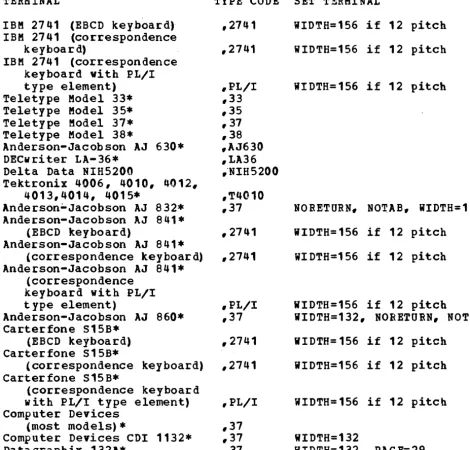
1. Terminal Sign-on Codes ••••••••••••••••••••••••••••••••• 121
I. Introduction to WYLBUR
WYLBUR is a computer program which functions as a text editor and
remote job entry facility. It was developed by the Stanford
university Computation center and adapted for use at the NIH
Computer Utility. WYLBUR is designed to give users at typewriter
terminals a comprehensive text editing facility with prompt
response, without interfering with other jobs being processed by
the central computer. The text editing facility can be used to
create, modify, store and retrieve text, such as a ~omputer
program or a letter (e.g., this manual was created using WYLBUR).
A person using WYLBUR can create (wri tten in any language) and its
would any other WYLBUR text.
facility, he can then insert
stream for processing as a normal
and edit a computer program
Job Control Language just as he
Using the remote job entry
them into the computer's input batch job.
The terminals which can be used to access WYLBUR include the
Selectric terminals (such as IBM 2741s and communicating Mag
cards); Teletypes and Teletype-compatible terminals (Models 33,
35, 37 and 38); and NIH5200 terminals and other CRTs (Cathode Ray Tube or television-screen terminals).
Selectric terminals operate at 15.9 characters per
Teletypes can access WYLBUR at 10 or 30 characters per
and CRT terminals can go up to 120 characters per second.
second. second,
This manual is written for a user with an IBM 2741 terminal, but
the differences in operation for other models are not
overwhelming. Appendixes D and E describe these differences.
The SET TERMINAL command, described in section VIII, has many
options which allow adjustment for the features of particular
terminals. Users with NIH5200 terminals should obtain a copy of
the Il~~~A~ I~~miDal ~§~,!§ g~i~.
This manual is designed to serve first as an introdaction to
WYLBUR and later as a reference text. Everyone who uses this
manual should regularly read the applicable sections of
INTERFACE, the Computer Center's series of technical notes.
Another Computer Center publication, ~lt~D~~g E[~DtiDS fA£il~tI'
explains an extension to WYLBUR which allows the user to enter,
revise, and list technical manuscripts containing superscripts,
subscripts, Greek letters, etc. These listings are done on
printers at the central facility. To order this and other
Computer Center documentation, contact the Technical Information
A. Registering to Use WYLBUR
Anyone who has a Computer Center account number, a registered set of initials, and an output box at the central facility may use WYLBUR without taking further action if he has access to a properly equipped and registered terminal.
For information on how to obtain a registered set of initials, a valid account, and an output box contact the Project Control Office, Building 12A, Room 3013, or . see the Computer Center's
~~~§ ~Dig~. Every user must have his own set of registered initials.
Mailing boxes are available for users in off-campus locations vho wish to produce output at the central facility (e.g. using WILBUR's LIST OFFLINE or RUN commands) and have i t mailed to them. Users who accept this service must take on full responsibility for delays, damage or loss incurred in the mails and m'ust limit the volume of output to be mailed to that which will fit in one 12 by 16 inch u.S. Mail Envelope.
Terminals may be registered by contact.ing Dedicated Equipment Services, Building 12A, Room 1033. They vill furnish a terminal number and red identification sticker to be affixed to the right-hand side of the terminal.
The following telephone numbers will be useful as you register and begin to use the system.
Data Phone Repair ---Dedicated Equipment Services ---Information Media Library
---~---PAL Unit
---Project Control Office (Accounts) ---System Status ---Technical Information Office (Manuals) ---Terminal Repair ---Weekend and Holiday Schedule
B. The Selectric Terminal
The IBM Selectric typewriter terminal is a device which looks and
is operated much like an ordinary electric typewriter. It has
only one additional key, ATTN (attention); on some terminals this
key is marked lNT (interrupt) and nas the same functions. The
terminal can be linked to the NIH central computer system using a
standard telephone line. When the terminal is not connected to
the computer, i t can be used as a typewriter for normal office
tasks. When i t is connected to the computer and the WILBUR
system, several keys provide functions far beyond the ability of
a normal typewriter. The following sections of this manual
explain the use of these keys and the special "commands" which together invoke WiLBUR's many services.
The NIH standard Selectrics have the Typamatic feature which
permits the user to repeat a hyphen, underline, backspace, or
space by holding the proper key down with a steady pressure.
Experienced typists should note that in WILBUR the digits 1 and 0
are not interchangeable with the letters Land
o.
Terminals with several type styles which print either 10 or 12
characters to the inch are available. Terminals which print 10
characters per inch (10 pitch) are standard and are easy to use
since their spacing matches that of the computer printers. 12
pitch terminals allow more characters to be printed on a line;
see section VIII.A.2 "SET TERMIN~L" for a command to permit this.
For information on how to obtain help with Selectric terminal
problems, consult section VIII.C. Terminal Repair. For further
details on the specifications for these terminals and ordering
information, see the Us~~§~~igi or contact Dedicated Equipment
Services.
c.
Using this ManualThe next two sections of this manual viII describe the text
editing functions of WYLBUR. Within the discussion of each
command, the simple form will be discussed first, and the options
will follow. After each paragraph describing an operation, there
will bean illustration shoving the way i t viII look when it is
typed out. In these illustrations, the userts use of a
non-typing key will be indicated' by the abbreviation for that key enclosed in parentheses (e.g., (CR) for carriage return).
Although in these examples the
capitalized, commands may be typed
and lower case letters. Also,
blanks, equal signs and commas are used interchangeably in commands.
user's commands are always
in any combination of upper
as far as WiLBUR is concerned,
D. WILBUR Functions
WILBUR can accumulate, edit, and process lines of text. The text collected and edited can be a letter, a list of statistical data, an article for a newsletter, or a computer program. The term DATA SET is used to describe any collection of such material. A data set is called an ACTIVE DATA SET while it is being held in the active part of the computer's memory so the user can work on it and is called a PERMANENT DATA SET when it is· stored on a disk. The ACTIVE DATA SET exists only while the user's WILBUR session is in progress; while PERMANENT DATA SETS are preserved between sessions. For information on migrated data sets, which are stored on tape, see section V. "Data Set Kigration."
If a data set is a complete program, it can be submitted from the terminal to be executed by the computer. and the user can employ WYLBUR commands to check on the progress of the job and to obtain the results of his job at the terminal.
There are two modes of operation in WYLBUR, collect mode and command mode. Collect mode is used for accumulating lines of text, constructing a new data set, or adding lines of text to an existing data set. Command mode is used to perform any other tasks such as listing or editing. The user is in command mode whenever he is responding to a
"?"
prompt. The user is in collect mode whenever he is responding to a line number promptE. Sign-On Proced~re
The procedure described below is for a Selectric terminal
equipped with a standard Data-Phone. Users with other terminals
should see Appendix D or E for the differences between the
procedure given below and the one they are to use. . Those using
an acoustic coupler instead of a data phone should see Appendix
F.
1. Place the COM-LCL switch located on the left side of
the 2741 terminal in the COM position. This enables
the terminal to communicate with the computer over
the telephone line. (Users with portable Selectric
terminals can omit this step).
2. Depress ON on the ON-OFF switch on the typewriter
keyboard.
3. Depress the TALK button on the Data-Phone.
4. Dial the number of the computer.
5. wait for a high-pitched tone (which should occur
after one or two rings), then depress the DATA
button. Replace the handset in its cradle.
6. Finally, type a comma and depress the RETURN key.
This causes the computer to start up the sign-on
procedure, during which it prompts the user for
information so that the validity of the user and
his account number can be checked.
The system will first type the name of the installation followed by the telephone line number, date and time, e.g.:
NIH/DCRT/CCB PORT 79 FRIDAY 05/11/77 10:35:53 A.M.
NIH/DCRT/CCB is our organization Natio,lal Institutes of
Health/Division of Computer Research and Technology/Computer
Center Branch. PORT 79 is the telephone line port being used
during this session. The day of the week and current date are
given next. The time is reported in hours, minutes, and seconds.
The system may follow this with lines giving messages of the day.
Then the system will type the pro~pt, "INITIALS?". The user
should answer by typing his registered initials, account number,
terminal identification number, and a carriage return (CR). They
may be given in any order.
INIXIALS? i i i aaaa t t t (CR)
If the user neglects to include the account number
number, it vill be prompted for separately.
permitted to have more than one terminal session in the same time.
The user is then asked to supply a keyword in order to determine that he has a right to use the account number and initials which he has just given. If this is the first time the user has signed on with a newly assigned account, the system will ask him to
supply a keyword. .
PLEASE ASSIGN A KEYWORD FOR aaaa i i i KEYWORD? kkk
This keyword must then be given every time the user signs on; so i t is important to remember it. For further information on keywords see section IV.A.3. "Using Keywords." As a protection feature, the terminal overprints the keyword with a series of miscellaneous characters. Keywords help to insure data set integrity and prevent unauthorized use of your account.
KEYWORD? kkk (eR)
Striking the attention key after the "INITIALS?" prompt will terminate the session; striking i t after any later sign-on prompt will restart the sign-on procedure, and all information previously entered will be forgotten.
The sign-on procedure is complete at this point.
?
This prompt from the system indicates that the sign-on terminal is now ready to accept WYLBUR commands.
F. Sign-Off Procedure
All the user needs to do at the end of a session is to issue a LOGOFF command. WILBUR will reply with various statistics on the session and disconnect the telephone line.
? LOGOFF (CR)
EDITING TIME
=
0.33 SECONDSELA~SED TIME = 0:25:03 CHARGE
=
$1.08END OF SESSION THURSDAI 06/23/77 4:09:45 P.M.
The editing time is the actual computer (CPU) time used during editing. Elapsed time, which is reported in hours, minutes and seconds, is the time the terminal has been connected to the computer. Billing is done in accordance with a formula which includes both of these factors. In addition, users are billed for the amount of online disk storage they use. See the Compnter Center's Y§~Ia ~~ for current details on WYLBUR charges.
WILBUR keeps track of activity at a terminal, and if nothing has been typed in at a logged-on terminal for a period of five minutes, WILBUR will ask the user to take some action to show that he is still there.
?
***
ARE IOU STILL THERE?
?
If the user doesn't type a response in reply (a carriage return is sufficient), WYLBUR will give him another five minutes and then ask again.
?
***
RESPOND OR BE LOGGED OFF.
?
If no reply is made, WILBUR will automatically logoff the
terminal after another five minutes. Remember that the LOGOFF command includes an implicit CLEAR TEXT which erases the active data set. This means that unless he has saved the material he has been working on, it will be lost. If the user wishes to save the active data set, he must do so before logging off.
The LOGON command allows a second person to use a terminal after someone is finished without having to dial the computer again. It is equivalent to a LOGOFF command followed by dialing the computer. The active data set will be cleared, the accounting data will be typed, and the user will be prompted for his initials, account number, keyword, and terminal number as if he had just dialed into the machine.
II. Creating a Data Set--The Collect Mode A. Entering Collect Mode
The terminal is in collect mode when it is prepared to accumulate lines of text typed in at the terminal and store them in the active area of the computer's memory (the active data set). The only thing the user needs to do to enter the collect mode is to type COLLECT and a carriage return in answer to WYLBUR's prompt,
"1"
1 COLLECT (CR)
WYLBUR will then type a line number and typing his information into the system.
line and hits the carriage return,
another line number and allow him
information. A single line can contain
1 COLLECT (CR)
allow the user to begin When the user finishes a WYLBUR will respond with
to continue inputting
up to 133 characters.
1. ? I am interested in creating (CR)
~. ? a WILBUR data set. (CR)
3. ?
As a convenience, the COLLECT command can be given in one of three shortened forms. The first two, COL and C, are found with the other short forms in Appendix A.
? COL (CR)
1. ?
The third consists of merely striking the Attention Key.
1 (ATTN)***
1. 1
It is possible to start collecting lines at a number other than one by specifying the number in the COLLECT command.
1 COLLECT 10 (C~
10. ?
If no line number is given in the COLLECT command, WYLBUR will, when possible, resume collecting at the place it left off when you were last in collect mode. If this is impossible because it would overwrite an already existing line, WILBUR will abort the command and print out the message, LINE NO. ALREADY EXISTS.
B. COLLECT UNNUMBERED
It is possible to collect lines without having WYLBUR prompt with a line number for each line; this is not recommended for beginners.
? COLLECT UNNUMBERED (CR)
WYLBUR will then prompt by nodding the type ball to indicate when it is ready to collect the next line. The lines in ~he active data set are still assigned line numbers so the following command is Leasonable.
? COLLECT 10 UNNUKBERED (CR)
The UNNUMBERED option makes i t possible to use the standard Selectric terminal which prints ten characters to the inch (a 10-pitch or pica machine) to collect lines ~p to 131 characters long without overstriking any characters. It also allows the user to collect onto special forms.
The UNNUMBERED option COLLECT commands given specified.
? COLLECT NUMBERED (CR)
will remain during the
C. The Use of the Special-Purpose Keys in Collect Mode
The special-purpose keys are non-typing keys which have special WILBUR functions that are different from the functions they serve on a regular typewriter. Users of other terminals should consult Appendixes D, E and F for further information.
1. Carriage Return (or Carrier Return)--this key returns the printing head to the left margin. In collect mode, it is the signal for WILBUR to prompt with the next line number so the user can continue to enter text.
2. Backspace--this key moves the printing head one space to the left, and erases from the computer's memory whatever was in the space. A whole line of type can be erased from the. computer's memory by backspacinq over it, but the user cannot go back to lines he has already terminated with a carriage return (CR). In addition, he should be careful not to backspace into the line numoer that WILBUR prompted because any characters subsequently typed in these spaces will be lost. For information on how to enter backspaces in· the text (e.g. to permit underlining), see section VIII.A.1 "SET BACK."
3. Attention--this key has two functions during collect mode. a. If the user wants to erase the entire line he is
working on, he can hit the attention key instead of using the backspace key. This vill cause WILBUR to prompt again vith the same line number. When· the attention key is hit, WILBUR vill respond with ***.
22. ? THIS LINE IS REALLI MESSED UP (ATTN)***
22. ?
b. The user can also employ the attention key to leave the collect mode. To do this, he should hit the ATTN key as the first character in the line. WILBUR will then forget that line number and ask the user for a nev command.
27. ? NOW THAT I Aft FINISHED, (CR)
28. ? I WANT TO LEAVE COLLECT MODE. (CR)
29.
? (ATTN»***?
Note that when this data set is listed (printed out on the typewriter console), there viII be no line 29.
4. Shift-Lock--This key is used just as it is on a regular typewriter. However, unless the user gives the command SET UPLOW
? COL
1.
2. 3. 4.
? LIST 1·. 2.
3.
?
(CR)
? This is a sample passage to show what (CR)
? happens when you type in upper and lower (CR)
? case without setting OPLOW and then get a listing.
?
***
(ATTN) (CR)THIS IS A SAMPLE PASSAGE TO SHOW WHAT HAPPENS WHEN IOO TIPE IN UPPER AND LOWER
CASE WI~HOUT SETTING UPLOW AND THEN GET A LISTING.
(CR)
If UPLOW is in effect, the user may revert to the normal case with all alphabetic characters in upper case by giving the SET UPPER command. SET LOWER will cause all alphabetic characters to enter the system as lower case; this is useful for users of some Teletype-compatible terminals, (see Appendix D). The command SHOW CASE can be used to find out whether UPPER, LOWER, or OPLOW is currently in effect.
Note that computer programs and Job Control Language (JCL) must be in upper case.
s.
TAB and SET-CLEAR--Setting tabs in WILBUR involves a procedure designed to make certain that the physical tabs set at the terminal and the logical tabs known to the system are in the same place.Follow these instructions carefully:
1. Clear the physical tab settings which already exist at the terminal by tabbing to the end of the line and then striking the attention key while holding down the CLEAR switch.
2. Give the command SET TABS. WILBUR will help with a line of column numbers.
? SET TABS (CR)
123456789l123456789~123456789~123456789!12 ••••
TABS ?
3. Space over to each successive column in which you want to set a tab, press the SET toggle switch and then type a
"1".
4. WILBUR will then type two verification lines containing "1's". The first line indicates the position of each logical tab; the second indicates each physical tab. If they are not the same, you have made an error in setting tabs and must begin again with step one.
? SET TABS (CR)
123456789l123456789~123456789~123456789!123456 •••
TABS ? 1 1 1 1
1 1 1 1
1 1 1 1
The user can set a maximum of 15 tabs. If he knows the positions of the physical tabs, the user may append to the SET TABS command
a list of numbers representing the column numbers for the tab
settings. WILBUR will verify as above.
If the "1's" are not directly under each other, use the long form of SET TABS to reset them in the proper positions.
? SET TABS 10,20,30,40 (CR)
1 1
1 1
1 1
1
1
Alternatively, when the user knows the positions of the physical
tabs, a starting column position, number of instances, and
increment may be specified,
? SET TABS 10+10*3(CR)
If the tabs have not been set and the tab key is used, WYLBUR
will pay no attention to the line and will issue the error
message, "USE OF UNSET TABS ILLEGAL". This also occurs if the
tab key is pressed more times than there are tab stops. If the
user is not sure how many tabs have been set, he can ask· WYLBUR to SHOW TABS.
? SHOW TABS (CR)
10 - 20 - 30 - 40 - TABS
1
1
1
1
1
1
1
1
In order to clear the tab settings during a session, clear the
physical tabs, and then CLEAR TABS. (SET NOTABS has the same
meaning.)
Once tabs have been set, they will be used when possible to speed
up listing by skipping long strings of blanks. Note, setting a
D. Lines and Line Numbers
1. Generating Line Numbers
Evecy WILBUR data set is composed of lines numbered between 0.000 and 9999.999 and arranged in ascending order. When the user is entering lines in collect mode, the system generates line numbers automatically, adding the line number increment to the present line number.
The default line number increment (the amount WYLBUR adds to the present line number to produce the next one) is 1.000. The line nUmDer increment can be set to a value other than 1.000 in several ways.
The user may set it explicitly at the time he enters collect mode as illustrated below:
? COLLECT 90 BY 10 (CR)
90. ?
This command will start collecting lines 90, 100, 110, etc. The specified increment (10) will remain in effect until it is changed. The line number increment can be set implicitly with a command which specifies a line number with a fractional part. This is useful, for example. to do a collect which will insert lines between existing lines. If this is the text:
25. to fully express our gratitude to
26. Mr. Jones. Eileen Roberts and the rest of the
Material can be inserted between these lines by enterin9:
? COLLECT 25.1 (CR) 25.1 ?
2. Line Length
A WiLBUR line can contain up to 133 characters. If more than 133
characters are entered, the excess will be lost. Notice, if you are using the SET BACK command (see section VIII.A.1. "SET BACK"), that the backspaces and over-typed characters bot.h count toward this total.
The user can set the line length to any value between 1 and 133 characters. If the user does not set the LENGTH attribute, it automatically has the value 72.
? SET LENGTH
=
30 (CR)WILBUR will accept lines which are longer than the current value of LENGTH, but a message will be typed out after each over-length line indicating that LENGTH has been exceeded.
32. ? THIS LINE IS LONGER THAN LENGTH, WHICH IS 30. (CR) LINE 32. CONTAINS 45 CHARACTERS
33. ?
The command. SHOW LENGTH, can be used to find the current value for LENGTH.
3. Referencing Line Numbers
Individual lines and groups of lines can be referenced by their line numbers. For example:
3,5,7.01
references three individual lines 3/7.01
references all lines between 3.000 and 1.010, inclusive. Special line numbers
FIRST is a special line number which can be used to reference the lowest-numbered line in a data set.
LAST references the highest-numbered line in the data set.
ALL is equal to FIRST/LAST.
4. Renumbering a Data Set
The user may have WILBUR change the line numbers of the lines of text in his active data set by typing the NUMBER command.
? NUKBER (CR)
This causes the renumbering of all the lines of text in the data set. starting at 1.000. The user may specify anotber number' at which the numbering is to begin by giving it in the command.
? NU MBER 2.065 (CR)
WYLBUR will then start at a value of 2.065 for the first new line number and vill use a line number increment of .001 (a 1 in the low-order fractional digit). The user may choose to override the line number increment and ask WILBUR to use another value.
? NUMBER 2.065 BY .01 (CR)
Remember, this command causes the renumbering of the entire data set, and the user cannot have just a specific range (section) of the data set renumbered.
III. Editing a Data Set
Using the commands explained in this section, the user can have the computer help him revise his work by changing or deleting single characters, short groups of characters or words, entire lines or even groups of lines. Changes involving entire lines or groups of lines are made using the DELETE, INSERT, REPLACE, SUPPLANT, COPY, MOVE, ALIGN, JUSTIFI and CENTER commands. The MODIFY and CHANGE commands are used to make changes within lines.
A. The LIsr Command
Frequently the user will want to see what he has written or the effects of his revisions. He can do this by commanding WIJ,BUR to LIST. The example is a form letter which shows what happens in response to a LIST command. Each line of text is printed with its associated line number. When all the lines in a data set have been listed, WILBUR prompts the user for another command.
1 LIST 1 • 2.
3. 4. 4.5 5. 6. 7. 8. 9.
10. 11. 12. 13.
?
(CR)
We regret.that because of the budget restrictions and travel ceiling under which we are now
operating, we are unable to approve your request for foreign travel.
Please feel free to calIon us at any time for information about your grant.
Sincerely yours,
Michael Sneed
Grant Specialist NBI
$
The user may want just a specific group of lines within the data set to be listed. To do this, he should give the line numbers of the first and last numbers to be listed separated by a slash.
? LI ST 5/7 (CR)
5. Please feel free to calIon us at any time
6. for information about your grant. 7.
?
? LIST (CR)
1. We regret that because of budget restrictions
2. and travel(ATTN) •••
?
The user may further wish that his listing not contain the line numbers of the lines of text.
? LIST UNNUMBERED (CR)
We regret that because of the budget restrictions and travel ceiling under which we are now
operating, we are unable to approve your request for foreign travel.
Please feel free to call on us at any time for information about your grant.
$
?
Sincerely yours,
Michael Sneed
Grant Specialist NBl
If a character is specified as a MARKER in the command, the listing will be temporarily suspended when it is encountered in the first column of a line in the range being listed. After suspension, the listing may be resumed by striking the carriage return key. Do not use the characters (), • "or
=
as markersunless you enclose them in q~otation marks. (e.g. LIST
UNNUMBERED MARKER = fl=").
? LIST MARKER
=
$ UNNUMBERED (CR)We regret that because of the budget restrictions and travel ceiling under which ve are now
operating, we are unable to approve your request for foreign travel.
Please feel free to call on us at any time for information about your grant.
Sincerely yours,
Michael Sneed
Grant Specialist NBI (CR)
1
A line which contains a MARKER in MARKER characters are recognized one. If you insert a new sheet of carriage return which begins the before typing the final carriage mar the listing of the letter.
column one is not printed.
If a document has more than one page, you can place a marker at the bottom of each page. The listing will pause when a marker is encountered and resume when you strike the carriage return.
A marker at the top of a letter can be useful in lining up the paper properly in the terminal.
Specifying DOUBLE or TRIPLE in the command will produce a listing that is double or triple spaced. This can also be accomplished by moving the line space lever on the terminal.
? LIST 1/4 DOUBLE (CR)
1. We regret that because of the budget restrictions 2. and travel ceiling under which we are now
3. operating, we are unable to approve your 4. request for foreign travel.
1
Text containing ASA carriage control characters in column one can be listed at the terminal.
1 LIST CC (CR)
This causes a single space before each line which has a blank or plus sign in column one, a double space before each line with a zero in column one, a triple space before each line containing a hyphen in column one, and five spaces before each line containing a "1" in column one. For additional information on ASA carriage control, see section VII.A.
The user may move his listing a specified number of spaces to the right by using the INDENT option. This can also be done by
moving the left margin slide.
1 LIST INDENT
=
10 (CR)The example will produce a listing which is shifted ten positions to the right. The number of spaces specified must be between one and 70. Ten is particularly useful with an UNNUMBERED listing, since i t compensates for the ten spaces occupied by the line numbers.
In order to be certain that no message from another user's terminal interrupts your listing, add the CLEAN option to the above command. This will not eliminate urgent messages sent by the computer o~erator.
? LIST CLEAN MARKER=$ (CR)
? LIST 4/10 NOT EXT (CR)
4.
4.5 5. 6.
7.
8.
9.
10.
?
The NOTEXT option is particularly useful when the user wants to find the line numbers of all lines which contain a certain series of characters.
The user can choose to list only the lines containing a certain string of characters by specifying it in the command. ~ll the above options (e.g. CLEAN, UNNUMBERED, CC, etc.) can be used to affect such a command.
? LIST 'yourt IN 2/L (CR)
3. operating. we are unable to approve your
6. for information about your grant.
8. Sincerely yours,
?
In the above example WYLBUR has found all lines containing the word "your" in the specified range (in this case 2/L) and printed their images for inspection.
Case is significant: asking for 'YOUR' would not retrieve these
lines. Notice that unless you have SET UPLON, you cannot
reference a string that contains lower case characters.
The user can also ask WYLBUR to list lines which do not contain a specified string.
? LIST NOT 'your' IN 5/11 (CR)
5. Please feel free to calIon us at any time 7.
9.
10.
11. Michael Sneed
?
For more information on the various ranges which can be
B. The DELETE, INSERT, REPLACE, and SUPPLANT Commands 1. DELETE
The user may delete (erase) a series of lines from the active data set by giving the DEiETE command and the numbers of the first and last lines of the range he wants erased.
? DELETE 5.03/6.08 (CR)
A single line can also be erased.
? DELETE 5 (CR)
Several individual lines can be erased at once.
? DELETE 5,15.2,20
He can also have all lines containing a specific character string eliminated. These lines are an associative range and the string must be enclosed in quotation marks. For further information, see section III.E. "Specifying Ranges".
? DELETE 'X = 3Y' IN ALL (CR)
This command vill eliminate all lines containing this equation
from the data set. Note, however, that if the specified
character string is split between two lines, WYLBUR will not recognize it.
2. INSERT
opposite to the DELETE command is the INSERT command.
? I~SERT 13.02 (CR) 13.02 ?
The user has specified that he wishes to insert a line numbered 13.02 and WYLBUR responds with that number and expects the user to fill in the contents of the line as would be done in collect mode.
It is also possible to insert a given line at multiple points in the active data set.
? LIST 1/6 (CR)
2. THIS IS AN OLD LINE
4. THIS IS AN OLD LINE
? INSERT 1,3,5 (CR)
1. ? I AM A NEW LINE (CR)
? LIST 1/6 (CR)
1. I Aft A NEW LINE
2. THIS IS AN OLD LINE
3. I A M A NEW LINE
4. THIS IS AN OLD LINE
5. I Aft A NEW LINE
If the user attempts to insert a line with the same number as an existing line, WILBUR replies with an error message.
3. REPLACE
Fre~uent1y, the user will want to delete the contents of and enter new contents without changing the line number. do this in a single step by issuing the REPLACE command.
? REPLACE 13.06 (CR) 13.06 ?
a line
He can
This causes WYLBUR to overwrite the old contents of the line specified with the new contents which the user types in.
The user may specify that a range of lines be replaced in which case WYLBUR will prompt successive line numbers from the specified range until the range is exhausted. As an example. suppose the data set has lines numbered 1.02, 1.03, 1.031, 1.032, 1.033, 1.04, and 1.05. Then commanding:
? R~PLACE 1.03/1.05 (CR)
will cause WYLBUR to prompt for new contents of lines 1.03,' 1.031, 1~032, 1.033, 1.04, and 1.05. A line will be replaced with a blank line if the carriage return is struck in response to a line number prompt.
The user can also REPLACE all the lines in an associative range.
? REPLACE '3*X*X*Y/3.14159' IN ALL (CR)
WILBUR will then prompt with the number of each line containing the character string that is within the quotation marks. For further information on associative ranges. see section III.E. "Specifying Ranges."
The user cannot replace the contents of a line that does not exist in the data set--i.e., use the REPLACE command to insert. To do this, he must use the INSERT command.
There are two short forms for the DELETE. INSERT and REPLACE
commands. The first is simply to type the first three characters
of the command word. The second form is the same for all
commands and consists of giving a line number followed by a
single blank and the full line of text for the inserted or
replaced line as a response to a
"1"
prompt from WILBUR. 1 13.06 THE NEW CONTENTS OF THE LINE (CR)This causes WYLBUR to put the new line image into the active data set in its appropriate place as is determined by. its line number. If 13.06 already exists in the data set, then the old line will
be replaced; if 13.06 doesn't already exist, the line will be
inserted into the data set.
Be sure to terminate the line number with a single blank.
Anything before the first blank will be used as the line number,
and anything following it will become the contents of the new
line.
If the user follows the line number with a Carriage Return, the
specified line will be deleted. Beware!
4. SUPPLANT
The SUPPLANT command makes it possible to replace the present
contents of a range of lines with a single command. When the
command is given, the system will prompt with the first line
number in the range. The entire contents of all lines in the
rang~ are replaced by what is typed in response to that prompt.
? SUPPLANT "'CLASSA' IN ALL (CR)
10. 1 PRIMARY LEVEL
-Remember that the response to the line number prompt becomes the
entire content of the lines in the range. To replace one string
with another without losing the rest of the line, use the CHANGE
C. The COpy Command
The user may find it necessary to copy the contents of a range of lines into another section of the data set he is working on, and he may ask WYLBUR to do this for him. The data set below will be used to show the effect of various copy commands.
1. THIS IS A DUKMY DATA SET WHICH WILL BE USED
2. TO SHOW THE EFFECT OF VARIOUS COPYCOKMANDS.
3. THIS
4. SAMPLE
5. IS A
6. SHORT
7. DATA SET
In the examples below, each command is followed by a listing of
the resultant data set. It is assumed that each COpy command is
given when the data set is in the form given above.
? COPY 3/5 TO 25 (Ca) 27. - LAST LINE.
? LIST (CR)
1. THIS IS A DUMMY DATA SET WHICH WILL BE USED
2. TO SHOW THE EFFECT OF VARIOUS COpy COMMANDS.
3. THIS
4. SAMPLE
5. IS A
6. SHORT
7. DATA SET
25. THIS
26. SAMPLE
27. IS A
When the COpy has been made, WYLBUR prints a message g1v1ng the
number of the last new line it created. Notice that only the
first line of the location being copied into is given in the command.
When the line number given as the location to be .copied into has
a fractional part, the line number increment used in determining
the line numbers for the copied range is a one in the low-order
fractional digit of the location number. ? COpy 6/7 TO 1.1 (CR)
1.2 - LAST LINE.
? LIST (eR)
1. THIS IS A DUMMY DATA SET WHICH WILL BE USED
1.1 SHORT
1.2 DATA SET
2. TO SHOW THE EFFECT OF VARIOUS COpy COMMANDS.
3. THIS
4. SAMPLE
5. IS A
6. SHORT
Frequently the user will want to position the copied lines at the end 'of his data set. The special line number, END, which is the integer next highei than LAST, will allow him to do this.
The line number increment can be specified in the command.
? COpy 2/5 TO END BY .001 8.003 - LAST LINE.
? LIST (CR)
1. THIS IS A DUMMY DATA SET WHICH WILL BE USED
2. TO SHOW THE EFFECT OF VARIOUS COPY COMMANDS.
3. THIS
4. SAMPLE
5. IS A
6. SHORT
7. DATA SET
8. TO SHOW THE EFFECT OF VARIOUS COpy COMMANDS. 8.001 THIS
8.002 SAMPLE 8.003 IS A
If the range to be copied overlaps the range being copied into, bizarre results may be produced.
? COpy 6/10 TO 8 BY .01 (CR) 10.02 - LAST LINE.
? LIST (CR)
1. THIS IS A DUMMY DATA SET WHICH WILL BE USED 2. TO SHOW THE EFFECT OF VARIOUS COpy CO"MANDS.
3. TH·IS
4. SAMPLE
5. IS A
6. SHORT
7. DATA SET
8. SHORT
8.01 DATA SET
8.02 SHORT
8.03 DATA SET
8.04 SHORT
8.05 DATA SET •
• •
? COpy 'A DUMMY· IN ALL TO 5.5 (CR)
TERMINATED BY ATTEMPT TO REPLACE OR INTERLEAVE. 5.9 - LAST LINE.
? L1 ST (CR)
1. THIS IS A DUMMY DATA SET WHICH WILL BE USED
2. TO SHOW THE EFFECT OF VARIOUS COPY COMMANDS.
3. THIS
4. SAMPLE
5. IS A
5.5 THIS IS A DUMMY DATA
5.6 THIS IS A DUMMY DATA
5.7 THIS IS A DUMMY DATA
5.8 THIS IS A DUMMY DATA
5.9 THIS IS A DUMMY DATA
6. SHORT
7. DATA SET
SET WHICH SET WHICH SET WHICH SET WHICH SET WHICH
WILL WILL WILL WILL WILL
BE USED BE USED BE USED BE USED BE USED
Overlapping ranges can, of course, be used deliberately to obtain
multiple copies of lines. For example,.nine additional copies of
the sample data set could be generated by giving the following
command.
? COpy 1/63 TO 8 (CR)
70. - LAST LINE.
To make a certain number of additional copies of any data set,
multiply the number of lines in the data set times the number of
additional copies wanted. Use this number (which becomes the
first line of the final copy) as the last number in the range to be copied. The first line to be copied into should be one higher
than the number of lines in the original data set. The following
example will produce 4 additional (5 total) copies of a 20 line
data set.
? COPY 1/80 TO 21 (CE) 100. - LAST LINE.
These examples illustrate the importance of considering carefully the results of a COpy command before using it.
It is also possible to copy lines from a permanent data set. See
section IV.C. "Copying Lines from a Saved Data Set" for a
D. The MOVE Command
If the user wishes to copy a range of lines and then delete the
old copy of the lines, he may do this with a single
command--MOVE. This functions exactly as the COpy command with
the following exceptions.
1. The old lines which were copied are deleted.
2. It is not possible to apply the MOVE command to a
permanent data set, since the basic philosophy is
that the user may take destructive action only upon the
current active data set."
Following are some examples of the MOVE command as applied to the sample data set used in the explanation of the copy command.
? MOVE 6/10 TO 3.1 BY .001 (CR) 3.101 - LAST LINE.
? LIST (CR)
1. THIS IS A DUMMY DATA SET WHICH WILL BE USED
2. TO SHOW THE EFFECT Of VARIOUS COpy COMMANDS.
3. THIS
3.1 SHORT
3.101 DATA SET
4. SAMPLE
5. IS A
?
The following examp~e illustrates the fact that unlike the COpy
command, MOVE will not generate multiple copies of lines.
? MOVE 'DATA SET' IN 1/6 TO 4.1 (CR)
4.1 - LAST LINE.
? LIST (CR)
2. TO SHOW THE EFFECT OF VARIOUS COPY COMMANDS.
3. THIS
4. SAMPLE
4.1 THIS IS A DUMMY DATA SET WHICH WILL BE USED
5. IS A
6. SHORT
7. DATA SET
As in the COpy command, the TO phrase may specify the special
line number END. END is the integer next larger than the current
E. Specifying Ranges
The various commands above have been illustrated with examples that show many of the ways in which groups of lines can be specified. Below is a fuller explanation of the two types of ranges and their uses.
1. An EXPLICIT aANGE is a line or group of lines identified by its line numbers. For example, this type of range can be denoted in WYLBUR by gi.ing the numbers of the first and last lines separated by a slash.
1 LIST 1/10 (CR)
The range in the command above includes all lines with numbers equal to or greater than 1.000 and less than or equal to 10.000. A s1ngle line is referred to by its number alone.
1 REPLACE 79.3 (CR)
Up to ten numbers may be specifi~d in a single explicit range. 1 DELETE 10.2,12.0,14.371,16/22,35 (CR)
FIRST and LAST can also be used to define a range, for example
FIRST/LAST 1.05/LAST
F/10.0
F and L are short forms for FIRST and LAST. The word ALL has the same meaning as FIRST/LAST.
END specifies a line number which is the integer just higher than the current LAST.
2. An ASSOCIATIVE RANGE specifies a line or group of lines each of which contains a certain series of characters. This type of range is specified by enclosing the character string within quotation marks and indicating which lines (by giving an explicit range) should be searched.
? COpy 'Charge' IN ALL TO END (CR)
In an associativ~ range, case is significant. The above command would not copy lines containing either 'charge' or 'CHARGE'. Remember that unless SET UPLOW is in effect, it is impossible to search for strings containing lower case letters.
The range of lines not containing a specified string can be selected by using NOT before the string.
The NOT facility can be used in any command which accepts an associative range. The word "NOT" can be abbreviated as "," on those terminals whose keyboards contain the not-sign.
A Se"lectric keyboard has two types of quote marks, a single quote
(I) and a double quote ("). Either of these may be used to
enclose the character string, but consistency must be maintained. Thus, the following are valid associative ranges.
"VARIABLE" IN ALL
'I*(1~ A * B**2) 1 IN 1/10
The following example. however. is not valid. "VARIABLE' IN ALL
If a quote mark appe~rs in the character string. the user must follow some additional rules. It is easiest to enclose the character string in quote marks of the opposite type from those appearing within the character string. If it is necessary to use the same type of quote marks to enclose the string, then type those quote marks that appear in the character string as two consecutive instances of the quote mark. For example:
"DON'T" IN ALL and
'DON'tT' IN ALL
both designate the range of lines that contain the character string, DON'T.
Also take note that blanks are significant in an associative range specification, so that,
" BLANKS ARE PART OF THE STRING " IN 5/15 and
"BLANKS ARE PART OF THE STRING" IN 5/15 are not equivalent range specifications.
The user may restrict an associative range by specifying the column positions within which the string must be contained in any given line.
? DELETE 'INTEGER' 10/30 IN ALL (eR)
If only one column position is specified, the string is required to start in that column position.
? MOVE 'NIH' 15 IN 1/1000 TO 1001 (CR)
The user may wish to consider only certain instances of the lines which contain the specified string of characters.
? L1 ST' I NT E G E R • ( 1 , 3, 5/10) (C R )
is legal and will list the first, third, and fifth through tenth lines in which the character string INTEGER occurs. Only the first instance of the specified string in each line will be counted. Note if column restrictions and instances are combined in a single command, columns must come first.
Instances cannot be specified in combination with a disjoint explicit range (i.e.. LIST 'INTEGER' (2,4,6) IN 2/10,20,25/100
would not work, but LIST 'INTEGER' (2~4,6) IN 2/100 would).
Blank lines are considered by WILBUR to be lines with null content. Thus, the associative range " or .. " would retrieve all blank lines in the active data set. The range ' , or .. " would retrieve all lines having one blank and at least one non-blank
F. The MODIFY Command
The MODIFY command makes i t possible to alter a line without retyping the whole line. The user can modify an explicit or associative range of lines. and WYLBUR will prompt with successive lines in the range until the range is exhausted. Using the MODIFY command causes WYLBUR to type out the line to be modified and request the user to enter his alterations. Fast typists might consider using the CHANGE or REPLACE commands even to make alterations in single lines.
? MODIFY 23.54 (CR)
23.54 THIS LINE IS TOOO BE MODIFID ALTERS ?
Several types of alterations may now be made to the line of text. After the alteration has been made. WYLBUR will type a copy of the altered line and then prompt for further alterations.
1. To delete characters from a 1ine--0
The first thing that the user wants to do to this line is to remove the extra characters in TOOO. Deleting these characters is accomplished by typing a D underneath the characters to be removed.
? MODIFY 23.54 23.54 THIS ALXERS ?
(CR)
LINE IS TOOO BE HODIFID DD (CR)
23.54 ALTERS ?
THIS LINE IS TO BE MODIFID
Actually, the user need type a D only under the first and last character of the string which is to be deleted--everything between the two D·s will also be deleted.
? MODIFY 23.54 23.54 THIS ALTERS ?
(CR)
LINE IS TO BE MODIFID
D D (CR)
23.54 ALTERS ?
THIS LINE IS TO BE MOD
2. To insert characters in a line--I
The user may also insert new characters into the line by first typing an I underneath the character before which the insertion is to be made and following this with the character string to be inserted. Any blanks typed between the I and the carriage return
will be inserted in the line.
? MODIFY 23.54 23.54 ·THIS ALXERS ?
(CR)
LINE IS TO BE MOD
I NOW (CR) 23.54
ALTERS ?
THIS LINE IS NOW TO BE ~OD
3. To replace characters in a line--R
Finally, the user may replace a character string in the line contents by typing an R under the first character to be replaced and following this with a string of characters which are the replacements. As many characters are replaced, starting with the one over the R, as there are characters in the string.
(CR)
LINE IS NOW TO BE MOD
? MO D1 PY 23. 54
23.54 THIS
ALTERS ? RBEING MOD1FIED(CR)
THIS LINE IS NOW BEING MODIFIED 23.54
ALTERS ?
Using the R indicator restricts the user to replacing a number of characters with the same number of characters. If the user wants to do a replacement with a different number of characters, he may use a combination of the 0 and I indicators.
? MODIFY 23.54
ALT~RS ?
23.54 ALlERS?
23.54 (CR)
THIS LINE IS NOW BEING MODIFIED
D DIIN THE PROCESS OF(CR)
THIS LINE IS IN THE PROCESS OF BEING MODIFIED
The D D caused the word NOW to be deleted and the I under the blank following the word NOi caused the string following the I to be inserted before the blank. The user need not type the second D to indicate the range of the deletion since the occurrence of the I indicator will automatically cause the deletion range to be terminated in the character position just before the I occurs. The user may also follow the D range with a replacement indicator and a string of replacement characters.
? MODIFY 23.54 23.54 THIS
(CR)
LINE IS IN THE PROCESS OF BEING MODIFIED
D DRHAS BEEN(CR)
ALTERS ? 23.54 ALTERS?
4. To complete the alteration process
The user signals that he has made all alterations to the line by
typing nothing into the ALTERS line but a carriage return.
23.54 ALTERS?
?
THIS LINE HAS BEEN MODIFIED
(Ga)
NOTE!! Using (ATTN) instead of (CR) will cause WYLBUR to revert to the original version of the line. (See below.)
5. To suspend listing--N
In all of the above examples. the modified image of the line was typed out after the user had specified the alteration. This listing may be suspended by typing an N before giving any alteration indicators.
? MODIFY 23.54 (CR)
23.54 THIS LINE IS TOOO BE MODIFID ALTER S ? N DO (CR)
ALTERS ?
The position o£ the N is of no concern to WYLBUR as long as i t appears before any other characters on the alteration line. On the other hand, the user may get a copy of the modified line. as i t stands after correction, by typing a few blanks into the alteration line before hitting Return (remember that hitting
Return alone causes the modification process to be terminated) •
? MODIFY 23.54 (CR)
23.54 THIS LINE
?
ALTERS? N
ALi' ERS ? (CR)
23.54 THIS LINE ALTERS ? (CR)
IS TOCO BE MODIFID DO (CR)
IS TO BE MODIFID
6. Using the ATTN key during editing
The ATTN key is also used during the modification process to signal directions to WYLBUR. If ATTN is struck at the end of an alteration line. WYLBUR will ignore ,these c