Building Digital Libraries using DSpace 7th – 11th March, 2005
DRTC, Bangalore. Paper: I
Lucene Search Engine: An Overview
ARD Prasad
and
Dimple Patel
Documentation Training and Research Centre Indian Statistical Institute
Bangalore
Abstract
Dspace uses the Lucene Search Engine for searching and
browsing for documents. This paper describes the
architecture of Lucene Search Engine and how it functions.
Paper also describes browsing and searching facilities
1. Introduction
DSpace is a digital document object management system used to store, archive, search and retrieve “digitally-born” documents. DSpace uses the Jakarta search engine Lucene. Lucene is a simple, but high-performance and powerful search engine. It gives the capabilities of fielded searching, stop word removal, stemming, and the ability to incrementally add new indexed content without regenerating the entire index.
2.
Search features of digital libraries
Before going into the details of the Lucene architecture and search capabilities within DSpace, it is important to know what search features are expected of a digital library / institutional repository. In his study of various digital libraries and their search features, Smith (1), has enumerated the following features that are essential in a digital repository. Lucene satisfies almost all of these features.
Boolean logic
Phrase and Proximity Searching Relevancy ranking
Browsing of indexes Truncation
Field searching
Case sensitive searching Controlled vocabulary Language Translation Date/range searching Refining of initial search Related items
Multimedia searching
Advanced and basic search facilities Display formats
Help and documentation information
3.
Lucene - Overview
Lucene was developed by Doug Cutting during 1997-8. Lucene is a Java-based open source toolkit for text indexing and searching. It is one of the projects of Apache Jakarta and is licensed under the Apache Software License. It should be noted that Lucene is not a full-featured search application that one can start using it ‘as is’. It is a software library, with indexing and searching capabilities that can be integrated with various applications. Lucene, being a Java library, is very flexible when compared to other search applications.
4.
Applications using Lucene
Apart from DSpace, there are many other applications and websites using Lucene for indexing and searching purposes. Some of them are (3):
• Aduna Metadata Server - RDF-based indexing server for metadata and full text
• Eyebrowse - a browser for Unix mbox format mail archives
• LuceneBook.com "search inside" the book, merged with a blog and dynamic Table of Contents
• SnipSnap - weblog and wiki Software
• Eclipse IDE
• Encyclopedia Britannica CD-ROM/DVD
• FedEx
• Hewlett-Packard
• New Scientist magazine
• Epiphany Web Browser
• MIT’s OpenCourseware
• Akamai’s EdgeComputing platform, and so on.
Websites using Lucene:
• Community of Science - Resources for Researchers
• jGuru
• Hungarian Ministry of Health
• TheServerSide
5.
Browsing and Searching in DSpace
This section discusses the browsing and searching facilities available in DSpace. It also discusses the Search Syntaxes for different types of queries.
5.1 Browsing in Dspace
Browse allows you to go through a list of items in some specified order. Dspace allows you to browse through
• Community/Collection, • by Title,
• by Author and • by Date
5.1.1 Browse by Community/Collection
This option takes you through the communities in alphabetical order and allows you to see the collections within each community.(see Fig.3)
Fig.3 Browse by Communities/Collections
5.1.2 Browse by Title
Fig. 4 Browse by Title
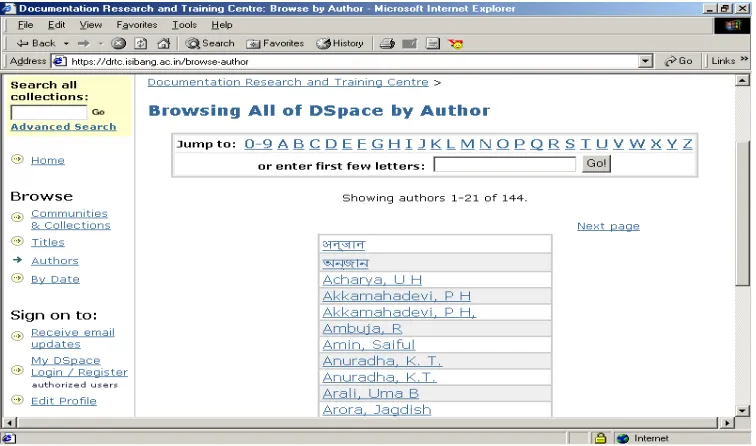
5.1.3 Browse by Author
This option allows you to move through an alphabetical list of all authors of items in DSpace. (see Fig. 5)
Fig. 5. Browse by Author
5.1.4 Browse by Date
This option allows you to move through a list of all items in DSpace in reverse chronological order. You can change this option by clicking on the “Show Oldest First” link on the top right of the page. (see Fig. 6)
Fig. 6 Browse by Date
5.2 Searching in DSpace
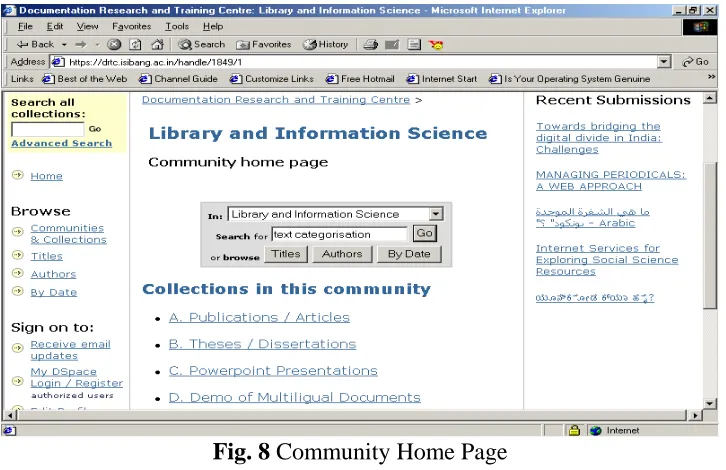
You can conduct search in a DSpace repository in two ways. One, you can search through all the Communities and Collections of the repository; two, you can restrict your search to a specific Community or Collection.
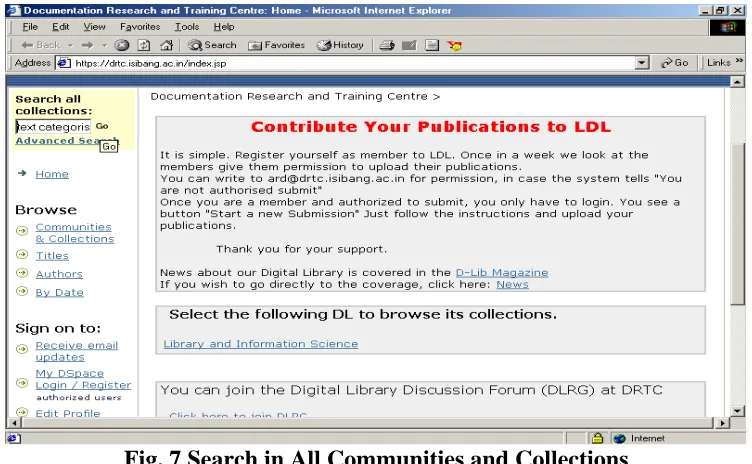
To search in all the Communities and Collections of the repository, use the yellow search box at the top of the navigation bar on the left. (see Fig. 7) The word(s) you enter in the search box will be searched against the title, author, subject abstract, series, sponsor and identifier fields of each item's record.
Fig. 7 Search in All Communities and Collections
Fig. 8 Community Home Page
Fig. 9 Collection Home Page
6. Search
Syntax
The syntax of the queries is given below.
6.1 Exact Term/Phrase Search
The search term can be a word or a phrase. One can use a search word, e.g. “information” or a phrase “information retrieval”. For phrase search, the phrase should be enclosed with double quotes.
Put a plus (+) sign before a word if it MUST appear in the search result. For instance, in the following search the word "science" is optional, but the word "library" must be in the result.
e.g. +library science
Put a minus (-) sign before a word if it should not appear in the search results. Alternatively, you can use NOT. This can limit your search to eliminate unwanted hits. For instance, in the searches
e.g. planning – management planning NOT management
you will get items containing the word "planning", except those that also contain the word "management".
6.2 Field Search
One can search for a term in a particular field. For example, author:jaba
title:web keyword:ocr
handletext:13 (brings the document having the handle number 13 in the result)
abstract:digital mimetype:msword sponsor:ala
6.3 Wild cards & Stemming
The symbol ‘?’ is used for a single character, as in ‘te?t’ that matches words like ‘test’, ‘text’ etc. The symbol ‘*’ is used for multiple characters matching, as in “inf*” matches with information, informetrics, etc.
The search engine automatically expands words with common endings to include plurals, past tenses, etc.
6.4 Fuzzy Search
One of the popular fuzzy search algorithms is Levenshtein distance algorithm named after the Russian scientist Vladimir Levenshtein, who devised the algorithm in 1965. It is also called ‘Edit Distance algorithm’.
Levenshtein Distance (LD) is a measure of the similarity between two strings, which we will refer to as the source string (s) and the target string (t). The distance is the number of deletions, insertions, or substitutions required to transform s into t. For example,
• If s is "test" and t is "test", then LD(s,t) = 0, because no transformations are needed. The strings are already identical.
• If s is "test" and t is "tent", then LD(s,t) = 1, because one substitution (change "s" to "n") is sufficient to transform s into t.
The Levenshtein distance algorithm has been used in: • Spell checking
• Speech recognition • DNA analysis • Plagiarism detection
In Dspace implementation, one can use in the following way:
Example: author:sanker~ can match shankar
You can notice, the search word has ‘sa’ not ‘sha’ and also ‘ker’ not ‘kar’.
6.5 Proximity Search
Proximity search is used in a query to retrieve documents that have two words or phrases in proximity i.e. that they appear near to each other.
“information system”~3
Decision Support Systems : A tool for Information Managers Thesaurus in an Automated Information Retrieval System International Nuclear Information System: An Overview
6.6 Range search
If the search query is:
author:[prasad to rao]
Then the system retrieves documents authored by names that fall between ‘prasad’ and ‘rao’.
Whereas, the query ‘author:{prasad to rao}’ excludesPrasad and Rao
6.7 Boosting a Term
Lucene provides the relevance level of matching documents based on the terms found. To boost a term use the caret, "^", symbol with a boost factor (a number) at the end of the term you are searching. The higher the boost factor, the more relevant the term will be the search result.
Boosting allows you to control the relevance of a document by boosting its term. For example, if you are searching for
Internet web
and you want the term "internet" to be more relevant, boost it using the ^ symbol alongwith the boost factor next to the term. You should type:
internet^5 web
By default, the boost factor is 1. Although the boost factor must be positive, it can be less than 1 (e.g. 0.2)
6.8 Boolean Search
Boolean ‘AND’, ‘OR’, ‘NOT’ are used for Boolean combinations. Boolean operators should be in caps.
• ‘OR’ is the default conjunction operator. One can use ‘||’ instead of ‘OR’. • Either ‘AND’ or ‘&&’ can be used for Boolean ‘AND’.
• Either ‘NOT’ or ‘!’ can be used for Boolean ‘NOT’.
Examples:
• “library science” AND “information science” matches documents where both
terms exist anywhere in the text of a single document
• “library science” OR “information science” links two terms and finds a matching
document if either of the terms exist in a document
• “library science” NOT “information science” excludes documents that contain
the term after NOT, in this case it retrieves documents that do not contain the term “information science”.
6.9 Group Search
Parentheses can be used in the search query to group search terms into sets, and operators can then be applied to the whole set. For example,
(interactive resources OR learning objects) AND (Geography)
The above search query retrieves documents that WILL contain the term Geography and either term interactive resources or learning objects may exist in the retrieved document.
6.10 Field Grouping
Parentheses can be used to group multiple clauses to a single field. For example, To search for a title that contains both the word "Geography" and the phrase " interactive resources" use the query:
title: (+”interactive resources” +Geography)
7. Advanced
Search
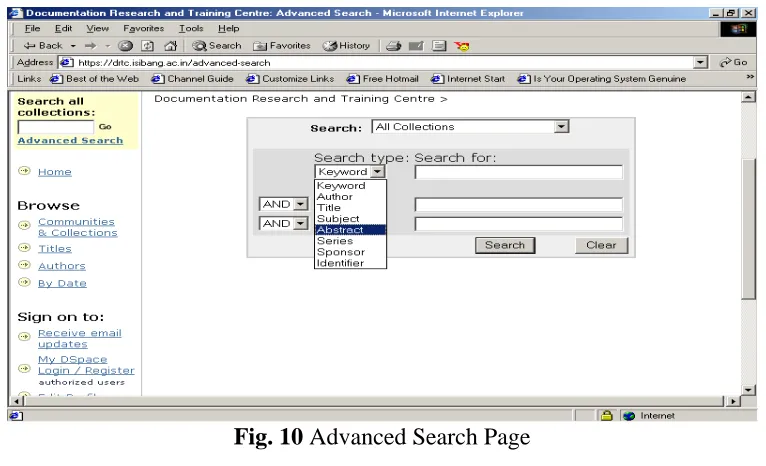
The advanced search page allows you to specify the fields you wish to search, and to combine these searches with the Boolean "and", "or" or "not".
You can restrict your search to a community by clicking on the arrow to the right of the top box. If you want your search to encompass all of DSpace, leave that box in the default position. Then select the field to search in the left hand column and enter the word or phrase you are searching in the right hand column. You can select the Boolean operator to combine searches by clicking on the arrow to the right of the "AND" box.
You MUST use the input boxes in order. If you leave the first one blank your search will not work.
Fig. 10 Advanced Search Page
8. Stop-words
The search engine ignores certain words that occur frequently in English, but do not add value to the search. These are: "a", "and", "are", "as", "at", "be", "but", "by", "for", "if", "in", "into", "is","it","no", "not", "of", "on", "or", "such", "the", "to", "was"
9. References
1. Smith, Alastair G. Search features of digital libraries. Information Research, 5 (3), April 2000. http://informationr.net/ir/5-3/paper73.html
2. Goetz, Brian. The Lucene search engine: Powerful, flexible, and free http://www.javaworld.com/javaworld/jw-09-2000/jw-0915-lucene_p.html 3. Applications using Jakarta Lucene
4. Gospodnetic, Otis and Hatcher, Erik. Lucene in Action: Meet Lucene Pt. 1. Reproduced from ‘Lucene in Action’ by permission of Manning Publications Co. ISBN 1932394281, copyright 2004.
http://www.webreference.com/programming/lucene/
5. Cutting, Doug. Lucene. Lecture at University of Pisa, November, 2004. http://lucene.sourceforge.net/talks/pisa/
6. Hatcher, Erik. Lucene Intro. 30th July, 2004. http://today.java.net/lpt/a/16 7. Jakarta Lucene – Overview http://jakarta.apache.org/lucene/docs/index.html 8. Jakarta Lucene – Query Parser Syntax
http://jakarta.apache.org/lucene/docs/queryparsersyntax.html 9. Gilleland, Michael. Levenshtein Distance, in Three Flavors.
http://www.merriampark.com/ld.htm