I33-003-2005
Guide to the Secure Configuration
and Administration of Microsoft
Exchange 2000
Systems and Network Attack Center (SNAC)
[email protected]
Updated: 15 Dec. 2004 Version 1.3a Author: Trent Pitsenbarger
Warnings
Do not attempt to implement any of the settings in this guide without first testing in a non-operational environment.
This document is only a guide containing recommended security settings. It is not meant to replace well-structured policy or sound judgment. Furthermore this guide does not address site-specific configuration issues. Care must be taken when implementing this guide to address local operational and policy concerns. The security changes described in this document only apply to Microsoft Windows 2000 systems and should not be applied to any other Windows 2000 versions or operating systems.
This document contains possible recommended settings for the system Registry. Windows 2000 system operation can be severely impaired or disabled with incorrect changes or accidental deletions when using a Registry editor
(Regedt32.exe or Regedit.exe) to change the system configuration. There is no “undo” command for deletions within the Registry. Registry editor prompts user to confirm the deletions if “Confirm on Delete” is selected from the options menu. When user deletes a key, the message does not include the name of the key being deleted. Check selection carefully before proceeding.
SOFTWARE IS PROVIDED "AS IS" AND ANY EXPRESS OR IMPLIED WARRANTIES, INCLUDING, BUT NOT LIMITED TO, THE IMPLIED
WARRANTIES OF MERCHANTABILITY AND FITNESS FOR A PARTICULAR PURPOSE ARE EXPRESSLY DISCLAIMED. IN NO EVENT SHALL THE CONTRIBUTORS BE LIABLE FOR ANY DIRECT, INDIRECT, INCIDENTAL, SPECIAL, EXEMPLARY, OR CONSEQUENTIAL DAMAGES (INCLUDING, BUT NOT LIMITED TO, PROCUREMENT OF SUBSTITUTE GOODS OR SERVICES; LOSS OF USE, DATA, OR PROFITS; OR BUSINESS INTERRUPTION)
HOWEVER CAUSED AND ON ANY THEORY OF LIABILITY, WHETHER IN CONTRACT, STRICT LIABILITY, OR TORT (INCLUDING NEGLIGENCE OR OTHERWISE) ARISING IN ANY WAY OUT OF THE USE OF THIS
SOFTWARE, EVEN IF ADVISED OF THE POSSIBILITY OF SUCH DAMAGE. This is a living document and revisions will be constant; the change control area will state modifications. See Microsoft’s web page for the latest changes or modifications to the Windows 2000 operating system and applications.
A
ckn
o
w
le
d
g
e
m
e
n
ts
Acknowledgements
The foundation of this document is based on Exchange security guidance developed by the Mitre Corporation under contract to the NSA.
Some parts of this document were drawn from Microsoft copyright materials with their permission.
T
ra
d
e
m
a
rk
In
fo
rm
a
tio
n
Trademark Information
Microsoft, MS-DOS, Windows, Windows 2000, Exchange 5.5, Exchange 5.0, Exchange 2000, Outlook 2002, Outlook 2000, and IIS are either registered trademarks or trademarks of Microsoft Corporation in the U.S.A. and other countries.
T
a
b
le
o
f
C
o
n
te
n
ts
Table of Contents
Warnings ...iii
Acknowledgements ...v
Trademark Information ...vi
Table of Contents ...vii
Table of Figures ...xiii
Table of Tables...xv
Introduction...1
Getting the Most from this Guide ...1
Commonly Used Names ...2
About the Guide to Securing Configuration and Administration of Microsoft Exchange 2000 Server...2
An Important Note About Operating System Security ...3
Chapter 1 ...5
Exchange 2000 Installation...5
Preparing for Installation ...5
Administrative Rights and Prep Utilities ...5
Installation Directory...6
Installation ...6
Post Installation...8
Service Packs and Hot Fixes ...8
Administrative and Routing Group Display ...8
OS Guideline Compatibility ...8
Shared Directory Permissions...9
Important Security Points ...9
Chapter 2 ...11
Outlook 2002 Security ...11
Security For Outlook 2002 ...11
Outlook 2002 Installation ...12
Outlook 2002 Configuration Setup...13
Outlook Folders...15
Outlook Folder Permissions ...16
Outlook E-mail Security ...19
Attachment Security ...19
Macro Security ...21
Secure Messages ...22
Script Protection ...24
Read as Plain Text ...28
T
a
b
le
o
f C
o
n
te
n
ts
Outlook Security Administrative Package ... 28
Trusted Code Control ... 29
Outlook Security Settings Customization ... 29
Deployment of Customized Security Settings ... 35
Administrative Control of Outlook Security Settings... 36
Important Security Points ... 36
Chapter 3... 37
Administrative Permissions... 37
System Manager ... 37
Exchange Permissions ... 37
Windows 2000 Security Groups ... 39
Administrative Roles and the Delegation Wizard ... 40
Delegation Wizard Invoked at the Organization Level ... 41
Delegation Wizard Invoked at the Administrative Group Level ... 41
Administrative Account Structure ... 42
Important Security Points ... 43
Chapter 4... 45
Administrative and Storage Groups ... 45
Administrative Models ... 45
Server Objects... 45
Diagnostics Logging Tab ... 45
General Tab - Message Tracking ... 47
Policies Tab ... 47
Monitoring Tab ... 47
Storage Groups ... 48
Mailbox Store... 50
General Tab ... 50
Limits Tab ... 51
Policies Tab ... 52
Logons Container ... 52
Mailboxes Container ... 52
Mailbox Permissions... 53
Send As, Receive As, and Send On Behalf of Permissions... 55
Public Folder Store ... 56
General, Limits, Policies Tabs and Logons Container ... 56
Public Folders... 56
Limits... 57
Client Permissions ... 57
Public Folder Creation Rights Default ... 58
System Policies ... 59
Important Security Points ... 59
T
a
b
le
o
f
C
o
n
te
n
ts
Multi-Server Configurations ...61
Routing Groups – A Brief Overview ...61
Routing Group Connector ...61
SMTP Connector ...62
X.400 Connector ...63
Multiple Servers Within a Routing Group...63
Common Connector Administrative Restrictions ...64
Other Connectors...65
Important Security Points ...65
Chapter 6 ...67
SMTP Virtual Server ...67
Security Features For Incoming Connections...67
Access Control ...67
Secure Connections ...69
Relay Restrictions ...69
Global Filters ...69
Security Features For Outbound Connections ...69
Message Restrictions...70
Global Message Restrictions ...71
SMTP Protocol Logging ...71
SMTP Banner...72
Relationship Between Virtual Machines Vs. Connectors...73
Important Security Points ...74
Chapter 7 ...77
HTTP Access...77
Security Concerns With OWA...77
Authentication ...77
Data Confidentiality ...78
Important Security Points ...79
Chapter 8 ...81
Certificates and Advanced Security ...81
Security Concerns with “Advanced Security”...83
Client Advanced Security...87
Certificate Revocation ...88
Key Recovery...93
Important Security Points ...93
T
a
b
le
o
f C
o
n
te
n
ts
Network Protocols ... 95
Security For Protocol Virtual Servers ... 95
POP3 ... 95
IMAP4 ... 101
POP3 and IMAP Banners... 102
LDAP ... 103
HTTP ... 105
NNTP ... 106
Protocol Logging... 109
Mailbox Protocol Settings ... 110
Important Security Points ... 111
Chapter 10... 113
Developing Custom Applications... 113
Introduction ... 113
General Security Considerations... 113
Permissions ... 114
Security Descriptors... 114
Exchange 2000 Roles... 114
Data Access Applications ... 115
WSS Data Access ... 115
Active Directory Data Access ... 115
Extending Application Capabilities ... 116
Event Sinks... 116
Workflow Components... 116
Web Applications... 116
WSS Forms ... 117
Outlook Forms ... 120
Important Security Points ... 120
Chapter 11... 123
Extending the Exchange Environment ... 123
Introduction ... 123
Solution 1 – Mail Forwarder ... 123
Solution 2 – Front-end/Back-end Servers ... 125
Solution 3 – Terminal Server ... 126
Solution 4 – Remote Access ... 127
Important Security Points ... 127
Chapter 12... 129
Chat Services ... 129
T
a
b
le
o
f
C
o
n
te
n
ts
General Tab ...130
Channels Tab ...131
Security Tab ...131
Authentication Tab ...133
Enabling Server Connectivity ...133
Removing or Disabling a Chat Community ...134
Channels ...134
Security Background ...134
Creating a Channel ...134
Access Tab...135
Security Tab ...136
Modes Tab ...136
Extensions Tab...137
Classes ...138
General Tab ...138
Access Tab...139
Settings Tab ...140
Bans ...141
Creating Dynamic Channels from the Client...142
Direct Client-to-Client (DCC) Connections ...143
Important Security Points ...143
Chapter 13 ...145
Instant Messaging ...145
Installation and Configuration ...145
Installation ...145
Home and Routing Servers...145
Firewalls ...146
Authentication and Password Policy ...147
Managing Users ...147
Configuring Users ...147
Controlling External Access ...148
Managing Servers ...148
Removing a Server ...148
Taking a Server Offline ...149
Limits and Logging ...149
Database and Transaction Logs ...150
Managing Clients ...151
Presence and Privacy ...151
Important Security Points ...152
Chapter 14 ...155
Final Thoughts ...155
Third Party Malicious Code Countermeasures ...155
Backup and Recovery Procedures ...155
Distribution Group Security ...156
T
a
b
le
o
f C
o
n
te
n
ts
Important Security Points ... 157
Addendum A - Exchange 2000 and Active Directory Integration... 159 Changes ... 161
T
a
b
le
o
f F
ig
u
re
s
Table of Figures
Figure 1. Exchange 2000 Server Component Installation Screen ... 7
Figure 2. Installation Warning Box... 7
Figure 3. Outlook 2002 Access Control List ... 13
Figure 4. Advanced Setup for Outlook 2002 Client ... 14
Figure 5. Offline Folder File Settings ... 15
Figure 6. Calendar Folder Permissions ... 17
Figure 7. Delegate Access ... 18
Figure 8. Delegate Permissions ... 19
Figure 9. Outlook Security Options... 23
Figure 10. Security Zones Settings ... 25
Figure 11. Custom Security Zone Settings... 26
Figure 12. Default Security Settings on Outlook Security Template ... 30
Figure 13. Programmatic Settings Window ... 33
Figure 14. Trusted Code Window... 35
Figure 15. Diagnostic Logging Tab of the Server Properties Page... 46
Figure 16. Server Monitoring ... 48
Figure 17. General Tab of Storage Group Properties Page... 49
Figure 18. General Tab of Mailbox Store Properties Page ... 50
Figure 19. Limits Tab of Mailbox Store Properties Page... 51
Figure 20. Advanced Tab of Mailbox Properties Page... 53
Figure 21. Mailbox Rights Page ... 54
Figure 22. The Security Tab of the Properties Page of a User ... 55
Figure 23. SMTP Connector Advanced Tab under Properties Page ... 62
Figure 24. Content Restrictions Tab of Properties Page... 64
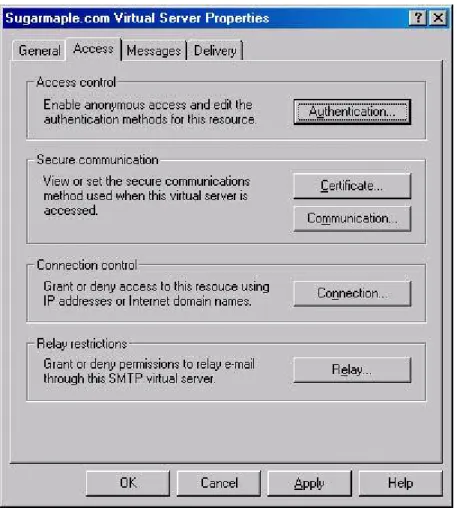
Figure 25. Properties Page Access Tab... 68
Figure 26. Messages Tab... 70
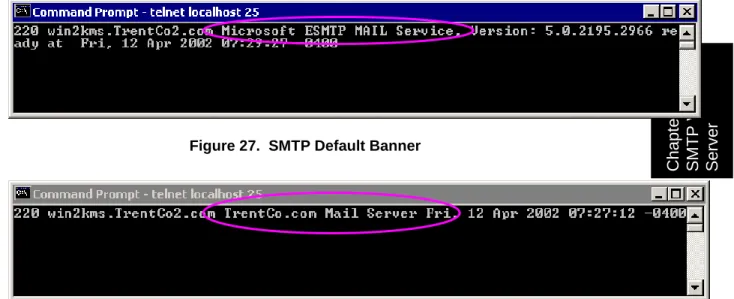
Figure 27. SMTP Default Banner ... 73
Figure 28. SMTP Banner After Modification ... 73
Figure 29. HTTP Access - Authentication Options... 78
Figure 30. Certificate Templates ... 82
Figure 31. KMS Password Option Selection ... 82
Figure 32. Encryption Configuration Properties ... 84
Figure 33. Minimum Key Length Violated ... 85
Figure 34. Enrollment Tab ... 86
Figure 35. Passwords Tab... 87
Figure 36. Security Options Dialog Box ... 88
Figure 37. Revoked Certificate Properties ... 90
Figure 38. Revocation List Publishing ... 91
Figure 39. User Prohibited From Sending Messages by the CRL Check ... 91
Figure 40. Attempting to Send an Encrypted Message to a User on a CRL... 92
Figure 41. Signed Message Received From User on a CRL ... 92
Figure 42. Exchange System Manager Protocols Container ... 96
Figure 43. POP3 Virtual Server Properties ... 97
Figure 44. POP3 Virtual Server Access Properties... 98
Figure 45. POP3 Virtual Server Authentication Properties ... 99
Figure 46. Require Secure Channel Dialog Box ... 99
Figure 47. Connection Restriction Dialog Box... 100
Figure 48. Client-Side POP3 Authentication Settings ... 101
Figure 49. IMAP4 Virtual Server Properties ... 102
Figure 50. Passwords Sent in the Clear - LDAP ... 103
Figure 51. Outlook 2002 Configured for LDAP/SSL... 104
T
a
b
le
o
f
F
ig
u
re
s
Figure 53. Directory Security Settings for HTTP Virtual Server... 106
Figure 54. NNTP Virtual Server Properties... 107
Figure 55. Authentication Methods for NNTP Virtual Server ... 108
Figure 56. Anonymous Access Account for NNTP ... 108
Figure 57. Default Web Site Properties ... 109
Figure 58. Diagnostics Logging for the Exchange Server ... 110
Figure 59. User/Mailbox Properties for Protocol Settings ... 111
Figure 60. Virtual Directory Properties ... 118
Figure 61. Authentication Methods ... 119
Figure 62. Mail Forwarder Solution ... 124
Figure 63. Advanced Delivery Options ... 124
Figure 64. Front-end/Back-end Servers... 125
Figure 65. Terminal Server Solution ... 126
Figure 66. General Tab of the Chat Communities Property Page ... 130
Figure 67. Channels Tab of Chat Communities Property Page... 131
Figure 68. Security Tab of Chat Communities Property Page... 132
Figure 69. Authentication Tab of Chat Communities Property Page ... 133
Figure 70. Access Tab of Channel Properties Page... 135
Figure 71. Security Tab of the Channel Property Page ... 136
Figure 72. Modes Tab of Channels Property Page ... 137
Figure 73. General Tab of User Class Property Page ... 138
Figure 74. Access Tab of User Class Property Page ... 139
Figure 75. Settings Tab of User Class Property Page ... 140
Figure 76. General Tab of User Ban Property Page... 142
Figure 77. Creating a Chat Room ... 143
Figure 78. Firewall Topology Properties ... 146
Figure 79. Disabling Instant Messaging For a User’s Account ... 147
Figure 80. Privacy Tab of User Property Page for IM ... 148
Figure 81. Removing an IM Virtual Server... 149
Figure 82. Limiting user connections and enabling logging... 150
Figure 83. Designating a New Location for IM Database and Transaction Log Files ... 151
Figure 84. Privacy Tab of MSN Messenger Client Options ... 152
Table of Tables
Table 1. Outlook 2000 Access Control List ... 13
Table 2. Folder Permission Levels ... 16
Table 3. Delegate Access Permissions Levels ... 18
Table 4. Level 1 and Level 2 File Type Description ... 21
Table 5. Restricted Zone Custom Settings... 27
Table 6. Attachment Settings ... 31
Table 7. Custom Form Settings ... 32
Table 8. Programmatic Settings ... 34
Table 9. Key Settings ... 35
Table 11. Permissions with Delegation Wizard Invoked at Organization Level ... 41
Table 12. Permissions with Delegation Wizard Invoked at Administrative Group Level... 42
Table 13. Administrative Roles ... 58
Table 14. Log File Format Options ... 72
In
tr
o
d
u
ct
io
n
Introduction
This document describes how to securely install, configure, and administer the Exchange 2000 server1. It is intended for the reader who is already familiar with Exchange 2000 Server but needs to understand more on how to make it more secure. This document is intended as a complement to the Windows 2000 Security Recommendation Guides available at http://www.nsa.gov.
In writing this guide the authors found that in many cases it is difficult to recommend specific, concrete actions due to the wide variety of operational environments in which Exchange can be used. Instead, a summary is offered which describes the concerns and recommends solutions that a user must tailor to his/her own environment. Major points or recommendations will be noted at the end of each section in a bulleted list for ease of reading and implementation.
WARNING: This guide does not address security issues for the Microsoft Windows 2000 operating system that are not specifically related to the Microsoft Exchange Server.
PLEASE NOTE THAT THESE DOCUMENTS ASSUME THAT THE READER IS A KNOWLEDGEABLE WINDOWS 2000 ADMINISTRATOR. A knowledgeable Windows 2000 administrator is defined as someone who can create and manage accounts and groups, understands how Windows 2000 performs access control, understands how to set account policies and user rights, is familiar with how to set up auditing and read audit logs, etc. These documents do not provide step-by-step instructions on how to perform these basic Windows 2000 administrative functions – it is assumed that the reader is capable of implementing basic instructions regarding Windows 2000 administration without the need for highly detailed instructions. In addition, most Microsoft products still require an administrator’s ability to view, compare, and change Registry settings. To do this properly and safely (with regard to the systems continued operation) requires experience and care and should not be attempted by someone not experienced in doing it properly.
Getting the Most from this Guide
The following list contains suggestions to successfully configure and administer the Microsoft Exchange 2000 Server:
WARNING: This list does not address site-specific issues and every setting in this book should be tested on a non-operational network.
Read the guide in its entirety. Omitting or deleting steps can potentially lead to an unstable system and/or network that will require reconfiguration and
reinstallation of software.
Perform pre-configuration recommendations:
Perform a complete backup of your system before implementing any of the recommendations in this guide.
1
There are two versions of the server – the Exchange 2000 Server and the Exchange 2000 Enterprise Server. Unless specifically noted, the discussions are applicable to both.
In
tr
o
d
u
ct
io
n
Follow the security settings that are appropriate for your environment.
Commonly Used Names
Throughout this guide the network names and the subnets will be used in the examples, screenshots, and listings.
WARNING: It is extremely important to replace the network names and subnets with the appropriate network name and subnet for the networks being secured.
About the Guide to Securing Configuration and Administration of
Microsoft Exchange 2000 Server
This document consists of the following chapters:
Chapter 1, “Exchange 2000 Installation,” provides an overview of the pertinent security issues related to the installation of the Exchange 2000 server.
Chapter 2, “Outlook 2002 Security,” describes Outlook 2002 security configuration options for installation and operation. It also describes the configuration of the Outlook Security Template.
Chapter 3, “Administrative Permissions,” describes the configuration of permissions that can be assigned to Windows 2000 users/groups for Exchange objects within the Exchange System Manager. It also summarizes tools for managing permissions within Exchange.
Chapter 4, “Administrative and Storage Groups,” describes the administrative models that can be implemented with administrative groups and presents an overview of the security relevant settings associated with administrative and storage groups.
Chapter 5, “Multi-Server Configurations,” explains message transfer and routing between servers. It also covers routing groups, connectors and their associated security. Chapter 6, “SMTP Virtual Server,” describes the security relevant settings for the SMTP Virtual Server.
Chapter 7, “HTTP Access,” describes security relevant topics of using Outlook Web Access on to access an Exchange system.
Chapter 8, “Certificates and Advanced Security,” discusses the methods that Exchange offers for secure communication.
Chapter 9, “Network Protocols,” describes the virtual servers associated with the Simple Mail Transfer Protocol (SMTP), Post Office Protocol version 3 (POP3), Hypertext Transfer Protocol (HTTP), and Network News Transfer Protocol (NNTP) Internet protocols, as well as Internet Message Access Protocol version 4 (IMAP4).
Chapter 10, “Developing Custom Applications,” presents programming security considerations for developing custom applications for an Exchange 2000 server.
Chapter 11, “Extending the Exchange Environment,” presents different security solutions for extending the Exchange 2000 environment to less trusted domains.
In
tr
o
d
u
ct
io
n
Chapter 13, “Instant Messaging” presents the security considerations related to Exchange Instant Messaging server and client.
Chapter 14, “Final Thoughts” covers malicious code detection, backup procedures, and other topics.
An Important Note About Operating System Security
Exchange 2000 Server security is tightly coupled to the operating system. For example, EXCHANGE 2000 SERVER logon can be coupled to the operating system logon so that a user does not have to log-on separately to Exchange 2000 Server.
File permissions, Registry settings, password usage, user rights, and other issues associated with Windows 2000 security have a direct impact on Exchange 2000 Server security.
The recommended source of information for how to securely configure the Windows 2000 server and Professional is the set of Windows 2000 Security Recommendation Guides available at http://www.nsa.gov. It is important to implement these guides on the Windows 2000 networking supporting the Exchange and Outlook infrastructure.
C
h
a
p
te
r
1
–
E
xch
a
n
g
e
2
0
0
0
In
st
a
lla
ti
o
n
Chapter
1
Exchange 2000 Installation
This section defines the steps needed to install an Exchange 2000 server on a Windows 2000 network. The installation process has been separated into three areas: preparing for installation, installation and post-installation. The intent of this chapter is not to provide a complete administrative guide for installing Exchange; instead it focuses on those installation issues that are particularly relevant from a security perspective.
Preparing for Installation
Administrative Rights and Prep Utilities
Certain administrative rights are needed to install an Exchange 2000 Server. The account under which the installation takes place must have administrative rights to the machine that Exchange is being installed on. This account is automatically given administrative rights to Exchange as part of the installation process.
DomainPrep and ForestPrep are two preparatory Setup Utilities that must be run either during installation (it runs automatically) or before installation. DomainPrep is run once in each domain that has an Exchange 2000 server and in any domain that hosts Exchange users. It performs the Exchange setup tasks that require Domain Admins permissions; it should be run by a member of the Domain Admins group. This utility creates the groups and permissions necessary for Exchange servers to read and modify user attributes. DomainPrep is run on the Exchange target machine.
The ForestPrep utility is run once per forest; it extends the Active Directory schema to include specific Exchange information. ForestPrep also creates objects in Active Directory and gives permissions on those objects to the account designated as the Exchange 2000 administrator. In order to run ForestPrep, an account must be a member of the Enterprise Admins and Schema Admins groups. If ForestPrep is run before the Exchange 2000 installation, you will be prompted for an Exchange administrative account. This account will get full administrative rights to Exchange. The Exchange administrative account should be used for the subsequent installation. If the installation account is a member of all these groups, then these processes are run automatically during installation. The administrator of a domain controller is a member of all the mentioned groups by default. Otherwise, they must be run by accounts with the proper administrative privileges before installation. These routines are on the Installation CD-ROM.
Since the installation account is given full administrative rights to Exchange, you should create a special Exchange installation account to keep these rights separate from other rights. Any additional rights used for the installation could be removed later if desired. For installation of additional Exchange servers, the Exchange installation account must be a member of the Enterprise Admins group, or a member of both the Domain Admins group for the domain in which you are installing Exchange 2000 and an Exchange
C
h
a
p
te
r 1
–
E
xch
a
n
g
e
2
0
0
0
In
st
a
lla
tio
n
Administrator with all rights. This account must also belong to the target machine administrator group.
Installation Directory
It is recommended that the operating system reside in its own partition for integrity reasons. For this reason a new partition should be set up for Exchange 2000. Installing on a separate physical drive is also useful for integrity reasons. The default permissions are set by Windows 2000 to full control for the EVERYONE group. The permissions on the Exchange installation directory should be changed by removing EVERYONE and giving full control to the following groups:
SYSTEM
CREATOR OWNER Domain Admins
< All Exchange Administrative Groups> (covered in detail in Chapter 3) If using Outlook Web Access, also give Authenticated Users read and execute access. Finally, is also recommended not to install Exchange Server on a domain controller.
Installation
During installation there are two items of note from a security perspective. The first relates to the component installation screen shown in Figure 1.
C
h
a
p
te
r
1
–
E
xch
a
n
g
e
2
0
0
0
In
st
a
lla
ti
o
n
Figure 1. Exchange 2000 Server Component Installation Screen
By clicking on the Change Folder button, the installation path on that drive can be specified. This path should be set to the new partition/directory that was created for the installation. The second item of note is only relative under certain conditions. If a domain controller in the domain of installation was installed with the Pre-Windows Compatible Access setting, the dialog box in Figure 2 will be displayed. It is warning that a security group exists whose members can access hidden members of a distribution list. In this case, this group should be examined and members removed who should not have this access.
C
h
a
p
te
r 1
–
E
xch
a
n
g
e
2
0
0
0
In
st
a
lla
tio
n
Post Installation
Service Packs and Hot Fixes
It is important that the administrator install the latest service packs and security related hotfixes for Exchange Server, Windows 2000, Internet Information Server, and any other services running on the Exchange Server computer. Microsoft’s Security Bulletin Search, available at the following URL, is a very useful tool for keeping track of applicable patches:
http://www.microsoft.com/technet/security/current.aspx
Administrative and Routing Group Display
A default Administrative Group was created by the installation process. This group is named First Administrative Group. It will not be displayed until Administrative groups are enabled. To enable Administrative groups, use the System Manager to display the Organization Properties (General Tab under Properties).
The installation process also created a default Routing group named First Routing group. Routing groups must also be enabled before they can be displayed. If the installation were for additional Exchange servers into an organization with multiple Administrative or Routing groups, an option would be available during installation to select the desired groups. In a multi-server installation it may be useful, from a security perspective, to keep administration of the servers separate by creating separate Administrative groups. At this point, additional administrative accounts can be created and administrative privileges assigned; this will be discussed in Chapter 3, Administrative Permissions. Mailboxes can now be added to Windows 2000 accounts; this will be discussed in Chapter 2, Outlook 2002 Security.
OS Guideline Compatibility
There are three actions required to ensure that Microsoft Exchange works in concert with the operating system guidelines described in An Important Note About Operating System
Security.
First, applying the OS guidelines can cause an "unknown user name or bad password error" when logging into an Exchange Server via IMAP or POP3. There are two ways that the problem can be fixed:
• Set the client to use Secure Password Authentication (preferred). or
• On both the Exchange Servers and Domain Controllers, set the LAN Manager Auth Level to "send NTLMv2 response only/refuse LM". This is a change from the recommended setting of "send NTLMv2 response only/refuse LM & NTLM." Second, ensure that the Exchange Enterprise Servers group is given the right to manage
audit and security logs on the security policy applied to Domain Controllers.
Third, Microsoft Exchange 2000 requires remote registry access which is controlled by the access control list on the following registry key:
HKEY_LOCAL_MACHINE\SYSTEM\CurrentControlSet\Control\ SecurePipeServers\winreg
C
h
a
p
te
r
1
–
E
xch
a
n
g
e
2
0
0
0
In
st
a
lla
ti
o
n
On Exchange servers and domain controllers within the domain, add the Exchange Domain Servers group with Full Control access on this key.
Shared Directory Permissions
During installation, three Exchange related shares are created. The local computer account should be given full control over these directories (including subdirectories and files) in addition to the permissions listed above2.
Important Security Points
Apply the operating system security guidance as described in An Important Note
About Operating System Security. Three actions are required to ensure that
Microsoft Exchange 2000 works in concert with the operating system guidelines, as documented above.
Install Exchange 2000 on a separate physical drive or at minimum create a separate partition/directory for the installation. Remove all permissions from EVERYONE group and assign the following permissions:
SYSTEM – Full Control
CREATOR OWNER – Full Control Domain Admins – Full Control
< All Exchange Administrative Groups> – Full Control
If using Outlook Web Access, give Authenticated Users read and
execute access.
The local computer account should also be given full control over the shared directories created during the installation (including subdirectories and files)2.
Do not install Exchange 2000 on a domain controller.
Create a separate Exchange 2000 administrative account for the installation. Consider partitioning the Exchange 2000 administration into separate
Administrative Groups. See Chapter 4 for a discussion of Administrative Groups. Install the latest service packs and security related hotfixes for Exchange Server, Windows 2000, Internet Information Server, and any other services running on the Exchange Server computer.
2
In a mixed mode environment, the site services account would have full control permission for Exchange 5.5 servers.
C
h
a
p
te
r
2
-O
u
tl
o
o
k
2
0
0
2
S
e
cu
ri
ty
Chapter
2
Exchange supports a wide variety of clients. These include Outlook, Outlook Express, Outlook Web Access, and standard Internet e-mail clients. The most widely used client for Exchange 2000 servers is Outlook. The Exchange 2000 server supports Outlook versions starting with Outlook 97. This chapter discusses Outlook 2002 security configuration options for installation and operation and is primarily focused on installations using MAPI connectivity to the Exchange server. Connectivity to the Exchange server via protocols such as POP3 and IMAP4 are covered in Chapter 9. The discussions within this chapter are also generally applicable to Outlook 2000 and Outlook 2003. Users of those clients should keep the following in mind when reading this guide:
Numerous registry keys are listed that include the Microsoft Office version number in the path, as in:
HKEY_CURRENT_USER\Software\Microsoft\Office\10.0\Outlook The proper version number for the various Outlook releases are as follows:
• Outlook 2000: 9.0
• Outlook 2002: 10.0 (to reiterate, this version is used throughout this document)
• Outlook 2003: 11.0
Minor deviations in the presentation of dialog boxes or the location of settings between these various Outlook releases will not be highlighted; however, Outlook 2003 offers a few new features or changes in design that are noteworthy and will be included in the discussion.
Users of Outlook 2000 are encouraged to review Microsoft Knowledge Base article 816784, available at http://support.microsoft.com/default.aspx?scid=kb;en-us;816787, for an important workaround to a problem which affects S/MIME encryption strength.
Security For Outlook 2002
Outlook 2002 has security configuration options that can:
Delegate access to personal folders and information while protecting personal information.
C
h
a
p
te
r 2
–
O
u
tlo
o
k
2
0
0
2
S
e
cu
rit
y
Protect against malicious code attacks in e-mail message attachments and harmful Visual Basic for Application (VBA) macros contained within Outlook forms.
Provide authentication and privacy for e-mail messages. Protect users from HTML messages with malicious content.
Provide message security label information to the message header. Grant permissions to public and private folders.
These security configuration options are detailed in the following subsections.
Outlook 2002 Installation
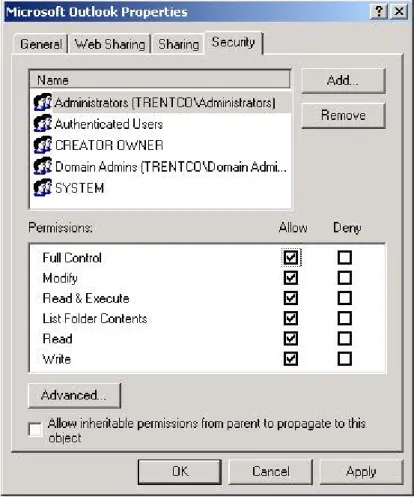
There are four security critical considerations when installing Outlook 2002. First, the operating system should be installed in its own partition for integrity reasons. Second, it is important to realize that operating system security is critical to the secure operation of Outlook 2002 and the Exchange server. The recommended guidelines for securing Windows 2000 operating systems is the series of guides published by the NSA and available at http://www.nsa.gov. Third, directory and file permissions should be set for the users and groups shown in Figure 3. These permissions should apply to all subfolders and files under the installation directory.
C
h
a
p
te
r
2
-O
u
tl
o
o
k
2
0
0
2
S
e
cu
ri
ty
Figure 3. Outlook 2002 Access Control List
Table 1. Outlook 2002 Access Control List
Administrators Full Control
Authenticated Users Read & Execute
Creator Owner Full Control
Domain Admins Full Control
System Full Control
Finally, as always keep up-to-date with service pack and security related hotfixes.
Outlook 2002 Configuration Setup
The first time Outlook 2002 is run, a Startup Wizard helps configure the application and set up an e-mail account. Additional e-mail accounts and other configuration settings can also be set by right clicking on the desktop Outlook icon.
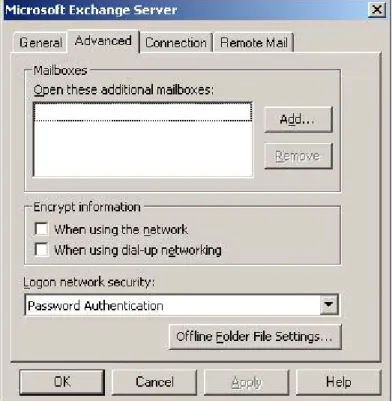
Outlook security for an Exchange Server account is managed under the Advanced tab, as shown in Figure 4. The Encrypt Information option enables the encryption
C
h
a
p
te
r 2
–
O
u
tlo
o
k
2
0
0
2
S
e
cu
rit
y
of the Remote Procedures Calls (RPC) used to connect to the Exchange Server over the network or when using dial-up networking; the information is encrypted only during transmission but is stored unencrypted. The logon network security has three available logon security options available. These include none, distributed password authentication, and password authentication. Password authentication is the recommended method. It allows single sign-on -- once the user is logged onto the Windows 2000 domain, it is not necessary to log on a second time to access Exchange. Note, however, that logon credentials are subject to password guessing attacks; it is vital to implement a strong password policy as recommended in the
Guide to Securing Windows 2000 Group Policy: Security Configuration Tool Set.
This document is part of the family of Windows 2000 security guidance documents available at http://www.nsa.gov.
Figure 4. Advanced Setup for Outlook 2002 Client
Also included under the Advanced tab is a button for setting Offline Folder Files. Offline
folders files allow users to save Outlook items when they are not connected to the server.
This user file contains Outlook folders that are a copy of the user’s Outlook folders in the Exchange store. The Outlook folders contained in the user’s offline folders file can be synchronized with the Outlook folders contained in the Exchange store so both contain the most up-to-date information.
C
h
a
p
te
r
2
-O
u
tl
o
o
k
2
0
0
2
S
e
cu
ri
ty
Figure 5. Offline Folder File Settings
The offline folder file settings are shown in Figure 5. To create an offline folder file, choose either the default file name shown or replace it with the user’s e-mail account name or other descriptive moniker. Note that a variety of encryption settings can be selected when creating the offline folder file. These settings are not effective as a means of preserving data confidentiality; however, data confidentiality can be augmented by several means. First, saving the offline folders file to the user’s home path will result in the inheritance of a restrictive set of access controls that limit access to the user and to administrators. Another option is the use of the encrypting file system (reference NSA’s guide entitled Guide to Securing Microsoft Windows 2000 Encrypting File System at http://www.nsa.gov). Finally, data confidentiality for e-mail content can be achieved via the use of S/MIME (reference Chapter 8, Certificates and Advanced Security).
Outlook Folders
Outlook saves information created and received in folders. These folders are information containers that are within a personal folders file or in the Exchange store. There are several different types of folders: standard default folders, personal folders, and offline folders. Standard default folders refer to the Exchange Server information store. Personal folders are stored in a personal folders file on the hard drive of the Outlook client; these folders might contain information the users wish to backup from the information store. The offline folders contain a copy of the user’s folders on the Exchange server; these were discussed in the previous subsection.
A personal folders file is created when the Outlook client is installed, or it can be added later as a modification to a user’s profile. A password can be assigned to a Personal folder; however, these passwords are not effective as a means of preserving data confidentiality, as tools are available on the Internet to strip off the passwords. Use the techniques described in the previous subsection to help preserve data confidentiality. Just as with offline folders, personal folders can be encrypted but this is not an effective means of provided data confidentiality.
C
h
a
p
te
r 2
–
O
u
tlo
o
k
2
0
0
2
S
e
cu
rit
y
Outlook Folder Permissions
Outlook provides the capability to share information through the use of public folders and shared private folders. Public folders share information based on the permissions granted to users. Private folders can be shared by either granting permission to specific users or by giving a user delegate access. These two methods are described in the following paragraphs.
Shared information can be manipulated by users based on the permissions that the user has been granted on the folder. These permissions are described in Table 2 and include: Owner, Publishing Editor, Editor, Publishing Author, Author, Contributor, Reviewer, Custom and None.
Table 2. Folder Permission Levels
Permission Level
Capabilities
Owner Create, read, modify, and delete all items and files. Create subfolders and change the permission levels others have for the folder.
Publishing Editor Create, read, modify, and delete all items and files, and create subfolders.
Editor Create, read, modify, and delete all items and files. Publishing Author Create and read items and files, create subfolders, and
modify and delete items and files created.
Author Create and read items and files, and modify and delete items and files created.
Contributor Create items and files only. The contents of the folder do not appear.
Reviewer Read items and files only.
Custom Perform activities defined by the folder owner. None No permission; can't open the folder.
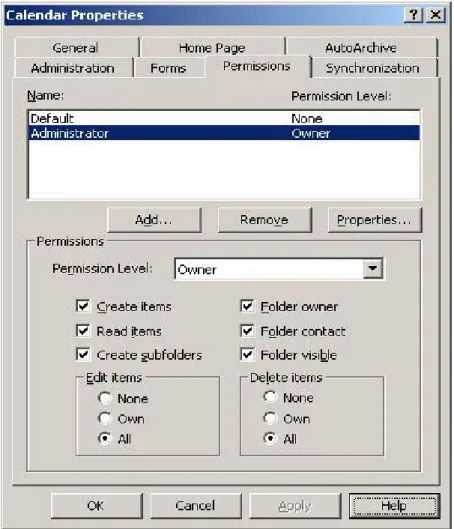
Folder permissions are set from the folder list in Outlook. To view or set folder permissions on either a public folder or a shared private folder, right-click the private or public folder, and click Properties on the shortcut menu. After clicking the Permissions tab, the window shown in Figure 6 will be displayed. The user name and permission level is listed. Users can be added and removed from the list by using the Add and Remove buttons. The permission level is set in the Permissions section of the window. A custom permission level can be designated by checking the boxes of the options needed. After setting new permissions on the folder, click the Apply button to activate the new settings. Permissions on public folders can only be set by a user that has owner permissions on the folder. To designate all users, choose Default in the Name box. It is recommended that Default be set to None (which is the default) for a user’s private folder; only specific users should be added with appropriate permissions. The private folder settings are perhaps most easily manipulated using the delegate access features which will be discussed shortly.
C
h
a
p
te
r
2
-O
u
tl
o
o
k
2
0
0
2
S
e
cu
ri
ty
Figure 6. Calendar Folder Permissions
As discussed in Chapter 4, the administrator can control who has the ability to create public folders from the system manager. That chapter also contains information regarding why it is important to limit who has this ability.
Outlook folder properties also have a security relevant option listed under the Administration tab of the folder properties. The This folder is available to option limits user access to the folder to only Folder owner or to anyone with appropriate permissions.
Private folders can also be shared by granting users permission to open other users’ folders, and permission to read, create and respond to items. This process is called Delegate Access. A user can delegate access to another user to read, create, modify and delete personal folder items. The user granting the permission determines the level of access. Delegate access settings have the effect of manipulating the private folder permissions discussed earlier.
Delegate access is only available when the user is connected to the server and the user’s mail is delivered to the user’s mailbox, not to a personal folders file. To add or remove delegates and assign permissions to delegates follow the steps outlined below:
On the Outlook Tools menu, click Options, and then click the Delegates tab. The window shown in Figure 7 will be displayed.
C
h
a
p
te
r 2
–
O
u
tlo
o
k
2
0
0
2
S
e
cu
rit
y
To set permissions for the delegate choose the Permissions button. The available permissions include: Author, Editor and Reviewer; these are summarized in Table 3.
Figure 7. Delegate Access
Table 3. Delegate Access Permissions Levels
Permission Level Capabilities
Editor Everything an Author can do, plus modify and delete the
items the created by the mailbox owner.
Author Read, create items, and modify and delete items created
by the delegate.
Reviewer Read items.
C
h
a
p
te
r
2
-O
u
tl
o
o
k
2
0
0
2
S
e
cu
ri
ty
The delegate permissions are set individually on a per folder basis. The user’s folders, including calendar, tasks, inbox, contacts, notes, and journal are designated. The user can choose to have the delegate see their private items. These permissions are shown in Figure 8. Sent messages contain both the manager's and delegate's names.
Figure 8. Delegate Permissions
Outlook E-mail Security
Outlook provides the following e-mail security options:
Protecting against malicious code attacks in e-mail message attachments and harmful VBA macros.
Providing authentication and privacy for secure e-mail messages. Protecting users from HTML messages with malicious content.
Attachment Security
Outlook 2002 protects against malicious code attacks in e-mail attachments by checking the file type of each attachment in a message that is either received or sent. There are two levels of attachment security: Level 1 file types and Level 2 file types. Access to Level 1 files is blocked. Level 2 file type attachments will prompt the user to save the file on the hard drive. The Level 1 and Level 2 file types are listed in Table 4. There are no file types listed under the Level 2 for a default installation.
C
h
a
p
te
r 2
–
O
u
tlo
o
k
2
0
0
2
S
e
cu
rit
y
There are two ways that the Outlook 2002 file attachment behavior can be modified. The first manner is strictly controlled by the administrator and requires the installation of an add-on to the Exchange Server. This add-on, called the Outlook Security Template, gives the administrator fine grain control over the definition of Level 1 and Level 2 file types and much more, but only for those users whose mail is delivered to an Exchange mail box (as opposed to a .pst file). This add-on is described in detail in the section below, Outlook Security Administrative Package.
End users can modify the list of Level 1 attachments via registry key settings only if the change is not prohibited in the Outlook Security Template as described below. The applicable settings are located under the key:
HKEY_CURRENT_USER\Software\Microsoft\Office\10.0\Outlook\Security
To remove a file from the Level 1 definition, navigate to this key and add a string value named Level1Remove. Set the value of this registry to specify the file types to be demoted as a semicolon delimited list, as in: .abc; .def. Use a Level1Add string value under this same key to promote file types to Level 1. These settings are only available in Service Pack 1 or later will take effect the next time Outlook 2002 is started.
Giving users this much flexibility is generally not a good idea from a security perspective. Administrators can prohibit users from demoting file types from Level 1 by using the Outlook Security Template (again, under the assumption that the user's mail is being delivered to an Exchange mail box). This can be accomplished by simply accepting the default condition of disabling the option Allow users to lower attachments to Level 2 as described in Table 6. Alternately, users cannot remove any extensions that were explicitly added to the Level 1 list by using the security template. For example, if the user wants to remove .exe files from the Level 1 group, but that file extension had been added by the administrator in the Level 1 Add box, then the user would not be able to remove .exe files from the group.
Administrators can also prohibit demotions from Level 1 by setting a registry key within HKCU that regular users cannot modify. This would be particularly useful for those installations not running the Outlook Security Template. Create the following key and value name. Do not set a value; Outlook simply looks for the presence of the value name.
HKCU\Software\Policies\Microsoft\Office\10.0\Outlook Value name: DisallowAttachmentCustomization
When a Level 1 file is received the user’s inbox will display the paperclip icon in the attachment column. The user will see a list of the blocked attachment files in the infobar at the top of the message. When a user sends a Level 1 file type attachment, a warning message will be displayed stating that the recipient may not be able to access the file. If the file type is Level 2, the attachment icon is shown; the user is prevented from launching the attachment directly from the e-mail message but is instead prompted to save the attachment to the hard disk. The attachment can be run from there.
C
h
a
p
te
r
2
-O
u
tl
o
o
k
2
0
0
2
S
e
cu
ri
ty
Table 4. Level 1 and Level 2 File Type Description3
Level File Extension
Level 1 .ade,.adp,.app,.asp,.bas,.bat,.cer,.chm,.cmd,.com,.cpl,.crt,.csh,. exe,.fxp,.hlp,.hta,.inf,.ins,.isp,js,.jse.ksh,.lnk,.mda,.mdb,.mde, .mdt,.mdw,.mdz,.msc,.msi,.msp,.mst,.ops,.pcd,.pif,.prf,.prg,.pst .reg,.scf,.scr,.sct,.shb,.shs,.tmp,.url,.vb,.vbe,.vbs,.vsmacros, .vss,.vst,.vsw,.ws.wsc,.wsf,.wsh
Level 2 None
Macro Security
Like all members of the Microsoft office suite, Outlook provides the capability to create custom macros using the Visual Basic for Application programming environment.
Outlook protects against malicious code attacks in Outlook macros by setting the macro security level to High by default. There are three available settings: Low, Medium, and High4:
High Only signed macros from trusted sources will be run. This is the recommended setting.
Medium The user chooses whether or not to run macros. Low No protection from macros; this is not recommended.
By default, these settings are controllable by the user. The macro security setting is set on the Outlook Tools menu; click Macro and then click Security. To view the macro security settings, click the Security Level tab. To view the trusted sources, click the Trusted Sources tab. Trusted sources can be removed using the Remove button. Trusted sources can be added by opening the item or add-in that contains macros from the source to be added to the list. When the Security Warning dialog box is displayed, select the Always trust macros from this source check box. If the security warning dialog box does not display this, then the macros are not digitally signed and cannot be added to the trusted source list.
Under the default condition, these security settings are stored in the registry under the HKEY_CURRENT_USER branch. Users can modify these settings because each user has write access to the applicable keys under this branch. It is difficult for the typical user to determine if a source should be trusted. It is recommended that the administrator make this determination based on organizational policy. Outlook allows the administrator to specify the security level and the trusted sources in a manner that will stop non-administrator changes. When the security settings are stored under the HKEY_LOCAL_MACHINE branch, Outlook will read these settings before checking HKEY_CURRENT_USER branch. This prevents the user from writing to them as long as the access control list for HKEY_LOCAL_MACHINE does not allow write access by general users. This method will also stop a virus or other attack running as the user from modifying these settings.
3
This list of file types have evolved rather dramatically between Outlook 2000, Outlook 2002, and Outlook 2003 and can even be dependent on the service pack being run. This list reflects Outlook 2002 with service pack 3.
4
Outlook 2003 has a fourth setting - Very High. This setting can be used to preclude a user from running any feature not installed with the core Outlook installation provided that the Trust all installed add-ins and templates option is also disabled. Reference
C
h
a
p
te
r 2
–
O
u
tlo
o
k
2
0
0
2
S
e
cu
rit
y
For maximum security, it is recommended for the administrator to specify the high security setting and the trusted sources for the organization under HKEY_LOCAL_MACHINE. The registry locations are as follows:
For the security level: HKEY_Local_Machine\Software\Policies\Microsoft\Office
\10.0\Outlook\Security\Level. Set this DWORD value to 3 for high security.
For the list of trusted sources5: HKEY_Local_Machine\Software\Microsoft\VBA
\Trusted. One way to do this is to begin with a single machine and choose to trust the approved macro developers for your organization. Once this is completed, populate this key using the values from HKEY_Current_User\Software\Microsoft \VBA \Trusted6.
Note that the list of trusted sources is shared with the other Office applications. Also note that these settings only apply to VBA macros; they do not apply to VBScript embedded within custom forms. In this instance, Outlook limits execution based upon where the form is published. Organizational forms libraries and public folders are considered trusted locations, and VBScript contained in forms stored in these locations is not subject to the macro security settings and can always be executed. Chapter 4 discusses this in more detail.
Secure Messages
Outlook provides options for authentication and privacy by digitally signing and encrypting messages. Digitally signing a message provides evidence to the recipient that the message is really from the sender because the message is digitally signed using a digital certificate. Encrypting messages ensures that only the intended recipient can read the message. Both these methods are done using digital IDs (certificates). A Digital ID establishes a user’s identity to others that they communicate with. Digital IDs contain a unique digital code, which can be used to verify a digital signature or encrypt messages. The digital ID is obtained from the Microsoft Exchange environment or from an external Certificate Authority (CA); it contains a certificate (public key) and a private key. Secure messaging for Outlook is set on the Outlook Tools menu; click Options and then click the Security tab. This security window is shown in Figure 9.
To enable secure messaging the user must first get a digital ID by clicking on the Get Digital ID button. The user will be prompted to choose the method of getting a digital ID; choose the Exchange Server if the digital ID will be obtained using the advanced security features of Exchange; click S/MIME certificate if the certificate will be obtained over the Internet. The choice is based upon local policy. If the S/MIME certificate is chosen, an external CA will issue the certificate. If the Exchange Server is chosen as the CA, the user will be prompted to enter in the token that was received from the administrator issuing the certificate; following this the user will enter in the password that will be used with the digital ID. For complete instructions on obtaining a digital ID refer to Chapter 8, Certificates and Advanced Security, in this document. After installing the digital ID the secure e-mail settings can be set. The options for secure e-mail are:
Encrypt contents and attachment for outgoing messages – encrypts the contents and attachments for all outgoing messages.
5
Outlook 2003, when running on Windows XP or Windows Server 2003, does not use this setting but instead relies on the Windows Trusted Publisher Certificate Store. This trust list is shared with Internet Explorer and can be set via group policy. Reference:
http://www.microsoft.com/office/ork/2003/seven/ch23/SecA04.htm
6
C
h
a
p
te
r
2
-O
u
tl
o
o
k
2
0
0
2
S
e
cu
ri
ty
Add digital signature to outgoing messages – adds the digital signature to all outgoing messages.
Send clear text signed message when sending signed messages – allows recipients who don't have S/MIME security to be able to read the message. The disadvantage of enabling this option is that some mail servers may slightly modify the message (wrapping lines, for example). This will cause false indications of tampering on the receiving end. To avoid these misleading indications, it is preferable not to enable this feature unless necessary.
Request secure receipt for all S/MIME signed messages – verifies that the digital signature has been validated by recipients. When this option is enabled, a notification is returned to the user’s Inbox providing notification that the signature on the message has been validated by the recipient's security system.
Figure 9. Outlook Security Options
The options chosen for secure e-mail are left to the discretion of the user. To ensure data confidentiality, all messages should be encrypted but it should be noted that if a recipient of the message has not set up the appropriate security options, the message cannot be sent securely. To send an encrypted message, a copy of the recipient’s digital ID must be available in Active Directory (for users in the same Exchange environment) or