Act! Synchronization
Table of Contents
Introduction ... 1
Synchronization Architecture ... 1
Methods of Synchronizing ... 1
What Is Synchronized ... 4
Features and Capabilities of Act! Synchronization ... 5
Data Logging and Tracking ... 6
Security and Permissions ... 7
Administrator Database Management ... 7
Preparing for Synchronization ... 8
Understanding and Defining a Sync Set ... 9
Three major components of the sync set: ... 10
Items that always sync: ... 10
Items that the user may choose to sync: ... 11
Items that do not sync: ... 11
Sync set example: ... 11
Internet Synchronization ... 13
Internet Sync Setup ... 14
Advanced Troubleshooting Support ... 16
Sync Logging ... 16
ActDiag ... 17
Act! Scheduler ... 17
Introduction
This whitepaper is written for IT managers or system administrators who want a better understanding of Act! synchronization, including its features, abilities, and concepts.
Synchronization Architecture
The Act! synchronization architecture is designed for performance, scalability, and data integrity. The implemented architecture is a combination of client-side
Microsoft .NET-managed code, embedded in the Act! Framework, and server-side Microsoft® SQL Server® procedural objects residing in the Act! database. This leverages the underlying client-server technologies, allowing more data- and process-intensive operations to be handled server-side, while the client-side components define the business logic, data packaging, encryption, and data transport.
Act! synchronization is based on a Publisher/Subscriber model:
Publisher provides the data.
Subscriber requests data, retrieves data, and submits new data.
The “main” database is the Publisher.
The “remote” database is the Subscriber.
A Publisher database can have many Subscriber databases.
Subscriber databases can have only one Publisher database.
Act! synchronization is dependent on a LAN, Internet, or WAN connection and requires a Sync Server or service. It is designed as a background process that allows for normal use of both the Publisher and Subscriber databases during the synchronization process.
Methods of Synchronizing
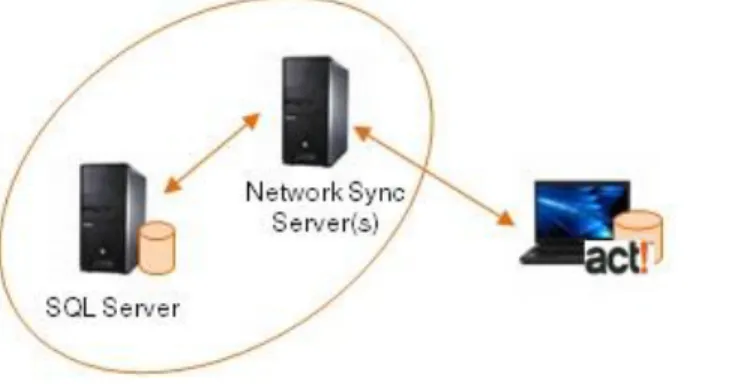
Three possible Sync Servers are available in Act! Premium (only one is available in Act! Pro). The Sync Server is the middle-tier component that serves as the
The Act!
synchronization
architecture is
designed for
performance,
scalability, and data
integrity.
“transport broker” and communication mechanism between an Act! Subscriber and Publisher database.
Figure 1: Synchronization overview
Each Subscriber database can choose its sync method and connection information. The three available synchronization methods are:
Application Sync:
Act! must be running. The Publisher database must be open and “listening” for incoming syncs.
One “listener” at a time per machine.
Multiple Subscriber databases can sync in parallel.
Network Sync (Act! Premium only)
Separate executable runs as a service class program.
“Listens” automatically for incoming syncs.
Publisher database may be closed (Act! doesn’t have to be running).
Can “listen” for multiple servers and databases.
Multiple Subscriber databases can sync in parallel.
Internet Sync (Act! Premium only)
Uses Microsoft Internet Information Services (IIS).
Separate executable runs as a service class program.
“Listens” automatically for incoming syncs.
Can “listen” for multiple servers and databases.
Multiple Subscriber databases can sync in parallel.
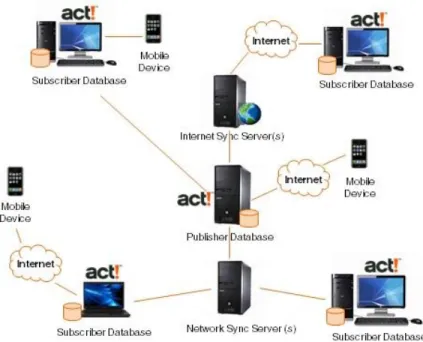
Given the three-tier architecture of the Sync Server, a variety of configurations can be established within an organization to meet business and network needs. The following diagram depicts an Act! Premium setup using all three synchronization methods (Application, Network, and Internet). It’s particularly noteworthy that the Network Sync Server can be configured and run on a Subscriber client itself, communicating with the Publisher database. With both Network and Internet Sync, the service can be installed and run on the Subscriber client, the Publisher server, or a third independent machine hosting neither of the synchronizing databases.
Figure 2: Synchronization example using Application, Network, and Internet Sync.
Given the three tier
architecture of the
Sync Server, a variety
of configurations can
be established within
an organization to
meet business and
network needs.
What Is Synchronized
A Subscriber database is a subset of the Publisher database. Actions taken on any data are always synced back to the Subscriber’s Publisher database. The following items synchronize:
The Sync Set: A pre-defined dataset.
User and Team data: Access and security-related tables are identical in all nodes/members of the sync family. Security is consistent across all nodes.
Attachments: Attachments related to the contacts in the sync set (as well as groups and companies) may be synchronized, but this may be limited by the options chosen when the Subscriber database was created. A number of settings are customizable.
Database supplemental files: Database supplemental files (templates, queries, layouts, and dashboards can be created at the Subscriber database, and they may or may not be synchronized, depending on options chosen when the Subscriber database was created.
Schema modifications: The schema can be modified only on the
Publisher database. Modifications will be synchronized to each Subscriber database.
Pick list modifications: Pick list modifications may be made at any node and will synchronize.
Once an Act! database has been sync-enabled (whether a Subscriber or Publisher database), Act! detects this on log on and invokes a sync “File Watcher” on the database’s datastore (a.k.a., supplemental files) folder structure. This is true whether Act! is running on the machine hosting the database or on another network client machine. This process ensures that any changes made to any database-related file are recorded in the sync transaction logs and can therefore be
evaluated for sync. It’s important to note that file modifications made outside of Act! may be captured as well as normal Act! operations. The File Watcher includes both database-specific files, such as layouts and templates, and content-specific files, such as attachments.
Features and Capabilities of Act!
Synchronization
The following features are incorporated into the product to support usability, security, reliability, and scalability:
• Subscribers can recover from a broken or incomplete sync.
• Publisher and/or Subscriber can recover from a restored database. This is referred to as “replay.”
• Automatic Recovery “picks-up” incomplete synchronization sessions and will only resend non-completed transactions, ignoring those previously completed. It also recovers from dropped connections and verifies that “last sync” date/times agree; if not, it resends previous updates.
• Orphaned/estranged Subscribers can become Publishers.
• Subscribers allow only remote users to log on (the sync set “who list”). Additionally, any Administrator may log on to a Subscriber database, however, not all data available to him/her may be present.
• Non-Administrator users can be given permission as a Remote
Administrator in the Publisher database, allowing them to perform many administrative tasks on a Subscriber database, including backup, export, and database maintenance.
• Remote users can manage subscriptions on either the Publisher or Subscriber (“data fishing”).
• Transactions are logged by and stored in the database (self-contained) – SQL Server trigger based.
• Users receive 64-bit DES encryption, which is configurable and can be disabled via the application config file.
• Data packet formation is based on SyncML v1.1, an open XML-based standard adopted by the World Wide Web Consortium (W3C).
• Two levels of sync logging are included for troubleshooting and reporting. • Column-level update logging and syncing are available on all tables. By
default, only changed columns are sent for updates.
• Schema customization/definition on the Publisher is synced chronologically to each Subscriber.
• Last change prevails in data resolution, based on the Universal Time Coordinator (UTC).
• Each sync session is logged for later review and troubleshooting, reporting, etc.
• Lookup > last sync can be either date-range based or simply the last sync session. This lookup will present results in a manner similar to results for Keyword Search functionality.
• Administrative-style sync reports via ActDiag allow both configuration and preview information.
Data Logging and Tracking
The mechanism for capturing and storing data changes resides in the Act! database. Act! creates and manages custom database table triggers for all insert, update, and delete events, providing optimum performance and consistency. Each Act! database contains a series of sync tracking tables which contain both data changes and sync definition data (metadata). Database logging ensures several key benefits, including:
• Improved performance and reduced network chatter by leveraging the client/server architecture.
• Real-time and persistent logging of sync changes in local database control tables.
• Durable and transactionally-bound data logging within the database – guaranteed to be there when the user records are written.
• Self-encapsulation of the tracking data related to the actual user data, backed-up and restored at the same time so it’s always “in sync.” • Consolidated and comprehensive reporting and troubleshooting. • The database of origin is denoted on each transaction, to assist in data
resolution and to provide more granular lookups and reporting. In addition to all database tables being logged, files residing outside of the database in the Datastore (supplemental file location) are “shadow tracked” via logging tables in the database.
Security and Permissions
Administrator and Manager role users are generally responsible for defining the sync setup and configuration, including the creation of sync sets and remote databases. Standard role users can perform several tasks to adjust content definition. In addition, Standard role users can be given individual permission to perform some administrative tasks while logged on to a Subscriber database.
• Administrators can log into any remote database, even if they are not defined in the sync set.
• Standard role users and above can initiate sync from a Subscriber database.
• Administrators and Managers can modify any sync set for any Subscriber database.
• Administrators and Managers can modify any subscription list for any sync set.
• Standard role users can modify subscription lists for sync sets for which they are intended users if they have been given permission to manage subscription lists by an Administrator.
• The “Remote Administrator” permission enables the non-Administrator user to perform tasks such as database backup and maintenance on a
Subscriber database.
With regard to overall data security, the sync model depends on the Act! security model to properly handle data access and permissions. Essentially, the Subscriber database is a logical extension of its Publisher database. The actions a remote user can take, as well as which data he or she can see, are identical to those available when the remote user is logged on to the Publisher database.
Administrator Database Management
Administrators can view and manage Subscriber databases as needed. Administrators have visibility to each database’s last sync date and the days remaining until expiration. Administrators can set/change the status of a Subscriber database to Active, Suspended, Disabled with Last Sync, and Disabled.
The sync model
depends on the Act!
security model to
properly handle data
access and
• Suspended – This status allows the Administrator to temporarily disable a
Subscriber database from synchronizing. This could be done for troubleshooting or any business-related reason as necessary. A
Suspended database can be changed back to Active, or Disabled, any time later.
• Disabled with Last Sync – This status allows the Subscriber database to
perform one last bi-directional sync, which sets that database as disabled on both the Subscriber and the Publisher. A Disabled Subscriber database can no longer sync with its Publisher database. To allow the database to begin syncing again, the Administrator must re-create the Subscriber database from the Publisher.
• Disabled – This status disables the Subscriber database. Once disabled, the database can become a Publisher, and can create new Subscriber databases of its own.
Preparing for Synchronization
The database Administrator can take a non-syncing database and establish it as a Publisher database. There are seven steps to deploy and sync the first Subscriber database:
1. Enable sync on the subject database (this becomes the Publisher database).
2. Start a Sync Server to accept incoming syncs for the Publisher database. 3. Create a sync set. This determines “who” and “what” will sync.
4. Create one or more a remote databases. Set the database options as desired.
5. Distribute the resulting remote database file (.RDB) to the target machine. 6. Apply the .RDB file via Act!. Or, simply double-click the .RDB file to
automatically deploy the Subscriber database onto the target machine. 7. Verify the Sync Server connection from the Subscriber to the Publisher,
An important element of setting up synchronization is understanding and defining a sync set.
Understanding and Defining a Sync Set
A sync set is the defined set of data in a database that is designated to synchronize to one or more Subscriber databases. When setting up
synchronization at the Publisher database, the Administrator defines the sync set and uses it to define a Subscriber database during its creation. The sync set may be used for more than one Subscriber database. The sync set dialog boxes and behaviors are similar to group and company query definitions – the sync set is essentially a collection of contacts.
The contacts available to be included in a sync set are limited by the accessibility of those contact records to the intended users of the sync set. If none of the intended users has access to a specific contact, it isn’t available to be part of the sync set. If at least one of the intended users has access to a contact, it is eligible to be included in the sync set. A sync set may be further defined by applying a query definition to the contacts eligible to be part of the sync set. In the criteria definition interface, the user can create a set of criteria using the query builder or open a saved group, company, or advanced query (.QRY file). Contact records also may be included (beyond the bounds of the query definition) using a subscription list.
Any user with an Administrator or Manager Role can alter a regular sync set at any node of the sync family. However, Standard role users have the ability to control the subscription list from the Subscriber database node by manually subscribing additional accessible contacts which do not currently meet the sync set criteria. At the Publisher database, an Administrator or Manager can perform a Lookup of a sync set for each Subscriber database.
Three major components of the sync set:
The three components of the sync set are the “who list,” query, and subscription list.
“Who list” (a.k.a. “intended users”)
• List of remote users who can log on to the Subscriber database. • At least one user must have a Standard role. See the online Help topic
“What Are User Roles and Permissions?” for more information.
• Constrains which contacts are available to be synchronized; only those contacts accessible to at least one member of the “who list” are available for synchronization.
Query (optional)
• Dynamic, criteria-based, query definition of the set of contacts to be synchronized.
Subscription List
• Additional manually selected contacts to be synchronized.
• Allows user to select contacts that fall outside the query definition to be synchronized.
Items that always sync:
• Schema (from Publisher database to Subscriber databases). • Database preferences, such as name separators, scheduling, etc. • User data, including passwords, roles, permissions, etc.
• Group and company records, including query definitions and extended data.
• Opportunity records
• Database configuration and definition data lists, including Custom Activities, Custom Priorities, Custom Clearing Types, Events, Activity Series, Opportunity Stages, and Processes.
Items that the user may choose to sync:
• Database supplemental files, including letter templates, report templates, layouts, and saved queries specifically “belonging” to the Publisher database.
• Attachments
• Only those documents associated with contact records in the sync set, any group, company or opportunity records.
• Document tab items.
Items that do not sync:
• Personal supplemental files
o Files stored in the traditional “default locations” paths.
o Letter templates, report templates, layouts, etc., which do not “belong” to any specific database.
• Settings and Preferences stored locally
o Includes settings for navigation bars, toolbars, menus, and column customization.
• The Act! email database.
Sync set example:
Database contains 1,000 total contact records. (A) “Who list”
1. Three users identified as intended remote users (Moe, Larry, and Curly). 2. 500 possible contacts are accessible to at least one of the three intended
users.
(B) Query
• State = “CA”.
(C) Subscription list
• Allows users to select additional contacts that fall outside the query for synchronization.
o 2 customers in Oregon.
o 2 vendors in Texas. Total Sync Set = 104 Contacts.
Subscription List
• List of all contacts in a Publisher database (within the Sync Family) to which a particular user has access, includes “core” fields Name, Company, and Phone.
• User may designate individual contacts to sync, regardless of query definition.
• Allows Standard role users to request additional contacts that do not meet the sync set criteria.
• Users can modify the subscription lists of any sync set where they are listed in the “who list”.
• May be reset to return the sync set to the base query criteria.
Internet Synchronization
The Act! Internet Sync Server enables users to synchronize data over the Internet outside a firewall. This means users do not need to connect to their Local Area Network (LAN) to sync their data. This differs from the other two sync server configurations in Act! (Application sync, which uses the Act! application as the server, and the Sync Service, which uses an installed NT service). These
configurations require users to be logged on the network. The firewall protects the Publisher database, which can be physically located at a protected site inside an organization’s firewall, while the remote users can sync their data from unprotected locations using the World Wide Web. All sync communication is performed over standard network protocols and is protected by data encryption algorithms to prevent eavesdropping.
To set up Internet Sync, the minimum requirement is a Web server; in this case Microsoft IIS (Integrated Information Server). Act! Premium includes the installer for the Web server, which configures IIS to run Web Sync Server. The clients connect to Web Sync Servers using URLs in the form used for conventional Web browsing. The Sync Server can listen to incoming requests for several Publisher databases at a time, just like the standalone Act! sync service. The Web servers can be
managed to accept incoming syncs for various Publisher databases, and these databases can be installed on different machines as the Web servers.
The Act! Installer creates a virtual directory and installs the necessary files for syncing. These files are .NET-dependent and require the .NET Framework to reside on the same machine as the Web server. An NT administrator logon is required to install and run the Web server to access the shared SQL Server instances on the network. Administrators can also log on to their machines and
manage the Web servers using Microsoft Management Console (MMC). To provide scalability1and load balancing of the Sync Servers, a clustered configuration of Web servers can also be used. By managing the Sync Server information, remote users can sync their client databases seamlessly to Publisher databases using either a Web server or an NT service. For example, an NT service location may be \\ACT_NTServicewhereas Web sync server location may be
http://www.mycompany.com/ACT_Virtual_Directory. Since the Web server always listens on port 80 by default, users do not need to enter the port number for the Web service.
Web Sync Server is a lightweight component with limited ability to manage data on its own. It has a limited UI to manage the list of the syncing Publisher databases. It does not contain any Act! application features. To view changes made to Publisher databases, users need to log on separately using Act!. A Web server’s only purpose is to act as a channel between the syncing Subscriber and Publisher databases.
Internet Sync Setup
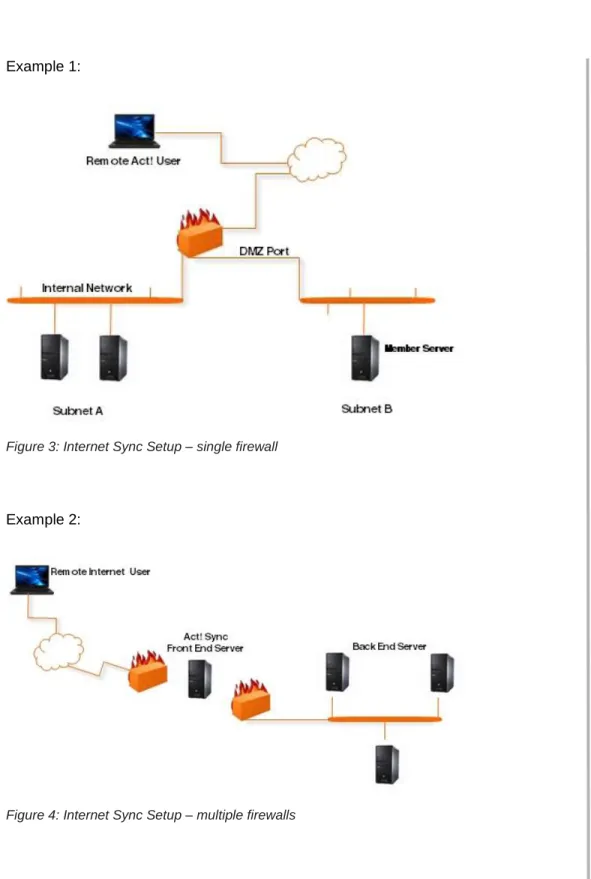
To address the challenges of connectivity within your organization, you can configure the Act! Sync Server within your IT organization’s guidelines. To limit public exposure, don’t set the SQL Server database server(s), but rather the machine(s) running the appropriate Sync Server(s). The following illustrations show two examples of the remote user with a Subscriber database on his/her notebook computer, who needs to connect to a Sync Server at the corporate office.
Example 1:
Figure 3: Internet Sync Setup – single firewall
Example 2:
Advanced Troubleshooting Support
Internal and external logging, sync reports, and a sync rebuild utility are available for diagnostics and troubleshooting within the Act! product and the accompanying ActDiag utility.
Sync Logging
Two levels of sync logging are available in Act!. These logs are useful for both reporting and troubleshooting purposes. One is stored inside the database and the other resides on the machine’s hard disk.
• Sync High-Level Logging
This is stored in an internal database table. It shows all sync sessions for all Subscribers when viewed on a Publisher database, or just the
Subscriber itself when viewed on the Subscriber database.
This Sync Log can be viewed via the Tools >Synchronize Database
>Synchronization Panel > View Sync Log menu item.
• Sync Low-Level Logging
Low-level logging is used primarily as a troubleshooting technique. By default, errors are logged to the resulting SYNCLOG.XML. You can modify the application and/or Sync Server .config file to increase the degree and verbosity of the logging. This is recommended only if Act! Technical Support suggests it to help identify and resolve problems.
You must modify the application’s .config file when changing the logging switch values. The .config file needs to be modified on both the remote client machine for the Act! application (Act10.exe.config) and the machine running the Sync Server. You may need to modify a different .config file, depending on which of the three possible Sync Servers you are running.
To enable sync logging: [SYNCLOG.xml]: • Internet Sync Server – web.config.
• Network Sync Server –
Act.Framework.Synchronization.Service.exe.config. • Application Sync Server – Act.exe.config.
The Microsoft Web site contains the description and behavior of these values.
ActDiag
ActDiag (with the file name ActDiag.exe) is a diagnostic and utility tool that is installed with Act!. The following configuration and diagnostic reports are available to run per database:
• Sync Configuration Report • Sync Preview Report
• Sync Database History Report
Act! Scheduler
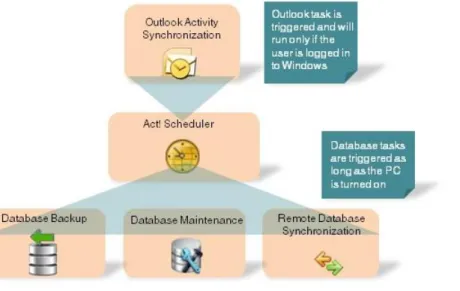
The Act! Scheduler lets users schedule automated tasks: • Database backup
• Database maintenance
• Database synchronization for remote databases • Outlook® Activity Synchronization
Users can create, edit, and delete tasks, view the task logs containing information about the execution of the tasks, and stop and start the service.
Most scheduled tasks are triggered and run as long as the computer is turned on. The only exception is the Outlook Activity Synchronization, which, due to a limitation in the Outlook object model, requires the user to be logged on to Windows®. All scheduled tasks will be triggered and run whether or not Act! or Outlook is currently running.
Figure 5: Act! Scheduler
Conclusion
The Act! synchronization architecture is designed for performance and scalability, supporting both desktop databases and handheld devices. The synchronization model takes the best of many available Relational Database Management Systems (RDBMS) and third-party sync products, rolling them into a single dynamic solution tailored to the Act! environment and business rules.
About Swiftpage
Swiftpage is committed to empowering individuals, small business and mobile sales teams to better manage their business interactions, more intelligently engage their customers, and convert more interactions into transactions. The company’s growing network of partners, customers, end-users and employees collectively represent the Swiftpage Nation, united across the globe as one team, on one journey. Learn more at www.swiftpage.com and join the conversation at social.swiftpage.com.
© 2013 Swiftpage ACT! LLC. All Rights Reserved. Swiftpage, Act!, Saleslogix, and the Swiftpage product and service names mentioned herein are registered trademarks or trademarks of Swiftpage ACT! LLC, or its affiliated entities. All other trademarks are propertyof their respective owners.