OfficeServ 7200
Data Server
User Manual
Every effort has been made to eliminate errors and ambiguities in the information contained in this booklet. Any questions concerning information presented here should be directed to SAMSUNG TELECOMMUNICATIONS AMERICA. SAMSUNG TELECOMMUNICATIONS AMERICA disclaims all liabilities for damages arising from erroneous interpretation or use of information presented in this manual.
PUBLICATION INFORMATION
SAMSUNG TELECOMMUNICATIONS AMERICA reserves the right without prior notice to revise information in this publication for any reason.
SAMSUNG TELECOMMUNICATIONS AMERICA also reserves the right without prior notice to make changes in design or components of equipment as engineering and manufacturing may warrant.
COPYRIGHT 2005
Samsung Telecommunications America
INTRODUCTION
Purpose
This document introduces the OfficeServ 7200 Data Server, an application of OfficeServ 7200, and describes procedures on installing and using the software.
Document Content and Organization
This document contains 3 chapters 3 annexes and an abbreviation as follows: Chapter 1. OfficeServ 7200 Data Server Overview
This chapter briefly introduces the OfficeServ 7200 Data Server. Chapter 2. OfficeServ 7200 Data Server Installation This chapter describes the installation procedure and login procedure. Chapter 3. Using the OfficeServ 7200 Data Server
This chapter describes how to use the menus of the OfficeServ 7200 Data Server. Annex A. VPN Setting in Windows XP/2000
This chapter describes how to set VPN on Windows XP/2000. Annex B. OfficeServ 7200 Data Server Quick Setup Guide
This Quick Setup Guide is designed to provide you with basic setup procedures of configuring your OfficeServ 7200 Data Server WAN1 port connecting to a DLS, Cable Modem or T1 for office wide Internet access sharing.
Annex C. OfficeServ 7200 Data Server Software Upgrade Quick Setup Guide This Quick Setup Guide is designed to provide you with basic setup procedures of upgrading your OfficeServ 7200 Data Server software.
ABBREVIATION
Conventions
The following special paragraphs are used in this document to point out information that must be read. This information may be set-off from the surrounding text, but is always preceded by a bold title in capital letters.
WARNING
Provides information or instructions that the reader should follow in order to avoid personal injury or fatality.
CAUTION
Provides information or instructions that the reader should follow in order to avoid a service failure or damage to the system.
CHECKPOINT
Provides the operator with checkpoints for stable system operation.
NOTE
Indicates additional information as a reference.
Console Screen Output
y The lined box with ‘Courier New’ font will be used to distinguish between the main
content and console output screen text.
y ‘Bold Courier New’ font will indicate the value entered by the operator on the
References
OfficeServ 7200 General Description Guide
The OfficeServ 7200 General Description Guide introduces the OfficeServ 7200 and provides system information including the hardware configuration, specification, and function.
OfficeServ 7200 Installation Guide
The OfficeServ 7200 Installation Guide describes the condition required for installation, the procedure of installation, and procedures on inspecting and starting the system.
OfficeServ 7200 Programming Manual
The OfficeServ 7200 Call Server Programming Manual describes the method of using the Man Machine Communication (MMC) program that changes system settings by using phones.
Revision History
Edition No. Date of Issue Remarks
SAFETY
CONCERNS
For product safety and correct operation, the following information must be given to the operator/user and shall be read before the installation and operation.
Symbols
Caution
Indication of a general caution
Restriction
Indication for prohibiting an action for a product
Instruction
War
Security Warning
Note that all external users are allowed to access the firewall when the Remote IP is set to ‘0.0.0.0’ and Port is set to ‘0:’.
Setting IP Range
The number of IPs for the ‘Local IP range’ and that for the ‘Remote IP range’
should be identical.
For example, if the number of IPs for ‘Local IP range’ is 10 and that for ‘Remote IP range’ is 20, only 10 calls will be set.
PPTP Setting in Windows XP/2000
In Windows XP/2000, the user can use DHCP client. If VPN PPTP client is connected while the DHCP client is operating, errors will be found. To prevent this problem, close the DHCP client operation on the [Start] Æ [Program] Æ
[Administrative Tools] Æ [Services] menu of the Windows PPTP client installed.
Caution Against Changing Network Interfaces
If a network interface(e.g., IP, gateway, and subnet mask) is changed during router operation, all the IP sessions that are being used in the router are disconnected for a while.
DB Change
The DBs of the WIM module and LIM module are integrated in the OfficeServ 7200 Data Server. When the DB is changed, the system restarts.
Dynamic IP of DHCP, PPPoE, and xDSL
If a dynamic IP is used, information(e.g., ‘Port Forward’ and ‘Static NAPT’) on public IPs will not be automatically changed. ‘Fixed IP’ should be used for VoIP services that require settings of the ‘Port Forward’ and ‘Static NAPT’ menus and for VPN services that require WAN IP address setting.
Using Web Browser
Use Microsoft Internet Explorer 6.0 or higher as a Web browser to maintain OfficeServ 7200 Data Server.
Delete Temporary Internet Files
Delete Temporary Internet Files after upgrading Data Server package. After selecting the [Internet Explorer] Æ [Tools] Æ [Internet Options] menu, click the [Delete Cookies] and the [Delete Files] button in the [Temporary Internet files]. If Temporary Internet Files are not deleted, Data Server Web Management will not display properly.
TABLE OF CONTENTS
INTRODUCTION ... 3
Purpose ... 3
Document Content and Organization... 3
Conventions... 4
Console Screen Output ... 4
References ... 5
Revision History... 5
SAFETY CONCERNS ... 6
Symbols ... 6
War ... 7
TABLE OF CONTENTS ... 9
CHAPTER1. OfficeServ 7200 Data Server Overview ... 12
OfficeServ 7200 Introduction... 12
OfficeServ 7200 Data Server Introduction ... 13
CHAPTER 2. OfficeServ 7200 Data Server Installation ... 16
Installation Procedure ... 16
Configuring the PCs... 17
Starting up the OfficeServ 7200 Data Server... 19
CHAPTER 3. Using the OfficeServ 7200 Data Server ... 21
Firewall/Network Menu... 22
Status... 24
Management... 27
Filtering Service ... 50
LAN Config ... 52
Switch Menus... 53
Port ... 54
STP... 64
IGMP Config ... 66
QoS Config ... 67
MISC Config ... 68
Save Config ... 69
Router Menus... 70
General... 70
Config ... 72
QoS Menus... 77
Group... 78
Policy ... 83
Status... 84
Management... 84
Status Menus ... 85
Monitoring ... 86
Statistics... 88
Serial State ... 89
Services ... 90
VPN Menu... 92
IPSec ... 93
PPTP ... 100
IDS Menu ... 103
Log Analysis... 104
Configuration ... 109
SIP ALG Menu ... 129
Config ... 129
Management... 131
System Menu ... 132
DB Config ... 133
Log... 136
Time Config ... 138
Upgrade ... 141
Appl Server ... 143
Reboot ... 147
Home, My Info & Logout ... 148
ANNEX A. VPN Setting in Windows XP/2000 ... 149
IPSec Setting ... 149
PPTP Setting ... 161
ANNEX B. OfficeServ 7200 Data Server Quick Setup Guide
ANNEX C. OfficeServ 7200 Data Server Software Upgrade Quick Setup Guide ABBREVIATION
CHAPTER
1.
OfficeServ 7200 Data Server
Overview
This chapter provides an overview of OfficeServ 7200 system and OfficeServ 7200 Data Server.
OfficeServ 7200 Introduction
The OfficeServ 7200 is a single platform that delivers the convergence of voice, data, wired, and wireless communications for small and medium offices. The ‘office in a box’ solution offers TDM voice processing, voice over IP integration, wireless communications, voice mail, computer telephony integration, data router and switching functions, all in one powerful platform.
With the LIM and WIM modules, the OfficeServ 7200 provides network functions such as a switch, router, and network security over the data server. This document describes the full suite of IP based data and routing capabilities of OfficeServ 7200 Data Server.
OfficeServ 7200 Configuration
For information on the configuration, features, or specifications of the OfficeServ 7200, refer to ‘OfficeServ 7200 General Description Guide’.
OfficeServ 7200 Data Server Introduction
The OfficeServ 7200 provides the functions below on the IP-based data server: Unmanaged Switch
• The switch performs the function of a layer 2 Internet switch as well as the Learning Bridge function based on the MAC address filtering and forwarding algorithm.
• The LIM module provides 16 LAN ports per module. Each port is 10/100 Base T, auto sending, full duplex. OS 7200 can support up to 8 unmanaged LIM.
Managed Switch
When the LIM is installed in slot 2 with a WIM in slot 1, it can function as a managed switch by using an access interface LAN on the WIM. OfficeServ 7200 supports 1 managed LIM. As a managed switch, the following features are supported:
• 802.1D Spanning Tree – The switch configures and processes the forwarding tree based on the spanning tree algorithm to prevent a packet forwarding loop in the switch.
• Layer 2 802.1p Packet Priority QoS – The switch extracts the priority field from the Ethernet frame configured according to the 802.1p specification standard, and discriminatively processes the frame according to the priority of the specified operation. The switch then maps packets to a designated queue. Up to 2 output queues, Low and High, are supported per egress port with queuing type of Weighted Round Robin or All High before Low. For devices that do not support 802.1p, OS 7200 LIM can be configured to create an enforceable priority.
• Supports Virtual LAN (VLAN) – The Virtual Local Area Network (VLAN) groups the related equipment by the work group according to the LAN operational policy regardless of the location of the user equipment. VLAN removes the effects of unnecessary broadcasting packets and configures a stable switching subnet only for the corresponding group by separating and processing the group in the virtual LAN. The VLAN can be configured based on the switch port, MAC address, and 802.1Q tag.
• IGMP Snooping – IGMP Snooping provides a method for intelligent forwarding of multicast packets within a layer 2 broadcast domains. By snooping IGMP registration information, a distribution list of work stations is formed that determines which end-stations will receive packets with a specific multicast address.
• 802.3x Layer 2 Flow Control – Flow control is performed according to the value set for incoming rate and/or outgoing rate. Limiting the rate at which a port can receive or send traffic is used to ease congestion on bottlenecks in the network and provide simple prioritization when the network is busy.
Router
• Multiple Network Interfaces:
o 2 WAN Ethernet ports: auto-sensing 10/100Base-T and 10Base-T, supporting
Point-to-Point, Point-to-Point over Ethernet (PPPoE) and DHCP client protocols.
o 1 LAN Ethernet port: Enables a connection with a switch for LAN configuration. o 1 Serial WAN port: Enables dedicated data line service by being connected with
DSU or CSU, which is a data line device. V.35 serial interface supports Dynamic Host Configuration Protocol (DHCP), PPP, or Frame Relay Encapsulation.
o 1 DMZ Ethernet port: Enable DMZ connection to protect an internal network
from external hazards. DMZ is a separate LAN port for configuring the device which requires a free access from outside such as a mail server and web server, while separating the device from internal devices.
• Subnet Routing – The network interfaces of the WAN1, WAN2, LAN and DMZ are configured with different sub-network interfaces, which enable them to perform the routing process with each other.
• Static Routing – The OfficeServ 7200 configures a fixed routing table between each network interface to process the static routing. In this case, the routing table cannot be dynamically changed by the routing protocol, and specific routing services will be provided according to the pre-set routing policy.
• Dynamic Routing – The OfficeServ 7200 supports routing information exchange protocols to react to the changing network environment more effectively:
o RIPv1, RIPv2: These protocols are widely used for managing the routing
information in a mid-sized independent network such as a group of LANs
o OSPFv2: This protocol is used in a large-sized independent network. A router
detects and reports any change in the routing table or the network to other routers, thus all routers share the same routing information.
• Performs inter-VLAN routing – Communication between the VLAN groups. Data Network Security
• Outbound and Inbound NAT/PT
o Controls an access to internal resources through conversion between the Global IP
and Private IP. Network Address Translation and Port Address Translation services protect devices on the private internal LAN from being exposed on the
• Intrusion Detection System(IDS)
o Detects and notifies an access to unauthorized areas by the access list.
o Recognizes and notifies unauthorized packets by applying the basic intrusion rule
for packets.
o Detects and blocks DoS attacks such as SYN flood.
• Virtual Private Network(VPN)
o The VPN capability creates encrypted ‘tunnels’ through the Internet, allowing
branch offices or remote users to securely connect into the network from off-site.
o Functions as a VPN gateway based on PPTP and IPSec.
o Performs privacy and integrity through VPN tunneling and data encryption.
Data Network Application
Functions as data network applications such as NAT/PT, Firewall, VPN, DHCP, and Application Level Gateway(ALG)
• SIP Aware Application Level Gateway (ALG)
o This feature takes SIP packets coming to the WAN interface and redirects them to
any SIP user agents connected to the private LAN.
• DHCP Server
o This service dynamically assigns IP addresses to all hosts connected to the private
LAN. QoS
• Processes priority for layer 2 frames based on the 802.1p standard(Switch function)
• Processes priority queuing for layer 3 packets and for selected IPs. The ToS (Type of Service) field of the IP header is checked and process according to the priority of the corresponding routing in the data server.
• Processes priority queuing for layer 4 packets and for RTP packets (UDP/TCP port). Prioritize RTP voice packets over normal data packets for improved voice quality in VoIP applications.
DSMI
• This service automatically configures the router to allow for VoIP applications such as remote IP phones and IP networking, IP Trunking, etc. If the OfficeServ 7200 VoIP services provided by MCP and MGI use private IP, and they are connected behind the WIM router’s public IP, DSMI will automatically perform NAPT for signaling and media data packets for VoIP services.
Management
• Supports a specialist level debugging function through Telnet connection
• Supports configuring and verifying the functional block operations of the data server through a web-based browser
• Exchanges IDS data and alarm data with the system manager
• Program upgrade
CHAPTER 2. OfficeServ 7200 Data Server
Installation
This chapter describes the installation and login procedures for the OfficeServ 7200 Data Server.
Installation Procedure
OfficeServ 7200 Data Server software is installed on WIM board. The software package is composed of items described below:
Package File Description
Bootrom Package bootldr.img-vx.xx bootldr.img-vx.xx.sum
Boot ROM program
ds-pkg-vx.xx.tar.gz Upgrade package for HTTP on the WEB Management
app.img-vx.xx app.img-vx.xx.sum
‘app’ partition upgrade package for TFTP
config.img-vx.xx config.img-vx.xx.sum
‘config’ partition upgrade package for TFTP
kernel.img-vx.xx kernel.img-vx.xx.sum
‘kernel’ partition upgrade package for TFTP
log.img-vx.xx log.img-vx.xx.sum
‘log’ partition upgrade package for TFTP
ramdisk.img-vx.xx ramdisk.img-vx.xx.sum
‘ramdisk’ partition upgrade package for TFTP
flash1.img-vx.xx flash1.img-vx.xx.sum
The first flash fusing file Main Package
flash2.img-vx.xx flash2.img-vx.xx.sum
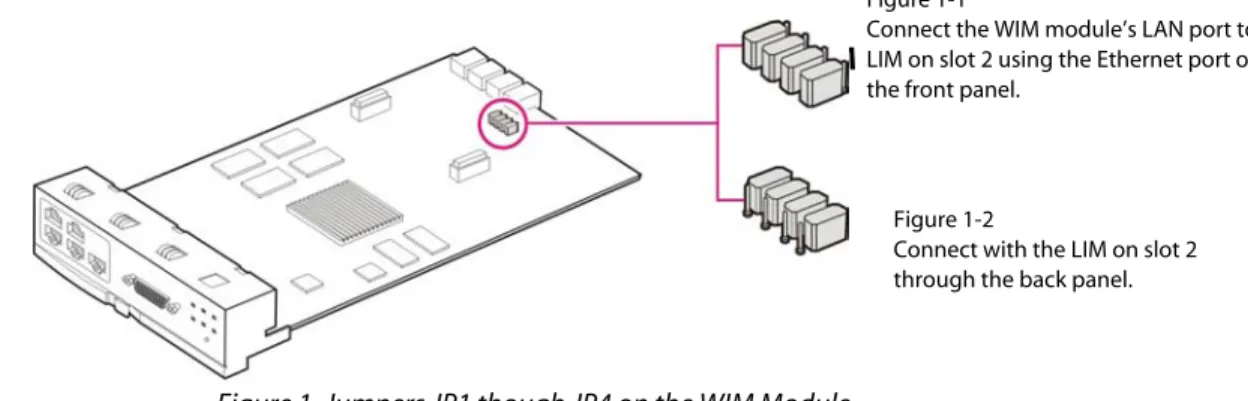
• If the shunt pin of JP1, 2, 3, 4 is directed to the front of the WIM board, connect the LAN port of the WIM board to one of the Ethernet port of the LIM board through a LAN cable.
2.
Connect a PC to a Ethernet port of the LIM board.Configuring the PCs
This section describes how to configure your PC to communicate with the OS 7200 Data Server Management Web Browser.
The instructions below apply only to Windows 2000 or XP computers. Make sure that an Ethernet card or adapter has been successfully installed in your PC.
1.
Click the [Start]button. Click [Settings] and then [Control Panel]. From there, double-click the [Network] icon.2.
On the [Configuration] tab, select the Internet Protocol (TCP/IP) line for the applicable Ethernet adapter. Click the [Properties] button.3.
Click the [IP Address] tab and select Specify an IP address. Enter the following IP address:• IP Address: Enter a unique IP address that is not used by any other computer on the network connected to the OS 7200 data server. You can use an IP address in the ranges of 10.0.0.2 to 10.0.0.254.
• Subnet Mask: 255.255.255.0
• Default Gateway: 10.0.0.1 (OS 7200 Data Server’s default IP address)
Click the [OK] button in the Internet Protocol Properties window. Click the [OK] button in the Local Area Connection Properties window.
4.
Execute the Internet Explorer from the PC and connect to the IP of LAN. The default IP address of the WIM board managing the LIM board is set to ‘10.0.0.1’.Starting up the OfficeServ 7200 Data Server
The procedure for starting up the OfficeServ 7200 Data Server is as follows:
1.
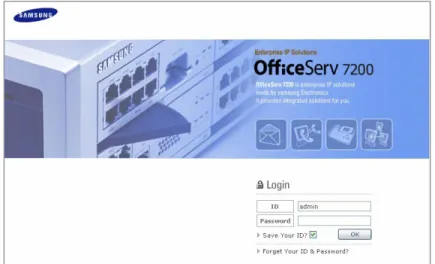
Start the Internet Explorer and enter the IP address of the Data Server into the address bar. The login window shown below will appear:2.
Login using the administrator ID and password. The default Login ID and Password are Admin and Admin respectively. Click the [OK] button to proceed. The following window will appear:3.
Click [Data] to use the menus for Data Server shown in the following window:When a ‘Data’ menu is selected, the submenus of the Data Server menu appear on the left section of the window. Descriptions on each submenu are provided in ‘Chapter 3. Using the OfficeServ 7200 Data Server’.
Delete Temporary Internet Files
Delete Temporary Internet Files after upgrading Data Server package.
Select the [Internet Explorer] Æ [Tools] Æ [Internet Options] menu, click the [Delete Cookies] and the [Delete Files] button in the [Temporary Internet files].
If the Temporary Internet Files are not cleared, Data Server Web Management displayed info will not be correct.
CHAPTER 3. Using the OfficeServ 7200 Data
Server
This chapter describes how to use the menus of the OfficeServ 7200 Data Server.
Firewall/Network Menu
Firewall/Network Menu provides a Configuration Wizard to setup the WAN1, WAN2, LAN, DMZ, and Serial network interfaces, as well as firewall and the communication policies between the firewall and each interface. Under this menus, you can also setup the Data Server Access Control List, Port Forward, and Filtering Services.
Select [Firewall/Network] to display the submenus of Firewall/Network on the upper left section of the window.
Menu Submenu Description
WAN1 Displays user settings of the WAN1 port, which is an external port used for Internet connection.
Menu Submenu Description
Config Sets firewall and network interface configuration. Port ACL Allows external users to access OS 7200 firewall.
Port Forward Sets port forward to pass thru OS 7200 firewall. The incoming traffic is directed to specific local PCs based on one specified destination port number.
Static NAPT Sets port forward to pass thru OS 7200 firewall. The incoming traffic is directed to specific local PCs based on a range of service port numbers. Management
Network DB List Deletes DB where settings are saved.
URL Filtering Blocks the internal network web access to the URL name setting. Filtering
Service IP Filtering Blocks the internal network web access to the IP setting. LAN config - Sets the transfer rate and transmission system of Ethernet port.
Status
The [Status] menu displays the setting of the WAN1, DMZ, LAN, WAN2, or SERIAL.
Port Setup Procedure
The WAN1, LAN, DMZ, WAN2, and SERIAL ports are set at the [Firewall/Network] Æ
[Management] Æ [Config] menu. Refer to the description on the menu for the setup procedures.
WAN1
The [Status] Æ [WAN1] menu shows the setting of WAN1, which is an external port using a public IP.
DMZ
The [Status] Æ [DMZ] menu shows the setting of DMZ, which is an internal port using a private IP or public IP.
LAN
The [Status] Æ [LAN] menu shows the setting of LAN, which is an internal port using a private IP.
WAN2
The [Status] Æ [WAN2] menu shows the setting of WAN2, which is an external port using a public IP.
SERIAL
The [Status] Æ [SERIAL] menu shows the setting of SERIAL, which is an external port using a public IP.
DMZ, LAN, WAN2, and SERIAL ports’ settings
Settings of ports that have no lines connected (When the port is set to ‘Not Used’at the [Management] Æ [Config] menu) are displayed as ‘No line’s connected to this port’.
Network Status
The [Status] Æ [Network Status] menu displays the current IP Address of WAN1, DMZ, LAN, WAN2, and SERIAL.
Item Description
Category WAN1, DMZ, LAN, WAN2, and SERIAL ports Usage - NONE: Unused line
- PRIMARY: Primary public interface - SECONDARY: Secondary public interface - INTERNAL: Line used for internal interface Type - NONE: Not used port
- PUBLIC: Port using public IP - INTPRV: Internal port using private IP - INTDMZ: Internal DMZ port
Management
The [Management] menu sets ports related to firewall and network.
Config
The [Config] menu starts the configuration wizard which will guide through the settings of the WAN1, LAN, DMZ, WAN2, and SERIAL ports. Select [Management] Æ [Config] and set the items of each window. Click the [Next] button and set the firewall and network according to the following procedure:
Initial setup
Configure line type for each port
Configure WAN1 Configure LAN Configure WAN2 1 Configure DMZ 2 3 4 5 6 Configure SERIAL 7 Save settings 8
Initial Setup
1.
Select [Management] Æ [Config] and display the window shown below. The ‘NAT’ and ‘Packet Filtering’ items are originally disabled. Check the checkboxes to set the status to ‘On’ and click the [Run] button.If these items are checked, Click the [Next] button.
Network Address Translation (NAT)
NAT is an Internet standard that enables a local-area network (LAN) to use one set of IP addresses for internal traffic and a second set of addresses for external traffic. NAT adds a level of security by protecting the address of a PC connected to the private LAN from transmitted on the Internet. If only a single Internet IP address is provided by the ISP (such as a DSL or cable modems internet account), NAT must be selected to allow all PCs on the LAN to share this single Internet IP address.
Packet Filtering
Packet Filtering controls access to the local-area network by analyzing the incoming and outgoing packets and letting them pass or halting them based on the IP address of the source and destination.
2.
Click the [Start] button to start the Firewall/Network configuration wizard, which will step through configuration for each interface.3.
New settings can be set or previously set setup files can be changed or executed from the following window. The IP of the LAN port is initially set to ‘10.0.0.1’. Check the ‘default’ item and click the [Next] button.Set Line Type for Each Port
External ports (e.g., WAN1, WAN2, SERIAL) use public IPs while internal ports (e.g., DMZ, LAN) use public or private IPs. Select the line type for each port as listed below:
• External port (WAN1,WAN2, SERIAL)
o Primary WAN line: Primary internet connection interface o Secondary WAN line: Secondary internet connection interface o Third WAN line: Third internet connection interface
o Not Used: No WAN line is connected
• Internal port (DMZ, LAN)
o Internal line: Internal line is used
o Not Used: Internal line is not used
In the figure shown below, WAN1 port is set to Primary WAN line as the primary line, LAN port is to Internal line as the internal line, and WAN2, SERIAL, and DMZ ports are set to Not Used as lines not connected:
Dynamic IP Address (e.g. Cable Modem, ADSL PPPoE, and SDSL internet account)
If a dynamically assigned IP address is used for WAN internet connection, information (e.g., ‘Port Forward’ and ‘Static NAPT’) on public IPs will not be automatically changed. ‘Fixed IP’ should be used for VoIP services that require settings of the ‘Port Forward’ and ‘Static NAPT’ menus and for VPN services that require WAN IP address setting.
WAN1 Setup
1.
The starting window for setting WAN1 as “Primary WAN line’ is shown below. Click the [Next] button to start setting the WAN1 port.2.
Select the line type for Primary WAN line. Select one of the four applications shown below for the external network:Fixed IP: Select Fixed IP if your Internet service account uses Fixed IP (Static) IP assignment.
• Primary PPPoE Client: Select Primary PPPoE Client if your Internet service account uses PPP over Ethernet login protocol, such as in ADSL account.
• Primary DHCP Client: Select Primary DHCP Client if your Internet service account uses Dynamic IP assignment, such as in Cable Modem account.
• Primary VDSL Line: Select Primary VDSL Line if your Internet service account uses VDSL service.
The four applications of Primary WAN line are described below:
Caution Against Changing Network Interfaces
If a network interface configuration (e.g., IP, gateway, and subnet mask) is changed during router regular operation, all the active IP sessions that are connected in the router will be disconnected.
b. Primary PPPoE Client: Enter the ID and password to connect an external network where a dynamic IP will be assigned through PPPoE, and click the [Next] button.
c. Primary DHCP Client: Connect to internet network using a cable modem or a DHCP server, the port is automatically set. Click the [Next] button and proceed to the next window.
PPPoE/DHCP/SDSL Settings
The performance of data uploading or downloading speed depending on Internet Service Provider services.
d. Primary VDSL line: External network using a VDSL modem.
Enter ‘default’into the ‘Mac address’ field to disable MAC authentication, and click the [Next] button. Enter a MAC address into the ‘Mac address’ field to use the MAC copy function.
MAC Copy Function
When performing authentication through PC MAC of LIM board, MAC of outgoing packets are copied to PC MAC instead of using MAC of outgoing packets as MAC of WAN1.
3.
Select the items below and clock the [Next] button:• WAN ICMP Packet Reply: The Internet Control Message Protocol (ICMP) is one of the core protocols of the Internet protocol suit. ICMP Echo and Timestamp messages are used for network diagnostics, often to test the availability of a target, such as the popular ‘ping’ program. Many malicious attacks begin with a ping scan. Disabling ICMP Packet Reply prevents your system’s discovery with a ping. OfficeServ 7200 firewall does not respond to ICMP echo and ICMP timestamp by default. However, if the ‘echo’ and ‘timestamp’ items are checked, response to external Ping commands will be displayed. If these items are not checked, a Request timed out will occur to external Ping commands.
• WAN1 DNS configuration: Enter the IP address of the DNS server. If PPPoE/DHCP is used, there is no need to manually enter these fields, ISP will automatically authenticate the DNS servers.
DMZ Setup
1.
The starting window for setting WAN1 as “Primary WAN line’ is shown below. Click the [Next] button to start setting the WAN1 port.2.
The starting window for setting DMZ ‘Internal Line’ configuration is shown below. Click the [Next] button and proceed to start setting the DMZ port.3.
Select the line type for the DMZ line. Select one of the three applications shown below for the DMZ port.DMZ port supports the following three line type:
a. Internal private network: Use DMZ port as a second private LAN network behind the router’s firewall.
b. Internal public network: Place DMZ port behind the router in the private network, but assign it with a public IP address to allow DMZ port accessible from the public network.
c. DMZ configuration: Configure DMZ port with a private IP address and use the OfficeServ 7200 NAT router to allow DMZ port accessible from the public network.
The configurations of each DMZ line type are described below:
• Internal private network: Assign DMZ port with the private IP address in the Address, and Netmask, fields. If additional private IP addresses with different subnet are currently being deployed, click the [Add] button to add the items. OfficeServ 7200 allows up to 4 subnets in the ‘Internal line Multi-IP configuration’.
In the example shown below, two DMZ IP of 192.168.0.1/24 and 192.168.1.1/24 are set.
In the example shown below, allow the LAN interface as entered in the ‘Remote IP’ to access the DMZ servers as entered in the ‘Shared IP’. The Destination Port of ‘0:’ indicates all ports are allowed for access.
Port Range Setting
- When using ports from 0 to 100, enter ‘0:100’. - ‘0:’ indicates all ports.
• Internal public network: Assign DMZ port public IP address under the Internal Line Network Interface and Internal Line Multi-IP Configuration.
In this scenario, the DMZ port with a public IP address is hiding on a private network behind a router, and still have appearance of being on the public network ‘in front of ‘ the router.
If the checkbox of ‘Internal line Transparent mode configuration’ is selected, the servers on the DMZ network use the external public IP as the default gateway. If ‘Internal line Transparent mode configuration’ is deactivated, the servers on the DMZ network use the DMZ port as the default gateway.
Configure Internal line Public area from WAN for hosts that use DMZ as an internal public network, and click the [Next] button.
Configure Internal line Public IPs accessible from WAN to allow external networks to access a specific server on the DMZ network inside the firewall that has a public IP.
Under the DMZ shared IP device list, configure the devices from the LAN interface that can send packet to pass through the DMZ firewall and access the DMZ servers.
• DMZ Configuration: Enter Private IP address values in the Address, and Netmask, fields. If additional private IP address is currently being deployed, click the [Add]
Under the Internal line DMZ configuration, configure the servers on the DMZ network.
Enable port forwarding of a specific packet received through WAN public network to a host located in DMZ.
• Src IP: Enter the source IP of a packet from public network to be forwarded to a port.
• Netmask: Enter the netmask of a packet to be forwarded to a port. • Public IP: Enter the IP address of WAN.
• Private IP: Enter the IP address of a host located in DMZ.
• Service Port: Enter the number of a port to which a packet is forwarded. • Protocol: Select the type of a protocol to be forwarded.
In the example show below, the following two servers are connected on the DMZ network:
• Web server with private IP address of 192.168.0.10 and service port of 80 • FTP server with private IP address of 192.168.0.20 and service port of 21 The Source IP address and Netmask are set to 0.0.0.0 to allow all the devices in the public network to access these two DMZ servers.
Click the [Next] button to move to the next step.
Under the DMZ shared IP device list, configure the devices from the LAN interface that can send packets to pass through the DMZ and access the DMZ servers.
In the example shown below, allow the LAN interface as entered in the ‘Remote IP’ to access the DMZ servers as entered in the ‘Shared IP’. The Destination Port of ‘0:’ indicates all ports are allowed for access.
LAN Setup
1.
The below window shows the LAN was set to ‘Internal line’at the <Select the line type for each port> window. Click the [Next] button to start LAN port setup.2.
Select the internal line type.Types of internal lines are described below:
• Internal private network: Select this option to configure an internal network using a private IP.
Enter the IP address, Netmask, and Gateway to use LAN as an internal private network, and click the [Next] button. To add another IP, apart from the IP of the internal line currently being used, click the [Add] button and add the item.
Under the LAN shared IP device list, configure the devices from the DMZ interface that can send packets to pass through the LAN firewall and access the LAN servers.
Enter the DMZ interface as entered in the ‘Remote IP’ and enter the LAN servers to be shared in the ‘Shared IP’. The Destination Port of ‘0:’ indicates all ports are allowed for shared IP Device
• Internal public network: Select this option to configure an internal network using a public IP. Click [Add] to add an IP in addition to the IPs of the internal line being used.
If the checkbox of ‘Internal line Transparent mode configuration’ is selected, the servers on the LAN network use the external public IP as the default gateway. If ‘Internal line Transparent mode configuration’ is deactivated, the servers on the LAN network use the LAN port as the default gateway.
Configure Internal line Public area from WAN for hosts that use LAN as an internal public network, and click the [Next] button.
Configure Internal line Public IPs accessible from WAN to allow external networks to access a specific server on the LAN network inside the firewall that has a public IP.
Under the LAN shared IP device list, configure the devices from the DMZ interface that can send packets to pass through the LAN firewall and access the LAN servers.
Enter the DMZ interface as entered in the ‘Remote IP’ and enter the LAN servers to be shared in the ‘Shared IP’. The Destination Port of ‘0:’ indicates all ports are allowed for shared IP Device
In the example shown below, LAN IP of 10.0.0.1/24 is set.
Under the Internal line DMZ configuration, configure the servers on the LAN network. Enable port forwarding of a specific packet received through WAN to a host located in LAN.
• Src IP: Enter the source IP of a packet to be forwarded to a port. • Netmask: Enter the netmask of a packet to be forwarded to a port. • Public IP: Enter the IP address of WAN.
• Private IP: Enter the IP address of a host located in DMZ.
• Service Port: Enter the number of a port to which a packet is forwarded. • Protocol: Select the type of a protocol to be forwarded.
The following window illustrates an example of forwarding all packets (Src IP: 0.0.0.0, Network: 0.0.0.0, Service Port: 0, Protocol: all) that enters the WAN Interface IP (211.217.172.200) to a host (192.168.1.100) located in DMZ:
Under the LAN shared IP device list, configure the devices from the DMZ interface that can send packets to pass through the LAN and access the servers inside the LAN port. Click the [Next] button.
WAN2 Setup
1.
If WAN2 was set to Primary WAN line, secondary WAN line, or Third WAN line, click [Next] button to proceed with the WAN2 Setup procedures.2.
Follow the same setup procedures as described in WAN1 setup procedures.3.
Configure WAN2 Outbound traffic configuration to specify packets that could be sent from LAN or DMZ interfaces via WAN2 interface.4.
Configure WAN2 Exceptional outbound traffic configuration to specify packets that are sent from LAN or DMZ interface to be restricted from WAN2 interface.SERIAL Setup
The below window shows that SERIAL was set to ‘No line’ at the <Select the line type for each port> window (Refer to ‘Set Line Type for Each Port’).
Click the [Next] button and proceed to the next window.
Follow the procedure below to use SERIAL as the Primary WAN line:
1.
Set the SERIAL to ‘Primary WAN line’ at the <Select the line type for each port> window (Refer to ‘Set Line Type for Each Port’), and click the [Next] button.2.
Click the [Next] button to start the SERIAL port setup.• Primary CISCO: Select ‘Primary CISCO’ from the <Primary line selection> window and click the [Next] button to display the window shown below. Enter the items and click the [Next] button. The CISCO method refers to the HDLC supported by Cisco.
• Primary PPP: Select ‘Primary PPP’ from the <Primary line selection> window and click the [Next] button to display the window shown below. Enter the address, netmask, and point-to-point items.
Select the authentication protocols: None, PAP, or CHAP. Then set the user name and password for the remote router connecting to the router. Click the [Next] button.
• Primary Frame Relay: Select ‘Primary Frame Relay’ from the <Primary line selection> window and click the [Next] button to display the window shown below. Enter the items in the Primary SERIAL Network Interface (Frame Relay) and Primary Additional Configuration menus. These values must match the corresponding values set in the frame relay service provider’s switch.
Click the [Next] button.
Item Description
LMI TYPE [ansi, ccitt, none]
Local Management Interface, a signaling standard between the router and the frame relay switch it is connected to. OfficeServ 7200 supports two LMI standards:
- ansi: ANSI T1.617 Annex D - ccitt: CCITT
create[16~999] Range 16~999 Signaling channel No.
OfficeServ 7200 supports one Permanent Virtual Circuit (PVC). T391[5~30,10 sec] Range 5~30, default is 10 sec.
Link Integrity Verification Timer (in seconds). Time interval for DTE to send KeepAlive message.
N391[1~255,6] Range 1~255, default is 6.
Full Status Polling Verification Timer counter, which means the cycle of requesting information on full status based on the number of times that KeepAlive is sent.
N392[1~10,3] Range 1~10, default is 3.
Error threshold counter, the limit of number of repeated errors before the link is marked inactive.
Item Description
N393[1~10,4] Range 1~10, default is 4.
Monitored Events Counter. When a network becomes active, the number of successful exchanges of KeepAlive messages before the link is considered active.
Saving Settings
1.
The below window shows the firewall and network setup is complete. Click the [Next] button and proceed to the next window.2.
Enter values in the Name and Description fields and click the [Next] button to save the settings in the database. Only uppercase and lowercase alphabet and numbers can be entered in the ‘Name’ field. Special characters cannot be entered, and ‘default’ is not available.3.
Click the [Save] button to save the setting as a file having the file name set above. Click the [OK] button to run the settings upon saving, or click the [Cancel] button the cancel the setting.Port ACL
If ‘Packet Filtering’ in ‘Firewall On/Off Setup’ is set to ‘Filtering on’ under [Management] Æ
[Config], external users can not access the OfficeServ 7200 firewall. The [Port ACL] menu is used to allow a specific external IP to access the firewall.
Select [Management] Æ [Port ACL] and set the IP address, port, and protocol, as shown below, and click the [OK] button:
If the user sets the options as shown above, the server whose IP address is ‘211.217.127.33’ can connect to the system firewall via the web. The external servers can also connect to the firewall by using connection programs such as Telnet and SSH.
Security Warning
Note that all external users are allowed to access the firewall when the Remote IP is set to ‘0.0.0.0’ and Port is set to ‘0:’.
Port Forward
The [Port Forward] menu is used to forward packets so that services of the internal server connected to the firewall can be used externally.
For instance, assume that an internal server uses the public IP of the firewall as ‘211.217.127.70’ and the private IP as ‘10.0.0.100’. If the user uses the telnet server inside the firewall from a server on a network outside the firewall, the user can use telnet services using the Port Forward setting.
Click the [Add] button, and enter values as shown in the above figure. Then, access the telnet server from a network outside the firewall by setting the public IP address to ‘211.217.127.70’ to use telnet services inside the firewall (10.0.0.100).
• Public IP: Public IP of the firewall
• Internal IP: Private IP of the internal server connected to the firewall • Port: Port No. of the service (e.g., Port of the telnet server)
• Protocol: Select a protocol from all/tcp/udp. Specifying a Range of Port
Static NAPT
The ‘Static NAPT list’ window displays the settings of the [Static NAPT] menu.
Also, this window displays the ‘VoIP NAPT’ setting in the DSMI menu as well as the user setting of the ‘Static NAPT’ menu.
Click the [Edit] button to switch to a window where the user can enter the settings of Static NAPT.
Network DB List
The [DB List] menu is used to delete the settings file saved in the [Management] Æ [Config] menu.
Filtering Service
The [Filtering Service] menu is used to block the internal local area network users from accessing to a specific URL or IP locations on the Internet.
URL Filtering
The [URL Filtering] menu is used to block access to a specific URL from an internal host or network.
• SrcIP: An internal host or network where filtering will be performed. Enter the IP address to filter URLs from each host and the network address to filter URLs from each network. • Netmask: Set Netmask to ‘255.255.255.255’ in order to filter URLs from each host. Enter
the subnet of the network to filter URLs from each network. • URL: Name of a site (Domain) to be blocked
The figure below illustrates an example of blocking access to ‘yahoo’ by all internal users. Enter values as shown in the figure below and click the [OK] button to complete the settings.
IP Filtering
The [IP Filtering] menu is used to block access to a specific service of an external IP by internal users. Enter the IP address and netmask in the ‘Src IP’ and ‘Netmask’ fields, and information on a specific service of the external network to which access will be blocked in the ‘Dest IP’, ‘Netmask’, ‘Dest Port’, and ‘Protocol’ fields.
If the user enters the network IP and subnet in the Src IP and Netmask fields, the user can enable filtering of an entire network.
Click the [Add] button, and enter values as shown in the above figure. Click the [OK] button. Then, any terminals cannot access Ports 80 and 22 whose destination address is ‘211.17.127.70’.
LAN Config
The [LAN Config] menu sets the negotiation, speed, and transfer system for each port. Select the checkbox of the port to set and click [OK].
Click [Default] to reset to the default value.
Item Description
Negotiation - auto: Controls speed through negotiation. - force: Controls speed through enforcement.
Set this item to ‘force’ when setting the Duplex item to ‘full’. Speed (Mbps) Transfer rate of port
Duplex - full: Bi-directional service (full-duplex system)
- half: Unidirectional service (half-duplex system) Setting for the WAN2 10 M interface depends on the counterpart modem.
Switch Menus
Select [Switch] to display the submenus of Switch on the upper left section of the window.
Menu Submenu Description
Config Sets the switch port environment. Port
Statistics Displays the link status, speed, transmission system, and statistics of the switch port.
Config Configures Virtual LAN(VLAN). VLAN
Port VID Sets processing method for untagged packets when VLAN mode is set to ‘Tag-based VLAN’.
Static Address Saves MAC address to the static address table of the switch. Dynamic Address Retrieves the dynamic address table or deletes a MAC address. MAC
Filter Address Enters the MAC address to block the frame data with the MAC address information identical with the entered value from the switch.
Config Prevents broadcast storming due to the switch loop-back using the STP function.
STP
Port Config Retrieve the STP status of each port. Enters the new Path Cost and Port Priority values for each port.
(Continued)
Menu Submenu Description
QoS Config - Processes Quality of Service by sequentially assigning priority to packets entering the switch or by enforcing priority on a specific port.
MISC Config - Sets mirroring and other switching functions.
Save Config - Saves setting to flash disk or initializes all setting values.
Port
The [Port] menu is used for setting port related functions and retrieving information on a port.
Config
Item Description
Port Manage 16 10/100MB Ethernet switch ports Select All to process all ports simultaneously. Active Use to activate and de-active the port. Negotiation - Auto: Controls speed through negotiation.
- Force: Controls speed through enforcement. Set this item to ‘force’ when Full Duplex is selected for Speed.
- Nway Force
Speed/Dpx - Speed: By default the speed is set according to the value set in ‘Path Cost’ of the [Switch] Æ
[STP] Æ [Port Config] menu. 10 Mb/s when ‘Path Cost’ is set to ‘100’, and 100 Mb/s when set to ‘19’.
If the port has been set to auto-negotiation mode, the local ports will automatically negotiate the port speed.
- Dpx(Duplex):
Full: Set the port to full duplex to send and receive data packets at the same time for bi-directional service.
Half: Set the port to half-duplex to either send or receive only for the unidirectional service. If the port has been set to auto-negotiation mode, the local ports will automatically negotiate the duplex mode.
Flow Ctl Enable or disable the flow control function. Flow control is performed according to the value set for Rate (%) In/Out (incoming rate/outgoing rate). Limiting the rate at which a port can receive or send traffic is used to ease congestion on bottlenecks in the network and provide simple prioritization when the network is busy.
Rate (%) In/Out
Flow can be controlled by setting the incoming and outgoing rate in percentage for each port. The unit is the ratio against port speed, and should be set to ‘0’ when flow control item is not checked.
Security Enable or disable the MAC address security check function. This Security check function allows the system to prevent any unauthorized terminal to be connected to the port based on the MAC address.
- Disable: System default value, system will not perform MAC address check function.
- Enable: If the switch port where ‘Security’ is checked, only the terminal with the MAC address registered under [Switch] -> [MAC] -> [Static Address] could be connected. Thus, the unauthorized terminal whose MAC address not entered in the Static MAC address connecting to the switch will be block.
Priority Set the priority of each port to ‘Off’, ‘High’ or ‘Low’. Traffic prioritization allows high priority data, such as time-sensitive and system-critical data to be transferred without being delayed by lower priority data. This field is only valid if the QoS Mode setting under [Switch] Æ [QoS Config] Æ [QoS Configuration] menu is set to <All High before Low> or <Weighted Round Robin>.
- Off: no priority is set
- ‘Low’ or ‘High’: The priority is set to ‘Low’ or ‘High’, regardless of the QoS bit settings of the packet received by the port.
Statistics
The [Port] Æ [Statistics] menu provides a summary of the current switch’s status, including link status, speed, transmission system, and statistics. The numbers show the accumulated values for the period from the system boot up to date. The window is automatically updated every five seconds. Click the [Reset] button to initialize all values to ‘0’.
• TxGdPkt: The number of packets which are successfully sent to the port
• TxBdPkt: The number of packets which are switched, but not successfully transmitted to the port.
• RxGdPkt: The number of packets which are successfully received by the port.
• RxBdPkt: The number of packets which are successfully received by the port, but not successfully switched.
• Collision: The number of collision occurred between packets received from the port and the switched packets
VLAN
The [VLAN] menu is used for configuring Virtual LAN(VLAN).
A Virtual LAN (VLAN) is a logical network grouping that provide separation of broadcast domains and functional work area to improve performance. Basically, creating a VLAN from a switch is logically equivalent of reconnecting a group of network device to another Layer 2 switch. However, all the network devices are still plug into the same switch physically.
OfficeServ 7200 managed switch supports the following VLAN configurations:
• MAC Based
• 802.1Q Tag Based • Port Based
In the default configuration, VLAN support is disabled.
Config
Select [VLAN] Æ [Config] to display the VLAN configuration window.
Select a VLAN mode from the ‘VLAN Operation Mode’ and click the [OK] button. Then, enter a VLAN name and ID and click the [Add] button to add the VLAN.
Check a VLAN and click the [Delete] button to delete the VLAN.
VLAN configuration is determined according to the three VLAN modes below: • Port Based VLAN
• Tag Based VLAN(802.1 Q)
• MAC Based VLAN
Port Based VLAN
This option is used to configure VLAN on port basis. Packets can only be broadcast among members of the same VLAN group. A single port can be assigned to multiple VLANs. All unselected ports are treated as belonging to another single VLAN. If the port-based VLAN enabled, the VLAN-tagging is ignored.
Select ‘Port Based’as the VLAN Operation Mode from the <VLAN Configuration> window.
Select a VLAN and click the [Edit] button to display the window shown below. Select the target port at VLAN Members and click the [Save] button.
Inter-VLAN Communication
To perform communication between VLANs, enable the Inter-VLAN service. If the devices placed in a VLAN need to communicate with devices in a different VLAN, a shared port with connections to both VLANs needs to be present. OfficeServ 7200 WIM router will provide the the inter VLAN communication as it has an IP interface on each VLAN.
Thus if the WIM and LIM are connected through the backbone, the inter-VLAN communication will use that physical port as the shared port.
Packets not including tags are delivered to a single VLAN and its VLAN ID is defined in the menu [VLAN] -> [Port VID].
Tag Based VLAN is composed of tagged members and untagged members. This determines whether or not the system will remove (untag) tags before sending traffic out of each port. Select ‘Tag Based’as the VLAN Operation Mode from the <VLAN Configuration> window 1. Type a name for the new VLAN.
2. Type a VID (between
3. Click the [Edit] button to display the window shown below.
4. Select the protocol type. OS 7200 support 802.1v with the implementation of Port-and-Protocol- based VLAN classification. User can combine the field ‘Protocol VLAN’ and the field of the port member to form a new VLAN group.
5. Select the ports to set the outgoing frames for VLAN-Tagged frame or no.
o VLAN Untagged Members: outgoing frame without VLAN-Tagged o VLAN Tagged Members: outgoing frames with VLAN-Tagged.
6. Click the [Save].
• VLAN Untagged Members: If one of ports(1~16) is determined for switching and transmission, select a port for delivering the Ethernet frame from which the tag information is deleted.
• VLAN Tagged Members: If one of ports(1~16) is determined for switching and transmission, select a port for storing and sending the tag information. Connect the IEEE 802.1Q-supported terminal to the selected port.
MAC Based VLAN
Membership in MAC Based VLAN is based on assigning the MAC address of a device to a VLAN. VLAN is configured without information on port and the number of a VLAN member may change. The advantage of MAC based VLAN is that even if users relocate, they remain on the same VLAN as long as they stay connected to the same switch. Up to 1024 MAC members can be saved either in a single VLAN or in multiple VLANs.
Since a MAC Based VLAN does not basically contain port information, the port serves as a VLAN member by receiving Address Resolution Protocol(ARP). Thus, the ARP packet must be transmitted to the switch to enable members of a VLAN to exchange packets.
Select ‘MAC Based VLAN’ as the VLAN Operation Mode from the <VLAN Configuration> window and click the target VLAN, and click the [Edit] button to display the window shown below. Enter the MAC address of a member into the ‘Add’ field and click the [Add] button to add the member or click the [Delete] button to delete the member.
Port VID
If the VLAN mode is ‘Tag-based VLAN’, the Port VID is set at the [VLAN] Æ [Port VID] menu to determine the processing system for untagged packets. This feature is useful for accommodating devices that you want to participate in the VLAN but they don’t support tagging. OS 7200 switch allows user to set one PVID for each port, the range is 1 to 255 with default PVID of 1. The PVID must be the same as the VLAN ID that port belongs to in the VLAN group, or the untagged traffic will be dropped.
Item Description
Port VID VLAN ID for untagged packets, value between 1 and 255. Default Port VID is 1.
If the Untagged packet is received by the port, the packet is switched to VLAN identical to Port VID.
Forward Only this Vlan Selected: forward only the packet with VID matching this port’s configured VID.
Not selected: the packet is retransmitted according to the received Tag information.
Drop Untagged Frame Selected: drop the untagged packet.
Not selected: retransmit untagged packets only to VLAN corresponding to the designated Port VID.
VID Setting
In a mode where the 802.1Q VLAN is set, enter the ‘VLAN ID’ value when entering settings in the ‘Static Address’, ‘Filter Address’ menu. If the value is not entered, ‘0’ is set.
MAC
The [MAC] menu is used for retrieving the address table of the switch or for setting Filtering MAC.
Static Address
Select [MAC] Æ [Static Address] to save a MAC address to the address table of a switch regardless of whether the device and switch is physically connected to the switch. This saves the switch from having to re-learn a device’s MAC address when the disconnected or powered-off device is active on the network again.
Enter the MAC address and port No., and click the [Add] button.
Select a MAC address and click the [Delete] button to delete the address.
If Security of the port is set in the [Port] Æ [Config] menu, the learning for the source MAC address is not performed. In this case, since the Static MAC address set in the port is allowed to access the port, it is possible to set the security function using it.
Number of Static MAC Address Input
Dynamic Address
Select [MAC] Æ [Dynamic Address] to retrieve the current MAC adress that the switch has learned.
Select a MAC address and click the [Delete] button to delete the address.
Filter Address
MAC address filtering allows the switch to drop unwanted traffic. Traffic is filtered based on the destination addresses. Select the [Filter Address] menu and enter a MAC address to block the corresponding packet from the switch. The MAC address is the destination address of a packet entering the switch port.
Enter the MAC address and port No. and click the [Add] button.
STP
The [STP] menu is used to set the Spanning Tree Protocol (STP) function or to retrieve STP status.
The Spanning Tree Protocol is a standardized method (IEEE 802.1D) to provide path redundancy while preventing endless loops of traffic in switched network. Loops occur when there are alternate routes between hosts.
• To establish path redundancy, STP creates a tree that spans all of the switches in a network, forcing redundant paths into a standby state.
• STP allows only one active path at a time between any two network devices but establishes the redundant links as a backup if the initial link should fails.
• If STP costs change, or if one network segment in the STP becomes unreachable, STP reconfigures the spanning tree topology and re-establishes the link by activating the standby path.
Config
Select [STP] Æ [Config] to set STP and to prevent switch loop-back.
Item Description
STP Mode Disable or enable STP. STP is disabled by default.
Priority Set priority for deactivating ports in case switch loop-back occurs. The priority is used to identify the root bridge. Bridge with the lowest value
Port Config
Select [STP] Æ [Port Config] to set or retrieve STP status.
Item Description
Port 16 switch ports are equipped in all.
Select All to process all ports simultaneously.
Path Cost Set the path cost of the port that switch uses to determine which port are the forwarding ports. The port with the lowest number will be selected as the forwarding port.
Set to ‘100’ for 10 Mb/s, and to ‘19’ for 100 Mb/s.
The ‘Speed’ value of the ‘Speed/Dpx’ item at the [Switch] Æ [Port] Æ
[Config] menu is automatically set according to the setting of this item. Port Priority Set priority for deactivating ports in case switch loop-back occurs. The
default setting is 128. Note: The lowest number has the highest priority. State Indicates the status of each port.
- blocking: If a loop occurs on the switch, the corresponding port is blocked and data is no longer sent to the port.
- listening: The port is learning the path to the Root Bridge, and can transmit/receive BPDU (Bridge Protocol Data Units, frames which carry the spanning tree protocol information). However, the port cannot send data nor update the MAC address table. This status continues for the time length set in the ‘Forward Delay’ item of the <STP Configuration> window.
- learning: Similar to ‘listening’, but can exchange BPDU and update the MAC address table. However, data cannot be sent. This status continues for the time length set in the ‘Forward Delay’ item of the <STP Configuration> window.
IGMP Config
The [IGMP Config] menu is used to efficiently process multicast packets through Internet Group Management Protocol(IGMP) snooping. IGMP is the standard for IP multicasting in the Internet. It is used to establish host membership in particular multicast groups on a single network. IGMP allows a host to inform its local router, using Host Membership Reports, which it wants to receive messages addressed to a specific multicast group.
Without IGMP snooping, multicast traffic is treated in the same manner as broadcast traffic, forwarded to all ports. With IGMP snooping, multicast traffic of a group is only forwarded to ports that have members of that group. IGMP Snooping generates no additional network traffic, allowing a significantly reduced multicast traffic passing through the switch.
Item Description
IGMP Mode Set whether to perform multicasting through IGMP snooping. If the IGMP snooping is not used, the received multicasting packet is broadcasted. By default, IGMP is disabled.
Cross VLAN If this item is set, it is possible to transmit a packet between different VLANs when the multicasting packet reaches the switch. Immediate Leave Set this item to delete a member from the multicast table upon
receiving the IGMPv2 Leave message. This also enables information to be quickly applied to the multicast table when the hosts are directly connected to the switch ports.
QoS Config
The [QoS Config] menu is used for processing QoS by sequentially assigning priority to packets entering the switch or by enforcing priority on a specific port. OfficeServ 7200 managed switch provides Layer 2 QoS functionality to better prioritize and manage packets.
Item Description
QoS Mode Select the QoS mode.
- First Come First Service: The sequence of packets sent is depending on arrive orders. (QoS is not used.)
- All High before Low: Packets with higher priority are sent ahead of those with lower priority. Packets with a low priority are not transmitted until packets with a high priority are transmitted.
- Weighted Round Robin: Packets with a high priority and packets with a low priority are transmitted according to the fixed weight. For example, setting High weight to ‘5’ and Low weight to ‘2’ will send five higher priority packets before sending two lower priority packets.
Weight If the user wants to use a ‘Weighted Round Robin’ method, set the ratio of high weight to low weight.
Delay Bound/ Max Delay Time
Limit the low priority packets queuing time in switch when the QoS mode is ‘All High before Low’ or ‘Weighted Round Robin’. The unit of ‘Max Delay Time’ is ms (1/1000 sec) and the initial value is 255 ms. If the low priority packet stays in switch exceed Max Delay Time, the packet will be sent. The valid range is 1 to 255ms.
High Priority Levels Assign the CoS values for the High Priority Levels queue.
OfficeServ 7200 LIM switch supports 2 output queues, High and Low. Each queue can be assigned using 802.1p CoS values. 802.1p CoS operates at Layer 2 of the OSI model, and values range from 0 to 7 with 0 being lowest priority. CoS values of level 4 -7 are assigned to High Priority Queue by default.
MISC Config
The [MISC Config] menu is used for setting the mirroring function and other switching functions.
Port Mirror
The Port Mirror is a method for monitoring traffic in switched networks. Traffic through ports can be monitored by one specific port. That is all traffic goes in or out of the monitored port will be duplicated into mirror port.
Broadcast Storm Filter
To configure broadcast storm control, enable the broadcast storm filter and set the upper threshold for the individual ports. The threshold is the percentage of the port’s total bandwidth used by broadcast traffic. When the broadcast traffic for a port rises above the threshold, broadcast storm control becomes active. The valid threshold value is 5%, 10%, 15%, 20%, 25%, and off.
Item Description
Mode Set whether to use mirroring. - Off: Do not use mirroring - Tx: Use mirroring for Tx packets
Item Description
MAC Age-Out Delay Bound
Set the time during which an updated MAC address(Learning) may remain in the address table. Default value is 300 sec.
In case of the unmanaged LIM that is not controlled by WIM, if the LAN port is disconnected, the updated MAC address is automatically deleted in 300 seconds. Therefore, the new MAC address is not updated immediately when the LAN port is connected again. In case of the managed LIM(installed into Slot 2) controlled by WIM, if the LAN port is disconnected, the updated MAC address is deleted automatically and immediately. The new MAC address and MAC address table are updated at a fast speed when the LAN port is connected again.
Max Bridge Transmit Delay Bound
Set maximum packet waiting time to Off, 1 sec, 2 sec , or 4 sec.
Broadcast Storm Filter Mode
Set among 5, 10, 15, 20, 25 % of the total buffer size. Broadcast packets exceeding this value are lost.
Save Config
The [Save Config] menu is used to save settings to the flash disk. Since settings are basically saved in RAM, the settings will be lost when system is turned off. The settings are saved in the flash disk to prevent the data from being erased during rebooting.
Item Description
Save Current Configuration Saves current setting to flash disk.
If the system is rebooted without saving the setting, the setting will be lost and will not be applied to the system. Save Default Configuration Changes settings in the flash disk to default values.
Default values are applied after system rebooting.
Saving or Importing the Switch DB
Click [System] Æ [DB Config] Æ [Save/Delete] to save the Switch DB.
Click [System] Æ [DB Config] Æ [Import/Export] to import the saved DB. Reset the WIM system to import the DB.