UD.6L0201D2065A02
E Series
Network Speed Dome
Quick Start Guide
E Series Network Speed Dome Quick Start Guide Quick Start Guide
About this Manual
This Manual is applicable to E Series Network Speed Dome.
The Manual includes instructions for using and managing the product. Pictures, charts, images and all other information hereinafter are for description and explanation only. The information contained in the Manual is subject to change, without notice, due to firmware updates or other reasons. Please find the latest version in the company website.
Please use this user manual under the guidance of professionals. Legal Disclaimer
REGARDING TO THE PRODUCT WITH INTERNET ACCESS, THE USE OF PRODUCT SHALL BE WHOLLY AT YOUR OWN RISKS. OUR COMPANY SHALL NOT TAKE ANY RESPONSIBILITES FOR ABNORMAL OPERATION, PRIVACY LEAKAGE OR OTHER DAMAGES RESULTING FROM CYBER ATTACK, HACKER ATTACK, VIRUS INSPECTION, OR OTHER INTERNET SECURITY RISKS; HOWEVER, OUR COMPANY WILL PROVIDE TIMELY TECHNICAL SUPPORT IF REQUIRED.
SURVEILLANCE LAWS VARY BY JURISDICTION. PLEASE CHECK ALL RELEVANT LAWS IN YOUR JURISDICTION BEFORE USING THIS PRODUCT IN ORDER TO ENSURE THAT YOUR USE CONFORMS THE APPLICABLE LAW. OUR COMPANY SHALL NOT BE LIABLE IN THE EVENT THAT THIS PRODUCT IS USED WITH ILLEGITIMATE PURPOSES.
IN THE EVENT OF ANY CONFLICTS BETWEEN THIS MANUAL AND THE APPLICABLE LAW, THE LATER PREVAILS.
Regulatory Information
FCC InformationFCC compliance: This equipment has been tested and found to comply with the limits for a Class A digital device, pursuant to part 15 of the FCC Rules. These limits are designed to provide reasonable protection against harmful interference when the equipment is operated in a commercial environment. This equipment generates, uses, and can radiate radio frequency energy and, if not installed and used in accordance with the instruction manual, may cause harmful interference to radio communications. Operation of this equipment in a residential area is likely to cause harmful interference in which case the user will be required to correct the interference at his own expense. FCC Conditions
This device complies with part 15 of the FCC Rules. Operation is subject to the following two conditions:
1. This device may not cause harmful interference.
2. This device must accept any interference received, including interference that may cause undesired operation
EU Conformity Statement
This product and - if applicable - the supplied accessories too are marked with "CE" and comply therefore with the applicable harmonized European standards listed under the EMC Directive 2004/108/EC, the RoHS Directive 2011/65/EU.
2012/19/EU (WEEE directive): Products marked with this symbol cannot be disposed of as unsorted municipal waste in the European Union. For proper recycling, return this product to your local supplier upon the purchase of equivalent new equipment, or dispose of it at designated collection points. For more information see:
www.recyclethis.info.
2006/66/EC (battery directive): This product contains a battery that cannot be disposed of as unsorted municipal waste in the European Union. See the product
documentation for specific battery information. The battery is marked with this symbol, which may include lettering to indicate cadmium (Cd), lead (Pb), or mercury (Hg). For proper recycling, return the battery to your supplier or to a designated collection point. For more information see: www.recyclethis.info.
Industry Canada ICES-003 Compliance
E Series Network Speed Dome Quick Start Guide
Safety Instruction
These instructions are intended to ensure that user can use the product correctly to avoid danger or property loss.
The precaution measure is divided into Warnings and Cautions:
Warnings: Neglecting any of the warnings may cause serious injury or death. Cautions:Neglecting any of the cautions may cause injury or equipment damage.
Warnings
All the electronic operation should be strictly compliance with the electrical safety regulations, fire prevention regulations and other related regulations in your local region.
Please use the power adapter, which is provided by normal company. For standard of the power adapter, please refer to the specification manual for details. The power consumption cannot be less than the required value.
Do not connect several devices to one power adapter as adapter overload may cause over-heat or fire hazard.
Please make sure that the power has been disconnected before you wire, install or dismantle the speed dome.
When the product is installed on wall or ceiling, the device shall be firmly fixed.
If smoke, odors or noise rise from the device, turn off the power at once and unplug the power cable, and then please contact the service center.
If the product does not work properly, please contact your dealer or the nearest service center. Never attempt to disassemble the speed dome yourself. (We shall not assume any responsibility for problems caused by unauthorized repair or maintenance.)
Cautions
Do not drop the dome or subject it to physical shock, and do not expose it to high
electromagnetism radiation. Avoid the equipment installation on vibrations surface or places subject to shock (ignorance can cause equipment damage).
Do not place the dome in extremely hot, cold, dusty or damp locations, otherwise fire or electrical shock will occur. For working temperature, please refer to the specification manual for details.
The dome cover for indoor use shall be kept from rain and moisture.
Exposing the equipment to direct sun light, low ventilation or heat source such as heater or Warnings Follow these
safeguards to prevent serious injury or death.
Cautions Follow these precautions to prevent potential injury or material damage.
Do not aim the speed dome at the sun or extra bright places. A blooming or smear may occur otherwise (which is not a malfunction however), and affecting the endurance of sensor at the same time.
Please use the provided glove when open up the dome cover, avoid direct contact with the dome cover, because the acidic sweat of the fingers may erode the surface coating of the dome cover. Please use a soft and dry cloth when clean inside and outside surfaces of the dome cover, do not
use alkaline detergents.
Please keep all wrappers after unpack them for future use. In case of any failure occurred, you need to return the speed dome to the factory with the original wrapper. Transportation without the original wrapper may result in damage on the speed dome and lead to additional costs.
E Series Network Speed Dome Quick Start Guide
Table of Contents
1 Installation ... 1
1.1 Connecting Cables ... 1
1.2 Wall Mounting ... 2
1.2.1 Installing the Bracket ... 2
1.2.2 Installing Micro SD Card ... 3
1.2.3 Speed Dome Installation ... 7
1.3 In-ceiling Mounting ... 10
1.3.1 Mini Network Speed Dome ... 10
1.3.2 Mini IR Network Speed Dome ... 12
1.3.3 5-inch Network Speed Dome ... 14
1.4 Ceiling Mounting ... 16
1.4.1 Mini Network Speed Dome ... 16
1.4.2 5-inch Network Speed Dome ... 18
2 Setting the Dome Over the LAN... 22
2.1 Wiring ... 22
2.2 Activating the Speed Dome ... 22
2.2.1 Activation via Web Browser ... 22
2.2.2 Activation via SADP Software ... 23
2.3 Modifying the IP Address ... 24
1
Installation
Warning: Do not power the speed dome up until the installation is finished. To ensure the safety of personnel and equipment, all the installation steps should be done with power supply off.
Before you start:
Check the package contents and make sure that the device in the package is in good condition and all the assembly parts are included.
When carrying the speed dome, do not directly pull waterproof group cables. Otherwise, the waterproof or circuit performance may be affected.
1.1
Connecting Cables
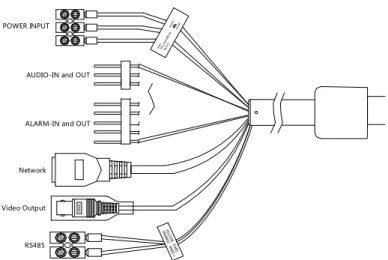
The cable interfaces of network speed dome are shown in two following figures. The cables are distinguished by different colors. Please refer to the labels attached on the cables for identification.
The cables may vary according to the models. The cables of the speed domes:
POWER INPUT
AUDIO-IN and OUT
ALARM-IN and OUT
Network
Video Output VIDEO
RS485
E Series Network Speed Dome Quick Start Guide
1.2
Wall Mounting
1.2.1
Installing the Bracket
The speed dome can be installed to a thread interface or non-thread interface bracket. The non-thread bracket is highly recommended.
When you select a thread bracket, please install the pendent adapter (supplied) between the bracket and speed dome. Any mismatch problems shall be taken responsibility by the user. The dimension of pendant adapter is G112 .
For cement wall, you need to use the expansion screw to fix the bracket. For wooden wall, you can just use the self-tapping screw to fix the bracket.
Please make sure that the wall is strong enough to withstand at least 8 times the weight of the dome and the bracket.
The wall must be thick enough to mount the expansion screws.
There are several ways to install the speed dome. In this section, the non-thread bracket installation is taken as an example. Refer to the following steps for details:
Steps:
1.Get the bracket and screws from the packing box as shown follows.
Figure 1-2Wall Mounting Bracket and Accessories
2.Drill 4 φ12 screw holes in the wall according to the hole locations of the bracket, and then insert M8 expansion screws into the screw holes.
Figure 1-3Drill Screw Hole and Insert Expansion Screw 3.Secure the bracket with 4 hex nuts and washers.
Figure 1-4Drill Screw Holes
Please take water-proof measures when installing outdoor speed domes.
1.2.2
Installing Micro SD Card
Purpose:
The speed domes are with built-in micro SD card slots which are for local storage with micro SD cards. There are four types of speed dome listed as follows.
Mini network speed dome: The micro SD card slots of mini network speed dome are shown below.
There are two locations of SD card slot for different models of mini network speed dome. Please take the practicality as standard.
Refer to the following steps to install the micro SD card.
Steps:
1.Loosen the two lock screws on the edge of the lower dome and remove the lower dome.
Lens Cover Protective Sticker
Protective Foam
E Series Network Speed Dome Quick Start Guide 2.Remove the protective lens cover, foam and sticker.
3.Align the micro SD card with the micro SD card slot and insert it.
SD Card Slot Location
Speed Dome Type 1 Speed Dome Type 2
Figure 1-6Micro SD Card Slot 4.Install the lower dome back and tighten the two lock screws.
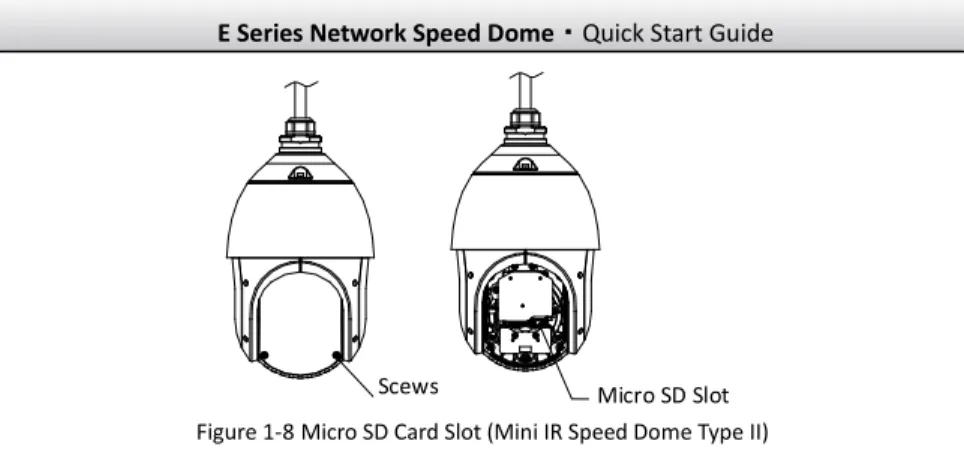
MiniIRnetworkspeeddome: The micro SD card slot is inside the rear cover. Outdoor mini IR network speed dome is taken as an example here. Refer to the following steps to install the micro SD card.
Steps:
1.Loosen 4 screws in the rear cover. Remove the rear cover.
2.Insert the SD card to the slot in the correct direction. Be sure that the SD card is clicked into place.
3.Attach the rear cover back to the speed dome. Secure the rear cover with 4 screws.
Remove Rear Cover
S D C a r d S l o t Figure 1-7Micro SD Card Slot (Mini IR Speed Dome Type I)
Scews Micro SD Slot Figure 1-8Micro SD Card Slot (Mini IR Speed Dome Type II)
5-inch network speed dome: The micro SD card slots of 5-inch network speed dome are shown below.
There are two locations of SD card slot for different models of mini network speed dome. Please take the practicality as standard.
Refer to the following steps to install the micro SD card.
Steps:
1.Loosen the two lock screws on the edge of the lower dome and remove the lower dome. 2.Remove the protective lens cover, foam and sticker.
Protective Sticker
Protective Foam
Figure 1-9Remove the Protective Accessory 3.Align the micro SD card with the micro SD card slot and insert it.
E Series Network Speed Dome Quick Start Guide
miscro SD
Figure 1-10Micro SD Card Slot 4.Install the lower dome back and tighten the two lock screws.
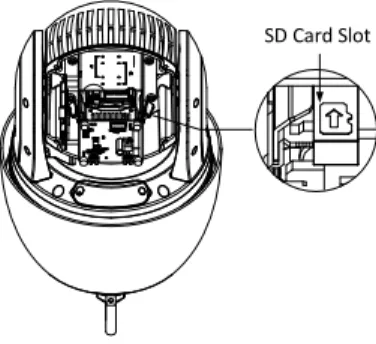
5-inch IR Speed Dome:
The SD card slot is inside the rear cover.Steps:
1.Remove the cover on the back of the speed dome as shown in Figure 1-11. 2.Push a black rubber cap aside and you can see the SD card slot under it. 3.Insert the SD card to the SD card slot and install the cap and then the cover back.
Screws
SD Card Slot
Figure 1-11SD Card Slot 6-inch IR Network Speed Dome
Steps:
1.Loosen 4 screws in the rear cover. Remove the rear cover.
2.Insert the SD card to the slot in the correct direction. Be sure that the SD card is clicked into place.
SD Card Slot
Figure 1-12Micro SD Card Slot
7-inch IRnetworkspeeddome: The micro SD card slot is inside the rear cover. Outdoor mini IR network speed dome is taken as an example here. Refer to the following steps to install the micro SD card.
Steps:
1.Loosen 4 screws in the rear cover. Remove the rear cover.
2.Insert the SD card to the slot in the correct direction. Make sure the SD card is clicked into place. 3.Attach the rear cover back to the speed dome. Secure the rear cover with 4 screws.
SD Card Slot
Figure 1-13Micro SD Card Slot
1.2.3
Speed Dome Installation
Speed Dome InstallationPlease remove the protective film on the lower dome after the installation is finished. Do not touch the bubble of the lower dome directly by hand. The image blurs otherwise.
Steps:
1.Hook the two ends of the safety rope to the back box of the speed dome and the bracket respectively. Route the cables through the bracket as shown follows.
E Series Network Speed Dome Quick Start Guide
Safety Rope
Figure 1-14Safety Rope 2.Loosen the lock screws on the bracket as shown below.
3.Align the speed dome with bracket and rotate it counterclockwise or clockwise to the bracket tightly as shown below.
Push Rotate Lock
Screw
Figure 1-15Align to the Bracket
4.Use L-wrench to tighten the lock screws to secure the speed dome and the bracket.
IR Speed Dome Installation
Steps:
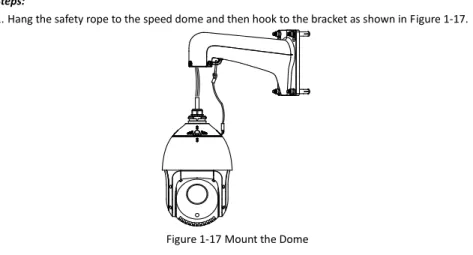
1.Hang the safety rope to the speed dome and then hook to the bracket as shown in Figure 1-17.
Figure 1-17Mount the Dome 2.Route the cables of the speed dome through the bracket. 3.Connect the corresponding network/power cables.
4.Loosen the two lock screws on the bracket with the Allen wrench.
5.Install the speed dome to the bracket, and secure the speed dome by rotating the speed dome clockwise.
6.Fasten the two lock screws with the Allen wrench.
Figure 1-18Tighten the Lock Screws 7.Remove the protective film on the IR light.
E Series Network Speed Dome Quick Start Guide
1.3
In-ceiling Mounting
The height of the space above the ceiling must be more than 250mm. The ceiling must be with the thickness between 5 and 40mm.
The ceiling must be strong enough to withstand more than 4 times the weight of the dome and its accessories.
1.3.1
Mini Network Speed Dome
Steps:
1.Drill holes in the ceiling.
1).Attach the drill template to the ceiling where you need to install the speed dome. 2).Cut a hole and drill screw holes according to the drill template.
±2mm of the diameter of the circle is tolerable.
Ф129
Ф11
Figure 1-19Drill Template 2.Disassemble the speed dome.
1).Loosen three screws and remove the lower dome. 2).Loosen three screws and remove the back box.
3).Remove the protective lens cover, foam and sticker from the dome drive.
Protective Foam
Sticker
Notch
Lower Dome Back Box
Figure 1-20Disassemble the Speed Dome 3.Install the toggle bolts.
2).Insert the bolts into the screw holes on the dome as shown in Figure 1-21.
Toggle Bolt Holes
Figure 1-21Toggle Bolt Holes 3).Rotate the bolts through the screw holes.
4).Reinstall the toggles as shown in Figure 1-22.
Toggle
Bolt
Figure 1-22Install the Toggle Bolts 4.Align the toggle bolts with the screw holes on the ceiling. 5.Push the dome to the mounting hole on the ceiling.
6.Rotate the bolts again. The toggle will automatically rotate down to secure the dome to the ceiling.
Ceiling Toggle
Figure 1-23Install the Dome to the Ceiling
E Series Network Speed Dome Quick Start Guide
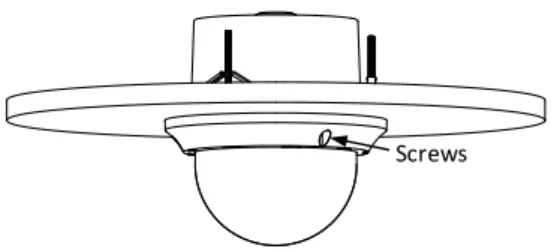
Screws
Figure 1-24Install the Lower Dome 8.Route the cables through the ceiling for the speed dome.
1.3.2
Mini IR Network Speed Dome
Before you start:
The in-ceiling mounting is applicable to the indoor ceiling.
Steps:
1.Drill holes in the ceiling.
1).Attach the drill template to the ceiling where you need to install the speed dome. 2).Cut a hole and drill screw holes according to the drill template.
±2mm of the diameter of the circle is tolerable.
Figure 1-25Drill Template 2.Route the cables through the ceiling for the speed dome. 3.Install the toggle bolts.
1).Remove the toggle from the toggle bolt.
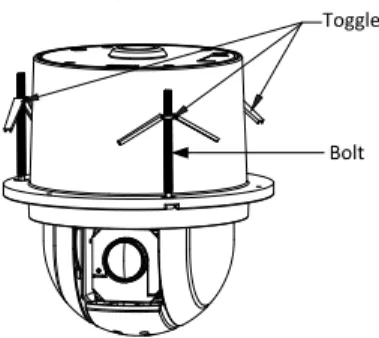
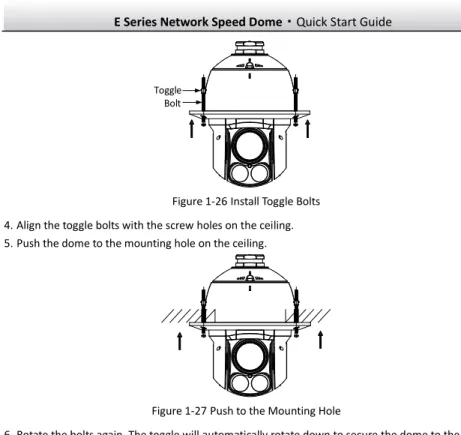
2).Insert the bolts into the 3 screw holes on the dome. 3).Rotate the bolts through the 3 screw holes. 4).Reinstall the toggles as shown in Figure 1-26.
Toggle Bolt
Figure 1-26Install Toggle Bolts 4.Align the toggle bolts with the screw holes on the ceiling. 5.Push the dome to the mounting hole on the ceiling.
Figure 1-27Push to the Mounting Hole
6.Rotate the bolts again. The toggle will automatically rotate down to secure the dome to the ceiling.
Figure 1-28Install the Dome to the Ceiling 7.Remove the protective film on the IR light.
E Series Network Speed Dome Quick Start Guide
1.3.3
5-inch Network Speed Dome
Steps:
1.Drill holes in the ceiling.
1).Attach the drill template to the ceiling where you need to install the speed dome. 2).Cut a hole and drill screw holes according to the drill template.
±2mm of the diameter of the circle is tolerable.
Figure 1-29Drill Template
2.Rotate the lower dome counterclockwise to separate it from the back box as shown in Figure 1-30.
3.Remove the protective lens cover, foam and sticker from the dome drive. 4.Attach lower dome to the back box, and rotate clockwise to secure it.
Protective Foam
Sticker
Lower Dome Back Box
Figure 1-30Remove the Protective Accessory 5.Connect the cables.
Connect the power cable and the red LED indicator turns on when the power is on. Please turn the power off after checking the speed dome.
6.Install the speed dome.
1).Loosen the two lock screws on both sides of the back box and make the locks in internal position, as shown in the following figure:
Lock Lock
Figure 1-31Locks and Lock Screws 2).Push the back box into the mounting hole in the ceiling
3).Tighten the lock screws with the screwdriver and the locks will automatically rotate outwards to secure the in-ceiling bracket to the ceiling.
Ceiling
Lock
Lock
Figure 1-32Install the back box 7.Install the trim ring.
1).Attach the trim ring to the lower dome and align the triangular notch of the trim ring with the arrow label on the in-ceiling bracket.
2).After having firmly placed the trim ring to the ceiling, rotate the trim ring in the direction of arrow to secure the trim ring in place.
Please remove the protective film on the lower dome after the installation is finished. In order to obtain clear video images, please wear the anti-static gloves when you install the
speed dome.
Notch Arrow Label
E Series Network Speed Dome Quick Start Guide
1.4
Ceiling Mounting
The height of the space above the ceiling must be more than 250mm. The ceiling must be with the thickness between 5 and 40mm.
The ceiling must be strong enough to withstand more than 4 times the weight of the dome and its accessories.
1.4.1
Mini Network Speed Dome
Steps:
1.Drill Screw holes in the ceiling.
1).Attach the drill template to the ceiling where you need to install the speed dome. 2).Drill screw holes and a cable hole (optional) according to the drill template.
Figure 1-34Drill Template 2.Disassemble the speed dome.
1).Loosen three screws as shown in the following figure. 2).Remove the lower dome.
3.Remove the protective lens cover, foam and sticker from the dome drive as shown in Figure 1-35. 4.Attach lower dome to the back box, and secure it with screws.
Sticker
Notch Bubble
Figure 1-35Disassemble the Speed Dome
5.Align the ceiling bracket with the screw holes on the drill template. Secure the ceiling bracket to the ceiling with screws (supplied) as follows.
Hook
Ceiling Bracket
Figure 1-36Install Ceiling Mount 6.Align the hook of the ceiling with unlock label on the speed dome. 7.Push the speed dome to the ceiling mount and rotate clockwise to secure it.
Align
Unlock Label
Figure 1-37Install Speed Dome
For cement ceiling mounting, you need to use the expansion screw to fix the mount. The mounting hole of the expansion pipe on the wall should align with the mounting hole on the mount.
E Series Network Speed Dome Quick Start Guide
1.4.2
5-inch Network Speed Dome
Removing the In-ceiling Mount:The speed dome is installed with an in-ceiling mount by default. Before you mount the speed dome on the ceiling, you need to remove the in-ceiling mount first.
Steps:
1.Loosen and remove the 4 screws as shown in Figure 1-38.
Figure 1-38Remove the Screws 2.Remove the in-ceiling bracket.
Figure 1-39Remove the Bracket 3.Install 4 bolts to the screw holes as shown in Figure 1-40.
Figure 1-40Install the bolts
Routing Method:
The cables of dome can be routed either from the top or the side of the back box, as shown in Figure 1-41. For the cables routed from the top of the back box, it is required to drill a cable hole in the ceiling.
Figure 1-41Cabling for Ceiling Mounting
Installing:
Steps:
1.Rotate the lower dome counterclockwise to separate it from the back box. 2.Remove the protective lens cover, foam and sticker from the dome drive. 3.Attach lower dome to the back box, and rotate clockwise to secure it. 4.Use the mounting base as a template to mark four screw holes onto the ceiling.
5.If you route cables from the top of the back box, mark the cable hole on the ceiling and drill a hole.
E Series Network Speed Dome Quick Start Guide
Screw Hole
Cable Hole
Figure 1-42Mark the Screw Positions 6.Secure the mounting base to the ceiling with set screws.
If the speed dome is installed to the wooden wall, use the self-tapping screws to secure the mounting base.
If the dome is installed to the cement wall, drill three Φ5 mounting holes onto the wall according to the hole locations, and then insert the cement screws into the holes and finally use self-tapping screws to secure the mounting base to the wall.
Figure 1-43Secure the Mounting Base 7.Install the speed dome to the mounting base.
1).Route the cables for the speed dome. Align the bottom of the speed dome with the mounting base.
2).Line up the direction of arrow with the spring end of the mounting base.
3).Push the speed dome upwards and then forwards in the direction of arrow. When the speed dome is placed in position, the spring will automatically snap into the lock clip firmly. Refer to the following figure.
Line up ① Push upwards ② Push forwards Lock clip Spring
Figure 1-44Attach the Back Box to the Mounting Base
Please remove the protective film on the lower dome after the installation is finished. Do not touch the bubble of the lower dome directly by hand. The image blurs otherwise.
E Series Network Speed Dome Quick Start Guide
2
Setting the Dome over the LAN
You shall acknowledge that the use of the product with Internet access might be under network security risks. For avoidance of any network attacks and information leakage, please strengthen your own protection. If the product does not work properly, please contact with your dealer or the nearest service center.
2.1
Wiring
To view and configure the speed dome via LAN (Local Area Network), you need to connect the network speed dome in the same subnet with your PC. Then, install the SADP or client software to search and change the IP of network speed dome.
The following figure shows the cable connection of network speed dome.
Network
Speed Dome Switch
Internet
NVR
PC
Figure 2-1Wiring Over a LAN
2.2
Activating the Speed Dome
Purpose:
You are required to activate the speed dome first by setting a strong password for it before you can use the speed dome.
Activation via Web Browser, Activation via SADP, and Activation via client software are supported. In the following sections, activation via web browser and SADP will be taken as examples. You may refer to the user manual of the speed dome for the details of activation via client software.
2.2.1
Activation via Web Browser
Steps:
1.Power on the speed dome, and connect the speed dome to the network.
2.Input the IP address into the address bar of the web browser, and click Enter to enter the activation interface.
The default IP address of the speed dome is 192.168.1.64.
Figure 2-2Activation Interface(Web) 3.Create a password and input the password into the password field.
STRONG PASSWORD RECOMMENDED– We highly recommend you create a strong password of your own choosing (using a minimum of 8 characters, including at least three of the following categories: upper case letters, lower case letters, numbers, and special characters) in order to increase the security of your product.
4.Confirm the password.
5.Click OK to activate the speed dome and enter the live view interface.
2.2.2
Activation via SADP Software
SADP software is used for detecting the online device, activating the device, and resetting the password.
Get the SADP software from the supplied disk or the official website, and install the SADP according to the prompts. Follow the steps to activate the speed dome.
Steps:
1.Run the SADP software to search the online devices.
E Series Network Speed Dome Quick Start Guide
Figure 2-3SADP Interface
3.Create a password and input the password in the password field, and confirm the password. STRONG PASSWORD RECOMMENDED– We highly recommend you create a strong password of your own choosing (using a minimum of 8 characters, including at least three of the following categories: upper case letters, lower case letters, numbers, and special characters) in order to increase the security of your product.
4.Click OK to save the password.
You can check whether the activation is completed on the popup window. If activation failed, please make sure that the password meets the requirement and then try again.
2.3
Modifying the IP Address
Purpose:
To view and configure the speed dome via LAN (Local Area Network), you need to connect the network speed dome in the same subnet with your PC. Then, install the SADP software or client software to search and change the IP of network speed dome. We will take modifying the IP Address via SADP software as an example to introduce the IP address modification.
Steps:
1.Run the SADP software. 2.Click to select an active device.
Please refer to the section 2.2 Activating the Speed Dome to activate the speed dome if it is inactive.
Figure 2-4Modify the IP Address
E Series Network Speed Dome Quick Start Guide
3
Accessing via Web browser
System Requirement:
Operating System: Microsoft Windows XP SP1 and above version / Vista / Win7 / Server 2003 / Server 2008 32bits
CPU: Intel Pentium IV 3.0 GHz or higher RAM: 1G or higher
Display: 1024×768 resolution or higher
Web Browser: Internet Explorer 8.0 and above version, Apple Safari 5.02 and above version, Mozilla Firefox 5 and above version and Google Chrome 18 and above version
Steps:
1.Open the web browser.
2.In the browser address bar, input the IP address of the network speed dome, e.g., 192.168.1.64 and press the Enter key to enter the login interface.
3.Activate the speed dome for the first time using, refer to the section 2.2 Activating the Speed Dome.
4.Input the user name and password and click .
The device IP address gets locked if the admin user performs 7 failed password attempts (5 attempts for the user/operator).
Figure 3-1Login Interface
5.Install the plug-in before viewing the live video and managing the network speed dome. Please follow the installation prompts to install the plug-in.
Figure 3-2Download Plug-in
Figure 3-3Install Plug-in
6.Reopen the web browser after the installation of the plug-in and repeat the above steps 2-4 to login.
For detailed instructions of further configuration, please refer to the user manual of network speed dome.