CP180/CP180i
CP300/CP300i
Owner's Manual
WARNING!!!
Electronic charts displayed by the GPS Chart Plotter are believed to be accurate and reliable, but are not intended to be a substitute for the official charts, which should remain your main reference for all matters related to the execution of safe navigation.
For this reason you should always keep the official published and approved nautical charts on board.
FCC Compliance Statement
This device complies with Part 15 of the FCC limits for Class A digital devices. This equipment generates, uses and can radiate radio frequency energy and, if not installed or used in accordance with the instructions may cause harmful interference with radio communications.
There is no guarantee that interference will not occur in a particular instance. If this equipment does cause harmful interference to other equipment, try to correct the problem by relocating the equipment.
Consult an authorized STANDARD HORIZON dealer or other qualified service technician if the problem cannot be corrected. Operation is subject to the following conditions: (1) This device cannot cause harmful interference, and (2) this device must accept any interference received, including interference that may cause undesired operation.
CAUTION
· The GPS Chart Plotter is designed for maritime use. To avoid water intrusion, ensure the C-MAP BY JEPPESEN C-CARD door is completely closed.
· Extensive exposure to heat may result in damage to the GPS Chart Plotter. · The GPS Chart Plotter contains dangerous high-voltage circuits which only
experien-ced technicians can handle.
· STANDARD HORIZON will not be liable for errors contained herein, or for incidental or consequential damages in connection with the performance or use of this material. · Because we frequently update our software and applications, the pictures shown
through this Owner’s Manual may be slightly different from what you see.
CLEANING PROCEDURE FOR THE GPS CHART PLOTTER SCREEN Cleaning of the GPS Chart Plotter screen is a very important operation and must be done carefully. Since the surface is covered by a antireflective coating, the procedure for cleaning all the surfaces can be performed using the following procedure: Use a clean, soft, lint-free cloth to clean the glass. We recommend using a micro-fiber cloth. Spray a small amount of ammonia-free cleaner (isopropyl alcohol) onto the cloth. Spraying on the cloth will prevent overspray. Fold the cloth or lens cloth into a triangular shape, moisten the tip and use the index finger behind a corner to move the cloth across the surface in overlapping side to side strokes. If the cloth is too wet, a noticeable wet film will be left in its path and you will need to repeat the process. If too dry, the cloth won’t glide easily, and may damage the
TABLE OF CONTENTS
1. INTRODUCTION ... 10
1.0 GENERAL INFORMATION ... 10
1.1 PACKING LIST ... 11
1.1.0 CP180/CP180i Packing List ... 11
1.1.1 CP300/CP300i Packing List ... 11
1.2 OPTIONAL ACCESSORIES ... 12
1.3 RADAR UNIT SUPPLIED BY SI-TEX USA ... 12
2. GETTING STARTED ... 13
2.0 MOUNTING THE GPS CHART PLOTTER ... 13
2.1 BRACKET MOUNTING ... 13
2.2 FLUSH MOUNTING ... 14
2.3 MOUNTING THE CP180 OR THE CP300 EXTERNAL GPS ANTENNA ... 15
2.3.0 Flush mounting the antenna ... 16
2.4 CONNECTIONS ... 17
2.4.0 CP180/CP180i Connection Table ... 17
2.4.1 CP300/CP300i Connection Table ... 18
2.4.2 CP180/CP180i Connections ... 19
2.4.3 CP300/CP300i Connections ... 20
2.5 BATTERY CONNECTIONS ... 22
2.6 NMEA CONNECTIONS ... 22
2.7 GPS POSITION ON A VHF RADIO ... 22
2.8 OPTIONAL BLACK BOX FISH FINDER ... 23
2.9 RADAR ANTENNA (USA ONLY) ... 23
2.10 PERSONAL COMPUTER CONNECTIONS ... 23
2.11 NMEA DATA PAGE ... 24
2.12 CP300/CP300i VIDEO INPUT ... 25
2.12.0 Video Camera Input ... 25
2.12.1 VCR or DVD Input ... 25
2.13 DEMO MODE (For DEALER USE) ... 26
3. CONTROLS AND INDICATORS ... 28
3.0 CONTROLS AND CONNECTIONS ... 28
3.0.0 The CP300/CP300i Soft Keys ... 29
3.1 GETTING STARTED ... 29
3.1.0 Power On, Off and ShuttlePoint Knob operation ... 29
3.1.1 Cursor Vs. Home Mode ... 31
3.1.2 Cursor and Menu selection speed ... 31
3.1.3 Changing the Ship Icon ... 32
3.1.4 Changing the Backlight and Contrast ... 32
3.1.5 Selecting North Up or Course Up ... 32
3.2 AUTOMATIC TIME ... 33
3.3 SELECTING LORAN TD OR OTHER COORDINATE SYSTEM ... 34
3.4 CHANGING THE CHART COLOR ... 35
3.5 SELECTING LANGUAGE ... 35
3.6 SELECTING PAGES USING SOFT KEYS ON CP300/CP300i ... 36
3.7 CUSTOMIZING THE SOFT KEYS ON CP300/CP300i ... 37
3.8 SETTINGS IN GENERAL SETUP MENU ... 38
4. FIND SERVICES ... 41
4.0 USING FIND SERVICES & MORE FUNCTIONS ... 41
4.0.0 Port Services ... 41 4.0.1 Port ... 42 4.0.2 Tide Stations ... 42 4.0.3 Wrecks ... 43 4.0.4 Obstructions ... 44 4.0.5 Lakes Information ... 45
Quick Info On Lakes ... 45
Full Info On Lakes ... 46
4.0.6 Lakes By Name ... 46
4.0.7 Points Of Interest ... 47
4.0.8 User Points ... 48
4.0.9 Coordinates ... 48
4.0.10 Information ... 49
5. MAX CARTOGRAPHY OVERVIEW ... 50
5.0 INSERTING THE C-CARD ... 50
6. MAP FUNCTIONS ... 52
6.0 MAX FUNCTIONS MENU ... 52
6.0.0 Zoom Type ... 52
6.0.1 Icon Size ... 53
6.0.2 Place Name Size ... 53
6.0.3 Perspective View ... 54
6.0.4 Dynamic Nav-Aids ... 55
6.0.5 Safety Status Bar (DSI - Data Safety Indicator) ... 55
6.0.6 Satellite Imagery ... 56
6.0.7 Currents Prediction ... 56
6.0.8 Chart Language ... 57
6.0.9 Pictures and Diagrams ... 58
How to show the Pictures or Diagrams of a Object ... 58
6.0.10 Enhanced Port Info ... 59
7. CREATING MARKS ... 60
7.0 CREATING A NEW MARK USING THE CHART PAGE ... 60
7.1 EDITING A MARK ... 60
7.1.0 Deleting a Mark or Waypoint ... 61
7.1.1 Moving a Mark or Waypoint ... 61
7.2 MARKS/WAYPOINTS LIST ... 62
7.3 CREATING A NEW MARK WITH THE USER POINTS LIST ... 63
7.4 GOTO CURSOR, ROUTE AND MARK ... 64
8. MAN OVER BOARD (MOB) FUNCTION ... 66
8.0 PLACING A MOB POINT ... 66
8.1 DELETING A MOB POINT ... 66
9. ROUTES ... 67
9.0 CREATING A ROUTE USING WAYPOINTS ... 67
9.1 CHANGING THE NAME OF A ROUTE ... 68
9.2 CREATING AN OLYMPIC ROUTE ... 68
9.3 MAKING ADDITIONAL ROUTES ... 69
9.4 CREATING A ROUTE USING MARKS ON THE CHART PAGE ... 69
9.5 INSERTING A WAYPOINT INTO A ROUTE ... 70
9.6 GOTO A ROUTE ... 70
9.6.1 Using the ShuttlePoint knob ... 71
9.7 DELETING A ROUTE ... 71
9.8 OTHER SETTINGS IN ROUTE MENU ... 72
9.8.0 Route Check ... 72
10. TRACKS ... 74
10.0 TRACKING ... 74
10.0.0 Saving and starting a new Track ... 75
10.0.1 Deleting a Track ... 75
10.0.2 Other settings ... 75
10.1 TRIP LOG ... 76
10.1.0 Using the Trip Log ... 76
10.1.1 Setup / Reset ... 76
11. USER C-CARD ... 77
11.0 USER C-CARD MENU ... 77
11.0.0 Formatting the optional User C-CARD ... 77
11.0.1 Transferring files to the optional User C-CARD ... 77
11.0.2 Loading a file from the optional User C-CARD ... 78
11.0.3 Deleting a file from the optional User C-CARD ... 78
11.0.4 Refreshing the optional User C-CARD ... 78
12. PAGES ... 79
12.0 CHART PAGE ... 80
FOR CP300/CP300i 12.0.0 Focus Soft Key on Dual Chart page ... 81
FOR CP180/CP180i 12.0.1 Change Focus on Dual Chart page ... 81
12.0.2 Single Chart page ... 82
12.0.3 Window Selections ... 82
12.0.4 Customizing the Data Windows ... 83
12.0.5 Additional Functions on Chart page ... 84
12.0.6 Turning Off Information on Icon Points ... 84
12.0.7 Display Mode ... 85
12.0.8 Marine Settings ... 86
12.0.9 Depth Settings ... 86
12.0.10 Land Settings ... 87
12.0.11 Chart Settings ... 87
12.0.12 Underwater Objects Settings ... 88
12.1 CUSTOMIZING CHART SETTINGS ... 89
12.2 NAVIGATION PAGE ... 89 12.3 HIGHWAY PAGE ... 90 12.4 CELESTIAL PAGE ... 90 12.4.0 Changing date ... 90 12.5 GPS STATUS PAGE ... 91 12.5.0 WAAS/EGNOS Setting ... 92 12.5.1 GPS Setup Menu ... 92
12.6 NMEA DISPLAY PAGE ... 92
12.6.0 Changing the NMEA page windows ... 93
12.7 NMEA DATA PAGE ... 93
12.8 NMEA TREND PAGES ... 94
12.9 VHF DIGITAL SELECTIVE CALLING ... 95
12.9.0 Interfacing ... 95
12.9.1 Distress Call ... 96
13. ADVANCED SETTINGS ... 97
13.0 INPUT/OUTPUT (NMEA, AIS, RADAR) ... 97
13.1 NAVIGATE ... 97
13.1.0 Loran TD ... 98
13.2 COMPASS ... 98
13.3 ALARMS ... 98
13.4 SIMULATION ... 99
13.4.0 Navigating a Route in Simulation Mode ... 100
13.5 DSC POLLING ... 100
14. AIS ... 101
14.0 SYSTEM DEFINITIONS ... 101
14.1 MENU ... 102
14.2 AIS SETUP ... 102
14.3 QUICK INFO ON AIS TARGET ... 102
14.4 LIST ... 103
14.5 AIS TARGET COLORS ... 103
15. C-WEATHER SERVICE ... 104
15.0 C-WEATHER SERVICE MENU ... 104
15.0.0 Download ... 104
15.0.1 Copy From User C-CARD ... 105
15.0.2 Weather Forecast ... 105
15.0.3 Real Time View ... 105
15.0.4 Type of Data ... 105
16. MOBILARM ... 106
16.0 MOBILARM-GPS CHART PLOTTER CONNECTION ... 106
16.1 SOFTWARE SETUP ... 107
16.2 MOBILARM STATUS ... 107
16.3 MOBILARM PTX ... 108
16.3.0 MOBILARM MOB alert is received ... 108
16.4 PLACING CURSOR ON THE PTX ICON ... 109
16.4.0 Delete PTX ... 110
16.4.1 Goto PTX ... 110
16.4.2 The MOBILARM Alarm Status List ... 111
17. TROUBLESHOOTING ... 112
18. TECHNICAL TESTS ... 113
18.0 SYSTEM TEST ... 113
18.0.0 RAM Menu (reset) ... 113
18.0.1 DIM Menu ... 113 18.0.2 Cartridges ... 114 18.0.3 Serial Ports ... 114 19. SPECIFICATIONS ... 115 19.0 CP180/CP180i SPECIFICATIONS ... 115 19.1 CP300/CP300i SPECIFICATIONS ... 116
19.2 OPTIONAL WAAS GPS RECEIVER SPECIFICATIONS ... 117
20. APPENDIX: TERMS ... 118
1. INTRODUCTION
Congratulations on your purchase of the STANDARD HORIZON GPS Chart Plotter. Whether this is your first STANDARD HORIZON product or not, we are committed to ensuring your enjoyment and satisfaction with this unit. Our Technical support personnel stand behind every product we sell. Post-Sales Support can be obtained from your dealer or distributor. USA customers should contact STANDARD HORIZON on 714-827-7600 or email to [email protected]. UK customers should contact STANDARD HORIZON on 01962 866667 or email [email protected]. European customers should contact their local dealer or distributor for support.
1.0
GENERAL INFORMATION
The CP180, CP300 (with external GPS antenna) and CP180i, CP300i (with internal GPS antenna) are precision-crafted high-performance receivers for the Global Positioning System (WAAS GPS) constellation of satellites that provide precise location data with a host of navigation features and are ideal for nautical use and sealed against water ingress. The GPS Chart Plotter is housed in rugged, impact-resistant cases with outstanding ergonomic design for effortless operation. The CP180, CP180i and CP300, CP300i are IP56 water resistent.
The advanced features of the GPS Chart Plotter include: · Direct sunlight-readable color LCD display
· CP180i/CP300i - Internal 50 channels WAAS GPS
· Fish Finder capable when the optional FF525 50/200kHz (Black Box Fish Finder) is installed
· Capable of using a Radar antenna (USA ONLY) · C-MAP BY JEPPESEN NT+/MAX cartography compatible
· Improved Worldwide background showing details up to 2.0Nm
· CP180/CP300 - WAAS GPS antenna, bracket and flush mounting hardware · CP300/CP300i - Video Input with ”picture-in-picture” display
· Dual chart window with independent zoom levels · Satellite images on base chart
· Selectable sailboat and power boat Ship Icons with red and green for port and starboard · Compass Rose indication around Ship Icon
· Route Checking · Color Targets AIS · Dedicated AIS List page · Navigate to an Olympic Route
· SOG Speed Filter function to resolve erratic speed readings in rough seas · 3000 Marks / 50 Routes / 10000 Track Points
· User selectable data fields · NMEA Data pages
· CP180/CP180i - 3 NMEA Outputs and 2 Inputs (2 Inputs FOR CP180i) CP300/CP300i - 5 NMEA Outputs and 3 Inputs (2 Inputs FOR CP300i)
and Position Request calls
· 3 year limited warranty, lifetime flat rate NOTE
The screen imagines on this manual refer to the CP180/CP180i GPS Chart Plotters unless specified.
1.1
PACKING LIST
When the package containing the Navigation device is first opened, please check for the following contents. If any parts are missing contact the dealer this Navigation device was purchased from. Accessories and replacements parts may be ordered in the USA by contacting STANDARD HORIZON’s Parts department on 714-827-7600 Extn. 6800 or by email at [email protected]. UK customers may contact STANDARD HORIZON on 01962 866667 or by email to [email protected].
1.1.0 CP180/CP180i Packing List
PART CODE ITEM
S8002224A External bracket
S8002225 Mounting knob with two washers
S8002222 Dust cover
T9101553 Power data cable
S8002223 Flush mounting screws (CP180 ONLY) EM016N550 Flush mounting template (CP180 ONLY)
Q7000619A GPS ANT Unit GSU-5H Series UX0GSU51SD* (CP180 ONLY)
EM022U110 Owner’s Manual
EM023U512 Quick Reference Guide
NOTE: “*” is a revision number
1.1.1 CP300/CP300i Packing List
PART CODE ITEM
S8002224A External bracket
S8002225 Mounting knob with two washers
S8002235 Dust cover
T9101553 PWR & ACC1 cable
T9101553 ACC2 cable
S8002223 Flush mounting screws (CP300 ONLY) EM022U500 Flush mounting template (CP300 ONLY)
XUCMP0052 2 Amp fuse and holder
Q7000619A GPS ANT Unit GSU-5H Series UX0GSU51SD* (CP300 ONLY)
EM022U110 Owner’s Manual
EM023U512 Quick Reference Guide
1.2
OPTIONAL ACCESSORIES
1.3
RADAR UNIT SUPPLIED BY SI-TEX USA
The Radar antennas are supplied by SI-TEX (631) 996-2690 in the USA and Canada. Refer to the table below for compatible models:
MODEL NUMBER DESCRIPTION
MDS-1 2kW 24 Mile 12.4” diameter Radome antenna MDS-8 2kW 24 Mile 20” diameter Radome antenna MDS-9 4kW 36 Mile 23.5” diameter Radome antenna MDS-10-4 4kW 48 Mile 4FT Open Array
MDS-10-5 4kW 48 Mile 5FT Open Array NOTE
For UK customers: Please contact the STANDARD HORIZON Authorized dealer, STANDARD HORIZON product technical support or SI-TEX directly for additional information.
2. GETTING STARTED
NOTEThroughout this Owner’s Manual same conventions are used. See the legend below: [MENU]If you see brackets around a bold and capital letter word this refers to a key press. [CHART] If you see brackets around a bold and small capital letter word this refers to a Soft Key
press.
GENERAL SETUPWhen a word(s) is bold capital letters and underlined, this refers to a menu selection item.
2.0
MOUNTING THE GPS CHART PLOTTER
The CP180 and CP300 are available in either internal or external GPS antenna variants. The GPS Chart Plotters are designed for bracket or flush mounting and are supplied with both bracket and flush mounting kits.
NOTE
Flush mounting of the internal GPS version of the CP180i or CP300i may result in a significantly reduced GPS performance or no fix at all when using the internal antenna.
Both external and internal GPS models may be flush mounted, but the user should ascertain that they can obtain a satisfactory GPS fix when using the internal GPS version. If this is not possible, then the optional external GPS antenna [UX0GSU51SD] may be required to receive GPS signals at sufficient strength to enable a satisfactory fix. The flush mounting kit is available as an option for those CP180i or CP300i users who wish to flush mounting their GPS Chart Plotter.
When an external GPS antenna is used with the CP180i or CP300i, the internal GPS aerial must be switched off. This can be done using the following procedure:
1. Turn the CP180i and CP300i on and select the GPS STATUS page. 2. Press [ENT] to show the GPS SETUP menu.
3. Move the ShuttlePoint knob to highlight INTERNAL GPS and press [ENT]. 4. Move the ShuttlePoint knob to highlight OFF and press [ENT].
Figure 2.0 - GPS Setup menu
5. Press [CLR] to exit the GPS SETUP menu.
6. Confirm the GPS Status page is showing satellite signal strength bars and receive a fix.
2.1
BRACKET MOUNTING
The CP180/CP180i and CP300/CP300i can be mounted using the supplied swivel mounting bracket. Before installing ensure the area the bracket is mounted to is strong enough to support the weight of the GPS Chart Plotter especially while under way.
After the location is found, attach the mounting base to the area using the supplied hardware.
Figure 2.1 - Example of Bracket installation (CP180 on the left side and CP300 on the right side)
2.2
FLUSH MOUNTING
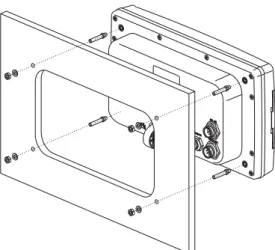
The CP180/CP180i and CP300/CP300i are supplied with a flush mounting template for the cutout hole and screw holes required to install the GPS Chart Plotter.
NOTE
Before drilling holes make sure there is enough room to mount the GPS Chart Plotter and there are no obstructions.
Figure 2.2a - Example of CP300 Flush installation
1. After a location is found, peel the template label from the backing and apply the label to the mounting area.
2. Drill a hole in one area of the cutout area that will allow the blade of a jig saw to be inserted. Insert and cut out the area on the panel using the jig saw.
3. Next drill the four holes required to insert the GPS Chart Plotter with the mounting studs. 4. Install the mounting studs on the GPS Chart Plotter and insert into the mounting hole. 5. Attach the GPS Chart Plotter to the mounting location by attaching the supplied
hardware to the mounting studs.
M4 threaded M4 threaded
20 mm 4 mm
27 mm
Figure 2.2b - Mounting Screws
2.3
MOUNTING THE CP180 OR THE CP300 EXTERNAL GPS
ANTENNA
The CP180 and CP300 are supplied with an external WAAS GPS antenna with 15 meter of routing cable. This antenna is designed to be mounted on a base, installed on an extension or even flush mounted.
3FT of a Radar or other transmitting antennas. Ensure there are no major obstructions or fixtures in the immediate proximity to the antenna. The antenna relies on direct “line of sight” satellite reception. If you are unsure of the chosen location, temporarily mount the antenna in the desired location to verify correct operation. If mounted close to Radar, after the GPS Chart Plotter has a fix, turn on the Radar to ensure the GPS Chart Plotter holds the fix (use the GPS Status page).
The thread used on the antenna is an industry standard (1inch 14TPI) used on a wide range of mounting brackets.
NOTE
The antenna cable can be cut and spliced to ease installation. Care must be taken when reconnecting the antenna cable to protect from water and corrosion.
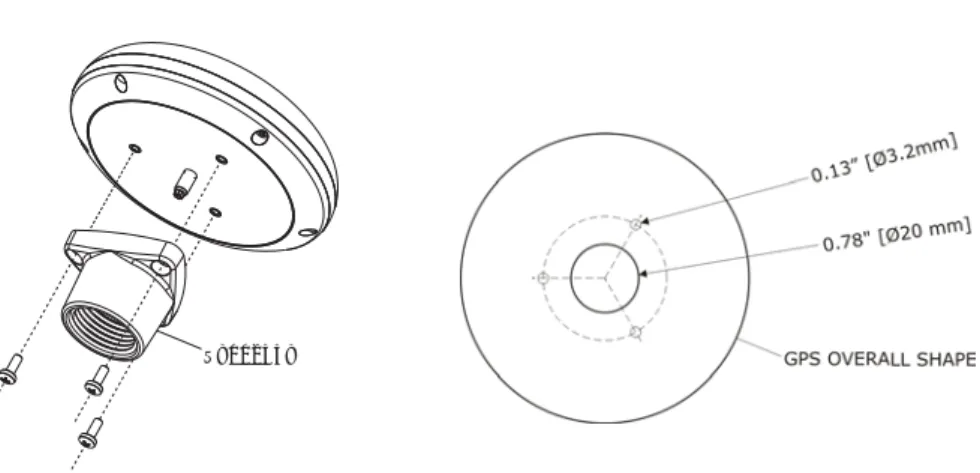
2.3.0 Flush mounting the antenna
NOTEBefore drilling holes, it is recommended the antenna be positioned where the location is planned, cable connected to the GPS Chart Plotter and power turned on to ensure a GPS Fix is received. 1. Remove the threaded base from the antenna dome.
2. To ease installation a flush mounting template for the antenna has been included. 3. Apply the mounting template sticker to the area that was verified for GPS reception. 4. Then, drill out the 0.78” (20mm) and 0.13” (3.2mm) holes, and remove the template. 5. Insert the cable into the 0.78” (20mm) hole and route to the GPS Chart Plotter. 6. Apply a small amount or RTV to the underside of the antenna.
7. Place the antenna and then screw it into place using the screws. NOTE
In some cases the screw may not be long enough. If this happens simply apply more RTV to the underside of the antenna to glue it into place.
S8002348
Smart GPS Cable
Pin Wire Color Description
1 Red Battery Positive
2 Green Smart GPS NMEA Input 3 Brown Smart GPS NMEA Output
4 NC
5 NC
6 Black/Yellow Battery Ground
2.4
CONNECTIONS
The GPS Chart Plotter has connectors that are used to connect to the power supply, GPS antenna (CP180 AND CP300 ONLY), optional FF525 50/200kHz Black Box Fish Finder and to NMEA devices* such as VHFs, AIS Receivers, digital instruments and Autopilots.
NOTE
The GPS Chart Plotter can send many sentences to external NMEA devices*. The NMEA Output wires are yellow and white. If you have connected devices as shown in the table on the next page and need to feed NMEA to other devices (Autopilot, Radar…) you can parallel wires from the yellow, brown or white wires to other devices.
NOTE* RS232 not opto-isolated electrical interface
2.4.0 CP180/CP180i Connection Table
12VDC Power cable
Pin Wire Color Description Connection Example Additional Comments 1 Black Battery Ground Connect to Battery Ground
2 Red Battery Positive Connect to Battery Positive
3 Green NMEA Common Common (ground) for NMEA devices***
4 Blue Port1 Input Connect to Output of NMEA devices*** Default is NMEA-0183*
5 Brown Port1 Output Connect to Input of NMEA devices*** Default is NMEA-0183 with GGA, GLL, RMC, DBT, DPT, MTW, VHW and XTE sentences 6 Grey Port2 Input Connect to FF525 Default is Fish Finder
7 White Port2 Output Connect to FF525 Default is Fish Finder
8 Yellow Port3 Output Connect to Input of NMEA devices*** Default is NMEA-0183 with APA, APB, BOD, GGA, GLL, RMC and BOD sentences** NOTE*: AIS RECEIVER OPTION
When an optional AIS Receiver is connected, Port1 (or other Port the AIS is connected to) of the NMEA In/Out Connections menu must be changed to AIS 38400 as shown below for communica-tions. When AIS 38400 is selected the Output Port is disabled.
1. From the Chart page, press [MENU], move the ShuttlePoint knob to highlight SETUP MENU and press [ENT].
2. Move the ShuttlePoint knob to highlight ADVANCED SETUP and press [ENT] or move the ShuttlePoint knob to the right.
3. Move the ShuttlePoint knob to highlight IN/OUT CONNECTIONS and press [ENT] or move the ShuttlePoint knob to the right.
4. Move the ShuttlePoint knob to highlight PORT1 INPUT and press [ENT] or move the ShuttlePoint knob to the right.
5. Move the ShuttlePoint knob up/down to select AIS 38400 and press [ENT] or move the ShuttlePoint knob to the right.
NOTE** AUTOPILOT CONNECTION
Care must be taken when connecting the GPS Chart Plotter to an Autopilot. Normally Port3 (Yellow wire) will be used to connect to an Autopilot Input, however older Autopilots may not be able to read the sentences due to the talker ID that is being used (II Integrated Instrument). If the Autopilot connections are made to Port3 (Yellow wire) and the Autopilot is not reading the sentences, change the connections to Port1 (Brown wire) and change the sentences to APA, APB, BOD, GGA, GLL, RMC and XTE.
NOTE*** RS232 not opto-isolated electrical interface.
2.4.1 CP300/CP300i Connection Table
12VDC Power and NMEA PWR & ACC1 cable
Pin Wire Color Description Connection Example Additional Comments 1 Black Battery Ground Connect to Battery Ground
2 Red Battery Positive Connect to Battery Positive
3 Green NMEA Common Common (ground) for NMEA devices**
4 Blue Port1 Input Connect to Output of NMEA devices** Default is NMEA-0183
5 Brown Port1 Output Connect to Input of NMEA devices** Default is NMEA-0183 with GGA, GLL, RMC, XTE, DBT, DPT, MTW, VHW sentences 6 Grey Port2 Input Connect to FF525 Default is Fish Finder
7 White Port2 Output Connect to FF525 Default is Fish Finder
8 Yellow Port3 Output Connect to Input of NMEA devices** Default is NMEA-0183 with APA, APB, BOD, GGA, GLL, RMC and BOD sentences NMEA ACC2 cable
Pin Wire Color Description Connection Example Additional Comments
1 Black NC
2 Red NC
3 Green NMEA Common Common (ground) for NMEA devices**
4 Blue Port4 Input Connect to Output of NMEA devices** Default is NMEA-0183*
5 Brown Port4 Output Connect to Input of NMEA devices** Default is NMEA-0183 with GLL, RMB, RMC and XTE sentences
6 Grey Port5 Input Connect to Output of NMEA devices** Default is NMEA-0183
7 White Port5 Output Connect to Input of NMEA devices** Default is NMEA-0183 with GLL, RMB, RMC and XTE sentences
8 Yellow NC
NOTE*: AIS RECEIVER OPTION
When an optional AIS Receiver is connected, Port4 (or other Port the AIS is connected to) of the NMEA In/Out Connections menu must be changed to AIS 38400 as shown below for communica-tions. When AIS 38400 is selected the Output Port is disabled.
1. From the Chart page, press [MENU], move the ShuttlePoint knob to highlight SETUP MENU and press [ENT].
2. Move the ShuttlePoint knob to highlight ADVANCED SETUP and press [ENT] or move the ShuttlePoint knob to the right.
3. Move the ShuttlePoint knob to highlight IN/OUT CONNECTIONS and press [ENT] or move the ShuttlePoint knob to the right.
4. Move the ShuttlePoint knob to highlight PORT4 INPUT and press [ENT] or move the ShuttlePoint knob to the right.
5. Move the ShuttlePoint knob up/down to select AIS 38400 and press [ENT] or move the ShuttlePoint knob to the right.
NOTE** RS232 not opto-isolated electrical interface.
Video Connector
Pin Description Connection Example
1 Ground Connect to Video Signal Ground of DVD/VCR/Video Cameras 2 + 9 / 12 VDC Connect to Video Cameras Power Input
3 Video Signal + Connect to Video Signal + (NTSC/PAL) of DVD/VCR/Video Cameras
2.4.2 CP180/CP180i Connections
2.4.2.0 DC Power Connection
2.4.2.1 Connection of the FF525, AIS Receiver, VHF and Autopilot
SMART GPS Antenna CP180 Battery 10-35Vdc Red 2A Fuse Black Switch + -VHF PILOT Green Blue Brown Gray White NMEA Common Port1 Input Port1 Output Port 2Input Port 2Output Yellow Port 3Output AIS
SMART GPS Antenna CP180 Battery 10-35Vdc Red 2A Fuse Black Switch + -Tee Optional FishFinder
Transducer VHF Green Blue Brown Gray White NMEA Common Port1 Input Port1 Output Port 2Input Port 2Output Yellow Port 3Output AIS
PWR & ACC 1 Cable
NOTE
Port2 Input and Output is used by the optional FF525. In the diagram above you will notice Port2 Input and Output wires are shown in gray and not used.
2.4.2.2 AIS Setup
The CP180 or CP180i has to be set up to be able to receive NMEA information from the AIS Receiver. The GPS Chart Plotter reads the AIS NMEA message VMD, type 1, 2, 3 and 5 for AIS Class A and type 18, 19, 24 for AIS Class B. Select the used Port and transmission speed by following the procedure:
1. Press [MENU], move the ShuttlePoint knob to highlight SETUP MENU and press [ENT].
2. Move the ShuttlePoint knob to highlight ADVANCED SETUP and press [ENT] or move the ShuttlePoint knob to the right.
3. Move the ShuttlePoint knob to highlight IN/OUT CONNECTIONS and press [ENT] or move the ShuttlePoint knob to the right.
4. Move the ShuttlePoint knob to highlight PORT1 INPUT and press [ENT] or move the ShuttlePoint knob to the right.
5. Move the ShuttlePoint knob up/down to select AIS 38400 and press [ENT] or move the ShuttlePoint knob to the right.
NOTE
If an AIS Receiver is not connected, Port1 Input can be connected to most DSC VHF’s for position polling.
2.4.3 CP300/CP300i Connections
2.4.3.1 Connection a Video Camera, FF525, AIS Receiver, VHF and Autopilot
NOTE
Port2 Input and Output is used by the optional FF525. In the diagram above you will notice Port2 Input and Output wires are shown in gray and not used.
Port4, and Port5 Outputs are can be connected to NMEA devices* capable of listening to NMEA-0183 sentences.
Port4, and Port5 Inputs can be connected to NMEA devices* capable of outputting to NMEA-0183 sentences.
The Input and Output baud rate for each Port is set using the Advanced Setup>In/Out Connections menu. For example if Port1 is set for AIS 38400, the Input Port operates at 38400 baud and the Output Port is disabled.
NOTE* RS232 not opto-isolated electrical interface 2.4.3.2 AIS Setup
The CP300 or CP300i has to be set up to be able to receive NMEA information from the AIS Receiver. The GPS Chart Plotter reads the AIS NMEA message VMD, type 1, 2, 3 and 5 for AIS Class A and type 18, 19, 24 for AIS Class B. Select the used serial Port and transmission speed by following the procedure:
1. Press [MENU], move the ShuttlePoint knob to highlight SETUP MENU and press [ENT]. 2. Move the ShuttlePoint knob to highlight ADVANCED SETUP and press [ENT] or move
the ShuttlePoint knob to the right.
3. Move the ShuttlePoint knob to highlight IN/OUT CONNECTIONS and press [ENT] or move the ShuttlePoint knob to the right.
4. Move the ShuttlePoint knob to highlight PORT4 INPUT (or other Port the AIS is connected to)and press [ENT] or move the ShuttlePoint knob to the right.
5. Move the ShuttlePoint knob up/down to select AIS 38400 and press [ENT] or move the ShuttlePoint knob to the right.
2.5
BATTERY CONNECTIONS
1. The GPS Chart Plotters are supplied with a fuse and holder. This fuse should be installed into the Black wire to protect the NMEA Output/Input circuits from possible damaged.
2. Connect the Red and Black wires from the GPS Chart Plotter to a 12VDC source as directly as possible.
2.6
NMEA CONNECTIONS
The GPS Chart Plotter can be connected to external devices with NMEA and display information, examples:
· DSC VHF Radio
· Depth Sounder, Speed Log, Wind Instrument, Autopilot etc. · Radar (USA ONLY)
· Personal Computer · AIS Receiver
· MOBILARM System
2.7
GPS POSITION ON A VHF RADIO
STANDARD HORIZON has pioneered Digital Selective Calling (DSC) on VHF radios. Advancements in DSC have made it possible to show the coordinates of a vessel that has transmitted a DSC Distress Call or even polled the location of another vessel and show the position of that vessel on the display of STANDARD HORIZON VHFs.
STANDARD HORIZON has taken this feature one step further. if the GPS Chart Plotters are connected to a DSC capable VHF, the vessel in Distress or the polled position of the
vessel is shown on the display of the GPS Chart Plotter, making it easy to navigate to the location of the vessel. This is a great feature that could save someone’s life or for anyone wanting to know the position of another vessel.
Other DSC VHF Manufactures
GPS Chart Plotter Description VHF
Green NMEA Common Ground Connect to NMEA Ground Brown NMEA Positive Output Connect to NMEA Input
Blue NMEA Positive Input * Connect to NMEA Output (if available)
* Some manufacturers of DSC VHF’s are not capable of outputting NMEA DSC and DSE sentences to the GPS Chart Plotter. Refer to the Owner’s Manual and confirm the VHF can output NMEA DSC and DSE sentences.
NOTE Refer to VHF Digital Selective Calling section for operation.
2.8
OPTIONAL BLACK BOX FISH FINDER
STANDARD HORIZON offers an optional Black Box Fish Finder called the FF525. Please refer to the Owner's Manual supplied with the Fish Finder for connections and operation.
Figure 2.8 - FF525 50/200kHz Black Box Fish Finder NOTE
The FF520 is also compatible.
2.9
RADAR ANTENNA (USA ONLY)
Please refer to Par. “1.3 Radar Unit supplied by SI-TEX USA”. The Radar antenna includes the necessary electronics to deliver Radar information to a compatible STANDARD HORIZON GPS Chart Plotter, and is supplied with mounting hardware kit, interconnection cable and a Radar Junction Box. Please refer to the Radar Installation Manual and Radar Operation Manual available at www.standardhorizon.com.
2.10 PERSONAL COMPUTER CONNECTIONS
The GPS Chart Plotter can be connected to output Marks and Routes to many available PC programs. To send or receive User Points the PC Program must be able to receive NMEA WPL and RTE sentences. Refer to the table below for connection to a Serial DB9 connector. Pin PC DB9 connection Port1 connection
2 Receive Brown
3 Transmit Blue
5 Signal ground Green
By default Port1 is set to receive or send User Points to and from a PC. The GPS Chart Plotter may be set up to send and receive the User Points on a different Port using the
following procedure:
1. Press [MENU], move the ShuttlePoint knob to highlight SETUP MENU and press [ENT]. 2. Move the ShuttlePoint knob to highlight ADVANCED SETUP and press [ENT] or move
the ShuttlePoint knob to the right.
3. Move the ShuttlePoint knob to highlight IN/OUT CONNECTIONS and press [ENT] or move the ShuttlePoint knob to the right.
4. Move the ShuttlePoint knob to highlight SEND/REC RTE & MARKS and press [ENT] or move the ShuttlePoint knob to the right to show the popup window.
5. Move the ShuttlePoint knob to desired Port and press [ENT]. The PC COM settings are:
· Baud Rate : 4800
· Parity : None
· Data Bits : 8 · Stop Bits : 1 · Flow Control : None
The format of the sentences that are sent:
· MARK $GPWPL,3249.061,N,00710.651,E,MRK002*22 · WAYPOINT $GPWPL,3933.008,N,00639.969,E,WPT012*22 · ROUTE $GPWPL,2544.362,N,08011.672,W,WPT003*32 $GPWPL,2543.921,N,08011.481,W,WPT004*31 $GPWPL,2543.493,N,08011.768,W,WPT005*37 $GPRTE,2,1,c,ROUTE01,WPT003,WPT004,WPT005*21
2.11 NMEA DATA PAGE
The NMEA Data page is very useful to see if an external device (example: Depth Sounder) is transmitting NMEA sentences to the GPS Chart Plotter. This page can also be used to see if the GPS Chart Plotter NMEA Output is being loaded down by an external NMEA device the GPS Chart Plotter is connected to. Example: A VHF radio is connected but the radio is not receiving a GPS Position. Usually the VHF radio will be connected to the Green and Brown wires. To check to see if the GPS Chart Plotter is transmitting the sentences: 1. Press [MENU], move the ShuttlePoint knob to highlight NMEA DISPLAY and press [ENT]. 2. Move the ShuttlePoint knob to highlight DATA and press [ENT].
3. The NMEA DATA page is shown.
4. Connect the Blue Wire on the GPS Chart Plotter to the junction of the Brown wire and the VHF wire. The display should look similar to the following picture.
2.12 CP300/CP300i VIDEO INPUT
By accessing this menu it is possible to see images on the CP300/CP300i display from an external video signal source, if connected to the CP300/CP300i. It allows the "picture-in-picture" functionality, so a Video Input image can be shown on a window or overlaid on top of the Chart, Navigation, Highway, Celestial and NMEA pages image at full screen.
NOTE
If the Video Input signals is not detected (E.g. the video camera is not connected to the Video Input connector), the VIDEO INPUT menu item will be greyed out.
Video Connector
Pin Description Connection Example
1 Ground Connect to Video Signal Ground of DVD/VCR/Video Cameras 2 + 9 / 12 VDC Connect to Video Cameras Power Input
3 Video Signal + Connect to Video Signal + (NTSC/PAL) of DVD/VCR/Video Cameras
2.12.0 Video Camera Input
The CP300/CP300i has one connection for video camera. Any NTSC or PAL camera will operate correctly. To connect use the video output of the camera and connect to the optional ACVC10 cable.
2.12.1 VCR or DVD Input
A VCR or DVD may be connected to Video port. The CP300/CP300i does not have speakers so the audio from the VCR or DVD would have to be routed to a stereo system. STANDARD HORIZON offers an optional cable called ACVC10 that allows any VCR or DVD to simply be plugged into the CP300/CP300i.
VIDEO CONNECTOR 1=GND 2=PWR+ 3=SIGNAL 1 2 3
VCR/DVD
Audio OUT STEREOSYSTEMVideo Signal GND Video Signal OUT
Figure 2.12.1 - VCR/DVD Input
The CP300/CP300i has the capability to select the Video Input in three ways. I. From the menu
1. Press [MENU], move the ShuttlePoint knob to highlight SETUP and press [ENT]. 2. Move the ShuttlePoint knob to highlight VIDEO INPUT and press [ENT] or move the
ShuttlePoint knob to the right. A menu appears with the following options:
a.ACTIVATE VIDEO, the possible choices are Full Screen View, PiP (Picture in Picture) View and Auto Switch (*).
If Full Screen View is chosen, the GPS Chart Plotter will show a warning message with the instructions to adjust the image from the Video Input. If the user agrees to proceed, the image from the video input will be shown.
If Picture in Picture (PiP) View is chosen, a Video Input image can be shown on a window and placed over the selected page at full screen. By moving the ShuttlePoint knob, the PiP image is moved. When the focus is on the PiP image, press [CLR] to close the PiP image.
If Auto Switch is chosen, all the menus will be closed and the video input will be shown switching between the Video Input Full View (if connected) and the selected
page. See next section for details of setting up the switching times. If the user agrees to proceed, the image from the video input and the GPS Chart Plotter page will be shown intermittently. The intermittence time is selected by Switching Timeout item. b.SWITCHING TIMEOUT, the possible choices are 5,10,30 sec, 1, 5, 10 min. Allows
selecting the timing to change from Video Input and GPS Chart Plotter display. c.RESTORE DEFAULTS, allows restoring the factory defaults for the Input picture
adjustment. When Restore default is executed, the message “OK” is shown next to the selected menu item.
NOTE (*)
If the video signal is not present on the video connector, the corresponding item in the menu will be shown with a light color (to identify that the option is not available).
II. Quick Activation by pressing [CLR] for 1 second
Pressing and holding [CLR] for 1 second from the Chart page display or from any main page (Navigation, Highway, Celestial, GPS Status, DSC, NMEA DISPLAY); the following Soft Keys are shown: [FULL SCREEN],[PIP VIEW],[AUTO SWITCH]. If no video signal is detected on the Video Input connector, the Soft Keys will be shown in light color in order to identify that they are not active.
III. Quick Activation by Soft Keys
It is possible to assign the Video Input mode to any of the Soft Keys. Press one of the Soft Keys, the Soft Keys functions are shown. Pressing and holding for 1 second one of the Soft Keys, the Soft Keys customization list will be shown. By selecting VIDEO option it will be possible to assign the Soft Key to execute the Video Input function. Once the Soft Key has been assigned to Video Input, its label will show the message [VIDEO]. If [VIDEO] is pressed, the Soft Keys will be assigned this way: [FULL SCREEN],[PIP VIEW],[AUTO SWITCH]. From now on, the functioning is identical to case II.
NOTE
When the PIP video window is shown, the ShuttlePoint knob can be used to move the position of the PIP window or move the cursor around the chart page. By default the PIP window is controlled by the ShuttlePoint knob. To change so the chart cursor can be moved, press any Soft Key, then press [VIDPAGE]. To change back to control the PIP window press any Soft Key, then press [VIDPAGE] again.
NOTE
When the PIP window is shown, the cursor and the vessels position may be shown under the PIP window.
2.13 DEMO MODE (FOR DEALER USE)
In Demonstration Mode the GPS Chart Plotter automatically places a Destination point on the Chart page and simulates navigation to the point. Also, the active page displayed on the screen changes every 10 seconds. The pages are shown in the following order: Start-Up page, GPS Status page, Chart/Compass tape page, Chart/Fish Finder page, Fish Finder Full page, Radar page, Navigation page, Highway Page, Celestial page, NMEA Display page.
NOTE
This mode is used by dealers to promote the features of the GPS Chart Plotter when on a retail shelf. The Demo Mode can be selected from the Simulation Menu following the procedure:
1. Press [MENU], move the ShuttlePoint knob to highlight SETUP MENU and press [ENT].
2. Move the ShuttlePoint knob to highlight ADVANCED SETUP and press [ENT] or move the ShuttlePoint knob to the right.
3. Move the ShuttlePoint knob to highlight SIMULATION and press [ENT] or move the ShuttlePoint knob to the right.
4. Move the ShuttlePoint knob to highlight DEMO MODE and press [ENT] or move the ShuttlePoint knob to the right to show the popup window.
5. Move the ShuttlePoint knob to select On and press [ENT] or move the ShuttlePoint knob to the right.
6. Demo Mode is now activated.
Once the Demo Mode is enabled, it is possible to temporally exit Demo Mode by pressing a key and return to the GPS Chart Plotter normal operation. If a key in not touched for 30 seconds the Demo Mode will re-start.
3. CONTROLS AND INDICATORS
NOTEThis section defines each control of the GPS Chart Plotter. For instructions, refer to Getting Started and Advanced Settings sections of this Owner's Manual.
NOTE
Throughout this Owner’s Manual same conventions are used. See the legend below: [MENU]If you see brackets around a bold and capital letter word this refers to a key press. [CHART] If you see brackets around a bold and small capital letter word this refers to a Soft Key
press.
GENERAL SETUPWhen a word(s) is bold capital letters and underlined, this refers to a menu selection item.
3.0
CONTROLS AND CONNECTIONS
The GPS Chart Plotter is controlled by using the keys located on the front panel. These labelled keys are dedicated to specific functions. As you press a key, a single audio beep confirms the key action; every time a key press is not valid, three rapid beeps sound to indicate that the key action is not valid. There is also a ShuttlePoint knob to move the cursor across the screen.
The ZOOM IN and ZOOM OUT keys
Pressing [ZOOM IN] shows more detail of a smaller area, by changing the chart scale and zooming in on your display. Press [ZOOM OUT] to change the scale and show a wider, otherwise less detailed view. Pressing and holding [ZOOM IN]/[ZOOM OUT] allows for quick zoom, that is the fast change of the chart scale where only the land areas are drawn. When [ZOOM IN]/[ZOOM OUT] is released all chart details are shown.
NOTE
The GPS Chart Plotter contains a Worldwide background that allows you to zoom in to 2Nm. For more details, a C-MAP BY JEPPESEN NT+/MAX C-CARD must be purchased and installed.
The ShuttlePoint knob
The ShuttlePoint knob moves the cursor around the Chart page (Cursor Mode) and highlights menu items. It changes the GPS Chart Plotter from Home Mode to Cursor Mode on the chart screen. For a detailed explanation of Cursor VS Home Mode refer to Par. 3.1.1. The ENT key
Press [ENT] to select the desired option or to confirm the selection. The CLR key
When on the Chart page, press [CLR] to set Home Mode, clear a selected function, leave a menu, step backwards in a menu or exit a menu.
The MENU key
Selects the Main Menu. When in the Setup Menu Mode, moving the ShuttlePoint knob to the right enters a selection and moving the knob to the left clears the function.
Pressing and holding [MENU] for 3 seconds allows you to change the fields contained within the data windows while on the Chart, Navigation, Highway, GPS Status or NMEA Display page.
The GOTO key
This key is very useful when you desire to start navigation (goto) to a Destination point. When pressed, a popup window will be shown allowing you to select to start navigation to Mark, a Route or the position of the cursor.
To stop navigation to a point, press [GOTO] and select STOP in the popup window. The MARK key
This key places a Mark under the ship’s position when in Home Mode. When the cursor is shown and [MARK] is pressed it will place a Mark under the location of the cursor. The ROUTE key
When pressed places a Waypoint. Succeeding presses place more Waypoints to form a Route. The PWR key (Backlight and Contrast)
Press and hold [PWR] to turn the GPS Chart Plotter On or Off. Once on, press [PWR] to show and change the Contrast and Backlight settings.
The MOB key
When pressed the GPS Chart Plotter automatically places a Mark on the Chart page under the boat’s position to aid in the rescue or a person that may have fallen aboard. To stop navigation, press [GOTO], select STOP and press [ENT].
The FIND key
A dedicated key that allows searching the optional C-MAP BY JEPPESEN NT+/MAX C-CARD for Port Services, Ports, Tide Stations, Wrecks, Obstructions, Points Of Interest, Lakes Information, Lakes By Name, User Points, GPS Coordinates or Information on any point on the chart.
3.0.0 The CP300/CP300i Soft Keys
The 6 keys in the bottom of the front panel (hereinafter named Soft Keys) have different functions associated depending on the software: their labels are shown on the screen immediately above the keys (the user can customize the function associated).
The Soft Keys
These keys allow quick selection to the many pages the GPS Chart Plotter has. These keys can be customized to your preference, however from the factory the keys are preprogram-med with the following pages. From left to right VIDEO, NAV, HIGHWAY, CELEST, CHART, LIST. Press any of the keys and you will see popup windows above the keys. To goto a specific page press the key with the desired popup window. The popup windows will automatically disappear if a key is not pressed or can be removed by pressing [CLR].
3.1
GETTING STARTED
The Getting Started section will take you through the frequently used operations and assist you to customize the look of the GPS Chart Plotter.
3.1.0 Power On, Off and ShuttlePoint knob operation
1. Press and hold [PWR] until the display shows the Start-Up page (see the following picture). To turn Off, press and hold [PWR] until the display turns Off.
Figure 3.1.0 - Example of Start-Up page on CP180
2. When the power is first turned on two pages, the Start-Up page and the Caution pages, are briefly shown before the GPS Status page.
Figure 3.1.0a - Example of Caution pages
NOTE
The Caution page on the left is shown only if the data C-CARD is over one year old.
3. When the GPS Chart Plotter is first turned on it will take some time for the GPS to acquire a fix of your position. Look closely at the GPS Status page and you will see satellites and relative signal strengths of each satellite. After a fix is received the GPS Chart Plotter will automatically switch to the Chart page with the Ship Icon centered on the screen.
4. On the Chart page the ShuttlePoint knob is used to pan around the chart. Move the ShuttlePoint knob to the left and you will notice a cross hair appears, this is called the cursor.
5. When you move the ShuttlePoint knob you will notice DST and BRG values in the data window change. This shows the Distance and Bearing from the GPS fix of your vessel to the position of the cursor.
6. If the cursor is moved to the edge of the screen the GPS Chart Plotter will automatically pan in the desired direction.
3.1.1 Cursor Vs. Home Mode
Cursor Mode
When the cursor is shown on the Chart page, the GPS Chart Plotter is in Cursor Mode. In Cursor Mode the position of the vessel will not stay in the center of the page and will move right off the edge of the screen (as your boat moves). Cursor Mode allows you to pan around and look at areas on the chart. In this mode you can also create Marks, Routes, measure Distance and Bearings from your current position.
Home Mode
When the Ship Icon is shown on the Chart page (cursor is not shown) you are in Home Mode. Now as the ship moves through the water the vessel’s position will be kept in the center of the display.
NOTE To change from Cursor Mode to Home Mode press [CLR].
3.1.2 Cursor and Menu selection speed
The GPS Chart Plotter allows you to control the speed the cursor moves when the ShuttlePoint knob is pressed. To change the speed:
Figure 3.1.2 - Cursor Speed menu
1. Press [MENU], move the ShuttlePoint knob to highlight SETUP MENU and press [ENT]. 2. Move the ShuttlePoint knob to highlight GENERAL SETUP and press [ENT] or move
the ShuttlePoint knob to the right.
3. Move the ShuttlePoint knob to highlight CURSOR SPEED and press [ENT] or move the ShuttlePoint knob to the right.
4. The menu now shows two selections, Chart and Menu which allow the Cursor Speed to be selected as High, Medium or Low on the Chart page or within the menus.
5. With CHART or MENU selected, press [ENT] or move the ShuttlePoint knob to the right. Move the ShuttlePoint knob to the desired setting and press [ENT] or move the ShuttlePoint knob to the right.
6. Press [CLR] until the menu disappears or an easier method is to press the ShuttlePoint knob to the left a few times.
7. Move the cursor on the Chart page and see if the speed is to your liking.
3.1.3 Changing the Ship Icon
The cursor may be changed to any of the following. The default setting is Icon 6.
Figure 3.1.3 - Ship Icons
1. Press [MENU], move the ShuttlePoint knob to highlight SETUP MENU and press [ENT]. 2. Move the ShuttlePoint knob to highlight GENERAL SETUP and press [ENT] or move
the ShuttlePoint knob to the right.
3. Move the ShuttlePoint knob to highlight SHIP ICON and press [ENT] or move the ShuttlePoint knob to the right to show the popup window with Ship Icons.
4. Move the ShuttlePoint knob to select the desired icon and press [ENT] or move the ShuttlePoint knob to the right to select a new icon.
5. Press [CLR] or move the ShuttlePoint knob to the left to exit the menu and show the Chart page.
3.1.4 Changing the Backlight and Contrast
With the GPS Chart Plotter is turned on, briefly press [PWR] to show the backlight and contrast popup window. Move the ShuttlePoint knob to the left or right to adjust the LCD backlight intensity or up or down to change the LCD contrast. Press [ENT] to set.
Figure 3.1.4 - Backlight and contrast adjustment
3.1.5 Selecting North Up or Course Up
The default selection is COURSE UP: the top of the Chart page oriented so it will always show the area ahead of the direction your vessel is travelling.
Figure 3.1.5 - Course Up/North Up menu
1. Press [MENU], move the ShuttlePoint knob to highlight SETUP MENU and press [ENT]. 2. Move the ShuttlePoint knob to highlight GENERAL SETUP and press [ENT] or move
the ShuttlePoint knob to the right.
3. Move the ShuttlePoint knob to highlight COURSE UP/NORTH UP and press [ENT] or move the ShuttlePoint knob to the right.
4. Another popup window will be shown with NORTH UP and COURSE UP, move the ShuttlePoint knob to the desired selection and press [ENT] or move the ShuttlePoint knob to the right.
5. Press [CLR] or move the ShuttlePoint knob to the left to exit the menu and show the Chart page.
NOTE
When the GPS Chart Plotter is in COURSE UP mode a small arrow icon will be shown on the Chart page indicating North.
3.2
AUTOMATIC TIME
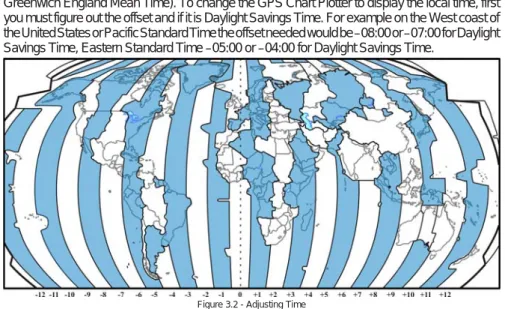
The time information supplied by the GPS satellites is in Universal Time Coordinates (UTC or Greenwich England Mean Time). To change the GPS Chart Plotter to display the local time, first you must figure out the offset and if it is Daylight Savings Time. For example on the West coast of the United States or Pacific Standard Time the offset needed would be –08:00 or –07:00 for Daylight Savings Time, Eastern Standard Time –05:00 or –04:00 for Daylight Savings Time.
The Time Setup menu allows you to enter a Time Zone offset for your location, selection to automatically adjust the time for daylight savings and to configure the time in 12 or 24 hour formats.
Figure 3.2a - Time Setup menu NOTE
By setting the time in the steps below, the time shown on the Celestial page is automatically set up. 1. Press [MENU], move the ShuttlePoint knob to highlight SETUP MENU and press [ENT]. 2. Move the ShuttlePoint knob to highlight GENERAL SETUP and press [ENT] or move
the ShuttlePoint knob to the right.
3. Move the ShuttlePoint knob to highlight TIME SETUP and press [ENT] or move the ShuttlePoint knob to the right.
4. Move the ShuttlePoint knob to highlight TIME ZONE and press [ENT] or move the ShuttlePoint knob to the right.
5. Look at the table and find the time zone for your area. Move the ShuttlePoint knob up or down to select the desired zoneand press [ENT].
6. Next move the ShuttlePoint knob to highlight DAYLIGHT SAVING and press [ENT] or move the ShuttlePoint knob to the right.
7. Daylight Saving menu has 3 options:
7.1 OFF Select Off when your location does not recognize Daylight Savings Time; 7.2 ON Select On to manually turn Daylight Savings Time On. This is the default
selection;
7.3 AUTO When selected the Daylight Savings Time offset is automatically changed. 8. Press [CLR] or move the ShuttlePoint knob to the left until the Chart page is shown.
3.3
SELECTING LORAN TD OR OTHER COORDINATE SYSTEM
The GPS Fix coordinates can be changed to show Latitude/Longitude, Loran TDs or UTM. Below is the window that will appear when customizing the Coordinate System.
1. Press [MENU], move the ShuttlePoint knob to highlight SETUP MENU and press [ENT]. 2. Move the ShuttlePoint knob to highlight ADVANCED SETUP and press [ENT] or move
the ShuttlePoint knob to the right.
3. Move the ShuttlePoint knob to highlight NAVIGATE and press [ENT] or move the ShuttlePoint knob to the right.
4. Move the ShuttlePoint knob to highlight COORDINATE SYSTEM and press [ENT] or move the ShuttlePoint knob to the right.
5. Move the ShuttlePoint knob to highlight the desired coordinate type and press [ENT] or move the ShuttlePoint knob to the right.
6. Press [CLR] or move the ShuttlePoint knob to the left until the Chart page is shown. NOTE
If the TD is selected, you should set the Chain, Pair, ASF1, ASF2 and Alter. If the TD numbers are not correct the Pair letters may be backwards. Reversing the two letters usually solves this issue. Example: Y/Z change to Z/Y.
3.4
CHANGING THE CHART COLOR
The GPS Chart Plotter has preprogrammed settings allowing you to customize the look of the Chart page. The default is Sunlight, however there are other settings: Classic, NOAA, Night and Normal. Night is very useful during evening hours so not to impair night vision.
Figure 3.4 - Display Color menu
1. Press [MENU], move the ShuttlePoint knob to highlight SETUP MENU and press [ENT]. 2. Move the ShuttlePoint knob to highlight GENERAL SETUP and press [ENT] or move
the ShuttlePoint knob to the right.
3. Move the ShuttlePoint knob to highlight DISPLAY COLOR and press [ENT] or move the ShuttlePoint knob to the right.
4. A popup window will be shown with Normal, Classic, NOAA, Night and Sunlight. Move the ShuttlePoint knob to the desired selection and press [ENT] or move the ShuttlePoint knob to the right.
5. Press [CLR] or move the ShuttlePoint knob to the left to exit the menu and show the Chart page.
3.5
SELECTING LANGUAGE
To ease operation in different countries, the software includes translation and display of the following 16 languages:
· English · Italian · French
· German · Spanish · Norwegian
· Swedish · Portuguese · Chinese (Traditional)
· Danish · Dutch · Greek
· Finnish · Russian · Chinese (Simplified)
· Japanese
The translations are included in Menu descriptions, Soft Key labels and on Info Functions to ease operation. See also Par. 6.0.7.
Set the language to be displayed on menus, data pages, warning/alarm messages, full/ quick info, list of objects found by find/nearest function, and on charts (such as place’s names and buoy’s names and so on). The selection now includes the capability to display languages in non-Latin characters (UNICODE format). To select the language you want: 1. Press [MENU], move the ShuttlePoint knob to highlight SETUP MENU and press [ENT]. 2. Move the ShuttlePoint knob to highlight GENERAL SETUP and press [ENT] or move
the ShuttlePoint knob to the right.
3. Move the ShuttlePoint knob to highlight LANGUAGE and press [ENT] or move the ShuttlePoint knob to the right.
4. Another popup window will be shown with the available languages, move the Shuttle-Point knob to the desired language and press [ENT] or move the ShuttlePoint knob to the right.
5. Press [CLR] or move the ShuttlePoint knob to the left to exit the menu and show the Chart page.
Figure 3.5 - Language Selection menu
NOTE
If the selected language is not available on cartographic data, English is used.
HOW TO RESET LANGUAGE if unable to understand current selected language
If you have accidentally selected a language and are unable to return to the Language Selection menu, perform the following procedure:
a. Select the Chart page.
b. Press [MENU] two times, move the ShuttlePoint knob to highlight the first (top) selection in the menu and press [ENT].
c. Move the ShuttlePoint knob to highlight the LANGUAGE item and press [ENT]. d. A language window will be shown, select your language and press [ENT].
3.6
SELECTING PAGES USING SOFT KEYS ON CP300/CP300i
quickly without the need to go into the menu. The default pages are VIDEO, NAV, HIGHWAY, CELESTIAL, CHART and LIST.
When one of the Soft Keys is pressed popup windows above each Soft Key are shown with the key description. Press the Soft Key with the desired page description and the GPS Chart Plotter will change to that page.
Figure 3.6 - Screen display pages on CP300/CP300i
3.7
CUSTOMIZING THE SOFT KEYS ON CP300/CP300i
The Soft Keys (CP300 and CP300i) can be individually customized from the default pages (discussed above) to the following: CHART, DUAL CHART, CHART/COMPASS, CHART/ HIGHWAY, NAVIGATION, HIGHWAY, CELESTIAL, GPS STATUS, DSC LOG, DSC DIRECTORY, NMEA DISPLAY, NMEA DATA, DEPTH TREND, WIND SPEED TREND, TEMP TREND, SOG TREND, MARKS/WAYPOINTS, USER C-CARD, AIS LIST, FIND and VIDEO INPUT. When the optional FF525 50/200kHz Black Box Fish Finder is connected, any Soft Key can be customized to show FISH FINDER 50kHz, FISH FINDER 200kHz, FISH FINDER 50/200kHz, FISH FINDER 50kHz/CHART, FISH FINDER 200kHz/CHART screens. Also when a SI-TEX Radar antenna is connected (USA only), any Soft Key can be customized to show Radar pages, RADAR FULL, RADAR CHART, RADAR OVERLAY and RADAR/FISH FINDER.
Figure 3.7 - Window options of the selected Soft Key on CP300/CP300i
1. To change, momentarily press any of the Soft Keys, then press and hold the Soft Key you want to customize.
2. A popup window will be shown with the above settings.
3. Move the ShuttlePoint knob up or down to select the desired page.
4. Press [ENT] or move the ShuttlePoint knob to the right to save the page to the selected Soft Key.
3.8
SETTINGS IN GENERAL SETUP MENU
The GENERAL SETUP menu has other selections that allow you to customize the display. All selections are listed below:
TIME SETUP Select the Time Zone offset, enable or disable Daylight Savings Time and select the Time Format (switch between 12 or 24 hours time format).
DATE FORMAT Select the Date Format among MM-DD-YY (default), DD-MM-YY or YY-MM-DD. COURSE UP/NORTH UP Select North Up (the top of the page is fixed to North) or Course Up (the top of the page
is orientated to the direction the vessel is heading. This is the default). KEYPAD BEEP Allows the beep produced when a key is pressed to be turned On (default) or Off. UNITS OF MEASURE Units of Measure can be selected for Distance, Speed, Depth, Altitude and Temperature:
Distance: selections are Nm (Nautical Miles), Sm (Statue Miles), Km (Kilom-eters), Nm+Mt, Nm+FT. Note when “Nm+FT” is selected if the distance is less than 1.0 Nm, it turns to Feet. When “Nm+Mt” is selected if the distance is less than 1.0 Nm, it turns to Meters.
Speed: selections are Kts (knots), MPH (miles per hour), Kmh (kilometer per hour).
Depth: selections are FT (feet), FM (fathoms) and Mt (meters). Altitude: selections are FT (feet) and Mt (meters).
Temperature: selections are F (Fahrenheit) and C (Celsius).
NAV AIDS PRESENTATIONAllows the Nav-Aids presentation to be drawn using NOAA symbology when US (default) is selected or International symbols when International is selected. When selected these functions affect how the icons for Lights, Signals, Buoys and Beacons are displayed. DISPLAY COLOR Changes the background colors of the chart page to enhance the visibility of the screen
depending on the surrounding light conditions. Normal is recommended when the GPS Chart Plotter is not exposed to the direct sunlight. When this mode is set the charts are displayed in order to use colors as similar as possible to ones used in the original paper charts. Classic uses vivid chart colors presentation. NOAA allows setting NOAA paper chart colors presentation. Night is recommended when the environment is dark in order to reduce the glare of the display. The GPS Chart Plotter displays charts and screen in darker colors. Sunlight (default) is designed to enhance the visibility of the screen when the GPS Chart Plotter is exposed to sunlight. The charts are much brighter than in the other modes and the depth areas are filled with the white color so different depth areas are not easily distinguishable.
SHIP ICON Select from a variety of Ship Icons that represent your vessels position on the Chart page. The default is Icon 6.
CURSOR SPEED Selects the speed among Low, Medium (default) and High for the cursor in the CHART page and within the MENU.
MEASURE DISTANCE When this function is On, and the ShuttlePoint knob is moved to a location where you want to start measuring a distance and press [ENT]. Move the ShuttlePoint knob to move the cursor to a second location where you want to finish measuring a distance and press [ENT]. A line will appear between the Start and Finish points and a popup window will be shown indicating the distance and bearing from the Start and Finish points. Press [ENT] to delete both points (Off is the default).
WINDOWS SETUP This menu selection allows the data windows to be customized on the CHART PAGE and NAVIGATION PAGE (refer to section 12.0.0).
LANGUAGE Allows changing the language for menus and data screens.
AUTO INFO When the cursor is moved over a buoy, Mark or other item a popup window will show information of the item. This menu item allows the window to be turned Off, On Points (default) or On All.
CURSOR WINDOW By default when the cursor is moved a window is shown with the Lat/Lon Distance and Bearing from the vessels location to the cursor. This selection allows the window to be turned On (default) or Off. The Cursor Window is automatically disabled when General is set in Windows Setup option.
CURSOR POSITION The position of the cursor can be customized so itis centered in the middle (if Center selected) or centered on the bottom of the Chart page (if Bottom selected, default). COG TIME LINE It is a line projected from the ship icon which indicates the distance your vessel will travel
at the current speed. Selections are 2, 10 (default), 30 minutes, 1, 2 hours and infinite. COMPASS ROSE Allows selection of compass direction indication around ship icon. The default is On.
3.9
ABOUT PAGE
From Main Menu page it is possible to select the About page containing Software, Chart and optional devices information.
1. Press [MENU], move the ShuttlePoint knob to highlight SETUP MENU and press [ENT].
2. Move the ShuttlePoint knob to highlight About... and press [ENT] or move the ShuttlePoint knob to the right.
3. The Information page appears on the screen (see the following picture).
4. Press [CLR] or move the ShuttlePoint knob to the left to exit and show the Chart page.
4. FIND SERVICES
4.0
USING FIND SERVICES & MORE FUNCTIONS
The CP180/180i and CP300/300i have a dedicated [FIND] key that allows searching the optional C-MAP BY JEPPESEN NT+/MAX C-CARD for Port Services, Ports, Tide Stations, Wrecks, Obstructions, Points Of Interest, Lakes, User Points, GPS Coordinates or Information on any point on the chart.
4.0.0 Port Services
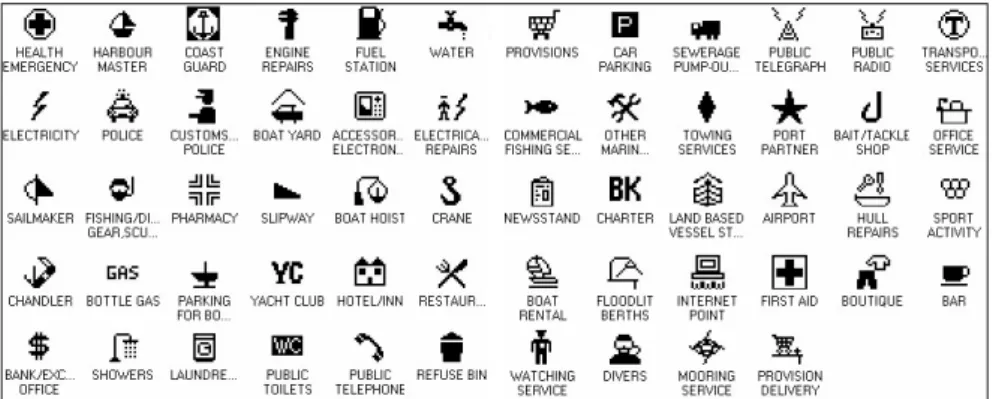
This feature is used to locate Port Services nearest the position of your vessel. The table below shows a list of some of the available Port Services and icons shown on the Chart page:
Figure 4.0.0 - Port Services Table
1. Press [FIND].
2. Move the ShuttlePoint knob to highlight PORT SERVICES and press [ENT] or move the ShuttlePoint knob to the right.
3. A popup window will be shown with a list of different Port Services.
4. Move the ShuttlePoint knob to highlight the desired type of service and press [ENT]. 5. Another popup window will appear displaying the distance and position of the services
closest to your location.
6. Using the ShuttlePoint knob, highlight the desired service and press [ENT]. This will show information about the service.
7. Press [CLR] to show the actual position of the service on the Chart page. 8. Press [CLR] again at any time to return your cursor to your vessel’s position.
Figure 4.0.0a - Find Port Services
4.0.1 Port
A Port is represented with a on the Chart page. This feature is used to locate the 20 nearest Ports to the position of your vessel.
1. Press [FIND].
2. Move the ShuttlePoint knob to highlight PORT and press [ENT] or move the Shuttle-Point knob to the right.
3. A popup window will be shown with a list of nearest Ports.
4. Move the ShuttlePoint knob to highlight the desired Port and press [ENT]. 5. Another window will appear displaying the details of the selected Port.
Figure 4.0.1 - Find a Port
6. Press [CLR] to show the actual position of the Port on the Chart page. 7. Press [CLR] again at any time to return your cursor to your vessel’s position.
4.0.2 Tide Stations
A Tide Station is represented with a on the Chart page.This feature is used to locate the 20 nearest Tide Stations to the position of your vessel. Once a Tide Station is selected the Tide Graph can be used to determine Tide height and draught of the Tide based on a user-specified time.
1. Press [FIND].
2. Move the ShuttlePoint knob to highlight TIDE STATIONS and press [ENT] or move the ShuttlePoint knob to the right.
3. A popup window will be shown with a list of nearest Tide Stations.
5. Another window will be shown detailing the selected Tide Station information.
Figure 4.0.2 - Tide Stations
6. Press [CLR] to show the actual position of the Tide Station on the Chart page. 7. Press [CLR] again at any time to return your cursor to your vessel’s position.
Figure 4.0.2a - Tide Graph page
Refer to the image above. The time (3) displayed corresponds to the location of the cross-hair cursor (2) in the Tide Graph (1). Moving the ShuttlePoint knob to the left or right changes the time, and moving the ShuttlePoint knob up or down selects the Tide height and Tide draught on the Tide Graph.
NOTE
The Local Offset matches the Time Offset entered in the Time Setup menu (see Par. 3.2)
4.0.3 Wrecks
This feature is used to locate the 20 nearest Wrecks to the position of your vessel. A Wreck is represented with an icon on the chart. See the following table:
Figure 4.0.3 - Wreck icons Table