Doc. Version 4.0
English
xEPI 2
Diagnostic Unit and Configuration Interface
Dear Customer,
This "Installation Guide" will help you to install the hardware. If you have any further questions, please contact our Technical Support:
Trebing & Himstedt Prozeßautomation GmbH & Co. KG Technical Support
Wilhelm-Hennemann-Str. 13 19061 Schwerin | Germany Phone: +49 385 39572-500 Fax: +49 385 39572-22 E-mail: [email protected] Internet: http://www.t-h.de
All brand and product names are trademarks or registered trademarks of their respective owners.
© Trebing & Himstedt Prozeßautomation GmbH & Co. KG
All rights reserved, including rights to the translation. This installation guide as well as extracts thereof may be duplicated or forwarded to third parties only after written permission has been obtained from Trebing & Himstedt Prozeßautomation GmbH & Co. KG.
The installation guide is intended for use by the owner of the Trebing & Himstedt Prozeßautomation GmbH & Co. KG product or the product owner's operating personnel. It must not be passed on or made accessible to third parties. If this installation guide should refer directly or indirectly to laws, regulations or directives (e. g. DIN, VDE, ...) or quote from them, Trebing & Himstedt Prozeßautomation GmbH & Co. KG cannot assume responsibility for the correctness, completeness or up-to-date nature of the same. If required, we recommend obtaining the respectively valid versions of the complete regulations or directives for your own work.
Content
About this »Installation Guide« ... 4
Intended use ... 4
Explanation of safety instructions ... 4
Menu and keyboard commands ... 5
For your safety ... 5
Performance and functioning ... 8
xEPI 2 features ... 8
Scope of delivery ... 9
xEPI 2 configuration requirements ... 9
Ethernet network presettings ... 9
Design of the device ... 10
Connections and indicating elements ... 12
Mounting ... 12
Start-up guideline ... 13
Note regarding the application software ... 13
Assembling the device ... 14
Assembling the device ... 14
Disassembling the device ... 15
Connecting to Ethernet ... 15
Connecting the power supply ... 16
Configuring the device in the Ethernet network ... 18
Connection in a network with DHCP (Dynamic Host Configuration Protocol) ... 18
Connection in a network with manual IP assignment ... 19
Checking the Ethernet connection to the device ... 22
Connecting the PROFIBUS ... 23
Bus terminating resistors ... 25
xEPI 2 operation modes ... 26
Passive PROFIBUS station ... 26
Active/Passive PROFIBUS station ... 26
Parameter distribution ... 28
PROFIBUS Diagnosis ... 30
Troubleshooting ... 32
Technical data ... 34
About this »Installation Guide«
About this »Installation Guide«
Please read this installation guide carefully prior to installation. It facilitates assembly and setup of your system and provides you with important information.
Intended use
The device is designed to be used as an interface between PROFIBUS and Ethernet networks. Any other use is deemed non-intended use.
Explanation of safety instructions
The following symbols and signal words used are intended to draw your attention to special situations:
Danger!
Warning of personal injury from high voltage.
Warning!
Warning of damage to the device
.
Note!
Useful tips.
For your safety
Menu and keyboard commands
The following conventions apply to menu and keyboard commands:
For your safety
Strictly observe the following safety instructions before connecting the device:
Courier font Window names, menu items, fields
and descriptions of combo boxes, check boxes, radio buttons and icons. <Key> Press the indicated key.
Danger!
Small objects or liquids must not enter the case of the device (e. g. through the ventilation slots). This may damage the device.
Never cover the ventilation slots on the device.
Warning!
Never open the case of the device or carry out any mechanical modifications on the device. Otherwise, this may lead to damages on the device as well as to loss of warranty.
For your safety
– Carefully plan the integration of the device into an existing system and ensure proper function of the system after installation.
– The device may only be assembled or disassembled by qualified, trained electrical engineering personnel.
When installing the device, observe the regulations for handling electric components in accordance with VDE 0100. In addition, you must also observe the valid safety and accident prevention regulations (UVV) when operating the device within the jurisdiction of the Federal Republic of Germany.
– Observe the IEC 61158 standard.
– Always install the device on a suitable top-hat rail (mounting rail).
– Cables used for the connection must not apply any mechanical forces to the device.
– High temperature differences between the storage site and installation site can result in condensation within the case, which may cause the device to become damaged.
Warning!
The device contains electronic components sensitive to electrostatic discharges. Damages due to electrostatic discharge can lead to premature failure of components or intermittent faults at a later stage.
Before installing the device, divert the electrostatic discharge away from your body and the tools used.
For your safety – Lock the connected plug (PROFIBUS) using the screw
connections intended for this purpose.
Disposal
The device must be disposed of separately from normal household waste in accordance with the 2002/96/EC (WEEE) directive.
Performance and functioning
Performance and functioning
The xEPI 2 | Diagnostic Unit and Configuration Interface as a compact gateway enables an easy connection of PROFIBUS networks to the Ethernet. In addition it is applicable independent of process control system or PLC manufacturers.
xEPI 2 features
– web based PROFIBUS diagnosis with:
– Equipment condition monitoring of the whole asset, the PROFIBUS and its stations
– Live list incl. status of the station
– Statistics (bus statistics and failure statistics) – Diagnosis lists with notes for troubleshooting – Automatic email alert at fault
– parallel utilization of the PROFIBUS Scope from Trebing + Himstedt
– PROFIBUS access for:
– TH OPC Server DP from Trebing + Himstedt
– FDT frame applications (such as PACTware, FieldCare, FieldMate) for central field device configuration, calibration and diagnosis
– HART Over PROFIBUS solution with Emerson's AMS Suite – condition monitoring support
Performance and functioning
Scope of delivery
– xEPI 2 | Diagnostic Unit and Configuration Interface – Installation Guide
– per download at www.t-h.de: – CommDTM PROFIBUS DP-V1 – Release Note
xEPI 2 configuration requirements
(not included in the scope of delivery)
– PC or notebook with Windows 2000, Windows XP, Windows Vista or Windows Server 2003 (operating system dependent on the application software used)
– Web browser (MS Internet Explorer 6, 7 or 8) for configuration of Ethernet and PROFIBUS diagnosis
– Application software for PROFIBUS configuration – Enabling the port 80 and IP 224.0.5.128 port 2364 UDP
Ethernet network presettings
– The device is preset to Ethernet network operation with a DHCP server. No Ethernet configuration settings are required in this operating mode.
– In case of manual allocation of IP addresses the device has the following standard IP configuration:
IP address 169.254.0.1
Subnet mask 255.255.0.0
Design of the device
Design of the device
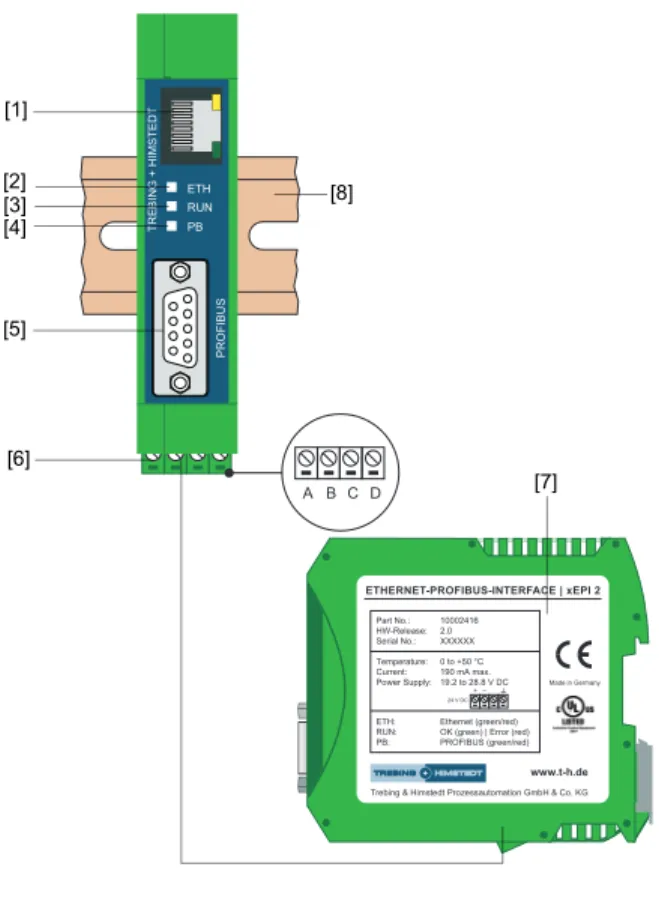
(see Figure 1)
1 Ethernet interface 5 PROFIBUS interface 2 LED ETH 6 Terminal strip for power supply
3 LED RUN 7 Type label
4 LED PB 8 Top-hat rail (not included in the scope of delivery)
Design of the device
Fig. 1: xEPI 2 (front and side view) ETH RUN PB PR O F IB U S TR E B IN G + H IMS TE D T
A B C D [1]
ETHERNET-PROFIBUS-INTERFACE | xEPI 2
Trebing & Himstedt Prozessautomation GmbH & Co. KG
www.t-h.de
Made in Germany
Part No.: 10002416 HW-Release: 2.0 Serial No.: XXXXXX Temperature: 0 to +50 °C Current: 190 mA max. Power Supply: 19.2 to 28.8 V DC ETH: Ethernet (green/red) RUN: OK (green) | Error (red) PB: PROFIBUS (green/red)
24 V DC
+ – [2] [3] [5] [7] [4] [6] [8]
Design of the device
Connections and indicating elements
[1] Ethernet interface [1]: RJ-45 (10Base-T/100Base-TX)
– LED lights yellow: Ethernet data communication – LED lights green: physical connection available
[2] LED ETH
– ETH lights red: first start phase – ETH flashes red: boot procedure
– ETH lights red or flashes red or green in case of an error: internal firmware failure
– ETH lights green: connection to application via Ethernet
[3] LED RUN
– RUN lights red: internal failure identified – RUN lights green: 24V power supply is fed
[4] LED PB
– PB lights or flashes green: device communicates via PROFIBUS
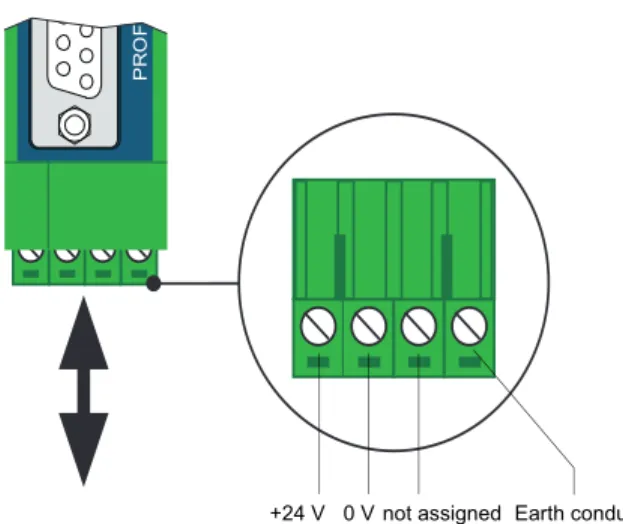
[5] PROFIBUS interface: D-Sub socket [6] Terminal strip for +24 VDC power supply
– A: 24 V (+) – B: 0 V (-) – C: not assigned – D: Earth conductor
Mounting
– 35 mm DIN top-hat rail [8] (not included in the scope of delivery)
Start-up guideline
Start-up guideline
The following steps are required for start-up:
1. Mount the device (see »Assembling the device« on page 14).
2. Connect to Ethernet (see »Connecting to Ethernet« on page 15).
3. Connect to the power supply (see »Connecting the power supply« on page 16)
4. Configure Ethernet (see »Configuring the device in the Ethernet network« on page 18)
5. Connect the PROFIBUS (see »Connecting the PROFIBUS« on page 23).
6. If you use the xEPI 2 as master class 2 you have to configure PROFIBUS parameters of the device using an application software (see »Setting PROFIBUS parameters« on page 26).
Note regarding the application software
For operating the device as a PROFIBUS network access, an application software with the appropriate drivers is required. For more information about purchasing and operating the software please check our web site at http://www.t-h.de or contact our sales department ([email protected]).
Note!
To set the IP address manually you must connect your computer to the device via patch cable.
Assembling the device
Assembling the device
Assembling the device
Fig. 2: Assembly and disassembly of the device
– Place the notch of the device on the top-hat rail and move the device downward until the stop lever locks into place on the
Warning!
Above and below the device, a minimum of 5 cm head space for heat dissipation needs to be available.
1 Device with notch on top-hat rail 2 Top-hat rail 3 Device on top-hat rail 4 Stop lever
ETHERNET-PROFIBUS-INTERFACE | xEPI 2
Trebing & Himstedt Prozessautomation GmbH & Co. KG
www.t-h.de
Made in Germany
Part No.: 10002416
HW-Release: 2.0
Serial No.: XXXXXX
Temperature: 0 to +50 °C
Current: 190 mA max.
Power Supply: 19.2 to 28.8 V DC
ETH: Ethernet (green/red)
RUN: OK (green) | Error (red)
PB: PROFIBUS (green/red)
24 V DC + –
ETHERNET -PROFIBUS-INTERF
ACE | xEPI 2
Tre bing &
Himstedt P rozes
sautom ation GmbH &
Co. KG ww
w.t-h.de Made
in Germany Part No.: 10002416 HW-Release: 2.0 Serial No.: XXXXXX Temperature:
0 to +50 °C Current:
190 mA max. Power Supply:
19.2 to 28.8 V DC ETH: Ethernet
(green/red) RUN:
OK (green) | Error (red) PB: PROFIBUS
(green/red)
24 V DC+–
[1]
[3] [2]
Connecting to Ethernet
Disassembling the device
1. Disassemble the connected supply and signal lines (Ethernet, PROFIBUS, voltage).
2. Place the screwdriver into the stop lever on the device (see Figure 2).
3. Press the screwdriver in the direction of the device and simultaneously swing the device off the top-hat rail.
Connecting to Ethernet
– Insert the patch cable plug (RJ-45, not included in the scope of delivery) into the Ethernet socket on the device until the plug locks into place.
– The green LED on the Ethernet socket lights as soon as the device is energized and an Ethernet network is available.
Connecting the power supply
Connecting the power supply
Danger!
Electrical voltage.
Only a qualified electrician is allowed to work on the device's electrical equipment.
Danger!
Incorrect device earthing can cause injury to personnel or device damage. Ensure correct and proper earthing of the device.
Warning!
Reverse polarity in the power supply can damage the device. Make sure the power supply is connected with correct polarity.
Connecting the power supply
Fig. 3: Terminal strip for power supply on the device
1. Connect the cable of a 24 V power supply and the earth conductor (earth terminal) to the terminal strip on the device. The terminal strip can be plugged and lifted out using a screwdriver for installation.
2. Switch on the power supply. The LED RUN is green and the LED ETH flashes red until the device's initiation procedure is completed. Afterwards only the LED RUN lights green.
PR
O
F
IB
U
S
Configuring the device in the Ethernet network
Configuring the device in the Ethernet
network
There are two connecting options to choose from, depending on your Ethernet network:
– Ethernet network with DHCP server – automatic and dynamic allocation of IP addresses (connection with patch cable via hub or switch)
– Ethernet network (Peer-to-Peer) – manual allocation of IP addresses (connection with patch cable)
Connection in a network with DHCP
(Dynamic Host Configuration Protocol)
The device is preset to Ethernet network operation with a DHCP server and in this case it is automatically assigned an IP address. This operation mode does not require configuration settings.
Note!
If you connect to Ethernet with the power supply already connected, the DHCP may fail to be identified. The routine for the DHCP identification only runs during device start-up. Briefly switch off the power supply for a new DHCP identification.
Configuring the device in the Ethernet network
Connection in a network with manual IP assignment
If you use the device in an Ethernet network without DHCP server, you need the following for configuration:
– TCP/IP settings for this network – a PC/notebook with a web browser
– a patch cable between PC/notebook and device (peer-to-peer connection)
The device has the following manual default IP addresses (default settings at the time of delivery):
Note!
Always notify your system administrator prior to allocating IP addresses.
If you set an address already assigned, other devices in the network may be deactivated and communication may be affected.
Note!
The computer must be in the same subnet as the device.
IP address 169.254.0.1
Subnet mask 255.255.0.0
Configuring the device in the Ethernet network
Determining network addresses
Ask your system administrator for the IP addresses or do the following:
1. Connect your PC/notebook to the Ethernet network into which the device is to be integrated.
2. Start the MS-DOS prompt.
3. Enter ipconfig -all. All settings for your network are displayed. Note down the settings for subnet mask and
default gateway.
Setting new IP and network addresses
1. Connect a patch cable to the device. 2. Connect a PC/notebook to the patch cable.
3. Start a Web browser on your PC/notebook (MS Internet Explorer 6, 7 or 8).
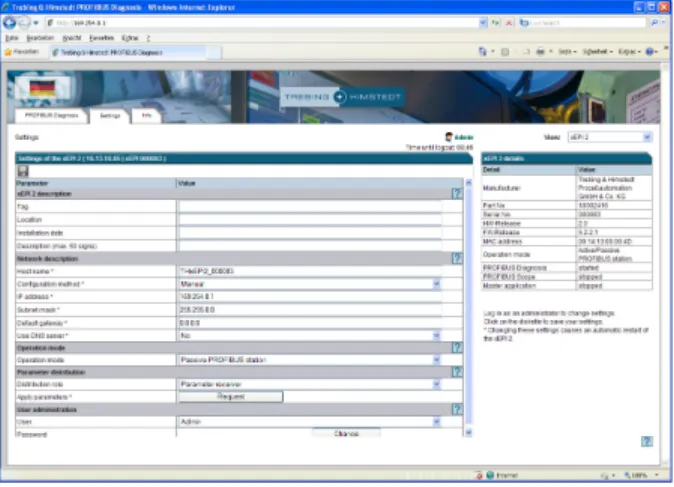
4. Enter the IP address http://169.254.0.1 and press <Enter>. The xEPI 2 web site loads. A pop-up window opens. Please read the information carefully and close the window after that.
5. Then click the Settings tab. Information on the device is displayed in the web browser.
6. Select as user Admin to login as an administrator. The default password is the six-figure serial number of the device.
We recommend to change the password after login. Click on
Configuring the device in the Ethernet network
Fig. 4: Setting IP and network addresses
7. Select Manual in the Network configuration. 8. Enter the new IP address into the text field.
9. Enter the new addresses for Subnet mask and Default gateway into the text fields.
10. Note down the set IP address.
11. If you do not want to use a DNS server, select No, otherwise enter the IP addresses.
Click on the diskette to save the settings. The device restarts after this.
Configuring the device in the Ethernet network
Checking the Ethernet connection to the device
You can check the device in the Ethernet network, if: – the device is integrated into the Ethernet network – the device is energized
– the PC/notebook is in the same Ethernet network.
Note!
The device saves your settings. Note down the set IP address. You can only access the configuration page of the device and using this address.
After changing TCP/IP configuration settings, the device always starts with the latest saved configuration - even if the power supply was switched off for a short time.
Note!
You can define a xEPI 2 as a „Parameter provider” if more than one xEPI 2 are in use. So, all xEPI 2 receive and save the parameters after login. (see »Troubleshooting« on page 32)
Connecting the PROFIBUS
Procedure
Start a web browser on your PC/notebook (e. g. MS Internet Explorer 6, 7 or 8).
– Via DHCP: Enter the host name (basic setting: THxEPI2_ + serial number) found on the device's type label (e.g.: THxEPI2_000915) and press <Enter>.
– Manual IP configuration: Enter the set IP address (basic setting: 169.254.0.1) and press <Enter>.
Information on the PROFIBUS network is displayed in the web browser .
Connecting the PROFIBUS
The 9-pin D-Sub socket is used for connection. – Only use standard PROFIBUS plugs and cables.
– Wire the PROFIBUS plug according to the details for pin assignment (see »Technical data« on page 34).
– If the device is installed at the beginning or end of the PROFIBUS cable segment, you will need a bus terminating resistor (see on page 25).
Warning!
Do not use branch lines for the connection. If local conditions do not allow a direct connection, use a repeater (connection according to PROFIBUS norm).
Connecting the PROFIBUS
1. Attach the PROFIBUS connector onto the PROFIBUS socket on the device.
2. Secure the plug with screws.
3. Switch the switch for the bus terminating resistor on the PROFIBUS connector to the required position (ON/OFF).
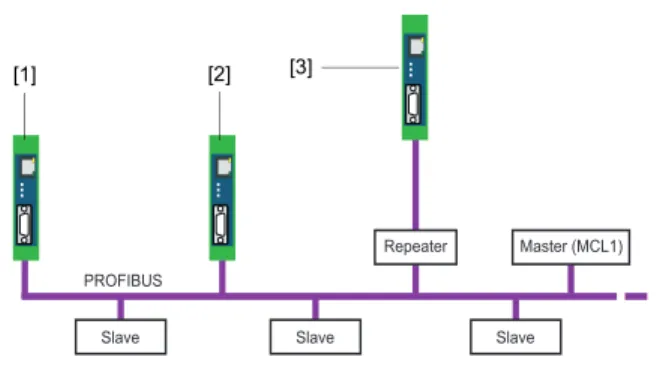
Fig. 5: Possibilities for interface connection in the PROFIBUS
network
[1] Connection at end/start of bus with terminating resistor [2] Connection in the middle of the PROFIBUS segment 1 [3] Connection in a seperate PROFIBUS segment behind a
repeater.
Connecting the PROFIBUS
Bus terminating resistors
Terminations of a PROFIBUS segment must each be terminated with a bus terminating resistor. Use standardised plugs containing terminating resistors.
Fig. 6: Bus termination configuration for PROFIBUS (see standard IEC 61158)
[1] 390
Ω
Pull-up resistance from pin 3 to positive supply voltage at pin 6 [2] 220Ω
Cable terminating resistor between pin 3 and pin 8[3] 390
Ω
Pull-down resistance from pin 8 to data reference potential at pin 5Warning!
The PROFIBUS is shorted if you use the device as a passive terminating resistor (supply voltage from the device) and the device is switched off. This may cause disruption or complete failure of PROFIBUS communication.
Use active resistors to avoid this problem. In this case the terminating resistors are fed with +5 V and GND independently from the device.
+5 V DC/DC (pin 6)
Data+ (pin 3)
Data–
(pin 8) GND DC/ DC (pin 5)
[2] [3]
xEPI 2 operation modes
Setting PROFIBUS parameters
Depending on the application software (not included in the scope of delivery) used, the device can be a passive station (without an own station address) or an active station (class 2 PROFIBUS master).
The setting of the PROFIBUS parameters is only required, if you use the device as a class 2 PROFIBUS master or in the operation mode active/passive PROFIBUS station. The PROFIBUS parameters are given by the class 1 PROFIBUS master.
xEPI 2 operation modes
There are two operation modes "Passive PROFIBUS station" and "Active/Passive PROFIBUS station". The PROFIBUS diagnosis can be used in both operation modes. The diagnosis can be started and stopped. Additional you can use in both operation modes the PROFIBUS Scope from Trebing + Himstedt.
Passive PROFIBUS station
The default setting is the "Passive PROFIBUS station". In this operation mode the xEPI 2 is a passive station in the bus. There-fore the device needs no own PROFIBUS address. It is just a "silent listener".
Active/Passive PROFIBUS station
In the operation mode "Active/Passive PROFIBUS station" the xEPI 2 can be used as a class 2 master in connection with an external master application (TH OPC Server DP from Trebing +
xEPI 2 operation modes Not until the PROFIBUS address is set in the external applica-tion and the communicaapplica-tion has been started, the xEPI 2 is an active station in the bus.
Procede equal to Checking the Ethernet connection to the device (see »Procedure« on page 23).
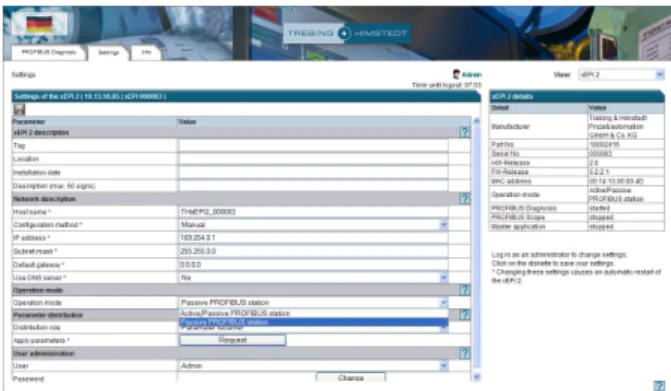
Click on the Settings tab and login as an adminsitrator. Select
Admin as user and enter the password (Default is the six-figure serial number of the device). Then select Active/Passive
PROFIBUS station as operation mode and save your
settings by clicking on the diskette. Afterwards select User as user to log out.
Parameter distribution
Parameter distribution
The parameter distribution is for a quick and easy configuration of several xEPI 2. Therefore one device has to provide the parameters. All the others can request the parameters of this device.
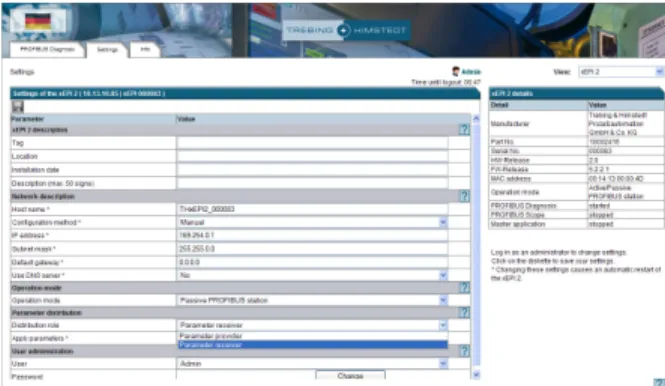
Fig. 8: Define Parameter provider
Procede equal to „Checking the Ethernet connection to the device“ (see »Procedure« on page 23).
Click on the Settings tab and login as an adminsitrator. Select
Admin as user and enter the password (Default is the six-figure serial number of the device). Select the Distribution role
Parameter distribution By default all other xEPI 2 are set as "Parameter receiver". Afterwards click on Request to require the parameters from the parameter provider.
The following data will be assigned: – setting DNS server
– operation mode – type of measurement – measurement
– settings for slaves that have never responded – sorting of diagnosis list
– alert settings
– time server settings / PC system time – language
Note!
Only one "Parameter provider" is allowed in the entire network.
Note!
The receiving and storing of parameters causes an automatic restart of the xEPI 2 . This means that all measurements, statistics and diagnosis information will be deleted.
Parameter distribution
PROFIBUS Diagnosis
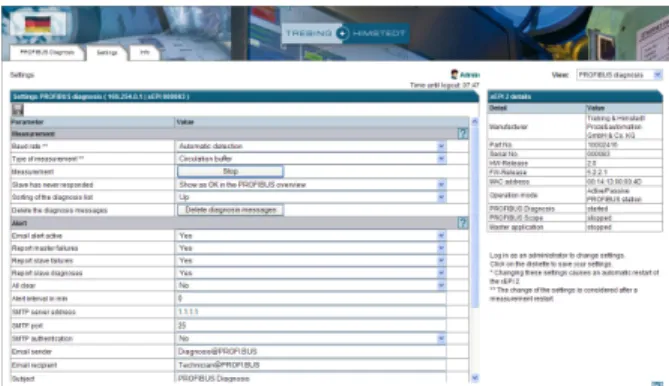
You can configure the monitoring setup via web browser (MS Internet Explorer 6, 7 or 8). Procede equal to „Checking the Ethernet connection to the device“ (see »Procedure« on page 23).
Click on the Settings tab and login as an adminsitrator. Select
Admin as user and enter the password (Default is the six-figure serial number of the device). Select View - PROFIBUS diagno-sis. Here you can configure the settings of Measurement,
Alert and Time Server. If you need help, click on the ques-tion mark.
Afterwards select User as user to log out.
Note!
For continuous observation we recommend the use of a time server.
Parameter distribution
Troubleshooting
Troubleshooting
– Check the power supply (LED RUN must light green). – Check for correct connection (RJ-45, see on page 15). – The device is preset to Ethernet network operation with a
DHCP server (IP address for the device is assigned by the DHCP server). If your network server does not support DHCP, you need to set the IP address for the device yourself (see »Connection in a network with manual IP assignment« on page 19).
– When a patch cable is used between PC/notebook and device, both devices must be in the same network.
xEPI 2 as passive PROFIBUS station:
– Check for proper connection (see »Connecting the PROFIBUS« on page 23) and switch at Settings -
PROFIBUS diagnosis - Measurement the baud rate on
Automatic detection.
xEPI 2 as active/passive PROFIBUS station:
– Check the PROFIBUS parameters for the used xEPI 2 (see application software, not included in the scope of delivery). Each station has its own station address, which can only be assigned once in the network.
Device is not found in the Ethernet network
Troubleshooting
– Internal error or defect: Please contact the Technical Support ([email protected]).
LED ETH lights red or flashes red or green in case of failure or
Technical data
Technical data
Electrical data
Nominal supply voltage
(limit values) VDC 24 (19.2...28.8) Current consumption max. mA 190
Protection class IP 20
Operating conditions
Ambient temperature range °C 0…+50
Relative humidity % 20...80 (no condensation)
Case data
Dimensions W × H × D mm 22.5 × 99 × 114.5
Weight (approx.) g 120
PROFIBUS interface
Interface Type RS 485
Transmission rate bps 9,600...12M Sub-D plug pin assignment Pin 1
Pin 2 Pin 3 Pin 4 Pin 5 Pin 6 Pin 7 Pin 8 Pin 9 not assigned not assigned
B line data+ (RxD/TxD-P) RTS
GND (0 V) Potential (+5 VDC) not assigned
A line data– (RxD/TxD-N) not assigned
Other
Ethernet connection Type RJ-45 (10Base-T/100Base-TX) 1
5
6 9
General Conditions
General Conditions
Right to make additions or alterations
Trebing & Himstedt Prozeßautomation GmbH & Co. KG reserves the right to continue development of this installation guide and the properties of the hardware and software at any time, also without releasing information about this or about alterations prior to doing so.
Exclusion from liability
Trebing & Himstedt Prozeßautomation GmbH & Co. KG assumes no warranty for proper function of the hardware and software in all conceivable situations. Currently available technical means do not enable the development of software which is completely free of errors in all conceivable applications. Trebing & Himstedt Prozeßautomation GmbH & Co. KG does not accept any liability for damages, both direct and indirect, arising from the use of the hardware and software and the information contained in this manual.
Duty to monitor products
As part of our duty to monitor products, we strive to warn about dangers we have identified which can result from the interaction of hardware and software and product use with third-party products. Monitoring is only possible if we receive sufficient information from our customers on the planned application(s) and the existing hardware and software components. As a result of the complex interactions, it is no longer possible for us to accurately identify all dangers and to check the effect on the overall system and in particular on our hardware and software, if the conditions of application have changed and/or hardware or software has been exchanged. This installation guide does not describe all technical characteristics of the hardware and software and their variants. For more information please contact Trebing & Himstedt Prozeßautomation GmbH & Co. KG.
Warranty
Our products are subject to warranty in accordance with our general business and delivery terms.